Reports hub
Module: Core | Platform: Web
Launching point for standard and custom reports across operations, finance, and workforce.
Navigation
Sidebar → Reports
URL: /reports
Overview
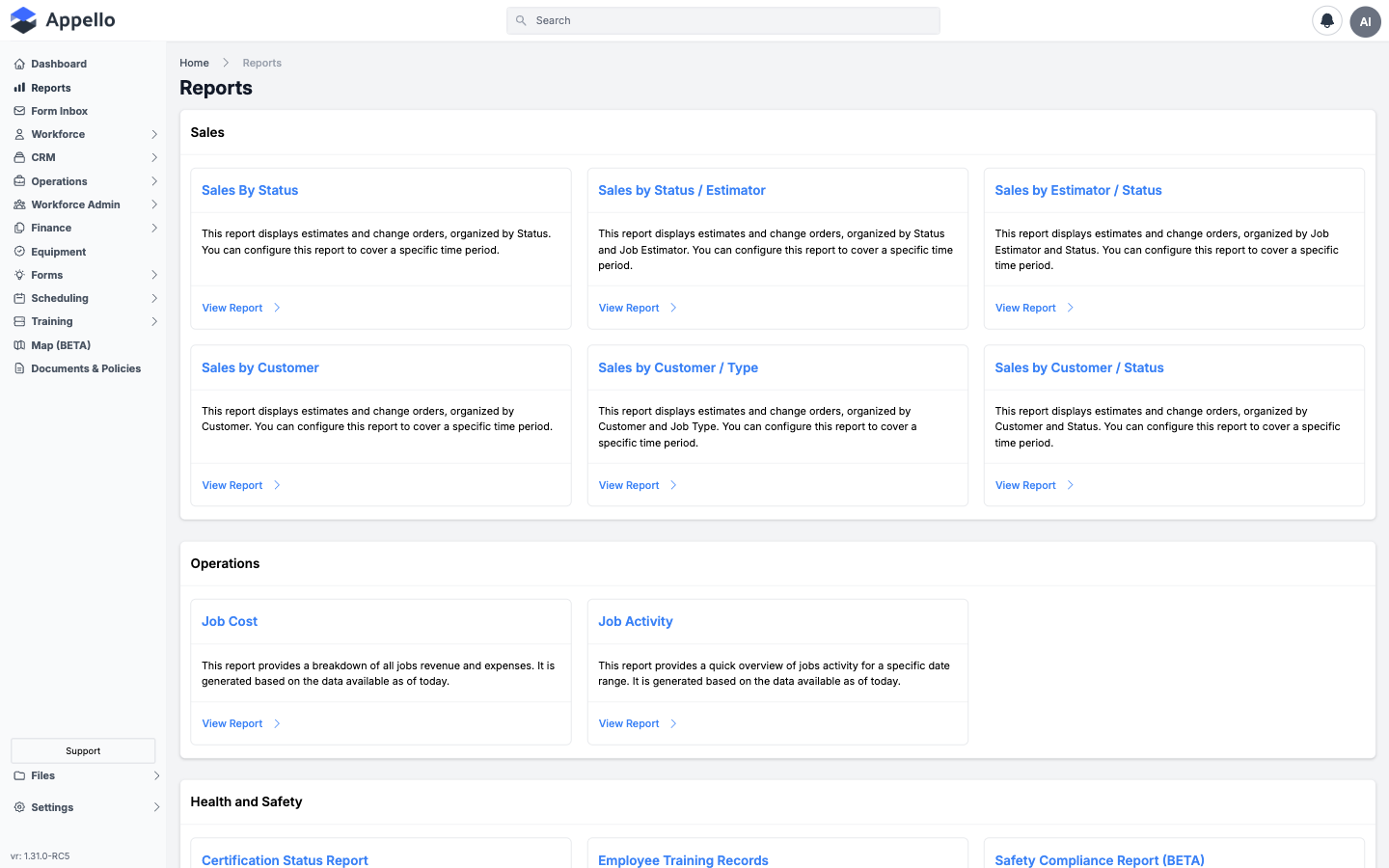
Pick a report tile or list entry to open the underlying dataset. Many detailed reports also appear under CRM, Finance, Forms, and Workforce Admin in the sidebar.
The Reports Hub consolidates all available reports into a single page organized by category. Each report opens with its own filters, date selectors, and export options. Reports pull live data from across Appello, so results always reflect the current state of your operations.
Who can open the Reports Hub
The /reports route itself is permission-gated. Every report card in the hub has its own
permission set — a fixed list of permissions you must have all of in order to see that
card as a working link (the exact sets are in the table further down this page). The hub
computes this per-report check for every one of the 21 report cards and only renders the ones
you pass.
If none of the 21 permission sets are fully satisfied — i.e. you don't have enough access to see
even one report — the whole /reports route refuses to render the hub layout at all. Instead you
get a full-page Unauthorized screen:
Unauthorized You do not have permission to view any reports
So "having access to Reports" in practice means "satisfying at least one report's full permission set," not a single dedicated Reports View toggle.
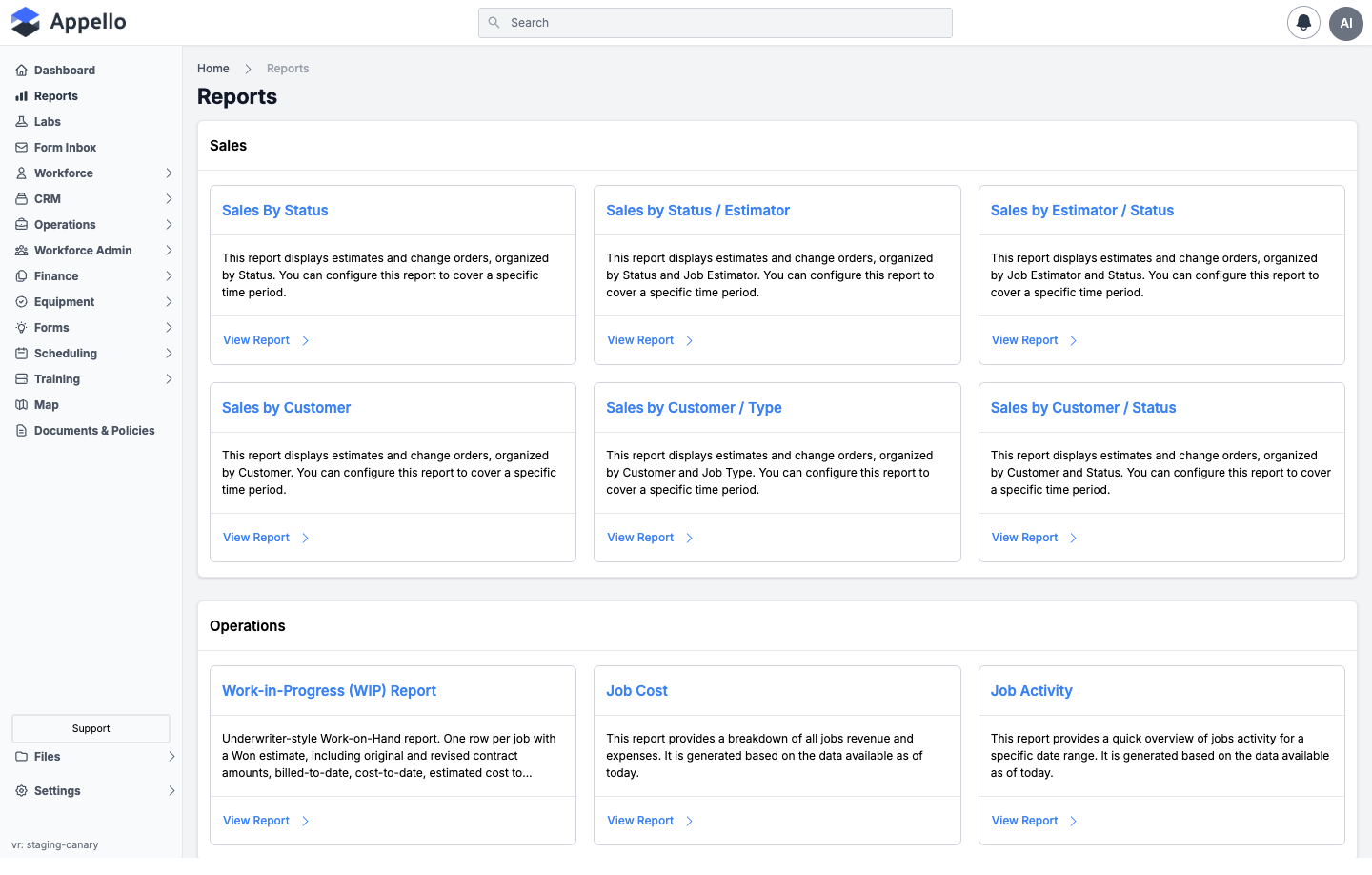
An admin-level role typically satisfies every permission set and sees all 21 cards across all 6 categories — the screenshot above shows the top of that view (Sales and Operations; the remaining four categories are further down the same scrollable page). A role with narrower permissions sees fewer categories and fewer cards per category — never a card with a different label or description.
Report categories
| Category | Description |
|---|---|
| Operations | Project progress, job status summaries, and work-in-progress tracking. |
| Finance | Billing, invoicing, expense summaries, and budget vs. actual analysis. |
| Workforce | Labour hours, attendance, overtime, and headcount breakdowns. |
| CRM | Estimate pipeline, conversion rates, and sales performance. |
| Safety / Forms | Form submission summaries, compliance tracking, and incident reports. |
| Timesheets | Timesheet summaries, approval status, and payroll-ready exports. |
| Equipment | Equipment utilization, assignment history, and maintenance logs. |
Available report types
| Report | Category | Description |
|---|---|---|
| Billing Report | Finance | Summary of all invoices generated, payment status, and outstanding balances. |
| Estimate Report | CRM | Pipeline view of all estimates with status and conversion tracking. |
| Timesheet Matrix | Timesheets | Grid view of worker hours by day, job, and project for a date range. |
| Labour Cost Report | Workforce | Labour costs broken down by project, job, and worker. |
| Overtime Report | Workforce | Workers who have exceeded standard hours with overtime totals. |
| Expense Report | Finance | Summary of submitted and approved expenses by category and project. |
| Job Cost Report | Operations | Total costs (labour + materials + expenses) for each job and project. |
| Form Submissions | Safety / Forms | List of submitted forms with timestamps, locations, and completion status. |
| Equipment Utilization | Equipment | Assignment and usage data for tracked equipment and vehicles. |
| Attendance Report | Workforce | Daily attendance summary showing clock-in/out times and absences. |
Generating a report
- Open the Reports Hub from the sidebar.
- Select the report you want to run by clicking its tile or list entry.
- Set filters — most reports offer date range, project, customer, and worker filters.
- Click Generate or Run Report to load the data.
- Review the results in the table or chart view.
- Use Export to download the report in your preferred format.
Export formats
| Format | Description |
|---|---|
| CSV | Comma-separated values file for import into spreadsheets or payroll systems. |
| Formatted document suitable for printing or email distribution. | |
| Excel (XLSX) | Spreadsheet format with formatting and column headers preserved. |
Not all reports support every export format. The available options are shown on each report's toolbar.
Every report card, by category
Every report in this list now has its own documentation page. This is the complete, current set — 6 categories, 21 report cards.
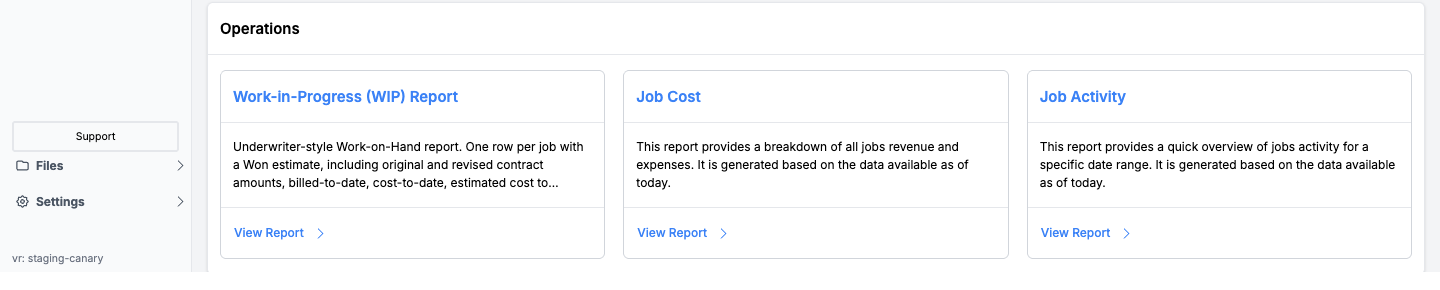
Each category renders as its own card with a header (the category name) and a grid of report cards underneath — three per row on a wide screen, as shown above for Operations. Every other category (Sales, Health and Safety, Workforce Administration, Custom Report) follows the same layout.
Sales
| Report | What it answers | Page |
|---|---|---|
| Sales By Status | Estimates and change orders grouped by Status, for a chosen time period. | Sales Reports |
| Sales by Status / Estimator | Same data, grouped by Status and then by Job Estimator. | Sales Reports |
| Sales by Estimator / Status | Same data, grouped by Job Estimator and then by Status. | Sales Reports |
| Sales by Customer | Estimates and change orders grouped by Customer. | Sales Reports |
| Sales by Customer / Type | Same data, grouped by Customer and then by Job Type. | Sales Reports |
| Sales by Customer / Status | Same data, grouped by Customer and then by Status. | Sales Reports |
Operations
| Report | What it answers | Page |
|---|---|---|
| Work-in-Progress (WIP) Report | Underwriter-style Work on Hand: one row per Won job with contract, billed, cost, and gross-profit figures. | WIP, Job Completion and Job Activity Reports |
| Job Cost | Revenue vs. expense breakdown across all jobs, as of today. | WIP, Job Completion and Job Activity Reports |
| Job Activity | Quick overview of job activity for a chosen date range, as of today. | WIP, Job Completion and Job Activity Reports |
Health and Safety
| Report | What it answers | Page |
|---|---|---|
| Certification Status Report | Every worker's status against every certification type — active, expiring, expired, missing. | Training and Safety Compliance Reports |
| Employee Training Records | One employee's training records and certificate images, as of today. | Training and Safety Compliance Reports |
| Employee Training Matrix | Training records for all employees in a matrix view. | Training and Safety Compliance Reports |
| Safety Compliance Report (BETA) | Per-day overview of logged jobs and whether required forms were signed for each. | Training and Safety Compliance Reports |
Workforce Administration
| Report | What it answers | Page |
|---|---|---|
| Employee Timesheet Report | One employee's timesheets, as of today, with the employee chosen inside the report. | Timesheet and Payroll Reports |
| Payroll Report | A worker's worked hours and pay totals for a chosen week. | Timesheet and Payroll Reports |
| Job Employees Timesheet Report | Hours and pay by employee for a specific job and week, with totals. | Timesheet and Payroll Reports |
| Employee Leave Report | One employee's medical and vacation leave records, as of today. | Leave Reports |
| All Leave By Employee | Medical and vacation leave for all employees, grouped by employee, over a date range. | Leave Reports |
| All Leave | Medical and vacation leave for all employees, as a filterable, customizable list. | Leave Reports |
| All Expense Report | Submitted Employee Expenses and timesheet-related expenses for all employees, filterable. | Expense Report |
Custom Report
| Report | What it answers | Page |
|---|---|---|
| Employee Agreement Line Item Report | Line items for a given period and employee agreement — how much needs to be paid — savable as a template. | Custom Reports |
How cards are hidden by permission
Every report card checks your permissions independently — there's no single switch that hides the whole hub. When you don't have the full permission set a report requires:
- The report's name renders as plain, non-clickable text instead of a link.
- The View Report button is replaced with grayed-out text reading Insufficient permission, and the button itself is disabled.
- The card still takes up its slot in the category grid — it isn't removed, just made unusable.
A whole category section only disappears if every report inside it fails your permission check, since the hub groups reports by category after filtering.
Exact permission sets
Each row below lists every permission that must be switched on for that report's card to work. "Its own Reports permission" means the entry for that specific report under the Reports category of the permission matrix, inside the category named in the middle column.
| Report | Category | Required permissions |
|---|---|---|
| Sales By Status | Sales | View on Estimates, Change Orders, and Financial Summary, plus its own Reports permission |
| Sales by Status / Estimator | Sales | View on Estimates, Change Orders, and Financial Summary, plus its own Reports permission |
| Sales by Estimator / Status | Sales | View on Estimates, Change Orders, and Financial Summary, plus its own Reports permission |
| Sales by Customer | Sales | View on Estimates, Change Orders, Financial Summary, and Companies, plus its own Reports permission |
| Sales by Customer / Type | Sales | View on Estimates, Change Orders, Financial Summary, and Companies, plus its own Reports permission |
| Sales by Customer / Status | Sales | View on Estimates, Change Orders, Financial Summary, and Companies, plus its own Reports permission |
| Work-in-Progress (WIP) Report | Operations | View on Financial Summary and Jobs, plus its own Reports permission |
| Job Cost | Operations | Its own Reports permission only (scoped — see the Job Cost report page) |
| Job Activity | Operations | View on Jobs, plus its own Reports permission |
| Certification Status Report | Health and Safety | View on Certification Types, User Certifications, and Training Providers, plus its own Reports permission |
| Employee Training Records | Health and Safety | View on Certification Types, User Certifications, and Training Providers, plus its own Reports permission |
| Employee Training Matrix | Health and Safety | View on Certification Types, User Certifications, and Training Providers, plus its own Reports permission |
| Safety Compliance Report (BETA) | Health and Safety | Permission to view safety forms, View on Timesheet Matrix & Timesheet Log, plus its own Reports permission |
| Employee Timesheet Report | Workforce Administration | View on User and Timesheet Matrix & Timesheet Log, plus its own Reports permission |
| Payroll Report | Workforce Administration | View on User and Expenses, plus its own Reports permission |
| Job Employees Timesheet Report | Workforce Administration | View on User, Jobs, and Timesheet Matrix & Timesheet Log, plus its own Reports permission |
| Employee Leave Report | Workforce Administration | View on User and Vacation/Leave, plus its own Reports permission |
| All Leave By Employee | Workforce Administration | View on User and Vacation/Leave, plus its own Reports permission |
| All Leave | Workforce Administration | View on User and Vacation/Leave, plus its own Reports permission |
| All Expense Report | Workforce Administration | View on User and Expenses, plus its own Reports permission |
| Employee Agreement Line Item Report | Custom Report | View on User, Employee Agreements, Employee Agreement Rate Labels, and Timesheet Matrix & Timesheet Log, plus its own Reports permission |
A report shows as usable only when every permission in its row is switched on for your role — there is no partial-credit state.
Filters
Most reports share a common set of filters:
| Filter | Description |
|---|---|
| Date Range | Select start and end dates for the reporting period. |
| Project | Narrow results to a specific project. |
| Customer | Filter by customer name or account. |
| Worker | Show data for a specific worker or crew. |
| Status | Filter by record status (e.g., approved, pending, paid). |
How the Reports Hub connects to other features
| Feature | Relationship |
|---|---|
| Projects | Project data (budget, costs, progress) feeds into operations and finance reports. |
| Timesheets | Timesheet hours and costs are the primary data source for labour and payroll reports. |
| Invoicing | Invoice and billing data drives the Billing Report and financial summaries. |
| Estimates | Estimate pipeline data feeds the CRM Estimate Report. |
| Forms | Safety and inspection form submissions populate the Forms report category. |
| Equipment | Equipment assignment and usage data drives utilization reports. |
| QuickBooks | Synced financial data can be cross-referenced with accounting reports. |
Reports that live elsewhere
Not every report-shaped view in Appello is a card on the /reports hub. A handful of the
most-used ones are embedded directly on the record or page they describe instead:
| Report | Where it actually lives | Page |
|---|---|---|
| Job Costing Report and Financial Summary | A job's own Financial Overview / Financials & Reporting tabs — not a hub card at all. | Job Cost Report |
| Company Metrics | The Dashboard (/), the first screen after signing in — not the Reports Hub. | Dashboard → Company Metrics |
| Billing Report (Accounts Receivable) | Sidebar → Finance → Billing Report, its own overview page under Finance. | Accounts Receivable & Billing |
| Progress Reports | Sidebar → Finance → Progress Reports, its own overview page under Finance. | Progress Reports |
| Estimate report | Sidebar → CRM → Estimates, its own overview page under CRM. | Estimate report |
| Change Order report | Sidebar → CRM → Change Orders, its own overview page under CRM. | Change Orders |
| Form Report | Sidebar → Forms → Form Report, its own overview page under Forms. | Form Report |
These are documented as their own pages rather than as hub cards because none of them appear in
the report registry the /reports hub renders from — they're reached through Finance, CRM, and
Forms in the sidebar, or from inside a job/project itself.
Scheduling reports
There is no dedicated scheduling report tile on the Reports Hub. The Reports sidebar
category and the /reports hub list Sales, Operations, Health and Safety, Workforce
Administration, and Custom Report tiles only — none of them are schedule-specific.
Schedule data is reviewed directly on the scheduling pages themselves, each of which has its own filters and (where noted) its own export/print controls:
Confirmed from the /reports hub (both the live tile list and the underlying report registry in
source) — there is no "Scheduling" category or schedule-related report under Reports. If you're
looking for who's booked where, use the scheduling pages linked above instead.
Export: PDF / Excel / CSV
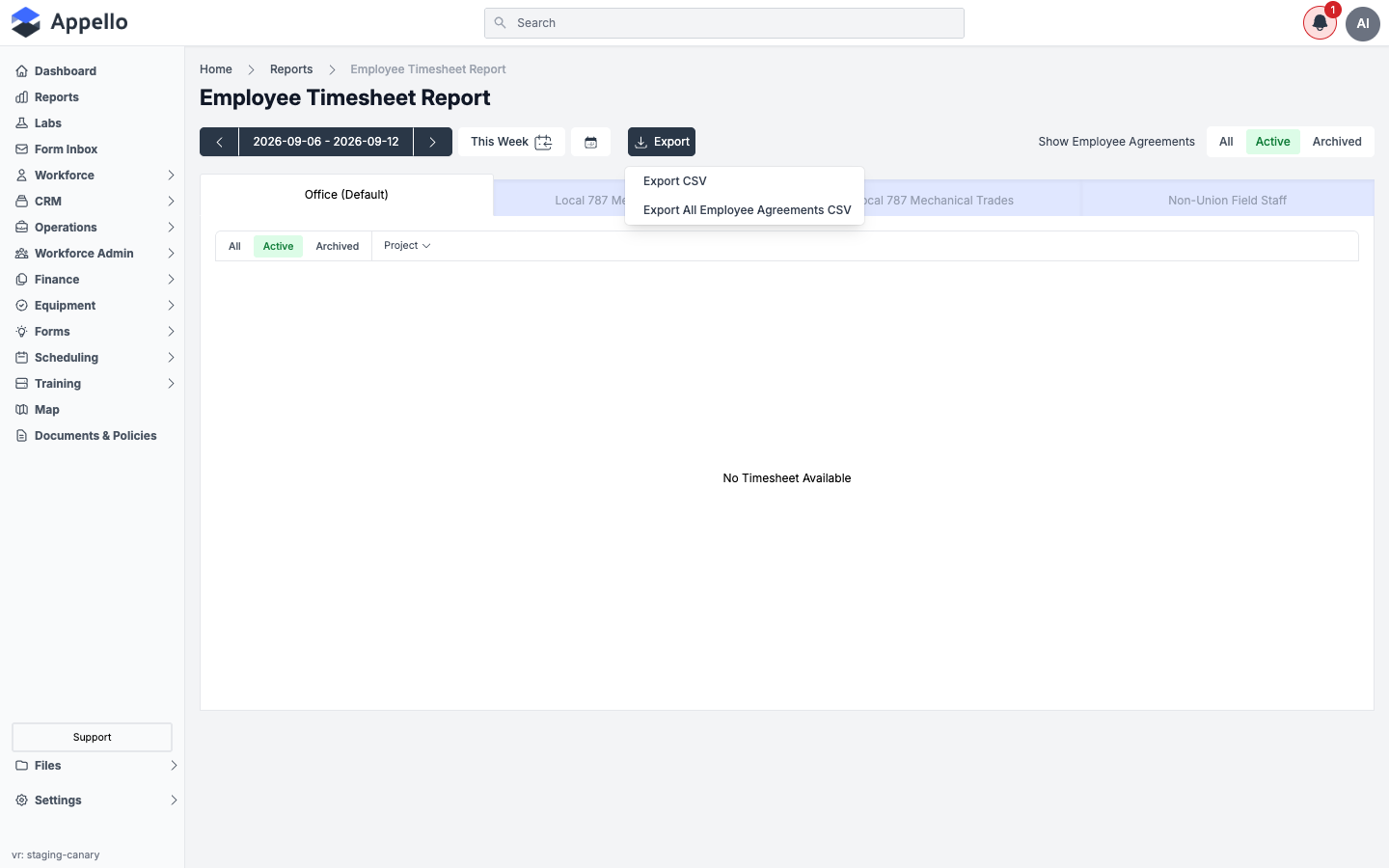
Most reports and list views in Appello have their own Export control in the top-right of the toolbar — a dark Export button with a download icon. Clicking it opens a dropdown; what's in that dropdown depends on the report.
What "Export All" does
On reports that are split into tabs — for example the Employee Timesheet Report and Payroll Report, which group data into tabs by employee agreement (Office, union locals, non-union field staff, etc.) — the Export dropdown offers two options:
| Option | What it exports |
|---|---|
| Export CSV | Only the data on the currently-selected tab. |
| Export All Employee Agreements CSV | All tabs/employee agreements combined into a single CSV file. |
On standard list-style reports and tables (no tabs), the same "select vs. all" idea still applies, just without a separate menu item: if you have rows checked, Export downloads only the selected rows; if nothing is checked, it exports every row that matches your current filters.
Which report exports to which format
| Report | CSV | Notes | |
|---|---|---|---|
| Sales By Status | ✅ | And its Status/Estimator, Estimator/Status, Customer, Customer/Type, and Customer/Status variants — all CSV only. | |
| Work-in-Progress (WIP) Report | ✅ | ||
| Job Cost | ✅ | ||
| Job Activity | ✅ | ||
| Certification Status Report | ✅ | ✅ | |
| Employee Training Records | ✅ | ✅ | |
| Employee Training Matrix | ✅ | ||
| Safety Compliance Report (BETA) | ✅ | ||
| Employee Timesheet Report | ✅ | See "Export All" above — export current tab or all employee agreements. | |
| Payroll Report | ✅ | Same export behavior as Employee Timesheet Report. | |
| Job Employees Timesheet Report | ✅ | ||
| All Leave By Employee | ✅ | ||
| All Leave | ✅ | ||
| Employee Leave Report | No export control on this report. | ||
| All Expense Report | ✅ | Also offers "Export to [connected accounting system]" when one is set up. | |
| Employee Agreement Line Item Report | ✅ |
Appello disables the Export button when a report has zero rows, so a report with no data will show the button greyed out even though the export options listed above are available once there is data. No report in this list currently offers an Excel/XLSX export; only CSV and, on a few reports, PDF.
Accounts receivable aging
Appello does not have a report literally named "AR Aging" with fixed 0-30 / 31-60 / 61-90 / 90+ day buckets. Accounts-receivable and billing status instead live on the Billing Report (Accounts Receivable) page.
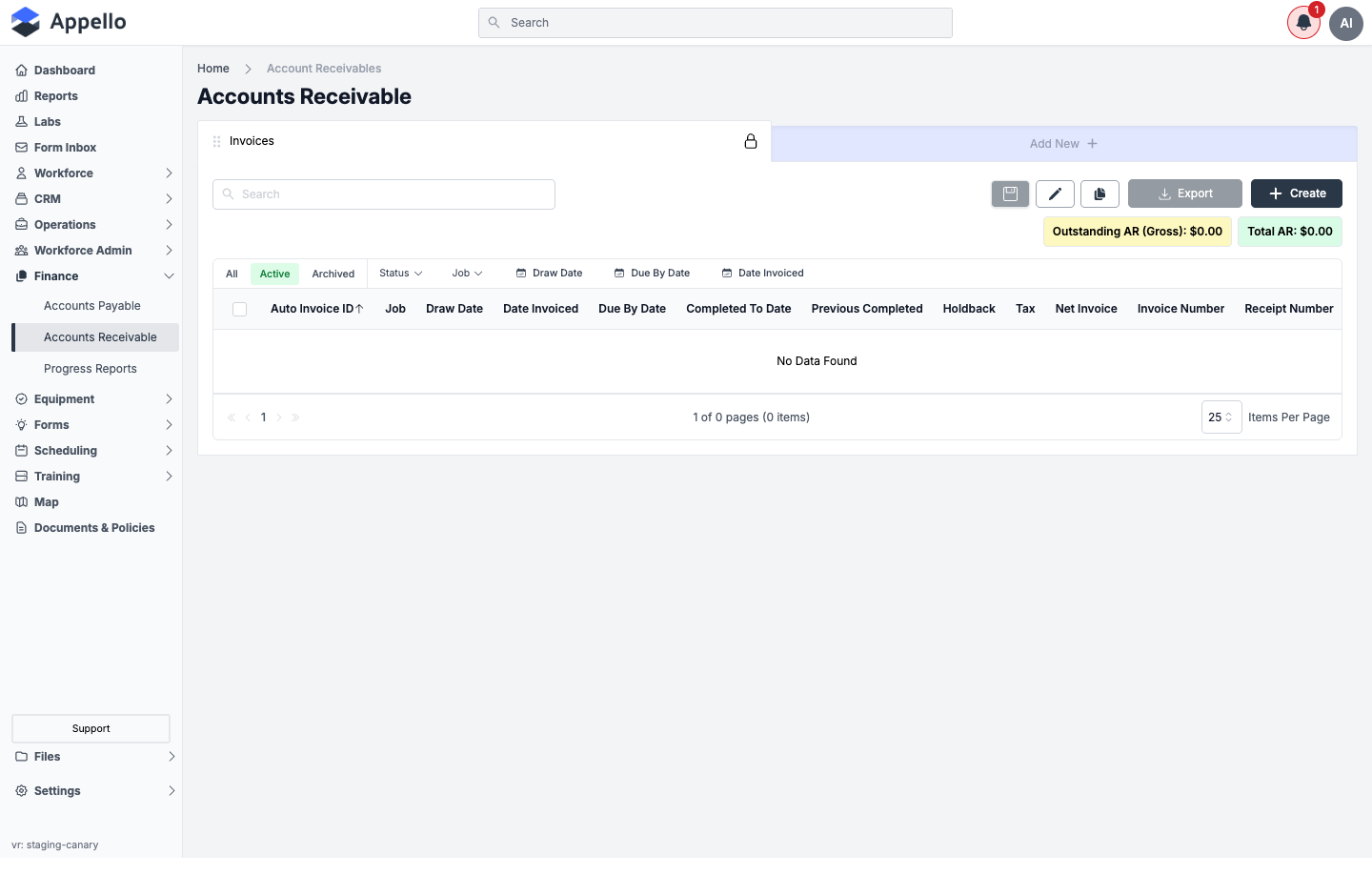
Sidebar → Finance → Accounts Receivable · URL: /overview/billing-report
On that page you can approximate an aging view by:
- Filtering or sorting by Due By Date to see what's coming due or already past due.
- Using the Status filter (Draft / Sent / Partially Paid / Paid / Overdue).
- Reading the Outstanding AR (Gross) and Total AR summary figures at the top of the list.
See Accounts Receivable & Billing for the full column reference, invoice statuses, and QuickBooks AR sync details.
The Accounts Receivable list's columns are Auto Invoice ID, Job, Draw Date, Date Invoiced, Due By Date, Completed To Date, Previous Completed, Holdback, Tax, Net Invoice, Invoice Number, and Receipt Number — there is no separate 0-30/31-60/61-90/90+ aging-bucket column or a distinct "AR Aging" report elsewhere in the app.
Employee location report
There's no single report named "Employee Location Report." Worker and job-site location data is split across two existing features:
- Administrative map (
/maps) — a live map view of job sites, workers, and company locations. - Clock In / Out Report (
/overview/clock-in-out-report) — the GPS-backed clock-in/clock-out punch history per worker, with timestamps and job associations.
Use the map for where people are right now (or were pinned during a shift), and the Clock In / Out Report for a historical, exportable log of punch events by worker and job.
Dashboard widgets
Some of the data people go looking for under "Reports" actually lives on the Dashboard
(/), not the Reports Hub. The Dashboard is the first thing you see after signing in, and it's
organized into three areas: Company Metrics on the left, the All Notes feed in the middle, and
(when enabled) the Upcoming Vacation / Leave widget on the right.
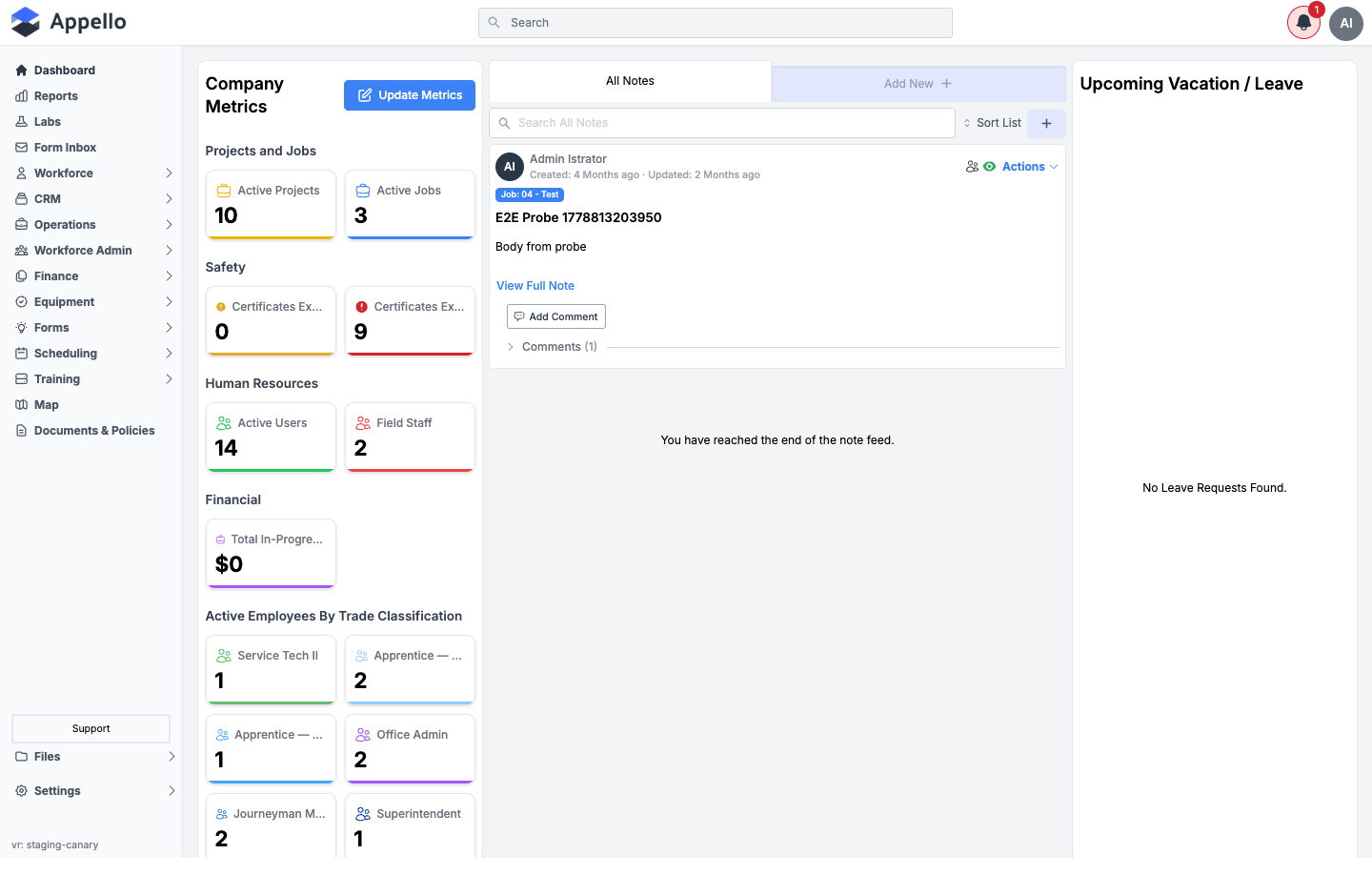
Company Metrics
A grid of metric cards grouped into sections (Projects and Jobs, Safety, Human Resources, Financial, Active Employees By Trade Classification, etc.). Each card shows a single number — active projects, active jobs, certificates expiring/expired, active users, field staff, total value of in-progress jobs, and headcount by trade classification. Cards are permission-gated, so what you see depends on your role.
Update Metrics
Click Update Metrics above the Company Metrics grid to open the Manage Company Metric panel, where you can check or uncheck which metrics appear on your dashboard.
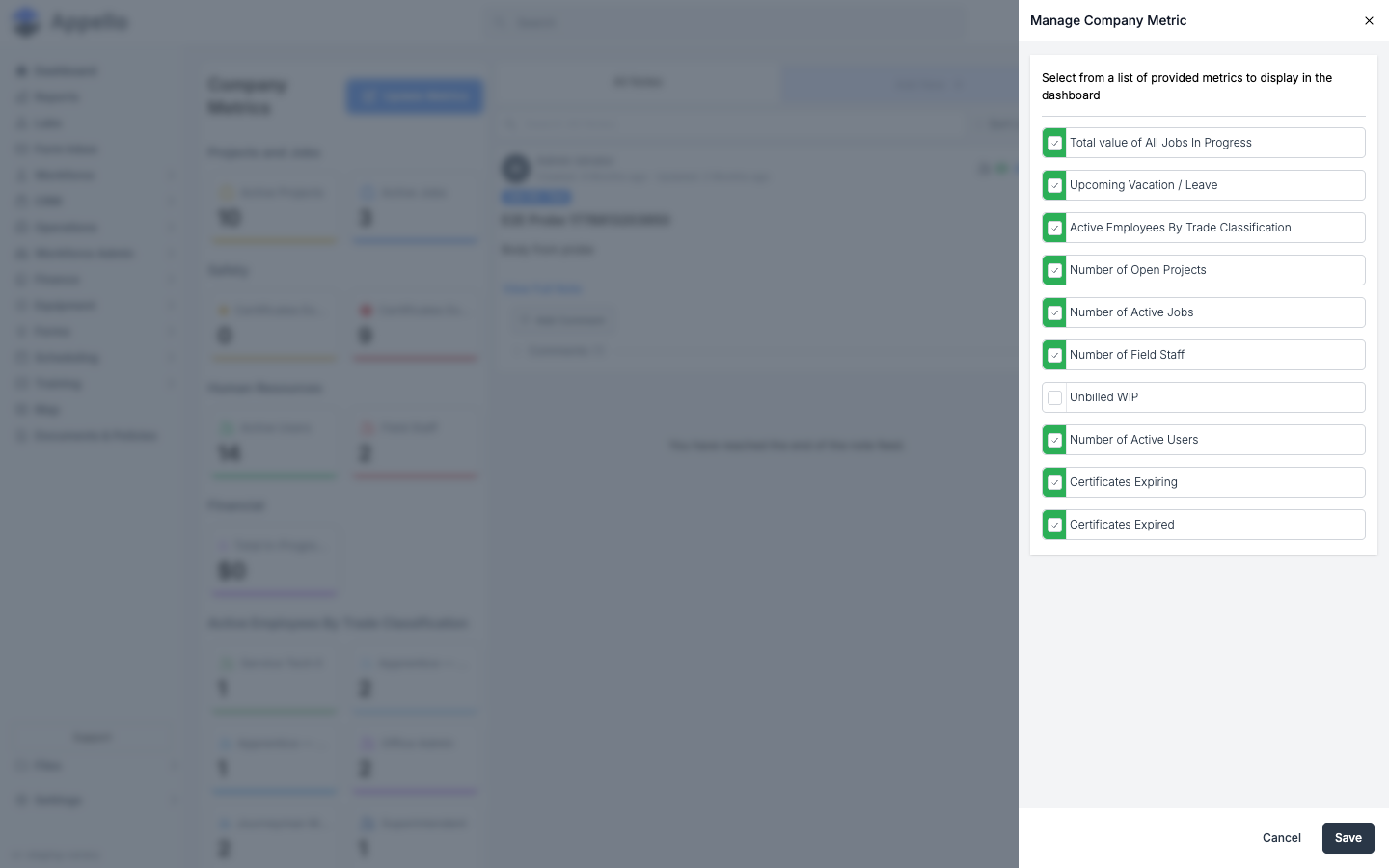
- Click Update Metrics.
- Check or uncheck the metrics you want to show or hide (Total value of All Jobs In Progress, Upcoming Vacation / Leave, Active Employees By Trade Classification, Number of Open Projects, Number of Active Jobs, Number of Field Staff, Unbilled WIP, Number of Active Users, Certificates Expiring, Certificates Expired).
- Click Save to apply, or Cancel to close without changing anything.
Leave Requests widget (Upcoming Vacation / Leave)
When enabled for your account and you have permission to view leave requests, a card on the right side of the Dashboard lists Today's Leave Requests and Upcoming Leave Requests, each showing the requesting employee, their trade level, and the leave dates/type. Clicking a card opens that leave request for viewing or editing. This widget lives on the Dashboard, not under Reports.
With no leave data to display, the widget renders with "No Leave Requests Found". The widget itself, its title, and its enable/disable toggle (via Update Metrics) are all still present.
All Notes feed
The middle column is the account-wide All Notes feed — every job note across your account, newest first, with search and a comment/actions menu per note. This is fully documented on its own page rather than repeated here: see Job Notes, Photos & Activity Feed → Notes Feed (Dashboard).