Create a Project
Projects are the top-level container for all work in Appello. Each project groups related jobs, financials, schedules, and documents under a single record.
Prerequisites
- You must be signed in with a role that has project creation permissions (e.g. Admin or Project Manager).
Steps
1. Open the Projects list
Navigate to Operations → Projects in the left sidebar.
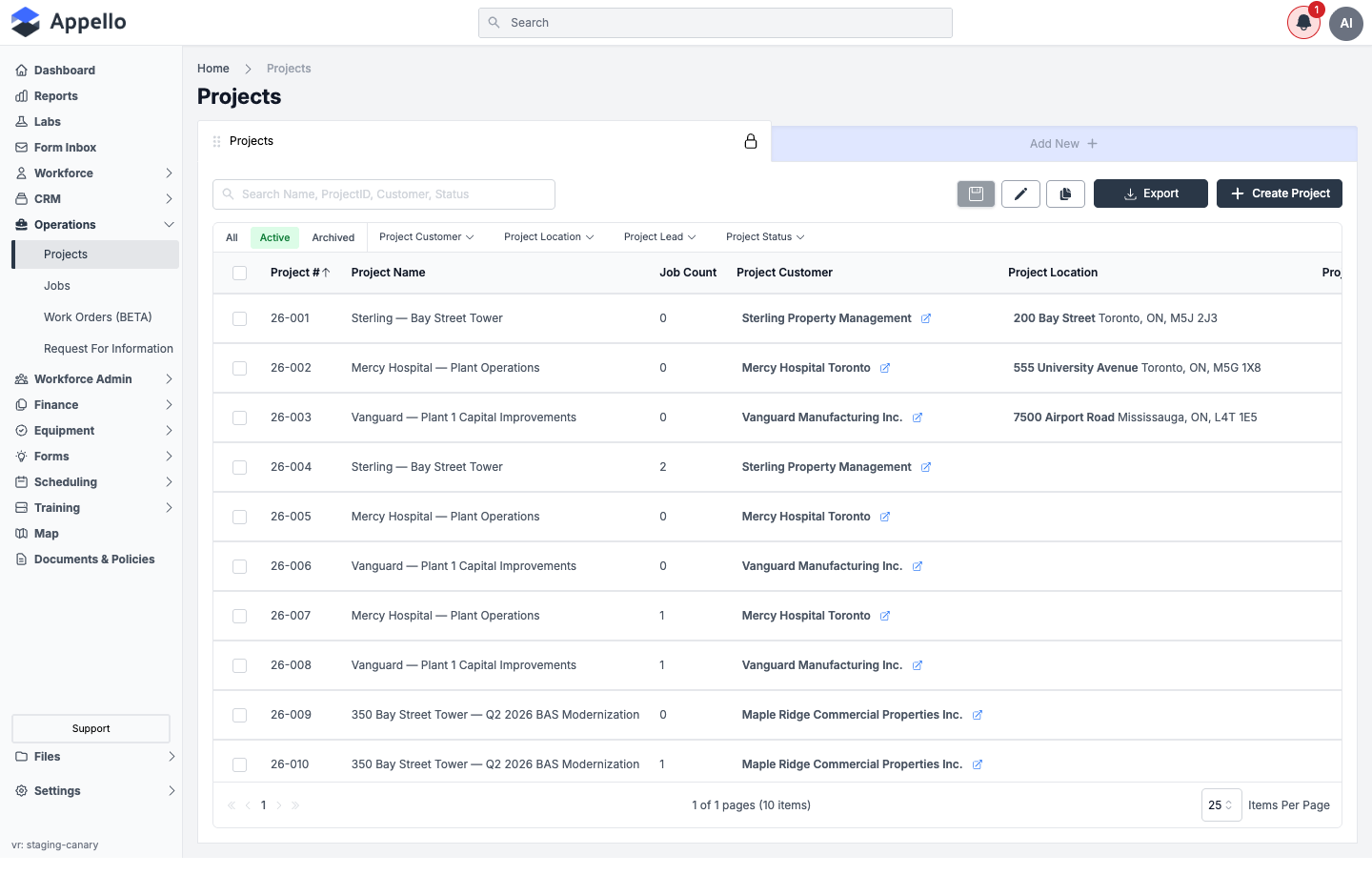
2. Click Create Project
Click the Create Project button above the table. The Create a Project panel opens on the right.
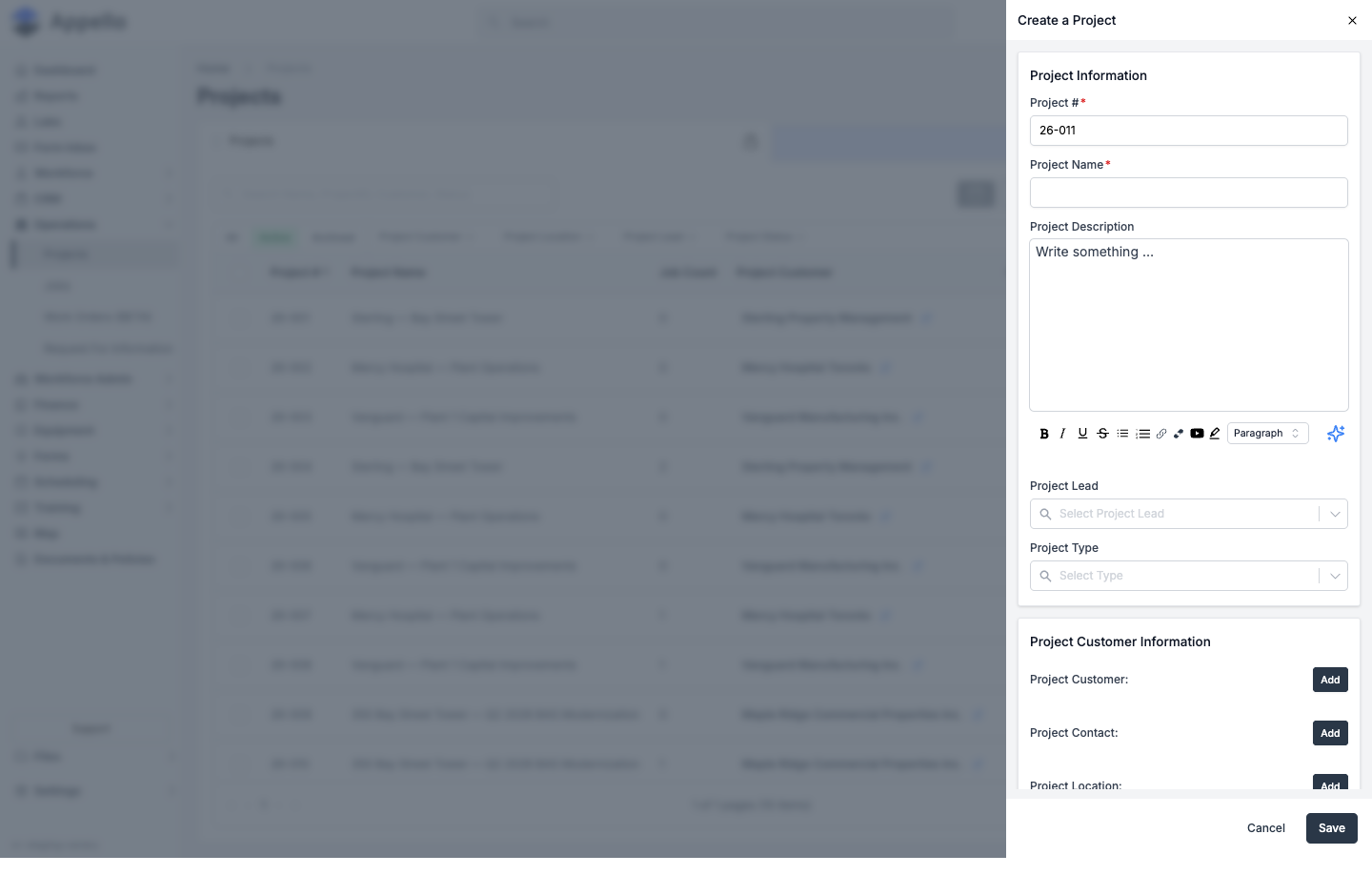
3. Fill in the project details
The form is organized into three sections.
Project Information
| Field | Required | Description |
|---|---|---|
| Project # | Yes | Auto-generated (e.g. 26-011). Editable before save. |
| Project Name | Yes | A descriptive name for the project. |
| Project Description | No | Rich-text description with a formatting toolbar (bold, lists, links, embedded video, and an AI-assist icon). |
| Project Lead | No | Select an existing user from the dropdown. |
| Project Type | No | Categorize the project. Options come from your instance's configured project types. |
There is no Project Status field on the create form. Status is derived from the statuses of the jobs under the project and only appears, read-only, once the project exists -- see What's next? below.
Project Customer Information
| Field | Required | Description |
|---|---|---|
| Project Customer | No | Click Add to link a CRM company as the project customer. |
| Project Contact | No | Click Add to link a CRM contact for the project. |
| Project Location | No | Click Add to link or create a location for the project. |
Each Add button opens an Associate panel with Associate Existing and Associate New tabs -- the same pattern used for linking a job's location. Associate Existing lets you search and pick a record already saved to your instance; Associate New lets you create one on the spot.
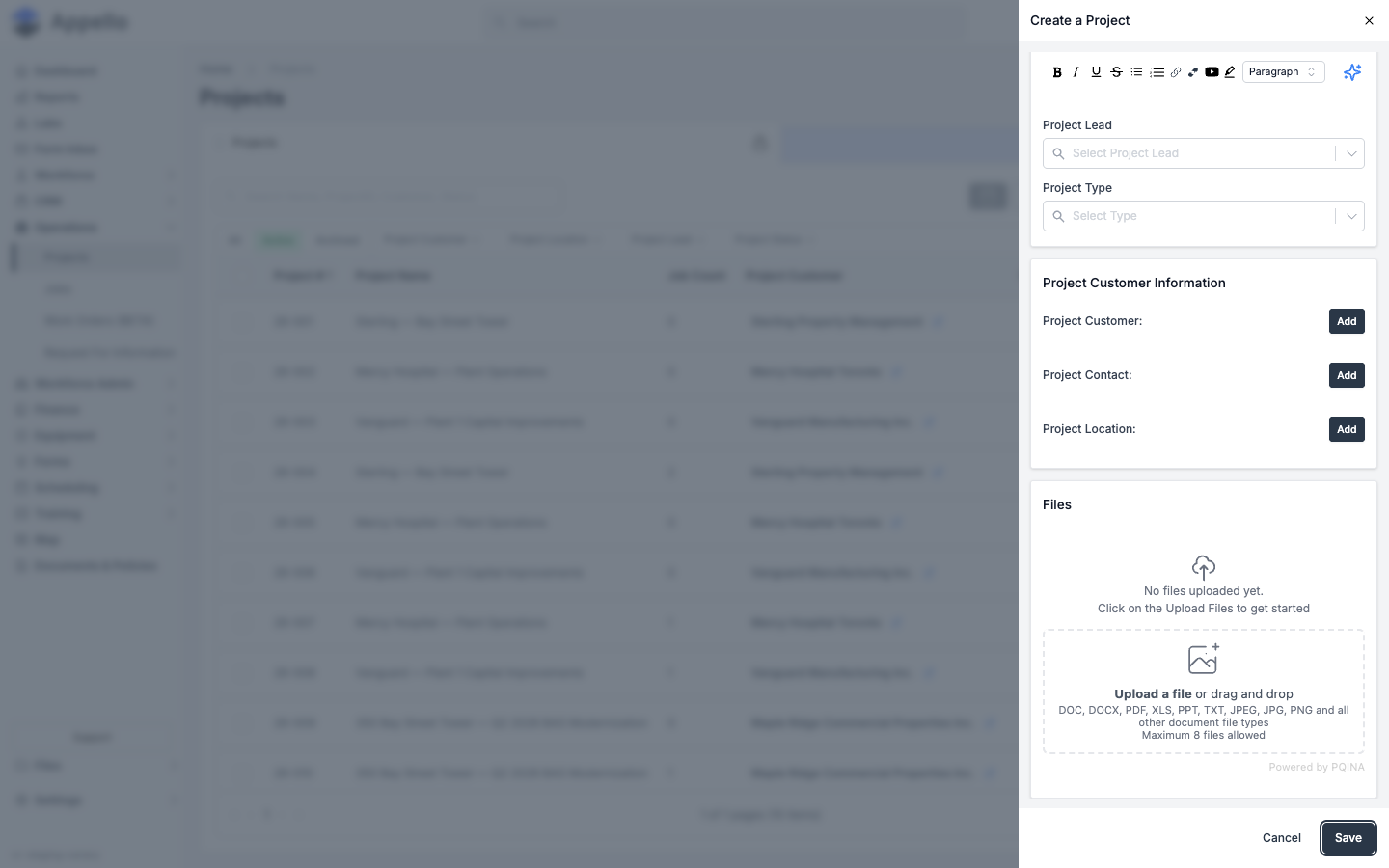
Files
A Files card at the bottom of the form lets you drag and drop, or click to browse for, documents to attach to the project (DOC, DOCX, PDF, XLS, PPT, TXT, JPEG, JPG, PNG, and other document file types -- up to 8 files).
On the demo instance used for these screenshots, the create form showed no custom fields. If your instance has custom document attributes configured for projects, they appear as additional fields in the Project Information section, above the Files card.
4. Save
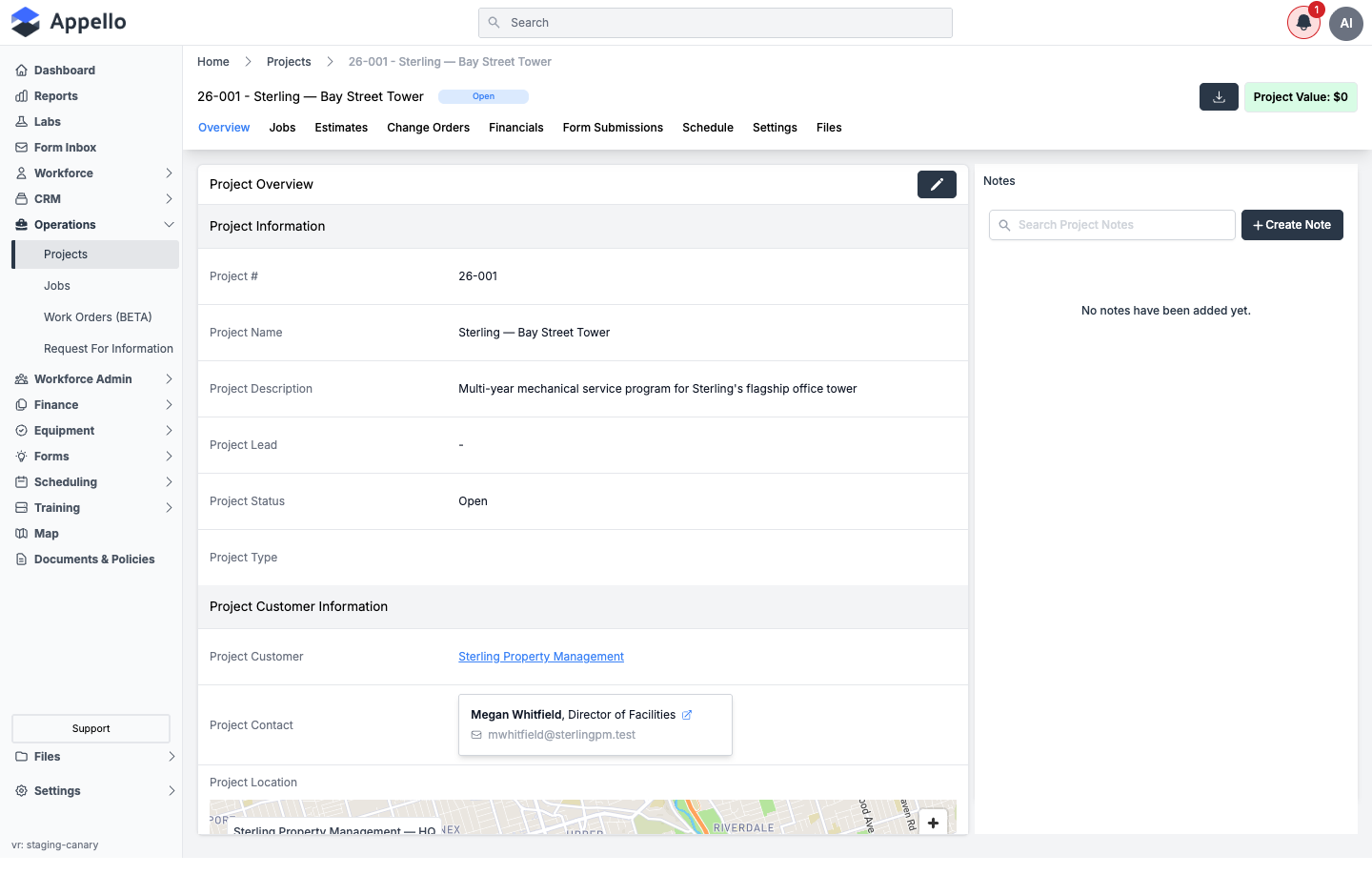
Click Save. Appello redirects you to the new project's Overview tab.
What's next?
- The project's Overview tab now shows a read-only Project Status (derived from its jobs' statuses) alongside the fields you filled in, and the Project Customer, Project Contact, and Project Location you linked -- including a map of the project location, if one was set.
- Create a Job under the project to begin tracking individual scopes of work. Jobs inherit the project's customer automatically.
- See the Projects List guide for filtering, sorting, and managing projects in bulk from the table.
- Use the Schedule tab to manage timelines, or the Financials tab to track project-level costs and billing.