Jobs List
The Jobs list is the company-wide table of every job across every project. It is the starting point for finding a job, checking its status or % complete, and opening its detail record.
Where it is
Click path: Operations → Jobs. URL: /jobs.
Who can see it, and what they see
- Jobs → View gates the page. Without it, Jobs does not appear in the Operations sidebar menu.
- When Jobs → View is scoped to Project Based (set in Settings → Roles & Permissions → Operations → Jobs → View, see Roles & Permissions), the list shows only jobs where the user is the job lead (labeled Job Estimator in the UI) or where the user is the project lead of the job's parent project. Every other job is excluded from the list entirely -- it does not show up filtered out, it is simply not there.
- Jobs → Sales Sum gates the Job Value column. Without it, the column does not render.
- The Jobs → Archive, Delete, and Restore permissions control which bulk actions a user can perform -- see Bulk actions below.
Overview
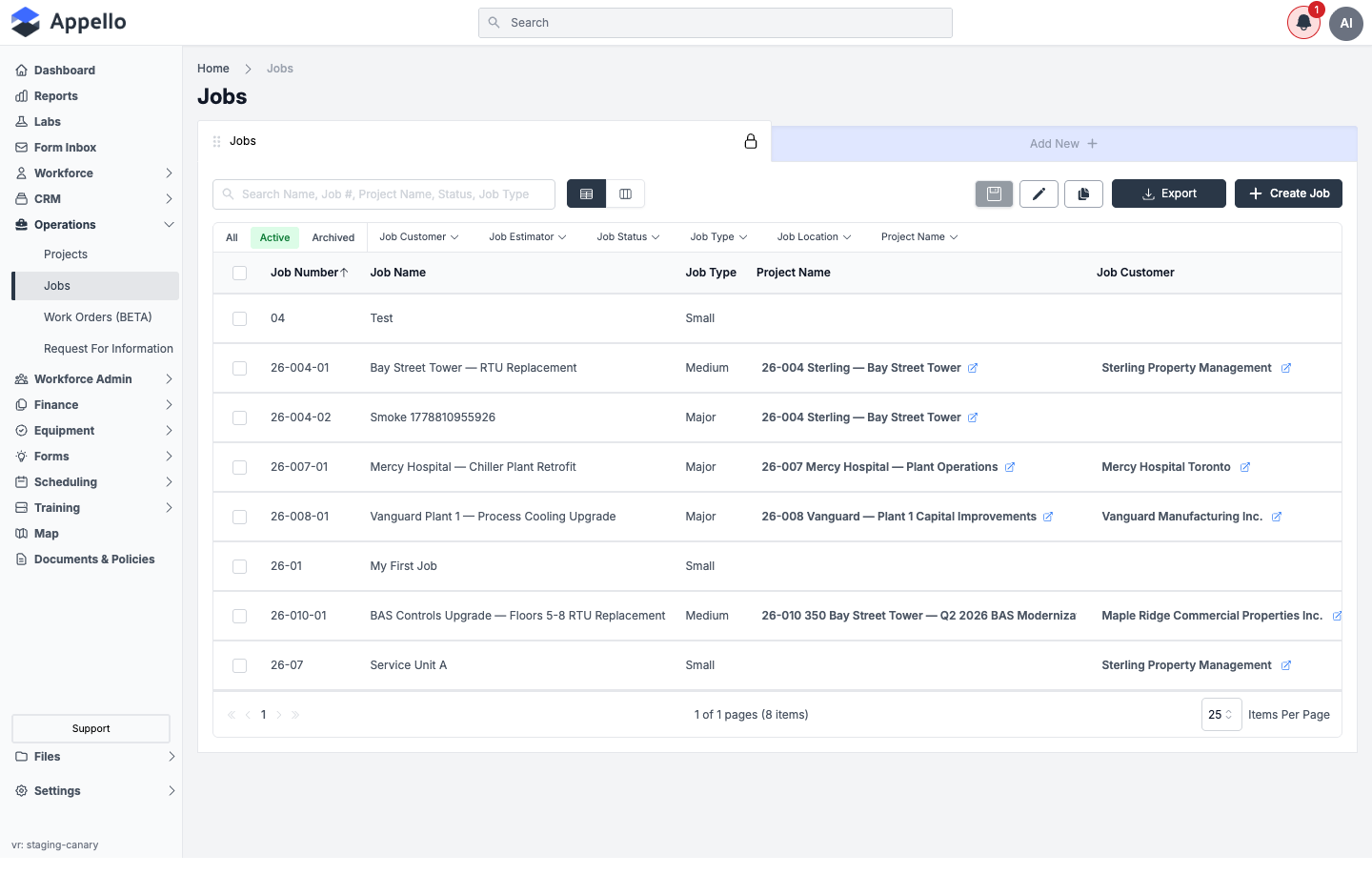
Each row is a job. The table opens on the Active tab, sorted by Job Number descending (newest job first), and columns beyond the visible area scroll horizontally. Click any row to open the job -- see Job Detail Page.
Table columns
| Column | Description |
|---|---|
| Job Number | The job's full number (e.g. 26-004-01). Sortable; sorted descending by default. |
| Job Name | The name given to the job. Sortable. |
| Job Type | The job's size/type classification (e.g. Small, Medium, Major). |
| Project Name | The parent project, with a link icon to open it. Blank for jobs not attached to a project. |
| Job Customer | The customer (company) the job is billed to, with a link icon to open its record. Labeled Customer in some other views. |
| Job Location | The city/state of the job's location, if one is set. |
| Job Estimator | The user assigned as the job's lead/estimator. This is the same field the Project Based view scope checks against. |
| Job Value | The job's total contract value. Requires the Jobs → Sales Sum permission to view. |
| % Complete | Progress percentage. Inline-editable from the list when you have edit access. |
| Job Status | Current status (e.g. Quoting, Won, In Progress), shown as a coloured pill. Inline-editable from the list when you have edit access. |
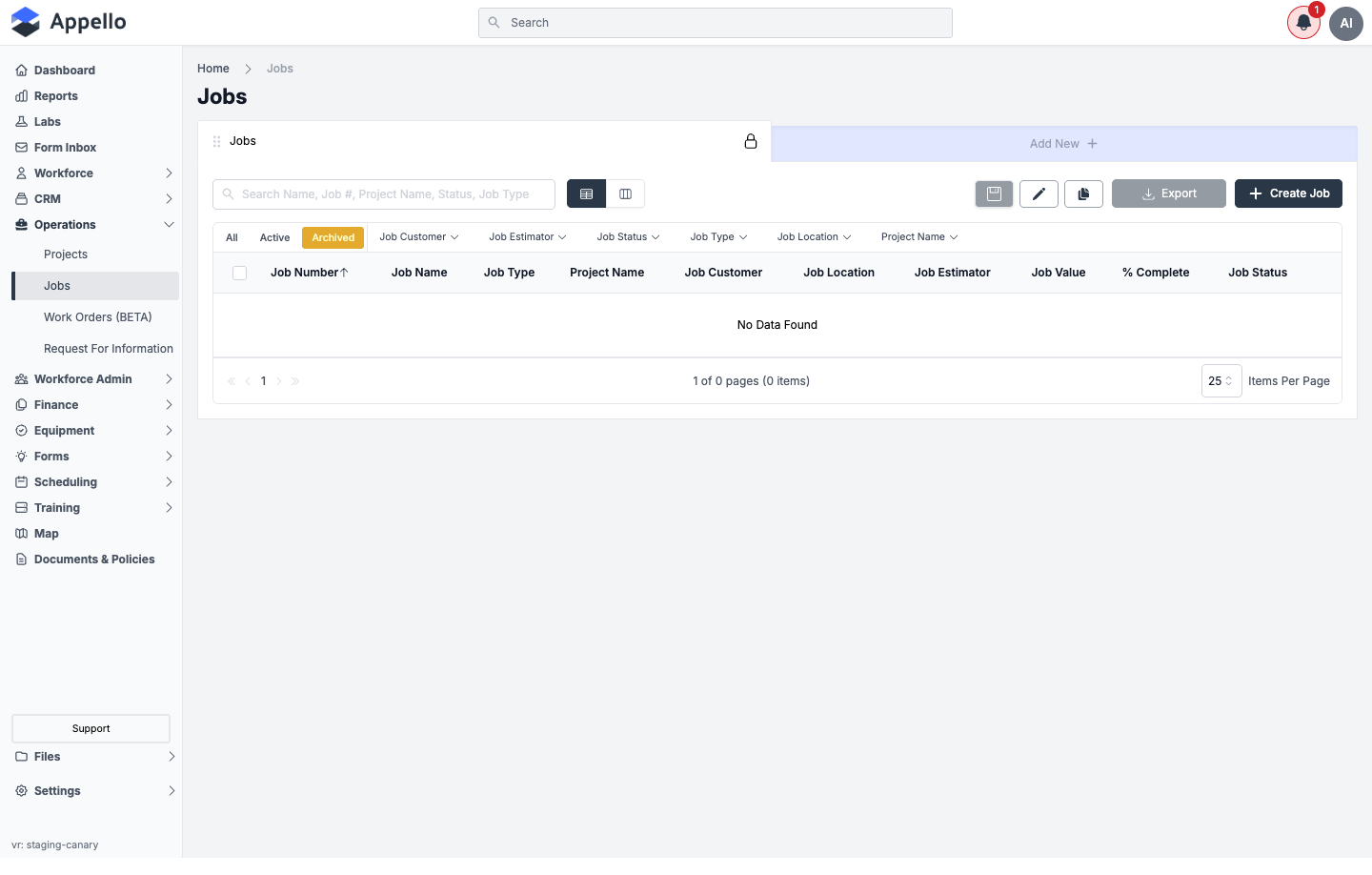
Job statuses are a configurable list per instance, so the values on your company's instance may differ from the examples above. The exact column order can also scroll further than shown in the screenshot -- the order above is confirmed from the demo instance with the Archived tab emptied out, which let every column render on one screen at once.
Search, filters, and sort
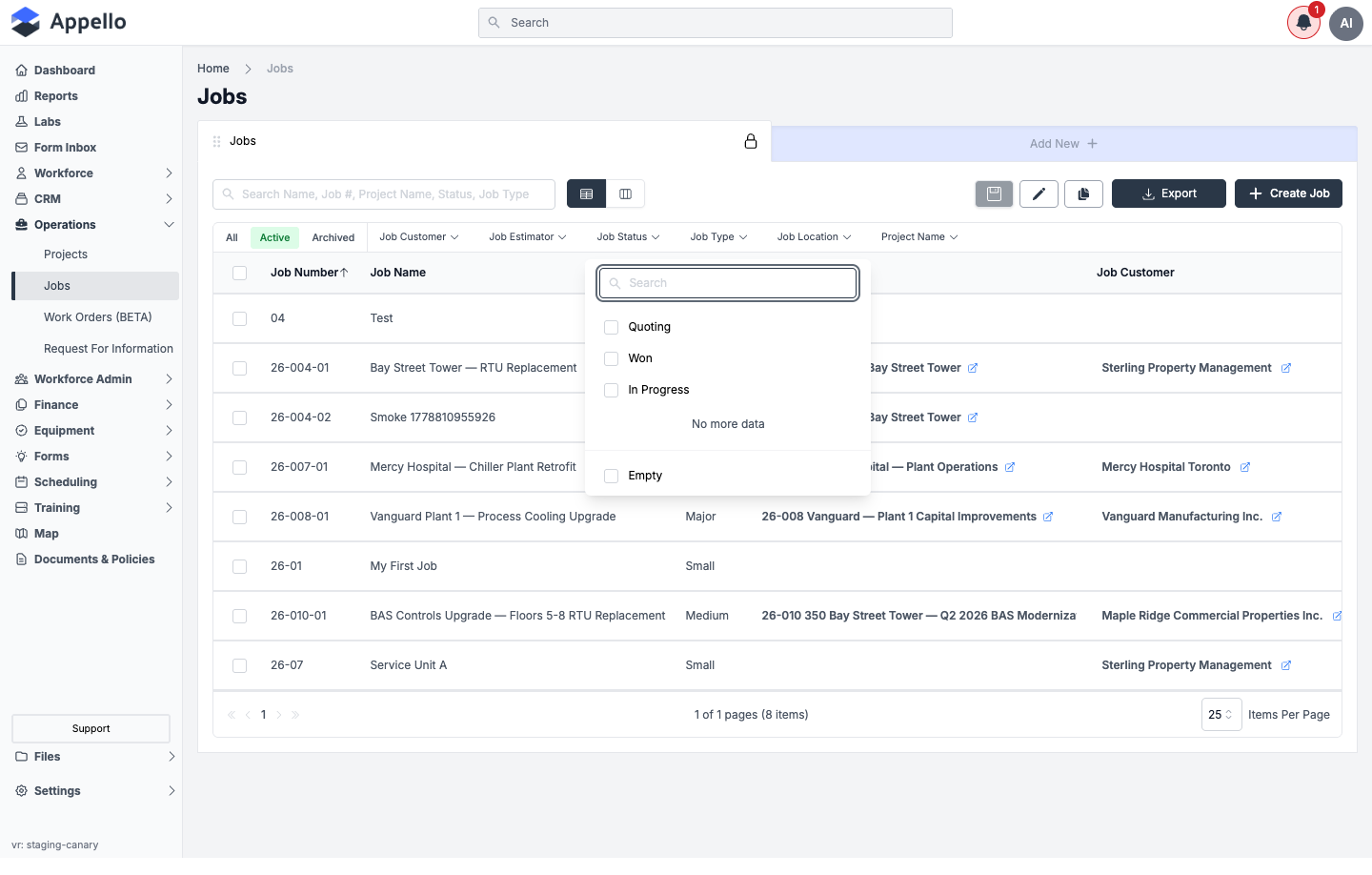
| Control | Behavior |
|---|---|
| Search | Free-text search across Name, Job #, Project Name, Status, and Job Type (per the search box's own placeholder text). |
| Job Customer | Searchable multi-select checklist of customers with at least one job. |
| Job Estimator | Searchable multi-select checklist of users assigned as job lead/estimator. |
| Job Status | Searchable multi-select checklist of the statuses configured for your instance, plus an Empty option for jobs with no status set. |
| Job Type | Searchable multi-select checklist of job type/size values. |
| Job Location | Searchable multi-select checklist of the cities used by existing jobs. |
| Project Name | Searchable multi-select checklist of the projects that have at least one job. |
| Sort | Click a sortable column header (Job Number, Job Name, Job Status) to sort by it; click again to reverse direction. |
Quick tabs: Active, Archived, All
- Active -- the default tab. Shows jobs that have not been archived.
- Archived -- shows only archived jobs. On the demo instance this is empty, as shown above.
- All -- shows active and archived jobs together (an archive icon marks the archived ones). Row checkboxes and bulk actions are not available on this tab -- selection only works from Active or Archived.
Table / Board view toggle
Two icons next to the search box switch the list between Table view (the default, shown above) and Board view, a kanban board grouped by Job Status where cards can be dragged between status columns. A row's card shows its job number, name, customer, and estimator.
Create a Job
Click Create Job at the top right of the list to open the job creation form. See Create a Job for the form itself.
Export
Click Export to download a CSV of the current view -- it respects whatever filters, search text, and column order are currently applied. The button is disabled when the current view has no rows (as seen on the empty Archived tab above).
Bulk actions
Check the box on one or more rows to reveal a bulk-action bar above the table. Which actions appear depends on the active tab:
| Tab | Action | What it does | Who can do it |
|---|---|---|---|
| Active | Archive | Removes the selected jobs from the Active view. Data is preserved and the job can be restored later. | Requires Jobs → Archive. |
| Archived | Restore | Moves the selected jobs back to the Active view. | Requires Jobs → Restore. |
| Archived | Delete | Permanently deletes the selected jobs. Disabled for a job that is still in use (e.g. has related records). | Requires Jobs → Delete. |
Row checkboxes and the bulk-action bar are not shown on the All tab -- only on Active and Archived. The row checkboxes have no label of their own, so no screenshot of the bulk-action bar itself is included here.