Create a Job
Jobs represent individual scopes of work within a project. They track financial details, crew assignments, scheduling, and progress for a specific piece of the project.
Prerequisites
- A project must already exist.
- You must be signed in with a role that has job creation permissions.
Steps
1. Open the project's Jobs tab
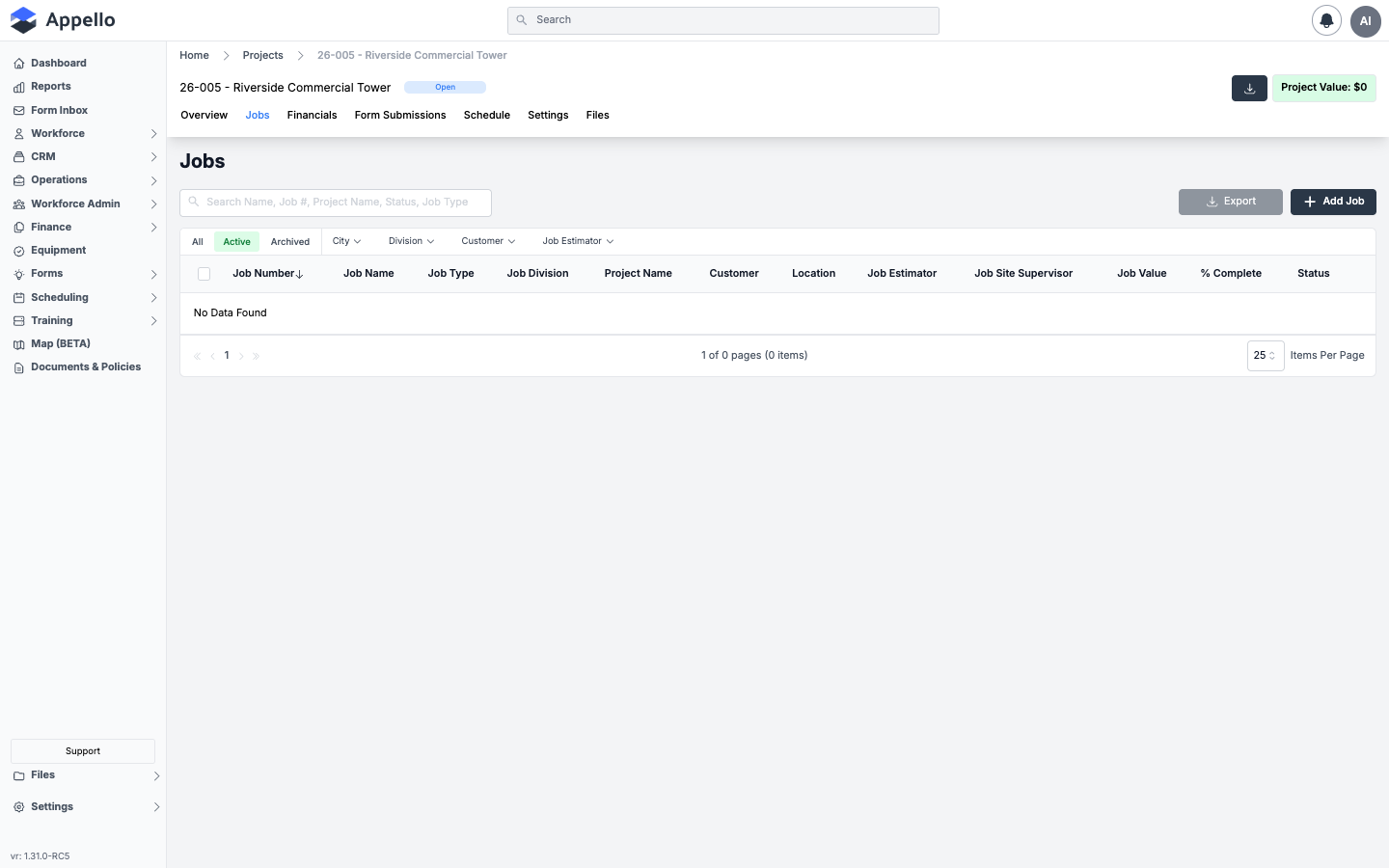
Navigate to the project, then click the Jobs tab in the project header.
2. Click Add Job
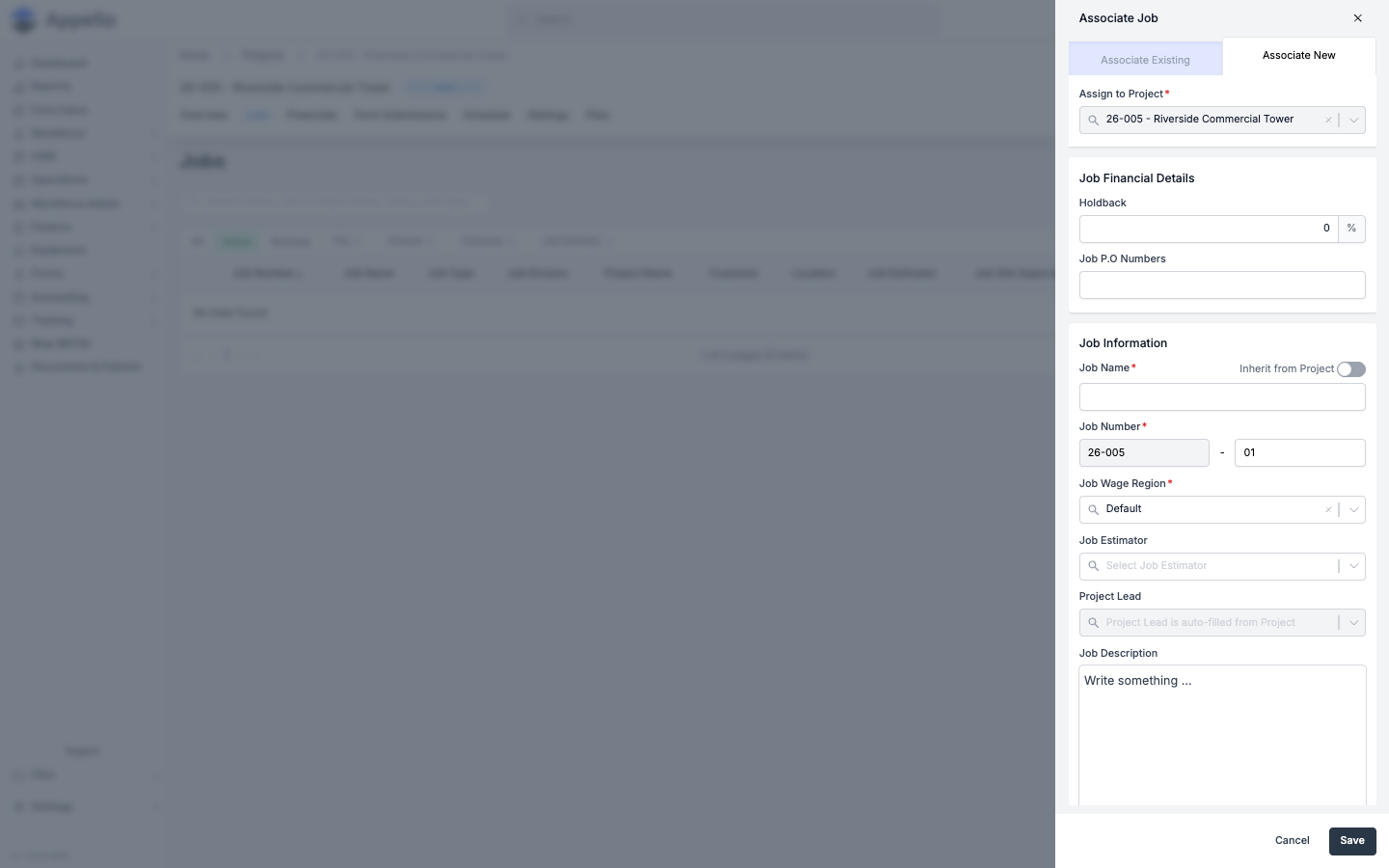
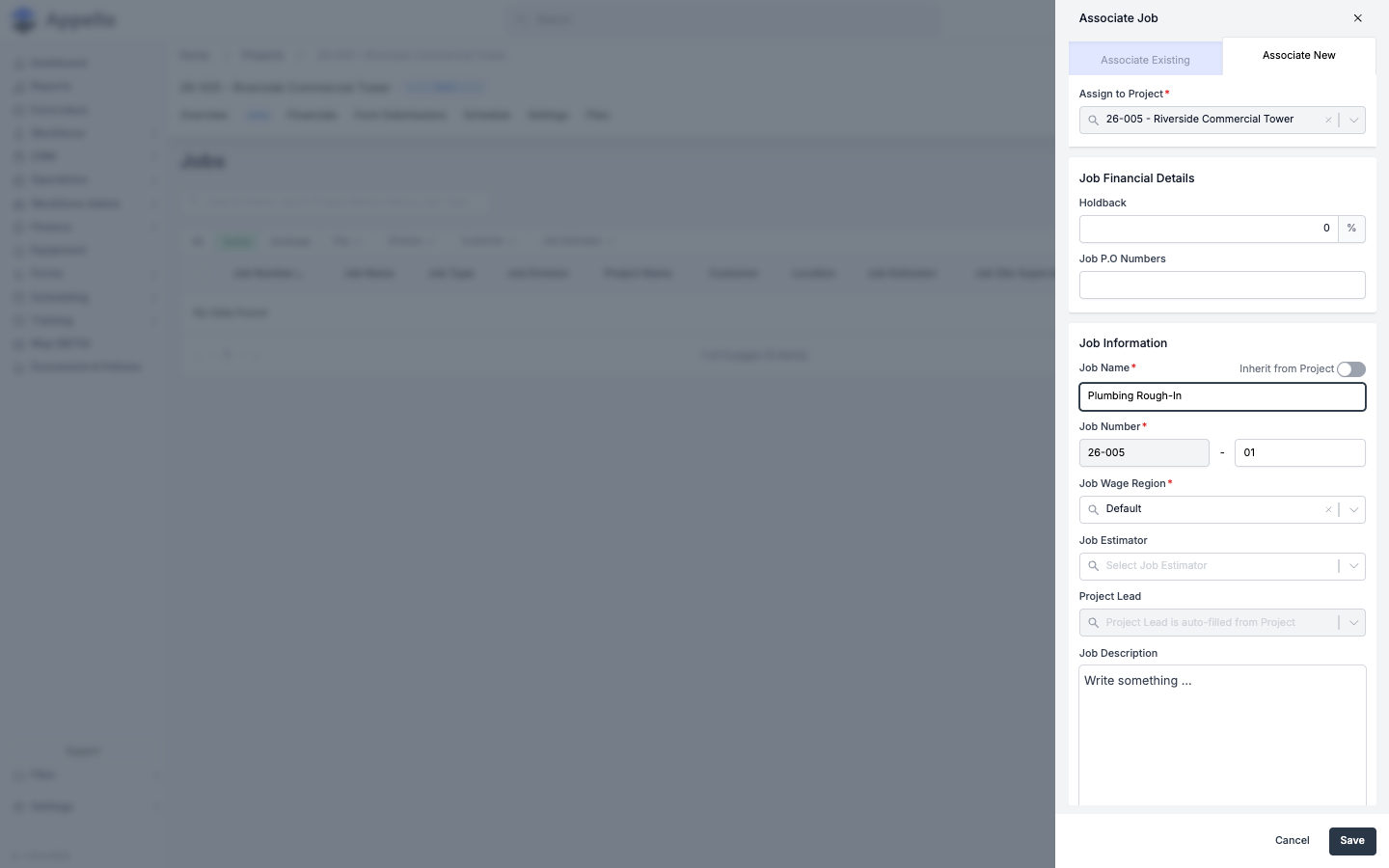
Click the + button in the top-right corner of the Jobs table. The Associate Job panel opens with two options:
- Associate Existing — link an already-created job to this project.
- Associate New — create a brand-new job (selected by default).
3. Fill in the job details
The form has several sections:
Assign to Project
Pre-filled and locked to the current project (e.g. 26-001 - Riverside Commercial Tower).
Job Financial Details
| Field | Required | Description |
|---|---|---|
| Holdback | No | Holdback percentage (default 0%). |
| Job P.O Numbers | No | Purchase order reference numbers. |
Job Information
| Field | Required | Description |
|---|---|---|
| Job Name | Yes | Descriptive name for this scope of work. |
| Job Number | Yes | Auto-generated from the project number (e.g. 26-001-01). The suffix is editable. |
| Job Wage Region | Yes | Defaults to Default. Select the applicable wage region. |
| Job Estimator | No | Select the estimator from the dropdown. |
| Project Lead | Auto | Inherited from the project — read-only. |
| Job Description | No | Rich-text description with formatting toolbar. |
| Job Type | No | Categorize the job (e.g. Service, T&M). |
| Job Rate Type | Yes | Defaults to Regular. |
| Division | No | Assign to a company division. |
Job Customer Information
At creation time the job does not expose a separate Job Customer field -- a job created under a project inherits its customer from that project automatically. The only customer-side link you set here is the Job Site Contact, using the Add button described below.
Once the job is saved, its Overview tab shows a full Job Customer Information section (Job Customer and Job Primary Contact), and the job's customer can be changed from there. See Customer, address, and location pin below.
Job Coordination and Site Details
This section covers the planned schedule and the job site itself:
| Field | Required | Description |
|---|---|---|
| Planned Start Date | No | Expected start date for the job. |
| Job Site Supervisor | No | Select a user to supervise the site. |
| Planned End Date | No | Expected end date for the job. |
| Job Site Contact | No | Click Add to link a contact for this job site. |
| Job Start Time | No | Default daily start time for the job. |
| Job Location | No | Click Add to link the site address and drop a map pin -- see below. |
| Job Duration | No | Expected duration, in days. |
Setting the job location and map pin
-
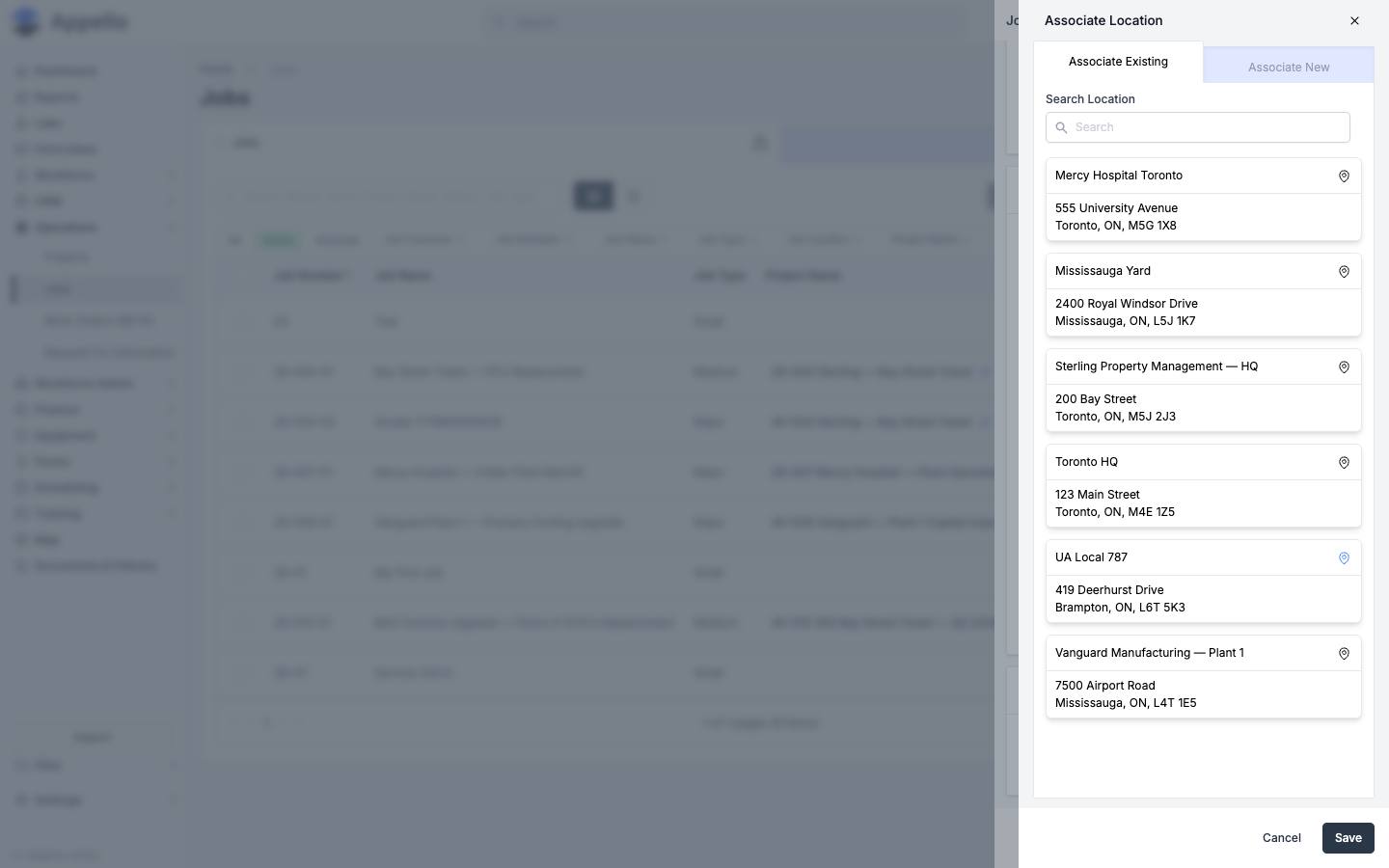
Click Add next to Job Location. The Associate Location panel opens with two tabs.
-
Associate Existing (shown by default) lists addresses already saved for your instance -- click one to link it to this job.
-
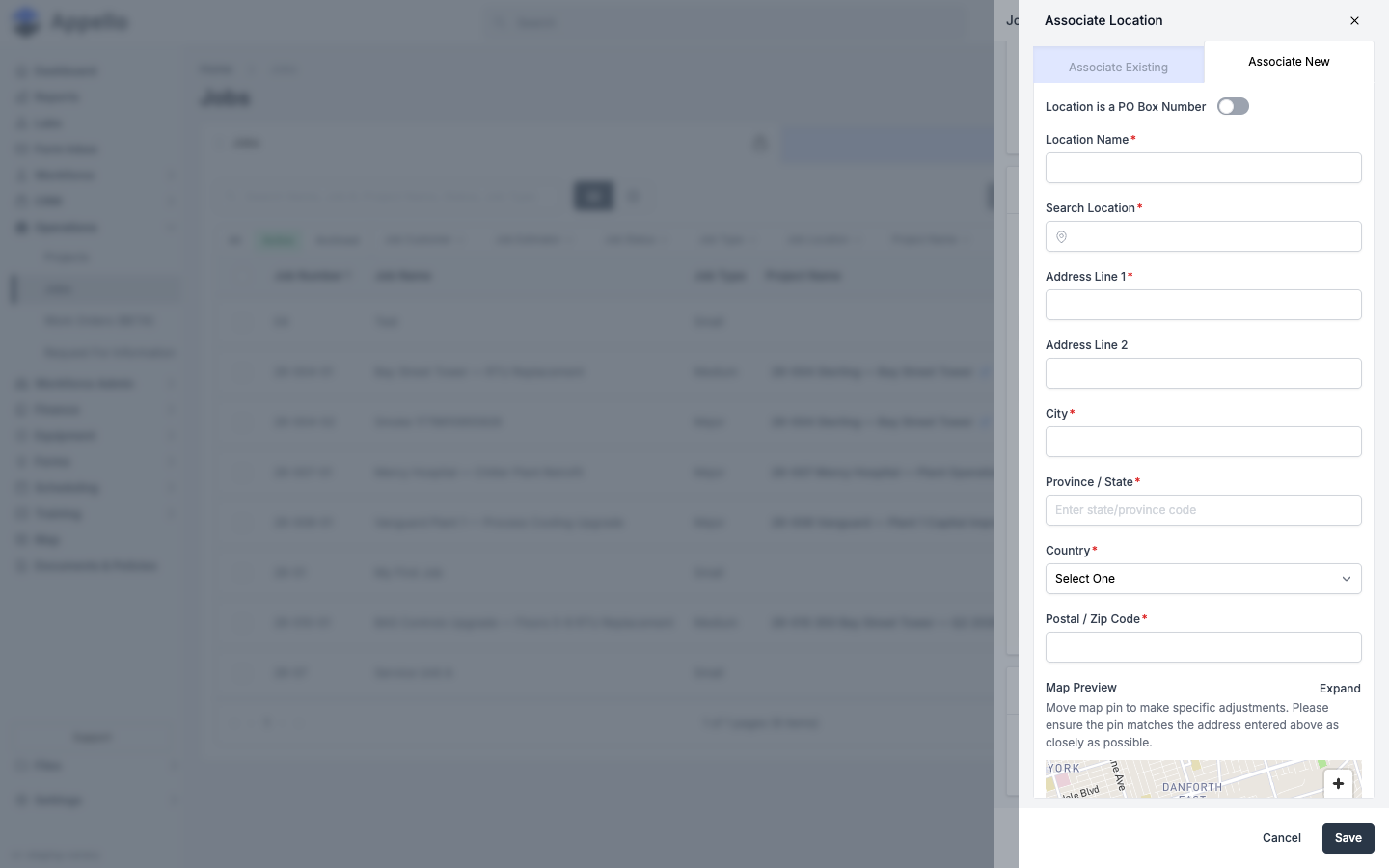
To add a new address instead, switch to the Associate New tab and fill in:
- Location Name -- a friendly name for the site (required).
- Location is a PO Box Number -- toggle on if the address is a PO box.
- Search Location -- type to search for the address; selecting a result fills the fields below automatically.
- Address Line 1, Address Line 2, City, Province/State, Country, Postal /
Zip Code -- required fields marked with
*. - Map Preview -- shows a pin dropped at the geocoded address. Drag the pin to fine-tune the exact spot, or click Expand to adjust it on a larger map. The helper text under Map Preview reads: "Move map pin to make specific adjustments. Please ensure the pin matches the address entered above as closely as possible."
-
Click Save to attach the location to the job.
Job Status
| Field | Required | Description |
|---|---|---|
| Job Status | Yes | Select from: Quoting, Won, In Progress, On Hold, Complete, Closed, Lost. |
4. Save
Click Save. The job is created and appears in the project's Jobs table.
Customer, address, and location pin
The job's customer, site address, and map pin can all be reviewed and changed after the job exists, from the job's Overview tab.
Viewing the customer and location
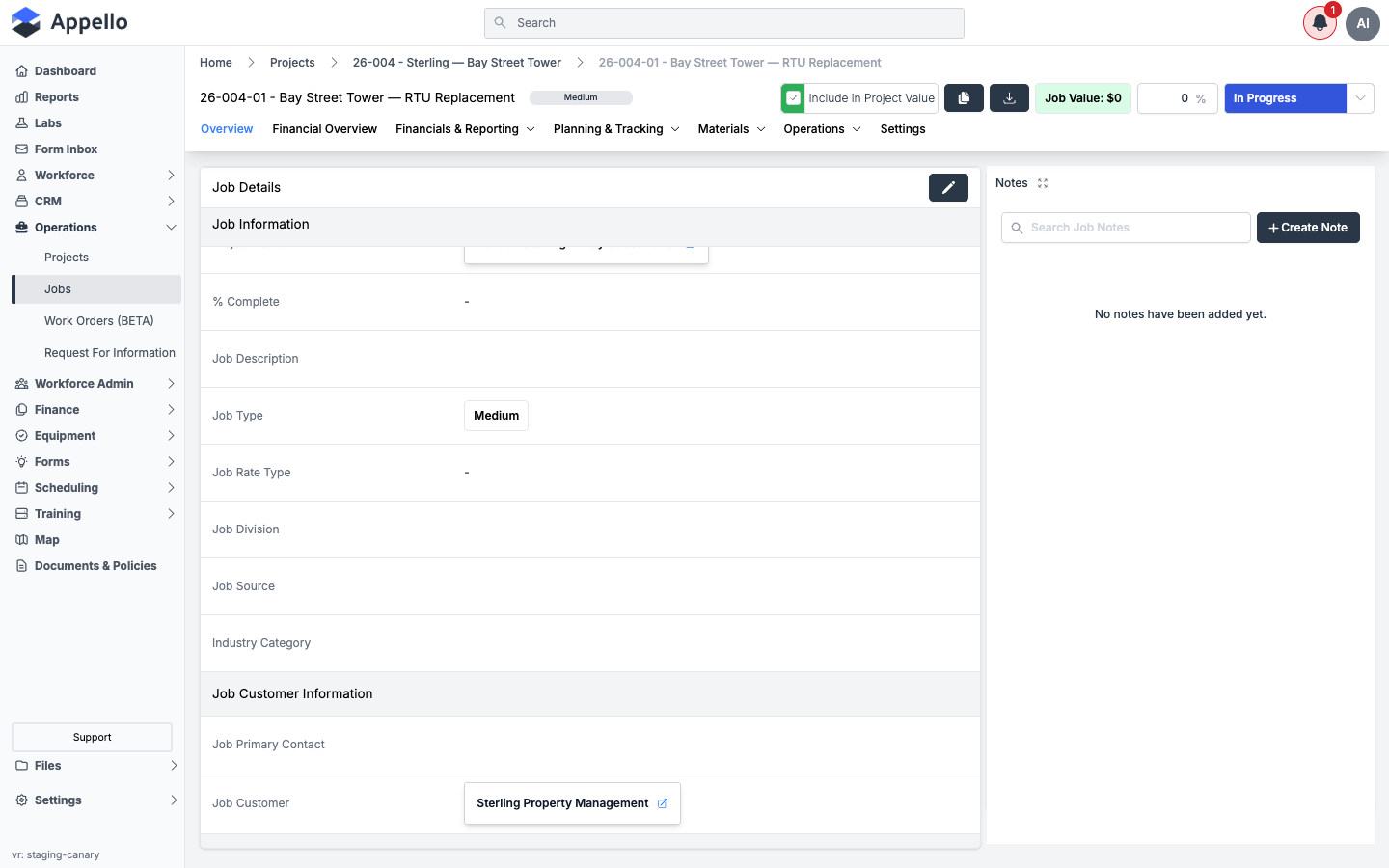
Open the job and stay on the Overview tab. Its Job Details card shows:
-
Job Customer Information -- the linked Job Customer (a link to the company record) and Job Primary Contact.
-
Job Coordination and Site Details → Job Location -- the linked address, name, and an interactive map with the pin dropped at the site.
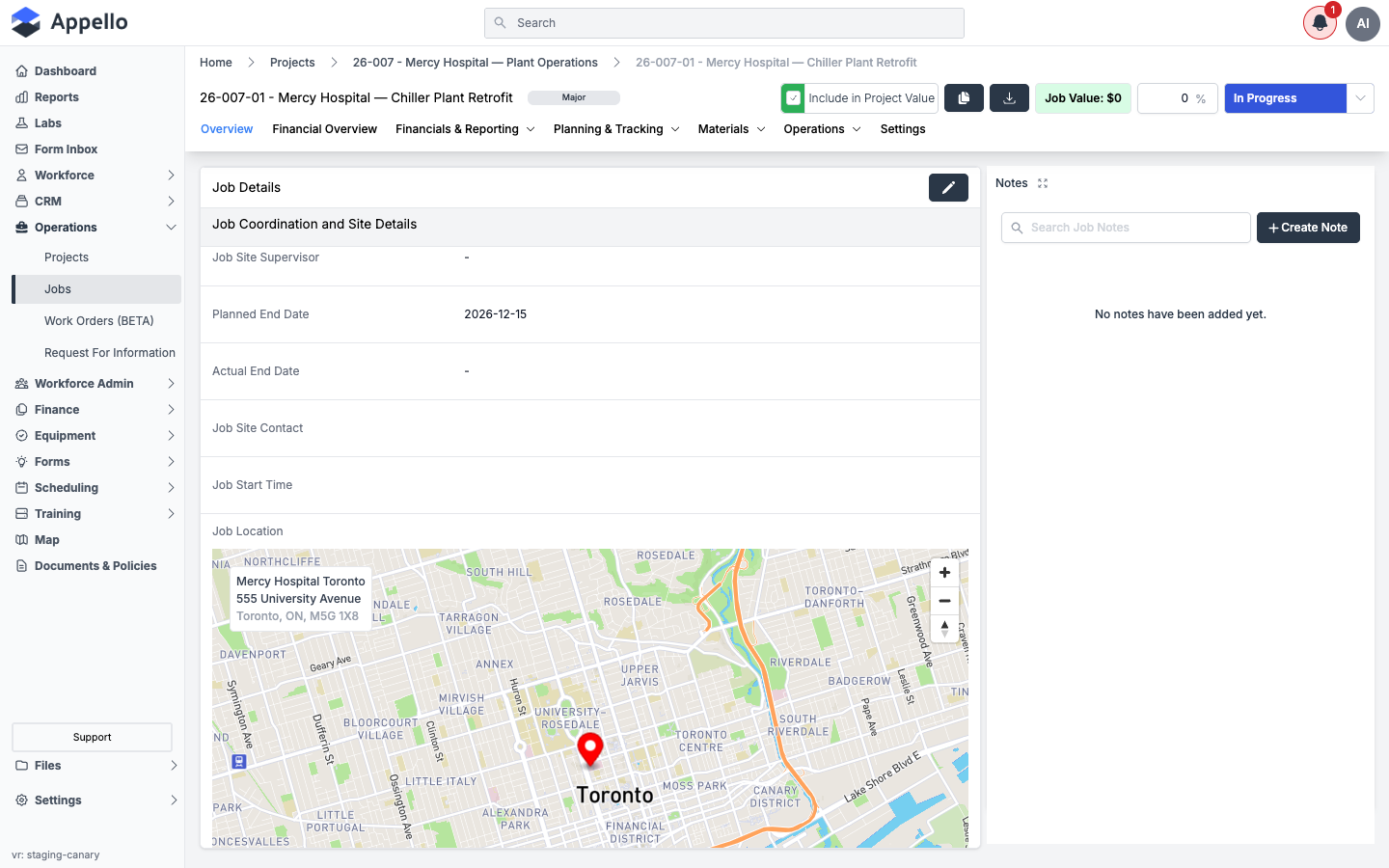
The map tiles are provided by Mapbox/OpenStreetMap and are shown wherever a job has a linked location -- on the Overview tab, in the location's own edit form, and in the compact card described below.
Editing the customer, address, or pin
-
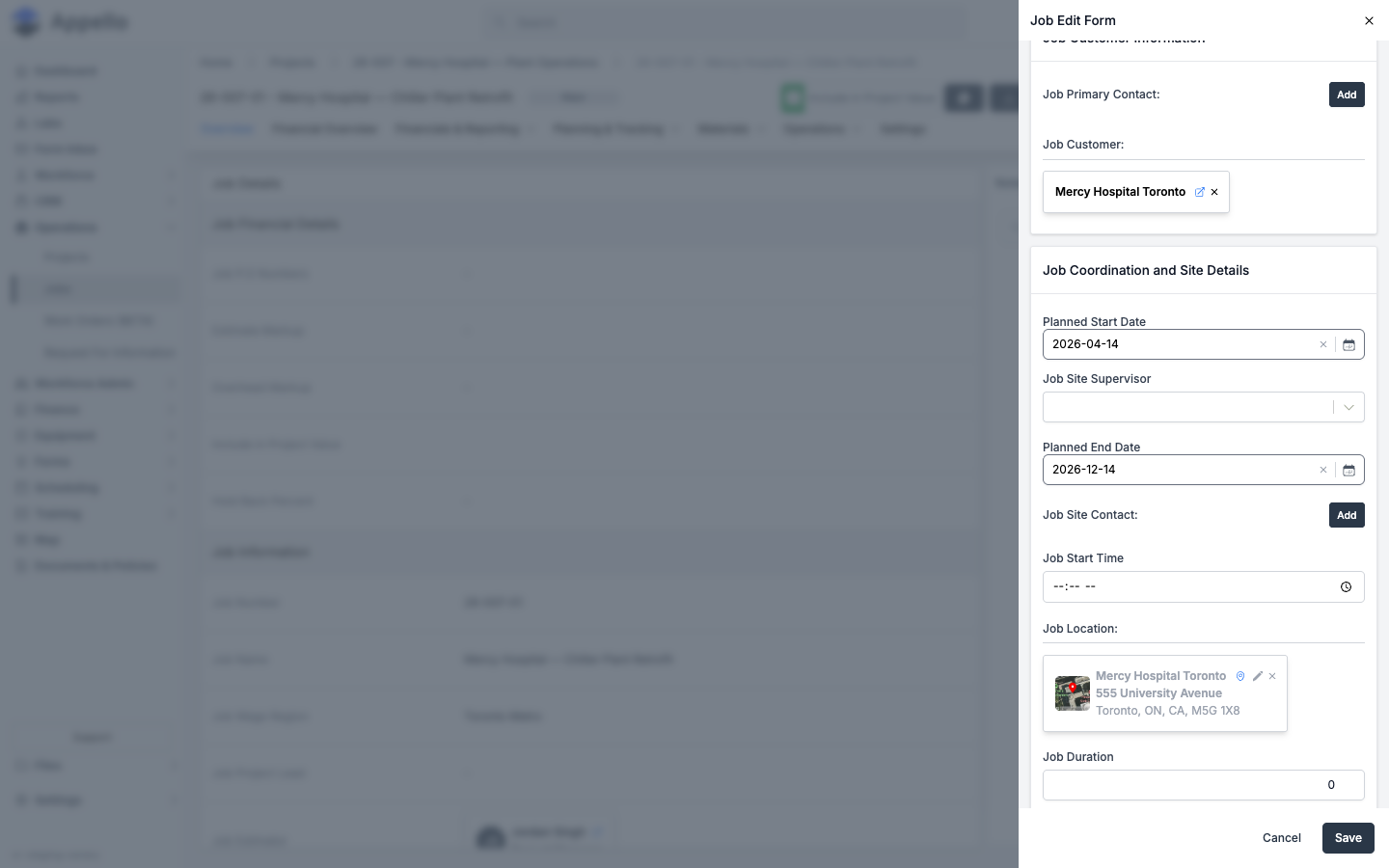
On the job's Overview tab, click the pencil icon in the top-right corner of the Job Details card. The Job Edit Form panel opens.
-
In Job Customer Information, the current customer appears as a chip (with a link icon to open the company record, and an × to unlink it). Click Add next to Job Primary Contact to link or change the contact.
-
In Job Coordination and Site Details, the Job Location field shows a compact card with a small map thumbnail, the location's name and address, a pin icon, a pencil icon, and an ×. Click the pencil to reopen the Associate Location panel (the same Associate Existing/Associate New flow described above) to change the address or move the pin, or click × to unlink the location entirely.
-
Click Save to apply your changes.
Job Settings tab
Every job has its own Settings tab, separate from the Overview tab used above. It gathers job-level configuration that does not belong on the main job form: geofencing, shift length, which safety forms attach to the job, mobile visibility, and notification recipients.
Open a job and click the Settings tab in the job header to reach it.
Job Settings and Work Order Settings
The Job Settings card holds:
| Field | Description |
|---|---|
| Geofence Radius | The clock-in/clock-out geofence radius for this job, in meters (minimum 25). |
| Timesheet Submissions Type | Overrides the system default for how timesheets are submitted on this job. |
| Material Markup | Job-specific material markup override. |
A Work Order Settings card follows with the equivalent Work Order Wage Region, Work Order Rate Type, and Material Markup fields, used when work orders are created under this job.
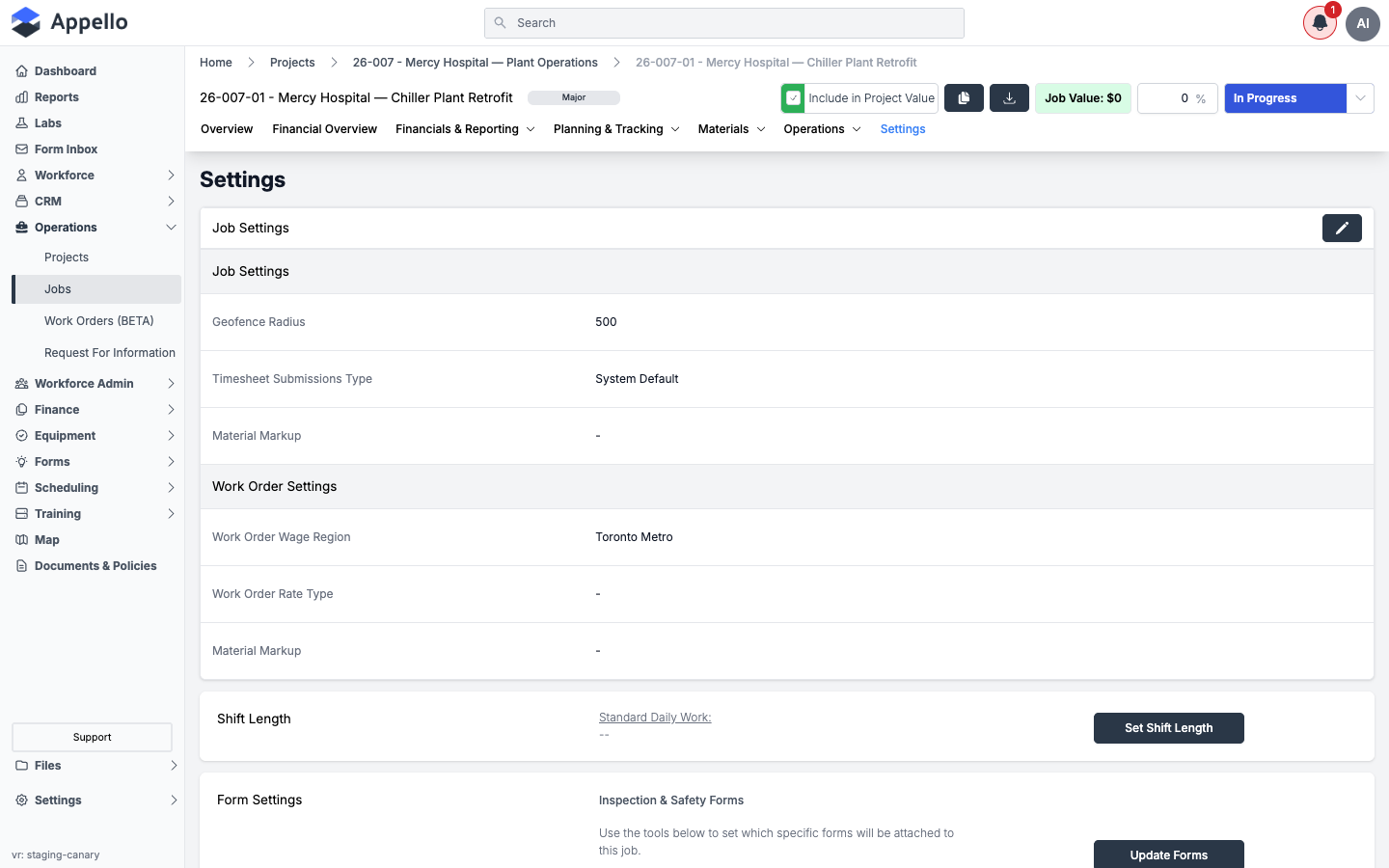
Click the pencil in the top-right of the Job Settings card to edit these fields, including the Geo-Fencing Radius:
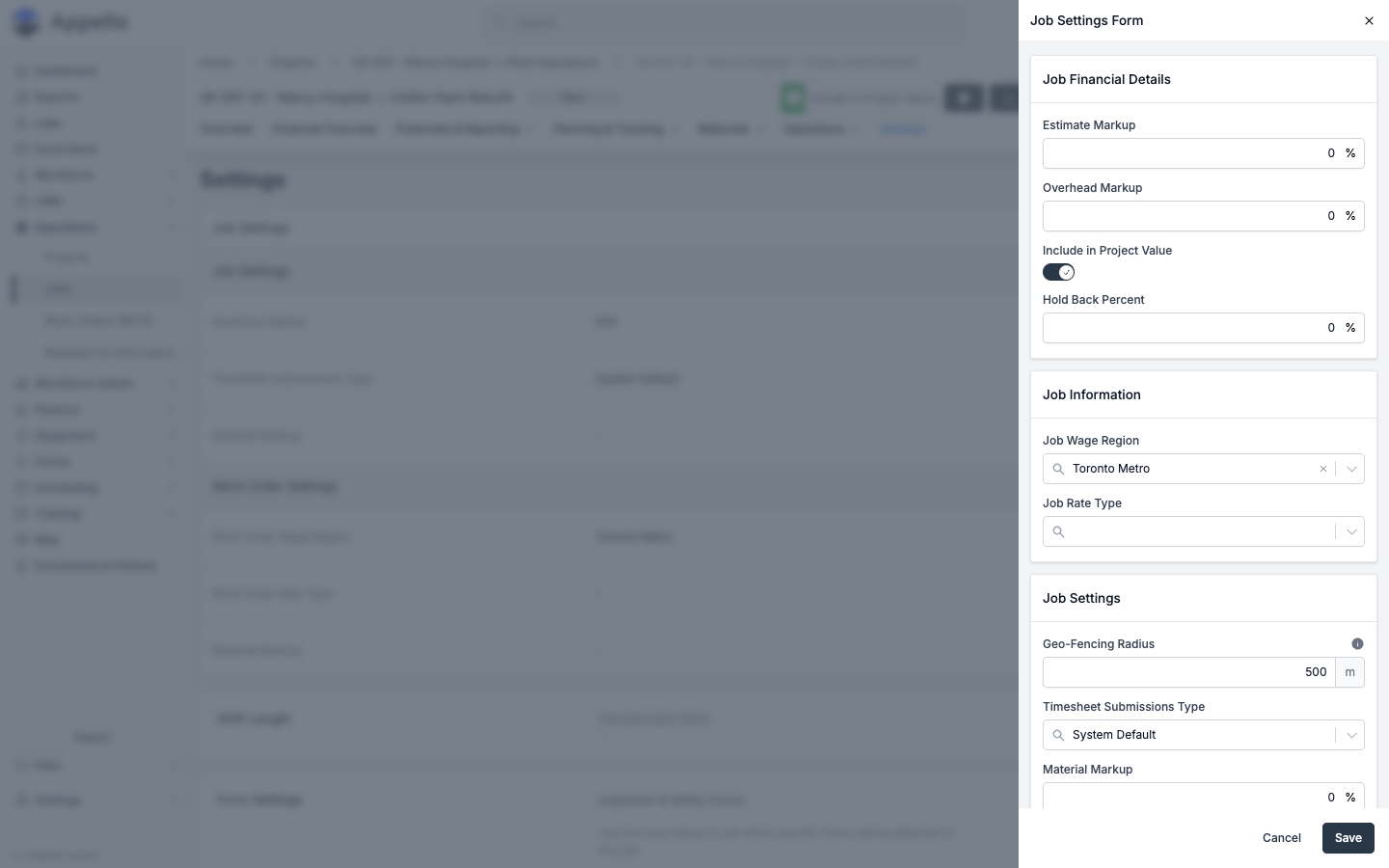
If your instance has geofencing turned off entirely (an instance-wide setting), the Geo-Fencing Radius field is shown as disabled instead of an editable number field. On the demo instance used for these screenshots, geofencing was enabled with a 500 m radius configured.
Shift Length and Form Settings
- Shift Length shows the job's standard daily work hours (or "inherited from project" if the job has no override) and a Set Shift Length button to change it.
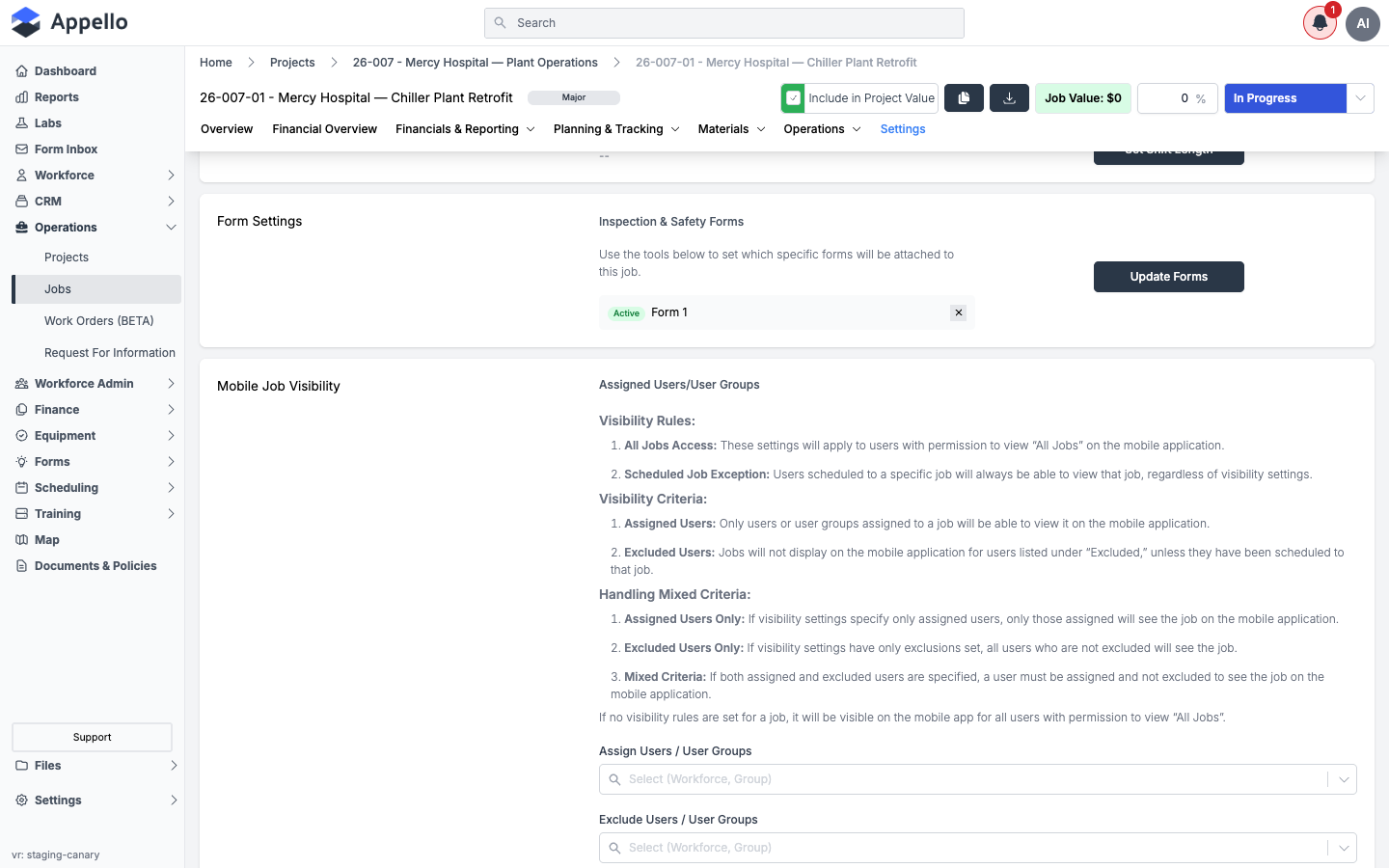
- Form Settings → Inspection & Safety Forms lists the safety/inspection forms currently attached to this job, with an Update Forms button to attach or remove forms.
Mobile Job Visibility
Controls which users can see this job on the mobile app, independent of their All Jobs permission:
- Assign Users / User Groups -- only assigned users/groups (plus anyone scheduled to the job) see it on mobile.
- Exclude Users / User Groups -- listed users/groups will not see the job on mobile, unless they are scheduled to it.
- If neither list is set, the job is visible on mobile to everyone with All Jobs access.
Geofence Notifications
Three notification types can each be sent to a chosen set of users or user groups when a worker's device crosses this job's geofence:
| Notification type | Fires when... |
|---|---|
| User Entered Job Site | A worker's device enters the job's geofence. |
| User Left Job Site | A worker's device leaves the job's geofence. |
| User Clocked In Outside Geofence | A worker clocks in while outside the job's geofence. |
Each type has its own Assign Users / User Groups picker.
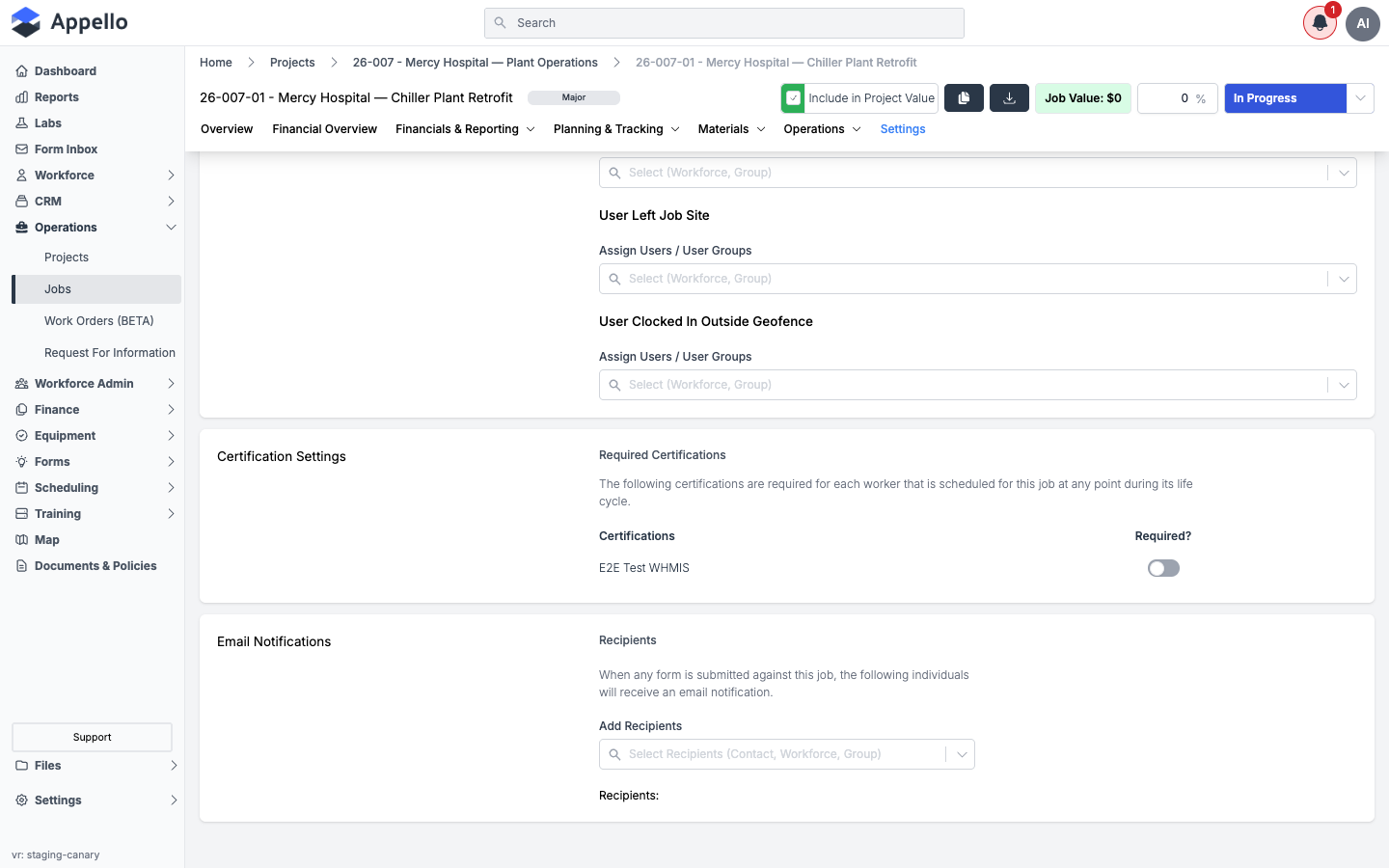
These notifications are driven by the same Geofence Radius set on this tab. For how the resulting clock-in/clock-out events themselves are recorded and reported, see the Clock In / Out report guide.
Certification Settings and Email Notifications
- Certification Settings → Required Certifications lists certifications required for anyone scheduled to this job, each with a Required? toggle.
- Email Notifications → Recipients lets you add contacts, users, or user groups who receive an email whenever a form is submitted against this job (Add Recipients).
On the demo instance used for these screenshots, the job Settings tab did not show any custom properties or a folder-structure control. Job custom properties, when configured for an instance, would appear as additional fields alongside Geofence Radius in the Job Settings card. Default folder structure for job files is configured company-wide (under company Settings, not per job) and applied automatically when a job's folders are created -- it is not an editable field on this tab.
What's next?
- Open the job to add financials, crew assignments, or schedule entries.
- Use the Form Submissions tab to track field reports linked to this job.
- Navigate to Scheduling → Job Schedule to see this job on the company-wide calendar.
- Visit the job's Settings tab to configure its geofence radius, safety forms, and notification recipients -- see Job Settings tab above.
- For clock-in/clock-out behavior at a job site, see the Clock In / Out report guide.