Leave Reports
Module: Core | Platform: Web
Three of the Workforce Administration report cards launched from the Reports hub: the Employee Leave Report, All Leave By Employee, and All Leave. All three are read-only views of leave/vacation requests — none of them can be edited from the report screen itself (leave requests themselves are created and approved on Leave Submissions).
Where they are
Sidebar → Reports, then click the tile or list entry under Workforce Administration:
| Report | Card label on the hub | URL |
|---|---|---|
| Employee Leave Report | Employee Leave Report | /reports/employee-leave-report |
| All Leave By Employee | All Leave By Employee | /reports/all-employee-leave |
| All Leave | All Leave | /reports/all-leave-report |
On the demo instance, no leave requests exist in any date range tested (2018–2034), so every screenshot on this page shows an empty result. The column and filter definitions below describe the report itself, not the (empty) example data.
Employee Leave Report
What it's for
A per-employee breakdown of medical and vacation leave, grouped by leave category and then by leave type, for one worker over a date range you choose. You pick both the employee and the date range from within the report itself — nothing loads until both are set.
Screenshot
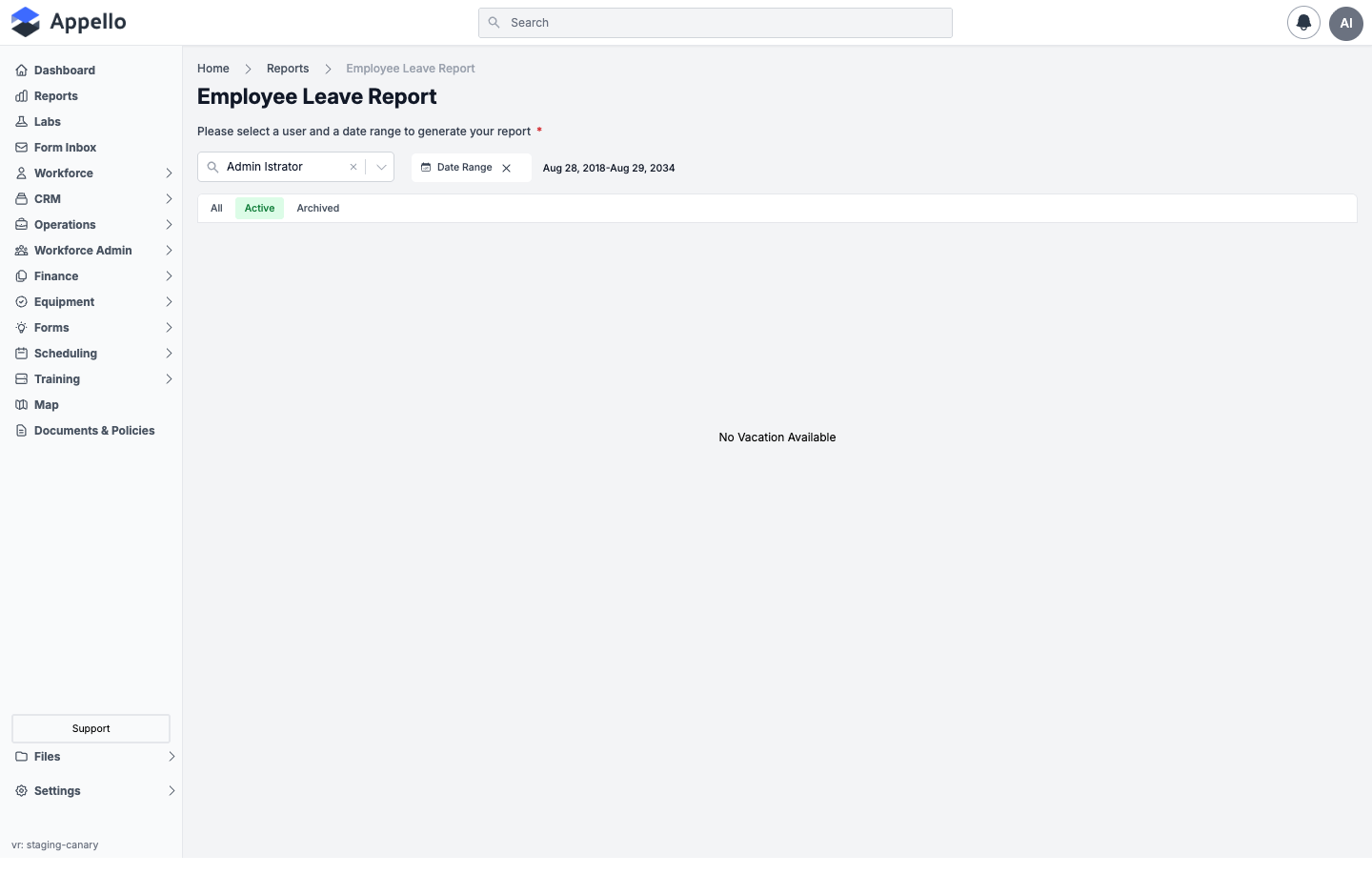
Shown empty on the demo instance — no leave requests exist for any user in this instance, so the report displays "No Vacation Available" regardless of employee or date range.
Screenshot — filter open
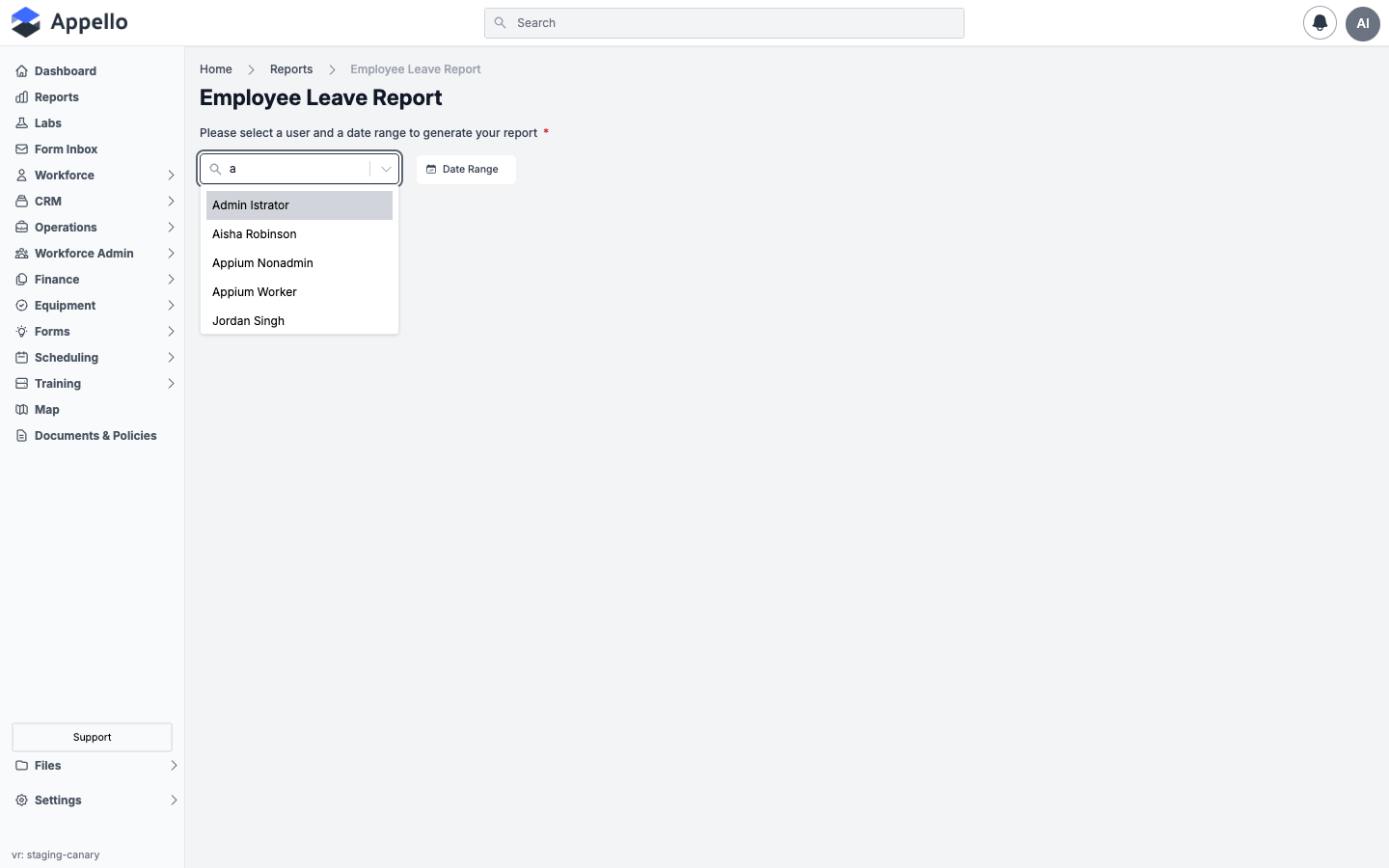
Filters
| Filter | Description |
|---|---|
| Select a User | Required. Type-ahead search over active users; you must pick exactly one employee. |
| Date Range | Required. A from/to date picker. The report includes any leave request whose start date falls inside the selected range. |
Both fields are marked with a red asterisk as required — the report area stays blank until you've picked a user and a complete date range.
Columns
The report is a two-level pivot: Leave Category (bold group header rows) containing one row per Leave Type used within that category.
| Level | Column | Definition |
|---|---|---|
| Group | Leave Category | The internal project each leave type is linked to in Instance Settings. In most instances this lines up one-to-one with the leave type's own name; if two leave types share the same linked project, their rows are grouped together. |
| Row | Leave Type | The specific leave type name (e.g. Vacation, Sick Leave) within that category. |
| Row | Full Days | Count of days from requests logged as a full-day or multi-day leave request type, inclusive of both start and end date. |
| Row | Hourly | Total hours from requests logged as a partial (hourly) leave request type, shown as "N hrs" (plus a day-equivalent in parentheses at the leave-type row, at 8 hours per day). |
| Row | Total Days | Full Days plus the hour total from Hourly, combined into one "N Day(s) N hrs" string. |
| Footer | Grand Total | Full Days, Hourly, and Total Days summed across every leave category and type in the result. |
The report does not filter by leave request status — approved, in-review, not-submitted, and rejected requests within the date range are all included in the totals, and there is no Paid vs. Unpaid breakdown on this report (that flag lives on the individual leave request, not on the report).
Export
None. Unlike the other two leave reports, Employee Leave Report has no Export control.
How to run it
- Sidebar → Reports, then click Employee Leave Report under Workforce Administration.
- In Select a User, search and choose the employee.
- Click Date Range and choose a start and end date.
- The pivot table loads automatically once both are set — no separate "Run" button.
Permissions
All three of the following are required to view this report:
- Workforce → User → View
- Finance & Admin → Vacation/Leave → View
- The Reports → Workforce Administration permission for Employee Leave Report
Related pages
- Reports hub
- Leave Submissions — where leave requests are created and approved
- Leave Types — how leave categories/types are configured
- All Leave By Employee — same data, all employees at once
- All Leave — flat, filterable list of every leave request
All Leave By Employee
What it's for
The same leave breakdown as Employee Leave Report, but for every employee at once — grouped by employee, then by leave type — for a date range you choose. On screen its page title reads "Employee Leave Report" (matching the single-employee report); the Reports hub tile and breadcrumb label it All Leave By Employee.
Screenshot
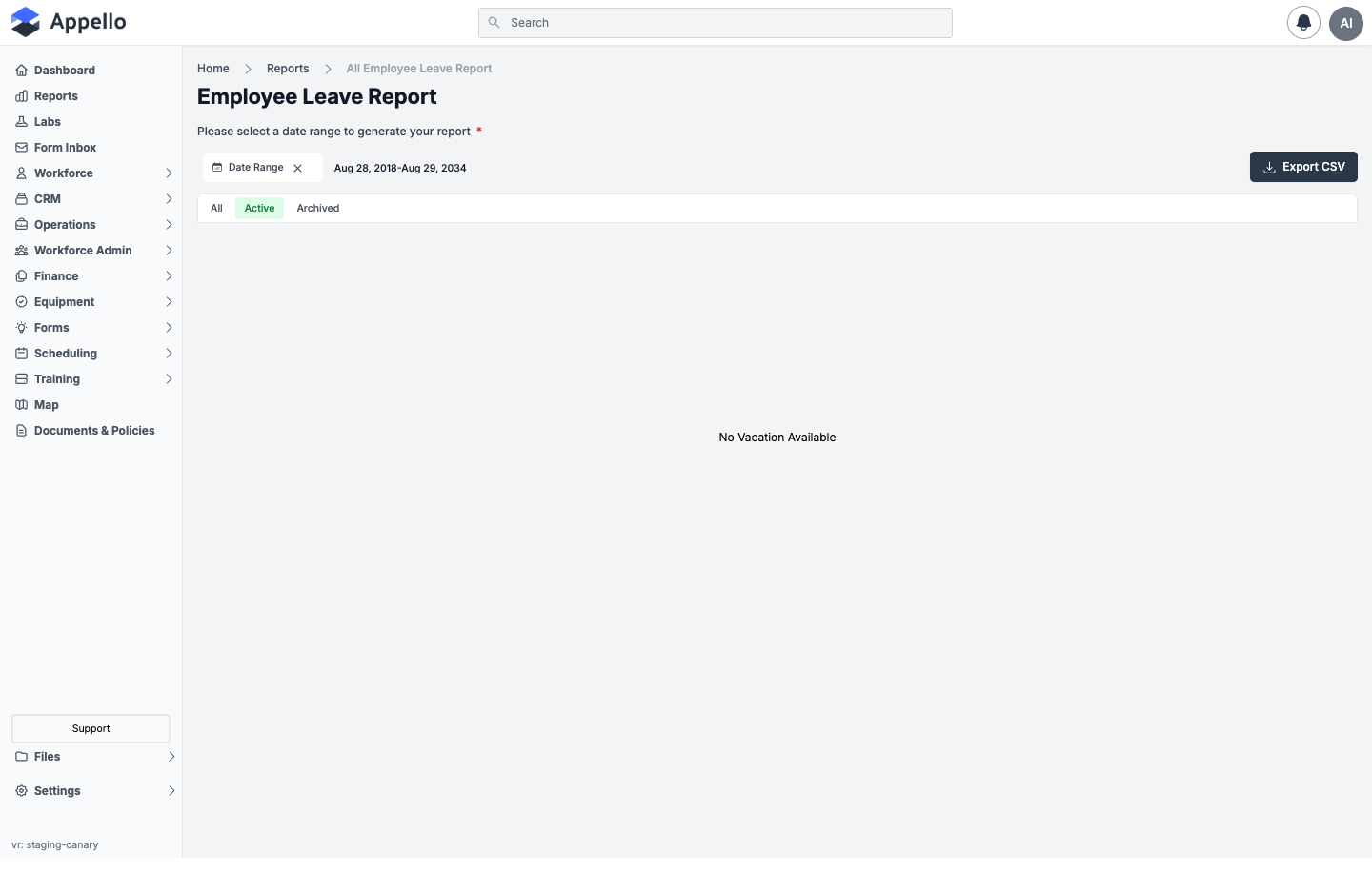
Shown empty on the demo instance — no leave requests exist for any employee in this instance across the full date range tested, so the report displays "No Vacation Available".
Screenshot — filter open
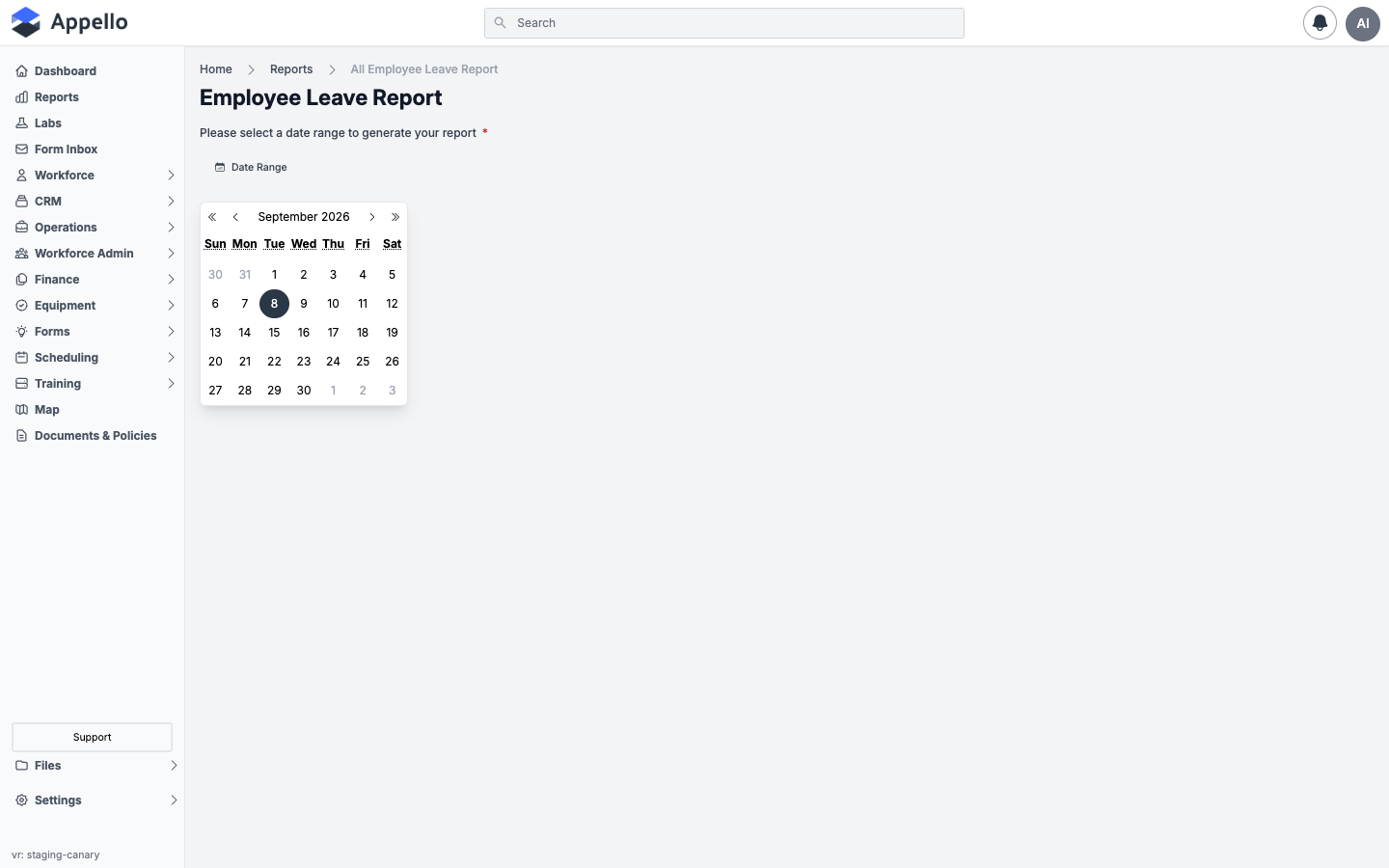
Filters
| Filter | Description |
|---|---|
| Date Range | Required. A from/to date picker. The report includes any leave request whose start date falls inside the selected range. There is no per-employee filter — every active employee is included. |
There are also All / Active / Archived tabs above the table once a date range is set (from the underlying report component's own record-status toggle), though with zero leave requests on the demo instance all three show the same empty result.
Columns
Same two-level pivot as Employee Leave Report, except the top-level grouping is by Employee instead of Leave Category:
| Level | Column | Definition |
|---|---|---|
| Group | Employee | Worker's full name, sorted according to the instance's name-display-order setting (first/last or last/first). |
| Row | Leave Type | The leave type name for that group of requests. |
| Row | Full Days | Count of days from full-day or multi-day leave requests, inclusive of start and end date. |
| Row | Hourly | Total hours from partial (hourly) leave requests, shown as "N hrs" with a day-equivalent at 8 hours/day. |
| Row | Total Days | Full Days plus the Hourly total, combined into one "N Day(s) N hrs" string. |
| Footer | Grand Total | Full Days, Hourly, and Total Days summed across every employee and leave type shown. |
As with Employee Leave Report, all leave-request statuses are included (no status filter), and there is no Paid vs. Unpaid column.
Export
Export CSV appears once a date range is set. It downloads a CSV grouped by employee then leave type, matching the on-screen pivot — but the export applies its own Approved-only filter: it only includes leave requests with status Approved, even though the on-screen table itself does not filter by status. On an instance with pending or rejected leave requests, the exported totals can be lower than what the screen shows.
How to run it
- Sidebar → Reports, then click All Leave By Employee under Workforce Administration.
- Click Date Range and choose a start and end date.
- The pivot table loads automatically for every employee — no separate "Run" button.
- Click Export CSV to download the Approved-only CSV for the selected range.
Permissions
All three of the following are required to view this report:
- Workforce → User → View
- Finance & Admin → Vacation/Leave → View
- The Reports → Workforce Administration permission for All Leave By Employee
Related pages
- Reports hub
- Leave Submissions — where leave requests are created and approved
- Leave Types — how leave categories/types are configured
- Employee Leave Report — same data, one employee at a time
- All Leave — flat, filterable list of every leave request
All Leave
What it's for
A flat, filterable list of individual leave requests across every employee — one row per request, not grouped or totaled like the other two reports. It supports its own column filters, saved custom views, and an Add New action, so it doubles as a leave-request worklist as well as a report.
Screenshot
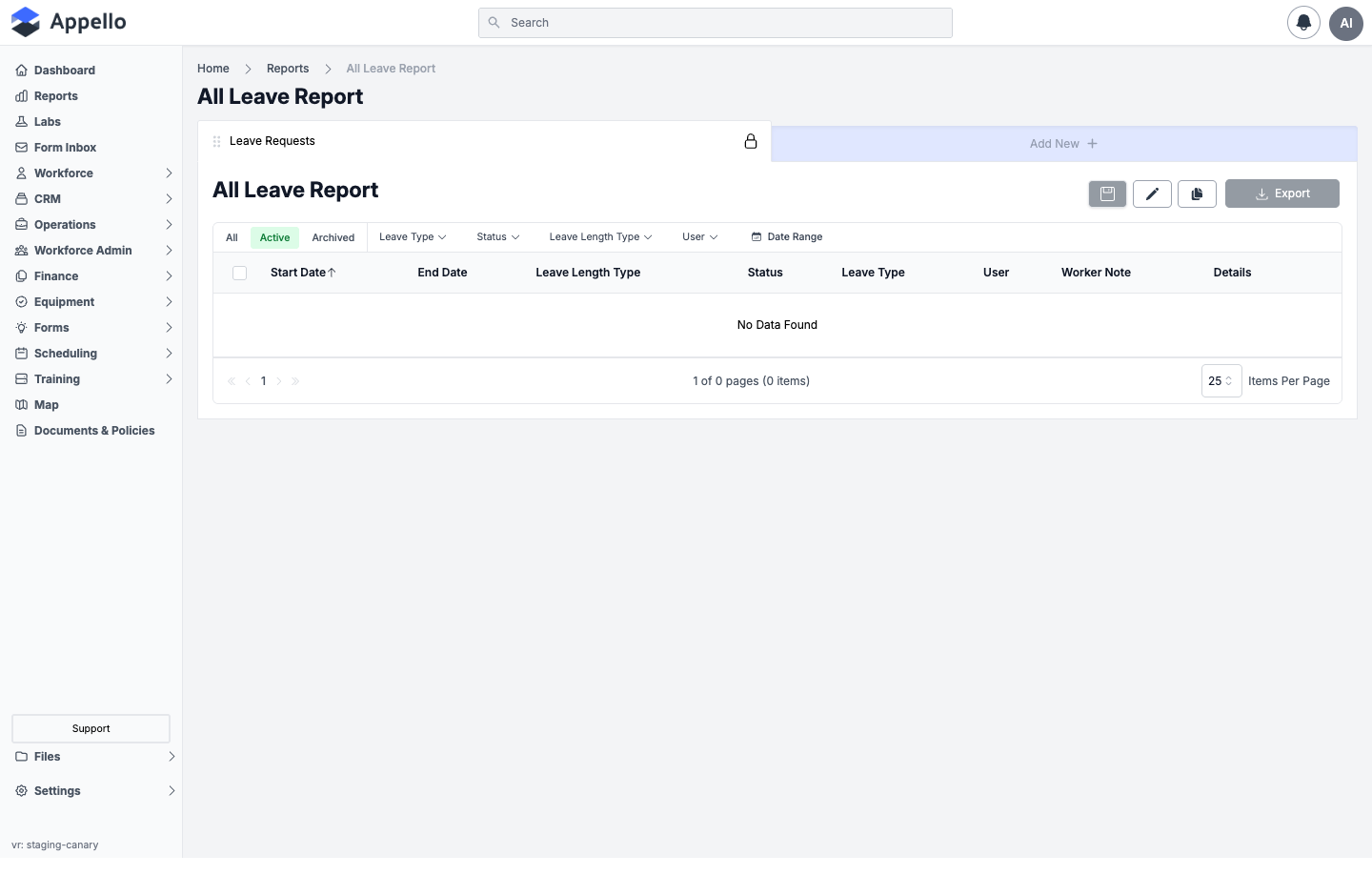
Shown empty on the demo instance — the "Leave Requests" view returns "No Data Found" on the Active tab (and on All/Archived, since there are no leave requests at all in this instance).
Screenshot — filter open
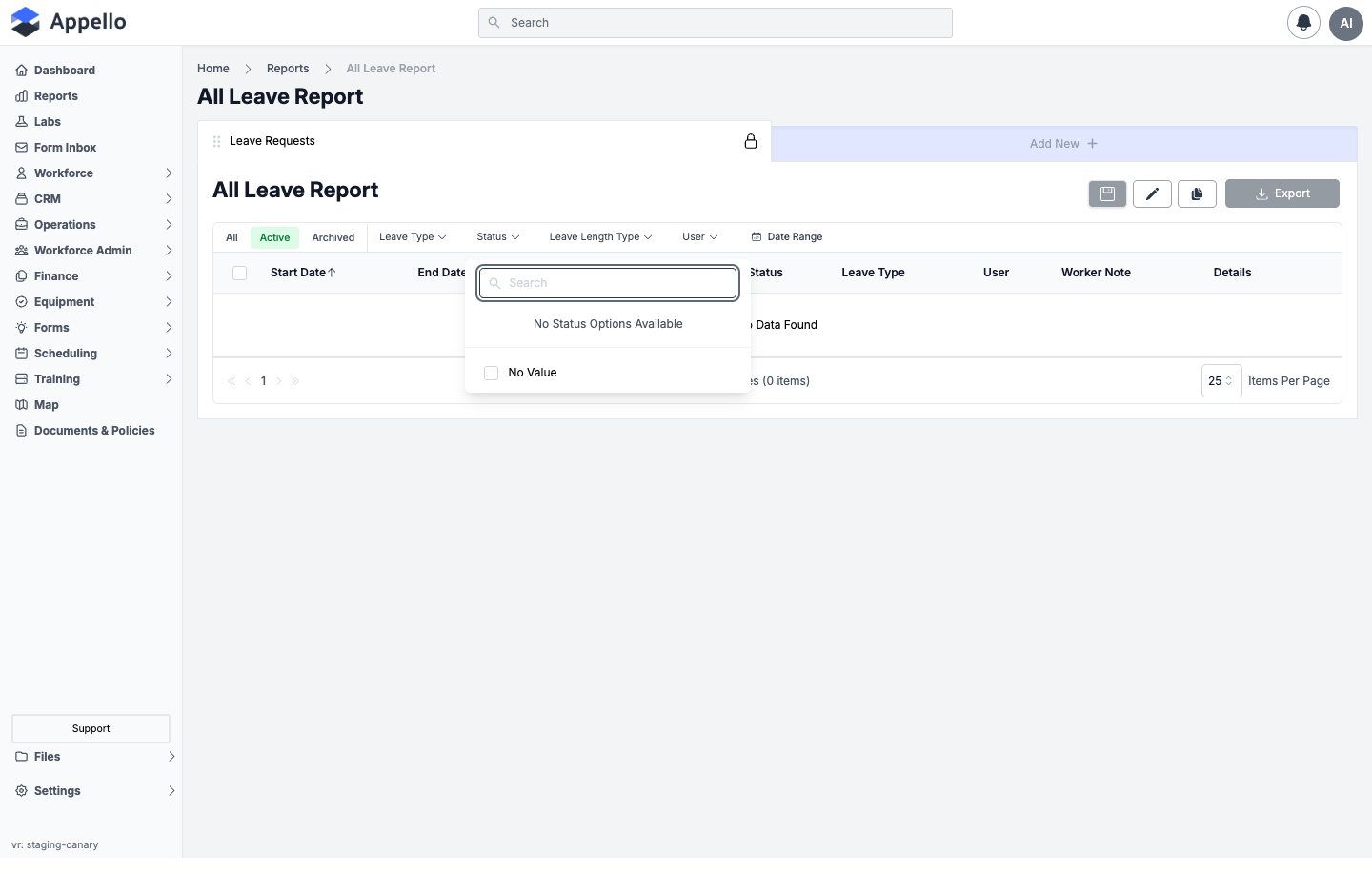
Shown empty on the demo instance — the Status and Leave Type filter dropdowns both read "No ... Options Available" because their option lists are built from the leave requests that currently exist (there are none), not from a fixed list.
Controls and filters
| Control | Description |
|---|---|
| All / Active / Archived | Record-status tabs. Active is the default; Archived shows soft-deleted/archived leave requests; All shows both. |
| Leave Type | Multi-select filter on the leave type of the request, plus an "Empty"/no-value option. |
| Status | Multi-select filter on approval status, plus an "Empty" option. |
| Leave Length Type | Multi-select filter on whether the request is Hourly (partial), Full Day, or Multi Day. |
| User | Multi-select filter on the requesting employee. |
| Date Range | Filters by the request's start/end date. |
| Add New | Opens the leave-request creation form directly from the report. |
| Items Per Page | 25 (default) — the report is paginated rather than loading everything at once. |
| Column-picker (pencil icon) | Edit Table View — choose which columns show and reorder them; you can also save the current filters/columns as a new named, optionally private, view. |
Columns
Confirmed from the report's default "Leave Requests" view and its column-picker (screenshotted on the demo instance, contents unconfirmed since there was no data to display):
Shown by default:
| Column | Definition |
|---|---|
| Start Date | The leave request's start date. Default sort column (ascending). |
| End Date | The leave request's end date (blank for a single-day request with no end date set). |
| Leave Length Type | Hourly (partial), Full Day, or Multi Day — the request's leave length type. |
| Status | Approval status of the request. Leave Submissions labels these Pending / Approved / Rejected; the schema also allows a "Not Submitted" draft state not seen on Leave Submissions. |
| Leave Type | The named leave type (e.g. Vacation, Sick Leave) the request was filed against. |
| User | The requesting employee. |
| Worker Note | The note the worker entered when submitting the request. |
| Details | Additional free-text details on the request. |
Available but hidden by default (add them from the column picker):
| Column | Definition |
|---|---|
| Is Paid Leave | Whether the request is marked as paid leave — this is where Paid vs. Unpaid actually lives, not on the other two leave reports. |
| Is Partial Absence | Whether the request only covers part of a day. |
| Duration | A computed human-readable duration — hours (e.g. "4 hrs") for a partial request, or days (e.g. "3 days") for a full/multi-day request, accounting for any excluded dates. |
| Trade Classification | The employee's trade level as of the request. |
| Union Hall | The employee's union hall, if any. |
| Employee Agreement | The wage/employment agreement tied to the employee's trade level. |
| User Group | Any user group(s) the employee belongs to. |
| Submitted By User | Who submitted the request (may differ from the requesting employee if an admin filed it on the worker's behalf). |
| Date Submitted | When the request was submitted. |
| Status Change Date | When the status last changed (e.g. when it was approved or rejected). |
| Admin Note | Internal note added by an administrator. |
| Internal Note | Additional internal-only note. |
| Exclude Dates | Specific dates excluded from a multi-day request (e.g. a weekend in the middle of the range). |
| Created At / Updated At | Record timestamps. |
Export
Export in the top-right toolbar. Unlike All Leave By Employee's CSV export, this is the standard list-export control: it downloads whatever rows match your current tab/filters (or only the checked rows, if any are checked) as CSV — no built-in status restriction the way the All Leave By Employee CSV has.
How to run it
- Sidebar → Reports, then click All Leave under Workforce Administration.
- Choose the All / Active / Archived tab you want.
- Apply any of the Leave Type, Status, Leave Length Type, User, or Date Range filters.
- Use the column-picker (pencil icon) to add columns like Is Paid Leave or Duration, or to save your filters/columns as a new view.
- Click Export to download the current rows as CSV.
Permissions
All three of the following are required to view this report:
- Workforce → User → View
- Finance & Admin → Vacation/Leave → View
- The Reports → Workforce Administration permission for All Leave
Related pages
- Reports hub
- Leave Submissions — where leave requests are created and approved
- Leave Types — how leave categories/types are configured
- Employee Leave Report — grouped/totaled view, one employee at a time
- All Leave By Employee — grouped/totaled view, all employees at once