Project Files tab
Module: Operations | Platform: Web (mobile visibility controls affect the Appello mobile app)
Appello stores files in one shared file manager that appears in three places: the company-wide Files entry in the main sidebar, a Files tab on each project, and a Files tab on each job. All three use the same folder tree, upload, and mobile-visibility controls described below.
Navigation
- Company-wide: Sidebar → Files
- Project-level: Sidebar → Operations → Projects → open a project → Files
- Job-level: Sidebar → Operations → Jobs → open a job → Files
Example URL pattern: /projects/<projectId>?tab=files or /jobs/<jobId>?tab=files
The main-nav Files entry does not open its own page/URL -- clicking it opens a full-screen panel over whatever page you're currently on. There is no standalone Files page.
Company-level file management
Clicking Files in the main sidebar opens a company-wide file manager with one top-level folder per record type that supports files:
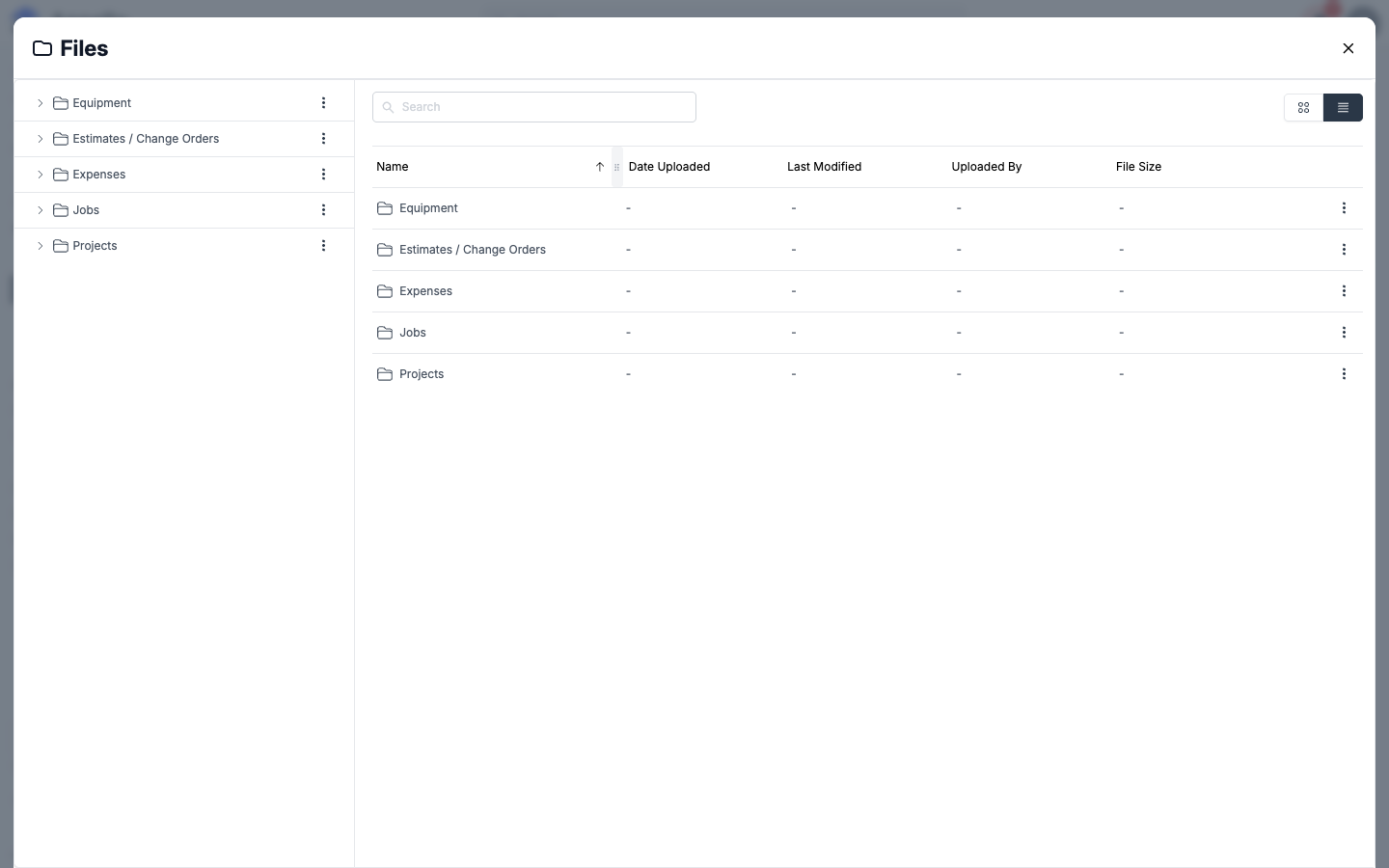
| Top-level folder | Contains |
|---|---|
| Jobs | Every job's file folder, in one place. |
| Projects | Every project's file folder, in one place. |
| Equipment | Files attached to equipment records. |
| Materials | Files attached to material records. |
| Expenses | Files attached to employee expenses. |
| Estimates / Change Orders | Every estimate and change order's generated documents, grouped by job. |
| Request For Information | Files attached to RFIs. |
These top-level folders are system-generated aggregations -- you cannot rename, delete, move, or create sibling folders next to them. Drilling into one (for example Estimates / Change Orders) shows the same per-job subfolders you would see from that job's own Files tab.
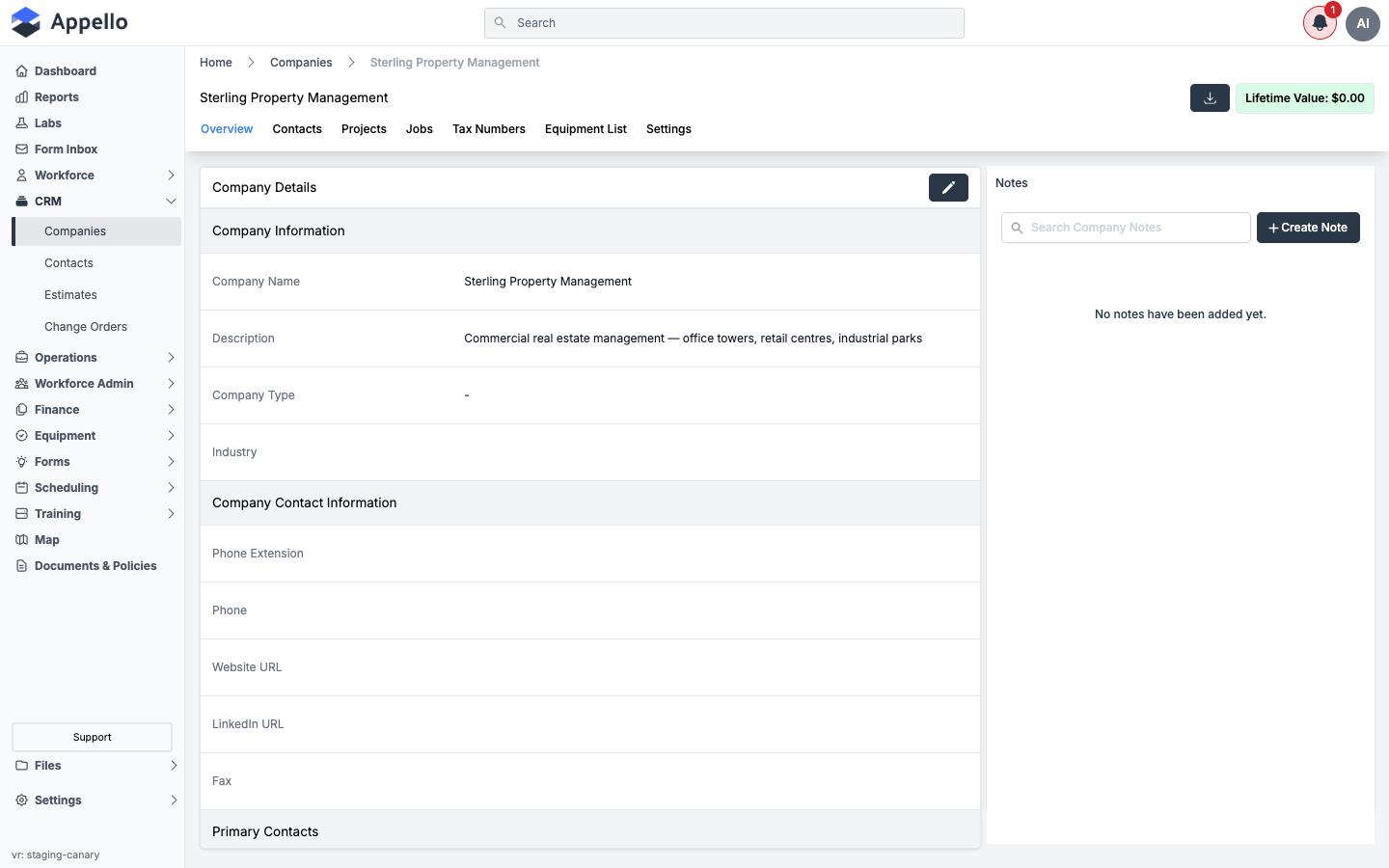
Company detail page: A Company record's detail page does not have a Files tab. Its tabs are Overview, Projects, Jobs, Tax Numbers, and Equipment List (confirmed by opening a company record on the live app). To find a company's files, open the company-wide Files panel and browse by job or project instead.
Project Files tab
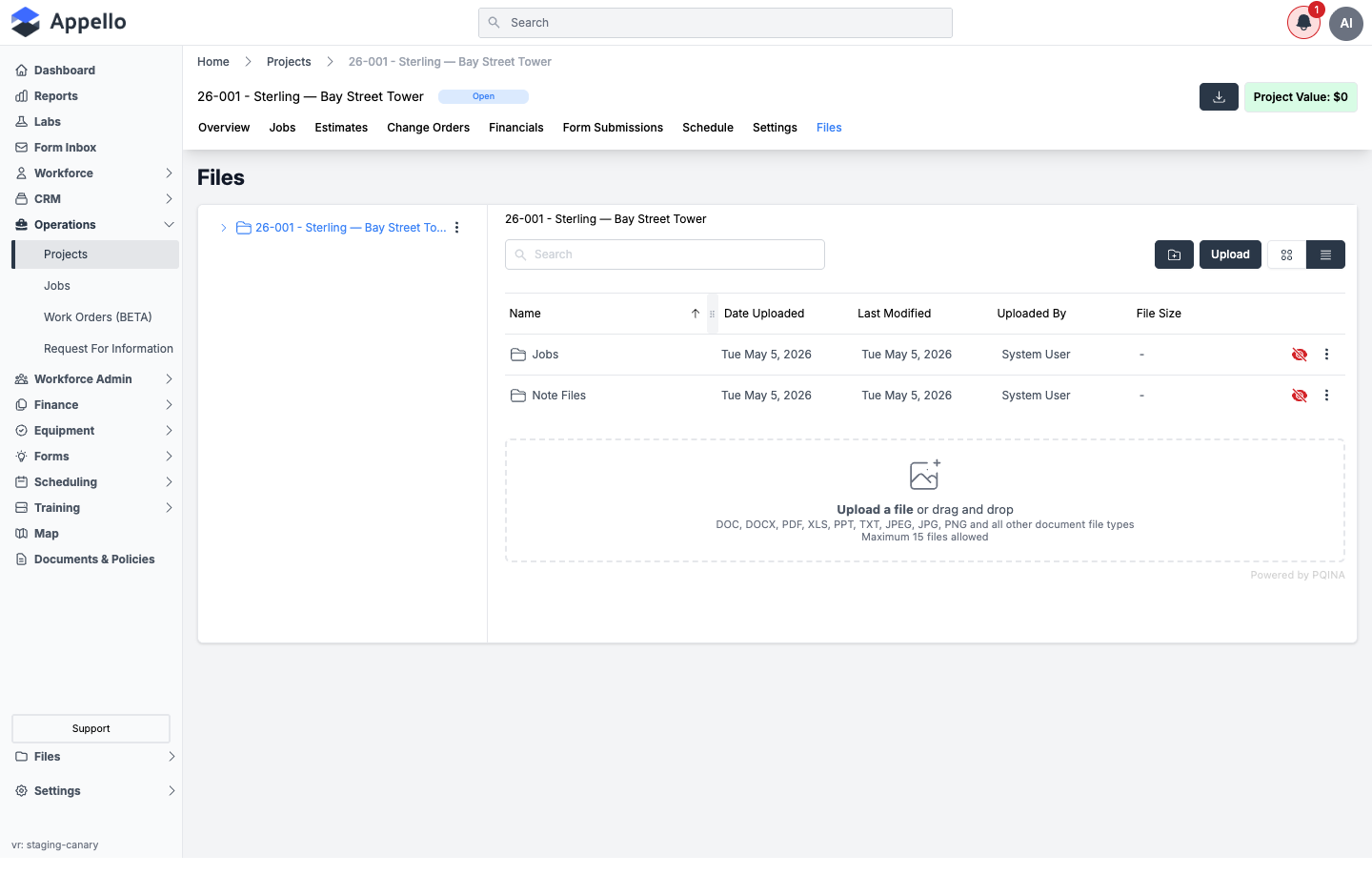
A project's Files tab starts with two system folders:
| Folder | Purpose |
|---|---|
| Jobs | Auto-created; mirrors the files folder of every job under this project. |
| Note Files | Auto-created; holds attachments uploaded from the project's Notes panel. |
Both start hidden from mobile by default (see Mobile visibility below). You can create additional subfolders anywhere else in the tree.
Job Files tab
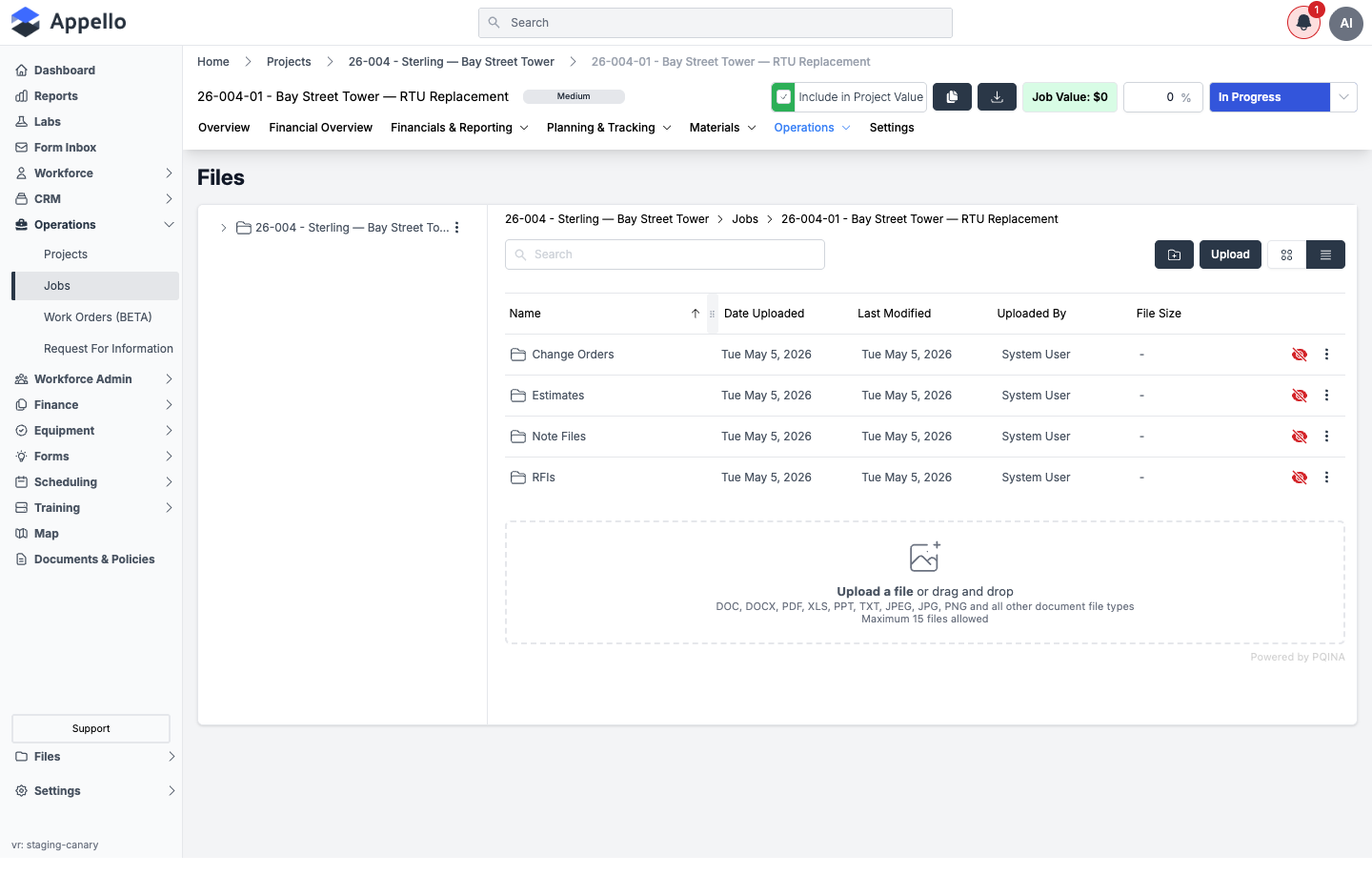
A job's Files tab starts with four system folders -- Change Orders, Estimates, Note Files, and RFIs -- all hidden from mobile by default. The breadcrumb and folder tree also surface the parent project's folder, so you can jump up to project-level files without leaving the job.
Folder management
| Action | How |
|---|---|
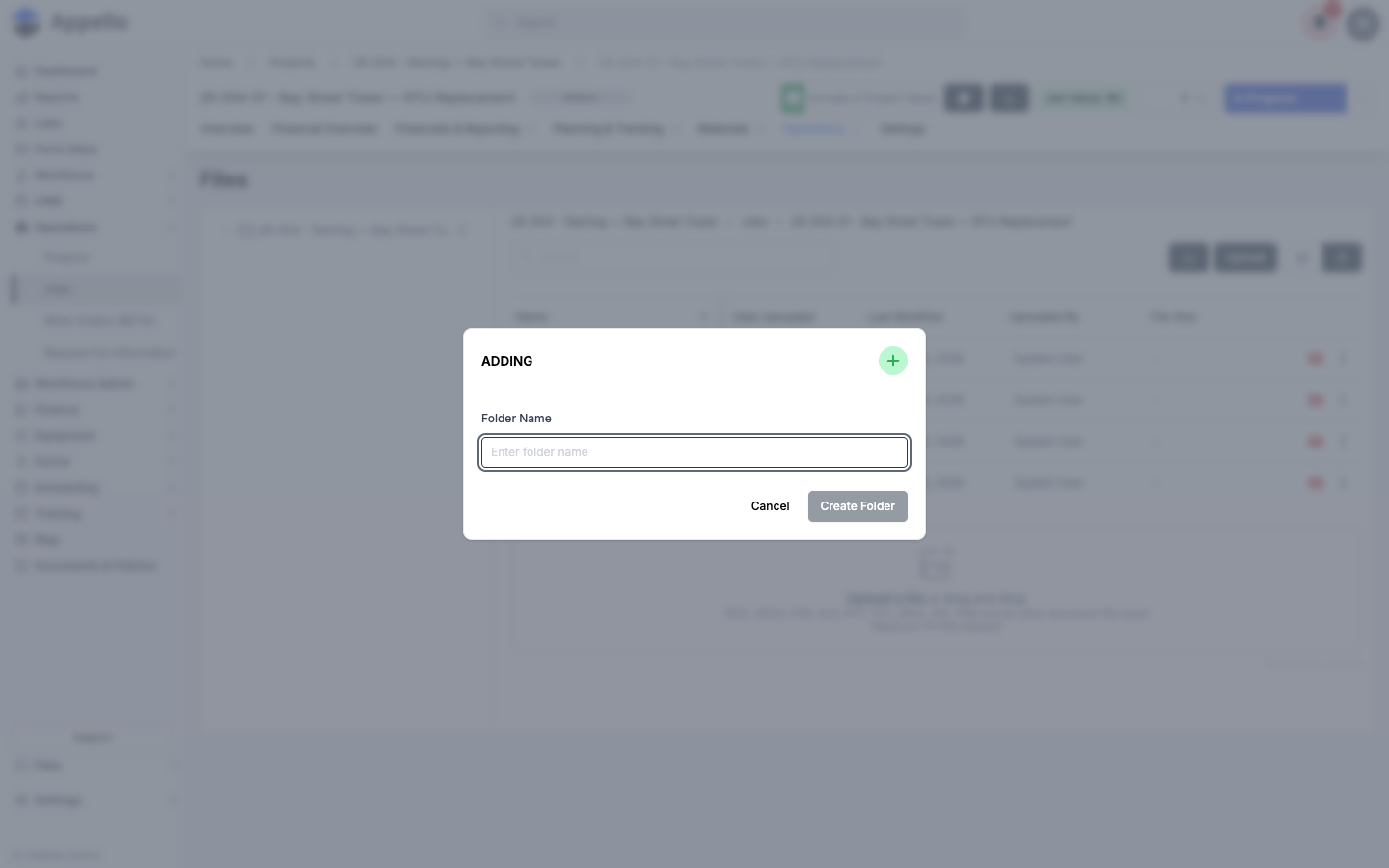
| New Subfolder | New Folder icon in the toolbar, or New Subfolder from a folder's ⋮ menu. |
| Rename Folder | ⋮ menu on the folder → Rename Folder. |
| Move To | ⋮ menu on a file or folder → Move To, or drag-and-drop within the tree. |
| Delete Folder | ⋮ menu → Delete Folder. A folder can't be deleted while it still contains subfolders or files. |
| Delete File | ⋮ menu on a file → Delete File. |
| Download Files in Folder | ⋮ menu on a folder → downloads every file inside it. |
System folders created automatically (the ones listed above under each tab) cannot be renamed, deleted, moved, or given subfolders -- only folders you create yourself support the full set of actions.
Uploading files
- Open the job or project's Files tab (or the company-wide Files panel) and select the target folder.
- Click Upload, then choose Upload File, or simply drag and drop files onto the drop zone shown at the bottom of the file list.
- Files upload immediately; a temporary "loading" row shows progress until each one finishes.
Notes shown directly in the drop zone: it accepts DOC, DOCX, PDF, XLS, PPT, TXT, JPEG, JPG, PNG, and all other document file types, and caps a single batch at 15 files. See Bulk uploads, file types, and size limits below for the full detail.
Attaching a link (Upload Link)
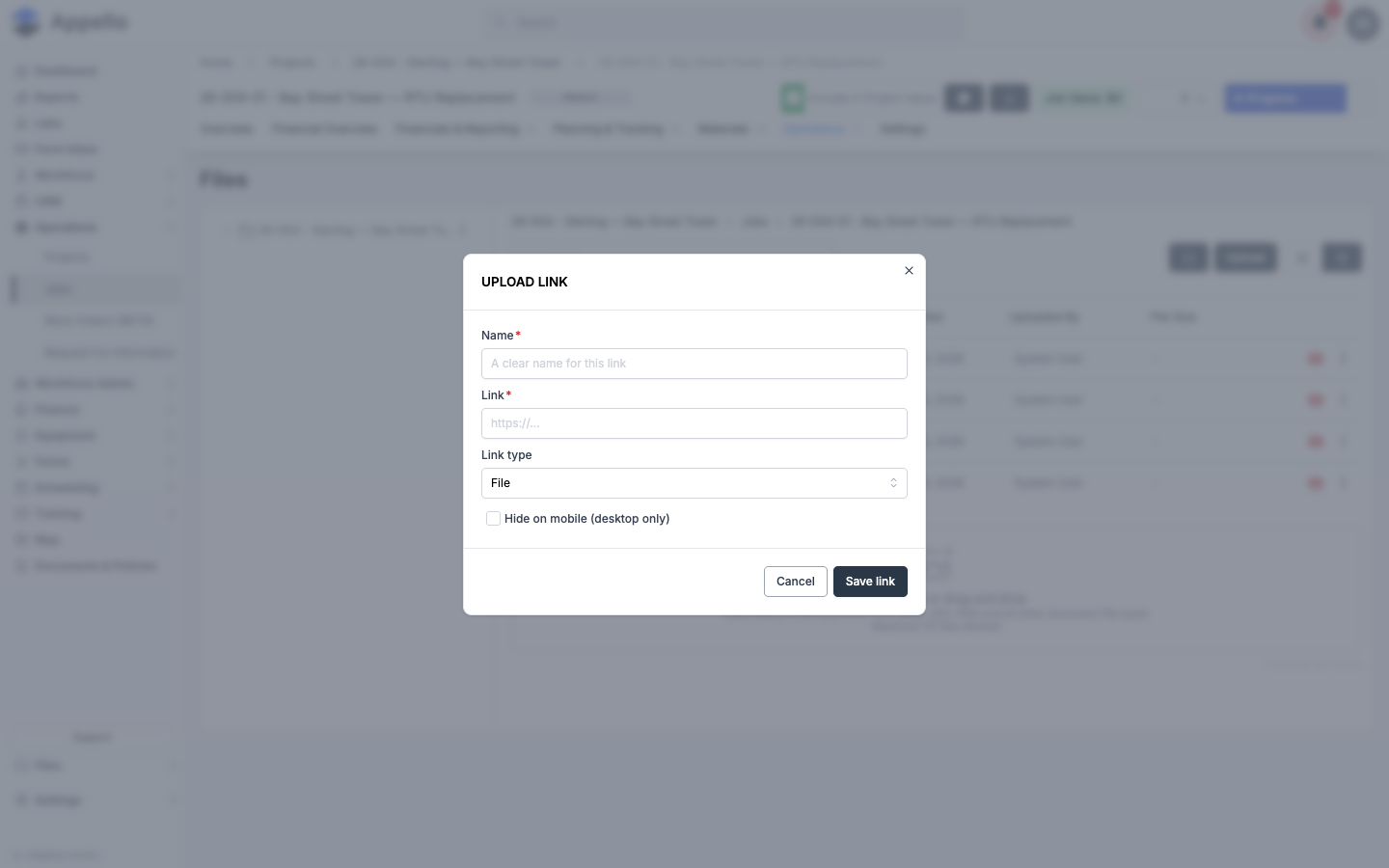
Job and project Files tabs also offer Upload Link (next to Upload File in the Upload menu) for referencing a file that lives somewhere else -- a SharePoint folder, Google Drive link, etc. -- without uploading a copy into Appello.
| Field | Description |
|---|---|
| Name | Label shown for the link in the file list. |
| Link | The destination URL (must start with http:// or https://). |
| Link type | Whether the link points to a single file or acts as a link folder. |
| Hide on mobile (desktop only) | Same mobile-visibility flag used by regular files -- see below. |
This is a saved reference to an external URL, not a file import. Appello does not fetch, copy, or extract anything from the link target. Upload Link is only available on Job and Project Files tabs -- it does not appear on the company-wide Files panel or on Equipment/Material/Expense folders.
Mobile visibility
Every file and folder carries a hidden-from-mobile flag, shown as an eye icon at the right edge of its row: a crossed-out red eye means the item is hidden from the mobile app; an open eye means field workers can see it there.
| Control | What it does |
|---|---|
| Hide from Mobile / Show on Mobile | Per-file or per-folder toggle in the ⋮ menu (or the eye icon on the row). Flips that one item's mobile visibility. |
| Default Visibility for Desktop Files on Mobile | Company-wide default applied to newly uploaded desktop files, set in Settings → Instance Settings → Mobile Settings. Defaults to Hidden. Changing it does not retroactively change files that already have their own setting. See Instance Settings. |
Who can toggle visibility, rename, move, or delete a given file/folder is controlled by the Asset and Folder permission sets on the user's role, and each of those permissions can be scoped to items the user uploaded themselves rather than every item. There is no separate "Office Only" vs. "Visible to Field" label in the product -- visibility is this single hidden/visible flag per item, plus the company-wide default described above.
There is no such thing as a "Public Binder" in Appello. The way to share a file or folder with field workers on mobile is the hidden-from-mobile flag described above, together with the instance-wide default in Mobile Settings.
Bulk uploads, file types, and size limits
- Bulk upload: drag-and-drop or the file picker both accept multiple files in one action, up to 15 files per batch.
- Accepted file types (the Files tabs accept everything Appello accepts anywhere):
- Images: PNG, JPEG/JPG, WEBP, HEIC/HEIF, GIF
- Documents: PDF, DOC, DOCX, XLS, XLSX, TXT, ZIP
- Audio: AAC, MIDI, MP3, OGG, WEBM, M4A
- Video: MP4, WEBM, QuickTime (MOV)
- Size limits: audio and video files are capped at 10 MB by default, with an error notification if you exceed it. No general size limit applies to images or documents -- the upload drop zone only advertises the 15-file count limit, not a size limit.
- ZIP / import-from-URL: a
.zipfile can be uploaded like any other document, but Appello does not unpack or import its contents. There is no bulk import-from-URL feature; the closest equivalent is Upload Link (above), which saves a reference to an external URL rather than importing a file.
Whether a further size cap applies beyond the 10 MB audio/video limit could not be confirmed in this pass.
How project files connect to other features
| Feature | Relationship |
|---|---|
| Projects | Every project has its own Files tab; its Jobs folder mirrors every job under it. |
| Jobs | Every job has its own Files tab with Change Orders, Estimates, Note Files, and RFIs folders. |
| Companies | No Files tab on the company record -- use the company-wide Files panel and browse by job/project instead. |
| Notes | Attachments added from a job's or project's Notes panel land in that record's Note Files folder. |
| Mobile App | Field workers see files and folders that are not flagged hidden-from-mobile. |
| Estimates / Invoices | Estimate and change order documents appear under each job's Estimates / Change Orders folders, and are also aggregated under the company-wide Estimates / Change Orders folder. |