User Workforce Schedule
Module: Scheduling | Platform: Web
The User Workforce Schedule answers "where is this one worker assigned, over the next several weeks?" -- you pick a single worker from a dropdown, then scan a multi-week grid of every job to see which days they're on, which days they're free, and where their approved leave falls. It's the fastest way to check one person's availability without scrolling a whole crew's worth of columns.
Navigation
Sidebar → Scheduling → User Schedule (the sidebar label is User Schedule; the page itself is also titled "User Schedule" in its breadcrumb and heading)
URL: /scheduling/user-workforce
Overview
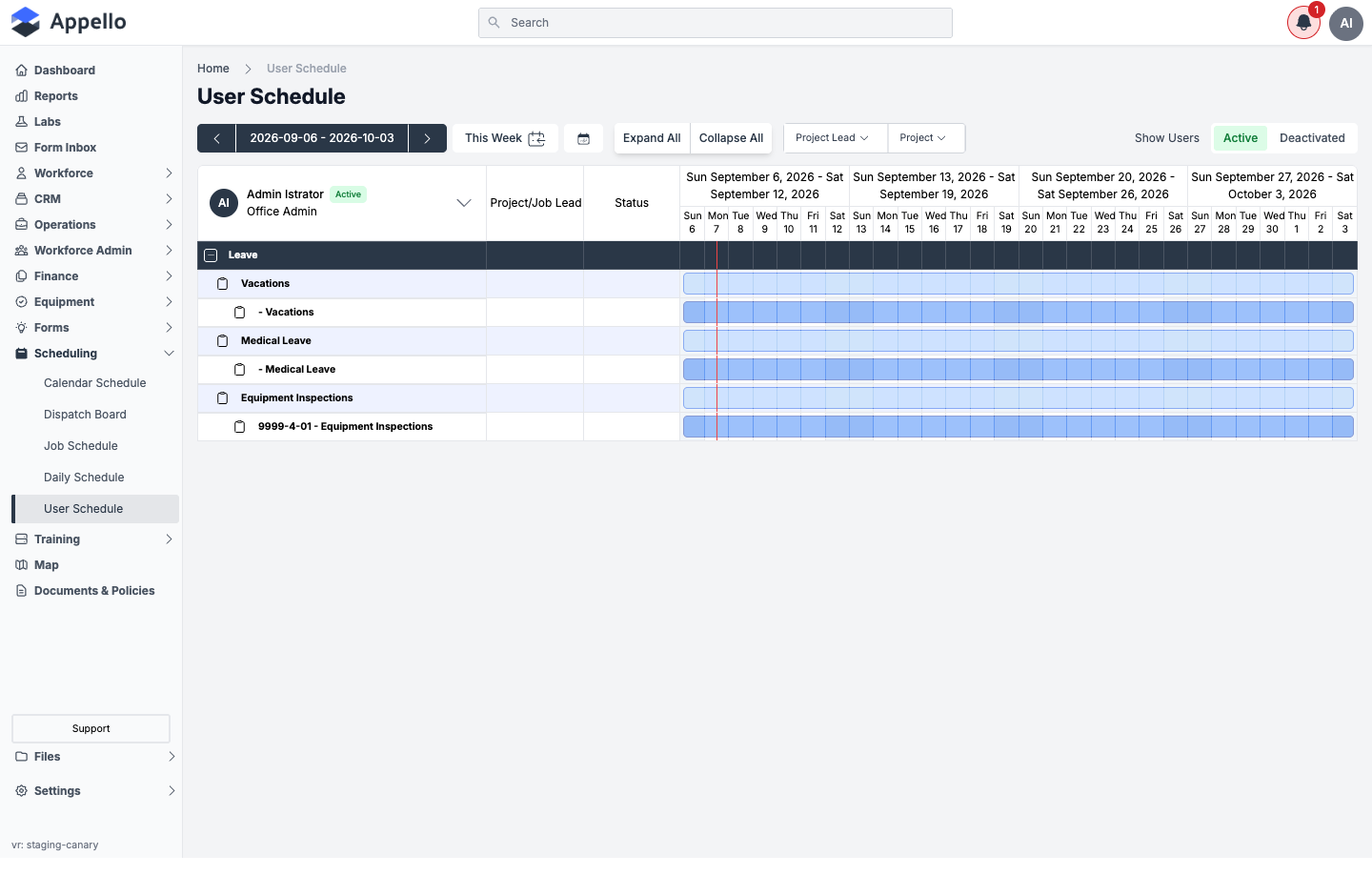
This page is organized around one selected worker at a time, not one row per worker.
The grid displays:
- Top-left header cell -- the worker picker: a searchable dropdown showing the currently selected worker's name, active/deactivated badge, and trade classification. Every cell in the grid below reflects this one worker's schedule.
- Rows -- the built-in Leave (Vacations, Medical Leave) and Equipment Inspections categories at the top, followed by one row per customer, expandable down to that customer's projects and jobs. Rows are shared across all workers -- switching the picker to a different person doesn't change which jobs appear, only which cells light up.
- Columns -- days across the visible date range (4 weeks by default).
- Cells -- for the selected worker only: a highlighted bar plus a small icon (a calendar icon on Leave/Equipment Inspections rows, a clock icon on job rows) marks a day they're scheduled. An empty cell means they're unassigned that day.
This screenshot shows a date range with no customer jobs scheduled to any worker, so only the built-in Leave and Equipment Inspections categories appear. Those internal rows show as fully highlighted for every day because they are not restricted by the click-to-assign permission checks that ordinary job rows use. Customer jobs that exist but have nobody scheduled in the visible weeks simply show as empty rows. See the assign dialog screenshot below for what a real project row looks like.
Controls
| Control | Description |
|---|---|
| Worker picker (top-left cell) | Click to open a searchable list of workers. Selecting one re-renders every cell in the grid for that worker. Shows name, Active/Deactivated badge, and trade classification. |
| Date range display + ‹ › | Shows the visible 4-week span. The arrows move the whole range back or forward one week at a time. |
| This Week (calendar icon) | Jumps the range back to the week containing today. |
| Calendar icon (next to This Week) | Opens a date picker to jump to an arbitrary week. |
| Expand All / Collapse All | Expands or collapses every customer/project row at once. Your last expand/collapse state is remembered the next time you open the page. |
| Project Lead filter | Searchable multi-select -- show only projects led by a specific person. |
| Project filter | Searchable multi-select -- show only a specific project or job, or one of the internal categories (Internal Break Time, Internal Equipment Inspections, Medical Leave, Vacations). |
| Clear All | Appears once any Project Lead / Project filter is applied; removes all of them at once. |
| Show Users: Active / Deactivated | Tabs, top-right. Switch which workers populate the worker picker. |
| + / - toggle (per customer/project row) | Expands or collapses that row's children. |
There is no free-text job/project search box on this page. The only search field is the one inside the worker-picker dropdown, which searches worker names -- it does not search job names or numbers. (Compare with the Daily Schedule and Job Schedule pages, which do have a job/project search box in their toolbars.)
Filters
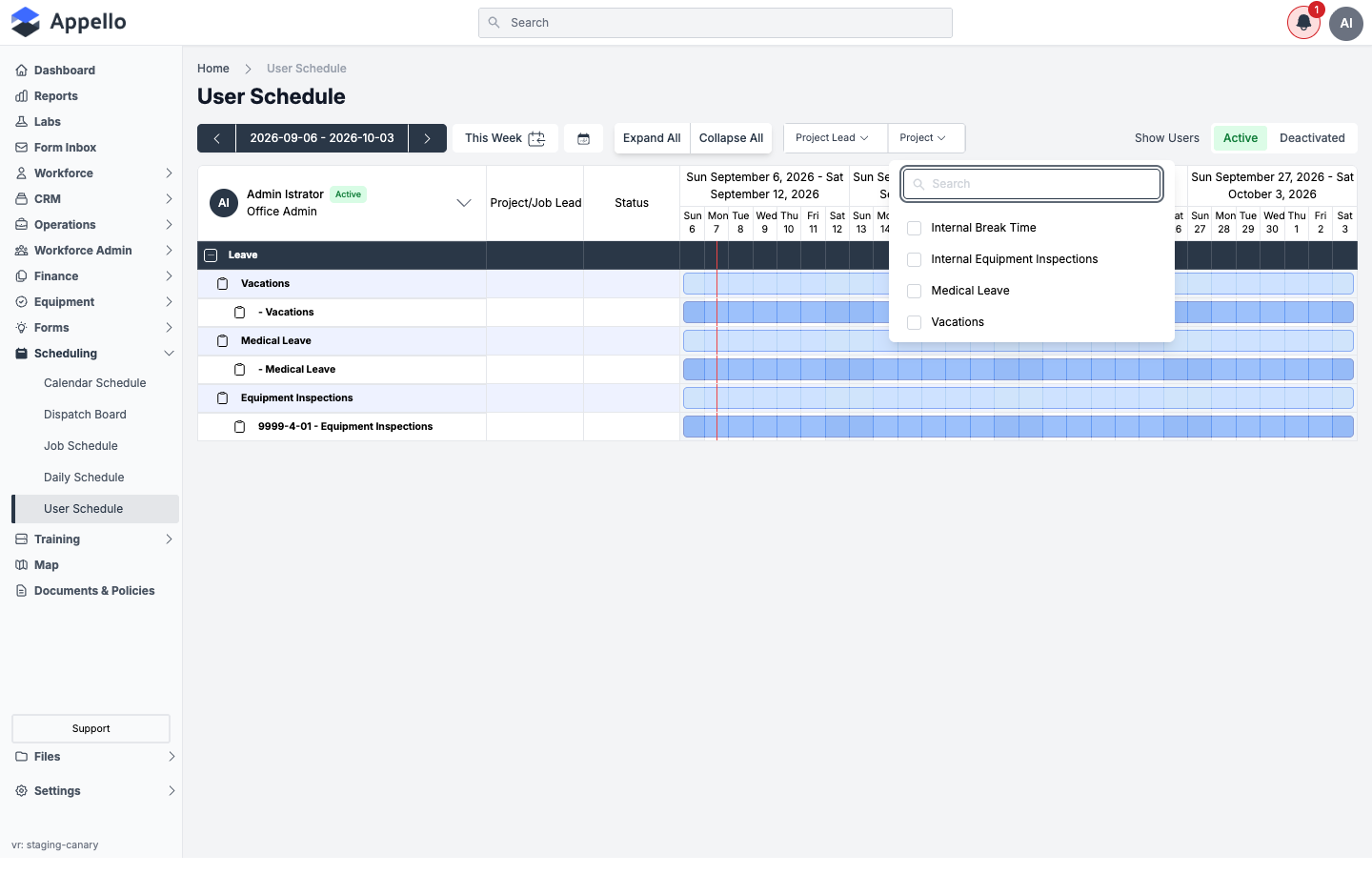
Both Project Lead and Project are searchable, multi-select dropdowns -- click the filter name to open it, check one or more options, and the grid updates immediately. Selected filters appear as removable badges below the toolbar, with a Clear All link to reset them.
The complete filter list on User Workforce Schedule is Project Lead, Project, and the Active / Deactivated tab. There is no Department, Trade Classification, Certification, Availability, or User Group filter here, and no saved-views feature (no way to name and re-apply a filter combination).
Trade Classification and User Group filters do exist in Appello, but only on Daily Schedule, Calendar Schedule, and Dispatch Board. A Certification filter does not exist anywhere in scheduling -- Daily Schedule's Matrix View color-codes cells by certification match instead of filtering by it (see Reading a cell). There are no Department or Availability filters on any scheduling view; department-scoped permissions can still limit which workers a supervisor sees in the picker.
Reading the grid: leave, conflicts, and availability
| Indicator | Meaning |
|---|---|
| Highlighted cell + clock icon (job/project row) | The selected worker is scheduled to that job on that day. |
| Highlighted cell + calendar icon (Leave/Equipment Inspections row) | The selected worker has an entry in that internal category on that day. |
| Empty, unhighlighted cell | The selected worker is unassigned that day -- available to schedule. |
| Rounded bar spanning several days | A run of consecutive scheduled days for the same job renders as one continuous bar rather than separate blocks per day. |
Leave is shown two ways:
- As rows -- the built-in Vacations and Medical Leave categories at the top of the grid.
- As a conflict check at assignment time -- if you try to schedule the selected worker on a day they have approved leave, a confirmation dialog opens first: "This user has scheduled time off during this time period," listing the overlapping leave date(s), with Cancel and Confirm buttons. Confirm schedules them anyway; Cancel backs out.
See Leave Submissions for approving/rejecting the leave requests themselves.
Company holidays are not shown as their own row or indicator on this grid. Holidays are configured on Human Resources Settings → Company Holidays; that page's own text notes holidays "appear on the scheduling calendar," which refers to the Calendar Schedule view, not this one.
There is no separate "double-booking" or "unavailable" badge beyond the leave-conflict dialog above -- because this page only ever shows one worker at a time, there's nothing to cross-reference against a second worker's schedule the way a multi-worker grid (Daily Schedule, Dispatch Board) can.
Assigning a worker to a job
This page has no drag-and-drop. Assigning is done by clicking grid cells directly, as described below.
- Use the worker picker (top-left) to select the worker you want to schedule.
- Use Expand All, or the row's + toggle, to reveal the project and job you want to assign them to.
- Click a single empty cell on a job row to schedule that worker for that one day. Click a filled cell to unschedule that day. Clicking a cell on a project row instead schedules/unschedules them across every job under that project for that day at once.
- Hold Shift and click any cell on a job or project row to open the assign dialog instead, for scheduling or unscheduling that job across a whole range of dates in one action -- this is the closest thing this page has to "copying" an assignment across days.
![The Manage [Worker] Schedule dialog, opened by shift-clicking a job cell, showing the multi-date calendar picker with one day already selected](/assets/images/step-03-assign-dialog-open-c0fadf124a90cee2275fc5d7d7feebc6.png)
- In the dialog: click any day to add it to the selection, or click an already-selected day to remove it. Shift+click deselects a whole range at once. Clear All empties the selection.
- Click Confirm to save, or Cancel to close without changing anything.
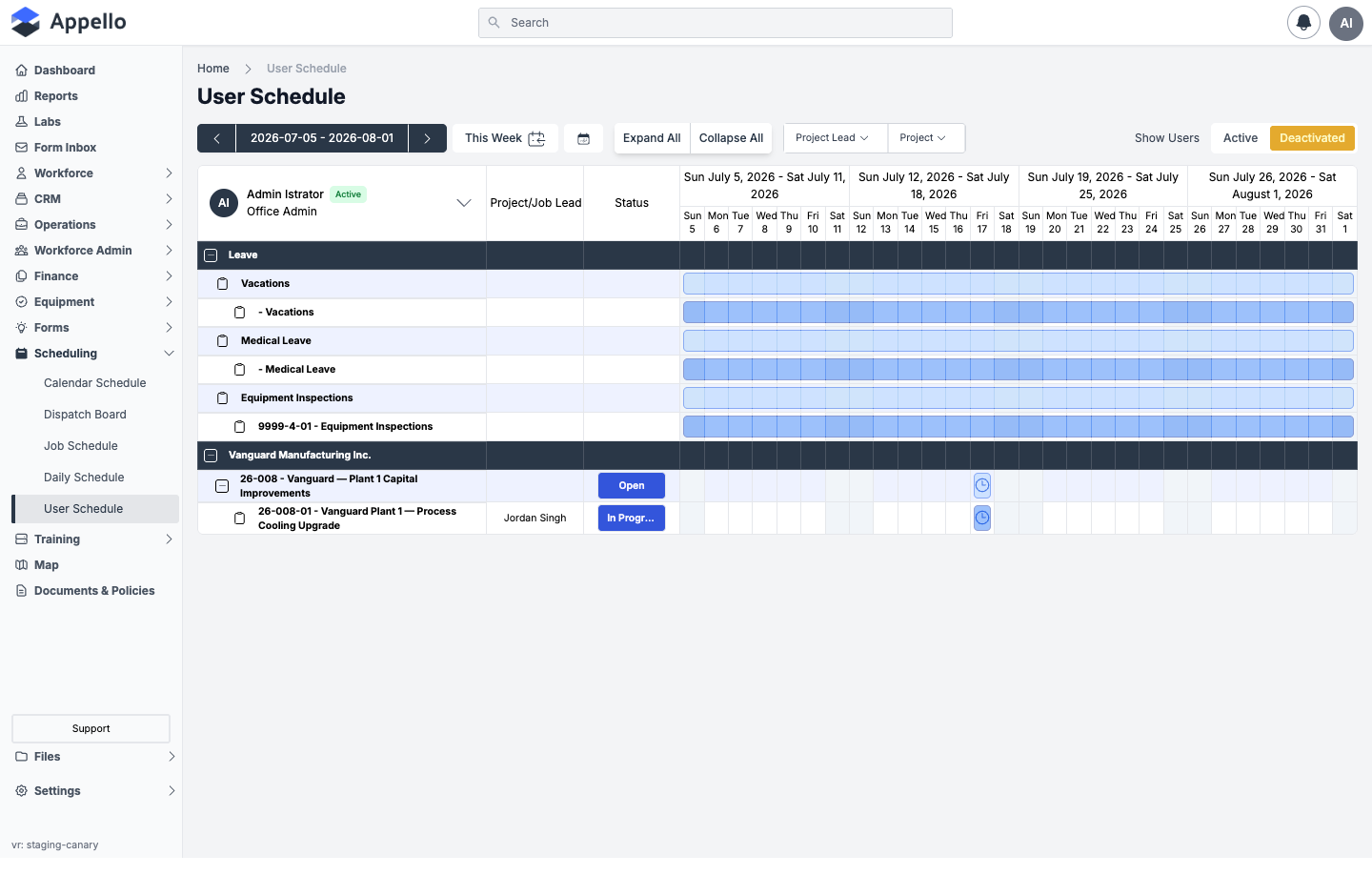
| Field | Required | Notes |
|---|---|---|
| Job Schedule Dates | Yes | A month calendar, not a typed date range. Already-scheduled days for the job(s) listed at the top of the dialog start selected; click to add or remove individual days, or shift+click to deselect a range. Days with logged time are shown locked and cannot be unscheduled. |
Confirming saves the assignment for the selected worker: one entry per selected date, covering the job you clicked -- or, for a project-row click, every job under that project. A multi-day selection is saved day by day rather than as a single date range, so you can change or remove any one of those days on its own afterwards.
If the worker has approved leave overlapping a day you're scheduling (single-click or the bulk dialog), the leave-conflict confirmation described in Reading the grid appears before anything is saved. Saving shows a brief "Saving changes..." loader, then a "Schedule updated successfully" toast.
Auto-scheduled instances
If your instance has Would you like to automatically schedule In Progress jobs? turned on (Instance Settings → Schedule Settings), cells for those auto-scheduled days render in a distinct greyed style and cannot be toggled by clicking -- there's nothing to manually add or remove for that day. See Auto-Scheduling In Progress Jobs on the Job Schedule page for the full explanation; that page already links back here for the same reason.
Deactivated workers with future assignments
If the selected worker is deactivated but still has assignments on a future date, a warning banner appears above the grid: "This user has been deactivated, but is still scheduled to future jobs," with an Unschedule From Future Jobs button that removes all of them in one action. While a deactivated worker is selected, clicking grid cells to add new assignments is disabled -- deactivated workers can only be removed from jobs here, not added to new ones.
Totals and print/export
There is no total-hours-per-worker figure, no print button, and no export button anywhere on this page. Compare with Daily Schedule, which has a Copy Schedule and a PDF Export icon button in its toolbar -- User Workforce Schedule has neither.
Notifications
Scheduling or unscheduling a worker on this page does not send a notification of any kind -- in-app, push, or SMS. See Schedule change notifications for the full confirmation and the platform's complete list of notification types. A worker finds out about a new assignment only by opening their own mobile schedule.
Mobile view
There is no mobile equivalent of this multi-week, single-worker grid. A worker sees their own assignments -- regardless of which desktop view created them -- on the My Schedule tab of the mobile app. See Schedule, Directions and Clock In for that screen, including the All Day / Hourly split and clocking in from a scheduled job.
How this compares to Daily Schedule and Dispatch Board
| View | Time range | Organized by | Best for |
|---|---|---|---|
| User Workforce Schedule (this page) | Multi-week (4 weeks by default) | One selected worker at a time, against job/project rows and day columns | "Where is this one person scheduled over the next month, and when are they free?" |
| Daily Schedule | One day | Job rows × every matching worker's column (Matrix View), or drag-and-drop cards (Card View) | Building or adjusting today's whole crew assignment across many workers at once |
| Dispatch Board | One day or one week | Technician rows × day/hour columns, drag-to-assign | Short service and T&M work -- dispatching a job to a free technician at a specific time, not just "that day" |
All three (and the Job Schedule and Calendar Schedule views) read and write the same underlying schedule -- an assignment made here shows up immediately on the others and on the worker's mobile app.
Permissions
| Action | Permission(s) required |
|---|---|
| Load the page at all | Job → View, User → View, and User Schedule → View -- all three. Missing any one returns a 401 error instead of loading. |
| Assign/unassign a worker on a past date | Schedule → Allow Editing Past |
| Assign/unassign a worker on today or a future date | User Schedule → Allow Editing Future |
Without the relevant edit permission for a date, that date's cells remain visible but are not clickable (read-only), rather than the page failing to load.
This matches the note on Daily Schedule, which requires the identical three view permissions and the same two edit-permission split by past/future date.
Related Pages
- Daily Schedule -- Single-day, multi-worker matrix and card view with Trade Classification and User Group filters
- Dispatch Board -- Technician × day/hour drag-to-assign board for short service and T&M work
- Job Schedule -- Multi-week project and job timeline grid, including Auto-Scheduling In Progress Jobs
- Calendar Schedule -- Date-centric calendar view of all assignments
- Scheduling Overview -- How the five scheduling views fit together
- Leave Submissions -- Approving and rejecting the leave requests that appear on this grid
- Human Resources Settings -- Where company holidays are configured
- Notification Control System -- Full notification type reference
- Schedule, Directions and Clock In -- What a worker sees and does on the mobile app