Timesheet Matrix
The Timesheet Matrix is the primary view for reviewing, approving, and managing worker timesheets. It displays all submitted timesheets in a grid format — workers on the left, dates across the top — giving administrators a complete picture of hours worked across the organization for any pay period.
Navigation
Sidebar → Workforce Admin → Timesheets
URL: /timesheets
Permission: View on the Timesheet Matrix & Timesheet Log permission card, under Settings → Roles & Permissions → Finance & Admin, gates the whole route. Without it, Timesheets does not appear under Workforce Admin in the sidebar.
Overview
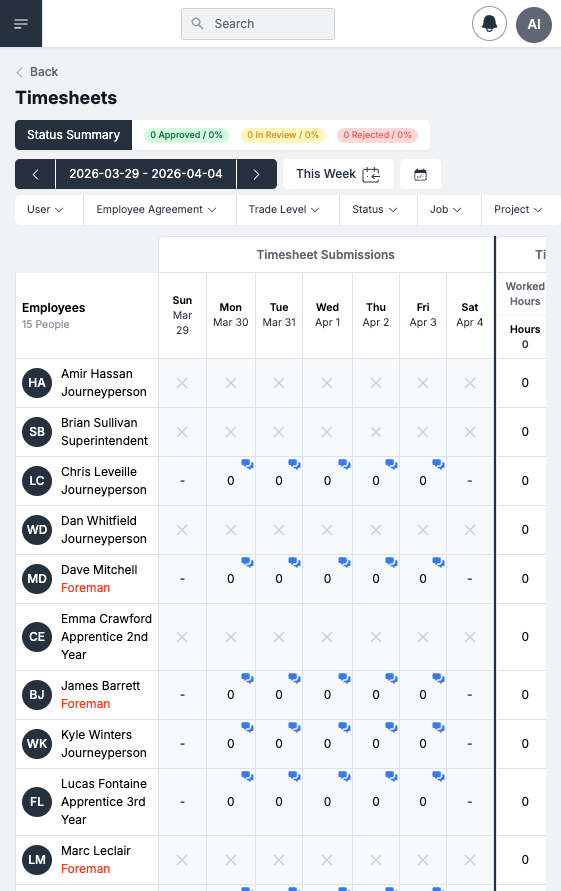
The matrix view presents a spreadsheet-style grid where:
- Rows — One per worker who has timesheet records in the selected date range, showing their name, avatar, and trade classification (Journeyperson, Foreman, Apprentice, Superintendent)
- Columns — One per day in the date range (Sunday through Saturday)
- Cells — Total hours for that worker on that day, with status indicators
- Totals — The "Worked Hours" column on the right shows the total hours per worker for the period
- Status Summary — The top bar shows aggregate counts: Approved, In Review, and Rejected with percentages
Viewing a Timesheet
1. Select a Date Range
Use the date range selector at the top of the matrix to choose the pay period you want to review. The current range is displayed between left/right navigation arrows (e.g., "2026-03-29 – 2026-04-04").
- Click the left arrow to move back one week
- Click the right arrow to move forward one week
- Click This Week to return to the current week
- Click the calendar icon to select a specific date
2. Click a Cell to Open the Timesheet Slideout
Click on any cell in the matrix to open the timesheet detail slideout panel on the right side of the screen.
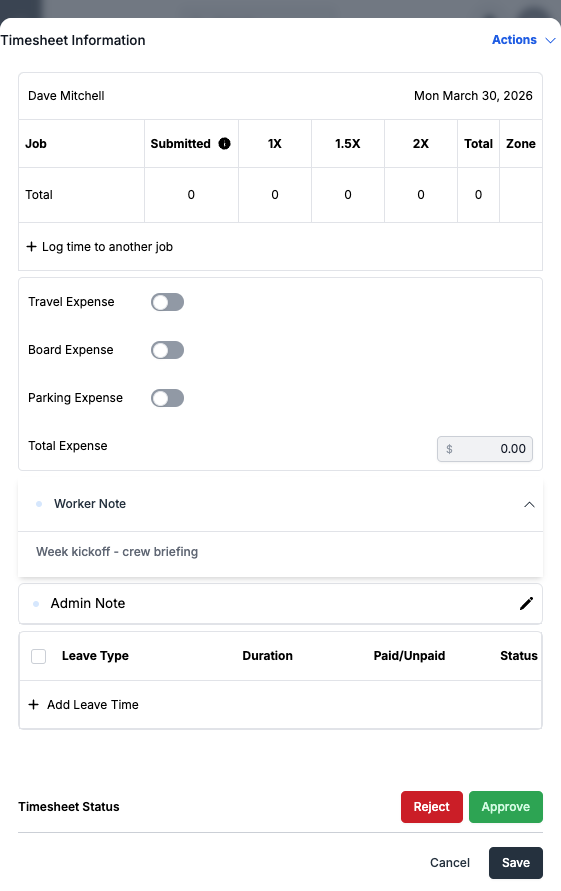
The slideout displays the full detail for that worker's timesheet entry:
| Section | Description |
|---|---|
| Worker Name & Date | Worker identity and the specific workday (e.g., "Dave Mitchell — Tue March 31, 2026") |
| Job Breakdown Table | Columns for Job, Submitted hours, 1X (regular), 1.5X (overtime), 2X (double-time), Total, and Zone |
| + Log time to another job | Link to add a second job entry for split-day work |
| Travel Expense | Toggle to include travel allowance (auto-calculated from union hall to job site) |
| Board Expense | Toggle for board/accommodation allowance |
| Parking Expense | Toggle for parking allowance |
| Total Expense | Calculated dollar amount for all expense categories |
| Worker Note | Notes entered by the worker or foreman describing the day's work |
| Admin Note | Internal admin-only notes (not visible to the worker) |
| Leave Time | Table showing any leave entries (Leave Type, Duration, Paid/Unpaid, Status) |
| Timesheet Status | Current approval status with Reject and Approve action buttons |
3. Approve or Reject the Timesheet
From the slideout panel:
- Click Approve to mark the timesheet as approved. Hours lock and flow to payroll export.
- Click Reject to mark the timesheet as rejected. A note explaining the reason is required. The worker receives a notification and can revise and resubmit.
- Click Save to save any changes without changing approval status.
- Click Cancel to close the slideout without saving.
Status Indicators
Each timesheet entry has a status visible both in the matrix cells and in the status summary bar:
| Status | Color | Meaning |
|---|---|---|
| Submitted / In Review | Blue | Worker has submitted, awaiting administrator review |
| Approved | Green | Administrator has approved — ready for payroll |
| Rejected | Red | Administrator has rejected — worker must revise and resubmit |
| Draft | Grey | Saved but not yet submitted |
The status summary bar at the top of the matrix shows: 0 Approved / 0%, 0 In Review / 0%, 0 Rejected / 0% with a colored progress bar for quick visual reference.
Cell Indicators
Within the matrix grid, cells display different indicators:
| Indicator | Meaning |
|---|---|
| Number (e.g., 8) | Total hours for that worker on that day |
| 0 | Timesheet record exists but with no hours logged |
| — (dash) | No timesheet record exists for that day |
| ✕ | Not a scheduled workday (Sunday/Saturday typically) |
| Blue note icon | Timesheet has worker notes attached — hover or click to view |
Filters
Use the filter bar above the matrix to narrow the view:
| Filter | Options | Description |
|---|---|---|
| User | Worker name search | Show timesheets for a specific worker |
| Employee Agreement | Dropdown | Filter by workers under a specific collective bargaining agreement |
| Trade Level | Dropdown | Filter by classification (Journeyman, Apprentice, Foreman, Superintendent) |
| Status | Submitted / Approved / Rejected / All | Filter by timesheet approval status |
| Job | Job name/number search | Show only timesheets for a specific job |
| Project | Project name search | Show only timesheets for a specific project |
Bulk Actions
Bulk Approve
Select multiple timesheets using the checkboxes on each row, then click Approve Selected to approve all at once. This is the standard workflow after a foreman or superintendent has reviewed their crew's time.
Create Timesheet
Click the Create Timesheet button at the top right to manually create a timesheet entry for a worker, rather than waiting for the worker to submit one themselves. The button is disabled while the matrix's current week is locked (see Locking and Unlocking the Week), and it only renders at all for a user who holds both of the following permissions (checked together, not either/or):
- Add Timesheet Record For Unscheduled Job(s) -- create time against a job the worker isn't otherwise scheduled to.
- Log Time For Other Users -- log time on behalf of someone other than yourself.
1. Select a Job to Continue
Clicking Create Timesheet opens a Select a Job to Continue dialog:
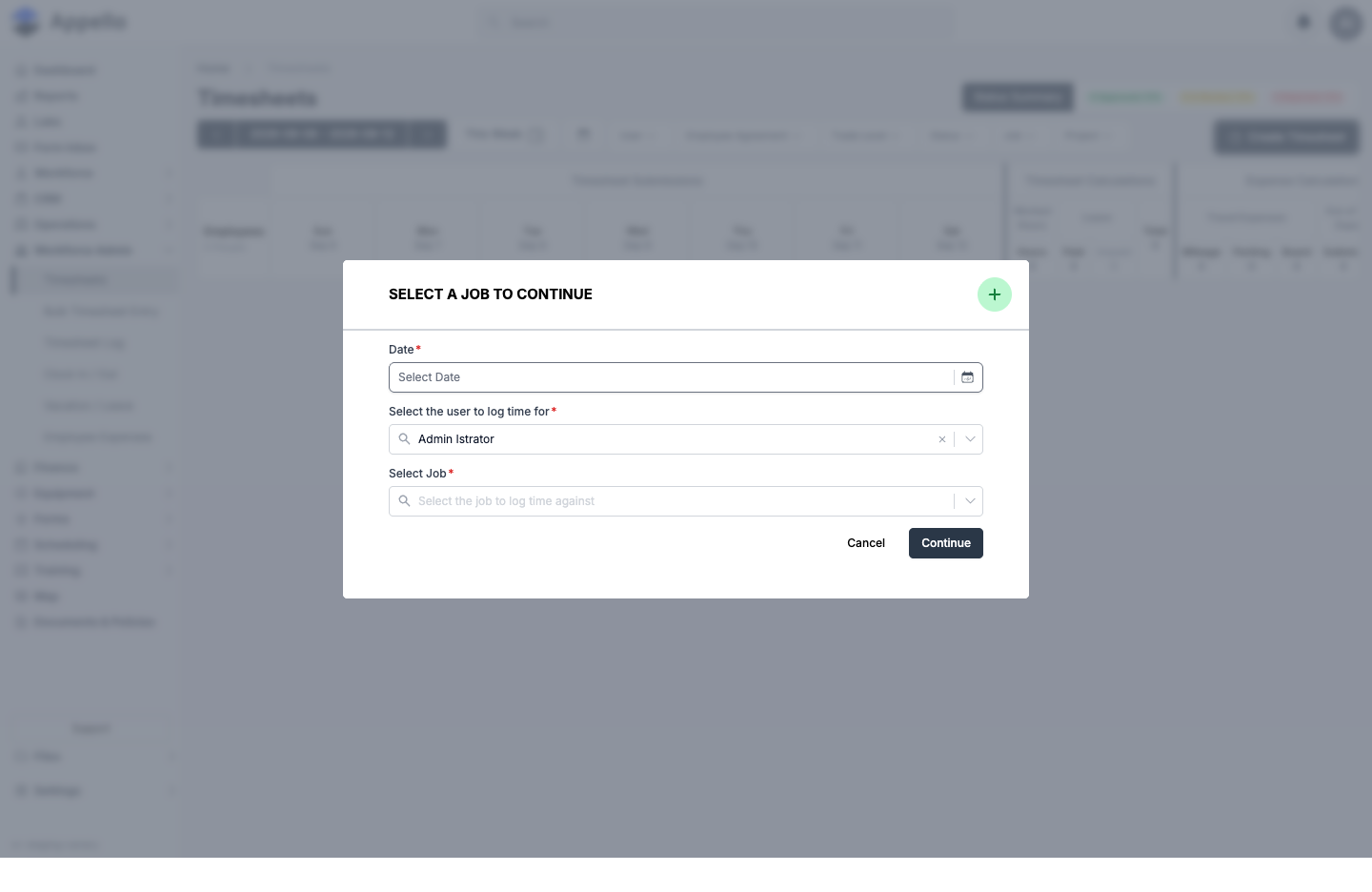
| Field | Required | Type | Effect |
|---|---|---|---|
| Date | Yes | Date picker | The workday the new record is created for. Defaults to today. |
| Select the user to log time for | Yes | Searchable combobox | The worker the timesheet belongs to. Only active users are offered. Defaults to the signed-in account if opened without a worker already in context (for example from a Work Order's own timesheet). |
| Select Job | Yes | Searchable combobox, grouped by project | The job to log time against. Without the Log Time To Closed Jobs permission, only jobs with an In Progress workflow state are offered. |
Click Continue to proceed, or Cancel to close the dialog without creating anything.
This screenshot shows the dialog before any selections are made. Clicking Continue creates the new timesheet record right away -- before the entry form even opens -- and the record starts out as Not Submitted. The entry form itself is covered next; it is the same form the existing-record slideout uses.
2. Choose a Work Order, if the job has any open
If the selected job has one or more open Work Orders under it, Continue does not go straight to the entry form -- it first prompts:
This job has N open work order(s). Where should this time be logged?
with a Log time to radio choice between the parent job itself and each open Work Order, defaulting to whichever one was already selected. Pick a target and click Continue (or Cancel to back out to the job picker). A job with no open Work Orders skips this prompt entirely.
3. Enter the timesheet
Continuing opens the same entry form used when you click an existing cell in the matrix -- see the Job Breakdown Table above for its fields (Job, Submitted / 1X / 1.5X / 2X / Total / Zone columns, Travel / Board / Parking Expense, Worker Note, Admin Note). Two fields there are worth calling out for a brand-new record:
| Field | Effect |
|---|---|
| Apply Expenses To | Only shown once a second job is logged for the same day via + Log time to another job. Chooses which of that day's jobs the travel/board expense is attributed to -- Furthest Job or Longest Hours -- overriding the employee agreement's own default for this one record. See Employee Agreements. |
| Total | A read-only sum per job row, separate from the Submitted column, which mirrors whatever hours the worker's own mobile submission carried for that row (if any) and is never edited from desktop. |
Travel and board dollar amounts default from the worker's resolved Travel Rate Card (their union hall to the job site) but can be toggled off per record from the Expense toggles.
Approval Workflow
Every timesheet moves through Submitted / In Review → Approved or → Rejected. By default this is a single step: anyone with the approve permission reviews a submitted timesheet and approves or rejects it directly, as described above. Larger crews often want a second set of eyes before hours are finalized, so Appello also supports a two-level approval process, a per-week lock, and two different ways to approve in bulk. What a given user sees on the matrix depends on their permissions and on the instance's approval settings.
One-Level vs. Two-Level Approval
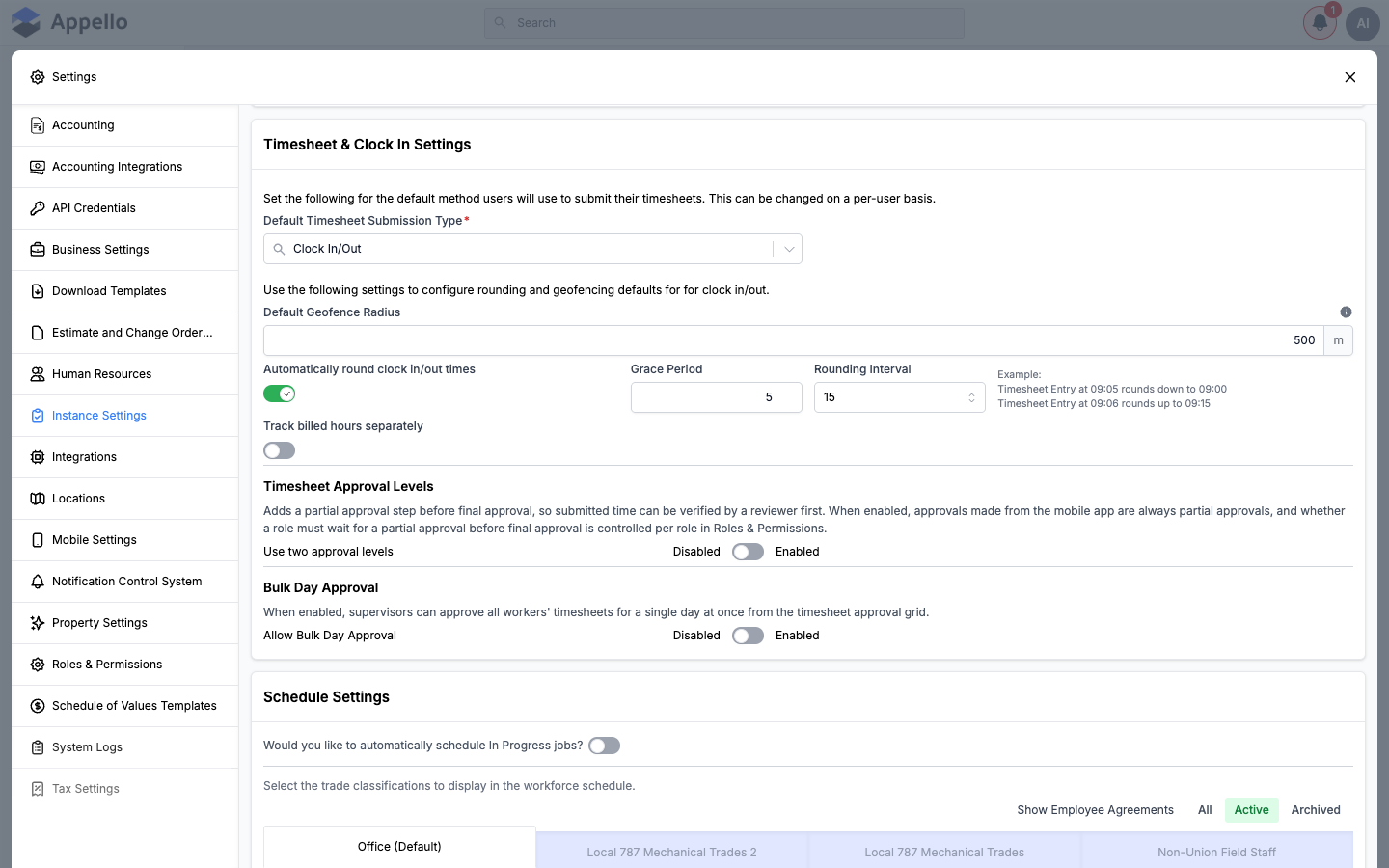
Whether your instance uses one or two approval levels is controlled in Settings → Instance Settings → Timesheet & Clock In Settings → Timesheet Approval Levels.
| Mode | How it works |
|---|---|
| One approval level (default) | A submitted timesheet goes straight to Approved or Rejected. Anyone with the approve permission can finalize it. |
| Two approval levels ("Use two approval levels" enabled) | Adds a Partial Approval step before final approval, so a reviewer can verify submitted time before it is finalized. A timesheet's status can be In Review → Partial Approval → Approved, in that order. |
When two-level approval is turned on:
- Any approval made from the mobile app is always a partial approval -- regardless of the mobile user's role, a mobile approval can never finalize a timesheet. Only the desktop timesheet matrix can grant final approval.
- The timesheet slideout shows two separate controls -- Partial Approval and Approve -- instead of a single Approve button. Withdrawing a partial approval also withdraws the final approval riding on it, since a final approval cannot stand on a review that no longer exists.
- Whether a given role must wait for someone else's partial approval before it can grant final approval is controlled per role in Roles & Permissions (see Who Can Approve below).
- The status summary bar and matrix cells gain an orange Partial Approval status, distinct from In Review. On a one-level instance this status is never shown, even for records that were partially approved in the past while two-level approval was on.
In this screenshot Timesheet Approval Levels and Bulk Day Approval are both set to Disabled, which is Appello's default. The partial-approval controls described above appear only on an instance where two approval levels are turned on.
Locking and Unlocking the Week
A lock/unlock icon sits in the top-right corner of the matrix, past the Expense Calculations columns (scroll the matrix horizontally to reach it). Locking a week:
- Prevents any further approve, reject, edit, or bulk-approve action on that week's timesheets.
- Shows a banner at the top of the page -- "The timesheet matrix for this week is locked" -- so anyone viewing the matrix knows why the controls are disabled.
- Is commonly used right after a payroll export, so a pay period cannot be changed once it has been paid out. Unlock the same week temporarily if a correction is genuinely needed.
Only users with the Lock Timesheet Matrix permission (see below) can toggle the lock; for everyone else the lock button is visible but disabled.
Bulk Approval
Appello offers two different ways to approve more than one timesheet at a time:
- Per-worker weekly approve -- The rightmost column of the matrix shows a status dropdown for each worker's row. Choosing Approve All (or Partially Approve All, on a two-level instance, for a reviewer who only holds the partial-approval permission) approves every submitted day in that worker's week in one action. This control is always available to anyone with the approve permission, regardless of the Bulk Day Approval setting.
- Per-day bulk approve -- A control at the bottom of the grid approves every worker's timesheet for one specific day at once, which is useful right after a foreman or superintendent has reviewed their whole crew's time for the day. This control only appears when Allow Bulk Day Approval is enabled in Instance Settings (see the screenshot above) and the current user holds the full Approve/Reject Timesheets permission -- a partial-approval-only permission cannot use per-day bulk approve.
Because one bulk action can produce a mix of outcomes on a two-level instance, Appello reports each result separately rather than a single pass/fail message -- for example, "3 timesheets approved, 2 partially approved" -- plus separate warnings for any timesheets that were skipped (the worker is still clocked in) or blocked (waiting on someone else's partial approval first).
A timesheet with an active clocked-in entry cannot be approved or rejected -- individually or in bulk -- until the worker clocks out.
Who Can Approve (Permissions)
Approval access is controlled in Settings → Roles & Permissions, on a per-role basis.
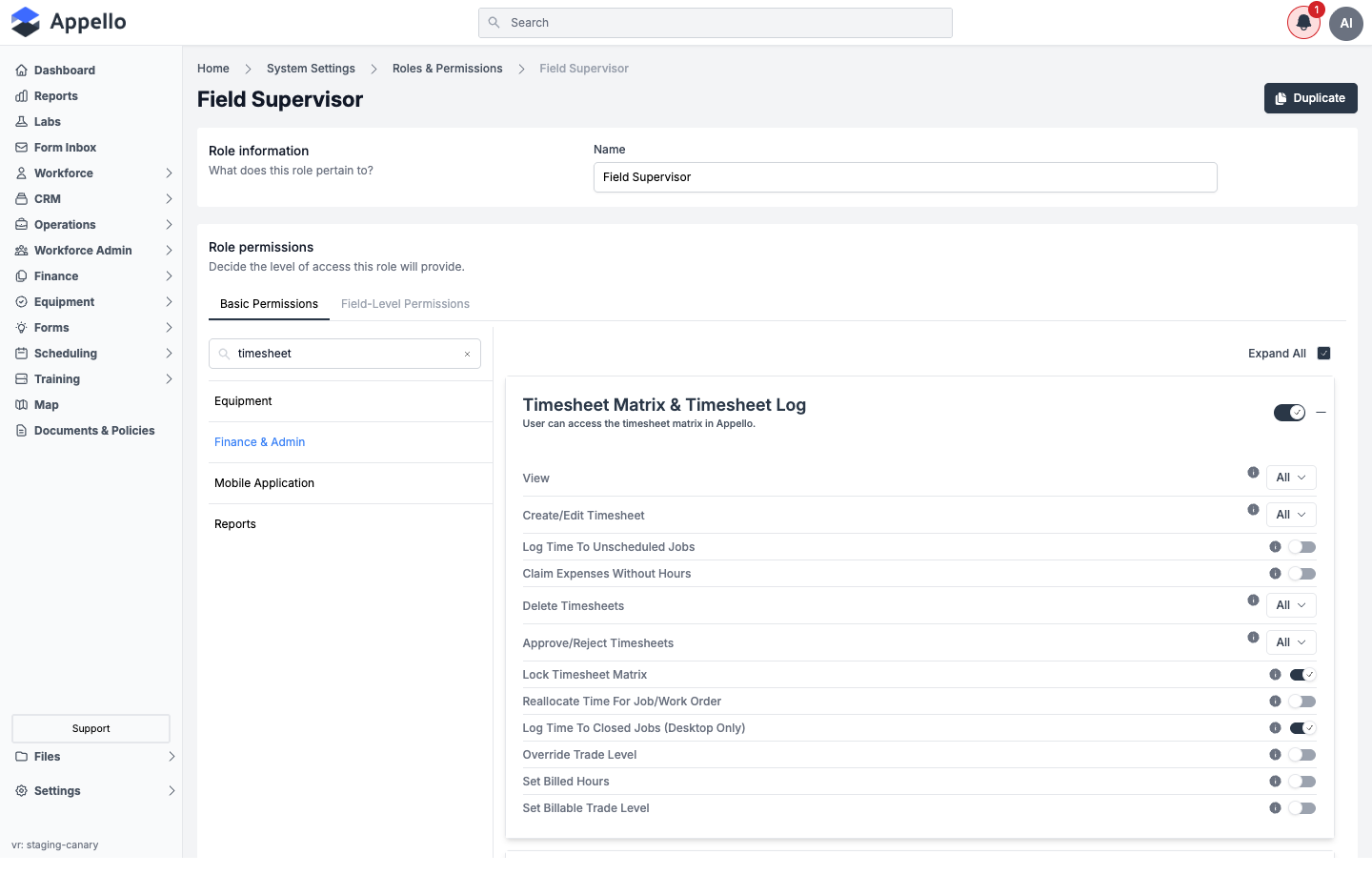
The desktop approve and lock permissions live under the Finance & Admin category, in the Timesheet Matrix & Timesheet Log permission card:
| Permission | Grants |
|---|---|
| Approve/Reject Timesheets | The ability to approve or reject timesheets on the desktop matrix. On a two-level instance, this is the final-approval permission. Like other approve permissions in Appello, it can be scoped (for example, to the user's own department or direct reports) rather than granted for every worker. |
| Lock Timesheet Matrix | The ability to lock and unlock a week on the matrix. |
A separate, mobile-only permission grants the partial-approval step used on a two-level instance:
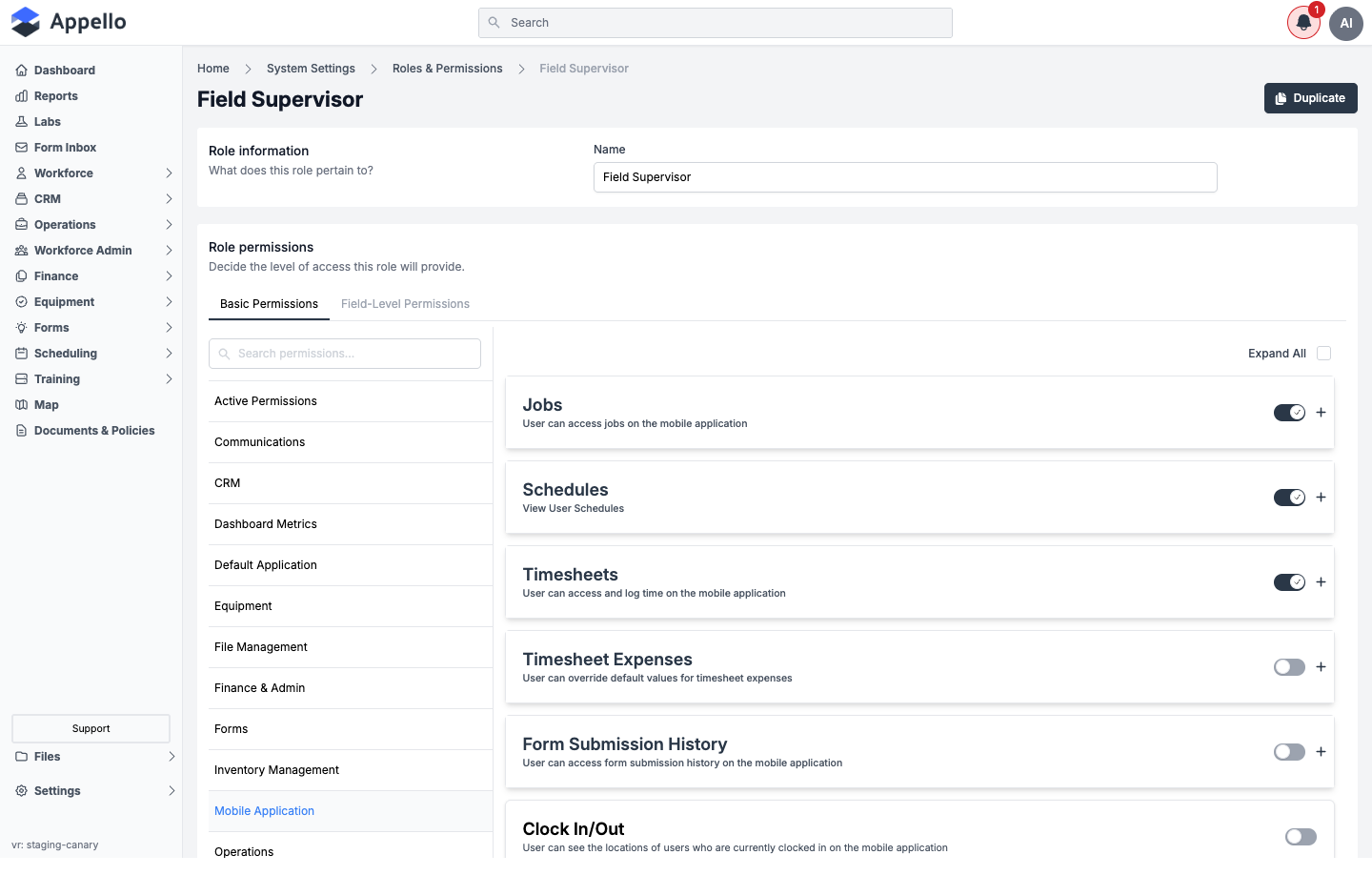
- Settings → Roles & Permissions → (role) → Basic Permissions → Mobile Application → Timesheets → Approve Timesheets grants a role the ability to partially approve timesheets from the mobile app.
- This permission only does anything when two-level approval is turned on. On a one-level instance it has no effect.
- A role with the desktop Approve/Reject Timesheets permission can already grant final approval and does not need the mobile permission as well.
Rejected Timesheets
Rejecting a timesheet from the slideout requires entering a Timesheet Rejection Reason -- Appello will not save a rejection without one. Once rejected:
- The timesheet returns to the worker so they can revise and resubmit it.
- The rejection reason is saved as the timesheet's admin note, so anyone opening the record later -- including the worker -- can see why it was sent back.
- As with approval, a timesheet cannot be rejected while the worker has an active clocked-in entry for it; they must clock out first.
Unapproving a Timesheet
Approving is reversible. Moving an Approved timesheet back to In Review ("unapprove") is the same Approve/Reject Timesheets action run in the opposite direction, from the slideout or the per-worker weekly dropdown -- there is no separate "Unapprove" button. What it takes, and what survives, depends on the approval mode:
| Instance mode | Who can do it | What happens |
|---|---|---|
| One approval level | Anyone with Approve/Reject Timesheets. | The record drops straight from Approved back to In Review. |
| Two approval levels | Only a user with the final-approval permission (Approve/Reject Timesheets) -- a partial-approval-only reviewer cannot undo a fully approved record. | The final approval is withdrawn but the partial approval underneath it survives -- the record lands on Partial Approval, not plain In Review, since a final approval can't outlive the review it was built on but the review itself is untouched. |
Withdrawing a partial approval on a two-level instance (before it was ever finalized) works the same way in miniature: it clears that level and the record returns to plain In Review, and if a final approval had somehow been layered on top, both come off together in one write.
In every case, unapproving re-triggers the same financial recalculation that a fresh approval or rejection would -- the labour cost postings the approval created are rolled back. A locked week blocks unapproving exactly as it blocks approving: see Locking and Unlocking the Week.
Notifications
| Transition | Who is notified | Content |
|---|---|---|
| → Approved | The worker, by push notification and an in-app notification (Timesheet Approved) | "Your timesheet for {date} has been approved." Tapping it deep-links to the worker's mobile Timesheets tab for that date. |
| Approved → Rejected, or any other status → Rejected | The worker, the same way (Timesheet Rejected) | "Your timesheet for {date} has been rejected." |
| Approved → In Review (unapprove) | No new notification is sent -- the earlier Timesheet Approved notification is retracted instead, so the worker's notification list no longer shows it. | -- |
| Any other status → In Review | No new notification is sent; any existing notification tied to the record is retracted the same way. | -- |
Both notification types are gated by the recipient holding View on the Timesheet Matrix & Timesheet Log permission card (a worker always has view access to their own timesheets). Which channels are actually delivered -- push, email, in-app -- for a given user also depends on their own notification preferences under Settings → Notification Control System.
Unapproving does not send a new notification. The worker's earlier Timesheet Approved notification is retracted instead, so it no longer appears in their notification list.
How Timesheets Connect to Workforce Data
When a timesheet is submitted, the system automatically resolves rates and allowances based on the worker's configuration:
| Data Point | Source | Example |
|---|---|---|
| Base wage rate | Worker's trade level + employment agreement | $45.00/hr (Journeyman under Local 95 CBA) |
| Burdened rate | Agreement contract wage table | $64.20/hr (includes vacation, benefits, pension) |
| OT rules | Employment agreement | 1.5× after 8 hours daily |
| Travel allowance | Worker's union hall + job site + travel rate card | $55.00 (Zone 3 — 85 km from hall) |
| Board allowance | Travel rate card zone | $140.00 (if in board zone) |
| Cost allocation | Selected cost code | Labour posts to the job's financial summary |
Export
Click the export button to download timesheet data for the current view:
| Format | Use Case |
|---|---|
| CSV | Import into payroll software or spreadsheets |
| Sage 50 format | Direct import into Sage 50 payroll |
| Printable timesheet summary for records |
The export includes all visible columns plus calculated fields (wage rates, travel, OT).
Workflow: Bulk Timesheet Entry
Submitted timesheets land on this Matrix regardless of how they were entered -- one at a time
from Create Timesheet above, or in bulk from the Bulk Timesheet
Entry grid (Sidebar → Workforce Admin → Bulk
Timesheet Entry, /timesheets/bulk-entry). That page's own doc already walks through the grid
itself, adding workers, entering hours, and the day-to-day workflow of Bulk Apply, Copy
Previous Week, Apply Template, and Preview & Submit All with live screenshots -- this
section is the field-level reference for every modal that grid can open, gathered in one place.
No screenshots are included for two of the modals below -- Copy To Users and the conflict resolver. Their field tables are complete; only the images are missing.
The single-entry timesheet form
This is the form Create Timesheet opens (see above) and the same one the Matrix's own Job Breakdown Table slideout uses for an existing record -- Bulk Timesheet Entry's grid is a distinct, spreadsheet-style way of writing to the same underlying records. Its key fields, beyond what the Job Breakdown Table already documents:
| Field | Type | Effect |
|---|---|---|
| Worker | Fixed once created | The worker the record belongs to -- set once, on creation, via the Select a Job to Continue step. |
| Job / Jobs | Combobox / repeatable rows | A single job is picked on creation; the record grows to several job-breakdown rows once + Log time to another job has split the day across more than one job. |
| Log time to | Radio (creation only) | Which of a job's open Work Orders (or the job itself) a brand-new record logs to -- see Choose a Work Order above. |
| Apply Expenses To | Select | Furthest Job / Longest Hours override for a multi-job day -- see the Create Timesheet table above. |
| Submitted | Read-only | The hours the worker's own mobile submission carries for a row, shown alongside desktop's Total for comparison; desktop never edits this side. |
| Total | Read-only | The worked-hours total for one job-breakdown row. |
| Travel / Board rate | Read-only, resolved | Dollar amounts pulled from the worker's Travel Rate Card zone for the day; the Travel/Board Expense toggles turn them on or off per record rather than editing the amount directly. |
Bulk Apply
Fills the same hours into every day (and rate label) of the selected week for a set of workers in one action, so a crew that all worked an identical week doesn't need typing row by row. Opened from the Bulk Apply button in the grid toolbar, which reads Bulk Apply (N) once N worker rows are checked.
| Field | Required | Type | Effect |
|---|---|---|---|
| Employee Agreement | Yes, only when no workers are pre-selected | Combobox | Which agreement's rate labels (1X, Straight Time, 1.5x, 2x, etc.) the hour table uses. Skipped entirely when the modal opens with workers already checked on the grid -- it reuses their agreement. |
| Filter by Trade Classification | No | Multi-select checklist | Narrows the worker checklist below to specific classifications (for example only Apprentice -- Year 1). Only shown alongside the worker checklist path. |
| Select target users | Yes, only when no workers are pre-selected | Searchable checklist, with Select All | Which workers the hours apply to. |
| Day x rate label hour grid | Yes (at least one value) | Numeric inputs, one row per day of the week, one column per rate label (or a single Hours column when Auto-Calculate OT is on) | The hours written into every selected worker's row for each matching day. |
A warning banner appears above the table when one or more selected workers already have hours that week ("Applying will override their existing hours"). Click Apply to Grid to write the values into the grid (nothing is sent to the server until the batch itself is saved or submitted), or Cancel to discard. See Selecting a whole crew at once with Bulk Apply for the numbered workflow and a screenshot of the worker-checklist path.
Unresolved Conflicts
Appears automatically when saving or submitting the grid would create a conflict: the same worker already has hours logged against a different job on the same day (or, if editing an already-submitted batch, against the current job). It is not opened from a toolbar button -- only ever as a blocking step partway through Save/Submit.
| Column | Description |
|---|---|
| Worker / Date | Who and which day the conflict is on. |
| Source | Where the existing hours came from (for example mobile clock-in, a prior bulk-entry batch), plus their current approval status. |
| Hours (per rate label, plus Total) | Two rows per conflicting job: the Existing hours already on record, and the New hours this batch is trying to write. |
| Resolution | One of three modes, chosen per conflict (or in bulk via Resolve all): see below. |
| Resolution mode | Effect |
|---|---|
| Keep Existing | Discards this batch's new hours for that worker/day; the existing job's hours are untouched. The only option offered once the existing hours are Approved -- an approved conflict cannot be Merged or Overwritten. |
| Merge (default) | Adds the new hours alongside the existing job's hours -- both survive. |
| Overwrite | Replaces the current job's own prior hours with the new ones. Only offered when the current job already had hours that day (hidden otherwise, since it would be identical to Merge); it never touches hours logged against a different job. |
Click Submit once every conflict has a resolution, or Cancel to back out of the save/submit attempt entirely without resolving anything.
Copy Previous Week
Copies every entry for the current job from an earlier week into the week currently open in the grid, matching day-to-day (Monday to Monday, and so on). Opened from Copy Previous Week in the toolbar (by-person view only).
| Field | Required | Type | Effect |
|---|---|---|---|
| Source Week | Yes | Calendar -- click any day in a past week to select that whole week | The week to copy from. The current week and any future week are disabled; picking a day loads a live preview (worker count, total hours, and an hours-by-day breakdown) before you commit. |
Click Copy Week to copy (disabled until a source week with entries is selected), or Cancel to close without copying. See Entering Hours for a Day or a Week for how a copied week then behaves alongside manual edits.
Preview & Submit All (Review All Batches)
Already documented in full, with a screenshot, as Submitting on Behalf of Workers on the Bulk Timesheet Entry page -- the Review All Batches panel listing every outstanding draft batch for the week across jobs, with Export All CSV, Cancel, and Submit All Drafts.
Save Template and Apply Template
Two related modals, both toolbar buttons in the by-person view, for reusing a grid layout instead of rebuilding it from scratch:
Save Template captures the current grid's worker assignments, hours, and cost-code breakdowns as a reusable template:
| Field | Required | Type | Effect |
|---|---|---|---|
| Template Name | Yes | Text | The template's display name. |
| Description | No | Textarea | Free-text notes shown in the template list. |
| Make available to all users | No (defaults off) | Checkbox | Saves the template as Global so every user can apply it, instead of only its creator. |
Click Save Template to save, or Cancel to discard.
Apply Template lists every template available for the current job -- name, an optional Global badge, description, worker/cost-code counts, creator, and creation date -- each with its own Apply button, plus a delete icon for templates you created. Selecting Apply maps that template's worker entries onto the current week; Cancel closes the list without applying anything. A job with no saved templates shows "No templates found. Save your current grid as a template first." instead of a list.
Copy To Users
Copies one already-entered worker's hours for the week onto other workers, without retyping them. The Copy To Users toolbar button only appears once exactly one worker row is checked (and only for a user with the Add Timesheet Record For Unscheduled Job(s) permission).
| Field | Required | Type | Effect |
|---|---|---|---|
| Hours preview (read-only) | -- | Table, one row per day, one column per rate label plus Total | The source worker's own hours for the week, so you can confirm what is about to be copied before picking targets. Reads "No hours entered for this worker" instead of a table when there is nothing to copy. |
| Select users | Yes (at least one) | Searchable checklist, with select all / deselect all | Which other workers on the same employee agreement receive the copy. Workers already on the grid are excluded from the list. |
Click Copy (disabled until at least one target is picked and the source has hours) to write the copy into the grid, or Cancel to close without copying.
Related Pages
- Bulk Timesheet Entry — Enter time for multiple workers at once from a foreman's perspective; full grid walkthrough
- Timesheet Log — Flat, filterable, per-entry list of the same underlying records, built for payroll review and export rather than approval
- Timesheet Export & Payroll — Export approved timesheets for payroll processing
- Mobile Timesheet Submission — How a worker submits, views status, and revises a rejected timesheet from the mobile app
- Clock In / Out Report — The clock-in records a timesheet's hours can be built from, for instances using Clock In/Out submission
- Equipment Time — The equivalent approval workflow for equipment operator/labour time
- Timesheet and Payroll Reports — Employee Timesheet, Payroll, and Job Employees Timesheet reports built from the same approved-timesheet data
- Human Resources Settings — Employee Agreements, wage tables, and overtime rules that drive timesheet calculations
- Travel Rate Cards — Set up zone-based travel allowance configuration
- Trade Classifications — Manage worker levels that determine pay rates