Scheduling Overview
Appello's scheduling system dispatches crews to job sites across wide geographic areas. It gives dispatchers five views onto the same schedule data, so you can start from whichever angle fits the question -- a project's coverage, a single day, one worker, or a technician's open hours. Workers see their own assignments on the mobile app.
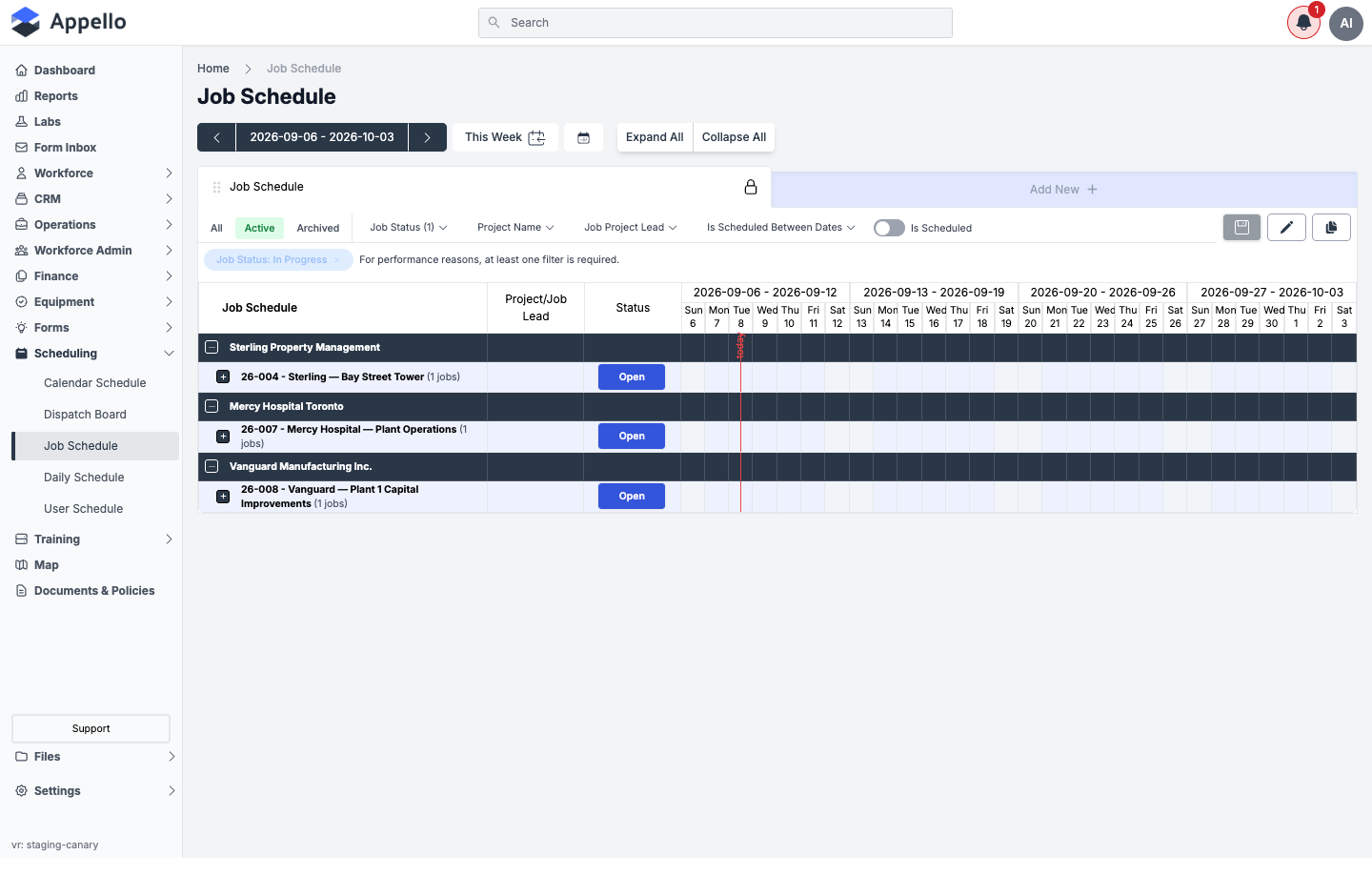
Five Views, One System
| View | Focus | Primary Question | URL |
|---|---|---|---|
| Job Schedule | Projects & jobs | "Who's on each job this week?" | /scheduling/jobs |
| Calendar Schedule | Dates | "What's happening on Tuesday?" | /scheduling/calendar |
| User Schedule | Workers | "Where is Dave Mitchell assigned?" | /scheduling/user-workforce |
| Daily Schedule | One day | "Who's on today, and who's still unassigned?" | /scheduling/daily-workforce |
| Dispatch Board | Technicians × hours | "Who's free right now, and can I put this job on them?" | /scheduling/dispatch |
All five read and write the same schedule data -- an assignment created in any one of them shows up immediately in the others and on the worker's mobile app.
Daily Schedule requires elevated scheduling permissions. If your account doesn't have it, the page returns a 401 error instead of loading -- ask an administrator to grant access.
Scheduling Workflow
Daily dispatch
- Open Job Schedule or Daily Schedule to see which jobs still need crew.
- Find available workers -- User Schedule shows empty cells as availability; Daily Schedule's Card View has a dedicated Available Staff → Unassigned tab.
- Assign them: click a cell (Job Schedule, Daily Schedule Matrix View), drag a card (Daily Schedule Card View, Dispatch Board), or pick the worker and click a day cell to toggle their assignment (User Schedule).
- The assignment appears on every other view right away, and on the worker's mobile My Schedule once they open the app -- see Schedule Change Notifications below for what is (and isn't) pushed to them.
Scheduling several workers at once
- On Calendar Schedule, the Schedule Job panel's Select User(s) picker lets you add any number of workers and save them all in one action -- see Scheduling Multiple Workers at Once.
- A User Group only narrows which workers show up in that picker (or in the Daily Schedule / Dispatch Board filters) -- it does not bulk-assign the group's members to a job. Each worker is still added individually. See User Groups & Crews.
Multi-day scheduling
- Job Schedule: shift-click a day cell -- or a project row, to cover every job under it -- to open Schedule Job Dates and pick several dates in one dialog.
- Calendar Schedule and Daily Schedule: build up a run of days with Copy Schedule, which duplicates an existing assignment (Calendar) or an entire day's schedule (Daily) onto the next date.
None of the scheduling views has a single control that books a continuous date range (for example, "Monday through Friday") in one step. Long-running jobs are built up one date, or one Copy Schedule action, at a time.
Schedule Change Notifications
Creating, moving, or unscheduling an assignment does not send a push notification or SMS to the affected worker. A worker sees their current assignments because the mobile app's My Schedule reads live data when they open it -- not because anything was pushed to their device.
What Appello does warn about is a scheduling conflict, shown to the person doing the scheduling before they save:
| Situation | What happens |
|---|---|
| A worker being added already has an overlapping job or approved leave that day | Calendar Schedule and Daily Schedule flag the row and ask for confirmation before saving anyway |
| The same job is scheduled twice on the same date | Calendar Schedule and Dispatch Board block the save outright -- this one cannot be overridden |
See Double-Booking Indicators and Conflict Warnings for the full breakdown.
Mobile Schedule View
Workers see their own assignments on the My Schedule page in the mobile app, split into three tabs:
- All Day -- Jobs scheduled for the whole day, no specific time.
- Hourly -- Jobs with a specific time window that day.
- Weekly -- The coming week's assignments. Only shown if your instance has the mobile weekly schedule setting turned on.
Tapping a job opens its details -- the job's mobile-configured info fields and contacts, plus a Directions button that opens the address in the phone's native maps app (Apple Maps on iOS, Google Maps on Android).
Beyond location and contacts, the exact fields shown in a job's mobile preview come from your instance's configurable mobile job-detail layout, so they vary by instance.
Scheduling + Workforce Management Integration
| Feature | Scheduling Benefit |
|---|---|
| Trade Classifications | Filter Daily Schedule and Dispatch Board to a single trade level (e.g., only Journeymen); Instance Settings controls which classifications show up as filters at all. |
| Certifications | Daily Schedule's Matrix View color-codes each cell by whether the scheduled worker holds the job's required certifications. |
| Leave | Approved leave shows as its own row or indicator on every view, and scheduling over it prompts a confirmation first. |
| User Groups | Filter the worker list on Daily Schedule and Dispatch Board down to one crew -- it narrows the list, it doesn't bulk-assign it. |
| Departments | Department-scoped permissions can limit which workers a supervisor sees; there is no department filter on the scheduling views themselves. |
Related Pages
- Job Schedule — Multi-week project and job timeline grid
- Calendar Schedule — Date-centric calendar view
- User Schedule — Worker-centric schedule view
- Daily Schedule — Single-day matrix/card view for building today's crew
- Dispatch Board — Drag-to-assign board for short service and T&M work
- User Groups & Crews — Pre-built crew definitions used to filter scheduling views