Job Detail Page
The Job Detail page is the working record for a single job: its financials, estimates, materials, equipment, schedule, forms, and files. It has up to 29 tabs and sub-tabs, gated by permissions and by the job's rate type.
Where it is
Click path: Operations → Jobs, then click a job row. URL: /jobs/[id] (tab selection is a
query param, e.g. /jobs/[id]?tab=overview).
Who can see it, and what they see
- Jobs → View gates the page itself. When this permission is scoped to Project Based, a user can only open jobs where they are the job lead or the parent project's project lead — every other job is not visible to them.
- Financial Summary → View gates the Financial Overview tab and every sub-tab under Financials & Reporting. When scoped to Project Based, the same job-lead/project-lead rule applies. Without this permission those tabs do not appear.
- Training-classification jobs — jobs set to the Training rate type — collapse to five tabs only: Overview, Form Submissions, Expenses, Accounts Payable, Files. All other tabs (Financial Overview, Financials & Reporting, Planning & Tracking, Materials, the rest of Operations, Settings) do not exist for a training job. This is fixed behavior keyed off the job's rate type, not a permission.
- A guest user sees only Form Submissions and RFIs, each gated by its own permission.
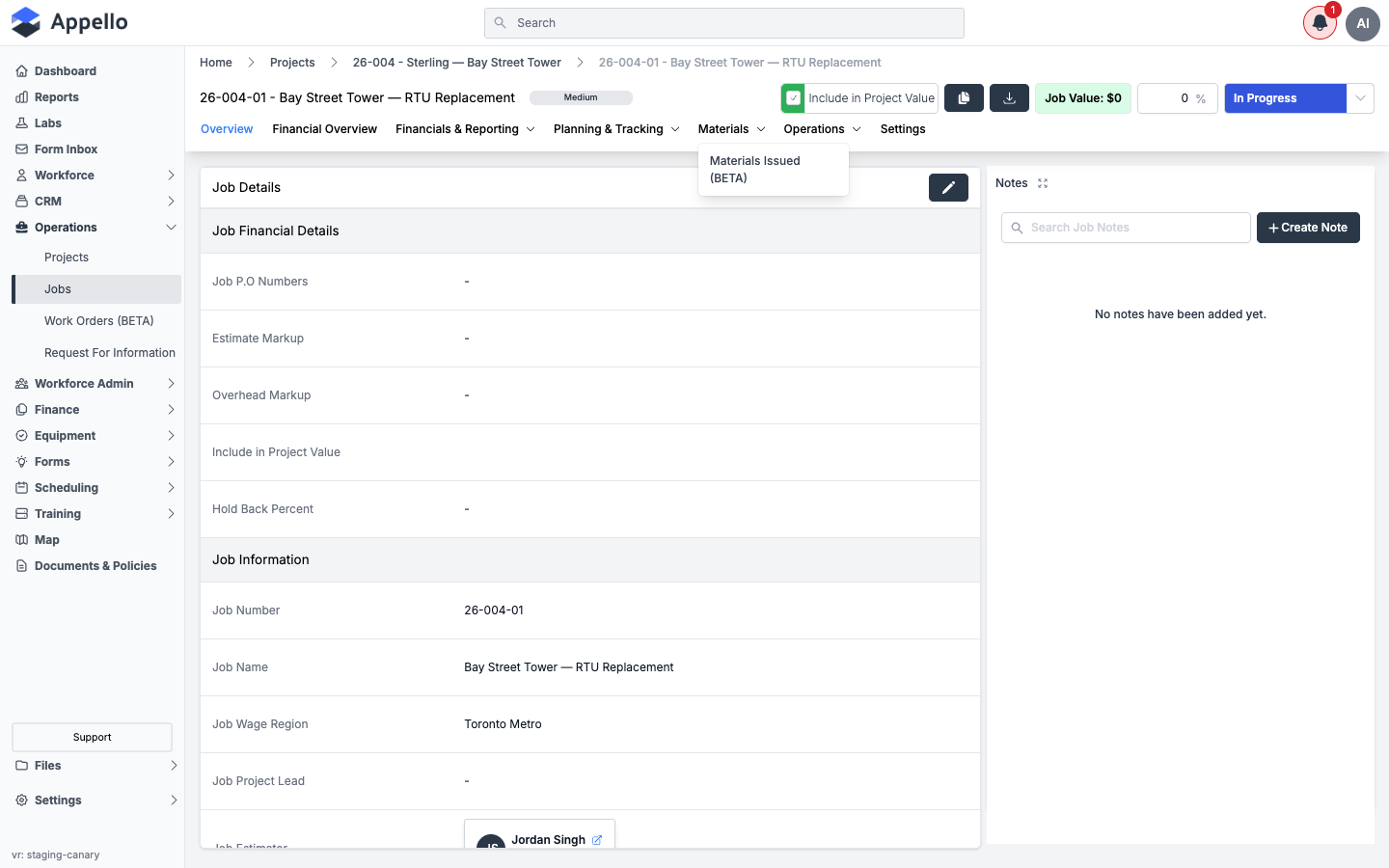
The Materials tab group (Specification, Material Orders, Materials Issued) is switched off on the demo instance by an instance setting your Appello administrator or Appello support can enable. The screenshots in that section show what actually appears there today.
Tab map
| Tab group | Sub-tabs |
|---|---|
| Overview | — |
| Financial Overview | — |
| Financials & Reporting | Financial Summary, Invoicing, Expenses, Accounts Payable, Monthly Cost Report, Cost to Complete, Earned vs Burned, Monthly Financial Summary |
| Planning & Tracking | Estimates, Change Orders, RFIs, Progress Reports, Schedule of Values |
| Materials | Specification, Material Orders, Materials Issued (BETA) |
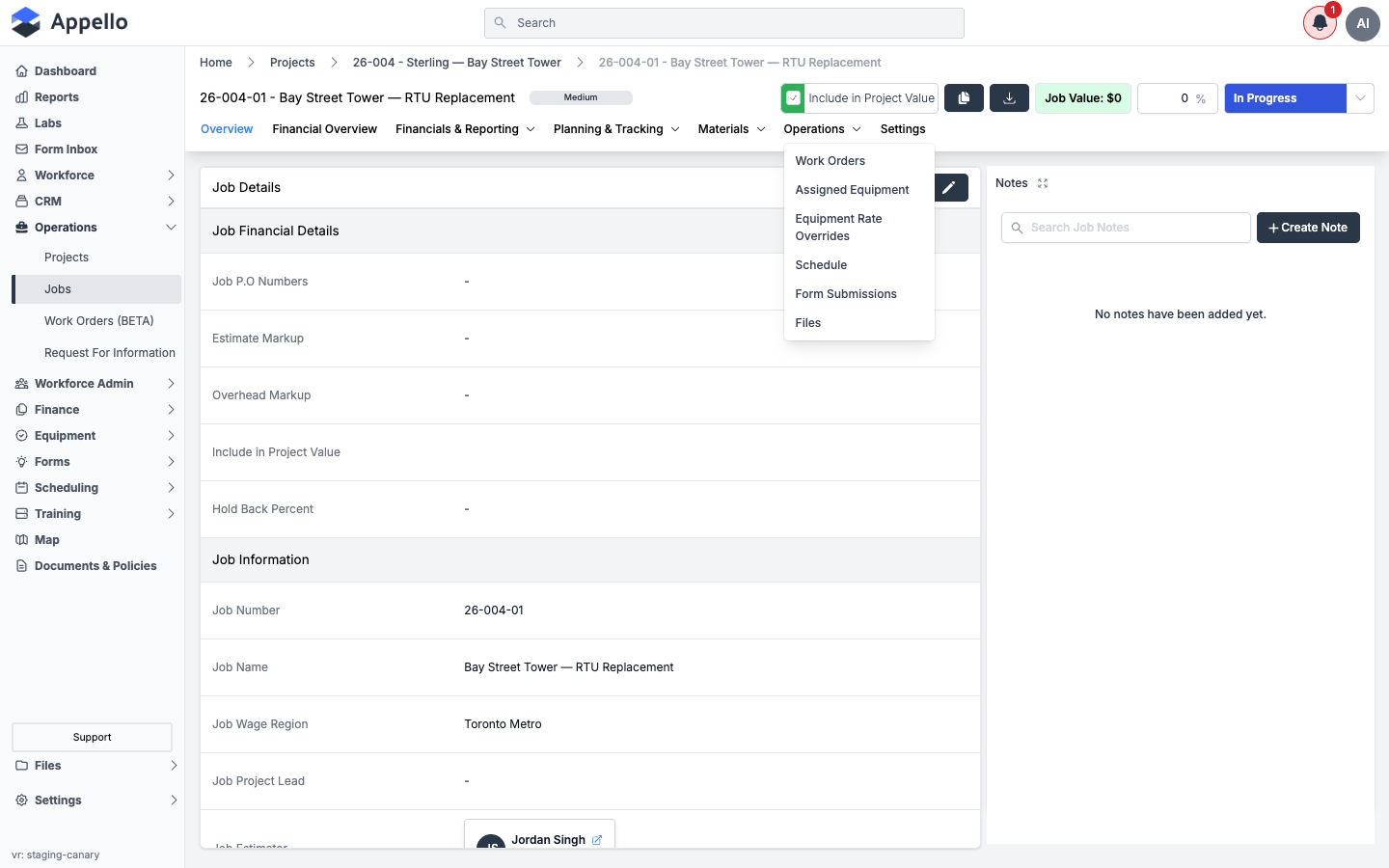
| Operations | Work Orders, Assigned Equipment, Equipment Rate Overrides, Schedule, Form Submissions, Files |
| Settings | — |
Overview
Where it is: click a job from Operations → Jobs, or open a job link from a project. URL:
/jobs/[id]?tab=overview. This is the default tab a job opens on.
What it's for: the job's core record — financial defaults, scheduling defaults, status, and customer/site information — plus the job's note feed. It's also the only tab a training job keeps its "Edit" affordance on.
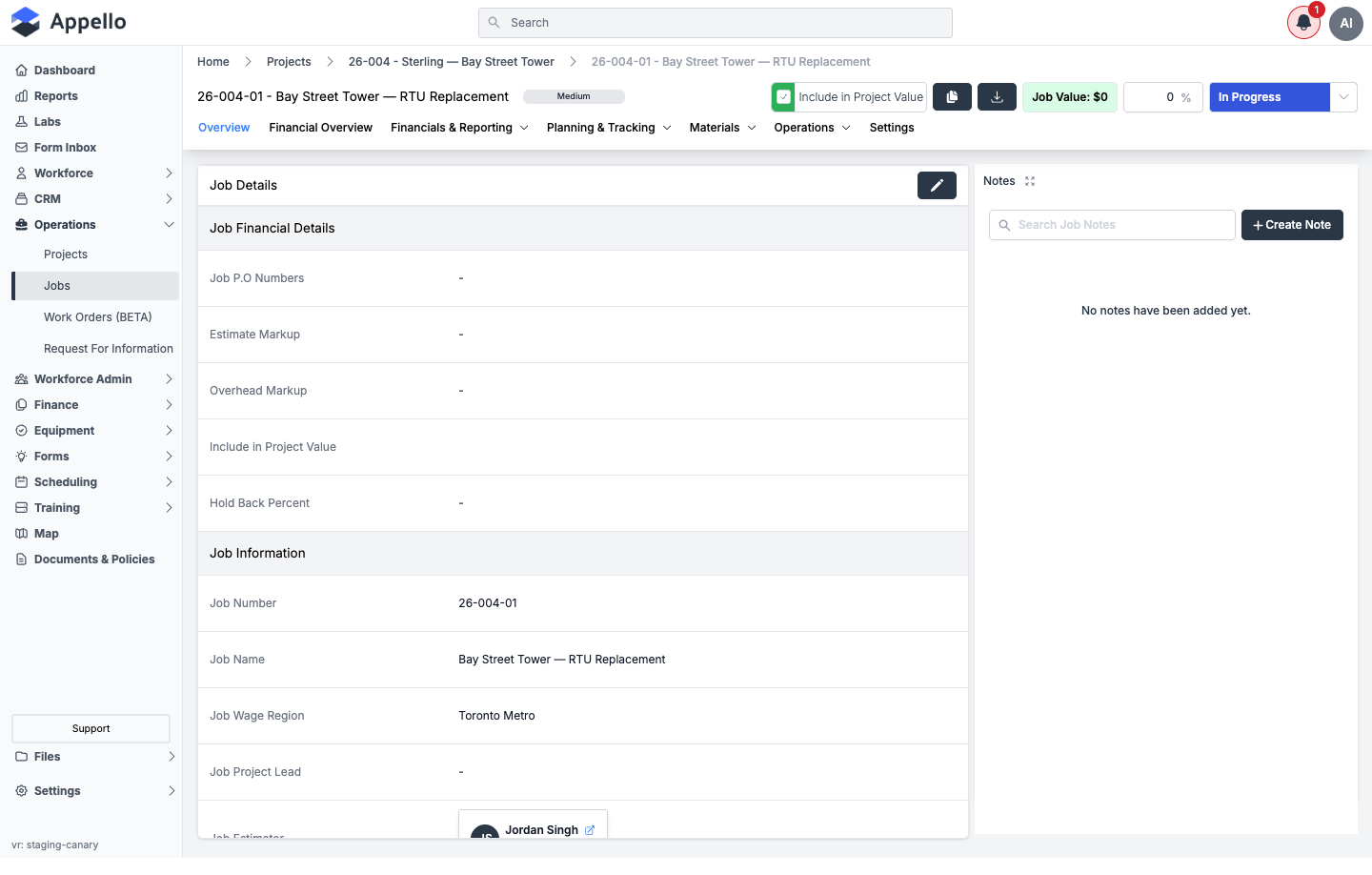
The header row above the tabs is shared by every tab on the page:
| Control | Effect |
|---|---|
Priority pill (e.g. Medium) | Shows the job's priority; editable from the Edit Job form. |
| Include in Project Value toggle | Includes/excludes this job's value from the parent project's rolled-up value. |
| Duplicate icon | Duplicates the job. |
| Download icon | Opens the Select Template For Export picker and downloads a PDF of this job built from a Download Template -- see Download a PDF of the job below. |
| Job Value field | Read-only rollup of the job's estimated value. |
| % complete field | The job's progress percentage. |
Status dropdown (e.g. In Progress) | Changes job status inline — see Job status workflow below. Disabled (view-only) for a user without Jobs → Edit. |
Download a PDF of the job
The down-arrow Download icon sits between the Duplicate icon and the Job Value field in the header, on every tab of the job page. It produces a one-record PDF of this job -- a different thing from the CSV Export buttons on the job's report tabs, which use a fixed column set. Which fields the PDF contains is decided by a Download Template for Jobs, set up under Settings → Download Templates (see Templates → Download Templates).
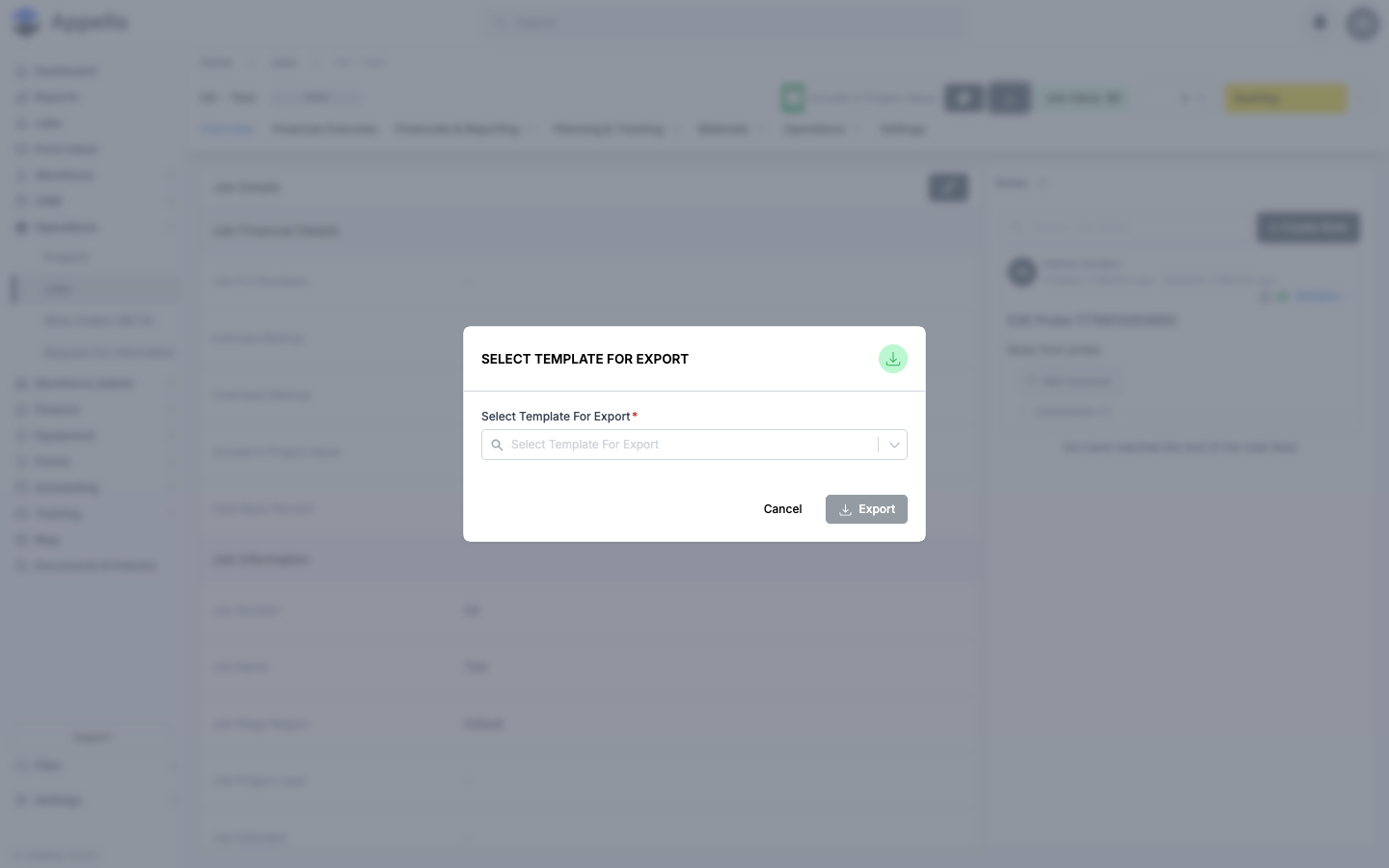
- Click the Download icon in the header.
- In the Select Template For Export picker, choose a template. Only templates created on the Jobs sub-tab of Download Templates are listed -- Work Orders templates are filtered out, even though both are job records underneath. Export stays disabled until a template is chosen.
- Click Export. The PDF is generated on the server from the fields that template has toggled
on (plus a map image of the job's location when it has coordinates) and downloads as
<Company Name>_Job Details_<date>_<time>.pdf. Cancel closes the picker without generating anything.
There is no separate permission for this button; anyone who can open the job page can use it.
Confirmed from source (pages/jobs/[id]/index.tsx passes referenceModel="Job" and
subModel="ProjectJob" to components/ConfirmTemplate/TemplateSelectionModal.tsx; the jobDetail
case in pages/api/pdf-export.ts builds the document) and on the canary demo instance on
2026-09-08, where the picker was opened and dismissed without clicking Export. The shared
behavior of this picker is documented in
Exports, Imports and Bulk Actions → Downloading a record with a download template.
Job Details card and the Edit Job form
The Job Details card lists the job's fields read-only, grouped under Job Financial Details and Job Information. The pencil icon at the top-right of the card (visible only with Jobs → Edit) opens the Job Edit Form flyout — the same form used to create a job, pre-filled. Read-only; the form was opened and then canceled without saving.
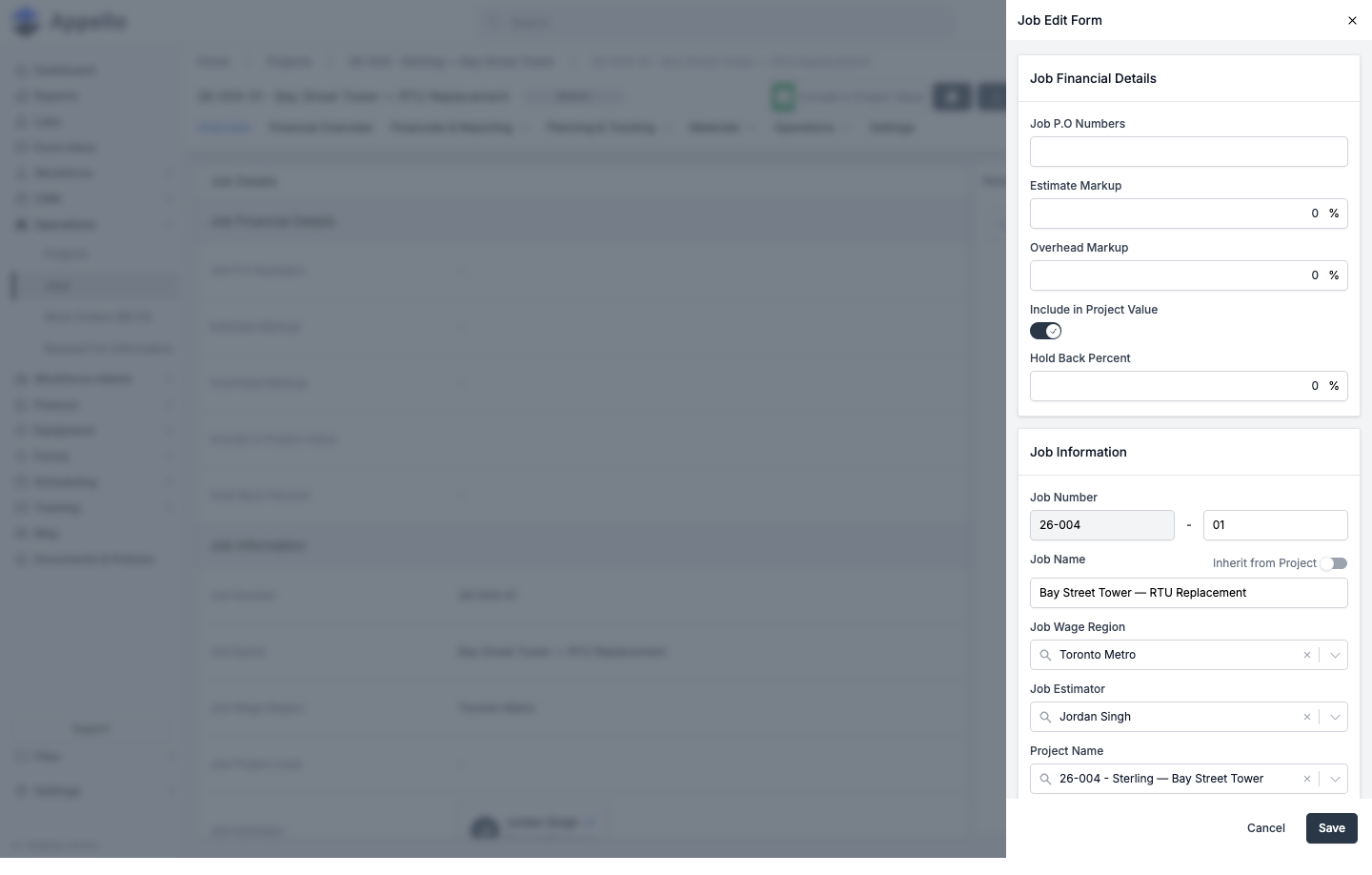
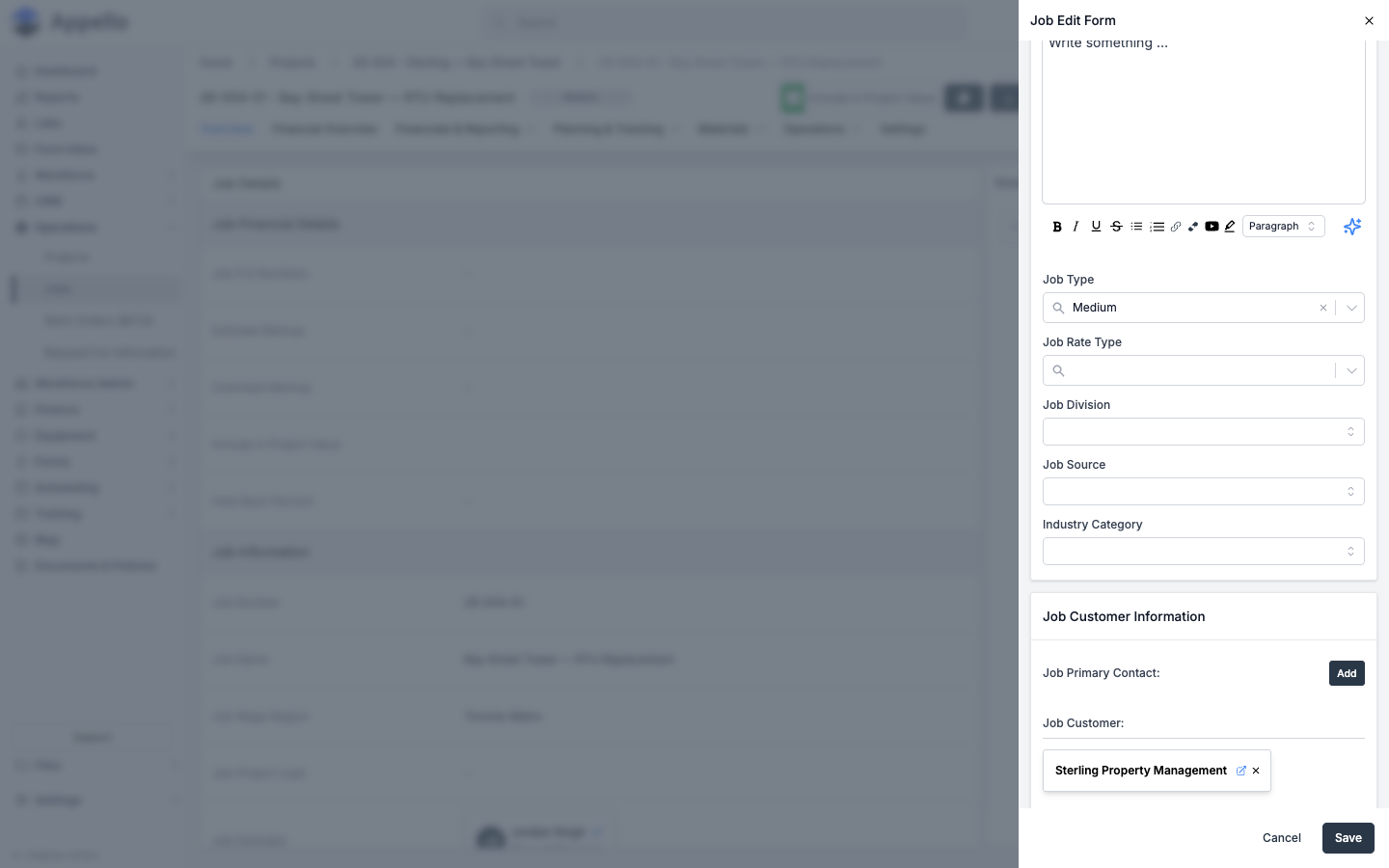
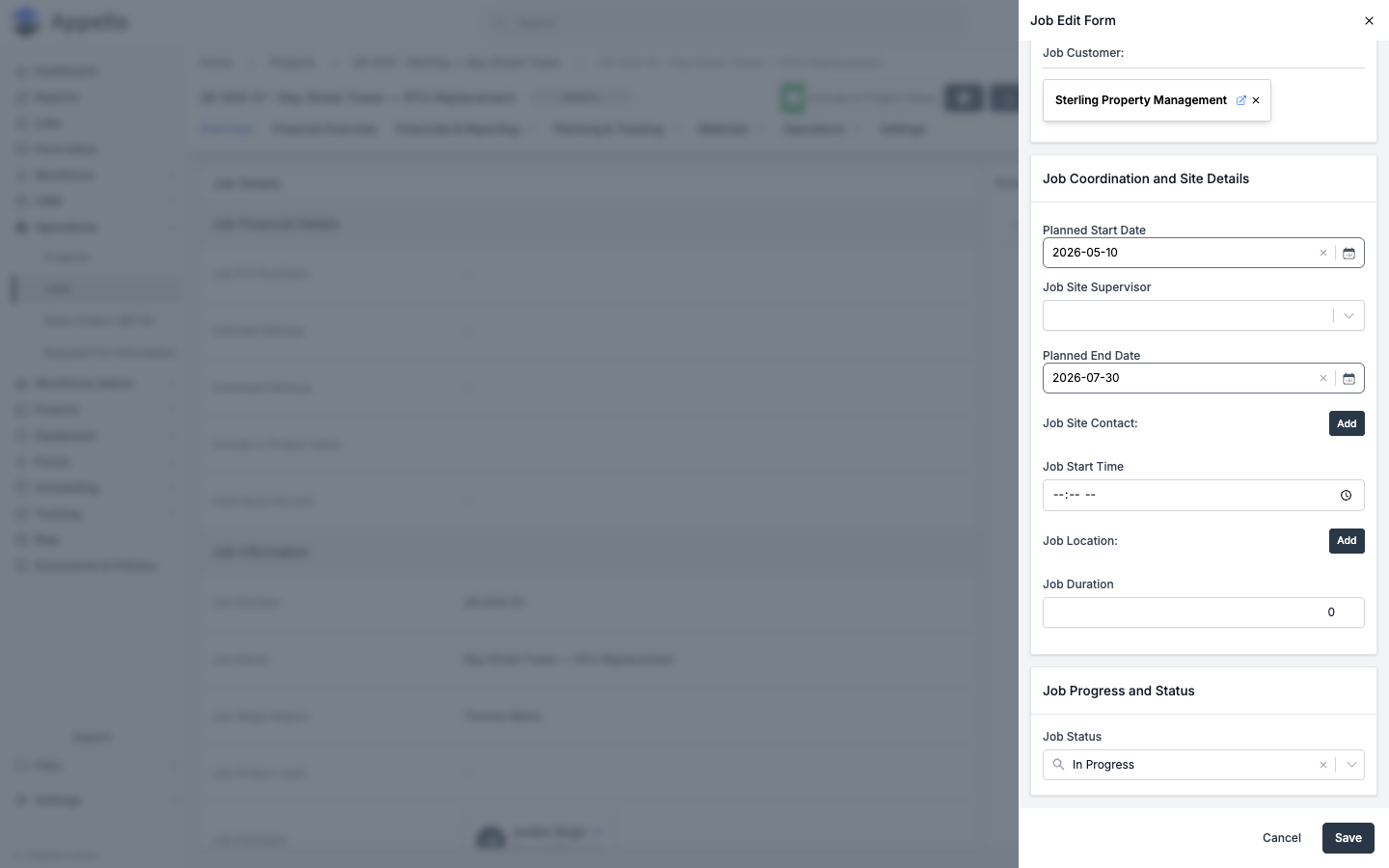
| Field | Required | Type | Effect |
|---|---|---|---|
| Job P.O Numbers | No | Text | Purchase-order reference chips shown on Overview as Job P.O Numbers. |
| Estimate Markup | No | Percent | Markup percentage applied from the linked estimate. |
| Overhead Markup | No | Percent | Overhead markup percentage. |
| Include in Project Value | No | Toggle | Mirrors the header toggle. |
| Hold Back Percent | No | Percent | Locked once the job has invoices (tooltip explains why). |
| Job Number | Yes | Text, split as Project # - Job # when the job belongs to a project | Regex-limited to letters, numbers, and hyphens. |
| Job Name | Yes | Text | Has an Inherit from Project (or Same as Estimate) toggle when created from a project or estimate. |
| Job Wage Region | Yes | Combobox | Wage region applied to timesheets on this job. |
| Job Estimator | No | Combobox (user or user-group search) | Defaults to searching the "estimator group"; a checkbox switches to searching all users. |
| Project Name | No | Combobox | Locked/hidden when the job is opened from inside a project. |
| Job Description | No | Rich text | Formatting toolbar (bold, italic, lists, link, image, video). |
| Job Type | No | Combobox (property values) | e.g. Medium. |
| Job Rate Type | Yes | Combobox | Determines billing rate rules; the Training rate type collapses the job's own tab set (see Training-classification jobs). |
| Job Division | No | Combobox | Company division. |
| Job Source | No | Combobox | Lead-source style categorization. |
| Industry Category | No | Combobox | Industry classification. |
| Job Primary Contact | No | Add-contact picker | |
| Job Customer | No | Add-company picker | Defaults to the parent project's customer when created from a project. |
| Planned Start Date | No | Date | |
| Job Site Supervisor | No | Combobox (user) | |
| Planned End Date | No | Date | |
| Job Site Contact | No | Add-contact picker | |
| Job Start Time | No | Time | |
| Job Location | No | Add-location picker | |
| Job Duration | No | Number | |
| Job Status | Yes | Combobox | See the status list below. |
Set shift length
The job's daily-hours setting lives on the Settings tab, not Overview — see Settings for the Set Shift Length modal.
Job status workflow
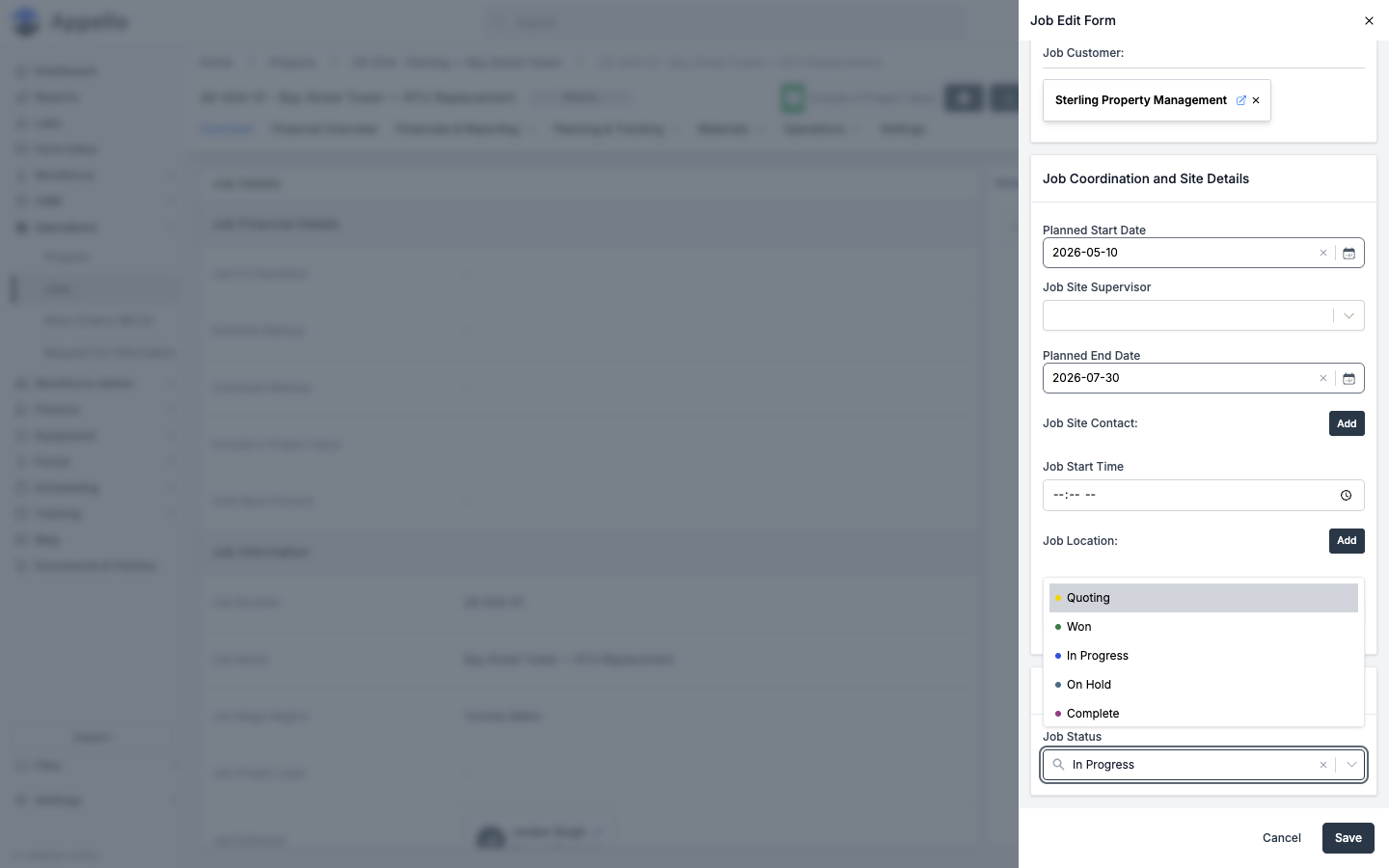
- Open the status dropdown in the page header (or the Job Status field inside the Edit Job form).
- Choose a new status from the list — the demo instance shows, in order: Quoting, Won, In Progress, On Hold, Complete.
- If the newly-selected status marks the job as finished (e.g. Complete) and the job wasn't already finished, a confirmation dialog ("Job is now complete") appears before the change commits.
- On confirm, the job saves immediately and a success or error message appears — there is no separate save step for a status change made from the header dropdown.
The status list (label, color, order) is configurable per instance as property values; the five shown above are what the demo instance has configured today, not a fixed list.
Permissions
- Jobs → Edit — required to see the pencil icon and change status from view-only.
- Jobs → View (and its Project Based scope) — gates whether this job is visible at all; see Who can see it.
Related pages
Financial Overview
Where it is: job page → Financial Overview tab. URL: /jobs/[id]?tab=financial-overview.
What it's for: a read-only, at-a-glance financial health dashboard for the job — cost performance, progress, and a cost summary — without opening any of the individual reports under Financials & Reporting.
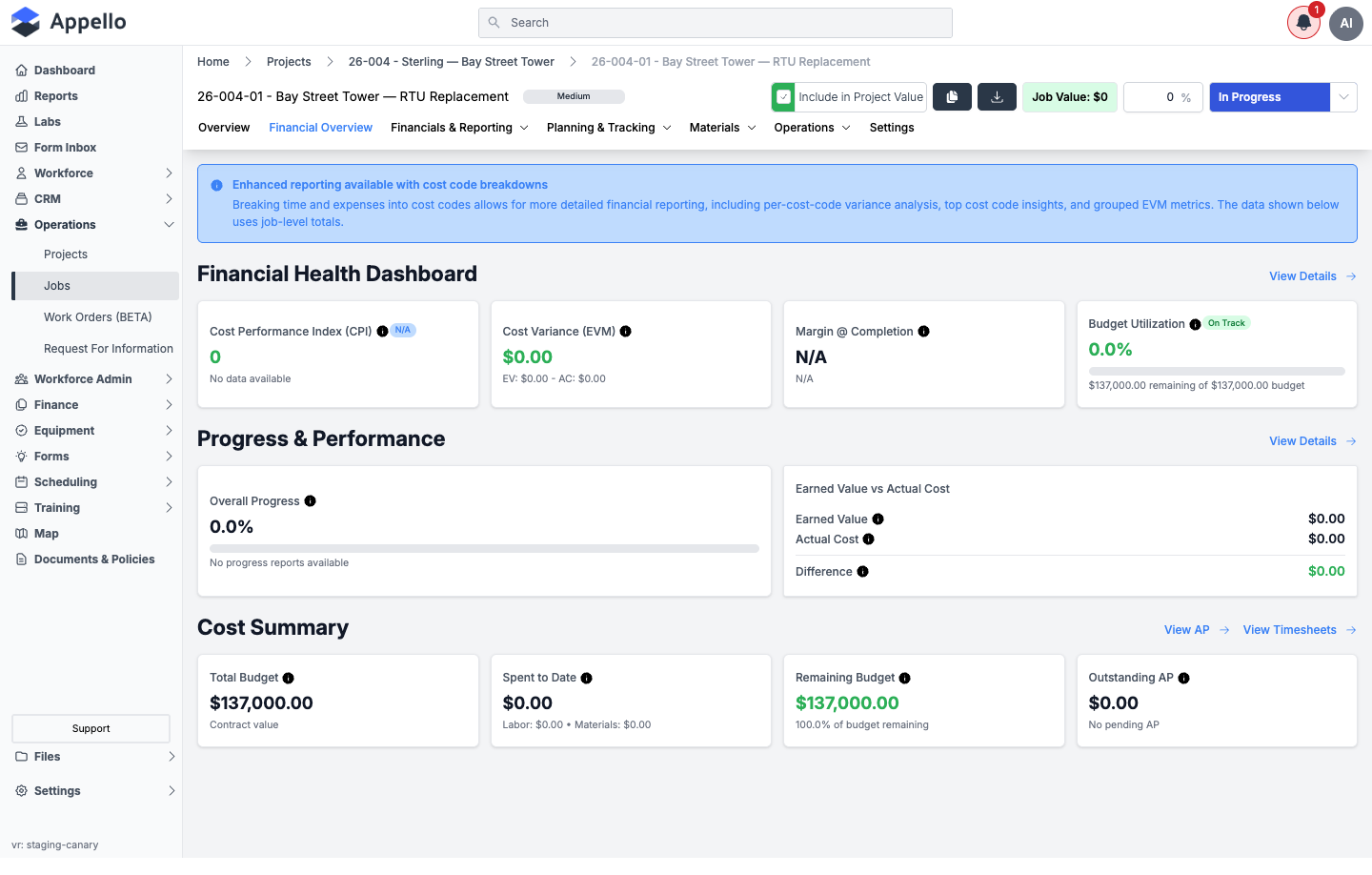
| Section | Shows | Controls |
|---|---|---|
| Financial Health Dashboard | Cost Performance Index (CPI), Cost Variance (EVM), Margin @ Completion, Budget Utilization | View Details link |
| Progress & Performance | Overall Progress, Earned Value vs Actual Cost | View Details link |
| Cost Summary | Total Budget, Spent to Date, Remaining Budget, Outstanding AP | View AP and View Timesheets links |
An info banner notes that assigning cost codes to time and expense entries enables deeper reporting (per-cost-code variance, top cost code insights, grouped EVM metrics); without cost codes, the figures above are job-level totals only.
Permissions
Financial Summary → View gates this entire tab. When scoped to Project Based, only the job lead or the parent project's project lead can see it — see Who can see it.
Related pages
Financials & Reporting
Where it is: job page → Financials & Reporting dropdown tab. This is a group header only
(it renders no content of its own) — clicking it opens a menu of eight sub-tabs, each with its own
URL: /jobs/[id]?tab=<sub-tab>.
Permissions: every sub-tab in this group is gated by Financial Summary → View (see Who can see it) except Invoicing, which is gated by Invoices → View, and Expenses and Accounts Payable, which are gated by Expenses → View.
Financial Summary
What it's for: the job's full estimate-vs-actual-vs-difference breakdown by cost category (Direct Labour, Equipment Time, Travel Expenses, and more), plus invoiced/holdback totals. A segmented control at the top switches between Financial Summary and Equipment Breakdown.
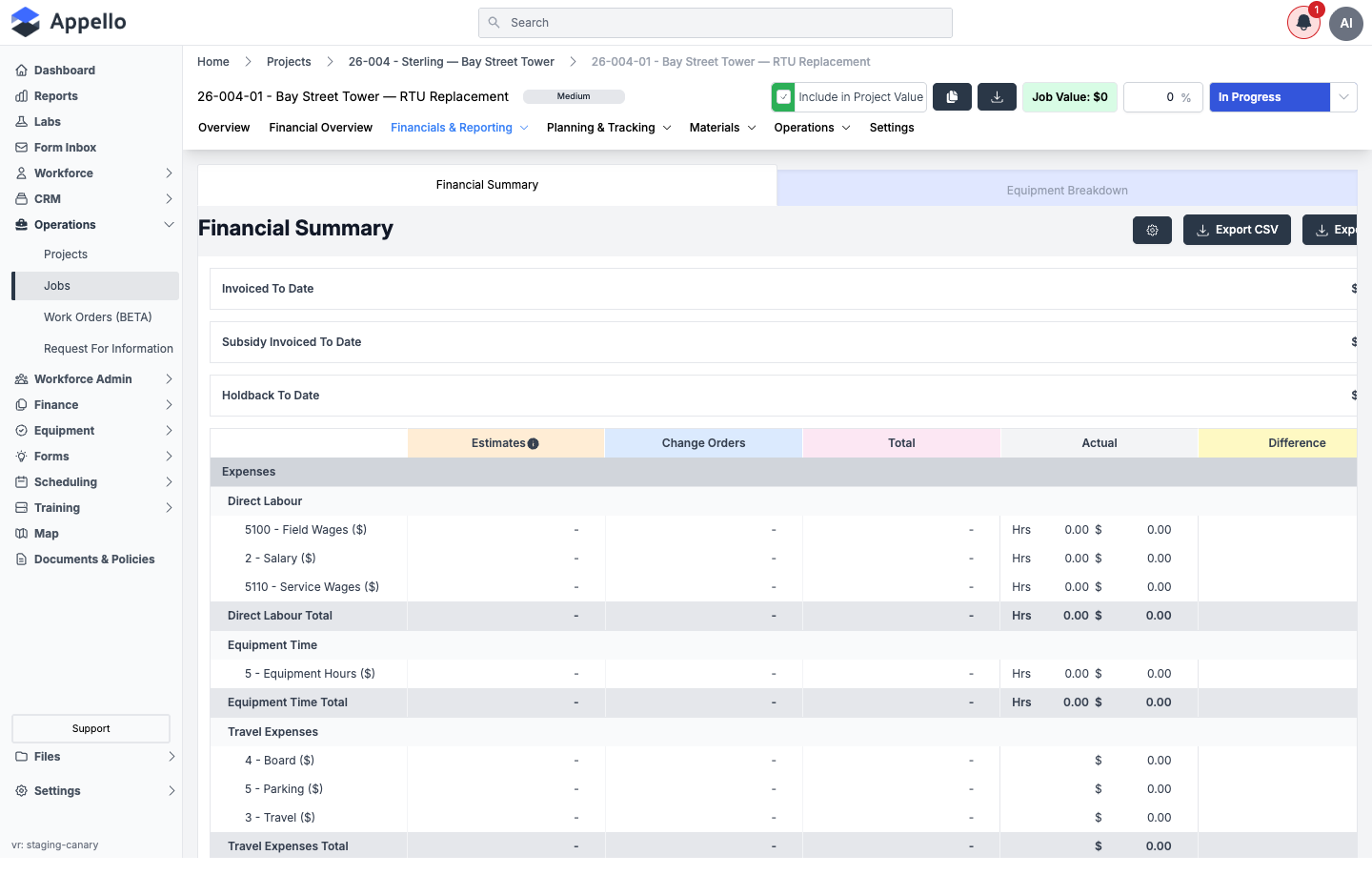
| Control | Effect |
|---|---|
| Financial Summary / Equipment Breakdown segmented control | Switches the report shown below. |
| Gear icon | Report settings. |
| Export CSV / Export... | Downloads the report. |
Rows are grouped by category (e.g. Direct Labour, Equipment Time, Travel Expenses) with columns for Estimates, Change Orders, Total, Actual, and Difference.
Related pages: Job Cost Report.
Invoicing
What it's for: the job's invoice list — create, edit, lock, and export invoices raised against this job.
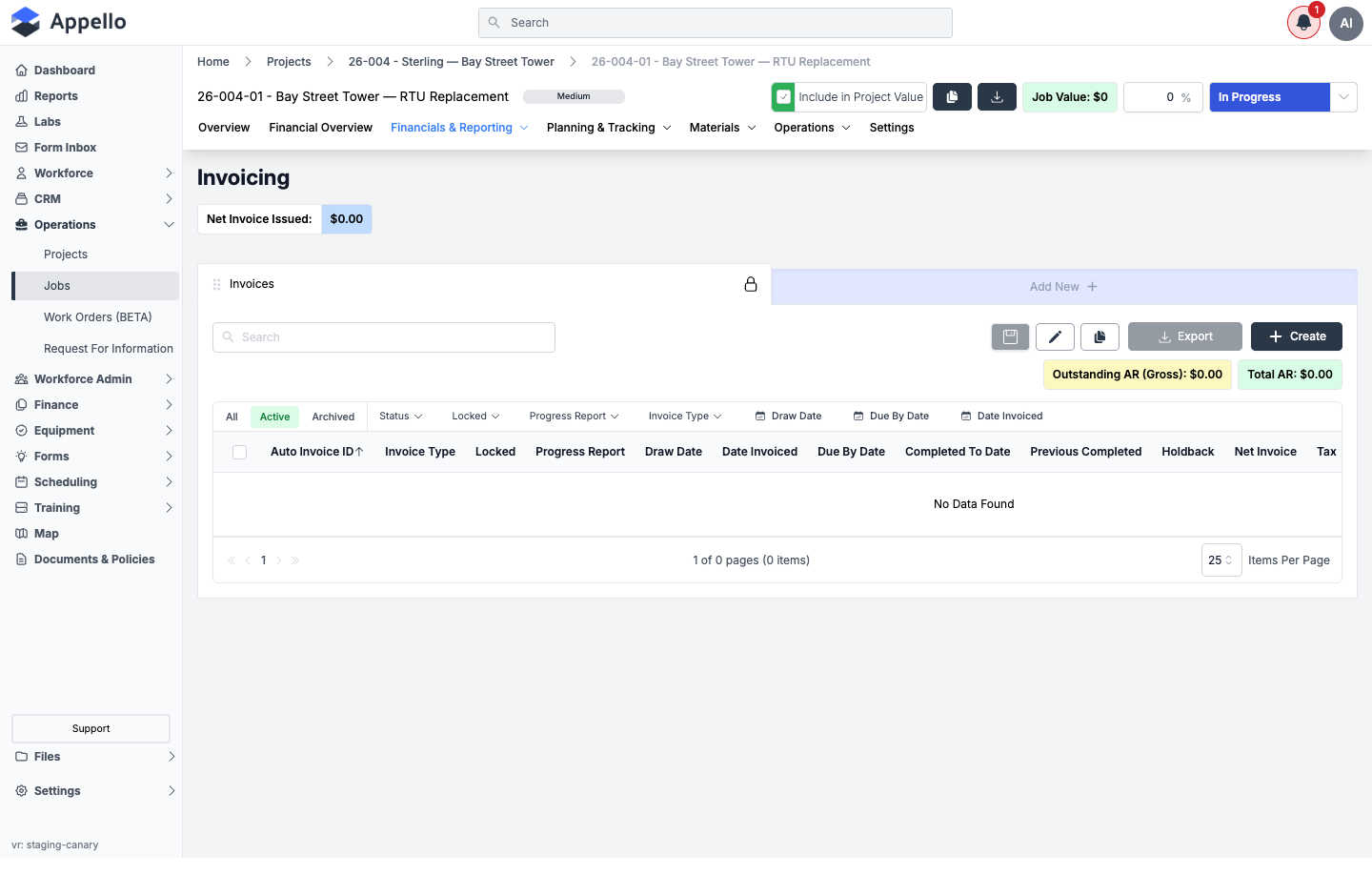
| Control | Effect |
|---|---|
| Net Invoice Issued | Running total across all invoices on the job. |
| Outstanding AR (Gross) / Total AR | Accounts-receivable summary chips. |
| Search | Filters the invoice list. |
| All / Active / Archived | Status filter tabs. |
| Status / Locked / Progress Report / Invoice Type / Draw Date / Due By Date / Date Invoiced filters | Column filters. |
| Export | Downloads the invoice list. |
| Create | Opens the invoice creation flow. |
| Layout, edit-columns, and duplicate icons | Table display controls. |
This job has no invoices yet, so the table shows No Data Found.
Related pages: Billing Report.
Expenses
What it's for: the employee expenses submitted against this job (mileage, reimbursements, per-diems, etc.).
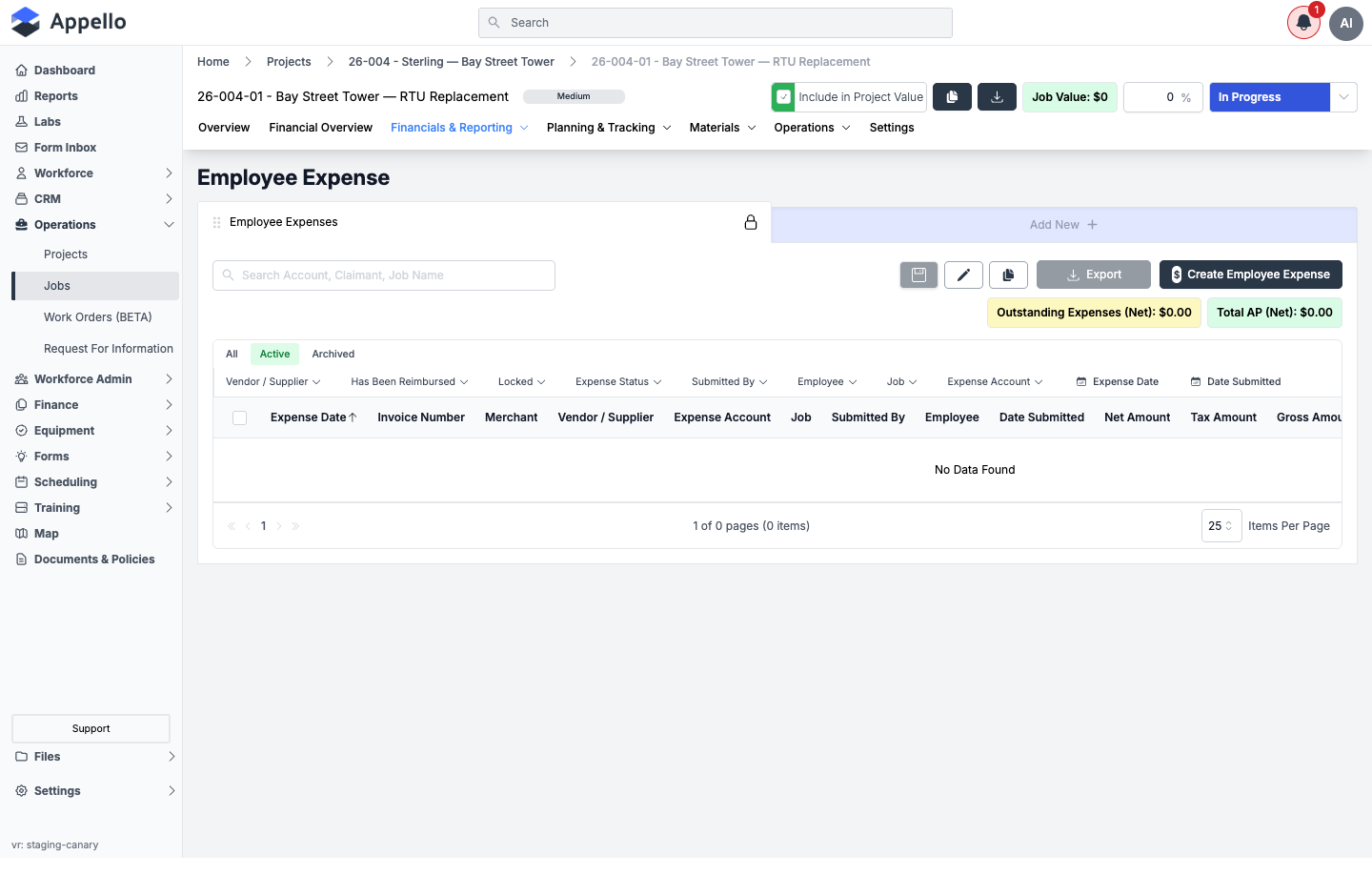
| Control | Effect |
|---|---|
| Outstanding Expenses (Net) / Total AP (Net) | Summary chips. |
| Search | Filters by account, claimant, or job name. |
| All / Active / Archived | Status filter tabs. |
| Vendor / Supplier, Has Been Reimbursed, Locked, Expense Status, Submitted By, Employee, Job, Expense Account, Expense Date, Date Submitted filters | Column filters. |
| Export | Downloads the list. |
| Create Employee Expense | Opens the expense-creation flow. |
This job has no expenses submitted, so the table shows No Data Found.
Accounts Payable
What it's for: vendor invoices (AP) allocated against this job's cost codes.
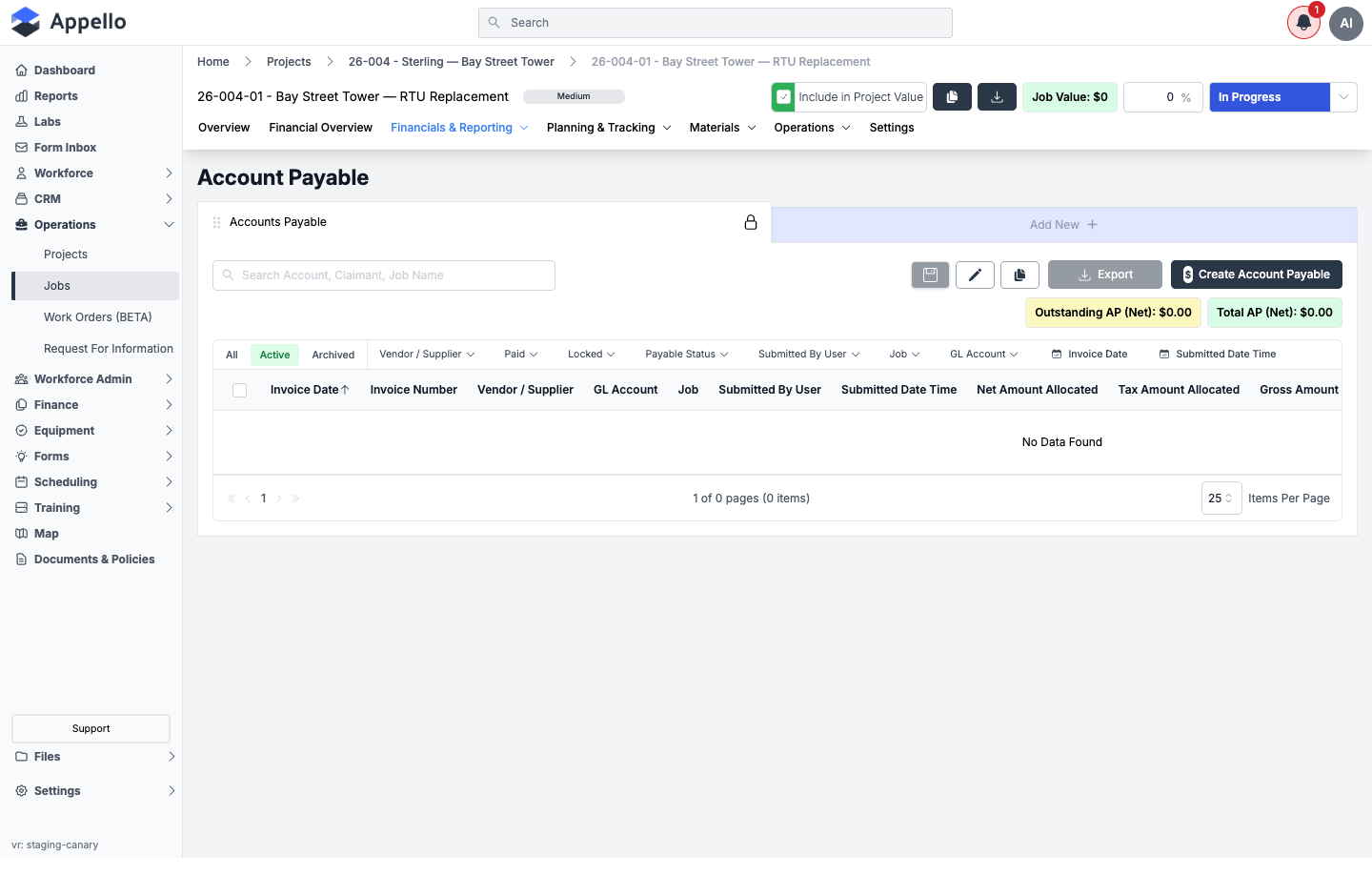
| Control | Effect |
|---|---|
| Outstanding AP (Net) / Total AP (Net) | Summary chips. |
| Search | Filters by account, claimant, or job name. |
| All / Active / Archived | Status filter tabs. |
| Vendor / Supplier, Paid, Locked, Payable Status, Submitted By User, Job, GL Account, Invoice Date, Submitted Date Time filters | Column filters. |
| Export | Downloads the list. |
| Create Account Payable | Opens the AP-creation flow. |
This job has no AP entries yet, so the table shows No Data Found.
Related pages: Accounts Payable.
Monthly Cost Report
What it's for: month-by-month cost against the Schedule of Values (SOV) budget, by cost code, with a stacked bar chart and a cumulative-vs-budget line chart.
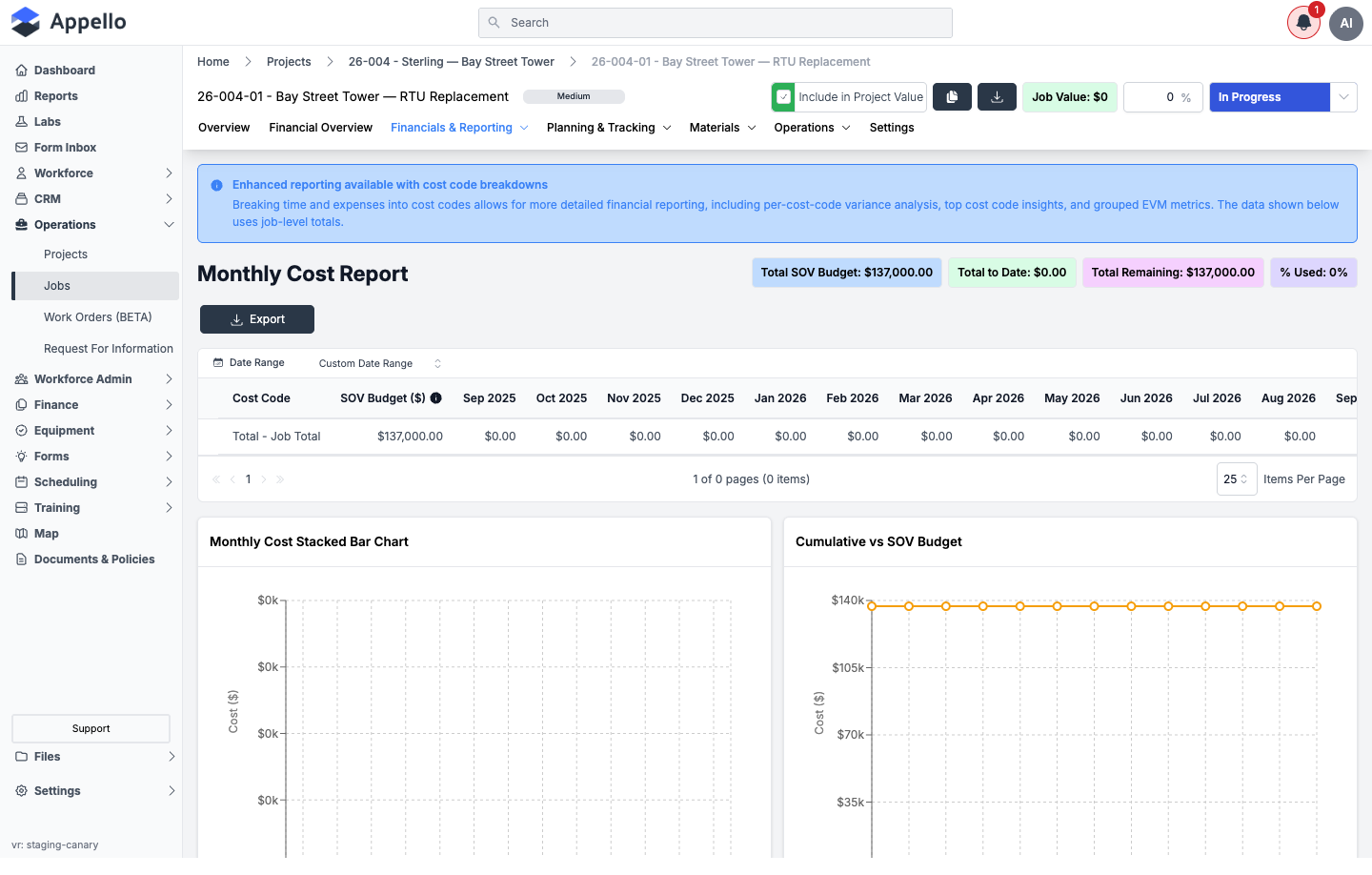
| Control | Effect |
|---|---|
| Total SOV Budget / Total to Date / Total Remaining / % Used chips | Header summary. |
| Date Range picker | Changes the reporting window. |
| Export | Downloads the report. |
Related pages: Cost Codes & Schedule of Values.
Cost to Complete
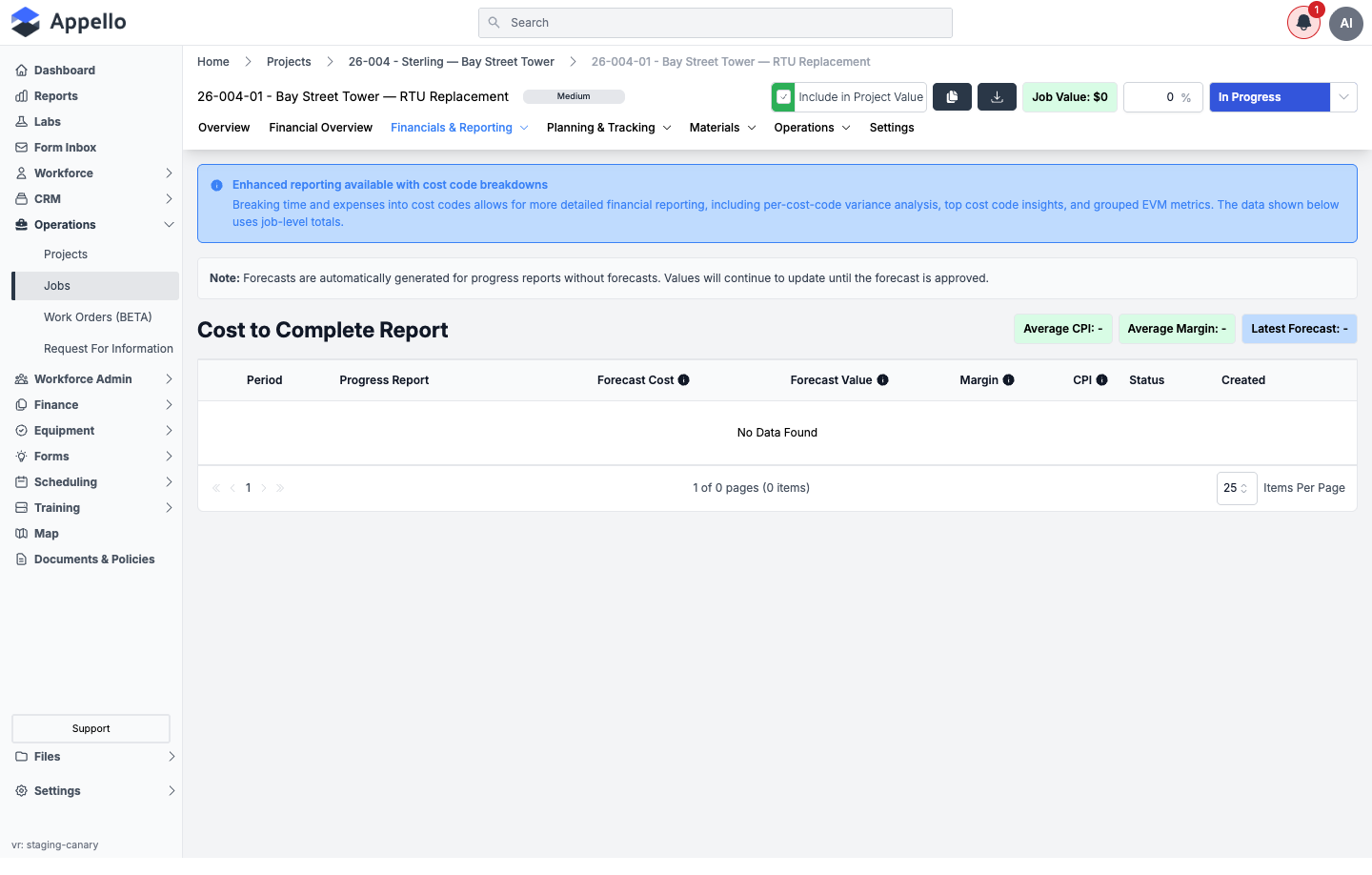
What it's for: the forecast-based Cost to Complete report — forecast cost, forecast value, margin, and CPI per progress-report period, with an average CPI/margin and latest-forecast summary. A note explains that forecasts auto-generate for progress reports that don't have one, and keep updating until approved.
| Control | Effect |
|---|---|
| Average CPI / Average Margin / Latest Forecast chips | Header summary. |
| Table columns: Period, Progress Report, Forecast Cost, Forecast Value, Margin, CPI, Status, Created | Per-period forecast rows. |
This job has no progress reports yet, so the table shows No Data Found.
Earned vs Burned
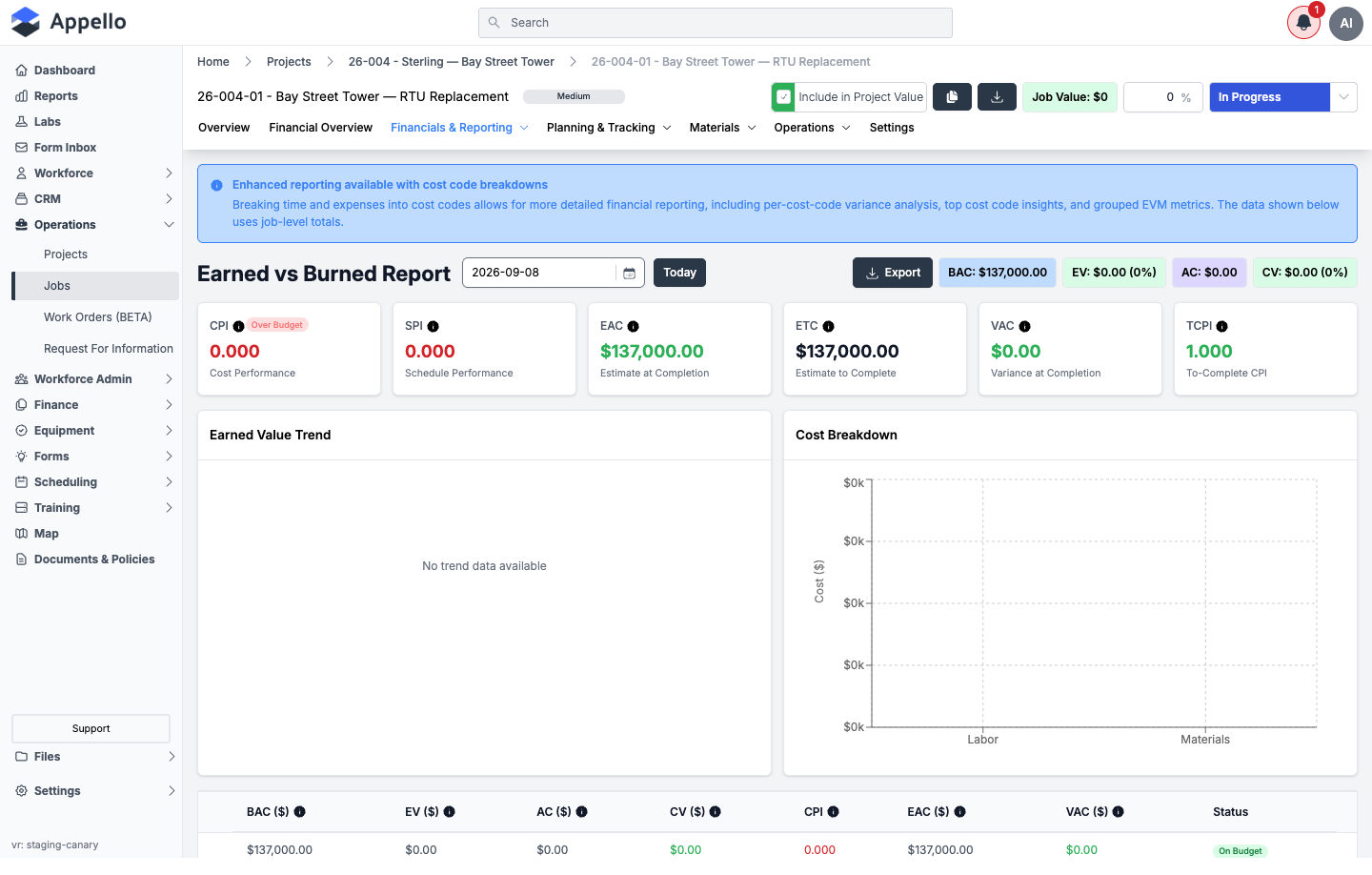
What it's for: a full earned-value-management (EVM) report — CPI, SPI, Estimate at Completion (EAC), Estimate to Complete (ETC), Variance at Completion (VAC), and To-Complete CPI (TCPI), plus an earned-value trend chart and a labor/materials cost-breakdown chart.
| Control | Effect |
|---|---|
| Date picker / Today button | Sets the as-of date for the report. |
| Export | Downloads the report. |
| BAC / EV (%) / AC / CV (%) chips | Header summary (Budget at Completion, Earned Value, Actual Cost, Cost Variance). |
| Bottom table | BAC, EV, AC, CV, CPI, EAC, VAC, and a status chip (e.g. On Budget). |
Monthly Financial Summary
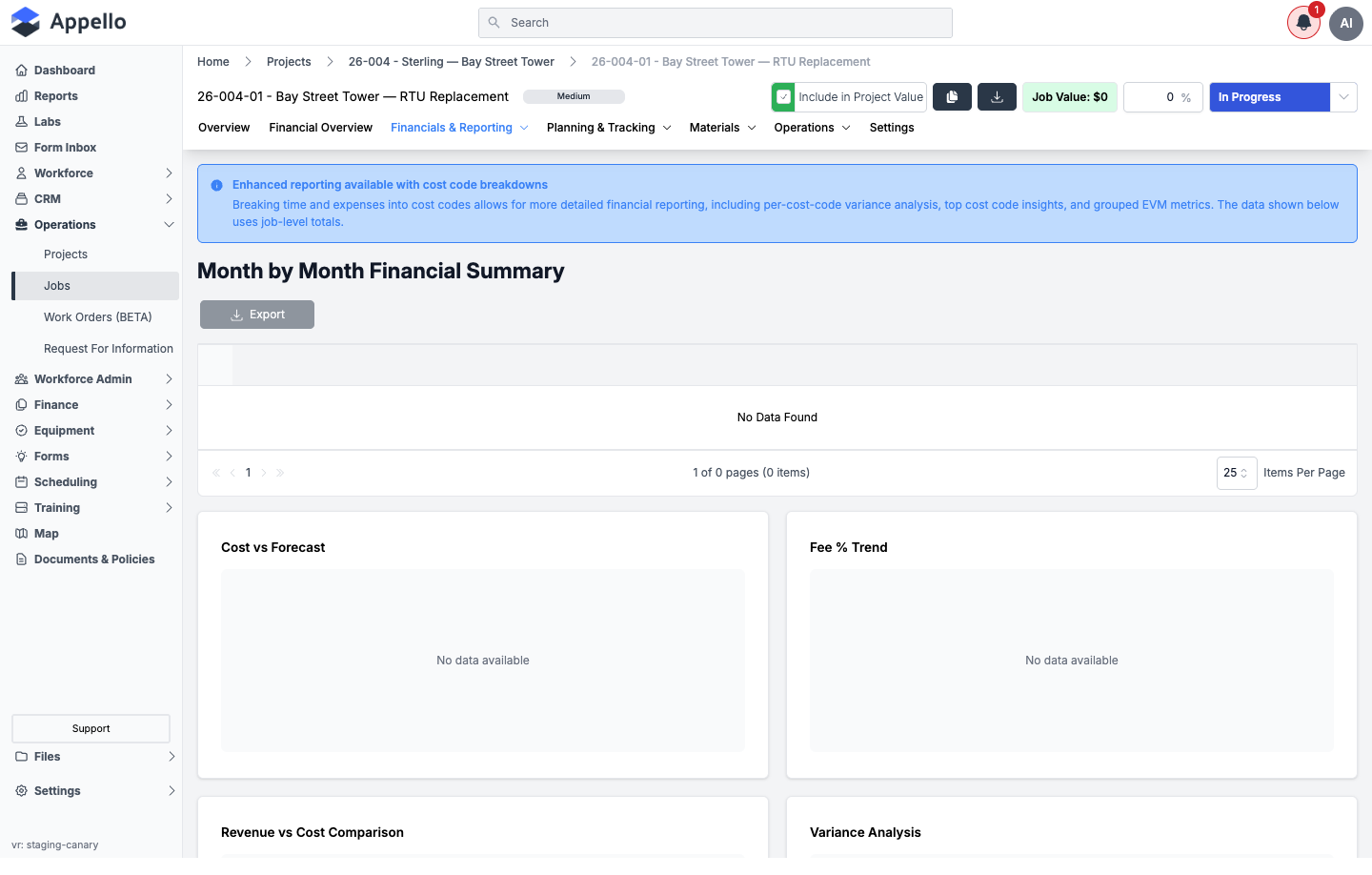
What it's for: a month-by-month financial rollup with four charts — Cost vs Forecast, Fee % Trend, Revenue vs Cost Comparison, and Variance Analysis.
| Control | Effect |
|---|---|
| Export | Downloads the report. |
This job has no monthly data yet, so the table and all four charts show No Data Found / No data available.
Planning & Tracking
Where it is: job page → Planning & Tracking dropdown tab (group header only, no content
of its own). Sub-tabs each have their own URL: /jobs/[id]?tab=<sub-tab>.
Estimates
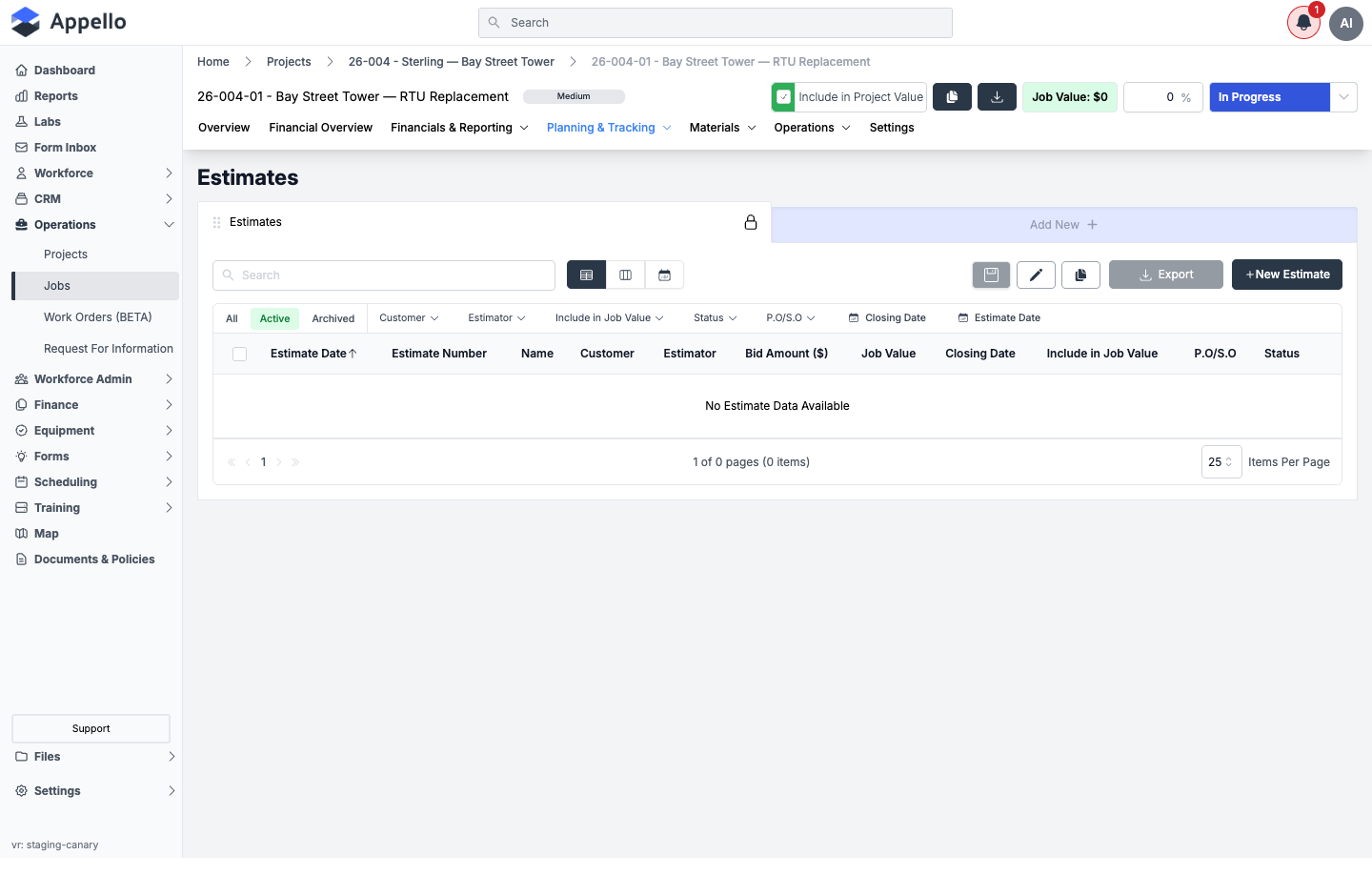
What it's for: the estimates written against this job — bid amount, job value, customer, estimator, closing date, and status.
| Control | Effect |
|---|---|
| Search | Filters the list. |
| Table / card / calendar view icons | Switches list layout. |
| All / Active / Archived | Status filter tabs. |
| Customer, Estimator, Include in Job Value, Status, P.O/S.O, Closing Date, Estimate Date filters | Column filters. |
| Export | Downloads the list. |
| New Estimate | Opens the estimate-creation flow. |
This job has no estimates yet, so the table shows No Estimate Data Available.
Related pages: Estimate Report.
Change Orders
What it's for: change orders raised against this job, in the same list shape as Estimates.
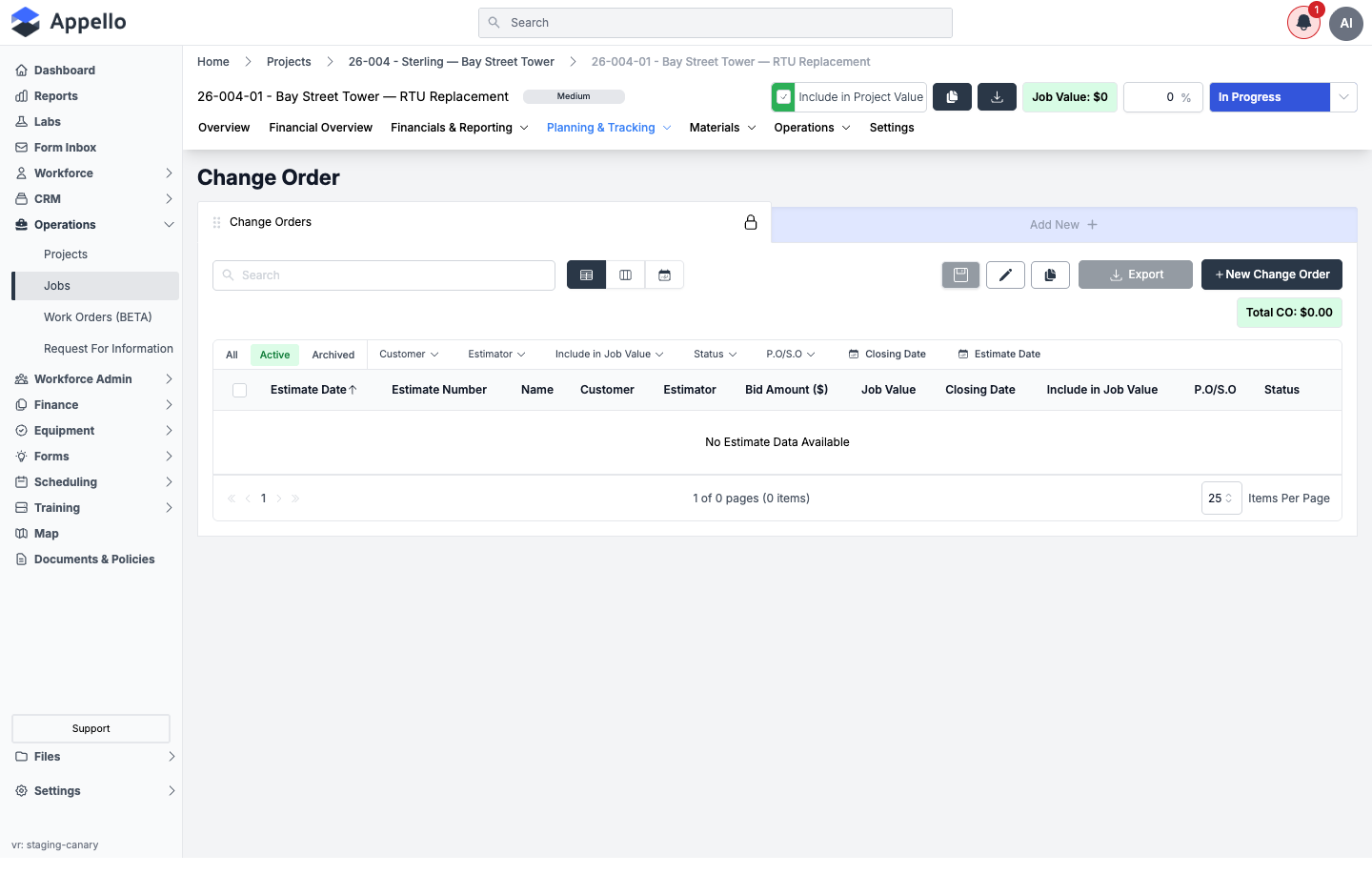
| Control | Effect |
|---|---|
| Total CO chip | Running total of change-order value. |
| Same search/view/filter/export controls as Estimates | |
| New Change Order | Opens the change-order creation flow. |
This job has no change orders yet.
Related pages: Change Orders.
RFIs
What it's for: Requests For Information raised against this job.
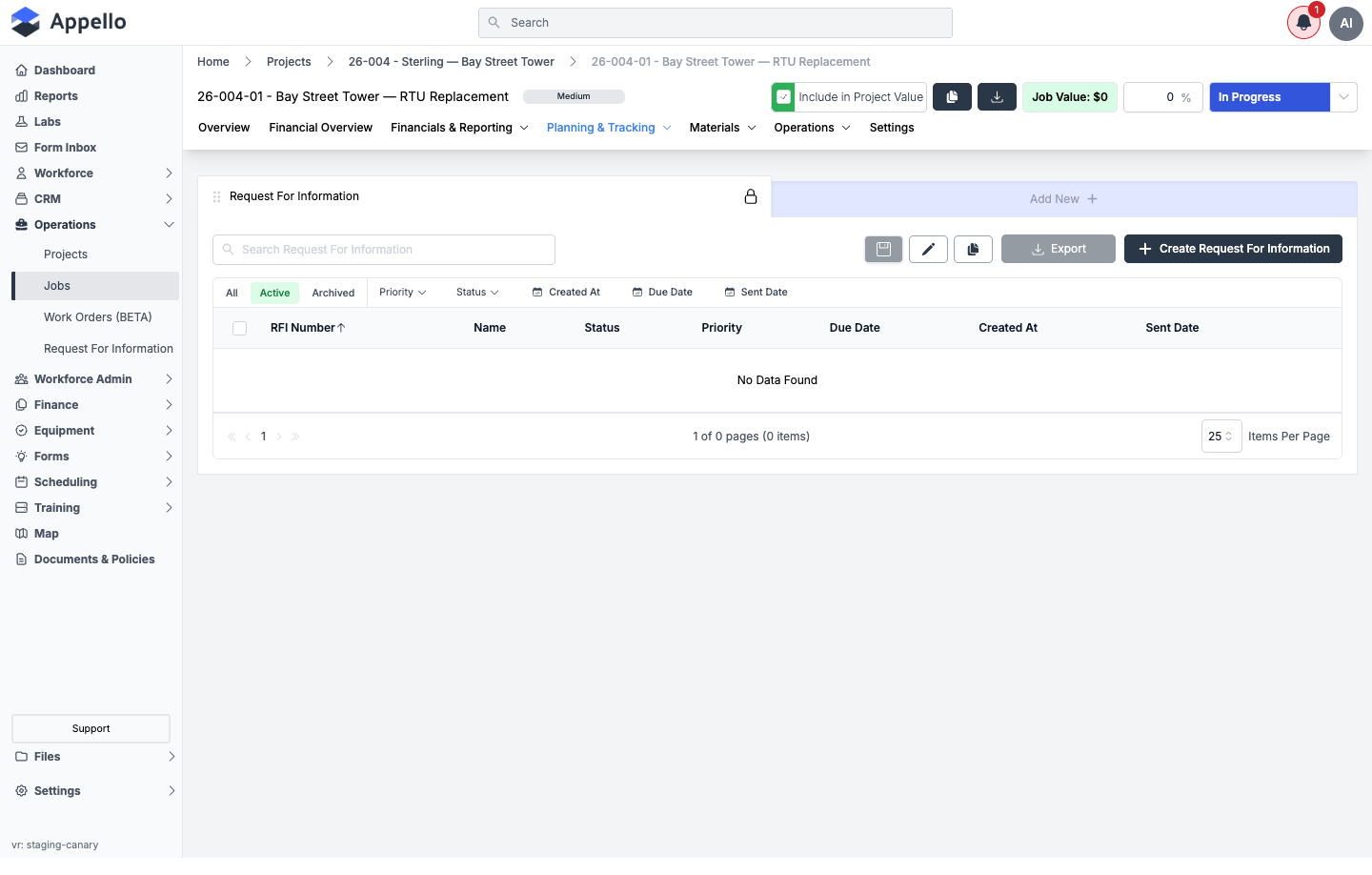
| Control | Effect |
|---|---|
| Search | Filters the list. |
| All / Active / Archived | Status filter tabs. |
| Priority, Status, Created At, Due Date, Sent Date filters | Column filters. |
| Export | Downloads the list. |
| Create Request For Information | Opens the RFI-creation flow. |
This job has no RFIs yet.
Related pages: RFIs.
Progress Reports
What it's for: field progress reports (percent-complete billing snapshots) for the job.
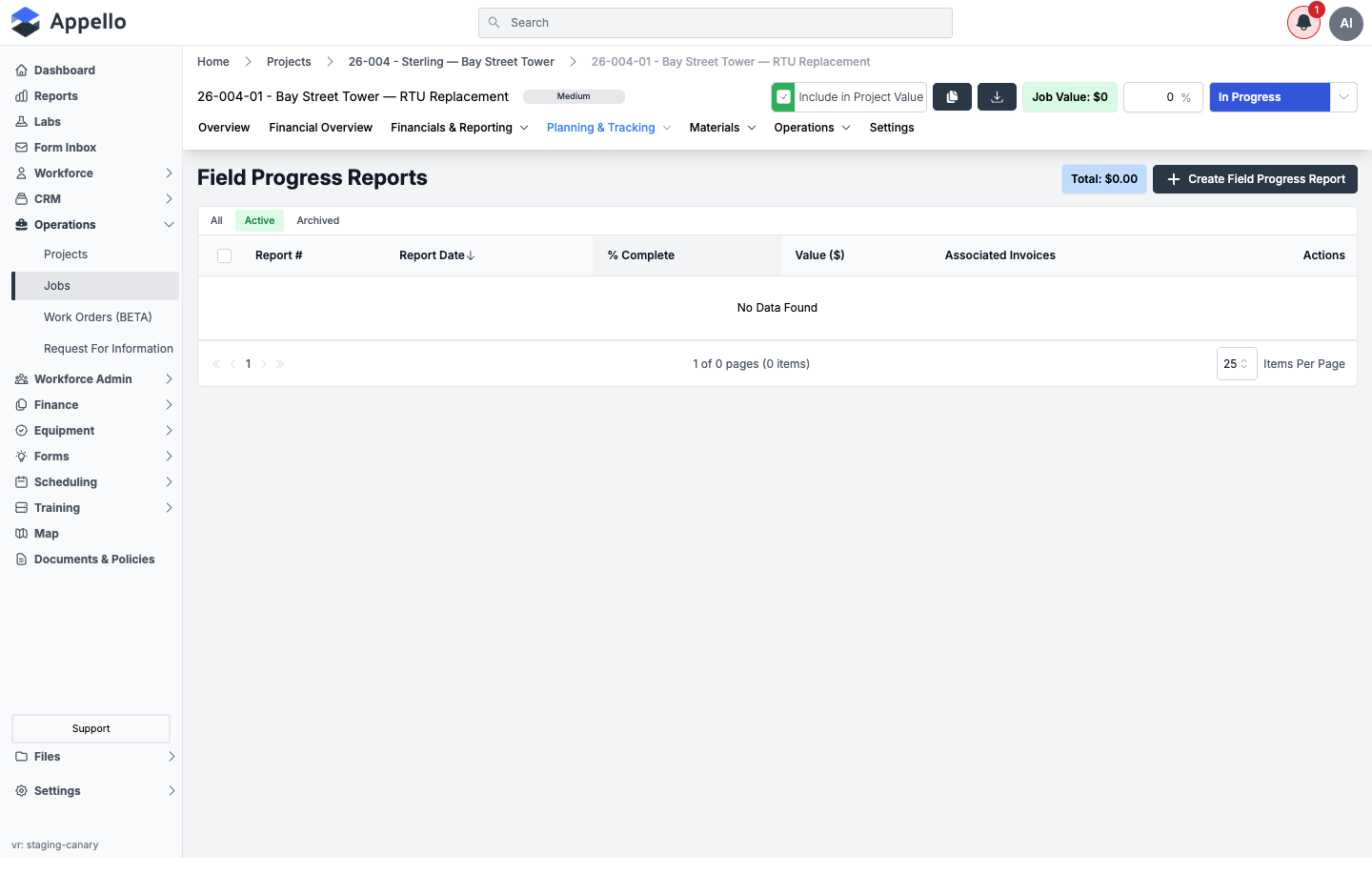
| Control | Effect |
|---|---|
| Total chip | Total billed value across progress reports. |
| All / Active / Archived | Status filter tabs. |
| Create Field Progress Report | Opens the progress-report creation flow. |
| Table columns: Report #, Report Date, % Complete, Value ($), Associated Invoices, Actions | Per-report rows. |
This job has no progress reports yet.
Related pages: Progress Reports.
Schedule of Values
What it's for: the job's Schedule of Values (SOV) — the line-item cost/margin/billing breakdown that drives progress billing.
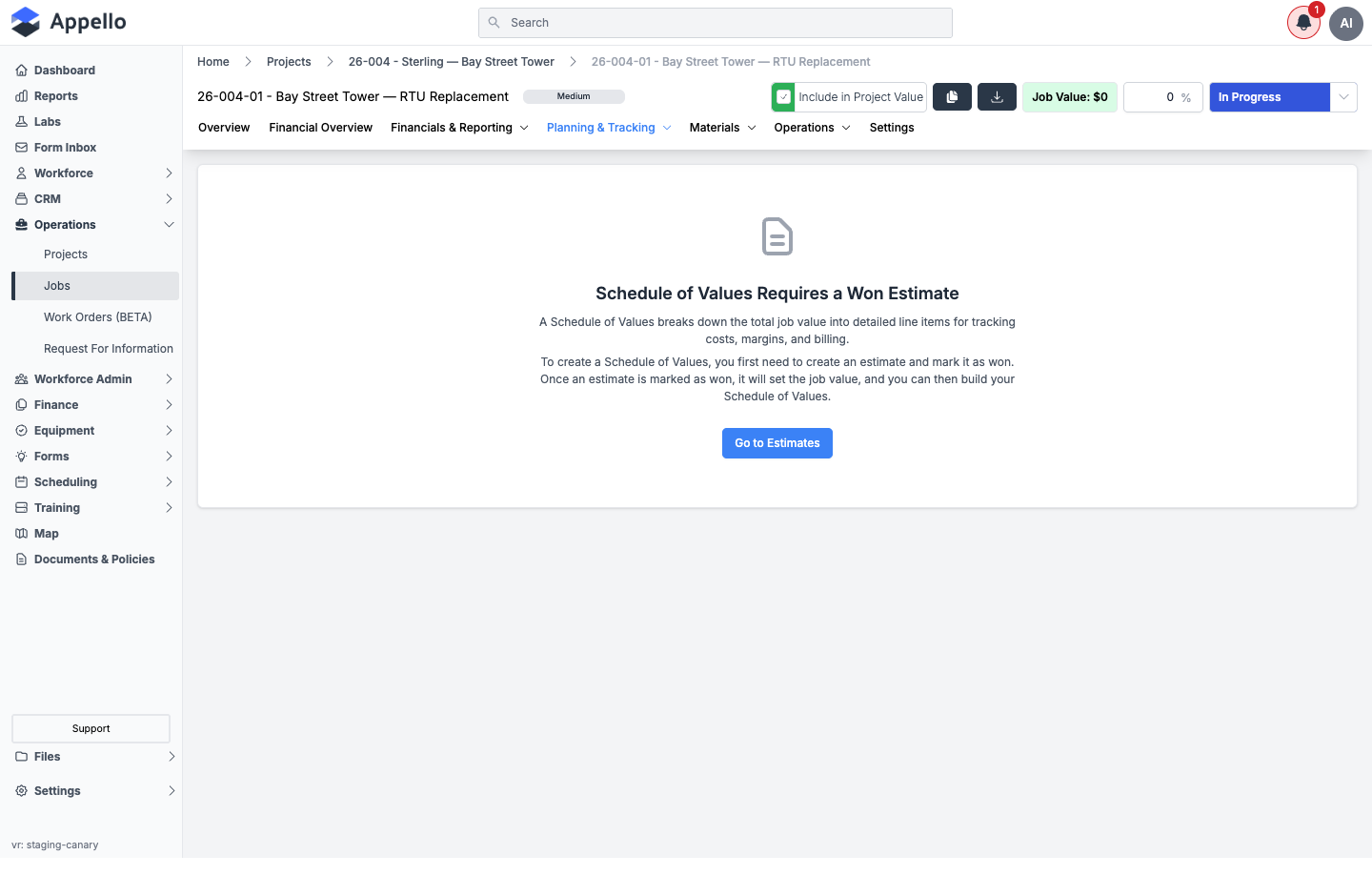
A Schedule of Values requires a won estimate first: creating and winning an estimate sets the job value, which then unlocks building the SOV. On a job with no won estimate (this demo job), the tab shows an empty state explaining this and a Go to Estimates button instead of the SOV editor.
Related pages: Cost Codes & Schedule of Values.
Materials
Where it is: job page → Materials dropdown tab (group header only, no content of its own).
On the demo instance, Specification and Material Orders are switched off by an instance setting your Appello administrator or Appello support can enable — the Materials dropdown menu shows only Materials Issued (BETA). The screenshot below shows exactly what the menu shows today; Specification and Material Orders are described in writing since they aren't available here.
Specification
What it's for (not available on this instance, so described in writing): the job's material specification — systems, targets, notes, and per-area product rules, entered on a Job Specification form and a Specification Area form.
| Form | Field | Required | Type | Effect |
|---|---|---|---|---|
| Job Specification | System | Yes | Combobox (job specification labels) | The system this spec entry covers. |
| Job Specification | Target | Yes | Combobox (material attribute list values) | What the spec targets. |
| Job Specification | Specification | No | Text | The spec text. |
| Job Specification | Notes | No | Text | Free-form notes. |
| Specification Area | Area | No | Combobox | Which area of the job this specification area applies to. |
| Specification Area | Specification | No | Text | Area-level specification text, plus nested material rules and products. |
Related pages: Materials Catalog.
Material Orders
What it's for (not available on this instance): material orders placed against this job.
Related pages: Material Orders.
Materials Issued (BETA)
What it's for: inventory items that have been issued (checked out) to this job from stock, and returning them.
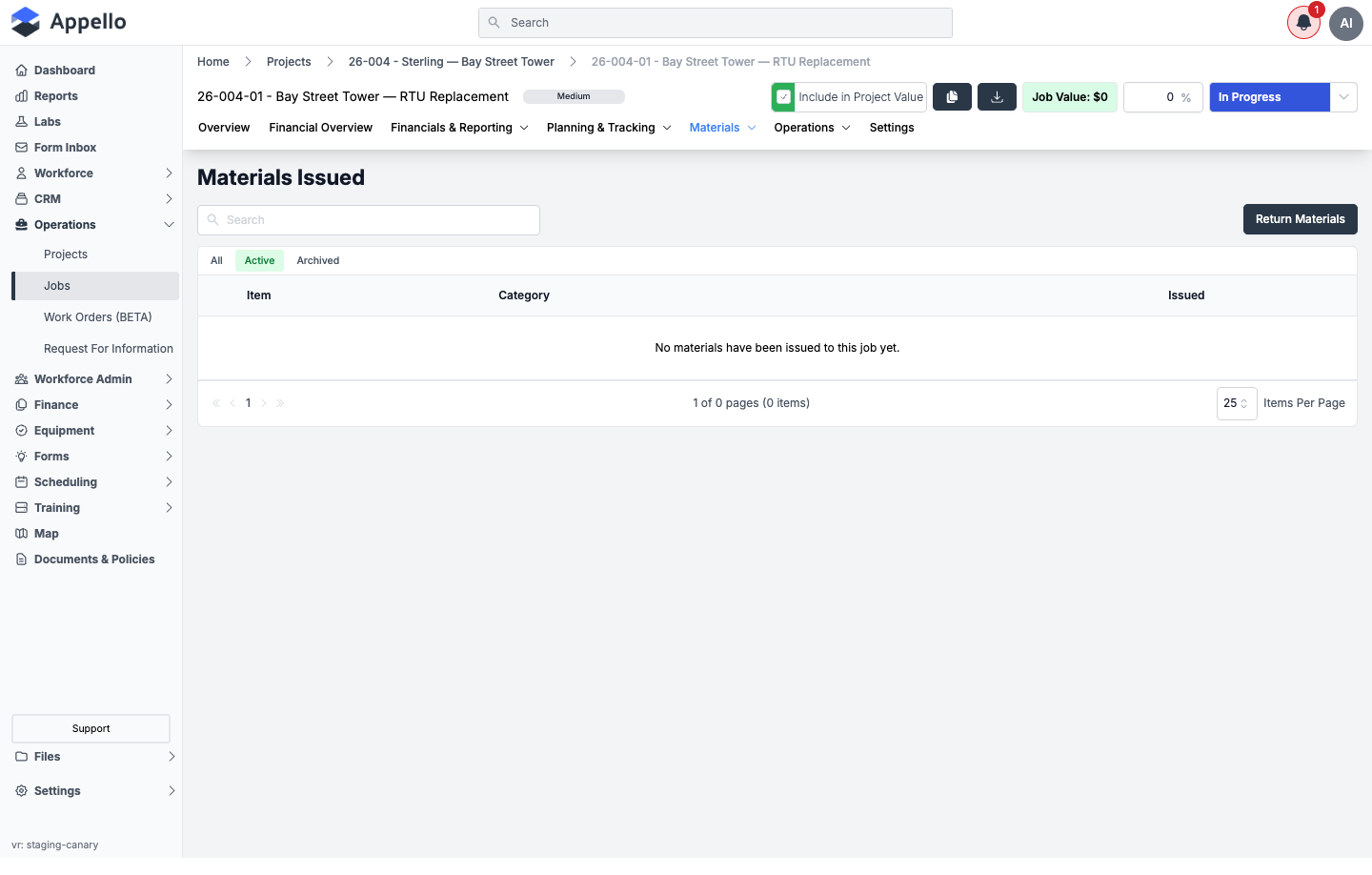
| Control | Effect |
|---|---|
| Search | Filters the issued-items list. |
| All / Active / Archived | Status filter tabs. |
| Return Materials | Opens the Return Materials form to return issued items back to inventory. |
| Field (Return Materials) | Required | Type | Effect |
|---|---|---|---|
| Return To | Yes | Combobox (inventory location) | Where the returned items go back into stock. |
| Note | No | Text | Note recorded against the return. |
This job has no materials issued yet (No materials have been issued to this job yet.), so there was nothing to return.
Related pages: Inventory Management.
Operations
Where it is: job page → Operations dropdown tab (group header only, no content of its own).
Work Orders
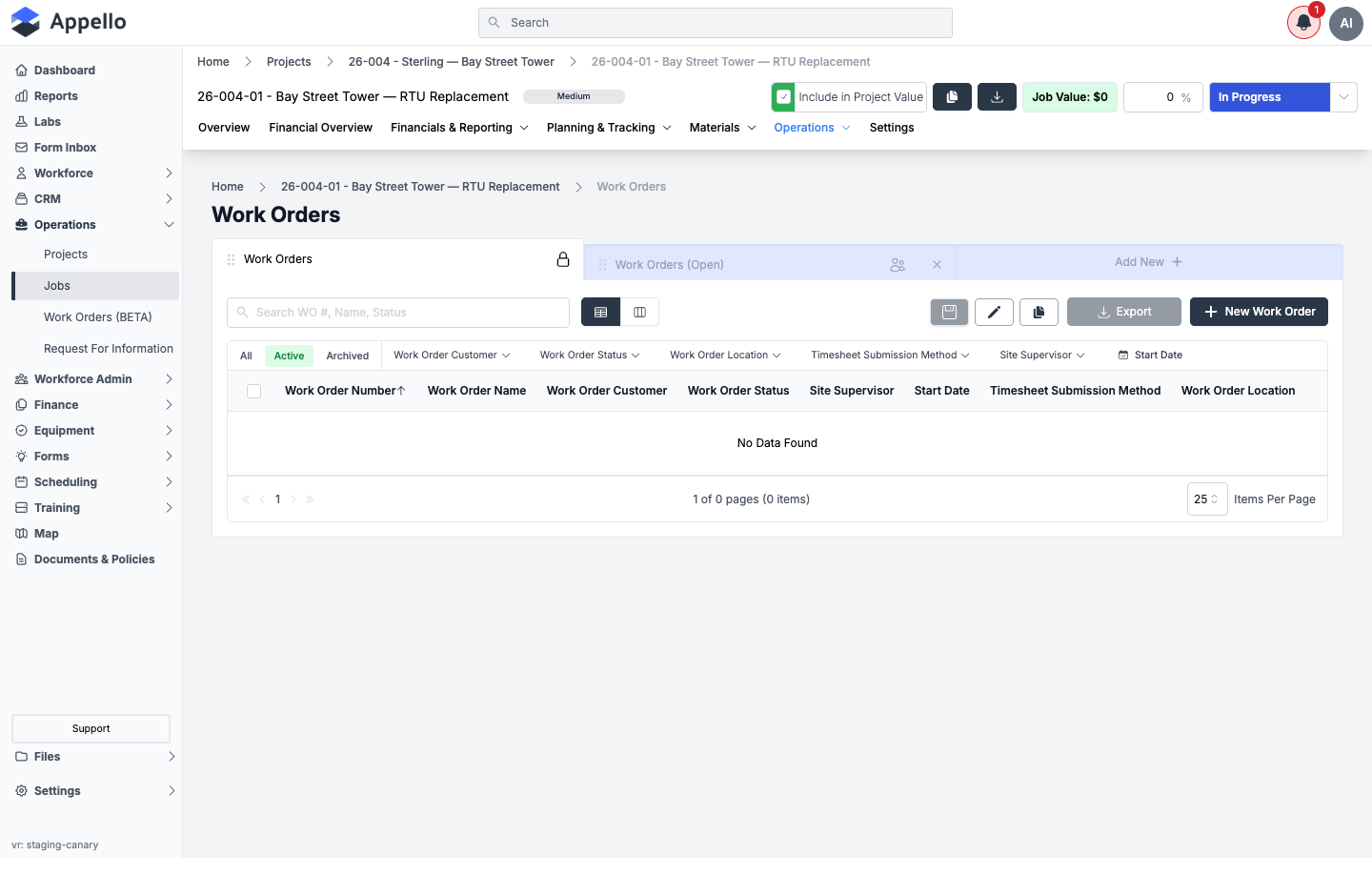
What it's for: work orders raised under this job. Only shown when the job is a regular job, not itself a work order.
| Control | Effect |
|---|---|
| Search | Filters WO #, name, or status. |
| Table / card view icons | Switches list layout. |
| All / Active / Archived | Status filter tabs. |
| Work Order Customer, Work Order Status, Timesheet Submission Method, Site Supervisor, Start Date filters | Column filters. |
| Export | Downloads the list. |
| New Work Order | Opens the work-order creation flow. |
| Work Orders (Open) side panel | Quick-filtered view of open work orders. |
This job has no work orders yet.
Related pages: Work Orders Overview.
Assigned Equipment
What it's for: equipment currently assigned to this job — inspection dates, last location, attachments, and assigned-to-user status.
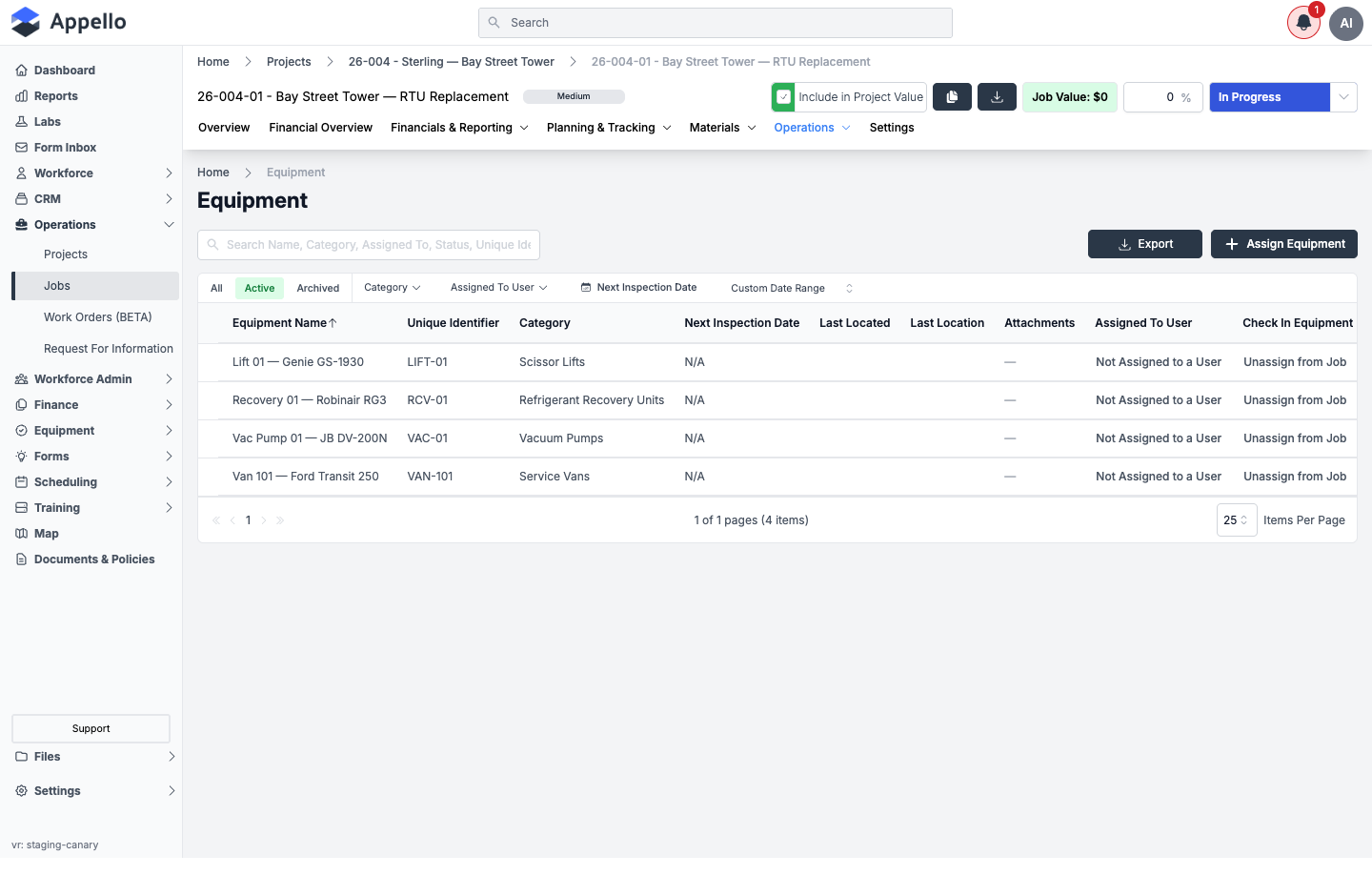
| Control | Effect |
|---|---|
| Search | Filters by name, category, assigned-to, status, or unique identifier. |
| All / Active / Archived | Status filter tabs. |
| Category, Assigned To User, Next Inspection Date, Custom Date Range filters | Column filters. |
| Export | Downloads the list. |
| Assign Equipment | Opens the Assign Equipment to Job flyout (AssignJobFlyout / bulk assignment). |
| Unassign from Job (per row) | Removes that equipment from the job. |
Assign Equipment to Job flyout — bulk equipment assignment with billing-group overrides:
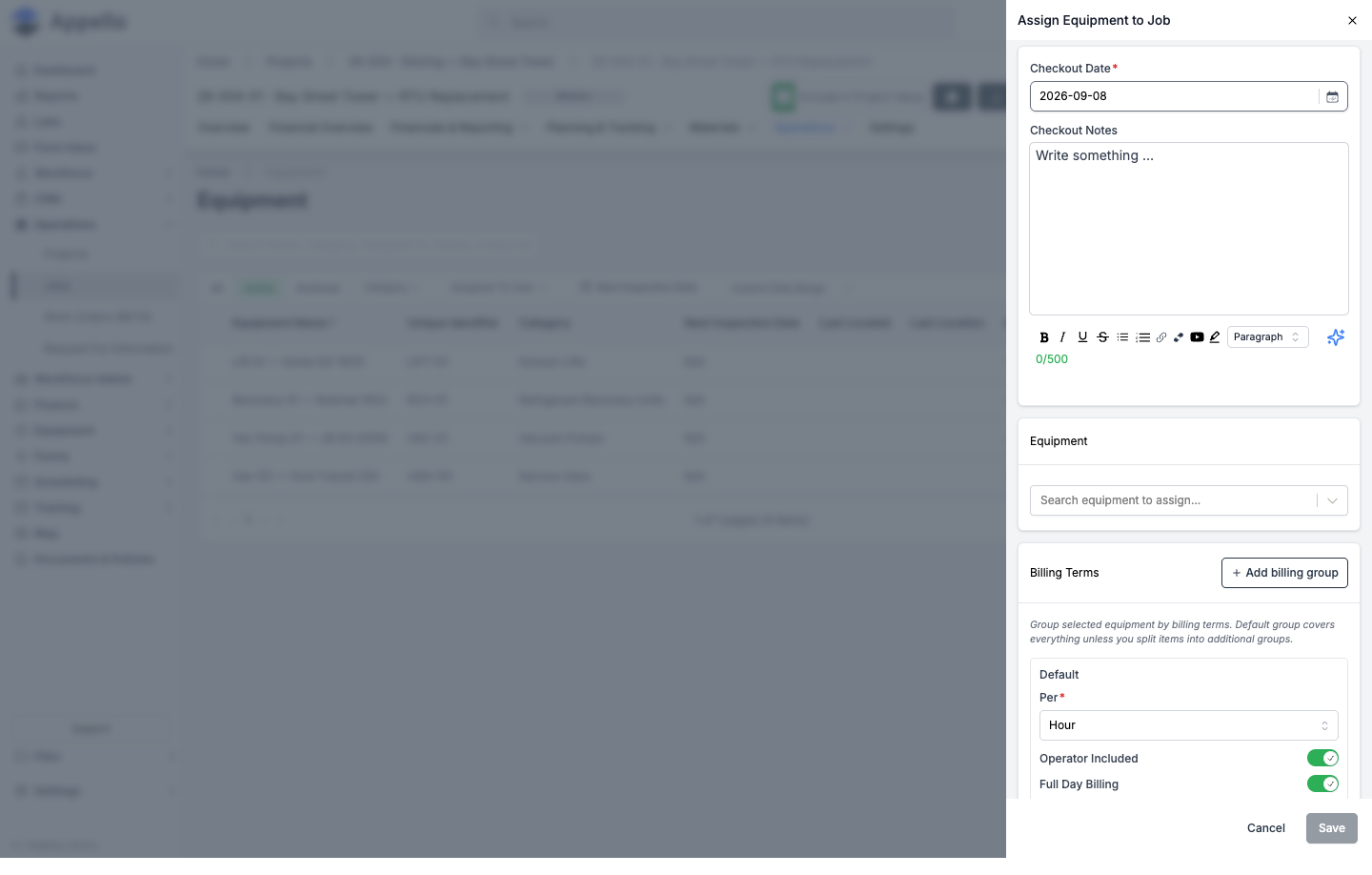
| Field | Required | Type | Effect |
|---|---|---|---|
| Checkout Date | Yes | Date | When the equipment is checked out to the job. |
| Checkout Notes | No | Rich text (500 char) | Notes recorded with the checkout. |
| Equipment | Yes | Multiselect search | The equipment to assign — this drives AssignExistingJobForm's underlying multi-select. |
| Billing Terms — Default group | — | Per (Hour/Day/etc.), Operator Included toggle, Full Day Billing toggle | Applies to all selected equipment unless split into additional groups via Add billing group. |
Related pages: Equipment List.
Equipment Rate Overrides
What it's for: job-specific equipment billing rates that override the equipment's category and instance-level defaults.
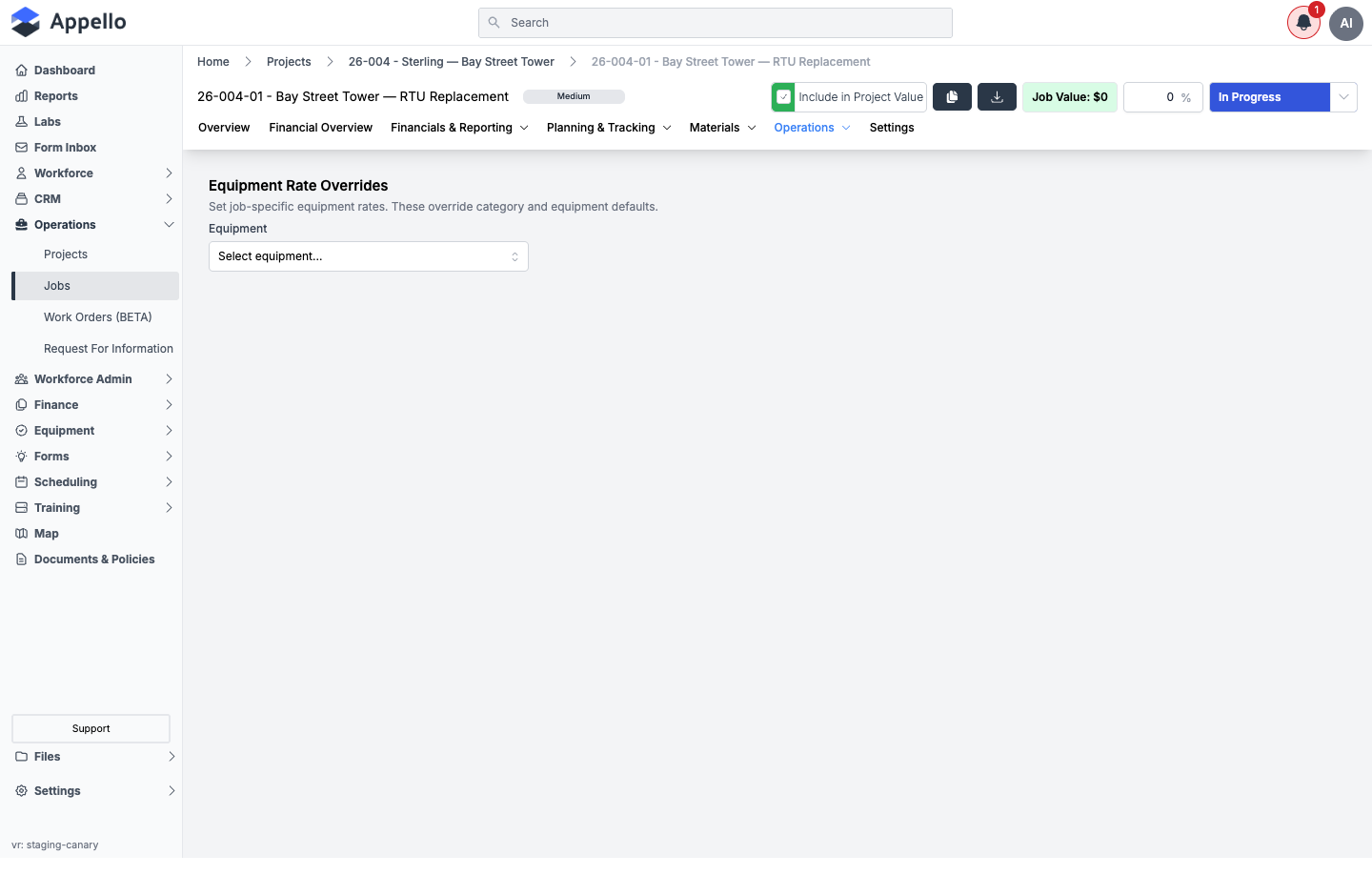
| Control | Effect |
|---|---|
| Equipment picker | Select a piece of equipment to set/view its job-specific rate override. |
This job has no overrides set yet — the picker is empty.
Related pages: Equipment List.
Schedule
What it's for: the job's calendar — worker and job-schedule entries (shifts, leave, equipment inspections) filtered to this job, embedded as the same calendar used elsewhere in Scheduling.
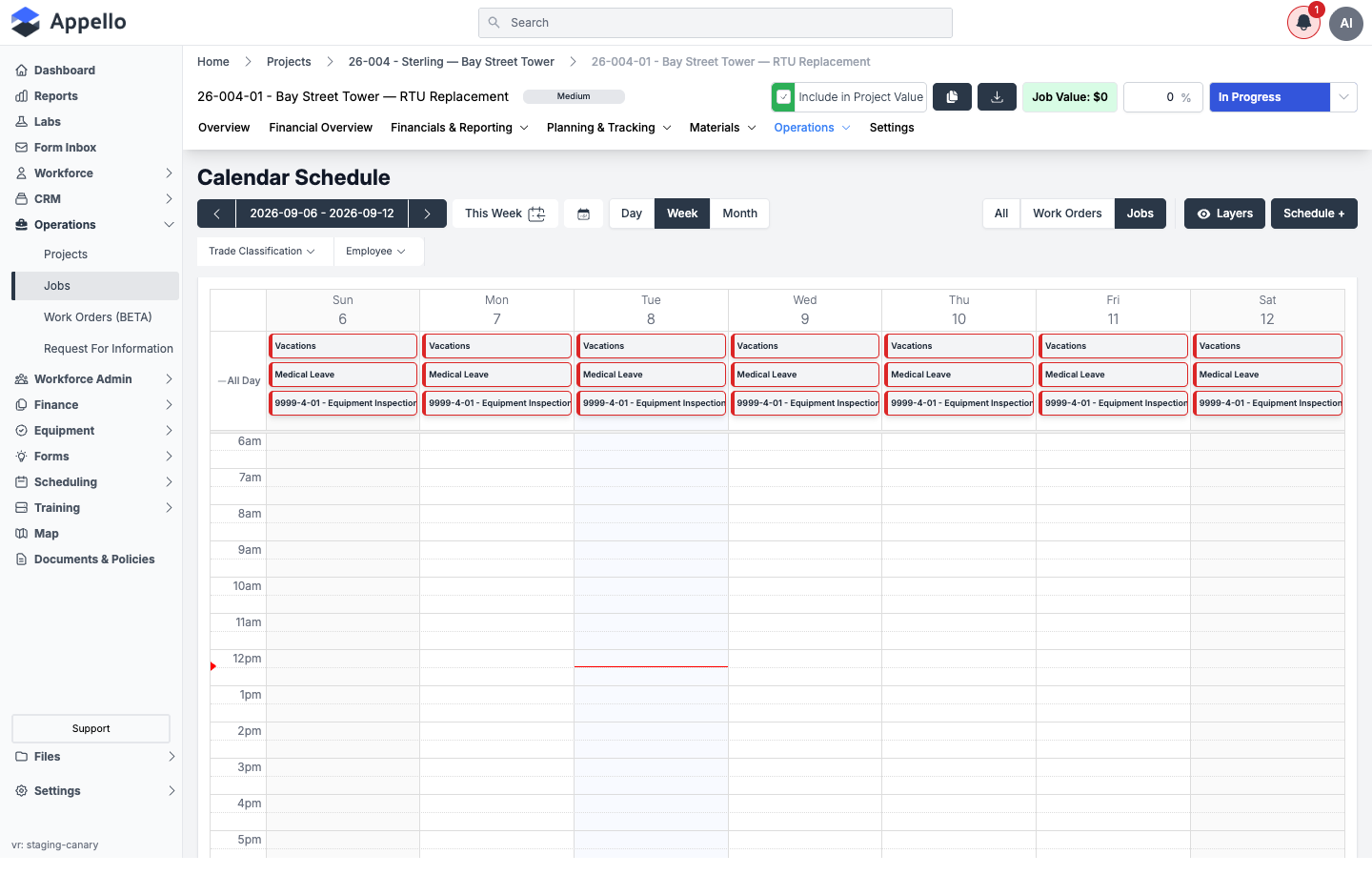
| Control | Effect |
|---|---|
Date navigation (< >, date range, This Week) | Moves the visible window. |
| Day / Week / Month | Switches calendar granularity. |
| All / Work Orders / Jobs | Filters which schedule types show. |
| Layers | Toggles calendar layers (e.g. leave, inspections). |
| Schedule + | Opens the schedule-creation flow. |
| Trade Classification / Employee filters | Narrows which workers' schedules show. |
Related pages: Job Schedule.
Form Submissions
What it's for: safety-form submissions filed against this job (SafetyFormTabList, grouped by
safety form).
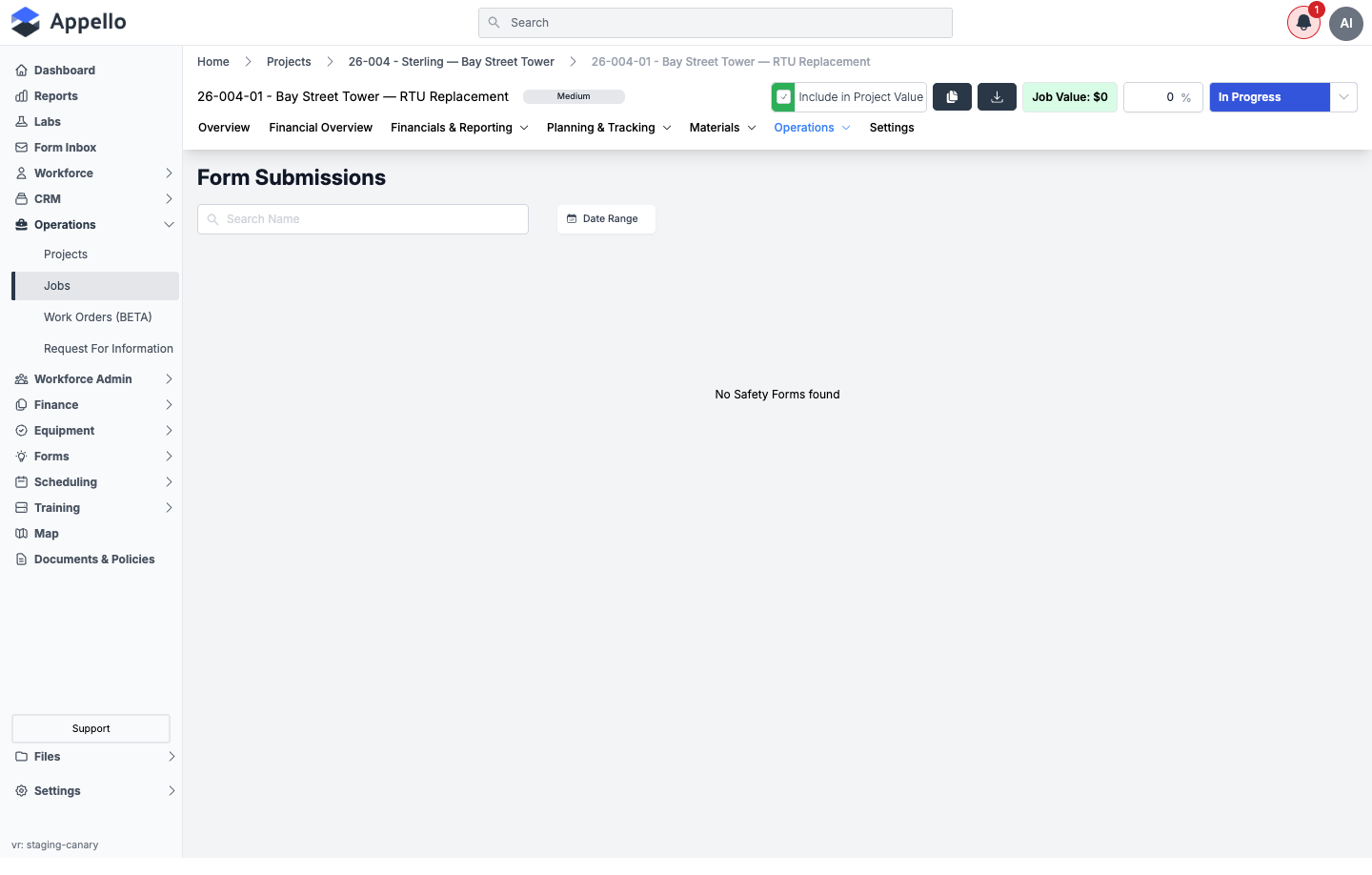
| Control | Effect |
|---|---|
| Search Name | Filters by safety form name. |
| Date Range | Filters by submission date. |
This job has no safety forms attached, so the page shows No Safety Forms found.
Attaching a safety form to a job is done from the safety form's own Attached Jobs tab
(SafetyFormJobConnectionForm) or from a project's Settings → Forms tab
(AddFormsToJobsModal) — not from a button on this Job Detail tab. Both use the same underlying
job/project/form search fields:
| Field | Effect |
|---|---|
| Job Name | Searches jobs by name or job number to attach. |
| Safety Form Name | Searches safety forms to attach to the job(s). |
AddFormsToJobsModal is the project-level bulk variant — it lists a project's safety forms as
checkboxes and, per selected form, lets you pick which of the project's jobs to connect it to.
Related pages: Form Management.
Files
What it's for: the job's file library — auto-created subfolders for Change Orders, Estimates, Note Files, and RFIs, plus manual uploads.
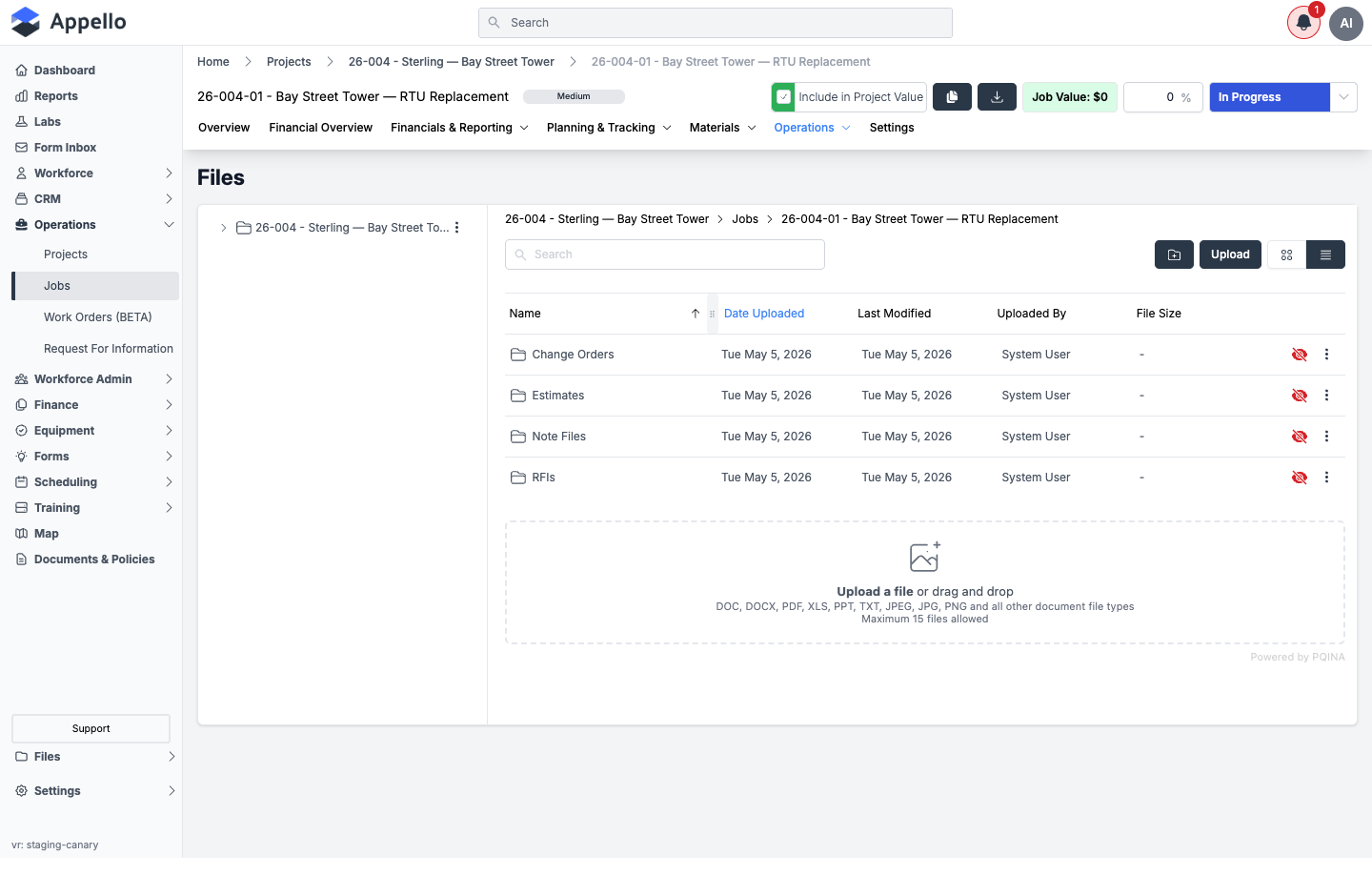
| Control | Effect |
|---|---|
| Search | Filters files/folders by name. |
| New-folder icon | Creates a folder. |
| Upload | Uploads a file (also drag-and-drop). Accepts DOC, DOCX, PDF, XLS, PPT, TXT, JPEG, JPG, PNG, and other document types; maximum 15 files at once. |
| Grid / list view icons | Switches file layout. |
| Row eye icon | Toggles file visibility. |
Row ⋮ menu | Per-file actions. |
Related pages: Project Files.
Settings
Where it is: job page → Settings tab. URL: /jobs/[id]?tab=settings. Gated by
Projects → Edit.
What it's for: job-level defaults and notification/visibility rules that don't belong on the main Overview form — geofence radius, timesheet submission type, material markup, work order defaults, shift length, form requirements, mobile visibility, geofence notifications, certifications, and email recipients.
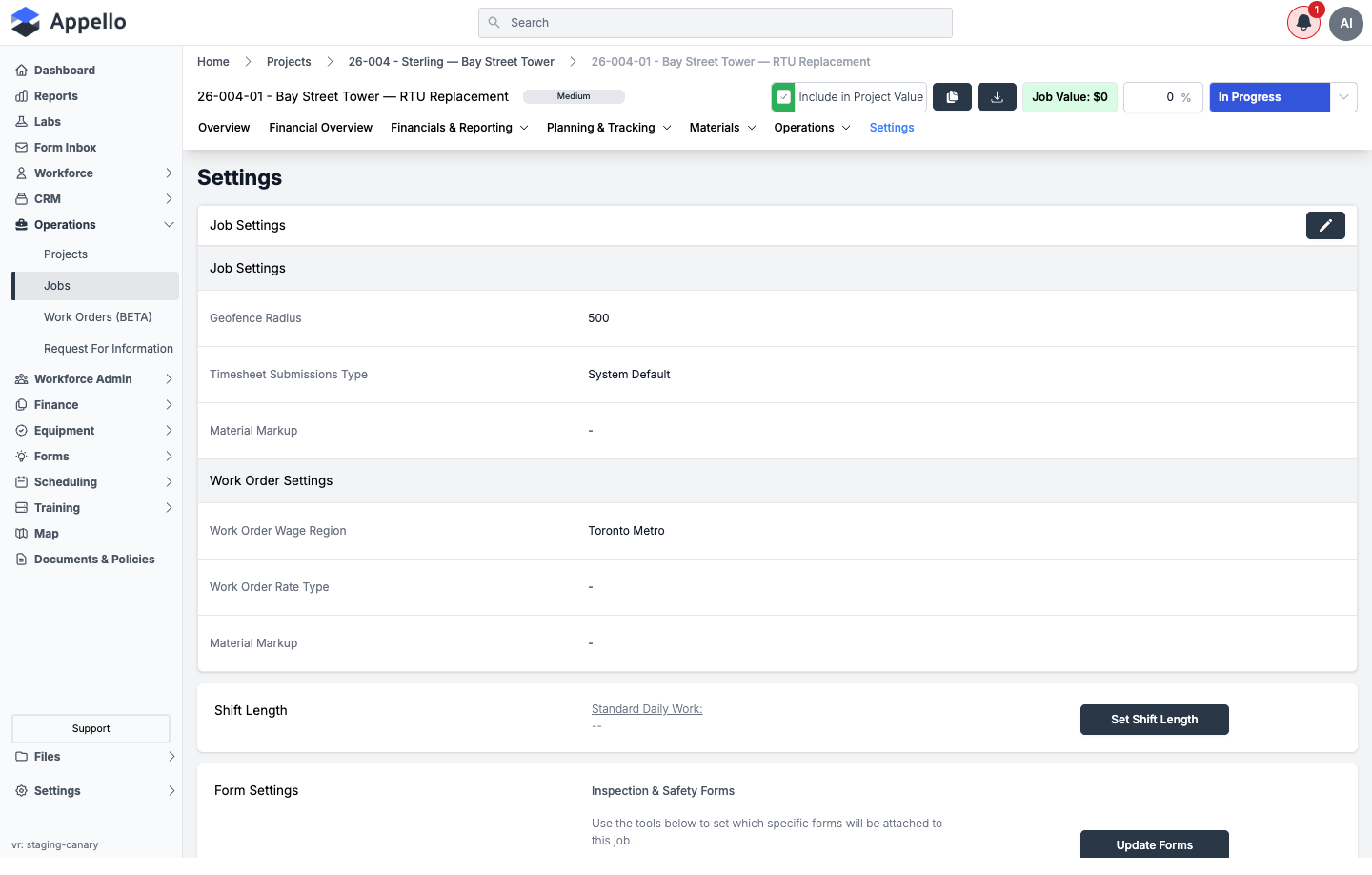
| Section | Fields / controls |
|---|---|
| Job Settings | Geofence Radius, Timesheet Submissions Type, Material Markup (edited via the pencil icon, which opens the job form in settings mode). |
| Work Order Settings | Work Order Wage Region, Work Order Rate Type, Material Markup. |
| Shift Length | Read-only "Standard Daily Work" display plus a Set Shift Length button. |
| Form Settings | "Inspection & Safety Forms" summary plus an Update Forms button. |
Set Shift Length modal
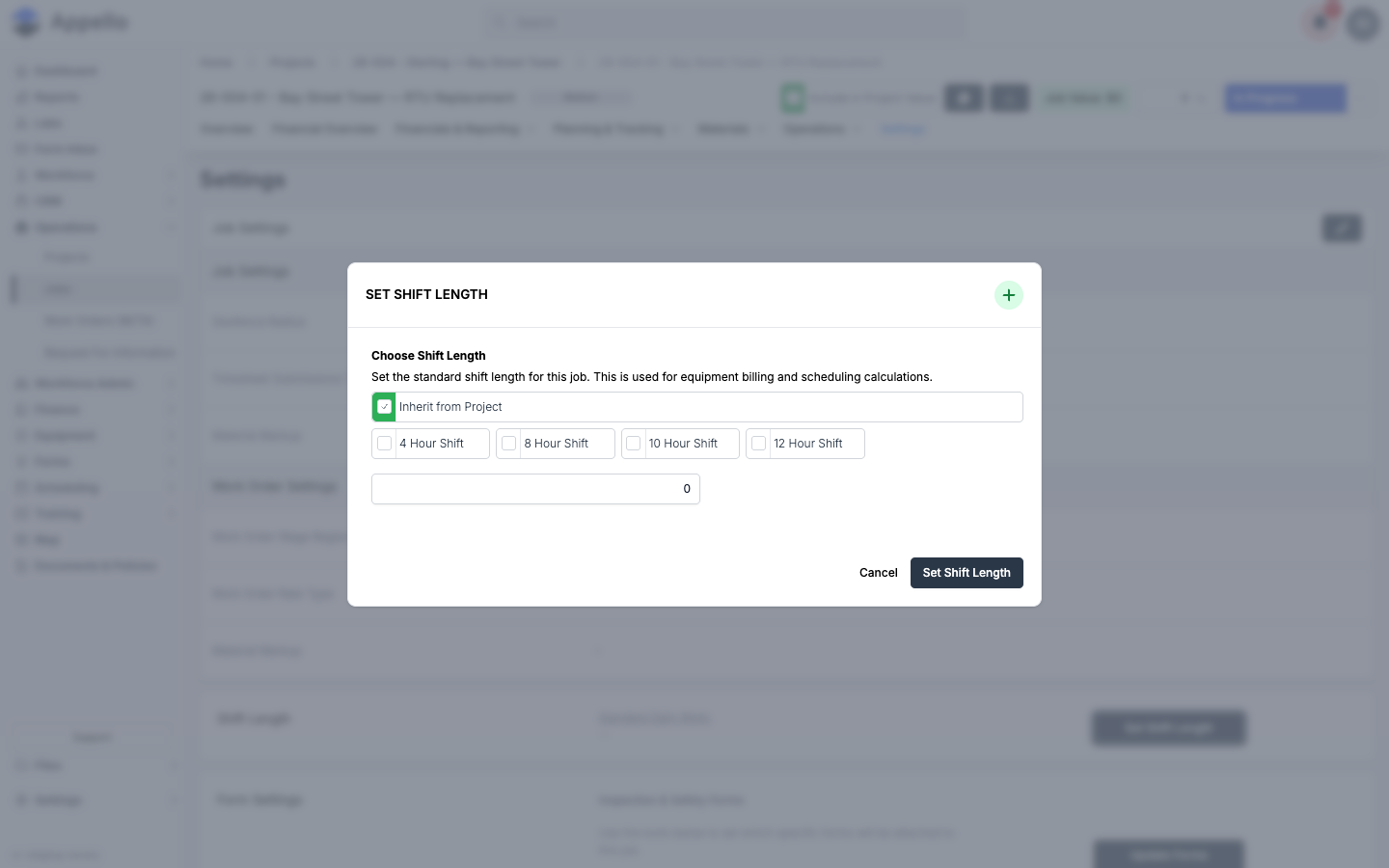
| Field | Required | Type | Effect |
|---|---|---|---|
| Inherit from Project | No | Checkbox | Uses the parent project's shift length instead of a job-specific one; shown only when the job belongs to a project. |
| 4 / 8 / 10 / 12 Hour Shift | No | Radio-style checkboxes | Preset shift lengths. |
| Custom time | No | Number | Overrides the presets with any value. |
Saving stores the chosen daily hours on the job (or clears them when inheriting from the project); the value is used for equipment billing and scheduling calculations. Read-only; this modal was opened and then canceled without saving.
User Visibility, Geofence Notifications, Certifications, and Recipients
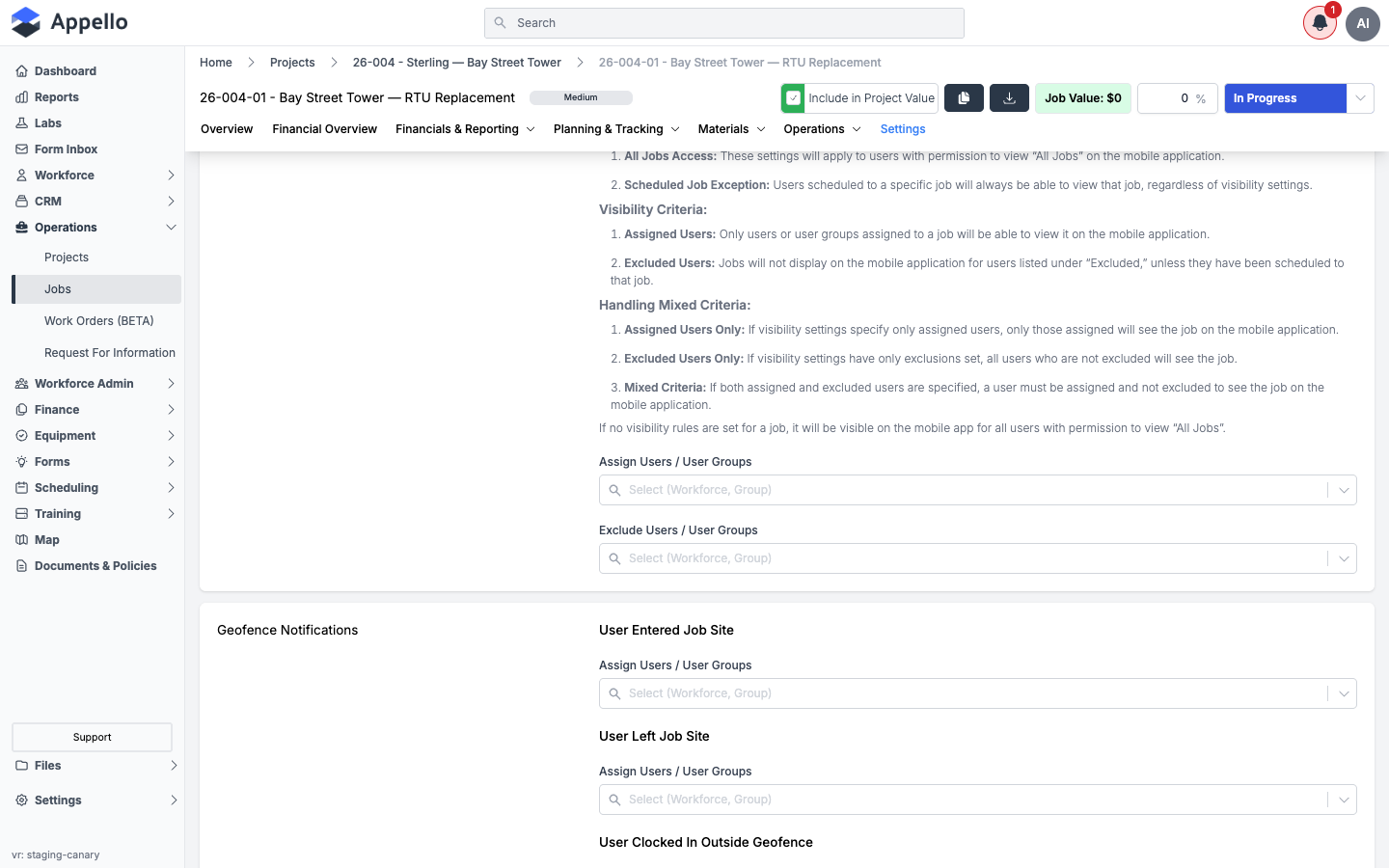
- User Visibility controls which users see this job on the mobile app, via Assign Users / User Groups and Exclude Users / User Groups pickers. The page documents its own rules: scheduled-job exception, assigned/excluded precedence, and the mixed-criteria fallback (a user must be assigned and not excluded to see the job when both lists are set).
- Geofence Notifications — separate Assign Users / User Groups pickers for User Entered Job Site, User Left Job Site, and User Clocked In Outside Geofence events.
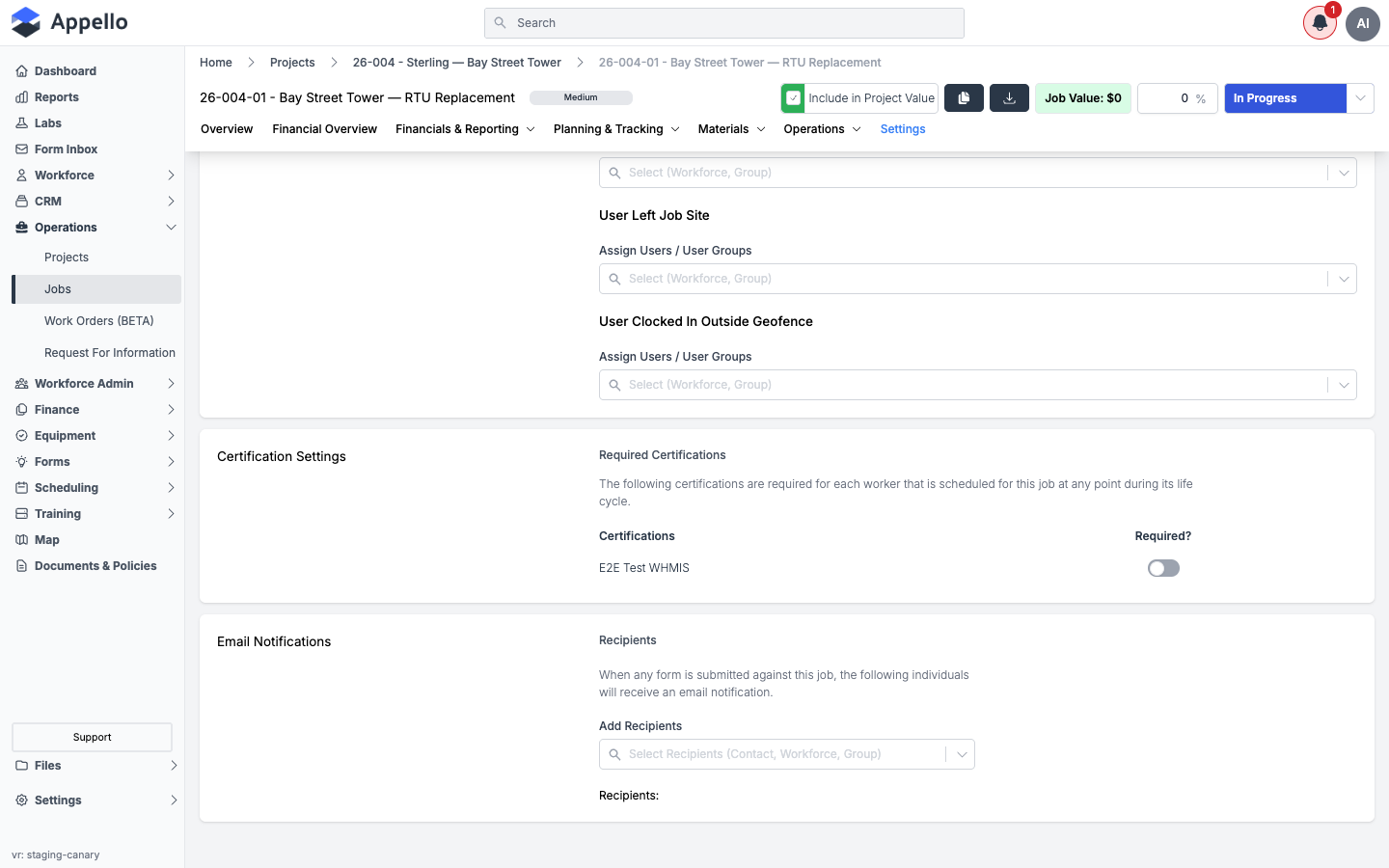
- Certification Settings lists certifications relevant to the job with a Required? toggle per certification (for example WHMIS).
- Email Notifications lets you Add Recipients (contact, workforce, or group) who get emailed whenever a form is submitted against this job.
Permissions
Projects → Edit gates the entire Settings tab.
Training-classification jobs
A job whose Job Rate Type is Training gets a different, shorter tab set. This is fixed behavior, not a permission:
Overview, Form Submissions, Expenses, Accounts Payable, Files
Every other tab documented on this page — Financial Overview, all of Financials & Reporting, all of Planning & Tracking, Materials, the rest of Operations (Work Orders, Assigned Equipment, Equipment Rate Overrides, Schedule), and Settings — does not exist on a training job's tab bar at all.
No job on the demo instance currently uses the Training rate type, so this collapsed tab set could not be screenshotted and is described in writing instead.