Job Notes, Photos & Activity Feed
Every job in Appello has a running feed of notes -- the day-to-day record of what happened on site. Field and office staff use notes to log progress, attach photos, tag teammates for visibility, and reply back and forth without leaving the job. This page covers the job-level notes feed, tagging and replying, photo/file attachments, the account-wide notes feed, and what a tagged person actually receives.
This documentation is for the desktop web application. The Appello mobile app also supports creating notes, tagging people, and replying to notes -- the same @ tagging and reply behavior is built into the mobile note editor -- but the screenshots below are from desktop.
Overview
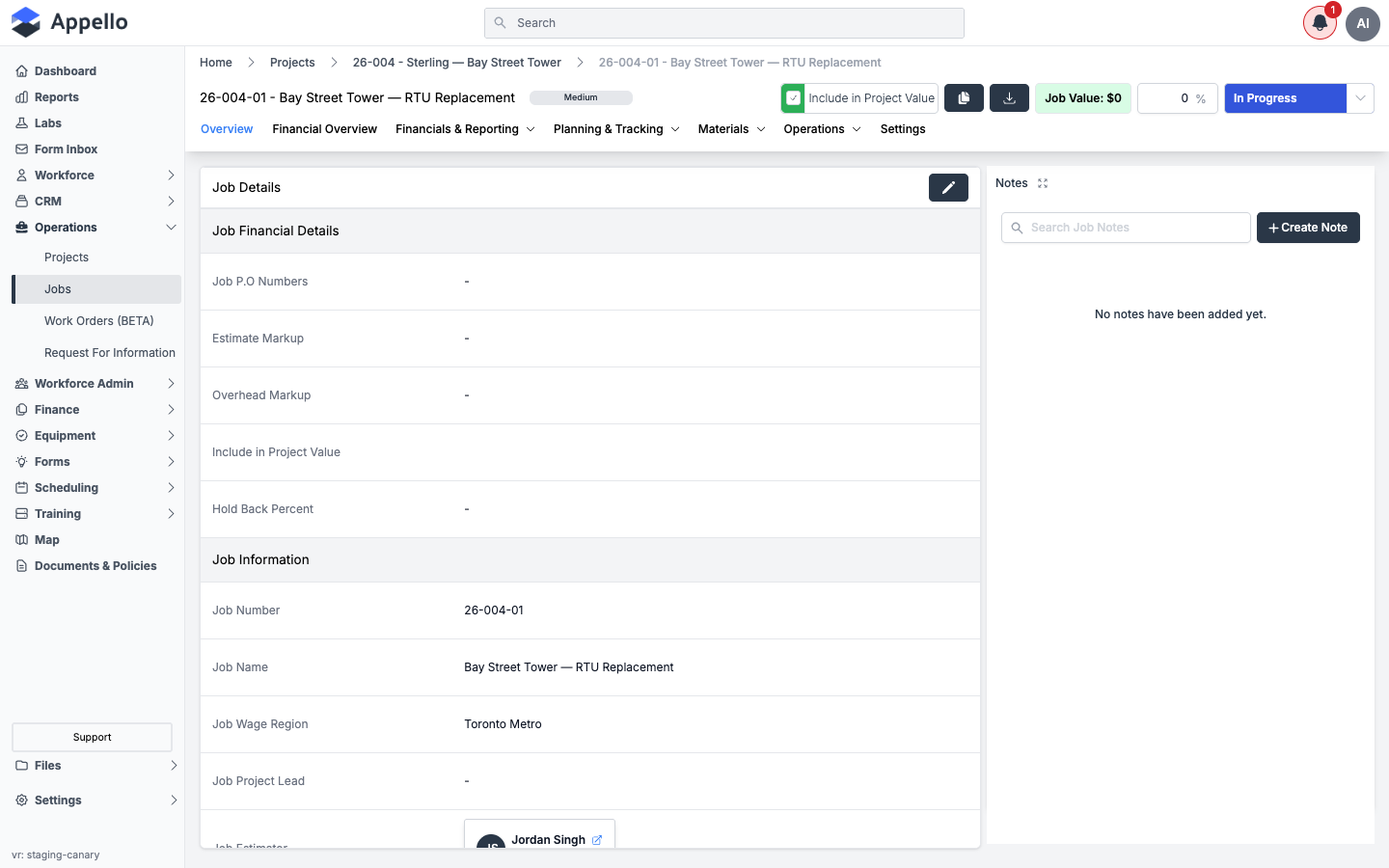
- Notes live on the job's Overview tab, in a Notes panel alongside the job details.
- Notes support rich-text formatting, photo and file attachments, tagging people or groups with
@, and threaded replies (comments). - A separate AI Rewrite feature can clean up a rough field note into polished, client-ready language. The control lives in the note composer's formatting toolbar, as a Rewrite with AI button below the Note Description field. That feature is covered in its own page -- see AI Note Enhancement -- and is not repeated here.
The Job Notes Panel (Job Activity Feed)
Steps
-
Open a job and stay on its Overview tab. The Notes panel sits on the right side of the page, with a search box and a + Create Note button. Click the expand icon next to the Notes heading to give the feed the full width of the page.
-
Notes on the job appear here newest-first (or sorted by last activity), each showing the author, title, body, attachments, and comment count. This panel is effectively the job's activity feed -- it is the fastest way to see everything that has been logged against the job.
Creating a Note
Steps
-
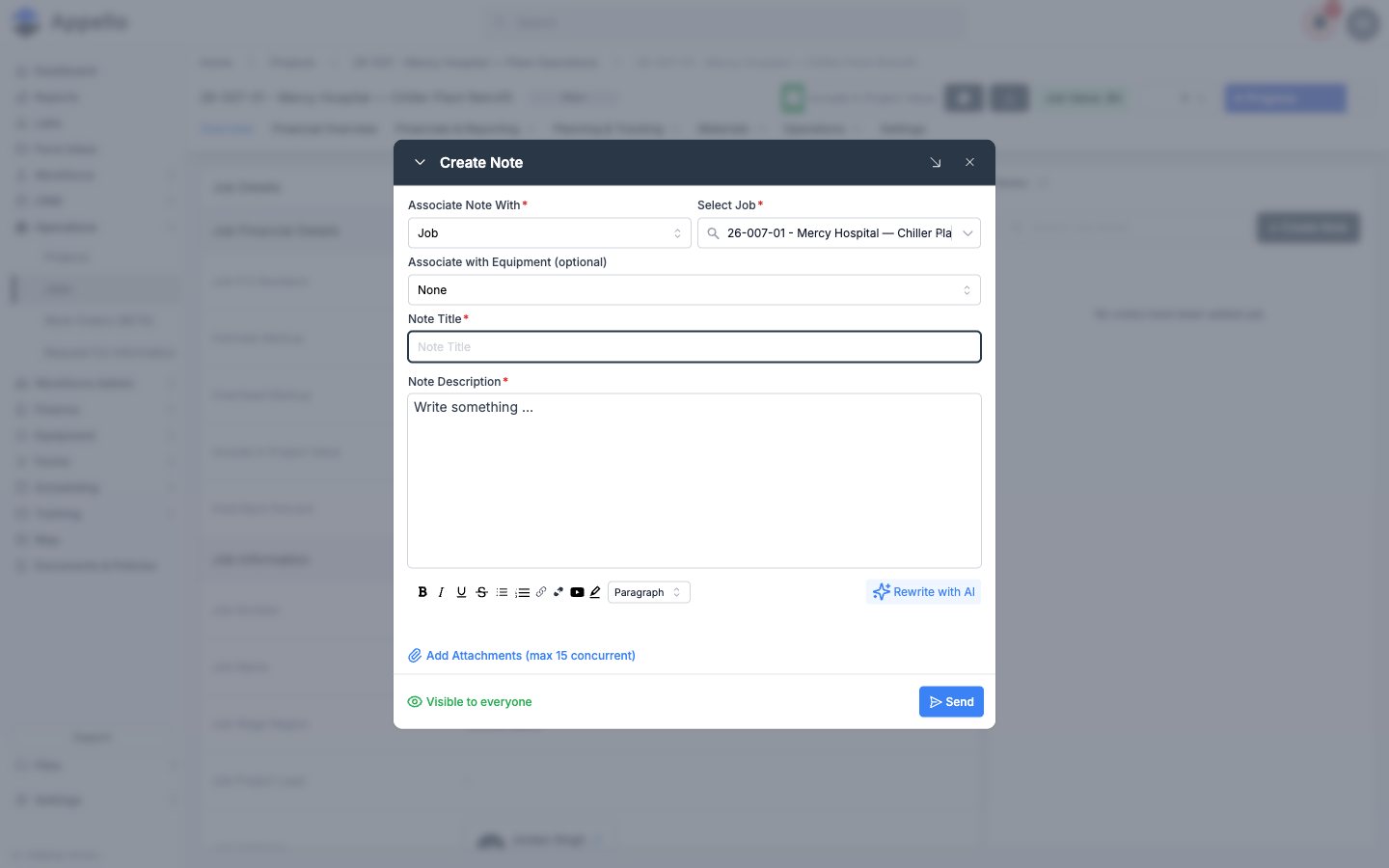
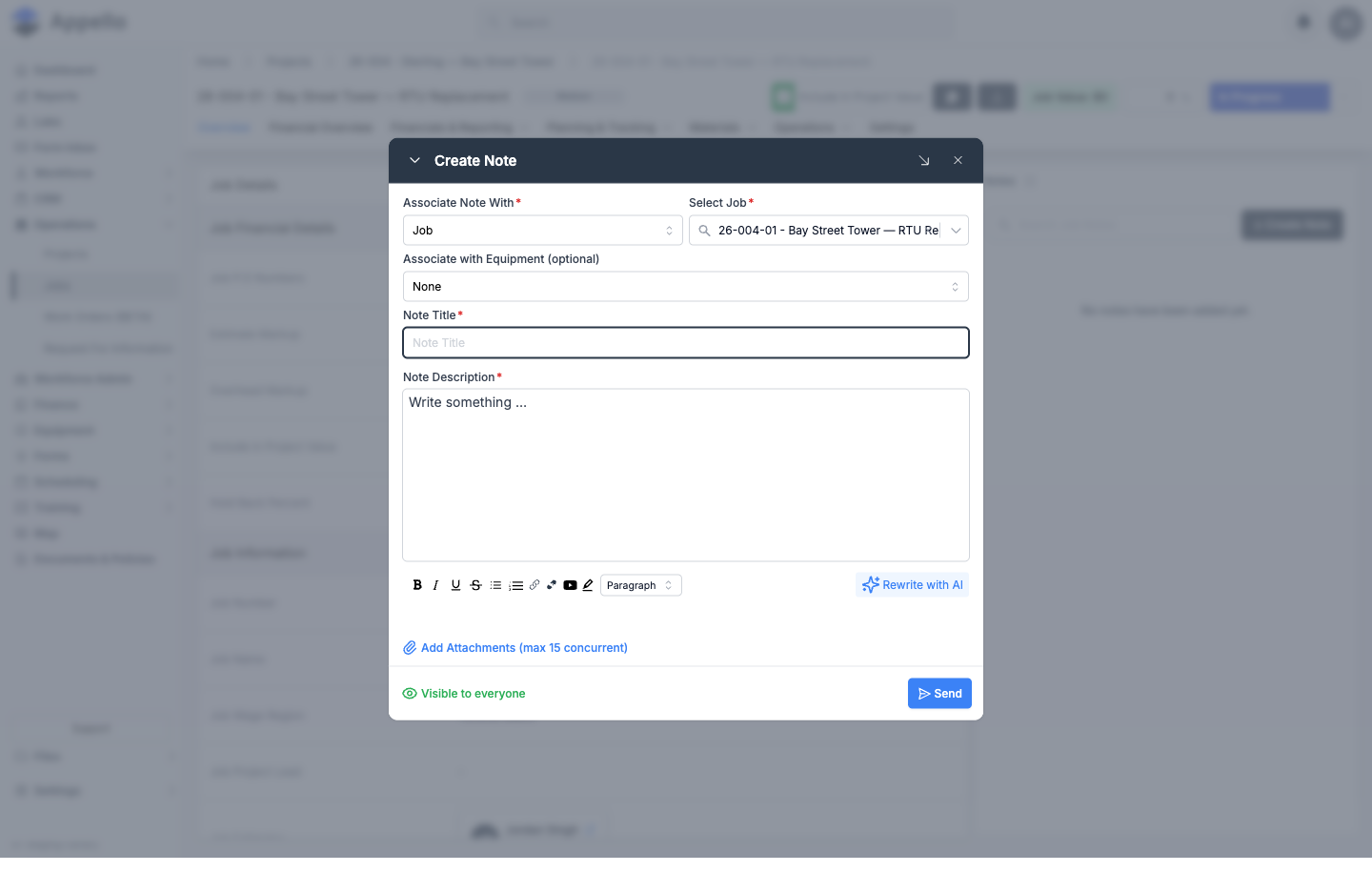
From the job's Notes panel, click + Create Note. A Create Note window opens.
-
Fill in the fields:
- Associate Note With* -- Defaults to
Job; notes can also be tied to other record types (e.g. Equipment) depending on where you opened the composer from. - Select Job* -- Pre-filled with the current job.
- Associate with Equipment (optional) -- Link the note to a specific piece of equipment.
- Note Title* -- A short summary of the note.
- Note Description* -- The body of the note. Supports bold, italic, underline, strikethrough, bulleted/numbered lists, links, and media embeds via the formatting toolbar, plus an AI Rewrite-style Rewrite with AI button (see AI Note Enhancement).
- Associate Note With* -- Defaults to
-
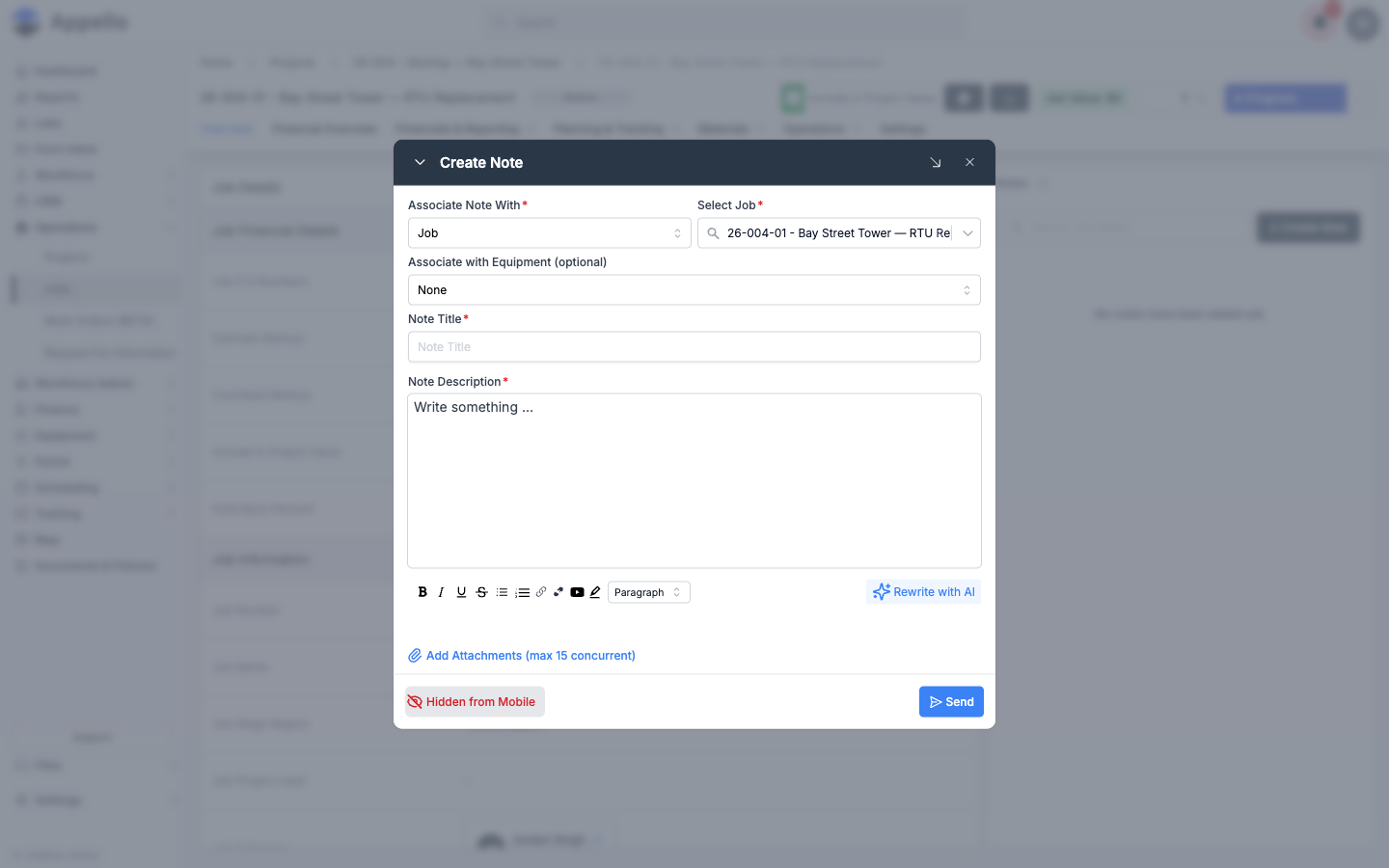
Toggle Visible to everyone / Hidden from Mobile (bottom-left of the composer) to control whether field crews see this note in the mobile app. The note autosaves as a draft while you type, shown as Draft saved near the Send button.
-
Click Send to post the note.
Who Can See a Note: Field vs. Office
Every note carries its own visibility setting. This is a per-note choice made when the note is created (and changeable afterward) -- it is not an instance-wide default.
Where It's Set
-
When creating or editing a note -- The toggle sits at the bottom-left of the note composer, next to the Send button. It reads Visible to everyone (green eye icon) or Hidden from Mobile (red eye-off icon); click it to switch states before sending.
-
On an existing note -- Use Actions → Hide from Mobile (or Unhide from Mobile if the note is already hidden). See Managing a Note below.
Default
A new note defaults to Visible to everyone. You must explicitly toggle Hidden from Mobile if you want a note to stay office-only.
What Mobile Shows
- Notes left as Visible to everyone appear in the mobile app's note feed for every field worker with access to the job.
- Notes marked Hidden from Mobile are removed from the mobile note feed for everyone except the person who wrote the note -- the author still sees their own hidden notes on mobile. Office staff on desktop always see every note, hidden or not.
Settings → Mobile Settings has a similarly named but separate instance-level setting, Default Visibility for Desktop Files on Mobile. That setting only controls the default visibility of files uploaded from the desktop app; it does not affect note visibility.
Tagging People in Notes
Typing @ inside the note body opens a mention picker so you can tag a specific teammate, a user
group, or everyone on the note.
Steps
-
While writing a note (or a reply/comment), type
@followed by a name. A dropdown appears with matching users.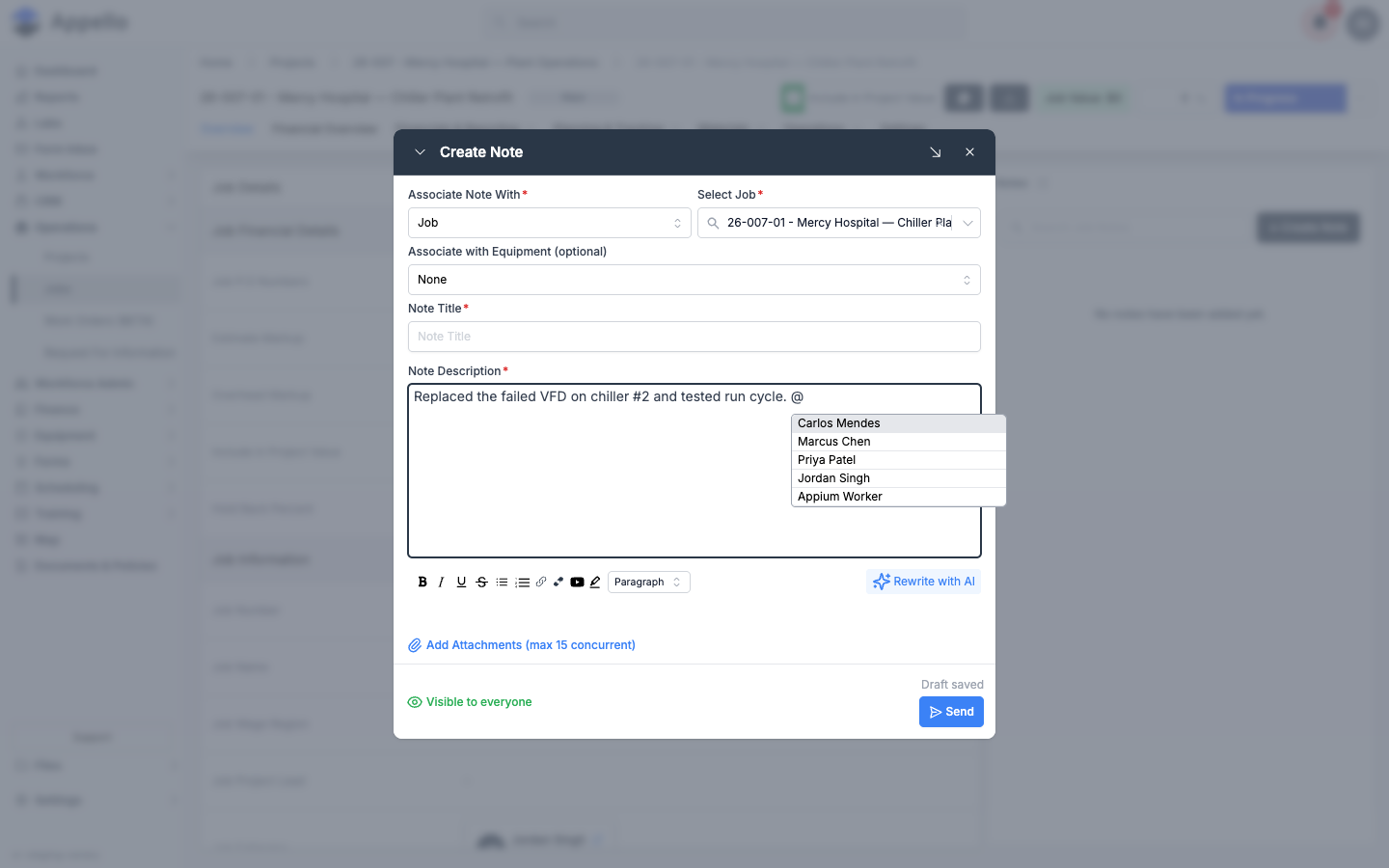
-
Select a person (or a user group, if one matches) to insert the mention. Tagged people and groups are notified -- see Note Tag Notifications below.
The mobile app uses the same @ mention picker in its note and comment forms.
Replying to Notes
Replies to a note are called comments. Anyone with access to the note can reply, and replies
support the same @ tagging as notes.
Steps
-
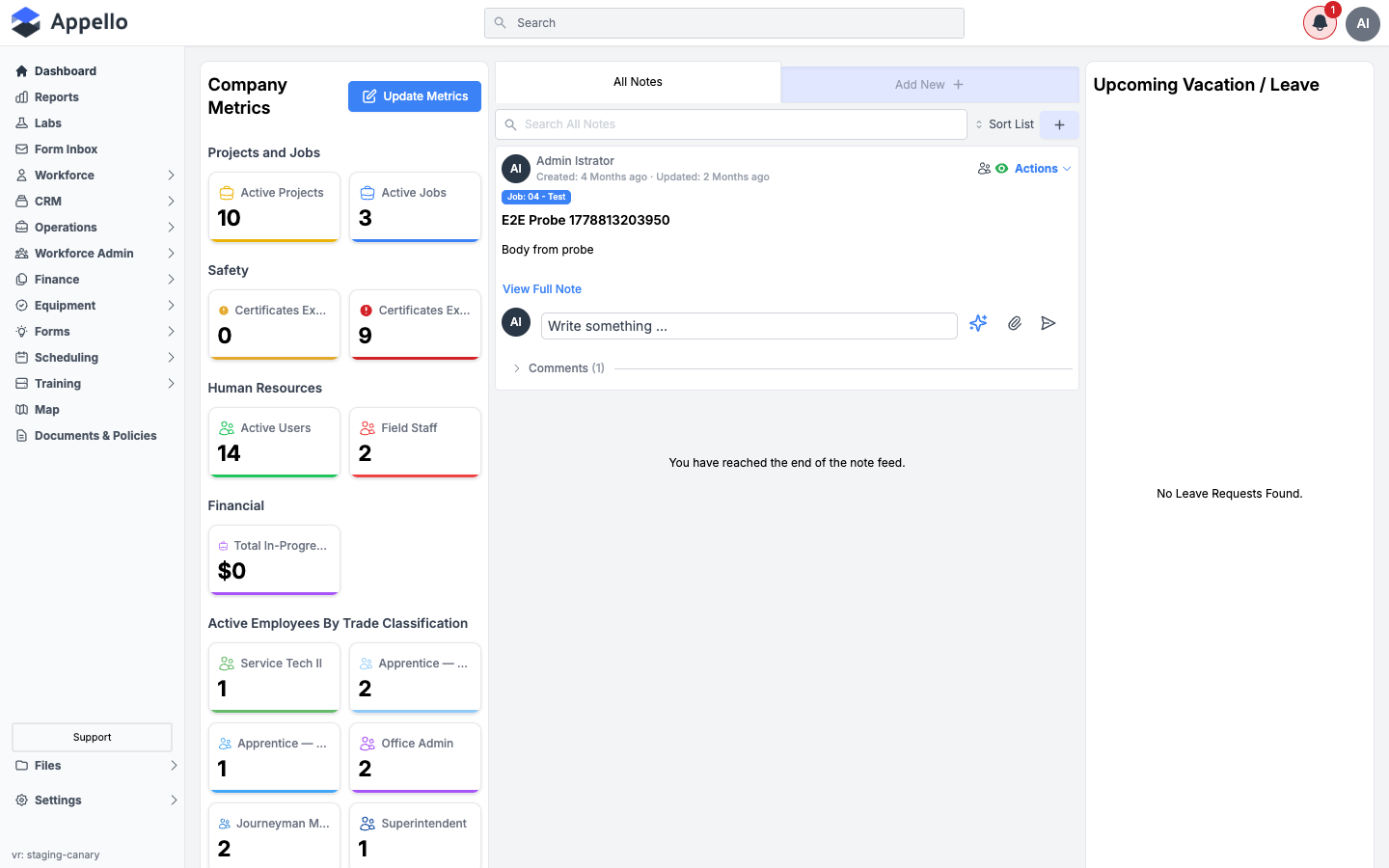
On a note, click Add Comment. A single-line reply box opens under the note, with an AI icon, an attachment (paperclip) icon, and a send icon.
-
Type your reply. Type
@to tag someone in the reply the same way you would in a note.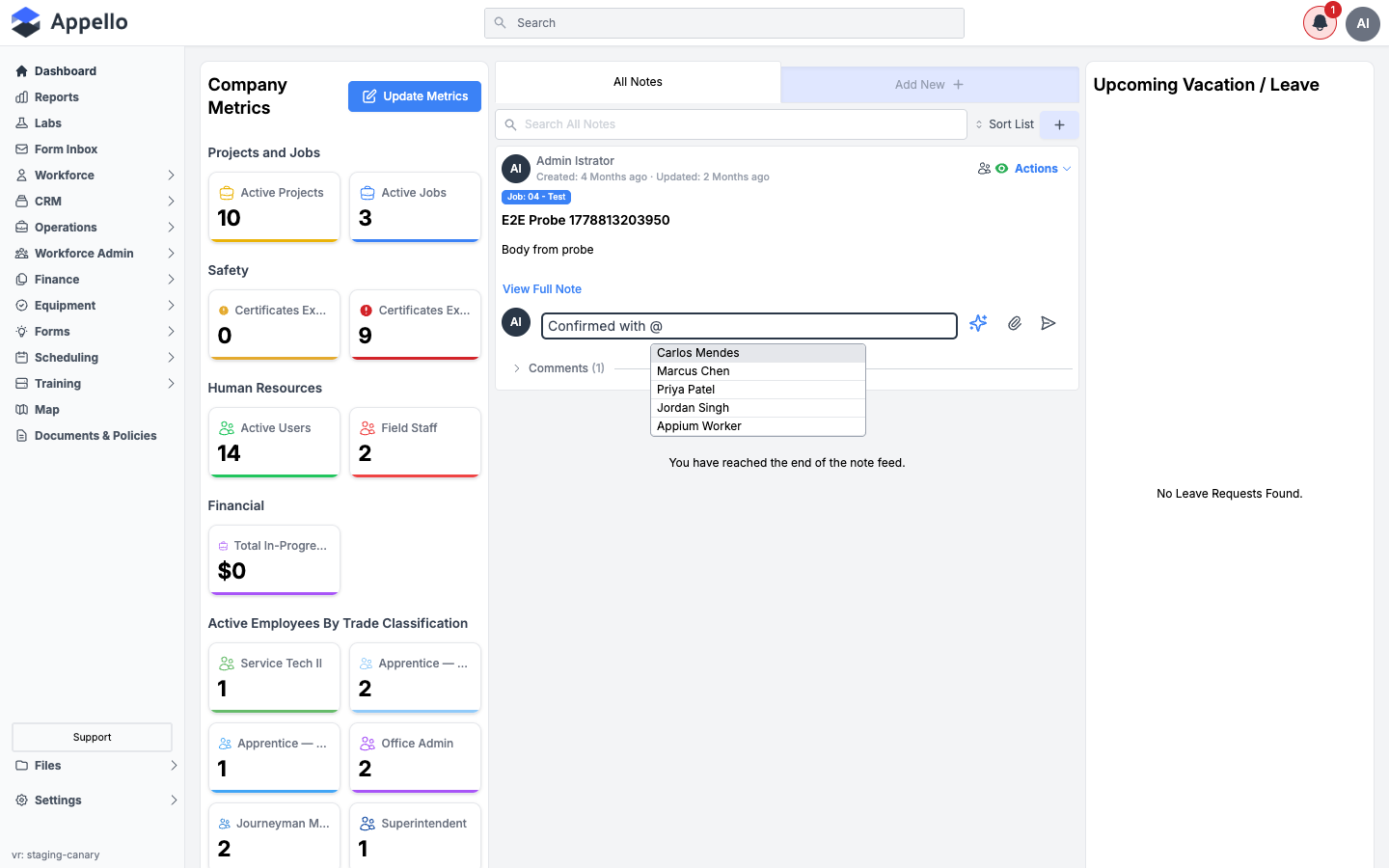
-
Click the send icon to post the comment. Existing replies appear under Comments (N) below the note, with the author, a relative timestamp, and any
@mentionsrendered as clickable links.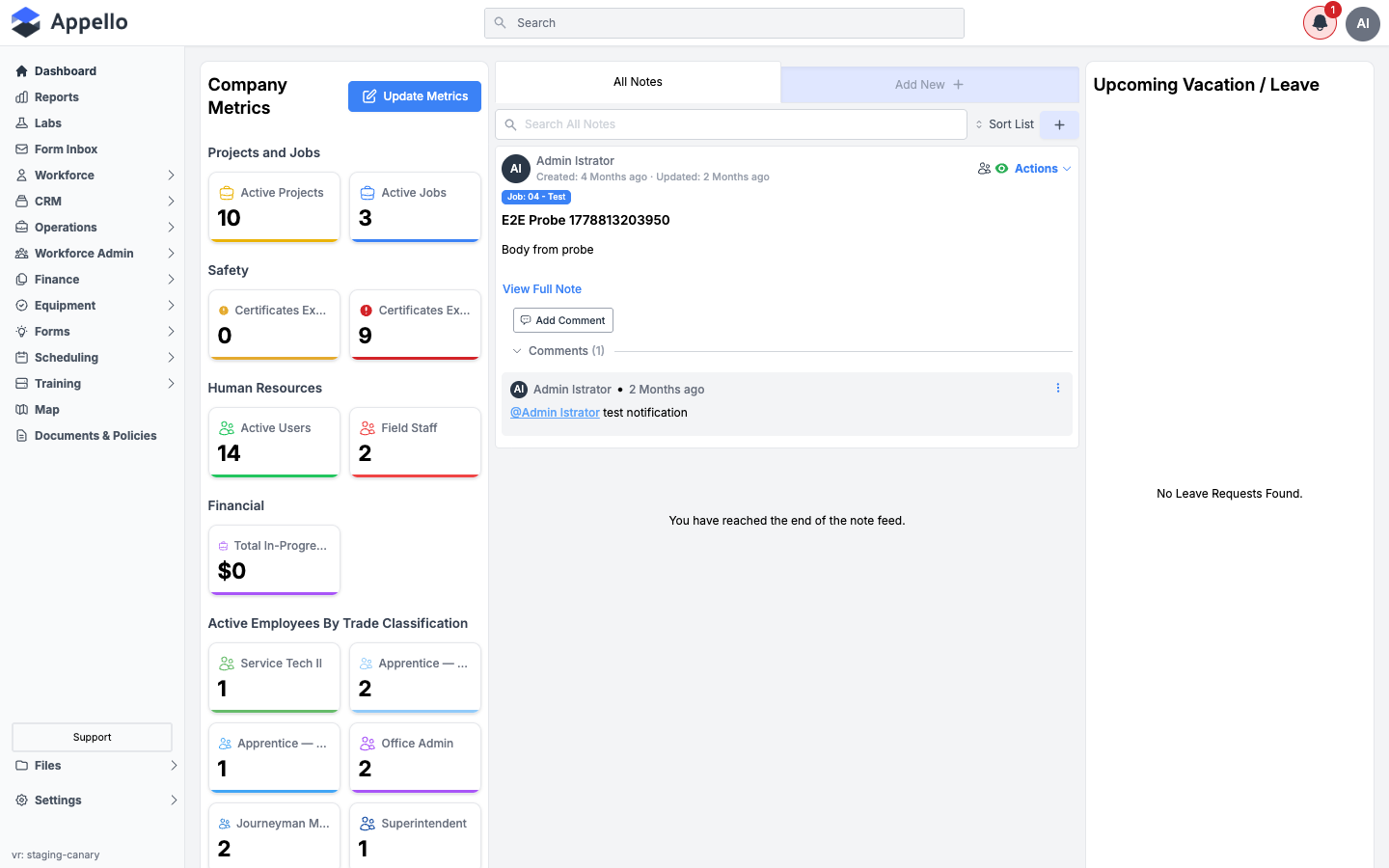
-
Each comment has its own overflow menu (the
⋮icon) for further actions on that comment.
Managing a Note
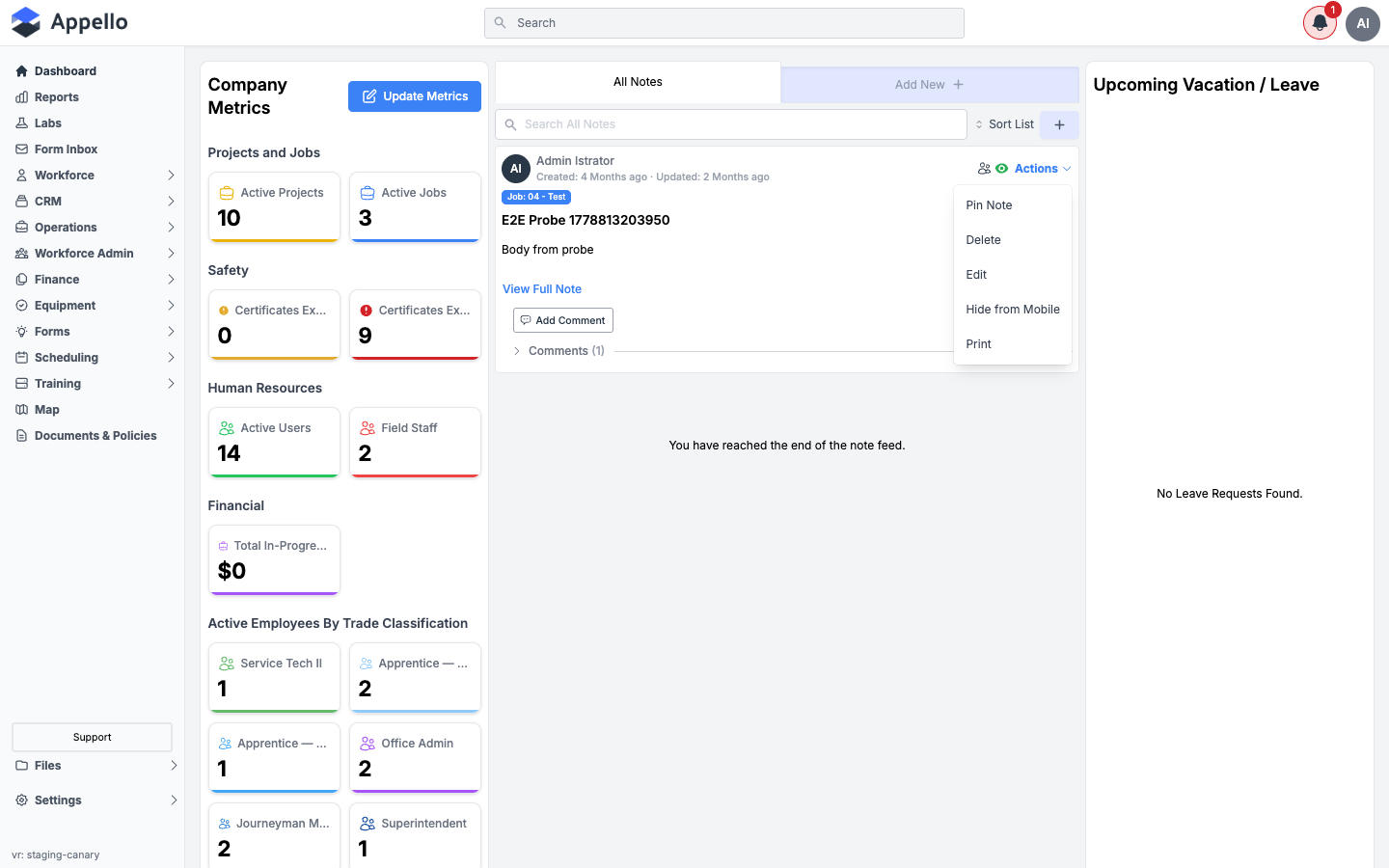
Click Actions on a note to Pin, Edit, Print, hide it from the mobile app, or delete it.
Steps
-
Click Actions on any note you have permission to manage.
-
Options:
- Pin Note -- Keeps the note at the top of the feed.
- Edit -- Re-opens the note in the composer.
- Hide from Mobile -- Same toggle as Visible to everyone on the composer; removes the note from what field crews see in the mobile app without deleting it.
- Print -- Opens a print-formatted version of the note, with an option to include attachments and comments.
- Delete -- Permanently removes the note.
Download Notes as PDF
Any note can be exported as a PDF, or sent straight to a printer, using its Print action.
Steps
-
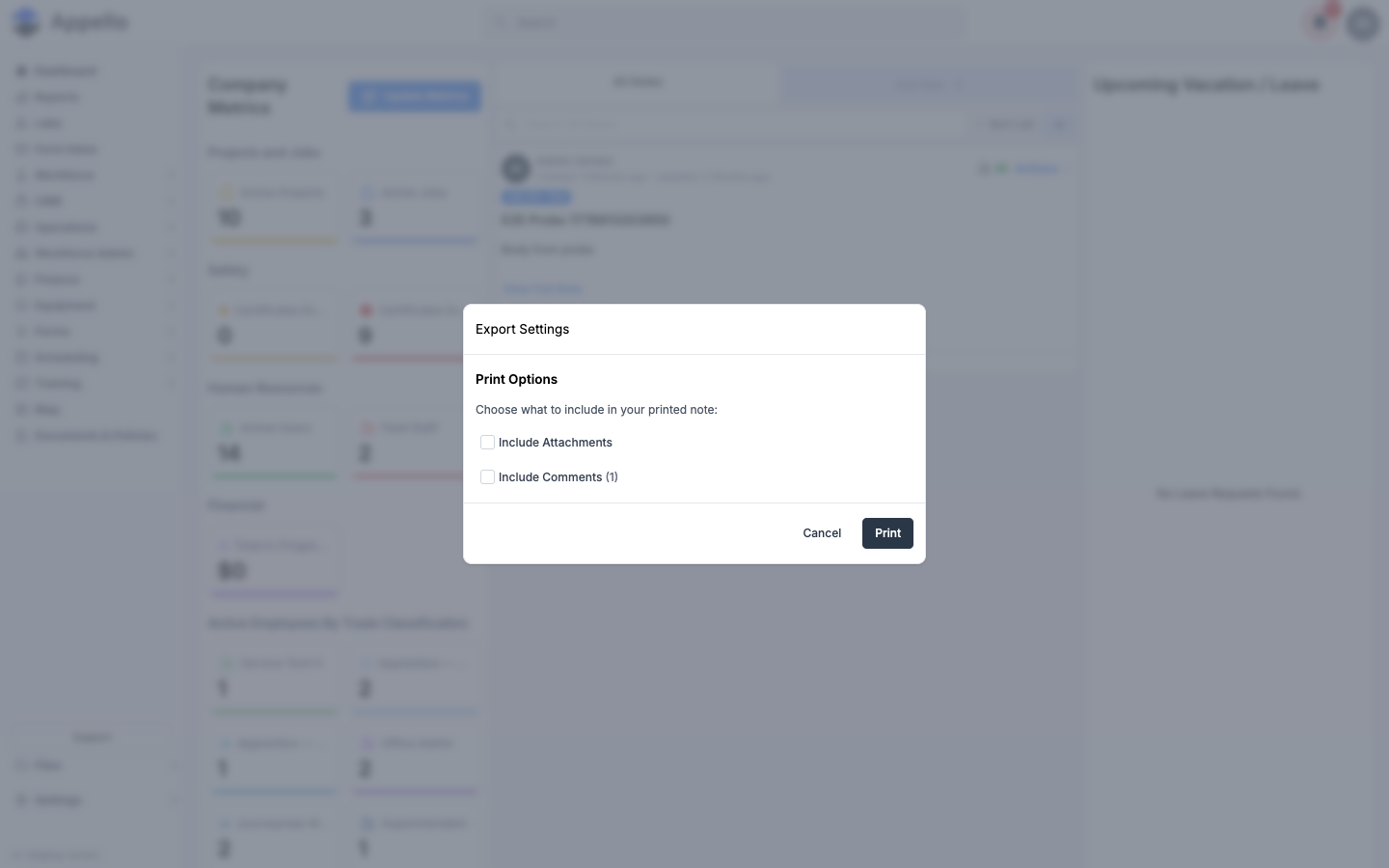
On a note, click Actions → Print. An Export Settings window opens with Print Options.
-
Choose what to include in the printed note:
- Include Attachments -- Adds the note's photo/file attachments to the printed output.
- Include Comments (N) -- Adds the note's comment thread, with the number of existing comments shown in the label.
-
Click Print. Appello opens your browser's print dialog with a formatted version of the note (title, author, date, and body, plus anything you checked above). Choose Save as PDF as the destination to download a PDF, or pick a physical printer to print it directly.
Neither checkbox is selected by default -- check Include Attachments and/or Include Comments before clicking Print if you want them in the output.
This is the same Actions → Print flow from the standalone note page:
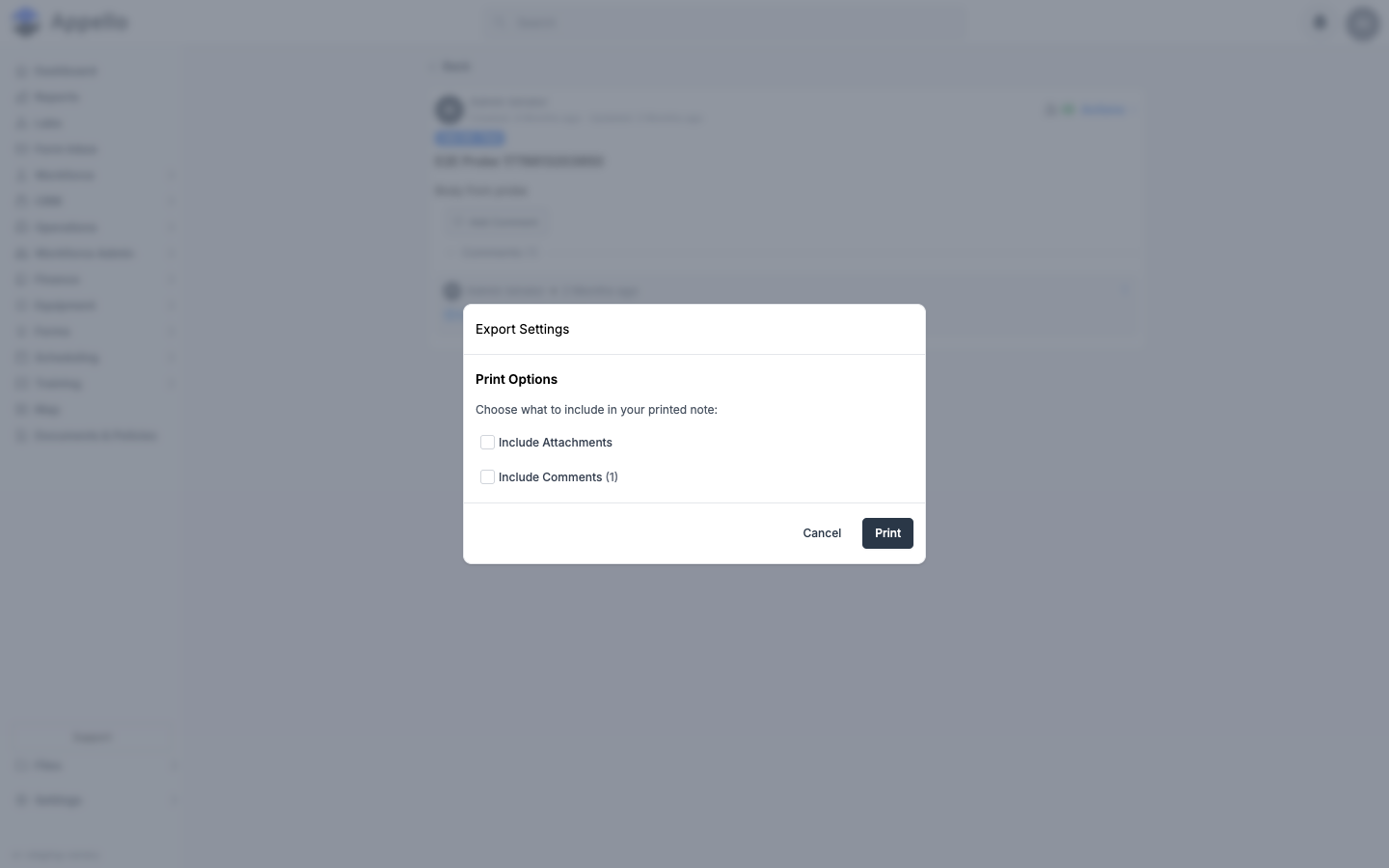
Photo & File Management
Photos and files can be attached directly to a note, and Appello also keeps a dedicated folder of everything uploaded through notes on a job.
Steps
-
In the note composer, click Add Attachments (max 15 concurrent) below the note body to attach photos or files. Up to 15 files can upload at once; each attachment shows individual upload progress, and a failed upload can be retried without losing the rest.
-
Attached photos display as a thumbnail gallery on the note. Click a photo to open it full-size in a lightbox, and use the on-screen arrows (or arrow keys) to step through the other photos attached to that note.
-
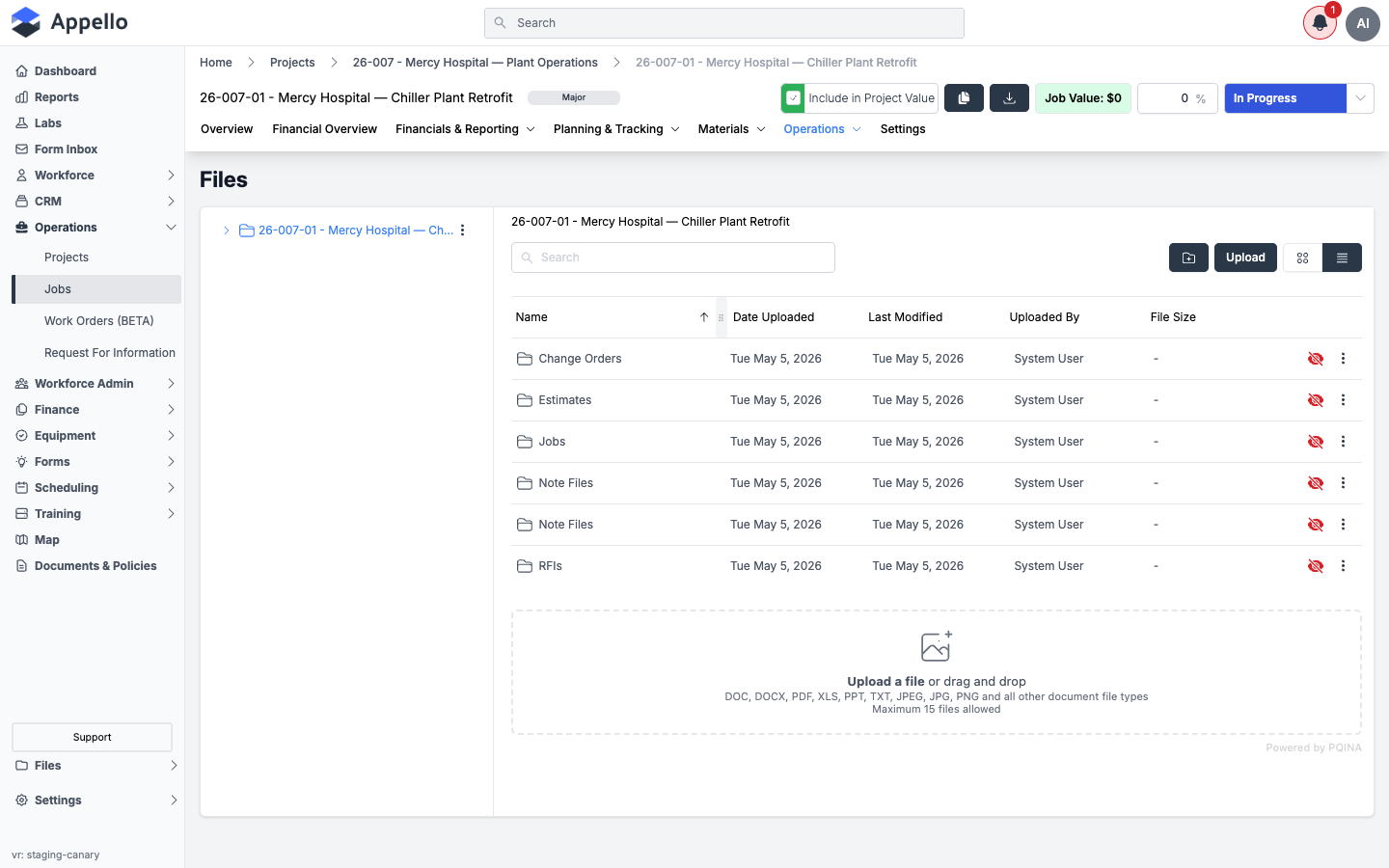
Every job also has a Note Files folder that collects the files and photos attached to notes on that job, alongside folders for Change Orders, Estimates, and RFIs. Open a job's Operations → Files tab to browse it.
When a note carries photos, they show as a thumbnail gallery on the note; clicking one opens a lightbox with next and previous controls.
Notes Feed (Dashboard)
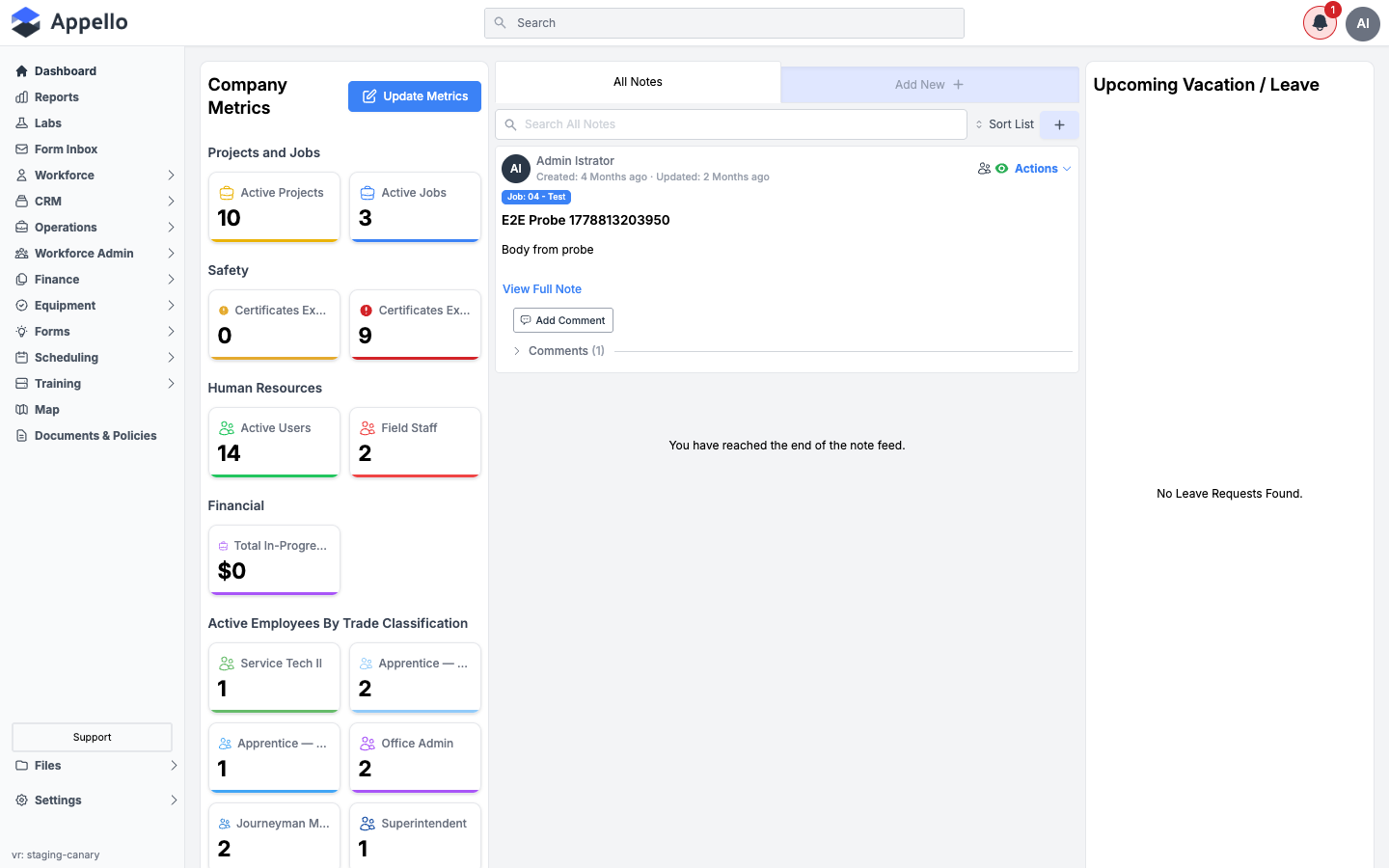
Beyond a single job, Appello also has an account-wide notes feed on your Dashboard home page. It aggregates notes across every job (and other record types notes are attached to), with search, sorting, and the same comment/reply tools as a job-level note.
Steps
-
Go to your Dashboard (the Appello home page). The All Notes panel lists notes across your account, newest (or most-recently-active) first, with a Search All Notes box and a Sort List control.
-
Use Add New to create a note from here, or click View Full Note on any note to expand it in place. Add Comment and tagging work exactly as described above.
This feed lives on the Dashboard home page, not under Reports.
Note Tag Notifications
When someone tags you in a note or a comment, you get a notification -- both in-app and, if SMS is configured for your instance, by text message.
What a Tagged Person Receives
-
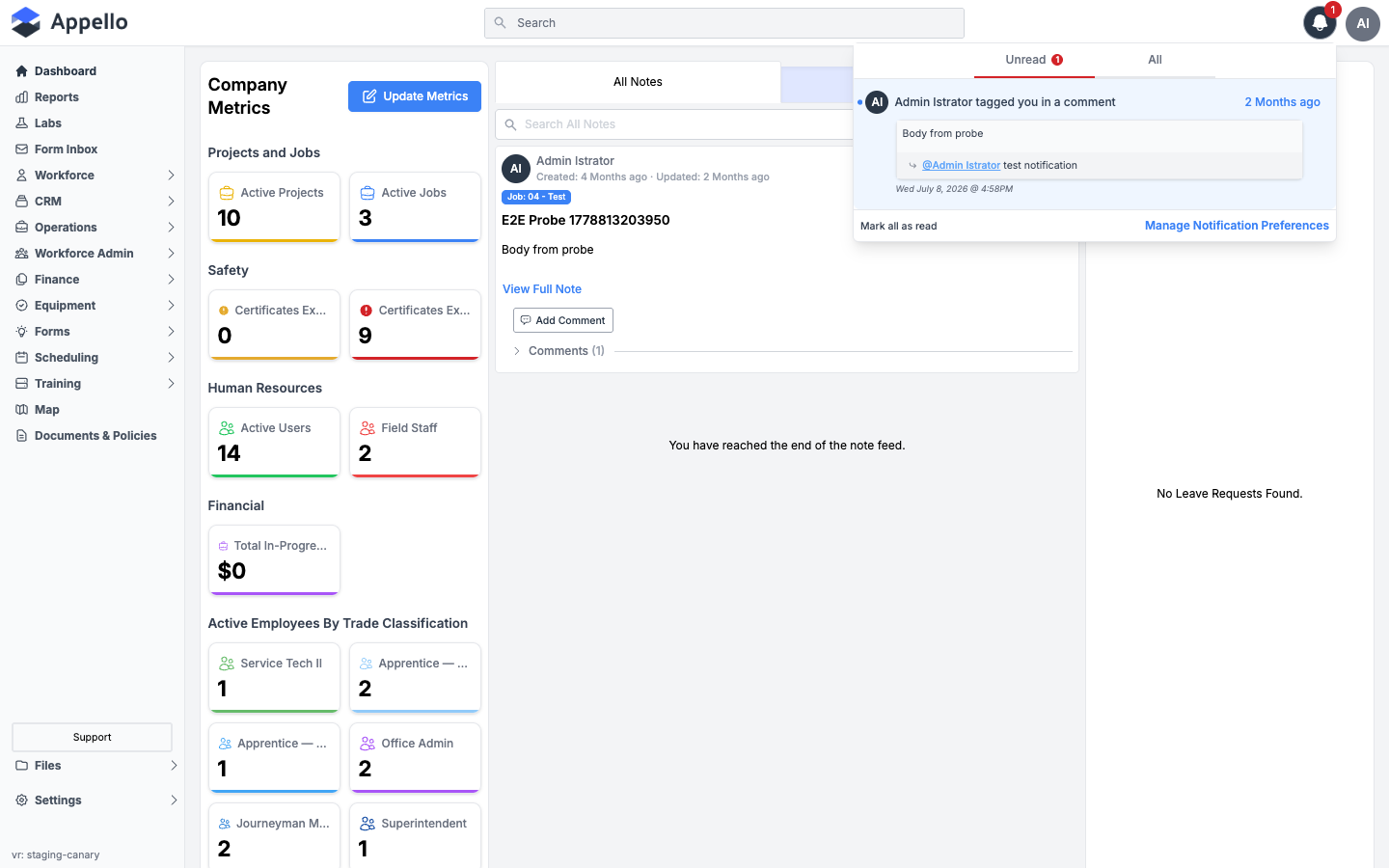
In-app notification -- A bell-icon notification appears (and increments your unread count) reading "[Name] tagged you in a comment" (or note), with a preview of the note/comment text and a link straight to it.
-
SMS notification -- If your instance has SMS/Twilio configured and you have the SMS toggle enabled for this notification type, you also receive a text message.
Managing Note Notifications
Each person controls their own note notifications from Manage Notification Preferences (from the bell-icon notification dropdown). Under the Note section there are two independently controlled notification types, each with its own In App and SMS toggle:
- When Tagged In Note/Comment -- Fires when someone
@-mentions you in a note or a reply. - When Note/Comment Is Commented On -- Fires when someone replies to a note or comment you are following.
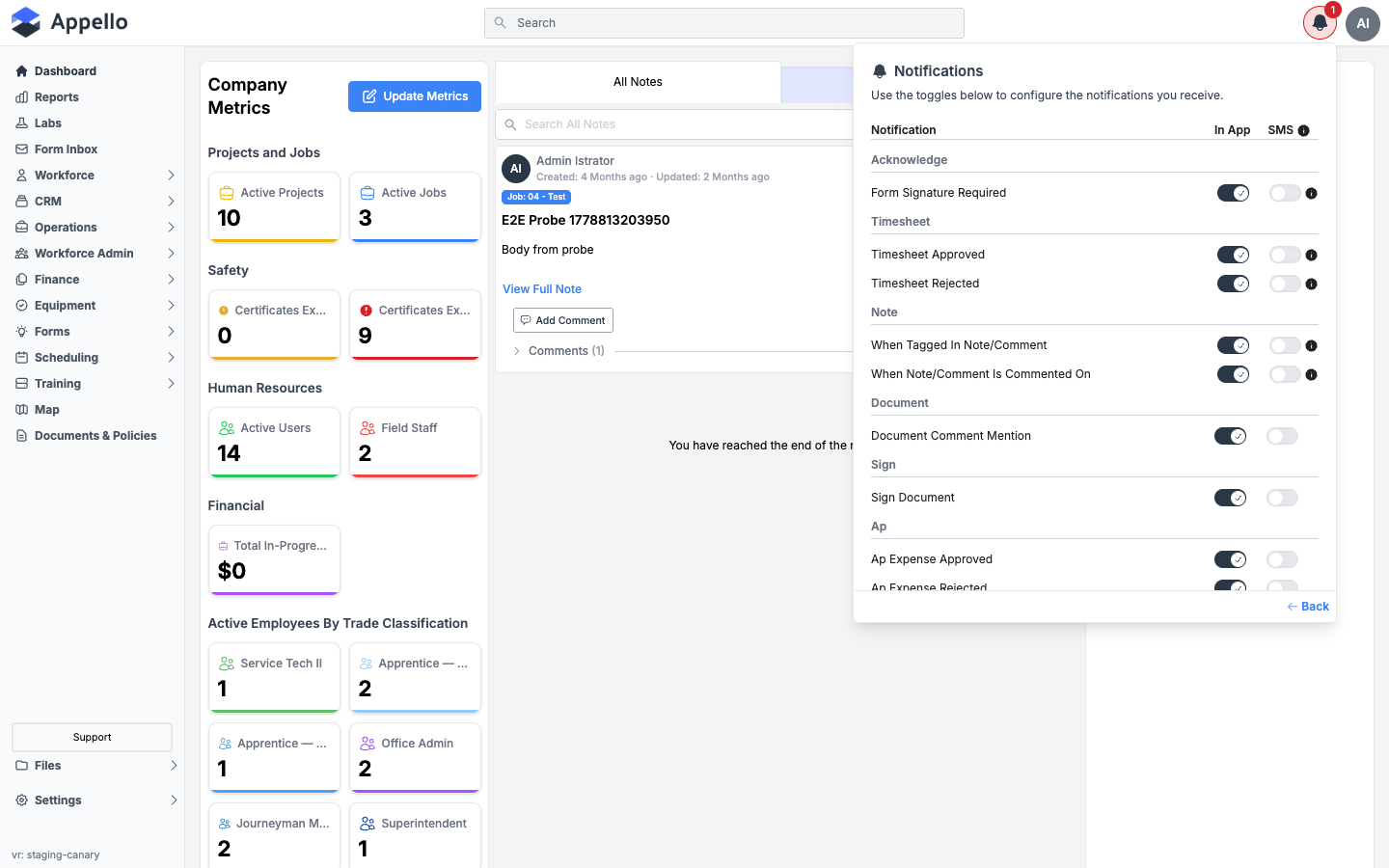
If the SMS toggle is greyed out, SMS has not been set up for your instance. Ask your administrator to configure it under Settings → Integrations.
The Note Composer's Rich Text Toolbar
The Note Description field's formatting toolbar is the same TipTap-based editor used across Appello (document templates, other rich-text fields), not a note-specific one. Every control, left to right:
| Control | Effect |
|---|---|
| B (Bold) | Toggles bold on the selection. |
| I (Italic) | Toggles italic on the selection. |
| U (Underline) | Toggles underline on the selection. |
| S with strikethrough | Toggles strikethrough on the selection. |
| Bullet list icon | Toggles a bulleted list. |
| Numbered list icon | Toggles a numbered list. |
| Link icon | Opens a small dialog with Link Text and Enter URL fields (Cancel/Save) to insert or edit a link. Pre-fills from the current selection or word under the cursor. |
| Unlink (broken-chain) icon | Removes the link mark from the current selection. Disabled unless the cursor is inside a link. |
| YouTube icon | Opens an embed dialog to paste a YouTube URL and insert a video embed. |
| Highlighter (pencil) icon | Toggles a text highlight on the selection. |
| Paragraph dropdown | Block format: Paragraph or Heading 1 through Heading 6. |
| Rewrite with AI | Opens the AI rewrite/translate menu. See AI Note Enhancement. |
The rich-text editor used elsewhere in Appello has a PDF-embed toolbar button, but it is turned off in the note composer, so you will never see it here. Attach a PDF as a file instead.
Associating a Note with a Second Record
Beyond the primary Associate Note With / Select <Model> pair, the composer can cross-link a note to one additional record:
| Situation | Extra field shown | What it does |
|---|---|---|
| Primary record is a Job | Associate with Equipment (optional) | Lists equipment currently checked out to that job; selecting one also makes the note appear on that equipment's own note feed. |
| Primary record is Equipment | Associate with Job (optional) | Lists jobs that equipment is currently checked out to; selecting one links the note to that job too. |
A note attached to a Maintenance Schedule is copied through to the schedule's parent Equipment automatically, so it shows on the equipment's feed without anyone picking it manually.
The full "Associate Note With" model list
| Value shown | What the note is attached to |
|---|---|
| Project | A project. |
| Job | A job. |
| Work Order | A work order (work orders are a kind of job in Appello, so the picker lists work orders only). |
| Contact | A contact. |
| Company | A company. |
| Equipment | A piece of equipment. |
| Inventory Location | An inventory location. |
| Announcement | Everyone on your instance -- you choose the audience from a Publish Announcement To dropdown instead of picking a record. |
A given composer can offer a shorter list than this -- for example, the Dashboard's "All Notes" + button only offers the record types the saved view you're on actually displays.
Notes created through Appello's MCP integration can only be attached to jobs, projects, companies, contacts, equipment, material orders, and users. Announcements and inventory-location notes can only be created from the browser.
The Standalone Note Page (/note/[id])
Where it is
There's no link to this page anywhere in the note feeds themselves -- clicking a note's title, body, or avatar never navigates here. The confirmed ways in are:
- Company-wide Announcements -- announcement notes (see Associating a Note above) are the one note type whose in-app notifications actually open this page.
- Tagging or commenting on an ordinary Job/Project/Company/Contact/Equipment note instead
routes back into that record's own tab with a highlighting
?noteId=query param (e.g./jobs/[id]?tab=overview¬eId=[noteId]) -- it does not open this standalone page. That behavior is covered on Job Detail and matches what Notes on Mobile describes for push notifications.
The page works for any note -- it shows whichever note the URL points at, regardless of what that
note is attached to, laid out exactly as it is in every other feed. URL: /note/[noteId].
Per the notification-type reference on Notification Control, Note Created, Note Commented, and Note Tagged deliver over In-App and SMS only -- there is no email channel for note notifications, so an email link is not a confirmed entry point to this page. Global Search does not return notes either -- this page's only confirmed doorway is a notification click, or typing/loading the URL directly (e.g. from a bookmark or another page's generated link).
What it's for
A single note, full-page, with its comment thread -- useful as a permalink/deep-link target rather than a browsing surface, since nothing in the product links to arbitrary (non-announcement) notes here.
What's on the page
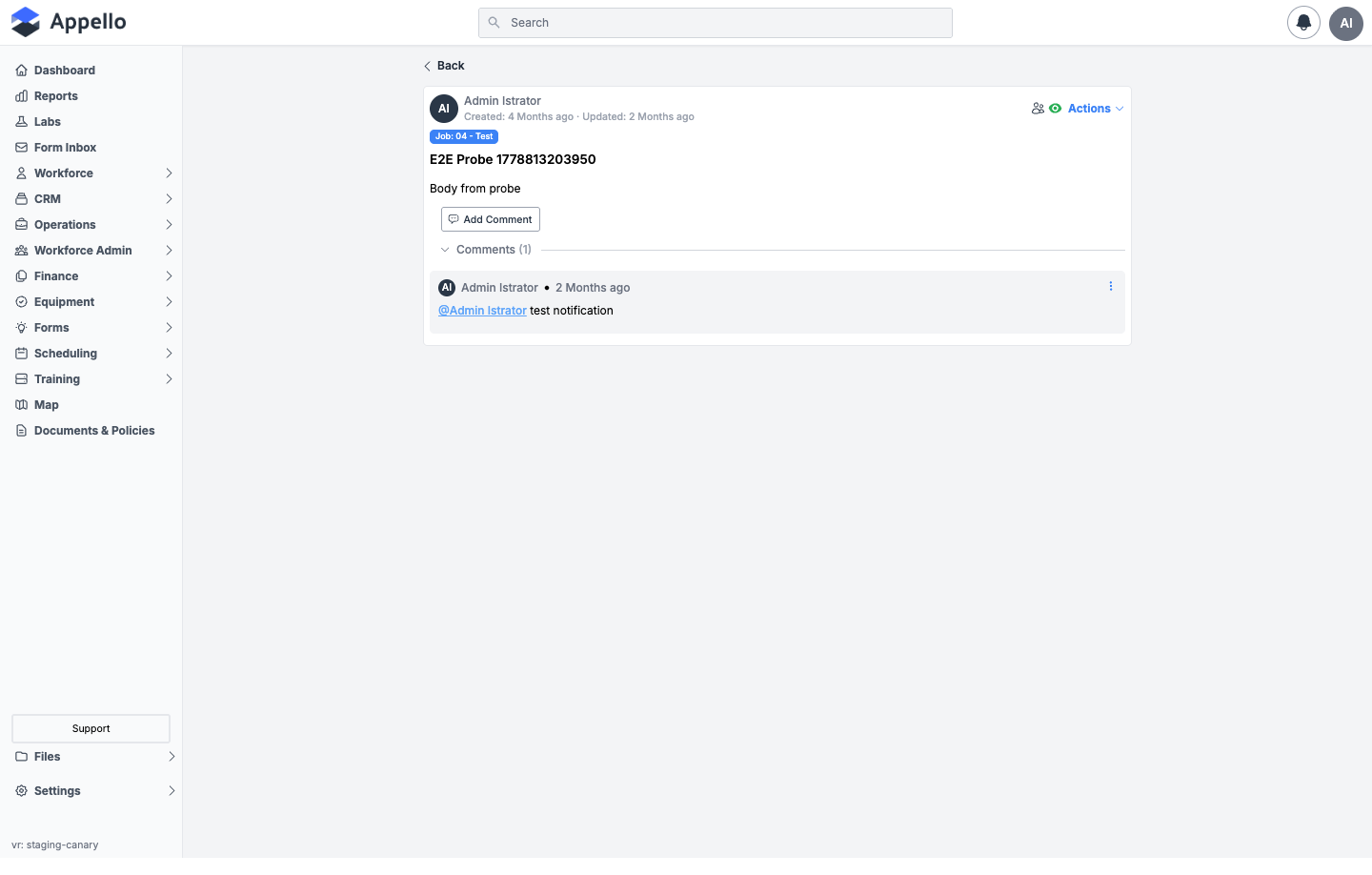
| Element | Notes |
|---|---|
| Back link | Only shown when you arrived from another page in Appello; opened in a fresh tab, there's no back link. |
| Author avatar + name | Links to /users/[authorId]?tab=overview. |
| Created / Updated timestamps | Relative time with a tooltip showing the exact date/time in your instance's date format. |
| Linked-record badge | E.g. Job: 04 - Test; links to that record's Overview tab. For an Announcement, shows "Announcement on <name>" with no link instead. A second badge appears if the note also carries the Job ↔ Equipment cross-link described above. |
| Seen-by icon (people icon) | Opens a popover listing everyone who has viewed the note, sorted by first name. Gated by the Notes → Can See Who Has Seen permission -- hidden entirely without it. |
| Visibility icon (eye / eye-off) | Green eye = visible to mobile; red eye-off = Hidden from Mobile (or the note's model is desktop-only). |
| Actions dropdown | Same menu as any note -- see Managing a Note: Pin/Unpin, Delete (if permitted), Edit (if permitted), Hide/Unhide from Mobile, Print. |
| Title and body | Rendered as Markdown; body has no truncation on this page (no "View Full Note" toggle -- that's feed-only). |
| Attachments | Same thumbnail gallery / lightbox as the feed view, when the note has any (this example note has none). |
| Add Comment / comments thread | Identical composer and thread as the embedded feed view -- see Replying to Notes and Comments on a Note below. On this page the thread always starts expanded. |
| Reactions | Not present. Appello has no emoji-reaction or "like" feature on notes or comments. |
| Same Print Options modal as everywhere else. |
Permissions
Governed by the same Notes → View / Edit / Delete permissions as every other place notes appear -- see Managing a Note. There is no separate permission for the standalone page itself; if the note doesn't exist, or your Notes → View permission is limited to your own notes and you're not the author, the page renders blank.
Related pages
Comments on a Note
What it is
A comment is not a separate kind of record -- it is another note, attached to the note it replies to, created and edited the same way as a top-level note. The comment box is simply a compact, single-line version of the note composer.
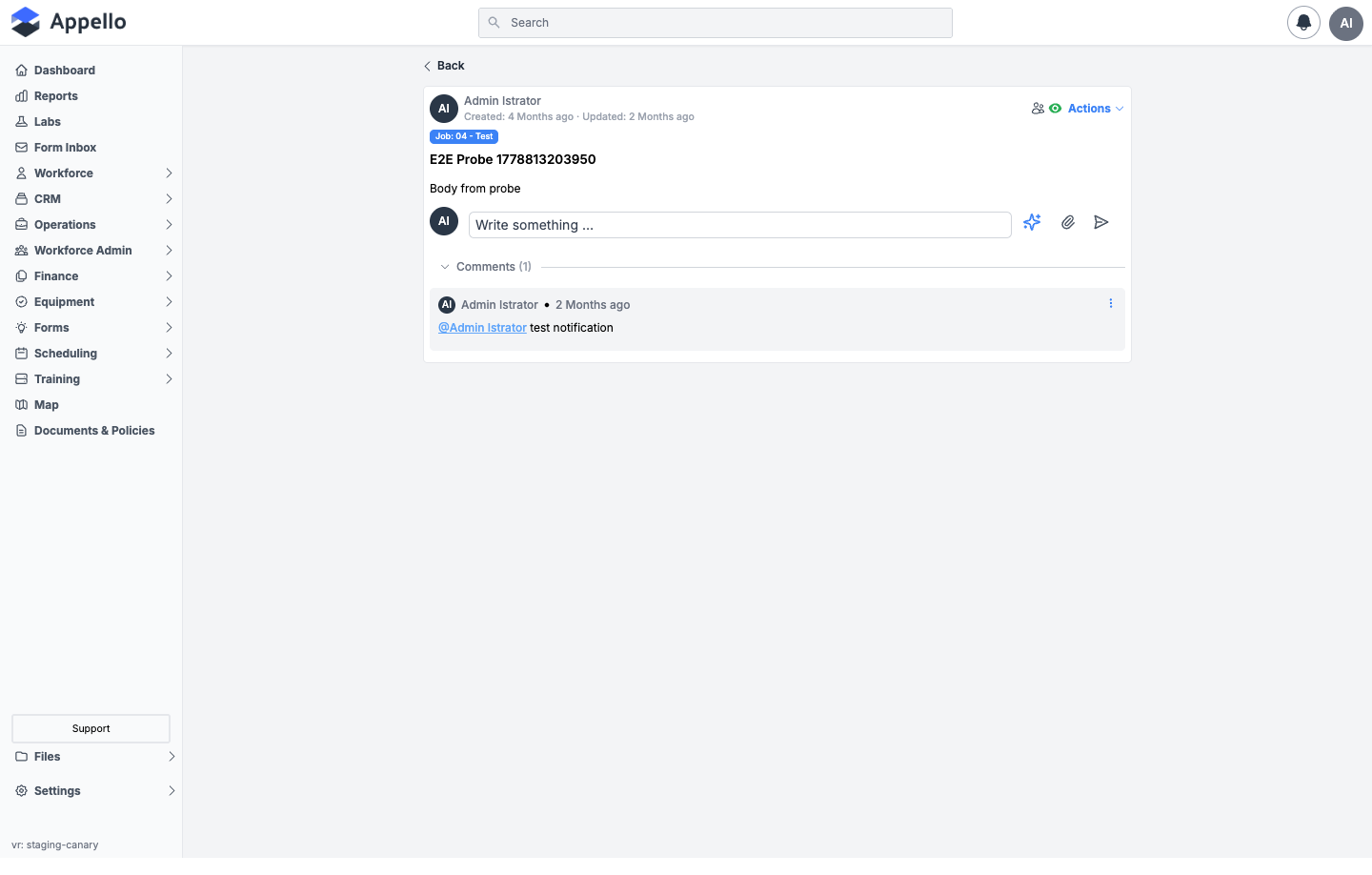
| Control | Effect |
|---|---|
| Avatar | Your own avatar, shown only while composing a new top-level comment (not shown when editing one). |
| Text field | Single-line rich-text input (Write something...), auto-expanding; supports @ mentions the same as a full note. |
| Sparkle (AI) icon | Appears next to the field. It was not used while writing this guide, so its exact behavior on a comment is unconfirmed. |
| Paperclip icon | Opens the file picker to attach photos/files to the comment (same 15-concurrent limit as notes). |
| Send (paper airplane) icon | Posts the comment. |
| X icon (edit mode only) | Cancels an in-progress edit of an existing comment. |
Create, edit, delete -- and no archive
- Create -- typing and sending posts the comment under the note you're replying to.
- Edit -- the comment author (or a Super Admin) sees Edit on the comment's own
⋮menu, which swaps the comment's body for this same composer, pre-filled. - Delete -- the comment author (or a Super Admin) sees Delete on the
⋮menu; confirming removes it from the thread. - Archive -- there is no archive action for comments. Only Delete exists.
Appello's MCP integration has its own separate "comment" tools. Those act on a different kind of record and do not touch the comment threads on notes described here -- the two only share a name.
Related pages
Comments on a Form Answer
Where it appears
Inside a submitted safety form, on an individual question's answer row -- not on a job note feed at all. Full walkthrough: Form Submission Detail — Answers and results.
What it is
A parallel, simpler comment composer for discussing one answer on a filled-in form. Like note
comments, these are notes behind the scenes -- attached to the answer rather than to a job -- but
this composer is its own thing, so it does not carry the @ mention picker, attachments, or the AI
icon that note comments have.
| Control | Effect |
|---|---|
| Rich-text body | Simplified rich-text field: no mentions, no attachments. |
| Cancel | Discards the draft comment/reply without saving. |
| Save | Creates or edits the comment on that answer. |
Replying to an existing comment on an answer nests the reply underneath it, up to one level deep.
Edit and Delete are
available per-comment from its own ⋮ menu; delete asks you to type the reply count + 1 to confirm,
the same confirm-by-count pattern used elsewhere in Appello. There is no archive action here either.
Related pages
Saved Note Views
Where it is
Dashboard (home page) → All Notes panel → the tab strip above the search box. This is separate from a single job's Notes panel -- a per-job feed has no saved-view concept, just its own search box. Saved views only exist on the account-wide Dashboard feed.
What it's for
Each tab on the Dashboard's note feed is a saved, shareable filter -- for example "All Notes" (the un-deletable default) plus any custom views a user has created, such as "My Equipment Notes" or "Announcements Only."
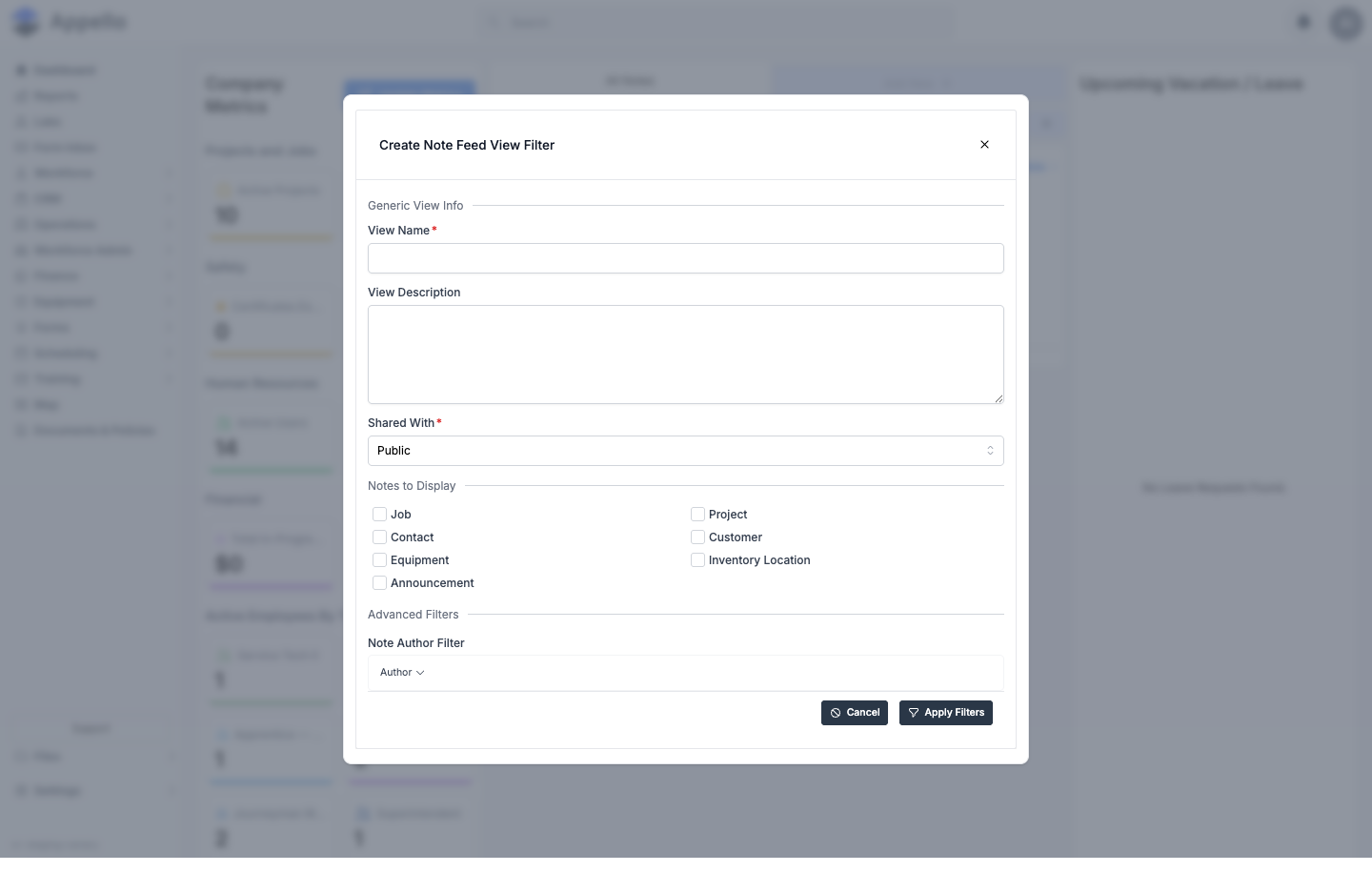
Creating a view
-
On the Dashboard's All Notes panel, click the Add New + tab at the end of the tab strip (gated by the Note Feed View Filter → Create permission).
-
Fill in the dialog:
Field Required Type Effect View Name Yes Text The tab's label. View Description No Rich text Not shown on the tab itself; stored for reference. Shared With Yes Select Private (only you), Public (everyone), or Groups (pick specific user groups -- reveals a Select Groups multiselect). Notes to Display No Checkboxes Which record types show in this view: Job, Project, Contact, Customer, Equipment, Inventory Location, Announcement. Advanced filters (per record type checked) No Facet pickers E.g. checking Job reveals Job Status, Job, Customer, Lead, Estimator filters; checking Project reveals Customer, Project, Status, Lead; plus an always-present Note Author Filter. -
Click Apply Filters to save (disabled until View Name is filled, and until at least one group is picked if Shared With is set to Groups), or Cancel to discard.
Managing an existing view
- A view other than All Notes shows a pencil (edit) icon next to its +/sort controls, gated by Note Feed View Filter → Edit, which reopens this same dialog pre-filled.
- Any removable tab (every view except All Notes) shows an × to delete it, gated by Note Feed View Filter → Delete; deleting asks for a confirmation.
The job note feed vs. the "activity feed"
There is no separate "Activity Feed" log distinct from notes. On a job, the Notes panel described in Overview and The Job Notes Panel is what the product calls the job's activity feed -- it holds exactly the notes (and their comments) tied to that job, nothing more. There's no separate feed of "job was moved to In Progress" / "estimate was won" style system events on this page; changes like that are recorded in the instance-wide audit log, not as a tab or panel on Job Detail.
Permissions
- Notes → View gates whether a view's notes are visible to you at all. If your permission is limited to your own notes, you only ever see your own, regardless of the view's own filters.
- Note Feed View Filter → Create / Edit / Delete gate the tab-management controls above. A view's own Shared With setting additionally controls whether other users can see that saved view at all.
Related pages
Notifications on Note Create and Comment
The bell-icon/SMS mechanics (toggles, what a tagged person sees) are covered in Note Tag Notifications above. This section covers who actually gets notified:
- Creating a note sends a Note Created notification to any explicitly
@-mentioned users/groups, plus everyone if@Everyonewas used. Mentioning someone also subscribes them to that note's thread going forward. - Commenting on a note sends a Note Commented notification to the original note's author (unless they're the one commenting), separately from the tagging notification below.
- Being
@-mentioned (in a note or a comment) sends a Note Tagged notification to you specifically, and to every user or group you tag -- minus the parent note's author, who gets the Note Commented notification instead so they aren't notified twice. - Thread subscribers -- anyone previously mentioned in a note's thread is also notified on every new comment to that thread (again, current commenter and the note author excluded from double-notifying), even without being re-mentioned.
Full trigger/recipient/channel table (also covering that these three types are In-App + SMS only, no email): Notification Control — Complete notification type reference. Personal on/off toggles for these three notification types: Note Tag Notifications.
Related Pages
- Job Detail — Overview -- the job tab this Notes panel lives on.
- AI Note Enhancement -- Rewriting rough field notes into polished, client-ready language with AI.
- Notes on Mobile -- the same notes feature on the Appello mobile app, including where push notifications land.
- Form Submission Detail -- where per-answer comments appear.
- Notification Control -- the full notification-type reference and where recipients are configured.
- Create a Job -- Creating the job a note is attached to.