Training and Safety Compliance Reports
Module: Core | Platform: Web
Four of the Health and Safety report cards launched from the Reports hub: the Certification Status Report, Employee Training Records, Employee Training Matrix, and Safety Compliance Report (BETA). All four are read-only, live views generated from today's data -- none of them can be edited from the report screen itself.
Where they are
Sidebar → Reports, then click the tile or list entry under Health and Safety:
| Report | URL |
|---|---|
| Certification Status Report | /reports/training-record-status |
| Employee Training Records | /reports/employee-training-records |
| Employee Training Matrix | /reports/employee-training-matrix |
| Safety Compliance Report (BETA) | /reports/safety-compliance-report |
Certification Status Report
What it's for
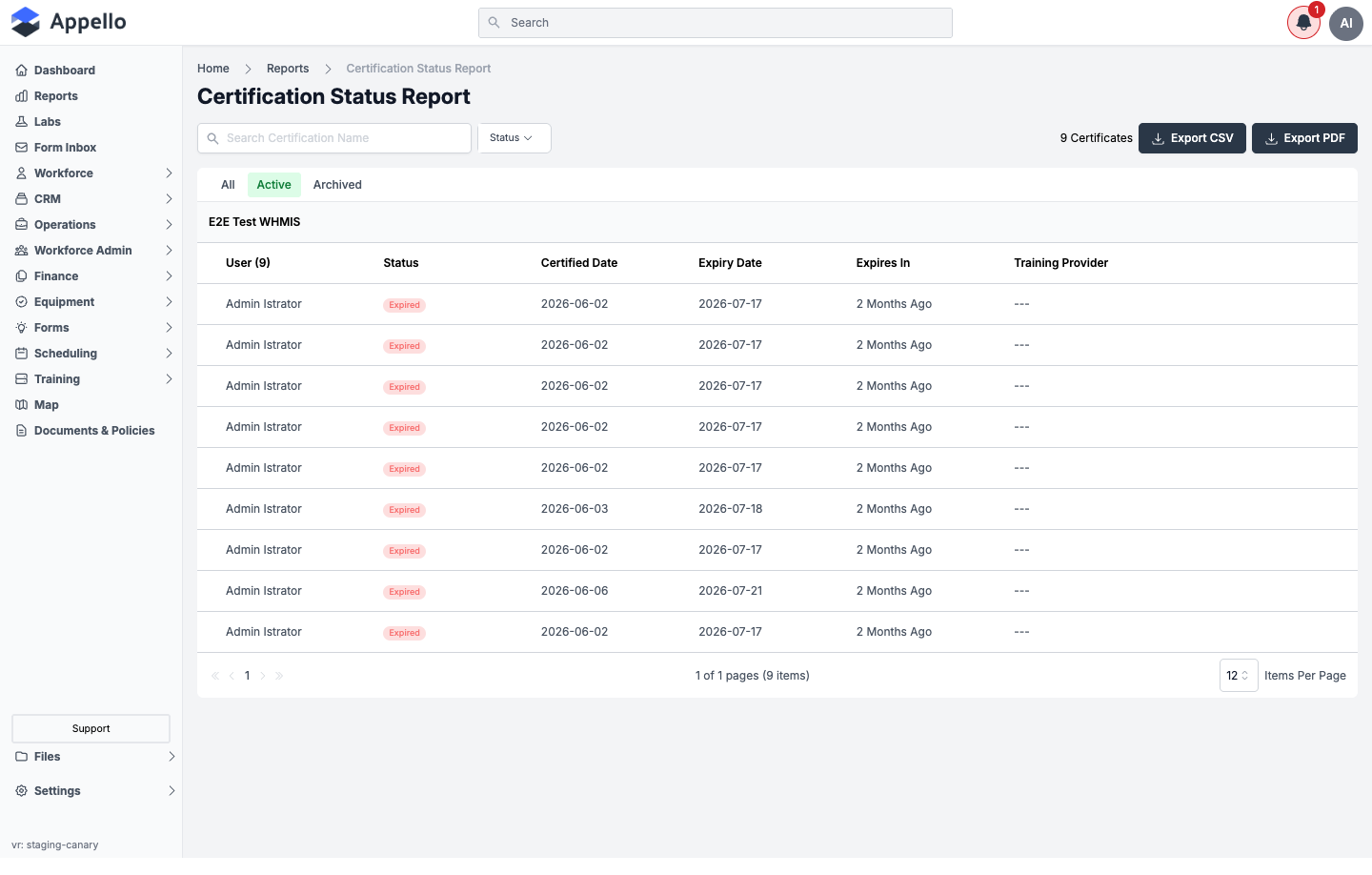
A company-wide roll-up of every certification type, grouped by certification, showing every worker's current status against it -- who's active, who's expiring soon, who's expired, and who's missing a certification they're required to hold. It's generated from today's data and can be filtered by status.
Screenshot
Screenshot -- filter open
Controls
| Control | Description |
|---|---|
| Search Certification Name | Free-text search that filters which certification groups are shown. |
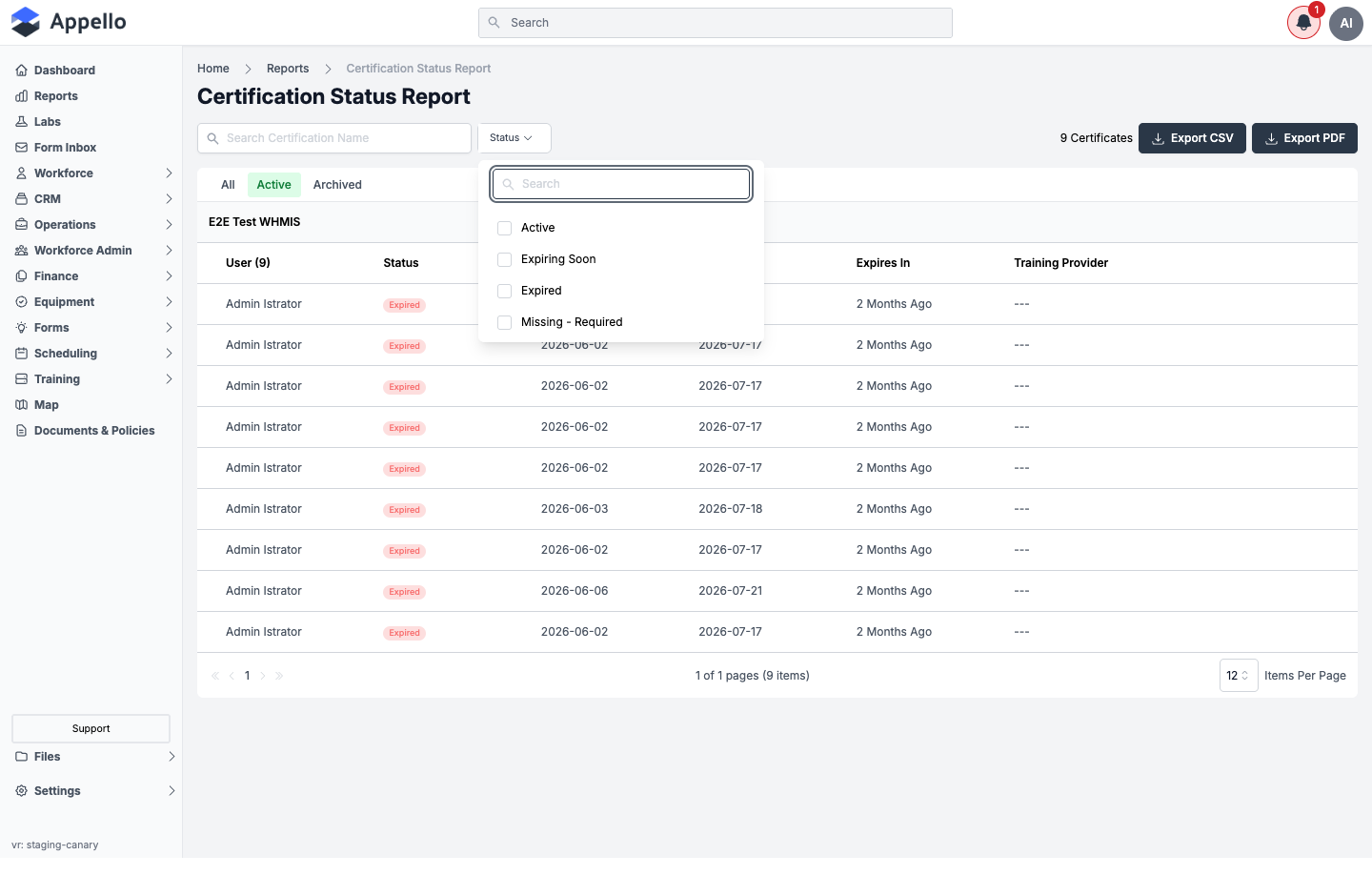
| Status | Multi-select dropdown -- Active, Expiring Soon, Expired, Missing - Required. Selections appear as removable chips below. |
| All / Active / Archived | Tabs that switch between active and archived user-certification records (Missing records only ever appear on Active). |
| Export CSV | Downloads the currently filtered rows. Disabled when there are no rows. |
| Export PDF | Downloads a formatted PDF of the currently filtered rows. Disabled when there are no rows. |
Columns
Each certification renders as its own block: a header row naming the certification (a link to that certification's detail page) and its holder count, followed by one row per worker.
| Column | Definition |
|---|---|
| User | The worker's name. |
| Status | A colored badge: Active (green), Expiring Soon (yellow), Expired or Missing - Required (red). |
| Certified Date | The date the record was issued (--- when there is no record, i.e. Missing). |
| Expiry Date | The record's expiry date, or Never for a certification type marked never-expiring. |
| Expires In | A relative countdown (e.g. "2 Months Ago" once expired, or Never); --- when Missing. |
| Training Provider | The provider that issued the certification, linking to that provider's detail page (--- when none is recorded). |
What each status means
Status is computed live, at the moment the report runs, from each worker's certification record and that certification type's own "Expiring Soon" window (set per certification, or falling back to an instance-wide default -- see Creating a Certification Type):
| Status | Definition |
|---|---|
| Active | The certification never expires, or its expiry date is further out than the certification's "Expiring Soon" window. |
| Expiring Soon | The expiry date falls inside the "Expiring Soon" window but has not yet passed. |
| Expired | The expiry date has passed. |
| Missing - Required | The worker is on this certification's list of required holders (configured on the certification itself) but has no record for it at all. |
How the "Expiring Soon" window is sized: each certification can set its own number of days before expiry at which a record starts showing as Expiring Soon. If it doesn't, the instance-wide certification expiry setting is used; if that isn't set either, the window is 30 days. A record is Active until it enters that window, Expired once the expiry date has passed, and Missing - Required when a worker required to hold the certification has no matching record.
Totals
A N Certificates counter above the table shows the total worker-certification rows across all certification groups matching the current filters.
How to run it
- Sidebar → Reports, then click Certification Status Report under Health and Safety.
- Optionally type into Search Certification Name to narrow which certification types show.
- Click Status to filter to one or more statuses; selections appear as chips you can remove individually or clear with Clear All.
- Switch between All / Active / Archived to include archived records.
- Click Export CSV or Export PDF to download the currently filtered rows.
Permissions
All of the following are required to view this report:
- Training and Certifications → Certification Types → View
- Training and Certifications → User Certifications → View
- Training and Certifications → Training Providers → View
- The Reports → Health and Safety permission for Certification Status Report
Related pages
- Reports hub
- Certifications -- certification types, renewal windows, and per-worker certification records
- Training Providers
Employee Training Records
What it's for
A single worker's full certification history -- every certification record they hold, its status, and its dates -- picked from a worker combobox rather than shown for everyone at once. It's the report-hub route to the same data (and the same PDF export) documented as the Training and Certification Report on a worker's own Certifications tab.
Screenshot
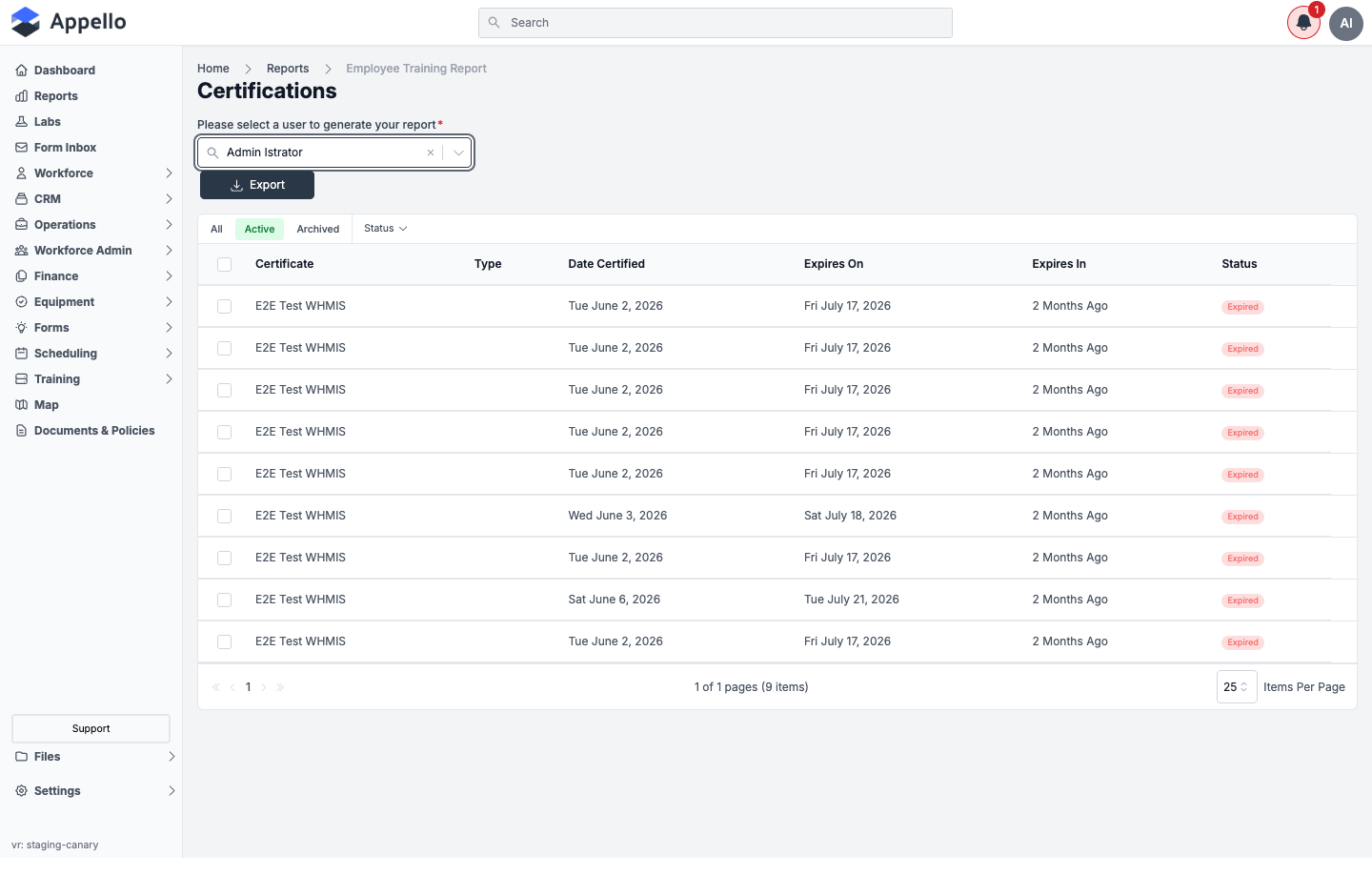
Shown empty on the demo instance for most workers -- only one seeded worker ("Admin Istrator") has any certification records at all, so the screenshot above was captured after selecting that worker. Selecting most other demo workers returns "No Data Found."
Screenshot -- filter open
Controls
| Control | Description |
|---|---|
| Select a User | Required combobox, searchable by name. Nothing else on the page renders until a user is chosen. |
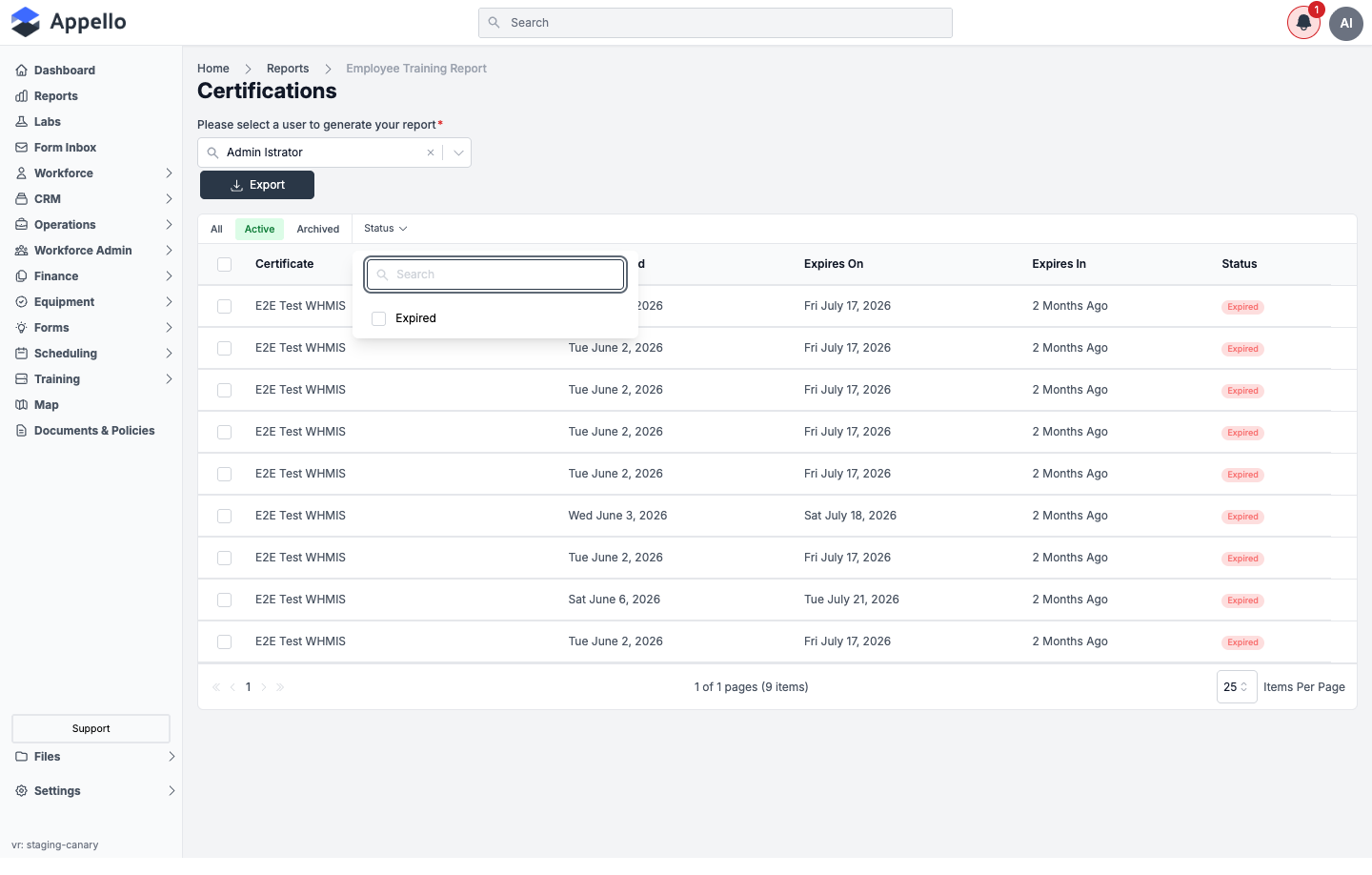
| Status | Dropdown populated from the statuses actually present on the selected worker's records (e.g. only "Expired" appears if that's all they have). |
| All / Active / Archived | Tabs that switch between active and archived certification records for the selected worker. |
| Export | Downloads the current rows -- offers both CSV and PDF (the same "Training and Certification Report" PDF format described in Exporting Certification Records). Disabled with no rows. |
Columns
| Column | Definition |
|---|---|
| Certificate | The certification name, linking to that user-certification record's detail page. |
| Type | The certification's category (blank if the certification has none configured). |
| Date Certified | The date the record was issued. |
| Expires On | The record's expiry date, or Never for a never-expiring certification. |
| Expires In | A relative countdown (e.g. "2 Months Ago" once expired), or Never. |
| Status | A colored badge -- Active (green), Expired (red), or Expiring Soon (yellow). |
Status here uses the same live expireStatus calculation as the Certification Status Report
above -- see What each status means.
How to run it
- Sidebar → Reports, then click Employee Training Records under Health and Safety.
- Type a name into Select a User and choose the worker from the results.
- Use the Status filter or the All / Active / Archived tabs to narrow the list.
- Click Export to download the current rows as CSV or PDF.
Permissions
All of the following are required to view this report:
- Training and Certifications → Certification Types → View
- Training and Certifications → User Certifications → View
- Training and Certifications → Training Providers → View
- The Reports → Health and Safety permission for Employee Training Records
Related pages
- Reports hub
- Certifications -- see Exporting Certification Records for the PDF format this report shares
- Training Providers
Employee Training Matrix
What it's for
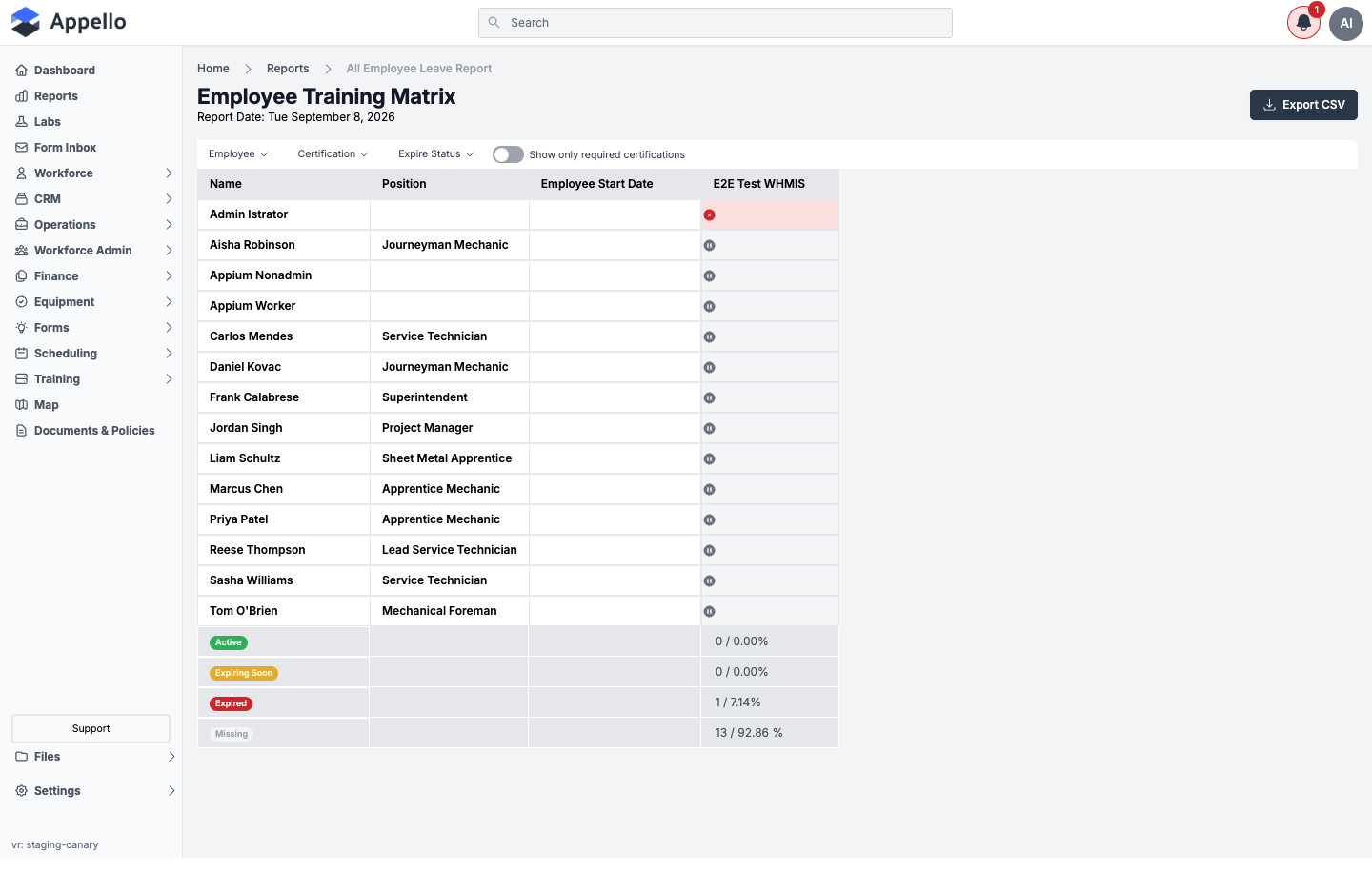
A grid view -- every active worker down the side, every certification across the top -- so you can see your whole workforce's compliance at a glance instead of one worker or one certification at a time. It loads with all workers and certifications by default and uses today's data.
Screenshot
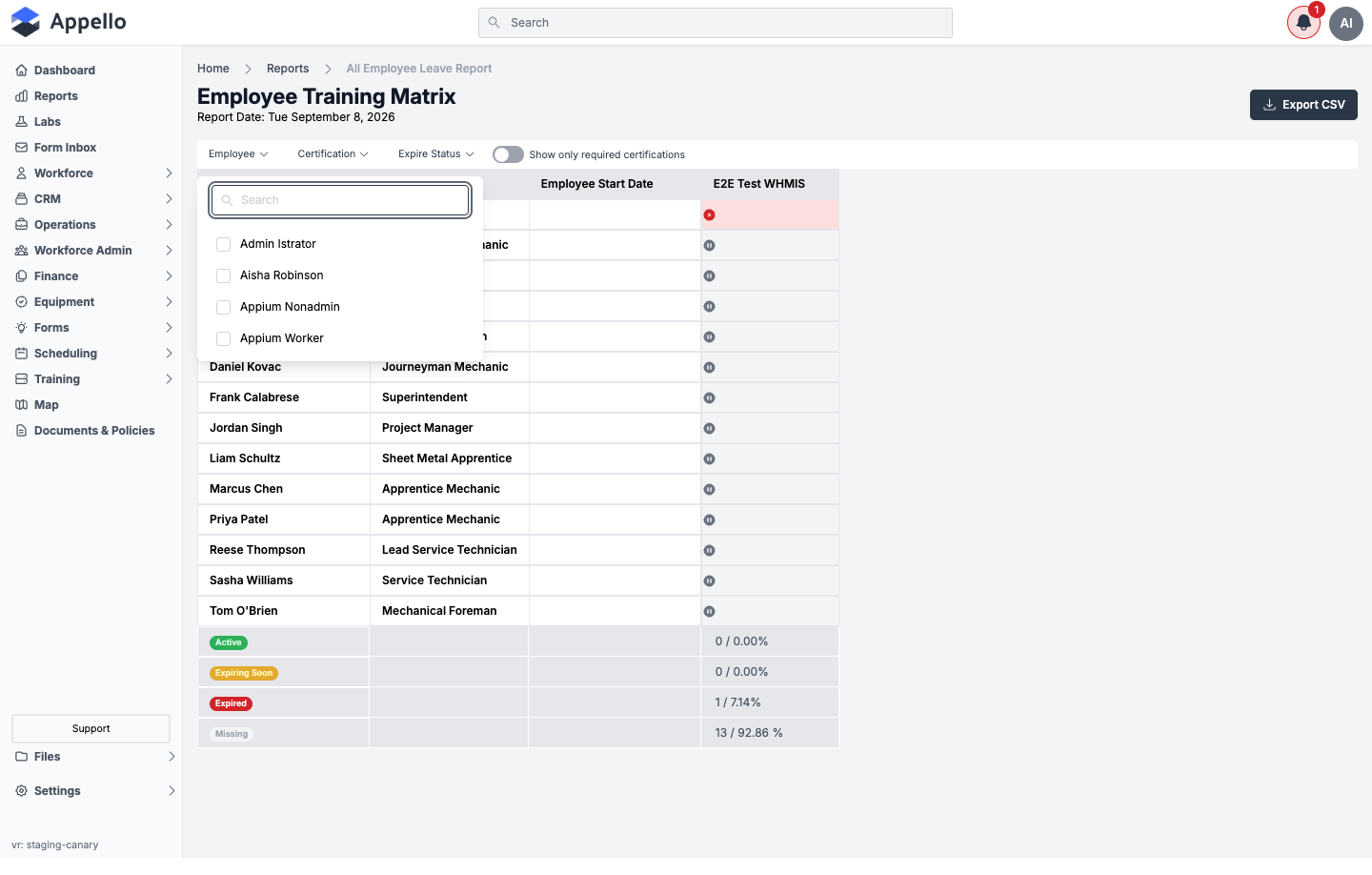
Screenshot -- filter open
Controls
| Control | Description |
|---|---|
| Employee | Multi-select filter, by worker name. |
| Certification | Multi-select filter, by certification name. |
| Expire Status | Multi-select filter -- the statuses present in the data (Active / Expiring Soon / Expired), plus records with no certification record at all. |
| Show only required certifications | Toggle. When on, only shows certifications the worker is required to hold. |
| Export CSV | Downloads the current grid as CSV. |
Grid cells
Each cell is one worker's status against one certification column. Clicking a filled-in cell opens that user-certification record; hovering shows a tooltip with the trained date, expiry date (or "Never"), and days remaining or overdue.
| Cell icon | Meaning |
|---|---|
| Green checkmark | The worker holds the certification and it's either never-expiring, or active (not expired, not expiring soon). |
| Yellow exclamation | The worker holds the certification and it's inside its "Expiring Soon" window. |
| Red X | The worker holds the certification and it's expired. |
| Red warning triangle (red background) | The worker has no record for this certification, and it's required for them. |
| Grey pause icon (grey background) | The worker has no record for this certification, and it isn't required for them. |
Columns and summary footer
| Column / row | Definition |
|---|---|
| Name | The worker's name, linking to their user record. Sort order (first-last or last-first) follows your display-name setting. |
| Position | The worker's job position, if set. |
| Employee Start Date | The worker's start date, if set. |
| (one column per certification) | The grid cell described above, for that worker/certification pair. |
| Active / Expiring Soon / Expired / Missing (footer rows) | For each certification column, the count and percentage of the displayed workforce in that state. Missing in this footer combines both "required and missing" (red triangle) and "not required, no record" (grey pause) cells -- the grid icons distinguish the two, but the footer percentage does not. |
How to run it
- Sidebar → Reports, then click Employee Training Matrix under Health and Safety.
- Optionally filter by Employee, Certification, or Expire Status, or toggle Show only required certifications.
- Hover a cell for trained/expiry dates, or click it to open that certification record.
- Review the summary footer for per-certification compliance percentages.
- Click Export CSV to download the current grid.
Permissions
All of the following are required to view this report:
- Training and Certifications → Certification Types → View
- Training and Certifications → User Certifications → View
- Training and Certifications → Training Providers → View
- The Reports → Health and Safety permission for Employee Training Matrix
Related pages
Safety Compliance Report (BETA)
What it's for
A single-day, job-by-job view of who logged time and whether every safety form required for that job was signed. Appello's own description: it "analyzes jobs where time was logged and checks if the required forms were signed for each job," then totals the results. Nothing renders until you pick a date.
Screenshot
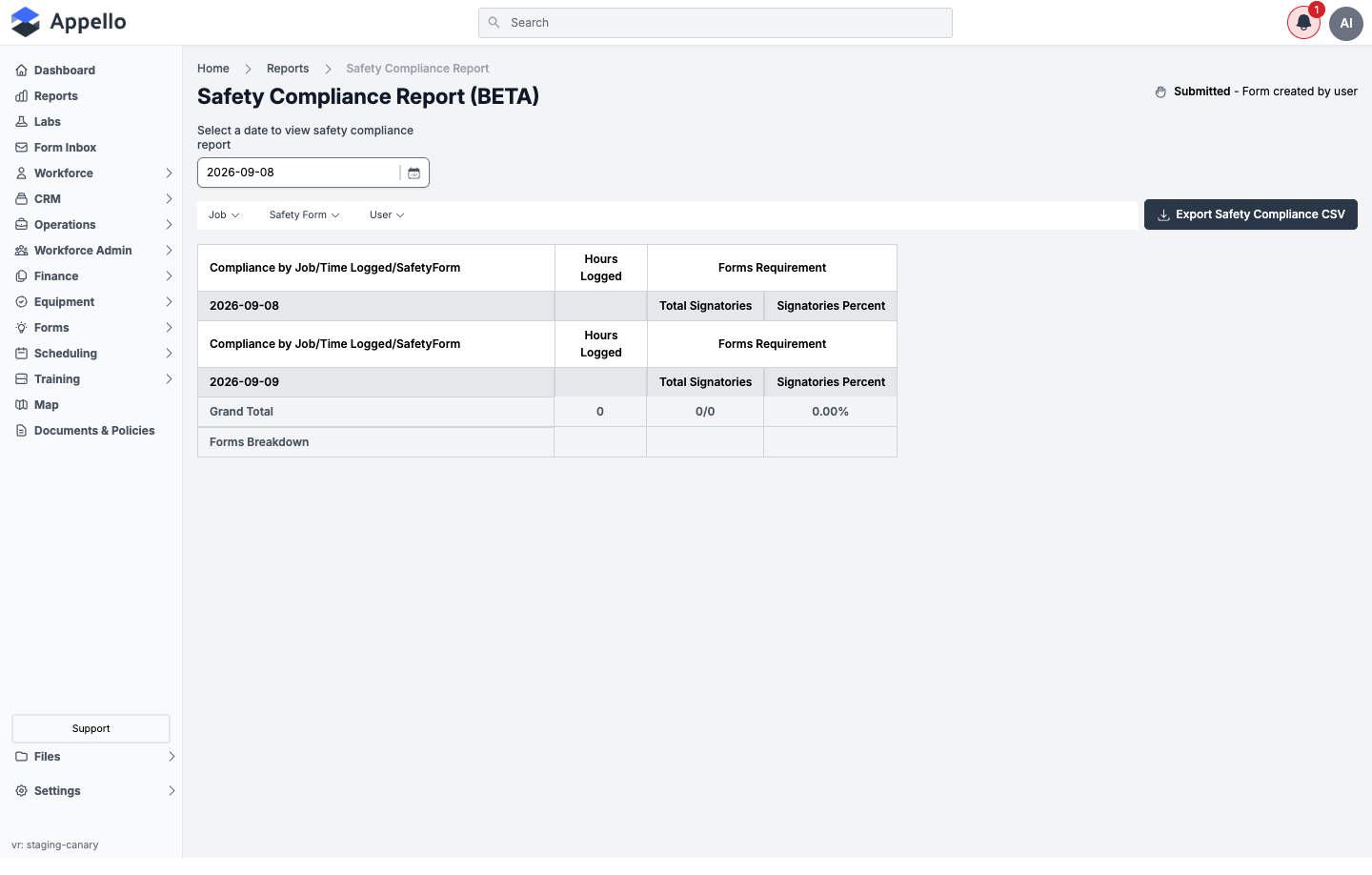
Shown empty on the demo instance -- no timesheet hours or safety-form submissions were recorded against a job on the selected date, so Hours Logged, Total Signatories, and every form column read 0. The report also rendered a second, adjacent date group with the same zero values; this looks like a timezone artifact of the day's start/end boundary rather than a second day of real data, and is unconfirmed.
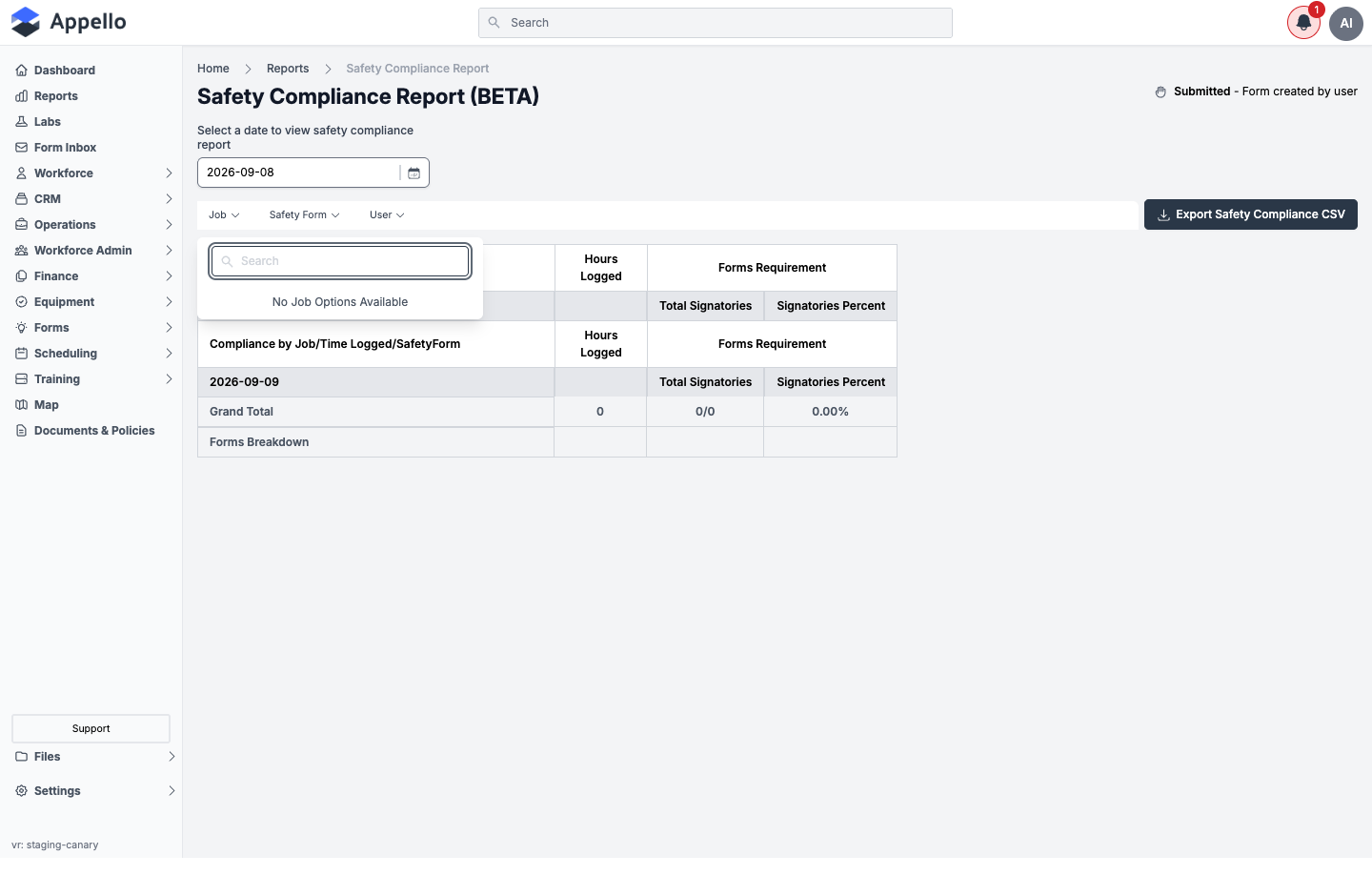
Screenshot -- filter open
Controls
| Control | Description |
|---|---|
| Select a date to view safety compliance report | Required date picker. The report only loads after a date is chosen. |
| Job | Multi-select filter, populated from jobs with activity on the selected date. |
| Safety Form | Multi-select filter, populated from the safety forms required on the selected date's jobs. |
| User | Multi-select filter, populated from workers with activity on the selected date. |
| Export Safety Compliance CSV | Downloads the current day's data as CSV. Only appears once a date is selected. |
A legend in the top-right of the page (a hand icon labeled Submitted - Form created by user) explains the hand icon that appears on form-signature cells further down the table.
Structure and columns
Results are grouped by date, then by project (or "Standalone Jobs" for jobs with no project), then one row per worker who logged time or is tagged on a required form for that job.
| Column / group | Definition |
|---|---|
| Compliance by Job/Time Logged/SafetyForm | The project or standalone job name, linking to its Overview tab; underneath, each worker's name and position, linking to their user record. |
| Hours Logged | The worker's approved timesheet hours on that job for the selected date. |
| Total Signatories | Signed-or-acknowledged count over total-required count for that worker, across all required safety forms for that job. |
| Signatories Percent | Total Signatories expressed as a percentage. |
| (one pair of columns per required safety form) | Signed -- a hand icon (if the form is of the "submitted" type) plus Signed (a link to the submission) or Not Signed, colored green or red; Required -- whether that form is Required or Not Required for this worker (see below). |
What "Required" means for a given worker and form
A safety form's signature requirement is worked out per worker, per job, per form:
- A submitted-type form is Required if the worker logged approved time on the job, and Not Required if they didn't.
- An acknowledged-type form is always Required for anyone tagged on it.
- Otherwise (no direct requirement, but someone submitted the form on that job), it's Required for a worker who logged time, unless that worker is explicitly excluded from every submission's feedback -- in which case it's Not Required.
Grand Total and Forms Breakdown
| Row | Definition |
|---|---|
| Grand Total | Total hours logged across all jobs for the date; total signed/required count and percentage; per-form signed/required counts. |
| Forms Breakdown | Per required form, the count of forms created (submitted) that day, shown with a hand icon. |
How to run it
- Sidebar → Reports, then click Safety Compliance Report (BETA) under Health and Safety.
- Pick a date in Select a date to view safety compliance report.
- Optionally filter by Job, Safety Form, or User.
- Review Hours Logged, Total Signatories, and the per-form Signed/Required columns for each worker.
- Click Export Safety Compliance CSV to download the day's data.
Permissions
All of the following are required to view this report:
- Permission to view safety forms
- Finance & Admin → Timesheet Matrix & Timesheet Log → View
- The Reports → Health and Safety permission for Safety Compliance Report
Related pages
- Reports hub
- Form Report -- company-wide list of individual form submissions
- Certifications