Project Detail Page
The Project Detail page is the working record for a single project: its overview, jobs, estimates, change orders, financials, forms, schedule, settings, and files. Which tabs you see depends on your permissions and on whether the project is marked Internal.
Where it is
Click path: Operations → Projects, then click a project row. URL: /projects/[id] (tab
selection is a query param, e.g. /projects/[id]?tab=overview).
See Projects list for the table this page is opened from -- search, filters, and bulk actions live there and are not repeated here.
Who can see it, and what they see
- Projects → View gates the page itself. When this permission is scoped to Project Based, a user can only open projects where they are the project lead -- every other project is not visible to them.
- Internal projects collapse to two tabs only: Overview and Form Submissions. Every other tab -- Jobs, Estimates, Change Orders, Financials, Schedule, Settings, Files -- does not exist for an internal project. That list is fixed, not a permission you can change.
- A guest user sees only Form Submissions and Jobs (a read-only job list scoped to their contact), each gated by its own permission. On an internal project, a guest sees only Form Submissions.
The guest behavior above was not confirmed with a screenshot -- the account used for this page is a full internal user, not a guest.
Tab map
| Tab | Permission | Internal project | Guest |
|---|---|---|---|
| Overview | Projects → View (edit needs Projects → Edit) | Yes | No |
| Jobs | Jobs → View | No | Yes (read-only) |
| Estimates | Estimates → View | No | No |
| Change Orders | Change Orders → View | No | No |
| Financials | Financial Summary → View | No | No |
| Form Submissions | Safety Forms → View | Yes | Yes |
| Schedule | Job Schedule → View | No | No |
| Settings | Projects → Edit | No | No |
| Files | Projects → View + Files → View | No | No |
Overview
Where it is: default tab when a project is opened. URL: /projects/[id]?tab=overview.
What it's for: the project's core record -- number, name, description, lead, status, type, customer, contact, and location -- plus a Notes panel for internal project notes.
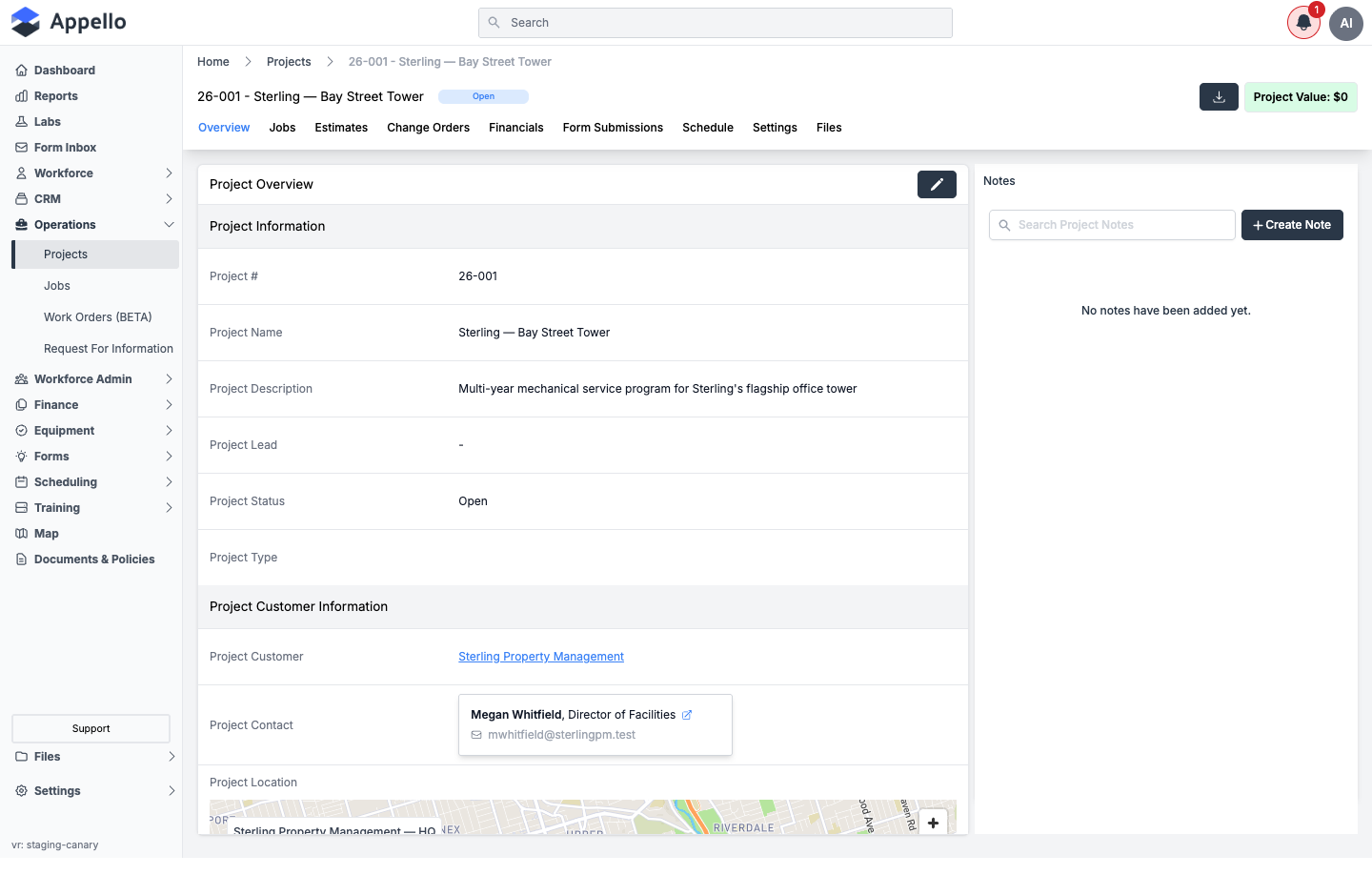
| Control | Effect |
|---|---|
Project status pill (e.g. Open) | Read-only. Derived from the statuses of the jobs under the project -- see Create a Project for how this derivation works. Not editable from this page. |
| Project Value | Read-only rollup of the project's value. |
| Download icon (down-arrow, right of the header) | Opens the Select Template For Export picker and downloads a PDF of this project built from a Download Template -- see Download a PDF of the project below. |
| Pencil (Edit) icon, top-right of the Project Overview card | Visible only with Projects → Edit. Opens the Edit Project flyout. |
| Create Note | Opens the note composer in the Notes panel. |
Download a PDF of the project
Where it is: the down-arrow Download icon button in the header, left of the Project Value badge. It is shown on every tab of the project page.

What it's for: a one-record PDF of this project -- not the CSV Export on the Projects list. Which fields the PDF contains is decided by a Download Template for Projects, set up under Settings → Download Templates (see Templates → Download Templates).
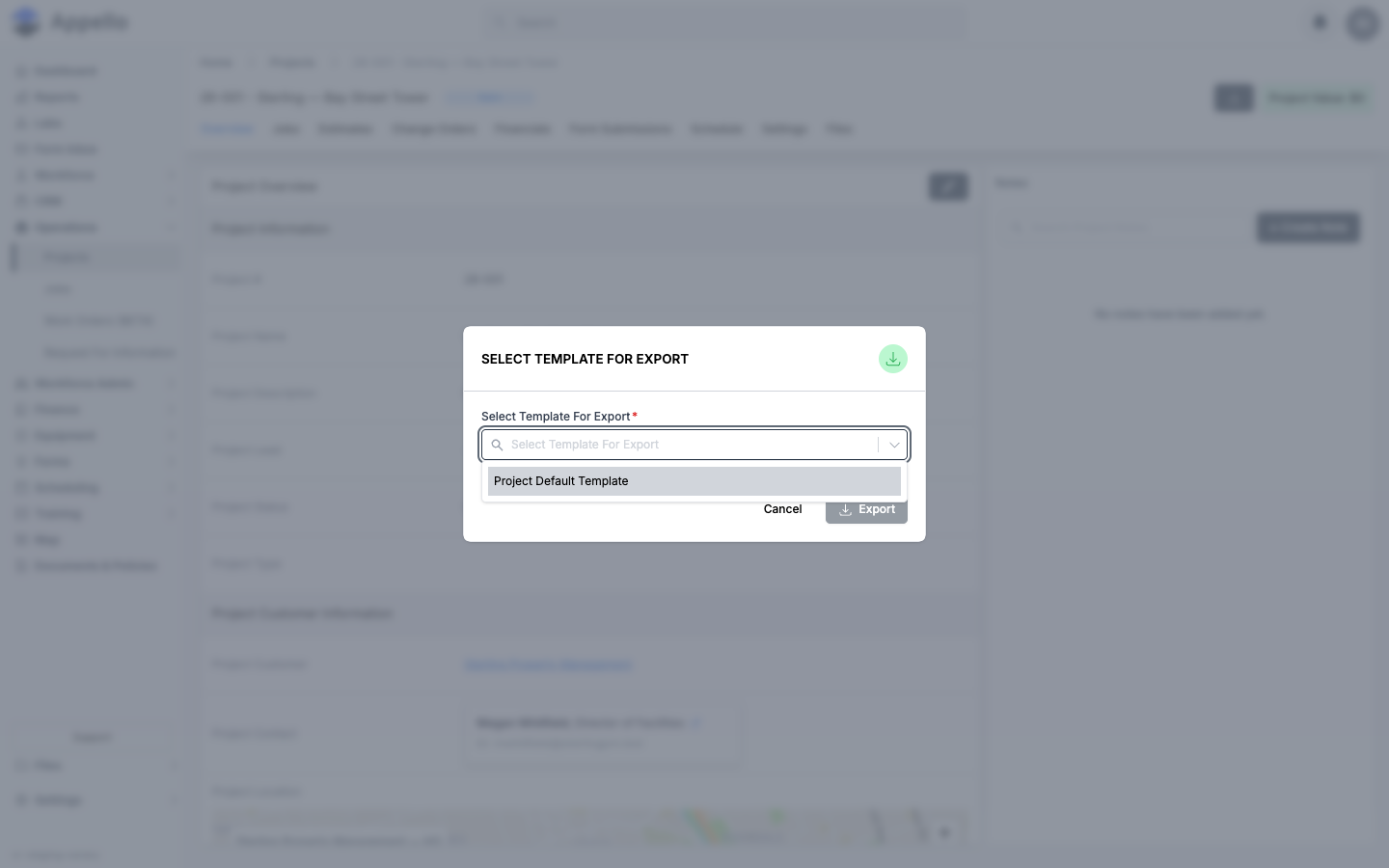
- Click the Download icon in the header.
- In the Select Template For Export picker, choose a template. Only templates created on the Projects sub-tab of Download Templates are listed. The picker is required -- Export stays disabled until a template is chosen.
- Click Export. The PDF is generated on the server from the fields that template has toggled
on and downloads as
<Company Name>_Project Details_<date>_<time>.pdf. Cancel closes the picker without generating anything.
If the dropdown is empty, no Projects template exists yet -- create one first. There is no separate permission for this button; anyone who can open the project page can use it.
Confirmed from source (pages/projects/[id]/index.tsx, components/ConfirmTemplate/TemplateSelectionModal.tsx,
and the projectDetail case in pages/api/pdf-export.ts) and on the canary demo instance on
2026-09-08. The picker was opened and dismissed without clicking Export. The shared behavior
of this picker across Projects, Jobs, Companies, Contacts, and Equipment is documented in
Exports, Imports and Bulk Actions → Downloading a record with a download template.
Edit Project
The pencil icon opens the same form used to create a project, pre-filled with the project's current values. Read-only for this guide -- the form was opened and then canceled without saving.
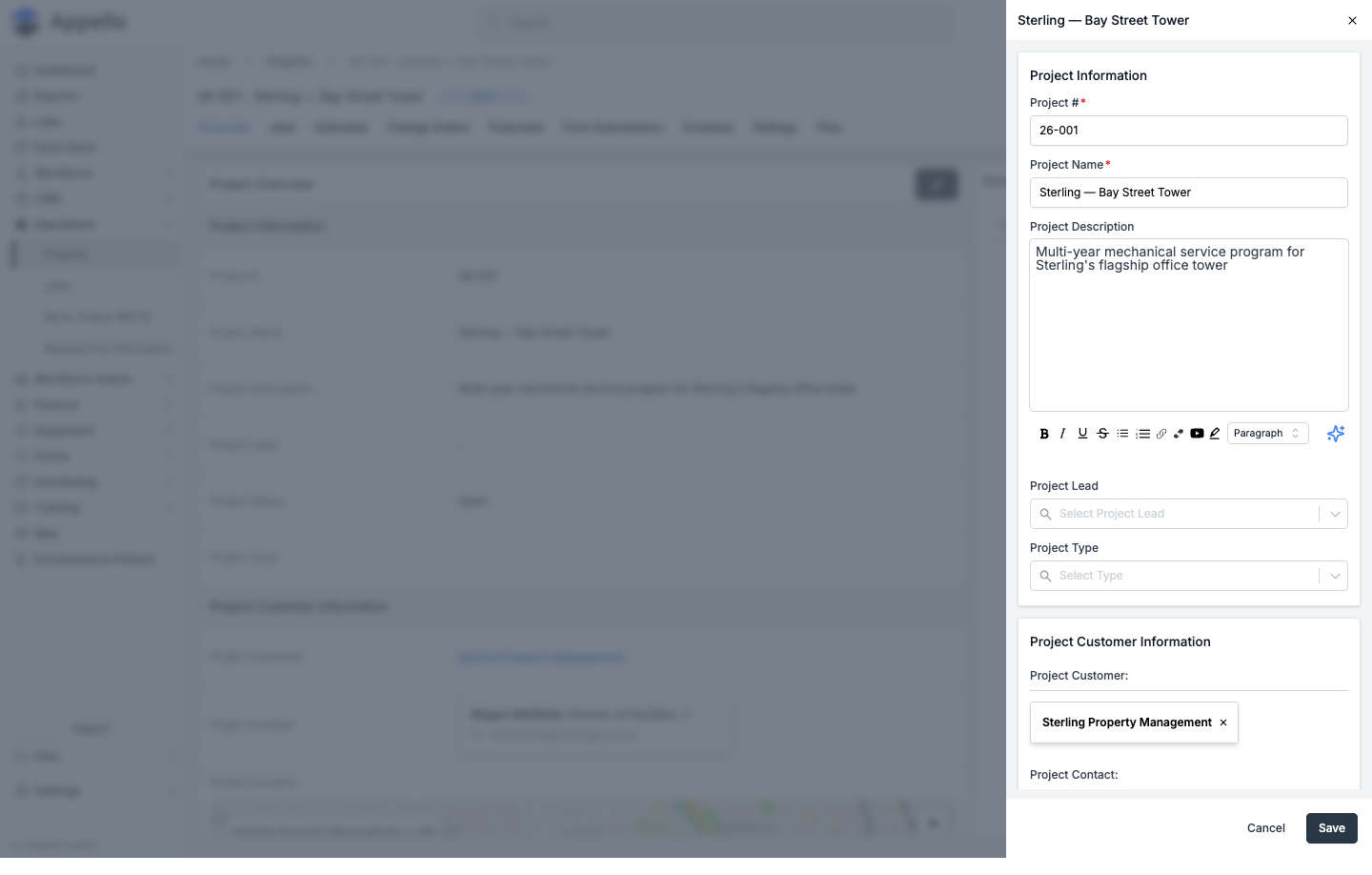
Field-by-field detail for this form -- Project #, Project Name, Project Description, Project Lead, Project Type, Project Customer, Project Contact, Project Location, and Files -- is documented in Create a Project and is not repeated here.
Permissions
- Projects → View (and its Project Based scope) -- gates whether the project is visible at all; see Who can see it.
- Projects → Edit -- required to see the pencil icon and open the Edit Project flyout.
Related pages
Jobs
Where it is: project page → Jobs tab. URL: /projects/[id]?tab=jobs.
What it's for: every job created under this project, in the same list/kanban table used elsewhere in Appello, scoped to this project.
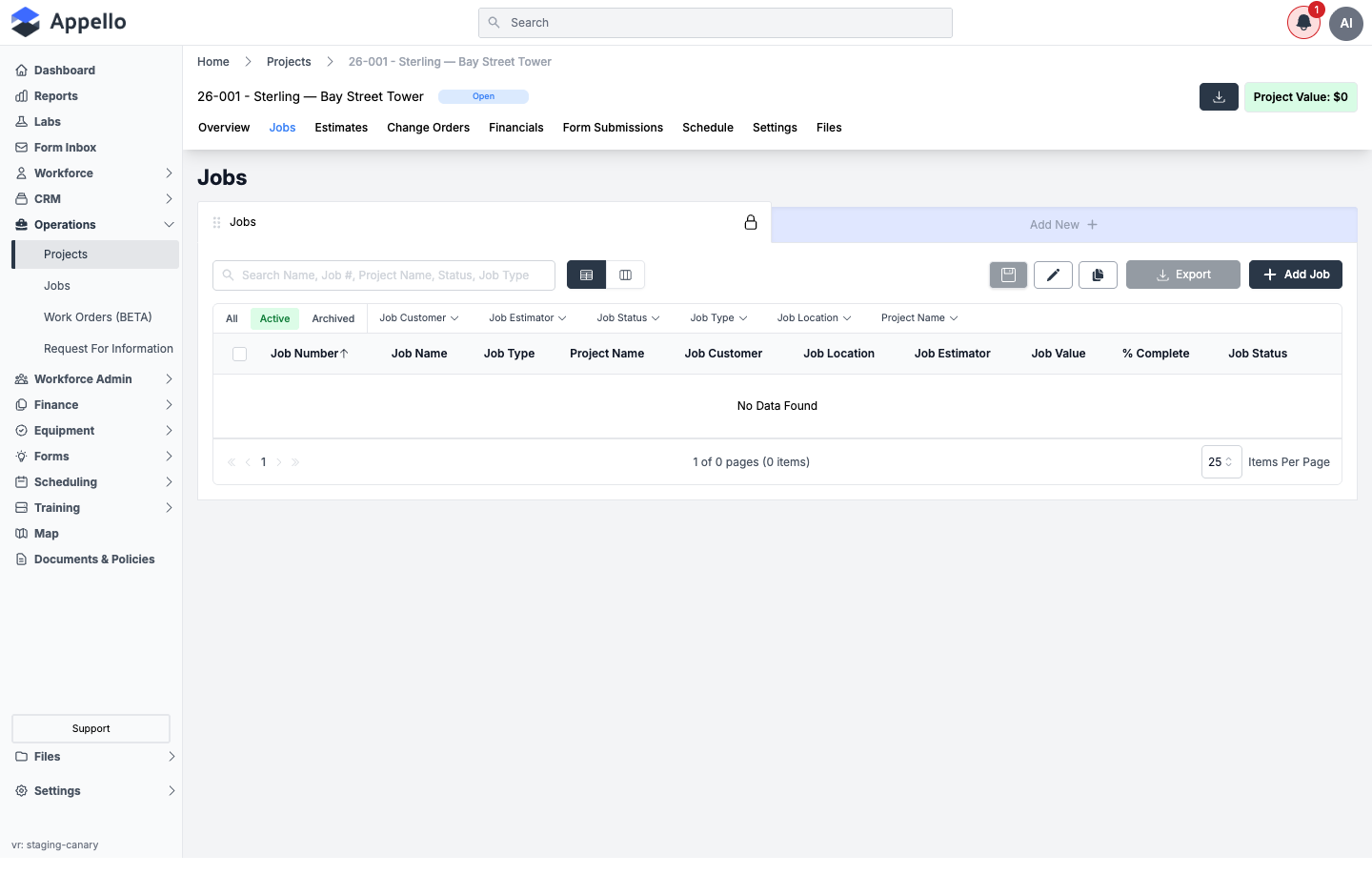
| Control | Effect |
|---|---|
| Add Job | Opens the Associate Job panel (Associate Existing / Associate New) with the project pre-filled and locked -- see Create a Job for the full form. |
| Search | Free-text search across job name, job #, project name, status, and job type. |
| All / Active / Archived | Quick-filter tabs above the table. |
| Job Customer / Job Estimator / Job Status / Job Type / Job Location / Project Name | Column filters. |
| List / Kanban view toggle | Switches the table between a row list and a status-column kanban board. |
| Export | Downloads the current filtered view as CSV. |
| Row checkboxes | Select rows to reveal Archive, Delete, and Restore (Restore appears on the Archived tab). |
If your Jobs → View permission is scoped to Project Based, this list is further limited to jobs where you are the project lead.
Permissions
Jobs → View gates this tab. See Who can see it.
Related pages
Estimates
Where it is: project page → Estimates tab. URL: /projects/[id]?tab=estimates.
What it's for: every estimate linked to this project, using the same table as the company-wide estimate report, scoped to this project.
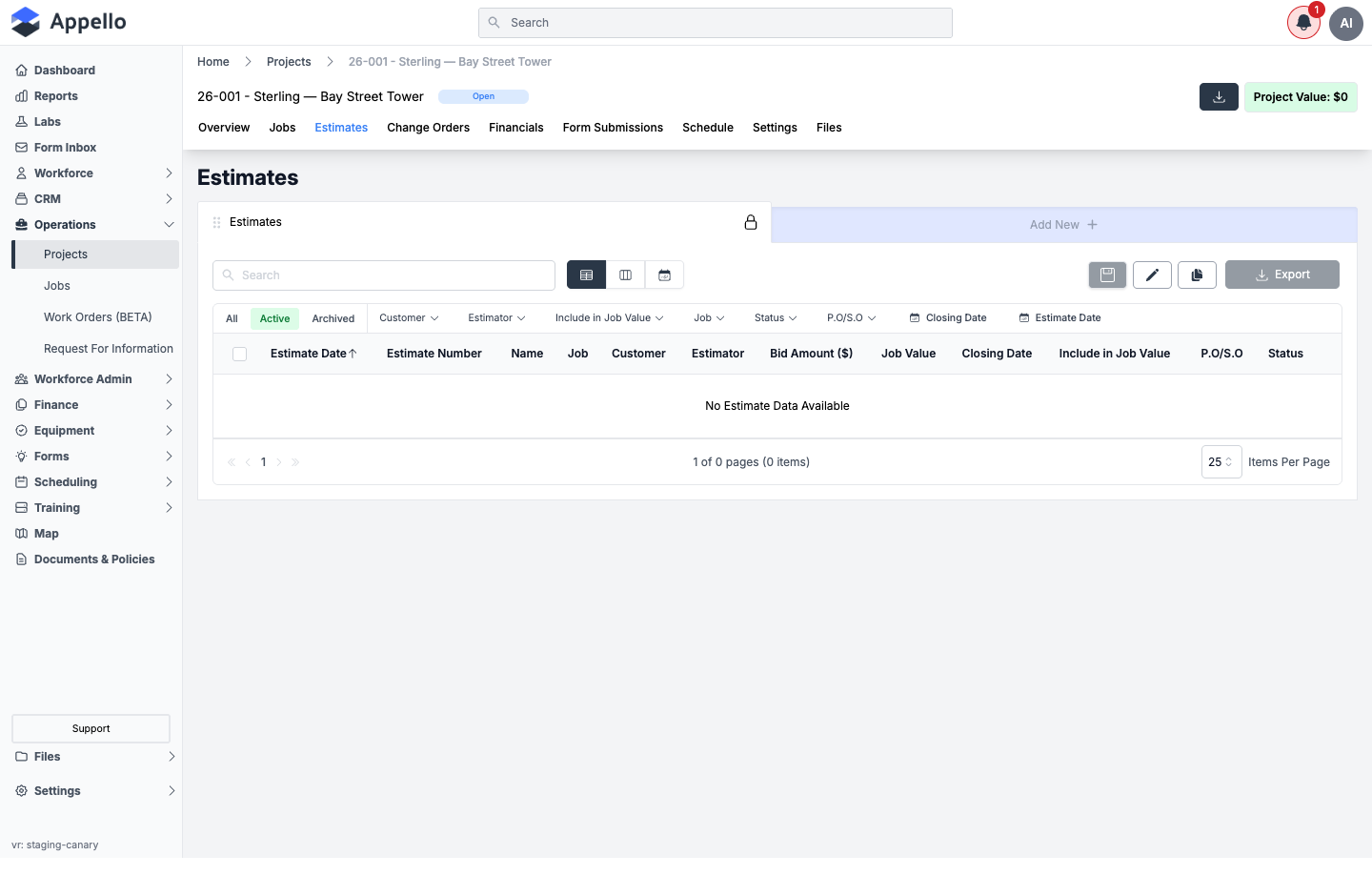
| Control | Effect |
|---|---|
| Add New | Creates a new estimate for this project. |
| Search | Free-text search. |
| All / Active / Archived | Quick-filter tabs. |
| Customer / Estimator / Include in Job Value / Job / Status / P.O/S.O / Closing Date / Estimate Date | Column filters. |
| List / Kanban / Calendar view toggle | Switches how estimates are displayed. |
| Export | Downloads the current filtered view. |
Field-by-field detail for creating and managing an estimate is documented in Estimate report and is not repeated here.
Permissions
Estimates → View gates this tab. See Who can see it.
Related pages
Change Orders
Where it is: project page → Change Orders tab. URL: /projects/[id]?tab=change-orders.
What it's for: every change order recorded against this project -- scope and contract-value changes -- using the same table as Estimates, scoped to this project.
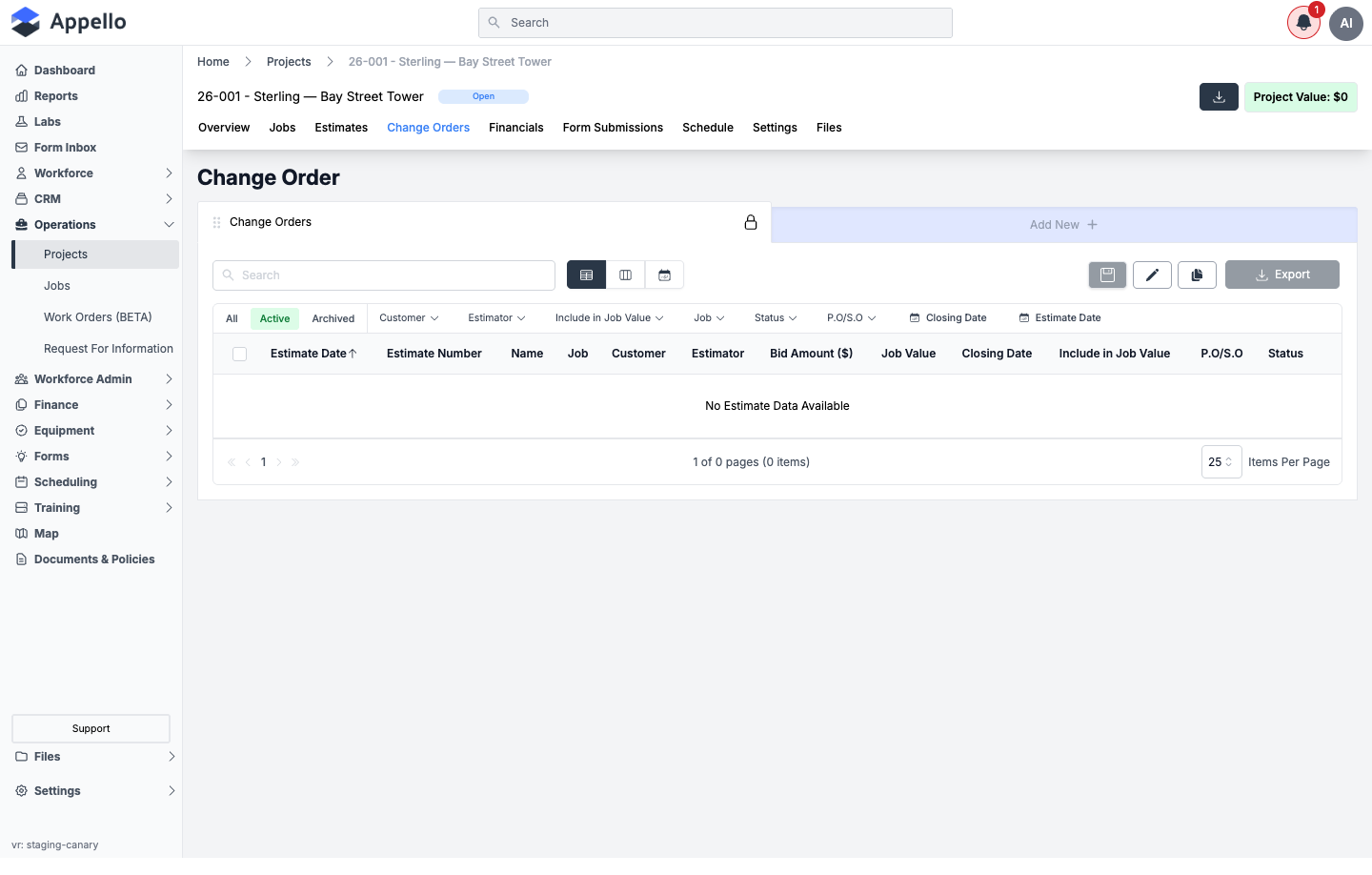
The controls are identical to the Estimates tab above (Add New, search, quick filters, column filters, view toggle, and Export) -- only the record type differs.
Field-by-field detail for creating and managing a change order is documented in Change Orders and is not repeated here.
Permissions
Change Orders → View gates this tab. See Who can see it.
Related pages
Financials
Where it is: project page → Financials tab. URL: /projects/[id]?tab=financial-summary.
What it's for: budget vs. actual for the whole project -- the same rollup used on a job's Financials tab, scoped to every job under this project instead of one job.
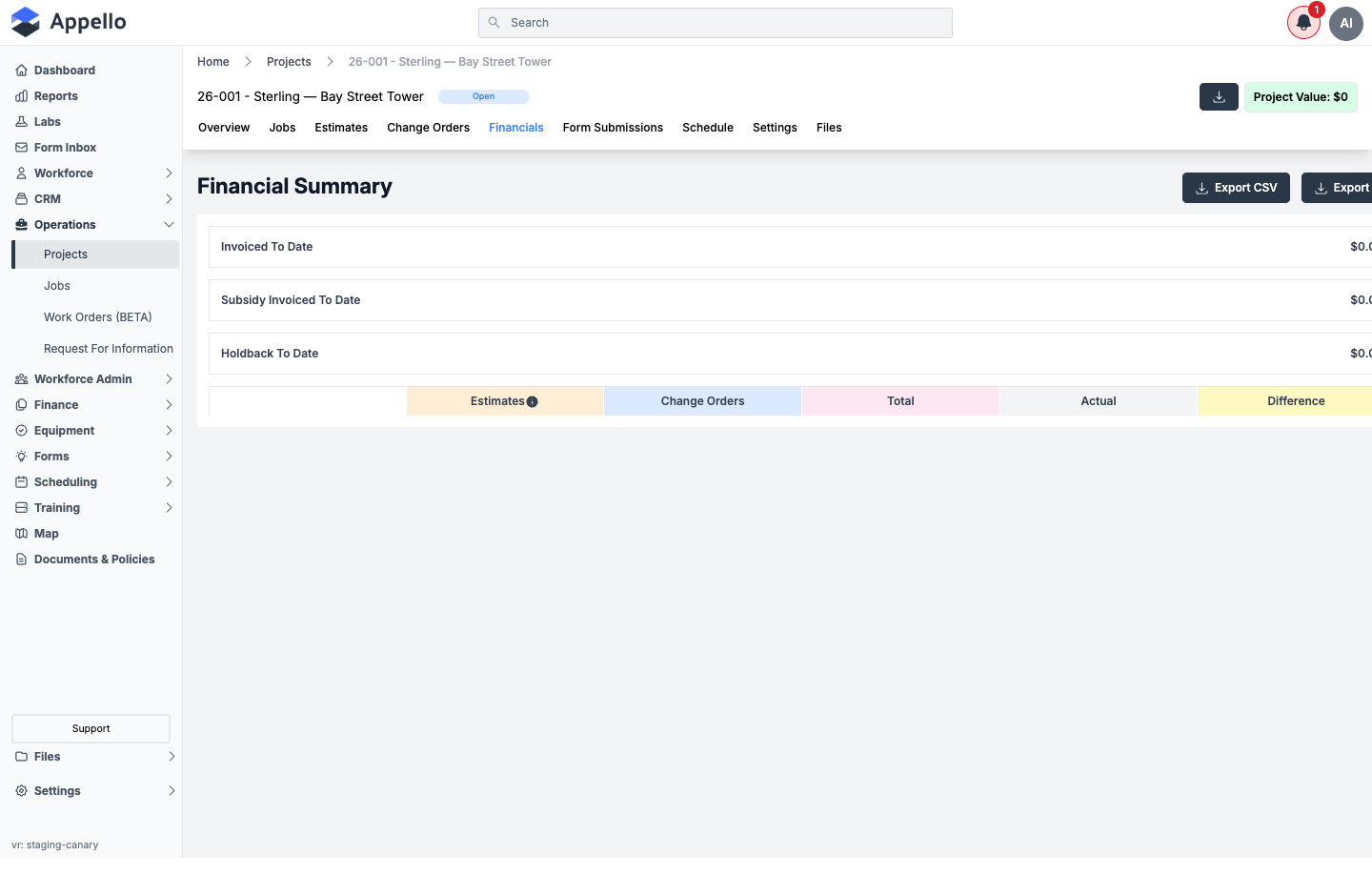
| Control | Effect |
|---|---|
| Export CSV | Downloads the financial summary rows as CSV. |
| Export (second button, partially hidden in the screenshot above) | Exports the summary in a second format. |
| Estimates / Change Orders / Total / Actual / Difference columns | Budget-vs-actual breakdown, rolled up across the project's jobs. |
How to read this breakdown -- what each column means and how the numbers are derived -- is documented in Job Cost Report and is not repeated here.
Permissions
Financial Summary → View gates this tab. When scoped to Project Based, only the project lead can see it -- see Who can see it.
Related pages
Form Submissions
Where it is: project page → Form Submissions tab. URL: /projects/[id]?tab=forms.
What it's for: safety and inspection forms submitted for jobs under this project. This is the one tab (along with Overview) that still shows on an internal project, and the one tab a guest can always see.
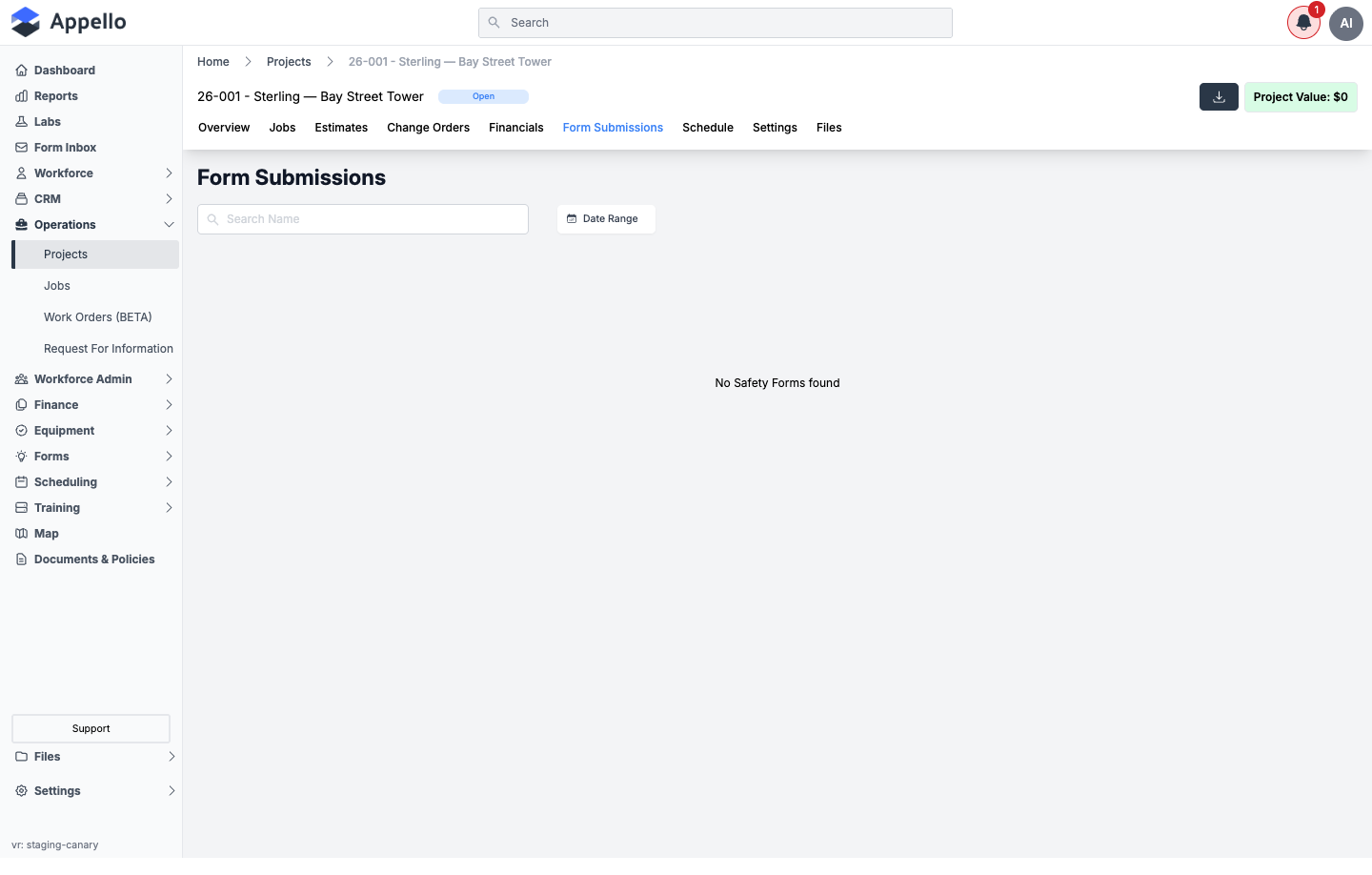
| Control | Effect |
|---|---|
| Search Name | Free-text search across submitted forms. |
| Date Range | Filters submissions to a date range. |
Field-by-field detail for filled forms and how to read a submission is documented in Form report and is not repeated here.
Permissions
Safety Forms → View gates this tab. See Who can see it.
Related pages
Schedule
Where it is: project page → Schedule tab. URL: /projects/[id]?tab=schedule (the current
week is appended to the URL as a date).
What it's for: the same calendar used at Scheduling → Calendar Schedule, embedded here and filtered to this project's jobs and workers (the project filter itself is hidden, since the project is already fixed by the page you're on).
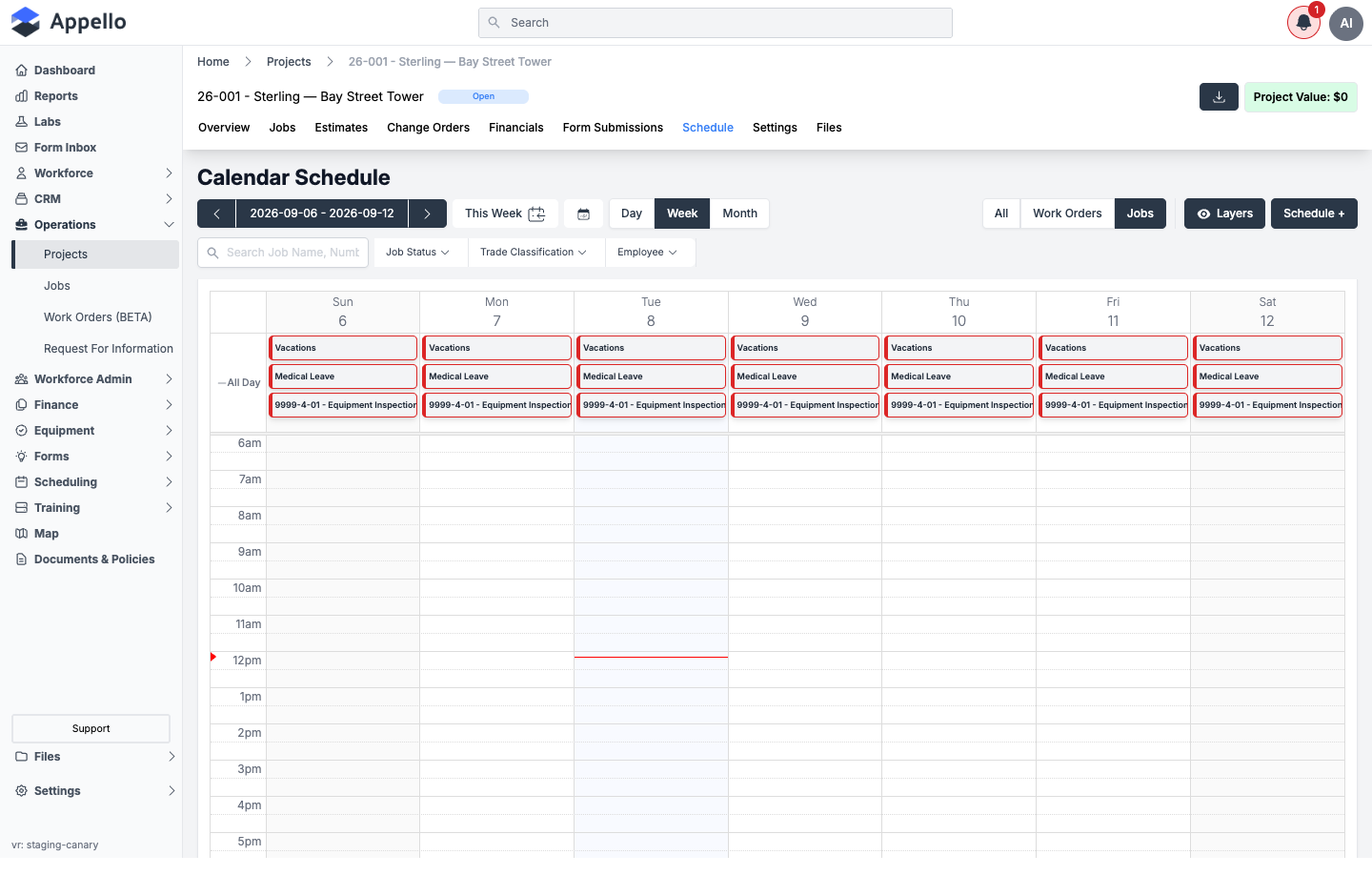
This project has no jobs on the demo instance, so no job-specific schedule bars appear here. The all-day rows shown (Vacations, Medical Leave, Equipment Inspection) are company-wide events that are not tied to a project, so they still render.
Controls (Day/Week/Month, date navigation, search, Job Status / Trade Classification / Employee filters, the All / Work Orders / Jobs toggle, Layers, and Schedule +) are the same as the standalone calendar and are documented in Calendar Schedule -- not repeated here.
Permissions
Job Schedule → View gates this tab. See Who can see it.
Related pages
Settings
Where it is: project page → Settings tab. URL: /projects/[id]?tab=settings.
What it's for: project-level configuration that applies to every job under the project -- required forms, required certifications, standard work days/shifts, external file links, notification recipients, and mobile job visibility.
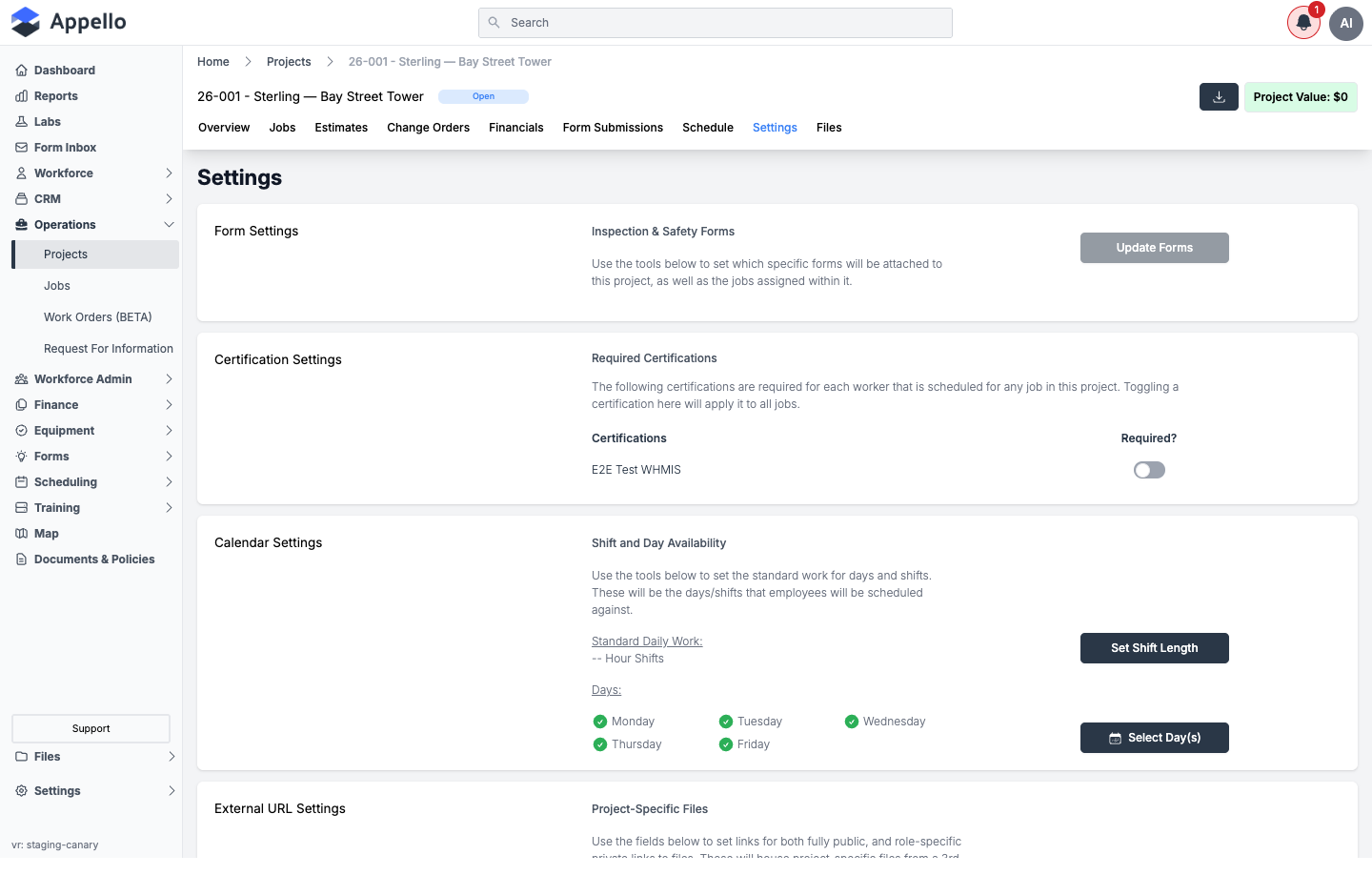
| Card | What it controls |
|---|---|
| Form Settings | Update Forms opens a picker to attach specific inspection/safety forms to this project and its jobs. |
| Certification Settings | Lists certifications required for any worker scheduled to a job in this project. Toggling a certification here (Required?) applies it to every job in the project. |
| Calendar Settings | Set Shift Length sets the standard daily-work hours; Select Day(s) sets which days of the week are standard working days for scheduling. |
| External URL Settings | Set Links And Access stores a Public External URL and a Private Folder link (with a Required Access Role) to project-specific files hosted by a third-party service. Test Public URL / Test Private URL open the stored links. |
| Email Notifications | Add Recipients picks contacts, workforce users, or groups who get an email notification whenever any form is submitted against any job in this project. |
| Mobile Job Visibility | Assign Users / User Groups and Exclude Users / User Groups control which users can see this project's jobs on the mobile app -- see the visibility rules quoted below. |
Mobile Job Visibility rules, quoted from the product's own copy on this card: users with "All Jobs" access follow assigned/excluded lists (assigned-only, excluded-only, or mixed), a user scheduled to a specific job can always see that job regardless of these settings, and a job with no visibility rules set is visible to anyone with "All Jobs" permission.
Permissions
Projects → Edit gates this entire tab. See Who can see it.
Related pages
Files
Where it is: project page → Files tab. URL: /projects/[id]?tab=files.
What it's for: upload and manage project-level documents, drawings, and photos, in the same shared file manager used company-wide and at the job level.
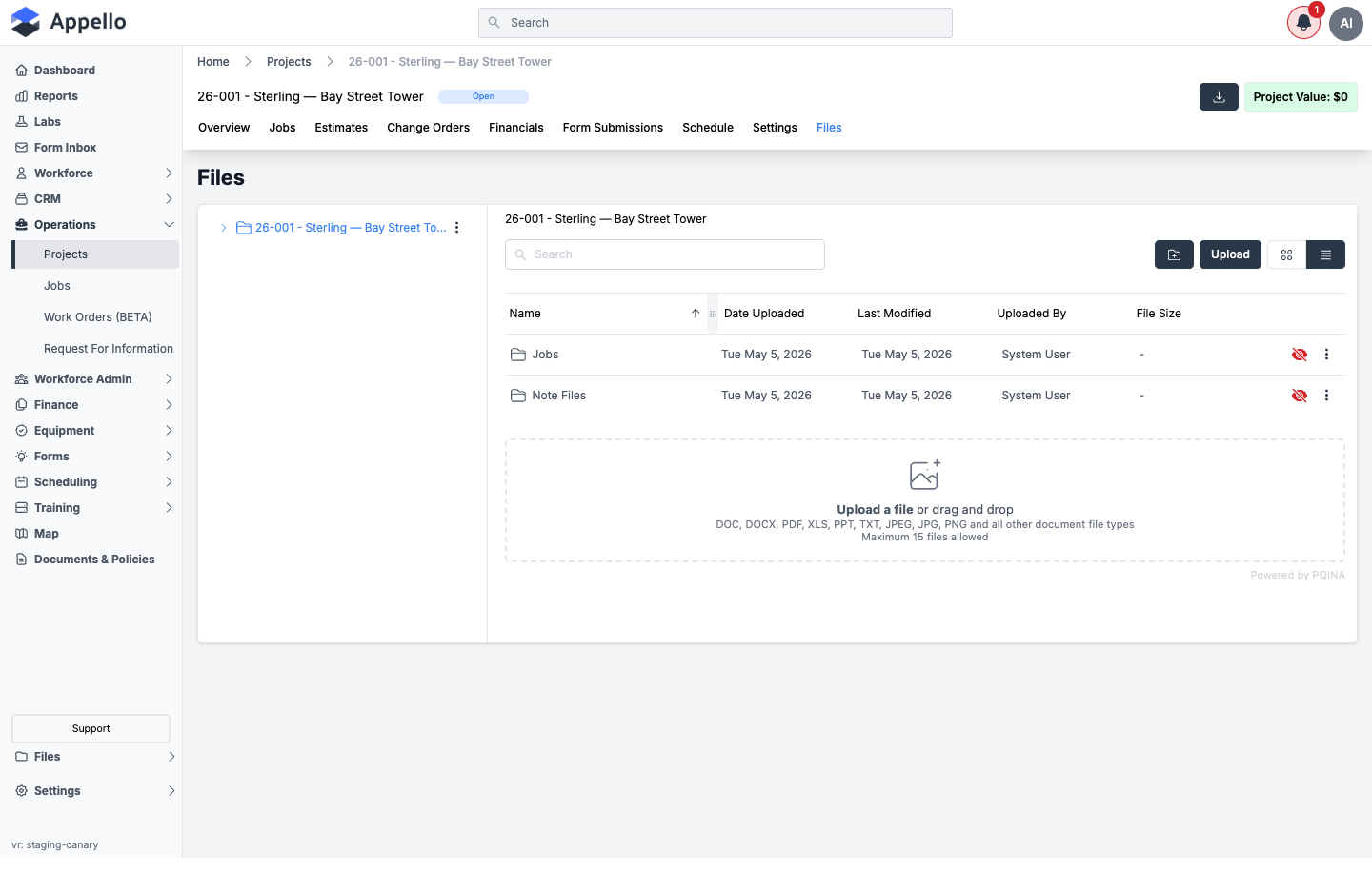
Navigation, folder structure, upload, and mobile-visibility controls for this tab are documented in full in Project Files tab (verified this week) and are not repeated here.
Permissions
Projects → View and Files → View both gate this tab. See Who can see it.