Expense Report
Module: Core | Platform: Web
The All Expense Report is listed under Workforce Administration on the Reports hub. It is a read-only, cross-employee list of every approved expense — both submitted Employee Expenses and the board/travel/parking amounts baked into approved timesheets. There is nothing to edit here; use Employee Expenses or Accounts Payable to submit, review, or approve expenses.
Where it is
Sidebar → Reports, then click All Expense Report under the Workforce Administration category.
URL: /reports/all-expense-report
On screen the page is titled All Expenses; the breadcrumb and the Reports hub both call it All Expense Report.
What it's for
A flat, one-row-per-line-item view of every expense that has already been approved, across all employees, jobs, and account items — useful for checking what has hit approved expense totals without opening each employee's or job's own expense records. It pulls together two different underlying record types (standalone Employee Expenses and per diem-style timesheet expenses) into a single table so they can be filtered and exported together.
Screenshot
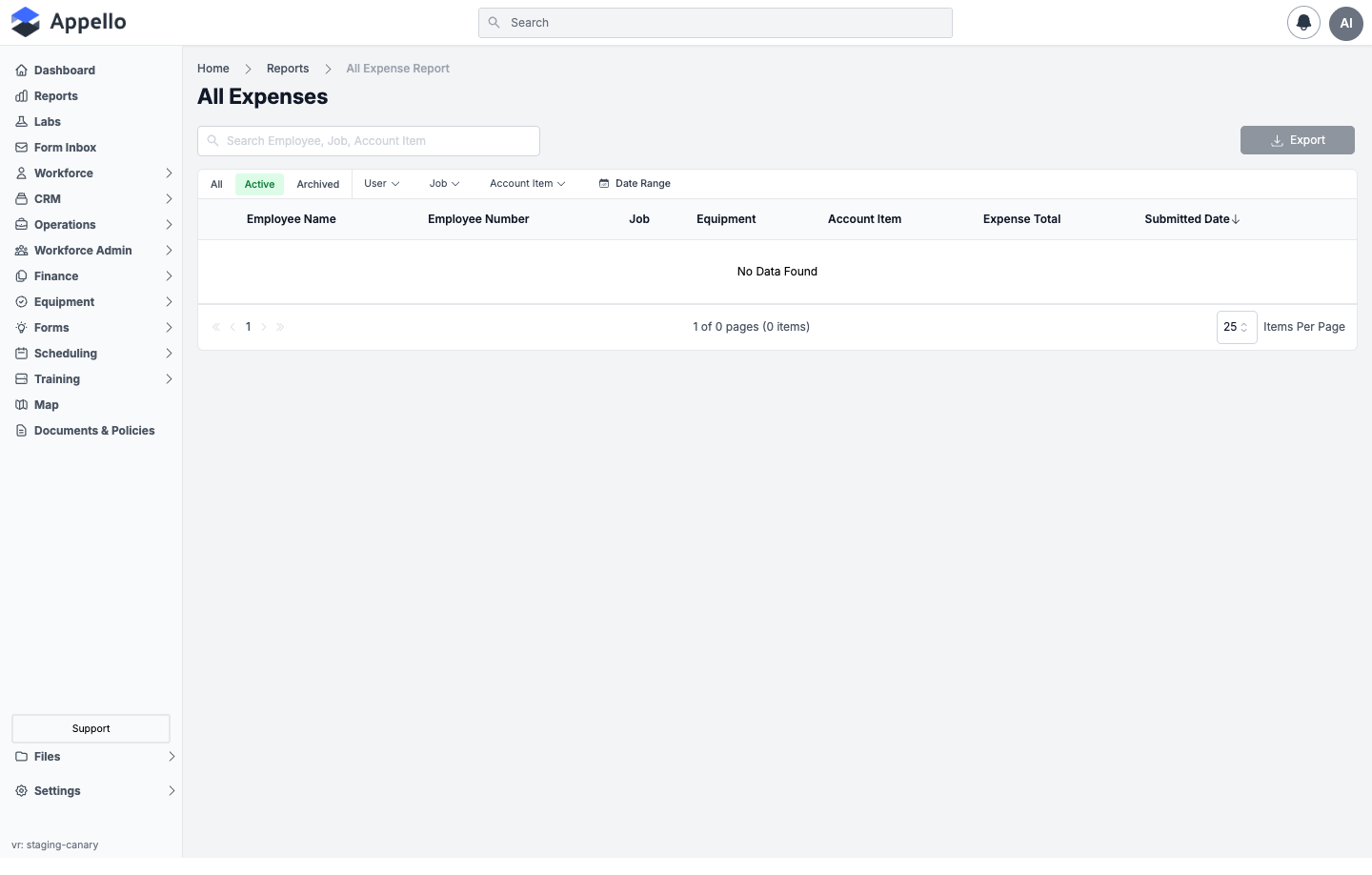
Shown empty on the demo instance — that instance has no expenses in Approved status, so the table reads "No Data Found" regardless of which filters are applied.
Screenshot — filter open
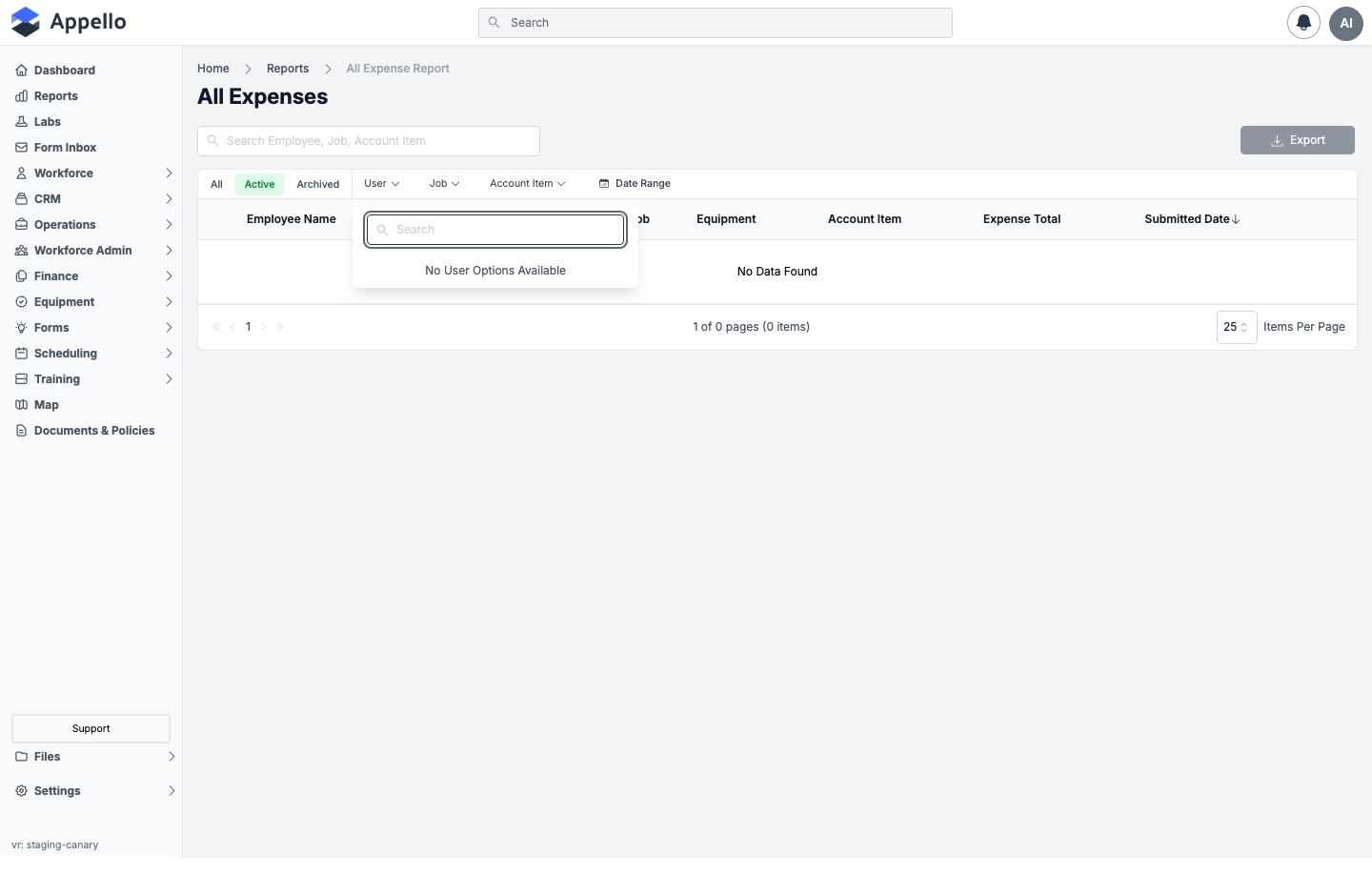
"No User Options Available" is shown empty on the demo instance — the User/Job/Account Item filter lists are built only from employees, jobs, and account items that actually appear in approved expense data, so with zero approved expenses all three lists are empty.
Which expenses are included
The report is a union of two sources, and both halves are hardcoded to Approved status — there is no status filter or toggle to widen this to Submitted, Rejected, or Draft:
- Employee Expenses — line items from Employee Expense records in Approved status, allocated to a Job (or to a piece of Equipment when that same line item isn't also split to a Job). Accounts Payable bills are a separate record type and never appear here.
- Timesheet expenses — the Board, Travel, and Parking values recorded against an Approved timesheet's furthest detail record, one row per expense type per timesheet record, only when that value is greater than $0. These aren't separate submitted expenses — they're computed from the timesheet's own report summary. Paid-leave time is excluded from this half using the same paid-leave exclusion rule as other timesheet-based reports.
The Expense Total column is whichever allocated amount the underlying record produced — for Employee Expenses this depends on that expense's own Calculation Method (Pre-Tax vs. Total set on the expense itself); for timesheet rows it's the raw board/travel/parking value. The report does not display a separate net, tax, or gross breakdown — it shows one already-allocated dollar amount per row.
Filters
| Control | Description |
|---|---|
| All / Active / Archived tabs | Standard archive-state toggle, defaults to Active. Switches whether archived expense records are included, excluded, or the only ones shown. |
| Search | Free-text box (placeholder "Search Employee, Job, Account Item"). Matches against employee full name, first name, last name, employee number, job number, job name, and account item name/number/override name. |
| User | Multi-select, searchable dropdown. Options are built only from employees who appear in the current approved-expense data (not every user in the instance). |
| Job | Multi-select, searchable dropdown of "job number - job name" values drawn from the approved-expense data. |
| Account Item | Multi-select, searchable dropdown of account item names drawn from the approved-expense data. |
| Date Range | Date range picker with no visible label besides the calendar icon. Filters on the Submitted Date column — the Employee Expense's submitted date, or the timesheet's work date for timesheet-based rows. Both a start and end date must be set for the filter to apply; the end date is inclusive. |
Columns
| Column | Definition |
|---|---|
| Employee Name | Links to the employee's profile (Overview tab). For Employee Expenses this is the expense's assigned user (falling back to whoever submitted it if no user is assigned); for timesheet rows it's the timesheet's user. |
| Employee Number | Same link target as Employee Name, showing the employee number instead. |
| Job | "Job number - job name" for the job the line item (or timesheet detail record) is allocated to. |
| Equipment | "Equipment code - equipment name" for Employee Expense line items allocated to equipment. Always blank for timesheet-based rows, since Board/Travel/Parking are always job-only. |
| Account Item | The account item's name, with its override name (if one is set) shown in parentheses. Timesheet rows use the fixed Board, Travel, or Parking account item configured for that expense type. |
| Expense Total | The dollar amount allocated to this row — see the note above on how it's calculated. |
| Submitted Date | The Employee Expense's submission date, or the timesheet's work date for timesheet rows. This is the default sort column, newest first. |
Grouping and totals
None. The table is a flat list with no group-by option and no totals or subtotal row in the footer — only standard pagination (page number and an adjustable Items Per Page count, 25 by default).
Export
An Export button sits above the table, offering:
- Export as CSV — always available, downloads the columns above for whatever rows match the current tab, search, and filters.
- Export to [connected accounting system] — appears only when the instance has an accounting integration connected that supports Employee Expense exports (e.g. QuickBooks Online).
This report is read-only end to end — Export is the only button on the page, and there is no way to add, edit, approve, or delete an expense from this screen.
The export options available on any given instance depend on which accounting integration is connected — see the export reference table on the Reports hub.
How to run it
- Sidebar → Reports, then click All Expense Report under Workforce Administration.
- Leave the Active tab selected for current expenses, or switch to Archived or All.
- Optionally filter by User, Job, Account Item, or a Date Range, or type into Search.
- Review the table — it reloads automatically as filters change and refreshes on its own every 10 seconds.
- Click Export to download the current rows as CSV, or to a connected accounting system if one is set up.
Permissions
All of the following are required to view this report:
- Workforce → User → View
- Finance & Admin → Expenses → View
- The Reports → Workforce Administration permission for All Expense Report
Related pages
- Reports hub
- Employee Expenses — where employees submit and managers approve the Employee Expense records this report reads from
- Accounts Payable Expenses — the separate vendor-bill/AP expense workflow, not included in this report