Daily Schedule
Module: Scheduling | Platform: Web
The Daily Schedule is the per-day workforce view: pick a single day and see exactly who is on which job, who is unassigned, and where the gaps are. It is the view most dispatchers and field supervisors use each morning to build or adjust the day's crew assignments.
Navigation
Sidebar → Scheduling → Daily Schedule
URL: /scheduling/daily-workforce
Loading this page requires all three of Job → View, User → View, and User Schedule → View. If your account is missing any one of the three, the page returns a 401 error instead of loading -- ask an administrator to grant the missing permission. This matches the note on the User Workforce Schedule page, which links here. See Permissions below for the full breakdown, including what's needed to edit rather than just view.
Overview
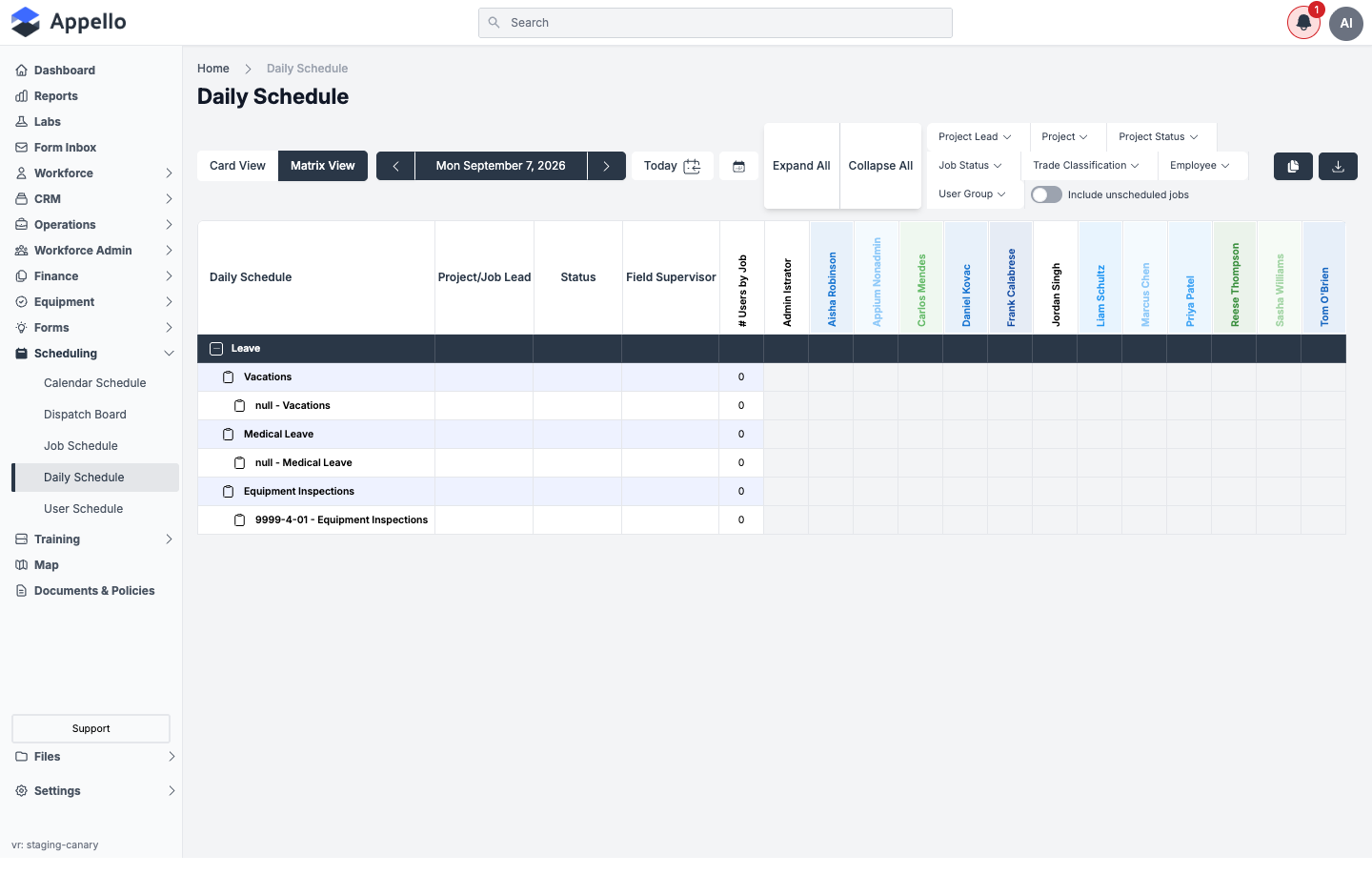
The page always shows a single day at a time (unlike the Job Schedule and Calendar Schedule, which show multi-week ranges). Two interchangeable layouts are available:
- Matrix View -- a spreadsheet-style grid: jobs down the rows, workers across the columns.
- Card View -- job cards with worker cards you drag and drop to schedule.
Switch between them with the Card View / Matrix View buttons at the top-left of the toolbar. Your choice is not saved between visits -- the page opens in Matrix View by default.
Picking the day
Use the date controls next to the view toggle:
- Click the left and right arrow to move one day backward or forward.
- Click Today to jump straight back to the current date.
- Click the calendar icon to open a date picker and jump to any specific day.
The selected date is shown between the arrows (e.g., Mon September 7, 2026).
Matrix View
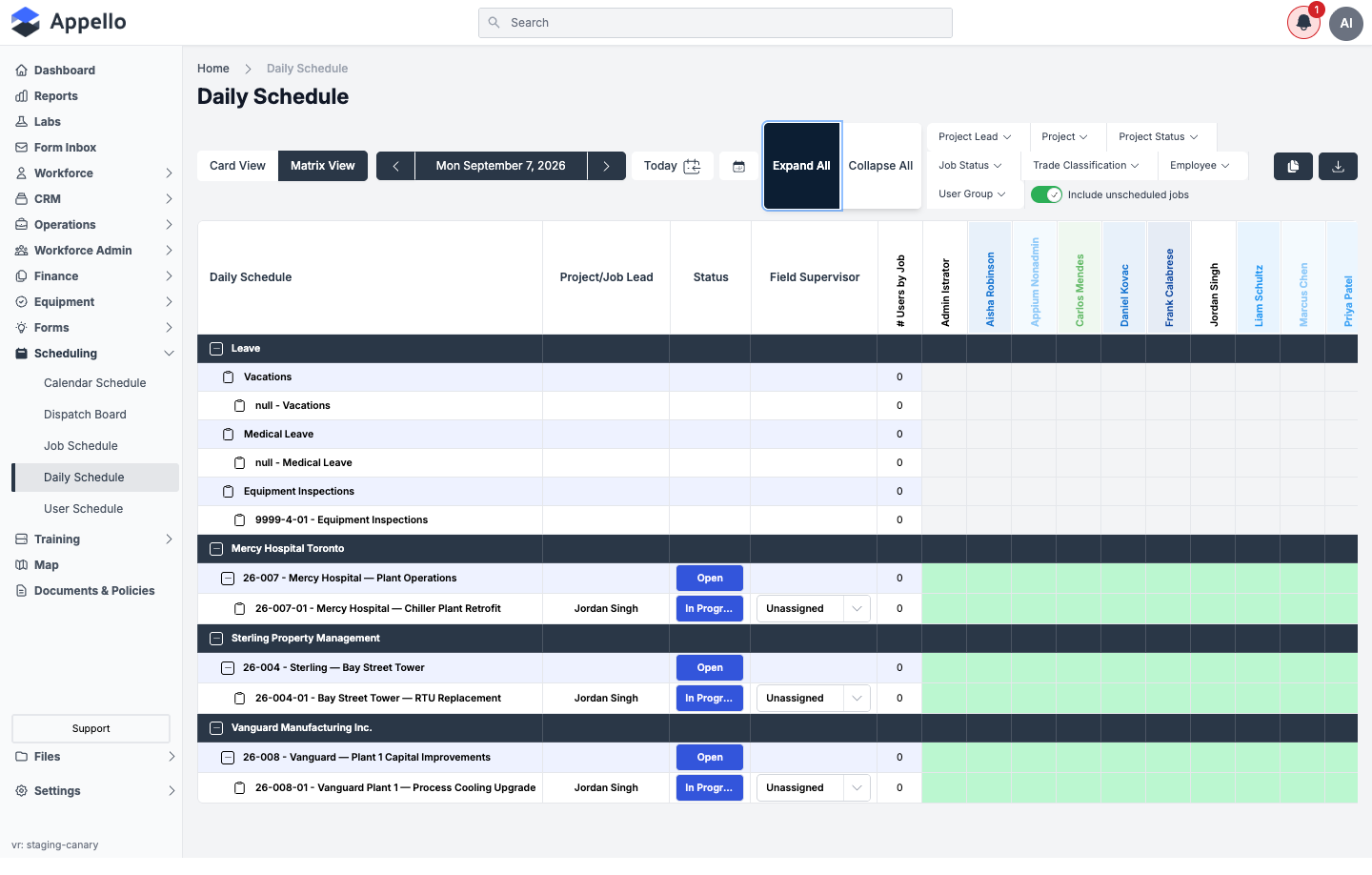
In Matrix View, rows represent work and columns represent people:
- Rows -- Leave/internal categories (Vacations, Medical Leave, Equipment Inspections) always appear at the top, followed by customers, their projects, and the jobs under each project.
- Columns -- One per worker who matches the current filters.
- # Users by Job column -- A running count of how many distinct workers are scheduled to that project or job for the selected day.
- Expand/collapse -- Click the + / - icon on a company or project row to reveal its projects or jobs. Expand All / Collapse All in the toolbar do this for every row at once, and the state is remembered the next time you open the page.
Whether rows are grouped by project or by company (customer) first depends on your instance's scheduling settings, not a control on this page. Both groupings show the same underlying jobs -- only the row hierarchy changes.
Reading a cell
Each cell where a job row meets a worker column shows whether that worker is scheduled to that job on the selected day:
| Cell appearance | Meaning |
|---|---|
| Empty, white | Job has no certification data to evaluate yet, or the row is a company header (not directly assignable). |
| Green, with icon | Worker is scheduled and holds all required certifications for the job. |
| Yellow, with icon | Worker is scheduled but a required certification is expiring soon. |
| Red, with icon | Worker is scheduled but is missing a required certification, or a certification has expired. |
| Gray | Row is an internal/leave category (Vacations, Medical Leave, Equipment Inspections) -- not assigned by clicking a cell here. |
The screenshots above were captured on a date with no jobs scheduled, so every worker cell shows the unassigned (green, empty) state rather than an active assignment. The green/yellow/red/gray color logic in the table above is what you see once workers are actually scheduled.
Assigning and moving workers
- Click an empty cell on a job row to schedule that worker to the job for the selected day.
- Click a filled cell to remove that worker from the job.
- Click a cell on a project row (rather than a specific job row) to schedule or unschedule the worker across every job under that project at once.
- If the worker has approved leave on the selected day, clicking their cell shows a confirmation dialog before the assignment is made, so you don't accidentally double-book someone who is on vacation or medical leave.
- Moving a worker between jobs: in Matrix View, moving a worker means unassigning them from the old job cell and assigning them to the new one (two clicks). To drag a worker directly from one job to another in a single action, use Card View (below).
- Each job row also has a Field Supervisor dropdown for assigning a supervisor to that job for the day, separate from the worker columns.
What an assignment click actually sends
Every click-to-assign in Matrix View, and every card drop in Card View, records the same three things: the worker, the date (always the day currently selected on this page), and the job -- one job for a job-row click, or every job under a project for a project-row click. The assignment is saved as that worker's record for the day.
Using the Field Supervisor dropdown instead of a worker column does the same thing and also marks that person as the job's supervisor for the day. If they were not already scheduled to the job, they are scheduled now; if they were, no duplicate assignment is created.
Unassigning -- clicking a filled cell, or dragging a card off a job -- removes that same worker/date/job combination. Dragging a card directly from one job to another in Card View is a single move rather than an unassign followed by an assign, so the worker is never left briefly unscheduled in between.
The leave-conflict confirmation dialog
Before anything is saved, the page checks whether the worker you clicked has an approved leave request covering the selected date. If they do, a dialog opens instead of scheduling immediately:
- Title: "This user has scheduled time off during this time period"
- Body: "This user has scheduled time off for [date]." (or a bulleted list of dates, if more than one leave request overlaps) followed by "Would you like to schedule them anyways?"
- Buttons: Cancel (closes the dialog, nothing is scheduled) and Confirm (saves the assignment described above).
This dialog only appears when the worker you clicked has approved leave overlapping the selected date, so you will not see it on a normal assignment. The title, body copy, and button labels above are the exact wording it uses.
Whether a cell can be clicked at all depends on your scheduling permissions and the selected date -- editing a past date requires one permission, editing today or a future date requires another. If cells appear unclickable, you likely lack the permission for that date range rather than encountering a bug.
Card View
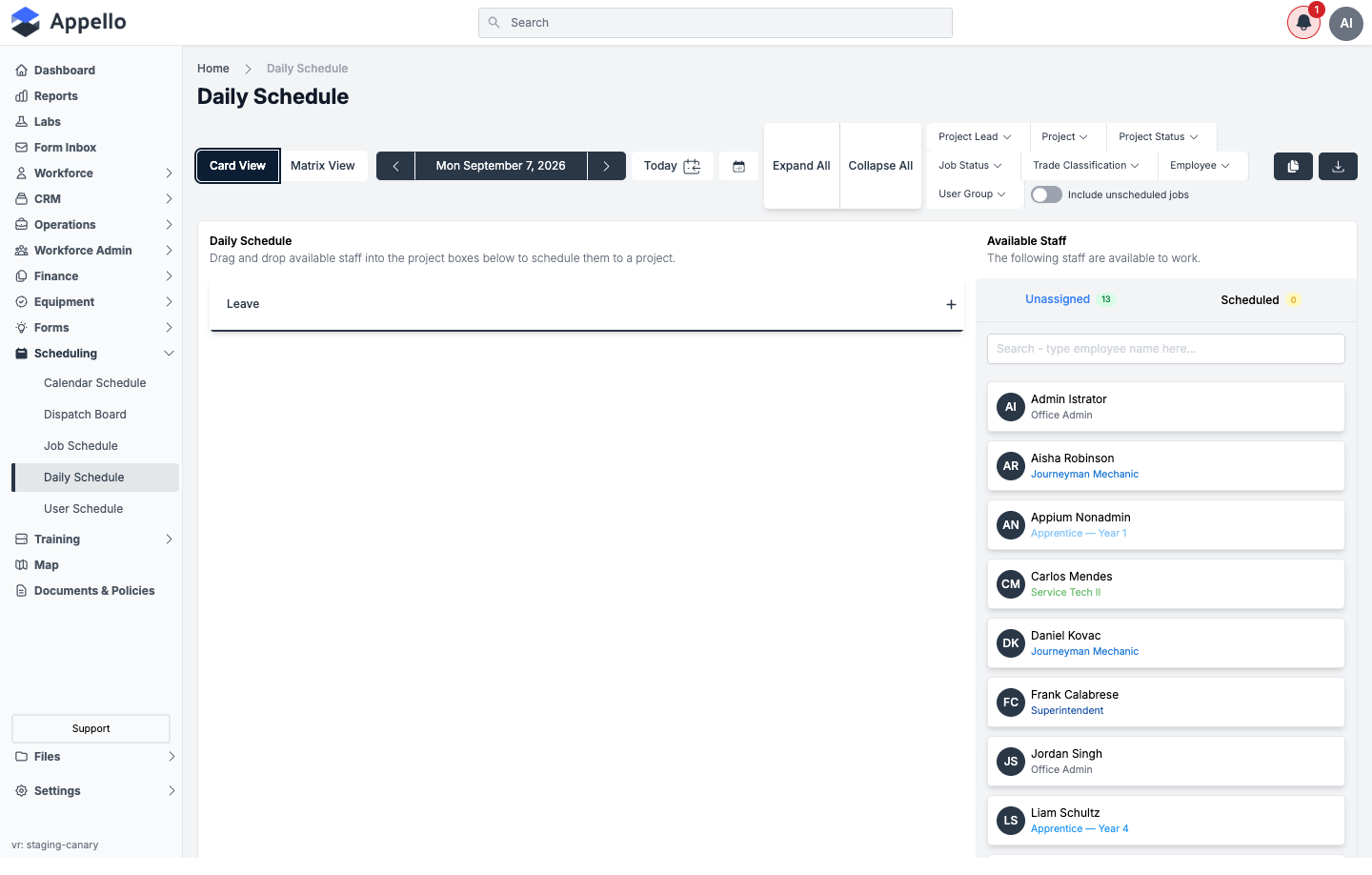
Card View presents the same day's data as draggable cards instead of a grid:
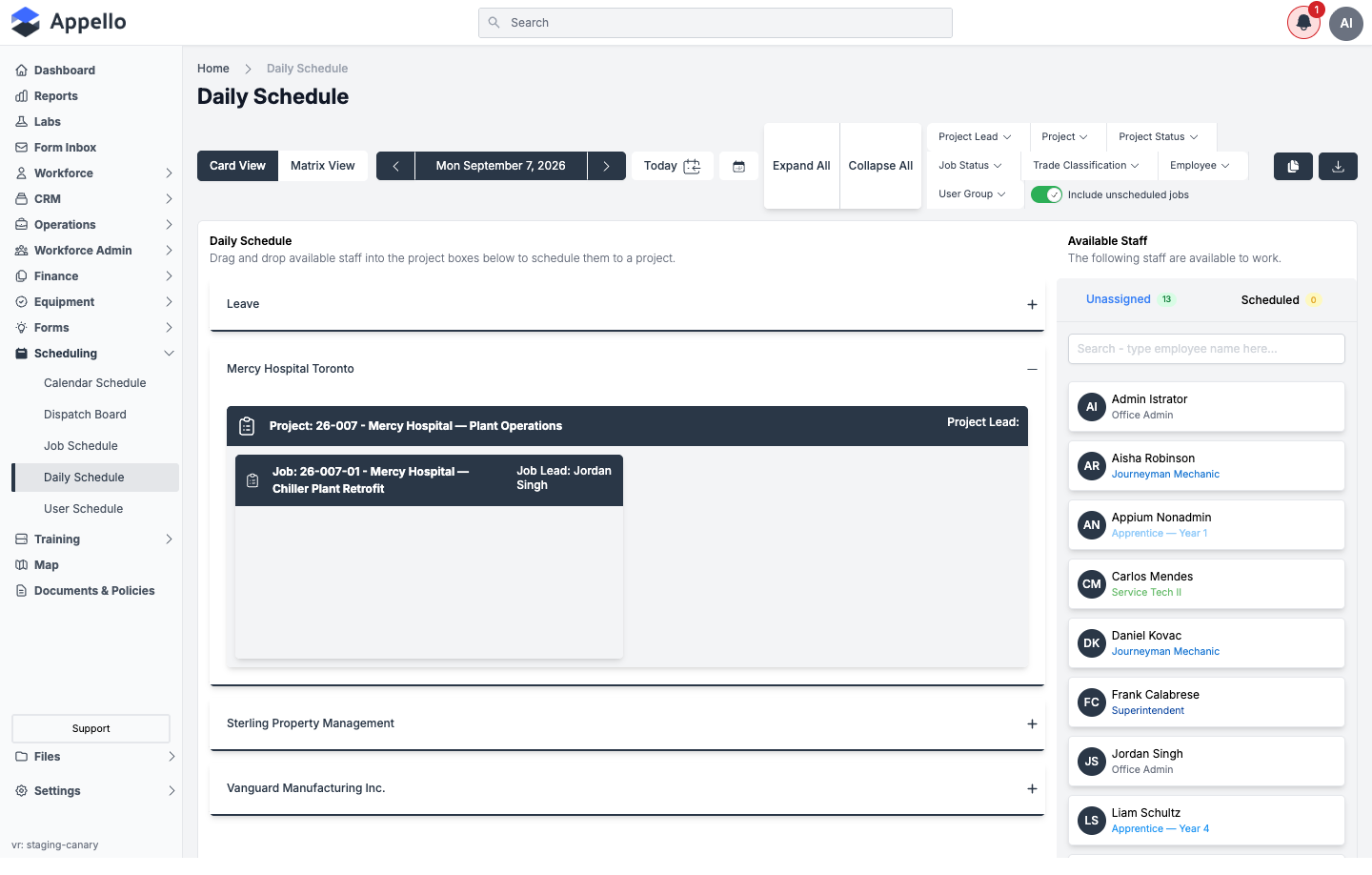
- Left side -- One card group per company (or per project, depending on your grouping setting), each expandable to show its project and job cards.
- Right side -- Available Staff panel -- Every worker who matches the current filters, split into two tabs:
- Unassigned -- Workers with no job scheduled for the selected day.
- Scheduled -- Workers already assigned to at least one job that day.
- A search box above the list filters workers by name.
Expand a company to see its project and job cards, and the drop target for each job:
Scheduling with drag and drop
- Find the worker in the Available Staff panel (on the Unassigned tab, or search by name).
- Drag their card onto the job card you want to schedule them to.
- Drop the card. If the worker has approved leave that day, a confirmation dialog appears first.
Moving a worker between jobs is a single drag: pick up their card from the job they are currently on and drop it onto a different job card. This unassigns them from the old job and assigns them to the new one in one action -- this is the quickest way to reassign someone mid-day.
Removing a worker from a job: drag their card from the job back onto the Available Staff panel.
Drag-and-drop scheduling is subject to the same date-based permission rules described above for Matrix View -- a worker's card cannot be dragged if you lack permission to edit the selected date.
Filters
The filter bar (present in both views) narrows which jobs and workers are shown:
| Filter | Description |
|---|---|
| Project Lead | Show only projects led by a specific person |
| Project | Show only a specific project |
| Project Status | Show only projects in a given status |
| Job Status | Show only jobs in a given status |
| Trade Classification | Show only workers of a given trade level (Journeyman, Apprentice, etc.) |
| Employee | Show only specific workers |
| User Group | Show only members of a specific crew/group |
| Include unscheduled jobs | Toggle on to also show jobs and projects that have nobody scheduled yet for the selected day -- this is how you find open jobs that still need a crew. |
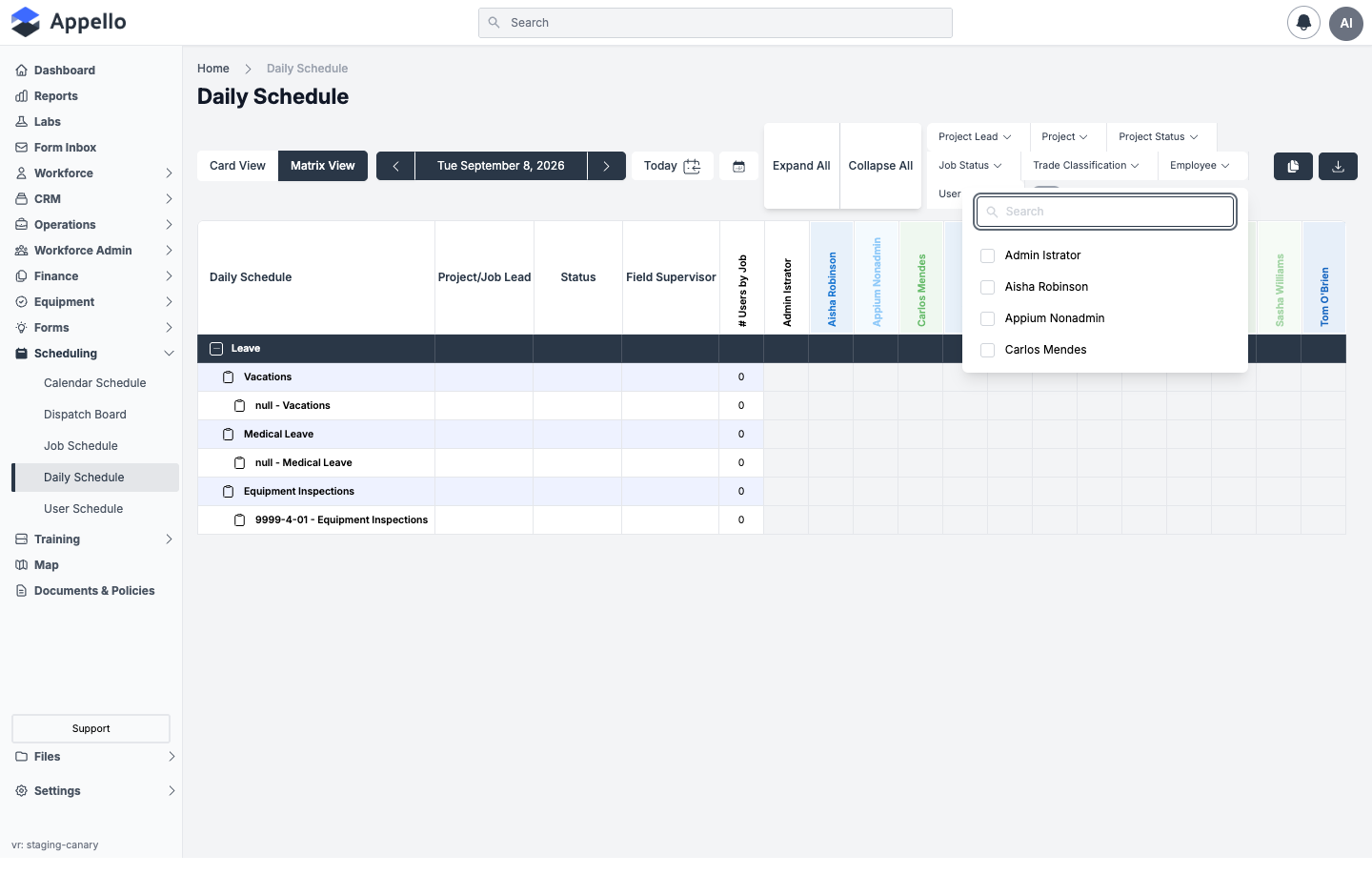
Every filter dropdown (Project Lead, Project, Project Status, Job Status, Trade Classification, Employee, User Group) opens the same style of panel shown above: a search box over a checklist, multi-select, with the active count reflected in the badge row below once you close it.
Active filters appear as removable badges below the filter bar, with a Clear All link to reset them.
The table above is the complete filter list for this page -- there is no separate Department or Location filter here. User Group is the closest equivalent to a department/crew filter (it filters by whatever groups your instance has set up, which may or may not be organized by department), and there is no location-based filter on this page at all. If you need to narrow by location, filter by Project instead, or use the Job Schedule's Location column if your instance has one.
The Include unscheduled jobs toggle only appears if your account has permission to edit both past and future schedules. If you don't see it, an administrator can grant that permission.
The unscheduled worker list
There is no separate "unscheduled workers" page -- the Daily Schedule surfaces them in place:
- In Card View, the Available Staff → Unassigned tab (see above) is the direct list of everyone not yet scheduled for the selected day, with a live count badge.
- In Matrix View, a worker's column with no colored (assigned) cells anywhere down the grid means that worker is unassigned for the day.
Toolbar actions
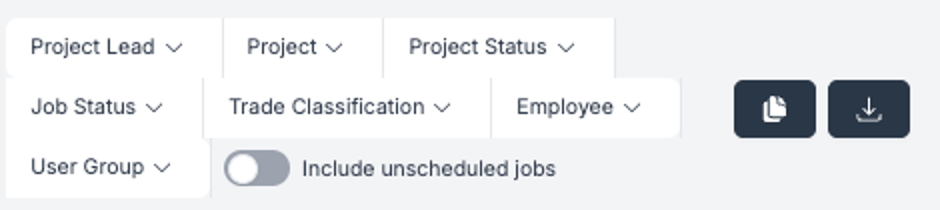
Two icon buttons sit at the far right of the toolbar:
- Copy icon -- Copy Schedule -- Opens a dialog to duplicate a previous working day's schedule onto the selected day, so you don't have to rebuild a repeating crew assignment from scratch.
- Download icon -- Export -- Downloads a PDF of the selected day's schedule. This is how you print or share the day's assignments -- generate the PDF, then print it or send the file to whoever needs it. The file is named with your company name, "Employee Schedule," the schedule date, and a timestamp.
The Copy Schedule and Export buttons are icons only -- neither carries a visible label or tooltip -- and no screenshot of the Copy Schedule dialog is included here. The dialog has a single Select Date to Copy date picker. If any worker being copied has approved leave on the target day, a second dialog ("Workers with Scheduled Time Off") offers Schedule All, Skip Workers on Leave, or Cancel.
Notifications
Scheduling or unscheduling a worker on this page does not send a notification of any kind -- in-app, push, or SMS. The notifications Appello can send cover events like leave approval, timesheet approval, and job creation, but there is no notification for a day's schedule assignment being created, changed, or removed. A worker finds out they're on a job only by checking their schedule -- there is no push telling them they were added.
This is different from the confirmation dialogs described above (the leave-conflict warning, and the Copy Schedule conflict warning) -- those are synchronous, in-the-moment prompts for the person doing the scheduling, not a notification delivered to the worker being scheduled.
See Notification Control System for the full list of notification types the platform does send and how their delivery (in-app / SMS) is configured.
What a worker sees on mobile
A worker's Daily Schedule assignments show up on their My Schedule tab in the mobile app as a job card for the day -- job number and name, customer, status, and a Directions button. There is no mobile equivalent of Matrix View or Card View; workers only ever see their own day (or, with the company-schedule permission, the whole company's day) as a list, never a grid. See Schedule, Directions and Clock In for the full mobile schedule screen, including the All Day / Hourly split, the Company Schedule mode, and clocking in from a scheduled job.
How this relates to Dispatch Board, Job Schedule, and Calendar Schedule
| View | Time range | Organized by | Best for |
|---|---|---|---|
| Daily Schedule (this page) | One day | Job rows x worker columns (or job/worker cards) | Building or adjusting today's (or any single day's) crew assignments, spotting who is unassigned right now |
| Dispatch Board | One day or one week | Technician rows x day/hour columns, drag-to-assign | Short service and T&M work -- dispatching a job to a free technician at a specific time, not just "that day" |
| Job Schedule | Multi-week | Project/job rows x day columns | Seeing scheduling coverage across a project over several weeks |
| User Workforce Schedule | Multi-week | Worker rows x day columns | Seeing one worker's assignments across a date range, spotting availability over time |
| Calendar Schedule | Calendar month/week | Date-centric calendar | A traditional calendar view of all assignments |
All five views read from and write to the same underlying schedule -- an assignment made in Daily Schedule shows up immediately in Dispatch Board, Job Schedule, User Workforce Schedule, and Calendar Schedule. The most useful distinction day-to-day: Daily Schedule answers "who's on what today," while Dispatch Board additionally answers "at what time" -- Daily Schedule has no concept of a start/end time for a job assignment, only the day.
Permissions
| Action | Permission(s) required |
|---|---|
| Load the page at all | Job → View, User → View, and User Schedule → View -- all three |
| Assign/unassign a worker on a past date | Schedule → Allow Editing Past |
| Assign/unassign a worker on today or a future date | User Schedule → Allow Editing Future |
| See the Include unscheduled jobs toggle | Both Job Schedule → Allow Editing Future and Job Schedule → Allow Editing Past |
The three edit-related permissions above live under three different sections in Roles & Permissions -- Schedule, User Schedule, and Job Schedule -- rather than all under one. Check all three when granting someone edit access to this page.
Related Pages
- Dispatch Board -- Technician x day/hour drag-to-assign view for short service and T&M work
- Job Schedule -- Multi-week project and job timeline grid
- User Workforce Schedule -- Multi-week worker-centric view
- Calendar Schedule -- Date-centric calendar view of all assignments
- Scheduling Overview -- How the scheduling views fit together
- Notification Control System -- Global notification type configuration
- Schedule, Directions and Clock In -- What a worker sees and does on the mobile app