Timesheet and Payroll Reports
Module: Core | Platform: Web
Three of the Workforce Administration report cards launched from the Reports hub: the Employee Timesheet Report, the Payroll Report, and the Job Employees Timesheet Report. All three read the same underlying approved-timesheet data and share the same Employee Agreement tab / pay-period pattern, but each slices it a different way — by worker-and-job, by worker only, or by job-and-worker for a single week.
Where they are
Sidebar → Reports, then click the tile or list entry under Workforce Administration:
| Report | URL |
|---|---|
| Employee Timesheet Report | /reports/employee-timesheet-report |
| Payroll Report | /reports/payroll-report |
| Job Employees Timesheet Report | /reports/job-employees-timesheet-report |
The Payroll Report's full column reference, its Export menu (CSV, "Export All Employee Agreements CSV", and the Sage 50 / QuickBooks / Avantage / Payroll4Construction / Dayforce-Powerpay / ComputerEase payroll-software formats), and the pay-period mechanics behind the period selector are already documented in detail on Timesheet Export & Payroll. This page gives the Payroll Report and Employee Timesheet Report a shorter, source-confirmed pass and links there rather than repeating that material.
Employee Timesheet Report
What it's for
Appello's own description: "This report displays the timesheets for a selected employee, based on today's data. The employee can be chosen within the report itself." It's the job-level sibling of the Payroll Report — same worker rows, same pay-period columns, but each worker's hours are also broken out by the job they were logged against, rather than rolled into a single total.
Screenshot
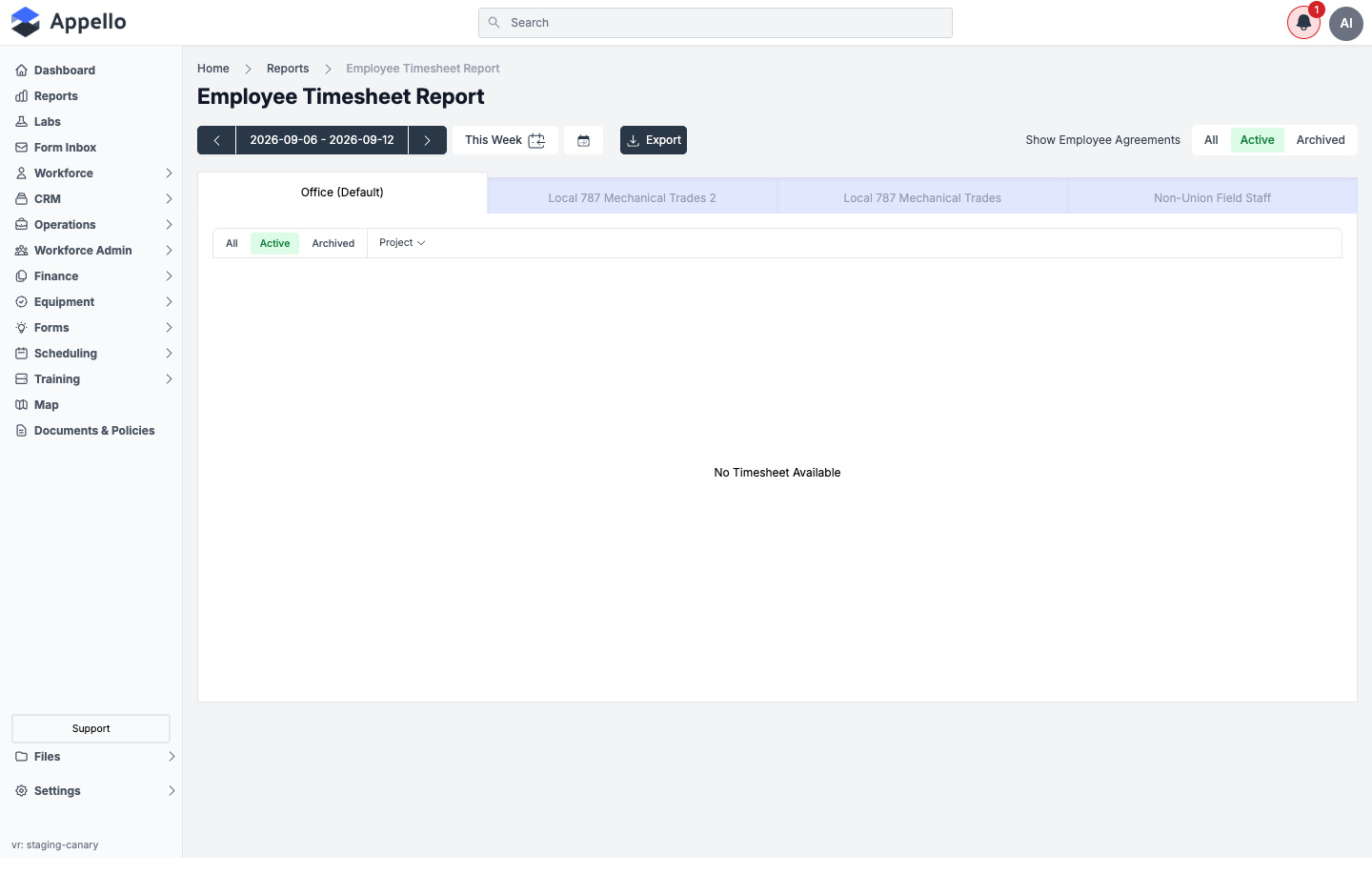
Shown empty on the demo instance — that instance has no approved timesheet hours in the current week (or in the weeks and months checked) for any Employee Agreement tab, so the table reads "No Timesheet Available."
Screenshot — filter open
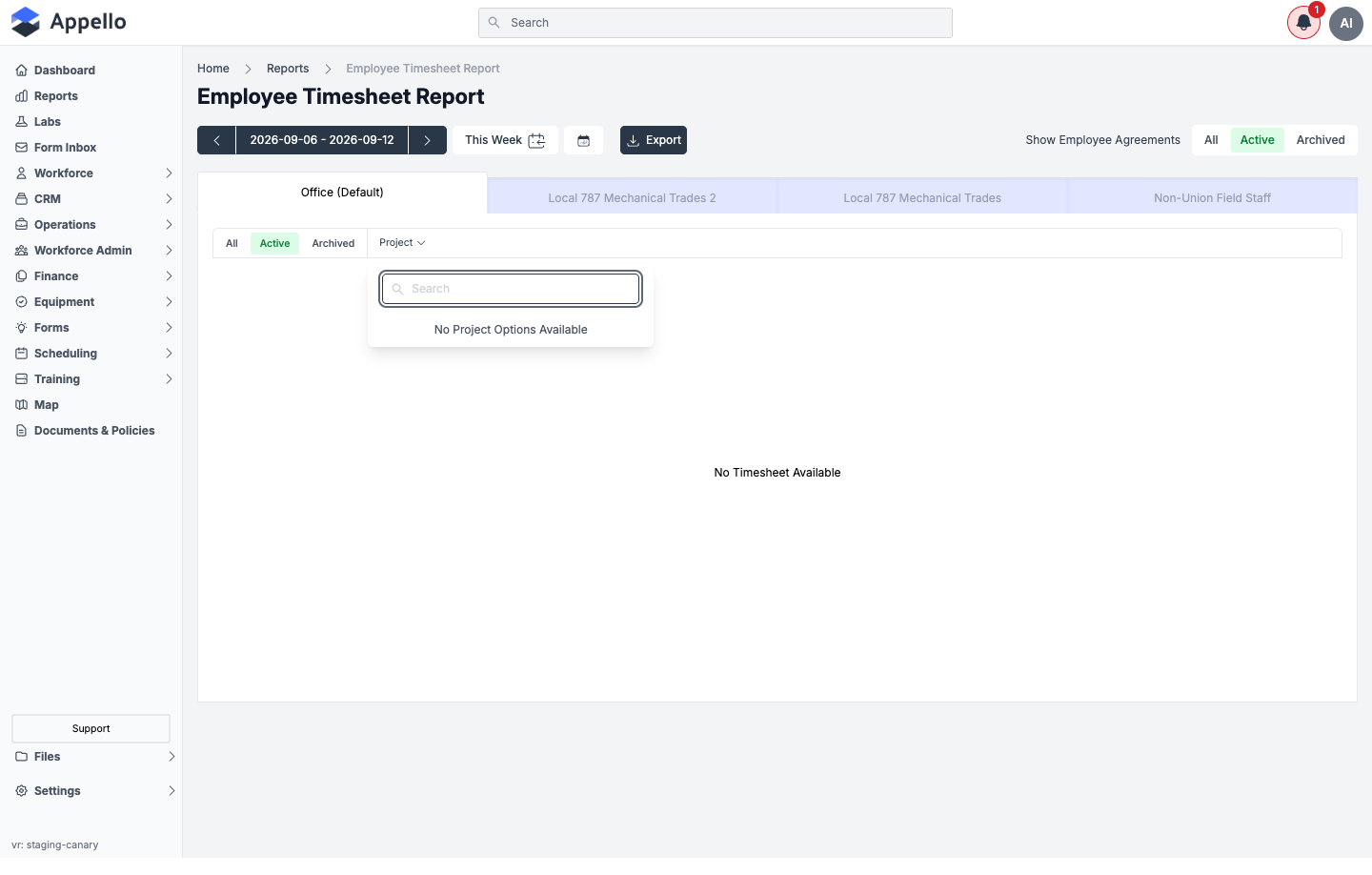
Controls
| Control | Description |
|---|---|
| Period selector | Back/forward arrows, a This Week (or This Period) button, and a calendar icon. The period length follows your instance's Payroll Frequency setting (Weekly, Biweekly, Semi Monthly, Monthly) — see Pay period selection. |
| Employee Agreement tabs | One tab per employee agreement configured for your instance (for example Office (Default), Local 787 Mechanical Trades). Switching tabs re-scopes the report to that agreement's workers and pay codes. |
| Show Employee Agreements | All / Active / Archived toggle — controls which employee agreements get a tab. |
| Project | Multi-select filter, searchable. Narrows the report to timesheet entries logged against jobs under the selected project(s). |
| Export | Opens the export menu — see Timesheet Export & Payroll. |
The report has no dedicated "Employee" filter field — instead, each row is a worker (grouped by
userId), so you find the employee you want directly in the table (or in the exported CSV) rather
than picking one from a dropdown first.
Columns
Each row is one worker on the selected Employee Agreement tab, further broken out by the job(s) they logged time against that period:
| Column | Definition |
|---|---|
| Jobs | The job number and name each portion of the worker's hours was logged against. |
| Day columns | One column per day in the pay period, showing that worker's approved hours logged that day (from the day's TimeSheetDetailRecord). |
| Rate label columns (regular / overtime / wage category) | One column per non-line-item pay code on the selected Employee Agreement — for example 1x, 1.5x, 2x — labeled with the wage region. Each shows the sum of approved hours recorded against that rate label. This is where "regular" vs. "overtime" (or any other wage category your agreement defines) shows up; there's no fixed Regular/OT columns, only whichever rate labels the agreement has. |
| Total Hours | Sum of hours across every rate label for the row. |
| Travel ($) | Travel allowance for the period, calculated from the worker's travel zone. |
| Zone | Travel zone number the allowance was calculated from. |
| Board ($) | Board/accommodation allowance for the period. |
| Parking ($) | Parking allowance for the period. |
| Out of Pocket Expenses Subtotal / Tax / Total | Reimbursable out-of-pocket employee expenses logged in the same period (see Employee Expenses for how those are submitted and approved). |
| Expenses Grand Total | Travel + Board + Parking + out-of-pocket expenses combined. |
A totals row at the bottom sums every numeric column across all workers shown on the tab.
How approved-only records are selected
The report is built from the same timesheet data as the Timesheet Log and Timesheet Matrix. An entry is included only if its timesheet is in Approved status and the entry itself has been applied and is neither deleted nor archived. Submitted, rejected, and draft timesheets — and anything deleted or archived — are excluded entirely, not just hidden.
How to run it
- Sidebar → Reports, then click Employee Timesheet Report under Workforce Administration.
- Pick the Employee Agreement tab for the workers you want (or toggle Show Employee Agreements to All/Active/Archived first if the tab you need is hidden).
- Use the period arrows, This Week/This Period, or the calendar icon to select the pay period.
- Optionally narrow by Project.
- Find the worker's row (and, within it, the job breakdown) in the table.
- Click Export to download the current tab or all employee agreements as CSV — see Timesheet Export & Payroll.
Permissions
All three of the following are required to view this report:
- Workforce → User → View
- Finance & Admin → Timesheet Matrix & Timesheet Log → View
- The Reports → Workforce Administration permission for Employee Timesheet Report
Related pages
- Reports hub
- Timesheet Export & Payroll — full Payroll Report / Employee Timesheet Report column reference and export formats
- Timesheet Log
- Timesheet Matrix
- Employee Expenses
Payroll Report
What it's for
Appello's own description: "This report shows the aggregates of a users worked hours and pay for a selected week, based on today's data. The week can be chosen within the report itself." It's built for closing out a pay period — the same worker rows and pay-period columns as the Employee Timesheet Report, but with no per-job breakdown; each worker gets a single aggregated row across every job they touched that period.
Screenshot
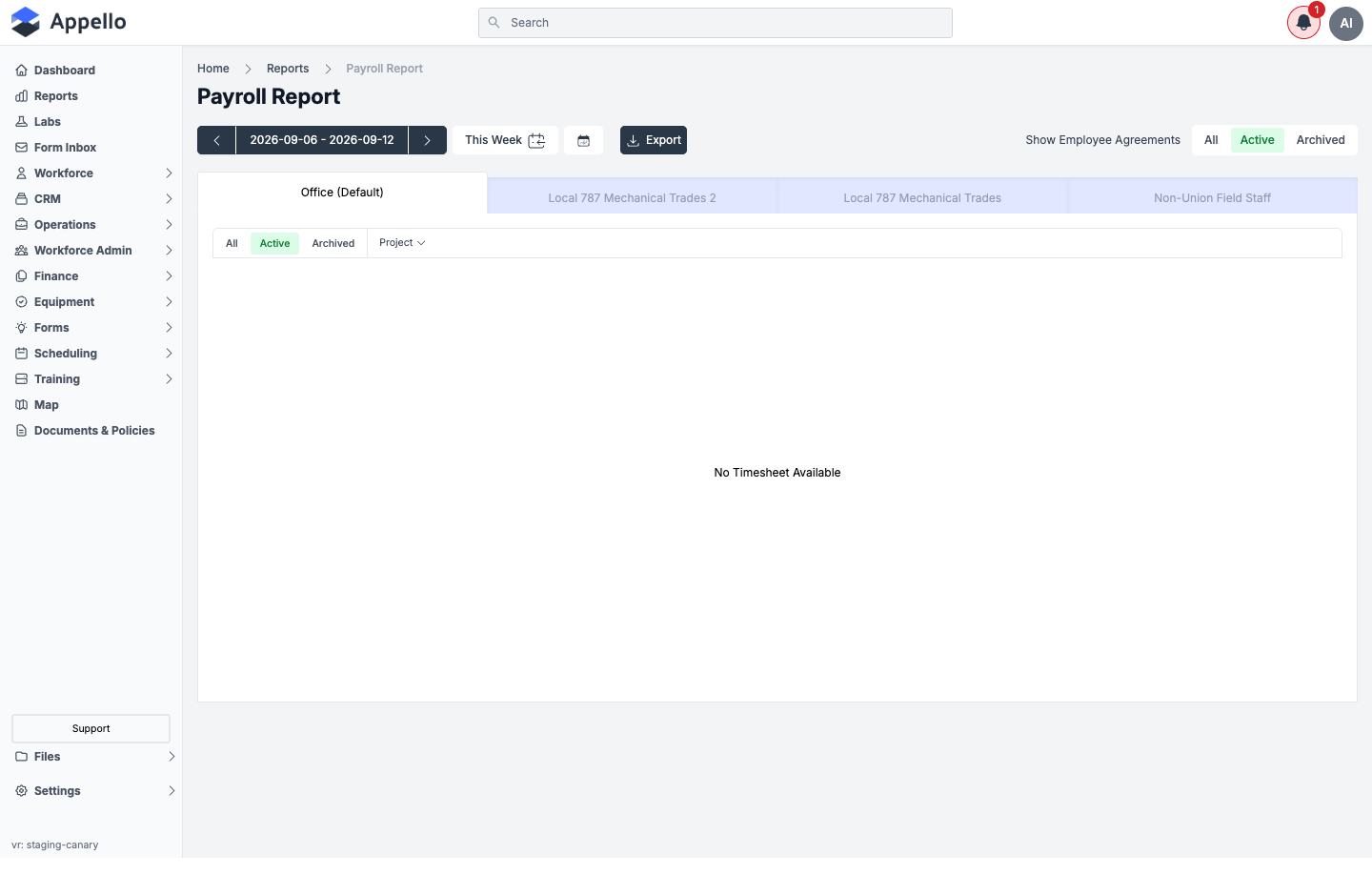
Shown empty on the demo instance — same data gap as the Employee Timesheet Report: no approved timesheet hours in any pay period checked, for any Employee Agreement, so the table reads "No Timesheet Available."
Screenshot — filter open
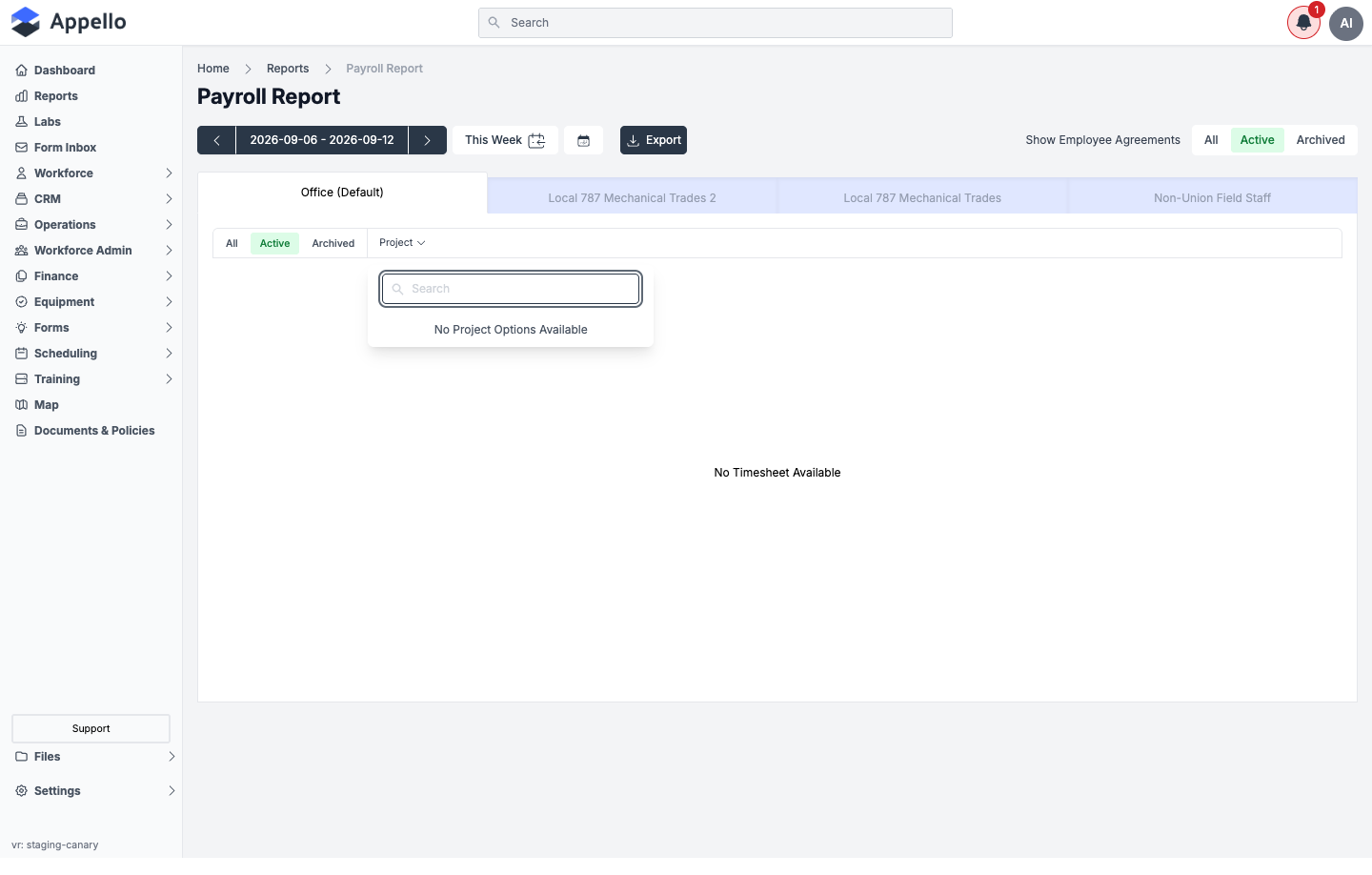
Controls
The Payroll Report shares the exact same toolbar as the Employee Timesheet Report — period
selector, Employee Agreement tabs, Show Employee Agreements toggle, Project filter, and
Export. See the Employee Timesheet Report controls above; the only functional
difference between the two report screens is the onlyTotals flag that collapses the job
breakdown into one row per worker.
Columns
Same column set as the Employee Timesheet Report — day columns, rate-label (wage category) columns, Total Hours, Travel ($) / Zone, Board ($), Parking ($), and the out-of-pocket expense columns — except the first column is labeled Users rather than Jobs, and each worker appears once with their hours, wages, and allowances aggregated across every job they logged time against that period. See Columns above for each column's definition, or the fuller reference on Timesheet Export & Payroll.
How approved-only records are selected
Same rule as the Employee Timesheet Report: only timesheet entries whose timesheet is in Approved status -- and that are applied, not deleted, and not archived -- are included.
How to run it
- Sidebar → Reports, then click Payroll Report under Workforce Administration.
- Pick the Employee Agreement tab for the workers you're paying.
- Use the period arrows, This Week/This Period, or the calendar icon to select the pay period you're closing.
- Optionally narrow by Project.
- Review each worker's totals row.
- Click Export — CSV, all-agreements CSV, or (if your instance has one configured) a payroll-software export. See Export to Sage 50 and other payroll software.
Permissions
All three of the following are required to view this report:
- Workforce → User → View
- Finance & Admin → Expenses → View
- The Reports → Workforce Administration permission for Payroll Report
Related pages
- Reports hub
- Timesheet Export & Payroll — full column reference, pay-period mechanics, and every export format
- Timesheet Log
- Timesheet Matrix
- Employee Expenses
Job Employees Timesheet Report
What it's for
Appello's own description: "This report provides a detailed breakdown of employee hours and pay for specific jobs on a weekly basis. It shows each employee's hours worked and pay for the selected job and week, along with totals." Where the Employee Timesheet Report is organized worker-first with jobs nested underneath, this report is organized job-first — each job gets its own block, with one row per employee who logged time on it, and a subtotal row per job.
Screenshot
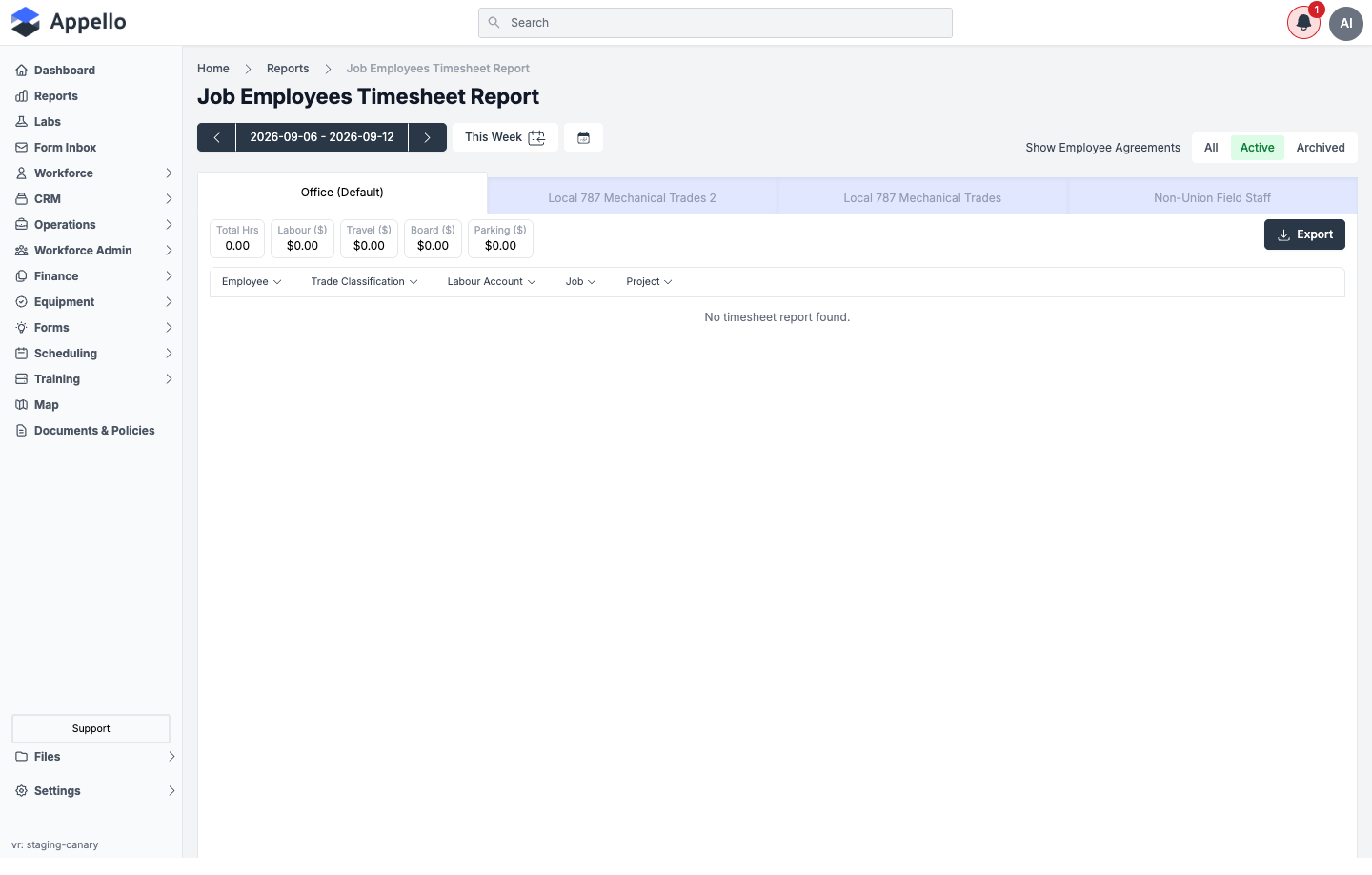
Shown empty on the demo instance — that instance has no approved timesheet hours in the current week for any Employee Agreement, so the table reads "No timesheet report found" and all five header totals read 0 / $0.00.
Screenshot — filter open
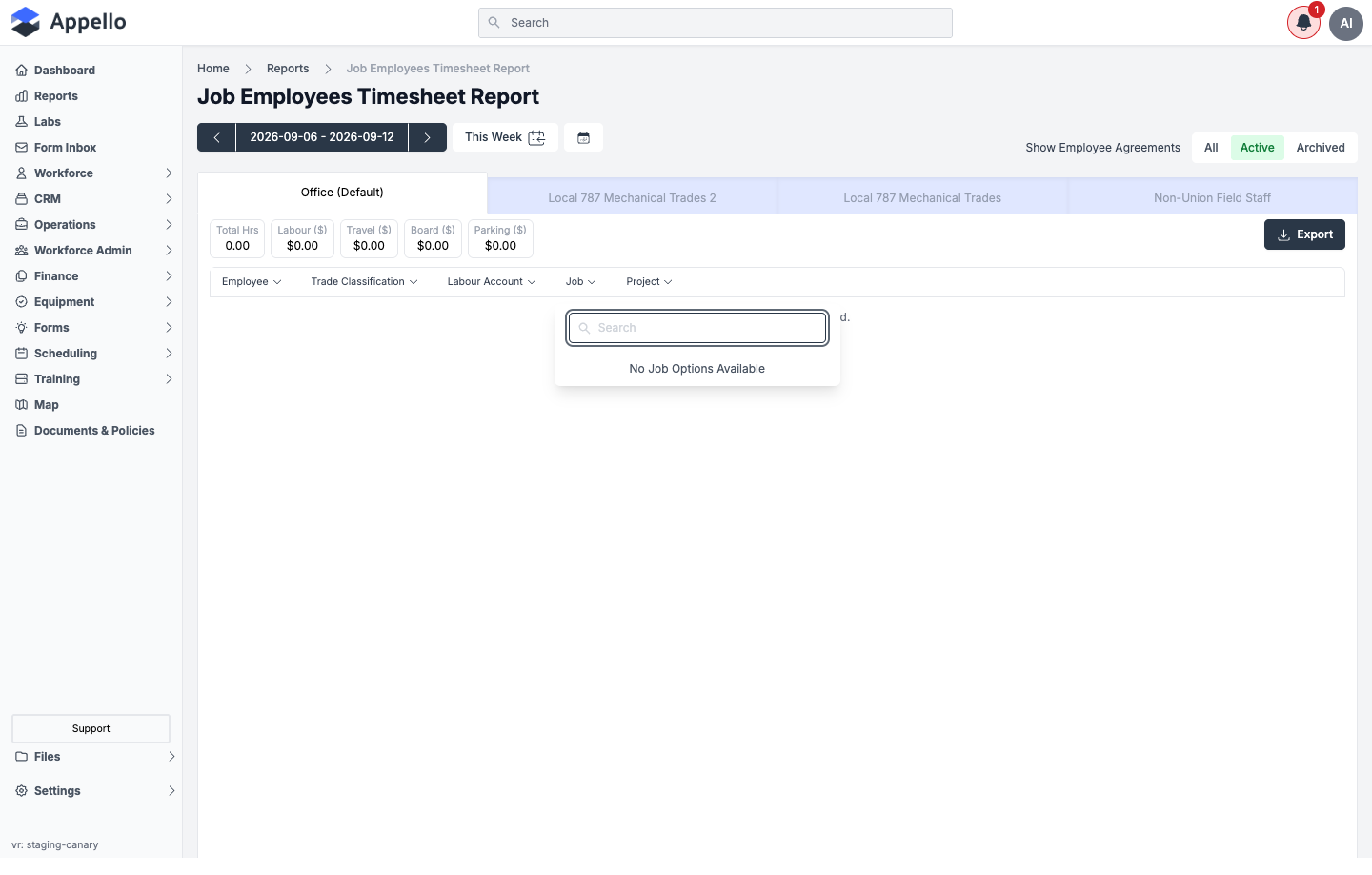
Controls
| Control | Description |
|---|---|
| Week selector | Back/forward arrows, a This Week button, and a calendar icon. Unlike the Payroll Report and Employee Timesheet Report — whose period length follows your instance's Payroll Frequency setting — this report is always scoped to a single calendar week. |
| Employee Agreement tabs | One tab per employee agreement, same pattern as the other two reports on this page. |
| Show Employee Agreements | All / Active / Archived toggle. |
| Employee | Multi-select filter, searchable, by worker. |
| Trade Classification | Multi-select filter by trade level. |
| Labour Account | Multi-select filter by the account item the labour is coded to. |
| Job | Multi-select filter, searchable, by job. |
| Project | Multi-select filter, searchable, by project. |
| Export | Downloads the current tab's filtered rows as CSV. There is no "Export All Employee Agreements" option and no payroll-software export on this report — switch tabs and export each agreement separately if you need more than one. |
Landing on this report with ?jobId=, ?projectId=, or ?labourAccount= in the URL — for
example by clicking a job's Hours Logged figure on the Job Activity report — preselects the matching filter automatically.
What's included
The report only pulls timesheet detail records that have logged hours (hasHours: true) and
excludes out-of-pocket employee expense line items (excludeExpenses: true) — Board, Travel, and
Parking allowances are still shown, but reimbursable expenses are not. For those, see
Employee Expenses.
Header totals
Five badges above the table total the entire filtered result set for the selected week and Employee Agreement tab: Total Hrs, Labour ($), Travel ($), Board ($), and Parking ($).
Columns
The table is grouped by job — each job gets a header row, one row per employee under it, and a Total row for that job before the next job's block begins:
| Column | Definition |
|---|---|
| (Job header row) | The job number and name, linking to that job's Overview tab. |
| Job / Employee | Under each job header, the employee's name, linking to their user profile, with a colored trade-level badge. |
| Wage Region | This column currently always displays the literal text "Default" rather than the worker's actual wage region — a placeholder in the current build rather than a live value. |
| Rate label columns (regular / overtime / wage category) | One column per non-line-item pay code on the selected Employee Agreement (for example 1x, 1.5x, 2x), each showing that employee's approved hours against that pay code for the selected job and week. |
| Total Hrs | Sum of the employee's hours across every rate label, for that job. |
| Labours ($) | Sum of approved wages across every rate label, for that job. ("Labours" is the on-screen label as shown in the product.) |
| Travel | The employee's travel allowance total for that job and week. |
| Board | The employee's board/accommodation allowance total for that job and week. |
| Parking | The employee's parking allowance total for that job and week. |
| Total (row) | Per-job subtotal row summing the rate-label hours, Total Hrs, Labours ($), Travel, Board, and Parking across every employee shown under that job. |
How approved-only records are selected
Same underlying rule as the Employee Timesheet Report and Payroll Report: only entries whose timesheet is in Approved status -- and that are applied, not deleted, and not archived -- are counted. This report additionally counts only entries that have hours recorded.
How to run it
- Sidebar → Reports, then click Job Employees Timesheet Report under Workforce Administration.
- Pick the Employee Agreement tab.
- Use the week arrows, This Week, or the calendar icon to select the week.
- Optionally narrow with Employee, Trade Classification, Labour Account, Job, or Project.
- Review the header totals, then each job's block and its per-employee rows.
- Click Export to download the current tab's filtered rows as CSV.
Permissions
All four of the following are required to view this report:
- Workforce → User → View
- Operations → Jobs → View
- Finance & Admin → Timesheet Matrix & Timesheet Log → View
- The Reports → Workforce Administration permission for Job Employees Timesheet Report
Related pages
- Reports hub
- WIP, Job Completion and Job Activity Reports — Job Activity links into this report's Job filter
- Timesheet Log
- Timesheet Matrix
- Employee Expenses