Clock In / Out Report
Review clock-in and clock-out events submitted by workers through the mobile app, for a single selected week at a time. The report shows submitted vs. approved times, a geofence status badge per punch, and total hours, and lets a supervisor approve, reject, or manually edit clock events. Approving a clock-in doesn't just change its own status -- it recalculates the hours on the worker's linked timesheet record and reopens that timesheet for a separate approval pass; see Approving and Rejecting Clock Ins below.
Navigation
Sidebar → Workforce Admin → Clock In / Out
URL: /overview/clock-in-out-report
Permission: the Clock In & Out → View permission gates the whole page -- see Permission Note below.
Overview
The report opens on the By Employee tab, showing the selected week's clock events grouped by day for one worker (or one job, on the By Job tab) at a time. Use the arrows beside the employee/job name to page to the next or previous option, or switch to the All tab for a flat, filterable list across every worker and job at once.
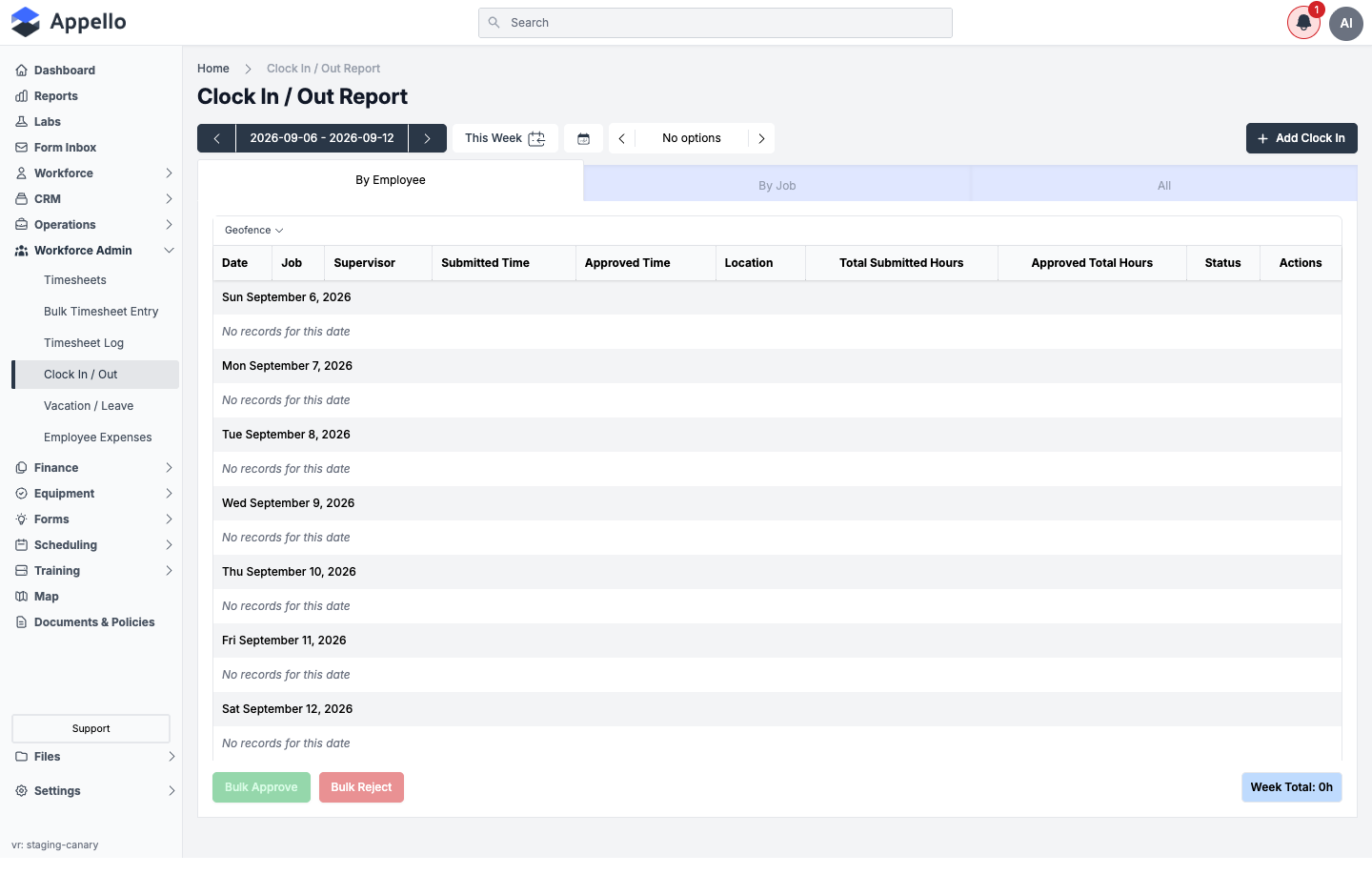
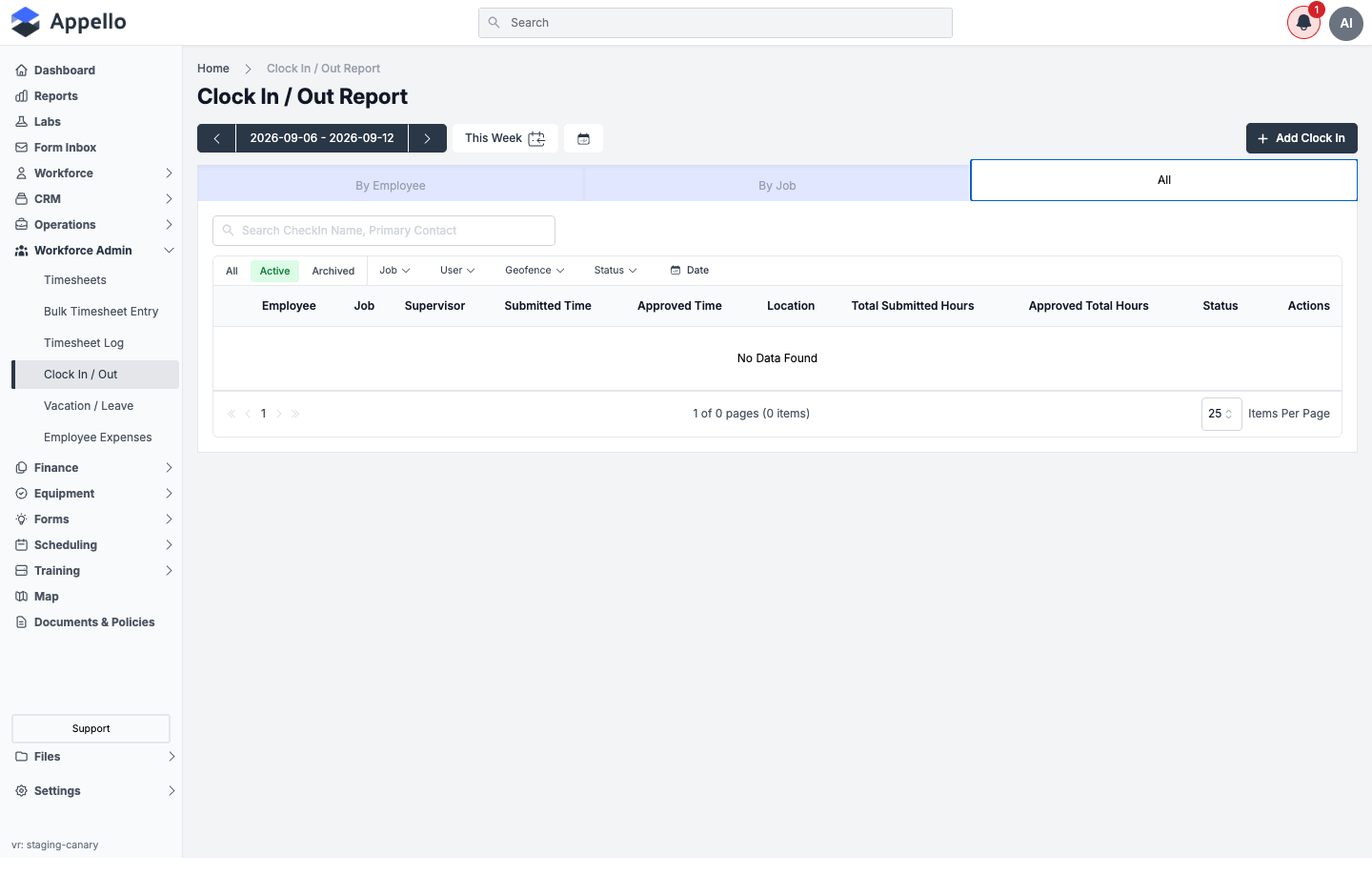
The screenshots above show an empty week on the demo instance used for this guide -- no clock-in records happened to fall in the selected date range (or any date range checked while writing this page; the demo instance has no clock-in data at all). The columns, tabs, and filters are otherwise exactly as configured in the live app.
Tabs
| Tab | Shows |
|---|---|
| By Employee | One worker's clock events for the selected week, grouped by day. Use the left/right arrows to page through workers. |
| By Job | One job's clock events for the selected week, grouped by day. Use the left/right arrows to page through jobs. |
| All | A flat, searchable, paginated list of clock events across every worker and job, with its own filter bar and column sorting. |
Report Columns
| Column | Description |
|---|---|
| Employee | Worker who clocked in/out (labeled Job instead on the By Job tab, since the employee name moves into the row). |
| Job | Job the worker was clocked in against (labeled Employee instead on the By Job tab). A work order is a Job record under the hood, so a check-in against a work order shows up here the same way a check-in against a standard job does -- there's no separate Work Order column. |
| Supervisor | The worker's supervisor, linked to their user record. |
| Submitted Time | The IN/OUT date and time as submitted from mobile. Shows the rounded time (with a tooltip revealing the raw submitted time) when automatic rounding is on -- see How Clock Data Connects to Timesheets. |
| Approved Time | The IN/OUT date and time after a supervisor approval. Shows "-" until the entry is approved. |
| Location | A green check or red X per IN/OUT punch showing whether it fell inside the job's geofence (hover the red X for the reason), plus a map-pin button that opens a map of the punch location, the geofence radius, and the job site. |
| Total Submitted Hours | Duration between the submitted (or rounded, per Instance Settings) check-in and check-out times. |
| Approved Total Hours | Duration between the approved check-in and check-out times. |
| Status | Not Submitted, In Review, Approved, or Rejected. |
| Actions | Approve / reject icons (or a Bulk Approve / Bulk Reject button on the By Employee and By Job tabs) and an edit-times icon, each gated by permission -- see Permission Note. Not shown while a worker is still clocked in. |
An Add Clock In button above the tabs opens a panel to manually log a clock-in/out for the currently selected employee or job. It is only visible to a user with the Log Time for Other Users permission (see Permission Note).
Common Use Cases
| Scenario | How to Identify |
|---|---|
| Missing clock-out | Status shows Not Submitted; the OUT side of Submitted/Approved Time and Location both show "-" and the row cannot be approved or rejected yet. |
| Outside the job's geofence | The Location column shows a red X for IN or OUT (hover it for the reason), or filter the Geofence column to Outside Geofence. |
| Rounded vs. actual punch | Hover the clock icon next to a rounded IN/OUT time to see "Automatically Rounded From" the raw submitted time -- only appears when rounding is enabled in Instance Settings. |
| Submitted vs. approved mismatch | Compare Total Submitted Hours to Approved Total Hours -- a supervisor may have adjusted the times before approving. |
Filters
Available filters differ by tab.
By Employee and By Job tabs:
| Filter | Options |
|---|---|
| Week | The top week navigator (prev/next arrows, a date picker, and a This Week shortcut) -- not a column filter, but it sets the date range for both tabs. |
| Geofence | Inside Geofence or Outside Geofence |
All tab (in addition to the same week navigator):
| Filter | Options |
|---|---|
| Search | Free-text search across check-in name / primary contact |
| Active / Archived | All, Active, or Archived records |
| Job | Filter by specific job |
| User | Filter by specific worker |
| Geofence | Inside Geofence or Outside Geofence |
| Status | Approved, In Review, Not Submitted, or Rejected |
| Date | A custom start/end date range that overrides the week navigator for this tab only |
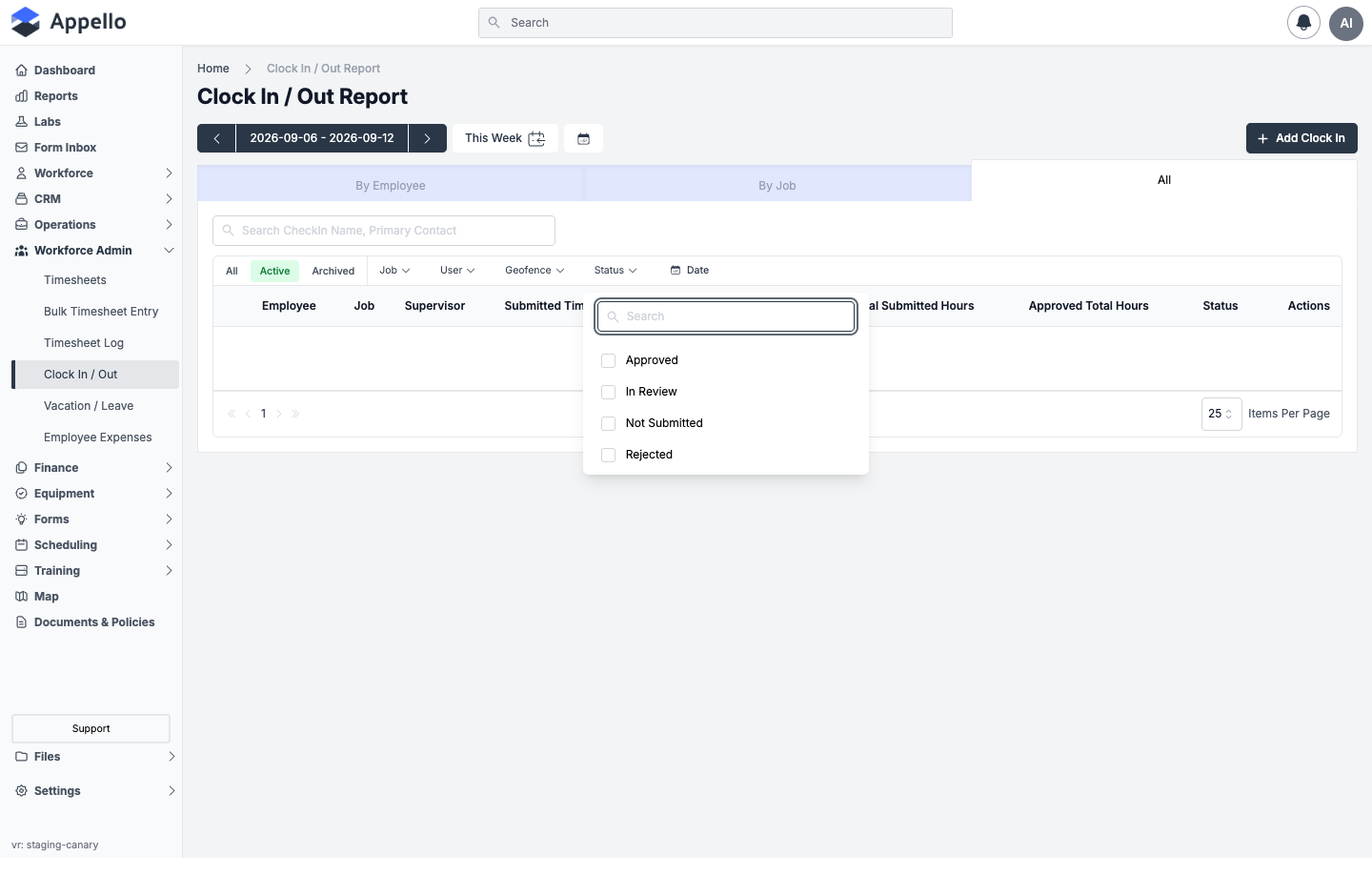
There's no separate Department filter on this report -- the filters listed above (Job, User, Geofence, Status, Date) are the only ones. To narrow a department's clock-ins, filter by User or Job instead, or use the Timesheet Matrix's own filters once the hours reach a timesheet.
Search, Sort, and Export
- Search (All tab only) is the free-text box above the filter chips; it matches the check-in record's name/primary-contact fields, the same generic search used across Appello's list tables.
- Sort (All tab only): click Employee, Job, Supervisor, or Status in the column header to sort by that column. Submitted Time, Approved Time, Location, Total Submitted Hours, and Approved Total Hours are not sortable.
- Quick tabs: All / Active / Archived above the filter chips on the All tab switch which archive state you're viewing, independent of the Job/User/Geofence/Status/Date filters next to them.
- Export: unlike most Appello list tables, the All tab has no CSV/PDF export control. Confirmed live on the demo instance -- no export icon renders anywhere on the page. To get clock-in data out of Appello today, export from the Timesheet Matrix or a custom report once the hours have reached a timesheet.
Approving and Rejecting Clock Ins
Who can approve or reject
A single permission, Approve/Reject Clock Ins, gates both actions everywhere on this report -- there's no separate "reject" permission. See Permission Note for the full permission list.
Where the controls are
| Tab | Per-row controls | Bulk controls |
|---|---|---|
| All | A check icon (Approve) and an X icon (Reject) in the Actions column. | None. |
| By Employee / By Job | The same check/X icons, per row, for the selected worker's or job's week. | Bulk Approve and Bulk Reject buttons below the table. |
On every tab, the check/X icons (and the edit-times pencil icon) disappear for a row whose worker is still clocked in -- a tooltip explains: "User is still clocked in and this record cannot be approved/rejected." See The Open Check-In State below for what that means underneath.
Approving
- Click the check icon on a row (or select a week/worker/job and click Bulk Approve).
- On the By Employee and By Job tabs, a Confirm Approval dialog appears first: "This action will not approve clock ins where the check out time is not yet submitted." Click Confirm to proceed or Cancel to back out without approving anything. Bulk Approve only ever acts on rows currently Not Submitted or Rejected that already have a submitted or rounded check-out time -- still-clocked-in rows are skipped even if you click it, and the button is disabled outright when every row on the current worker/job/week is already Not Submitted or Approved.
- On the All tab, the single check icon approves that one row immediately -- no confirmation dialog.
- A Clock in approved (or All In Review Clock ins approved, for a bulk action) toast confirms success; an Error approving clock in(s) toast appears on failure.
The confirmation dialog and its exact wording above are described rather than captured live -- the demo instance has no clock-in records in Not Submitted or Rejected status with a submitted check-out, so Bulk Approve stays disabled on every week checked, and no row exists to click an individual Approve icon on. The pattern is confirmed live, though: with an empty list, Bulk Approve and Bulk Reject both render disabled (see the By Employee screenshot under Overview above) rather than being hidden.
What approving actually changes:
- The check-in's status becomes Approved, stamped with the approving user.
- Its approved IN/OUT times are set to whatever you passed in (from the edit-times panel) or, if not, to the instance's rounded time (when Automatically round clock in/out times is on) or the raw submitted time otherwise -- the same rounding rule described in How Clock Data Connects to Timesheets.
- The linked timesheet detail record's submitted and approved durations are recalculated from all of that day's check-ins together (not just the one you approved).
- The worker's whole weekly timesheet record is reset to In Review -- approving a clock-in does not approve the timesheet it feeds. A supervisor still has to approve that timesheet separately on the Timesheet Matrix. On an instance using two-level timesheet approval, the level-one status is re-derived from the check-ins at the same time.
- The worker's employee-agreement break-time-allowance rules are re-applied to the timesheet record.
Rejecting
- Click the X icon on a row (or select a week/worker/job and click Bulk Reject).
- Bulk Reject, on the By Employee/By Job tabs, shows the same Confirm Approval dialog as above with "reject" in place of "approve," and only ever acts on rows currently In Review or Approved with a submitted/rounded check-out already present.
- The single X icon -- on every tab, including By Employee/By Job -- rejects that one row immediately with no confirmation dialog; only the bulk action and the single-row Approve route through the confirmation step.
- A Clock in rejected (or All in Review clock ins rejected, for bulk) toast confirms success.
Rejecting a clock-in only sets its status to Rejected -- unlike rejecting a timesheet or a mobile timesheet day, there is no rejection-reason field on this dialog and no reason is stored against the check-in.
Notifications
Check-in approval and rejection are not in Appello's notification type list at all -- confirmed against the Notification Control System's complete notification type reference, which has Timesheet Approved / Timesheet Rejected entries but no Check-In equivalent. Approving or rejecting a clock-in on this report notifies no one beyond the on-screen toast.
Two other, unrelated notifications do touch check-ins:
- User Clocked In Outside Geofence fires the moment a worker clocks in outside the job's geofence radius (not on approval) -- see Notification Control System for its per-job recipient list.
- If a supervisor sets an approved check-out time on a check-in that never had a submitted check-out at all (an "admin clock-out"), Appello sends the worker a push notification -- "Clocked Out — An administrator has clocked you out." This is a one-off mobile push, separate from the Notification Control System list above.
The Open Check-In State
A check-in is "open" -- the worker is still clocked in -- whenever it has no submitted check-out time and its status is Not Submitted or In Review. That's exactly the condition this report uses to hide the Approve/Reject/Edit icons and show the "still clocked in" tooltip described above. It's also what "is this worker still clocked in right now" means anywhere else in Appello -- the same open check-in record this report would otherwise show as Not Submitted. A worker has to clock out (or have an admin add a check-out time through the edit-times panel) before their row can be approved or rejected.
Work Orders and the Checklist
A work order is a Job record tagged as a Work Order, so mobile clock-in/out against a work order works exactly like clocking in to any other job -- see Clock In and Clock Out on the mobile schedule page. That clock-in produces the same check-in and timesheet records this report shows, and those hours also surface as timesheet-based entries on the work order's own Labor tab.
A work order's Checklist tab is a separate feature, with no connection to clock-in/out beyond sitting on the same work order. Clocking in doesn't tick checklist items, and ticking a checklist item doesn't touch a clock-in -- they're two independent actions a field worker performs on the same work order's tabs (checklist items are ticked from the Checklist tab; time is logged by clocking in/out from the job's own Clock In/Clock Out control). The only thing they share is the work order (job) they're both scoped to.
How Clock Data Connects to Timesheets
Clock-in/out data provides an audit trail alongside timesheet submissions. While timesheets record the official hours for payroll, clock events verify actual attendance.
Whether this report shows the raw punch time or a rounded time -- and by how much -- is controlled by the Automatically round clock in/out times, Grace Period, and Rounding Interval settings in the Timesheet & Clock In Settings section of Instance Settings. Rounding only changes what this report and the resulting timesheet display and calculate -- it never changes the underlying submitted punch time, which stays visible in the "Automatically Rounded From" tooltip described in Report Columns above. The same section's Default Geofence Radius (and any per-job override) is what the Location column's Inside/Outside Geofence check is measured against.
Permission Note
This report requires the Clock In & Out → View permission (in the Clock In & Out group under the Finance & Admin tab of Roles & Permissions). If you can't access the page, request this permission from an administrator.
A few actions on the report require additional permissions from the same Clock In & Out group:
| Action | Required permission |
|---|---|
| Edit a clock-in/out time | Edit Clock In & Out times |
| Approve or reject a clock-in/out | Approve/Reject Clock Ins |
| Add a clock-in for another user (Add Clock In button) | Log Time for Other Users |
Related Pages
- Timesheet Matrix — Official timesheet records for payroll; where an approved clock-in's timesheet still needs a separate approval
- Bulk Timesheet Entry — Foreman-entered crew time
- Mobile Timesheet Submission — The Clock In/Out submission type workers see on mobile, and how rejected days get resubmitted
- Schedule, Directions and Clock In — The mobile Clock In/Clock Out controls and geofence check that create these records
- Work Orders — Work order Labor tab and Checklist tab, both scoped to the same job a check-in ties to
- Notification Control System — Geofence and timesheet notification types, and why check-in approval itself sends none
- Instance Settings — Timesheet submission defaults and clock-in rounding/geofence rules