Custom Reports (Employee Agreement Line Item Report)
Module: Core | Platform: Web
The only custom-report builder in Appello today is the Employee Agreement Line Item Report -- a saved, reusable pivot of an employee agreement's wage rates and line items against approved timesheet hours for a date range you pick. You build the report's shape once (which wage rates, line items, and wage regions to include, and who can see it), save it, then open it and pick a date range each time you need numbers.
Where it is
Sidebar → Reports, then the Employee Agreement Line Item Report entry under the Custom Report category on the Reports hub.
| Screen | URL |
|---|---|
| Saved-reports list | /reports/employee-agreement-line-item-report |
| An opened (saved) report | /reports/employee-agreement-line-item-report/[customReportId] |
Gated behind the Reports → Custom Report permission for this report (see Permissions).
The saved-reports list
What it's for
A table of every Employee Agreement Line Item Report that has been saved for your instance -- your own reports and any report someone else shared with you or with everyone. From here you create a new report definition, open an existing one, or archive/delete/restore report definitions you have access to.
Screenshot
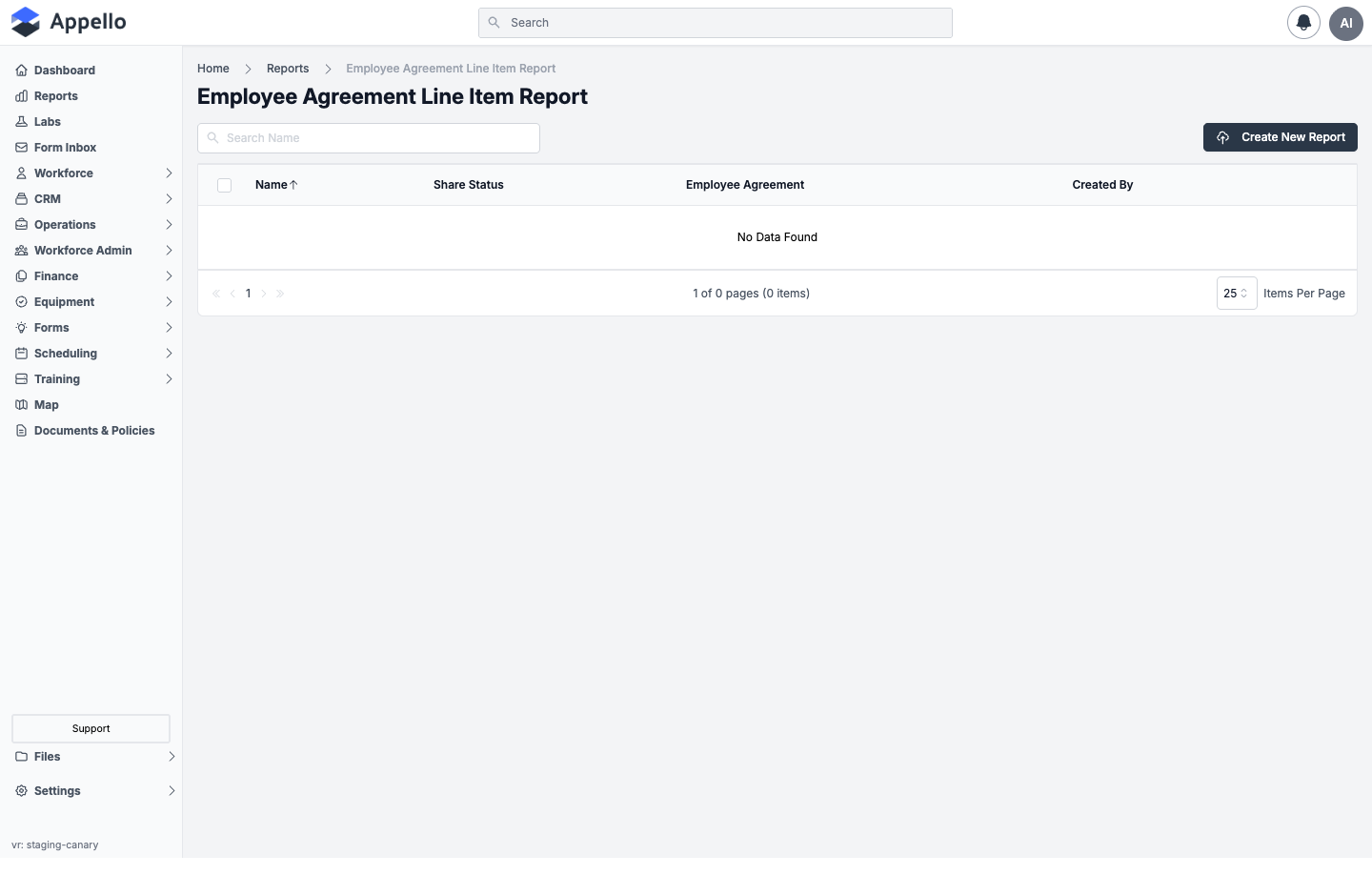
Shown empty on the demo instance -- no Employee Agreement Line Item Report has been saved there yet, so the table reads "No Data Found."
Columns
| Column | Definition |
|---|---|
| Name | The report's saved name. Click it to open the report at /reports/employee-agreement-line-item-report/[customReportId]. |
| Share Status | Public if the report's "Share with Everyone" toggle is on, otherwise Private. |
| Employee Agreement | The agreement the report is built against, read from the report's saved filters. Links to that agreement's Line Items tab. |
| Created By | Avatar and name of the user who created the report (the user signed in when it was first saved), linking to their user profile. |
Controls
| Control | Description |
|---|---|
| Search Name | Filters the list by report name. |
| Create New Report | Opens the Create New Report flyout. |
| Row checkboxes / header checkbox | Select one or more reports to archive, delete, or restore as a batch. |
| Name column sort | Click the Name header to sort ascending/descending (default: ascending by Name). |
| Items Per Page | Changes how many rows are shown per page (default 25). |
Steps -- open or manage a saved report
- Sidebar → Reports, then click Employee Agreement Line Item Report under Custom Report.
- Click a report's Name to open it and choose a date range (see The opened report).
- To edit its setup or sharing instead of viewing it, use the row's edit action to reopen the same form pre-filled (see Editing a saved report).
- Select one or more rows with the checkboxes to archive, delete, or restore them in bulk.
Create New Report form
What it's for
Defines what a saved report will contain: which employee agreement it's built from, which wage rates, line items, and wage regions to include, and who besides you can see it. This form is also reused, pre-filled, to edit an existing report's setup.
Screenshot -- form open
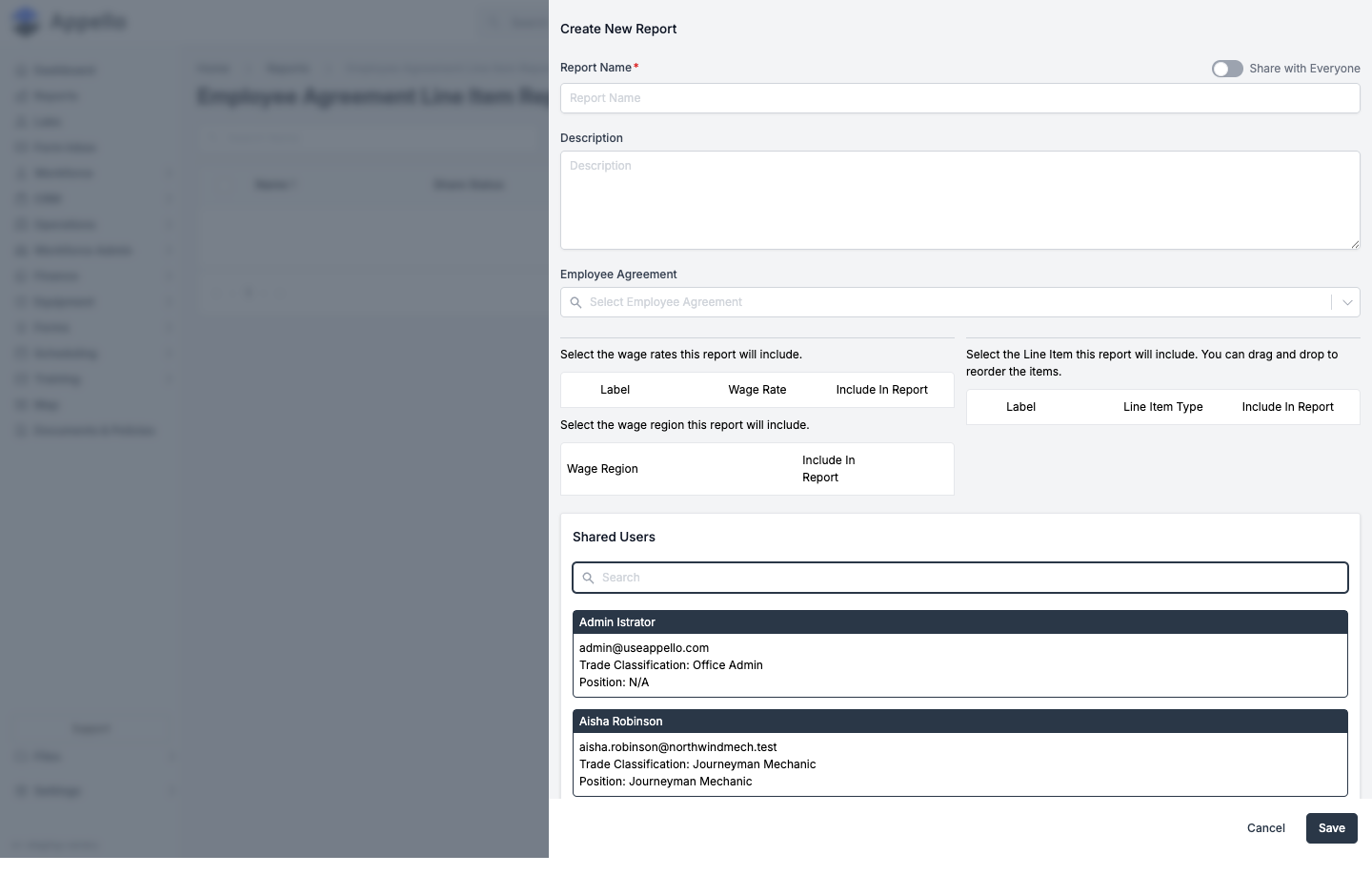
Shown empty on the demo instance: the wage rate, line item, and wage region tables only populate once an Employee Agreement is selected -- they list that agreement's rate labels -- and no agreement is selected in this screenshot.
Screenshot -- Cancel
Clicking Cancel discards every field and closes the flyout without creating a report -- confirmed above by the list still reading "No Data Found" afterward.
Fields
| Field | Definition |
|---|---|
| Report Name | Required. Free text, shown in the list and as the page's breadcrumb. |
| Description | Free text, optional. Not shown on the list; stored on the report record. |
| Employee Agreement | Required. A searchable picker of your instance's non-archived employee agreements. Selecting one loads that agreement's wage rates and line items into the tables below, and is saved as the report's Employee Agreement filter. |
| Share with Everyone | Toggle at the top right (labelled Share with Everyone). On: every user can see and open the report and the Shared Users picker is hidden. Off: only you and anyone added under Shared Users can see it. |
| Shared Users | Searchable checklist of active users, shown only while Share with Everyone is off. Selected users are saved with the report and can open it even though it isn't public. |
| Select the wage rates this report will include | A table (Label, Wage Rate, Include In Report) of the agreement's non-line-item rate labels for the default wage region. Toggle Include In Report per row to add that wage rate as a column group in the report output. |
| Select the Line Item this report will include | A table (Label, Line Item Type, Include In Report) of the agreement's line-item rate labels for the default wage region. Line Item Type shows an Employer Expense or Employee Expense badge. Toggle Include In Report per row to add that line item as a column in the report output. |
| Select the wage region this report will include | A table (Wage Region, Include In Report) of every wage region that has rate labels on the agreement. Toggle a region on to also pull in that region's equivalent wage rates/line items (matched by name and expense type) alongside the default region's. |
At least one wage rate and one line item must be toggled on before the form can be saved -- the form shows an inline error under each table otherwise.
The report also carries Report View and Created By values, but neither is editable on this form. Report View is set automatically. Created By is set to the signed-in user on creation and is not changed on edit -- it only ever appears read-only, as the Created By column on the list.
The line item table's on-screen instructions say "You can drag and drop to reorder the items," but the rows on this form are a plain list -- reordering does not currently work from this screen.
Filters
The report's only saved filter is the Employee Agreement picked on this form -- it determines which wage rates and line items are even offered to include, and it's what the opened report matches timesheet data against. A date range is not part of the saved report definition; it's chosen every time you open the report (see The opened report below) and is not persisted between visits.
Steps -- create a report
- From the list, click Create New Report.
- Enter a Report Name (required) and optional Description.
- Select an Employee Agreement (required) -- this loads its wage rates and line items.
- In the wage rate table, toggle Include In Report for every wage rate you want as a column group.
- In the line item table, toggle Include In Report for every line item you want as a column.
- In the wage region table, toggle on any additional wage regions whose equivalent rates/line items should also be pulled in.
- Leave Share with Everyone off and pick individual Shared Users, or turn it on to share with the whole instance.
- Click Save.
Report output columns and definitions
The opened report is a pivot table: one row per employee (grouped by user and trade level), one column group per included wage rate, and totals across all wage rates. Which wage-rate and line-item columns exist depends entirely on what was toggled on when the report was built.
| Column | Definition |
|---|---|
| Employee Info | Avatar, name (links to the user's profile), and trade level badge for the row's employee. |
| Wage Region / Wage <rate name> (group headers) | Header bands grouping the columns below by wage region, then by wage rate, so you can see which rate a set of line-item columns belongs to. |
| #Hrs (per wage rate) | Total approved timesheet hours this employee worked at that wage rate within the selected date range, deduplicated by work date. |
| <Line Item> rate (per wage rate x line item) | The employee's hourly rate for that line item at that wage rate, tagged Employer Expense or Employee Expense. |
| Total <Line Item> (per wage rate x line item) | #Hrs for that wage rate x that line item's rate -- the dollar amount owed for that line item at that wage rate. |
| Total → #Hrs | The employee's total hours across every included wage rate. |
| Total → Total <Line Item> | That line item's dollar total summed across every included wage rate for the employee. |
Export
Export CSV (top right of the opened report) downloads the current rows for the currently selected date range. Its filename is built from your company name, the employee agreement name, the report name, the date range label, and a timestamp.
The opened report
What it's for
Runs the saved report's line item/wage rate/wage region selections against approved timesheet data for a date range you choose, and lets you export the result. It does not let you change the report's setup or sharing from this screen -- see Editing a saved report.
Screenshot
Shown empty on the demo instance -- no Employee Agreement Line Item Report has ever been saved there (see the list screenshot above), so there is no report to open. Navigating to a report ID that doesn't exist produces the app's generic "An unexpected error has occurred" screen, shown above.
Once a saved report is opened it shows:
- A breadcrumb/title bar with the employee agreement's name (linking to that agreement's Versions tab) and a Date Range picker with quick-range presets. No data loads until a date range is selected.
- The pivot table described above, or a "No data found" state if the selected date range has no matching approved timesheet records.
- The Export CSV button described above.
Steps -- run a report
- From the list, click the report's Name.
- Pick a Date Range (or a quick-range preset) -- the table loads once both a start and end date are set.
- Review the pivot table.
- Click Export CSV to download the current rows.
Editing a saved report
There is no edit control on the opened-report screen itself. To change a report's name, description, employee agreement, included wage rates/line items/wage regions, or sharing, go back to the saved-reports list and use that row's edit action -- it reopens the same Create New Report form pre-filled with the report's current setup and sharing. Saving it there re-saves the report; it doesn't create a second one.
Permissions
Viewing, creating, or editing an Employee Agreement Line Item Report requires:
- The Reports → Custom Report permission for Employee Agreement Line Item Report
The Reports hub also lists these as supporting permissions for this report:
- Workforce → User → View
- View permission for Employee Agreements
- View permission for Employee Agreement Rate Labels
- Finance & Admin → Timesheet Matrix & Timesheet Log → View
Related pages
- Reports hub
- Human Resources Settings -- where an employee agreement's line items and wage rates are defined
- Employment Agreements -- the agreement and contract-version pages this report's data is built from