Change Orders
Module: CRM & Sales | Platform: Desktop
Change Orders document scope modifications after an estimate has been approved and work has begun. They capture additional work, scope reductions, or material substitutions — adjusting the contract value and keeping both internal budgets and client-facing billing aligned.
Navigation
Sidebar → CRM → Change Orders (/overview/change-order-report), or from within a job's
Planning & Tracking → Change Orders tab.
Viewing the Change Order report at all requires the Estimate: View permission — this is
the route-level gate on /overview/change-order-report (source: lib/routes.ts). It is a
separate permission item from Change Order, which is what governs creating, editing,
archiving, deleting, and approving individual change orders (see
Permissions below).
A form component named ChangePinForm also exists in the codebase (components/Forms/ChangePinForm).
It is unrelated to Change Orders — it is the form used to reset a user's PIN from the
Reset PIN page — and is not part of this screen.
Create and Send a Change Order
Change orders are created from inside a job, not from the Change Orders report. The report page lists change orders across every job; the + New Change Order button only appears once you are working inside a specific job.
On the Change Orders report page itself (CRM → Change Orders), the create button is disabled if there is no job in context. Open the job first, then create the change order from its Change Orders tab.
Steps
-
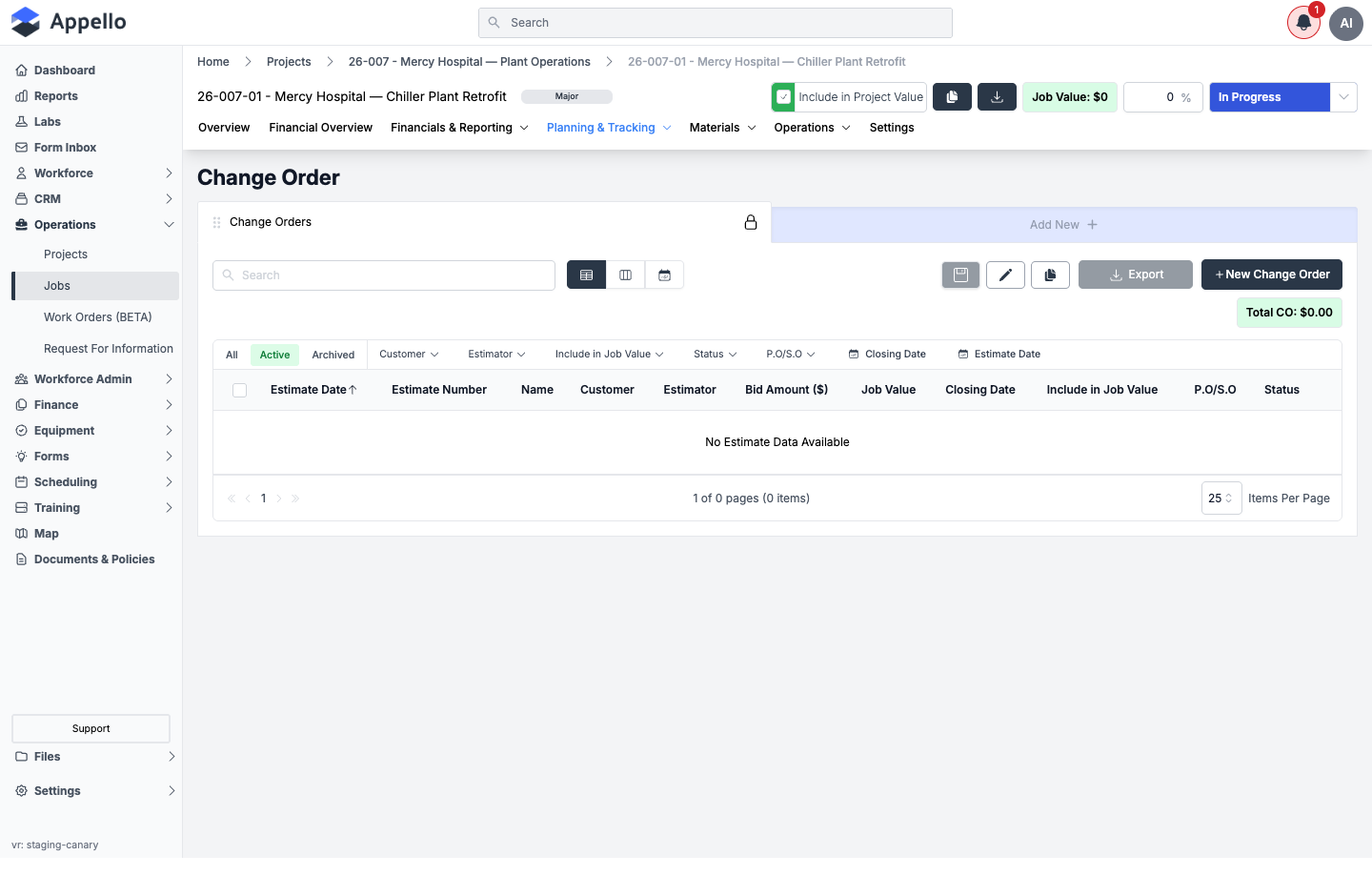
Open the job, then go to Planning & Tracking → Change Orders.
-
Click + New Change Order and choose how you want to start:
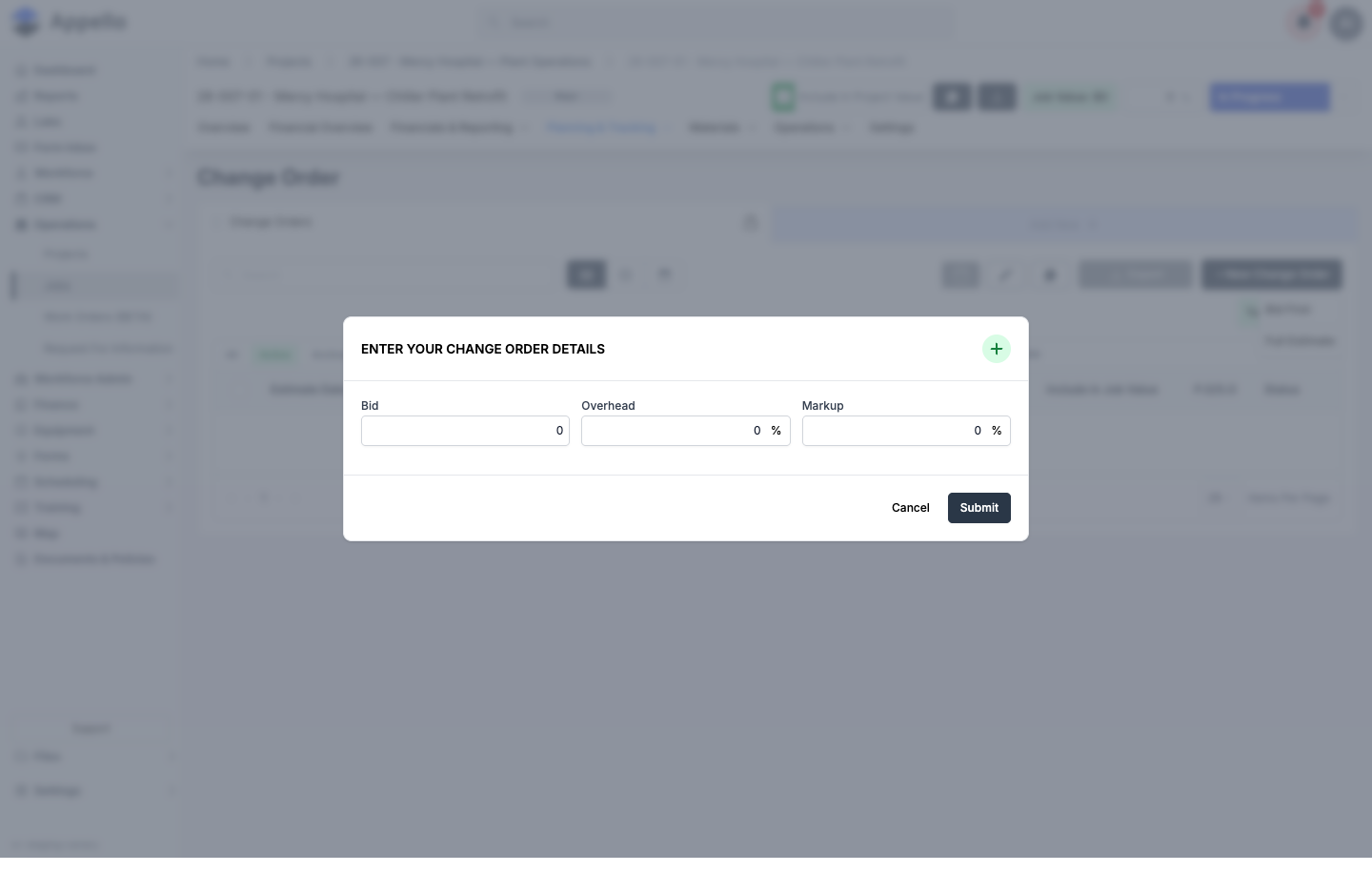
- Bid First -- a quick entry with just Bid, Overhead %, and Markup %. Use this when you already know the total price and want to record it fast.
- Full Estimate -- opens the full worksheet editor with line-by-line labour, equipment, and travel costs.
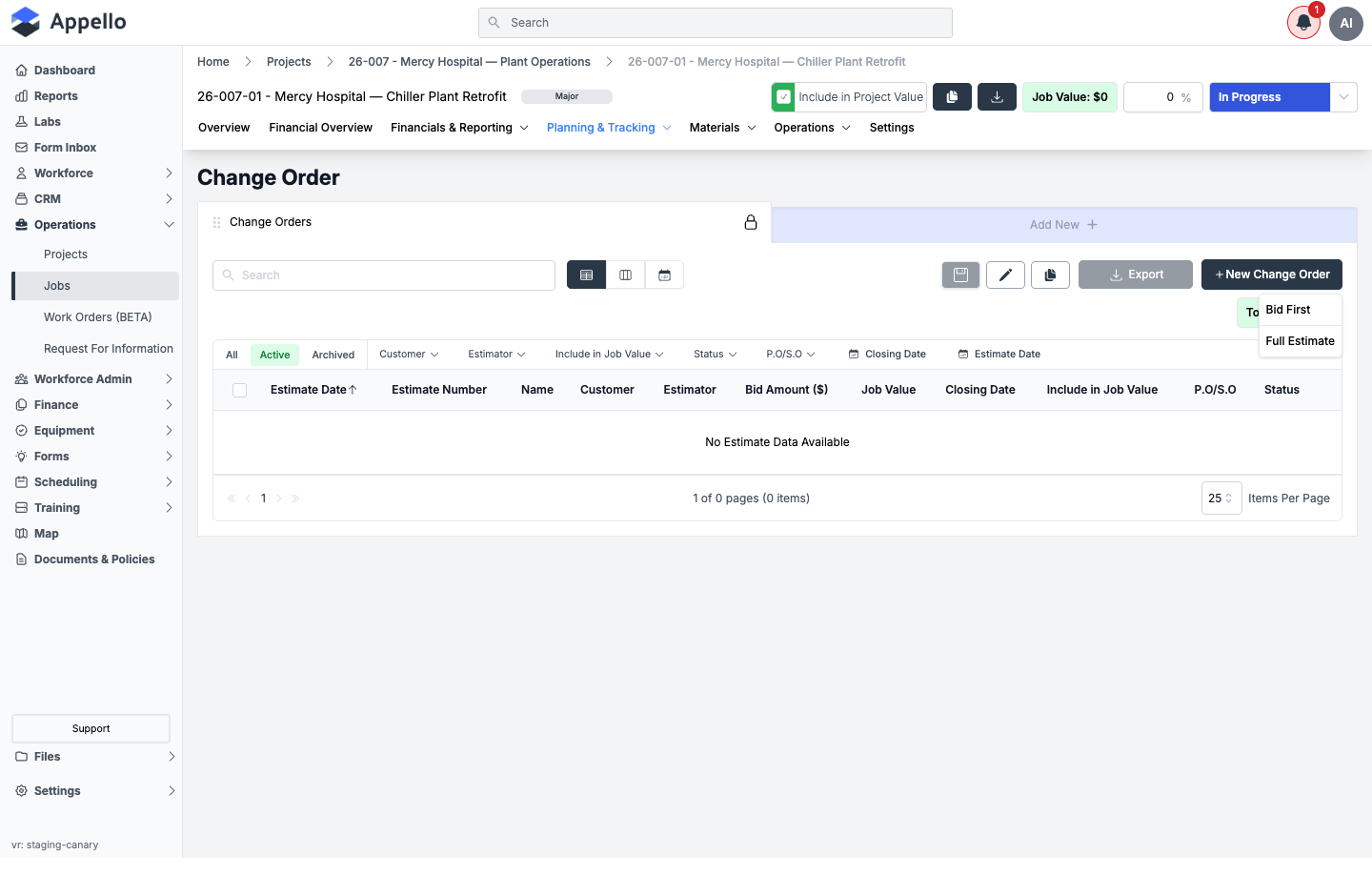
Choosing Bid First opens a small modal:
-
In the Full Estimate editor, fill in the change order's details on the left side of the panel and the cost worksheet on the right:
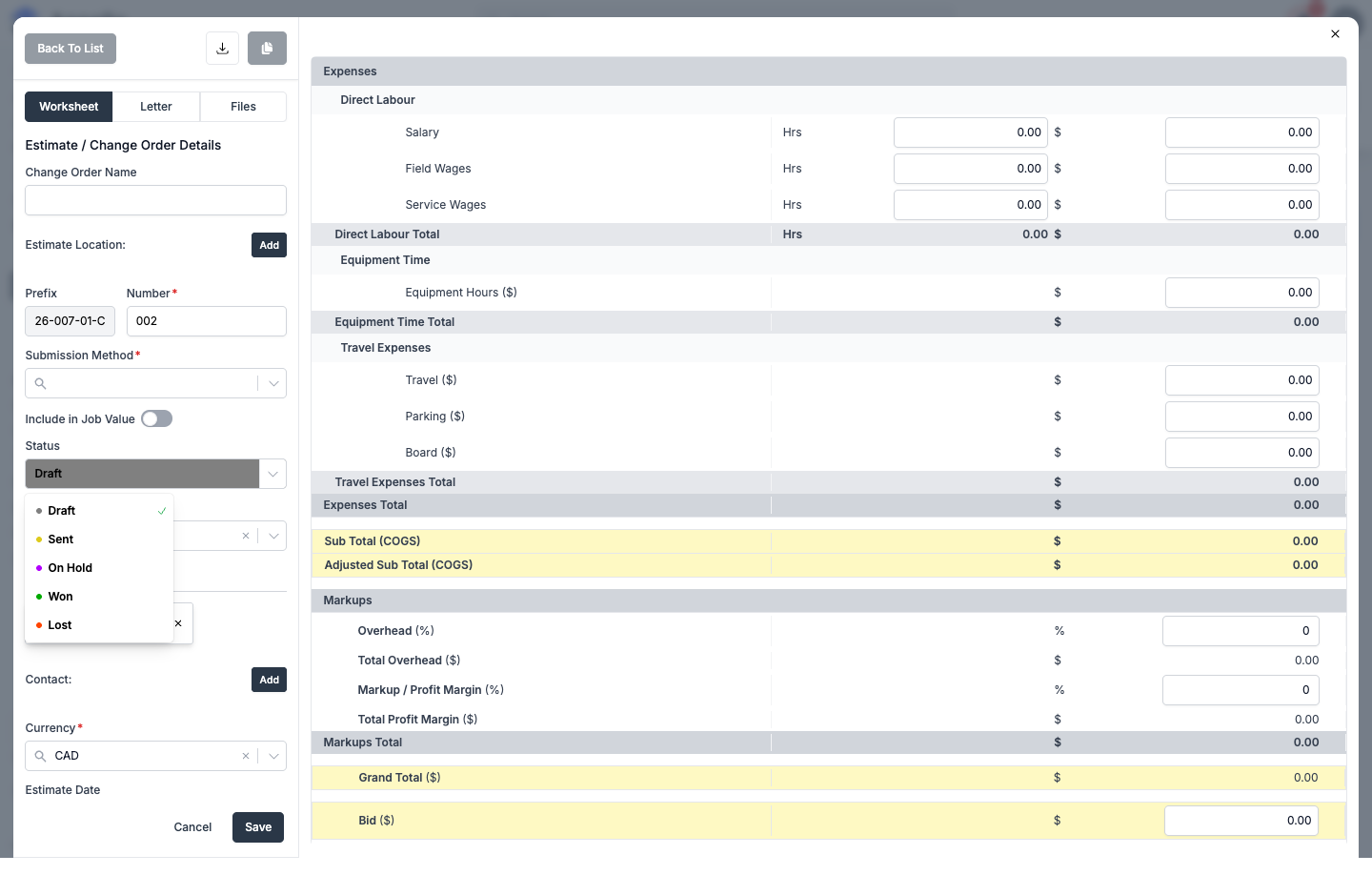
Field Required Type Effect Change Order Name No Text A short label ( subheading) shown alongside the CO number.Number Yes Text (alphanumeric) Combined with the read-only Prefix (from the job number) to form the full CO number, e.g. 26-007-01-C001.Submission Method Configurable Select (configurable list) How the change order was or will be delivered to the customer. Rendered as a generic document attribute, so whether it appears and whether it's required is set per instance in Settings → Estimate and Change Order Templates. Customer Reference Number No Text The customer's own reference/PO number for this change order, separate from P.O/S.O. Include in Job Value No Toggle Whether this change order's total counts toward the job's overall contract value. Locked on once Status is set to the won/approved stage. Status Yes Select The change order's lifecycle stage -- see Approval and Signature below. Editable only with the Approve permission. Estimator Configurable Combobox (user) Defaults to the current user; can be reassigned. Can optionally be filtered to a specific Estimator Group. Customer Conditional Company picker Inherited from the job's customer by default. Required once Status is set to the won/approved stage. Contact No Contact picker A specific contact at the customer for this change order. Currency Yes Select Defaults to your instance's default currency. Estimate Date / Closing Date / Expiry Date / Date Won No Date (clearable) Tracking dates for the change order. P.O Number Configurable Purchase order picker Links the change order to a purchase order already created on the job. Not shown on canary's current configuration. Estimate Location No Location picker An address/location tied to the change order (separate from the job's own location). On the right, the worksheet totals Direct Labour, Equipment Time, and Travel Expenses, then applies Overhead and Markup / Profit Margin to produce the Grand Total and Bid amount.
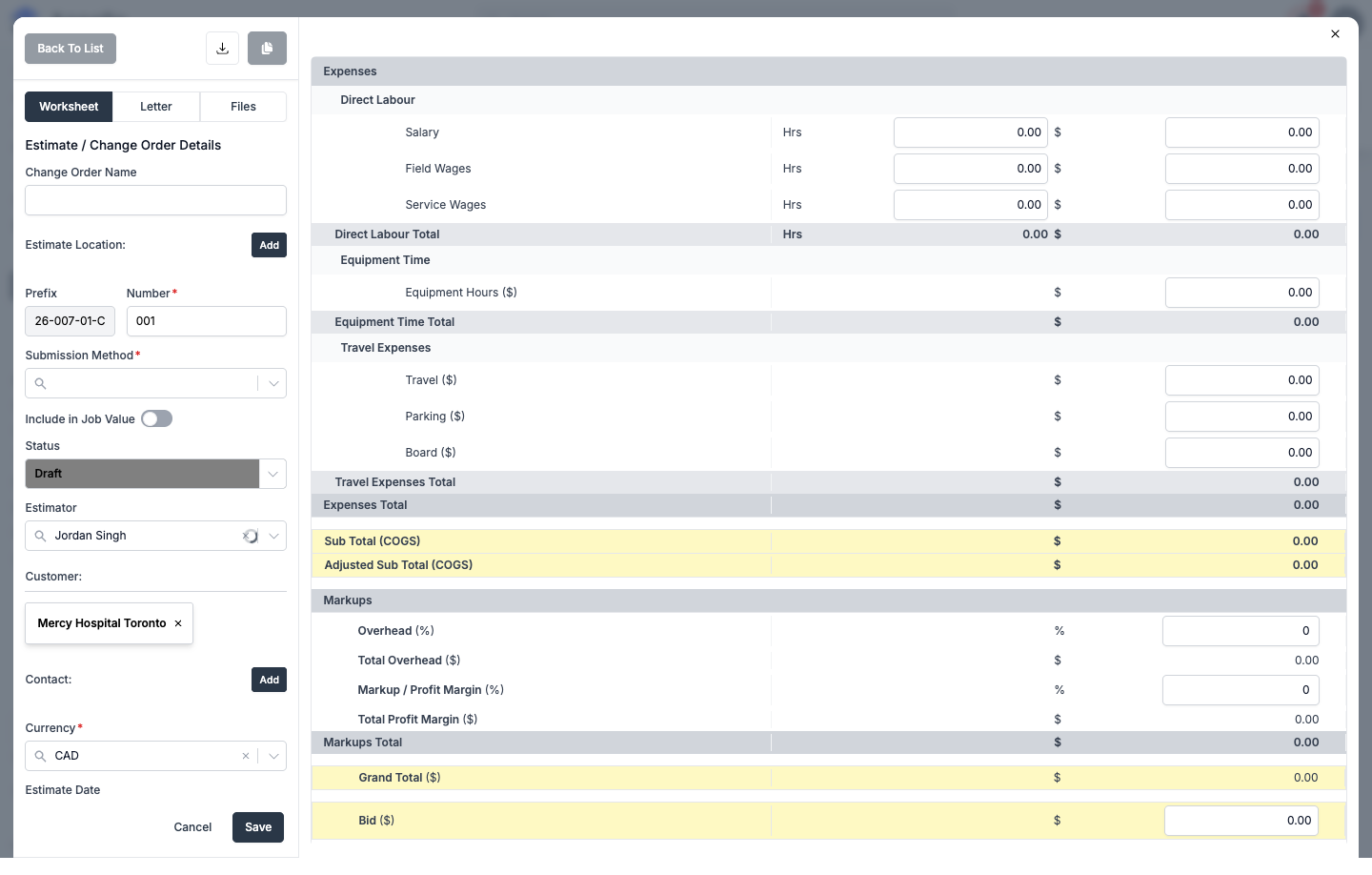
Submission Method, Customer Reference Number, P.O Number, and Estimate Location are all rendered from your instance's configured attribute list for Estimates and Change Orders, so the exact set, order, and required/optional state can differ from what's shown here. On canary's current configuration, P.O Number and Customer Reference Number are not shown in the editor even though they exist in the source and as selectable report columns (see Columns below).
-
Switch to the Letter tab to write (or generate with AI-assisted drafting) the client-facing change order document. This is the document you print, download, or attach to an email when sending the change order out for approval.
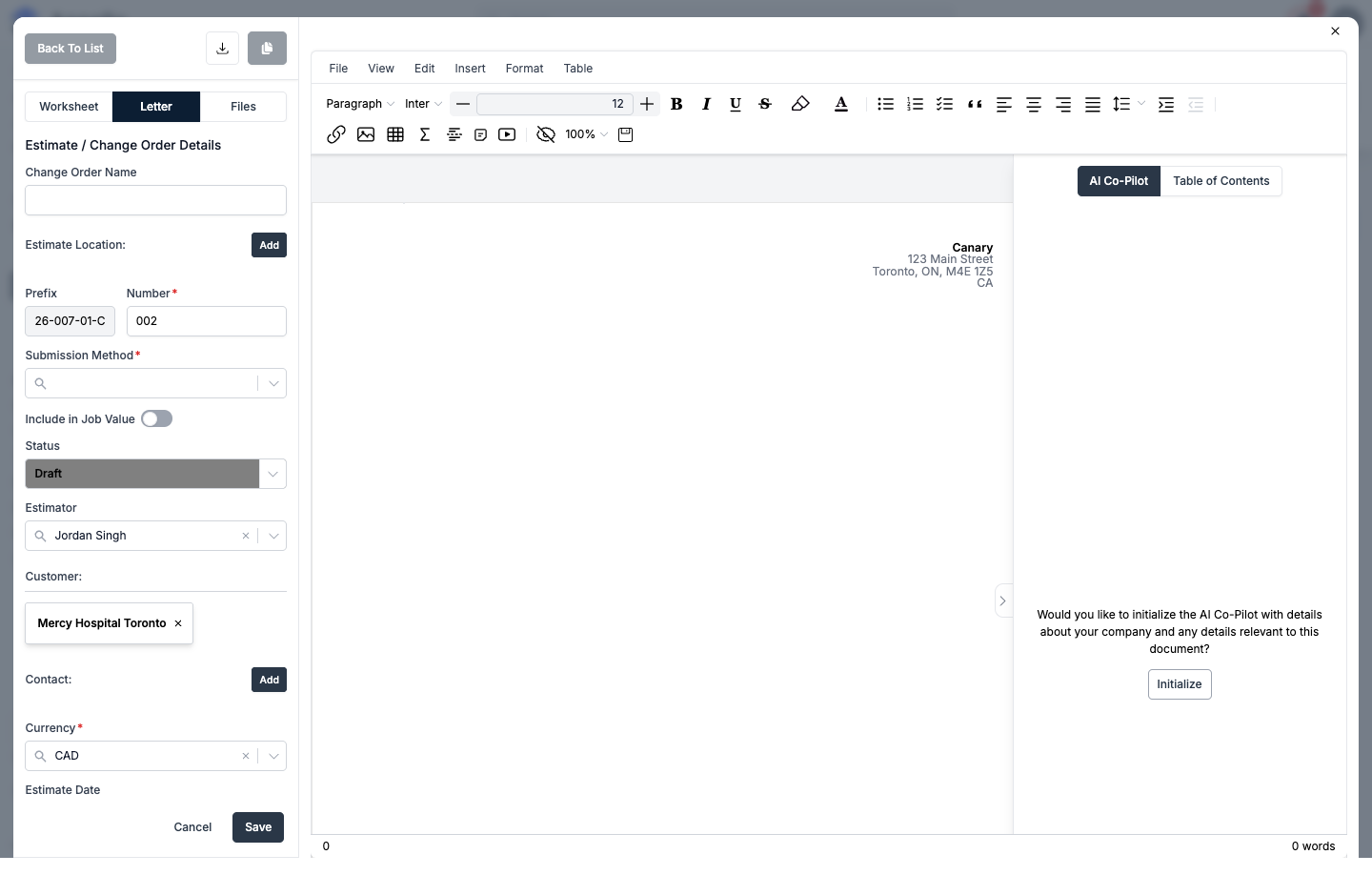
Once the change order has been saved at least once and you have the Asset: View permission, a third Files tab appears alongside Worksheet and Letter for attaching supporting documents (photos, drawings, RFIs) directly to the change order -- visible in the Worksheet screenshot above.
-
Click Save. Once saved, two more controls become available at the top of the panel:
- The download icon opens a menu with checkboxes for Estimate Letter and Estimate Worksheet -- pick which section(s) to include, then use the Export action underneath the checkboxes to generate a single PDF containing whichever sections you selected. This is what gets sent to the client or general contractor for approval.
- The duplicate icon (next to the download icon) clones the change order into a new one. It's disabled while the panel is in edit mode.
There is no built-in "send" action or e-signature step inside the change order editor itself (unlike Work Orders or Policy Documents, which do have in-app signature capture). Sending a change order for approval means exporting it as a PDF and delivering it to the customer outside of Appello -- by email, printed copy, or however your Submission Method records it.
Approval and Signature
Change orders don't carry a formal in-app signature field. "Approval" happens by changing the change order's Status to whichever status your instance treats as won/approved -- this requires the Approve permission on the Change Order permission item. Users who can only view or edit change orders will see the Status field locked.
-
Open the change order and click the edit icon.
-
Change Status to the approved/won stage (canary's default list is Draft, Sent, On Hold, Won, and Lost -- your instance's list may differ if it has been customized).
-
Click Save.
Status options are configurable per instance (Settings → Estimate and Change Order Templates / Property Settings). "Won" is shown here because it is canary's default label for an approved change order -- your instance may label the equivalent stage differently.
What happens when a change order is approved
- Include in Job Value automatically turns on (if it wasn't already), and the change order's date-won field is set to today if it's empty.
- The change order's total is added into the job's overall Job Value, shown at the top of the job page.
- If the job already has a progress report, Appello checks whether that progress report needs to be regenerated to include the newly approved change order's value, and prompts for confirmation before applying the status change.
- A Company must already be set on the change order before it can be marked approved -- Appello blocks the status change and shows an error if it's missing.
Change Order Report
Where it is: Sidebar → CRM → Change Orders, or /overview/change-order-report. Requires
the Estimate: View permission (see Navigation above).
The Change Order report lists every change order across every job in one table, board, or calendar view, with running Selected CO and Total CO value totals shown above the grid. Use it to find, filter, and jump into any change order without opening its job first.
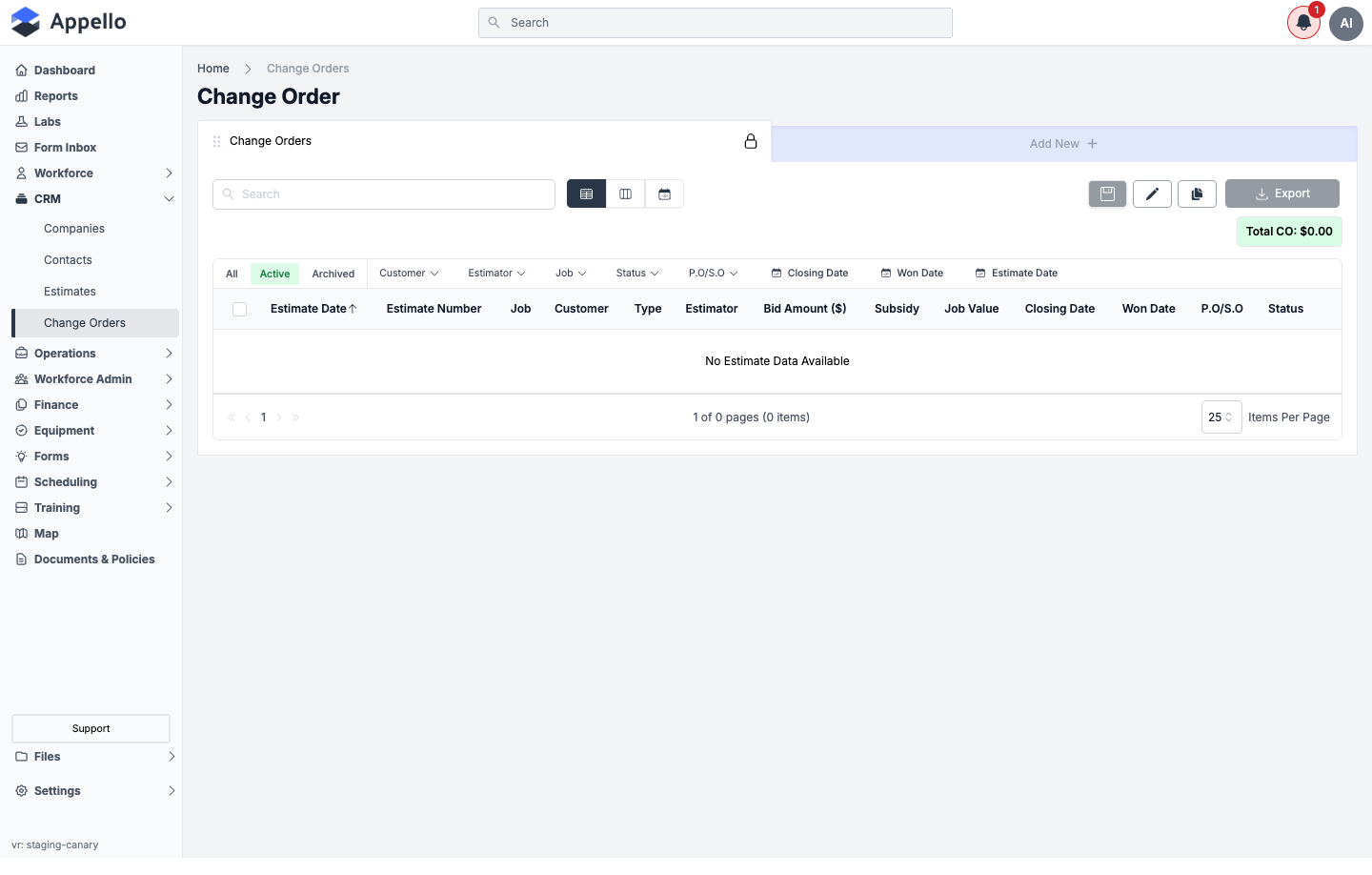
Clicking a row opens that change order's detail panel (see Steps above), except clicking the Job column value, which instead navigates straight to that job's Overview tab.
View Modes
Three view-mode icons sit to the left of the search box:
| Icon | View | What it shows |
|---|---|---|
| Table (grid icon) | Table | The default sortable/filterable grid described below. |
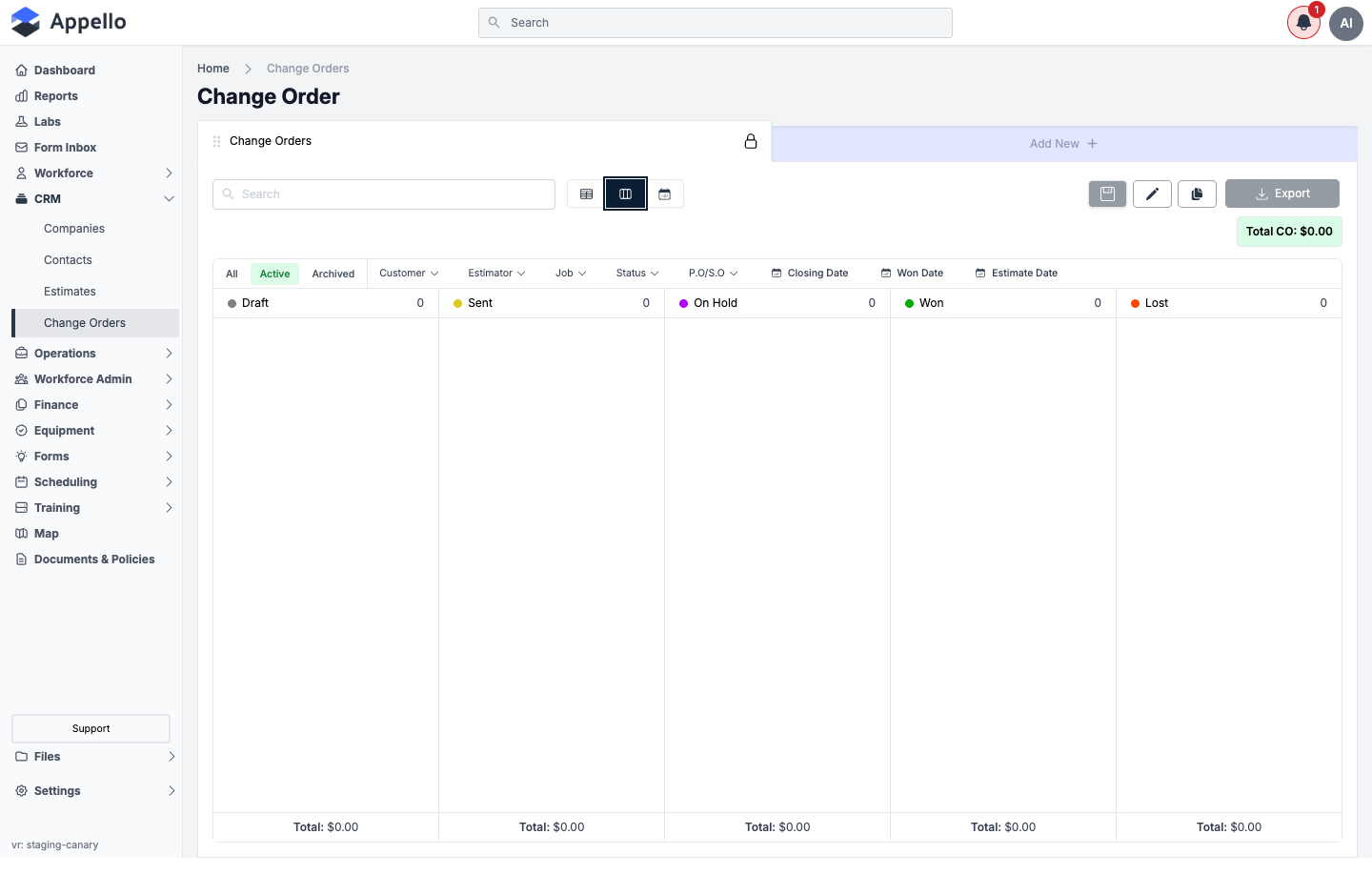
| Columns icon | Board | A kanban board with one column per Status (Draft, Sent, On Hold, Won, Lost on canary), each showing a running count and a dollar total footer. Dragging a card between columns changes its Status the same as editing the field directly. |
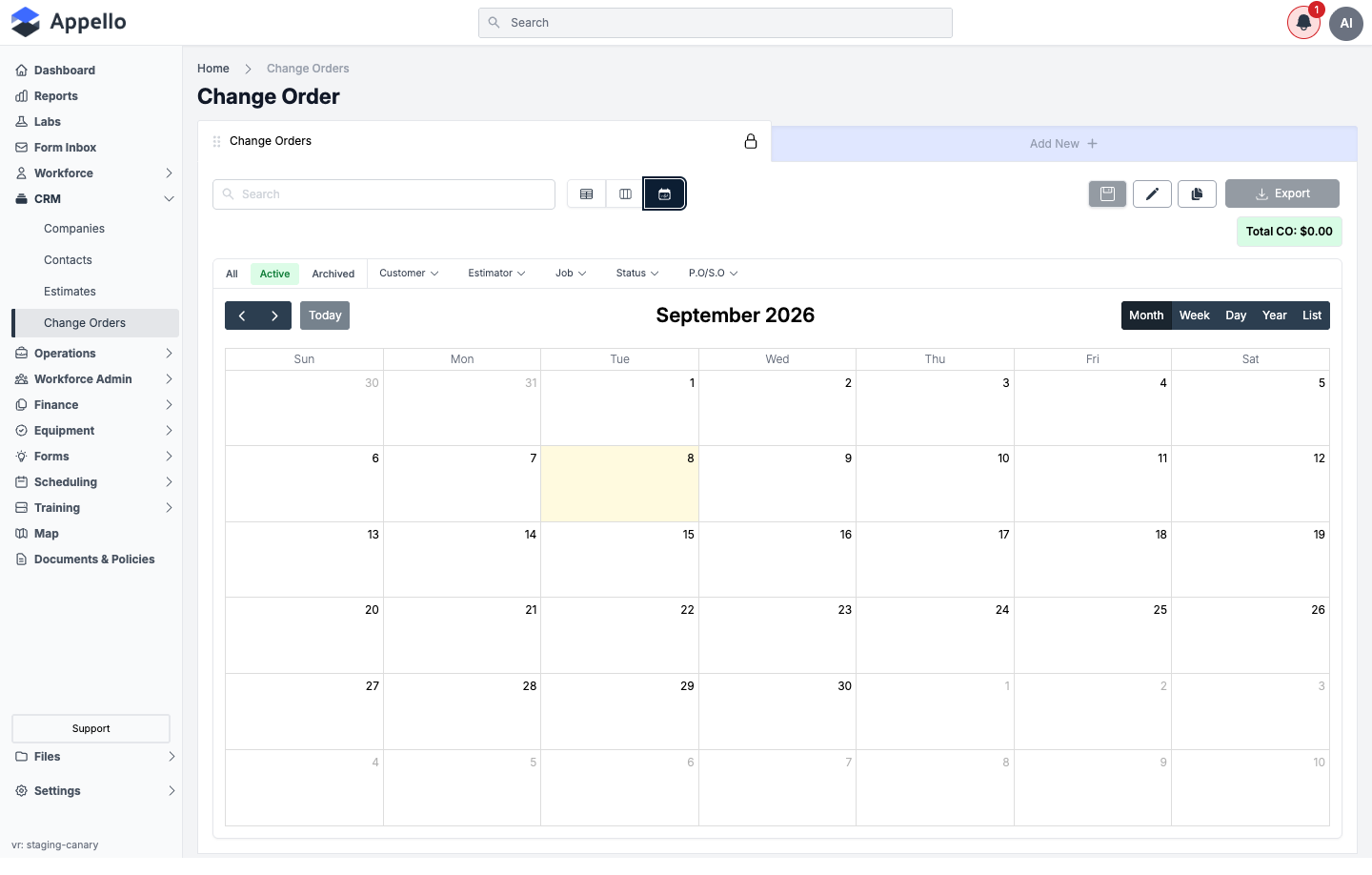
| Calendar icon | Calendar | A month/week/day/year/list calendar plotting each change order on its Closing Date. |
Quick Tabs
All / Active / Archived tabs sit above the filter row and switch between every change order, active (non-archived) change orders only, and archived change orders only. All three views (Table, Board, Calendar) respect the active tab.
Search & Sort
The Search box above the grid does a free-text search across the list. Click any column
header to sort by that column; the list is sorted by Estimate Date by default. Source
disables sorting only on a roles column, which isn't one of the columns shown on this
report -- every column actually shown here is sortable.
Columns
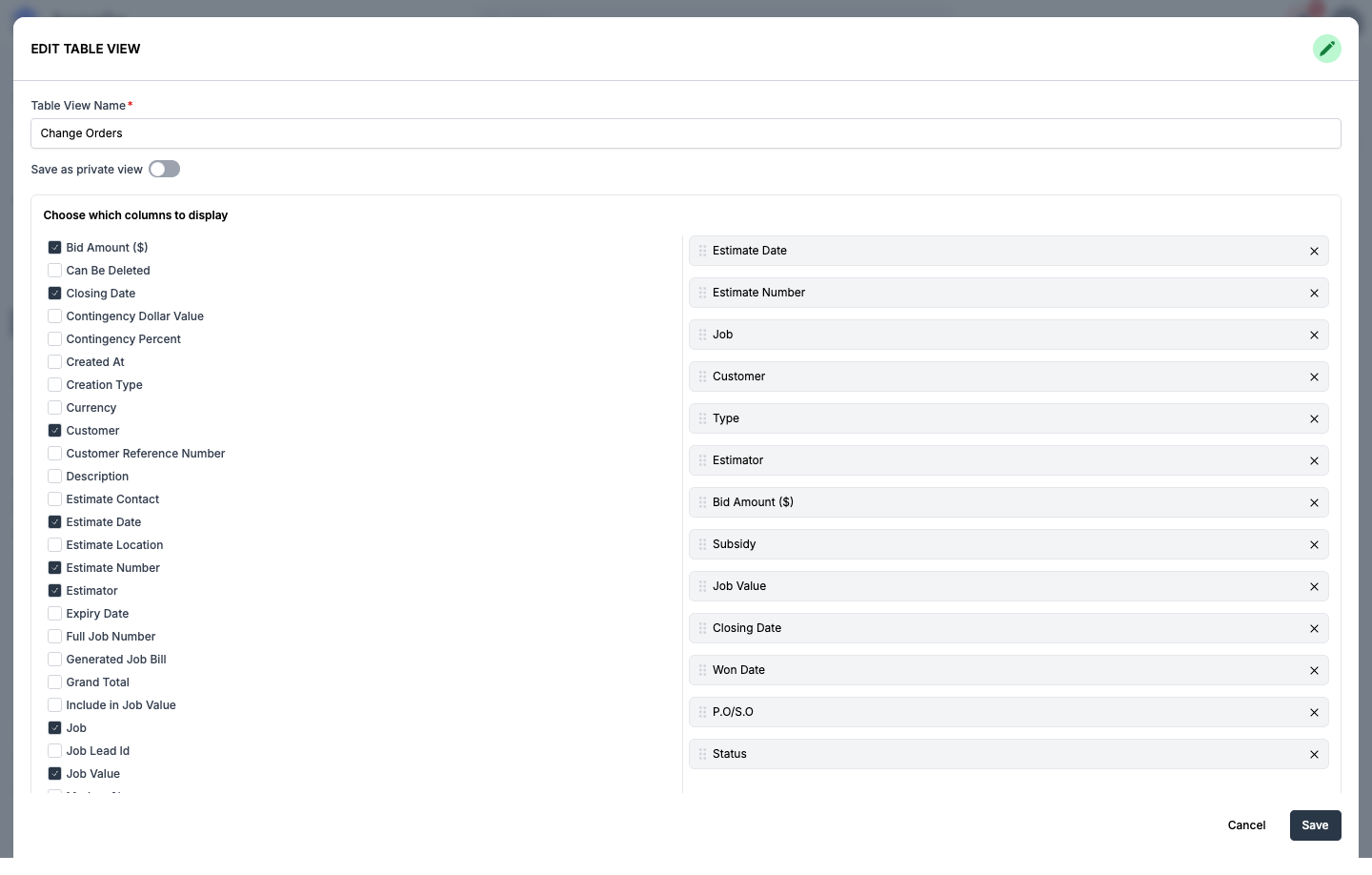
The default columns are:
| Column | Description |
|---|---|
| Estimate Date | The change order's creation/estimate date. |
| Estimate Number | The CO number (e.g. 26-007-01-C001). |
| Job | The parent job. |
| Customer | The customer/company on the change order. |
| Type | Always "Change Order" on this report. |
| Estimator | The assigned estimator. |
| Bid Amount ($) | The change order's total bid value. |
| Subsidy | Any subsidy amount applied. |
| Job Value | The job's overall contract value (only shown at top level, not inside a job). |
| Closing Date | Date the change order is expected to close. |
| Won Date | Date the change order was marked won/approved. |
| P.O/S.O | Purchase order / service order reference. |
| Status | Current lifecycle status. |
Click the pencil (edit) icon above the table to open Edit Table View for the active view -- it shows exactly which columns are currently selected (left, checkboxes) and their display order (right, drag to reorder), and lets you add any of the many other available fields (Contingency Dollar Value, Contingency Percent, Currency, Customer Reference Number, Description, Estimate Contact, Estimate Location, Generated Job Bill, Grand Total, Include in Job Value, Job Lead Id, and more).
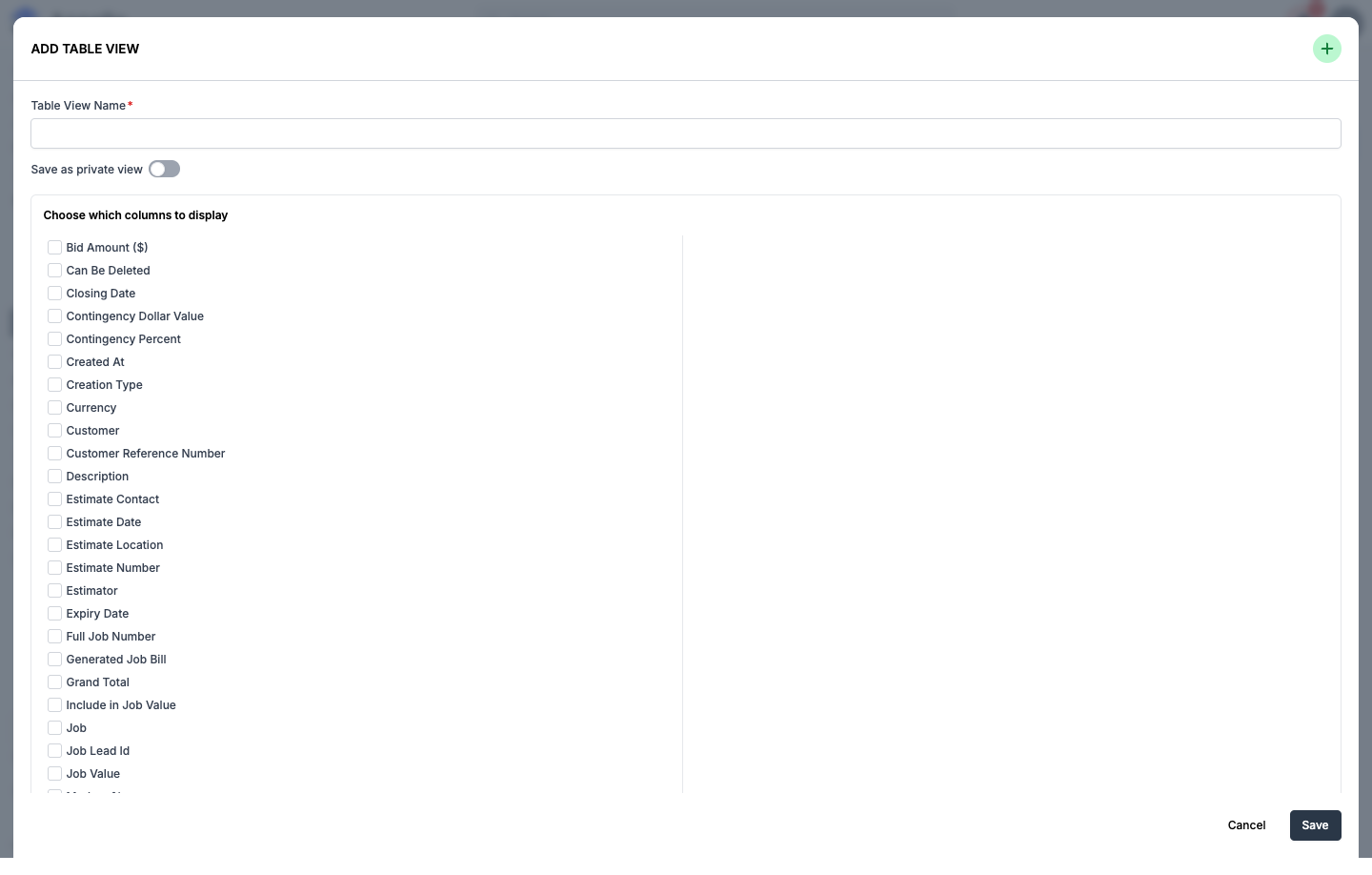
The save (floppy disk) icon saves changes to the active view; the duplicate icon next to it clones the active view as a starting point for a new one. To create a brand-new named view from scratch (rather than editing the current one), use the Add Table View control alongside the view tabs -- it opens the same column picker with a Table View Name field and a Save as private view toggle.
Filters
Filter dropdowns sit above the column headers: Customer, Estimator, Job, Status, P.O/S.O, plus date-range filters on Closing Date, Won Date, and Estimate Date. Each dropdown opens a searchable list plus an Empty checkbox to find records missing that field.
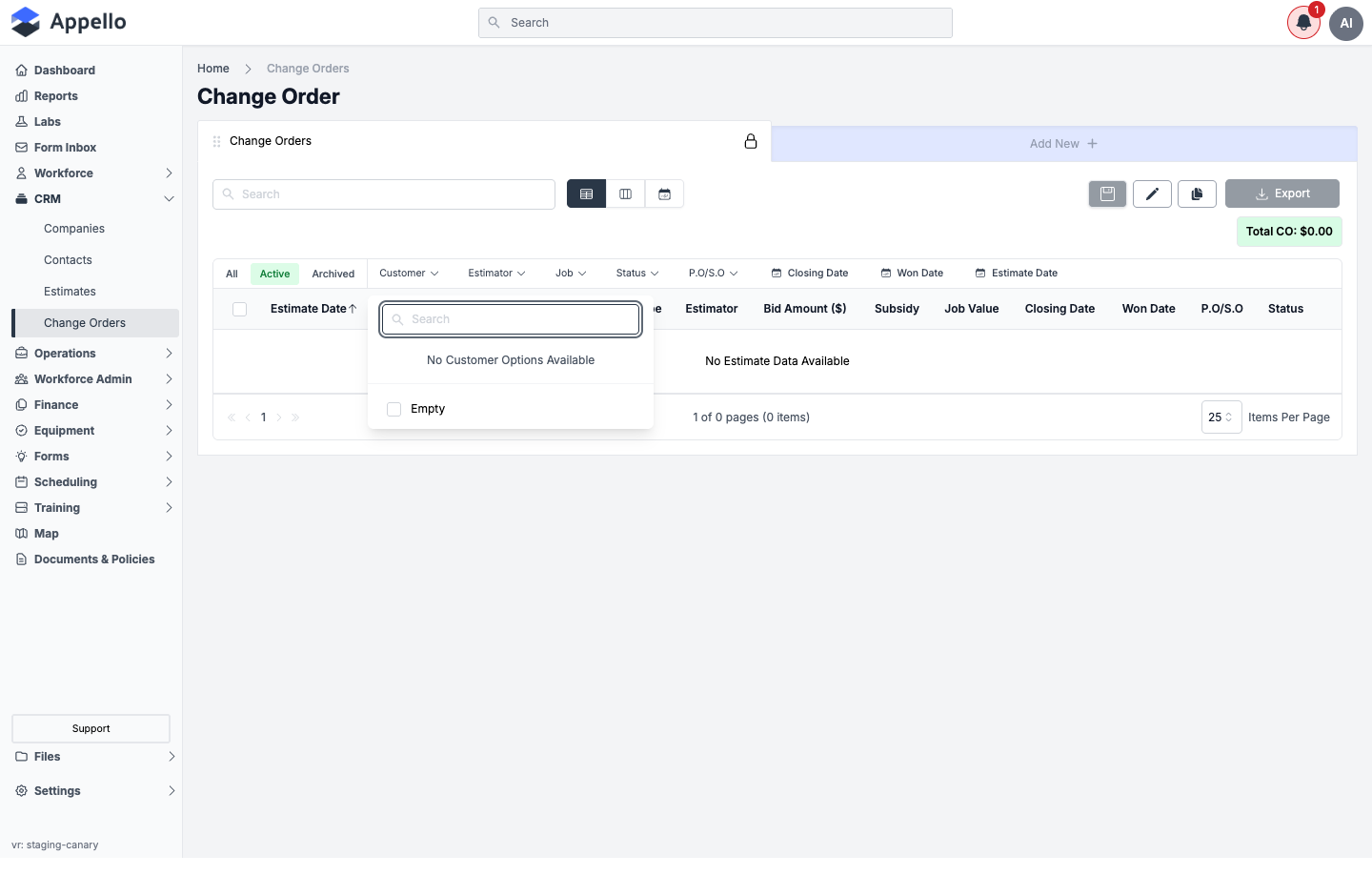
Not every filter renders the same way. On canary, opening Status listed status values (e.g. Draft) even though the report showed zero change orders -- status options come from your instance's configured status list, not from existing records. Opening Customer listed a company ("Mercy Hospital Toronto") that isn't tied to any actual change order on canary right now -- the Customer/Estimator/Job/P.O/S.O option lists are drawn from Estimates and Change Orders together, not scoped to just this report's Change Order type or its current Active/Archived tab. In other words: these dropdowns can offer values that don't resolve to any row under the tab and filters you currently have selected.
Export
The Export button downloads the currently filtered list as a CSV, using the same columns selected in your active table view.
Permissions
| Permission item | Controls |
|---|---|
| Estimate: View | Whether the /overview/change-order-report route can be opened at all. |
| Change Order: Create / Edit / Archive / Delete / Approve | Row-level actions inside the report and inside a change order -- creating, editing, archiving, deleting, and changing Status to an approved/won stage. |
| Asset: View | Whether the Files tab appears on a saved change order (see Steps above). |
Canary had zero Change Order records (Active, Archived, and All tabs) at the time this page was written, so the list, board, calendar, and filter screenshots above are all shown empty on the demo instance. Column names, view modes, and filter behavior were confirmed from the report's source configuration and by exercising the view-switcher and filter dropdowns live.
Related Pages
- Estimates — Original contract pricing that COs modify
- Cost Codes & SOV — How COs integrate with Schedule of Values
- Progress Reports — Billing that includes approved COs
- Billing Report — Invoice generation with CO line items
- Companies — Client and GC relationships