Exports, Imports and Bulk Actions
Module: Core | Platform: Web
This is a cross-cutting reference. It covers three behaviors that repeat across dozens of screens rather than living on any one page: the Export control on lists and reports, the import / upload patterns used for holidays, files, and material data, and the row-selection bulk-action bar on list pages. Feature-specific workflows that also export, import, or bulk-act are linked from the table at the bottom rather than repeated here.
This page describes the shared controls that behave the same way across the product: the Export button, the bulk-action bar on list pages, file uploads, and the Company Holidays importer. This is a first-cut pass -- deeper documentation of any one export report or bulk workflow may still live in that feature's own page.
Exporting data
Where it is
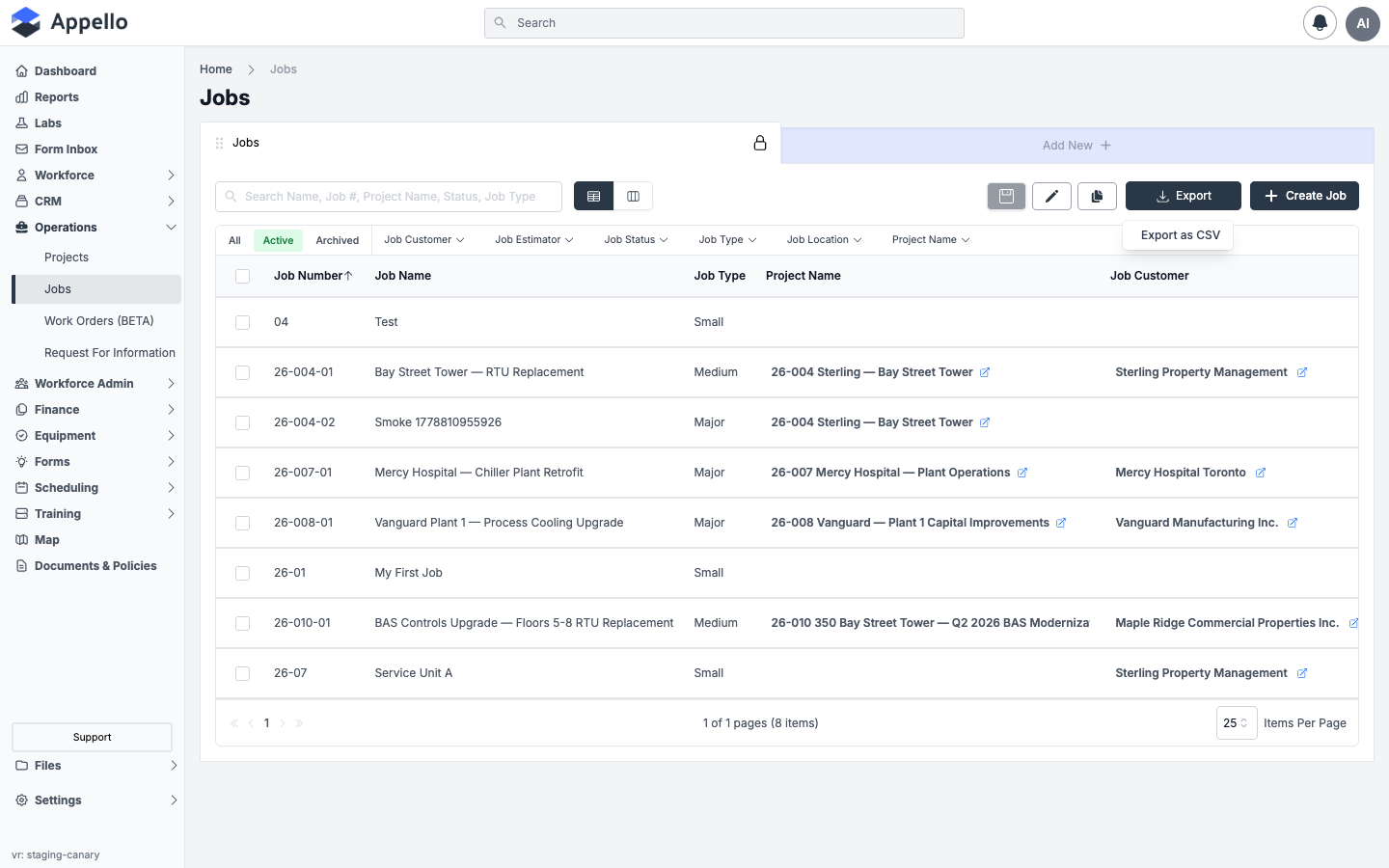
An Export button in the top-right toolbar of most list pages and report pages, next to the page's primary create button (for example Create Job on the Jobs list).
What it's for
Export turns whatever is currently on screen -- filtered, dated, and (for a saved view) with the rows selected -- into a downloadable file. Most lists offer CSV only; a handful also offer PDF, and pages connected to an accounting system add one or more accounting-format exports.
Demo instance
Controls
| Control | What it does |
|---|---|
| Export button | Opens a dropdown of available export options for this list. Shows a row count, e.g. Export (1), once rows are selected. Disabled while a list has zero rows, and while an export is running (spinner + "Exporting..."). |
| Export as CSV | Downloads a .csv file. Offered on almost every list and report. |
| Export as PDF | Downloads a .pdf file. Only offered where the page opts in -- confirmed on the Training Records report and the Certifications tab on a user's or a training record's detail page. |
Export to <Accounting System> | Appears only when that accounting system (Sage 50, QuickBooks, ComputerEase, Avantage, Payroll4Construction, or Dayforce Powerpay) is connected for the instance and this list supports it. Opens a confirmation dialog; some (Employee Expense / Accounts Payable) offer a second Export & Lock Records action. |
| Row checkboxes (see Bulk actions below) | Selecting rows before exporting scopes the export to just those rows instead of the full filtered list. |
Steps
- Open the list or report page.
- Optionally filter, sort, or select specific rows -- the export follows whatever is on screen.
- Click Export.
- Choose Export as CSV, Export as PDF, or an accounting-format option.
- For an accounting export, confirm in the dialog that appears (and choose Export & Lock Records there if you also want to lock the exported records, where offered).
- The file downloads automatically; the button shows a spinner while it generates.
What a CSV contains
- Most list pages (Jobs, Materials, Equipment, Projects, Locations, Contacts, Companies, Union Halls, Roles, User Groups, Certifications, Training Providers, and similar) export a fixed, predefined column set that Appello defines for that report type -- not simply whatever columns happen to be visible on screen. For example, the Jobs CSV always includes job type, division, project number, location, lead and site-supervisor names, job value, progress, and contact details, regardless of which columns are shown in the table.
- Saved custom views (and any list that explicitly passes its column configuration to the export) instead export the currently configured, currently ordered columns -- what you see is what you get.
- Selecting rows before exporting narrows either path to just those rows.
Export types by report name and page
This is the full set of CSV exports Appello offers, grouped by area, with the page each belongs to.
| Export | Page / feature |
|---|---|
| Jobs | Jobs list (/jobs) |
| Job Completion | Job Completion report |
| Job Activity | Job Activity report (/reports/job-activity) |
| Projects | Projects list (/projects) |
| Companies, Vendors, Customers | Companies list (/companies), filtered by company type |
| Contacts | Contacts list (/contacts) |
| Users | Users list (/users) |
| User Groups | Settings → User Groups, and a user's Groups tab |
| Roles | Settings → Roles & Permissions, and a user's Roles tab |
| Materials | Materials list (/materials) and material detail |
| Equipment | Equipment list (/equipment) |
| Locations | Locations list (/locations) |
| Union Halls | Settings → Union Halls (/union-halls) |
| Travel Rate Cards | Travel rate cards |
| Expenses, All Expenses | Expenses / Accounts Payable lists, and the All Expenses report |
| Forms, Form Submissions | Safety Inspection Forms list, and form submission reports |
| Certifications, Certified Users, Certification Statuses, Training Providers, Training Matrix | Certifications, Training Records, Training Providers, Training Matrix reports |
| Leave Requests, Employee Leave | Leave Submissions, All Leave report |
| Timesheet Log, Timesheet Grid, Employee Timesheet, Job-Specific Timesheet | Timesheet report, timesheet grid, and job-specific timesheet tabs |
| Estimates, Change Orders | A job's Estimates and Change Orders tab |
| Job Financial Summary, Monthly Cost, Earned vs. Burned, WIP, Line Item | A job's financial-summary, monthly cost, earned-vs-burned report tabs, and the WIP / line-item reports |
| Sales by Status, by Estimator, by Customer, by Customer Type, by Customer Status | Sales reports (/reports/sales-by-*) |
| Safety Compliance | Safety compliance report |
| Bulk Entry (and its preview) | Bulk time-entry grid |
| Custom view | Any saved custom view, on any list above |
| Accounting-format timesheet exports (Sage 50, Avantage, Payroll4Construction, QuickBooks, Dayforce Powerpay, ComputerEase) | Only where that system is connected |
Permissions
There is no separate "export" permission. Whether a page has an Export button at all is fixed per page, not permission-driven; who can use it follows the same permission that lets someone view that list at all (for example, Jobs → View controls both seeing the Jobs list and being able to export it). An accounting-format export additionally checks whether that accounting system is connected for the instance.
Related pages
Downloading a record with a download template
Where it is
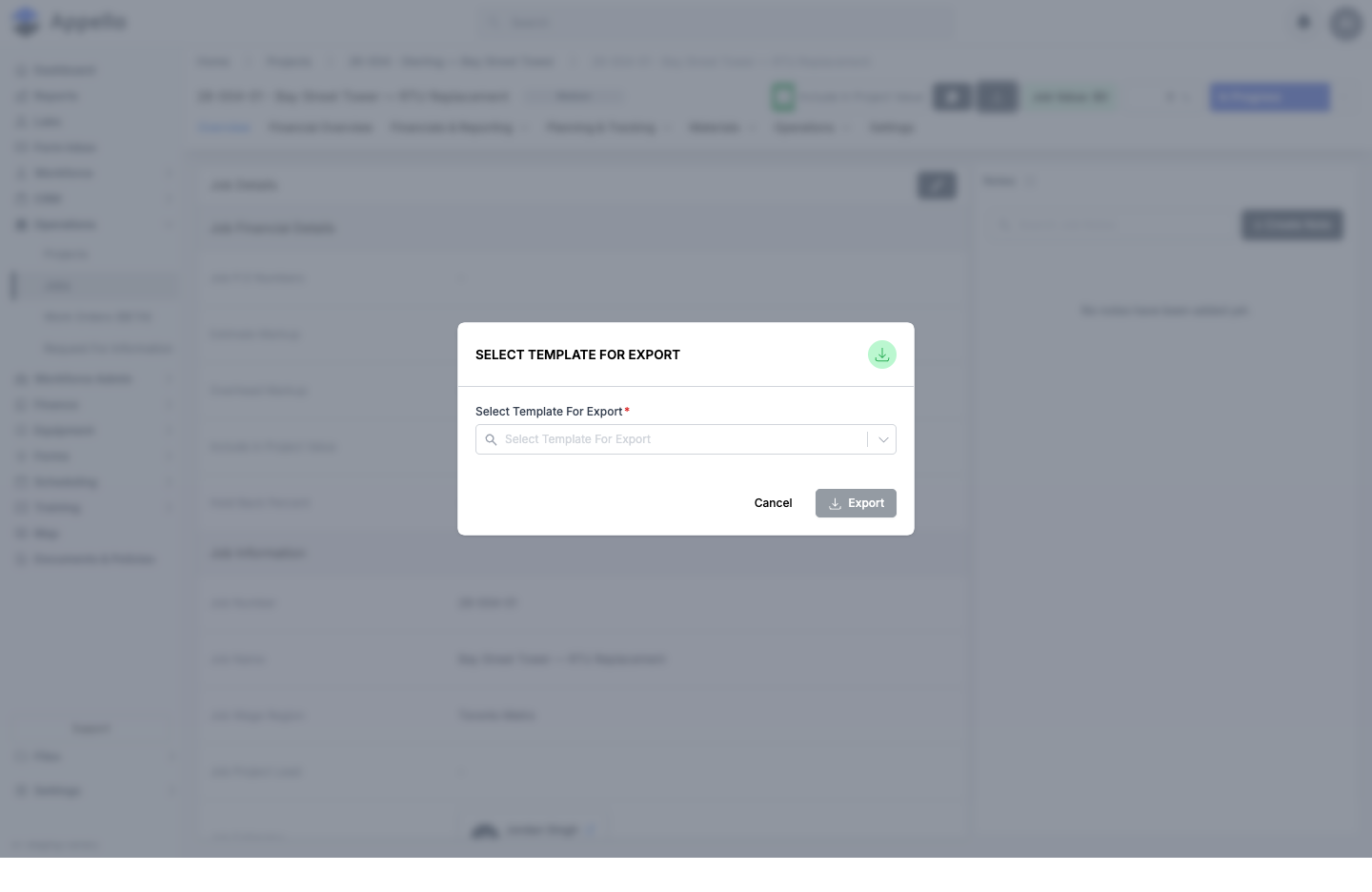
An icon-only Download button (down-arrow icon) in the header action area of a Project, Job, Company, Contact, or Equipment detail page. Work Orders and RFIs have their own equivalent controls -- see Controls below.
What it's for
Generates a PDF of that one record, built from the fields a Download Template has toggled on -- templates are configured separately, on Templates → Download Templates. This is a different mechanism from the generic Export button covered above, which always uses a fixed, predefined column set per report type rather than a configurable template.
Demo instance
Controls
| Control | Where it appears | What it does |
|---|---|---|
| Download button (down-arrow icon) | Project, Job, Company, Contact, and Equipment detail-page headers | Opens the Select Template For Export picker. On Equipment, the template list is filtered to that equipment's own Equipment Category. |
| Select Template For Export combobox | Inside the picker | Lists the Download Templates configured for that record's type. Required -- the Export button stays disabled until a template is chosen. |
| Cancel | Inside the picker | Closes the picker without generating anything. |
| Export button | Inside the picker | POSTs to the PDF export endpoint and downloads the PDF built from the chosen template's field toggles, named <Company Name>_<Project/Job/Company/Contact/Equipment> Details_<date>_<time>.pdf. Shows a spinner while generating; a failure surfaces as an "Export failed" notification. |
| Export PDF button | RFI detail-page header | Opens a separate Export RFI Document panel instead of the picker above: the same kind of Download Template dropdown, but optional here (leaving it blank uses only the RFI's default fields), plus an Include attached files checkbox (images/PDFs are merged into the PDF; other file types are added as a ZIP). |
| Download button (down-arrow icon) | Work Order detail-page header | Downloads a fixed-format Work Order PDF immediately -- there is no template picker on Work Orders, and Download Templates have no effect on it. |
Steps
Project, Job, Company, Contact, or Equipment:
- Open the record's detail page.
- Click the Download button in the header.
- In the Select Template For Export picker, choose a template from the dropdown.
- Click Export. The PDF downloads, built from the fields that template has toggled on.
RFI:
- Open the RFI's detail page.
- Click Export PDF in the header.
- Optionally choose a Download Template, and optionally check Include attached files.
- Click Export.
Work Order:
- Open the Work Order's detail page.
- Click the Download button in the header -- the PDF downloads immediately, with no template step.
Which templates the picker lists
| Detail page | Templates offered |
|---|---|
| Project | Projects sub-tab templates |
| Job | Jobs sub-tab templates only -- Work Orders sub-tab templates are filtered out |
| Company | Companies sub-tab templates |
| Contact | Contacts sub-tab templates |
| Equipment | Equipment sub-tab templates created for this record's own Equipment Category, no others |
An empty dropdown means no template of that kind exists yet -- create one under Settings → Download Templates first.
Permissions
There is no dedicated permission for the Download button or the picker -- neither is wrapped in a permission check in source. The button renders for anyone who can open the detail page (the page's own view permission, for example project.view or company.view). Creating the templates the picker lists is a separate matter, gated by the ObjectDownloadTemplate permission described on the Templates page.
Per-page walkthroughs with screenshots: Project, Job, Company, Contact, Equipment.
The screenshot above was taken on a demo instance from a Job's Download button; the picker was opened and then dismissed without clicking Export, so no file was generated.
Related pages
- Templates → Download Templates -- creating and managing the templates this picker lists.
Imports and uploads
Public holidays import
Where it is
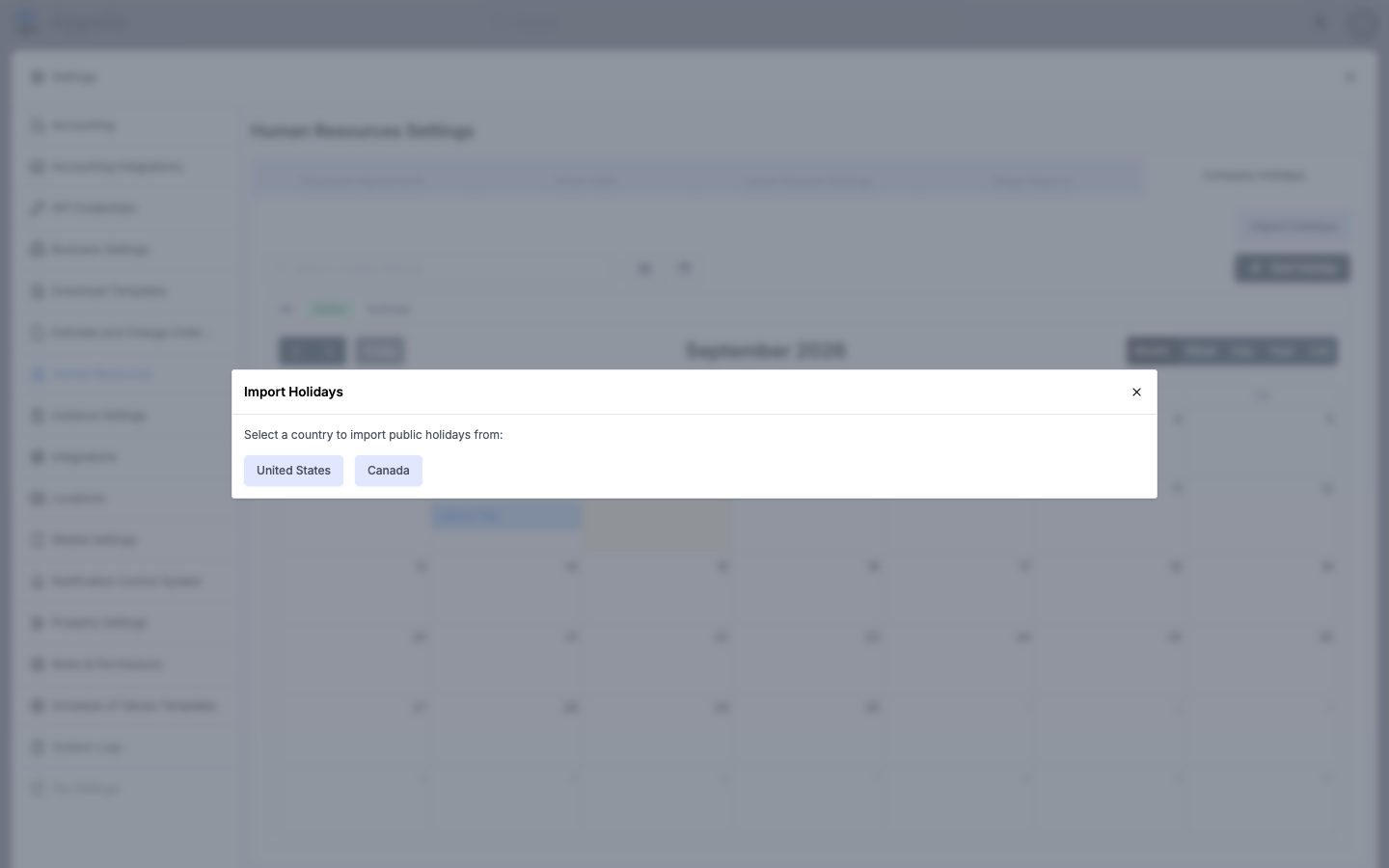
Settings → Human Resources → Company Holidays, via the Import Holidays button above the holiday calendar.
What it's for
Import Holidays pulls a country's public holidays (US or Canada) from an external holiday calendar and adds the ones you pick to your Company Holidays list in one action, instead of entering each one by hand.
Demo instance
Controls
| Control | What it does |
|---|---|
| Import Holidays button | Opens the importer. Only shown to users with edit access to this settings tab. |
| United States / Canada | Step 1: fetches that country's current-year public holidays. |
| Holiday checkboxes, grouped by National and by state/province | Step 2: pick which holidays to import. National, fixed-date holidays are pre-selected by default. |
| Select All / Unselect All | Toggles every listed holiday at once. |
| Floating-years info banner | Explains that fixed-date holidays (e.g. Christmas) recur automatically and only need importing once, while floating holidays (e.g. Thanksgiving) need their date re-imported for future years -- the import also creates the next several years of floating holidays it detects. |
| × (close) | Cancels without importing anything. |
Steps
- Go to Settings → Human Resources → Company Holidays.
- Click Import Holidays.
- Choose United States or Canada.
- Review the pre-selected holidays, grouped by National and by state/province; check or uncheck individual holidays, whole groups, or use Select All / Unselect All.
- Click the import action to add the selected holidays (or close the modal to cancel without importing).
Permissions
Gated by the Employee Agreement permission item: View to see the Company Holidays tab at all, Edit to see and use the Import Holidays button.
This tab reuses the Employee Agreement permission rather than having a dedicated Holidays permission of its own.
Related pages
Material price sheets
Materials support attaching a document (the field is labeled Upload PDF, accepting images or a PDF/spreadsheet/Word/zip file) to an individual material record from its add/edit form. Full material workflows, including catalog-wide pricing, live on the Materials Catalog page.
This release offers a per-material document attachment only -- there is no separate "upload a price sheet for many materials at once" screen in the areas this page covers. If you need bulk price updates, check the Materials Catalog page rather than here.
Related pages
File and asset uploads
Most detail pages let you attach files -- accepted types, the per-field file-count limits (including a 15-file cap on some upload fields), and size limits are documented on the Project Files page rather than repeated for every screen that uses the same upload component.
Related pages
Certification scans
Uploading a scan or photo of a certification to a user's record is documented on its own page.
Related pages
Bulk actions
Where it is
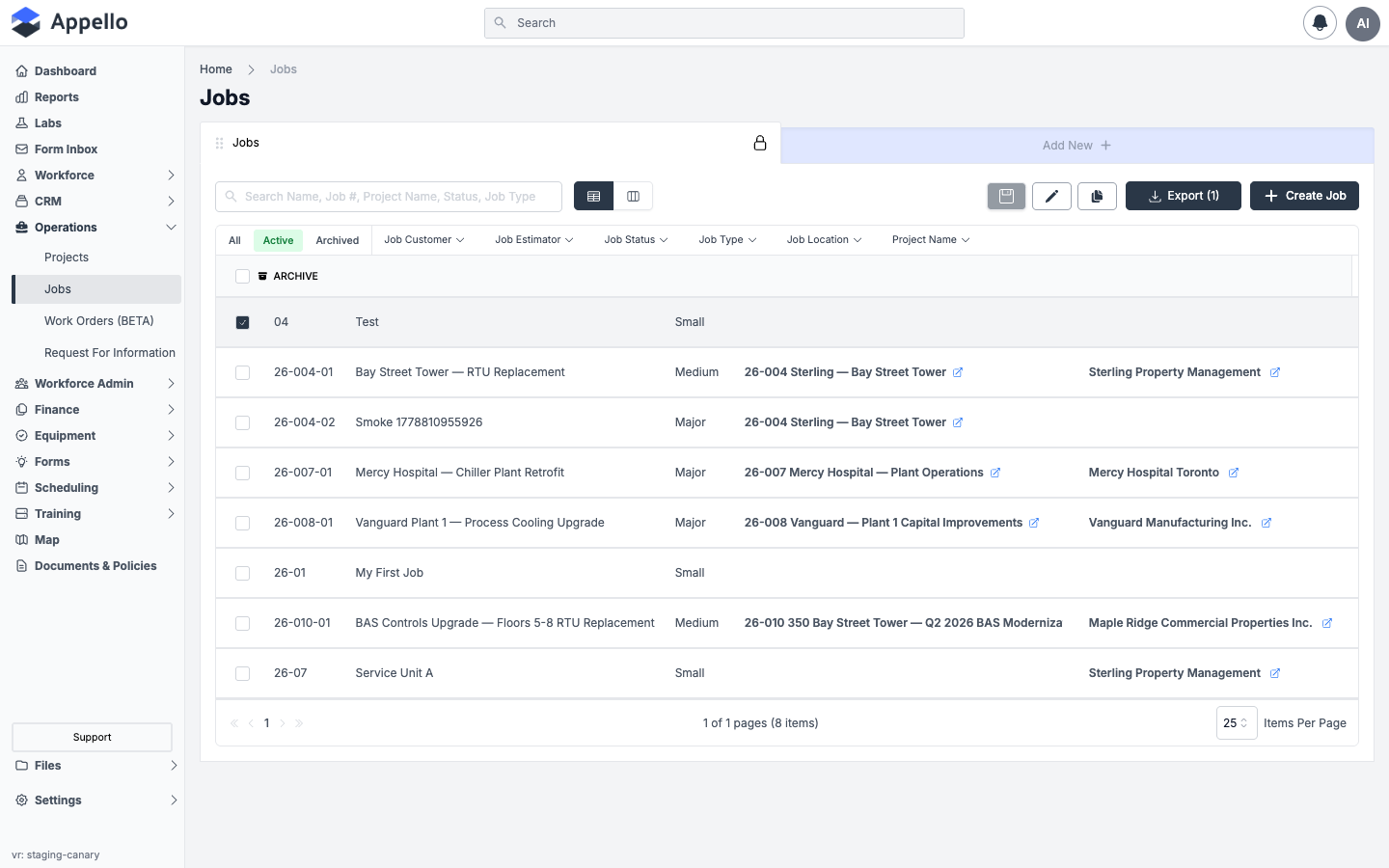
A sticky action bar that appears above the table, in place of the column-header row, as soon as one or more row checkboxes are selected. It appears on most list pages built on the shared list component.
What it's for
Bulk actions let you archive, restore, delete, lock/unlock, or duplicate many records in one action instead of opening each record individually. Which actions are offered, and which of them you can use, both depend on the specific list and your permissions.
Demo instance
The row checkboxes and the "select all" checkbox have no visible label or name of their own, so a screen reader won't announce what they do. If you rely on assistive technology, you may need to open records individually rather than selecting rows here.
Controls
| Control | Where it appears | What it does |
|---|---|---|
| Header checkbox ("select all") | Top of the checkbox column | Selects or clears every loaded row. Rows already in use by another record are excluded automatically. |
| Row checkbox | Left of each row | Selects or clears that one row. Disabled on rows the system reports as in use elsewhere. |
| Archive (or Detach, on a linked sub-list) | Active tab, list not restricted to "active only" | Archives the selected records (or detaches them from the parent record). |
| Duplicate | Active tab, where the list supports it | Creates a copy of each selected record. |
| Lock / Unlock / Lock/Unlock | Active tab, where the list supports it | Toggles a locked state on the selected records; label adapts to whether the selection is already locked, unlocked, or mixed. |
| Delete | "Active only" lists, and the Archived/Deactivated tab | Permanently deletes the selected records. Disabled if the selection includes a record still in use. |
| Restore | Archived / Deactivated tab | Restores the selected records back to active. |
Steps
- Open the list and, if needed, switch to the Active or Archived tab -- the actions offered differ by tab.
- Check one or more row checkboxes (or the header checkbox to select all loaded rows).
- The action bar replaces the column headers, showing only the actions this list and tab support.
- Click the action you want, and confirm in the dialog that follows (bulk archive/restore/delete all confirm before running; for archive/delete, the dialog also reports how many related sub-records will be affected).
Which lists offer which actions
Illustrative, not a complete inventory of every list in the product.
| List | Actions wired up |
|---|---|
| Jobs | Archive (active tab) · Delete + Restore (archived tab) |
| Materials, Equipment, Projects, Locations, Union Halls, User Groups, Roles & Permissions, Certifications, Training Providers | Archive · Delete · Restore (the standard trio) |
| Expenses / Accounts Payable | Delete · Restore · Lock/Unlock (no Archive) |
Permissions
Each button checks the permission for that action on that list's record type (for example, Jobs → Archive, or Materials → Delete) -- named the same way in Settings → Roles & Permissions:
| Action | Permission checked |
|---|---|
| Archive / Detach | Archive (or Assign, for a linked sub-list that detaches instead) |
| Duplicate | Create |
| Lock / Unlock | Lock |
| Delete | Delete (or Assign, for a linked sub-list) |
| Restore | Restore |
"Approve" is not one of the shared bulk actions -- it never appears in this action bar. Bulk approval exists as its own dedicated screen on specific approval workflows (for example, timesheets and check-ins).
Where other workflows live
These screens have their own export, import, or bulk-style behavior that's documented on their own page rather than here.
| Workflow | Page |
|---|---|
| Progress report status changes | Progress reports |
| Bulk cost codes | Cost codes and SOV |
| Bulk accounts payable | Accounts payable |
| QuickBooks connect and sync | Accounting connection |
| Dropbox Sign document packages | Onboarding documents |
| Safety form job connection | Form management |
| Maintenance schedules | Equipment maintenance |
Checked on a demo instance (Jobs list, and Settings → Human Resources → Company Holidays) on 2026-09-08.