Global Search
Module: Core | Platform: Web
The Search box in the top header lets you jump straight to any record in your instance -- jobs, projects, users, materials, invoices, and more -- by typing a few characters. This page covers the search bar's live dropdown and the full /search results page it links out to.
Search bar (every page)
Where it is
Top center of the header, on every page of the app (it lives in the shared navigation bar, not inside any one screen).
What it's for
Type three or more characters and a dropdown appears below the box with matching records, grouped by record type, updated as you keep typing. It's the fastest way to open a specific record without navigating through menus.
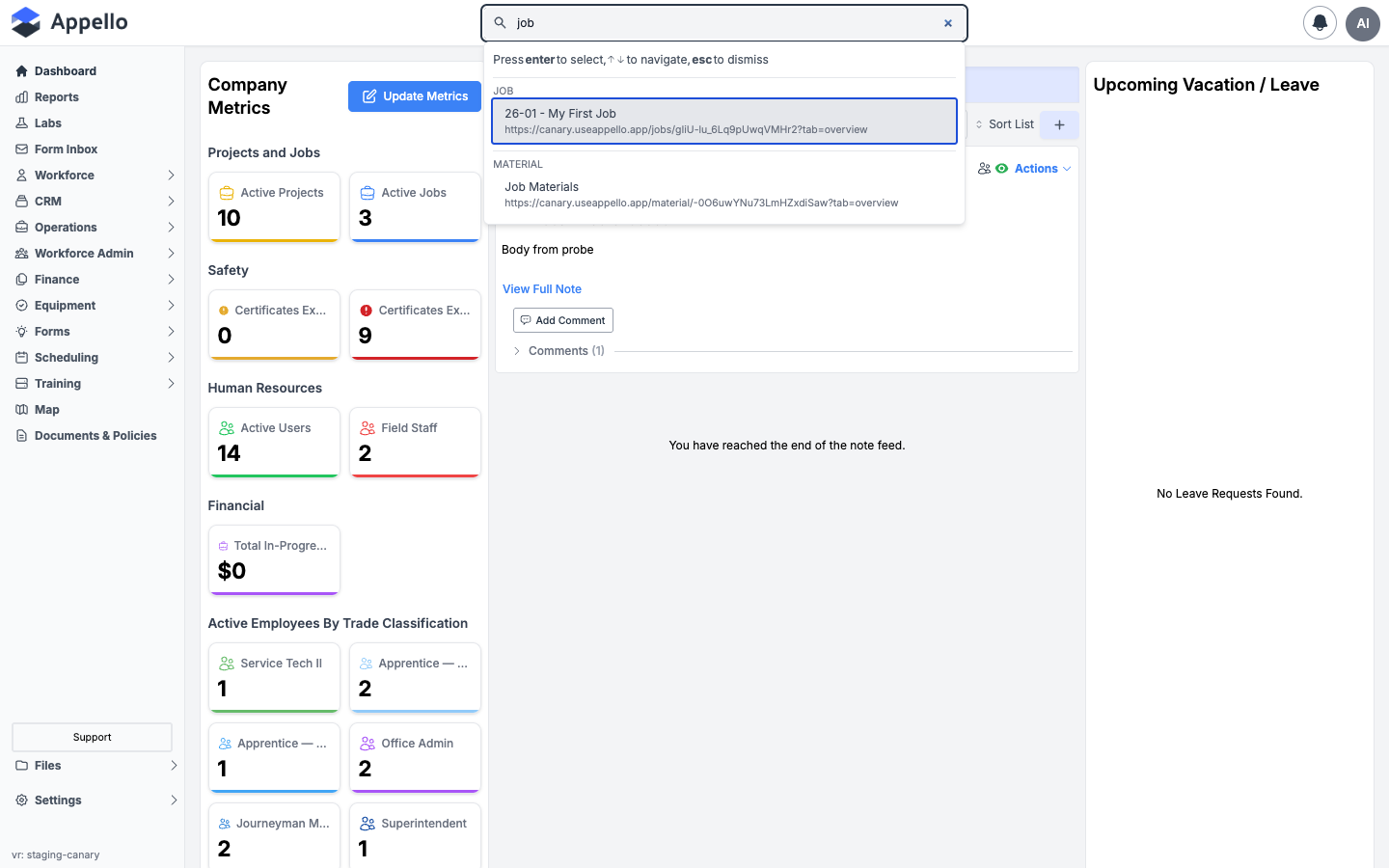
On the demo instance used for this page, typing job matched one Job record (by name) and one Material record named "Job Materials" (by name) -- there wasn't enough seed data to show a category with more than one match. The grouping, boxed dropdown, and per-category "View All" button described below still behave as documented.
Controls
| Control | What it does |
|---|---|
| Search field (placeholder "Search") | Clicking it opens the dropdown even when empty (showing Recent Searches). Typing 3+ characters triggers a live search on every keystroke -- there's no typing delay before the request fires. |
| Search/loading icon (left of the field) | A spinner while a search request is in flight; a magnifying glass otherwise. |
| Clear (×) | Appears once you've typed something; clears the field. |
| Result row | Shows the record's display name and, underneath it, the full URL the row links to. Clicking navigates straight to that record. |
"View All <Type> Results" | Appears under a category only when that category returned exactly 2 matches in the dropdown (the dropdown caps each category at 2). Navigates to /search?search=<term>&model=<Type>. If a category truly has only 2 matches total, this link still appears and the results page will also show just those 2. |
| "View All Results" (sticky, at the bottom) | Appears if any category hit the 2-match cap. Navigates to /search?search=<term> with no category filter. |
| Recent Searches (shown when the field is empty) | Your last 3 search terms, stored in this browser only -- not synced across devices or with other users. Click one to reuse it. |
| Clear History | Empties the Recent Searches list (this browser only). |
| Escape | Clears the typed text first; press again (or press it with an empty box) to close the dropdown. |
| ↓ / ↑ (arrow keys) | Move the highlighted selection down/up through the result rows, then into the Recent Searches list (when there are no results). |
| Enter | Opens the highlighted result. Pressed directly in the text field (nothing highlighted yet), it opens the first result. If Recent Searches are showing instead of results, Enter re-types the highlighted recent term into the box so you can keep editing it. |
How to use it
- Click the Search field in the header (from any page).
- Type at least 3 characters of what you're looking for -- a job number, a person's name, a material SKU, an email address, and so on (see What Global Search searches below for the full list of matched fields).
- Use the mouse, or the ↓ / ↑ arrow keys plus Enter, to open a result.
- If your category of interest shows a View All
<Type>Results link, click it to see every match of that type on the full results page instead of just the top 2.
Result grouping
Results are grouped by record type (Job, Material, Contact, and so on) and shown as separate headed lists inside the dropdown, each capped at 2 rows. The order the categories appear in follows how closely each match scored against your term, not an alphabetical sort -- that's a difference from the full results page, which sorts categories alphabetically by their display label (see below).
/search results page
Where it is
URL: /search?search=<term> (add &model=<Type> to pre-filter to one record type). You get
here from the search bar's View All Results / View All <Type> Results links, or by
visiting the URL directly.
What it's for
Shows every match for a term, without the dropdown's 2-per-category cap, organized into collapsible sections by record type.
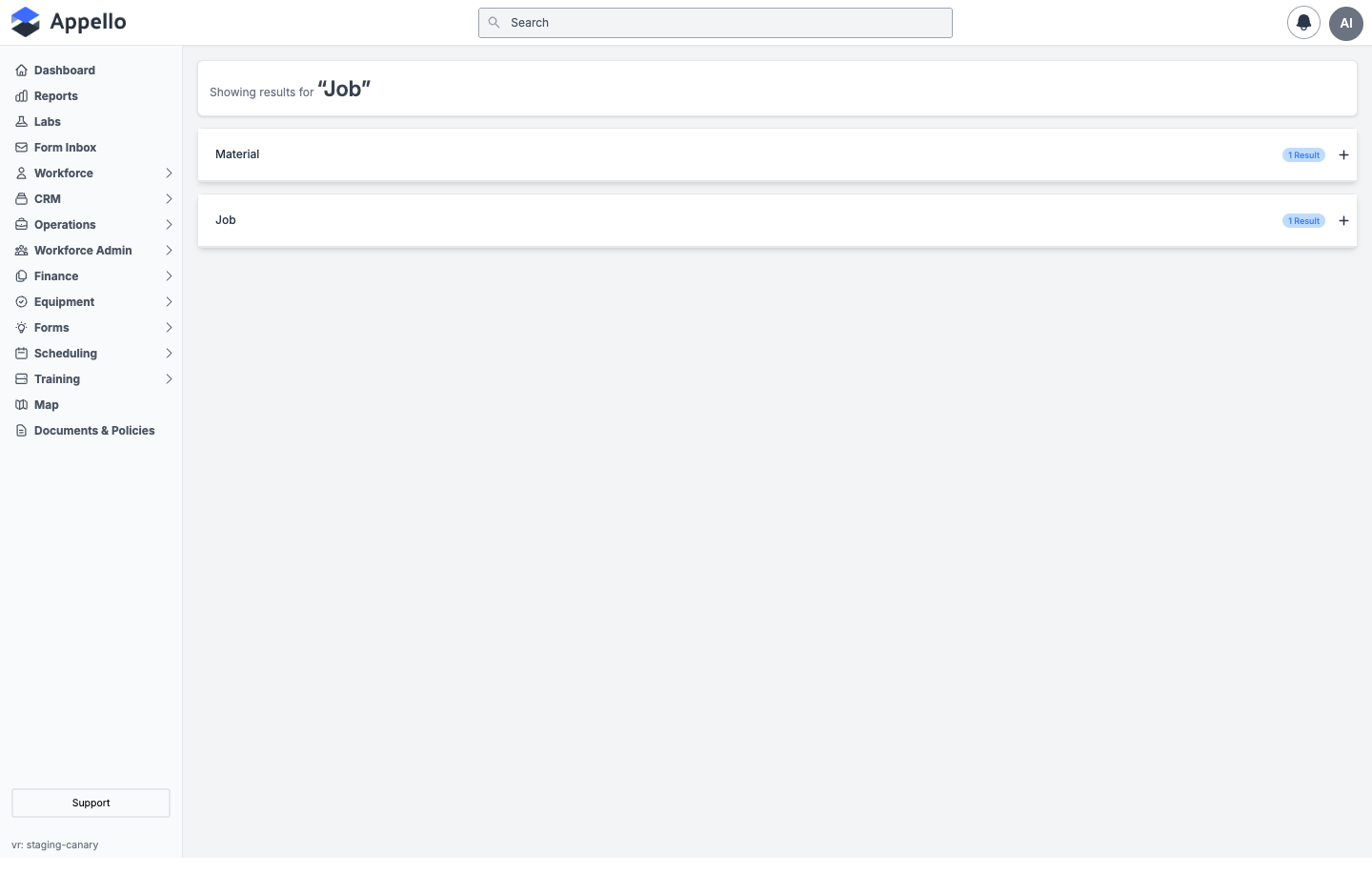
Both sections load collapsed by default, each showing only its type name and a result-count badge ("1 Result" on the demo instance). The header's own search field does not get pre-filled with the term from the URL -- it stays showing the placeholder "Search" even though you're viewing results for one.
Controls
| Control | What it does |
|---|---|
| "Showing results for "<Term>"" | A read-only header confirming what you searched. If you arrived via a View All <Type> Results link, this same card also shows the record type you filtered to. |
| Section header (record type name + result-count badge + + / −) | Click anywhere on the row to expand or collapse that type's results into a table. Only shown per type when there's at least one match; every section is collapsed on page load. |
| Result table (inside an expanded section) | Columns vary by record type (for example, Job shows Job Name, Job Description, and Project Name, each linking to that record). Clicking any linked cell opens the record. |
| Search field (header, top center) | The same global search bar described above -- it keeps working normally on this page too, independent of the results shown below it. |
| Failure banner | If the search request itself fails (not "no matches," an actual error), a red banner reads "Search could not be completed. Please try again, or adjust your search term." in place of the results. Not reproduced live for this page. |
How to use it
- Land on this page by clicking View All Results or View All
<Type>Results in the search bar dropdown, or by opening a/search?search=...link directly. - Click a section header to expand it and see the full result table for that record type.
- Click any row to open that record.
Filters
There's no filter panel on this page -- the only way to narrow results is the model query
parameter, which the dropdown sets for you when you click a View All <Type> Results link.
Editing the URL by hand to add or change &model=<Type> has the same effect: results are limited
to that one record type, and that single section is shown already expanded instead of collapsed.
What Global Search searches
Global Search runs against a search index that Appello keeps up to date for every searchable record type. Three kinds of text on each record are matched against your typed term:
| What's matched | What's in it |
|---|---|
| Display name | The record's name/title (what shows as the bold text in each result row). |
| Exact-match terms | One or more values that count as an exact match and rank a result much higher -- usually just the display name, but some record types add more (see examples below). |
| All other text | Every other text field on the record, plus extras the record type adds (addresses, related record names, SKUs, and so on). This is the broadest, weakest match. |
The dropdown ranks an exact-match term far above a match on the start of a display name, which in turn ranks above a term found somewhere in the record's other text -- so an exact hit surfaces at the top even if a looser match would otherwise crowd it out. The full /search results page uses plainer matching, mostly against that broader text.
A few concrete examples of what gets indexed:
- Job -- name is
"<full job number> - <job name>"(for example,26-01 - My First Job); exact terms are the job number and job name; the broader text also includes the job's project name/number, location address, company name, and division. - Contact -- exact terms are first name, last name, email address, and the email's domain on
its own (so typing
@example.comfinds every contact at that domain). - Material -- the broader text includes every SKU and manufacturer SKU on the material's price rows, so a barcode/SKU printed on a box will find the material even though the SKU isn't part of its name.
Searchable record types
| Search category label | Underlying record | Opens (clicking a result) |
|---|---|---|
| Job | Job | Job overview |
| Project | Project | Project overview |
| Company | Company (CRM) | Company overview |
| Contact | Contact (CRM) | Contact overview |
| User | User | User overview |
| User Group | User Group | Group overview |
| Department | Department | /department/<id> overview (no dedicated path mapping -- see note below) |
| Trade Classification | Trade Level | The parent Employee Agreement, on its Trade Classifications tab |
| Employee Agreement | Employee Agreement | Agreement, on its Versions tab |
| Certification | Certification | Certification overview |
| Training Provider | Training Provider | Training Provider overview |
| Safety Form | Form Wrapper (safety form template) | Safety Inspection Form overview |
| Form Submission | Feedback (a completed safety-form submission) | The parent Safety Inspection Form, at that specific submission |
| Union Hall | Union Hall | Union Hall overview |
| Wage Region | Wage Region | /wageregion/<id> overview (no dedicated path mapping -- see note below) |
| Location | Location | Location overview |
| Inventory Location | Inventory Location | Inventory overview |
| Material | Material | /material/<id> overview |
| Equipment | Equipment | /equipment/<id> overview (no dedicated path mapping -- see note below) |
| Estimate / Change Order | Estimate Change Order Record | The parent Job, on its Estimates tab |
| Invoice | Job Bill | The parent Job, on its Billing tab |
| Expense | Expense | The Expenses list, with that expense opened |
| Account Item | Account Item | Doesn't navigate -- opens the Settings → Accounting → Account Item panel in place |
| Policy Document | Policy Document Wrapper | Policy Document, on its Document Versions tab |
| Tag | Tag | Tag overview |
| RFI | Request for Information | /requestforinformation/<id> overview (no dedicated path mapping -- see note below) |
| Tax Type | Tax Type | /taxtype/<id> overview (no dedicated path mapping -- see note below) |
| (short links) | Link Shortener | Internal record used for generating short links; not a screen you'd open directly |
A handful of types (Department, Wage Region, Equipment, RFI, Tax Type) have no dedicated destination, so clicking a result sends you to a generic address for that record type. That was not verified live -- it may not open a working page for every one of those types.
Some record types are not indexed and so never appear in Global Search: the detail record behind a safety form template, a safety form attached to a job, leave requests, and the individual versions of a policy document (the policy document that groups those versions is searchable, and is listed above as Policy Document).
Permissions
Global Search requires only that you're signed in. The search itself applies no further per-role or per-record filtering. In practice this means:
- Any signed-in user can find any indexed record by name/search term, regardless of whether their role can normally view that record type.
- Opening a result still goes through that record's own page, which enforces its own View permission as usual -- so a search hit for something you can't view will land you on an access-denied or blank page rather than showing you the data.