My Profile
Module: Core | Platform: Web
Every signed-in user has a My profile page for their own record -- personal details, login/PIN, and employment information -- plus a separate Edit profile page for changing what they're allowed to change about themselves. This page documents the avatar menu that leads there, both profile screens, the password/PIN reset actions available from them, and where notification preferences and sign out actually live.
This page is read-only reconnaissance: every screenshot below shows the panels open or the pages loaded, but no field was changed and no form was saved while writing it.
Avatar menu
Where it is
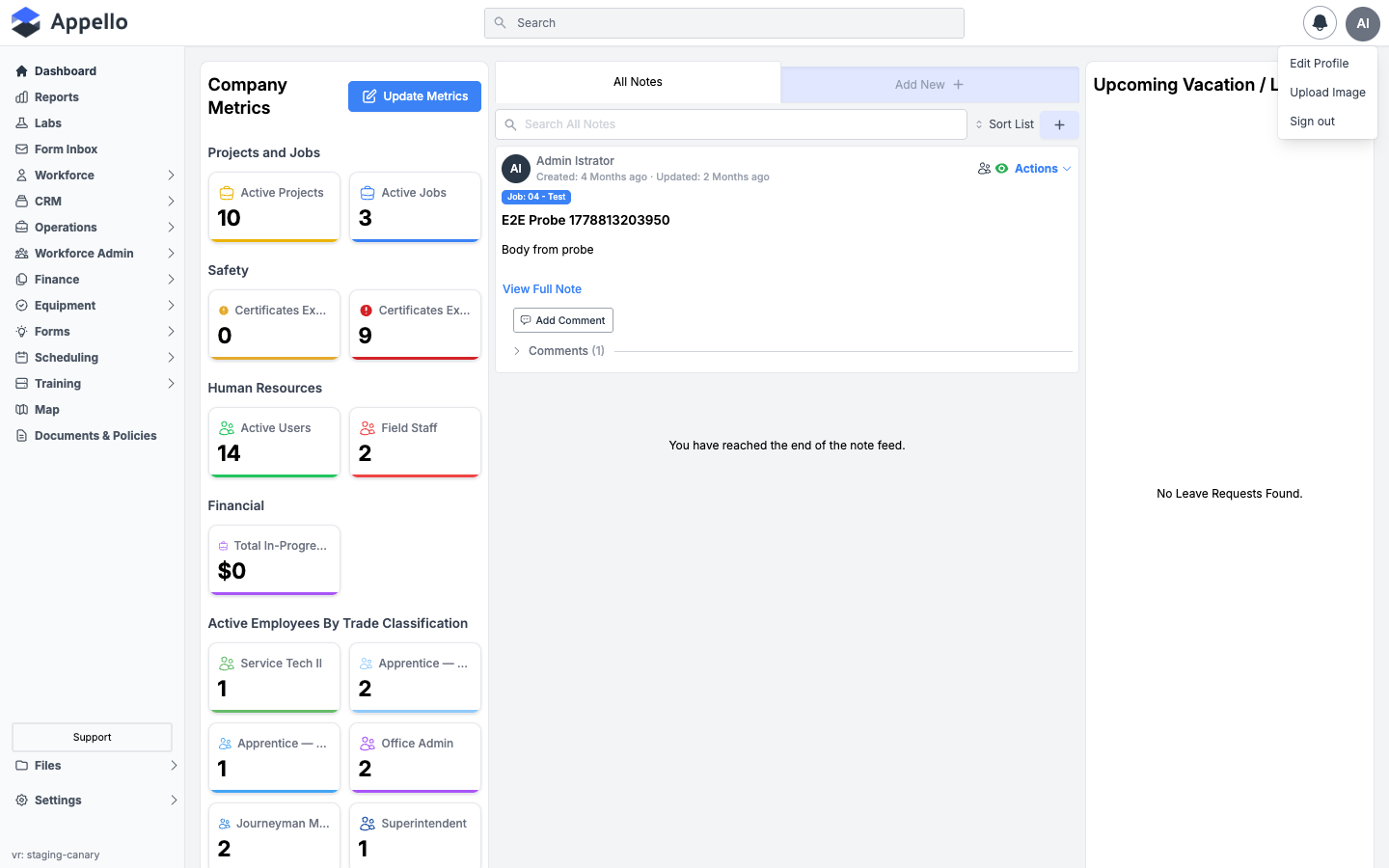
Click your avatar in the top-right corner of the header. It's available on every page once you're signed in.
What it's for
The avatar menu is the quick-access menu for your own account -- editing your profile, changing your avatar image, and signing out.
Screenshot
Controls
| Control | Required | Type | Effect |
|---|---|---|---|
| Edit Profile | -- | Button | Opens Edit profile (/profile/edit). For a guest-portal user, this instead opens /guest/profile, that user type's own simplified edit form. |
| Upload Image | -- | Button | Opens a modal to upload a new avatar image for your account. |
| Sign out | -- | Link | Signs you out. See Sign In, Password and PIN Reset, Invite Onboarding. |
| On-site Application | -- | Link | Only added for non-guest users; opens the on-site application in a separate destination. Not present on the demo account's menu at the time of this crawl. |
Workflow
- Click your avatar (top-right of the header).
- Click Edit Profile to change your own details, Upload Image to change your avatar, or Sign out to end your session.
Permissions
- None. The avatar menu and every item on it are available to any signed-in user, for their own account only.
Related pages
My profile (/profile)
Where it is
Avatar menu → Edit Profile opens the edit page directly, but the read-only profile itself is
reached at /profile -- for example by clicking your own name/row anywhere it's linked, or by
navigating to the URL directly. Route: /profile.
What it's for
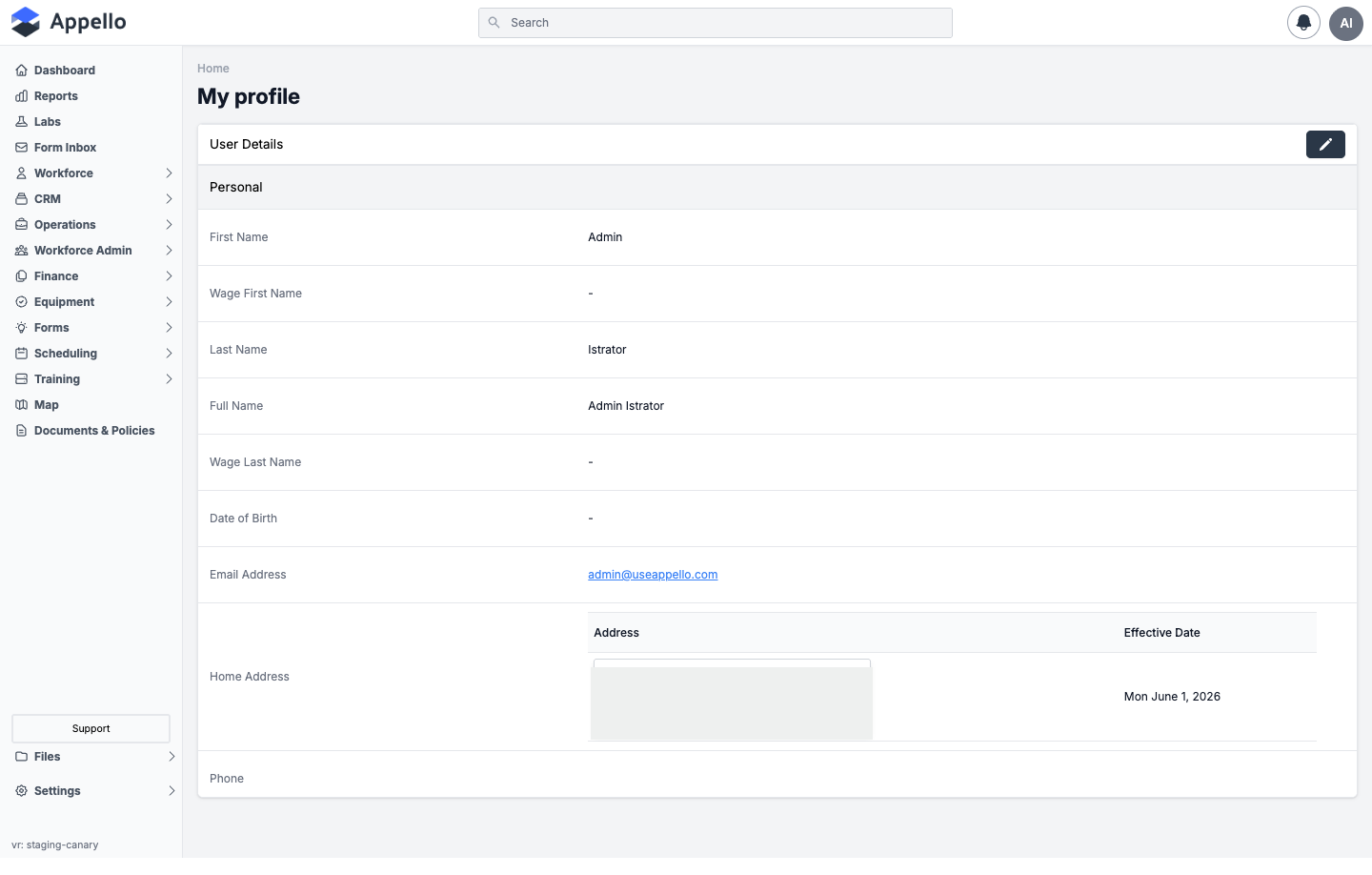
This is your own record, read-only, in the same User Details card layout used for every user in Appello -- personal information, login/PIN and system status, and employment, emergency, and medical information -- plus the actions for editing it, resetting your password, and resetting your PIN.
Screenshot
Fields
This is the same User Details card, and the same field groups, as the admin-facing
User Profile Page's Overview tab (/users/[id]) -- see that
page for a field-by-field walkthrough of every group. On your own /profile page the groups and
fields are identical:
| Group | Fields |
|---|---|
| Personal | First Name, Wage First Name, Last Name, Full Name (computed), Wage Last Name, Date of Birth, Email Address, Home Address, Phone, Secondary Phone. |
| System Information | Onboarding Status, System Status, Password, PIN, Last Time Logged In, GPS Tracking Enabled, Require Timesheet Note (instance-conditional). |
| Employment Information | Start Date, Position, Leave Payment Type, Paid Leave Payroll Export, Employee Number, Union Hall, Time Sheet Submissions Type, Employee Agreement, Reports To, Department, Trade Classification. |
| Emergency Information | Emergency Contact First Name, Emergency Contact Last Name, Emergency Contact Phone, Relation to Emergency Contact. |
| Medical Information | Allergies. |
Controls
| Control | Appears when | Effect |
|---|---|---|
| Edit (pencil icon) | Always, on your own profile | Opens Edit profile. |
| Reset Password | Always, on your own profile | Opens the same Reset Password panel documented at Password and PIN reset. |
| Reset PIN | Always, on your own profile | Opens the same Reset PIN panel documented at the same section. |
How this differs from the admin's User Profile Page
/profile reuses the exact same Overview content as User Profile Page
(/users/[id]), with these differences:
- No tabs. The admin page wraps this same content in a row of tabs (Roles, Groups,
Certifications, Form Submissions, Assigned Equipment, Expenses, Vacation / Leave, Onboarding
Documents, Settings).
/profileshows only the Overview-equivalent content as a single page -- there is no way to reach your own Roles/Groups/Certifications/etc. tabs from/profileitself. - No Deactivate / Reactivate button. Never shown on your own profile, on either page.
- No Unlock Account button. Never shown on your own profile, on either page (and only ever shown to a super admin viewing someone else's locked account).
- Edit, Reset Password, and Reset PIN are always available on your own profile, regardless of the scope of your Users → Edit permission -- see Permissions below.
Workflow
- Open
/profile(or click Edit Profile in the avatar menu, then Cancel back out to the read view, or navigate to/profiledirectly). - Review your details. Click the pencil icon to edit them, or Reset Password / Reset PIN to change your credentials (see Change password and PIN below).
Permissions
- None required. Every signed-in user can view, edit, and reset the password/PIN on their own profile, regardless of the scope of their Users → Edit permission -- editing your own record is always allowed, independent of that permission.
Related pages
- User Profile Page -- the admin-facing equivalent, with tabs and admin-only actions (Deactivate/Reactivate, Unlock Account).
- Edit profile
Edit profile (/profile/edit)
Where it is
Avatar menu → Edit Profile, or the pencil icon on /profile. Route: /profile/edit.
What it's for
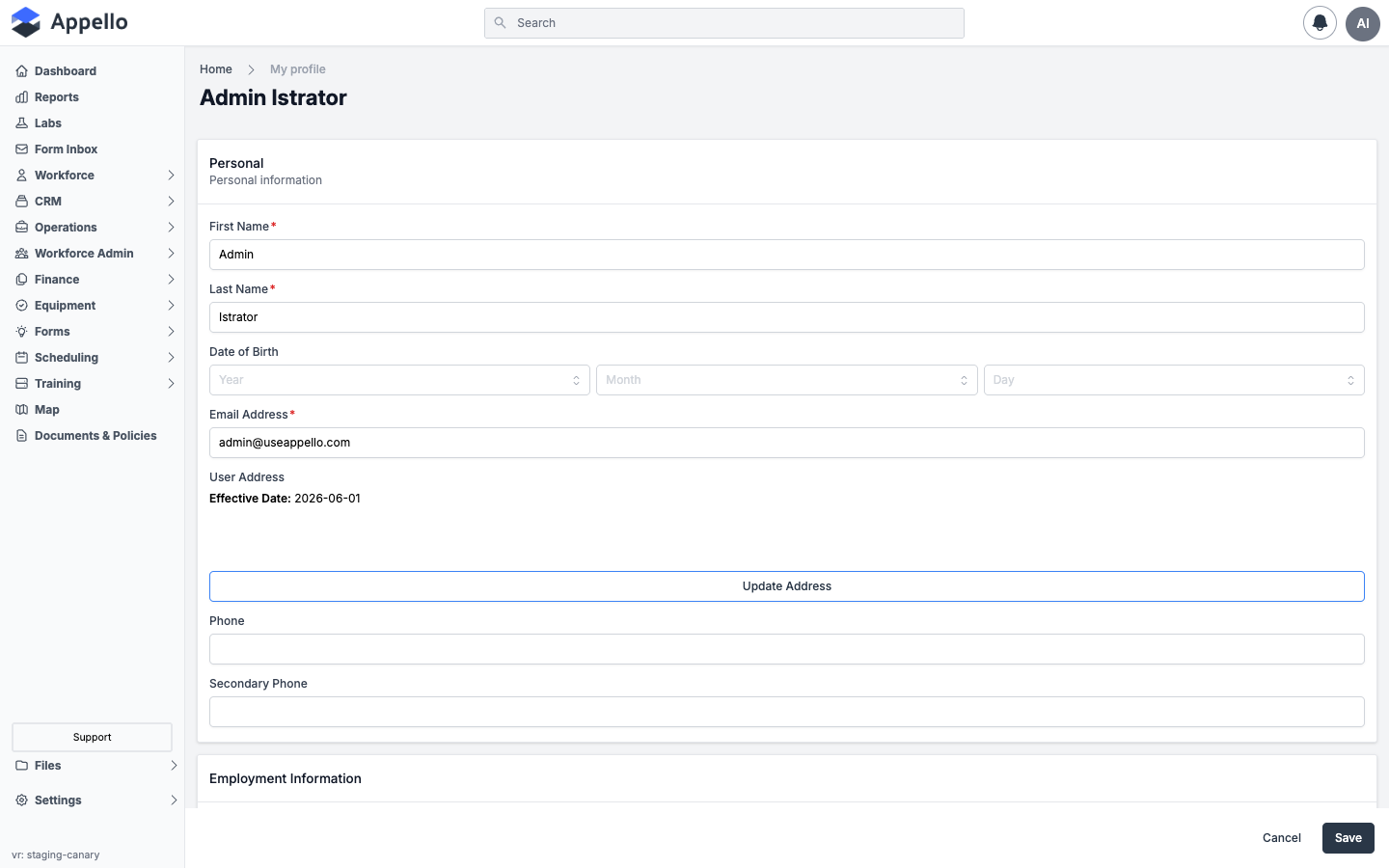
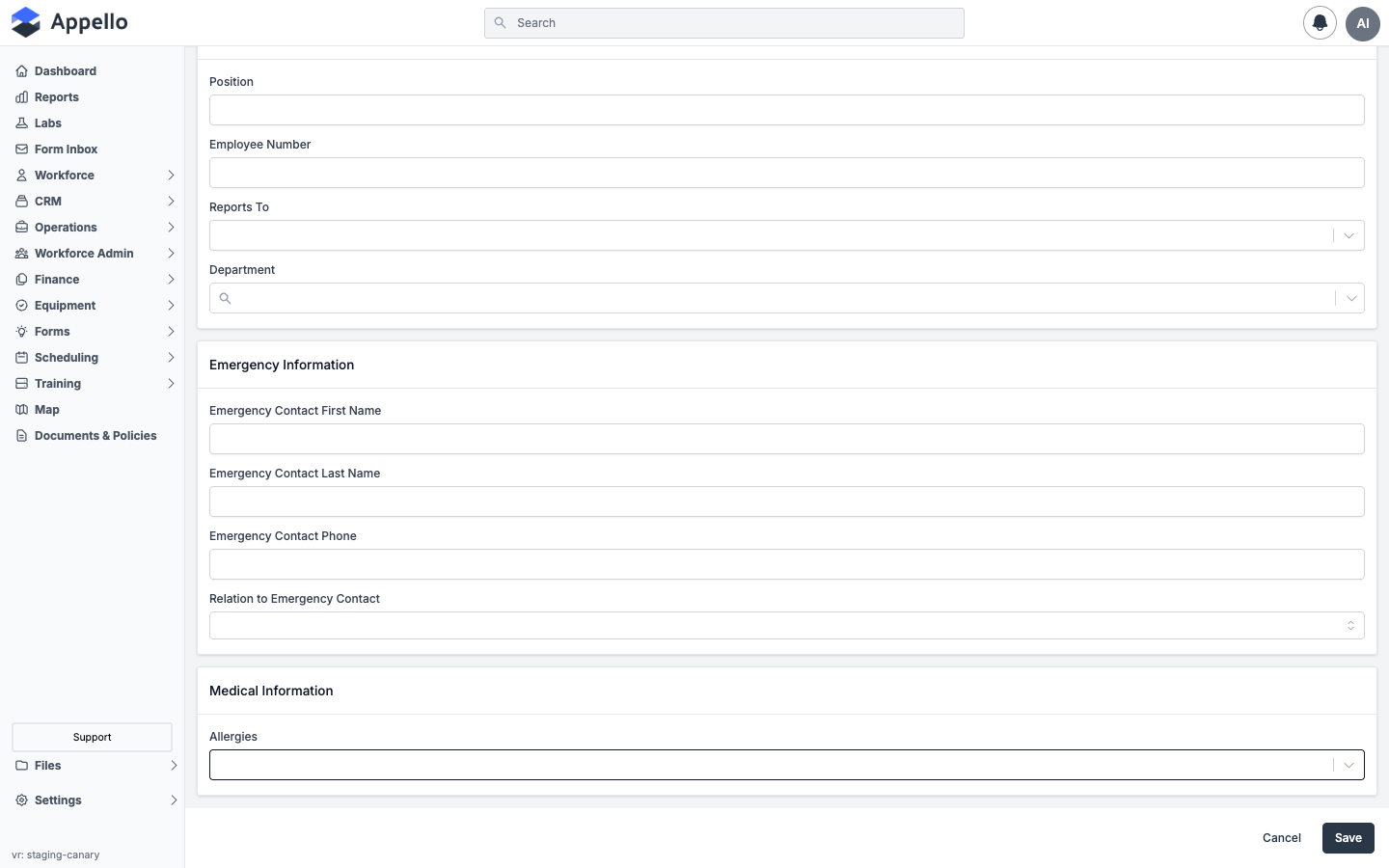
Lets you change what Appello allows you to change about your own record. It is a shorter form than the admin's Edit User page -- it only includes fields an ordinary user is allowed to set on themselves; everything else (wage names, start date, trade classification, employee agreement, union hall, time sheet type, leave payment settings, onboarding/system status, password, PIN) is admin-only and not shown here at all.
Screenshots
Fields
| Field | Required | Type | Effect |
|---|---|---|---|
| First Name | Yes | Text | Your first name. |
| Last Name | Yes | Text | Your last name. |
| Date of Birth | No | Year / Month / Day selects | Empty on the demo account. |
| Email Address | Yes | Text | Your desktop sign-in identity. |
| User Address | No | Read-only summary + button | Shows your current address and its effective date. Update Address opens the same panel documented at Edit User (Move Date, Search Address, Street Address, City, State/Province, Country, ZIP/Postal, and address history) -- it adds a new address to your history rather than editing the current one in place. |
| Phone | No | Text | Empty on the demo account. |
| Secondary Phone | No | Text | Empty on the demo account. |
| Position | No | Text | Empty on the demo account. |
| Employee Number | No | Text | Empty on the demo account. |
| Reports To | No | Select | Your manager. Empty on the demo account. |
| Department | No | Searchable combobox | Empty on the demo account. |
| Emergency Contact First Name | No | Text | Empty on the demo account. |
| Emergency Contact Last Name | No | Text | Empty on the demo account. |
| Emergency Contact Phone | No | Text | Empty on the demo account. |
| Relation to Emergency Contact | No | Select | Empty on the demo account. |
| Allergies | No | Searchable combobox | Empty on the demo account. |
| Cancel | -- | Button | Discards changes and returns to My profile. |
| Save | -- | Button | Commits your changes. Not exercised in this walkthrough (read-only crawl). |
Editing your own profile uses a different form layout than an admin editing someone else, and which fields appear on each is configurable per instance under Settings → Property Settings. The field list above reflects what the demo instance shows today; another instance could show a different subset.
What only an admin can change
Everything documented on the admin's Edit User page that is not in the table above -- Wage First/Last Name, Start Date, Employee Agreement, Trade Classification, Union Hall, Time Sheet Submissions Type, Leave Payment Type, Paid Leave Payroll Export, Onboarding Status, System Status, Password, and PIN -- is not present on your own edit form at all. Password and PIN are changed from My profile instead (see below); the rest require an admin whose Users → Edit permission reaches beyond their own record to change on your behalf.
Workflow
- Click Edit Profile in the avatar menu, or the pencil icon on My profile.
- Update any of the fields listed above.
- To change your address, click Update Address, fill in the panel, and save it -- this adds a new address to your history effective on the date you choose.
- Click Save to commit your changes, or Cancel to discard them and return to My profile.
Permissions
- None required beyond being signed in. Editing your own profile is always allowed, independent of the scope of your Users → Edit permission.
Related pages
- My profile
- Users -- the full field-by-field walkthrough of the User model's create/edit fields, for the admin-only fields not shown here.
Change password and PIN
Where it is
My profile → System Information group → Reset Password / Reset PIN.
What it's for
Lets you set your own desktop password or mobile sign-in PIN without an administrator's help. These are the same two panels documented in full at Password and PIN reset -- this section only covers that they're reachable from your own profile.
Controls
| Control | Effect |
|---|---|
| Reset Password | Opens a panel with Send Password Reset Link, Generate Secure Password, and direct Password/Confirm Password fields with Save. |
| Reset PIN | Opens a panel with Generate Secure Pin and a Confirm Pin Change field with Save. |
Workflow
- On My profile, click Reset Password or Reset PIN.
- Follow the same steps documented at Password and PIN reset.
Permissions
- None required. Both actions are always available on your own profile, unlike resetting someone else's, which requires user.edit.
Related pages
Notification preferences
Notification preferences are not reached from the avatar menu or from My profile. They live under the notification bell icon in the header: bell icon → Manage Notification Preferences. See In-app notifications for the full panel -- your personal In App / SMS toggles, grouped by notification type.
Sign out
Where it is
Avatar menu → Sign out.
What it's for
Ends your session and returns you to the sign-in screen.
Workflow
- Click your avatar, then Sign out.
See Sign In, Password and PIN Reset, Invite Onboarding for what happens next and how to sign back in.
Permissions
- None.
Permissions summary
| Permission / condition | Governs |
|---|---|
| None (any signed-in user) | Avatar menu, viewing/editing your own profile, resetting your own password/PIN, signing out. |
| Users → Edit | Not required for anything on this page -- only relevant when an admin edits someone else's profile from User Profile Page. |
Related pages
- User Profile Page -- the admin-facing version of this same record, with tabs and admin-only actions.
- In-app notifications -- where notification preferences actually live.
- Sign In, Password and PIN Reset, Invite Onboarding -- sign in, sign out, and the forgot-password/PIN flows for a signed-out user.