Company Detail Page
Where it is
Sidebar → CRM → Companies, then click any row on the Companies list.
Requires the Companies → View permission. Three tabs carry extra gates on top of that (see Tabs below), and a guest user sees a stripped-down version of this page (see Guest view).
What it is for
The Company Detail page is the single record for one customer, general contractor, or vendor — everything Appello knows about that company lives behind its tabs: contact info, the projects and jobs tied to it, its financial documents, its tax numbers, and (for material suppliers) the products it manufactures or distributes. This page does not duplicate the Companies list — it is what you land on after clicking a row there.
Header
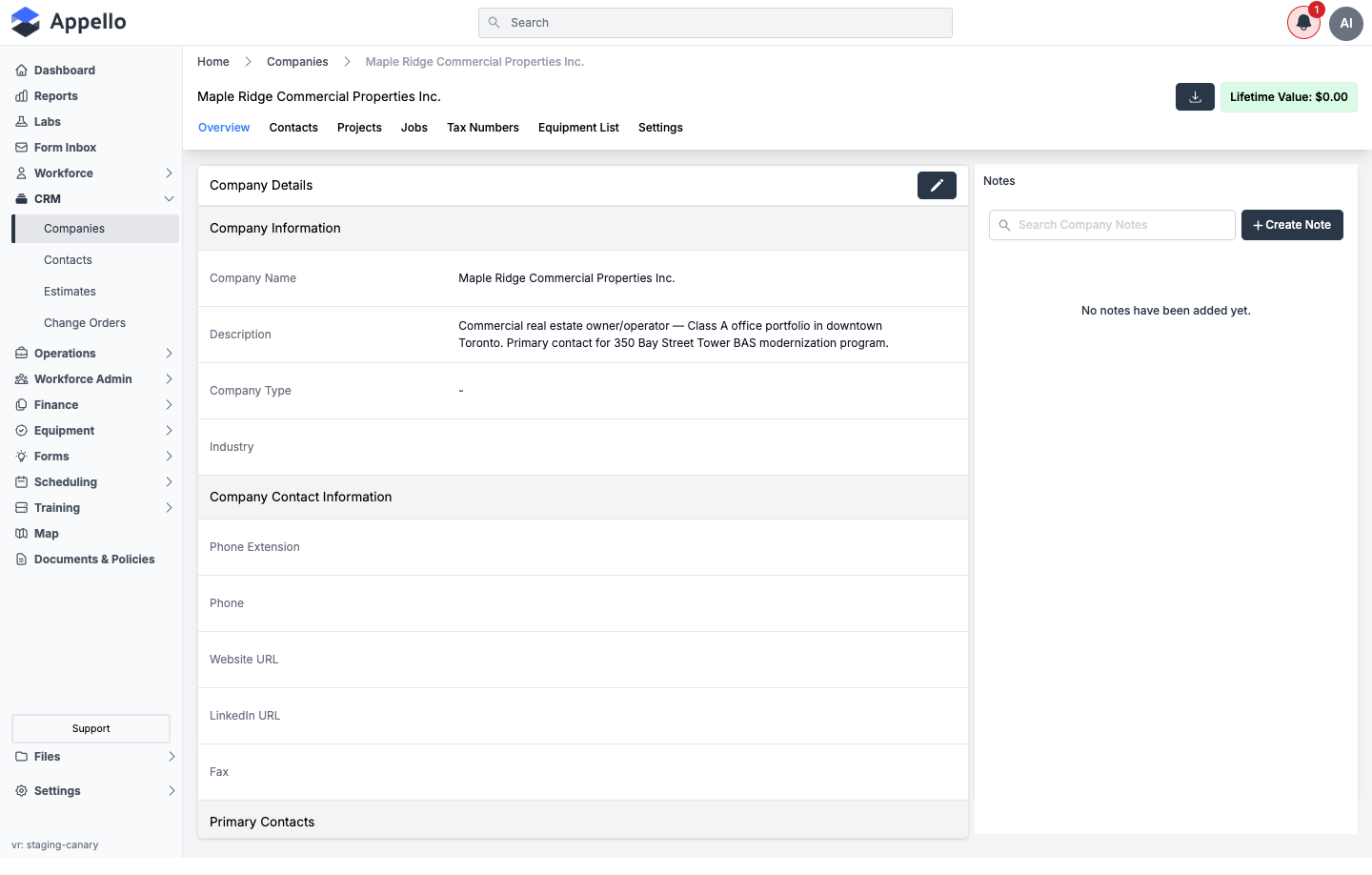
| Control | What it does | Where it leads |
|---|---|---|
| Breadcrumbs (Home / Companies / company name) | Navigate back up the hierarchy | Home or the Companies list |
| Company Type badge | Shows the value of the company's Company Type custom property (e.g. Customer), or is blank if unset | — |
| Download (icon button) | Opens the Select Template For Export picker and generates a Company Detail PDF from the chosen Download Template -- see Download a PDF of the company | Opens a modal, then downloads a PDF |
| Lifetime Value badge | Read-only total of value associated with the company | — |
The Lifetime Value badge only appears for a user whose role has the Companies → Sales Sum permission.
Download a PDF of the company
The Download icon button is shown on every tab of the company page. It produces a one-record PDF of this company -- a different thing from the CSV/PDF Export on the Companies list, which uses a fixed column set. Which fields the PDF contains is decided by a Download Template for Companies, set up under Settings → Download Templates (see Templates → Download Templates).
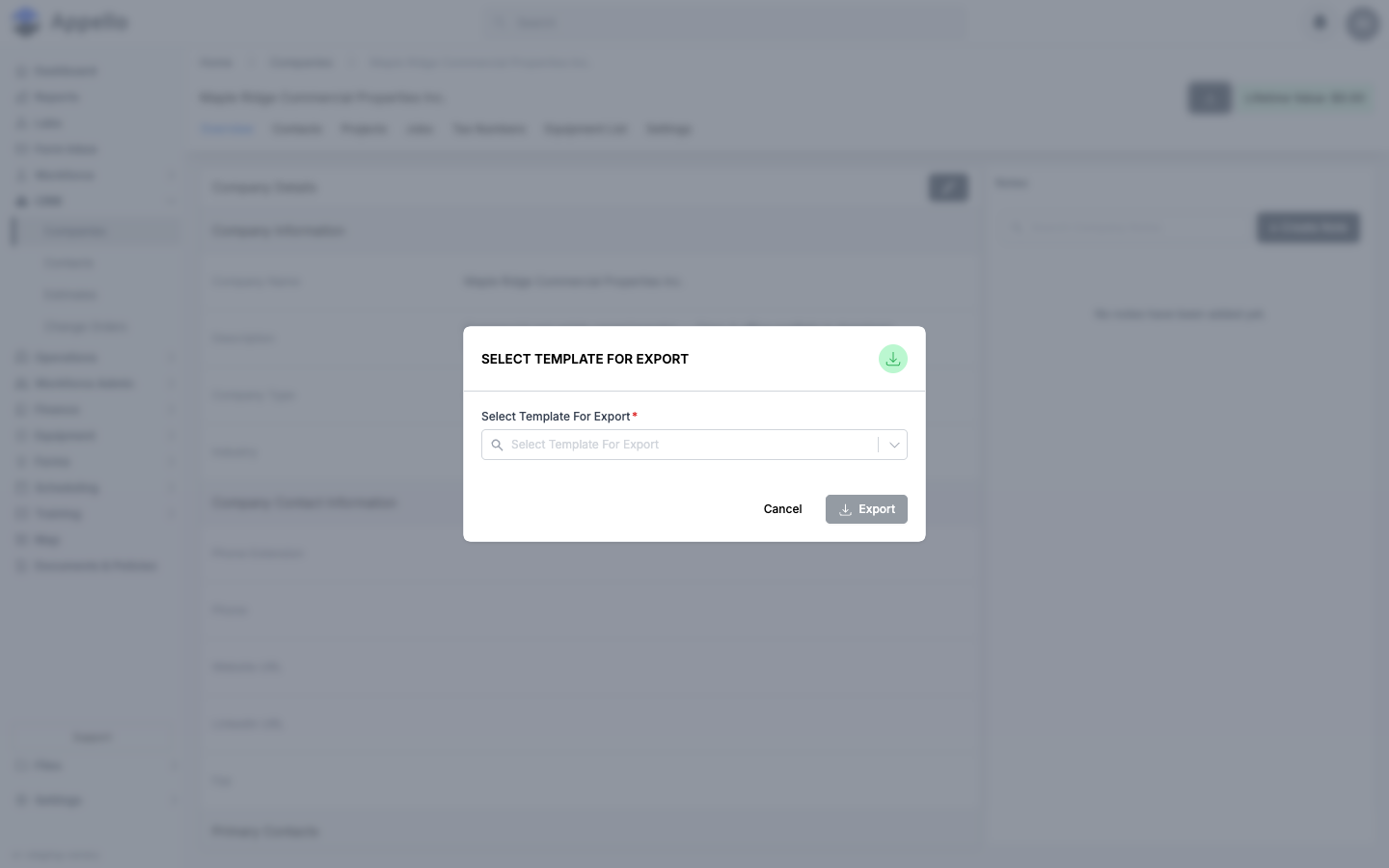
- Click the Download icon in the header.
- In the Select Template For Export picker, choose a template. Only templates created on the Companies sub-tab of Download Templates are listed. Export stays disabled until one is chosen.
- Click Export. The PDF is generated from the fields that template has toggled on and
downloads as
<Company Name>_Company Details_<date>_<time>.pdf. Cancel closes the picker without generating anything.
There is no separate permission for this button beyond company.view for the page itself.
Confirmed from source (pages/companies/[id]/index.tsx, components/ConfirmTemplate/TemplateSelectionModal.tsx,
and the companyDetail case in pages/api/pdf-export.ts) and on the canary demo instance on
2026-09-08; the picker was opened and dismissed without clicking Export. The shared behavior
of this picker is documented in
Exports, Imports and Bulk Actions → Downloading a record with a download template.
Tabs
Tabs render left to right in this order. Every tab (other than Overview, Tax Numbers, Equipment List, and Settings) is additionally gated by the permission or condition in the table.
| Tab | Shown when | Hidden when |
|---|---|---|
| Overview | Companies → View | — |
| Contacts | Contacts → View | — |
| Projects | Projects → View | — |
| Jobs | Jobs → View | — |
| Accounts Payable | Expenses → View and the company's Company Type is marked payable | Company Type is not payable |
| Employee Expenses | Expenses → View and Company Type is payable and the instance setting Allow Vendors on Employee Expenses is on | Company Type is not payable, or the instance setting is off |
| Estimates | Estimates → View and Company Type is marked receivable | Company Type is not receivable |
| Accounts Receivable | Estimates → View and Company Type is marked receivable | Company Type is not receivable |
| Tax Numbers | Companies → View | — |
| Products | Materials → View and the company is a manufacturer on at least one priced material | No priced material lists this company as manufacturer |
| Products & Pricing | Materials → View and the company is a distributor on at least one priced material | No priced material lists this company as distributor |
| Discounts | Materials → View and the company is a distributor on at least one priced material | Same existence check as Products & Pricing |
| Equipment List | Equipment → View | — |
| Settings | Companies → View | — |
The Accounts Receivable and Estimates tabs are both driven by the same thing: whether the company's Company Type is marked receivable. Accounts Payable and Employee Expenses are both driven by whether it's marked payable (Employee Expenses adds the instance setting Allow Vendors on Employee Expenses). Products, Products & Pricing, and Discounts additionally require that at least one priced material actually names this company as its manufacturer (Products) or distributor (Products & Pricing, Discounts); the tab is hidden with none, even for a user who holds Materials → View.
On the demo instance, no company record is configured as payable, and no company is named as a source on a priced material, so Accounts Payable, Employee Expenses, Products, Products & Pricing, and Discounts could not be reached or screenshotted from any demo record. Those five tabs are described below and left without a live screenshot — see the report notes at the end of this page.
Overview
Company Details panel (left) shows the company's stored fields, grouped as Company Information (Company Name, Description, Company Type, Industry) and Company Contact Information (Phone Extension, Phone, Website URL, LinkedIn URL, Fax), followed by Primary Contacts. A pencil icon in the panel header opens the Company edit form for this record. Notes (right) is a searchable, timestamped feed for internal notes about the company — see Companies → Notes for the same pattern on the list page.
| Control | What it does | Where it leads |
|---|---|---|
| Edit (pencil icon) | Opens the company record for editing | Company edit form flyout |
| Search Company Notes | Filters the Notes feed by text | — |
| Create Note | Opens a note composer | Adds a timestamped entry to the Notes feed |
Permissions: the tab itself requires Companies → View; editing requires Companies → Edit, checked separately from view.
Contacts
Lists the people associated with this company, using the same contact list used elsewhere in Appello.
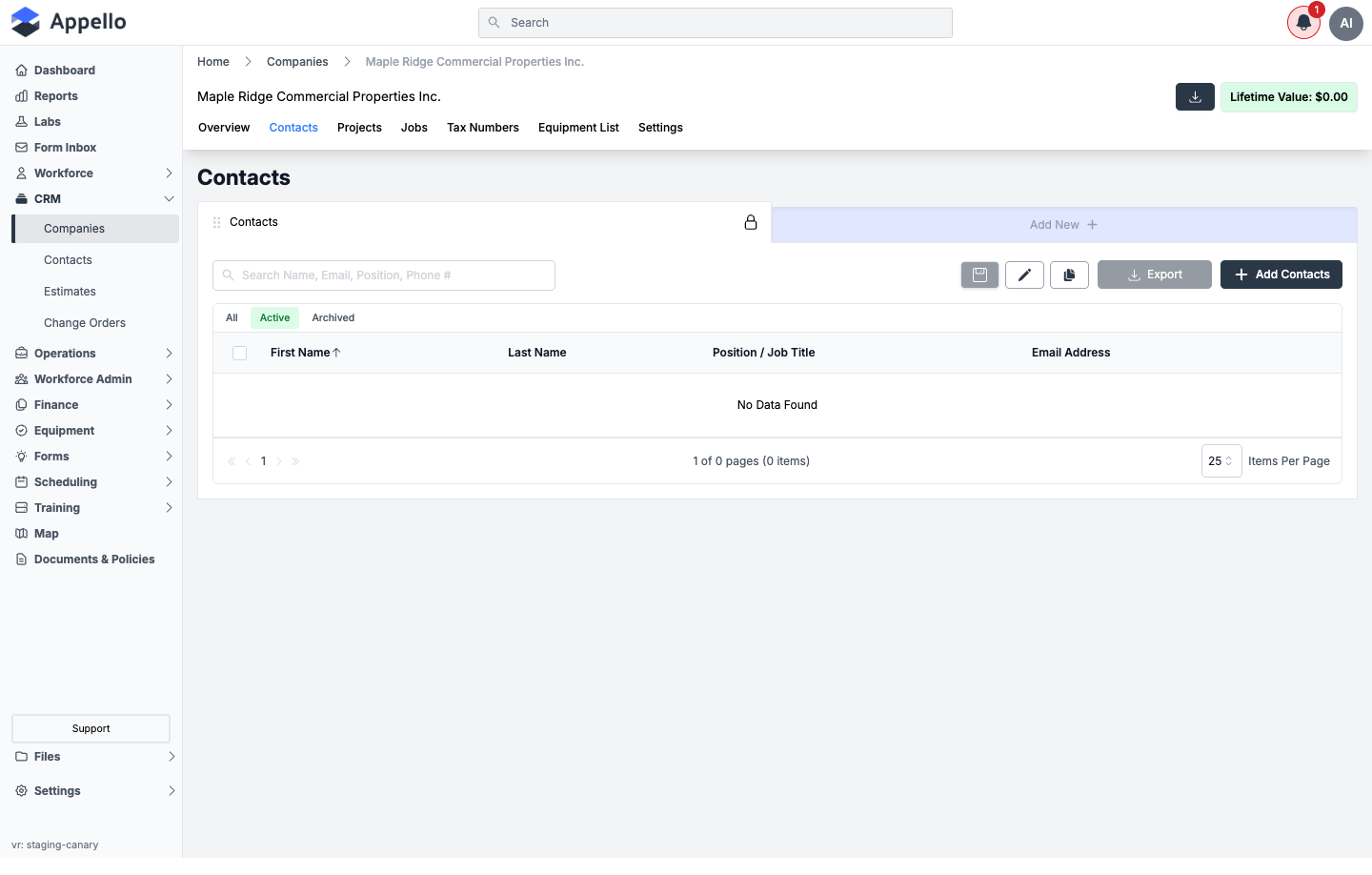
| Control | What it does | Where it leads |
|---|---|---|
| Search (Name, Email, Position, Phone #) | Filters the contact list | — |
| All / Active / Archived | Filters by contact status | — |
| Export | Downloads the visible contacts | — |
| Add Contacts | Opens a flyout to search and select existing contacts, or create a new one, and link them to this company | Assign-contact flyout |
| Row click | Opens that person's record | Contacts detail page |
Related: see Contacts for the contact record itself, including the contact-level note and follow-up fields.
Projects
Every project linked to this company, with the same columns used on the standalone projects list.
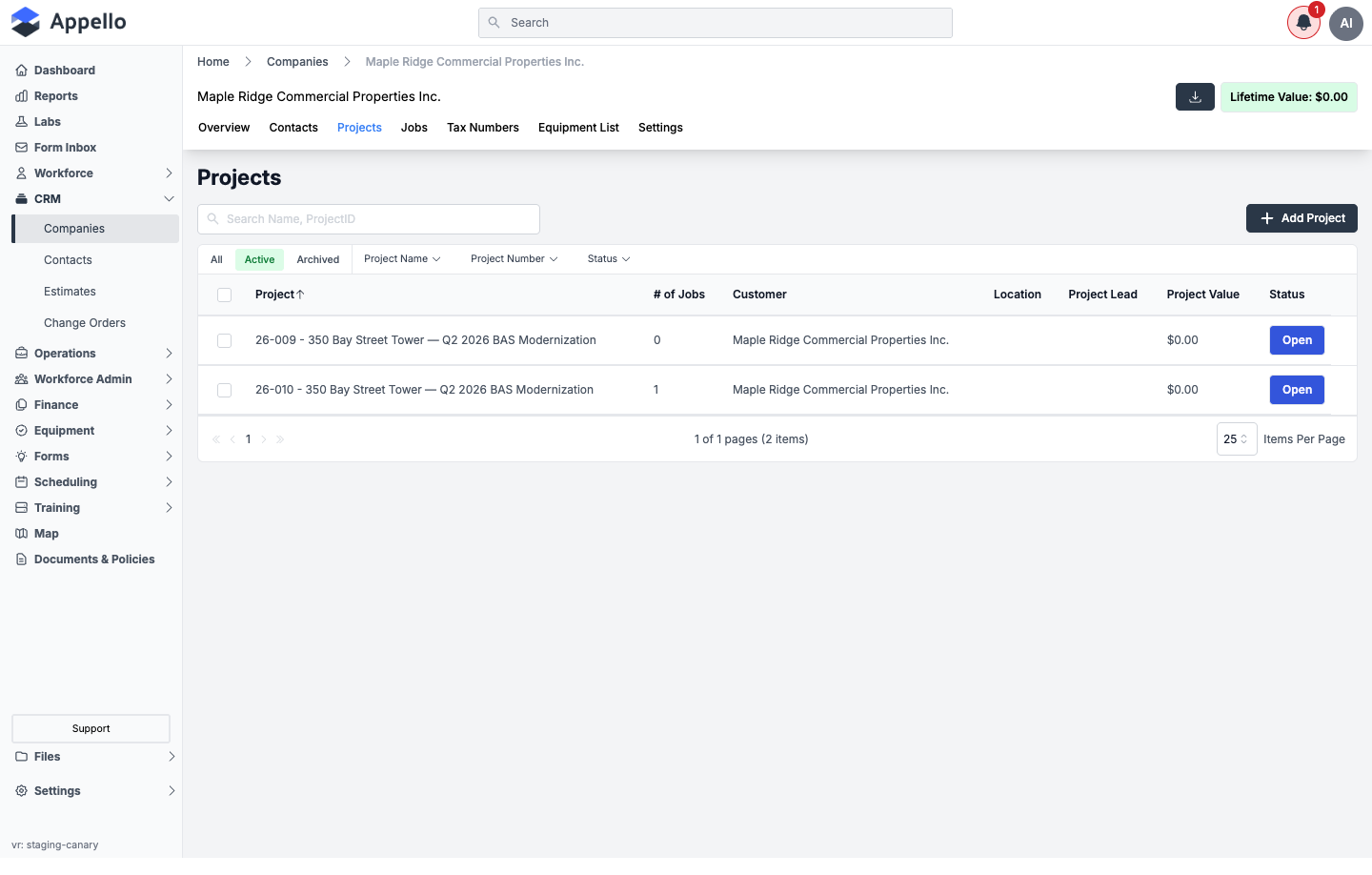
| Control | What it does | Where it leads |
|---|---|---|
| Search (Name, Project ID) | Filters the list | — |
| All / Active / Archived | Filters by project status | — |
| Project Name / Project Number / Status filters | Narrow the list further | — |
| Add Project | Opens the project-creation flow, pre-scoped to this company | New project form |
| Open (row action) | Opens that project | Projects list detail page |
Jobs
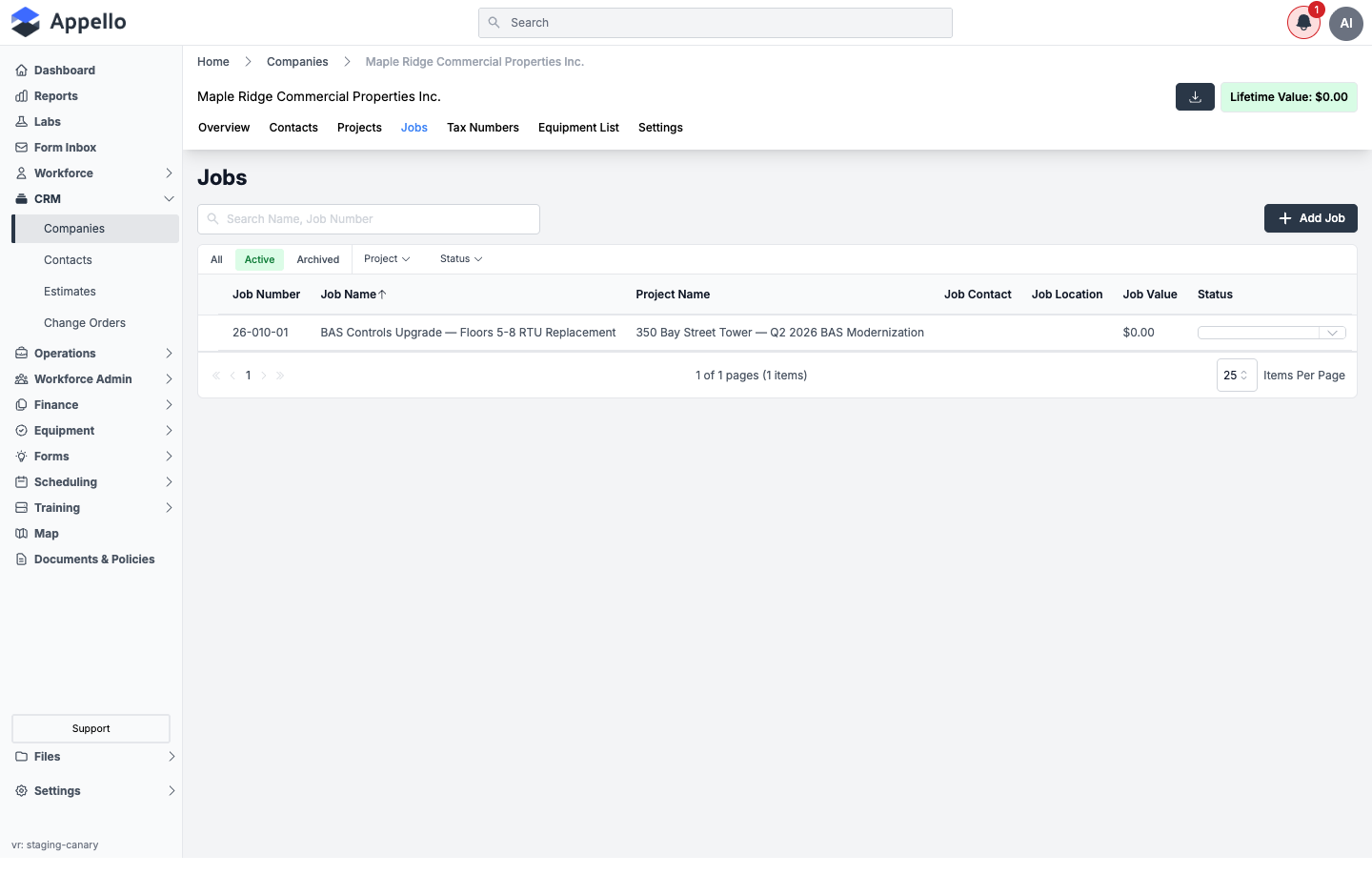
Every job linked to this company (across all of its projects).
| Control | What it does | Where it leads |
|---|---|---|
| Search (Name, Job Number) | Filters the list | — |
| All / Active / Archived | Filters by job status | — |
| Project / Status filters | Narrow the list further | — |
| Add Job | Opens the job-creation flow, pre-scoped to this company | See Create a Job |
| Row click | Opens that job | Job detail page |
Accounts Payable
Not reachable on the demo instance — no company there is configured as payable, so this tab never renders for any demo record. It shows the same list used on the standalone Accounts Payable page, scoped to this company.
Lists this company's payable expenses (bills owed to this vendor). See Accounts Payable Expenses for the full column reference, statuses, and approval workflow — this tab is that same list, filtered to the current company.
Shown when: Expenses → View and Company Type is payable.
Employee Expenses
Not reachable on the demo instance for the same reason as Accounts Payable — no payable-type company exists, and the instance setting Allow Vendors on Employee Expenses could not be exercised either.
Lists employee expense reports charged against this company (used when a vendor company can also receive employee-expense billings).
Shown when: Expenses → View, Company Type is payable, and the instance setting Allow Vendors on Employee Expenses is enabled.
Estimates
The company's estimate pipeline — every estimate tied to this company, with status, dates, and value.
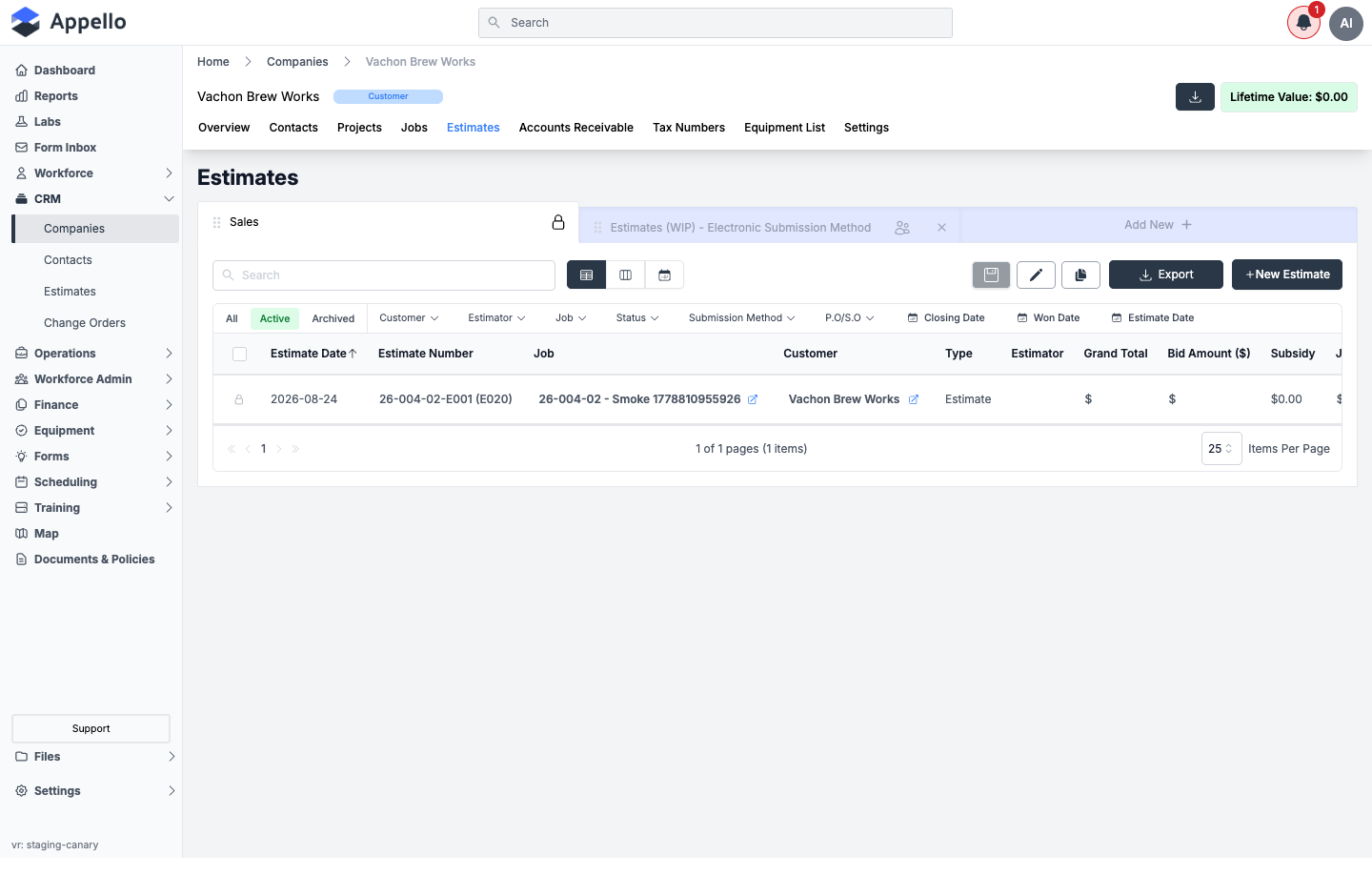
This screenshot is from Vachon Brew Works, a Customer-type (receivable) company on the demo instance — the first company on the list, Maple Ridge Commercial Properties Inc., has no Company Type set and does not show this tab.
| Control | What it does | Where it leads |
|---|---|---|
| Search | Filters estimates | — |
| All / Active / Archived | Filters by status | — |
| Customer / Estimator / Job / Status / Submission Method / P.O/S.O / Closing Date / Won Date / Estimate Date filters | Narrow the list | — |
| New Estimate | Opens the estimate-creation flow, pre-scoped to this company | New estimate form |
| Row click | Opens that estimate | See Estimate report for statuses, the won/lost workflow, and converting an estimate to a project or job |
Shown when: Estimates → View and Company Type is receivable. See Companies → Sales pipeline tracking for how this tab fits the wider pipeline story.
Accounts Receivable
This company's invoices — the billing side of a receivable-type customer.
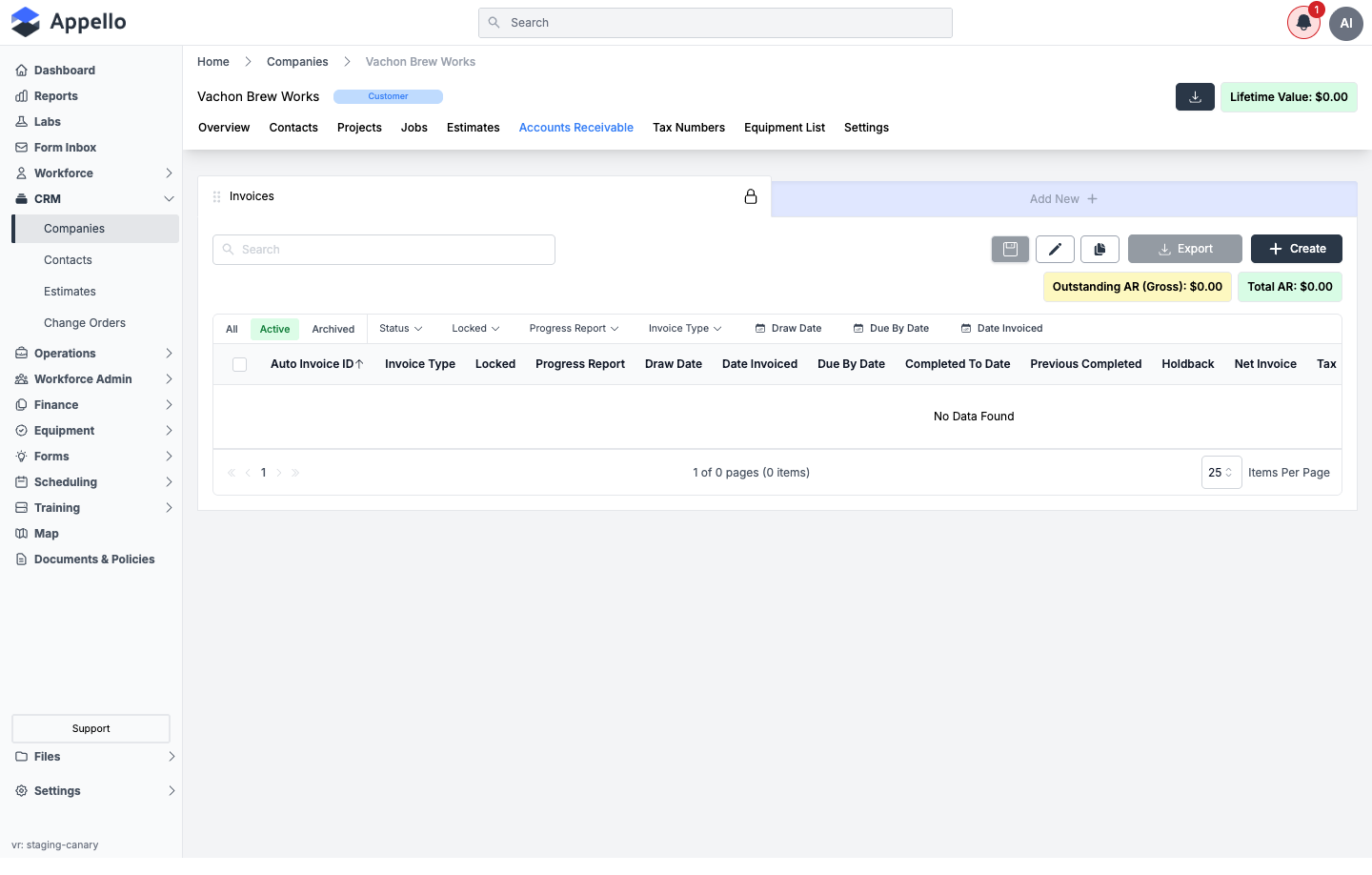
Screenshot is from Vachon Brew Works (receivable Company Type); the tab lists the company's invoices and is empty here because none have been created yet on this demo record.
| Control | What it does | Where it leads |
|---|---|---|
| Search | Filters invoices | — |
| All / Active / Archived | Filters by status | — |
| Status / Locked / Progress Report / Invoice Type / Draw Date / Due By Date / Date Invoiced filters | Narrow the list | — |
| Export | Downloads the visible invoices | — |
| Create | Opens the invoice-creation flow, pre-scoped to this company | New invoice form |
| Outstanding AR (Gross) / Total AR badges | Read-only rollups for this company | — |
Shown when: Estimates → View and Company Type is receivable. See Accounts Receivable & Billing for the full billing workflow this tab feeds into.
Tax Numbers
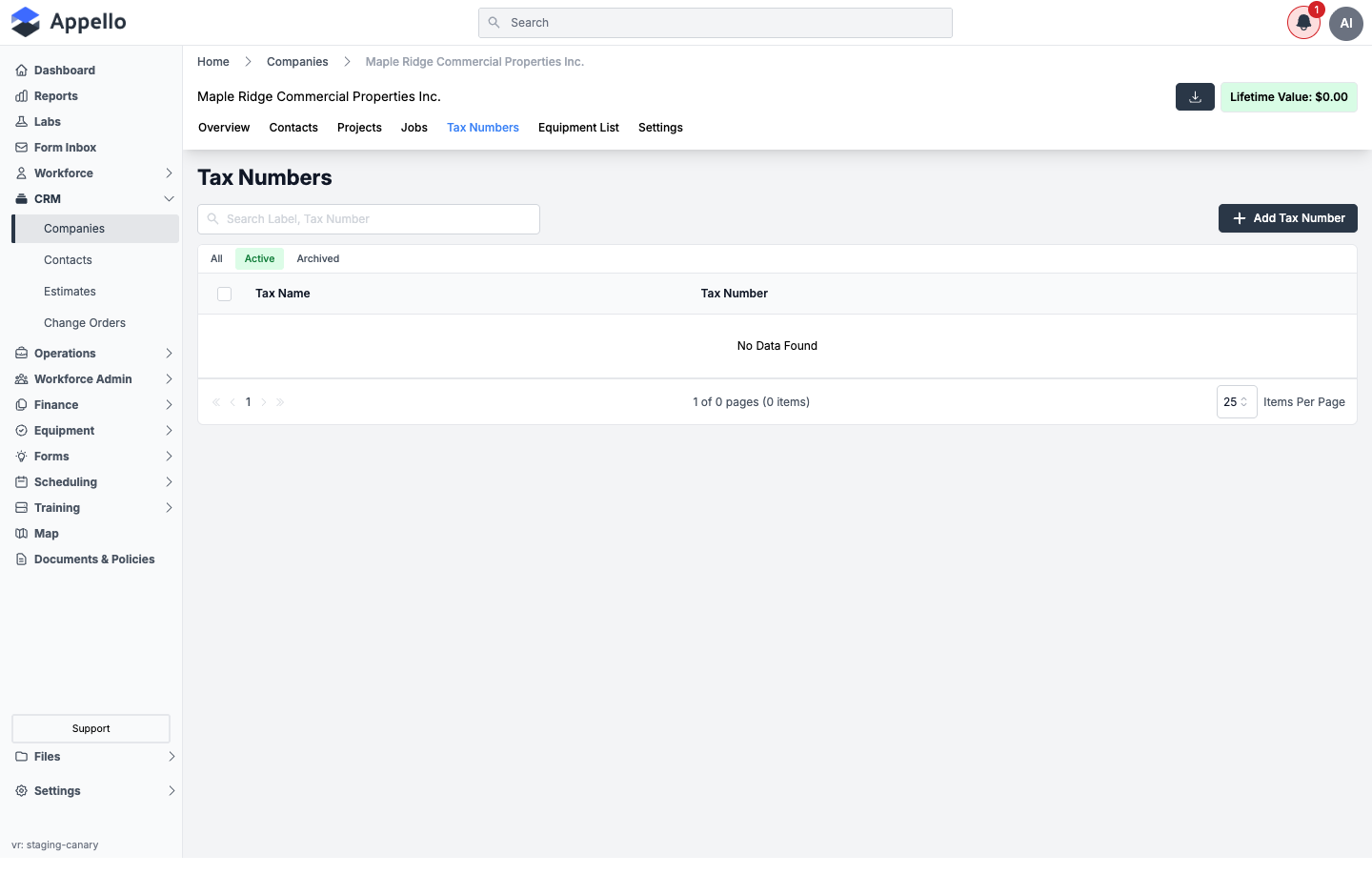
The company's registered tax numbers (e.g. GST/HST numbers), used when generating invoices or documents for this company.
| Control | What it does | Where it leads |
|---|---|---|
| Search (Label, Tax Number) | Filters the list | — |
| All / Active / Archived | Filters by status | — |
| Add Tax Number | Opens the create form | Tax Number form flyout |
| Row click (edit) | Opens the same form pre-filled | Tax Number form flyout |
| Row checkbox + Archive / Delete / Restore | Bulk status actions on selected tax numbers | — |
Shown when: Companies → View — this tab is not further gated by company type.
Products
Read-only list of priced materials this company manufactures.
Not reachable on the demo instance — no priced material there names any demo company as its manufacturer, so the check that gates this tab never passes.
| Column | Description |
|---|---|
| Material | Links to the Materials Catalog record |
| SKU | Manufacturer SKU (falls back to the general SKU) |
| UPC | Manufacturer UPC code |
This list is read-only from the Company page — editing a material's sourcing happens on the material record itself. See Materials Catalog.
Shown when: Materials → View and the company is a manufacturer on at least one priced material.
Products & Pricing
Read-only list of priced materials this company distributes, with pricing detail.
Not reachable on the demo instance for the same reason as Products — no demo company is named as the distributor on any priced material.
| Column | Description |
|---|---|
| Material | Links to the Materials Catalog record |
| SKU | This distributor's SKU |
| List | List price |
| Effective | Effective (net) price |
| Lead | Lead time in days |
| Preferred | Marked with a star if this is the preferred distributor for the material |
| Stock | In stock / Out |
Shown when: Materials → View and the company is a distributor on at least one priced material.
Discounts
Buying discounts this company (as a distributor) grants — applied globally, to a material category, or to specific materials.
Not reachable on the demo instance — same distributor check as Products & Pricing, and no distributor-type company exists in this dataset. The discount modal itself could not be opened or screenshotted for this reason.
| Column | Description |
|---|---|
| Discount | Discount name |
| Type / Value | Percent (%) or fixed amount ($) |
| Applies to | Badge per scope: Global, a material category, or a specific material |
| Effective | Effective-from → effective-to date range |
| Status | Scheduled, Active, or Expired, computed from the effective dates |
| Control | What it does | Where it leads |
|---|---|---|
| Add Discount | Opens the discount modal to create a new discount | Discount modal |
| Row click (edit) | Opens the same modal pre-filled | Discount modal |
| Row checkbox + Archive / Delete / Restore | Bulk status actions on selected discounts | — |
Shown when: Materials → View and the company is a distributor on at least one priced material.
Equipment List
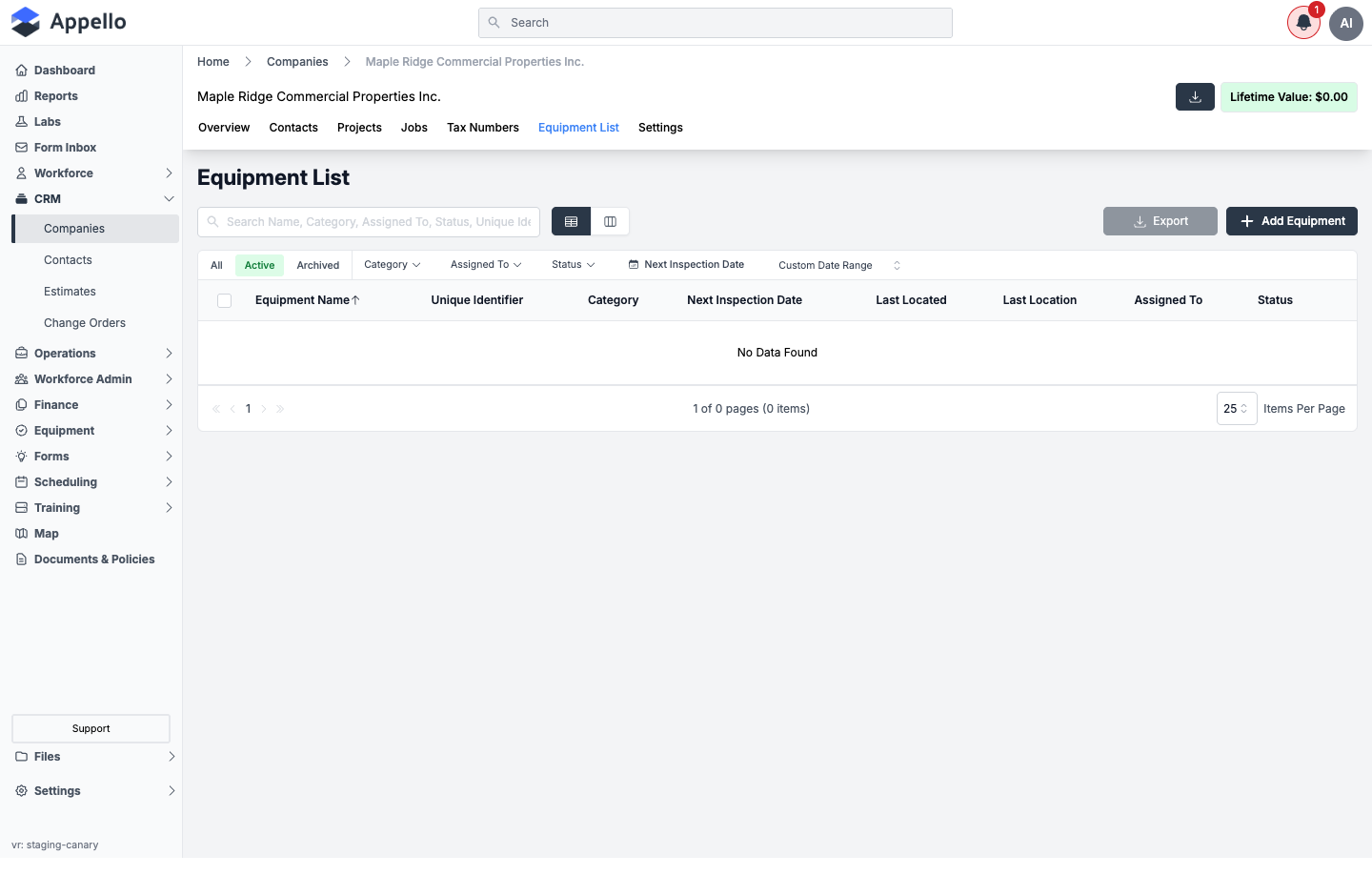
Equipment currently assigned or connected to this company.
| Control | What it does | Where it leads |
|---|---|---|
| Search (Name, Category, Assigned To, Status, Unique Identifier) | Filters the list | — |
| All / Active / Archived | Filters by status | — |
| Category / Assigned To / Status / Next Inspection Date / Custom Date Range filters | Narrow the list | — |
| Export | Downloads the visible rows | — |
| Add Equipment | Opens a flyout to assign existing equipment to this company | Assign-equipment flyout |
| Row click (edit) | Opens the equipment record for editing | Equipment edit form |
| Row checkbox + Archive | Removes the equipment's connection to this company | — |
Related: see Equipment List for the full equipment record, columns, and maintenance workflow.
Shown when: Equipment → View.
Settings
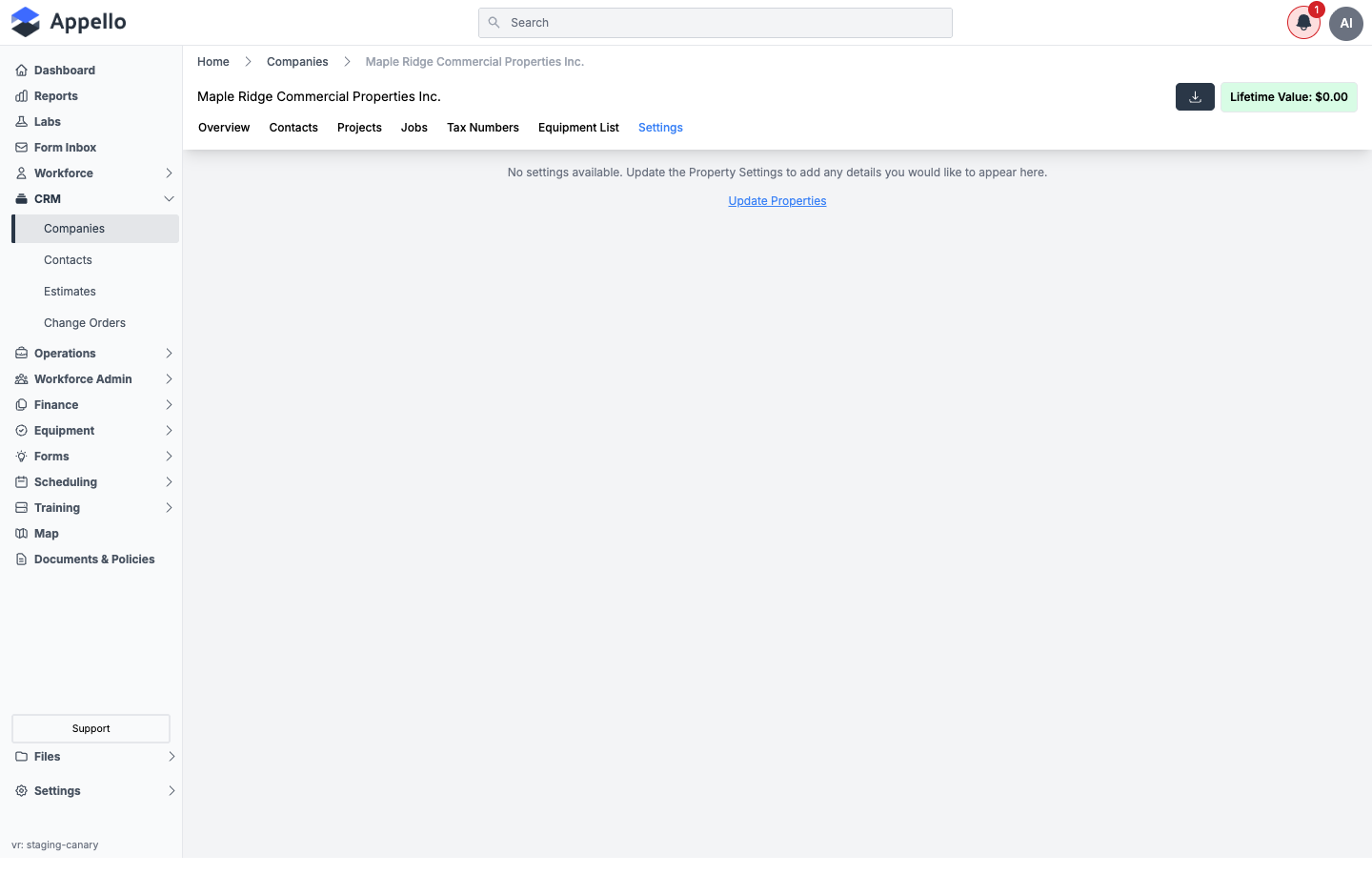
Generic model-settings panel shared by every record type in Appello (Company, Contact, Project, Job, etc.) — it surfaces any custom properties configured for the Company model under Settings → Property Settings.
| Control | What it does | Where it leads |
|---|---|---|
| Update Properties link (only shown when no settings are configured) | Jumps to the Company section of Property Settings | Settings → Property Settings |
Shown when: Companies → View. On the demo instance no custom properties are configured for the Company model, so this tab always reads "No settings available."
Guest view
A guest user (an external, limited-access account) does not see the full tab set above. Regardless of permissions, the guest experience collapses this page to two tabs only:
| Tab | Shows |
|---|---|
| Projects | Guest-scoped projects list |
| Jobs | Guest-scoped jobs list |
For a guest, the tab set is replaced entirely rather than filtered down. This was not exercised live in this crawl (no guest session was available on the demo instance).
Forms
Company edit form
Opened from the pencil icon on the Overview panel to edit the current company. This form is not fixed — Appello builds it from the Company model's field setup, so the exact field set is configurable per instance (via Settings → Property Settings).
On the demo instance, the Overview panel this form edits shows the following field groups:
| Group | Fields |
|---|---|
| Company Information | Company Name, Description, Company Type, Industry |
| Company Contact Information | Phone Extension, Phone, Website URL, LinkedIn URL, Fax |
| — | Primary Contacts |
The live edit flyout could not be opened during this crawl — its trigger is an icon-only button with no accessible text, which the read-only crawl tool could not target reliably. The field groups above are read from the Overview panel the form edits (the same underlying record), not from a live screenshot of the form itself.
Workflow:
- On the Overview tab, click the pencil icon in the Company Details header.
- Edit any field in the flyout.
- Click Save. The record updates and the flyout closes; Cancel discards changes.
Tax Number form
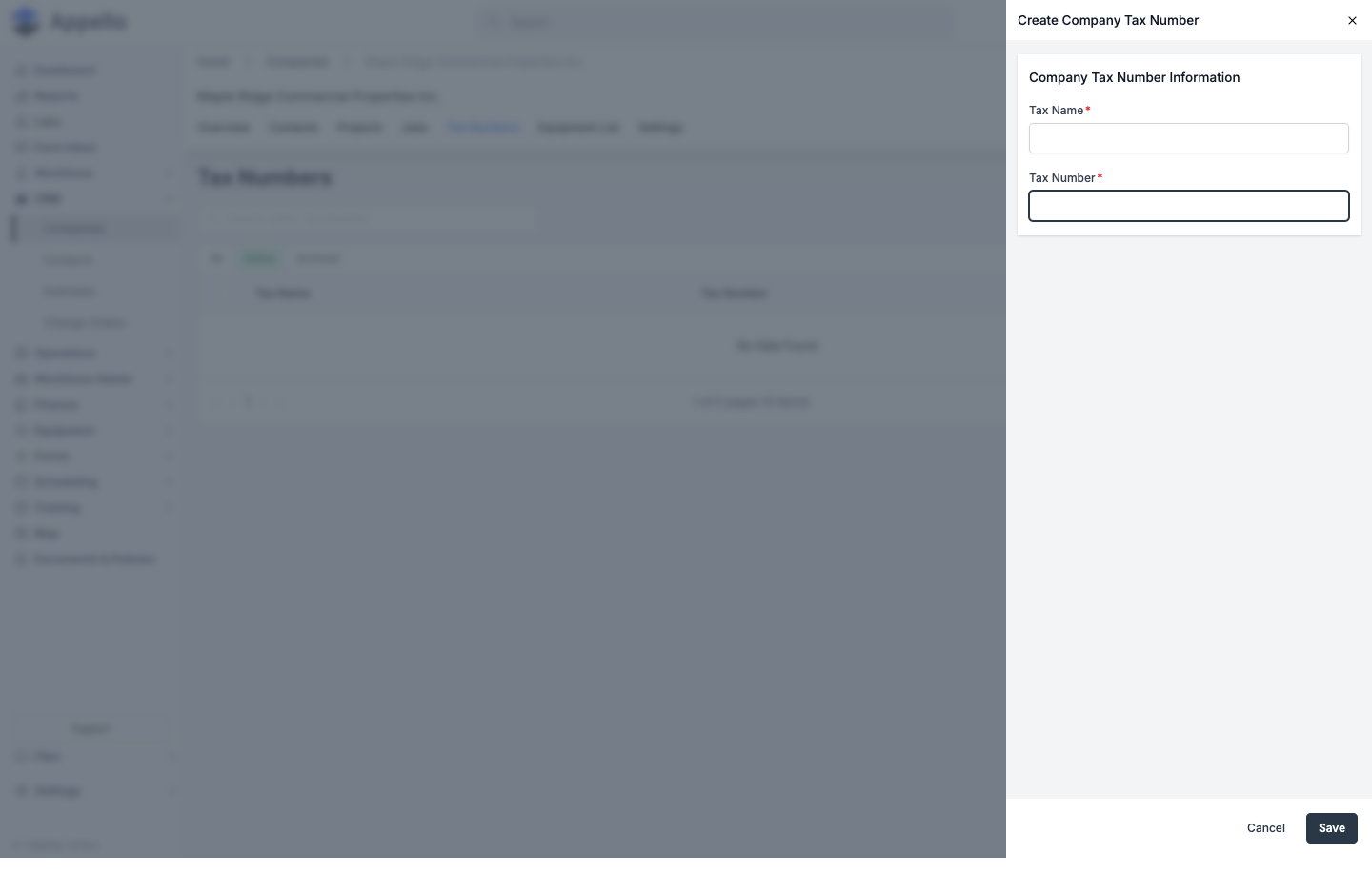
Opened from Add Tax Number (create) or by clicking a row (edit) on the Tax Numbers tab.
| Field | Required | Type | Effect |
|---|---|---|---|
| Tax Name (Label) | Yes | Text | Display label for the tax number (e.g. GST/HST) |
| Tax Number | Yes | Text | The registered number itself |
Workflow:
- On the Tax Numbers tab, click Add Tax Number (or a row to edit an existing one).
- Enter Tax Name and Tax Number — both required; leaving either blank and saving shows an "unfilled fields" confirmation instead of saving.
- Click Save. A success notification confirms creation or update; Cancel closes the flyout without saving.
Discount modal
Opened from Add Discount (create) or a row click (edit) on the Discounts tab. Could not be opened live in this crawl — see the note under Discounts — so the field list below is described rather than screenshotted.
| Field | Required | Type | Effect |
|---|---|---|---|
| Name | Yes (validated on save) | Text | Discount name shown in the list |
| Type | — | Toggle: Percent / Amount | Switches the Value field between % and $ |
| Value | Yes (validated on save) | Number / currency | The discount amount or percentage |
| Effective From | No | Date | Start of the discount's active window |
| Effective To | No | Date | End of the discount's active window (inclusive) |
| Applies to (scope rows) | No — defaults to one Global row | Repeatable: Global / Category / Material | Add multiple rows to combine scopes; each row picks a scope kind and, for Category or Material, one or more targets from what this company distributes |
Workflow:
- On the Discounts tab, click Add Discount (or a row to edit).
- Enter a Name and choose Type (Percent or Amount) and Value.
- Optionally set Effective From / Effective To dates.
- Under Applies to, keep the default Global scope, or click Add scope to add Category or Material rows and pick specific targets. Remove a row with the trash icon.
- Click Save Discount. The discount is created or updated, and its scope assignments are reconciled (new targets attached, removed targets detached); Cancel closes without saving.
Forms not on this screen
Two company pickers you may see elsewhere in Appello are not part of the Company Detail page and are left out of the sections above:
- The Associate Existing Company picker — used to attach an existing company to something else (a Contact, Project, Expense, or Estimate/Change Order). It never appears on the Company Detail page.
- The Associate Company flyout that wraps it alongside an "Associate New" tab (which opens the company create form). Same story: it is opened from Contact, Project, Expense, and Estimate screens to pick a company, never from the Company Detail page itself.
Neither appears anywhere on the Company Detail page.
Related pages
- Companies — the list this page is opened from
- Contacts — detail page for rows on the Contacts tab
- Accounts Payable Expenses — full detail behind the Accounts Payable tab
- Estimate report — full detail behind the Estimates tab
- Accounts Receivable & Billing — full detail behind the Accounts Receivable tab
- Materials Catalog — full detail behind the Products and Products & Pricing tabs
- Equipment List — full detail behind the Equipment List tab
- Create a Job — the job-creation flow linked from the Jobs tab