Email Links and Public Pages
Appello emails customers and other outside contacts a small set of links that open without signing in: the link itself stands in for signing in, and it stops working after a set time. This guide covers every page reached that way -- what triggers the email, what the page shows, and what happens when the link has expired or gone bad.
Each of these links is single-purpose and time-limited: it opens one document and expires. Anyone holding the link can open the page (no password, unless the sender set one) until it expires -- there is no user account behind these pages -- so treat the links as confidential and only forward them to people who should see the document.
RFI response link
Where it is
A contact receives this link when someone with edit access to a Request for Information clicks Send (or Resend) on the RFI's send-email dialog. The email's Respond to this RFI button carries the link; the email also carries a separate Download PDF link (see RFI download below).
What it's for
Lets an external recipient -- a subcontractor, consultant, or client with no Appello account -- read the RFI and submit a written response, with optional file attachments, entirely outside the app. It doubles as the Guest Portal's no-login equivalent for RFIs specifically.
Screenshot
This page needs a real, unexpired link to show the RFI itself, so it cannot be captured without one. Opened without a valid link, the visible page is the shared expired/error shell described in Expired and error states below, with its RFI-specific wording:
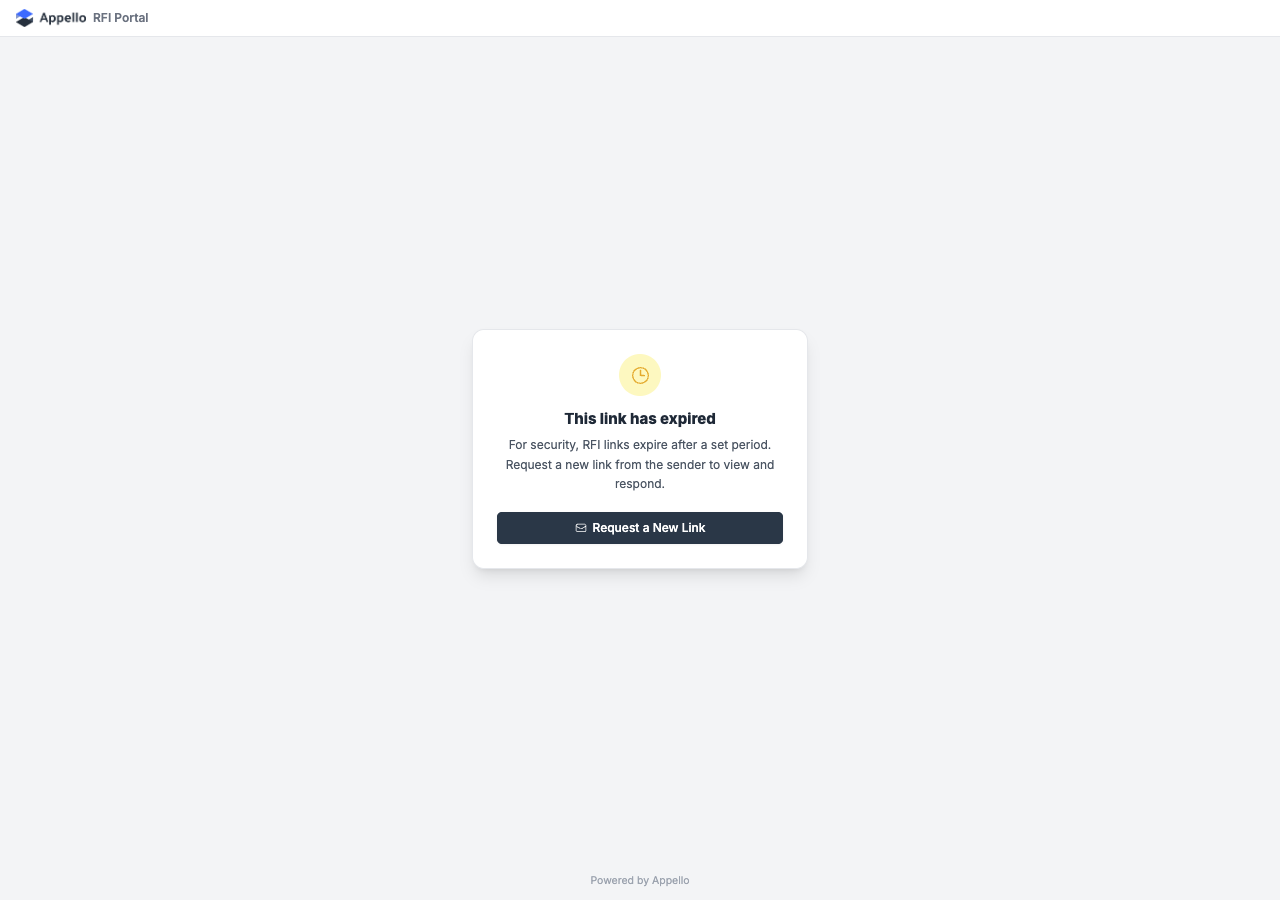
Controls and fields
| Field / Control | Required | Type | Effect |
|---|---|---|---|
| Response | Yes | Textarea | The written answer to the RFI. Capped at 8,600 characters. |
| Attach a file or screenshot | No | File picker (multiple) | PNG, JPEG, WebP, or PDF only. Up to 5 files, 10MB combined. Each picked file shows as a removable tile with a live preview. |
| Your Name | Yes | Text | Recorded as who responded (there is no account, so this is typed, not derived from a login). |
| -- | Read-only display | Shows the recipient email the link was sent to; not editable. | |
| Submit Response | -- | Button | Sends the response. Disabled while submitting; a duplicate click while a request is in flight is dropped. |
If the RFI has already been answered, the form is replaced by the recorded response (text, attachments, responder name and date) shown read-only -- reopening the link is safe and never re-prompts for a second answer.
Workflow
- From the RFI's send dialog, a user with RFI edit access enters recipients and an optional message, then clicks Send.
- Appello emails each recipient a Respond to this RFI link alongside a Download PDF link. The email is sent from Appello's domain with the sender's name and reply-to address.
- The recipient opens the link, reads the RFI (number, name, description, job, and any drawing reference or attachments the sender chose to include), and fills in Response and Your Name, optionally attaching files.
- On Submit Response, the first submission wins -- a second recipient or a retried request cannot overwrite an already-recorded answer.
- The page shows "Your response has been recorded and sent." Reopening the same link afterward shows the recorded response instead of the thank-you screen.
- The link -- and its paired download link -- expire 30 days after the email was sent, or after a Resend re-issues both.
Who can trigger
Any user with edit access to Requests for Information (send/resend an RFI). Opening and responding to the link itself requires no Appello account or permission.
Related pages
Work order signature link
Where it is
A customer contact receives this link when a user with work-order share-link access clicks Send for Customer Signature on a work order. The email's Review & Sign button carries the link.
What it's for
Lets the customer review the completed work order -- labor, materials, equipment, checklist, and the cost summary -- and sign off on it from their inbox, with no Appello account.
Screenshot
This page needs a real, unexpired link to show the work order. Opened without a valid link, or with an expired one, it falls back to the same shell as the other action links -- see Expired and error states:
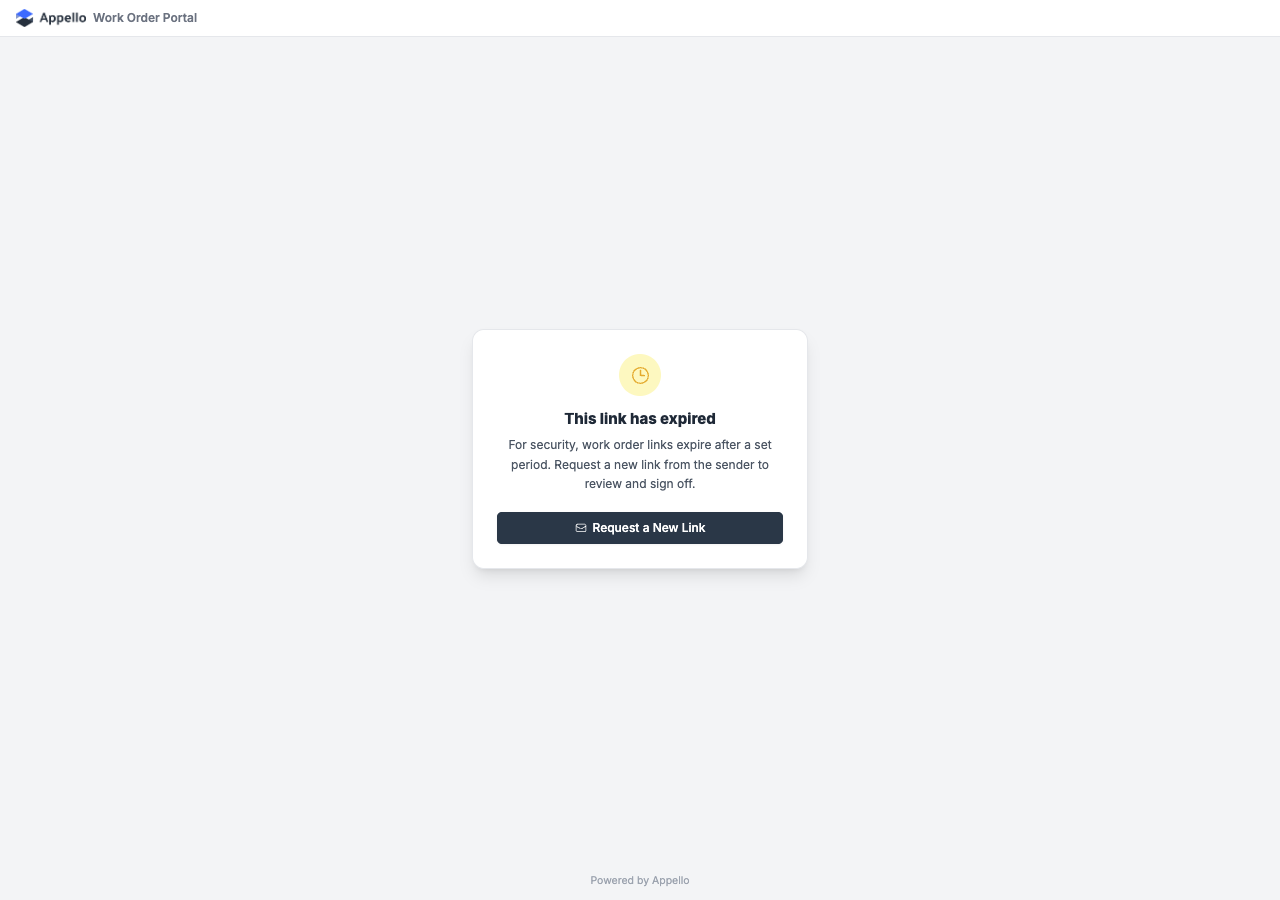
Controls and fields
| Field / Control | Required | Type | Effect |
|---|---|---|---|
| Enter link password | Only if the sender set one | Password field | Shown before the document loads at all, when the sender protected the link with a password. |
| Signature canvas | Yes | Draw-to-sign | The customer draws their signature with mouse/touch/stylus. |
| Full Name | Yes | Text | Pre-filled with the picked contact's name when the sender chose a specific contact; blank and typed by hand for a raw email recipient. |
| Date | -- | Read-only display | Today's date, in the instance's date format. Not editable. |
| Confirm & Sign | -- | Button | Records the signature and the confirmation text (which states the approved total, unless the work order hides pricing). |
Workflow
- From the work order, a user with share-link access clicks Send for Customer Signature, picks one or more recipients (a company contact, or a typed email for someone with no contact record), and can adjust the subject/body, add a link password, and change the default 7-day expiry before sending.
- Appello emails each recipient a Review & Sign link.
- The recipient opens the link (entering the password first if one was set), reviews the work order, draws a signature, confirms their name, and clicks Confirm & Sign.
- The page shows "Your signature has been recorded."
- Once every requested signer has signed, Appello automatically emails each of them a View Work Order link to the read-only, signed copy -- see Work order view below.
- The sign link expires 7 days after sending by default; the sender can choose a different expiry when sending. A separate Send Signature Reminder action re-sends to whoever hasn't signed yet without creating duplicate requests.
Who can trigger
Any user with the work order's Share Public Link permission. Signing the link itself requires no Appello account.
Related pages
Work order view link
Where it is
Sent automatically, one link per signer, once every customer signature on a work order has been collected (see step 5 above) -- never sent directly by a user. The email's View Work Order button carries the link.
What it's for
Gives the customer a read-only, permanent-feeling copy of the fully signed work order to keep for their own records, with a one-click PDF download.
Screenshot
Needs a real, unexpired link to render. Without one, or with an expired one, it falls back to the same shared shell as the signature page -- see Expired and error states and the screenshot above.
Controls and fields
| Field / Control | Required | Type | Effect |
|---|---|---|---|
| Expiry notice | -- | Banner | Shows "This link expires in N day(s)." when the link has an expiry. |
| Download PDF | -- | Button | Generates and downloads a PDF copy of the work order -- the same PDF the signature page produces. |
The rest of the page is read-only: the cost summary, the full work order detail (labor, material, equipment, checklist, custom sections), and the list of everyone who has signed with their signature image and timestamp.
Workflow
- Once all requested signers have signed a work order, Appello generates one View Work Order link per signer and emails it automatically -- no user action required.
- If the original signature request was password-protected, the view link carries the same password.
- The recipient opens the link (entering the password if required), reviews the signed document, and optionally clicks Download PDF to save a copy.
- There is nothing to submit -- this page is entirely read-only.
- The link expires 30 days after it was issued, independent of the original signature link's expiry.
Who can trigger
No user action triggers this link directly -- it is generated by the system once a work order's signatures are complete. A user with Share Public Link access can trigger the underlying signature request that eventually produces it (see Work order signature).
Related pages
Tokenised downloads
Three separate download pages exist, one per document type. All three behave the same way: opening the link starts the download straight away and the page shows a loading, success, or failure message -- the document is never displayed in the browser, it is only saved as a file.
Form download (/form-download-page)
Where it is: Sent when a user emails a completed form submission from its report page (the Send via email action, separate from Share Public Link -- see Shared form submission below). The Download PDF button in the email opens it.
What it's for: Downloads the completed form (safety form / inspection) as a PDF, exactly as configured by the sender's export settings (hide result, hide description, include only the final result, include all pictures, include attached files, or a specific subset of pictures/questions).
Screenshot (the failure state a broken or hand-typed link produces):
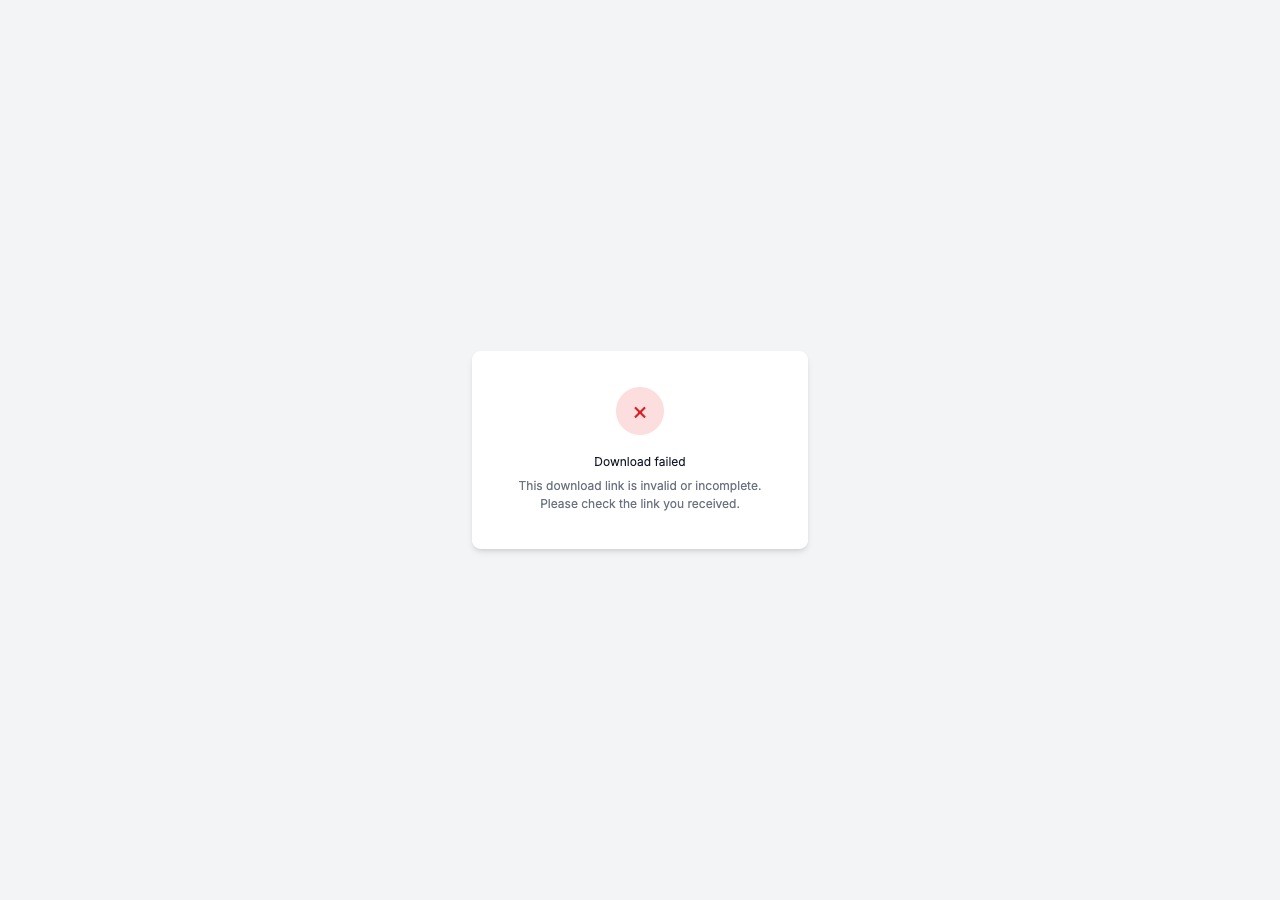
Controls and fields: none -- the page has no interactive controls. It shows one of: "Preparing your download..." (loading), "Download complete" (success, file saved), "Link expired" (briefly, before redirecting to Form link expired), or "Download failed" (any other error, with the reason).
Workflow:
- From a form submission's report, a user opens Send via email, enters recipients and an optional message, and optionally expands Export Settings to hide fields or pick specific attachments/pictures.
- Appello emails each recipient a Download PDF link naming the form and job.
- Opening the link triggers the PDF generation and download immediately -- there is no intermediate confirmation step.
- The link expires 30 days after it was sent.
Who can trigger: Any user with the form's Share Public Link permission can send the email; opening the link needs no account.
Related pages: Form report, Form management, Form link expired
Certification download (/cert-download-page)
Where it is: Sent when a user emails one or more user certifications as a PDF report from the certifications area. The download link in the email opens it.
What it's for: Downloads a certification report (one or more certifications for a given user) as a single PDF, for a recipient who has no reason to sign in to Appello (e.g. a client or an inspector requesting proof of certification).
Screenshot (opened without a valid link):
Controls and fields: none -- same loading/success/failure states as the form download page, with certification-specific copy ("Your certification report has been downloaded.").
Workflow:
- A user sends the certification(s) by email to one or more recipients.
- Appello emails each recipient a download link.
- Opening the link immediately downloads the PDF (
Certifications-Report.pdfby default). - The link expires 30 days after it was sent.
Who can trigger: Any user permitted to email certification reports; opening the link needs no account.
Related pages: Cert link expired
RFI download (/rfi-download-page)
Where it is: Sent alongside every RFI response link, as the Download PDF button in the same RFI email.
What it's for: Downloads a PDF of the RFI itself (optionally with its attached files), for a recipient who wants a static copy without opening the interactive response page.
Screenshot (opened without a valid link -- note the distinct behavior below):
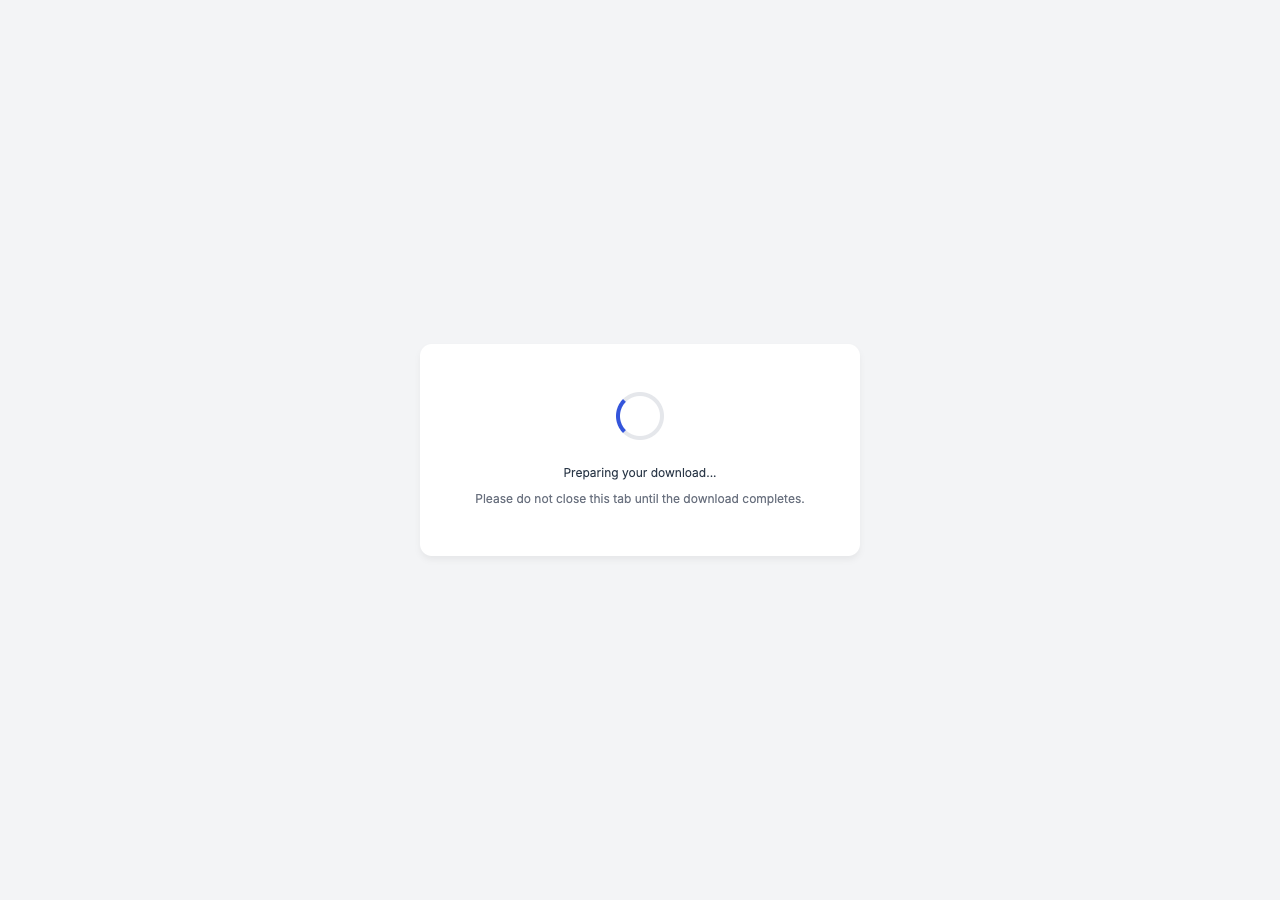
Unlike the form and certification download pages, this page does not show an error when the link is incomplete -- it simply spins on "Preparing your download..." and never finishes. If that happens, the link is broken rather than slow: ask the sender to resend the RFI.
Controls and fields: none -- loading / success / failure states as above, with RFI-specific copy ("Your form submission has been downloaded" reads "please try exporting from the RFI detail page instead" on an empty-PDF failure).
Workflow:
- Generated automatically whenever an RFI is sent or resent (see RFI response workflow) -- there is no separate "download only" send action.
- Opening the link immediately downloads the PDF.
- The link expires 30 days after the RFI email was sent, matching the paired response link.
Who can trigger: Same as the RFI response link -- any user with RFI edit access who sends or resends the RFI.
Related pages: RFIs, RFI response, RFI link expired
Expired and error states
Five distinct pages cover an expired or broken link, split by which family of link failed. The
three download pages below offer a self-service refresh: enter the email the link was
originally sent to, and Appello re-sends a fresh link. The two /action/... pages do not --
they direct the recipient to ask the sender for a new link instead.
Form link expired (/form-link-expired)
Where it is: Where you land automatically when a form download link has expired.
What it's for: Lets the recipient request a new form download link by email, without contacting anyone at your company.
Screenshot (opened without a valid link -- the "Invalid Link" variant):
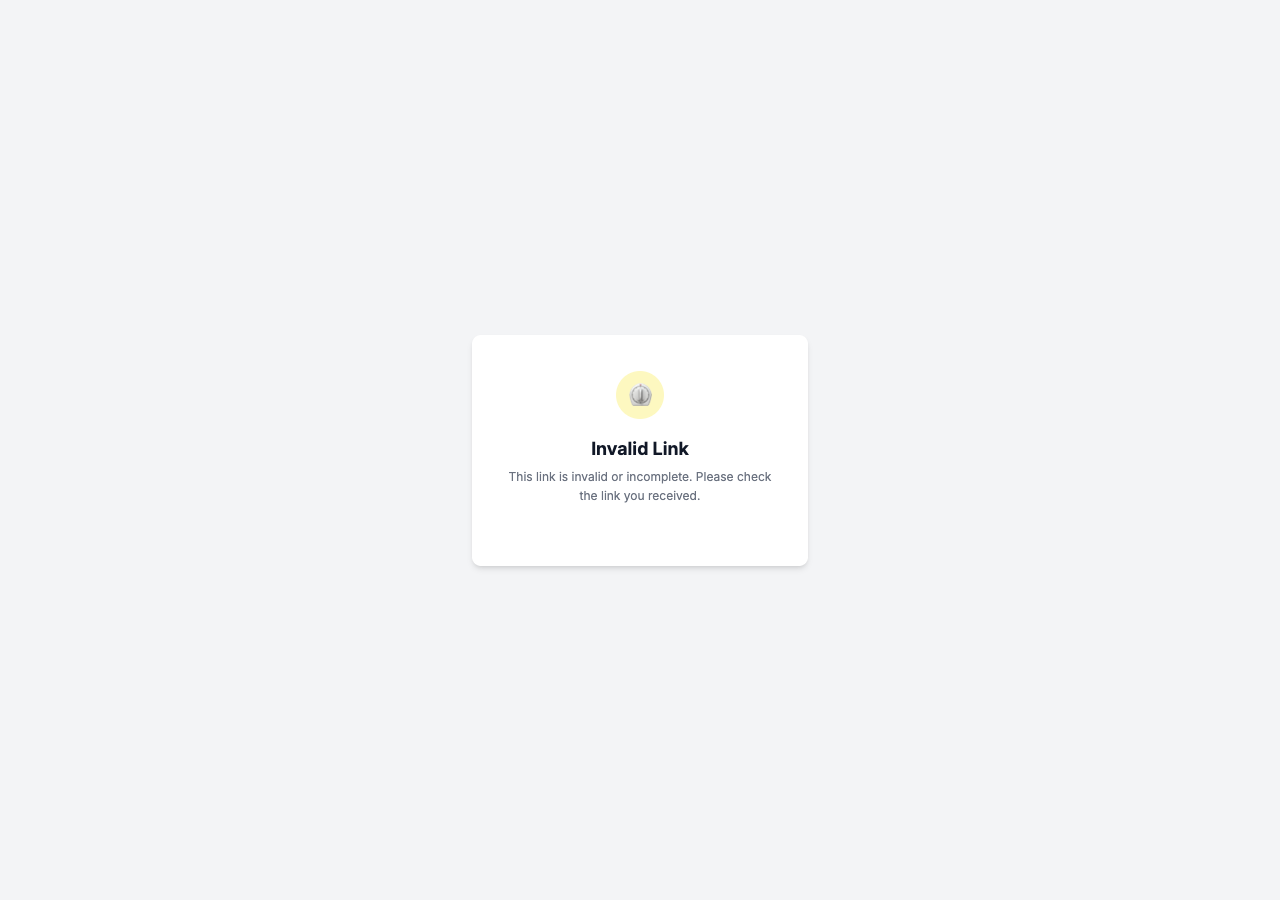
With a real but expired link, the same card instead reads "Link Expired" and shows the email field and Request New Link button described below.
Controls and fields:
| Field / Control | Required | Type | Effect |
|---|---|---|---|
| Enter your email address | Yes | The address to send the refreshed link to. | |
| Request New Link | -- | Button | Emails a fresh link to that address. |
Workflow:
- Recipient enters their email address. It must be the address the original link was sent to.
- Clicks Request New Link.
- On success: "A new download link has been sent to your email." On failure, the reason is shown inline (for example, if the email doesn't match the original recipient).
Who can trigger: No account or permission needed -- this is the self-service path for anyone holding an expired link.
Related pages: Form download
Cert link expired (/cert-link-expired)
Where it is: Where you land automatically when a certification download link has expired.
What it's for: Same self-service refresh as the form link, for certification report links.
Screenshot:
Controls and fields: Identical to Form link expired (email field, Request New Link button).
Workflow: Same as the form link's -- enter the recipient email, submit, and a fresh 30-day-expiry link is emailed on success.
Who can trigger: No account or permission needed.
Related pages: Certification download
RFI link expired (/rfi-link-expired)
Where it is: Where you land automatically when an RFI download link has expired.
What it's for: Same self-service refresh, for the RFI PDF download link specifically (not the
RFI response link, which has its own expired page -- see
Expired links for the /action/... pages below).
Screenshot:
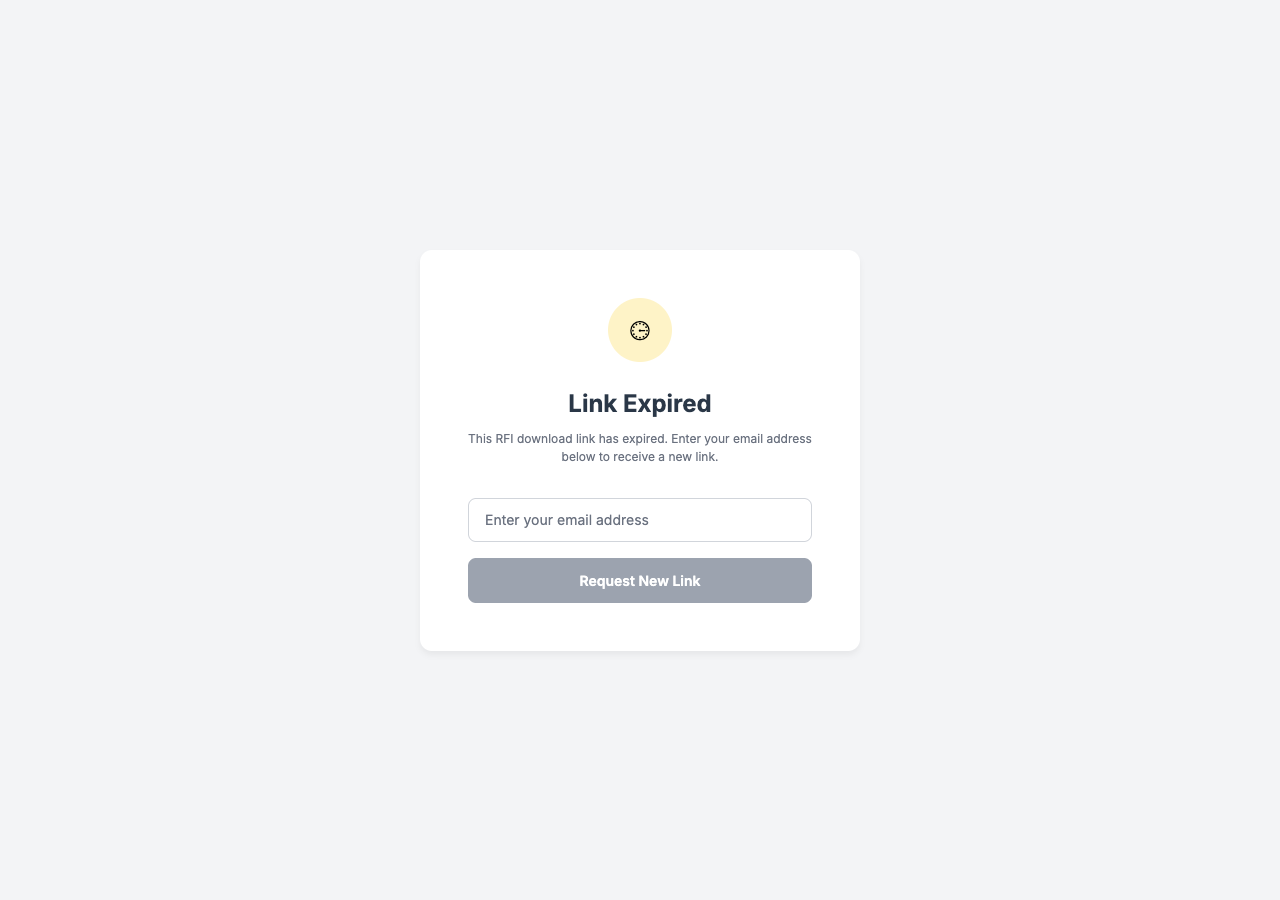
This page does not have the "Invalid Link" variant the form and certification pages have -- it always shows the "Link Expired" wording and the request form, even when the link is incomplete rather than expired.
Controls and fields: Same shape as the other two -- an email field and a Request New Link button.
Workflow: Same as the form and cert pages -- enter email, submit, refreshed link emailed on success (re-issuing both the download link and its paired response link).
Who can trigger: No account or permission needed.
Related pages: RFIs, RFI download
Expired links for the /action/... pages
Where it is: Where you land automatically (/action-link-expired) when any of the three
/action/... links -- RFI response,
work order signature, or
work order view -- has expired. A ?type=rfi query
parameter swaps the header branding and body copy from "Work Order Portal" to "RFI Portal"; every
other action type falls back to the work-order wording.
What it's for: Tells the recipient the link is dead and to ask the original sender for a new one -- there is no self-service refresh for these links.
Screenshot (work order variant, the default with no ?type= param):
The RFI variant (?type=rfi):
Controls and fields:
| Field / Control | Required | Type | Effect |
|---|---|---|---|
| Request a New Link | -- | Button | Opens the visitor's email client addressed to support@useappello.com. |
Workflow:
- The recipient opens an expired
/action/...link. - Appello recognizes that the link has expired and sends them to this page.
- The recipient clicks Request a New Link, which opens a pre-addressed
mailto:support@useappello.comin their email client (no message body is pre-filled).
Who can trigger: No account or permission needed.
Related pages: RFI response, Work order signature, Work order view
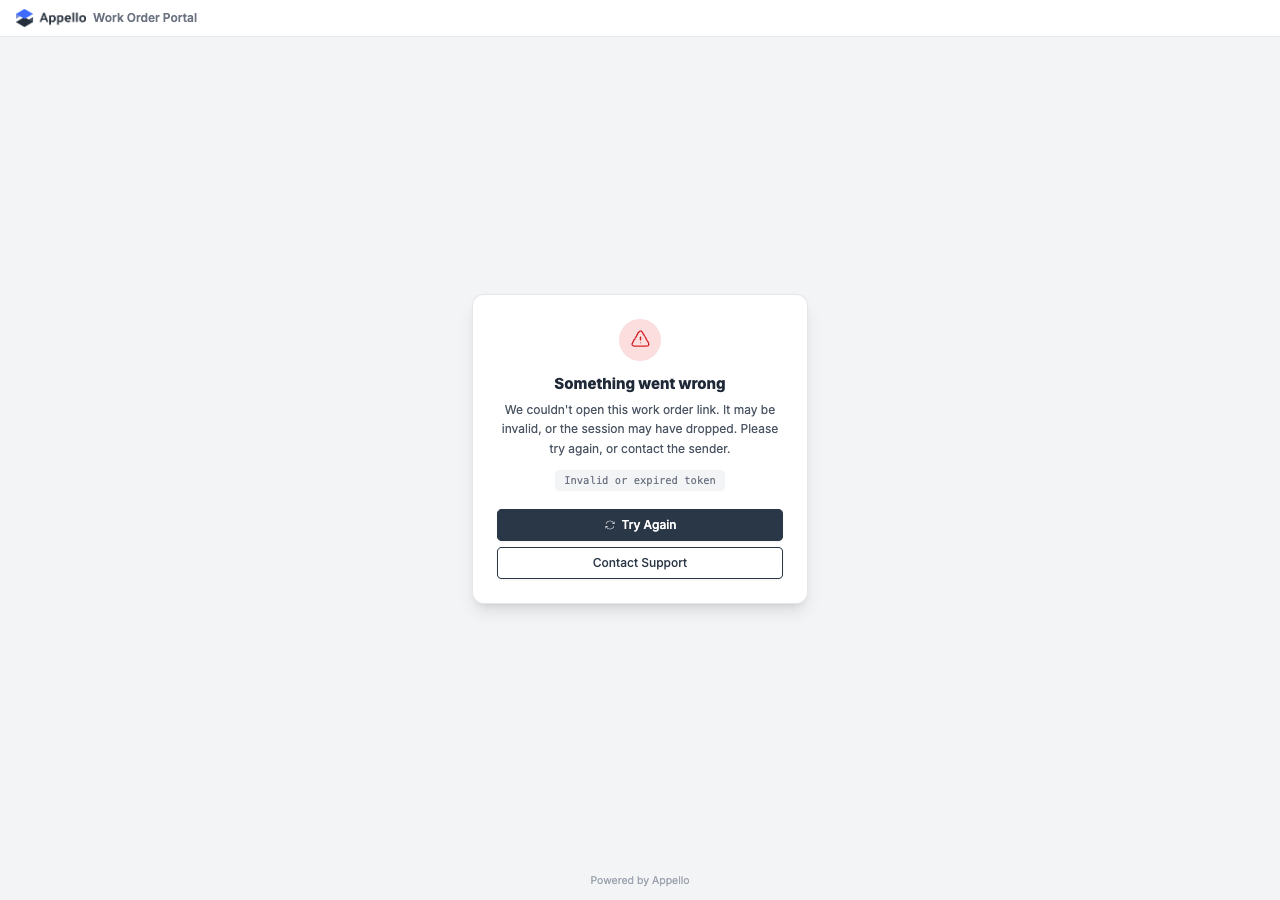
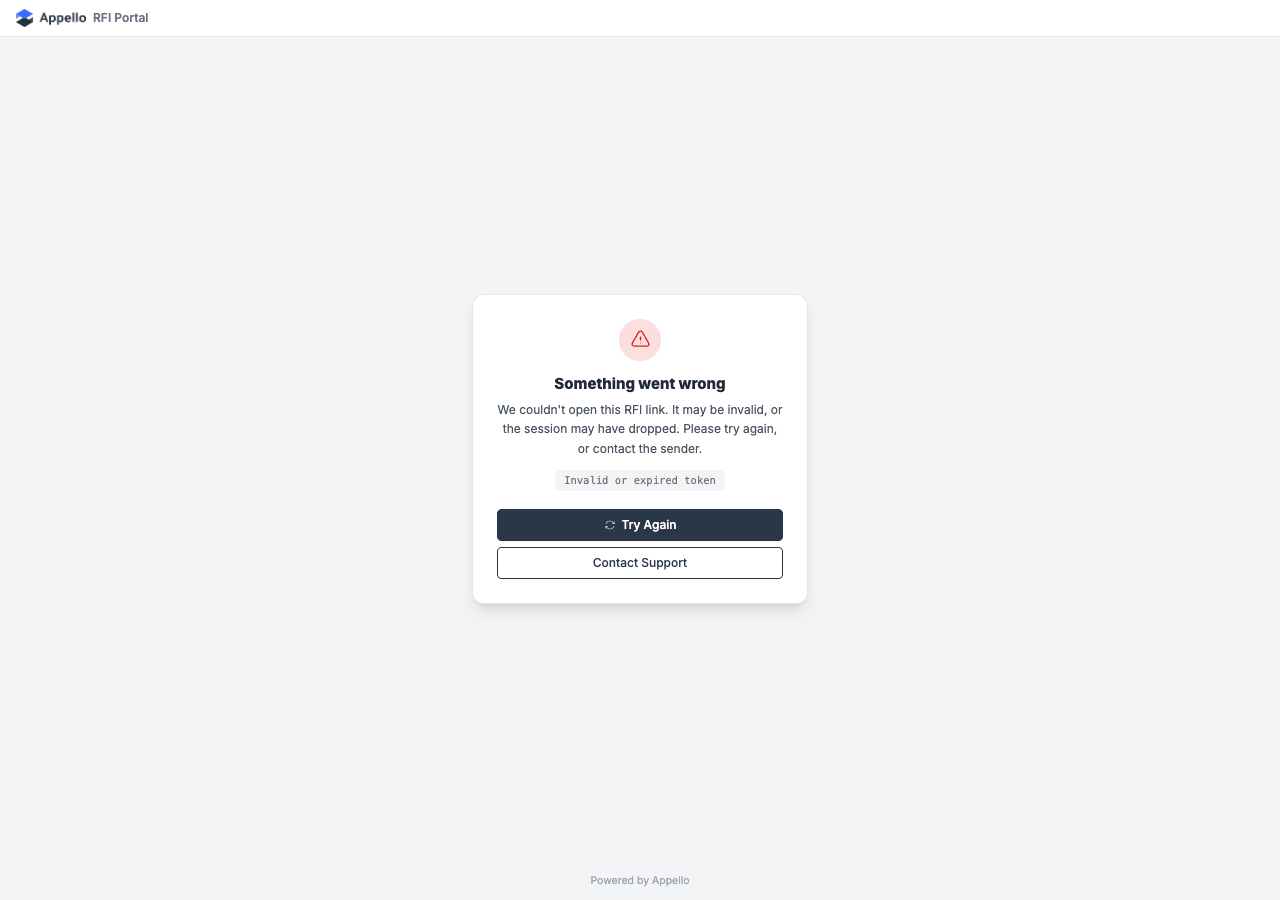
Errors for the /action/... pages (/action-link-error)
Where it is: Where you land for any /action/... failure that is not a plain expiry -- a
damaged or incomplete link, an incorrect link password after retry, or a connection problem while
loading the page. Also takes the same ?type=rfi branding switch as the expired page.
What it's for: Tells the recipient something went wrong (short of expiry), shows the reason so they can pass it on to support, and offers a retry.
Screenshot (work order variant, the default with no ?type= param):
The RFI variant (?type=rfi):
Controls and fields:
| Field / Control | Required | Type | Effect |
|---|---|---|---|
| Error detail chip | -- | Display | Shows the reason the link failed (for example, "Invalid or expired token") -- useful to quote to support. |
| Try Again | -- | Button | Opens the original link again, or reloads this page if the original link can't be reopened safely. |
| Contact Support | -- | Button | Opens a mailto:support@useappello.com in the visitor's email client. |
Workflow:
- The recipient opens a broken
/action/...link, or a correct one that hit a transient error (e.g. offline, a dropped request). - Appello sends them here, keeping the reason it failed and the original link so it can be retried.
- The recipient clicks Try Again to retry the same link, or Contact Support to email Appello support directly.
Who can trigger: No account or permission needed.
Related pages: Expired links for the /action/... pages
Shared form submission (/submission/[id])
Where it is
Created from a completed form's report page via Share Public Link (a separate action from the
Send via email button covered under Form download --
both live in the same menu on the form submission's header). Share Public Link opens a
Configure Public Link dialog; clicking Generate Public URL copies the resulting
/submission/[id] link to the clipboard. Appello does not email this link itself -- the user who
generates it pastes and sends it themselves through whatever channel they choose.
What it's for
Gives anyone with the link read-only access to a single completed form submission -- the same detail view a signed-in user sees -- without an Appello account, optionally gated by a password.
Screenshot
This page needs a real, unexpired link to show anything, so it cannot be captured without one, and no link was generated for this documentation pass. An invalid or expired link does not fall back to any of the expired/error pages above -- the visitor sees a plain 404 page, not a branded "link expired" state.
Controls and fields
Configure Public Link dialog (shown to the internal user creating the share):
| Field / Control | Required | Type | Effect |
|---|---|---|---|
| Expiry Duration | Yes | Select (1 Day / 3 Days / 1 Week / Never) | How long the generated link stays valid. Defaults to 1 Week. |
| Public URL Password | No | Password (Show/Hide toggle) | If set, the viewer must enter it before the submission renders. |
| Generate Public URL | -- | Button | Creates the link, fills the read-only Generated Public URL field, and copies it to the clipboard. |
| Generated Public URL | -- | Read-only text with a copy button | The finished /submission/[id] link. |
The public page itself (/submission/[id]):
| Field / Control | Required | Type | Effect |
|---|---|---|---|
| Enter security code to view locked content | Only if a password was set | Password field | Gates the page; a wrong entry shows "Incorrect link password" and does not reveal the submission. |
| Confirm / Cancel | -- | Buttons | Confirm checks the password; Cancel navigates back to /. |
Once past the password gate (or immediately, if none was set), the page renders the full read-only form submission report -- the same content as the internal form report view.
Workflow
- From a completed submission's report, a user with the form's Share Public Link permission opens Share Public Link.
- They choose an Expiry Duration and, optionally, a Public URL Password.
- They click Generate Public URL. The link is copied to the clipboard automatically; the user pastes it into whatever email or message they're sending -- Appello does not send it for them.
- The recipient opens the link. If a password was set, they enter it and click Confirm before the submission appears.
- The link stops working when its expiry duration elapses (or never, if Never was chosen), at which point the visitor sees a plain 404, not a branded expired page.
Who can trigger
Any user with the form's Share Public Link permission can generate a link. Opening it needs no account, only the link (and password, if set).