Sign In, Password and PIN Reset, Invite Onboarding
This guide covers the public desktop screens a user sees before they are signed in, or before they reach the normal app shell for the first time: signing in, requesting and completing a password reset, resetting the mobile PIN, the post-invite onboarding workflow, and signing out.
This documentation is for the desktop web application. For the mobile app's own sign-in screen (including PIN sign-in), see Native app sign in.
Sign in (/signin)
Where it is
Visit your company's Appello web address while signed out, or navigate directly to /signin.
Any page that requires a session redirects here automatically if you are not signed in.
What it's for
This is the entry point to the web application. It authenticates a user with an email/username and password, or -- if your instance has additional identity providers configured -- with single sign-on.
Screenshot
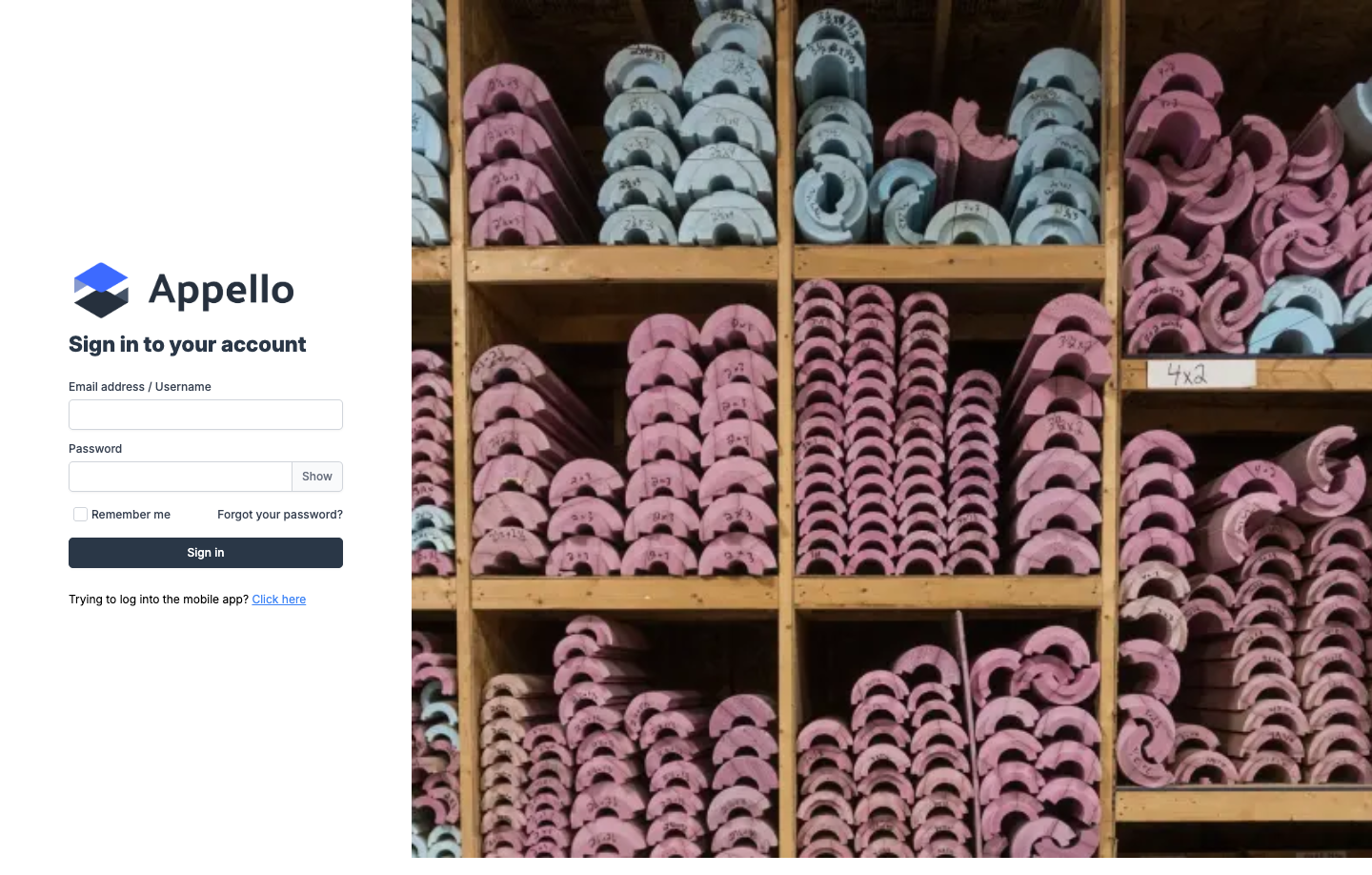
Controls and fields
| Field / Control | Required | Type | Effect |
|---|---|---|---|
| Email address / Username | Yes | Text | Identifies the account to sign in to. |
| Password | Yes | Password (Show/Hide toggle) | Authenticates the account. |
| Remember me | No | Checkbox | Present on the form, but see the note below. |
| Forgot your password? | -- | Link | Opens Forgot password. |
| Sign in | -- | Button | Submits the credentials. |
| Trying to log into the mobile app? Click here | -- | Link | Opens the mobile app's own sign-in destination in a new tab. |
| Sign in with (SSO providers) | -- | Button(s), one per provider | Only rendered when the instance has more than one authentication provider configured. Starts that provider's sign-in flow instead of the credentials form. |
Remember me can be checked, but it currently has no observed effect on how long your session lasts.
There is no company or location picker on the sign-in screen today -- your company is determined by the web address you sign in at.
Workflow
- Navigate to
/signin. - If SSO providers are configured for your instance, a Sign in with list appears above the credentials form -- click a provider button to start that flow. Otherwise, continue to step 3.
- Enter Email address / Username and Password. Click Show next to Password to reveal the typed characters.
- Optionally check Remember me.
- Click Sign in.
- On success you are redirected to
/(or/guestif the account is a guest account). - On failure, an inline error notification appears with the message returned by the server.
- If your account has no permissions assigned at all, a notification reads "You are not authorized to access this application" after sign-in.
Permissions and settings
/signin itself requires no permissions and no session. What happens after a successful sign-in
-- which pages and menu items are visible -- is controlled entirely by the permissions assigned
to the user's role.
Related pages
Forgot password (/forgot-password)
Where it is
Click Forgot your password? on the Sign in screen, or navigate directly to
/forgot-password.
What it's for
Lets a user request a password-reset email by entering the email address on their account. It does not require a session.
Screenshot
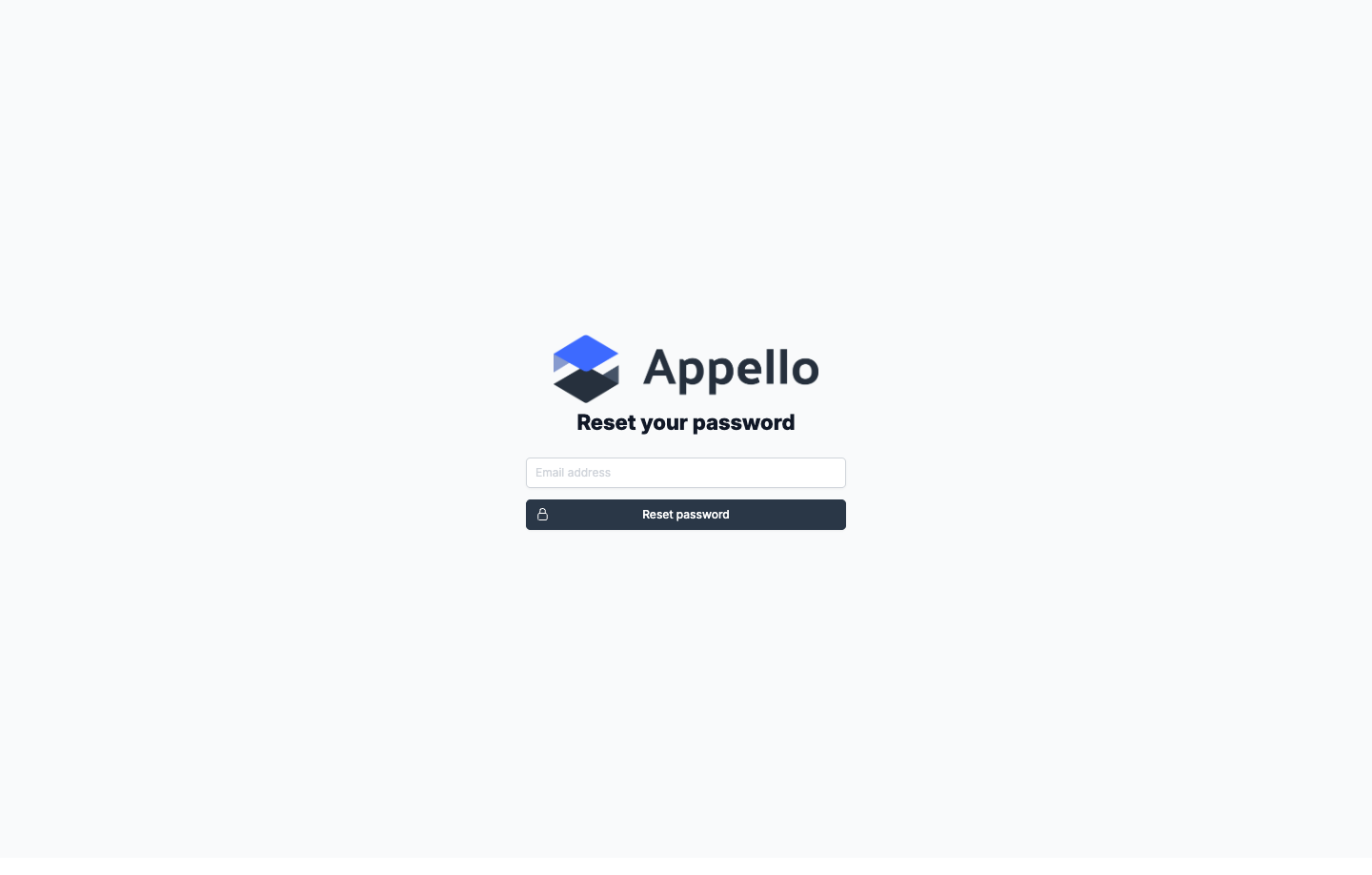
Controls and fields
| Field / Control | Required | Type | Effect |
|---|---|---|---|
| Email address | Yes | Address the reset link is sent to. | |
| Reset password | -- | Button | Submits the request. |
Workflow
- Navigate to
/forgot-password. - Enter Email address.
- Click Reset password.
- The form is replaced with: "Check your email to continue the password reset process," plus a reminder to check the Spam/Junk folder.
- Appello looks up the email address. Regardless of whether an account exists, the same generic confirmation is shown -- this is deliberate, to prevent an attacker from using this form to discover which email addresses have accounts.
- If the address matches an active account, an email titled "Reset Your Appello Password" is sent containing a link to the reset-password screen. The link is valid for 1 day, and that window cannot be changed.
The confirmation message on screen is identical whether or not the email address you entered has an account -- do not read it as proof an email was sent.
Permissions and settings
None. /forgot-password can be used without being signed in.
Related pages
Reset password (/reset-password)
Where it is
Reached only from the link in a "Reset Your Appello Password" email (from Forgot password) or a "Welcome to Appello... Set Up Your Account Now" invite email. Both links open this page directly -- the link itself is what grants access, so you do not need to be signed in, and each link only works for the account it was sent to.
What it's for
Sets a new account password. The same page and form serve two situations: a self-service password reset, and a brand-new user setting their password for the first time from an invite.
Screenshot

This screenshot shows what happens if you open /reset-password without using a reset or invite
link -- for example by typing the address directly. Instead of the "Invitation Link Has Expired" /
"Invalid Invitation Link" message the page is meant to show, you get a generic "Application error:
a client-side exception has occurred" screen.
Always open this page from the link in your email. If you land on the generic error, request a new reset email from Forgot password.
Controls and fields
| Field / Control | Required | Type | Effect |
|---|---|---|---|
| New password | Yes | Password (Show/Hide toggle) | Validated live against the password policy as you type. |
| Confirm password | Yes | Password (Show/Hide toggle) | Must match New password. |
| Generate Secure Password | -- | Button | Fills both fields with a random 17-22 character password and validates it. |
| Save | -- | Button | Submits the new password once validation passes. |
The password policy hints shown on the form (the same policy Appello enforces on save) are:
- At least 12 characters long
- 1 uppercase letter, 1 lowercase letter, 1 number
- 1 special character (
!@#$%^&*...)
Workflow
- Open the link from the reset or invite email.
- If the link is still valid, the form loads for the email address it was sent to.
- Enter a New password that satisfies the policy, or click Generate Secure Password.
- Enter the same value in Confirm password.
- Click Save.
- On success, any existing session is signed out, you are redirected to
/signin, and a "Password changed successfully!" notification appears. - Link lifetime:
- Self-service forgot-password reset link: 1 day.
- First-time invite link (same page, different email): 7 days by default, adjustable as an instance setting your Appello administrator or Appello support can change.
- Expired or invalid link: the page is meant to show either "Your Invitation Link Has Expired" (with the expiry window restated) or "Invalid Invitation Link," and a link back to Sign in. As noted above, the instance checked at the time of writing showed a generic application error instead. Either way, request a new link.
Permissions and settings
None. Access is controlled entirely by having a valid, unexpired link -- you do not need to be signed in.
Related pages
Reset PIN (/reset-pin)
Where it is
Reached only from the link in a "Reset Your Appello PIN" email.
As of this release there is no button or link anywhere in the desktop web app that sends this email, so you cannot request a PIN reset yourself from the web app. To change your PIN, use Reset PIN on your own profile (see My Profile) or ask an administrator to reset it from your user record.
What it's for
Sets or changes the 5-digit Employee PIN used to sign in to the Appello mobile app. See Native app sign in for how the PIN is used there.
Screenshot

This is what you see if you open /reset-pin without using the link from the email. Unlike
/reset-password, this page has no dedicated "expired or invalid link" screen -- a missing or
expired link simply shows the generic "An unexpected error has occurred" message. Always open the
page from the link in your email.
Controls and fields
| Field / Control | Required | Type | Effect |
|---|---|---|---|
| Enter New PIN | Yes | 5-digit numeric (Password/Show toggle) | The new PIN. Limited to 5 characters. |
| Please Confirm your selected PIN | Yes | 5-digit numeric (Password/Show toggle) | Must match the new PIN. |
| Save | -- | Button | Submits the new PIN. |
Workflow
- Open the link from a "Reset Your Appello PIN" email.
- Enter a 5-digit PIN in Enter New PIN.
- Re-enter it in Please Confirm your selected PIN.
- Click Save.
- On success, the current session is signed out and a "Pin changed successfully!" notification appears; you are then sent to the mobile app's configured URL.
- Link lifetime: 1 day -- the same as a self-service password reset link.
Permissions and settings
None. Access is governed only by having a valid, unexpired link -- you do not need to be signed in.
Related pages
Onboarding (/onboarding)
Where it is
A brand-new user is sent here automatically the first time they sign in after setting their
password from an invite: if their onboarding is not yet marked complete, Appello redirects them to
/onboarding. It can also be reached directly while signed in if onboarding has not been
completed.
What it's for
A one-time, full-screen guided setup shown before the normal app shell -- it collects policy acceptance, instance-configured personal information, a profile photo, and the mobile PIN, then hands the user off to either the mobile app or their profile page.
Screenshot
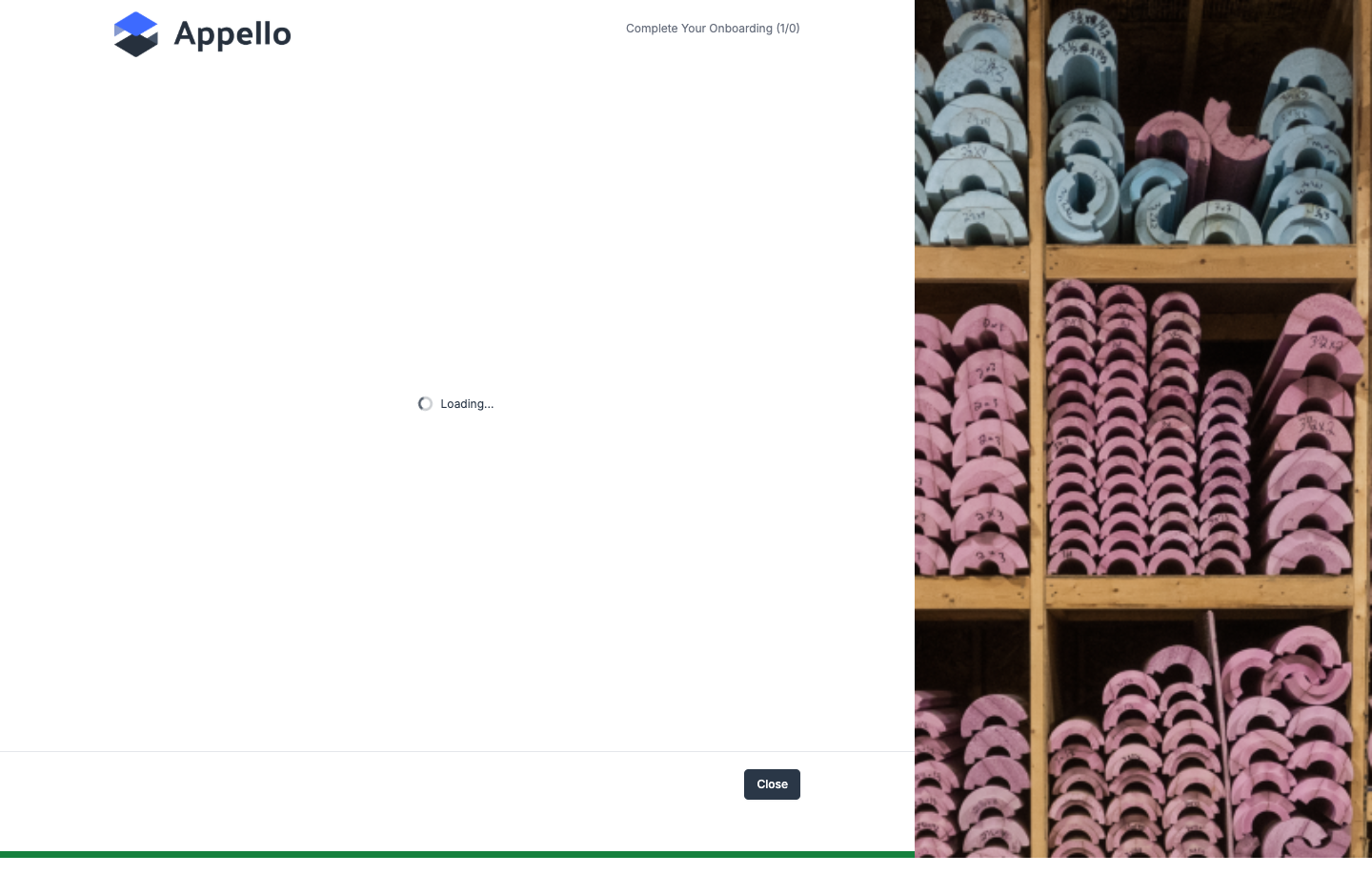
This screenshot reflects only the page shell as seen without a session -- the workflow queries the signed-in user's onboarding progress on load, so without a session it is stuck on a loading spinner instead of showing step content. The actual step-by-step workflow requires a real, newly-invited user's session to reach, which this credential-free documentation pass cannot produce. The steps below are described in writing instead of with screenshots.
The HR document-package / DropboxSign steps that can also appear during onboarding are not covered on this page -- see Onboarding documents for those.
Controls (workflow shell)
| Control | Effect |
|---|---|
| Previous | Returns to the prior step. Hidden on the first step and while the "Welcome Back" continue page is shown. |
| Save & Continue | Validates and saves the current step, then advances. Disabled until the current step is valid (e.g. a photo finishes uploading, or the PIN fields match). |
| Continue Progress | Shown only when returning with saved progress; jumps straight to the step you left off on. |
| Close | Shown on the final step; completes onboarding. |
| Progress bar / step counter | Shows (current step / total steps) in the header and a progress bar in the footer. |
Steps
- Getting Started -- Explains the workflow and links to the data-processing, privacy, and cookie policies. Clicking Agree & Get Started records your acceptance of the privacy, cookie, data-processing, and end-user licence agreements on your user record, along with the acceptance date and IP address. If the user has unfinished progress from an earlier visit, this step instead reads "Welcome Back!" with a percent-complete figure and a Continue Progress button.
- Personal information section(s) -- one step per section of the onboarding form your instance has set up for users (for example, home address or date of birth). These fields are configured per instance by an administrator, so the exact fields and number of steps vary between companies.
- Add a Photo -- upload a profile picture. Save & Continue stays disabled while the upload is in progress.
- PIN -- set the same 5-digit Employee PIN described under Reset PIN. Both PIN fields must be exactly 5 digits and match before you can continue.
- All Set! -- closing screen. Clicking Close marks the user's onboarding as complete.
If the user's role is restricted to mobile use only, they are redirected to the mobile app URL
and signed out of the web session; otherwise they land on
/profile.
Permissions and settings
Gated by whether the user's own onboarding is marked complete rather than by a role permission --
it is not something an administrator toggles directly. The final-step redirect to the mobile app
instead of /profile is controlled by the Mobile → Limit activity to mobile permission.
Related pages
Sign out (/signout)
Where it is
Reached from the sign-out control in the signed-in app shell, or by navigating directly to
/signout.
What it's for
Ends the current session and clears locally stored session state, then returns to the Sign in screen. It runs automatically as soon as the page loads -- there is nothing to click.
Screenshot

What it clears
As soon as the page loads, Appello:
- Ends your session on the server.
- Clears the sign-in cookie.
- Clears the session information the app keeps in your browser, so nothing from your account is left behind on a shared computer.
- Returns you to
/signin.
Controls and fields
None -- the page has no form. It shows a "Signing out..." loading indicator while the steps above run.
Permissions and settings
None.