Accounting system connection
Module: Settings | Platform: Web
Connect Appello to QuickBooks Online or other supported accounting platforms for customer, vendor, invoice, and GL mapping.
Navigation
Sidebar → Settings → Accounting Integrations
Overview
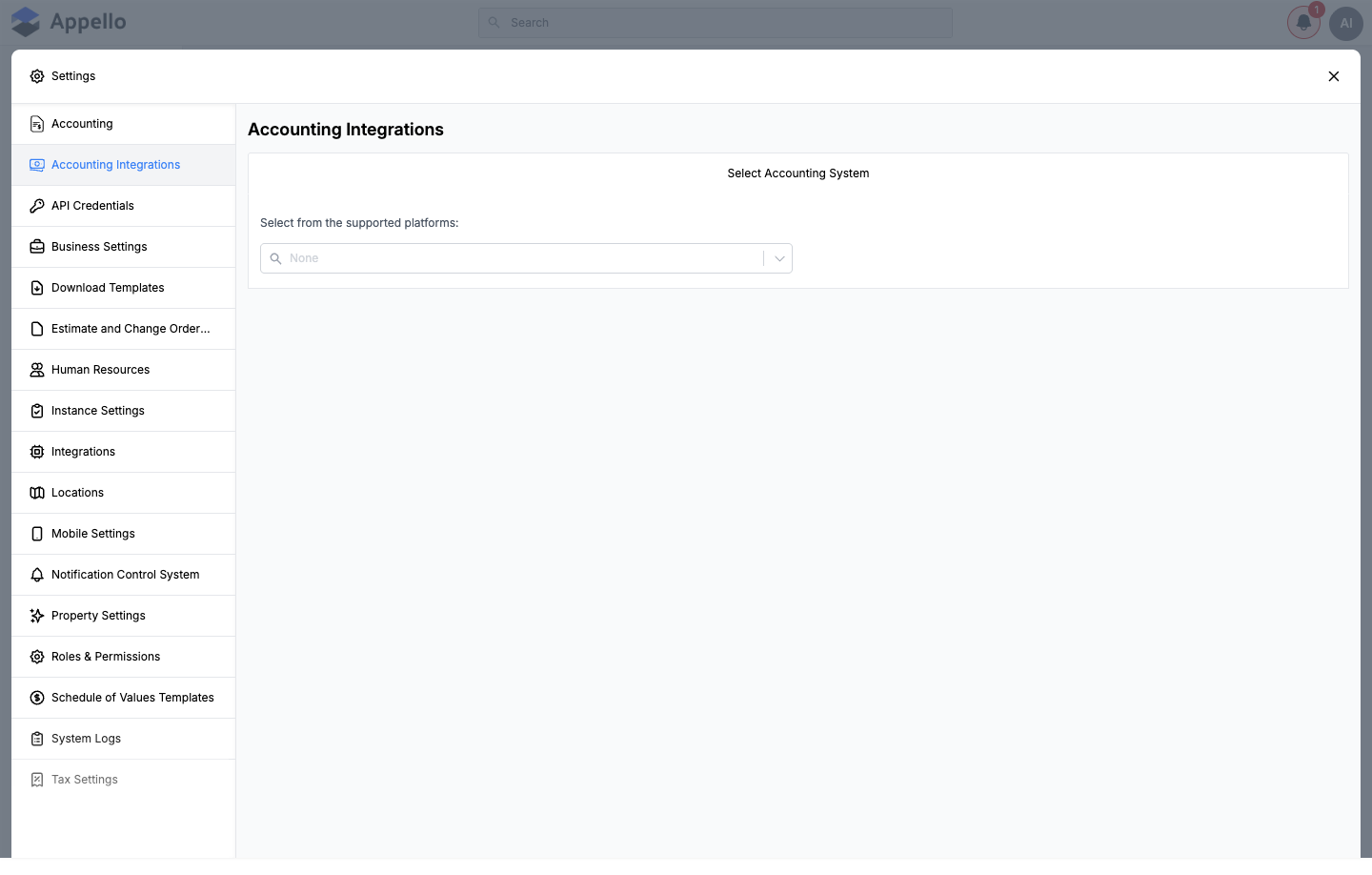
The live connection UI matches Integrations & API → Accounting Integrations. The screenshot below is the same surface, captured for this finance-focused guide:
The accounting connection bridges Appello's operational and financial data with your accounting software. Once QuickBooks Online is connected, customers, vendors, invoices, bills, payments, tax codes, and GL accounts can sync between systems — eliminating double entry and keeping your books in step with field operations.
| Step | Description |
|---|---|
| Choose platform | Select QuickBooks Online (or another supported provider) from the dropdown. |
| Authorize | Complete OAuth in the provider's window (QuickBooks Online only). |
| Map | Align customers, vendors, tax types, GL accounts, jobs, users, and wage rates. |
| Sync | Turn on the data types you want syncing in each direction, then monitor the Logs tab. |
On the demo instance used for this page, Accounting System is set to None — no platform is connected, and QuickBooks Online does not even appear as an option in the dropdown right now (see Select Accounting System below for why). Every screenshot below is labelled "shown disconnected on the demo instance." The three sub-tabs described later (QuickBooks Online Data Sync, QuickBooks Online Connections, QuickBooks Online Logs) only appear once QuickBooks Online has been selected and saved as the instance's accounting system, so they could not be captured live here. Their fields, triggers, and sync directions below are described rather than screenshotted.
Where each part of the integration lives
Settings → Accounting Integrations is a single screen with up to four tabs. The first tab is always present; the other three are added only after QuickBooks Online has been selected and saved as the connected accounting system:
| Tab | What it's for |
|---|---|
| Select Accounting System | Pick the connected platform from a dropdown; the QuickBooks Online Connect/Disconnect control also lives here. |
| QuickBooks Online Data Sync | Per-data-type toggles and direction settings for every entity QuickBooks Online can sync. |
| QuickBooks Online Connections | Record-level mapping — customers, vendors, tax types, GL accounts, jobs, users, and wage rates. |
| QuickBooks Online Logs | A read-only log of every push/pull with QuickBooks, plus the manual Resync payment statuses control. |
When only the first tab exists (no accounting system connected, as on this demo instance), the UI doesn't draw a tab strip at all — it goes straight from the Accounting Integrations heading to the Select Accounting System panel, as the screenshot above shows.
Permissions
| Permission | Controls |
|---|---|
| Instance Settings → View | Seeing the Accounting Integrations entry in the Settings sidebar at all. |
| Instance Settings → Edit | Changing the platform dropdown, using Connect/Disconnect, saving Data Sync toggles, and saving record mappings on the Connections tab. |
| Instance Settings → Edit or Accounting → Edit | Using Resync payment statuses on the Logs tab — either one is enough. |
| Expenses → Approve | Using Refresh from QuickBooks on an individual AP bill (also requires the bill to be In Review and already linked to QuickBooks). |
The Accounting Integrations entry is distinct from the plain Accounting entry (the Appello-side chart of accounts, gated by Accounting → View/Edit — see Settings → Accounting).
Select Accounting System
Where it lives: Settings → Accounting Integrations → Select Accounting System (the tab that's always present).
What it's for: Choosing which external accounting platform Appello is paired with, and — once QuickBooks Online is chosen and saved — connecting or disconnecting the QuickBooks Online OAuth link.
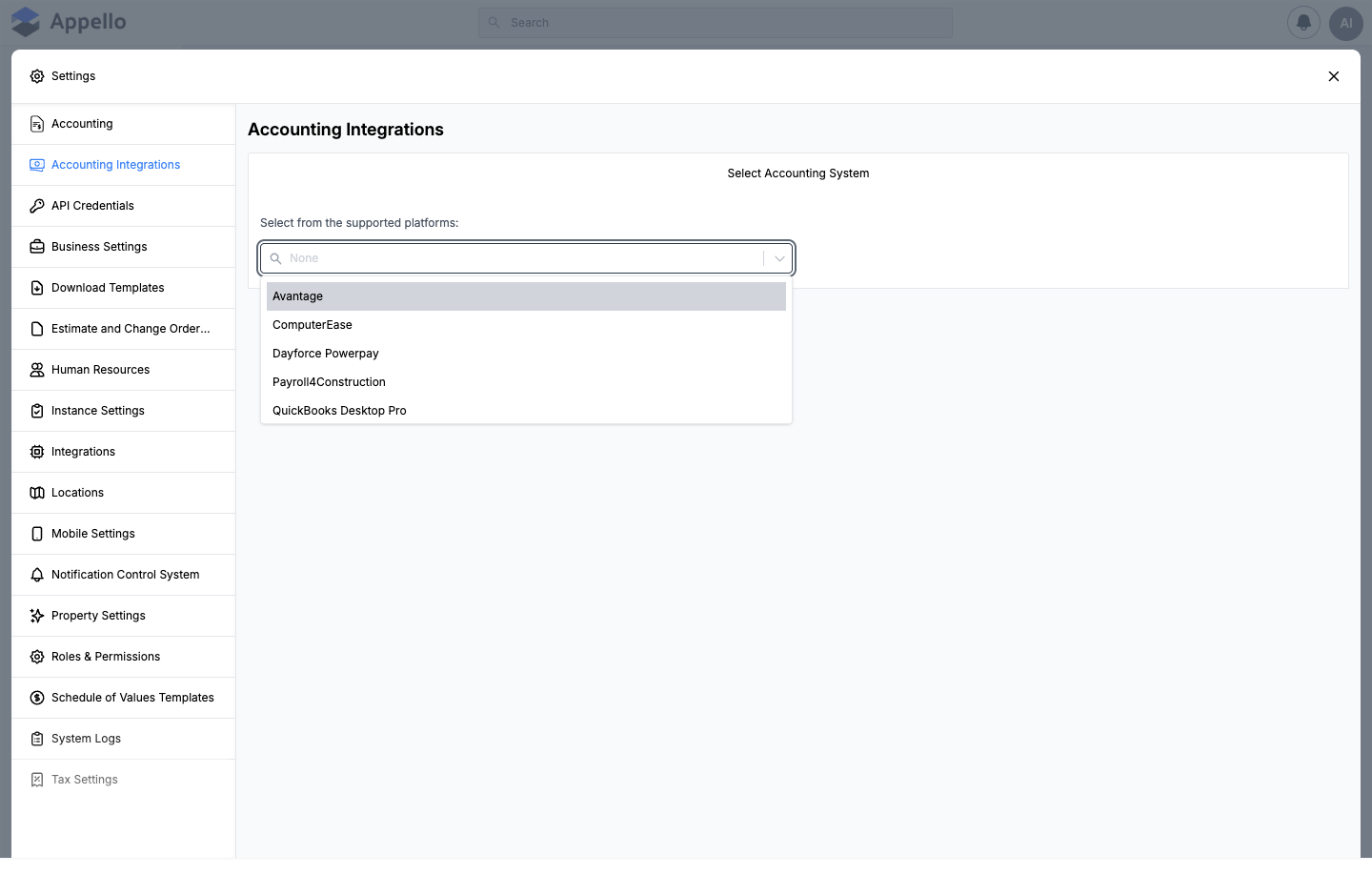
The accounting-system catalog
The dropdown lists every supported platform, alphabetically by name. The full catalog is:
| System (name in dropdown) | Export formats available (by feature) |
|---|---|
| Avantage | Timesheet → XLSX |
| ComputerEase | Timesheet → CSV |
| Dayforce Powerpay | Timesheet → CSV |
| Payroll4Construction | Timesheet → CSV, Employee Expense → CSV |
| QuickBooks Desktop Pro | Timesheet → IIF, Employee Expense → IIF, Account Payable → IIF |
| QuickBooks Online | Live sync rather than a file export |
| Sage50 Canada | Timesheet → CSV, Timeslip → IMP, Employee Expense → IMP, Account Payable → IMP, Account Receivable → IMP |
| Sage50 US | Timesheet → CSV |
| Trimble Viewpoint Spectrum | Employee Expense → CSV, Account Payable → CSV |
Choosing a system determines two things elsewhere in Appello:
- Which export format timesheet, timeslip, employee-expense, and AP/AR download/export buttons produce for your instance (the table above).
- Whether GL account (and full record) mapping unlocks. Only QuickBooks Online adds the Data Sync, Connections, and Logs tabs described below, and only QuickBooks Online's Connections → Account Items tab links Appello account items to a live QuickBooks Online Account (see Map GL accounts). The Appello-side chart of accounts itself — account types, categories, and account items — is always managed separately at Settings → Accounting, regardless of which system is selected here.
QuickBooks Online is missing from the dropdown on this demo instance. The live crawl for the screenshot above returned exactly 8 options — every system except QuickBooks Online. That's because QuickBooks Online is an instance setting your Appello administrator or Appello support has to enable: until it is, QuickBooks Online cannot be selected at all, not even to see the sign-in screen. Everywhere else on this page, "QuickBooks Online is the only connectable platform" means: of the systems that appear in the dropdown, it's the only one with a live connection and sync engine — the other 8 are export-format choices only, with no connect/disconnect step.
Connect, disconnect, and reconnect
The Connect/Disconnect control sits directly beneath the platform dropdown, but appears only once QuickBooks Online is the saved accounting system — which is why it doesn't appear in the screenshot above.
| Control | Description |
|---|---|
| Select from the supported platforms (combobox) | Searchable dropdown of the catalog above; saving a change here shows an unsaved-changes bar (Save/Cancel). |
| Connection status indicator | A colored dot + label: gray "Loading...", green "Connected", red "Disconnected". |
| Connect to QuickBooks Online (button) | Shown when disconnected. Takes you to QuickBooks' own sign-in and consent screen. |
| Disconnect | Shown when connected. Confirms, then disconnects — your QuickBooks record mappings are kept. |
| Disconnect and delete connections | Confirms with a stronger warning ("not reversible"), then disconnects and deletes all QuickBooks record mappings. |
Numbered workflow — connect:
- On Select Accounting System, choose QuickBooks Online from the dropdown and save (an unsaved-changes bar appears with Save/Cancel).
- The Connect to QuickBooks Online button appears. Clicking it takes you to QuickBooks' own sign-in and consent screen.
- Approve access in the QuickBooks window.
- QuickBooks returns you to Appello, which shows a QuickBooks Connection Successful or QuickBooks Connection Failed card with a Go to Dashboard button and a support-chat link.
- Back on Select Accounting System, the status dot turns green and reads Connected; the QuickBooks Online Data Sync, Connections, and Logs tabs appear.
Numbered workflow — reconnect:
- If the connection drops (access is revoked on QuickBooks' side), Appello does not show a distinct "expired" state — the dot simply turns red and reads Disconnected.
- Reconnecting is the same as the initial connect: click Connect to QuickBooks Online and complete the OAuth flow again. There is no separate "Reconnect" button or token-expiry countdown in the UI.
- Existing record mappings (Connections tab) and Data Sync settings are preserved through a disconnect/reconnect, as long as Disconnect and delete connections (not plain Disconnect) was not used.
This screen never shows the connected QuickBooks company name anywhere — only whether a connection exists. Appello records which QuickBooks company it is linked to, but a user has no way to see it from here.
QuickBooks Online Data Sync
Where it lives: Settings → Accounting Integrations → QuickBooks Online Data Sync (appears once QuickBooks Online is connected).
What it's for: Turning individual entity syncs on or off in each direction, and configuring the per-entity options (status filters, tax handling, job targeting) that shape how that data crosses over.
The tab is two tables, one per direction, each row toggled independently with an Enable Sync switch. Turning a row on reveals a configuration panel beneath it for that row's extra settings.
Appello → QuickBooks Online
| Appello record type | QuickBooks Online record type | Extra settings when enabled |
|---|---|---|
| Account Items | Accounts | — |
| Accounts Payable | Bills & Vendor Credits | Amount Type, Status to Sync, Include Tax |
| Accounts Payable Payments | Bill Payments | Payment Account |
| Accounts Receivable | Invoices | Amount Type, Include Tax, Status to Sync, Invoice Item Type |
| Accounts Receivable Payments | Payments | — |
| Companies (Payable) | Vendors | — |
| Companies (Receivable) | Customers | — |
| Company Contacts | Sub-Customers | — |
| Employee Expenses | Expenses | Amount Type, Status to Sync, Include Tax, Payment Account |
| Jobs | Sub-Customers (or Projects — see Job to sync to) | Job to sync to, Bill With Parent, Include Job Number in Name, Sync Project Status |
| Tax Types | TaxCodes | — |
| Timesheets | TimeActivities | Require Job Sync |
| Users | Employees | — |
QuickBooks Online → Appello
| QuickBooks Online record type | Appello record type | Extra settings when enabled |
|---|---|---|
| Bills | Accounts Payable | Status to Sync |
| Bill Payments | Accounts Payable Payments | — |
| Invoices (also pulls attachments/deletions) | Accounts Receivable | — |
| Payments | Accounts Receivable Payments | — |
| Vendors | Companies (Payable) | — |
| Customers | Companies (Receivable) | — |
| Expenses | Employee Expenses | Status to Sync |
There is no Classes sync and no separate cost code entity mapping. GL/cost coding rides on Account Items (Appello account item ↔ QuickBooks Account) and on Jobs (Appello job ↔ QuickBooks Sub-Customer or Project) instead — see Map GL accounts and Coding a pulled bill to a job and cost code.
Appello can also pull QuickBooks Employees into Appello Users, but that direction has no row on this tab — Users only appears in the Appello → QuickBooks Online table above. There is currently no toggle for pulling employees from QuickBooks into Appello.
Every extra-settings control
| Control | Type | Options | Meaning |
|---|---|---|---|
| Status to Sync | Combobox | For Accounts Receivable: your job-bill statuses, plus All. For Accounts Payable / Employee Expenses (Appello → QuickBooks direction only, one has an "All" option too): In Review, Approved, Rejected. | Restricts the push/pull to records at that Appello status. |
| Amount Type | Select | Pre-Tax / Total | Whether the amount written to QuickBooks is the pre-tax subtotal or the tax-inclusive total — not which system's tax code wins (that's a separate, always-on behavior of the sync). |
| Invoice Item Type | Select | Service / NonInventory | The QuickBooks Online item type used for synced invoice line items. |
| Payment Account | Select | Your QuickBooks Online bank and credit-card accounts, read live from QuickBooks | Which QuickBooks account bill/expense payments are recorded against. |
| Job to sync to | Select | Project / Sub-Customer | Whether Appello jobs match QuickBooks Projects or Sub-Customers. Selecting Project automatically forces Bill With Parent on. |
| Include Tax | Toggle | — | Whether tax lines are included on the synced record. |
| Bill With Parent | Toggle | — | Disabled (locked on) when Job to sync to is Project. |
| Require Job Sync | Toggle | — | On Timesheets: whether a timesheet's job must already be QuickBooks-mapped before the timesheet syncs. |
| Include Job Number in Name | Toggle | — | Whether the job's full job number is prefixed onto the synced Sub-Customer/Project name. |
| Sync Project Status | Toggle | — | Only shown when Job to sync to is Project: whether closing/reopening the Appello job updates the QuickBooks Project's status. |
Numbered workflow — turn on a sync:
- Open QuickBooks Online Data Sync.
- Find the row for the data type, in the Appello → QuickBooks Online or QuickBooks Online → Appello table depending on direction.
- Toggle Enable Sync on. A configuration panel opens beneath the row if that type has extra settings.
- Set the Status/Amount Type/Payment Account/Job-target options as needed.
- An unsaved-changes bar appears at the bottom, showing the number of changed fields — click Save to apply, or Cancel to discard.
Conflict handling — the grace period
Appello does not attempt to detect true two-way conflicts (no last-write-wins banner, no merge screen). Instead, it guards against echo loops from its own writes: whenever QuickBooks reports a change — to Bills, Expenses, Vendor Credits, Employees, or payments — Appello checks whether the matching Appello record was updated within the last 10 seconds. If so, the change is treated as an echo of Appello's own push and is skipped (logged, not applied), rather than overwriting the edit you just made. For AP bills specifically, PDF attachments are still pulled during that grace period even though the field re-sync is suppressed. A manual Refresh from QuickBooks on a bill deliberately bypasses the grace period, since that's an action you took.
QuickBooks Online Connections
Where it lives: Settings → Accounting Integrations → QuickBooks Online Connections (appears once QuickBooks Online is connected), with one sub-tab per record type.
What it's for: Linking individual Appello records to their matching QuickBooks Online record, one record type at a time.
| Sub-tab | Appello record | QuickBooks Online record | Notes |
|---|---|---|---|
| Companies Receivable | Company | Customer | See Map customers and vendors. |
| Companies Payable | Company | Vendor | See Map customers and vendors. |
| Tax Types | Tax Type | Tax Code | See Map tax types. |
| Account Items | Account Item | Account | See Map GL accounts. |
| Jobs | Job | Customer or Project (per Job to sync to) | Has an extra Job Status filter alongside the Connected/Not filter. |
| Users | User | Employee | Maps payroll-relevant users to QuickBooks Employees. |
| Wage Rates | Wage Rate | Payroll Item | Maps Appello wage-rate labels to QuickBooks Payroll Items. |
Every sub-tab shares the same controls, search box, and Connected/Not-Connected filter — see the shared control table below and the Map customers and vendors walkthrough, which applies equally to all seven sub-tabs.
There is no separate Company Contacts mapping sub-tab. Company Contacts → Sub-Customers sync (in the Appello → QuickBooks Online Data Sync table) rides on the parent company's Companies Receivable mapping instead of having its own record-level UI here.
Map customers and vendors
Where it lives: Settings → Accounting Integrations → QuickBooks Online Connections → Companies Receivable tab (customers) and Companies Payable tab (vendors).
What it does: Appello companies can be sales customers (receivable) or vendors/suppliers (payable), or both. Each tab lists your Appello companies of that type next to a Connected / Disconnected status pill, and lets you link each one to the matching QuickBooks Online Customer or Vendor record.
How to do it:
- Open the Companies Receivable or Companies Payable tab.
- Use the search box and the status filter (Connected / Not Connected) to find a company.
- In the QuickBooks record column, search for and select the matching QuickBooks Online record.
- Click Save to link it, or Create New to create a brand-new record directly in QuickBooks Online and link it in one step.
- For an already-linked row, click Edit to change the mapping or Remove to unlink it.
| Column | Description |
|---|---|
| Status | Connected or Disconnected pill. |
| Appello record | Company name; links out to the company record. |
| QuickBooks record | Searchable combobox of QuickBooks Online Customers (receivable tab) or Vendors (payable tab). |
| Actions | Save / Create New (unlinked row) or Edit / Remove (linked row). |
Appello also auto-suggests a likely match by comparing names (ignoring a "123 - "-style job-number or account-number prefix on either side), so an already-matching pair often shows up pre-selected in the combobox before you touch it.
Map tax types
Where it lives: Settings → Accounting Integrations → QuickBooks Online Connections → Tax Types tab.
What it does: Links each Appello tax type to the matching QuickBooks Online TaxCode, using the same Connected/Disconnected, search, Save/Create New/Edit/Remove pattern described above.
| Column | Description |
|---|---|
| Status | Connected or Disconnected pill. |
| Appello record | Tax type name. |
| QuickBooks record | Searchable combobox of QuickBooks Online TaxCodes. |
| Actions | Save / Create New (unlinked row) or Edit / Remove (linked row). |
Tax-type mapping matters for AR invoice sync: the Amount Type setting on the Accounts Receivable row of QuickBooks Online Data Sync controls whether the pre-tax subtotal or the tax-inclusive total is written to the synced invoice.
Map GL accounts
Where it lives: Settings → Accounting Integrations → QuickBooks Online Connections → Account Items tab.
What it does: Links each Appello account item (expense/revenue account) to the matching QuickBooks Online Account, so bills, expenses, and invoice line items post to the right GL account on both sides.
| Column | Description |
|---|---|
| Status | Connected or Disconnected pill. |
| Appello record | Account item name. |
| QuickBooks record | Searchable combobox of QuickBooks Online Accounts. |
| Actions | Save / Create New (unlinked row) or Edit / Remove (linked row). |
The Appello-side chart of accounts — account types, categories, and account items — is managed separately, under Settings → Accounting. Create or edit an account item there first; it then becomes available to map here.
Map jobs, users, and wage rates
Where it lives: Settings → Accounting Integrations → QuickBooks Online Connections → Jobs, Users, and Wage Rates tabs.
What it does: Uses the identical Connected/Disconnected, search/filter, Save/Create New/Edit/Remove pattern as the tabs above, mapped to different QuickBooks Online record types:
| Tab | QuickBooks record type | Extra filter |
|---|---|---|
| Jobs | Customer (Sub-Customer) or Project, depending on the Job to sync to setting | Job Status dropdown, in addition to Connected/Not Connected |
| Users | Employee | — |
| Wage Rates | PayrollItem | — |
Jobs excludes Appello's three built-in default jobs (Break Time, Vacations, Medical Leave) from the mapping list, since those never sync to QuickBooks.
AR sync: Appello → QuickBooks Online (invoices)
Where it lives: The toggle and its options are on the Accounts Receivable row of the Appello → QuickBooks Online table on the QuickBooks Online Data Sync tab. What actually syncs is a job's invoices (Appello's JobBill records).
What it does: Pushes Appello invoices to QuickBooks Online as Invoices, with line items, tax, and totals.
Direction and trigger: Appello → QuickBooks Online, automatic and event-driven — every time an invoice is created or edited in Appello, Appello attempts to push it to QuickBooks immediately. It is not a scheduled/batch sync. A push is skipped (no error shown to the user) when any of the following is true:
- The Accounts Receivable row is toggled off on the Data Sync tab.
- The invoice's status doesn't match the row's configured Status to Sync filter (set to sync All statuses, or only a specific one — this is what makes draft invoices not sync when the filter excludes them).
- The invoice's job has no resolvable QuickBooks customer/project reference (the job itself isn't mapped — see the Jobs tab of QuickBooks Online Connections).
- The invoice has no line items yet.
| Field | Description |
|---|---|
| Enabled | Turns the Appello → QuickBooks Online invoice push on or off. |
| Amount Type | Whether the pushed amount is the pre-tax subtotal or the tax-inclusive total. |
| Include Tax | Whether tax lines are included on the pushed invoice. |
| Status to Sync | Restrict the push to invoices at a specific Appello billing status, or allow all. |
| Invoice Item Type | The QuickBooks Online item type used for invoice line items. |
AP sync: QuickBooks Online → Appello (bills)
Where it lives: The Accounts Payable row of the QuickBooks Online → Appello table on the QuickBooks Online Data Sync tab. Pulled bills land on the Accounts Payable list (Sidebar → Finance → Accounts Payable), which also displays vendor, GL account, and job columns for bills entered directly in Appello.
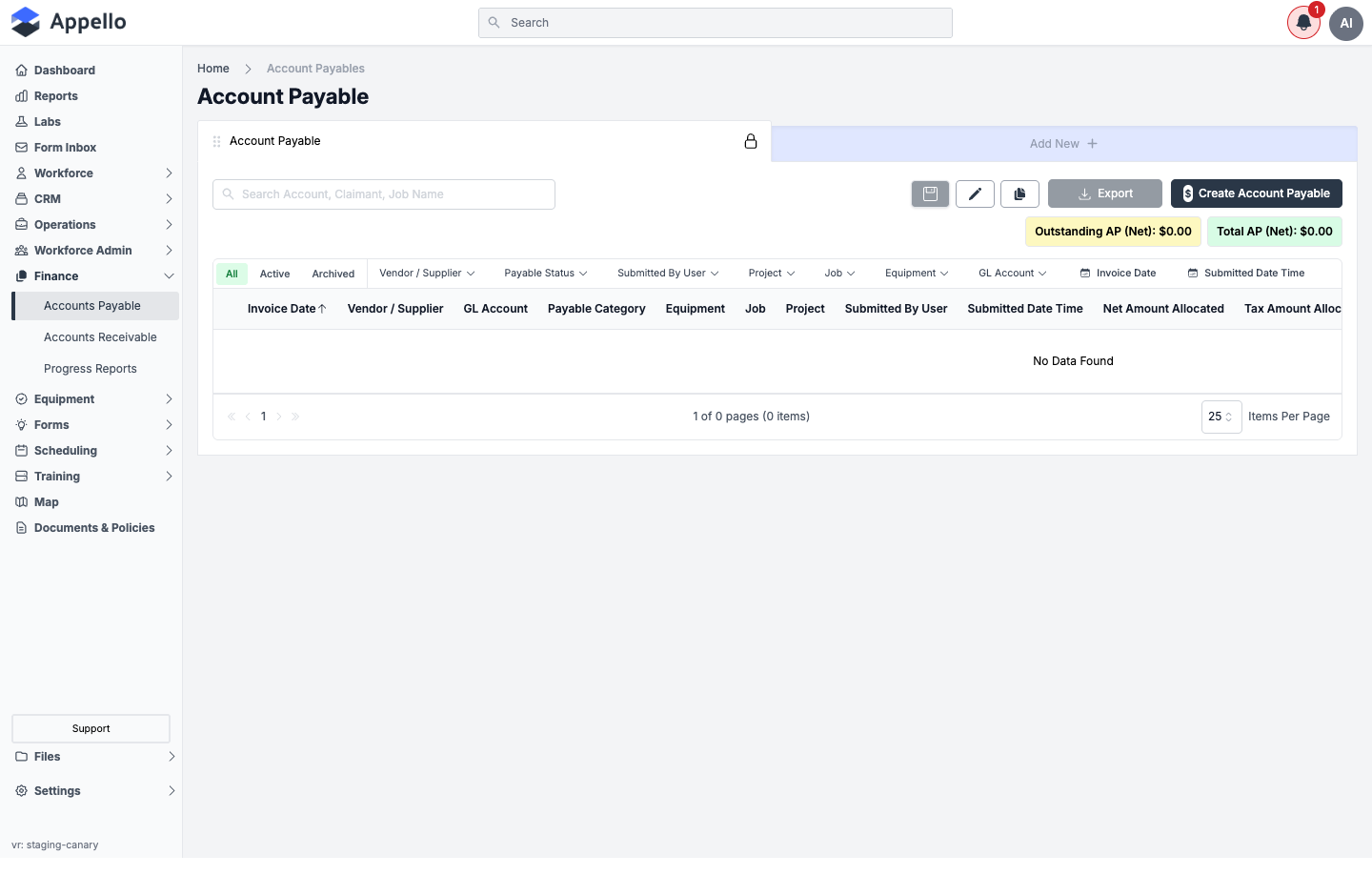
What it does: Pulls QuickBooks Online Bills into Appello as Accounts Payable records.
Direction and trigger: QuickBooks Online → Appello, automatic — when a Bill is created or changed in QuickBooks Online, QuickBooks notifies Appello and Appello builds/updates the matching AP record (including carrying over the QuickBooks customer/project reference on each expense line — see Coding a pulled bill to a job and cost code below). This only runs when the Accounts Payable row of the QuickBooks Online → Appello table is enabled, and is suppressed for 10 seconds after Appello's own last write to that bill (see Conflict handling — the grace period).
On top of the automatic pull, an individual In-Review AP bill that is already linked to QuickBooks can be manually re-synced with the Refresh from QuickBooks action on the bill's edit form — it re-pulls the bill immediately, bypassing the grace period, to recover missing PDF attachments and refresh QuickBooks-sourced fields. It is only offered when all of the following are true:
- The bill's Payable Status is In Review.
- The bill is already linked to a QuickBooks Online record.
- The signed-in user has the Expense: Approve permission.
- The Accounts Payable row of QuickBooks Online → Appello is enabled.
| Field (Data Sync tab) | Description |
|---|---|
| Enabled | Turns the QuickBooks Online → Appello bill pull on or off. |
| Status to Sync | Restrict the pull to bills at a specific QuickBooks status, or allow all. |
No accounts payable records exist on this demo instance (the list shows "No Data Found" in every filter), so a QuickBooks-linked bill and its Refresh from QuickBooks badge could not be captured live.
Payment sync
Where it lives: The Accounts Receivable Payments / Accounts Payable Payments rows on QuickBooks Online Data Sync, plus a manual Resync payment statuses control on the QuickBooks Online Logs tab.
What it does: Keeps invoice and bill payment status in step between the two systems.
Direction and trigger: QuickBooks Online → Appello — payments recorded in QuickBooks Online update the matching Appello invoice/bill's status. Two mechanisms feed this, both pulling from QuickBooks into Appello:
- Automatic: QuickBooks notifies Appello when a Payment is recorded, and Appello updates the linked invoice/bill immediately (subject to the same 10-second grace period).
- Manual catch-up: the Resync payment statuses button (QuickBooks Online Logs tab) queues a bulk re-check over a chosen lookback window (30, 60, 90, or 180 days) — use it if you suspect a notification was missed. Progress is reported on screen (processed / updated / skipped / errors) until the run completes.
| Field | Description |
|---|---|
| Lookback window | 30 / 60 / 90 / 180 days — how far back the manual Resync payment statuses run checks for changed payments. |
Numbered workflow — resync payment statuses:
- Open QuickBooks Online Logs.
- Choose a Lookback window (30/60/90/180 days) from the dropdown next to the button.
- Click Resync payment statuses. The button and dropdown disable while a sync is running.
- Progress ("Syncing... N/M processed, N updated") shows beside the button and updates as the run proceeds.
- On completion, a toast reports processed/updated/skipped/error counts and the log table refreshes; on failure or a lost sync session, an error toast explains why.
This demo instance has no invoices, bills, or QuickBooks connection, so the Resync payment statuses control and its progress indicator could not be exercised or screenshotted live; its behavior above is described rather than captured from a live run.
QuickBooks Online Logs
Where it lives: Settings → Accounting Integrations → QuickBooks Online Logs (appears once QuickBooks Online is connected). It lists every sync Appello has recorded, newest first.
What it's for: An audit trail of every push and pull between Appello and QuickBooks Online, for troubleshooting sync issues.
| Column | Description |
|---|---|
| Direction | Intuit -> Appello for a change QuickBooks reported to Appello; Appello -> Intuit for something Appello pushed out. |
| Intuit Id | The QuickBooks Online record's ID, or - if none. |
| Type | The QuickBooks Online record type (e.g. Bill, Invoice, Customer). |
| Appello Type | The matching Appello record type (e.g. Expense, Invoice, Company). |
| Request | The full details of what Appello sent. |
| Response | On success: QuickBooks' own message if it returned one, otherwise "Created successfully" / "Updated successfully". On failure: "Create error: ..." or "Update error: ..." with QuickBooks' own error message. |
| Status | A pill: green Success (HTTP 200) or red Error (anything else). |
| Created At | Timestamp, formatted per the instance's date-format setting. |
Filters and search: there is no free-text search box on this table, and it is read-only. It is gated by the Audit permission, and remembers your column filters for the session.
Error states: a failed sync shows a red Error pill in the Status column and the QuickBooks-reported fault message in the Response column (falling back to "There was an error" if QuickBooks didn't return a parseable message). The row still records the full request/response bodies for troubleshooting, whether it succeeded or failed.
No sync has ever run on this demo instance (no accounting system is connected), so the Logs table is empty and could not be screenshotted with real rows. Its columns and formatting above are described rather than captured live.
Coding a pulled bill to a job and cost code
Where it lives: The bill's own edit form on the Accounts Payable list — the same Allocate To / Job / GL Account fields used for any AP bill, whether it was entered directly in Appello or pulled from QuickBooks Online.
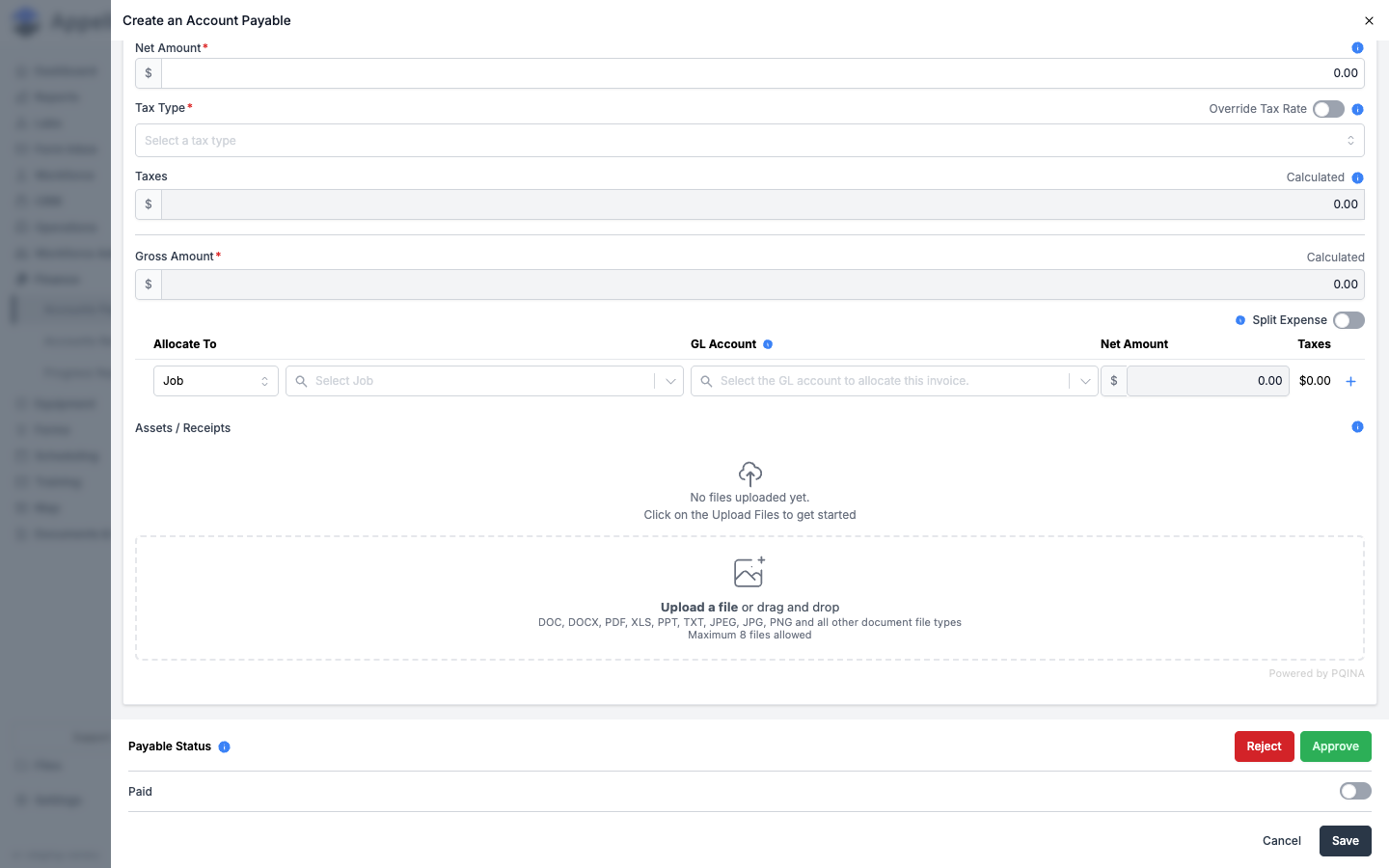
What it does: Determines which job (or piece of equipment) and which GL account a bill's cost is charged against, for job-cost reporting.
How a QuickBooks-pulled bill gets coded:
- Automatically, from QuickBooks: each line on the incoming QuickBooks Online bill names a customer or project. Appello matches that to an Appello job using the job mapping configured on the Jobs tab of QuickBooks Online Connections (the Job to sync to setting on the Data Sync tab decides whether Appello matches against a QuickBooks Sub-Customer or a Project). If it matches, the line arrives already coded to that job.
- Manually, in Appello: on the bill's edit form, use Allocate To to choose Job (or Equipment), then Select Job and GL Account to code the amount. Toggle Split Expense to divide one bill across multiple jobs/GL accounts, each with its own Net Amount.
| Field | Description |
|---|---|
| Allocate To | Whether this allocation line is coded to a Job or to Equipment. |
| Select Job | The job the line's cost is charged against. |
| GL Account | The GL account to allocate this portion of the invoice to. |
| Net Amount | The pre-tax amount charged to this job/GL account. |
| Taxes | Tax calculated for this allocation line. |
| Split Expense | Toggle to add more than one allocation line, dividing the bill across several jobs/GL accounts. |
For the full set of AP bill fields, statuses, and the approval workflow, see Accounts Payable Expenses.
Field mapping quick reference
| Appello Field | QuickBooks Field | Notes |
|---|---|---|
| Customer Name | Customer Display Name | Mapped on the Companies Receivable tab, or matched by name. |
| Vendor Name | Vendor Display Name | Mapped on the Companies Payable tab, or matched by name. |
| Tax Rate | Tax Code | Mapped on the Tax Types tab. |
| Account Item | Account | Mapped on the Account Items tab. |
| Invoice Number | Invoice Doc Number | Appello invoice numbers carry over to QuickBooks. |
| Invoice Line Items | Line Items | Description, quantity, rate, and amount map directly. |
| Invoice Total | Total | Calculated total including tax. |
| Payment Amount | Payment | Payments recorded in QuickBooks Online update the linked Appello invoice/bill. |
| Job | Sub-Customer or Project | Direction set by the Job to sync to setting. |
| Employee/Wage Rate | Employee / PayrollItem | Mapped on the Users and Wage Rates tabs. |
Setup steps
- Navigate to Settings → Accounting Integrations.
- Select QuickBooks Online from the platform dropdown on Select Accounting System and save.
- Click Connect to QuickBooks Online and authorize Appello in the QuickBooks window that opens — see Connect, disconnect, and reconnect above for the full sign-in handoff.
- Once connected, the QuickBooks Online Data Sync, QuickBooks Online Connections, and QuickBooks Online Logs tabs appear.
- On QuickBooks Online Connections, map customers, vendors, tax types, GL accounts, jobs, users, and wage rates — see the dedicated sections above.
- On QuickBooks Online Data Sync, turn on the data types you want syncing in each direction and set their per-type options (status filters, amount type, job sync target, and so on).
- Use QuickBooks Online Logs to review sync activity, and Resync payment statuses for a manual payment catch-up if needed.
Troubleshooting
| Issue | Resolution |
|---|---|
| QuickBooks Online isn't in the dropdown | QuickBooks Online isn't enabled for this instance, so it's left out of the options entirely. Ask your Appello administrator or Appello support to enable it. |
| Connection Expired / shows Disconnected unexpectedly | QuickBooks access expires periodically; there's no separate expiry warning. Click Connect to QuickBooks Online again to re-authorize. |
| Sync Errors | Check QuickBooks Online Logs for the red Error pill and its message. Common causes include unmapped customers, vendors, or tax codes. |
| Duplicate Records | If customers or vendors exist in both systems before connection, use the mapping tabs to link them rather than Create New. |
| Missing Invoices | Confirm the Accounts Receivable row is enabled and its Status to Sync filter includes the invoice's status — see AR sync. |
| Bill not coded to the right job | Check the bill's Allocate To / Select Job fields — if the incoming QuickBooks line named no customer or project, it arrives uncoded and needs manual allocation. |
| Tax Mismatch | Ensure tax types are mapped on the Tax Types tab, and check the Amount Type setting on the Accounts Receivable row. |
| A change I made seconds ago got overwritten | Shouldn't happen — the 10-second grace period is designed to prevent exactly this; if it recurs, check clock skew between servers and file a support ticket. |
| Slow Sync | Large initial syncs may take time. Subsequent event-driven syncs are per-record and much faster. If syncs consistently lag, contact support. |
How the accounting connection relates to other features
| Feature | Relationship |
|---|---|
| Invoicing | Finalized invoices sync to QuickBooks automatically, reducing manual bookkeeping. |
| Accounts Payable | Bills pulled from QuickBooks Online land on the AP list and get coded to a job/GL account like any other bill — see Accounts Payable Expenses. |
| Accounting (Appello chart of accounts) | Account types, categories, and account items created there become available to map on the Account Items tab — see Settings → Accounting. |
| Tax Settings | Tax rates in Appello should be mapped on the Tax Types tab for accurate invoicing. |
| Billing Report | The billing report reflects invoice and payment status, including QuickBooks sync status. |
| Customers / Vendors | CRM records stay in sync between Appello and QuickBooks once mapped. |
Related
- Integrations & API — Twilio, API credentials, and accounting in one place.
- Settings → Accounting — the Appello-side chart of accounts mapped to GL accounts here.
- Accounts Payable Expenses — the AP list and bill coding workflow.
- Billing report
- Tax Settings