Equipment Maintenance
Track service schedules, maintenance thresholds, service history, and costs for every piece of equipment in your fleet. Equipment Maintenance covers routine servicing (oil changes, hour-based inspections, calendar-based tune-ups) and works alongside the Equipment List and the equipment cost/rate setup that tells you what each piece of equipment costs to run.
Navigation
Sidebar → Equipment → Equipment Maintenance
URL: /equipment/maintenance
Gated by the MaintenanceSchedule: view permission (see Permissions) — users without it don't see the Equipment Maintenance sidebar link or the route.
Maintenance is also managed per piece of equipment from its detail page, on the Maintenance and Threshold Settings tabs (Sidebar → Equipment → Equipment Management, then open a piece of equipment) — see Equipment detail Maintenance tab below.
Overview
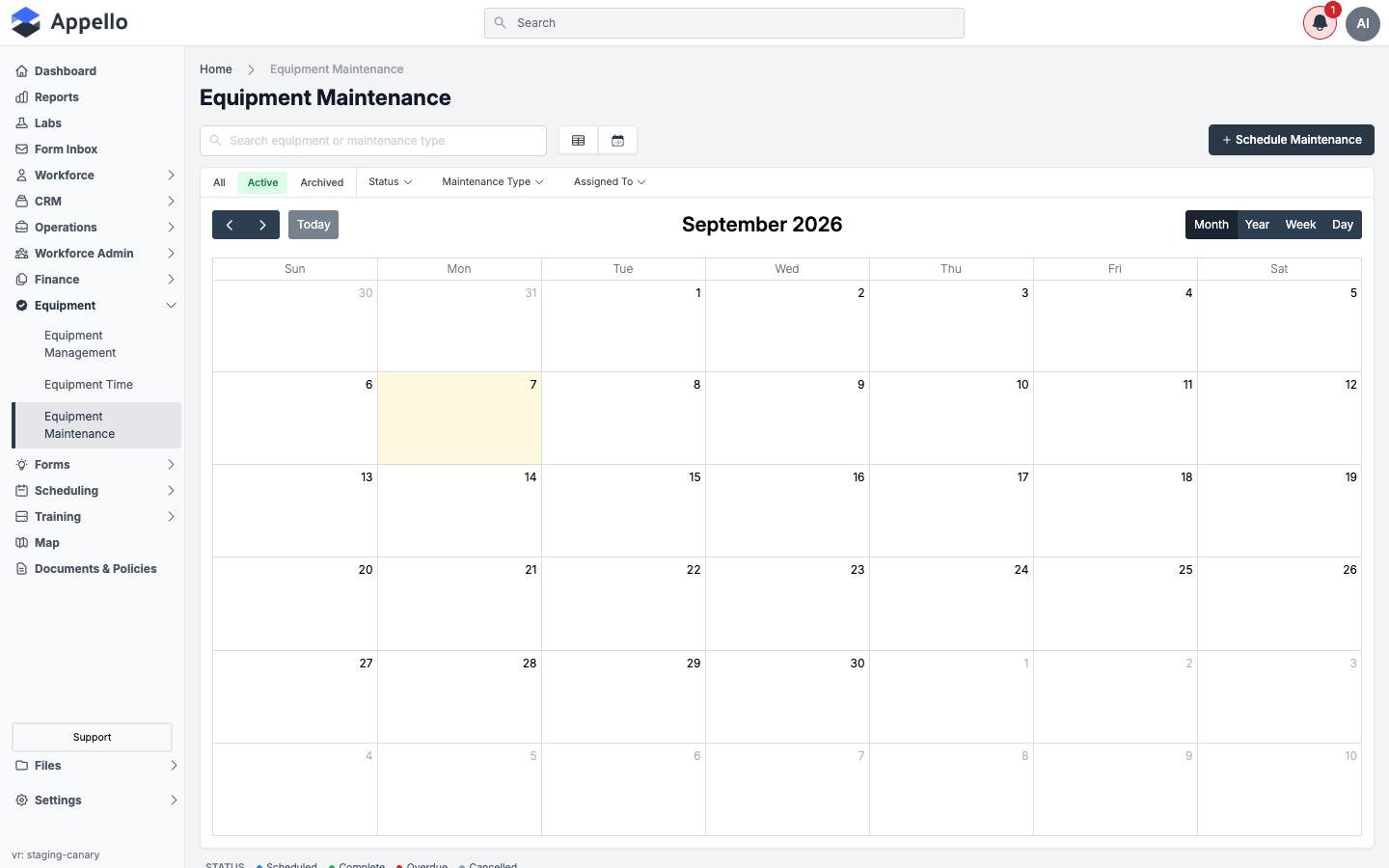
The Equipment Maintenance page is a calendar (default view) or list of every maintenance schedule across your fleet. Each entry shows the equipment, maintenance type, scheduled date, assigned technician, and status. Use the table icon next to the calendar icon to switch to a list view.
The screenshot above is from a demo instance with no maintenance schedules yet, so the calendar is empty. Once schedules exist, each day cell shows a colored event per scheduled or completed service — see the Status legend below.
Filters and search
| Control | Description |
|---|---|
| Search equipment or maintenance type | Free-text search across the list. |
| All / Active / Archived (quick tabs) | Scope the list to every schedule, active schedules only, or archived schedules only. |
| Status | Checkbox dropdown — filter by any combination of Scheduled, Complete, Overdue, Cancelled. |
| Maintenance Type | Checkbox dropdown — filter by the type of service (oil change, inspection, etc.), built from the types in use on the current list. |
| Assigned To | Checkbox dropdown — filter by the user assigned to perform the service, or "Unassigned". |
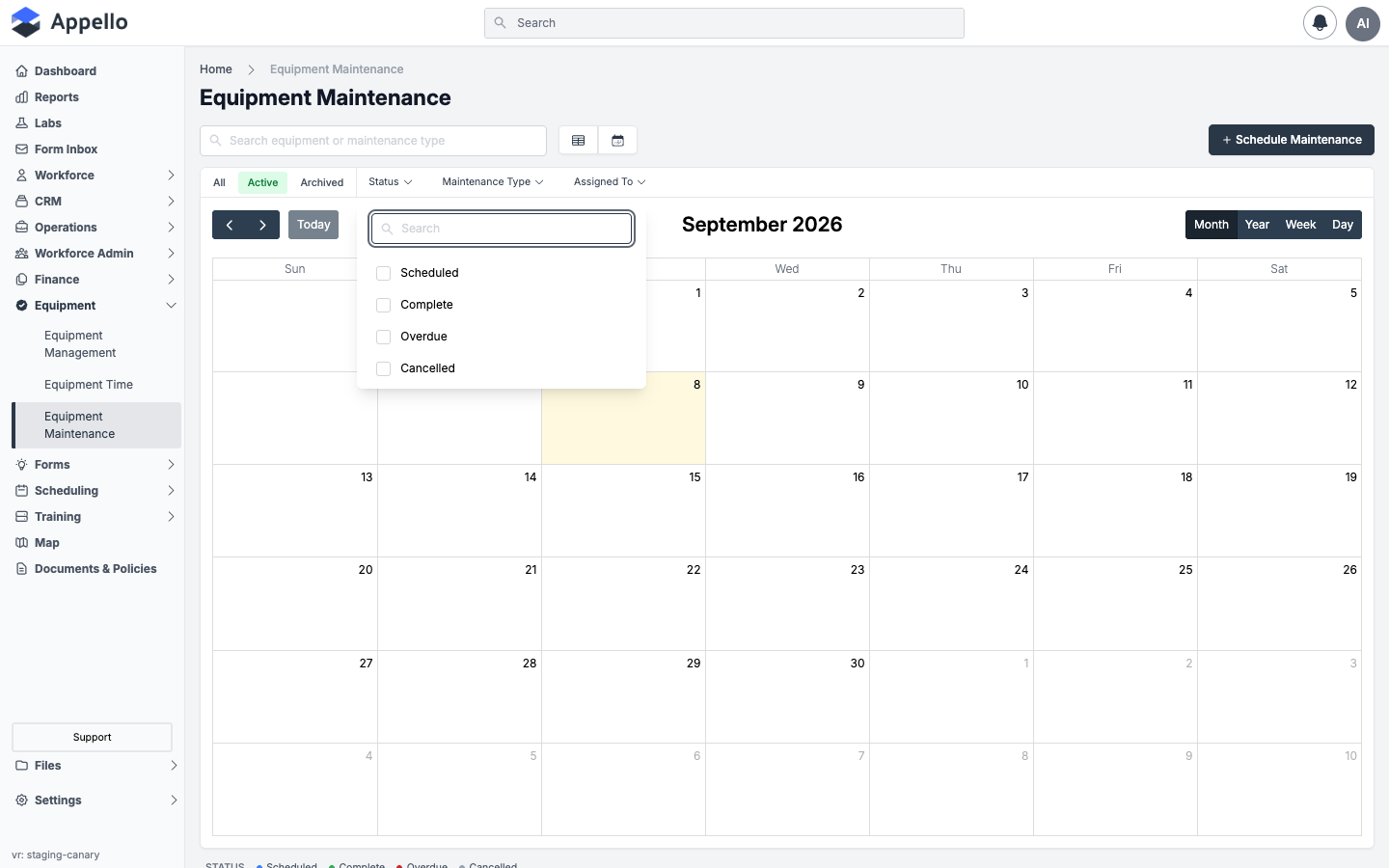
There is no separate Equipment or Category filter, and no date-range filter, on this page. Filter to one piece of equipment by typing its name/code into Search, or open that equipment's own Maintenance tab (see Equipment detail Maintenance tab below), which is pre-scoped to it. The calendar's Month/Year/Week/Day toggles and the arrow/Today controls move the visible window but are not a saved date-range filter.
Maintenance status
| Status | Meaning |
|---|---|
| Scheduled (blue) | Upcoming, not yet due. |
| Overdue (red) | Scheduled date has passed without completion. |
| Complete (green) | Service was performed and logged. |
| Cancelled (gray) | The schedule was cancelled and will not be performed. |
List view
Click the table icon next to the calendar icon (top of the page, beside search) to switch from the calendar to a sortable, paginated list of the same schedules.
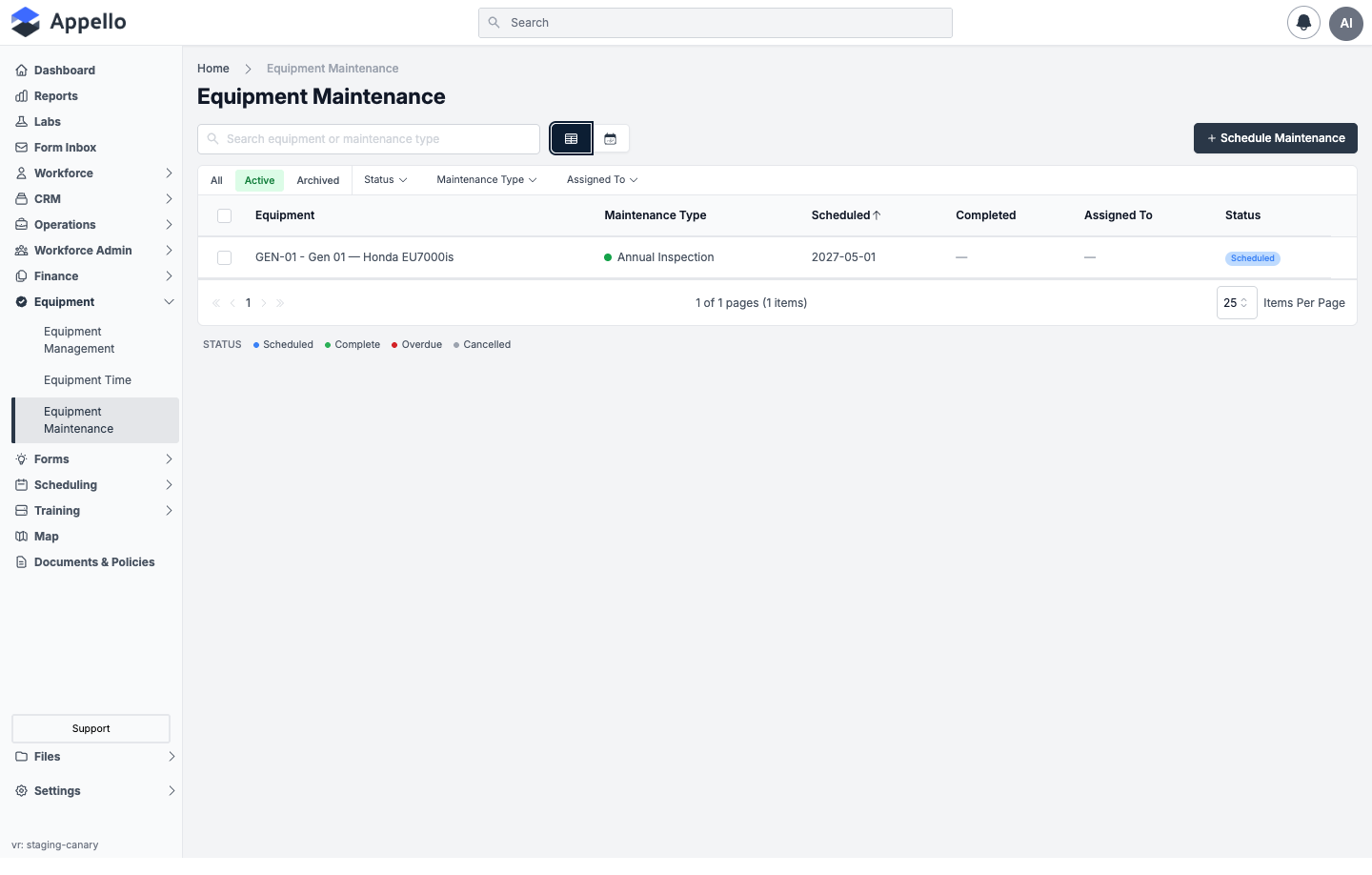
| Column | Notes |
|---|---|
| checkbox | Select one or more rows to reveal the bulk action bar (see below). |
| Equipment | The equipment's code and name, e.g. "GEN-01 - Gen 01". Links to that equipment's Maintenance tab. |
| Maintenance Type | The service type, with its configured color dot. |
| Scheduled | The scheduled (or projected) date. Sortable — click the header to flip ascending/descending; sorted ascending by default. |
| Completed | The completion date, or "—" if not yet completed. |
| Assigned To | The assigned user's name, or "—". |
| Status | A colored badge — Scheduled, Complete, Overdue, or Cancelled. |
All columns except Maintenance Type and Assigned To are sortable by clicking their header. Pagination controls and an Items Per Page selector sit below the table. Selecting one or more rows' checkboxes reveals Archive, Restore, and Delete actions in a bulk action bar — which of these are available depends on the All / Active / Archived tab you're on and your permissions (see Archiving, restoring, and deleting schedules below).
There is no Export / CSV-download control on this page.
Scheduling Maintenance
Creating a one-off schedule
-
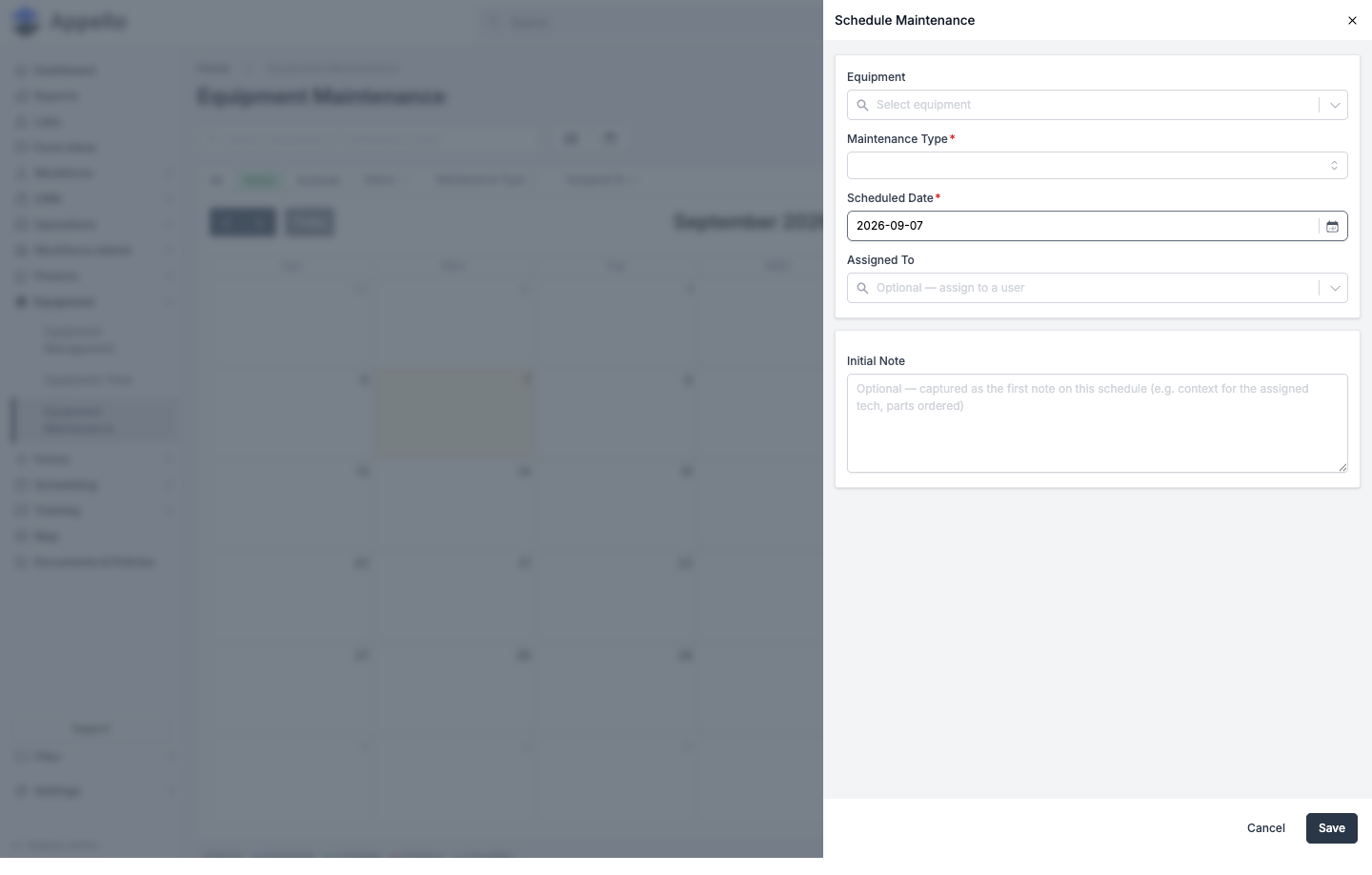
Click + Schedule Maintenance in the top-right corner of the Equipment Maintenance page (or from an equipment's Maintenance tab).
-
Fill in the fields:
Field Required Notes Equipment Yes Locked and pre-filled when scheduling from an equipment's own Maintenance tab. Maintenance Type Yes e.g. Oil Change, Annual Inspection — configured as a property list in your instance. Scheduled Date Yes Defaults to today, or to the calendar day you clicked. Assigned To No Optionally assign a user to perform the service. Initial Note No Captured as the first note on the schedule (e.g. context for the tech, parts on order). -
Click Save.
On the calendar view, clicking an empty day cell opens this same panel pre-filled with that date. Dragging an existing scheduled event to a new day reschedules it directly — Appello updates the scheduled date without opening the panel.
The create/edit panel has no attachments field or control — this crawl found no way to attach a file to a maintenance schedule from this form. If your instance needs certificates or photos tied to a piece of equipment, see Inspection Certificates and Documents below, which attaches to the equipment, not to an individual schedule.
Editing a schedule
Click a schedule — from the calendar, the list view, or the equipment's own Maintenance tab — to reopen the same panel used to create it, pre-filled. You can change the Maintenance Type, Scheduled Date, and Assigned To the same way as on create. Editing a schedule that is already Complete additionally lets you correct its completion fields (Completion Date, Technician, Cost, Hours/Distance at Service) without re-running the completion workflow.
Two more actions are available from an open schedule (not while creating a new one):
- Schedule Follow-up — opens a new create panel pre-filled with the same equipment, maintenance type, and assignee, and links it to the current schedule as a follow-up. The two schedules show each other under a Linked Schedules card (parent/children) so you can jump between a visit and the follow-up it produced. Available on any schedule that isn't Cancelled.
- Mark Complete — expands the completion fields described in Completing maintenance and logging service below. Only available on Scheduled/Overdue schedules.
An Activity card on the edit panel shows Notes attached to the schedule (the same notes system used elsewhere in Appello) — this is where the Initial Note from create ends up, and where you can add further notes (e.g. to record why a schedule was cancelled).
Cancelling a schedule
Open a Scheduled or Overdue schedule and click Cancel Schedule (only shown on schedules that are not already Complete or Cancelled). Appello asks you to confirm:
Cancel this maintenance schedule? The schedule will be marked CANCELLED. Service history is preserved. Add a note in the Activity section if you want to capture why.
Confirming sets the schedule's status to Cancelled. It stops counting toward upcoming/overdue totals and is excluded from the Service History's default status scope, but the row itself is kept (visible under the All quick tab, or by adding Cancelled to the Status filter) rather than deleted.
Archiving, restoring, and deleting schedules
From the list view, select one or more rows with the row checkboxes to reveal a bulk action bar with Archive, Restore, and Delete:
- Archive — soft-hides the schedule(s); they move to the Archived quick tab and drop out of Active/All. Requires the MaintenanceSchedule: edit permission.
- Restore — reverses an archive, only available from the Archived tab. Requires the same permission.
- Delete — soft-deletes the schedule(s). Requires the MaintenanceSchedule: delete permission.
Archiving/restoring/deleting is bulk-only from this list — there's no per-row equivalent inside the create/edit panel itself (that panel's only destructive action is Cancel Schedule, above).
Maintenance thresholds — recurring schedules
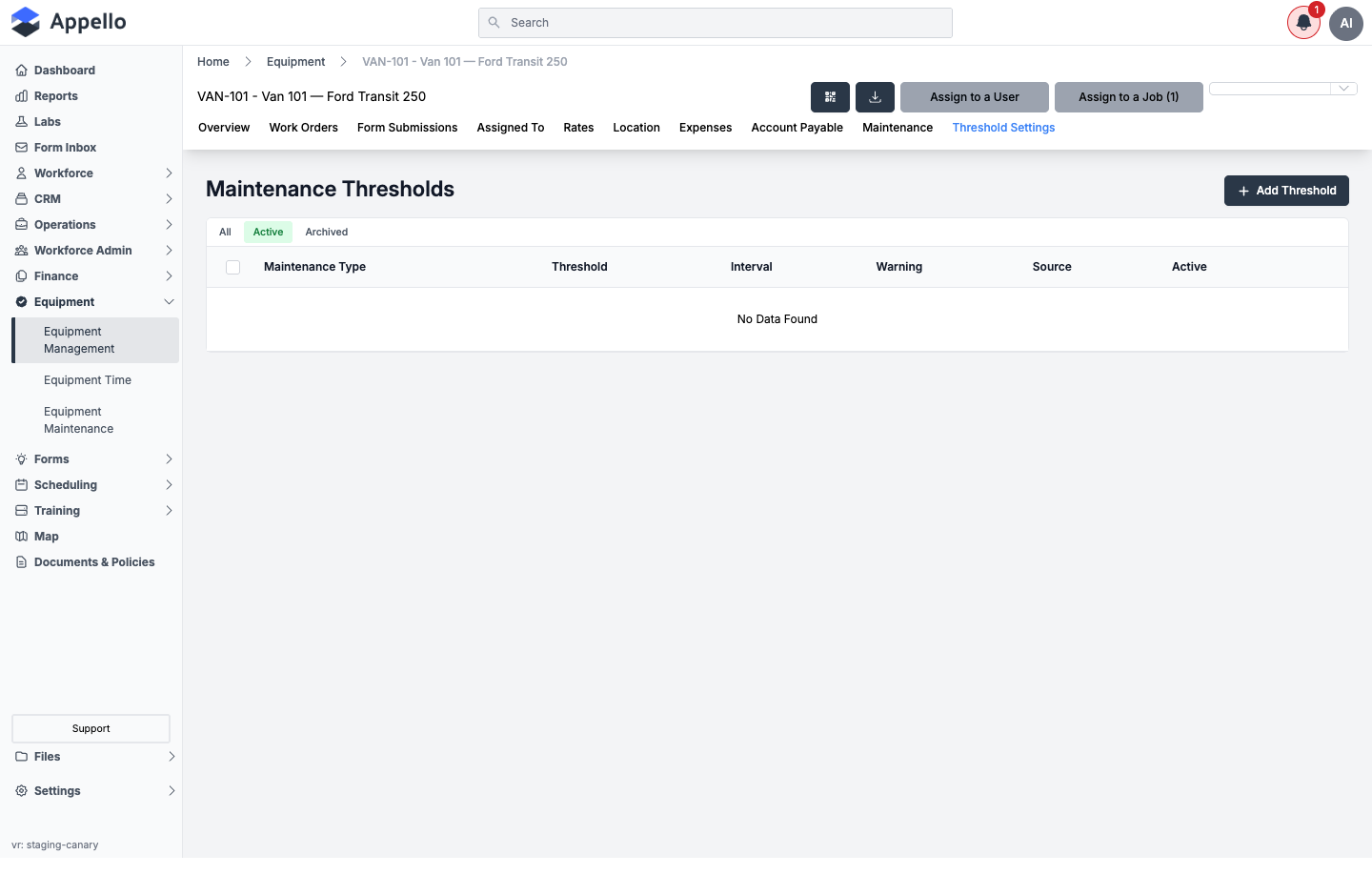
Thresholds define how often a maintenance type recurs and drive auto-projected schedules. Without an active threshold, schedules can only be added one at a time via Schedule Maintenance.
-
Open the equipment's Threshold Settings tab and click + Add Threshold.
-
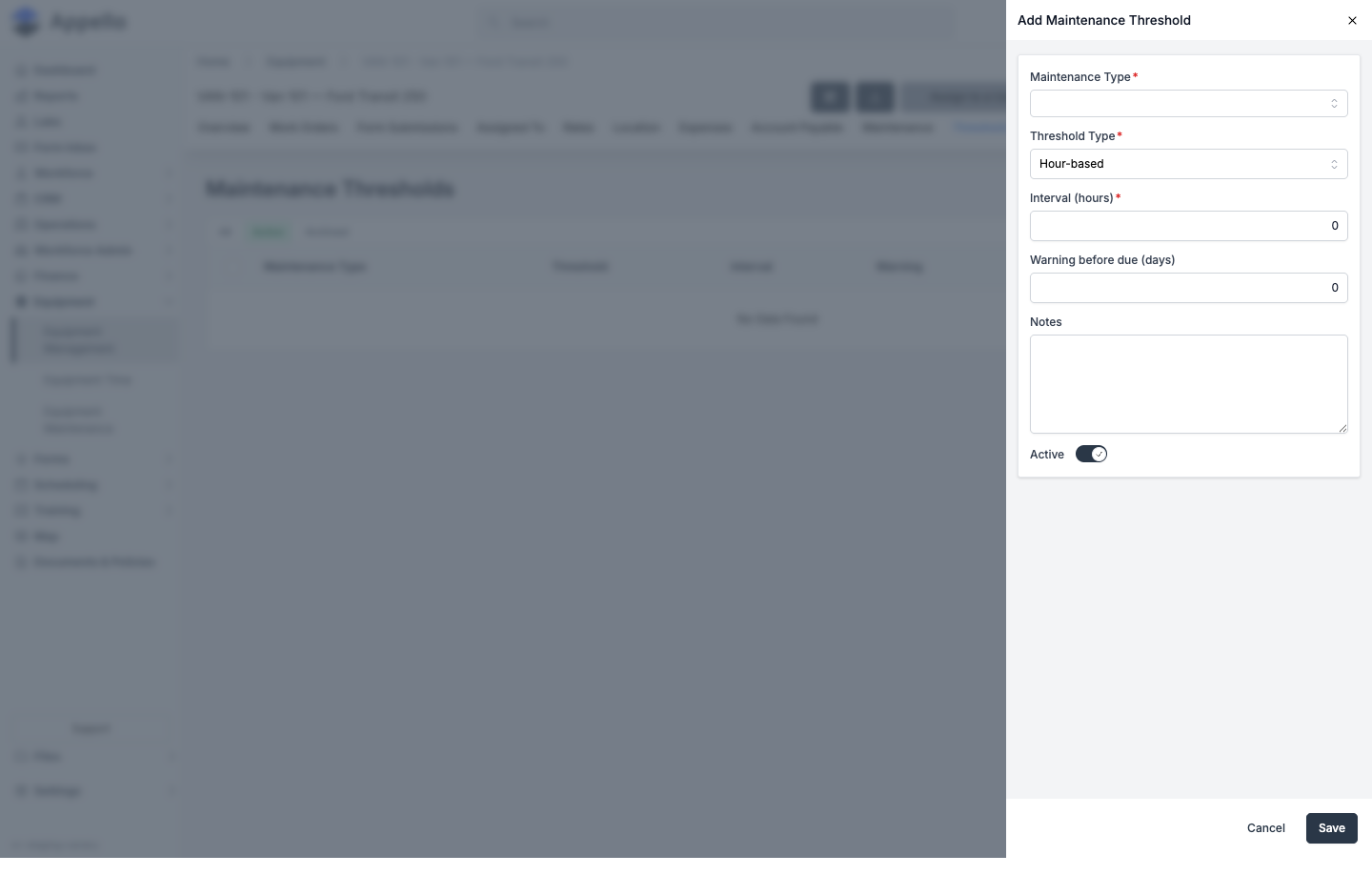
Fill in the fields:
Field Required Notes Maintenance Type Yes Which service this threshold governs. Threshold Type Yes Hour-based, Calendar-based, or Distance-based. The options offered depend on the equipment's meter type — hour-metered equipment offers Hour-based and Calendar-based; distance-metered equipment (odometer) offers Distance-based and Calendar-based instead. Interval Yes The recurrence value, in hours, days, or the equipment's distance unit (km or mi) depending on Threshold Type. Must be greater than zero. Warning before due (days) No How many days ahead of the due date to flag the schedule. Notes No Free text. Active — On by default. Turn off to stop a threshold from generating new schedules without deleting it. -
Click Save.
The Threshold Settings tab lists thresholds that apply to this equipment, whether set directly on the equipment or inherited from its Equipment Category — the Source column shows which. Setting a threshold at the category level applies it to every piece of equipment in that category; setting it on an individual piece of equipment overrides the category default for that item only.
Thresholds can also be archived (pausing them without deleting) and restored, from the same Active / Archived quick tabs shown on that table, and deleted outright — the same MaintenanceThreshold permission group used for view/create/edit governs all of these (see Permissions).
How Appello resolves which thresholds apply
Behind the Source column, Appello resolves the thresholds for a piece of equipment with an Equipment-overrides-Category cascade: it takes every active threshold set directly on the equipment, then adds every active category-level threshold except where the equipment already has its own threshold for that same Maintenance Type. The result is exactly one resolved threshold per Maintenance Type — equipment-level always wins over category-level for that type. This resolved list is what drives auto-projection (via Schedule Maintenance completion, above) and the status computation below.
How the maintenance status shown is computed
For each resolved threshold, Appello computes how much has elapsed since the equipment's last Complete schedule of that Maintenance Type (or, if it's never been serviced, since the threshold was created — pre-existing usage doesn't retroactively count):
- Hour-based — elapsed engine hours, from Approved Equipment Time entries only.
- Calendar-based — elapsed wall-clock time since the last completion (or threshold creation).
- Distance-based — elapsed odometer distance, from Approved Equipment Time entries' Meter In/Meter Out readings only (see Usage-based scheduling below).
Each threshold's status is then:
| Status | Meaning |
|---|---|
| OK | Remaining (interval − elapsed) is above the threshold's Warning lead time. |
| Due Soon | Remaining has dropped to or below the Warning lead time. Hour-based and Calendar-based only — a Distance-based threshold does not show Due Soon; it goes straight from OK to Overdue. |
| Overdue | Remaining has reached zero or gone negative. |
The equipment's overall status is the worst case across every resolved threshold (Overdue beats Due Soon beats OK). This is the same OK / Due Soon / Overdue status shown on the Maintenance Status Overview card on the equipment's Maintenance tab, described below.
OK / Due Soon / Overdue (the threshold-level status above) is a different status set from Scheduled / Complete / Overdue / Cancelled (the schedule-level status shown in the calendar, list view, and Status filter). A maintenance type can be threshold-status "Due Soon" with no schedule on the calendar yet — completing a schedule, or clicking + Schedule Maintenance, is what turns a due threshold into a dated entry other views can show.
Completing maintenance and logging service
There are two ways to record that a service happened:
Complete an existing schedule — open a Scheduled or Overdue entry (from the calendar, list, or the equipment's Maintenance tab) and fill in the completion fields:
| Field | Notes |
|---|---|
| Completion Date | Required to mark the schedule complete. Defaults to today. |
| Technician | Free-text name of who performed the service. |
| Cost | The cost of this service. |
| Hours at Service / Distance at Service | Shown based on the equipment's meter type (runtime hours or odometer distance). |
Marking a schedule complete against an active threshold automatically projects the next occurrence, using the completed date (or the meter reading) plus the threshold's interval.
Log a one-off service entry — from the equipment's Maintenance tab, click + Log Service to record a completed service that was never scheduled in advance:
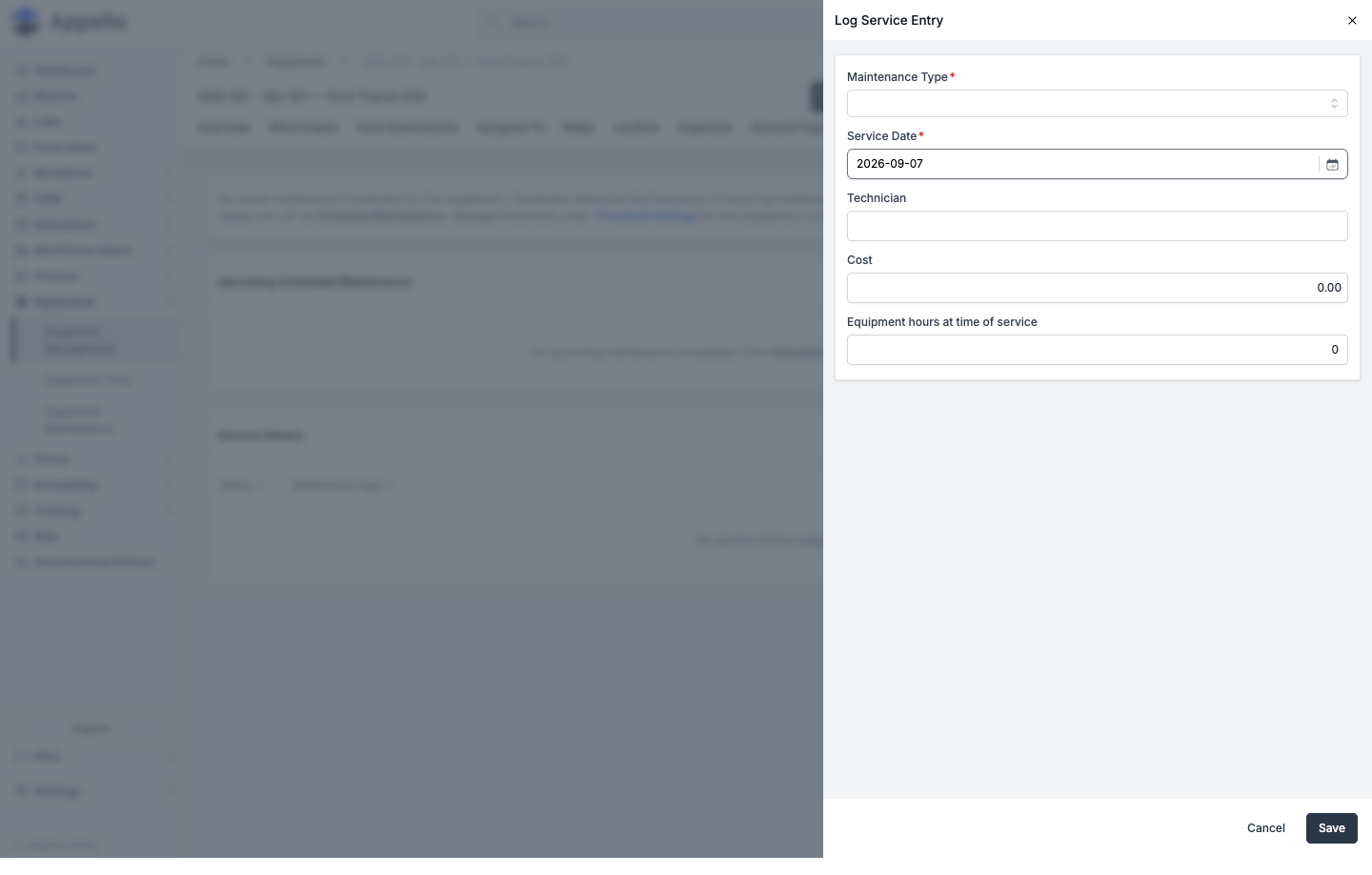
This creates a completed record directly in Service History with the same fields — Maintenance Type, Service Date, Technician, Cost, and the meter reading at time of service.
Equipment detail Maintenance tab
Where: Sidebar → Equipment → Equipment Management → open a piece of equipment → Maintenance tab. Gated by the MaintenanceSchedule: view permission, same as the main Equipment Maintenance page — this is the same underlying data, scoped to one piece of equipment. This tab has three sections, top to bottom: Maintenance Status Overview, Upcoming Scheduled Maintenance, and Service History. It sits next to the equipment's Threshold Settings tab (same location); both are also referenced from Equipment List → Maintenance and Threshold Settings.
Maintenance Status Overview
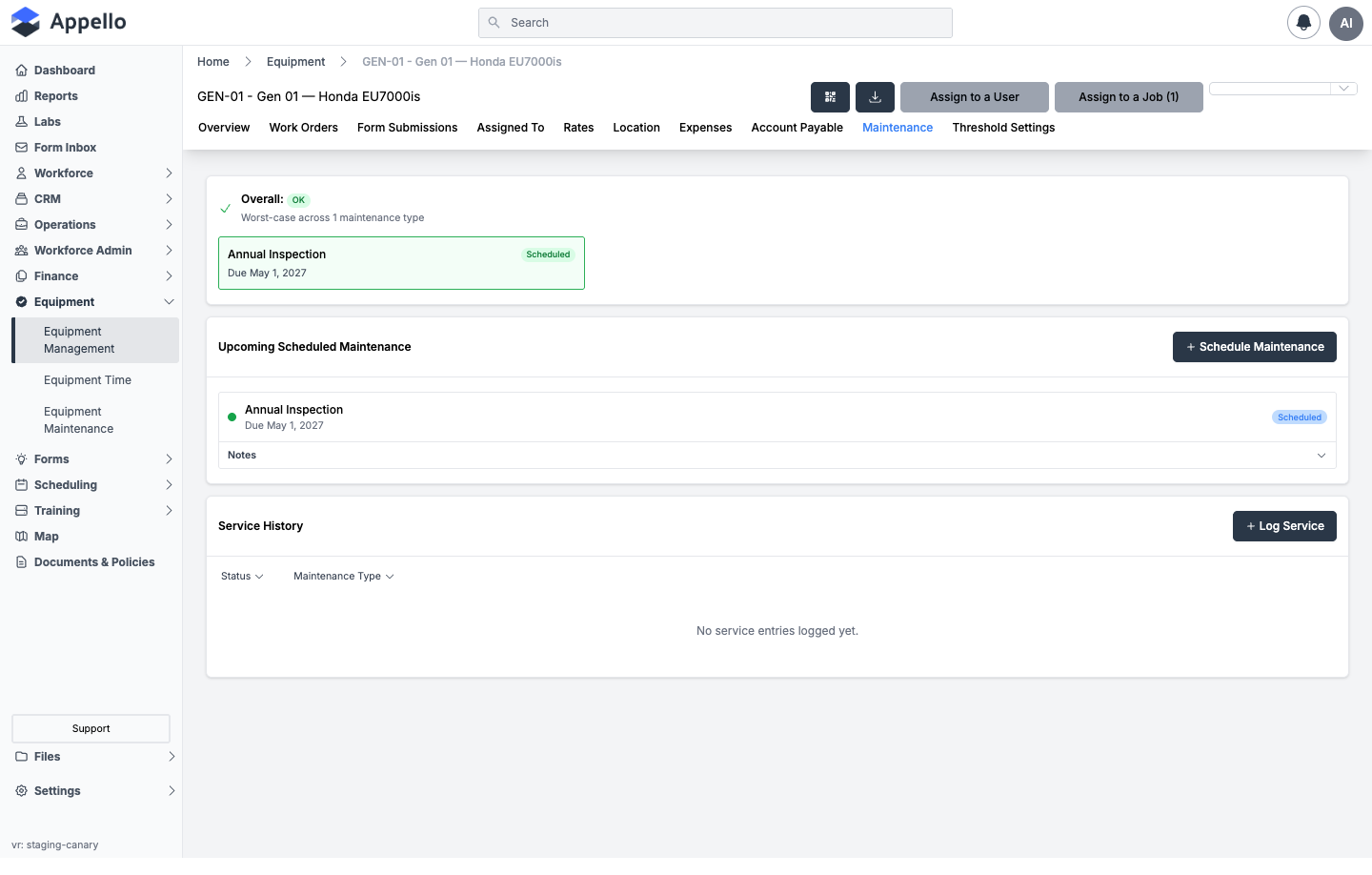
This card renders one tile per maintenance type this equipment tracks — from its resolved thresholds, plus any one-off schedule that doesn't have a threshold behind it — colored by status (green = OK, yellow = Due Soon, red = Overdue), with an Overall badge and a "worst-case across N maintenance types" caption above them (see How the maintenance status shown is computed).
If a maintenance type currently has an open Scheduled or Overdue schedule, its tile shows that schedule's own status and due date instead of the threshold's projected-usage estimate — an explicit dated schedule is treated as more specific than a projection. Otherwise the tile shows the threshold type (Hour-based / Calendar-based / Distance-based), how much is remaining (e.g. "42 hrs remaining", "12 days remaining", "310 km remaining"), and the last-serviced date if any.
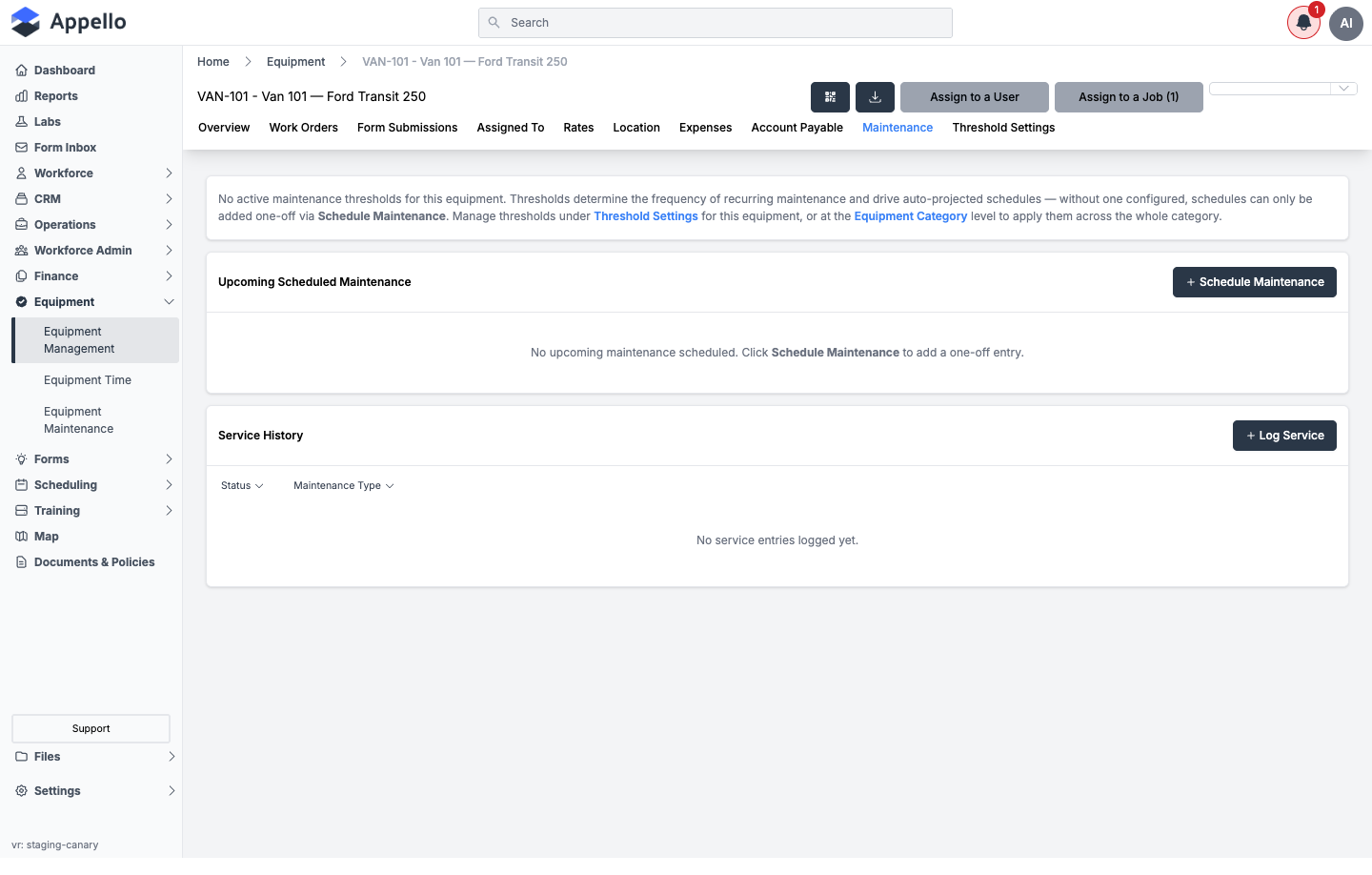
Shown empty on the demo instance (VAN-101, which has no active threshold and no schedule). When a piece of equipment has neither a resolved threshold nor an upcoming schedule for any maintenance type, the Status Overview card is replaced by this explanatory message instead — with direct links into Threshold Settings for this equipment and into its Equipment Category (to set a threshold that applies category-wide).
Upcoming Scheduled Maintenance
Scheduled and Overdue entries for this equipment, with a + Schedule Maintenance button. Clicking a row opens the same edit panel described in Editing a schedule.
Service History
Complete and Cancelled entries for this equipment, with a + Log Service button and its own Status / Maintenance Type filters (scoped to Complete/Cancelled by default). Each row is the completed record's technician, cost, and meter reading at time of service — this is the running maintenance-cost log for the item.
Equipment Rates and Cost Tracking
Alongside maintenance cost (captured per service record above), Appello tracks what a piece of equipment costs — or bills out at — through Equipment Rates, on the equipment's Rates tab.
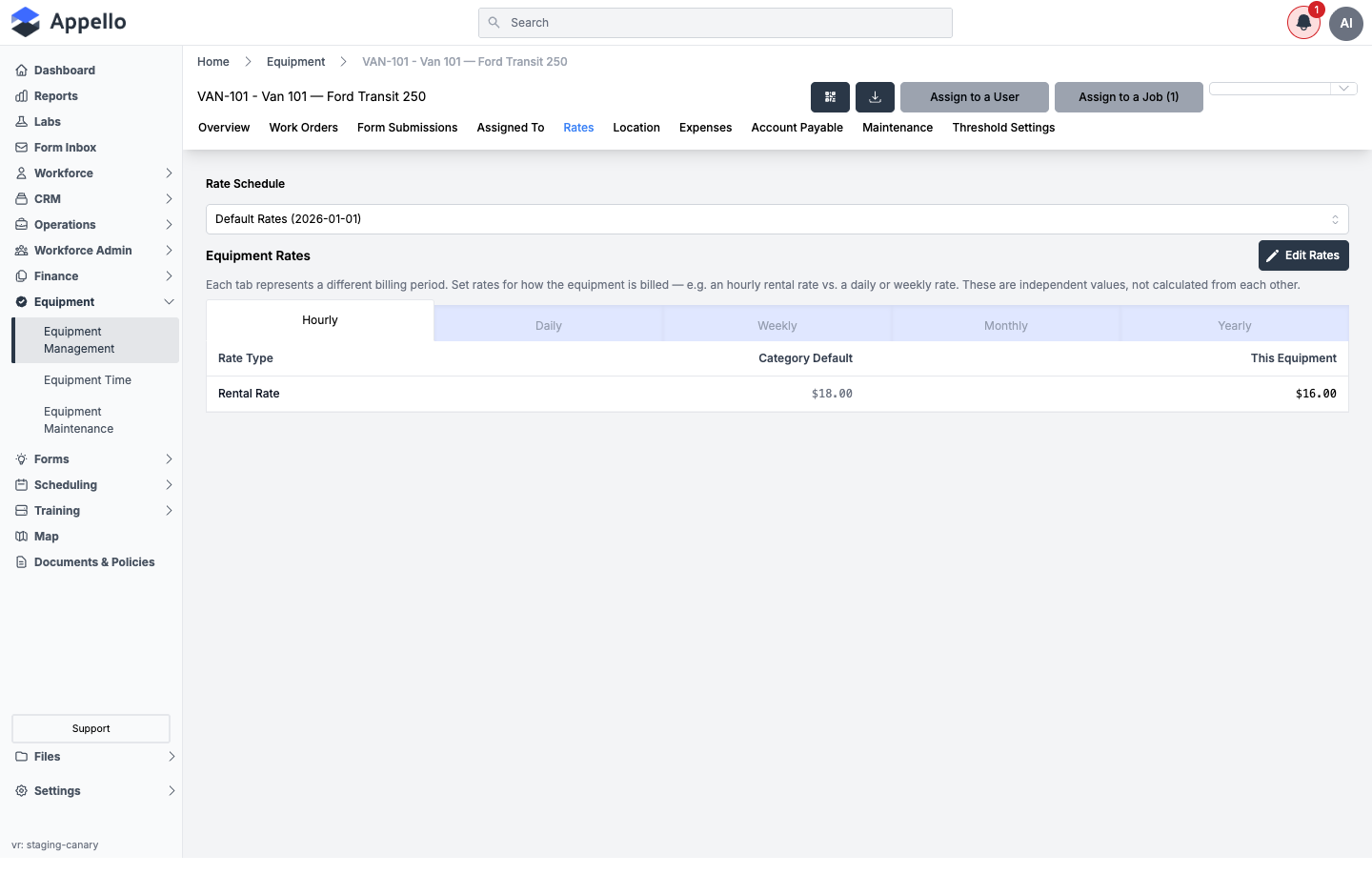
- Rate Schedule — a dated set of rates (e.g. "Default Rates (2026-01-01)"). Your instance can have more than one rate schedule, letting you version rates over time.
- Rate Types — the billing lines you track for equipment, shown as rows in the table (e.g. "Rental Rate" in the screenshot above). Rate Types are defined per Equipment Category, so every piece of equipment in a category shares the same set of rate types. Common setups define separate rate types for different cost purposes (for example, an ownership/depreciation rate versus an operating/fuel rate) — the exact set is up to your instance.
- Category Default vs. This Equipment — each rate type shows the category-wide default alongside this equipment's own rate. Click Edit Rates to override a rate for this specific piece of equipment; the category default is shown alongside your entry.
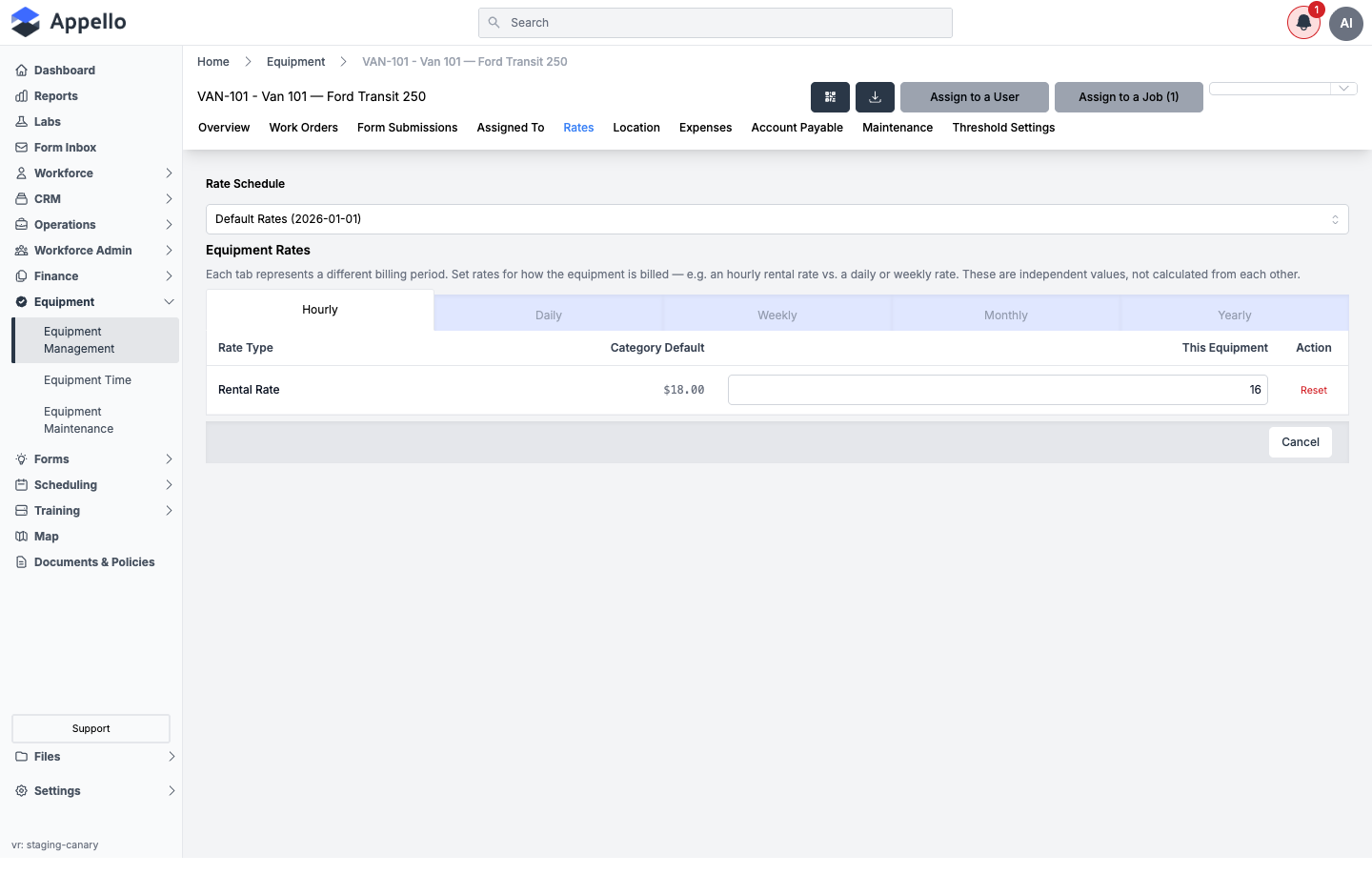
Rates are tracked independently per billing period (Hourly, Daily, Weekly, Monthly, Yearly) — they are not calculated from one another, so set each period's rate separately if your instance bills equipment more than one way.
Rate Types are managed at the Equipment Category level. This crawl did not find a standalone "Settings → Equipment Rate Labels" menu entry — the per-equipment Rates tab shown above only lets you override a rate value, not add or rename rate types. If your instance needs a new rate type (or to add/rename one), check with an Appello admin or your Equipment Category setup.
A single consolidated "Equipment Cost Summary" dashboard was not found in the crawled UI. Equipment cost today is tracked at the record level: maintenance cost per completed service (Service History, above) and billing rate per rate type (Equipment Rates, above). Combine the two views for a full cost picture on a given piece of equipment.
Inspection Certificates and Documents
Equipment Categories can be configured with custom Document or Image fields (for example, "Inspection Certificate", "Manual", or "Warranty"). When a category has one of these fields configured, it appears as its own card on the equipment's Overview tab, where you can upload one or more files and see the history of what has been uploaded.
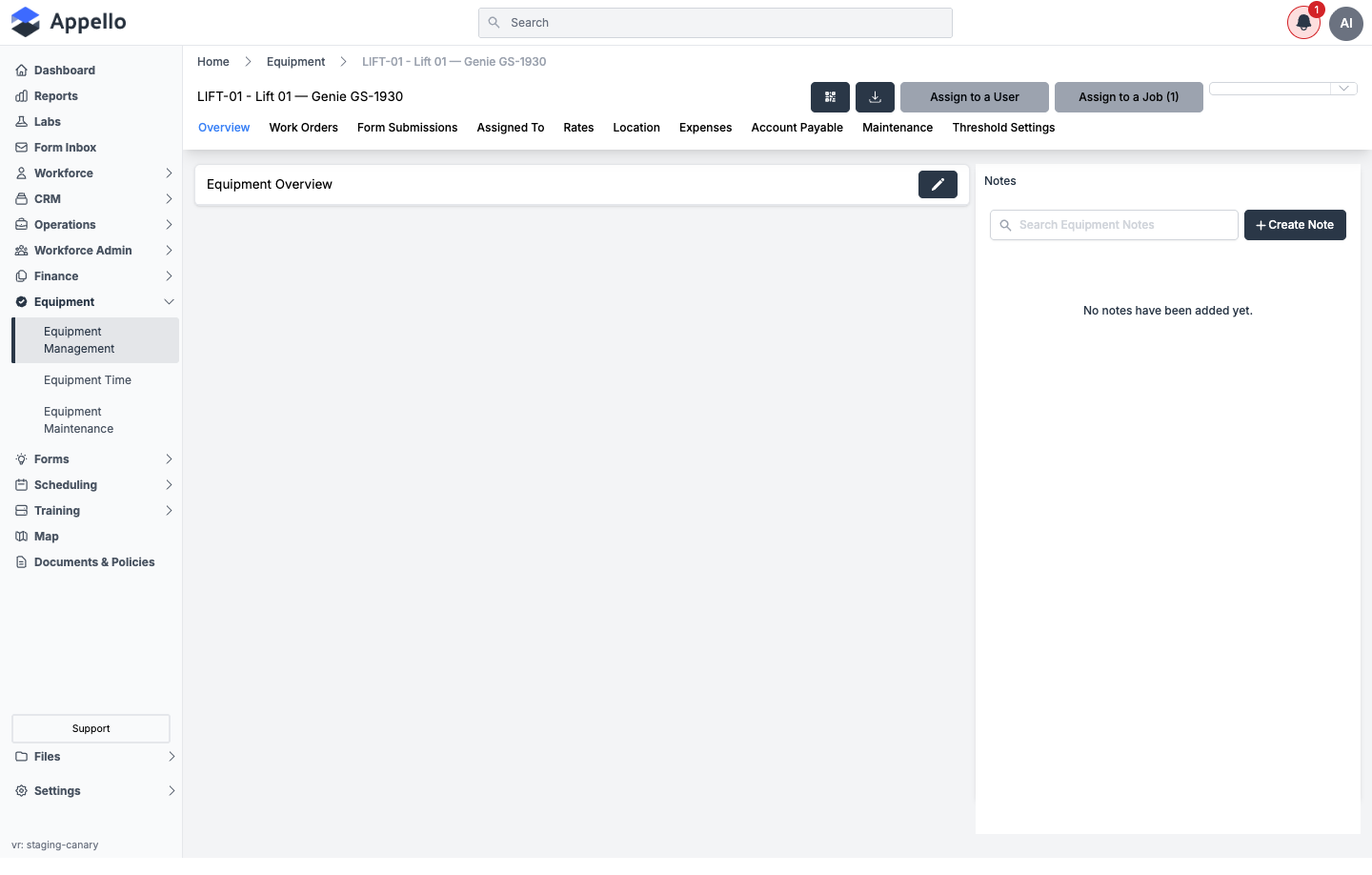
None of the equipment on this demo instance has a Document or Image attribute configured on its category, so the Overview tab above shows no upload card to screenshot populated. This is confirmed from the Appello source rather than a live screenshot: certificate/file fields are set up per Equipment Category (via that category's field layout), and once configured, render as an upload gallery on every piece of equipment in that category. Ask an Appello admin to add a Document-type field to a category if you need to attach inspection certificates this way.
Separately, Appello tracks Last Inspection Date and Next Inspection Date as built-in fields on each piece of equipment (visible as columns on the Equipment List). For categories with Requires Inspection enabled, the next inspection date is calculated automatically from the category's inspection frequency once a last-inspection date is recorded.
Equipment Inspection Forms
Inspection and pre-use checklist forms can be attached directly to a piece of equipment so they show up for field workers before they use it. Form creation, versioning, and attaching a form to equipment are covered in Form Builder & Management — see that page's Form Assignment to Equipment section rather than duplicating it here. Submitted inspection forms for a piece of equipment appear on its Form Submissions tab.
Usage-based scheduling: equipment time and odometer readings
Hour-based and Distance-based thresholds (above) don't run on a clock — they run on Approved Equipment Time entries for that equipment:
- Hour-based thresholds sum the approved duration of every Approved equipment time entry whose meter type resolves to Hours.
- Distance-based thresholds sum the distance between each Approved entry's Meter In and Meter Out readings (see The entry form), converted to a common unit. An entry where Meter Out is not greater than Meter In (a meter rollover or a replaced odometer) is skipped rather than subtracted as a negative.
- Entries that are Submitted, Rejected, or still pending are not counted — only entries that have cleared the Approve / reject workflow contribute to elapsed usage.
This is also how Appello projects the next occurrence when you mark a threshold-linked schedule Complete: for Hour-based and Distance-based thresholds, it looks at approved usage over the last 90 days to estimate a daily usage rate, then projects forward from the remaining hours/distance on the interval (falling back to 90 days out if there's no recent usage on file). Calendar-based thresholds simply add the interval to the completion date and don't depend on equipment time at all.
Notifications on due and overdue maintenance
Two notification types fire from equipment maintenance — full detail (recipients, channels, and how to change them) lives on Notification Control System:
| Notification Type | Trigger |
|---|---|
| Maintenance Reminder | Scheduled equipment maintenance is coming due. |
| Maintenance Overdue | Scheduled equipment maintenance passes its due date. |
Both are sent In-App and by SMS to the users/groups an administrator has assigned to that notification type in the Application Notification Control System, and each recipient can turn their own copy on or off from the bell icon (their personal notification preferences) — see How It Works on that page for the global-default-vs-personal-override mechanics.
Permissions
| Permission | Governs |
|---|---|
| MaintenanceSchedule: view | Seeing the Equipment Maintenance page, the equipment detail Maintenance tab, and the Maintenance Status Overview card. |
| MaintenanceSchedule: create | The + Schedule Maintenance and + Log Service buttons, and Schedule Follow-up. |
| MaintenanceSchedule: edit | Editing a schedule, marking it Complete, Cancel Schedule, dragging an event to reschedule it, and Archive/Restore in the list view. |
| MaintenanceSchedule: delete | Delete in the list view's bulk action bar. |
| MaintenanceThreshold: view | Seeing the Threshold Settings tab and the Source column. |
| MaintenanceThreshold: create | The + Add Threshold button. |
| MaintenanceThreshold: edit | Editing a threshold, and Archive/Restore on the Threshold Settings tab. |
| MaintenanceThreshold: delete | Deleting a threshold. |
Related Pages
- Equipment List — The equipment registry itself: categories, status, assignment, and the Maintenance/Threshold Settings/Rates tabs referenced above.
- Equipment Time — Where Meter In/Meter Out readings and approved hours come from, feeding usage-based thresholds above.
- Notification Control System — Configuring who receives Maintenance Reminder / Maintenance Overdue notifications and through which channels.
- Form Builder & Management — Building inspection forms and attaching them to equipment.