Certifications
Track worker certifications, expiry dates, and compliance status across your entire workforce. Each certification type carries its own renewal window and "expiring soon" threshold, and every worker's certification records roll up into status counts you can filter, export, and monitor from the dashboard.
Navigation
Sidebar → Training → Certifications
URL: /certifications
Overview
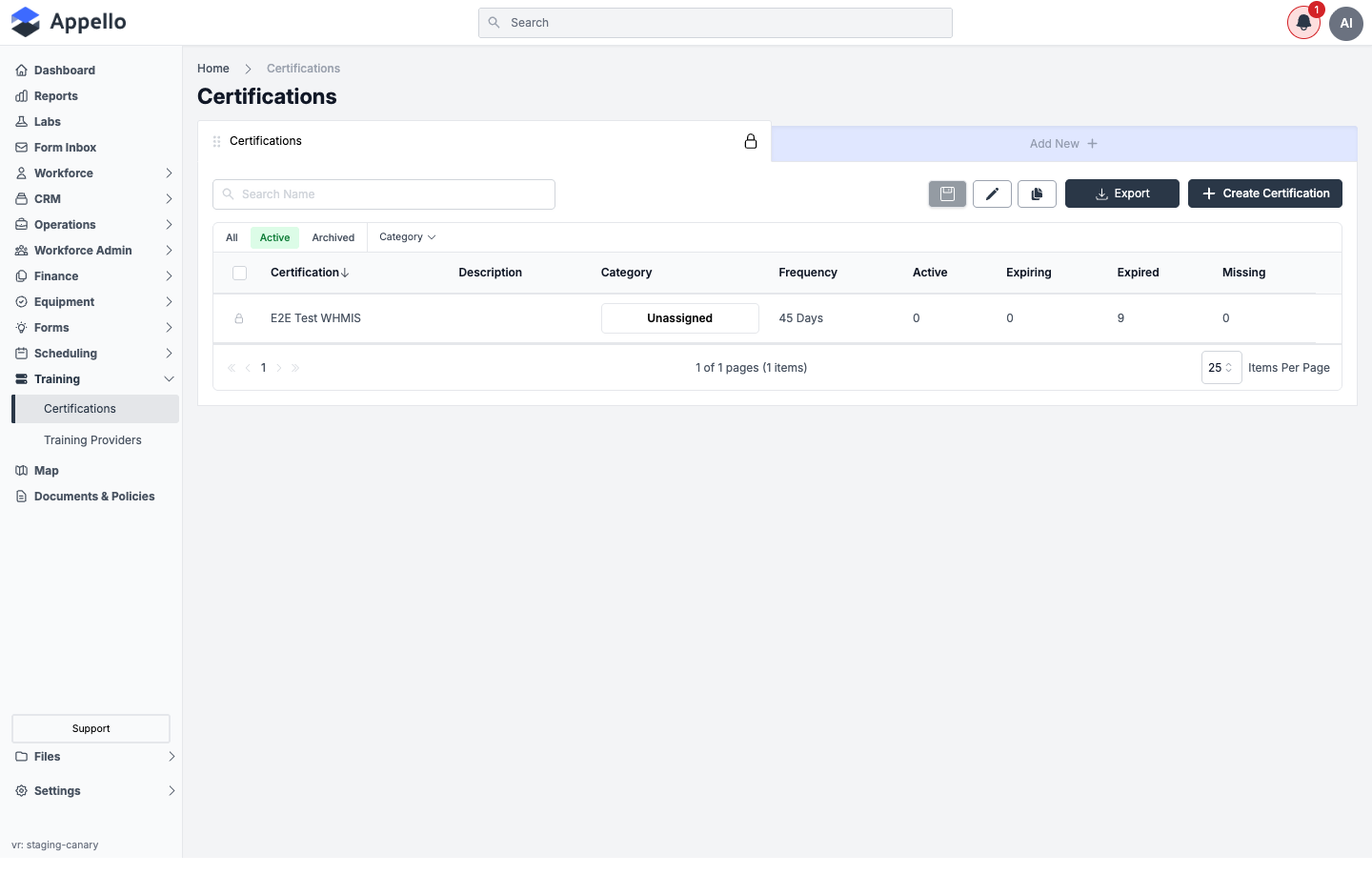
The Certifications page lists your certification types (e.g., WHMIS, Working at Heights) -- not individual workers. Each row is a certification type, with columns for:
| Column | Meaning |
|---|---|
| Certification | The certification type's name (click to open its detail page) |
| Description | Optional free-text description |
| Category | The certification's category, if one is assigned |
| Frequency | How often the certification must be renewed (e.g., "45 Days") |
| Active | Count of workers currently holding a valid, non-expiring-soon record |
| Expiring | Count of records inside the certification's "expiring soon" window |
| Expired | Count of records past their expiry date |
| Missing | Count of workers who are required to hold this certification but don't |
Above the table:
| Control | Effect |
|---|---|
| Search Name | Filters the list by certification name. |
| All / Active / Archived | Quick tabs that scope the list to non-archived, active-only, or archived certification types. |
| Category filter | Narrows the list to certification types in one category. |
| Export | Downloads the current (filtered) list as a CSV -- there is no PDF option on this list. |
| Create Certification | Opens the create panel. |
| Column header click (sort) | Every column except the rolled-up statuses group is sortable; the Certification column sorts A-Z by default. |
| Row checkboxes + header action bar | Selecting one or more rows reveals Archive, Delete, and (when viewing the Archived tab) Restore actions -- see Bulk Actions below. |
Status Indicators
The same four states appear throughout the certification pages -- on this list's columns, on a certification's own detail page, and on a worker's certification records:
| Status | Meaning |
|---|---|
| Active | The record is current and outside its "expiring soon" window |
| Expiring (shown as "Expire Soon" on a certification's detail page) | The record is within the certification type's configured renewal window |
| Expired | The record's expiry date has passed |
| Missing | A worker who is required to hold this certification does not have a record |
Dashboard Integration
The Company Metrics dashboard (the app's home/Dashboard page) includes two certification metrics under its Safety group, which you add via the dashboard's Update Metrics button:
- Certificates Expiring
- Certificates Expired
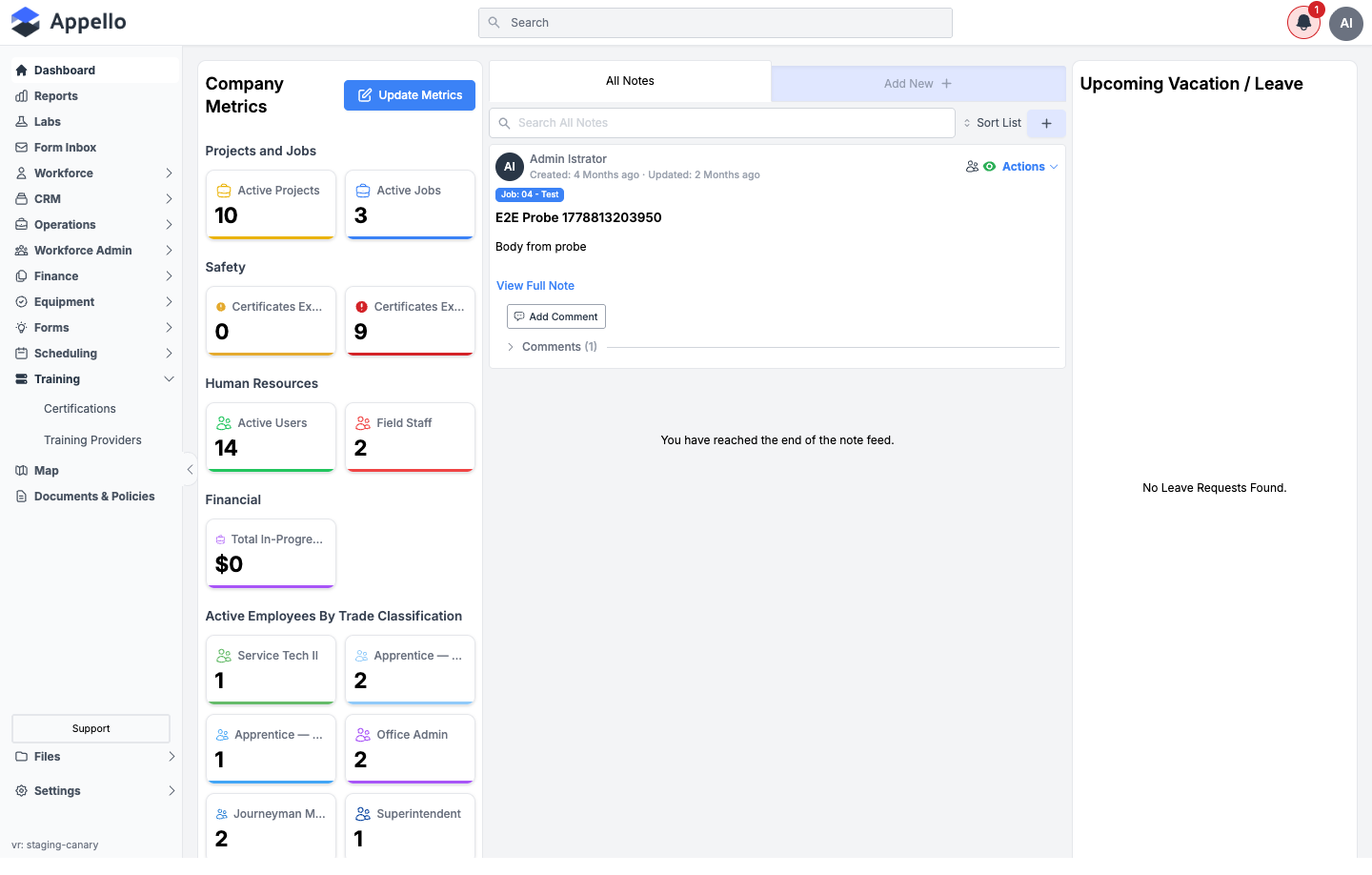
These tiles are counts across all certification types on the instance. They are not clickable drill-down links -- use the Certifications list or a certification's own detail page to see which workers make up a count.
Certification Types
Define the certifications your workforce needs to maintain. Typical ICI contractor certifications include:
Safety Certifications
| Certification | Required For | Renewal Period |
|---|---|---|
| Working at Heights | All field workers | 3 years |
| WHMIS (Workplace Hazardous Materials) | All workers | 1 year |
| Confined Space Entry | Workers entering tanks, vessels, tunnels | 3 years |
| Fall Arrest / Fall Protection | Workers above 3m/10ft | 3 years |
| First Aid / CPR | At least one per crew | 3 years |
| Lock-Out / Tag-Out (LOTO) | Workers near energized equipment | 3 years |
Trade Certifications
| Certification | Required For | Renewal Period |
|---|---|---|
| Journeyman Certificate of Qualification | Journeyman mechanics | One-time (no expiry) |
| Scaffold Erection | Workers building scaffolding | 3 years |
| Rigging & Hoisting | Workers operating lifts or cranes | 3 years |
| Asbestos Awareness (Type 1/2/3) | Workers in abatement or renovation | 1 year |
| Silica Awareness | Workers cutting/grinding masonry | 2 years |
Site-Specific Certifications
| Certification | Required For | Renewal Period |
|---|---|---|
| Security Clearance | Workers on government or sensitive sites | Varies |
| Nuclear Safety (CNSC) | Workers at nuclear facilities | Annual |
| Refinery/Petrochemical Safety | Workers at oil & gas sites | Annual |
| Site-Specific Orientation | Required per general contractor | Per project |
Managing Certification Types
Creating a Certification Type
- From Certifications, click Create Certification.
- Fill in the panel:
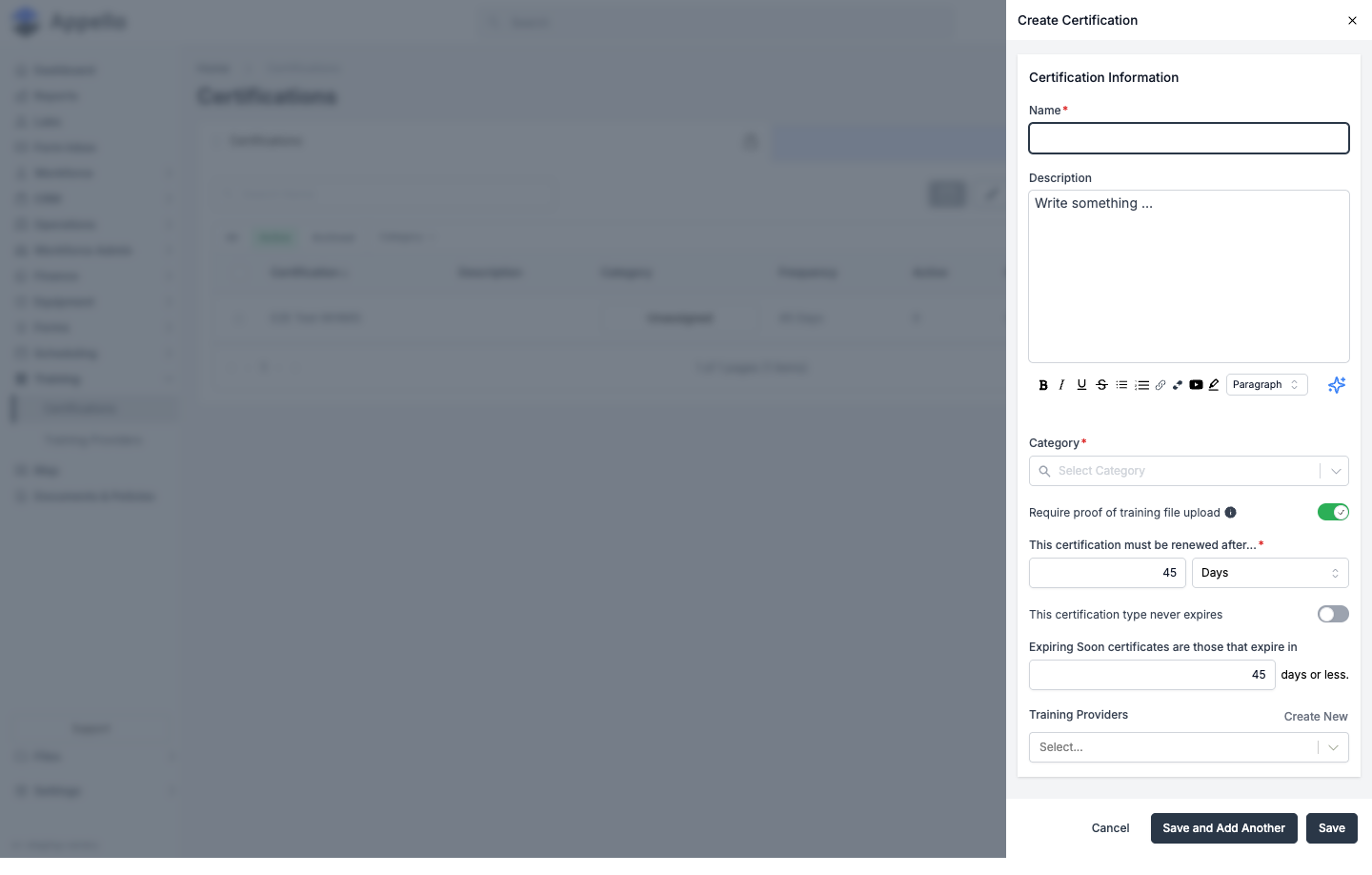
The panel's fields, in the order they appear:
| Field | Type | Required | Effect |
|---|---|---|---|
| Name | Text | Yes | Certification name (e.g., "Working at Heights"). Autofocused on open. |
| Description | Rich text (WYSIWYG) | No | Free-text notes shown on the certification's Overview tab. |
| Category | Searchable single-select combobox | Yes | Picks an existing certification category. Unlike Training Providers, this field has no inline "Create New" -- categories are a shared list configured elsewhere in the app. |
| Require proof of training file upload | Toggle | No -- defaults on | When on, the Certification Front Side Scan becomes required on every Add User Certification / Edit User Certification form for this type (see Assigning Certifications to Workers). |
| This certification must be renewed after... | Number + unit dropdown (Days/Weeks/Months/Years) | Yes, unless "never expires" is on | The renewal frequency (e.g., "45 Days"). Defaults to 45 Days on a new certification. Greyed out and skipped when "never expires" is toggled on. |
| This certification type never expires | Toggle | No -- defaults off | When on, hides the renewal-frequency row entirely and disables the Expiring Soon days field; the certification's frequency is saved as Never Expires. |
| Expiring Soon certificates are those that expire in ... days or less | Numeric input | No (no asterisk, but always saved) | The renewal window used to flag records as "Expiring." Defaults to your instance's configured default (falls back to 45) on a new certification; disabled when "never expires" is on. |
| Training Providers | Searchable multi-select, with a Create New link that opens the Training Provider form inline | No | Links one or more training providers qualified to deliver this certification. |
- Click Save, Save and Add Another (create mode only) to keep creating, or Cancel to discard.
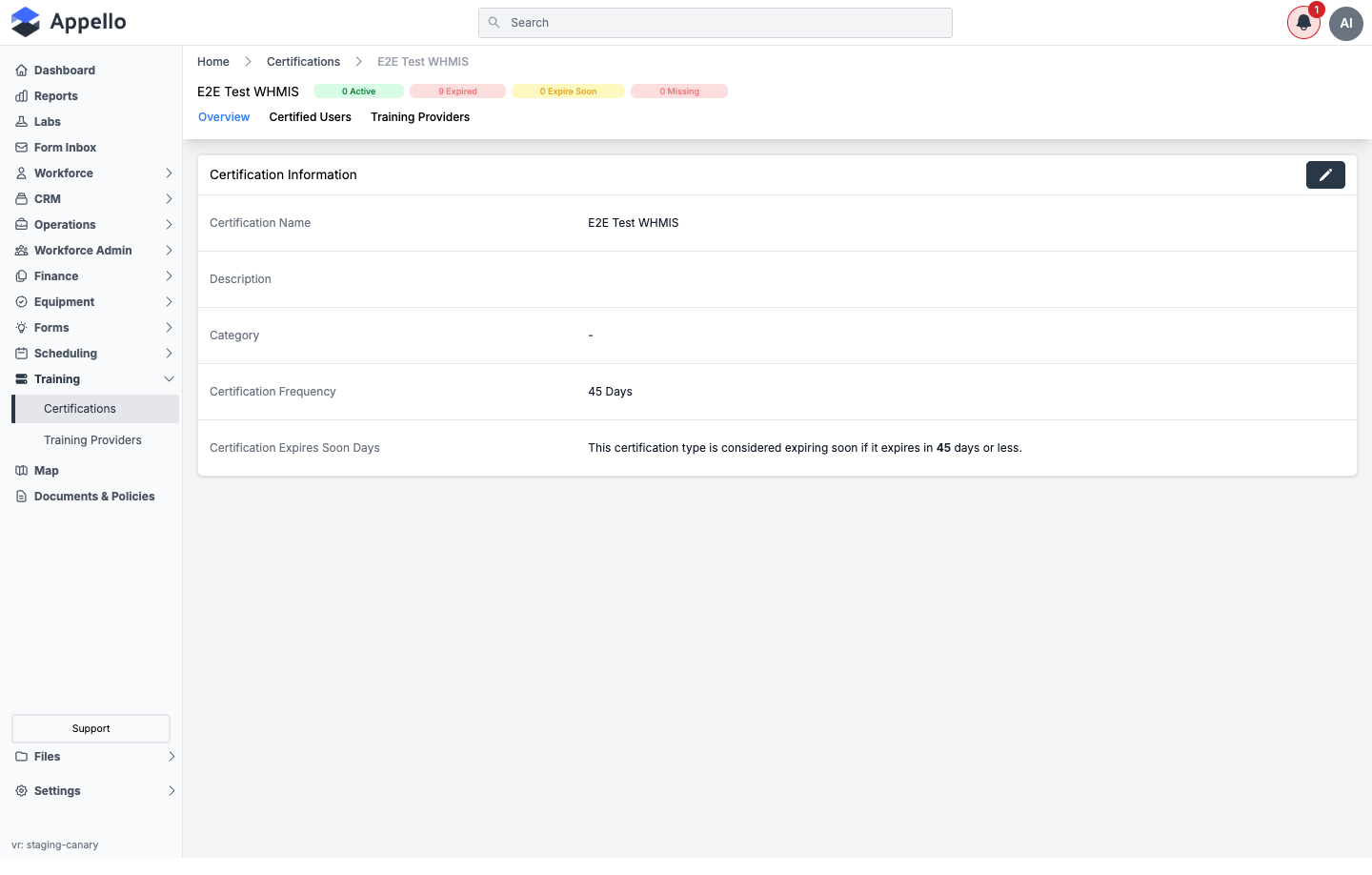
Everything you set here also appears, read-only with an edit pencil, on the certification's own Overview tab:
Renewal Window Configuration
The "Expiring Soon" days field determines when a certification record transitions from "Active" to "Expiring." Set this based on how long recertification takes:
| Training Type | Recommended Renewal Window |
|---|---|
| Online recertification (1 day) | 30 days |
| Classroom training (1-2 days) | 60 days |
| Multi-day certification course | 90 days |
| Certifications with limited class availability | 120 days |
Bulk Actions (Archive, Delete, Restore)
Select one or more rows on the Certifications list with the row checkboxes to reveal a header action bar with:
- Archive -- moves the selected certification type(s) to the Archived tab. Archived certification types keep their existing user certification records; workers keep their history and status counts, but the type no longer counts toward "required" checks for new hires. Archived types can be restored at any time.
- Delete -- permanently removes the selected certification type(s). Before deleting, Appello looks up a related-record count so you can see how many linked user certification records would be affected; confirm the count before proceeding, since this cannot be undone.
- Restore -- available when viewing the Archived tab; returns the selected certification type(s) to Active.
The same three actions, scoped to individual worker records instead of certification types, are available from the Certified Users tab (see Certified Users tab below) and from a worker's own Certifications tab.
The Certification Detail Page
Sidebar → Training → Certifications, then click a certification name.
Clicking a certification from the list opens its detail page, with Overview, Certified Users, and Training Providers tabs (each gated by its own view permission -- see Permissions). The header repeats the four status counts as colored chips (e.g., "0 Active", "9 Expired", "0 Expire Soon", "0 Missing"); clicking a chip jumps to the Certified Users tab pre-filtered to that status.
Overview tab
Read-only summary of everything set on the Create Certification panel -- Certification Name, Description, Category, Certification Frequency (or "Never" if the type never expires), and the Expires-Soon-Days sentence. Click the card's edit pencil (gated by Certifications → Edit) to reopen the same form pre-filled.
Certified Users tab
Lists every worker holding (or required to hold) this certification, one row per user certification record:
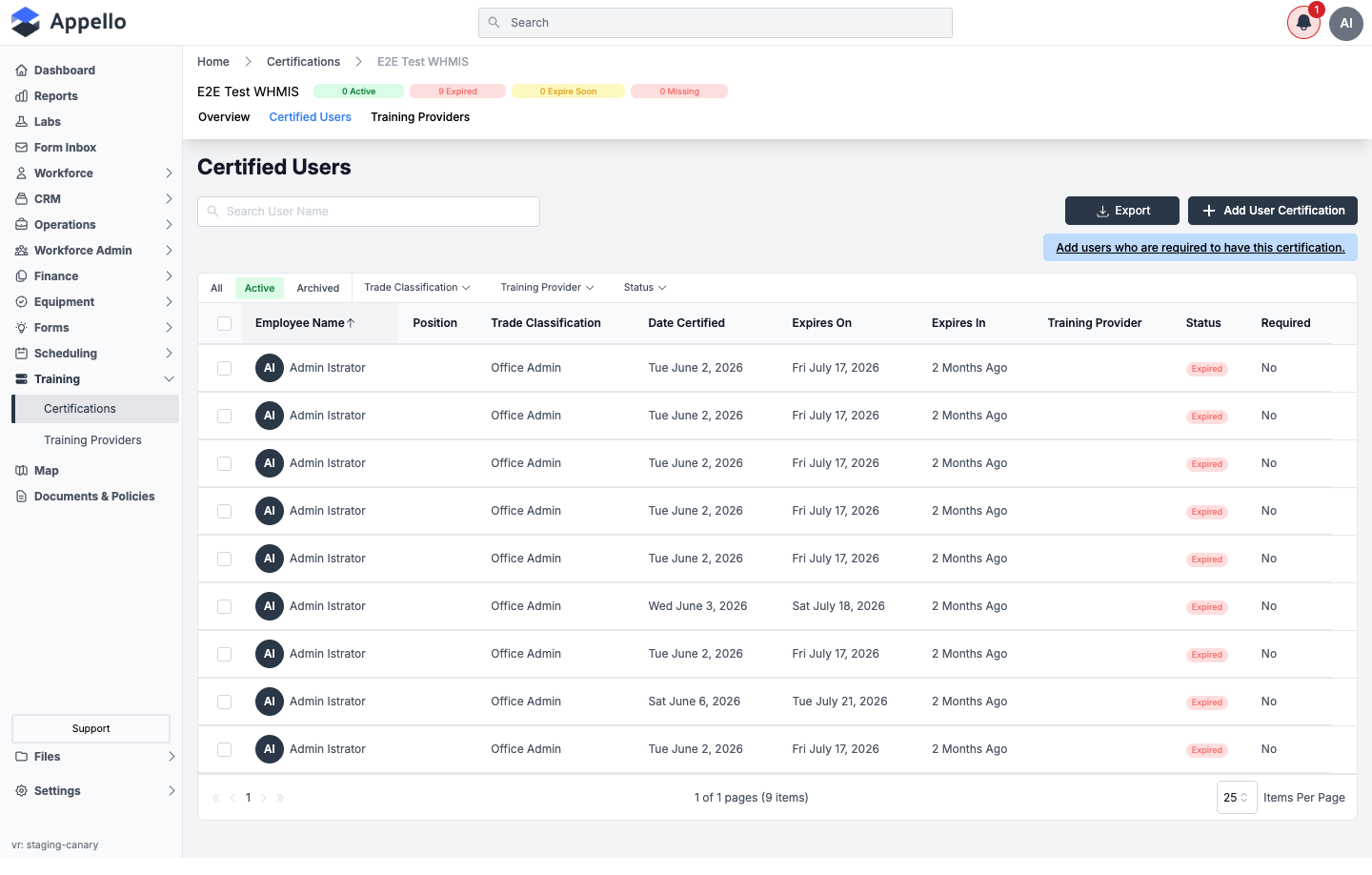
| Column | Meaning |
|---|---|
| Employee Name | The worker holding the record; links to that certification record if one exists, or to the worker's own profile if not. |
| Position | The worker's position/title |
| Trade Classification | The worker's trade level |
| Date Certified | When the record was issued |
| Expires On | The record's expiry date -- "Never" for never-expiring certifications, "-" if missing |
| Expires In | A relative countdown (e.g., "2 Months Ago" once expired) |
| Training Provider | The provider that issued the certification, if set |
| Status | Active / Expiring / Expired / Missing badge |
| Required | Whether this worker is required to hold the certification (Yes/No) |
Above the table: Search User Name, the All / Active / Archived quick tabs, and Trade Classification / Training Provider / Status filters. An Export button here offers CSV only -- see Exporting Certification Records below for where PDF export actually lives. Row checkboxes reveal the same Archive / Delete / Restore bulk actions described in Bulk Actions above, scoped to individual worker certification records instead of the certification type itself; Delete here also looks up a related-record count first.
Add User Certification opens the same panel used to assign a certification to a worker, pre-filled with this certification type.
Required users and the Missing count
A banner above the table tracks who this certification is required for:
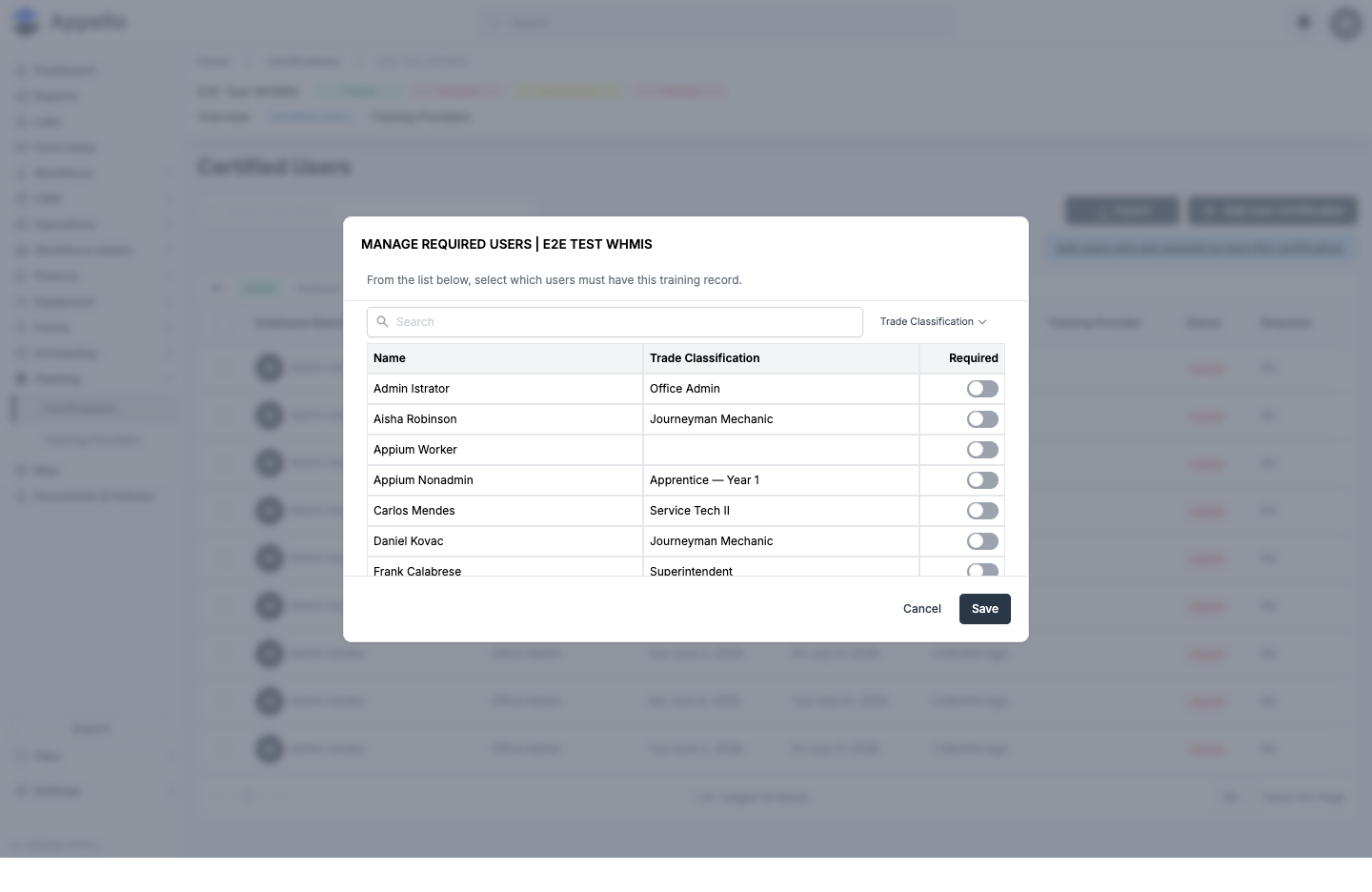
- If no one has been marked required yet, the banner reads "Add users who are required to have this certification." (a shortcut into the same modal below).
- Once at least one user is required, the banner turns green ("All N user(s) who are required to have this certification have been certified") or red ("The required certification is missing for N user(s)") depending on whether anyone required is missing a valid record. Hovering the count shows the named list of users.
Click View/Manage (or the "Add users..." link) to open Manage Required Users: a searchable, paginated picker of every user with a Required toggle per row and a Trade Classification filter. Toggling a user on and clicking Save adds them to this certification's required list -- they then show up as Missing (and count toward the certification list's Missing column and the header's Missing chip) until a certification record is created for them. Cancel discards the change.
Training Providers tab
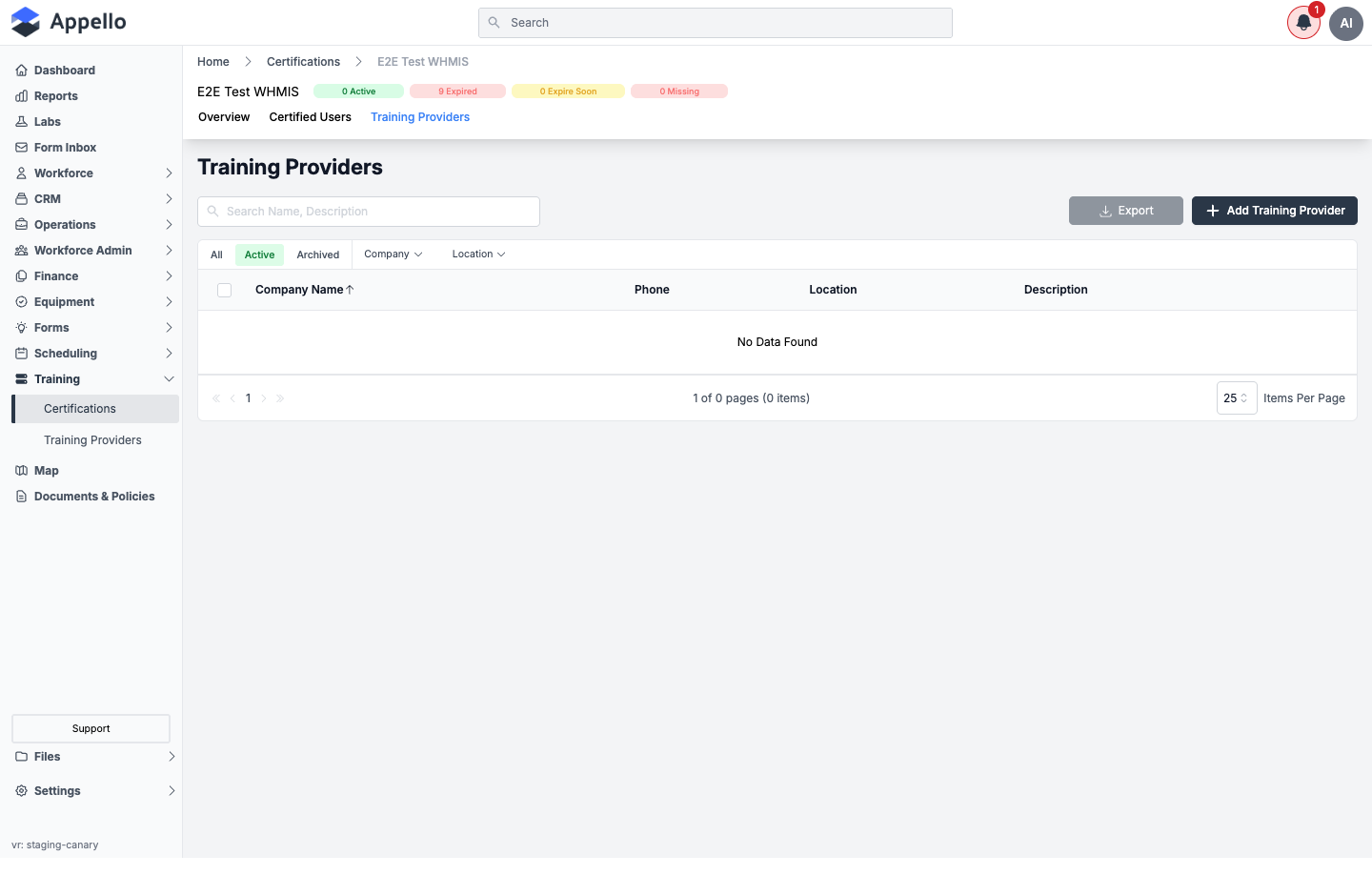
Links training providers qualified to deliver this certification type. Click Add Training Provider to search for and connect one or more existing providers; select a linked provider's row and use the archive action to detach it (this only removes the link, it does not archive the provider record itself). See Training Providers for the full workflow and field reference.
Assigning Certifications to Workers
Individual Assignment
- From a certification's Certified Users tab, or a worker's Certifications tab, click Add User Certification (or Create).
- Fill in the panel:
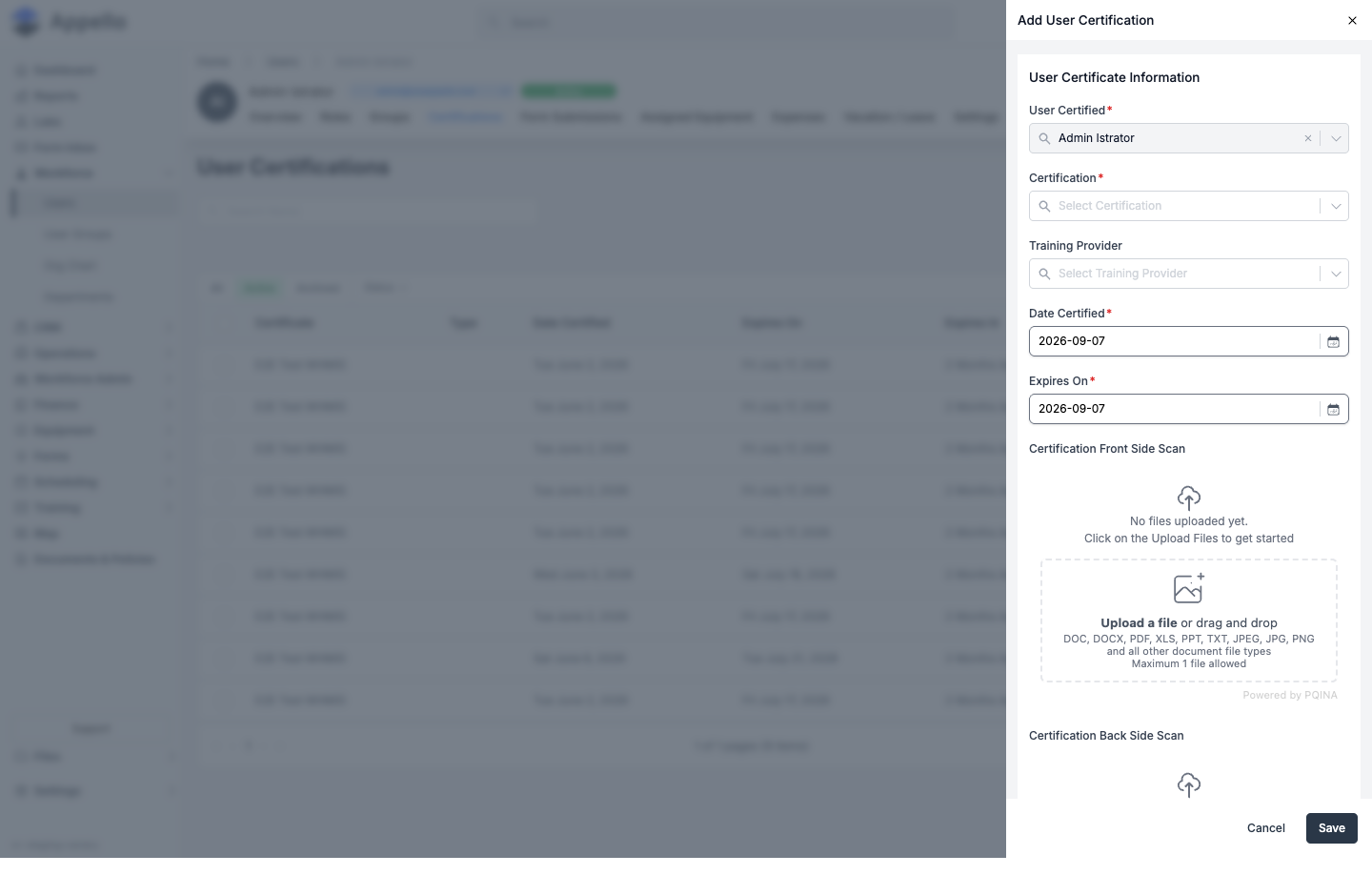
The panel's fields, in the order they appear:
| Field | Type | Required | Effect |
|---|---|---|---|
| User Certified | Searchable single-select combobox | Yes | The worker this record belongs to. Locked (pre-filled, not editable) when opened from a worker's own Certifications tab, or when replacing an existing record. |
| Certification | Searchable single-select combobox | Yes | The certification type. Locked when opened from that certification's own Certified Users tab, or when replacing. Selecting a type here loads its frequency and upload-mandatory setting. |
| Training Provider | Searchable single-select combobox | No | Who issued/delivered the training for this specific record -- separate from the list of providers linked to the certification type in general. |
| Date Certified | Date picker | Yes | When the certification was obtained. Defaults to today. |
| Expires On | Date picker, or a locked "This certificate type has been set to never expire" message | Yes -- unless the selected certification type never expires | On a new record, auto-calculated from Date Certified plus the certification type's renewal frequency, then editable. Hidden/skipped entirely for never-expiring certification types. |
| Certification Front Side Scan | File upload, max 1 file | Only if the certification type has Require proof of training file upload on | Front-of-card scan or document. |
| Certification Back Side Scan | File upload, max 1 file | No | Back-of-card scan, if applicable. |
Bulk Assignment
There is no single action that creates dated certification records for many workers at once -- each record still needs its own Date Certified (and, unless the type never expires, its own Expires On), so bulk creation is one Add User Certification per worker.
What Appello does support in bulk is flagging who is required to hold a certification, which is the mechanism the doc calls "bulk assignment" in practice:
- For certifications that apply to your entire workforce (e.g., WHMIS), open the certification's Certified Users tab and use Manage Required Users (see Required users and the Missing count above) to toggle Required on for every applicable worker in one save.
- Anyone toggled on who doesn't yet have a record shows up immediately as Missing on the list, the certification's status chips, and the Certification Status Report -- giving you a worklist to clear by creating the individual records above (or having each worker submit their own from the mobile app).
The Individual Certification Record
Clicking a certification row on a certification's Certified Users tab, or on a worker's Certifications tab, opens that single record. Gated by User Certifications → View; both tabs share that same permission.
The page has Overview and History tabs. The header shows the worker's name, the certification name, and a status chip (e.g., "Expired").
Overview tab
| Field | Type | Effect |
|---|---|---|
| Certification Name | Read-only, linked to the certification type's detail page | Which certification this record is for. |
| Certified By | Read-only, linked to the training provider's detail page (blank if none set) | Which training provider issued it. |
| Expiry Date | Read-only | The record's expiry date, or "Never Expires" for a never-expiring certification type. |
| Date Certified | Read-only | When the record was issued. |
| Front/Back scan cards | Read-only file viewers (image or embedded PDF) | Show the uploaded scans; if neither is uploaded, a "This certification type does not require files to be uploaded" card explains the empty state instead. |
There is no separate "verification" flag or checklist item on the record -- the front/back scan upload is the proof of training, gated by the certification type's Require proof of training file upload setting (see Creating a Certification Type). Click the card's edit pencil (gated by User Certifications → Edit) to reopen the same Add/Edit User Certification form pre-filled.
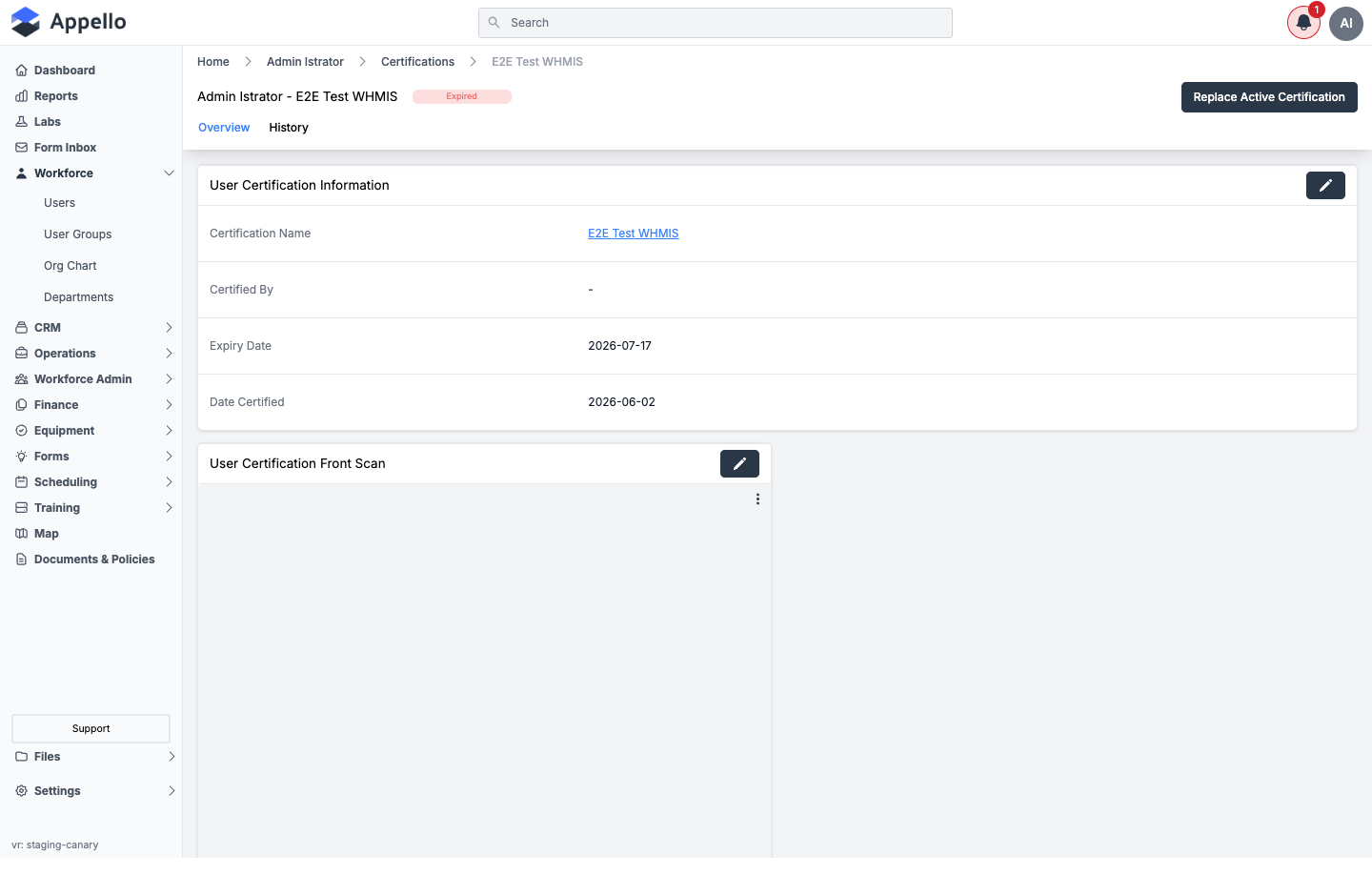
Rather than editing dates in place, renewing a record uses the Replace Active Certification button in the top-right -- this opens the same form pre-filled from the current record's certification and provider, with Date Certified defaulted to the day after the old record's expiry, and creates a new certification period while preserving the old one, chained to the record it replaced.
History tab
Walks that chain backwards from the current record to the original one and lists each past period as a collapsible row (e.g., "E2E Test WHMIS: 2026-06-02 - 2026-07-17"), tagged with a badge for that period's training provider:
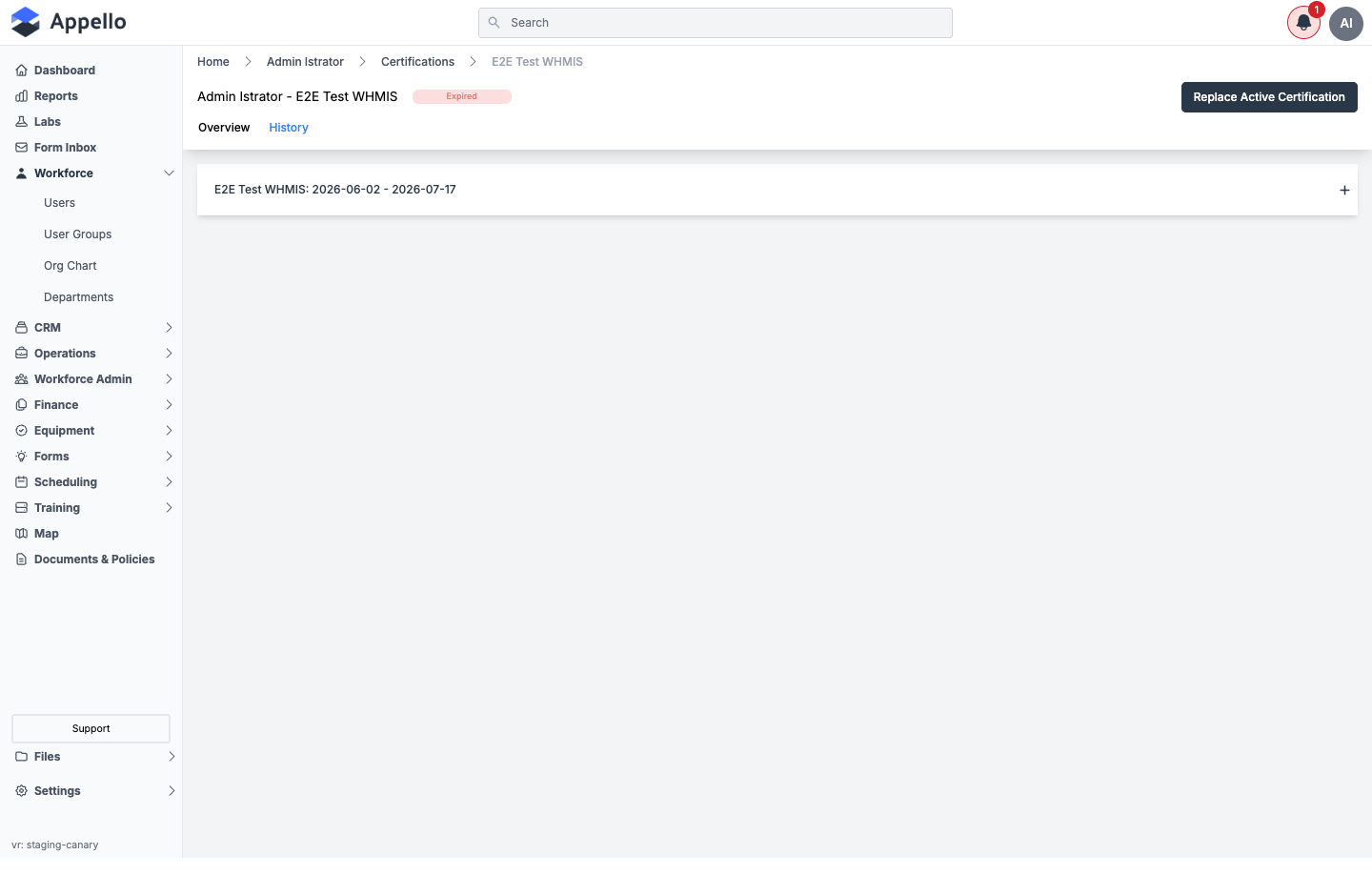
Clicking a row's + expands it into the full Overview card (and scan cards) for that historical period -- it is not just a date range:
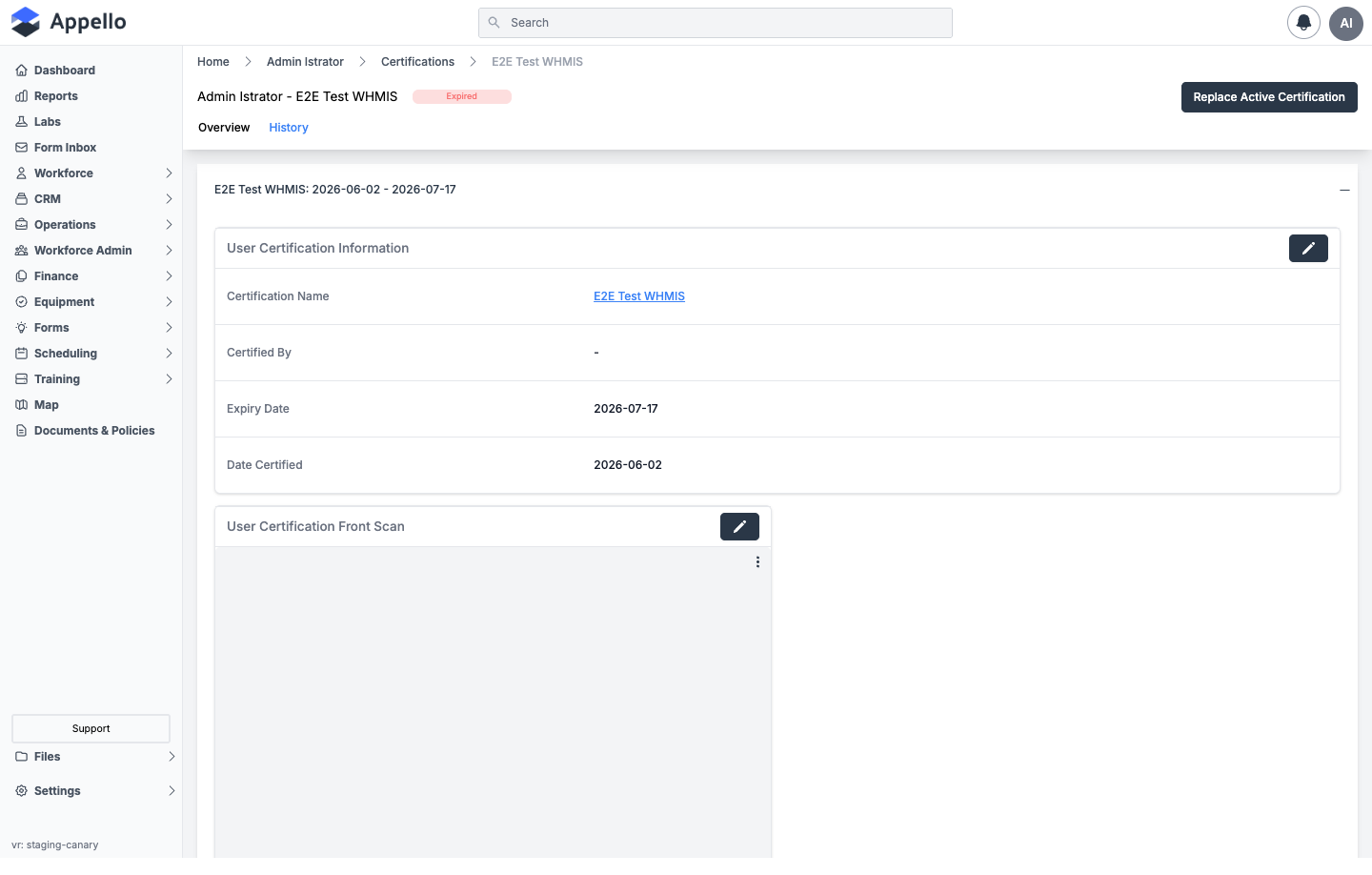
This demo instance's record was never replaced, so only one row appears; on a record with prior renewals, one row would appear per past period.
Upload & Document Management
Each certification record supports two document attachments, set from the record's Overview tab or the Add/Edit User Certification panel:
- Certification Front Side Scan -- up to 1 file (documents or images)
- Certification Back Side Scan -- up to 1 file, for the back of a physical card
There is no open-ended "attach as many documents as you like" list on a certification record -- it's exactly these two upload slots (front and back). To keep a prior certificate on file alongside a renewal, use Replace Active Certification (see The Individual Certification Record above), which preserves the old period's data in the History tab.
Upload certificates as they're received -- foremen can photograph wallet cards in the field and upload from the mobile app, keeping records current without office involvement.
Filtering & Reporting
Matrix Filters
Filtering is available at both the certification-type list level and within a certification's Certified Users tab:
| Filter | Where | Options |
|---|---|---|
| Active / Archived | Certifications list; Certified Users tab | All, Active, Archived |
| Category | Certifications list | Any configured category |
| Trade Classification | Certified Users tab | Filter by worker classification |
| Training Provider | Certified Users tab | Filter to a specific training provider |
| Status | Certified Users tab; a worker's Certifications tab | Active, Expiring, Expired, Missing |
Exporting Certification Records
Two different pages offer export, and only one of them currently offers PDF:
A worker's certification records (PDF or CSV) -- open a worker from Users, go to their Certifications tab, and click Export:
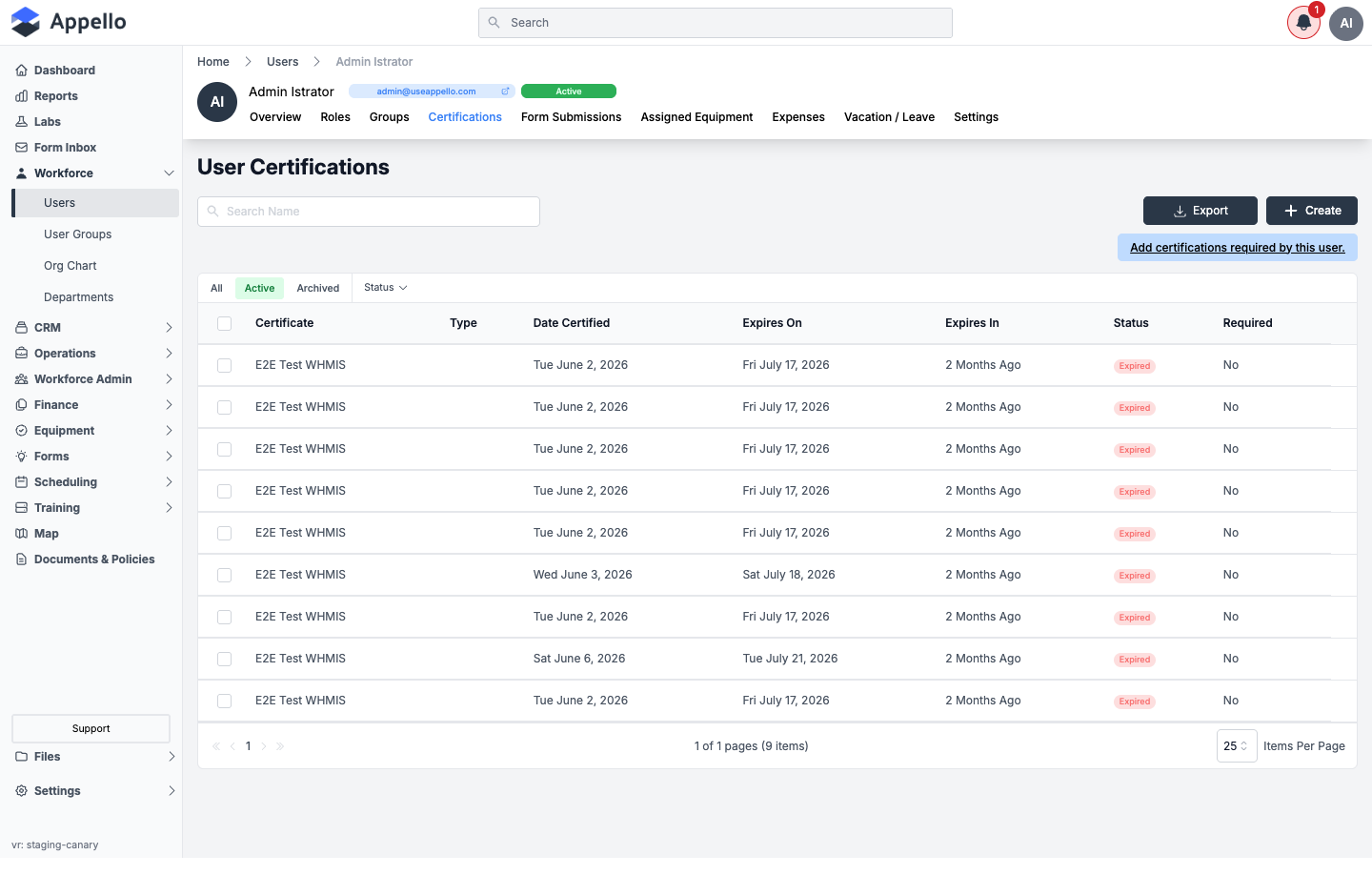
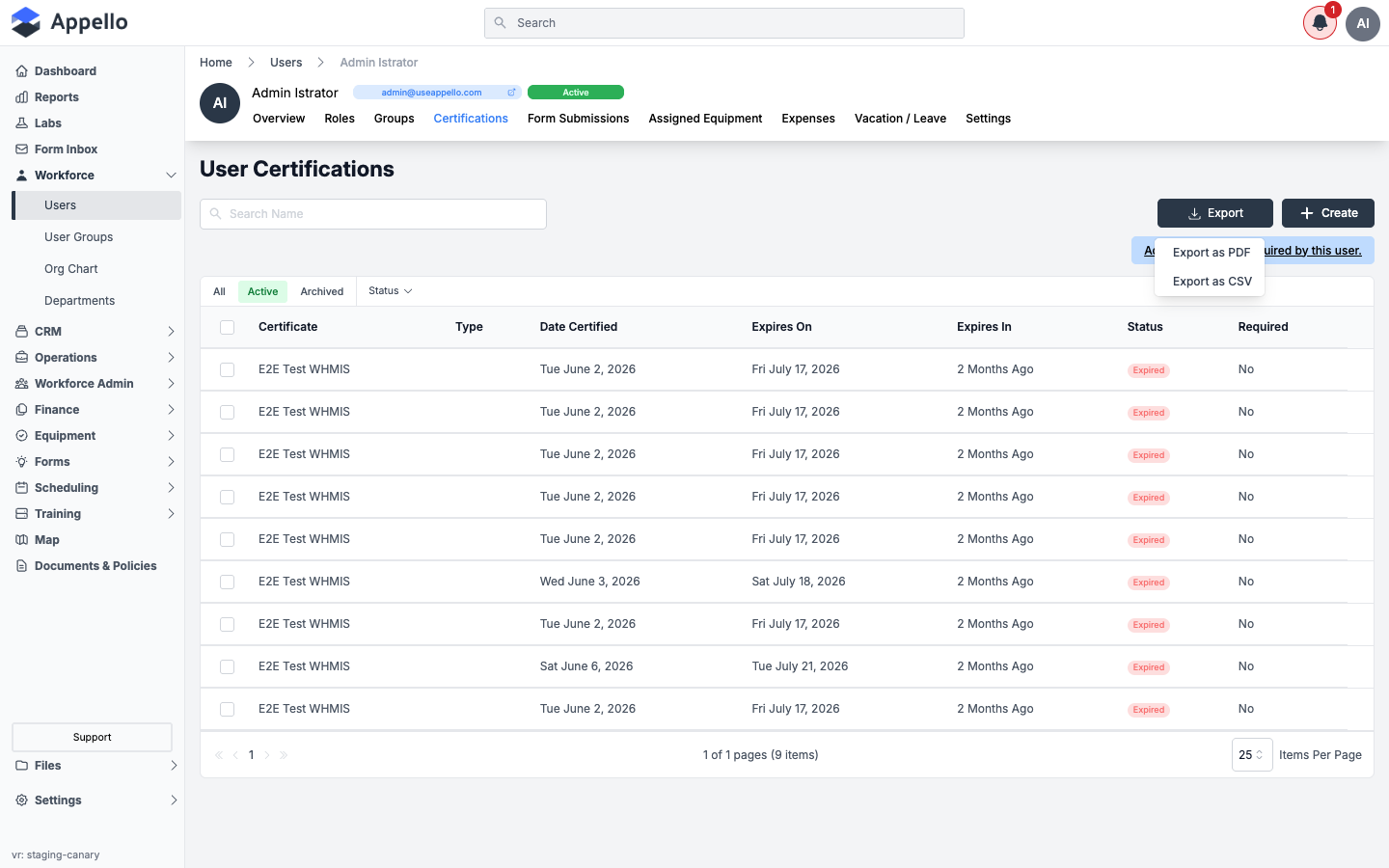
The PDF (titled "Training and Certification Report") lists the worker's certification records with status, dates, and expiry, followed by a page per record showing its front/back scan images if attached.
A certification's holder list (CSV only) -- open the certification from Certifications and go to its Certified Users tab, then click Export:
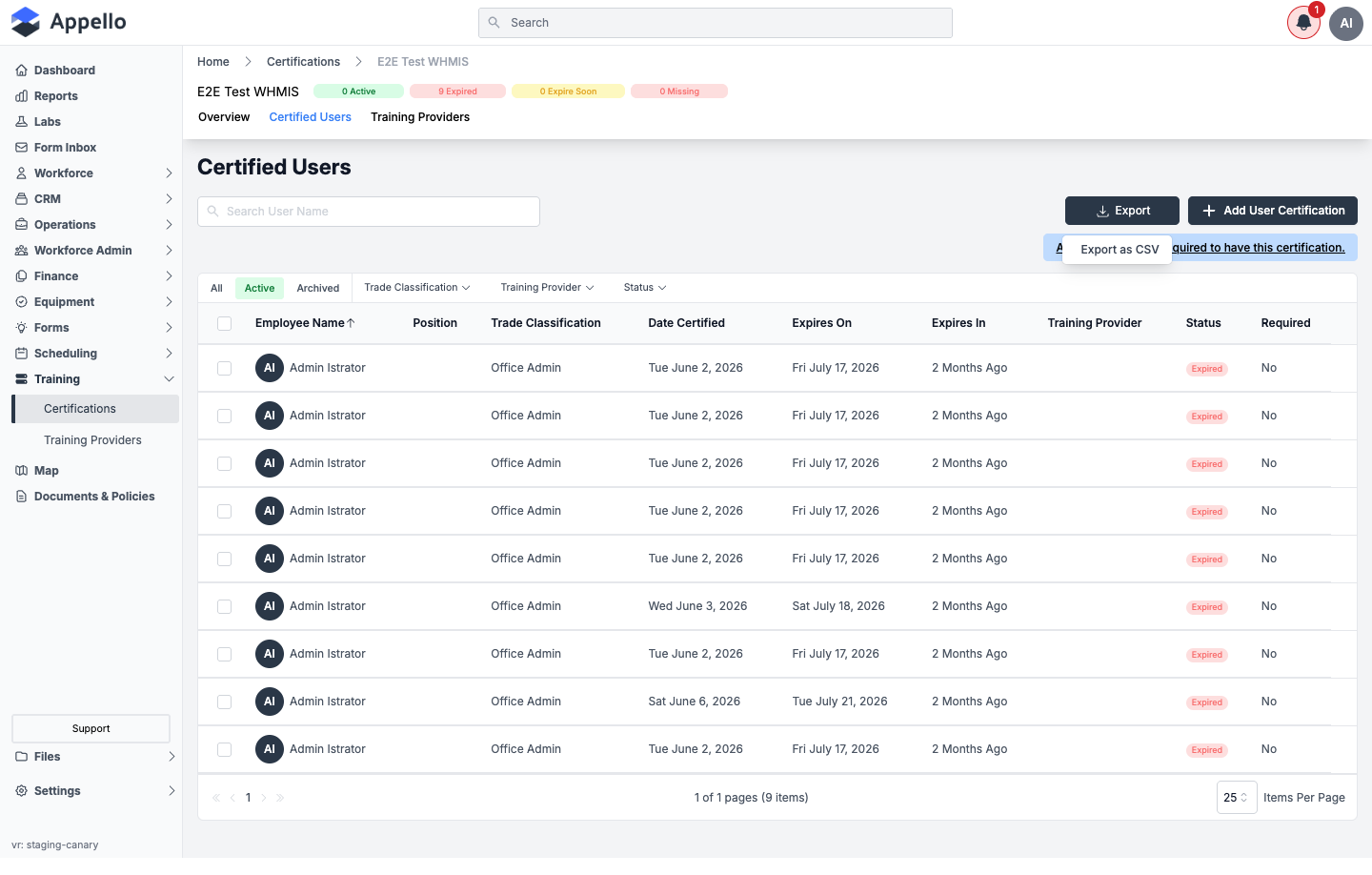
On this demo instance's certification detail page, the Certified Users tab's Export button offers CSV only -- there is no PDF option here, even though the worker-level Certifications tab has one. If you need a PDF of everyone holding a specific certification, export CSV from the certification's Certified Users tab, or export PDF per worker from each worker's own Certifications tab.
Compliance Reporting
Use the certification data for:
- General contractor qualification -- Show all workers on a project are certified
- Insurance requirements -- Demonstrate workforce safety training levels
- JHSC (Joint Health & Safety Committee) reviews -- Monthly compliance snapshots
- COR (Certificate of Recognition) audits -- see Tracking COR-Style Compliance below
Tracking COR-Style Compliance (Certificate of Recognition)
COR is not a distinct certification type, report, or setting in Appello. There is no "COR" field, template, or COR-specific screen anywhere in the product's certifications area. What follows is how a safety admin can use the existing certification-expiry tooling to track COR-style compliance -- not a description of a dedicated COR feature.
To track COR-style compliance with what exists today:
- Model your COR-required certifications as certification types. Create one certification type per credential your COR program requires (e.g., WHMIS, Working at Heights), each with its own renewal frequency and "Expiring Soon" days threshold (see Creating a Certification Type).
- Use the Status filter to find gaps. On each certification's Certified Users tab, filter by Status = Missing or Expired to see who is out of compliance for that credential; filter by Expiring to see who needs renewal soon.
- Watch the dashboard tiles. The Certificates Expiring and Certificates Expired Company Metrics tiles (see Dashboard Integration) give an at-a-glance instance-wide count to check regularly.
- Export for audit evidence. Use CSV export from a certification's Certified Users tab, or PDF export from each worker's Certifications tab, to produce the paperwork a COR auditor typically asks for (see Exporting Certification Records).
We checked the Notification Control System (Settings → Notification Control System) on this demo instance, and its alphabetized list of notification types has nothing between "AP Expense..." and "Document..." -- there is no certification-expiry-specific notification type today. Certification expiry currently has to be checked manually via the status filters and dashboard tiles above, not pushed via a notification (see Expiry Reminders and Notifications below).
Expiry Reminders and Notifications
Each certification type's Expiring Soon days threshold (set on the Create/Edit Certification panel) is what moves a record from Active to Expiring everywhere status is shown -- the Certifications list columns, the certification detail header chips, the Certified Users and worker Certifications tables, and the Certification Status Report. It is a per-certification-type setting, not a global one, so a fast-to-renew credential (e.g., a 1-day online refresher) can use a short window like 30 days while a credential with limited class availability can use 90-120 days (see Renewal Window Configuration).
As confirmed above, crossing that threshold does not currently push an in-app, SMS, or email notification -- there is no certification-expiry entry in Notification Control System, and nothing emails or notifies anyone as a certification nears expiry. The only way to catch an approaching expiry today is to check the status filters, the dashboard's Certificates Expiring / Certificates Expired tiles, or the Certification Status Report on a regular cadence -- see Tracking COR-Style Compliance above for a suggested routine.
Training and Safety Reports
Four Health and Safety report cards on the Reports hub read this same certification data as a live, filterable roll-up instead of certification-by-certification browsing:
- Certification Status Report -- every certification type, grouped, with every worker's status against it.
- Employee Training Records, Employee Training Matrix, and Safety Compliance Report (BETA) -- see Training and Safety Compliance Reports for the full field reference on each.
On Mobile
Field and office workers manage their own certifications from the profile menu in the Appello mobile app -- viewing their status counts, adding a new certification record, and (for admins) reviewing every certification type company-wide. See Expenses, Leave and Certifications on Mobile for the mobile screens and permission gates.
Permissions
| Permission | Gates |
|---|---|
| Certifications → View | The Certifications list, a certification's Overview tab, and access to the certification pages generally. |
| Certifications → Create | The Create Certification button and panel. |
| Certifications → Edit | The Overview tab's edit pencil (reopens the Create/Edit panel). |
| Certifications → Archive | The Archive bulk action on the Certifications list. |
| Certifications → Delete | The Delete bulk action on the Certifications list. |
| User Certifications → View | The Certified Users tab on a certification, a worker's own Certifications tab, and an individual certification record (both Overview and History tabs). |
| User Certifications → Create | Add User Certification. |
| User Certifications → Edit | The Overview tab's edit pencil, and Replace Active Certification. |
| User Certifications → Archive / Delete | The bulk actions on the Certified Users tab and a worker's Certifications tab. |
| Training Providers → View | The Training Providers tab on a certification's detail page (see Training Providers for that area's full permission set). |
Related Pages
- Training Providers -- Managing the organizations that deliver certifications, and linking them to certification types and user certification records
- Notification Control System -- Where global notification defaults live; confirms there is no certification-expiry notification type today
- Training and Safety Compliance Reports -- The Certification Status Report, Employee Training Records, Employee Training Matrix, and Safety Compliance Report (BETA)
- Expenses, Leave and Certifications on Mobile -- The mobile "My Certifications" screens for workers and admins
- Union Hall Management -- Workers' home halls for geographic assignment
- Trade Classifications -- Worker skill levels and progression
- Human Resources Settings -- HR configuration overview