Onboarding Documents
Module: Workforce Admin | Platform: Web
Onboarding Documents lets you build reusable document packages out of your Dropbox Sign templates, send them to new hires for electronic signature, and track who has signed, resend requests, and cancel or archive them. Packages themselves are managed at Workforce Admin → Onboarding Documents; the people you've sent packages to are tracked at Workforce Admin → Onboarding Users.
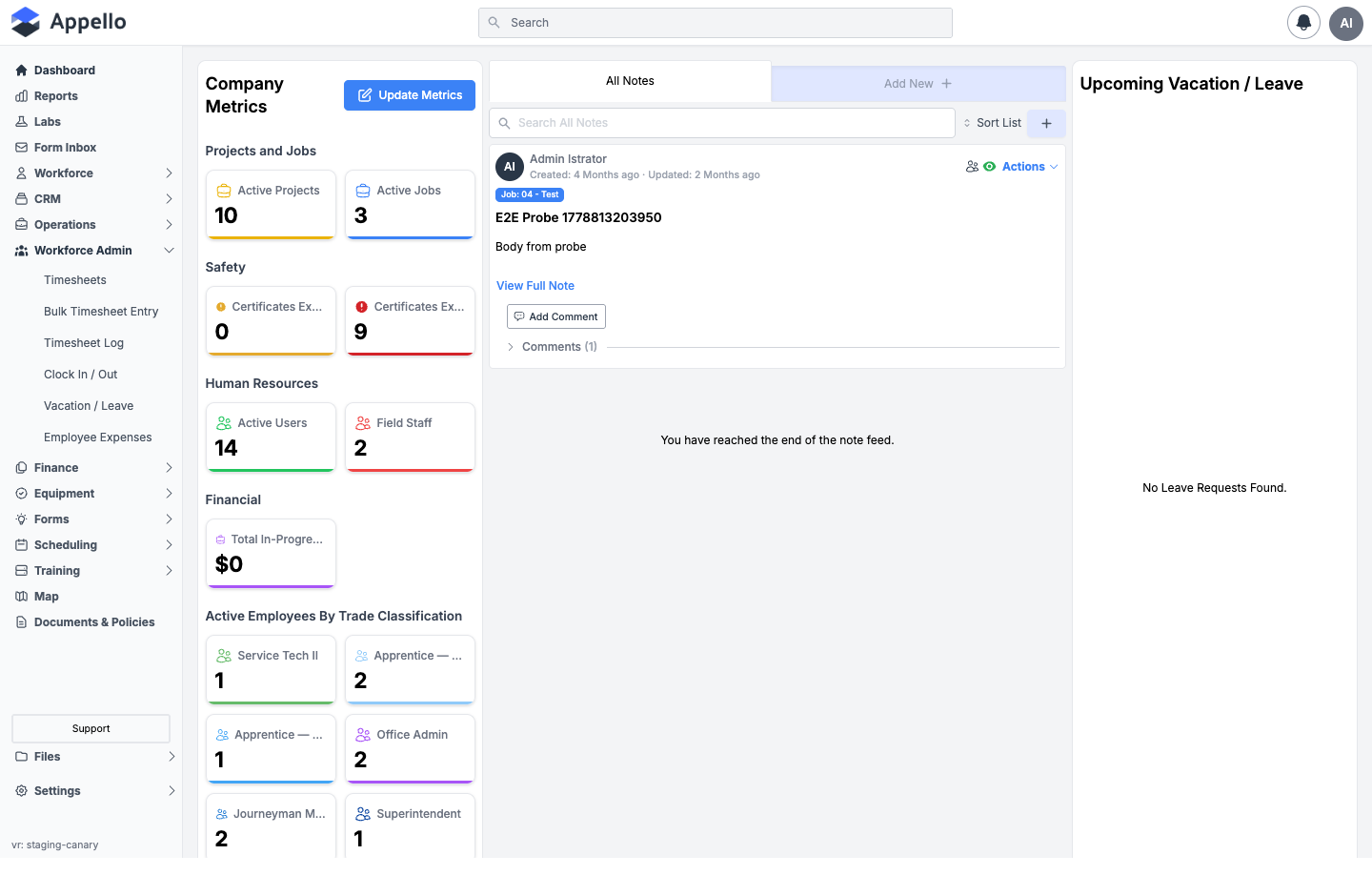
Onboarding Documents is gated on two things at once: the Document Package -- View permission, and whether the Dropbox Sign integration is switched on for your instance. If the integration is off, the page sends you back to the Dashboard before it renders anything -- the permission check never even gets a chance to run -- and the Onboarding Documents/Onboarding Users links disappear from the Workforce Admin menu entirely.
The demo instance used to research this page has the integration off: opening Onboarding Documents lands back on the Dashboard, and the expanded Workforce Admin section in the sidebar has no Onboarding Documents or Onboarding Users entry (screenshot below). Because of that, the field names, table columns, button labels, and workflows described in the rest of this page are described from Appello v1.33 rather than from live screens. If your instance has this feature enabled, the screens should match what's described here.
Navigation
- Sidebar → Workforce Admin → Onboarding Documents --
/document-packages - Sidebar → Workforce Admin → Onboarding Users --
/document-signatures
Before you start
- Your instance needs an active Dropbox Sign connection. The Onboarding Users list shows a Connection status indicator (green dot = Connected, red dot = Not Connected) above the table.
- The signature templates themselves -- their fields, signer roles, and layout -- are built and maintained in Dropbox Sign, not in Appello. Appello imports them by name so you can group them into packages and send them.
- You need a role with permission to view, create, and send document packages.
Document packages
A document package groups one or more Dropbox Sign templates -- for example an offer letter, a direct-deposit form, and a code-of-conduct acknowledgement -- into a single set that gets sent to a new hire together.
The package list
Workforce Admin → Onboarding Documents (/document-packages) lists every package your
instance has created.
| Column | Description |
|---|---|
| Name | Package name. Click to open the package's detail page. |
| Description | Optional free-text description. |
| Documents | A badge showing how many Dropbox Sign templates are in the package. Hover it to see each document's name. |
| Created Date | When the package was created. |
| Last Updated | How long ago the package was last edited. |
Use Search Name, Description to find a package. Select one or more rows to archive, restore, or delete them from the header actions. Deleting a package that has already been used shows a warning with a count of related records before you can confirm.
Creating a package from templates
-
Click Create Document Package in the top-right corner of the list.
-
Fill in the package details:
Field Required Description Name Yes Package name shown in the list and when sending documents. Description No Free-text notes about what the package is for. Template selection Yes Search and select one or more Dropbox Sign templates to include. -
As you add templates, each one appears in a Selected Templates (drag to reorder) list below the search field, showing its title and document count. Drag rows to set the order documents will appear to the signer, or click the X on a row to remove it.
-
Click Save.
Once a package has been used to send at least one signature request, its template selection locks -- you can still edit the Name and Description, but the templates included and their order can no longer be changed. This keeps requests already sent or completed consistent with what was actually sent.
A package's only source of documents is Dropbox Sign templates, added the way described above. There's no way to upload a document to a package directly from Appello.
Signer roles come from the Dropbox Sign templates themselves, not from a field in this form -- each template defines its own roles (e.g. "Employee", "Manager"), and Appello reads them back out when you assign the package to a new hire. There is no separate "required for onboarding" toggle on a package or a template; every package is available to send to anyone with the right permission.
Package detail page
Clicking a package's name opens its detail page with three tabs:
| Tab | Shows |
|---|---|
| Overview | The package's name, description, and a bulleted list of included documents, with an Edit action that reopens the same flyout used to create it -- adding, removing, and reordering documents all happen there (see Creating a package from templates), not on this tab directly. There's no standalone document preview here; opening the file itself only happens in Dropbox Sign's own viewer, from a completed signature request (see Where signed documents end up). |
| Signature Request History | Every signature request sent using this package, in the same table described in Tracking who has signed below. |
| Merge Fields | A table of every field Dropbox Sign found across the package's documents, with three columns -- Name (field label), Merge Field (the merge tag, click to copy), and Is Used (an icon). A green check means the field is used in the document; a warning triangle means the field exists but isn't used; a red X, on a red-highlighted row, flags a tag Appello is trying to fill that Dropbox Sign doesn't recognize on the document -- a naming mismatch worth investigating in Dropbox Sign. |
Assigning a package to a new hire
Workforce Admin → Onboarding Users (/document-signatures) is where you send a package
to a specific person and track it through to signature. The same Send Document flow is
also available from a package's own Signature Request History tab.
- Click Send Document in the top-right corner of the list.
- Under Document Package, search for and select the package to send. Once selected, Appello shows the package's description and the documents it contains, plus a warning if any underlying Dropbox Sign template has a field problem (an unrecognized or unfilled merge field).
- Under Employee Information, every signer role defined across the package's templates gets its own row labeled "<Role> - Select User." Search for and select the Appello user who should sign in that role; their email address fills in automatically but can be edited. Appello warns you if the same person or email ends up assigned to more than one role, or if a role's spelling/casing doesn't match between documents.
- Optionally turn on Test Mode under Send Settings to send the request through Dropbox Sign's test mode instead of live.
- Review the Email Preview. Appello pre-fills a generic Subject ("Documents") and Message ("Please Sign and Submit the provided documents"); click Edit to customize either one, if your role has permission to do so.
- Click Send Signature Request. Appello sends the documents through Dropbox Sign for electronic signature.
Tracking who has signed
Every signature request -- whether sent from Onboarding Users or from a specific package's Signature Request History tab -- shows in the same table:
| Column | Description |
|---|---|
| User | The employee the package was sent to. Links to their user profile. |
| Document Template | The package name (with an archive icon if the package has since been archived). Click it to open an Event History panel for that signer -- a timestamped, icon-coded feed of every event: Document Package Sent, Document Viewed, Document Signed, Document Declined, Document Expired, Reminder Sent, and (when triggered manually) Package Sent/Reminder Sent/Package Deleted by User. |
| Request Status | A status badge (Sent, Viewed, Signed, Archived, or Error). Hover it to see how many of the package's signers have signed so far and who's next. |
| Email Address | The address the request was sent to. |
| Sent Date | When the request was emailed out. |
| Last Activity Date | Relative time since the request last changed. |
| Reminder Last Sent | When a reminder was last sent, if any. |
Use the Onboarding User, Template, and Status filters, or the search box (Search User, Status, Template, Email), to narrow the list.
Resending and cancelling
Two more columns appear for roles with the right permissions:
- Reminder -- click Send to resend the signature request email. It's disabled once the request is completed or cancelled, or if a reminder already went out less than an hour ago.
- Cancel -- click Cancel to cancel an in-progress request. It's disabled once the request is already completed or cancelled.
A request stuck in an invalid state shows "Invalid -- delete and recreate" in place of the Reminder button, along with the underlying error message, instead of a working Send button.
Archiving a package
Select one or more packages from the Onboarding Documents list and use the header Archive action. Archived packages stay visible in Signature Request History on any request that already used them, but no longer appear as an option when starting a new Send Document request.
Where signed documents end up
Signed documents live in Dropbox Sign -- they aren't stored as files on the Appello user record. Instead, each user's profile gains an Onboarding Documents tab (alongside their other tabs like Certifications and Expenses) listing every package sent to them, using the same columns described in Tracking who has signed. From there:
- Click the package name to see its event history (sent, viewed, signed, and so on).
- If your role can view completed signatures, a View Document On DropboxSign button opens the finished, signed document in Dropbox Sign's own viewer in a new tab.
Permissions and flags
| Name | Gates |
|---|---|
| Dropbox Sign integration (instance) | The whole feature: the sidebar links, Onboarding Documents, and Onboarding Users all hide when it's off. |
| Document Package -- View | Seeing the Onboarding Documents list and a package's Overview/Merge Fields tabs. |
| Document Package -- Edit | The Edit action on a package's Overview tab. |
| Document Package -- Create | Connecting/creating in the Dropbox Sign settings integration (see Dropbox Sign E-Signature). |
| Document Package -- View Signature | Seeing a package's Signature Request History tab and the Onboarding Users list. |
| Document Package -- Send Request | The Send Document button and the Reminder column. |
| Document Package -- Cancel Signature Request | The Cancel column. |
| Document Package -- Send Request to Self | The Signed Document / View Document On DropboxSign column. |
| Document Package -- Edit Message | Editing the Subject/Message in the Send Document email preview. |