Leave Submissions
Review and process employee leave and vacation requests. Workers submit leave requests from the mobile app or web portal, and administrators approve or reject them here. Approved leave automatically blocks the worker from being scheduled and appears as a leave indicator on the scheduling views.
Navigation
Sidebar → Workforce Admin → Vacation / Leave
URL: /leave-submissions
Overview
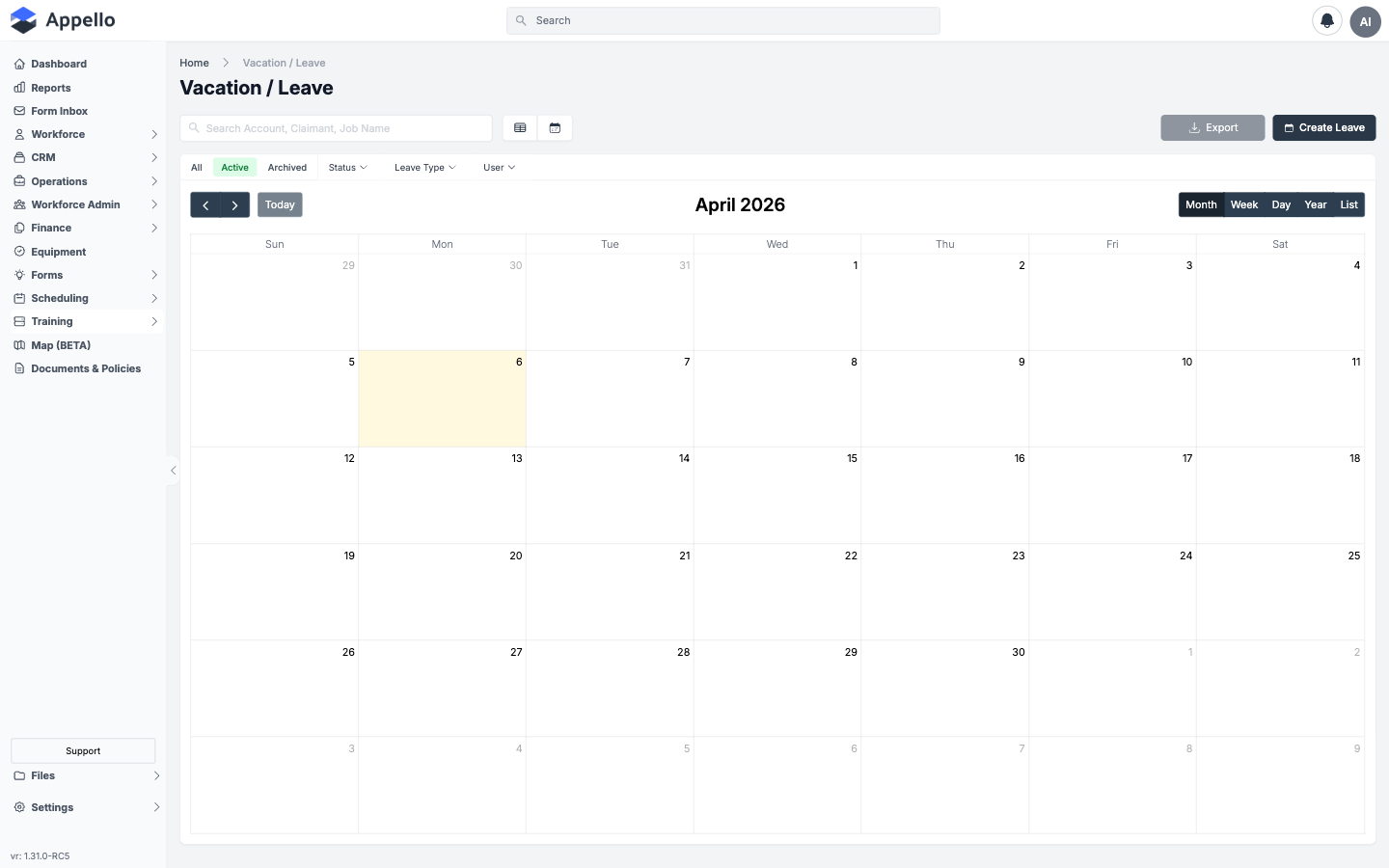
The Leave Submissions page ("Vacation / Leave" in the sidebar) shows all leave requests with their current approval status, in either a calendar or a table layout.
Shown empty on the demo instance — no leave requests have been submitted there yet.
Permissions and Scopes
Opening /leave-submissions requires the Leave Request permission's View toggle. That
toggle also carries a scope, which changes what the page shows without changing anything else on
the page:
| Scope | What the list (and calendar) shows |
|---|---|
| All | Every leave request across the company. |
| Own | Only the signed-in user's own leave requests. |
| Department | Leave requests for users in the signed-in user's own department. |
| Direct Reports | The signed-in user's own leave requests, plus their direct reports'. |
See Permission Matrix Deep Dive for how these scope values work generally.
The rest of this page is gated the same way, item by item, rather than by one page-level toggle:
| Action | Permission | Controls |
|---|---|---|
| See Create Leave | Leave Request: Create | Whether the button appears at all, and (at Own scope) whether the Select User field defaults to and locks on the signed-in user. |
| Open a request to edit it | Leave Request: Edit | Whether View Details / clicking a calendar event opens the form for that request (see Edit After Approval). |
| See the Leave Status row (Approve/Reject) | Leave Request: Approve | Without it, the create/edit panel shows plain Save/Cancel instead — see Workflow. |
| Archive / Delete / Restore (single or bulk) | Leave Request: Archive / Delete | Gated the same way as Edit — see Cancel / Withdraw. |
Edit, Archive, and Delete are each independently scoped. At Own scope a user can only act on their own leave requests; at any other scope (All, Department, Direct Reports) the frontend defers to the server to confirm the record is in scope. Create's scope is checked once, at form open, to decide whether Select User is locked to the signed-in user.
Leave Request Fields
These are the table-view columns, in order:
| Column | Description |
|---|---|
| Checkbox | Selects the row for a bulk action. The header checkbox selects every row on the current page. |
| User | The worker the leave belongs to. Links to that user's profile. |
| Leave Type | The configured leave type (Vacation, Sick, etc.). |
| Leave Length | Full Day, Multi Day, or Hourly — see Creating a Leave Request. |
| Leave Days | The start date, and the end date too when the request is Multi Day. |
| Hours | The start–end time for an Hourly request; Full Day for the other two lengths. |
| Submitted Date | When the request was submitted, date and time. |
| Leave Status | In Review, Approved, or Rejected — see Workflow. |
| Actions | View Details (or the record's row-level Action menu) — opens the request; gated by the Edit permission described above. |
Field names above are read from the table's own column code. The list-feed query underneath
also carries an excludeDates value per row (used to draw the calendar correctly) that has no
dedicated column in table view — it only surfaces on the request's own detail panel.
Calendar View
Vacation / Leave opens in calendar view by default, so leave and company holidays are visible against the schedule rather than as a flat list.
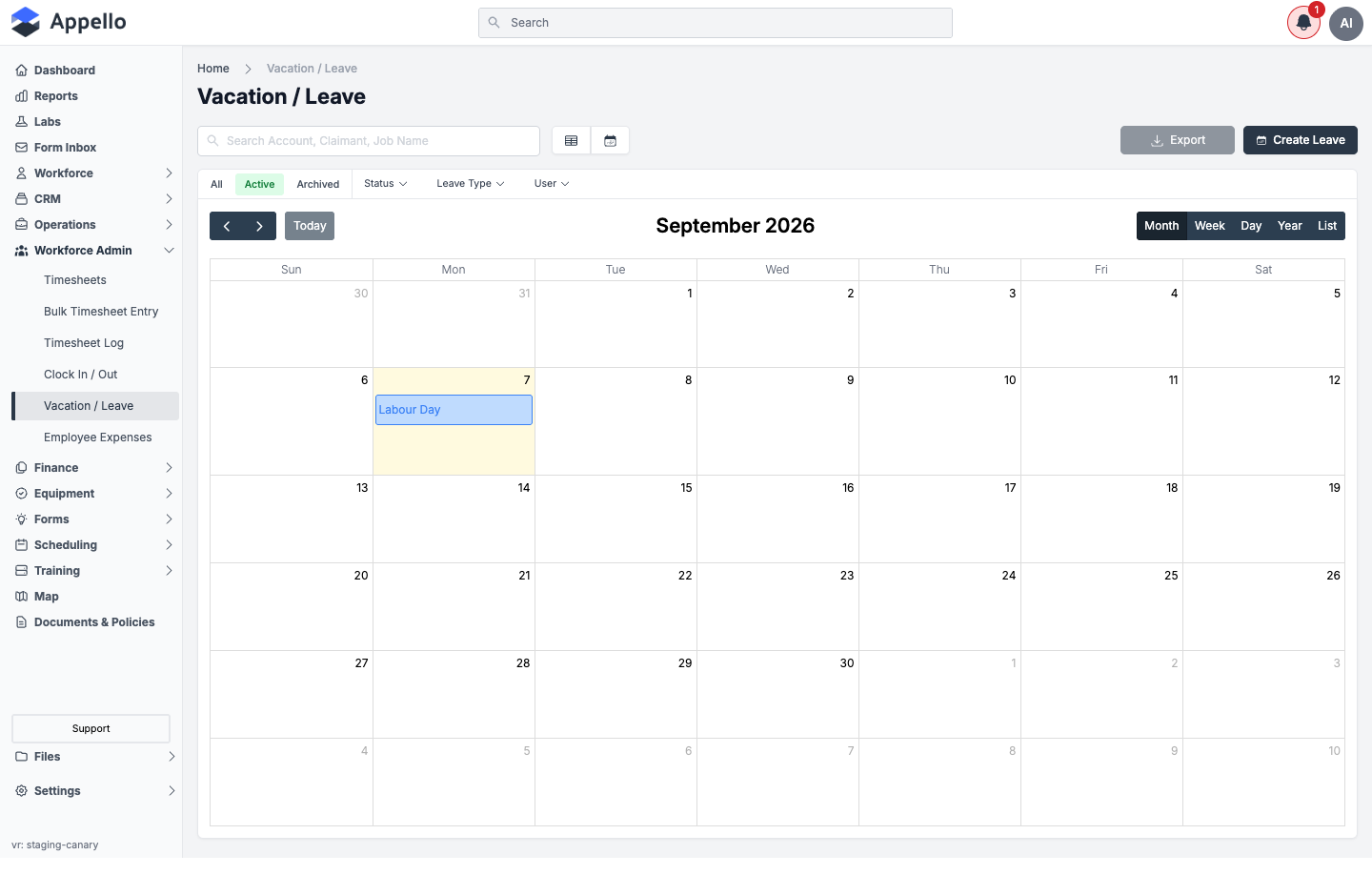
- Month / Week / Day / Year (top right) change the calendar's zoom level.
- List, next to Year, switches to an agenda-style list grouped by day, for the range currently in view.
- Today and the arrow buttons move the visible range.
- Company holidays (configured in Settings → Human Resources → Company Holidays) appear on the calendar alongside leave.
Two icon buttons next to the search box switch between this calendar and the table view:
| Icon | View |
|---|---|
| Table icon (left) | Table view — one row per leave request, with the fields in Leave Request Fields. |
| Calendar icon (right) | Calendar view described above. |
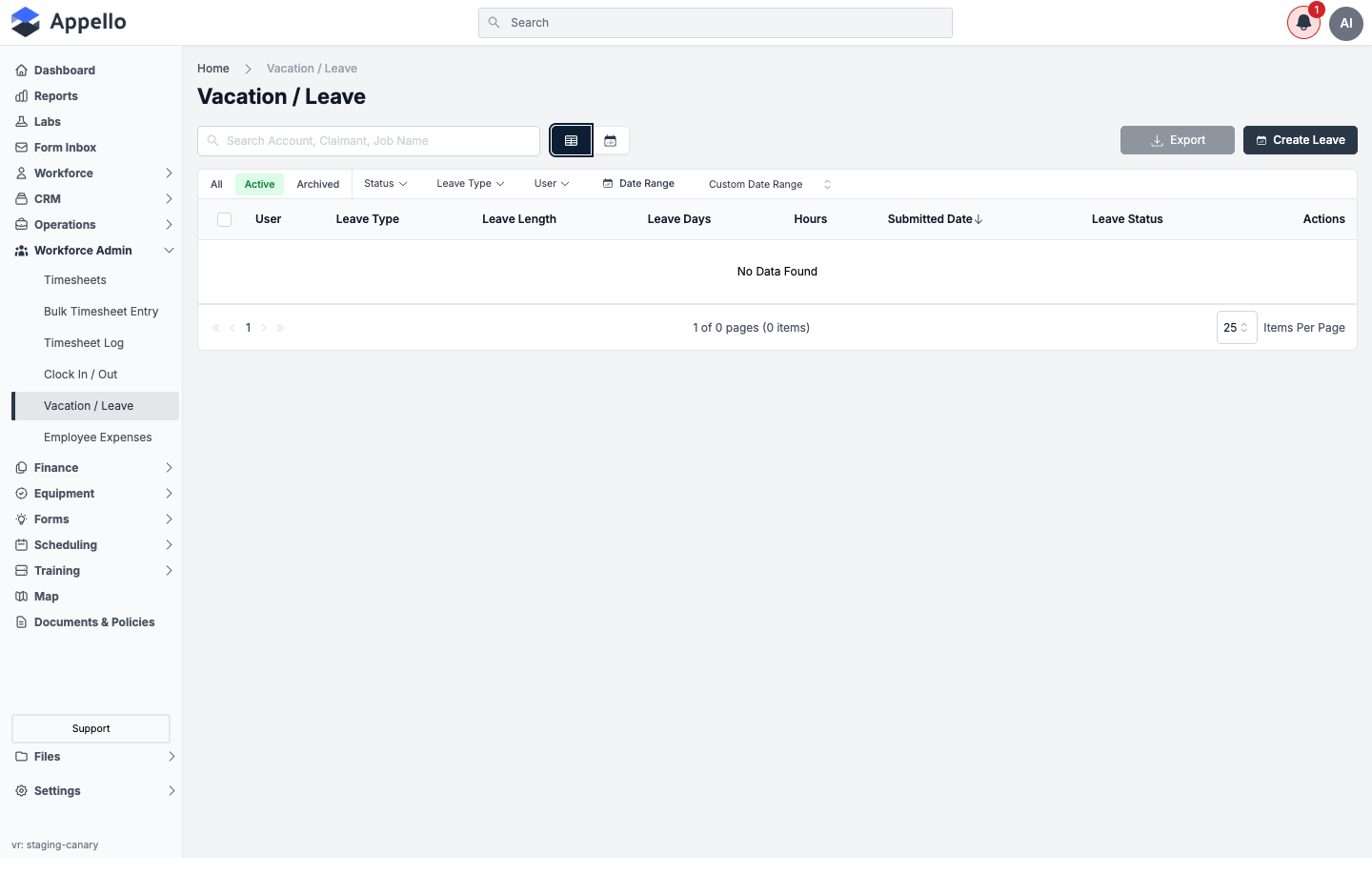
Approved leave also appears on the Calendar Schedule and Daily Schedule views, alongside job and crew scheduling. The calendar on this page is scoped to leave and holidays only.
Creating a Leave Request
Administrators can submit a leave request on a worker's behalf from this page (the Create Leave button only appears with the Leave Request Create permission — see Permissions and Scopes).
-
Click Create Leave (or, in calendar view, click-drag a range on the calendar to pre-fill the dates).
-
Fill in the panel. Every field below is the
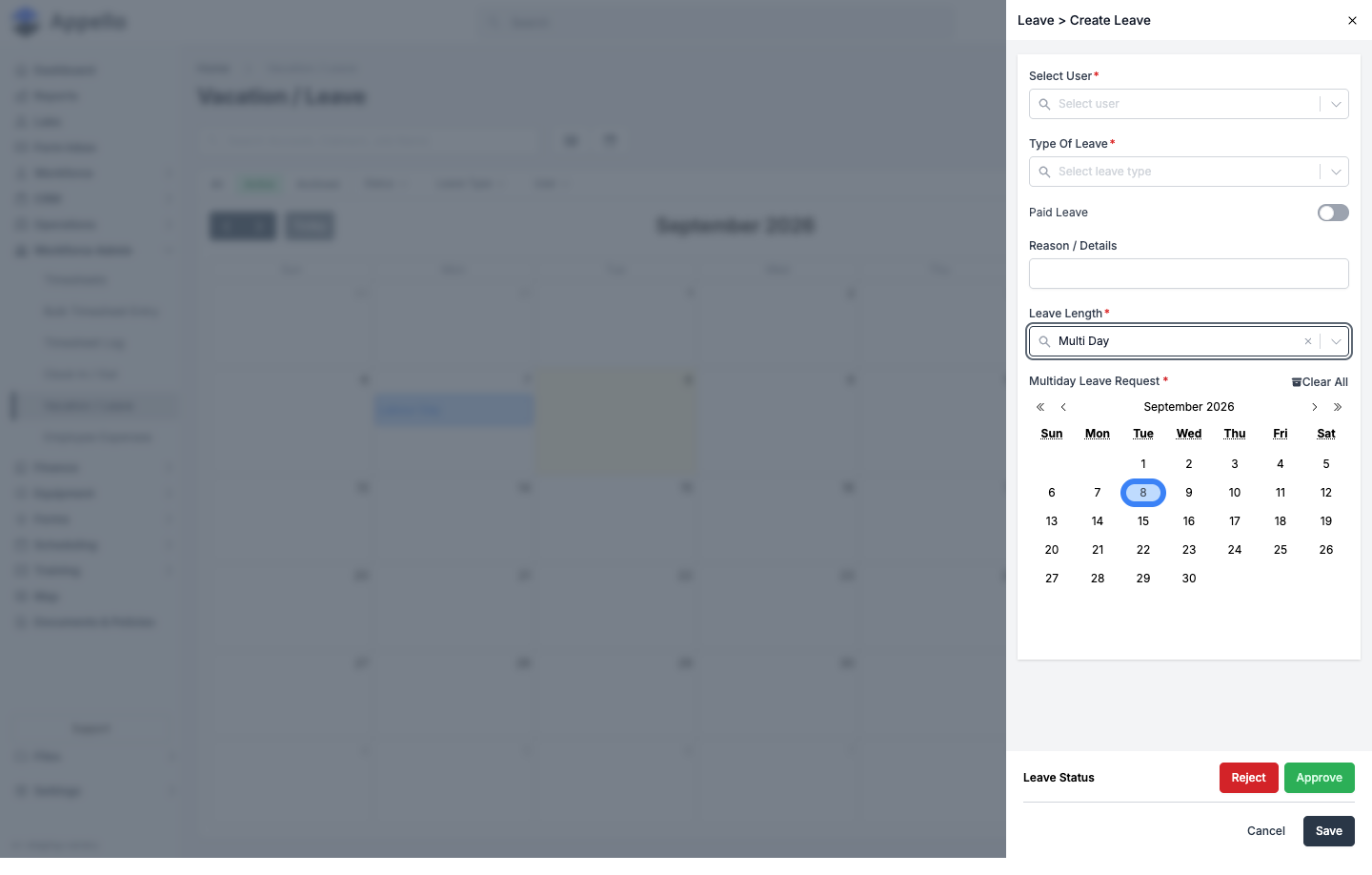
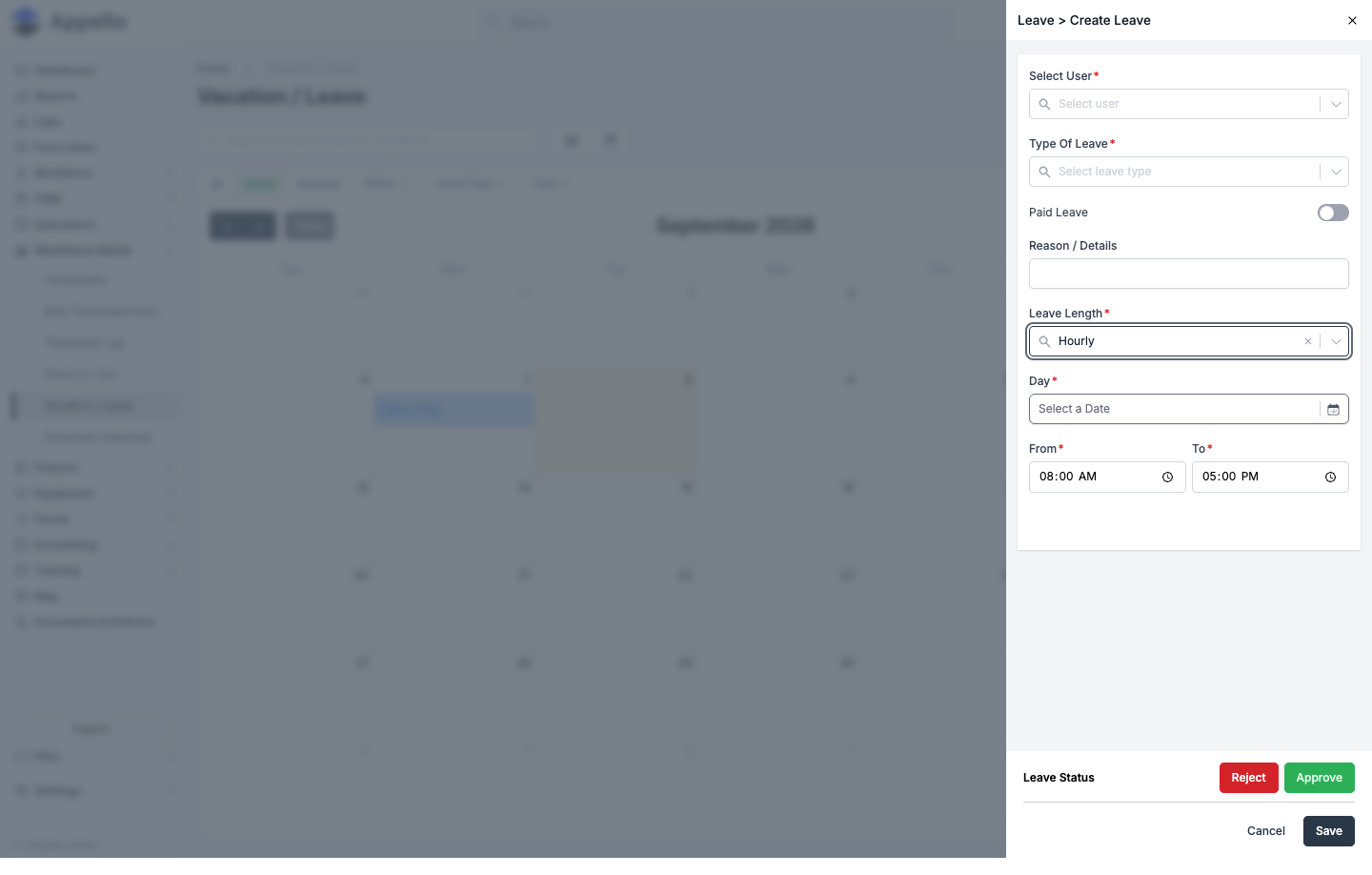
LeaveRequestcreate form's own field, by its on-screen label:Field Required Type Effect Select User Yes User search combobox Who the leave is for. Locked to the signed-in user when their Create scope is Own; disabled entirely when editing an existing request. Type Of Leave Yes Combobox (configured leave types) Which leave type this request uses. Selecting a leave type mapped to an internal project shows that project as a badge in the option list. Paid Leave No (always has a value) Toggle Whether this request's hours are paid. Defaults from the selected user's Employee Agreement Default Unpaid Leave, falling back to the instance's Default Leave Payment Type (see Default Leave Settings) — see Paid vs. Unpaid Leave in Payroll. Reason / Details No Text (max 800 characters) A free-text note from whoever is filling out the form. Leave Length Yes Combobox: Hourly, Multi Day, Full Day Which of the three date layouts below appears, and how the total is computed (see note below). Date / Day Yes Date picker Full Day: the single leave date. Hourly: the day the leave falls on. From / To Yes, for Hourly only Time pickers Start and end time of the absence; To must be later than From. Together with the day above these become the request's Start Date / End Date. Multiday Leave Request (start/end + Exclude Dates) Yes, for Multi Day only Range calendar, with a Clear All link Pick the leave's start and end day on the calendar; the field's own Exclude Dates list lets you tap individual days inside that range to skip them (e.g. a weekend already covered by a company holiday) so they don't count as leave. Leave Note Read-only, shown only when present Text block The worker's own note from when they submitted the request (the mobile app's own note field). Not editable from this desktop panel. 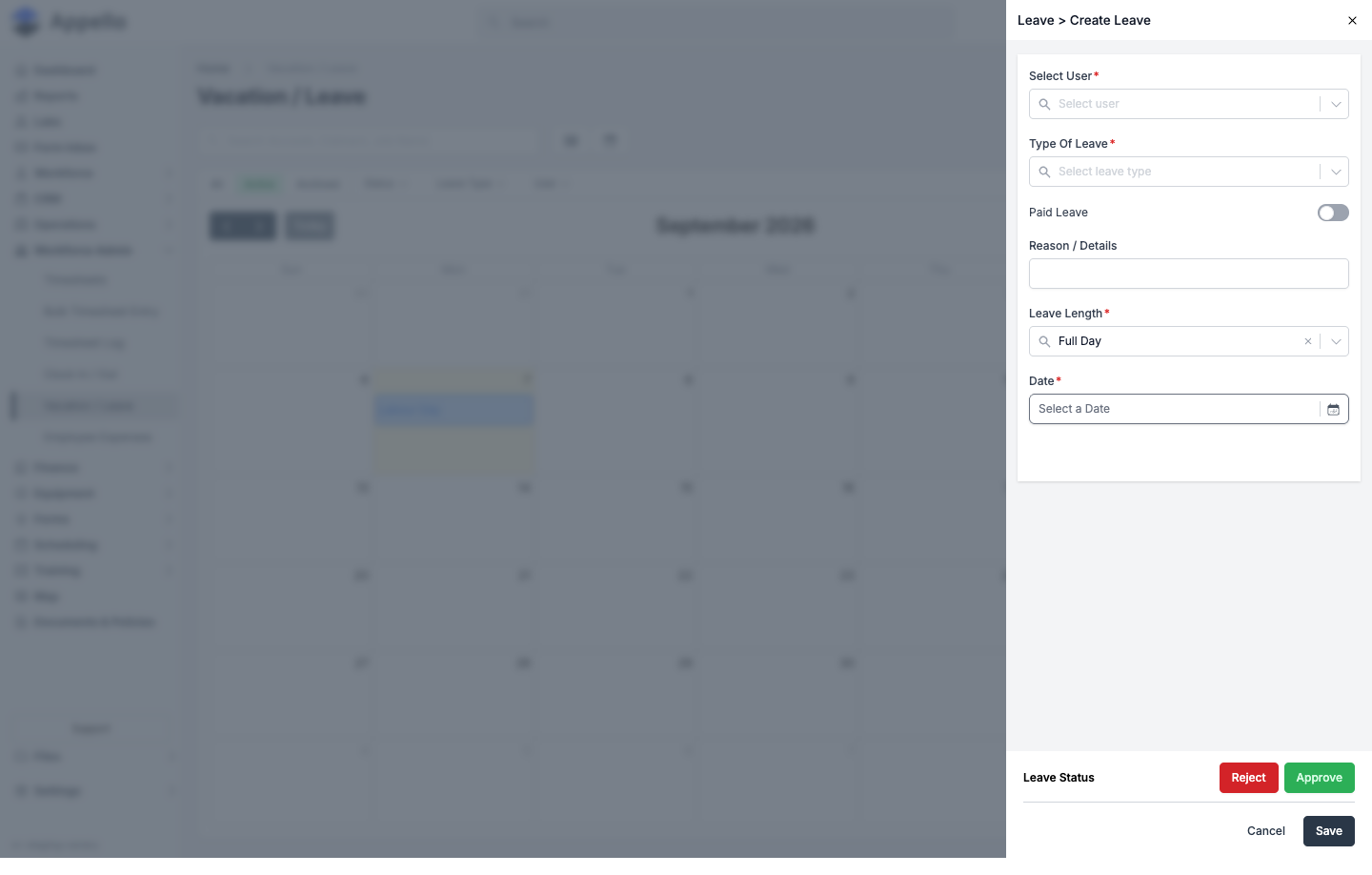
 note
noteHow the total is computed: a Full Day or Multi Day request counts as the Full Day Leave Duration set in Settings → Human Resources → Leave Request Settings (e.g.
8hours) for every day in range, minus any excluded dates. An Hourly request instead uses the actual time between From and To. Both feed the leave reports and payroll export totals. -
If the panel shows a Leave Status row at the bottom (only visible with the Leave Request Approve permission), choose Approve or Reject there before saving to create the request with that decision already made — see Workflow: Submit, Approve, Reject. Without that permission the panel shows plain Save / Cancel, and the request always saves as In Review.
-
Click Save to create the request, or Cancel to close the panel without creating one.
If the dates you picked overlap an existing Approved leave request for that user, a red conflict message appears above the buttons and both Save and Approve/Reject are disabled until you change the dates.
Workers submit their own requests the same way from the mobile app — see Expenses, Leave and Certifications on Mobile — without the Leave Status row, so a worker's own submission always starts In Review.
Bulk Actions
Select one or more rows' checkboxes in table view to reveal bulk Archive, Delete, and Restore actions above the table (each gated by the matching Leave Request permission — see Permissions and Scopes). Delete asks for confirmation and shows a related-record count before it runs, the same as the single-record delete described in Canceling, Withdrawing, and Editing After Approval below.
The demo instance used for this page's screenshots has no leave requests to select, so a bulk action toolbar could not be screenshotted here. This section is confirmed from the page's own archive/delete/restore handlers rather than from a screenshot.
Workflow: Submit, Approve, Reject
- A worker submits a leave request — from the mobile app, or an administrator submits one on their behalf here — and it saves with status In Review.
- Everyone with the Leave Request View permission at full access (not a scoped-down Own/Department/Direct-Reports view) is notified that a new request needs review.
- A reviewer with the Leave Request Approve permission opens the request (View Details, or a calendar event) and sees the Leave Status row at the bottom of the panel.
- Clicking Approve and then Save sets the request to Approved. The worker who submitted it is notified of the decision.
- Clicking Reject opens a required Reason for leave rejection note; Save sets the request to Rejected and notifies the worker, including that reason.
- Only an Approved request blocks the worker's schedule and posts hours to their timesheet — see Calendar Schedule, Daily Schedule, and Timesheet Matrix (its "Leave Time" table). An In Review or Rejected request does not consume any timesheet hours.
- For totals rather than per-request rows, see Leave Reports and Total Hours below and Leave Reports.
Canceling, Withdrawing, and Editing After Approval
Appello has no separate "cancel" or "withdraw" action distinct from the row-level Action menu's Archive / Delete (or Restore, once archived) — available from the same menu used in Bulk Actions above, gated the same way:
- Archive hides the request from the Active tab without deleting it; Restore brings it back.
- Delete permanently removes it, after a confirmation step that shows a related-record count and requires typing that count to confirm.
A user whose Archive or Delete permission scope is Own can archive or delete only their own leave requests — in practice, this is how a worker withdraws a request they no longer want considered, whether it's still In Review or already Approved.
Editing after approval works the same as editing any other leave request: whoever has the Leave Request Edit permission for that record (by scope) can open it and change its dates, type, paid status, or leave length at any time, regardless of its current status. Saving those changes:
- Re-syncs the timesheet: any leave dates removed from the request are un-blocked, and any new or changed dates are posted, following the same Approved-only rule from Workflow above.
- Only sends a new Approved/Rejected notification if the status itself changes as part of the edit — changing dates on an already-Approved request, for example, does not re-notify the worker.
- Reverting a request's status back to In Review clears any pending decision notification for it.
Filtering, Sorting, and Exporting
Filters
| Filter | Description |
|---|---|
| All / Active / Archived | Scope the list to non-archived, active only, or archived leave requests. |
| Status | Filter by approval status: In Review, Approved, or Rejected. |
| Leave Type | Filter by one or more configured leave types. |
| User | Filter by one or more workers. |
| Date Range / Custom Date Range | Table view only — narrow to a specific date window or a saved quick range. |
| Search box | Matches on account, claimant, or job name. |
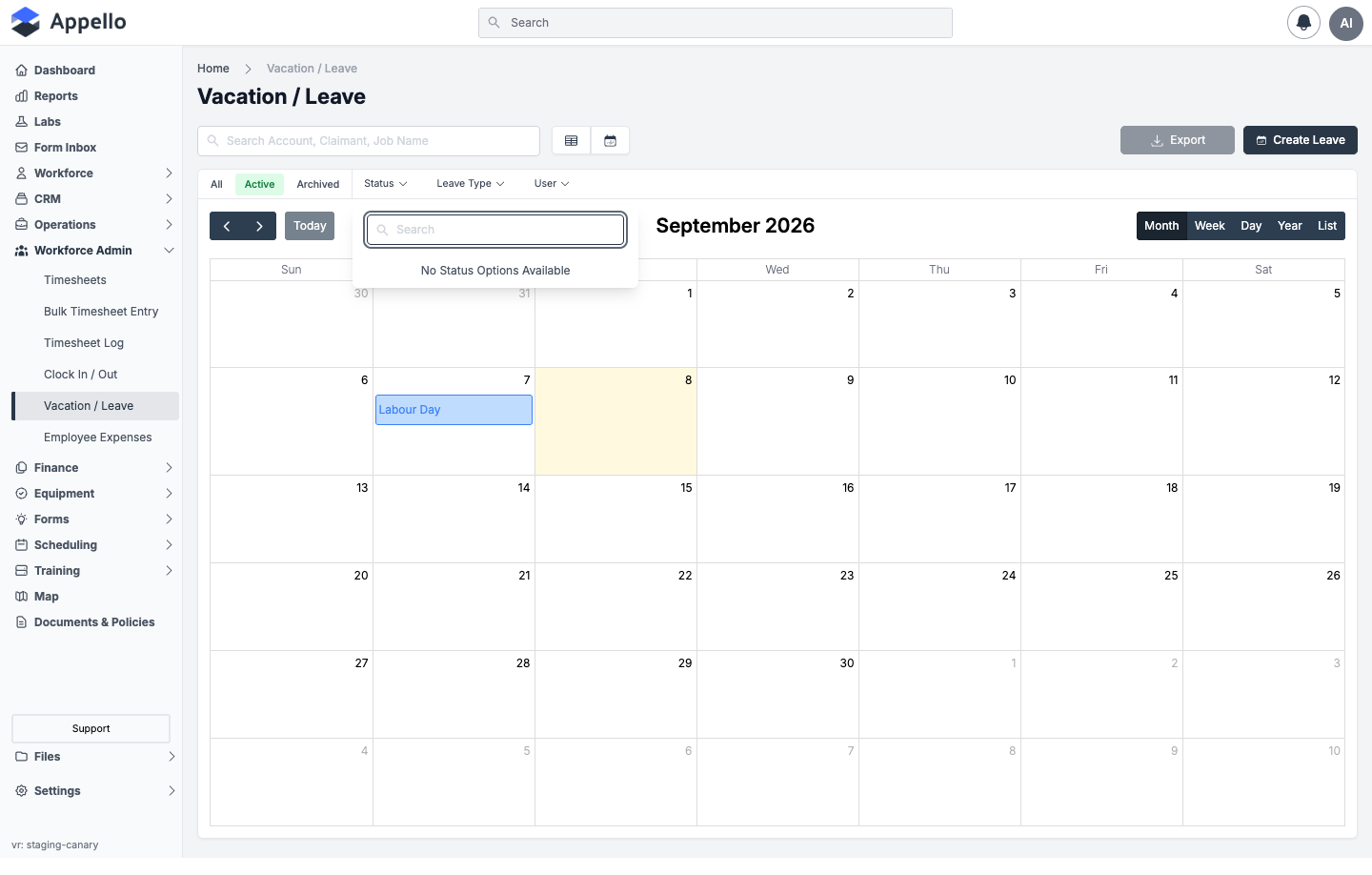
Shown empty on the demo instance — with no leave requests submitted yet, Status and Leave Type have no options to offer (they're built from the values actually in use, not from every possible status or every configured leave type).
Sorting
In table view, click a column header (e.g. Submitted Date) to sort by that column. An arrow icon shows the current sort direction.
Export
Click Export to download the currently filtered rows as a CSV, using the same columns as the table.
Appello does not show a running leave balance or accrual total for a worker on this page — each leave request is tracked as an individual event, not against a "days remaining" figure. For totals over a date range, see Leave Reports and Total Hours below.
Leave Reports and Total Hours
For totals rather than a request-by-request list, use the leave reports under Reports:
| Report | Navigation | What it shows |
|---|---|---|
| Employee Leave Report | Reports → Employee Leave Report | Pick one worker and a date range. Totals Full Days, Hourly, and Total Days per leave type. |
| All Employee Leave Report | Reports → All Employee Leave Report | The same totals, grouped by every worker, for a date range. Exportable to CSV. |
| All Leave Report | Reports → All Leave Report | A flat, filterable list of every leave request company-wide — the same shape as the table view on this page, without per-worker grouping. |
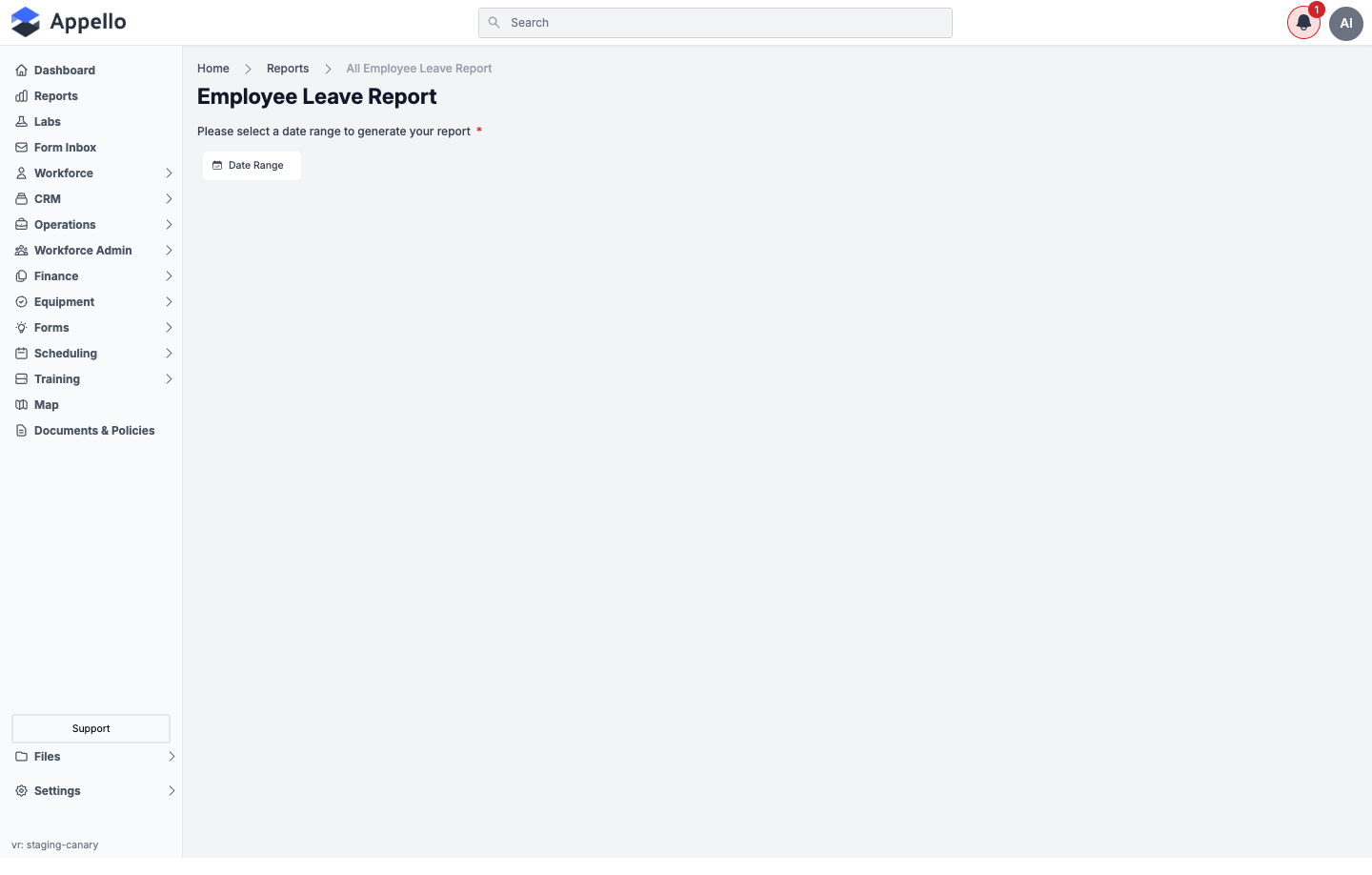
Full-day totals use the Full Day Leave Duration setting below to convert full-day and multi-day leave into hours; hourly (partial-day) leave uses the actual start/end time on the request.
Default Leave Settings
Settings → Human Resources → Leave Request Settings controls how full-day leave is counted and whether new leave defaults to paid or unpaid:
| Setting | Description |
|---|---|
| Full Day Leave Duration | Hours a Full Day or Multi Day leave request counts as, per day (e.g. 8 Hrs). Used by the leave reports above and by payroll export totals. |
| Default Leave Payment Type | Paid or Unpaid — the instance-wide default for a new leave request's Paid Leave toggle, used when the leave type itself has no override. |
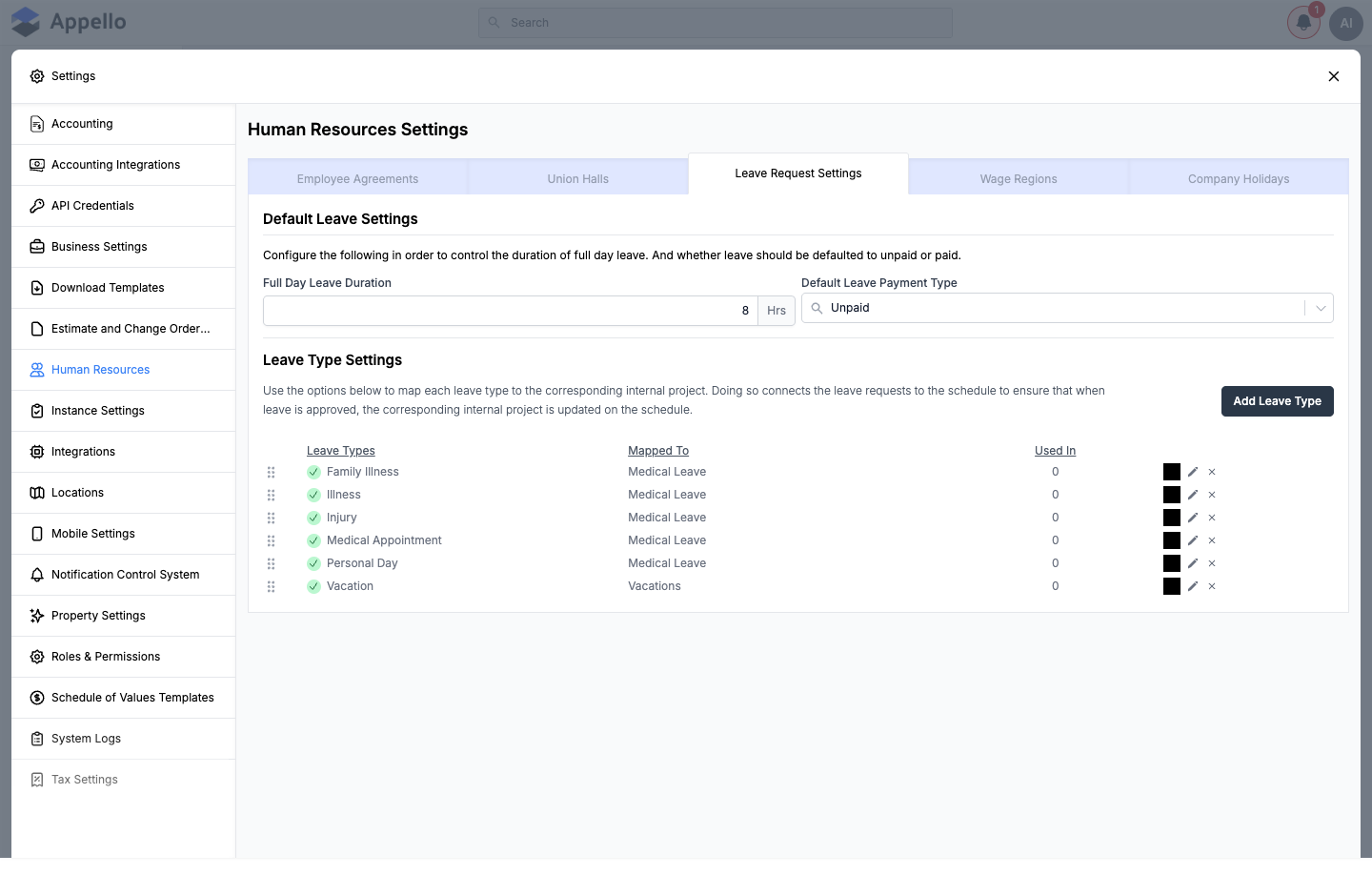
This same tab also maps each leave type to an internal project (Leave Type Settings). Each
leave type itself is just three fields — its Leave Type name, a Select Color swatch, and
a required Mapped to Internal Project combobox (the LeaveType model's name, color, and
InternalProject fields) — added or edited from the Add Leave Type panel on that same tab.
See Human Resources Settings for
that panel's screenshot and full field table, and Leave Types
for how a configured leave type is used day to day; neither is repeated here.
Paid vs. Unpaid Leave in Payroll
Whether a given leave request is paid or unpaid follows this order:
- The Paid Leave toggle chosen on the leave request itself.
- The leave type's own Use setting, if the toggle is left on default.
- The instance-wide Default Leave Payment Type above.
The system also defines an instance-level payroll export default (defaultPaidLeavePayrollExport — Include or Exclude Paid Time Off from payroll exports by default) alongside defaultUnpaidLeave. It appears as a "System Default" reference on the Employee Agreement and User detail screens, but this documentation could not locate a live control for it under Business Settings, Instance Settings, or Accounting on the current build — only the Default Leave Payment Type setting above was found there. Confirm with your Appello administrator whether this control is available on your instance.
However paid leave is finally marked, it flows through to payroll the same way regular time does — see Timesheet Export & Payroll for export formats and what a payroll export contains.
How Leave Connects to Other Features
| Feature | Integration |
|---|---|
| Scheduling | An Approved leave request shows as a block on the Calendar and Daily Schedule views, and marks the worker unavailable. |
| Timesheets | Leave hours appear in the Timesheet Matrix under "Leave Time" once the request is Approved. |
| Dashboard | Upcoming approved leave appears in the "Upcoming Vacation / Leave" widget. |
| Notifications | A new In Review request notifies reviewers; Approved / Rejected notifies the worker who submitted it — see Workflow. |
| Mobile | Workers submit and view their own leave requests from the mobile app — see Expenses, Leave and Certifications on Mobile. |
Related Pages
- Timesheet Matrix — Leave time displayed in timesheet records
- Timesheet Export & Payroll — How paid leave hours reach payroll exports
- Calendar Schedule — Leave blocks visible on the calendar
- Daily Schedule — Leave blocks visible on the daily crew view
- Leave Reports — Company-wide and per-worker leave reporting
- Leave Types — Configure leave types and their paid/unpaid defaults
- Human Resources Settings — Configure leave types, Full Day Leave Duration, and the default payment type
- Permission Matrix Deep Dive — How permission scopes (All/Own/Department/Direct Reports) work generally
- Expenses, Leave and Certifications on Mobile — Submitting and viewing leave from the mobile app