User Profile Page
Every user in Appello has a profile page -- the single record of who they are, what they're allowed to do, and everything tracked against them (equipment, expenses, leave, forms, and more). This page documents that profile in full: every tab, every field, and every account action available from it.
See Users (verified this week) for how a user record is created in the first place -- this page picks up from an existing user's profile and does not repeat the create flow.
Navigation
Sidebar → Workforce → Users → click a user's row
Route: /users/[id]. Opening this page requires the User → View permission. Each tab and
action below may require additional permissions of its own -- noted in that tab's section.
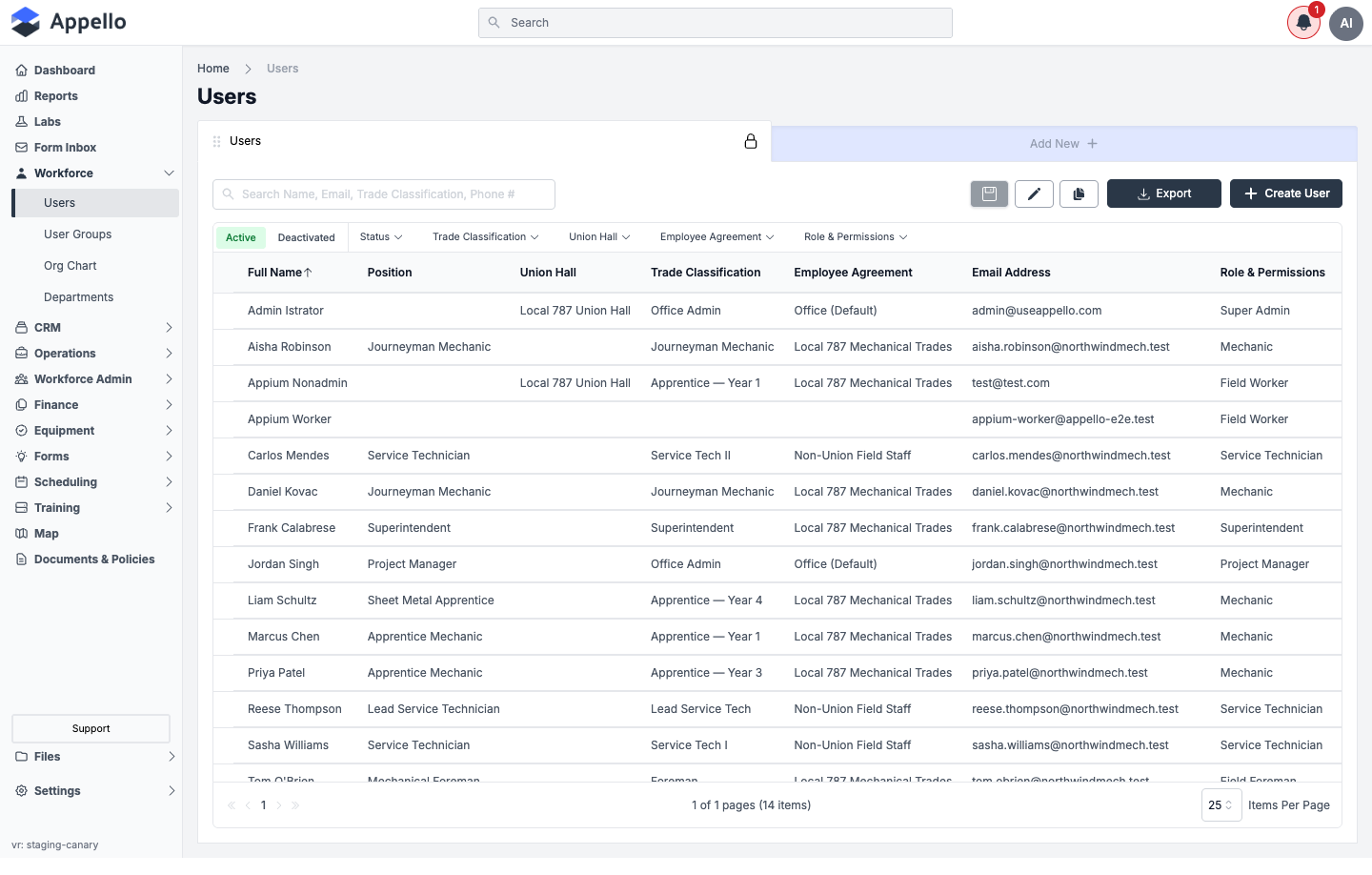
The profile opens on the Overview tab. A row of tabs across the top switches between Overview, Roles, Groups, Certifications, Form Submissions, Assigned Equipment, Expenses, Vacation / Leave, Onboarding Documents (conditional -- see that section), and Settings.
Two tabs on this profile -- Assigned Equipment and Vacation / Leave -- are the same list views used elsewhere in Appello (Equipment, and the leave calendar), pre-filtered to this user. Their breadcrumbs read "Home → Equipment" and "Home → Vacation / Leave" rather than nesting under the user, which is expected.
Overview
Where: Users → click a user's row. Default tab, ?tab=overview.
What it's for: The Overview tab is the user's full record -- personal details, login/PIN and account status, employment information, and emergency/medical information -- plus the account-management actions (password reset, PIN reset, deactivate/reactivate).
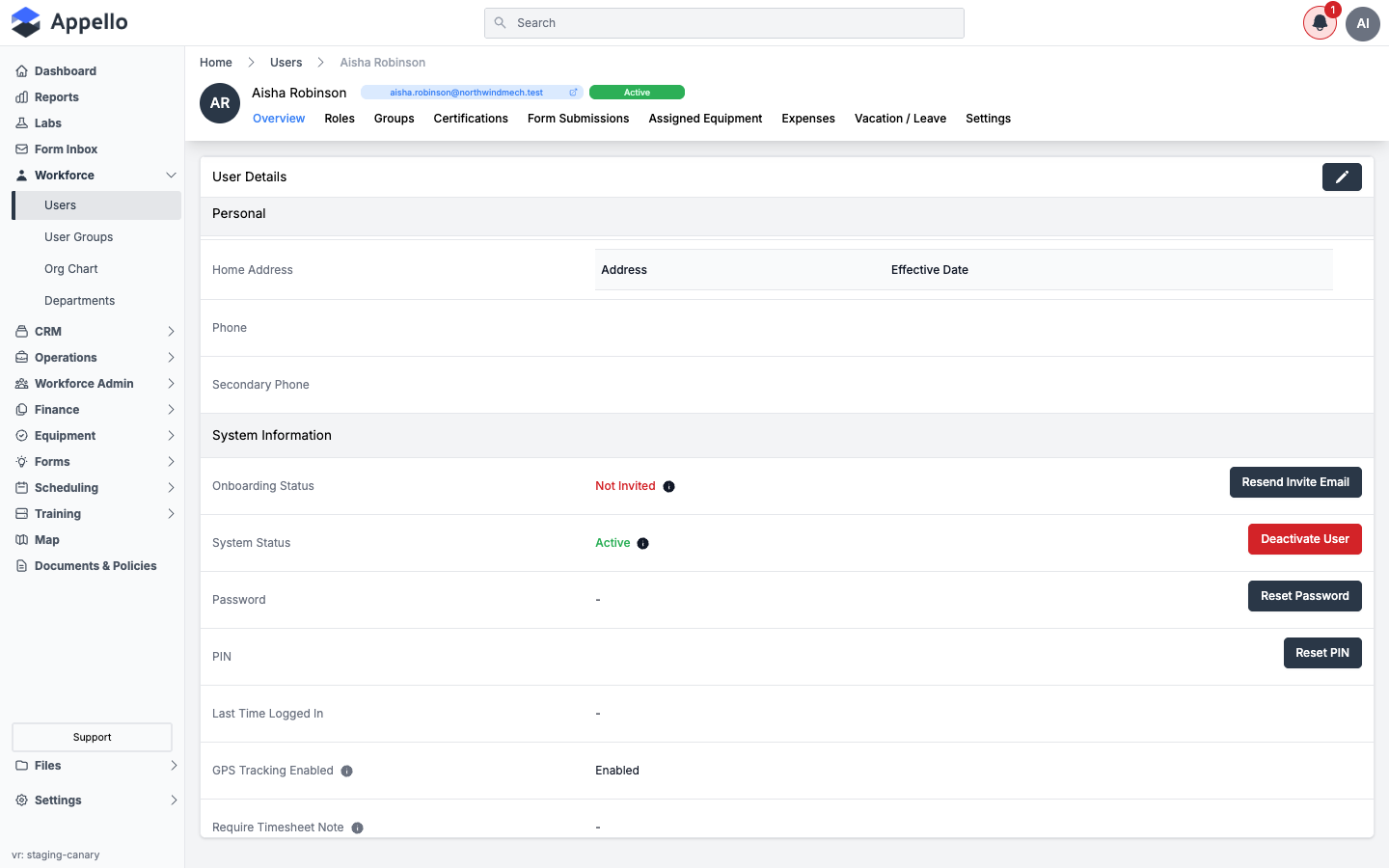
The record is organized into field groups. The full field list, top to bottom:
| Group | Field | Notes |
|---|---|---|
| Personal | First Name | |
| Personal | Wage First Name | Used on wage/payroll exports if set; falls back to First Name. |
| Personal | Last Name | |
| Personal | Full Name | Computed, read-only. |
| Personal | Wage Last Name | Used on wage/payroll exports if set; falls back to Last Name. |
| Personal | Date of Birth | |
| Personal | Email Address | Desktop sign-in identity. |
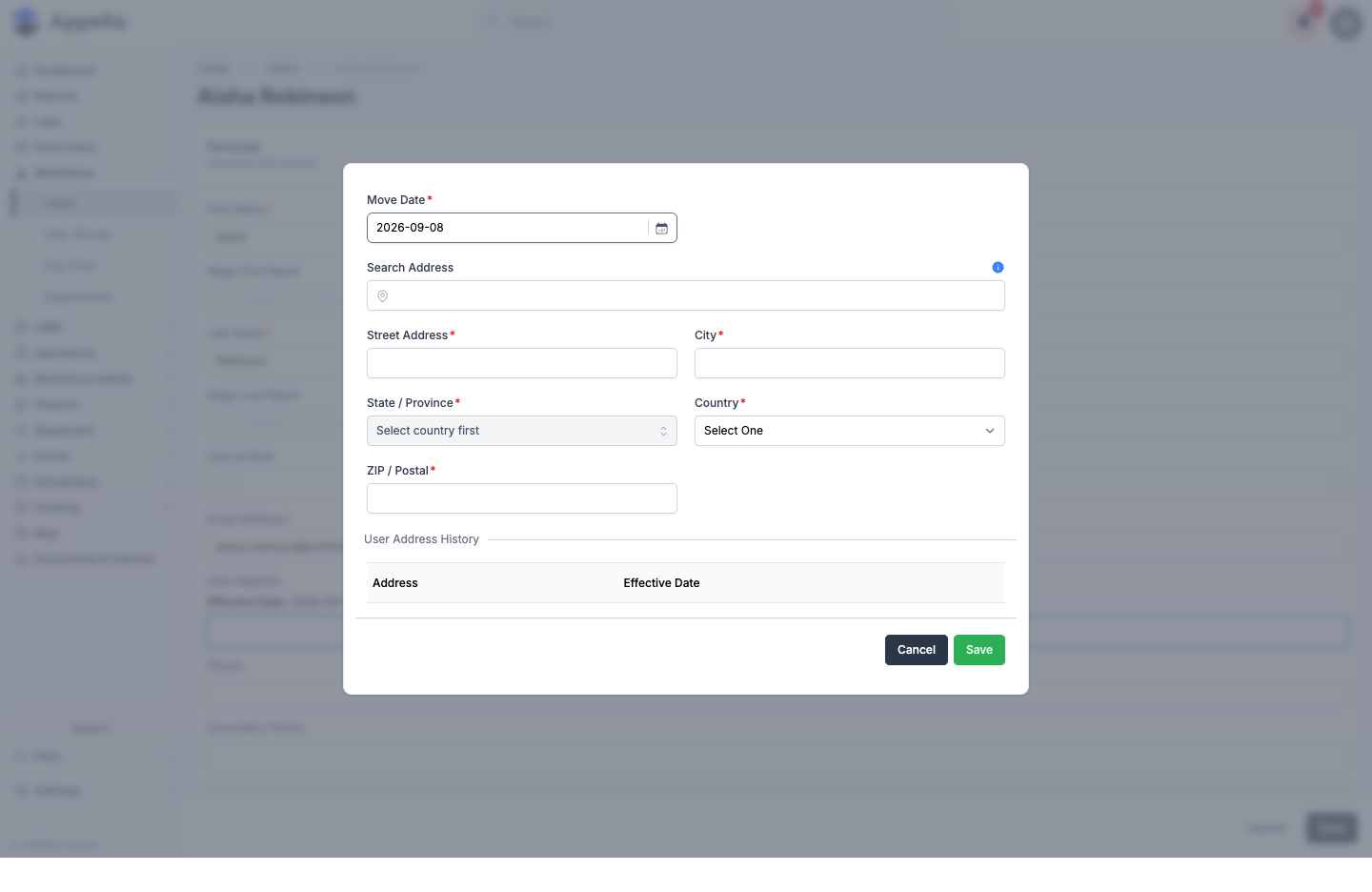
| Personal | Home Address | Shows the current address with its effective date; edited via Update Address on the Edit page (see below). |
| Personal | Phone | |
| Personal | Secondary Phone | |
| System Information | Onboarding Status | One of Not Invited / Invited / Onboarding / Enrolled, with a tooltip explaining the status. See workflow below. |
| System Information | System Status | Active or Deactivated, with a tooltip. |
| System Information | Password | Never displayed; Reset Password action sits alongside it. |
| System Information | PIN | The field worker's mobile sign-in PIN; Reset PIN action sits alongside it. |
| System Information | Last Time Logged In | |
| System Information | GPS Tracking Enabled | |
| System Information | Require Timesheet Note | Shown only when the instance has Require Timesheet Note enabled instance-wide. |
| Employment Information | Start Date | |
| Employment Information | Position | |
| Employment Information | Leave Payment Type | Falls back to the Employee Agreement default, then the system default, if not set on the user. |
| Employment Information | Paid Leave Payroll Export | Same fallback chain as Leave Payment Type. |
| Employment Information | Employee Number | |
| Employment Information | Union Hall | Linked, opens the union hall's own page. |
| Employment Information | Time Sheet Submissions Type | |
| Employment Information | Employee Agreement | Read-only here; changed via Update Trade Classification on the Edit page. |
| Employment Information | Reports To | The user's manager. |
| Employment Information | Department | |
| Employment Information | Trade Classification | A small table: current classification, effective date, and the wage rate at each rate category (1x, 1.5x, 2x, etc.). See Trade Classifications. |
| Emergency Information | Emergency Contact First Name | |
| Emergency Information | Emergency Contact Last Name | |
| Emergency Information | Emergency Contact Phone | |
| Emergency Information | Relation to Emergency Contact | |
| Medical Information | Allergies |
Controls on this tab:
| Control | Appears when | Effect |
|---|---|---|
| Edit (pencil icon) | User has edit permission on this record | Opens Edit User. |
| Resend Invite Email | Onboarding Status is not "Enrolled" | Re-sends the sign-up invite email; see workflow below. |
| Unlock Account | Account is currently locked (repeated failed logins) and the viewer is a super admin | Clears the lockout so the user can sign in again. |
| Deactivate User / Activate User | Viewer has archive permission on this record and is not viewing their own profile | Opens the Deactivate / Reactivate confirmation. |
| Reset Password | Viewer has edit permission on this record | Opens the Reset Password panel. |
| Reset PIN | Viewer has edit permission on this record | Opens the Reset PIN panel. |
Workflow: onboarding status
- A new user starts Not Invited -- no invite email has been sent.
- Checking Notify New User By Email at creation (or clicking Resend Invite Email later) sends an invite link and moves the status to Invited, timestamped.
- Once the user opens the link and signs in for the first time, the status becomes Onboarding.
- Once the user completes the system's onboarding steps, the status becomes Enrolled and the Resend Invite Email button disappears.
Permissions and settings
- User → View -- required to open this tab (and the page).
- User → Edit -- required for the Edit pencil, Reset Password, and Reset PIN.
- User → Archive (any scope other than Own) -- required for Deactivate/Activate, and only shown when viewing someone else's profile.
- Deactivate/Activate and Unlock Account are never shown on your own profile.
- Require Timesheet Note field only appears when that instance-wide setting is on.
Roles
Where: User profile → Roles tab, ?tab=roles.
What it's for: Shows every Role & Permissions record assigned to this user, and lets you add or remove roles without leaving the profile.
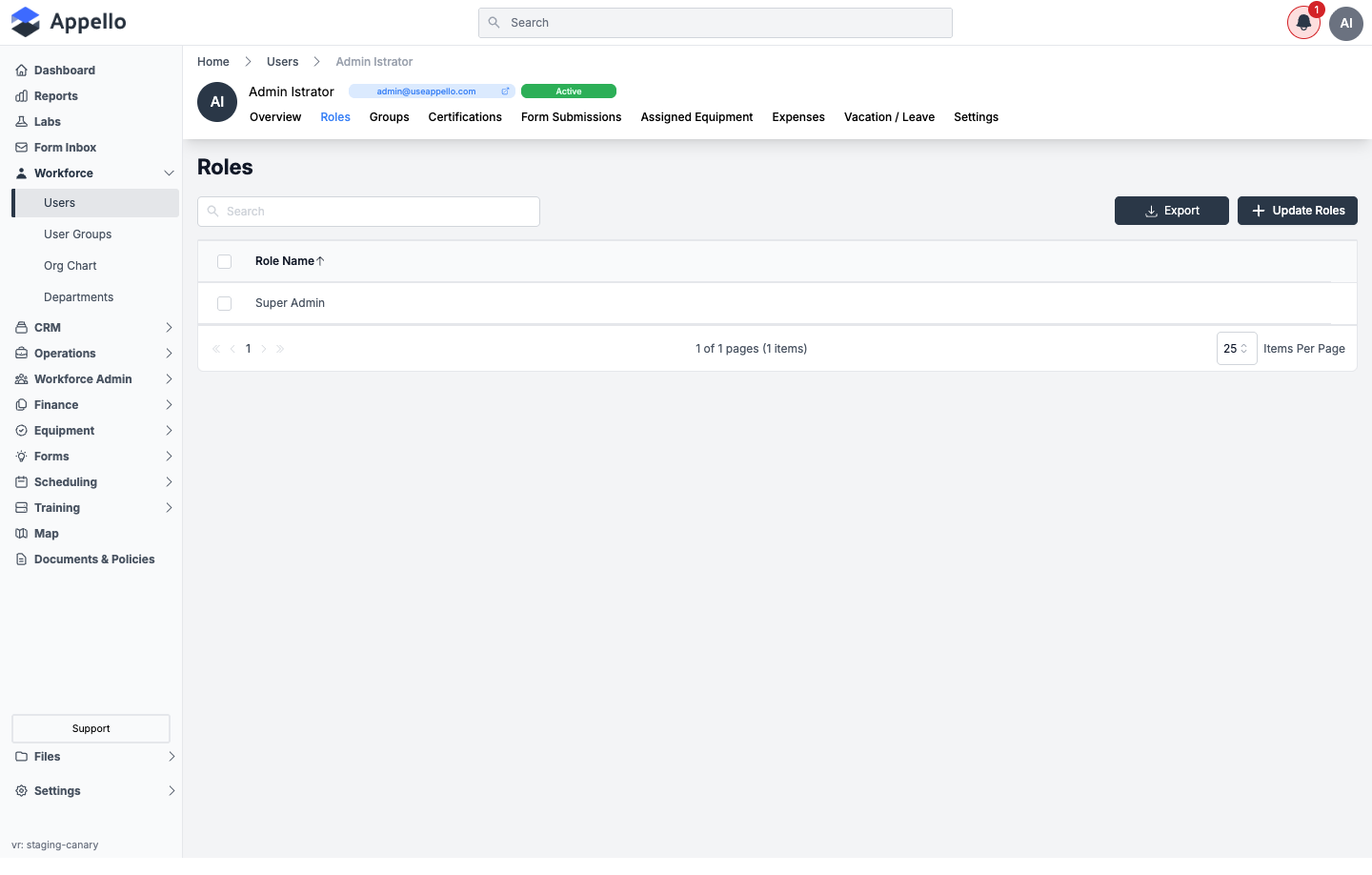
| Column | Description |
|---|---|
| Role Name | Linked to the role's own settings page. |
| Control | Effect |
|---|---|
| Update Roles | Opens a flyout to add or remove roles from this user. |
| Export | Exports the visible role list. |
| Row checkbox + row menu | Selects a role to disconnect it from this user. |
Workflow
- Click Update Roles.
- Check the roles to assign (or uncheck ones to remove) and save.
- The list refreshes immediately to reflect the change.
Permissions
- Role → View -- required for this tab to appear.
Groups
Where: User profile → Groups tab, ?tab=groups.
What it's for: Shows every User Group / crew this user belongs to, used for scheduling and form assignment. See User Groups & Crews.
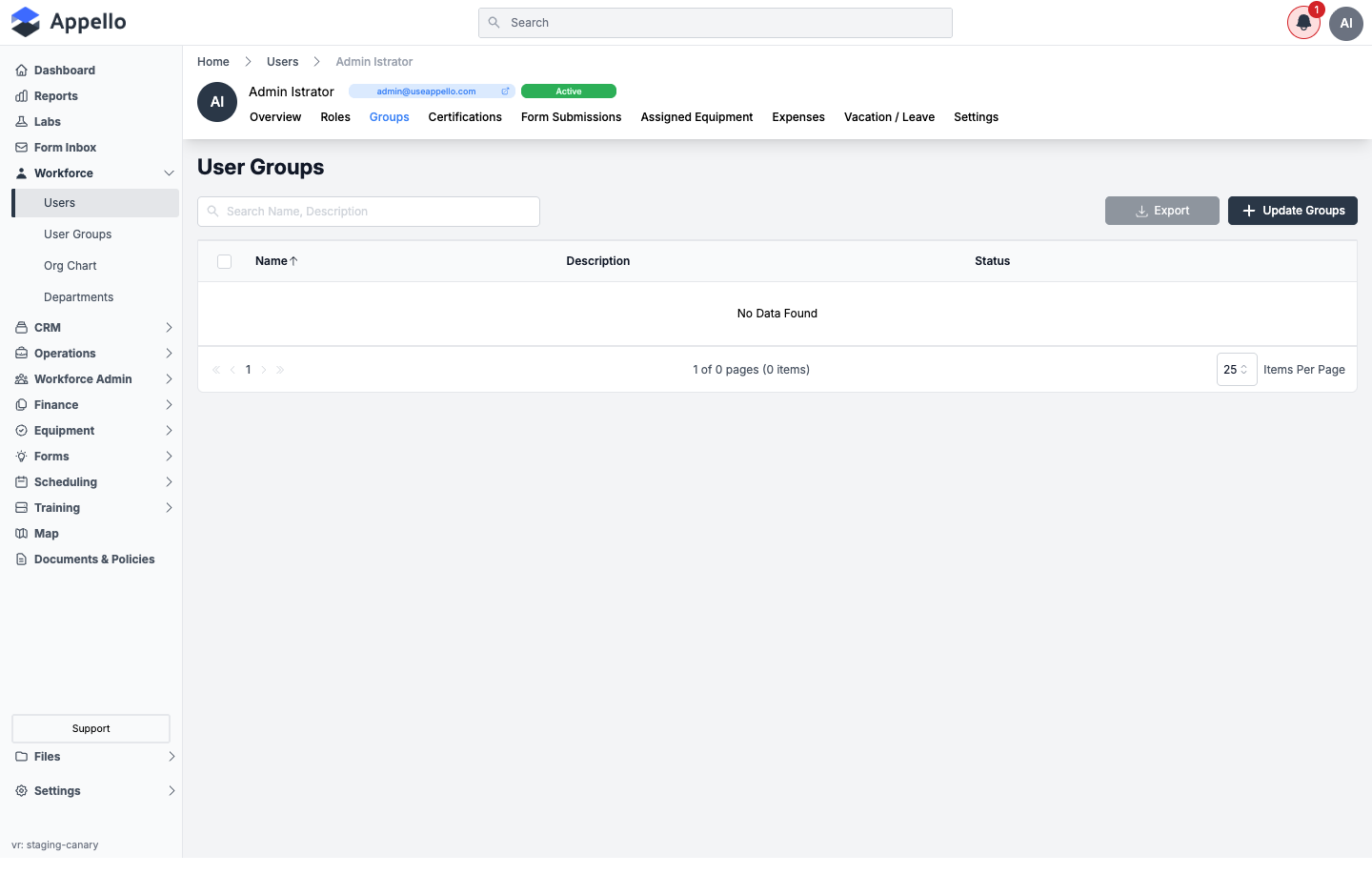
| Column | Description |
|---|---|
| Name | The group's name, linked to its own page. |
| Description | |
| Status | Active/inactive. |
| Control | Effect |
|---|---|
| Update Groups | Opens a flyout to add this user to, or remove them from, one or more groups. |
| Export | Exports the visible group list. |
Permissions
- User Group → View -- required for this tab to appear.
Certifications
What it's for: Every certification tracked for this user -- required or optional -- with its status, dates, and expiry countdown. Full detail on certification records, statuses, and the required-certifications flow is documented at Certifications; this section covers only what's specific to viewing them from a user's profile.
Where: User profile → Certifications tab, ?tab=certifications.
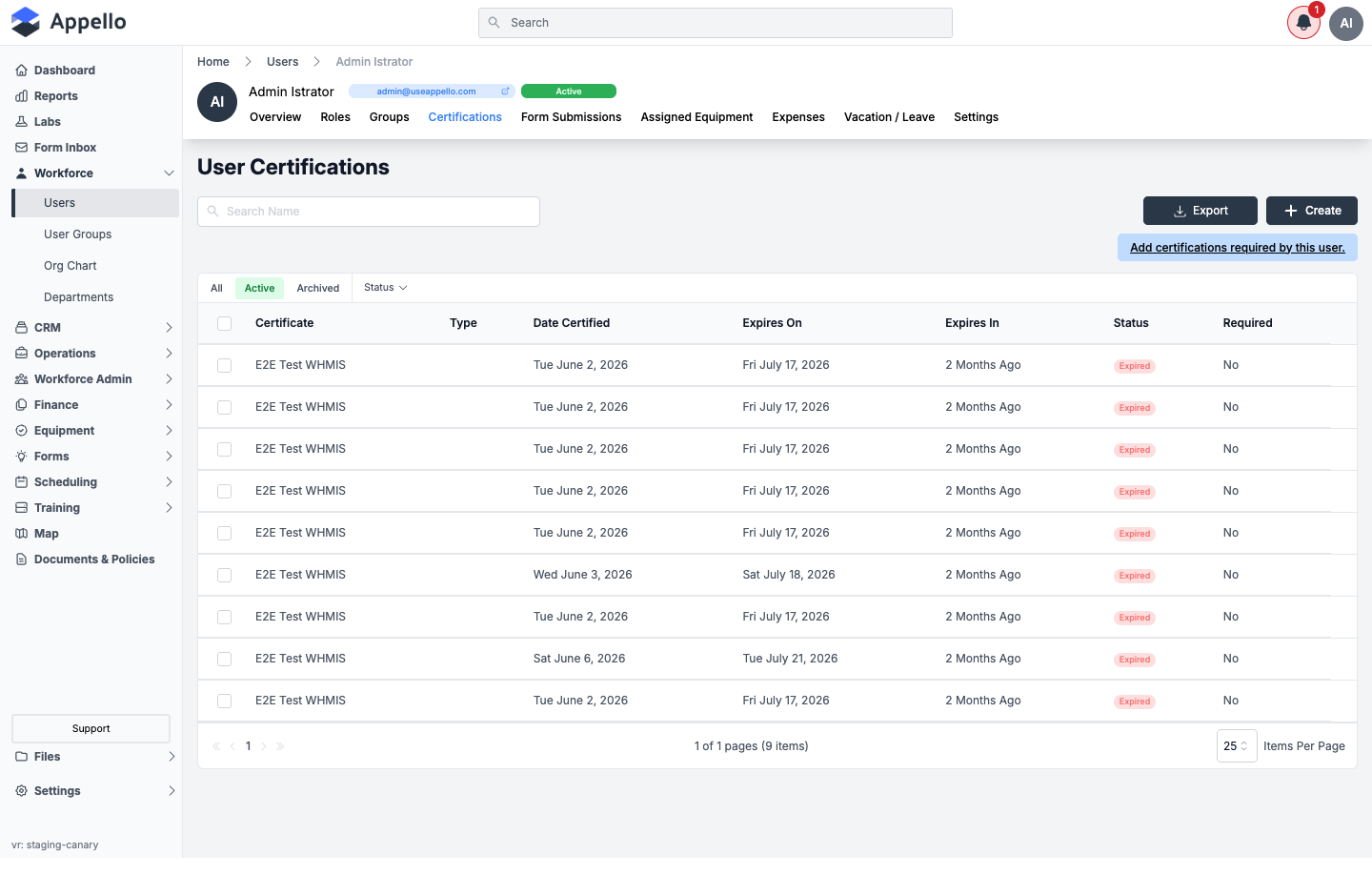
| Column | Description |
|---|---|
| Status | Active / Expired / Expiring Soon / Missing, colour-coded. |
| Certificate | Certification name. |
| Type | |
| Date Certified | |
| Expires On | |
| Expires In | Relative countdown (or "X ago" once expired). |
| Required | Whether this certification is required for the user's role/trade. |
| Control | Effect |
|---|---|
| Create | Adds a new certification record for this user. |
| Add certifications required by this user link | Opens the required-certifications manager for this user (also called Manage Required Certifications). |
| Export | Exports the visible certification list. |
| All / Active / Archived, Status filter | Filters the list. |
Related pages
Form Submissions
Where: User profile → Form Submissions tab, ?tab=safety-forms.
What it's for: Every safety form / checklist this user has submitted, searchable by name and date range.
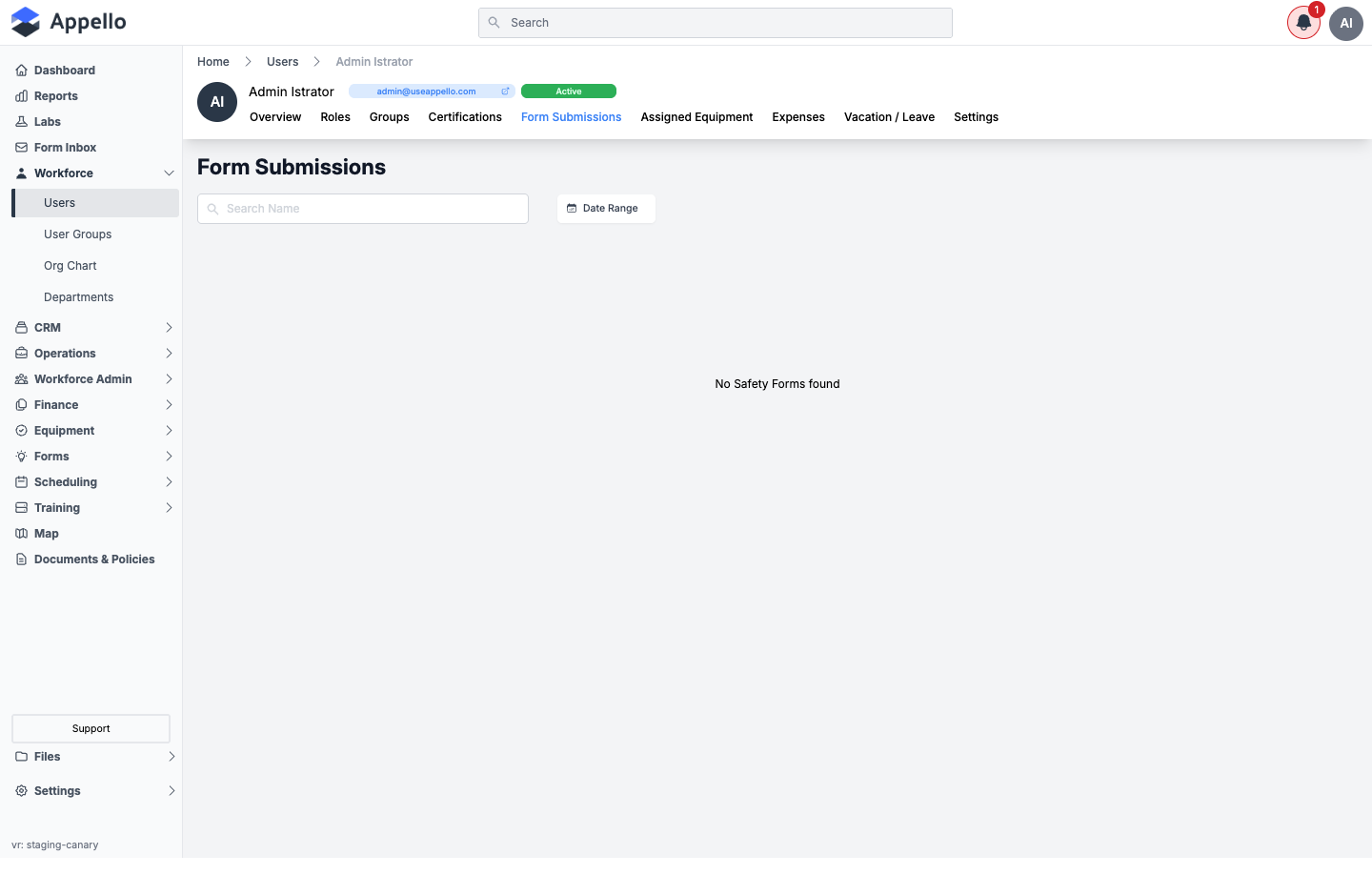
| Control | Effect |
|---|---|
| Search (Name) | Filters submissions by form name. |
| Date Range | Filters submissions to a date window. |
Clicking a submission row (when present) opens that form submission's own record.
Permissions
- Safety Form → View -- required for this tab to appear.
Assigned Equipment
Where: User profile → Assigned Equipment tab, ?tab=assigned-equipment. This re-uses
the main Equipment list view, filtered to equipment assigned to this user -- see
Equipment List for the full equipment feature set. This
section covers only what's specific to the filtered view on a user's profile.
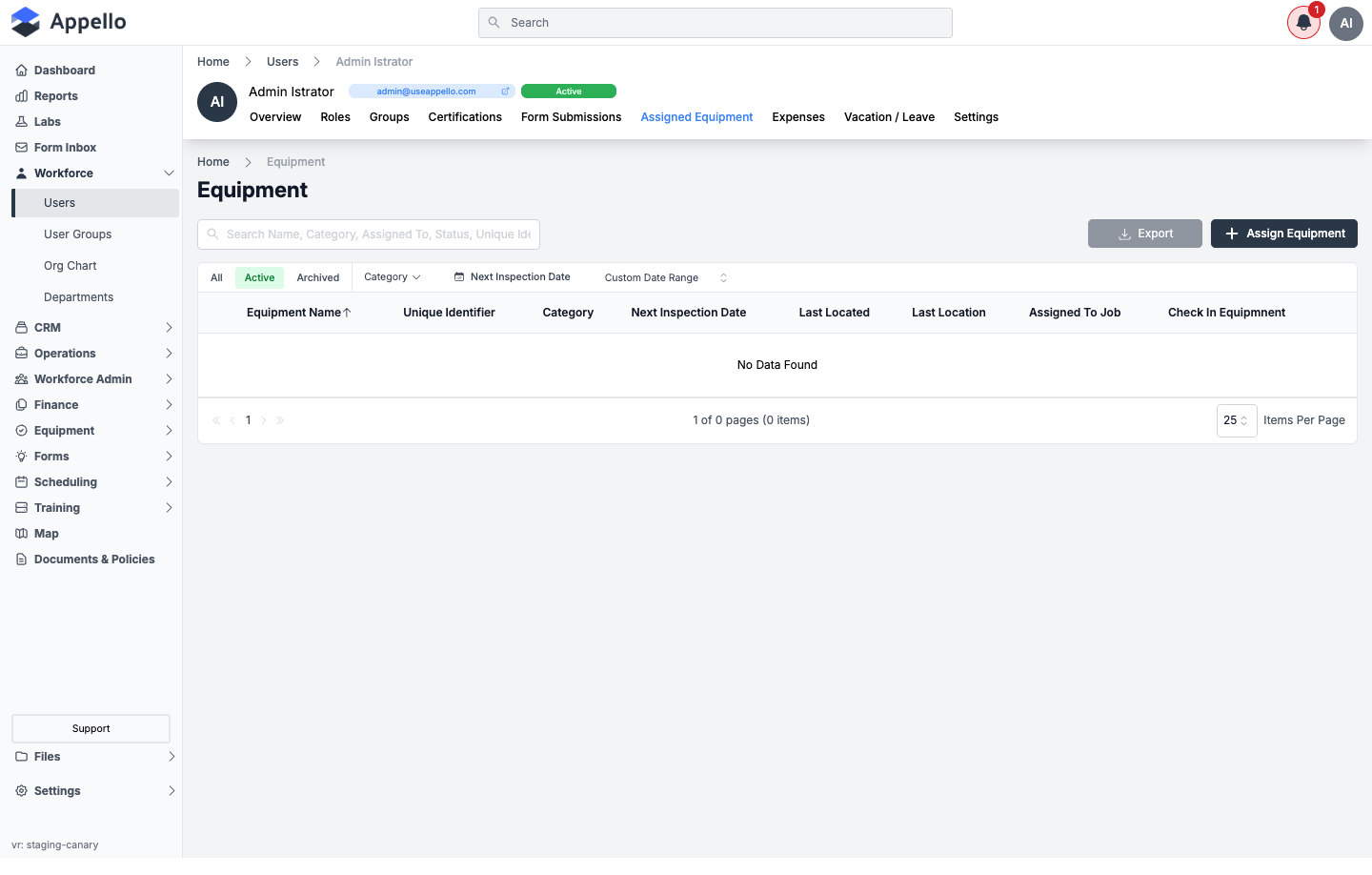
| Column | Description |
|---|---|
| Equipment Name | |
| Unique Identifier | |
| Category | |
| Next Inspection Date | |
| Last Located | |
| Last Location | |
| Assigned To Job | Action button to reassign the equipment to a job. |
| Check In Equipment | Action button to check the equipment back in. |
| Control | Effect |
|---|---|
| Assign Equipment | Assigns a piece of equipment to this user. |
| Export | Exports the visible list. |
| All / Active / Archived, Category, Next Inspection Date, Custom Date Range | Filters the list. |
Related pages
Expenses
Where: User profile → Expenses tab, ?tab=expenses. Full detail on expense records,
statuses, and approval is documented at
Employee Expenses; this section covers only the
filtered view on a user's profile.
What it's for: Every employee expense this user has submitted or been assigned as claimant, with running Outstanding and Total AP totals.
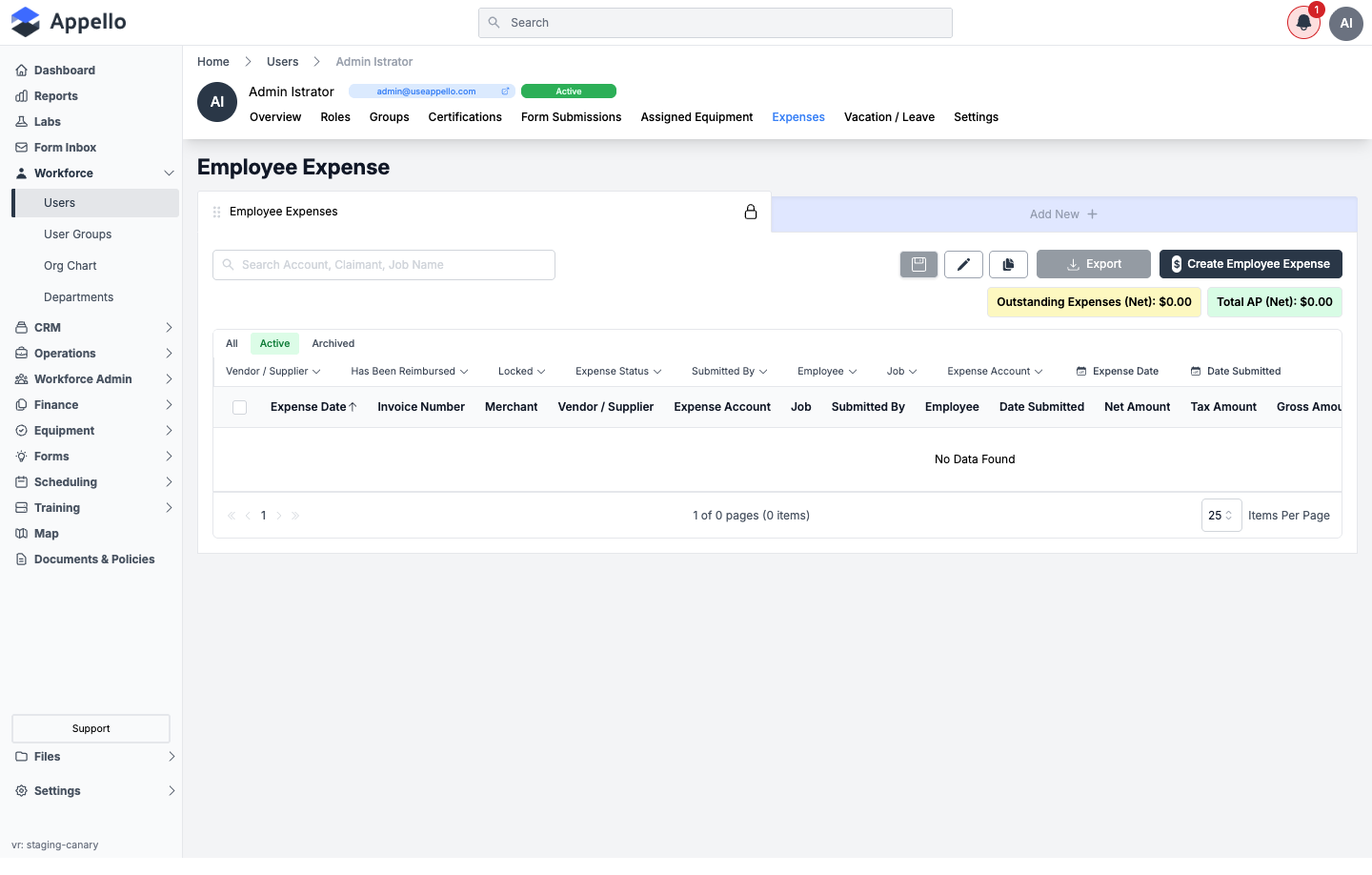
| Column | Description |
|---|---|
| Expense Date | |
| Invoice Number | |
| Merchant | |
| Vendor / Supplier | |
| Expense Account | |
| Job | |
| Submitted By | |
| Employee | |
| Date Submitted | |
| Net Amount | |
| Tax Amount | |
| Gross Amount |
| Control | Effect |
|---|---|
| Create Employee Expense | Creates a new expense claim for this user. |
| Export | Exports the visible list. |
| Filter row (Vendor/Supplier, Has Been Reimbursed, Locked, Expense Status, Submitted By, Employee, Job, Expense Account, Expense Date, Date Submitted) | Filters the list. |
Related pages
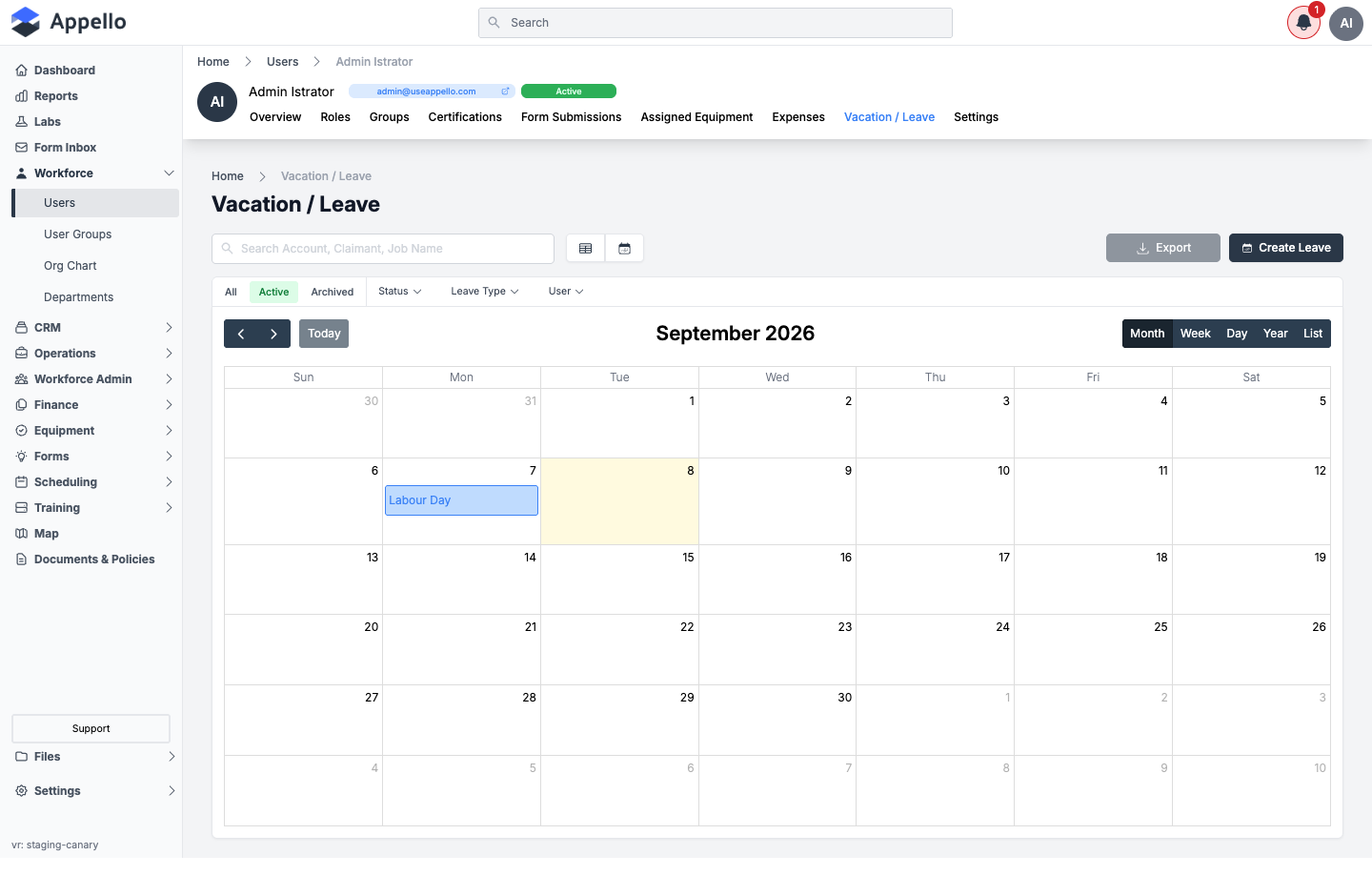
Vacation / Leave
Where: User profile → Vacation / Leave tab, ?tab=vacation-leave. Full detail on leave
types, requests, and approval is documented at
Leave Submissions; this section covers only the filtered
calendar view on a user's profile.
What it's for: This user's leave requests on a calendar (Month/Week/Day/Year) or list view, alongside company holidays.
| Column (List view) | Description |
|---|---|
| Status | |
| Leave Type | |
| User |
| Control | Effect |
|---|---|
| Create Leave | Creates a leave request for this user. |
| Export | Exports the visible list. |
| Month / Week / Day / Year / List | Switches the view. |
| All / Active / Archived, Status, Leave Type, User | Filters the list. |
Related pages
Onboarding Documents
Where: User profile → Onboarding Documents tab, ?tab=onboarding-documents.
This tab requires the Dropbox Sign integration to be enabled on your instance (an instance setting your Appello administrator or Appello support can enable) and the Document Package → View permission (plus Document Package → View Signature when viewing someone else's signatures). The integration is off on the demo instance -- the tab does not appear in the tab bar at all, and navigating to it directly shows no content, so no screenshot of the tab itself is included below.
What it's for: Tracks Dropbox Sign document packages (offer letters, policy acknowledgements, etc.) sent to this user for e-signature -- who signed, when, and whether a reminder is pending.
| Column | Description |
|---|---|
| User | The signer. |
| Document Template | The template sent. |
| Request Status | Sent / Viewed / Signed / Completed / Cancelled, etc. |
| Email Address | Address the request was sent to. |
| Sent Date | |
| Last Activity Date | |
| Reminder Last Sent |
| Control | Effect |
|---|---|
| Send Document | Sends a new document package to this user for signing. |
| Reminder (row action) | Re-sends the signature request email. |
| Cancel (row action) | Cancels an outstanding signature request. |
| Signed Document (row action) | Opens the completed, signed document once available. |
Related pages
Settings
Where: User profile → Settings tab, ?tab=settings.
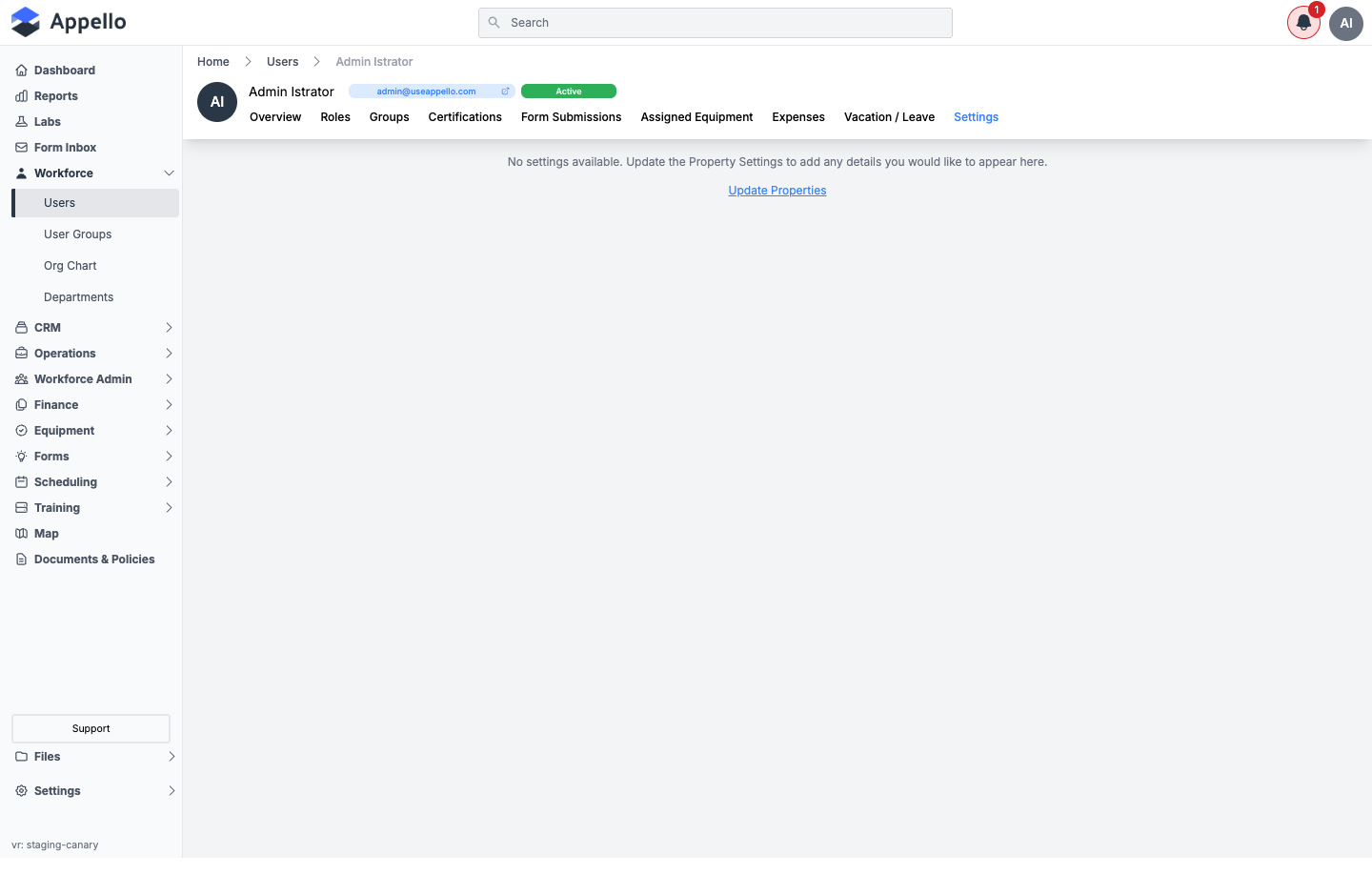
What it's for: A generic per-record settings panel driven by whatever custom property/field configuration your instance has defined for the User model. This is the same mechanism used across other record types in Appello (companies, jobs, equipment, etc.) -- nothing here is specific to users.
| Control | Effect |
|---|---|
| Update Properties | Opens the property-settings configuration for the User model, where custom fields can be added so they appear on this tab. |
Edit User
Where: User profile → Overview tab → pencil icon → /users/[id]/edit.
What it's for: Editing an existing user's record. The field set matches Users's create flow with the differences below -- see that page for the full field-by-field walkthrough of creating a user; this section covers only what's different once the user already exists.
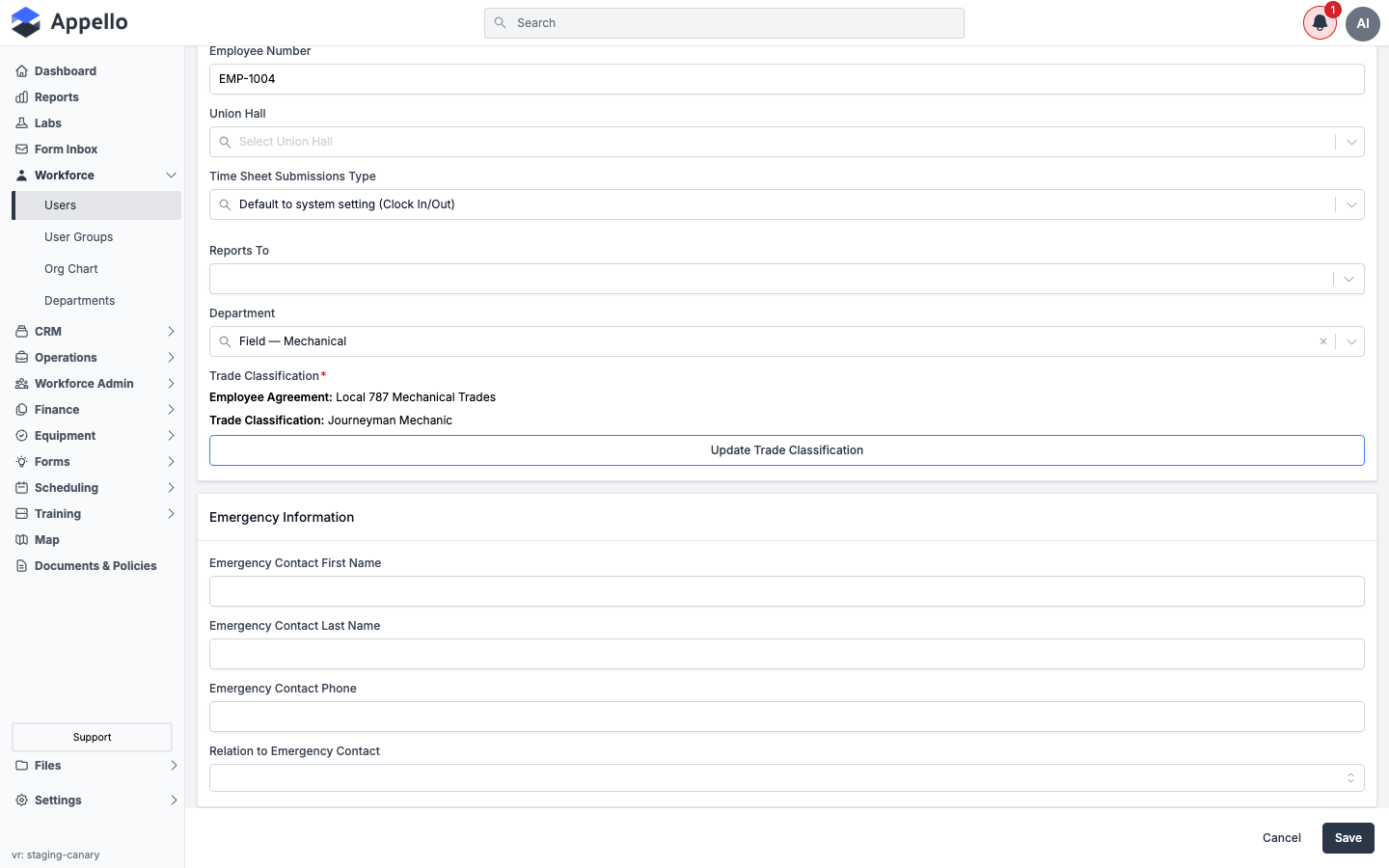
What's different on Edit versus Create:
| Difference | On Create | On Edit |
|---|---|---|
| Employee Agreement | A selectable field. | Not shown as an editable field at all -- it's read-only display text next to Trade Classification, and only changes via Update Trade Classification. |
| Trade Classification | Not present (set after the user is created). | Shows the current Employee Agreement and Trade Classification as text, plus an Update Trade Classification button that opens the panel documented at Trade Classifications. |
| Home Address | A Set Home Address button; shows "No address set yet" until one is added. | Shows the current address and its effective date, plus an Update Address button. Clicking it opens a panel with Move Date, Search Address, Street Address, City, State / Province, Country, ZIP / Postal, and a User Address History table -- saving adds a new address to the history rather than editing the old one in place. |
| Union Hall | Only appears after an Employee Agreement is chosen; also shows a Union Hall Effective Date field. | Always visible, filtered by the union halls under the user's current trade classification's Employee Agreement. |
| Start Date | Required field. | Not present -- start date can't be changed from this form once the user exists. |
| Notify New User By Email | A checkbox that sends the invite immediately on save. | Not present -- use Resend Invite Email on the Overview tab instead. |
| Role & Permissions | Set at creation. | Not present on this form -- change roles from the Roles tab instead. |
All other Personal, System Information, Employment Information, Emergency Information, and Medical Information fields on Edit match the Overview tab's field table above and are plain editable inputs.
Permissions
- Editing your own profile is always allowed.
- Editing someone else's profile requires User → Edit at a scope broader than Own.
Deactivate / Reactivate
Where: User profile → Overview tab → Deactivate User (or Activate User) button. Only shown when viewing someone else's profile, and only with archive permission.
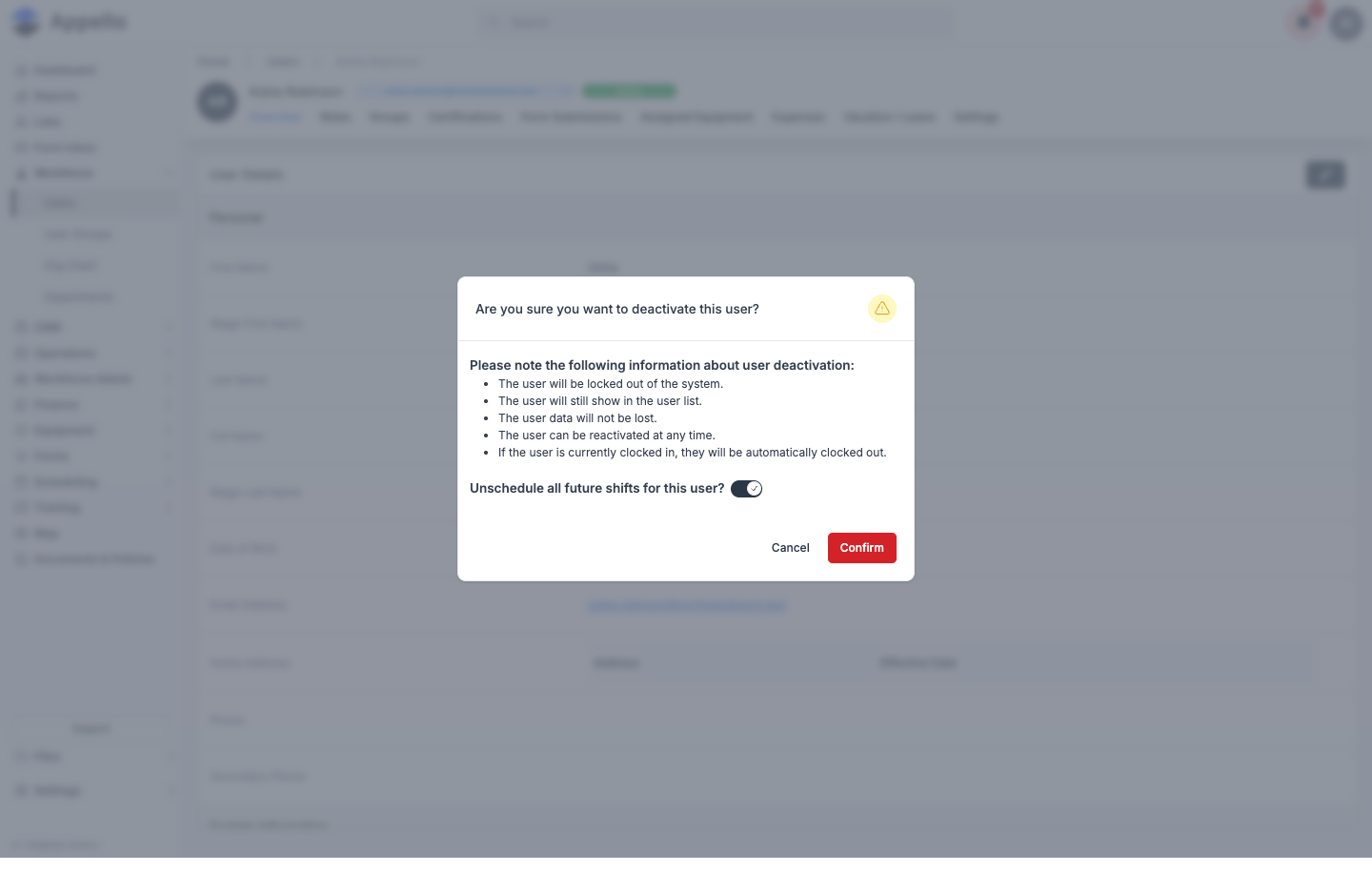
What it's for: Locks a user out of the system without deleting their record or history. Appello has no separate "archive" action for users beyond this -- deactivating is the record's only lifecycle transition short of permanent deletion.
Workflow
- Click Deactivate User.
- Review the listed effects: the user is locked out; still shows in the user list; their data is retained; they can be reactivated at any time; and if currently clocked in, they're automatically clocked out.
- Optionally toggle Unschedule all future shifts for this user? (on by default) to remove them from any future scheduled shifts at the same time.
- Click Confirm. The user's System Status changes to Deactivated and the button becomes Activate User.
- To reverse it, click Activate User and confirm -- no toggle is shown for reactivation.
Permissions
- User → Archive (any scope other than Own) -- required. Never available on your own profile.
Password and PIN reset
Two independent reset actions live on the Overview tab, both requiring User → Edit.
Reset Password
| Control | Effect |
|---|---|
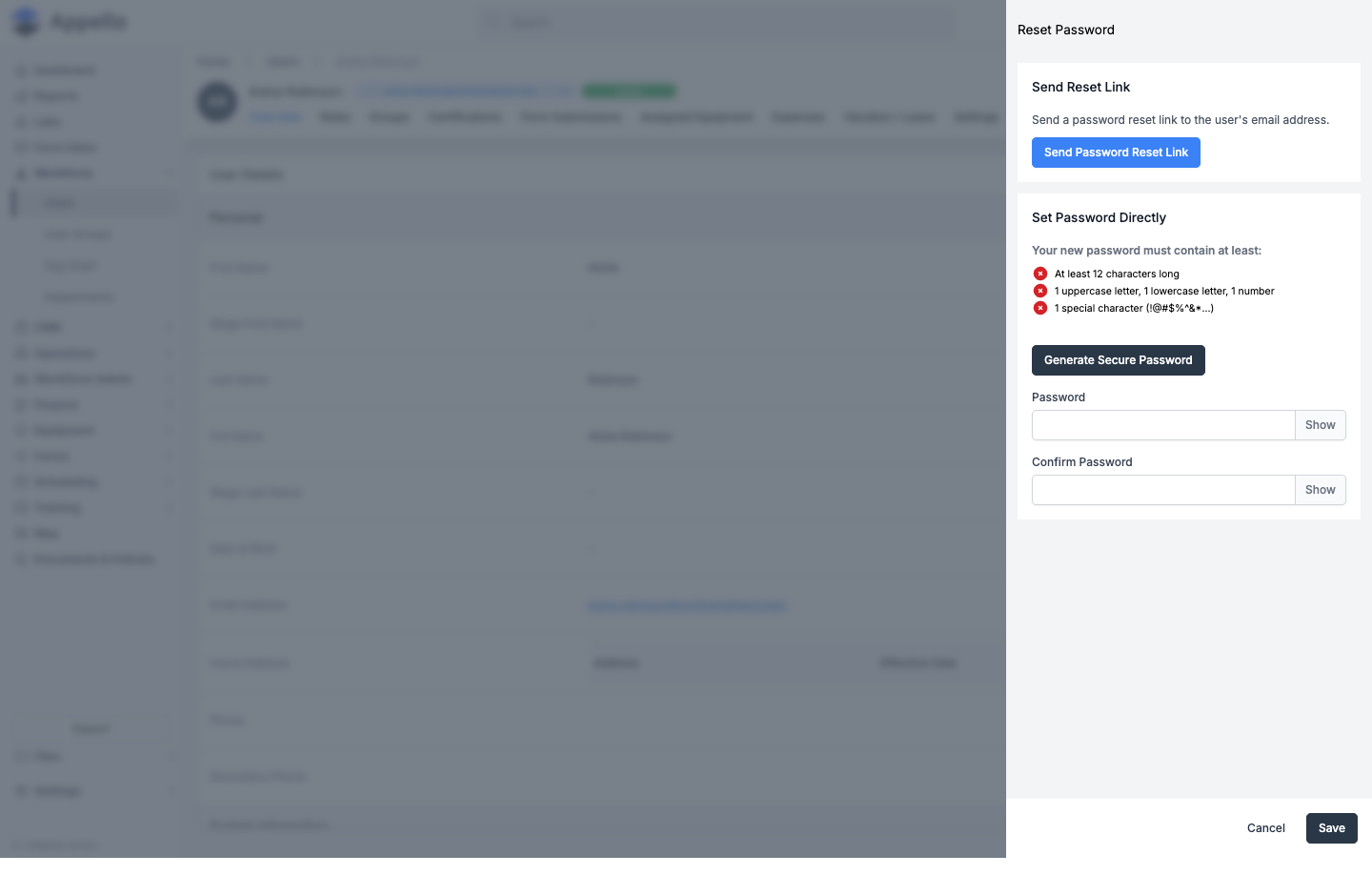
| Send Password Reset Link | Emails the user a link to set their own new password. |
| Generate Secure Password | Fills the Password/Confirm Password fields with a random password meeting the complexity rules shown (12+ characters, upper/lowercase, number, special character). |
| Password / Confirm Password | Set a password directly; Save commits it. |
Use Send Password Reset Link when the user can act on their own email; use Set Password Directly when you need to hand them a working password immediately (e.g. over the phone).
Reset PIN
| Control | Effect |
|---|---|
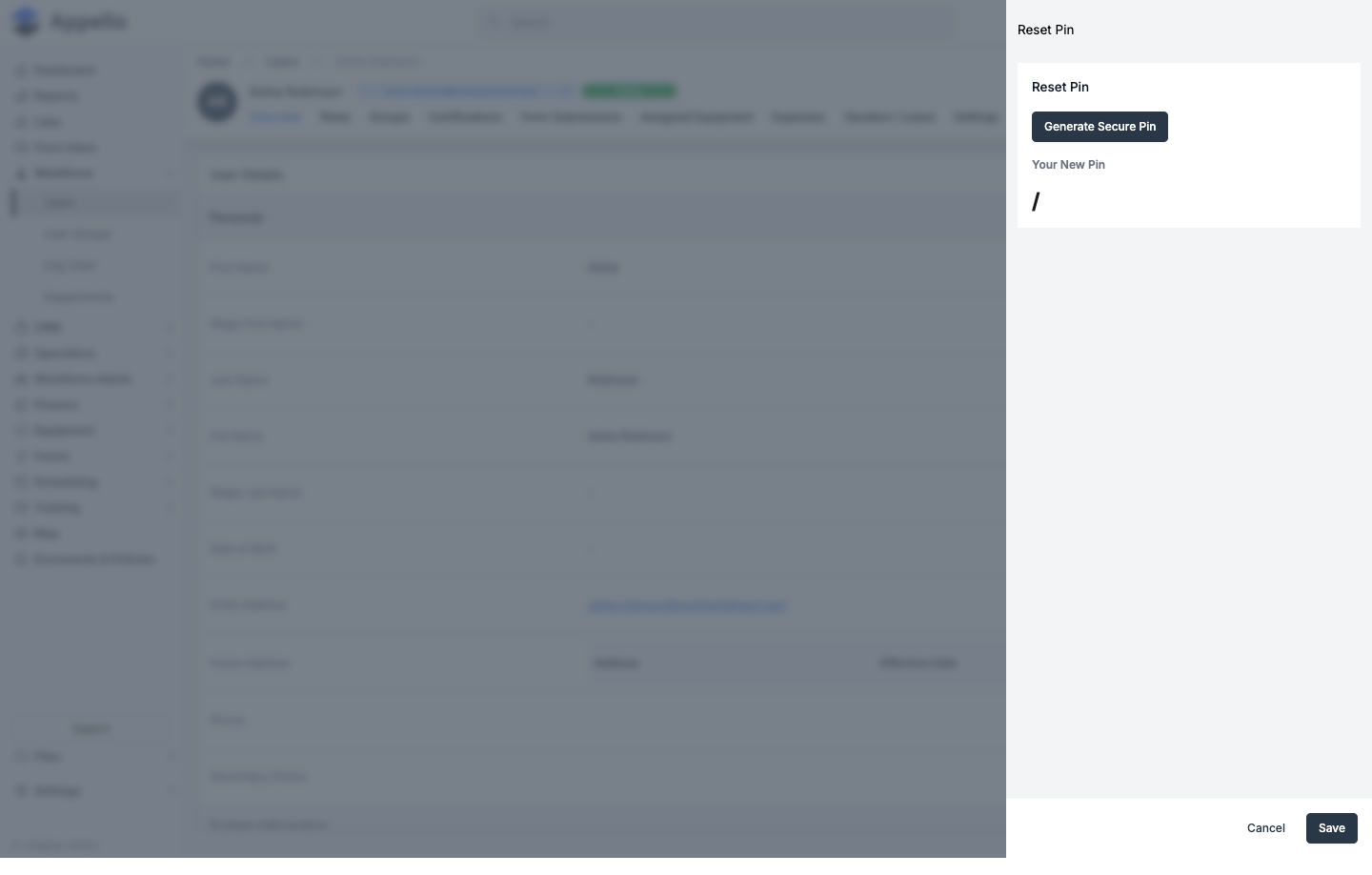
| Generate Secure Pin | Generates a new 5-digit PIN and displays it once. |
| Confirm Pin Change | Re-type the generated PIN to confirm; Save commits it. |
Appello never emails the PIN -- it's shown once on screen after generating, so write it down or read it to the field worker directly before closing the panel.
Permissions summary
| Permission | Governs |
|---|---|
| User → View | Opening the profile at all. |
| User → Edit | Edit pencil, Reset Password, Reset PIN, Resend Invite Email. |
| User → Archive (any scope other than Own) | Deactivate / Activate User. |
| Role → View | Roles tab. |
| User Group → View | Groups tab. |
| User Certification → View | Certifications tab. |
| Safety Form → View | Form Submissions tab. |
| Equipment → View | Assigned Equipment tab. |
| Expense → View | Expenses tab. |
| Leave Request → View | Vacation / Leave tab. |
| Document Package → View | Onboarding Documents tab (with Dropbox Sign enabled on your instance). |
| Super admin only | Unlock Account button. |
Related pages
- Users -- creating a user, and the desktop vs. field-worker setup flow.
- Trade Classifications -- wage lookups and the Update Trade Classification panel.
- Certifications
- Equipment List
- Employee Expenses
- Leave Submissions
- Onboarding Users
- User Groups & Crews