Union Hall Management
A union hall in Appello is a dispatch location record: a name, an identifier, an address, and the workers assigned to it. Union halls can also link to an Employee Agreement and a travel-pay origin point, so Appello can calculate travel allowances from the hall to a job site. This is used by ICI trade contractors whose field workers are dispatched from a union local rather than a single company office.
Navigation
Sidebar → Settings → Human Resources → Union Halls tab
You can also open the full-page list directly at /union-halls, or search for "Union
Halls" from the top search bar. The list, the hall's detail page, and the create/edit panel
are all gated by the Union Hall permission item's View grant -- without it, none of
this page is reachable.
The Union Halls list
The Union Halls list (/union-halls) shows every hall configured for your instance.
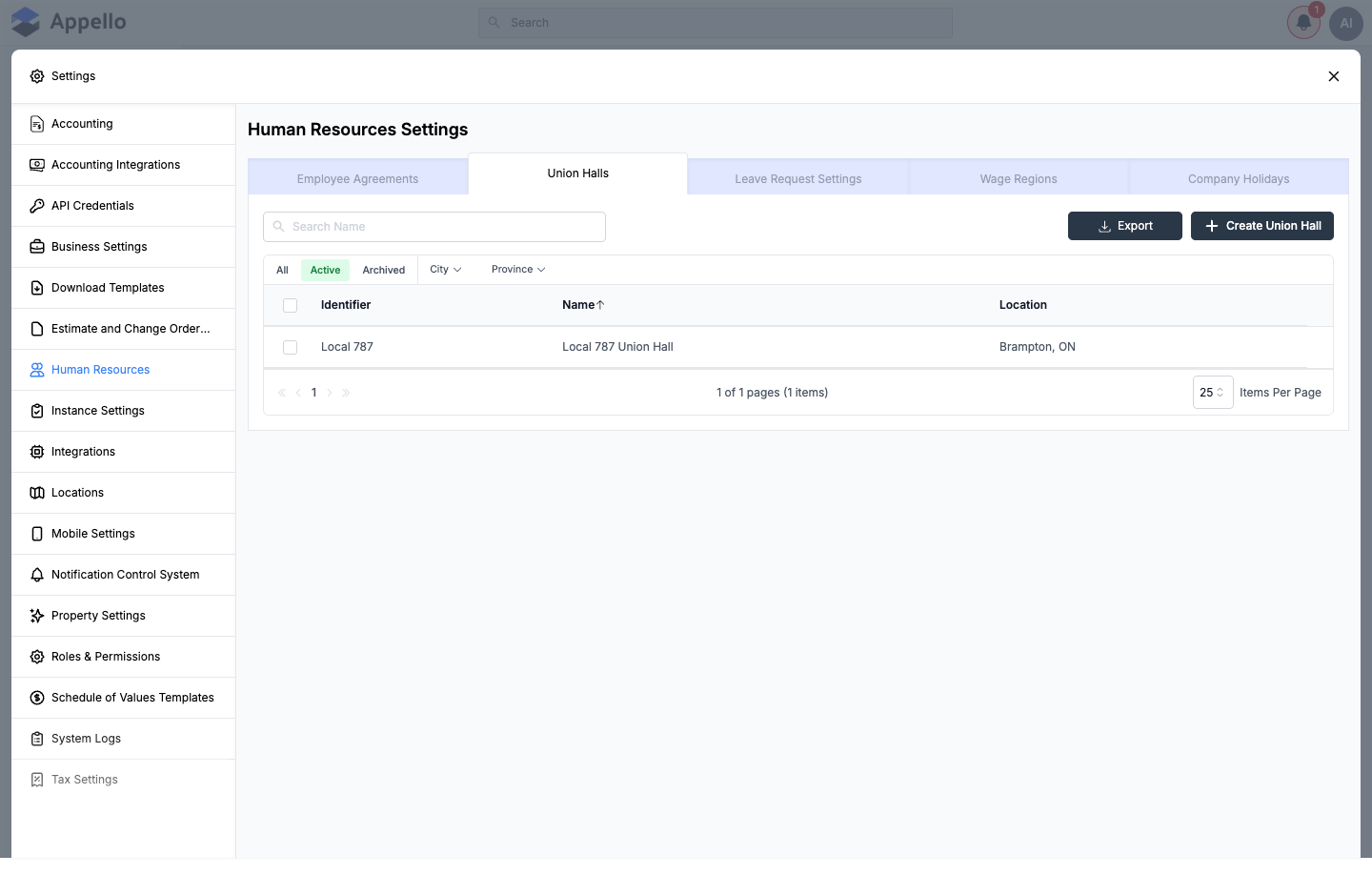
| Column | Sortable | Description |
|---|---|---|
| Identifier | Yes | The short code entered for the hall, linked to its detail page. |
| Name | Yes | The hall's full name, linked to its detail page. Sorted ascending by default (shown by the arrow next to the column header). |
| Location | No | The city and province/state of the hall's address. |
Click Identifier or Name to sort by that column; click again to reverse direction. Location is a combined address field and isn't itself sortable.
Quick tabs, filters, and search
All / Active / Archived quick tabs sit above the table, along with City and Province dropdown filters that open a searchable checklist of the values present in the current list.
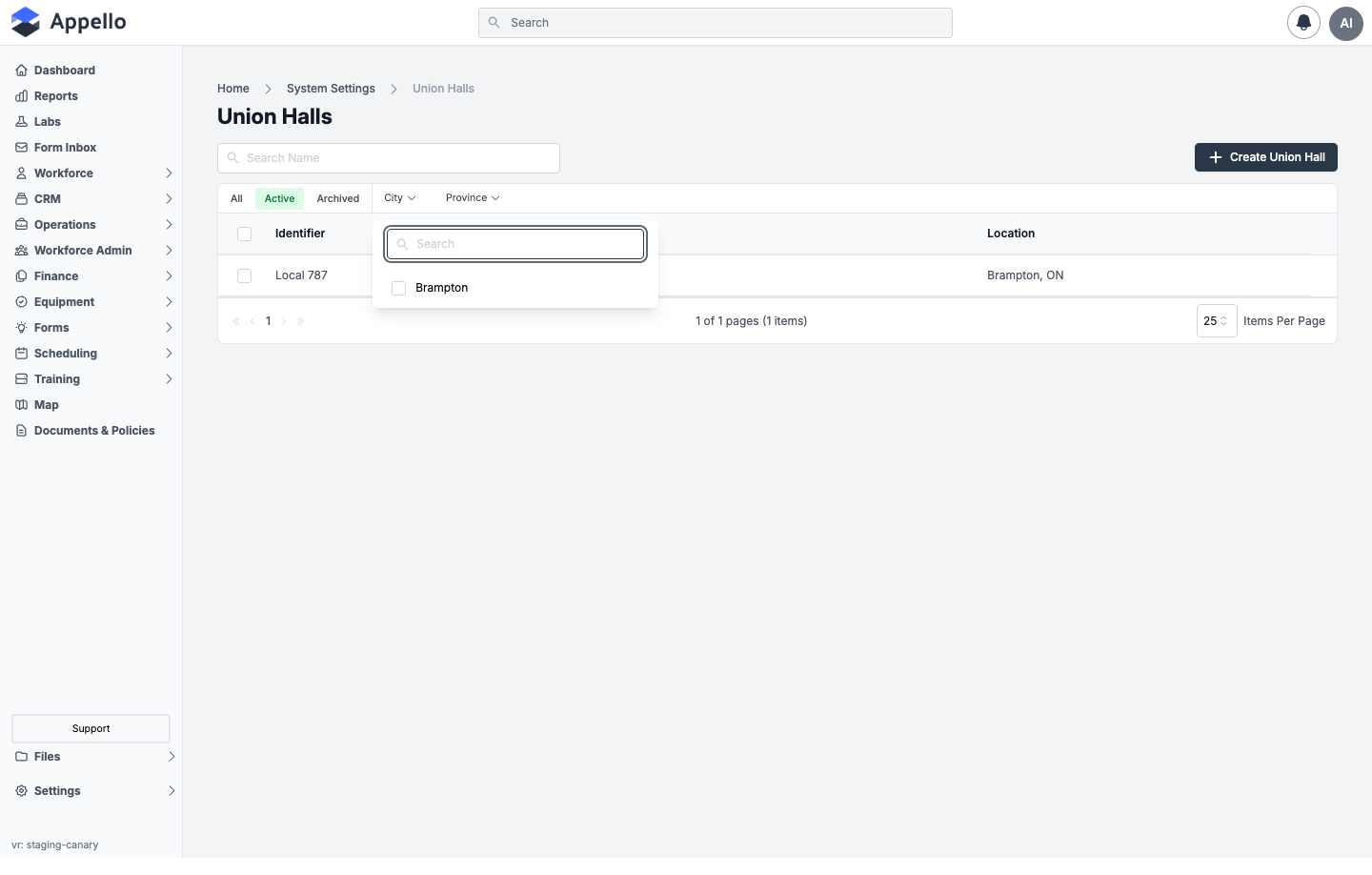
Search Name filters the list by the hall's name as you type. This demo instance has no archived union halls -- switching to the Archived tab renders the list's standard empty state:
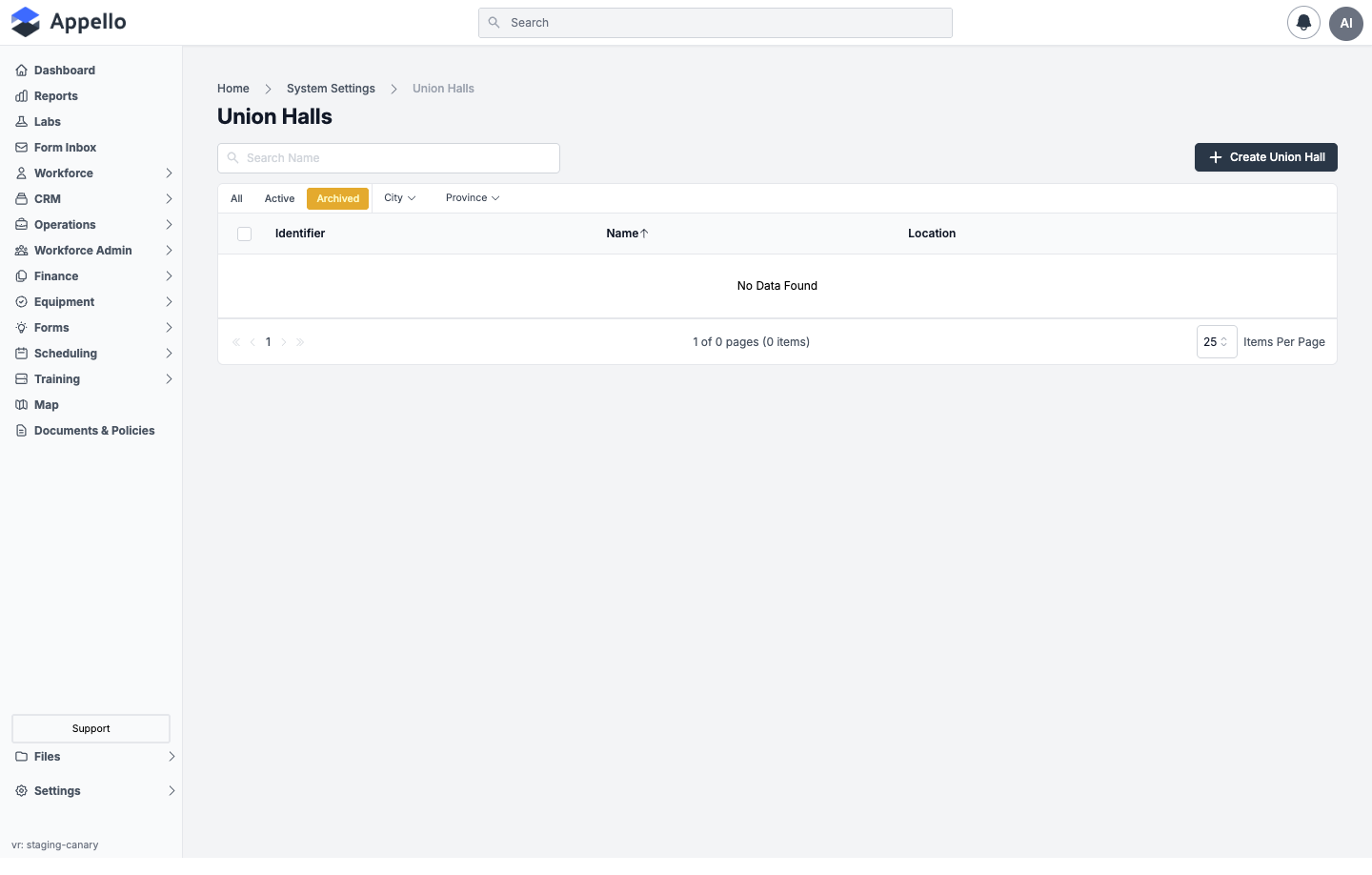
The full-page /union-halls list has no Export control -- only Create Union Hall
appears above the table. (The embedded Union Halls tab under Settings → Human Resources
is a separate page not covered here; see
Human Resources Settings.)
Bulk actions
Selecting one or more halls with their row checkboxes shows an Archive action above the table. Once a hall has been archived, selecting it on the Archived tab is how it is deleted or restored.
Creating a Union Hall
Click Create Union Hall to open the creation panel.
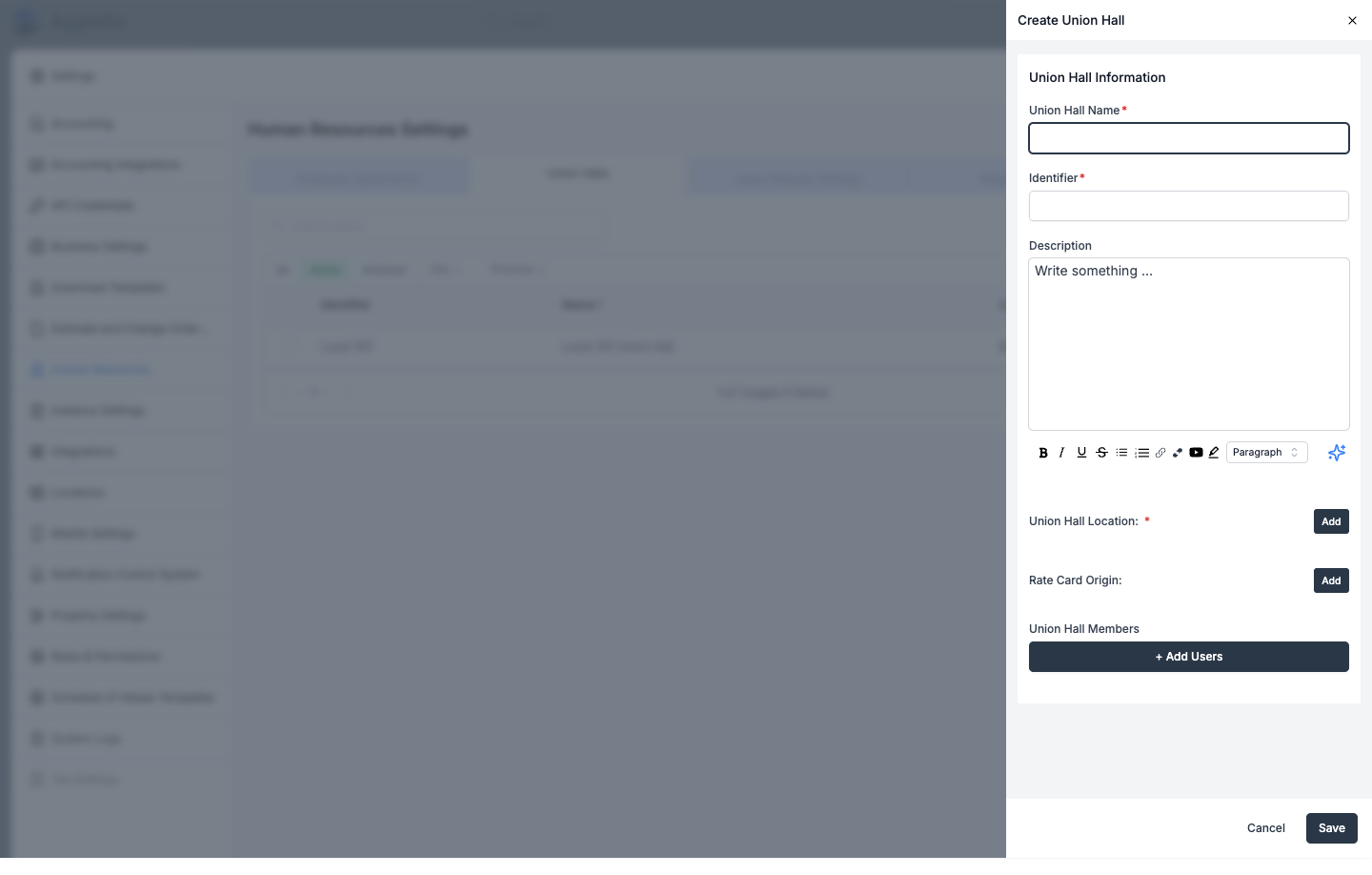
| Field | Required | Type | Effect |
|---|---|---|---|
| Union Hall Name | Yes | Text | The hall's display name, shown in the list's Name column and as the detail page title. |
| Identifier | Yes | Text | A short code for the hall (for example, a local number). Shown in the list's Identifier column. |
| Description | No | Rich text (WYSIWYG, up to 8,600 characters) | Free-text notes shown on the Overview tab. |
| Union Hall Location | Yes | Address (click Add to open the location picker) | The hall's dispatch address -- the default origin for travel-pay zone calculations, and what plots the hall's zone map on its Overview tab. |
| Rate Card Origin | No | Address (click Add) | A different address to use as the travel-pay origin instead. If left blank, Appello uses Union Hall Location. |
| Union Hall Members | No | User picker (click + Add Users, described below) | Assigns workers to this hall directly from the create/edit panel. |
Clicking + Add Users (or Update Users when editing) opens a flyout with two controls:
| Field | Required | Type | Effect |
|---|---|---|---|
| Effective Date | Yes | Date (defaults to today) | The date the membership change takes effect, applied to every worker added or removed. |
| Users | No | Searchable, multi-select list | Checking a worker adds them to the hall on save; unchecking a previously-selected worker removes them. |
Click Save to create the hall, or Cancel to discard the panel without saving.
The hall's detail page
Opening a hall from the list (or its Identifier/Name link) shows its Overview and Assigned Users tabs.
Overview tab
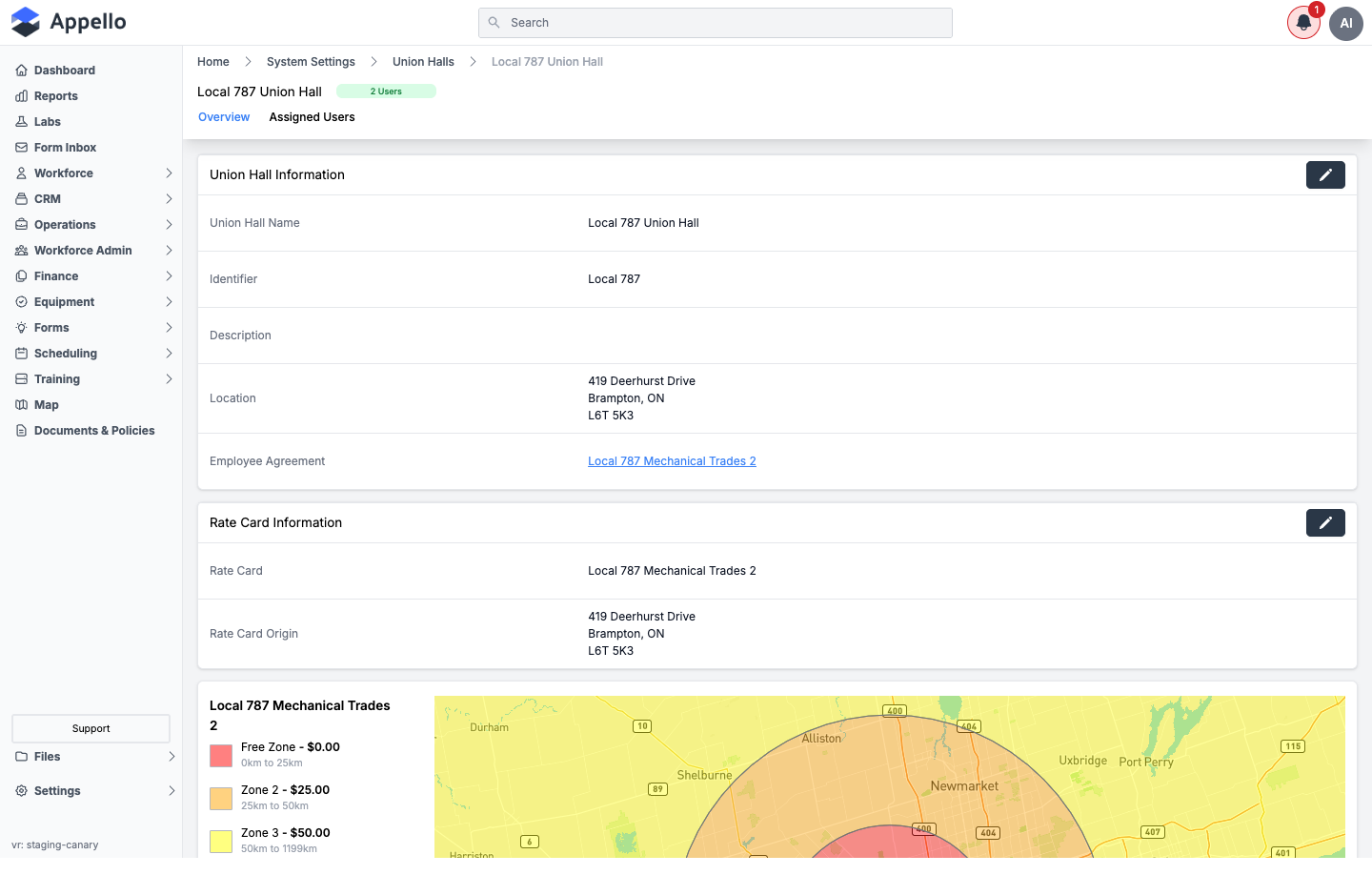
The Union Hall Information card shows the hall's Name, Identifier, Description, and Location (this hall's Description is blank in the demo, which is why that row shows no value), plus the Employee Agreement the hall is linked to, if any -- linked to that agreement's own detail page.
A union hall's Employee Agreement is set from that agreement's own Union Halls tab (Employment Agreements → [agreement] → Union Halls), not from the union hall's own create/edit panel.
The Rate Card Information card shows the active Travel Rate Card name from the linked Employee Agreement's current contract (or "No Rate Card Selected" if none), and the Rate Card Origin address used to calculate it (or "No Rate Card Location Found" if there is none).
Below both cards, when a rate card and an origin location are both available, Appello renders a map centered on that origin, shaded with the rate card's travel-pay zones -- the same zones the sidebar list summarizes by name and rate. This is a read-only view; the hall's detail page does not itself edit the zones.
Travel zones, the travel rate card, and travel records
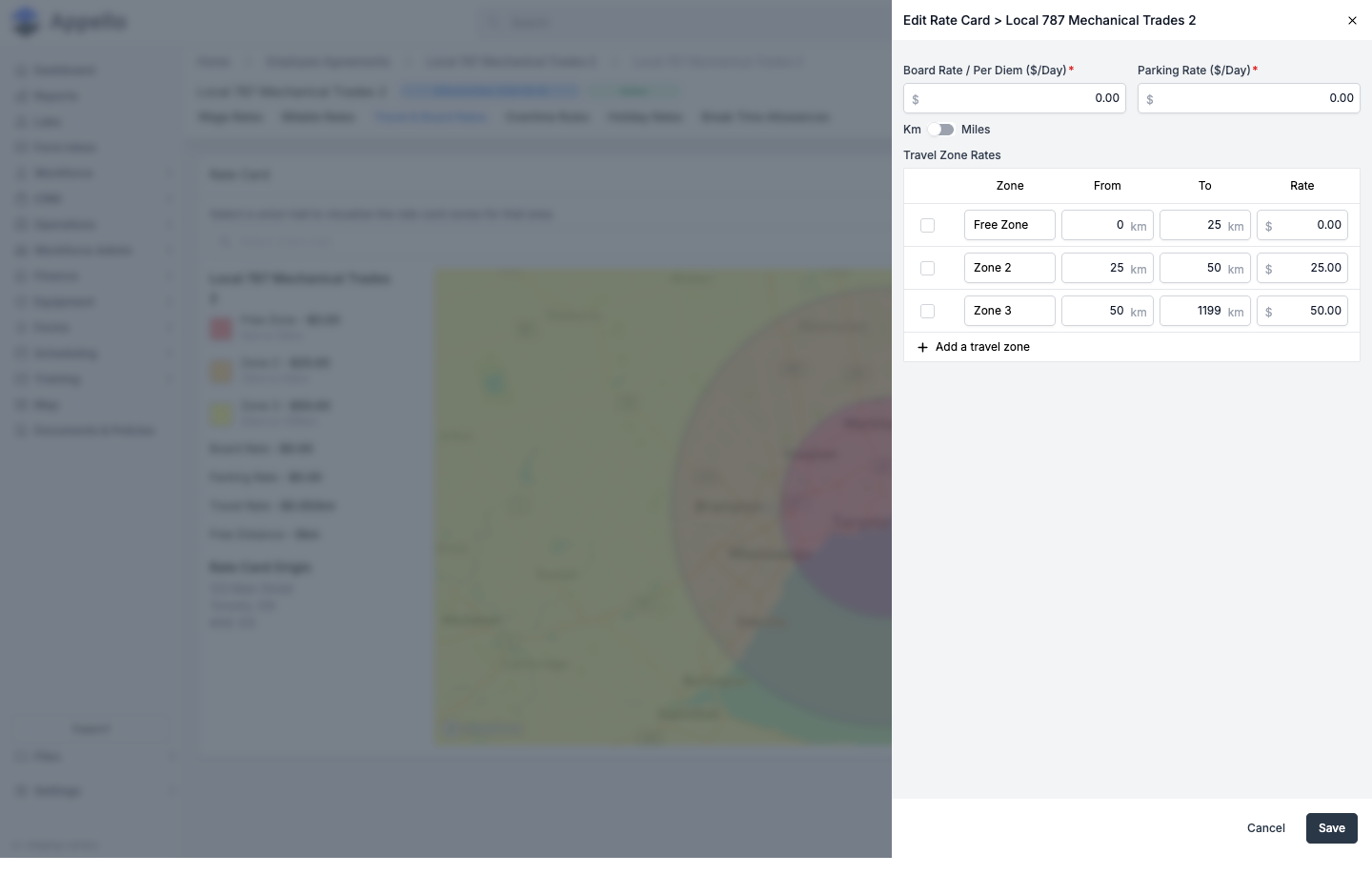
The zones shown here belong to the Travel Rate Card attached to the hall's Employee Agreement's current contract, not to the union hall record itself. They're created and edited from that contract's Travel & Board Rates tab -- see Employment Agreements → The Contract's Tabs for how to get there, and Travel Rate Cards & Zones for the full zone-based vs. distance-based configuration guide. Opening that tab's edit panel shows the fields Appello uses to create or edit a zone:
| Field | Required | Type | Effect |
|---|---|---|---|
| Board Rate / Per Diem ($/Day) | Yes | Currency | Flat daily accommodation amount for the whole rate card, independent of zone. |
| Parking Rate ($/Day) | Yes | Currency | Flat daily parking reimbursement for the whole rate card, independent of zone. |
| Km / Miles toggle | No | Toggle | Switches the unit the From/To zone distances below are entered and displayed in. |
| Zone Name | Yes | Text | Label shown on this Overview tab's zone list and on the map legend (e.g. "Free Zone", "Zone 2"). |
| From | Yes | Numeric (km or mi) | Start distance for the zone; editing it also pushes the previous zone's To value to match. |
| To | Yes | Numeric (km or mi) | End distance for the zone; editing it also pushes the next zone's From value to match. |
| Rate | Yes | Currency | The travel allowance paid for a day's travel that falls in this zone. |
Use + Add a travel zone to append a new zone (seeded with the previous zone's end distance as its start), or check one or more zone rows to reveal a Delete Items action. This is the same rate card record referenced by the Overview tab above -- creating it in the first place (name, board/parking/travel rates, and the employment agreement contract it belongs to) also happens from that contract's Travel & Board Rates tab, not from the union hall.
The individual timesheet calculations that actually apply this rate card -- resolved from a worker's union hall, their job site, and the zone that distance falls in -- become travel records on each timesheet. See Timesheet Matrix → How Timesheets Connect to Workforce Data and Travel Rate Cards & Zones for where those calculated amounts show up and how they're reported.
Assigned Users tab
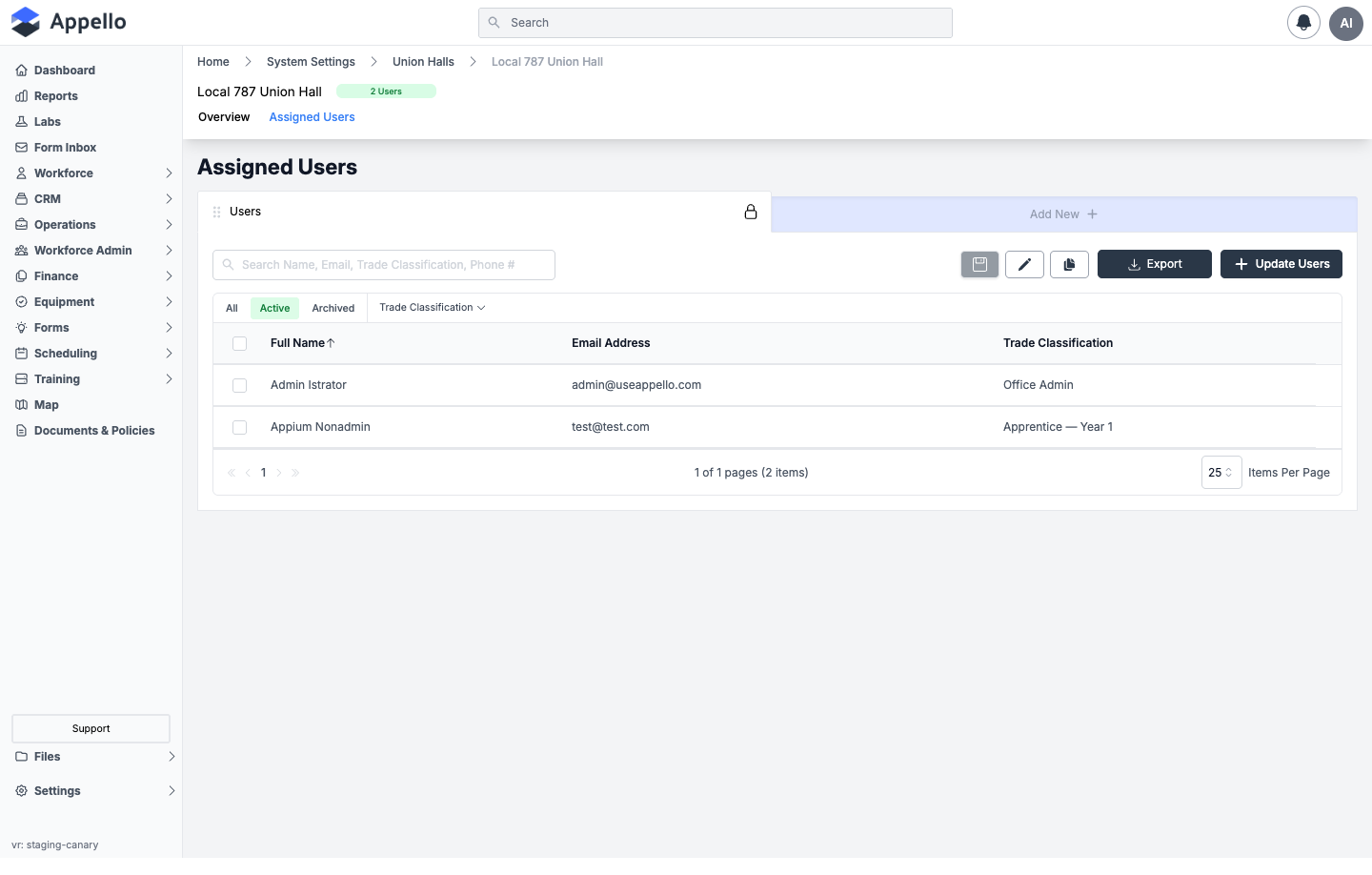
| Column | Description |
|---|---|
| Full Name | The worker's name, linked to their own user profile. |
| Email Address | The worker's email address. |
| Trade Classification | The worker's trade classification under their employment agreement, if one is set. |
All / Active / Archived quick tabs and a Trade Classification filter sit above the table, alongside Search Name, Email, Trade Classification, Phone # and an Export button that downloads the current view as a CSV.
Update Users opens the same Effective Date + user-checklist flyout documented under Creating a Union Hall above, pre-checked with the hall's current members -- checking or unchecking a worker there and saving adds or removes them from the hall as of the effective date. Selecting one or more rows in the table itself exposes a bulk action that removes the selected workers from the hall.
Assigning a worker to a union hall
Assign a worker to a hall from their own profile:
- Open Workforce → Users and select the worker, or open Workforce → Users and use the Union Hall column/filter to find who is already assigned.
- Click the edit (pencil) icon and scroll to Employment Information.
- Use the Union Hall field to search for and select a hall.
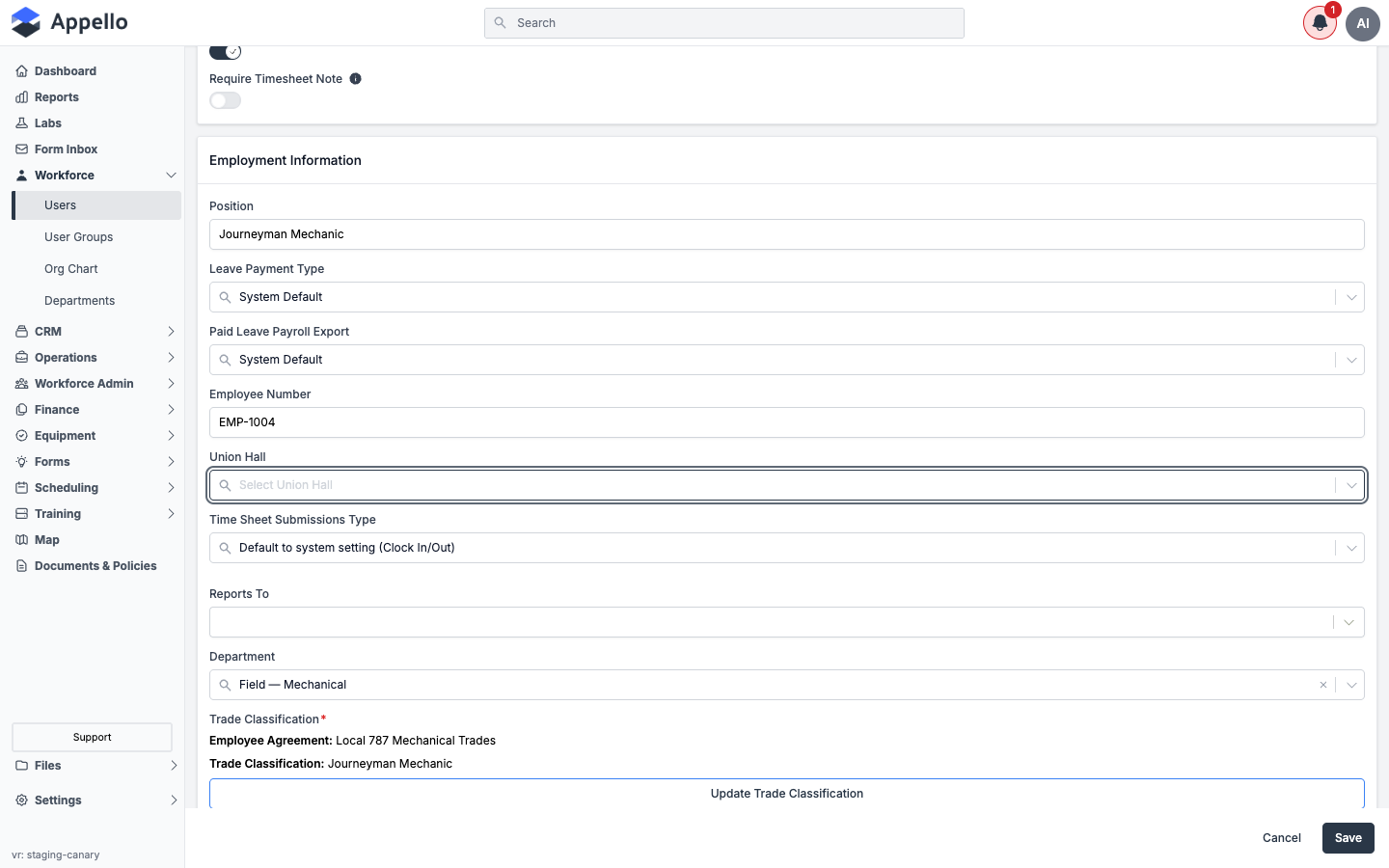
The Union Hall field only offers halls linked to the worker's current Employee Agreement. If no halls are linked to that agreement, the field will have no options to select -- link the hall to the agreement first (see the note under Overview tab above).
You can also manage membership from the union hall side, using Union Hall Members on the create/edit panel or the Update Users flyout on the Assigned Users tab -- both support an effective date for the change.
How the hall appears on the map
Union halls plot on the Administrative Map as a library-building icon, toggled with that map's Show Union Halls display option. Union hall pins have no click/hover popup on the map canvas itself -- open the hall's own record from this page instead. The travel-pay zone map shown on this page's Overview tab is not a layer on the Administrative Map; it only renders here, around the hall's own origin point. See Administrative Map → Layers not present on this map for that distinction.
How union halls connect to other features
| Feature | How the union hall is used |
|---|---|
| Employee Agreements | A hall can link to one Employee Agreement, which determines the Travel Rate Card applied to travel calculated from that hall. |
| Travel Rate Cards & Zones | The hall's Location (or its Rate Card Origin, if set) is the point travel zones are measured from on the hall's detail page and in reports. See Travel Rate Cards & Zones. |
| Timesheets / travel pay | When a worker's employee agreement contract resolves its rate-card origin to the worker's union hall, Appello calculates travel pay from that hall's Rate Card Origin (or Location) to the job site. See Timesheet Matrix. |
| Users | The worker's Union Hall field (Employment Information) links them to a hall; the Users list can also be filtered by Union Hall. |
| Map | Union halls can be shown as locations on the Administrative Map, alongside job sites and equipment, using the Show Union Halls display option. See Administrative Map. |
Permissions
| Permission item | View | Edit |
|---|---|---|
| Union Hall | See the Union Halls list and a hall's detail page. | Create, edit, archive, restore, or delete union halls; manage Union Hall Members from the create/edit panel or the detail page. |
The Assigned Users tab additionally requires the User permission item's View grant to be visible at all (it is hidden from the hall's tab bar otherwise). Editing the zones, rates, and origin on the linked Travel Rate Card requires the Employee Agreement Contract permission item's Edit grant, since that record lives on the Employee Agreement contract, not on the union hall.
Related pages
- Employment Agreements -- where a union hall's Employee Agreement link is set, and where its contract's Travel & Board Rates tab lives.
- Travel Rate Cards & Zones -- how travel-pay zones are configured, and zone-based vs. distance-based travel.
- Timesheet Matrix -- where a hall's travel rate card resolves into a worker's timesheet travel allowance.
- Administrative Map -- where union halls appear as a map layer.
- Users -- assigning a worker's Union Hall field.
- Human Resources Settings -- overview of all HR configuration tabs, including the embedded Union Halls tab.