Timesheet Export & Payroll
Export approved timesheets for payroll processing. Appello generates exports that include calculated wages, overtime premiums, travel allowances, board, parking, and union deductions — eliminating manual payroll calculations.
Navigation
Sidebar → Workforce Admin → Timesheets → Export button
Export Formats
| Format | Use Case | Contents |
|---|---|---|
| CSV | General-purpose — import into any payroll system or spreadsheet | All timesheet fields with calculated rates |
| Sage 50 | Direct import into Sage 50 Canadian payroll | Formatted for Sage 50 import mapping |
| Printable records for filing and auditing | Summary report with totals |
What the Export Contains
Each row in the export represents a single timesheet entry:
| Column | Description |
|---|---|
| Employee Name | Full name |
| Employee ID | Unique identifier |
| Date | Workday |
| Job Number | Job reference (e.g., 25-001-02) |
| Project | Parent project name |
| Cost Code | Cost code allocation |
| Regular Hours | Standard time |
| OT Hours | Overtime (1.5×) |
| DT Hours | Double-time (2×) |
| Base Rate | Per-hour rate from employment agreement |
| OT Rate | Calculated overtime rate |
| Travel Zone | Zone number |
| Travel Allowance | Daily travel amount |
| Board Allowance | Daily board amount |
| Parking | Daily parking amount |
| Total Earnings | Sum of all earnings for the entry |
| Agreement | Employment agreement name |
| Union Hall | Worker's home hall |
| Trade Level | Worker classification |
| Department | Worker's department |
Export Workflow
- Navigate to Timesheets and filter to the desired pay period.
- Ensure all timesheets for the period are Approved (non-approved entries are excluded or flagged).
- Click Export and select the format.
- Download the file.
- Import into your payroll system.
Only Approved timesheets are included in the payroll export. Submitted or rejected timesheets are excluded to prevent paying unapproved time.
Payroll Integration
The export is designed to map directly into common Canadian payroll systems:
| Payroll System | Integration Level |
|---|---|
| Sage 50 | Native export format — direct import |
| ADP | CSV import with column mapping |
| Ceridian / Dayforce | CSV import with column mapping |
| Manual payroll | PDF summary for manual entry |
The table above describes the export at a high level. The two sections below go deeper on where these exports actually live in the product, exactly which payroll systems are supported, and what a full pay-period export looks like end to end.
Payroll Report
The Payroll Report is the report built specifically for closing out a pay period. It totals each worker's hours by pay code (regular, overtime, double-time, or whatever rate labels your employee agreements define) for the selected period — with no per-job breakdown. A sibling report, Employee Timesheet Report, shows the same underlying data but broken out by job as well as by worker; both reports share the same page layout, period selector, tabs, and Export menu described below.
Navigation
Sidebar → Reports → Payroll Report (Workforce Administration category)
URL: /reports/payroll-report
The Reports Hub lists Payroll Report as a standard list entry — see Reports hub for how the hub is organized and how to find any report by category.
Overview
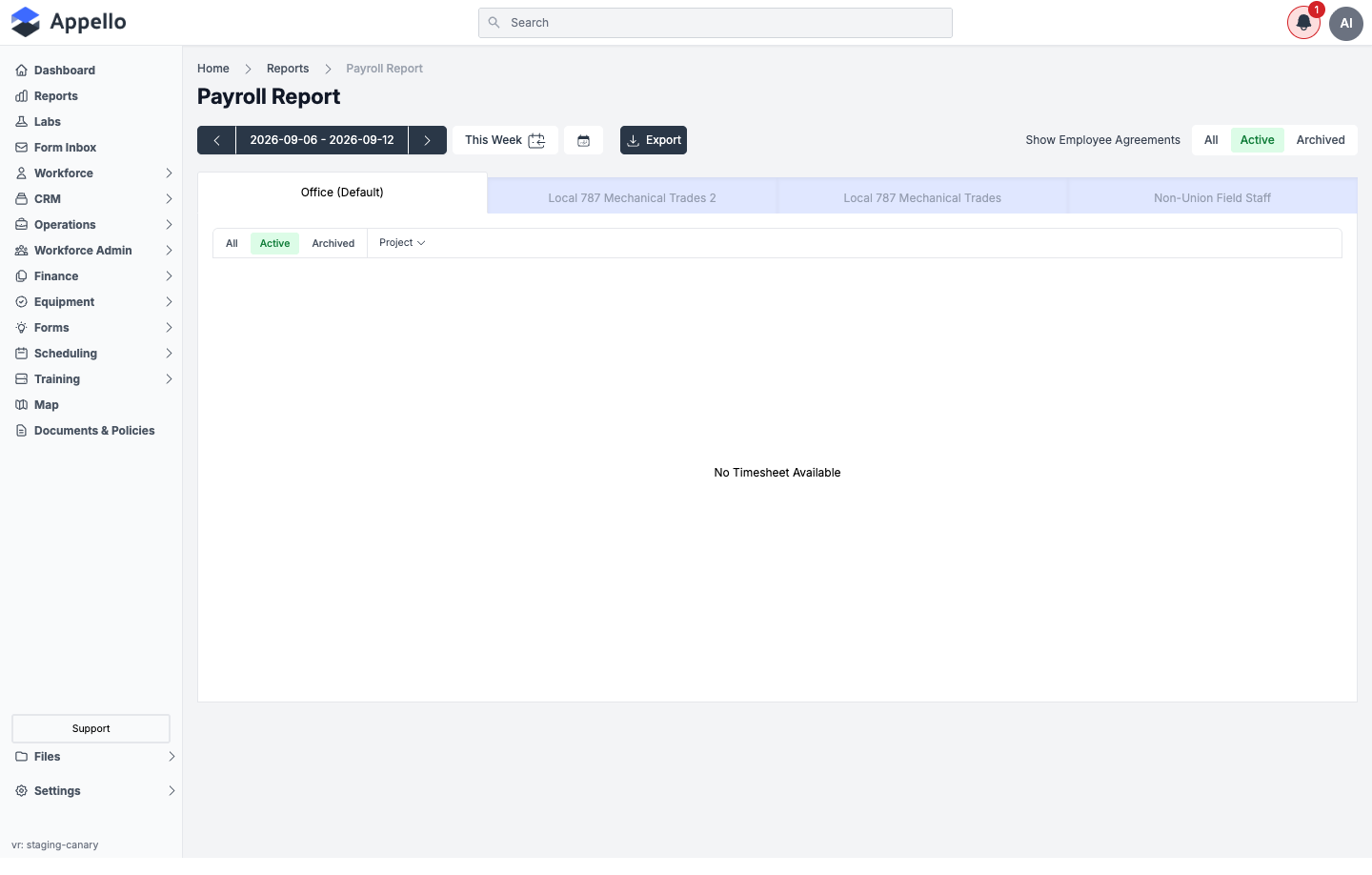
The page is organized as:
- Period selector — back/forward arrows, a This Week button that jumps to the current period, and a calendar icon to jump to an arbitrary date
- Export button, top right — see Export to Sage 50 and other payroll software below
- Show Employee Agreements toggle (All / Active / Archived)
- Employee Agreement tabs across the top — one per employee agreement configured for your instance, same pattern as the Timesheet Log: switching tabs re-scopes the report to that agreement's workers and pay codes
- Project filter
- The report table itself (rows per worker; see below)
Canary had no approved timesheet hours in any pay period checked (current week, and several weeks/months back), for any employee agreement — the table renders "No Timesheet Available" in every case shown here. This matches the same data gap already noted on the Timesheet Log page. The column layout below is confirmed from the report's source code rather than a populated screenshot.
Pay period selection
The Payroll Report does not let you pick an arbitrary date range — its period length follows your instance's Payroll Frequency setting (Settings → Business Settings): Weekly, Biweekly, Semi Monthly, or Monthly. For Semi Monthly, the two split days in the month (for example the 1st and the 16th) are also set there. The arrows, This Week, and the calendar icon move the same fixed-length period earlier, to today's, or to an arbitrary date — they don't let you resize the period itself. To change the period length or its start date, an admin has to change the Payroll Frequency setting, not this report.
Report columns
When a pay period has hours, each row is one worker (Payroll Report) or one worker-and-job combination (Employee Timesheet Report), with a column per day of the period followed by:
| Column | Description |
|---|---|
| Day columns | One column per day in the pay period, showing hours worked that day |
| Rate label columns | One column per non-line-item pay code on the selected employee agreement (for example 1x, 1.5x, 2x), labeled with the wage region — same dynamic-columns pattern as the Timesheet Log |
| Total Hours | Sum of hours across every rate label for the row |
| Travel ($) | Travel allowance |
| Zone | Travel zone number the allowance was calculated from |
| Board ($) | Board/accommodation allowance |
| Parking ($) | Parking allowance |
| Out of Pocket Expenses Subtotal / Tax / Total | Reimbursable out-of-pocket expense amounts logged against the same period |
| Expenses Grand Total | Travel + Board + Parking + out-of-pocket expenses combined |
A totals row at the bottom sums every column across all workers shown.
"Overtime" and "double-time" are not fixed columns — they show up as whichever rate labels (pay codes) your employee agreement defines, the same way they do on the Timesheet Log. An agreement with 1x/1.5x/2x pay codes shows three rate columns; an agreement with different pay codes shows different columns. There is no separate "Leave" column on this report — paid leave only appears if your employee agreement has a rate label dedicated to it.
Export
Click Export to open a menu with:
| Option | Contents |
|---|---|
| Export CSV | The currently selected employee agreement's tab only, for the selected pay period |
| Export All Employee Agreements CSV | A single combined CSV covering every employee agreement for the same pay period |
Export to <Payroll System> | One option per payroll system enabled for your instance — see the next section |
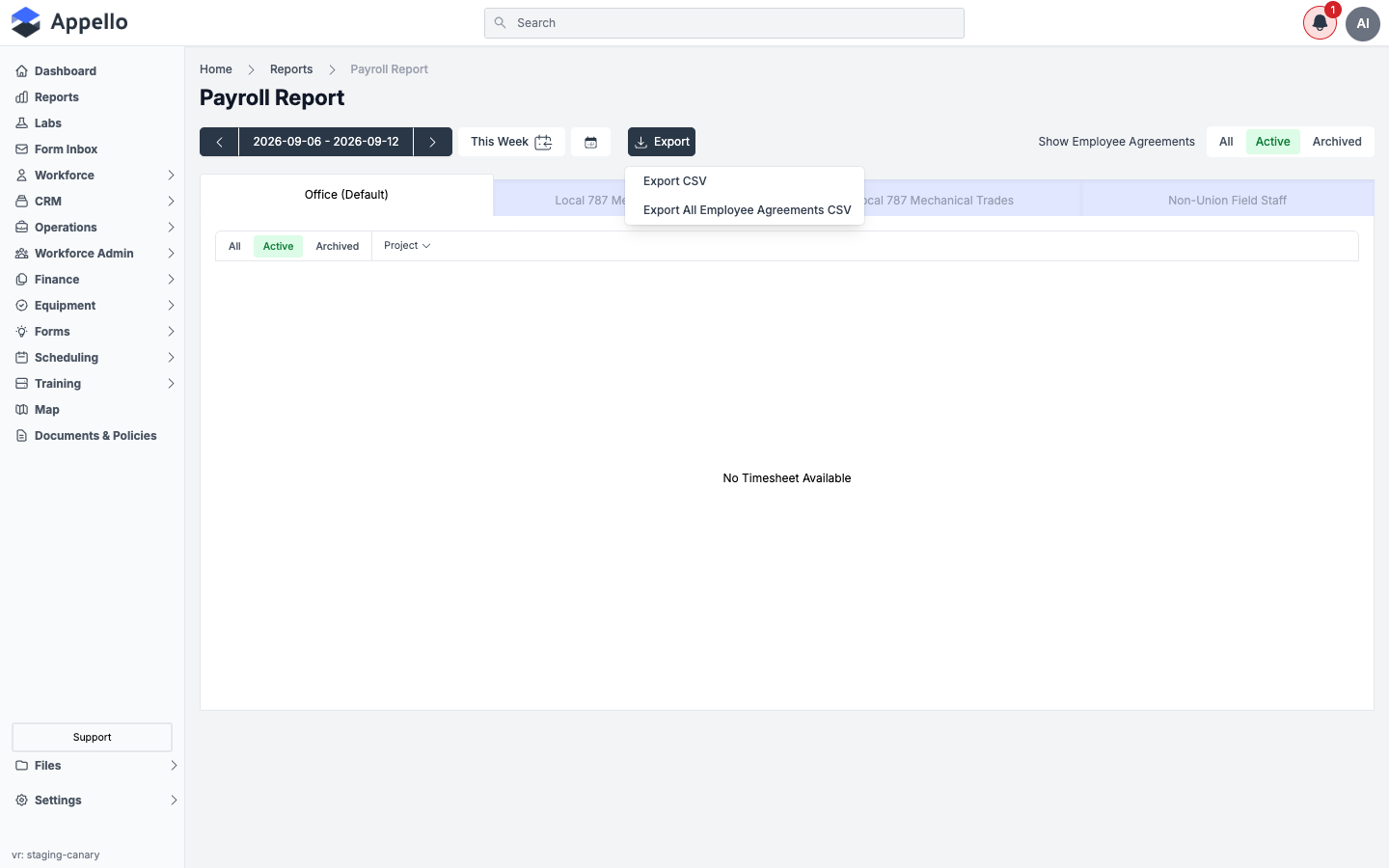
Canary has no payroll-software integrations enabled, so its Export menu shows only the two CSV options above. The Export to <Payroll System> entries are confirmed from source code (see below) but could not be captured live on this instance.
There is no PDF export on the Payroll Report or the Employee Timesheet Report — both offer CSV-only downloads plus the payroll-software exports described below.
Export to Sage 50 and other payroll software
This is the "export to Sage 50 / payroll software" feature: a set of payroll-system-specific export formats available from the Export menu on the Payroll Report and Employee Timesheet Report pages (not from the Timesheet Matrix — see the note at the end of this section).
Supported formats
The following payroll-software timesheet export formats exist in the product. Each is offered as its own menu entry once the corresponding accounting system is enabled for your instance (Settings → Accounting Integrations):
| Format | Notes |
|---|---|
| Sage 50 (Canada) | Offered as a timesheet export and a separate "timeslip" export variant |
| Sage 50 (US) | Requires each worker to have an Employee Number and an Employee Position on file |
| QuickBooks (Desktop) | Requires the job's company to be linked to a QuickBooks company record |
| QuickBooks Online | Syncs directly rather than downloading a file — see below |
| Avantage | Requires each worker to have an Employee Number on file |
| Payroll4Construction | Requires each worker to have an Employee Number on file |
| Dayforce / Powerpay | Requires each worker to have an Employee Number on file; the downloaded file name includes the pay period's start and end dates |
| ComputerEase | No extra per-worker data required |
Each format is also available as an "All Employee Agreements" variant (one combined file across every employee agreement for the period) in addition to the single-agreement version.
Every export (except QuickBooks Online, which syncs live) can also be run as a CSV, which is the generic option covered earlier on this page.
Where the export button is
- Open Payroll Report or Employee Timesheet Report (Reports hub, or
/reports/payroll-report//reports/employee-timesheet-report). - Select the Employee Agreement tab and pay period you want to export.
- Click Export. If your instance has one or more payroll systems enabled, they appear in the menu below the two CSV options, labeled Export
<Employee Agreement>to<Payroll System>(or Export All Employee Agreements to<Payroll System>).
If the menu shows only Export CSV and Export All Employee Agreements CSV (as it does on canary), no payroll-software integration is enabled for the instance yet — that's configured under Settings → Accounting Integrations.
Exporting a pay period
- Navigate to the Payroll Report and set the period you want to pay (see Pay period selection above).
- Pick the Employee Agreement tab, or plan to use the "All Employee Agreements" export if you pay multiple agreements together.
- Click Export, then click the entry for your payroll system (for example Export Office (Default) to Sage 50 (Canada)).
- A confirmation panel opens showing a preview table of every timesheet row that will be included, one line per worker/job/day, with the columns Employee, Employee Number, Employee Position, Job, Work Date, Trade Classification, Labour Account, one column per hour-rate label used in that pay period, and an Exportable indicator.
- Rows that don't meet that payroll system's requirements are flagged not exportable with a reason (for example "Employee number is missing" or, for QuickBooks Online, "Appello job mapping to QuickBooks customer is missing" or "Already exported on
<date>"). The panel shows an Exportable: X of Y count and a Revalidate button to re-check after fixing data. - Only records meeting the criteria are included in the download; the panel notes a 1,000-record limit per export.
- Click Export in the confirmation panel to download the file (or, for QuickBooks Online, to run the sync).
Records that fail the exportability check are silently excluded from the file, not blocked — always check the Exportable: X of Y count before relying on the export for a full payroll run.
The Timesheet Matrix's own Export button (Sidebar → Workforce Admin → Timesheets, described in Timesheet Matrix) downloads a single CSV of the current week's grid only — it does not offer Sage 50 or other payroll-software formats. The payroll-software exports in this section are only on the Payroll Report and Employee Timesheet Report pages. The exact column layout of each downloaded file is generated server-side per payroll system's import spec; what's confirmed here is the on-screen preview table and each system's per-row eligibility rule, both taken from the export UI's source code.
Related Pages
- Reports hub — Find Payroll Report and every other standard report by category
- Timesheet Matrix — Approve timesheets before export
- Timesheet Log — Flat, filterable timesheet list with its own CSV export, built for reporting and audits rather than payroll
- Employment Agreements — Wage rates and rate labels used in calculations
- Travel Rate Cards — Travel allowance calculations