Leave Types
Configure the types of leave your workers can request — from vacation and sick leave to union business and compassionate leave. Each leave type defines availability rules, approval workflows, and how time-off appears on the scheduling calendar.
Navigation
Sidebar → Settings → Human Resources → Leave Request Settings tab
URL: /settings/human-resources → Leave Request Settings tab
Overview
The Leave Request Settings tab displays all configured leave types, plus the instance-wide defaults that apply to every leave request. Each leave type defines a category of time-off that workers can request through the mobile app and administrators can manage through the desktop.
Standard Leave Types
ICI contractors typically configure the following leave categories:
| Leave Type | Paid/Unpaid | Description |
|---|---|---|
| Vacation | Paid | Standard annual vacation — accrual tracked per CBA or employment agreement |
| Sick Leave | Paid | Illness or medical appointment — may require doctor's note after threshold |
| Personal Leave | Paid | Personal day — limited to a set number per year |
| Bereavement | Paid | Death in family — duration per CBA (typically 3–5 days) |
| Union Business | Paid or Unpaid | Union meetings, steward duties, local hall business |
| Leave Without Pay | Unpaid | Extended absence — worker retains position but no pay |
Industry-Specific Leave Types
Some contractors also configure:
| Leave Type | Description |
|---|---|
| Training Leave | Time off for certification courses or apprentice block release |
| Weather Day | Outdoor work suspended due to extreme weather |
| Layoff | Temporary layoff between projects (common in seasonal work) |
| WSIB / Workers' Comp | Time off due to workplace injury |
| Jury Duty | Court-ordered absence |
| Statutory Holiday | Public holidays — auto-calculated based on company holiday calendar |
How Leave Requests Work
Worker Submits (Mobile)
- Worker opens the Appello mobile app.
- Navigates to Leave from the bottom menu.
- Taps Request Leave.
- Selects the leave type, start date, end date, and optional notes.
- Submits the request.
Administrator Reviews (Desktop)
- Administrator navigates to Workforce Admin → Leave.
- Opens the pending request.
- Reviews the dates, checks for scheduling conflicts.
- Approves or Rejects with an optional note.
Calendar Impact
Approved leave automatically blocks the worker on the scheduling calendar:
- The worker shows as unavailable for the leave dates
- Schedulers see a leave indicator when viewing the worker's row
- Attempting to schedule a worker during approved leave triggers a conflict warning
Configuring Leave Types
Default Leave Settings
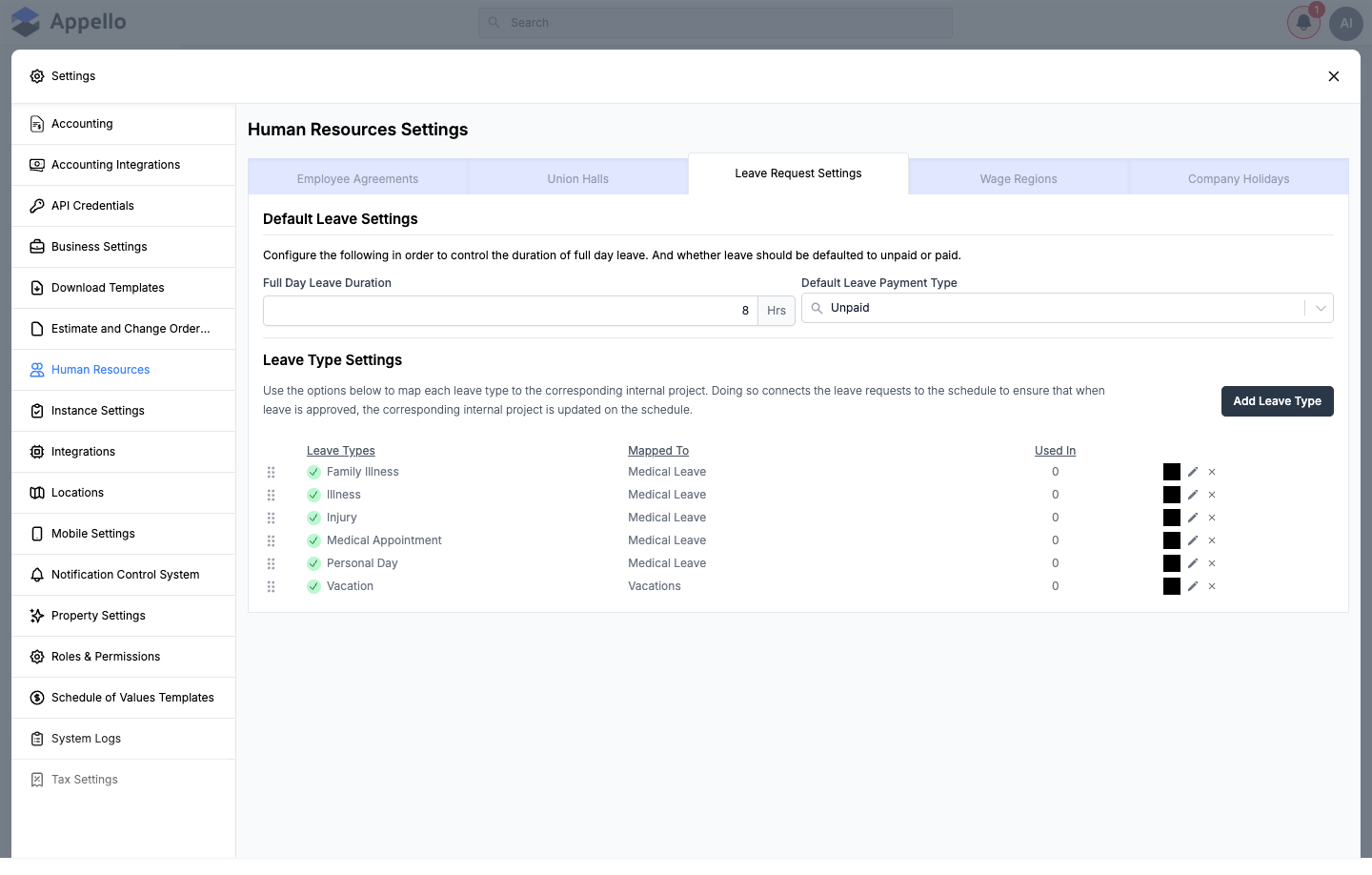
At the top of the Leave Request Settings tab, two instance-wide defaults control how leave is counted and paid:
| Setting | Description |
|---|---|
| Full Day Leave Duration | Hours a full-day (or multi-day) leave request counts as, per day (e.g. 8 Hrs). |
| Default Leave Payment Type | Paid or Unpaid — the default for a new leave request's Paid Leave toggle, used when nothing else overrides it. |
Leave Type Settings
Below the defaults, the Leave Type Settings table lists every configured leave type with:
| Column | Description |
|---|---|
| Leave Types | The leave type's display name, with a drag handle on the left for reordering the list. |
| Mapped To | The internal project this leave type is linked to — approving a request on this type updates that project on the schedule. |
| Used In | A count of how many records currently use this leave type. Hover the count to see where it's used. |
| (unlabeled) | The leave type's color swatch, an edit (pencil) icon, and a delete (×) icon. |
The delete icon only appears when Used In is 0 — a leave type that's already in use can't be deleted until it's no longer referenced.
Adding or Editing a Leave Type
Click Add Leave Type (or the pencil icon on an existing row) to open the leave type panel:
| Field | Description |
|---|---|
| Leave Type | Required. The display name shown to workers and admins. |
| Select Color | The color swatch shown next to this leave type in lists and on the calendar. |
| Mapped to Internal Project | Required. The internal project this leave type reports against. |
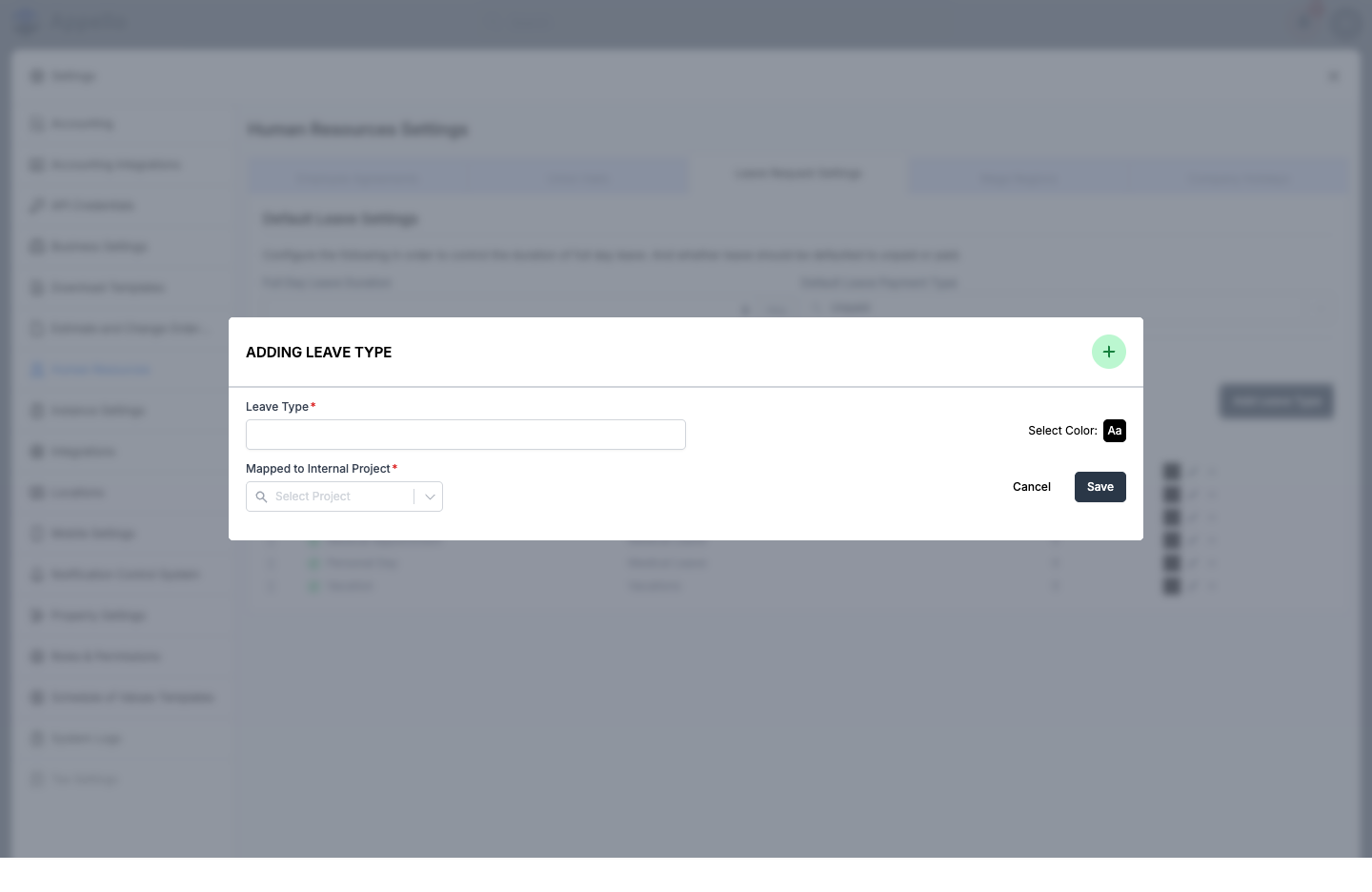
Click Save to create or update the leave type, or Cancel to close the panel without changes.
The leave type itself does not have a Paid/Unpaid, approval-required, or annual-maximum setting. Whether a leave request is paid follows the Paid Leave toggle on the request and the instance-wide Default Leave Payment Type above — see Leave Submissions for how that plays out on an actual request. Every leave request requires administrator approval; there is no per-type toggle for this.
How Leave Types Are Used
Once a leave type is configured here, it becomes a selectable category on the leave request form — on both mobile and desktop. See Leave Submissions for the full leave-request lifecycle: how a worker submits a request, how an administrator reviews and approves it, and how the Default Leave Settings on this page (Full Day Leave Duration, Default Leave Payment Type) feed into leave reports and payroll.
How Leave Types Connect to Other Features
| Feature | How Leave Is Used |
|---|---|
| Dashboard | "Upcoming Vacation / Leave" widget shows approved upcoming leave |
| Scheduling | Workers on leave are marked as unavailable |
| Timesheets | Leave hours may appear on timesheet exports for payroll |
| Payroll Export | Paid leave hours export with appropriate earning codes |
| Mobile App | Workers can submit a leave request and view their own leave history |
Appello does not show a running leave balance or accrual total for a worker — each leave request is tracked as an individual event, not against a "days remaining" figure.
Related Pages
- Leave Submissions — Manage and approve leave requests
- Human Resources Settings — Overview of all HR configuration tabs
- Scheduling — See how leave affects the job schedule