Business Settings
Module: Settings | Platform: Web
Business Settings is the central configuration page for your company's identity, financial defaults, payroll rules, billing information, and branding. Changes here affect the entire Appello instance.
Navigation
Sidebar → Settings icon → Business Settings
Settings is not a page with its own URL — it opens as a slide-over panel on top of whatever screen you're on. Business Settings is one tab in that panel's left-hand list, alongside Accounting, Instance Settings, Locations, and the others. This tab has no sub-tabs of its own (the two-tab Estimate & Change Order Settings card inside it is the only internal tab group).
Overview
Business Settings is the central place to configure your company's identity, financial defaults, payroll rules, billing information, and branding — a single scrollable panel divided into eleven sections. Changes here affect the entire Appello instance: every PDF export, invoice, work order, and email your company sends pulls from this page.
Sections
1. Company Settings — Profile
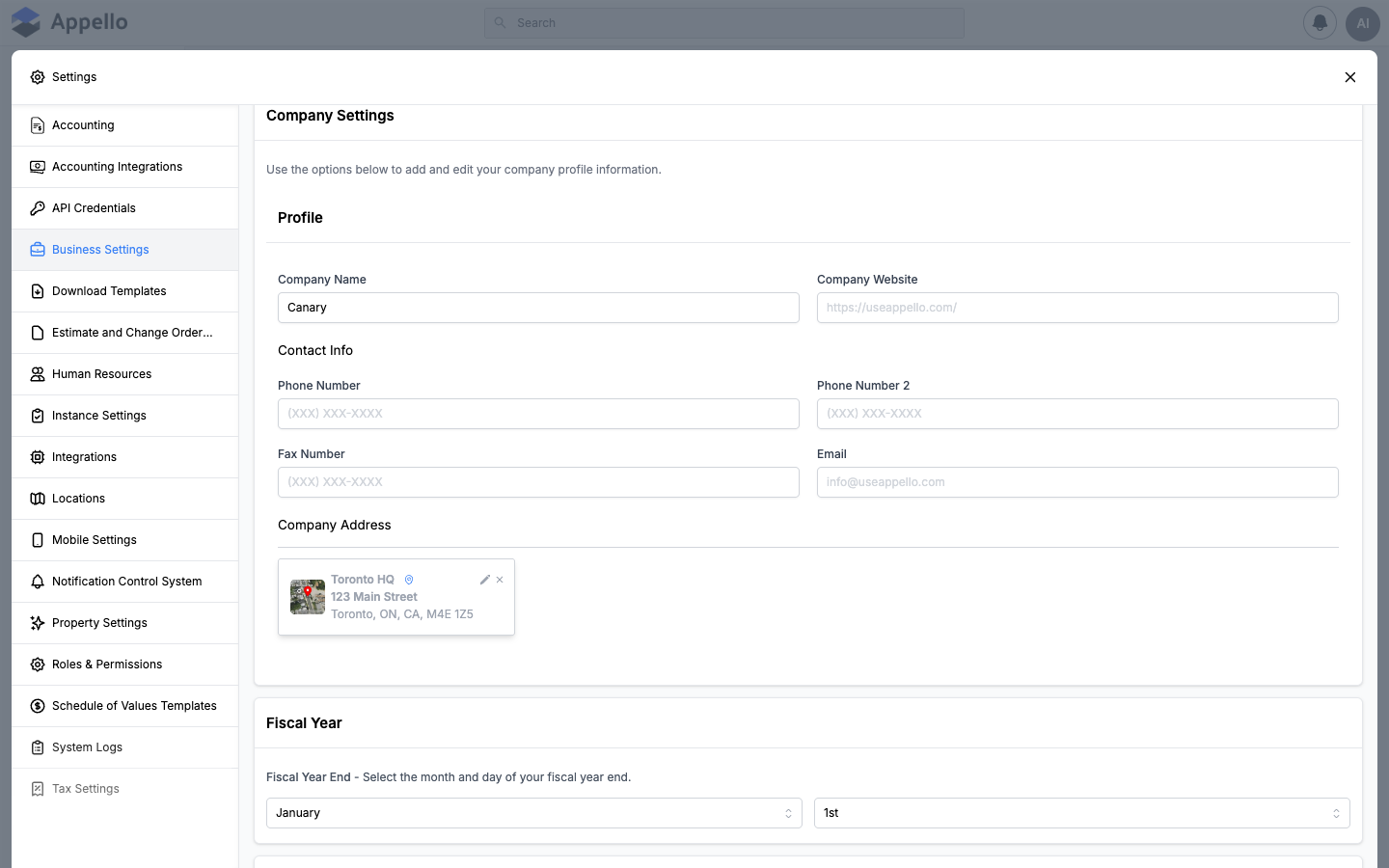
Set your company's core identity information. All fields are optional except that a saved Email must be a validly formatted address.
| Field | Required | Type | Effect and where it shows up |
|---|---|---|---|
| Company Name | No | Text | Appears in the app header, the sign-in page, and the company line of every PDF export (invoices, estimates, work orders). |
| Company Website | No | URL | Shown wherever the company website is printed on customer-facing documents. |
| Phone Number | No | Phone | Primary business phone, printed on PDF exports. |
| Phone Number 2 | No | Phone | Secondary phone number. |
| Fax Number | No | Phone | Fax number. |
| No | Must be a valid email address if set (validated on save). Primary business email, printed on PDF exports. | ||
| Company Address | No | Location record | Click the pencil icon on the address card to open the Associate Location panel; click the × to remove the association. |
Company Address is not a free-text field — it points at the same shared Location record used on the Locations page, so editing the address here changes it everywhere that Location is referenced. Clicking the pencil opens a panel with two tabs:
| Tab | What it does |
|---|---|
| Associate Existing | Search and pick a different Location record already in your instance to use as the company address. |
| Associate New | Fill out a full new address (the same form used to add a Location on the Locations page) and associate it. |
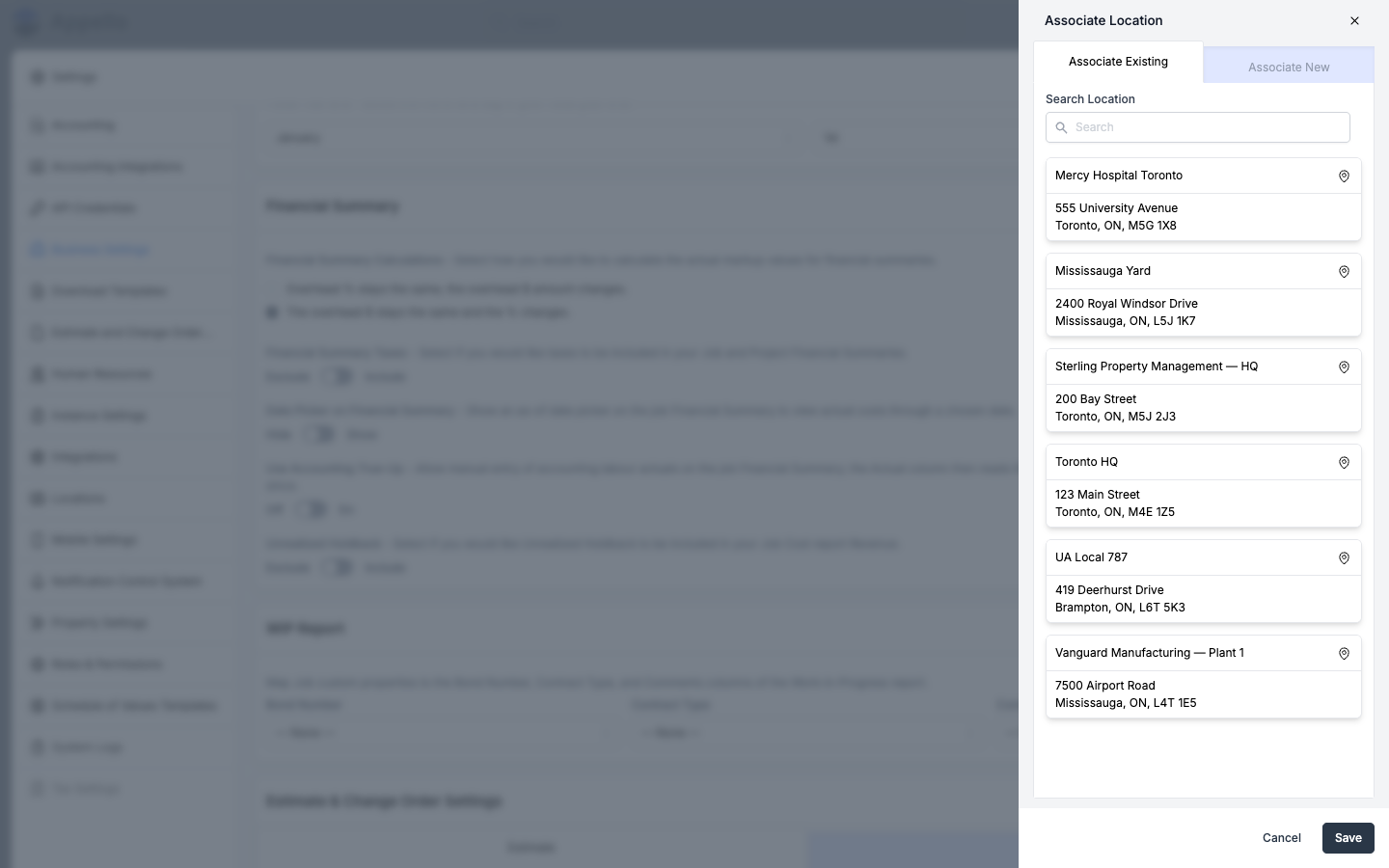
Clicking the address card itself (not the pencil or ×) opens a read-only map preview of the pinned address — it does not start editing.
2. Fiscal Year
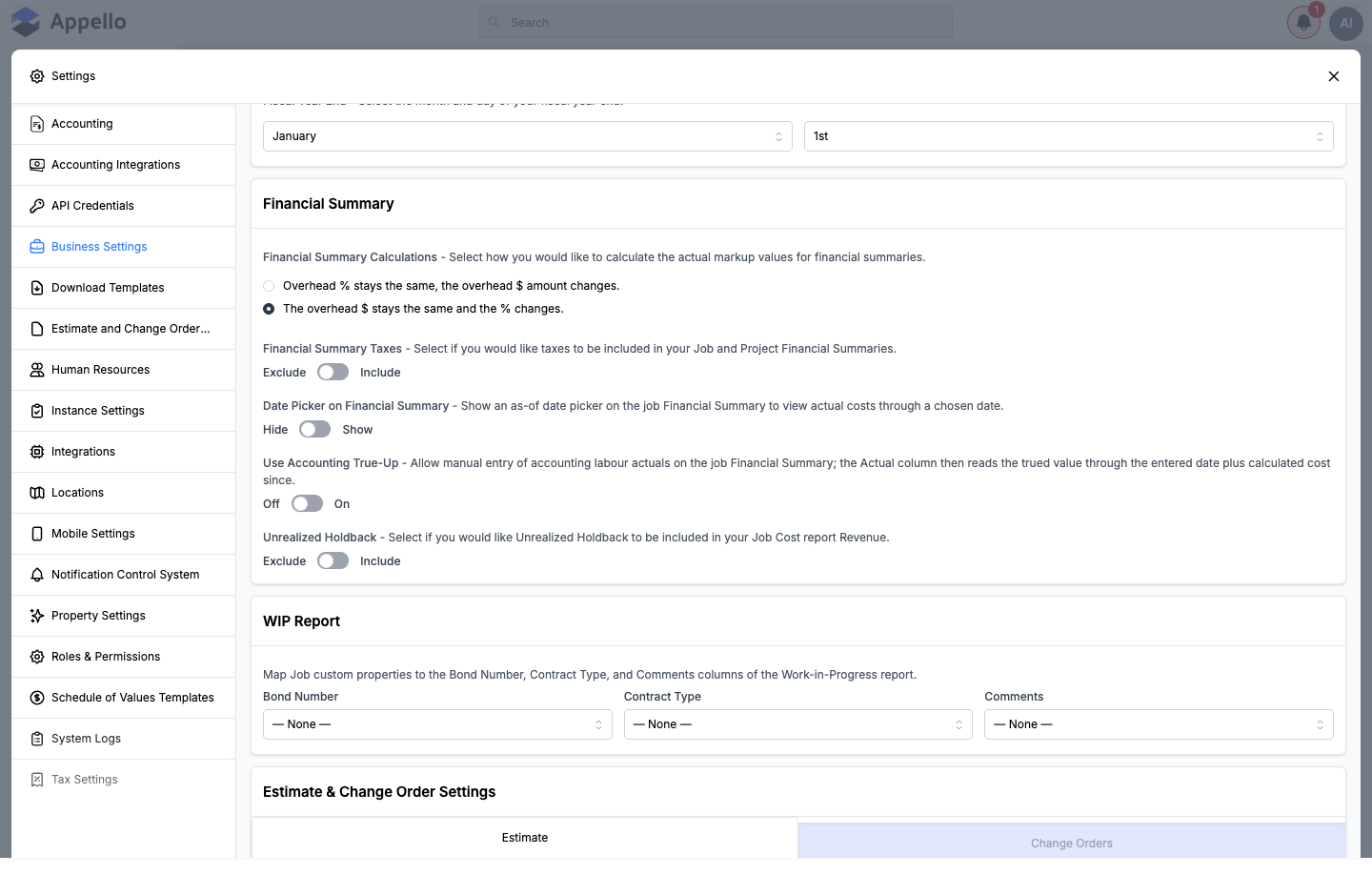
Set the month and day your fiscal year ends. This determines how Appello calculates annual financial periods for reports and summaries.
| Field | Description |
|---|---|
| Month | The month your fiscal year ends (e.g. January). |
| Day | The day of the month (e.g. 1st). |
3. Financial Summary
Controls how financial summaries are calculated across jobs and projects. Each setting below (aside from Financial Summary Calculations) is a toggle between the two labelled states.
| Setting | Options |
|---|---|
| Financial Summary Calculations | Radio choice: "Overhead % stays the same, the overhead $ amount changes." or "The overhead $ stays the same and the % changes." |
| Financial Summary Taxes | Exclude or Include — whether taxes are included in Job and Project Financial Summaries. |
| Date Picker on Financial Summary | Hide or Show — shows an as-of date picker on the job Financial Summary to view actual costs through a chosen date. |
| Use Accounting True-Up | Off or On — allows manual entry of accounting labour actuals on the job Financial Summary; the Actual column then reflects the trued value through that date plus calculated cost since. |
| Unrealized Holdback | Exclude or Include — whether Unrealized Holdback is included in the Job Cost report Revenue. |
4. WIP Report
Maps Job custom properties to the Bond Number, Contract Type, and Comments columns of the Work-in-Progress report.
| Field | Description |
|---|---|
| Bond Number | Job custom property to display in the WIP report's Bond Number column. |
| Contract Type | Job custom property to display in the WIP report's Contract Type column. |
| Comments | Job custom property to display in the WIP report's Comments column. |
Each field defaults to — None — until a custom property is selected.
5. Estimate & Change Order Settings
Default values applied when creating new estimates and change orders. These can be overridden on individual records.
| Field | Description |
|---|---|
| Next System Estimate Number | Auto-incrementing estimate number. Estimate tab only — changing this affects all future estimates. |
| Estimate Name / Change Order Name | Default name template for new estimates or change orders. |
| Markup / Profit Margin (%) | Default markup percentage applied to estimates or change orders. |
| Overhead (%) | Default overhead percentage applied to estimates or change orders. |
This section has two tabs: Estimate and Change Orders, each with its own set of the fields above.
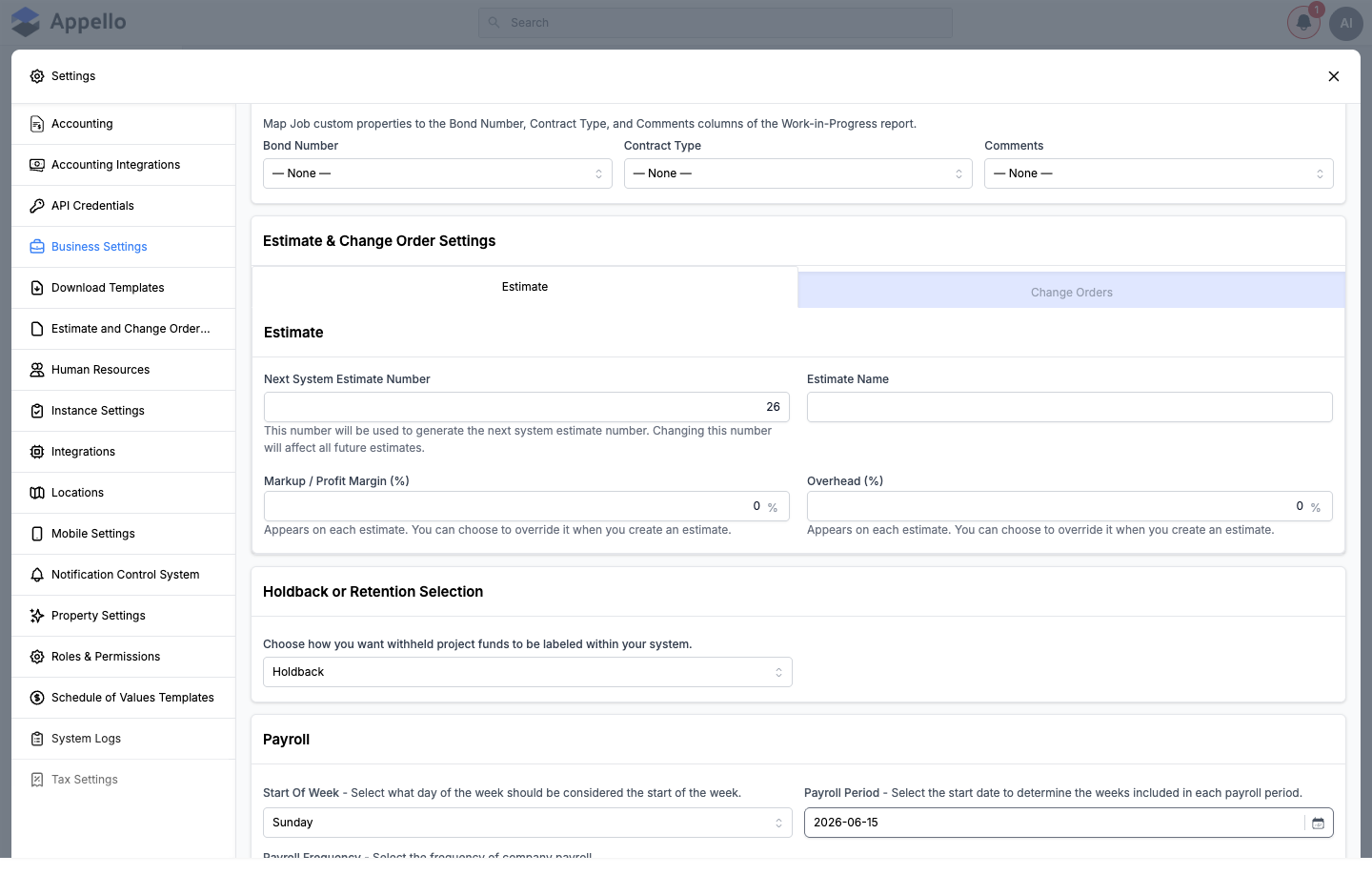
As of Release 1.33, the Estimate & Change Order Settings section only exposes Name, Markup, and Overhead for each type. The underlying data model also defines a Title, Footer, and Note per type, but those fields are not wired into this form and have no editable control here. Document-level title, footer, and note text for estimates and change orders is configured on the separate Estimate and Change Order Templates page in Settings, not on this page.
6. Holdback or Retention Selection
Choose the terminology for withheld project funds — Holdback or Retention (a fixed two-option list; there is no third or custom label). This label is used consistently throughout invoicing, progress reports, and financial summaries — for example it drives the "Unrealized [Holdback/Retention]" wording in the Financial Summary section above.
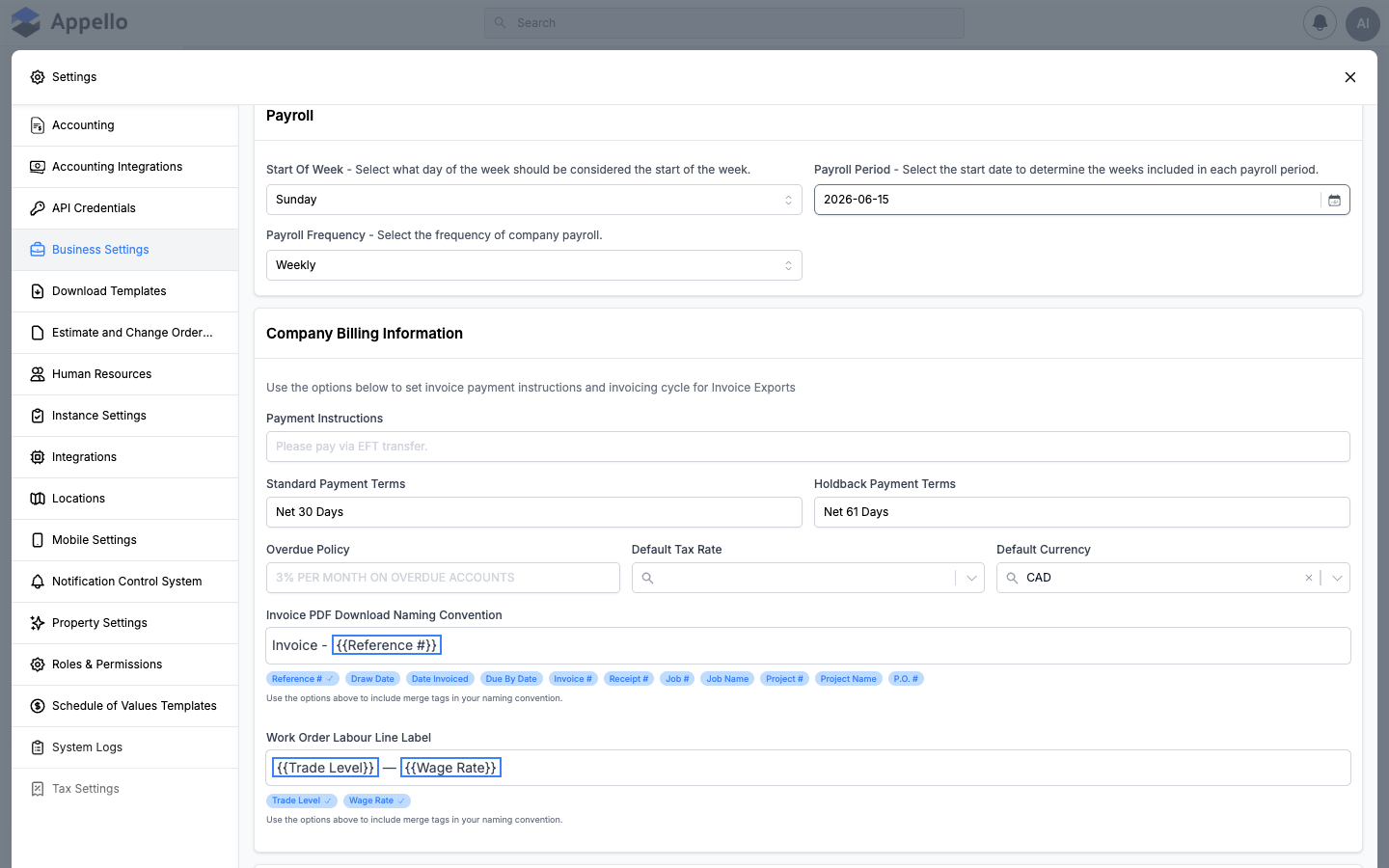
7. Payroll
Configure payroll timing to align with your company's pay schedule.
| Field | Required | Type | Effect and where it shows up |
|---|---|---|---|
| Start of Week | No | Select | Which day begins the work week (Sunday through Saturday). Used by timesheets and scheduling. |
| Payroll Period | No | Date | Start date used to determine which weeks fall into each payroll period. |
| Payroll Frequency | No | Select | Weekly, Biweekly, Semi Monthly, or Monthly. |
Choosing Semi Monthly reveals two extra day-of-month dropdowns (both default to the 1st and 15th) to pick the two dates payroll runs on each month; they're hidden for the other three frequencies.
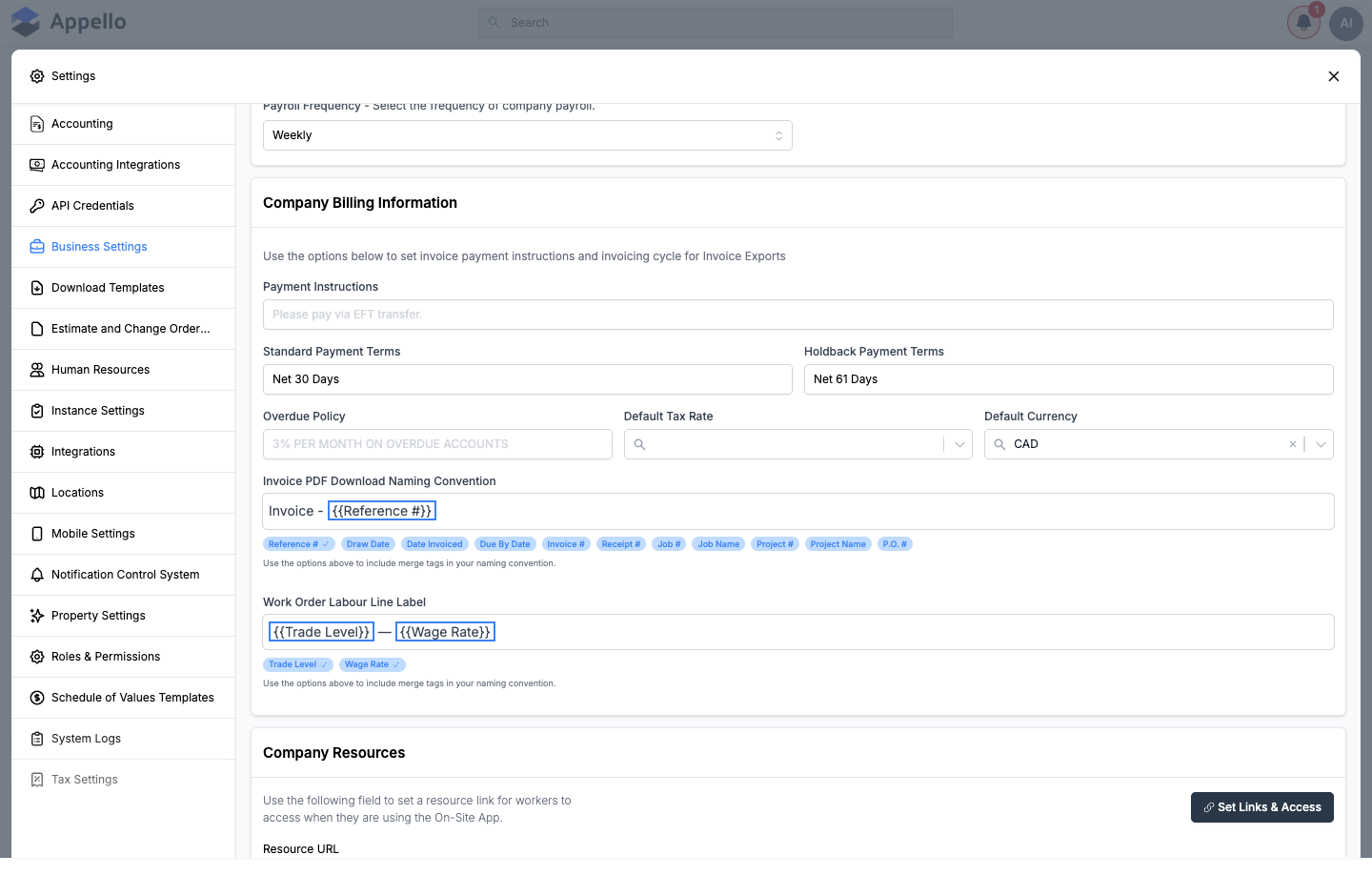
8. Company Billing Information
Set default invoice and payment details used when generating invoices.
| Field | Required | Type | Effect and where it shows up |
|---|---|---|---|
| Payment Instructions | No | Text | Printed on invoices (e.g. "Please pay via EFT transfer"). |
| Standard Payment Terms | No | Text | Default payment terms for invoices (e.g. "Net 30 Days"). |
| Holdback Payment Terms | No | Text | Payment terms for holdback amounts (e.g. "Net 61 Days"). |
| Overdue Policy | No | Text | Policy text for overdue accounts (e.g. "3% PER MONTH ON OVERDUE ACCOUNTS"). |
| Default Tax Rate | No | Search/select | Default tax rate applied to new invoices, chosen from the rates configured on Tax Settings. |
| Default Currency | No | Select | One of CAD, USD, EUR, GBP. Used for invoicing. |
| Invoice PDF Download Naming Convention | No | Merge-tag text | File name for downloaded invoice PDFs. Insertable tags: Reference #, Draw Date, Date Invoiced, Due By Date, Invoice #, Receipt #, Job #, Job Name, Project #, Project Name, P.O. #. Cannot contain \ / . ? * & (validated on save). |
| Work Order Labour Line Label | No | Merge-tag text | How labour lines are labelled on work orders. Insertable tags: Trade Level, Wage Rate. Same forbidden-character validation as above. |
9. Company Resources
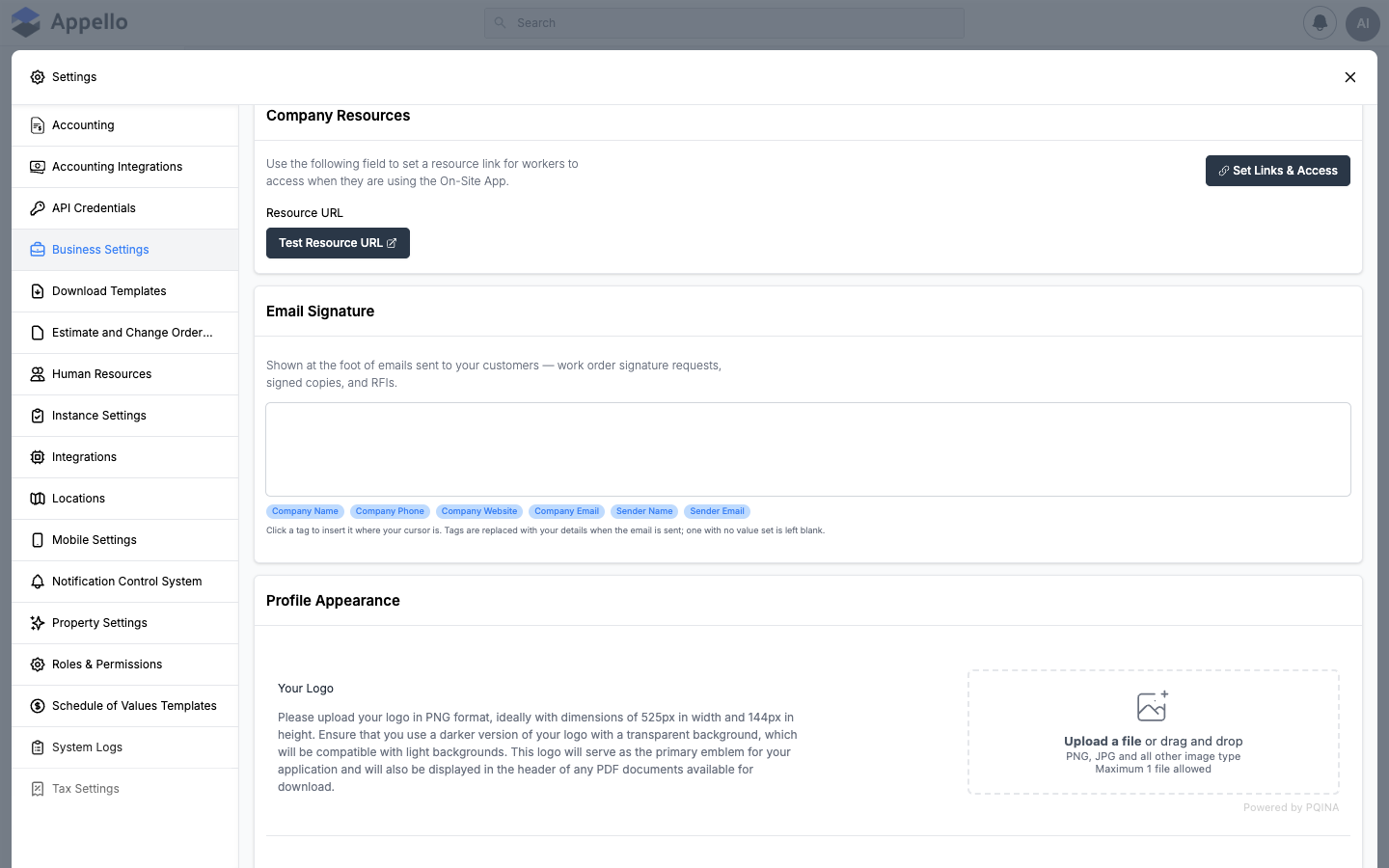
Provide a URL that field workers can access from the Appello mobile app's Resources tab.
| Field | Required | Type | Effect and where it shows up |
|---|---|---|---|
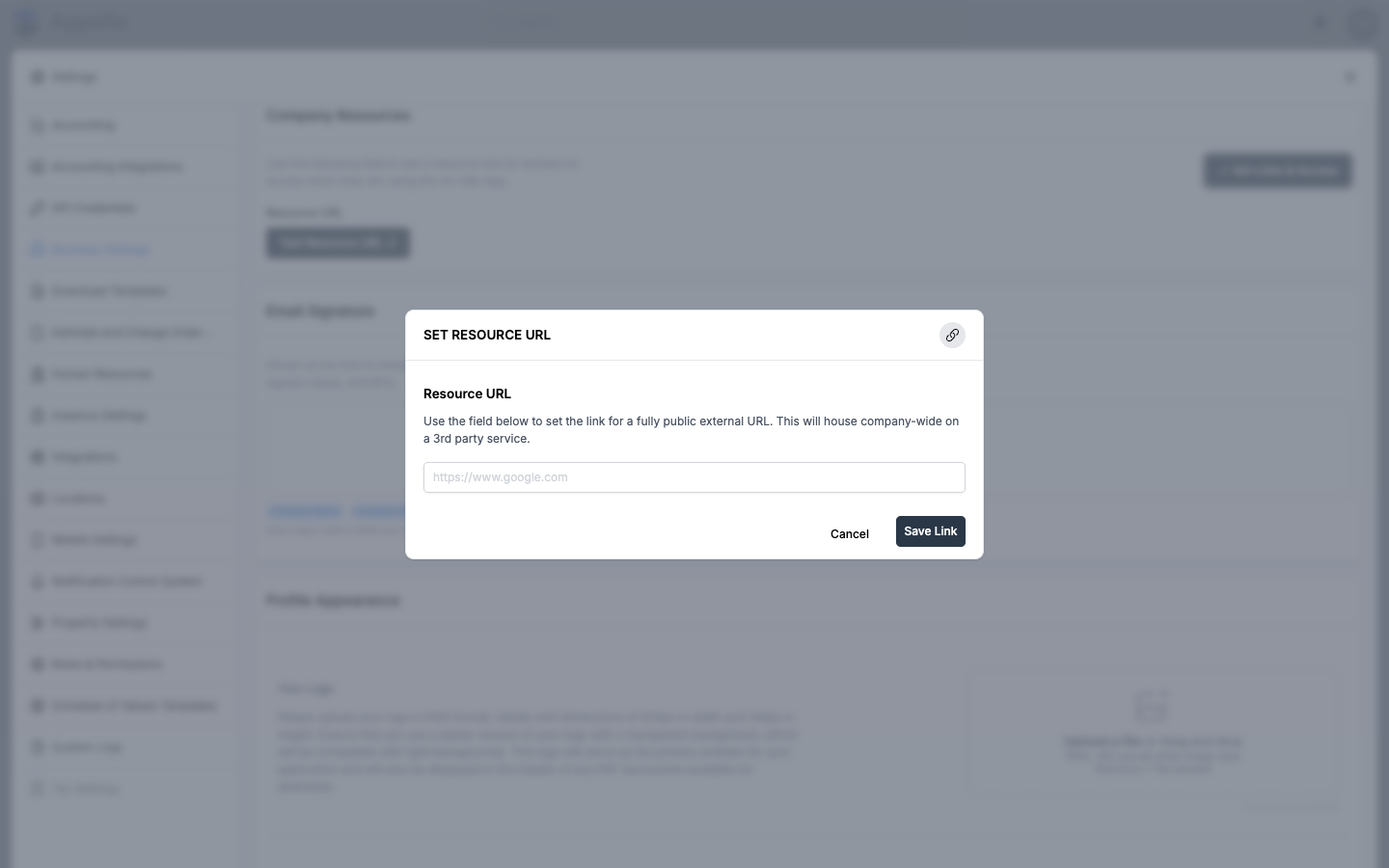
| Resource URL | No | URL | Link to an external resource (e.g. company handbook, safety portal). Read-only on this card — use Test Resource URL to open it, or Set Links & Access to change it. Must be a valid http:// or https:// URL of 1200 characters or fewer (validated on save). |
Set Links & Access opens a small modal titled Set Resource URL — despite the button's name, it contains only the same single Resource URL field, with Cancel and Save Link buttons; there is no separate access/permission configuration behind it.
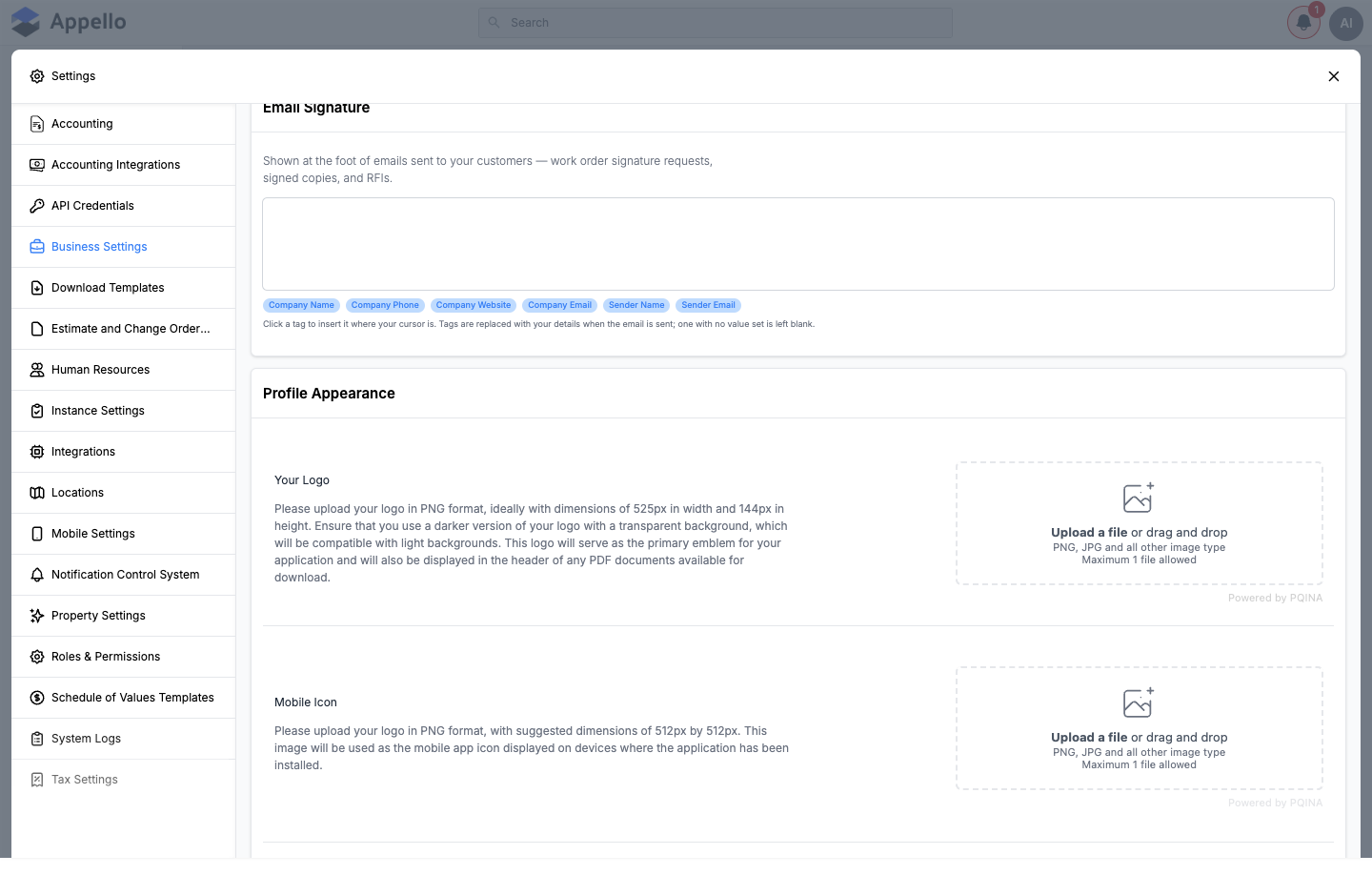
10. Email Signature
Configure the signature block shown at the foot of emails sent to your customers — work order signature requests, signed copies, and RFIs.
| Field | Required | Type | Effect and where it shows up |
|---|---|---|---|
| Email Signature | No | Merge-tag text | Free-text signature body shown at the foot of customer-facing emails. Insertable tags: Company Name, Company Phone, Company Website, Company Email, Sender Name, Sender Email. |
A tag with no value set on your instance is left blank when the email is sent. The signature is saved through its own request the moment you hit the page-level Save — it is not a plain column on the instance record like the other fields on this page, but it saves in the same action.
11. Profile Appearance
Customize the visual branding of your Appello instance.
| Setting | Required | Type | Effect and where it shows up |
|---|---|---|---|
| Your Logo | No | PNG upload | 525 × 144 px recommended. Darker logo on transparent background. Used in the app header and in the header of every PDF export. |
| Mobile Icon | No | PNG upload | 512 × 512 px recommended. Displayed as the app icon on mobile devices. |
| Splash Screen | No | PNG upload | 1920 × 1440 px or 16:9 aspect ratio. Displayed on the desktop sign-in page. |
| Interface Theme | — | Display only | Lists the theme(s) available on your instance and marks the active one with a checkmark. |
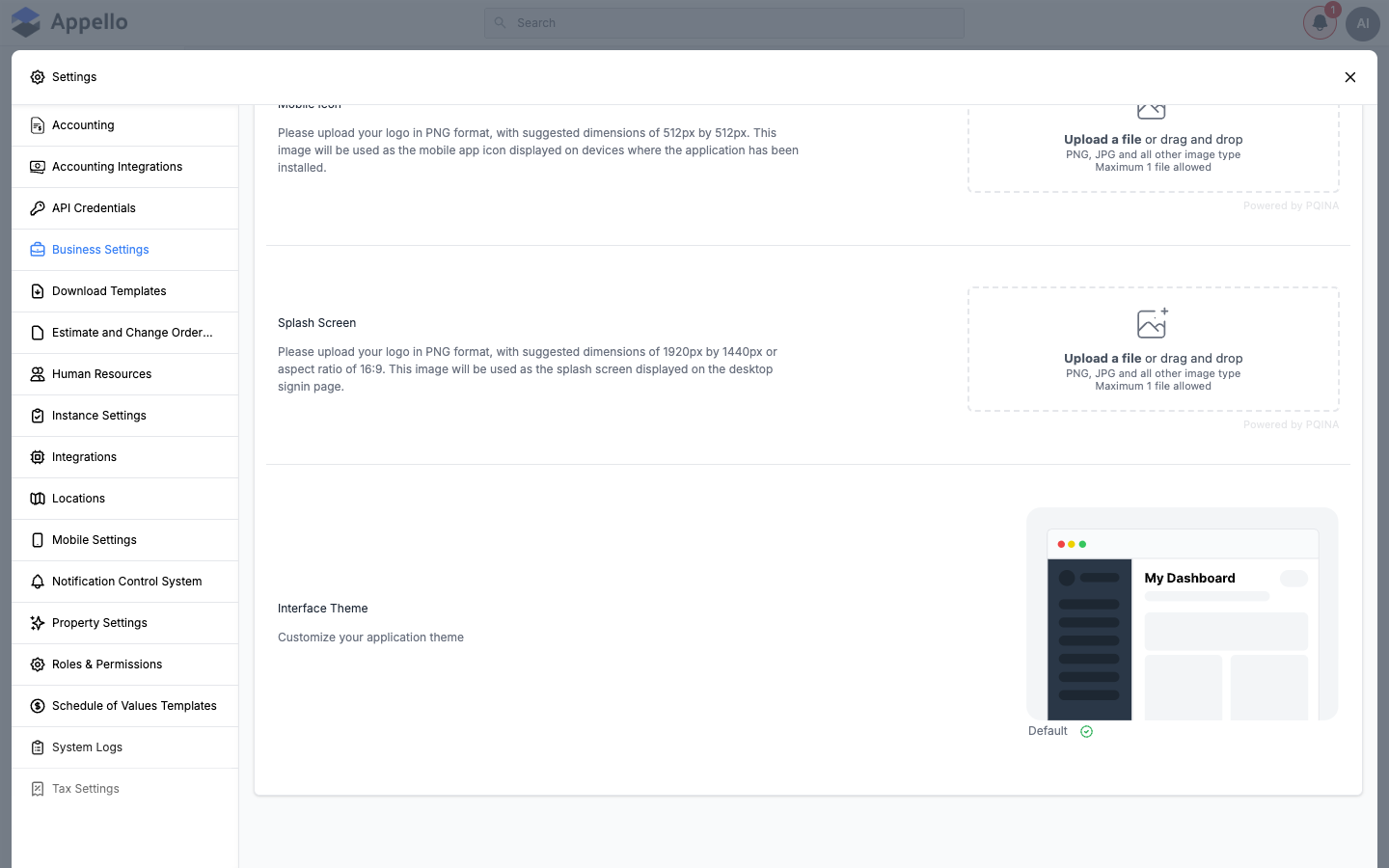
As of Release 1.33, the Interface Theme list has no click-to-select control wired up in this form — it only displays each configured theme and checkmarks the one currently active, it does not let you switch themes from here. On the canary instance used for these screenshots only one theme ("Default") exists, and there is no separate accent-colour picker — "colours" in this section means the preset theme, not an independent brand-colour setting. Changing which theme is active requires a separate admin action outside this page.
Saving
There is one Save for the whole tab, not one per section. Making any change on this tab surfaces a floating bar at the bottom of the panel counting your unsaved changes, with Cancel (discards everything since your last save) and Save (writes every changed field in a single request). Email Signature is stored on its own record behind the scenes rather than as a column on the instance, but it saves in the same action as everything else on the page — you won't see a second save prompt for it.
What's not on this tab
A few settings that sound like they belong on Business Settings actually live elsewhere:
- Time zone, date/number formats, and job/project/estimate numbering prefixes are configured on Instance Settings, not here — this tab has no controls for them.
- Estimate and change order document text (Title, Footer, Note per type) is not exposed on this tab even though the underlying data model defines it — see the note in Section 5 above. It's configured on the Estimate and Change Order Templates page.
- Tax rates themselves (as opposed to picking a default one) are managed on Tax Settings, a separate tab that shares this page's
BusinessSettingspermission. - Whether and how customers and staff get notified of changes made through this page (e.g. an updated invoice naming convention) is controlled separately on Notification Control System.
Permissions
| Permission | Controls |
|---|---|
BusinessSettings: view | Whether the Business Settings tab appears in the Settings panel at all. |
BusinessSettings: edit | Whether the fields on the tab are editable. Without it, every control is disabled and a banner reads "You don't have the permission to modify" (or, on the Company Resources card, "…to modify this setting"). |
These are the same two permissions that gate the separate Tax Settings tab.
Tips
- Changes to Fiscal Year affect how annual financial reports are grouped — set this before generating any financial data.
- The Invoice PDF Download Naming Convention supports merge tags — click the tag buttons to add dynamic values like Job #, Project Name, or P.O. # to your file names.
- Upload your logo and splash screen early in setup so all PDF exports and the sign-in page carry your branding from day one.
- To change the company address, use the pencil icon on the address card — clicking the card itself just opens a read-only map view.
Related pages
- Instance Settings — tenant-level configuration for time zone, date/number formats, job/project/estimate numbering, and other feature toggles not on this tab.
- Estimate and Change Order Templates — document-level Title, Footer, and Note text for estimates and change orders.
- Notification Control System — who gets notified, and how, about changes and activity elsewhere in the app.
- Locations — the shared Location records that back the Company Address card.
- Tax Settings — configure the tax rates offered in the Default Tax Rate dropdown.