Equipment Time
Equipment Time is where equipment hours get logged, split across jobs, and approved on a weekly grid — one row per piece of equipment per submitter. Approved hours flow into job costing and are priced using the equipment's configured rate labels and rate schedule.
Navigation
Sidebar → Equipment → Equipment Time
URL: /equipment/time
Gate: the Equipment Time → View permission — without it the page shows a permission message instead of the grid.
Overview
The page shows a weekly grid of equipment time submissions: one row per (equipment, submitter) combination, one column per day of the selected week, and a Weekly Total & Approval section on the right. A submission's cell shows the total hours logged that day and opens a tooltip breakdown on hover; clicking a cell (or an empty day) opens the entry form to add or edit that day's time.
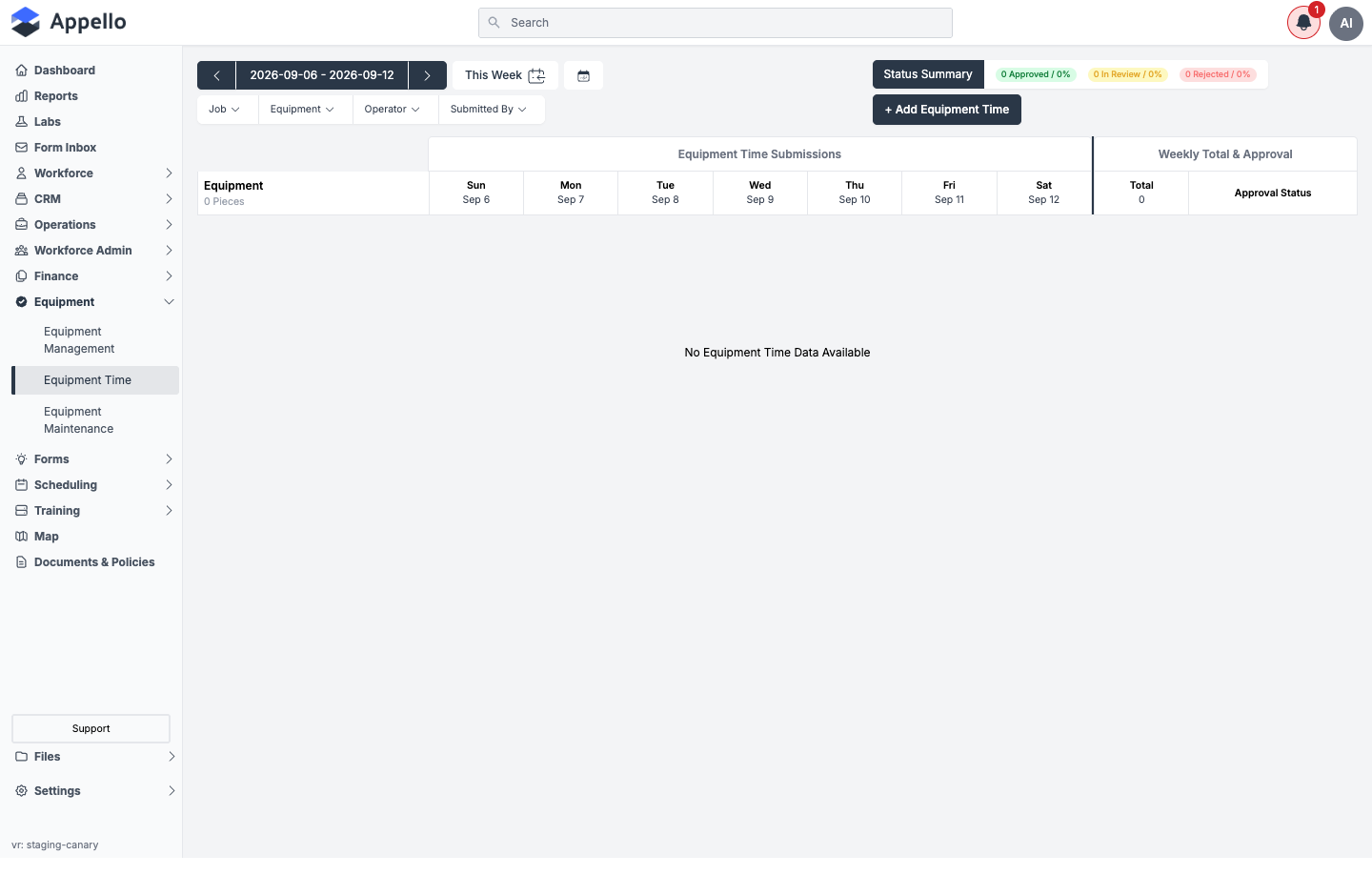
Shown empty on the demo instance — no equipment time has been submitted on this instance at all, so every week's grid and every filter's option list ("No Job Options Available", etc.) are empty. The layout above is otherwise the full grid: with data, each equipment/submitter row would show one colored cell per day it has entries.
Week navigator, filters, and status summary
| Control | What it does | Where it leads |
|---|---|---|
| ◀ / ▶ arrows | Step the visible week back or forward one week at a time. | Reloads the grid for the new week. |
| Date range label / This Week | Shows the current week's date range (respecting the instance's configured start-of-week day). Click to open a date picker and jump to any week; This Week snaps back to today's week. | Opens a calendar popover. |
| Job filter | Multi-select by job. Options are restricted by every other active filter, so picking a job narrows Equipment / Operator / Submitted By to combinations that actually have entries. | Filters the grid; also narrows the other three filters' options. |
| Equipment filter | Multi-select by equipment. | Filters the grid; narrows Job / Operator / Submitted By options. |
| Operator filter | Multi-select by the operator recorded on the entry. | Filters the grid; narrows the other filters' options. |
| Submitted By filter | Multi-select by the user who created the entry (the grid's per-row grain). | Filters the grid; narrows the other filters' options. |
| Status Summary | Read-only badges: count and percentage of this week's top-level entries that are Approved, In Review, and Rejected. | Informational only. |
| + Add Equipment Time | Opens a blank Equipment Time Entry form. Only shown with the create permission. | Opens the entry form (see below). |
| Equipment cell (with data) | Hover shows a breakdown tooltip; click opens the entry form pre-loaded with that day's data. | Opens the entry form scoped to that equipment / day / submitter. |
| Empty day cell | If you can create entries, click (or empty cell + Enter/Space) opens the entry form pre-filled with that equipment, day, and submitter. | Opens the entry form. |
| Approval Status dropdown | Per-row "Approve All" control (see Approve / reject workflow below). | Bulk-approves every entry in that equipment/submitter row's week. |
Selected filters are reflected in the URL's query string, so a filtered view can be bookmarked or shared — the Job Cost Report's Financial Summary and Equipment Breakdown link straight here with the job and equipment filters already applied.
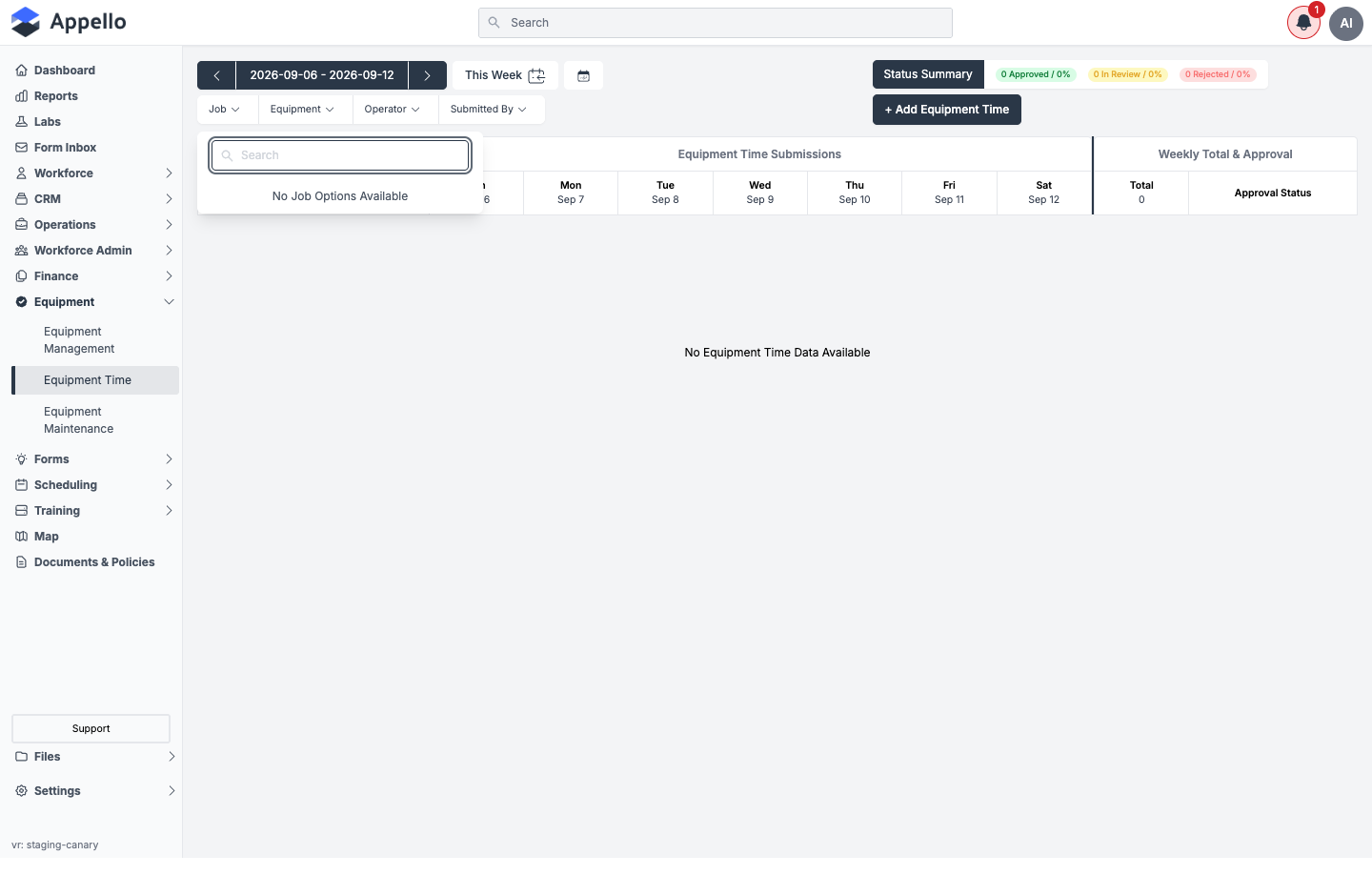
Shown empty on the demo instance — filter option lists are built from existing equipment time entries, so with none submitted yet every filter reads "No <Field> Options Available".
Grid columns
| Column | Shows |
|---|---|
| Equipment | Equipment name (linked to the equipment record) and unique identifier, plus a Submitted by <user> badge — each submitter gets their own row per piece of equipment. |
| Sun – Sat | One column per day of the selected week. A filled cell shows total hours (and/or days, for day-rate entries) logged that day, colored by that day's dominant status. |
| Total | Sum of that row's hours/days across the visible week. |
| Approval Status | The row's dominant status for the week, as an Approve All dropdown when at least one entry is In Review / Rejected / Not Submitted. |
Cell color follows the day's dominant status: green for Approved, yellow for In Review or Not Submitted, red for Rejected (rejection always wins if any entry that day was rejected).
The entry form
Clicking + Add Equipment Time, a grid cell, or an empty day cell opens the Equipment Time Entry panel, scoped to one equipment + one work date. Multiple jobs and operators can be logged against that same equipment/date inside one panel — each gets its own row.
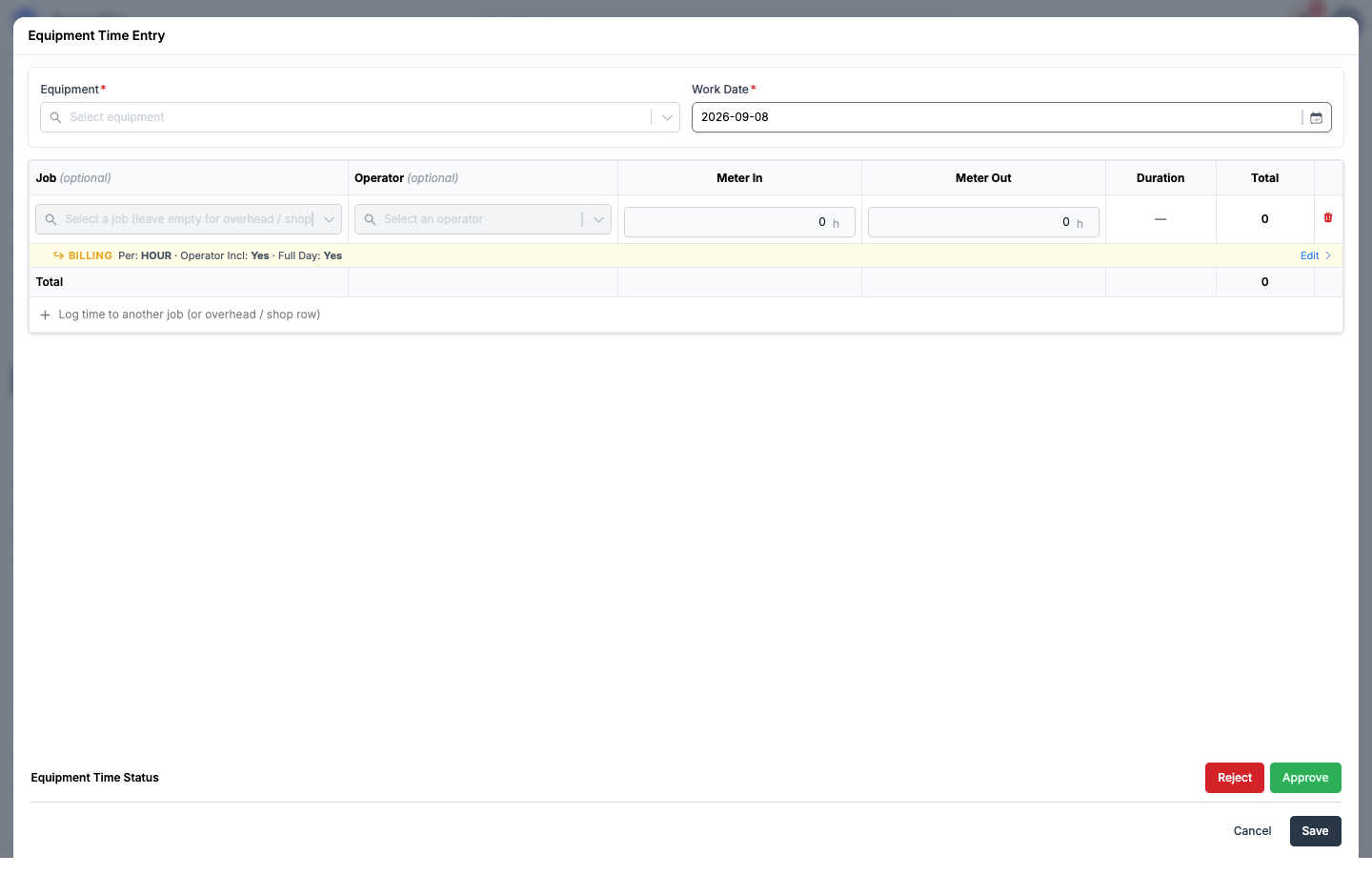
Shown empty on the demo instance, opened via + Add Equipment Time with no equipment selected yet — the rate-label hour columns only appear once an equipment with configured rates is chosen.
Header fields
| Field | Required | Type | Effect |
|---|---|---|---|
| Equipment | Yes | Searchable combobox | Selects the equipment. Only equipment with a configured rate schedule appears. Locked (disabled) when opened from a specific grid cell. Choosing it loads that equipment's category, rate labels, meter type, and any equipment assignments for the day. |
| Work Date | Yes | Date picker | The day these entries apply to. Disabled once the day's entries are Approved. |
Per-row fields (one row per job/operator combination)
| Field | Required | Type | Effect |
|---|---|---|---|
| Job | No | Searchable combobox | Which job this row's hours bill to. Left empty for overhead / shop / unattended time. Locked when the form is opened from a context that already fixes the job (e.g. a Work Order). |
| Operator | No | Searchable combobox | Active user who operated the equipment for this row. Limited to active users. |
| Also create the operator's regular time (toggle) | No | Toggle | Appears once both Job and Operator are set and eligible. When on, saving this row also creates or links the operator's own labour time for the same hours. Disabled when ineligible — a warning explains why (no rate, week locked, missing permission, or the linked timesheet is already approved). Can default to on instance-wide via Default to claiming operator time (see Instance settings below). |
| Meter In / Meter Out | No | Numeric | Equipment meter readings for the row, in hours or the instance's distance unit depending on the equipment's meter type. If the meter type is hour-based and no rate-label hours have been entered yet, entering both meters auto-seeds the first rate-label column with the computed duration — you can still redistribute it afterward. |
| Duration (read-only) | — | Computed | Meter Out minus Meter In, shown for reference. It does not drive billing on its own — only the rate-label hour columns do. |
| <Rate Label> columns (Standard, Standby, Overtime, etc.) | No, but at least one hour value is required to save the row | Numeric | Hours billed under that rate label. Columns are the equipment category's configured rate labels — a category with none shows a No equipment rates configured warning (with a Configure rates → link, if you can edit equipment) instead of the entry table. |
| Total (read-only) | — | Computed | Sum of the row's rate-label hours. |
| Billing sub-row (Per / Operator Included / Full Day Billing) | No | Toggle group, via Edit | Shows the Per, Operator Included, and Full Day Billing terms this row inherited from the job's equipment assignment. Click Edit to override any of them for this entry only — requires the Equipment Time → Override Presets permission. |
| Cost Codes (Add Cost Code) | No | Per-row sub-rows | Splits the row's hours across one or more job cost codes. Only available once a Job is selected on the row. |
| Attachments (Add Attachment) | No | Per-row sub-rows | Attaches a linked piece of equipment (e.g. a trailer) so its hours are logged under the same job/date/operator context as the parent row, using the attachment's own rate labels. |
| Remove row (trash icon) | — | Button | Deletes the row. Requires the delete permission; any already-saved entries for that job/operator are soft-deleted on Save. |
| Log time to another job (or overhead / shop row) | — | Button | Adds another row for the same equipment and date, pointed at a different job/operator. |
Submit and approve / reject controls
| Control | Effect |
|---|---|
| Reject (toggle) | Opens a required rejection-reason field. Only available to users with the approve permission. Saving with Reject open sets every entry in scope to Rejected and records the note. |
| Approve (toggle) | Only available to users with the approve permission. Saving with Approve on sets every entry in scope to Approved, copying submitted hours into approved hours. |
| Cancel | Closes the panel without saving. |
| Save | Validates the rows (no duplicate job/operator pairs, cost codes and attachment hours reconcile to the parent row, etc.) and writes the day. Label reads Save regardless of target status. |
Approve / reject workflow
- A submitter opens the entry form (from + Add Equipment Time or a grid cell), fills in Equipment, Work Date, and one or more job/operator rows with hours, and clicks Save. Entries are written with status In Review.
- An approver reviews submitted time either:
- From the grid — using the per-row Approval Status dropdown and choosing Approve All (or Partially Approve All, on instances configured for two-level timesheet approval), which approves every entry in that equipment/submitter row for the visible week in one action, or
- From the entry form — opening the day (cell or Add Equipment Time), reviewing the rows, and toggling Approve or Reject before clicking Save.
- Approve sets every entry in scope to Approved, copies each entry's submitted hours into its approved hours, and records the approver and the approval timestamp. Approved days become read-only in the entry form.
- Reject requires a rejection reason. It sets every entry in scope to Rejected and stores the note, which then surfaces in the grid's hover tooltip under Rejection Reason for the submitter to see.
- A rejected (or in-review) entry can be edited and resubmitted: the submitter reopens the day, adjusts the rows, and clicks Save — this clears any rejection note and returns the entries to In Review.
- An approver can also un-approve: opening an already-approved (read-only) day and turning the Approve toggle off, then clicking Save, returns those entries to In Review without editing their hours.
- Statuses shown in the grid and tooltip are Not Submitted, In Review, Approved, and Rejected. A day with any rejected entry always displays as rejected (red) even if other entries that day are further along.
The approve permission gates both the Approve and Reject actions — there is no separate reject permission.
Job costing and equipment rates
Once equipment time is Approved, its hours are billed using the rate resolved for each entry's equipment, rate label, and job (equipment rate schedules can be overridden per piece of equipment). Approved equipment costs then appear in the job's Equipment Breakdown in the Job Cost Report (Financial Summary → Equipment Breakdown), and the report's Equipment Breakdown links back here with that job pre-filtered.
Rate labels, rate schedules, and the equipment picker's "must have configured rates" requirement are all set up on the equipment record and its category — see Equipment List for configuring equipment, rate schedules, check-in/check-out, and the Add Equipment form.
Bulk equipment-to-job assignment
Bulk-assigning multiple pieces of equipment to a job (checkout date/time and notes) is not launched from this screen. It's started from a job's Assigned Equipment tab (Assign Equipment button) — see Equipment List for that workflow.
Instance settings
| Setting | Effect |
|---|---|
| Show Equipment Time on Mobile Timesheets | Lets mobile users log equipment time directly from their daily timesheet on the mobile app. It does not change anything on this desktop page — the desktop Equipment Time grid and entry form are always available to anyone with the view/create permissions, regardless of this toggle. |
| Default to claiming operator time | When enabled, the entry form's Also create the operator's regular time toggle defaults on the first time a row becomes eligible (job + operator selected, not already linked). Users can still turn it off per row. |
See Instance Settings for where these live and their full descriptions.
Permissions
| Permission (Equipment Time → …) | Controls |
|---|---|
| View | Required to see this page at all. Without it, the page shows a permission message instead of the grid. |
| Create | Shows + Add Equipment Time and makes empty day cells clickable to open the entry form. |
| Approve | Required for both Approve and Reject — from the grid's Approval Status dropdown and from the entry form's action bar. |
| Delete | Shows the row Remove row (trash) control in the entry form. |
| Override Presets | Lets a row's Billing sub-row (Per / Operator Included / Full Day Billing) be edited away from its inherited assignment defaults. |
Configuring rate labels from the "No equipment rates configured" warning's Configure rates link additionally requires the Equipment → Edit permission.
Related pages
- Equipment List — Add Equipment, check-in/check-out, rate schedules, and bulk equipment-to-job assignment
- Job Cost Report — where approved equipment time appears as job cost (Financial Summary → Equipment Breakdown)
- Instance Settings — Show Equipment Time on Mobile Timesheets, Default to claiming operator time
Source: Appello 1.33 · Screenshots: demo instance, 2026-09-08