Onboarding Users
Module: Workforce Admin | Platform: Web
Onboarding Users is where you track per-user signature status for every document package that's been sent out for signature -- who has signed, who's still pending, and who needs a nudge -- and where you resend or cancel individual signature requests. Building the document packages themselves happens on the companion screen; see Onboarding Documents.
Where it is
Sidebar → Workforce Admin → Onboarding Users -- /document-signatures
Onboarding Users is gated on three things at once: the Document Package -- View permission, the Document Package -- View Signature permission, and whether the Dropbox Sign integration is switched on for your instance. If the integration is off, the page sends you straight back to the Dashboard before anything renders, so an unauthorized visitor never sees a permission error -- they just land on the Dashboard. Both Onboarding Documents and Onboarding Users disappear from the Workforce Admin sidebar menu entirely when the integration is off.
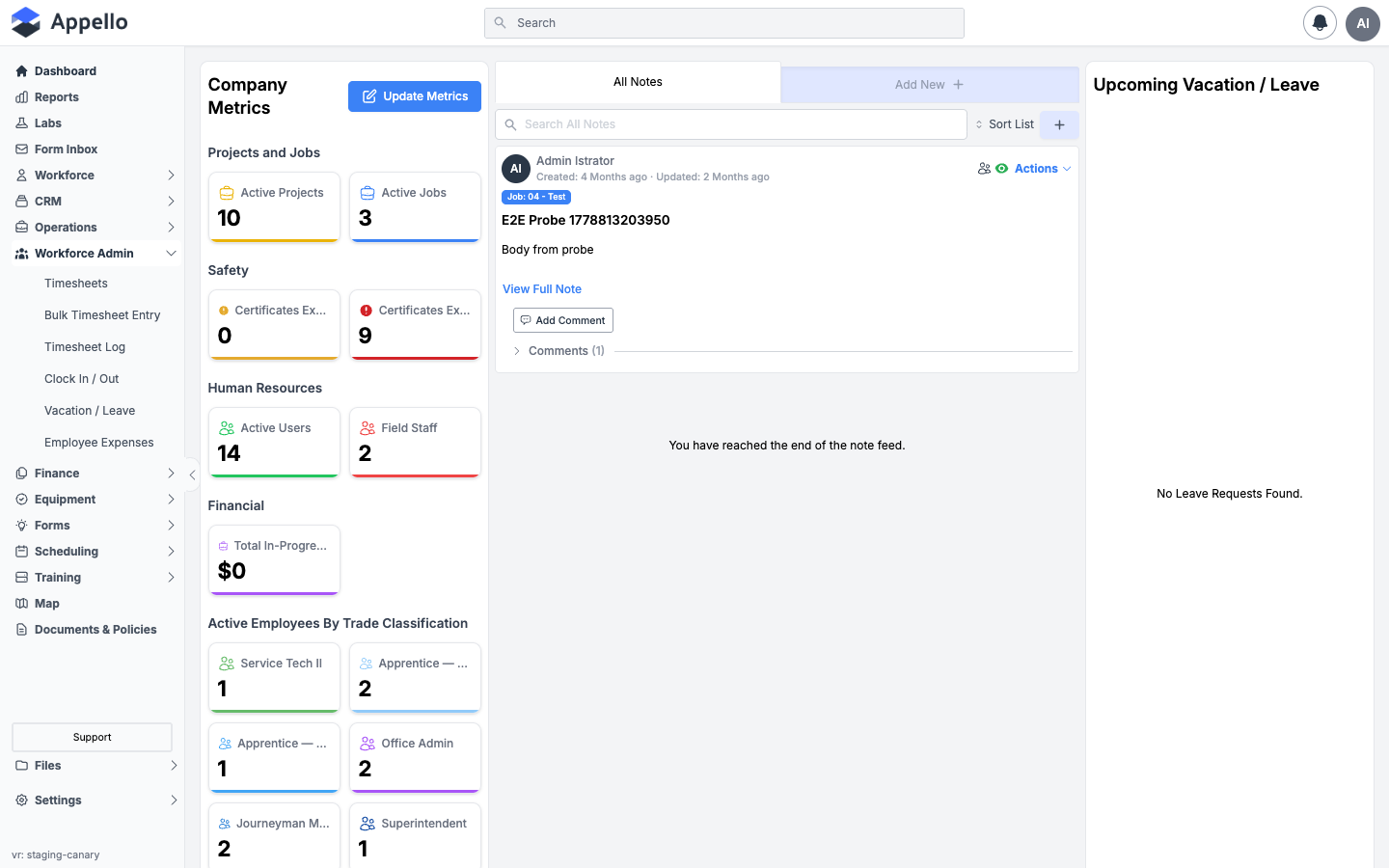
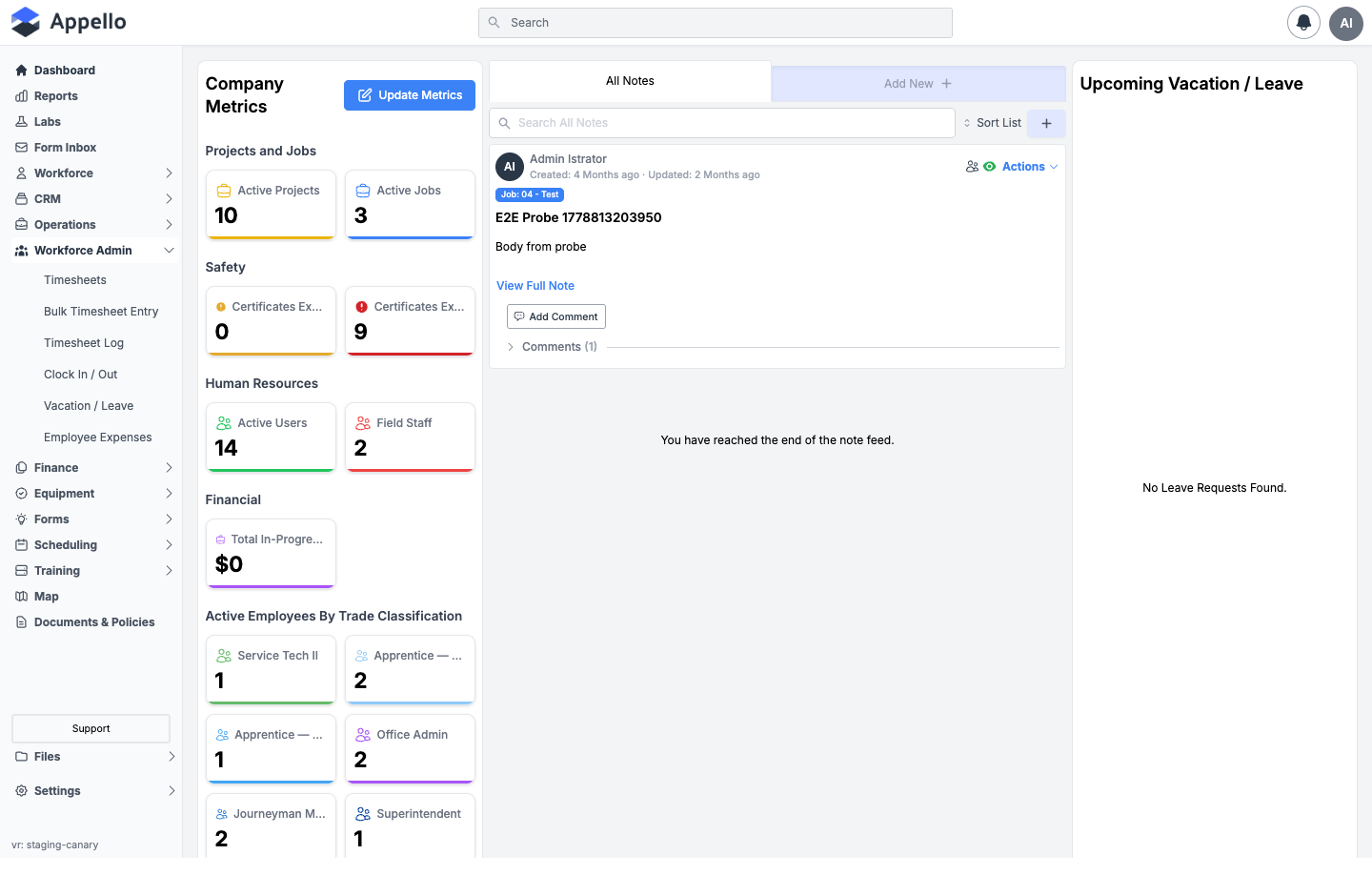
The demo instance used to research this page has the integration off: opening Onboarding Users lands back on the Dashboard (screenshot below), and the expanded Workforce Admin section of the sidebar has no Onboarding Documents or Onboarding Users entry at all. Because of that, the field names, table columns, button labels, statuses, and workflows described in the rest of this page are described from Appello v1.33 rather than from live screens. If your instance has this feature enabled, the screens should match what's described here.
What it's for
This page tracks the status of every Dropbox Sign signature request Appello has sent -- one row per employee per document package -- so you can see at a glance who's signed, who's pending, and who needs a reminder. Two sentences don't cover it well, so the rest of this page walks through the table, the statuses, the events that move them, and the workflows for resending, cancelling, and downloading a finished document.
Before you start
- The Document Package -- View permission -- required just to open this page.
- The Document Package -- View Signature permission -- also required to open this page, and to see anyone else's signature status. (On a user's own profile, viewing your own signature requests only needs Document Package -- View -- see User Detail → Onboarding Documents.)
- The Document Package -- Send Request permission -- required to see the Send Document button and the Reminder column.
- The Document Package -- Cancel Signature Request permission -- required to see the Cancel column.
- The Document Package -- Send Request to Self permission -- required to see the Signed Document column (the View Document On DropboxSign button). Despite the name, this is the permission that gates viewing any finished, signed document from this list, not just your own.
- An active Dropbox Sign connection -- see Dropbox Sign E-Signature. A Connection status indicator sits above the table (see Connection status indicator below).
The signature request table
Onboarding Users lists every signature request that's been sent, one row per employee per package. This is the same table shown on a package's own Signature Request History tab and on an individual user's Onboarding Documents profile tab -- Onboarding Users just shows every request across every employee and package in one place.
| Column | Description |
|---|---|
| User | The employee the package was sent to, with their avatar. Links to their user profile. |
| Document Template | The package name, with an archive icon if the underlying package has since been archived. Click it to open an Event History flyout listing every Dropbox Sign and user-triggered event for this request, newest first, with a timestamp. |
| Request Status | A status badge showing the request's raw status value -- see Statuses below. Hover it to see how many of the package's signers have signed so far and who's next. |
| Email Address | The address the request was sent to. Reads "Email address missing" if none is on file. |
| Sent Date | When the request was emailed out (date and time). Reads "Not sent" if it hasn't gone out yet. |
| Last Activity Date | Relative time since the request record last changed. |
| Reminder Last Sent | Date and time a reminder was last sent, if any. Reads "Not sent" otherwise. |
| Reminder | Row action -- see Resending. Only shown with Document Package -- Send Request. |
| Cancel | Row action -- see Cancelling. Only shown with Document Package -- Cancel Signature Request. |
| Signed Document | Row action -- see Downloading the signed document. Only shown with Document Package -- Send Request to Self. |
Connection status indicator
A row above the table reads Connection status: followed by a colored dot and a label. The dot is only colored for two of the possible connection states: green for Connected, red for Not Connected. Every other state Dropbox Sign can be in -- Pending, Connection Expired, Not Setup, Disconnected, Error -- still shows its label text next to the dot, but the dot itself renders uncolored. See Dropbox Sign E-Signature → Connection statuses for what each one means and how to fix it.
Filtering, searching, and sorting
- Search User, Status, Template, Email -- the search box above the table.
- Onboarding User -- filter chip, narrows to a single employee.
- Template -- filter chip, narrows to a single document package.
- Status -- filter chip, narrows to one raw request status.
- Sort -- click any of the User, Document Template, Request Status, Sent Date, Last Activity Date, or Reminder Last Sent column headers to sort by that column. Email Address and the three row-action columns (Reminder, Cancel, Signed Document) aren't sortable. The list opens sorted by Request Status, ascending.
Two controls that appear on other Appello list pages are absent here: there are no quick tabs (no Active/Archived toggle -- the list always shows every request regardless of archive state) and no Export button (no CSV/PDF export option). If you need the underlying data outside Appello, use the Dropbox Sign Logs tab in Settings, or ask Appello about a custom export.
Statuses
The Request Status badge shows the raw status value stored on the signature request -- not a friendly label. A request moves through these values:
| Status | Meaning |
|---|---|
| PENDING_SEND | The request record was created in Appello but the send to Dropbox Sign hasn't been confirmed yet. |
| SENT | Dropbox Sign confirmed the send. Individual signers may or may not have viewed or signed yet -- check the per-signer detail in the status tooltip. |
| IN_PROGRESS | At least one signer has signed, but not all of them. |
| REMINDER_SENT | A reminder was just sent. Note this overwrites whatever the previous status was (including IN_PROGRESS) until the next event updates it. |
| RESEND_REQUESTED | A reminder resend was just requested and is queued; a transient state on the way back to SENT or an error. |
| COMPLETED | Every signer has signed. |
| EXPIRED | The request expired at Dropbox Sign before everyone signed. |
| CANCEL_REQUESTED | Cancel was clicked; Appello is asking Dropbox Sign to cancel the request. A transient state. |
| CANCELLED | Dropbox Sign confirmed the cancellation. |
| ERROR / ERROR_RETRYABLE | The send or a retry failed. Appello retries ERROR_RETRYABLE automatically. |
| ERROR_INVALID | The request is fundamentally broken (a configuration problem) and can't be retried -- see the Invalid state below. |
A signature request created with the per-request Test Mode toggle on (see Onboarding Documents → Assigning a package to a new hire) gets a TEST_ prefix on most of these statuses (for example TEST_SENT, TEST_COMPLETED) so you can tell a test send apart from a live one at a glance.
Each signer within a request also carries its own status, shown in the Request Status tooltip rather than as its own column: PENDING_SEND, SENT, VIEWED, SIGNED, DECLINED, or EXPIRED.
The webhook events that move them
Dropbox Sign notifies Appello as each event happens, and Appello updates the request and its signers accordingly:
| Dropbox Sign event | What it updates |
|---|---|
| Signature request sent | Sets each signer's status to whatever Dropbox Sign reports (defaulting to SENT), then sets the request status to SENT. |
| Document viewed | Records when the request was first opened, and when the signer who opened it last viewed it. |
| Document signed | Records when that signer signed, and moves the request to IN_PROGRESS (this fires per signer, not just once). |
| All signers signed | Fires once every signer has signed. Moves the request to COMPLETED and back-fills any signer records the per-signer events missed. |
| Document declined | Records the declining signer's status as DECLINED. Note: this event does not change the overall request status. |
| Signature request expired | Moves the request (and any signers still pending) to EXPIRED. |
| Reminder sent | Moves the request to REMINDER_SENT and records when the reminder went out. Fires for reminders Dropbox Sign sends on its own schedule, not just ones triggered from the Reminder column. |
Every incoming event is also logged to Dropbox Sign Logs in Settings -- see Dropbox Sign E-Signature → Dropbox Sign Logs -- and to this request's own Event History flyout (click the Document Template cell), which also shows the user-triggered events Package Sent by User, Reminder Sent by User, and Package Deleted by User alongside the Dropbox Sign events.
The user's experience
- Once a signature request is sent (see Onboarding Documents → Assigning a package to a new hire), Dropbox Sign emails each signer directly -- Appello doesn't send this email itself, so it arrives from Dropbox Sign's own sender address with the Subject and Message set on the send form.
- The signer clicks through to Dropbox Sign's own hosted signing page and signs there. Appello has no UI of its own for the actual signing step.
- As the signer opens, signs, or is asked to sign again, Dropbox Sign notifies Appello (see The webhook events that move them above), and Appello records the timestamp, status, and event -- but never the signer's actual keystrokes or the in-progress document; only the finished result and the event log.
Resending and cancelling
Resending
Click Send in the Reminder column to resend the signature request email.
- It's disabled while a reminder is already in flight (spinner shown in its place), once the request is completed or cancelled, or if a reminder already went out less than an hour ago.
- A request stuck in the ERROR_INVALID state shows "Invalid -- delete and recreate" instead of a working Send button, along with the underlying error message -- this configuration problem can't be resolved by resending.
- A request whose original send never reached Dropbox Sign at all is resent as a brand-new send, not a reminder, so the whole request restarts from PENDING_SEND -- a reminder would be meaningless for a request that was never actually delivered.
Cancelling
Click Cancel to cancel an in-progress request. It's disabled once the request is already completed or cancelled. Clicking it immediately moves the request to CANCEL_REQUESTED, then Appello asks Dropbox Sign to cancel it -- this isn't just a local marker; it actually cancels the request on Dropbox Sign's side so the signer's link stops working. Once Dropbox Sign confirms, the status becomes CANCELLED.
Downloading the signed document
If your role has the Document Package -- Send Request to Self permission, a Signed Document column shows a View Document On DropboxSign button once a request reaches COMPLETED. It opens the finished, signed document in Dropbox Sign's own viewer in a new tab -- from there you can download the PDF using Dropbox Sign's own controls.
Signed documents live in Dropbox Sign, not in Appello -- there's no copy of the finished PDF stored as a file on the user's own Files tab or anywhere else in Appello's file storage. See Onboarding Documents → Where signed documents end up for more.
Sending a new signature request
There are three places to start a Send Document request, and all three feed the same table:
- Onboarding Users (this page) -- click Send Document in the top-right corner. You pick both the package and the user(s) to sign it.
- A package's own Signature Request History tab -- same Send Document flow, but the package is pre-selected; see Onboarding Documents → Package detail page.
- A user's own Onboarding Documents profile tab -- same flow again, but the user is pre-selected; see User Detail → Onboarding Documents.
For the field-by-field walkthrough of the send form itself (Document Package, Employee Information/signer roles, Test Mode, Email Preview), see Onboarding Documents → Assigning a package to a new hire.
The Onboarding forms layout
Don't confuse this Dropbox Sign feature with the Onboarding form layout under Property Settings. Settings → Property Settings → Users → Manage Forms has a fourth sub-tab, Onboarding, alongside Create, Edit, and Settings -- it controls which fields appear on the self-service form a brand-new user fills in the first time they sign in (name, address, emergency contact, and so on), not the Dropbox Sign document packages this page tracks. See Property Settings → Users for the full walkthrough of that layout builder.
Onboarding a new hire, start to finish
Putting the pieces from across this page and its related pages together, onboarding a new hire who needs both a profile and signed paperwork looks like this:
- Create the user. Workforce Admin → Users → Create User -- see Users → Creating a desktop user (or Creating a mobile / field worker). This sends their invite email and, if Property Settings has an Onboarding form configured (see above), queues the self-service form they'll fill in on first sign-in.
- Check their invite status. On the user's Overview tab, confirm Onboarding Status isn't stuck on Not Invited -- see Users → Troubleshooting.
- Send HR paperwork for signature. From either Onboarding Users (this page) or the user's own Onboarding Documents tab, click Send Document, pick the package (offer letter, direct deposit, code of conduct, etc.), and assign the new hire to each signer role -- see Sending a new signature request above.
- Track it here. Watch the Request Status column move from SENT through IN_PROGRESS to COMPLETED as the new hire opens and signs each document; resend a reminder if it stalls (see Resending).
- Confirm completion. Once the status reads COMPLETED, open Signed Document → View Document On DropboxSign to confirm the finished paperwork, if your role can see it (see Downloading the signed document).
How this relates to Onboarding Documents
Onboarding Users and Onboarding Documents are two views into the same underlying signature requests:
- Onboarding Documents is where you build and manage the document packages themselves -- grouping Dropbox Sign templates together, setting up merge fields, and archiving packages you no longer send. Each package's detail page also has its own Signature Request History tab, scoped to just that package.
- Onboarding Users (this page) is where you track and act on signature requests for specific people, across every package, in one list -- and where most of the day-to-day resending and cancelling happens.
- A signature request sent from any of the three entry points listed in Sending a new signature request shows up in all of the same three places: the package's own Signature Request History, this Onboarding Users list, and the signer's own Onboarding Documents profile tab.