Material orders
Module: Operations / Materials | Platform: Web
Material orders record what a job needs to buy against its Job Specification
-- picked line by line from the specification's area price sheets -- and track it from Draft
through delivery. This page covers the standalone /material-orders list, the fuller list and
Create button that live on a job's own Material Orders tab, and the order detail page
(/material-orders/[id]) where line items, pricing, and notes live.
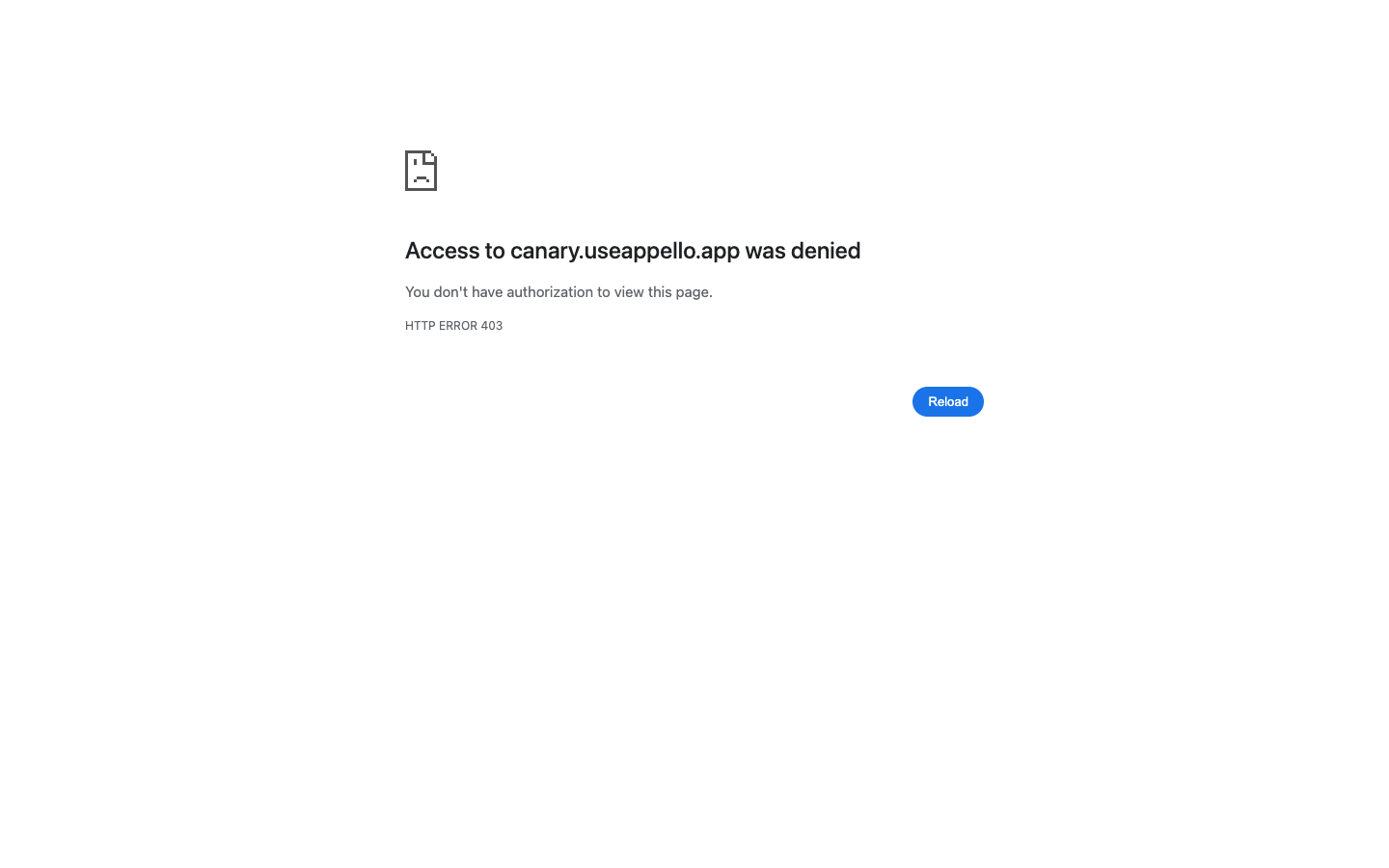
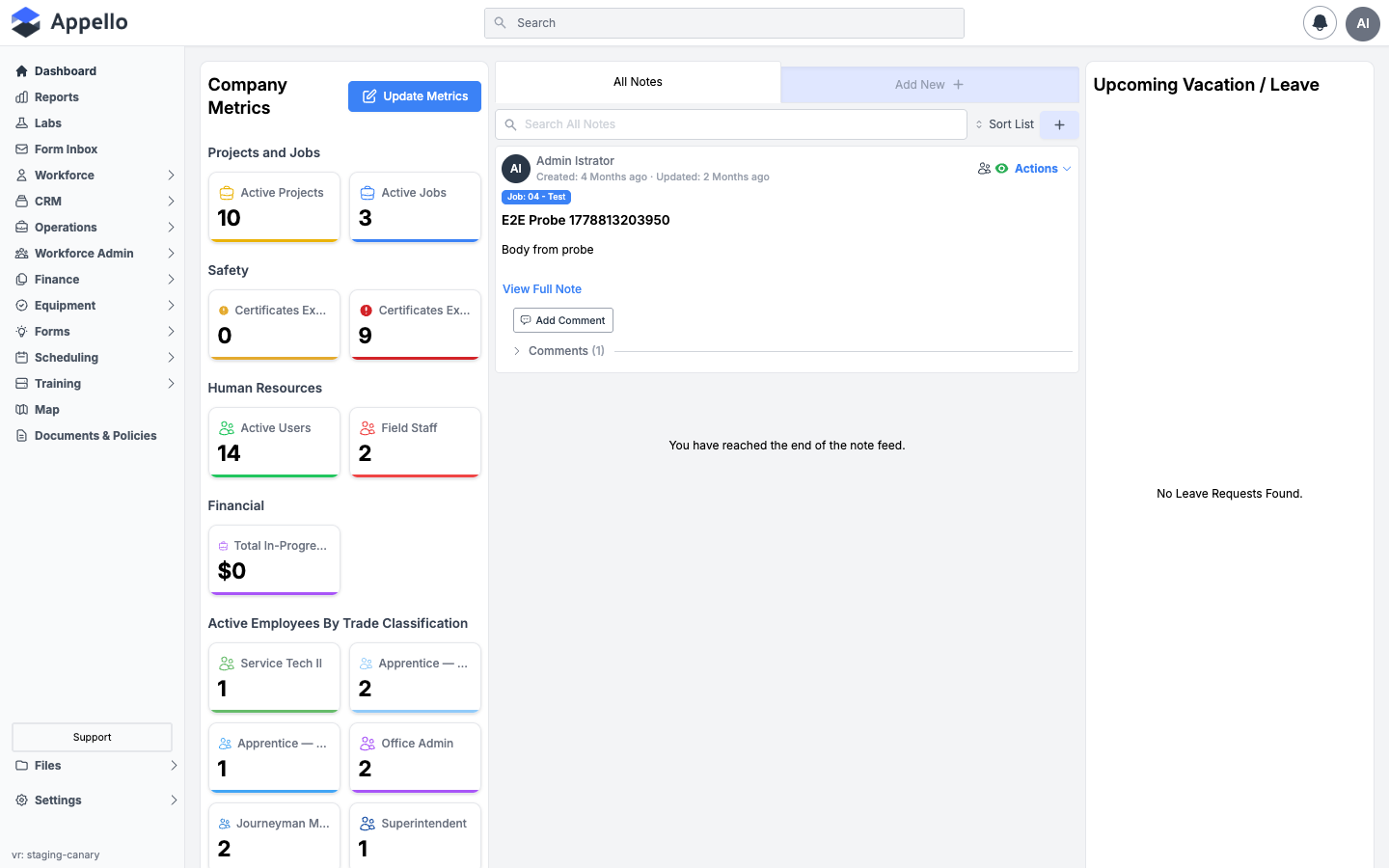
On this instance, the whole Materials module is switched off. It's an instance setting your Appello administrator or Appello support controls, not something an admin toggles from within Appello. With it on, both the Material Orders list and any order's detail page refuse access (shown below with a screenshot of that exact state), the Material Order and Materials/Inventory links disappear from the sidebar entirely, and a job's Materials tab shows only its Materials Issued (BETA) child tab -- Specification and Material Orders are hidden alongside it. Because of that, most of this page is described from Appello 1.33 rather than from screenshots of the working screens -- the two screenshots this page does have are of the blocked state itself, taken live against this instance. See Materials Catalog for the same constraint on Materials.
Navigation
- Sidebar → Material Order -- the standalone list, at
/material-orders. Hidden when Materials is restricted on your instance. - Job → Materials → Material Orders -- a job-scoped list of that job's orders, with the actual Create, filter, sort, and bulk archive/delete/restore controls.
- A row on either list -- an order's detail page.
- Settings → Property Settings → Other tab -- where an admin manages the Material Order Status and Material Order Priority dropdown lists. See Statuses and priorities below.
Overview
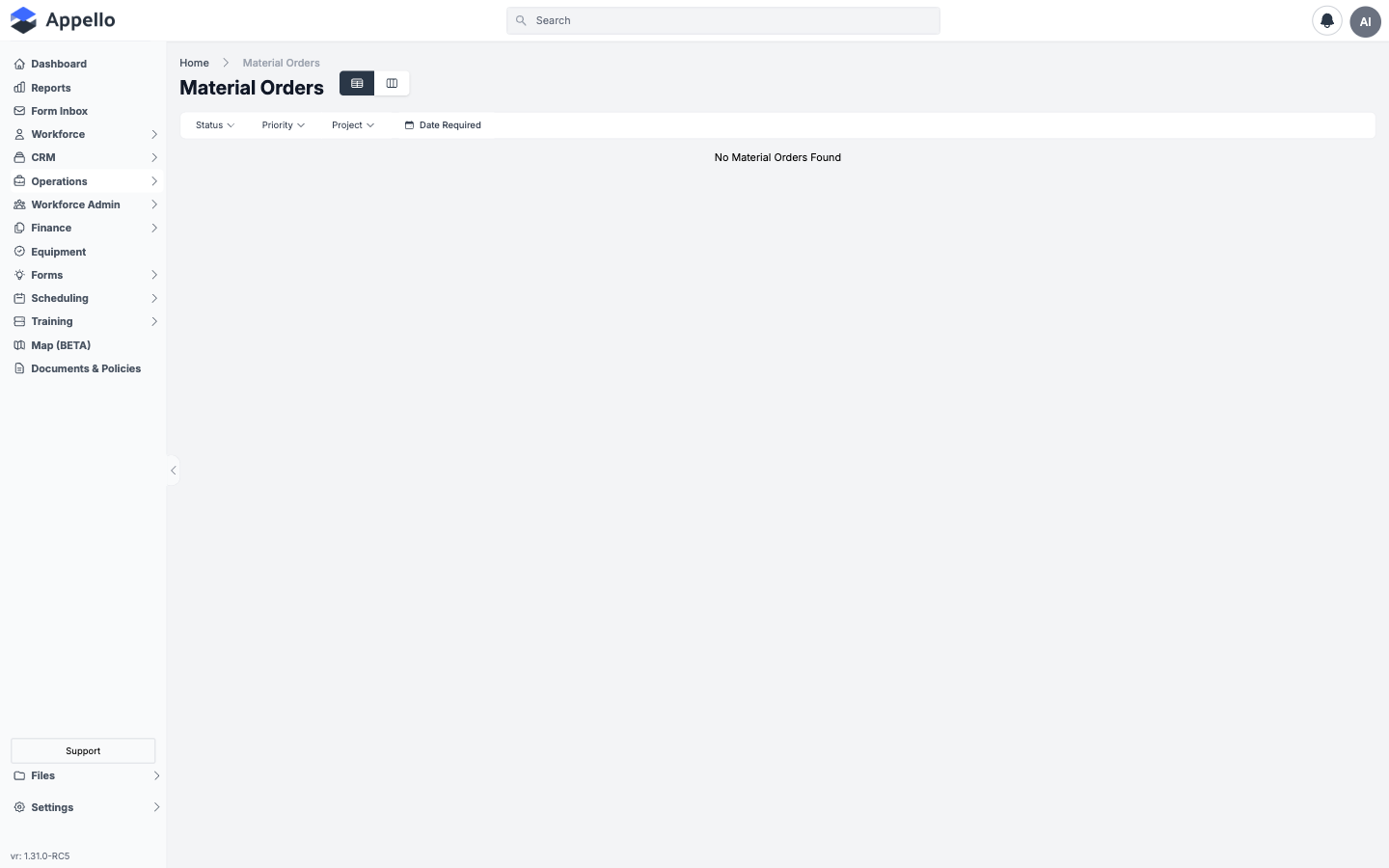
That screenshot predates this instance's Materials restriction (the footer reads version 1.31) and is kept because it's a real capture of the working list -- filters, the table/kanban toggle, and the empty state all match what 1.33 does. It is not what this instance shows today. On this instance, opening the Material Orders list or an order's detail page now returns the browser's own "Access denied" page, because Appello refuses the page before drawing anything:
And from the home dashboard, the sidebar confirms the nav entry itself is gone -- no Material Order item, and no Materials or Inventory group, anywhere in the list:
Route: /material-orders
Where it is
Click path: Sidebar → Material Order (hidden when Materials is restricted). URL:
/material-orders.
What it's for
A cross-job, priority-ranked view of every material order in the instance -- one flat list (or a status-column Kanban board) that a materials coordinator can triage without opening each job. It is a narrower list than the one on a job's own Material Orders tab: no search box, no Export, no Create button, and no bulk archive/delete/restore -- see Creating and managing orders from a job below for where those live.
The block on this instance
This page refuses access outright when Materials is restricted on your instance -- the same way the Materials Catalog does.
Separately, this page also requires the Material -- View permission -- the same permission that gates the Materials Catalog -- so even with the restriction off, a user without it cannot reach this page either.
Table columns
| Column | Description |
|---|---|
| Order | The order's number and name. Links to the order's detail page. |
| Job | The job's full job number and name. Links to the job's Overview tab. |
| Project | The project's number and name. Links to the project's Overview tab. |
| Date Created | When the order was created, as a short date. |
| Date Required | The order's required-by date and time. |
| Order Cost | The order's computed total cost. Only shown with Material Order -- View Cost. |
| Order Status | An inline dropdown (see Statuses and priorities) -- changing it saves the order the same way any other edit does. |
| Priority | An inline dropdown plus a numeric field for the order's drag position (see below). |
There is no search box, Export, Create, or bulk-action control anywhere on this list.
Filters, quick tabs, and sort
| Control | Behavior |
|---|---|
| Status | Multi-select, from the order's status list. |
| Priority | Multi-select, from the order's priority list. |
| Project | Multi-select, from projects that have material orders. |
| Date Required | Date range, filters on the required-by date. |
| All / Active / Archived (quick tabs) | The standard tab set. Defaults to Active on first load, then remembers your last choice. |
There is no free-text search and no clickable column-header sort on this list -- ordering is fixed to Priority ascending (or board order, then priority in Kanban view). To reorder, drag a row's handle, or edit the numeric priority field directly next to a row's priority dropdown -- both require the Material Order -- Edit permission, and are rejected without it, even though the control isn't visually hidden from anyone who can open the page.
Table vs. Kanban view
The two icon buttons next to the page title switch between the row list above and a Kanban board with one column per order status. Dragging a card between columns updates its status the same way the inline status dropdown does; dropping it within a column also records a new board position.
Row actions
Each row's edit (pencil) icon opens the same Material Order flyout used everywhere else on this page (see Route: /material-orders/[id] below) -- but on this list specifically it is gated by the Job Specification -- Edit permission, not a Material Order one. This is worth calling out because every other edit/create/delete control on this page and the job tab below is gated by a Material Order permission instead.
Permissions and flags
| Gate | Controls |
|---|---|
| Materials restricted (instance) | Whether Material Orders works at all -- on, the list and detail pages refuse access and the sidebar link vanishes. |
| Material -- View | Required to load the Material Orders list. |
| Material Order -- View Cost | Whether the Order Cost column and the row-level cost badges anywhere on this page render. |
| Job Specification -- Edit | Whether a row's edit (pencil) icon appears on this list specifically. |
Related pages
- Creating and managing orders from a job -- Create, search, sort, Export, and bulk actions.
- Route: /material-orders/[id] -- opening an order.
- Materials Catalog
- Inventory Management
Creating and managing orders from a job
Where it is
Open a job, click its Materials tab, then the Material Orders child tab. This tab is hidden alongside Specification whenever Materials is restricted -- a job's Materials tab shows only Materials Issued (BETA) on this instance.
What it's for
The job-scoped equivalent of the standalone list above, built on the same list-table used across other Appello lists -- this is where an order actually gets created, and where bulk archive/delete/restore live.
Table columns
| Column | Description |
|---|---|
| Order # | The order's number. Links to the order's detail page. |
| Order Name | The order's name. Links to the order's detail page. |
| Job | The job's full number and name (redundant with the page you're on, but shown). |
| Date Created | When the order was created. |
| Date Required | The order's required-by date. |
| Priority | Inline dropdown, same options as the standalone list. |
| Status | Inline dropdown, same options as the standalone list. |
| Cost | Only shown with Material Order -- View Cost. |
A Total Cost badge next to the New Material Order button sums the cost across every order currently loaded for the job; it's also gated by Material Order -- View Cost.
Filters, quick tabs, search, and sort
| Control | Behavior |
|---|---|
| Priority | Multi-select. |
| Status | Multi-select. |
| Date Required | Date range. |
| Sort | Click a column header. Every column is sortable except Cost. Defaults to Date Created, descending. |
There is no free-text search box here either, despite this being the fuller of the two Material Orders lists, and no CSV/PDF export control. Quick tabs (All/Active/Archived) work as they do on other Appello lists.
Create
Click New Material Order (requires Material Order -- Create) to open the Material Order flyout, pre-scoped to the job you're on. See Route: /material-orders/[id] below for every field on that form and how line items are built. Once at least one line item has a quantity greater than zero, closing the flyout creates the order and takes you to its detail page.
Bulk actions
Select one or more rows to reveal:
| Action | Effect | Gate |
|---|---|---|
| Archive | Archives the selected orders (soft state; can be restored). | Material Order -- Archive |
| Delete | Permanently removes the selected orders. Before confirming, a live count of related records is checked, the same pattern as other Appello lists. | Material Order -- Delete |
| Restore | Un-archives previously archived orders. Only available from the Archived or All tab. | Material Order -- Restore |
Permissions and flags
| Gate | Controls |
|---|---|
| Material Order -- View | Loading this tab and its list. |
| Material Order -- Create | The New Material Order button. |
| Material Order -- Edit | The row edit (pencil) icon on this tab, and any status/priority change. |
| Material Order -- Archive / Delete / Restore | The three bulk actions above. |
| Material Order -- View Cost | The Cost column and the Total Cost badge. |
Route: /material-orders/[id]
Where it is
Click path: any row on either list above. URL: /material-orders/[id].
What it's for
A single order's identity, its status/priority controls, its line items grouped by area, and a notes panel -- everything needed to build out, price, and track one order through delivery.
The block on this instance
An order's detail page is restricted the same way the list is -- it refuses access on this instance for the same reason (the same screenshot in Overview applies here). The sections below are described from Appello 1.33 rather than from a screenshot.
Layout
The page is not built as tabs -- it's a two-pane layout:
- Left (roughly 2/3 width): the order's line items, one card per area record (see Order line items below).
- Right (roughly 1/3 width): a Notes panel scoped to this order. Adding, @-tagging, and replying to notes here follows the same pattern documented in Job Notes, Photos & Activity Feed -- the target is just this order instead of the job.
Header controls
| Control | Effect |
|---|---|
| Status dropdown | Changes the order's status. Visible to anyone who can open the page; the change itself requires Material Order -- Edit. |
| Priority dropdown | Same pattern, for the order's priority. |
| Total Cost badge | Only shown with Material Order -- View Cost. |
| kebab menu → Export PDF | Downloads the order as a PDF. |
| kebab menu → Place an Order (edit) | Requires Material Order -- Edit. Reopens the Material Order flyout described below. |
| kebab menu → Back to Material Order List | Returns to the job's Material Orders tab. |
Order line items
Line items always come from the Material Order flyout (the same one New Material Order and every pencil/edit icon on this page open) -- there is no free-form line item (a typed description with no catalog link) on a material order. A free-form line does exist elsewhere in Appello, but on Work Orders, a different record type -- see Work Orders overview → Materials.
Order-level fields
| Field | Required | Type | Effect |
|---|---|---|---|
| Job | Yes | Searchable dropdown | Locked (not editable) when the flyout was opened from a job's own Material Orders tab. |
| Order Name | Yes | Text | The order's display name, used alongside its auto-generated order number. |
| Order Status | Yes | Dropdown, colour-coded | Defaults to whichever status is marked the default -- New as Appello ships it. See Statuses and priorities. |
| Order Priority | Yes | Dropdown, colour-coded | Defaults to whichever priority is marked the default -- Medium as Appello ships it. |
| Required By Date | No | Date + time (two controls) | Combined into a single date and time when the flyout closes. |
| Order Description | No, max 2000 characters | Textarea | Free text about the order. |
There is no Order Notes field on this form. Order-level free text goes through Order Description instead, or the Notes panel on the detail page.
Finding your product
| Field | Description |
|---|---|
| System Name (Job Specification) | Required. The job's Job Specification (System + Target + Specification) that defines what the job needs. Searchable, scoped to the order's job. See Job specification. |
| Area Name | Required once a System Name is chosen. The area within that specification whose price sheet supplies the products. |
Per-area records
Within an area, items are grouped into one or more records -- one instance of the area's Target's axis attribute, labelled by whatever that attribute is named on your instance (for example "Unit" or "Location"):
- Pick the record's axis value from the dropdown labelled with the axis attribute's name -- required.
- Click Add Product to add a row, and repeat for each product needed in that record. A product can only appear once per record, and only products with a price sheet selected for that area are offered.
- Click Add Another [axis attribute name] to add a second record -- for example, a second unit that needs its own set of products.
Each product row has:
| Field | Required | Type | Effect |
|---|---|---|---|
| Product | Yes | Searchable dropdown | Picked from the area's available products. Read-only Category, Manufacturer, and Distributor populate alongside it from the selected product's catalog record. |
| Quantity | Yes (at least one row across the whole order must be > 0) | Numeric | Set directly. |
| Price | -- | Read-only, links out | The per-unit cost from the area's price sheet (see Pricing on a line item below), shown with its unit (e.g. "$12.50 (each)") and linking to that material's catalog detail page. |
| Amount | -- | Read-only | Quantity × price. |
After the order is created
On the detail page, each record's items appear in a table with these additional columns:
| Column | Description |
|---|---|
| Order Qty | The quantity ordered (read-only here -- edit it back on the Material Order flyout's per-area records). |
| Received Qty | Editable numeric field. Defaults to Order Qty minus any existing backorder. |
| Backorder Qty | Order Qty minus Received Qty, calculated automatically as you type. |
| Cost Per Unit / Total Cost | Only shown with Material Order -- View Cost. Typing a new value here replaces the catalog price for that line without changing which product it's linked to -- a tooltip flags a line whose price has been overridden this way. |
Permissions
| Gate | Controls |
|---|---|
| Material Order -- Edit | The header's Place an Order (edit) action, the per-record edit (pencil) icon, and every status/priority/price/quantity change. |
| Material Order -- Delete | The per-record delete (trash) icon, which removes that whole area record. |
| Material Order -- View Cost | The Total Cost badge and the Cost Per Unit / Total Cost columns. |
Related pages
- Route: /material-orders and Creating and managing orders from a job
- Materials Catalog -- the price sheets, Job Specification, and Material Groups/Attributes these line items are built from.
- Job Notes, Photos & Activity Feed -- the Notes panel's shared behavior.
Statuses and priorities
Material Order Status and Material Order Priority are ordinary, admin-configurable lists -- not a fixed set. They're managed at Settings → Property Settings → Other tab (see Property Settings → Other), alongside Material Order Record Value Status and several unrelated shared lists. Appello ships with:
| Status | Notes |
|---|---|
| Draft | |
| Pending | |
| New | What a new order starts as |
| On Hold | |
| Backorder | |
| Completed | Marks the order as done |
| Priority | Notes |
|---|---|
| Highest | |
| High | |
| Medium | What a new order starts as |
| Low | |
| Lowest |
This is the set Appello ships with, not a live read of this instance's configured lists -- since Material Orders refuses access here, the actual labels, colors, and order in use couldn't be confirmed against a screenshot. An admin can rename, reorder, recolor, add, or remove entries in either list from the Other tab, so don't assume every instance sees exactly this set. The older Draft/Submitted/Ordered/Delivered/Partially Delivered/Cancelled status names sometimes seen in Appello sales material are not what 1.33 ships with.
The status-change workflow
- Anyone who can open an order (its list rows, or its detail page) sees the Status and Priority dropdowns -- Appello doesn't hide them behind a permission check.
- Picking a new value saves the order, which requires the Material Order -- Edit permission -- a user without it is rejected even though the control was visible.
- Changing status also moves the order's card to the matching Kanban column, which is what powers the Kanban view described in Table vs. Kanban view above.
- Reordering priority (drag, or the numeric field) also requires Material Order -- Edit, and fails without it.
No notification is sent to anyone when an order's status or priority changes -- unlike Notes (@-tagging), Leave Requests, Time Sheets, and several other areas that do notify. If a status change should alert someone today, that has to happen manually (a note, a message) rather than automatically.
How an order feeds inventory receiving
It currently doesn't, automatically. Received Qty / Backorder Qty on the order detail page (above) are tracked on the order line itself -- there is no link from a material order to an Inventory stock level or location. The Inventory module's own documentation confirms the same gap from its side: "Receive" is a recognized movement type, but no screen reaches it from a material order or packing slip -- see Inventory Management → What's not in this release. To bring the materials from a delivered order onto Inventory's books today, use that module's Setup Inventory Item or Adjust (reason Found) separately; nothing does it for you.
Pricing on a line item
A line item's Price comes from the same cascade documented in full at Materials Catalog → Resolving the sell price: a job-level markup override, then a material-level fixed or percent override, then the Material Group's default markup, then pass-through at cost. The cost side of that cascade already accounts for any standing buy discount on the material's cheapest/preferred source -- see Materials Catalog → Buy discounts -- so the per-unit price shown on the order line is net of any distributor/category/material discount before markup is even applied. Overriding Cost Per Unit or Total Cost on the order detail page (see After the order is created above) replaces this resolved price for that one line only; it does not change the catalog.
Materials catalog and material groups
A material order's products, prices, and Job Specification all come from the Materials Catalog, which this page assumes as a prerequisite -- see that page for the full Material Price Sheet form, the pricing grid, and the Job Specification workflow (System → Target → Area → Product) an order's line items are picked from.
Every material belongs to a Material List Template (a Material Group), which sets its pricing model and extra fields, built from reusable Material Attributes. Both are managed at Settings → Property Settings → Materials tab -- documented in full, including every field on the Material Group and Material Attribute create/edit forms, at Materials Catalog → Material groups and attributes and Property Settings → Materials. In short:
| Form | Key fields |
|---|---|
| Material List Template | Group Name, Target, Product, Z-Axis, Pricing Type (per-unit or per-dimension), Unit of Measure, Default Markup %, and Account Item. |
| Material Attribute | Material Attribute Name, Sort (Custom or Alphabetic), and a list-of-values grid (name + order per value) -- the Name field itself is hidden when editing a filter-only attribute, and a value already in use on a material can't be deleted. |
Mobile app
The Appello mobile app has no Material Orders feature in 1.33 -- there are no Material Orders screens there at all. Mobile's Work Orders module does have its own material entry screens (catalog pick or custom line), but that is a separate record type from Material Orders.