Inventory Management
Module: Operations / Materials | Platform: Web
Inventory is a BETA module in release 1.33. Screens are labelled Inventory (BETA) in the sidebar and on the Inventory Locations list, and behavior may still change.
Track stocked materials across warehouses, trucks, and job trailers -- how much of each item is on hand at each location, where it moves, and when it drops below a reorder point.
Navigation
Sidebar → Operations → Inventory (BETA)
URL: /inventory
On the demo instance used for this page, the Materials module is restricted -- an instance setting your Appello administrator or Appello support controls. With it on, Materials, Material Orders, and Inventory (BETA) are removed from the sidebar entirely, so on this instance there is no Inventory link to click. That setting only hides the navigation links, though; it does not block the Inventory pages themselves (unlike Materials and Material Orders, which refuse access outright when it's on -- see Materials Catalog). Going to the URL directly still reaches the page, which is how the screenshots on this page were taken. If your instance has Materials turned on, Inventory (BETA) appears in the sidebar under Operations like any other link.
Overview
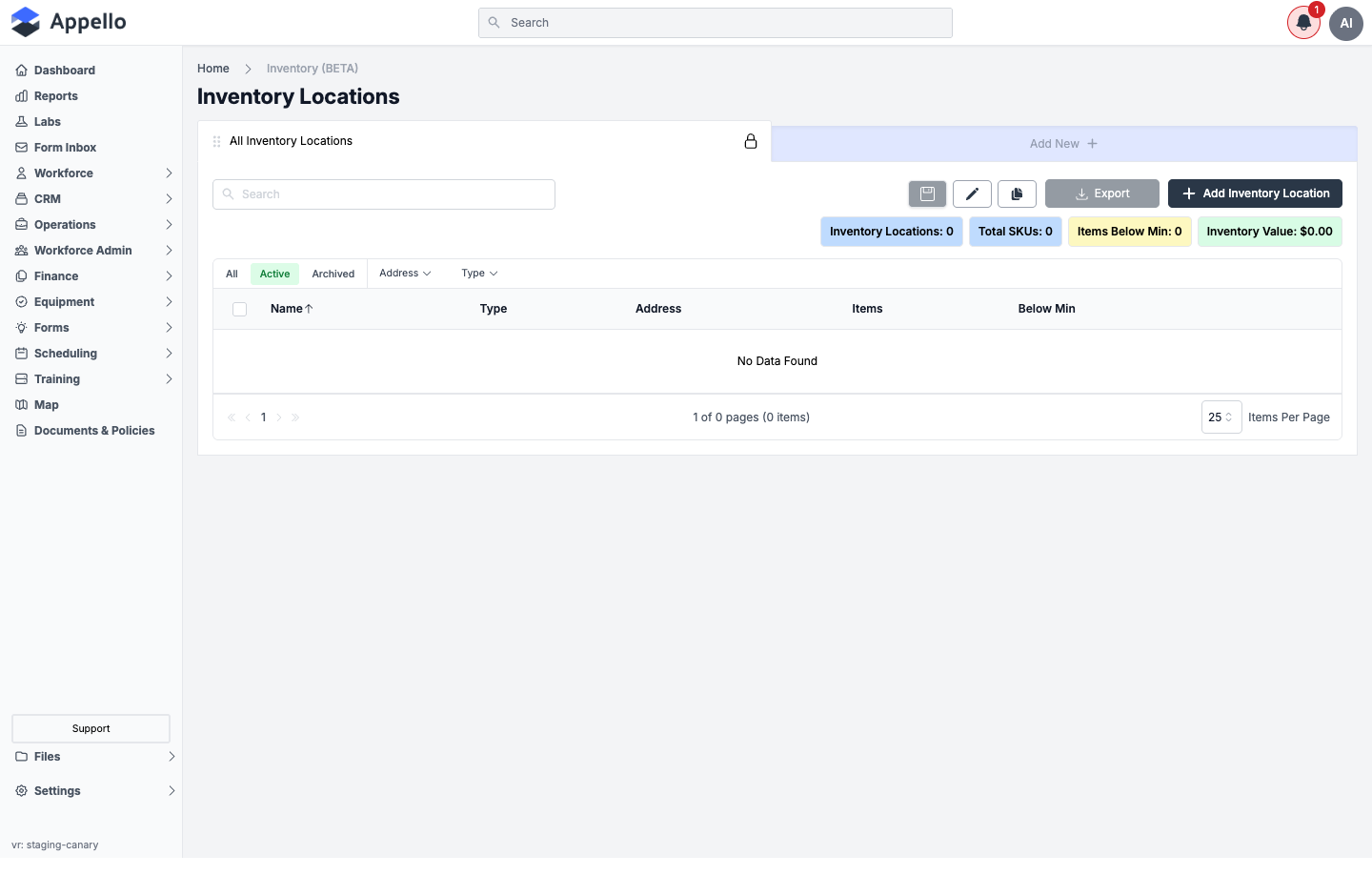
The Inventory Locations list is the entry point for the module. Each row is a place that holds stock -- a warehouse, a yard, a truck, a job trailer -- and the list header shows four running totals across all locations:
| Metric | Meaning |
|---|---|
| Inventory Locations | Count of active inventory locations. |
| Total SKUs | Count of distinct stocked material/size combinations. |
| Items Below Min | Count of SKUs currently below their configured reorder threshold. |
| Inventory Value | Total on-hand quantity × average cost, across every location. |
Table columns
| Column | Description |
|---|---|
| Name | The location's name. Click it to open the location's detail page. Default sort column (ascending). |
| Type | The location's Type value (e.g. warehouse, truck, job site) -- a Property Value, admin-configurable, same field as the form. |
| Address | The location's street address. |
| Items | A live count of active, non-archived SKUs stocked at that location. |
| Below Min | A live count of that location's SKUs whose on-hand quantity is at or below their Reorder At threshold. |
Items and Below Min are recalculated each time the list loads rather than stored, so they're always current.
Filters and search
| Control | Effect |
|---|---|
| All / Active / Archived | Status tabs -- which locations are listed. |
| Address filter | Narrows the list to locations matching an address. |
| Type filter | Narrows the list to locations with a given Type value. |
| Search | Full-text search over the list (name, type, address). |
Use these, then click a location's name to open its detail page.
Low-stock indicator
An item is flagged LOW on a location's Stock Levels tab once its on-hand quantity drops to or below its Reorder At threshold. The list page's Items Below Min metric, and each row's Below Min column, total these across every location so you can see at a glance whether anything needs reordering without opening each location individually.
Export
Click Export to download a CSV of the current view -- it respects whatever filters and search text are currently applied, the same behavior as Export on other Appello list pages (see Jobs List). The button is disabled when the current view has no rows, which is why it's greyed out in the screenshot above -- the demo instance has zero inventory locations.
Permissions
Every read and write on this module is gated by one permission item, Inventory (grouped under Inventory Management on the Roles & Permissions screen), checked action by action:
| Permission | Gates |
|---|---|
| Inventory -- View | The Inventory Locations list, a location's detail page and its Overview/Stock Levels/Movements tabs, the low-stock list, and the summary metrics. |
| Inventory -- Create | Adding an inventory location; setting up a new stocked SKU (Setup Inventory Item). |
| Inventory -- Edit | Editing a location's General Information; editing a SKU's reorder thresholds; and every stock-moving action -- Adjust, Transfer, Checkout to Job, a return from a job, and receiving stock. |
| Inventory -- Archive | Archiving one or more inventory locations. |
| Inventory -- Restore | Restoring an archived inventory location. |
| Inventory -- Delete | Deleting an inventory location. |
Without Inventory -- View, a user has no path into this module at all -- with the Materials restriction off, the sidebar link simply wouldn't render for them, the same as it doesn't render for anyone on this restricted demo instance.
Creating an inventory location
-
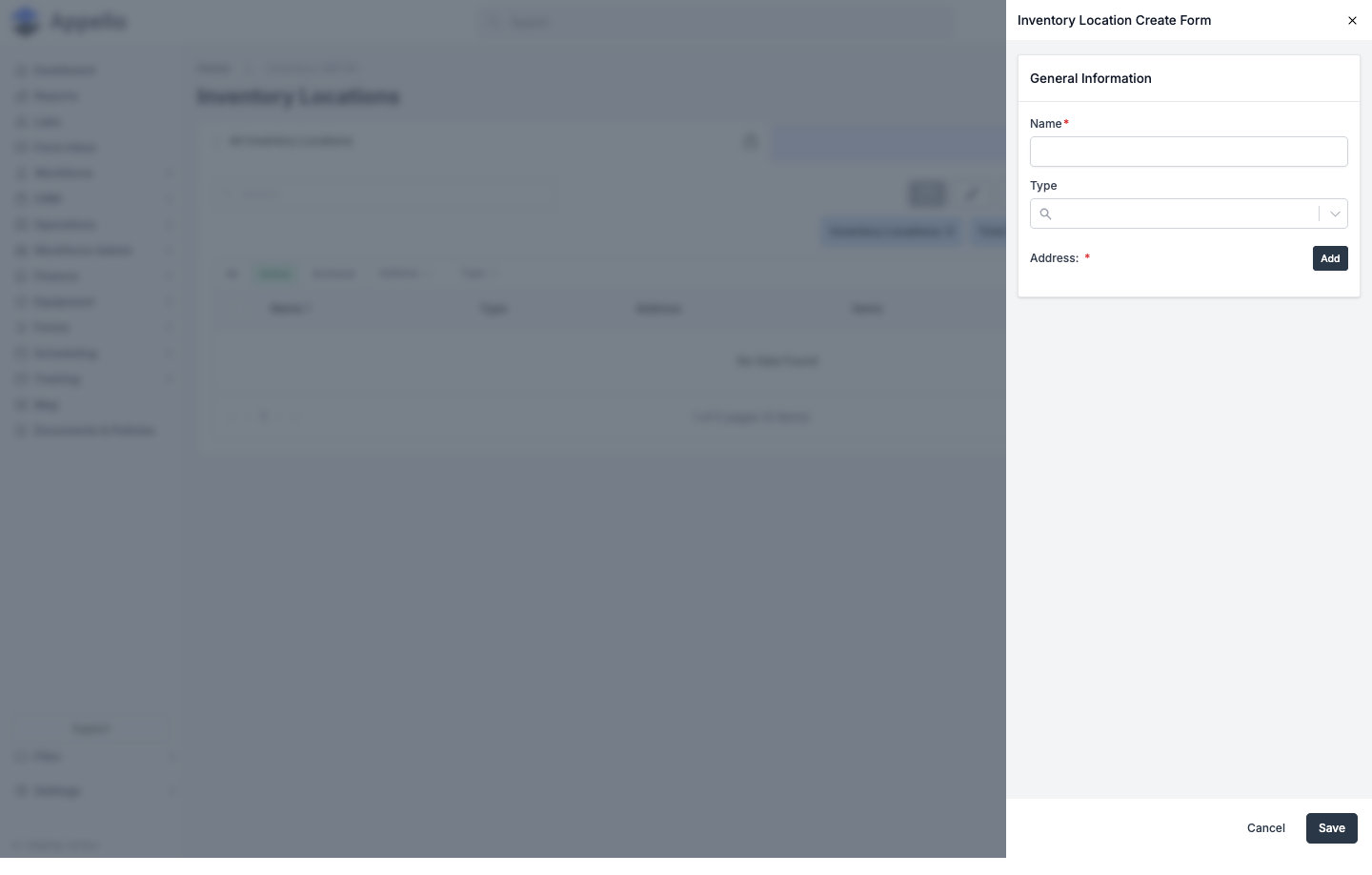
Click Add Inventory Location in the top-right of the list.
-
Fill in the fields:
Field Required Notes Name Yes How the location appears throughout Inventory and Job screens. Type No Categorizes the location (e.g. warehouse, truck, job site). Address Yes Set via the Add button next to the Address field. -
Click Save. Requires Inventory -- Create (or Inventory -- Edit when editing an existing location). The location opens on its Overview tab.
The location detail page
Opening a location puts you on its own page with three tabs:
| Tab | Purpose |
|---|---|
| Overview | The location's name, type, and address, plus its notes feed. |
| Stock Levels | Every stocked SKU at this location, with on-hand, reorder, and cost columns, and the actions below. |
| Movements | A running ledger of every checkout, transfer, adjustment, receive, and job-return that has touched this location. |
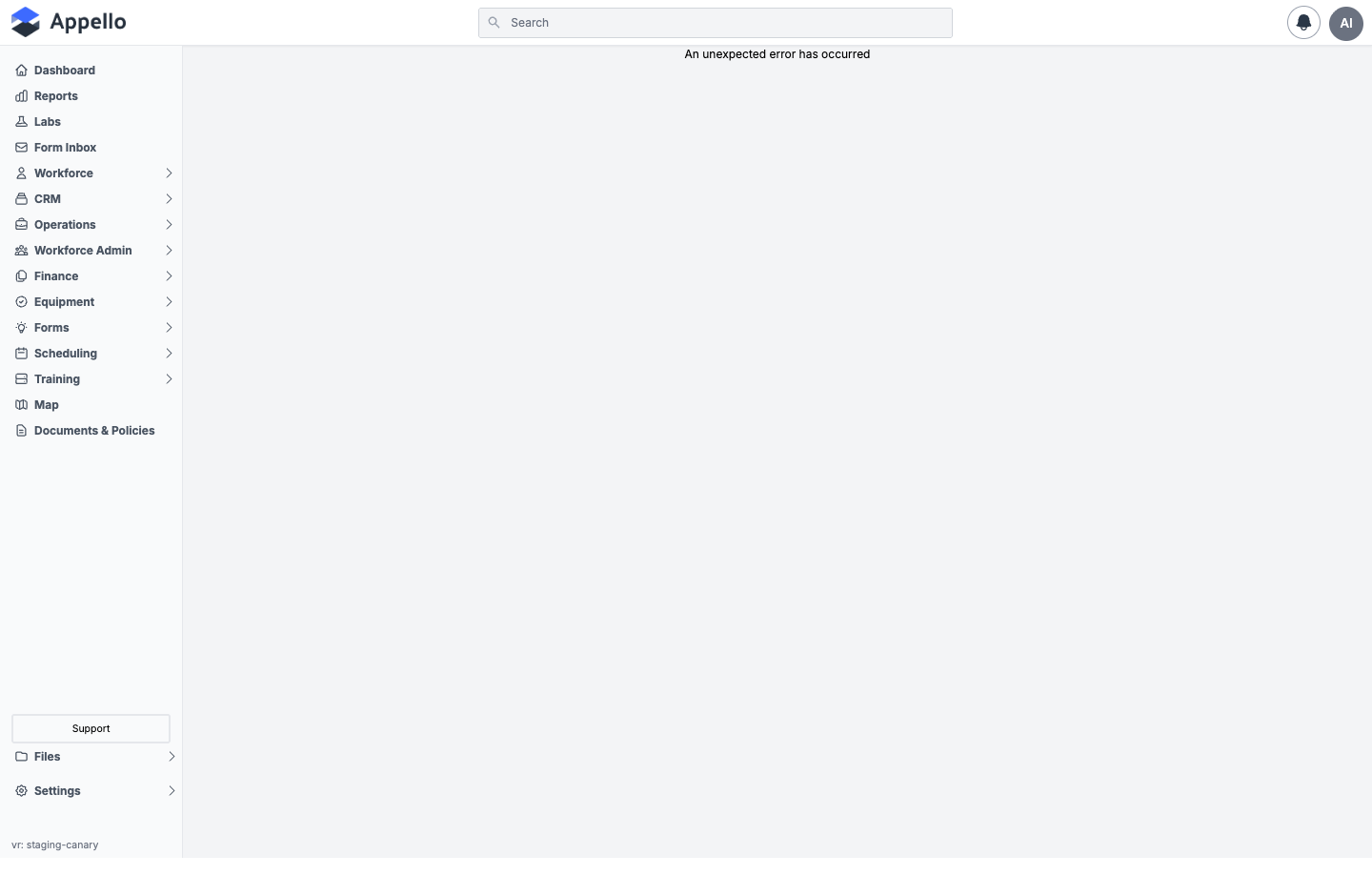
The demo instance used to prepare this page had no inventory locations configured, so none of these three tabs could be captured with real data. Opening a location that doesn't exist shows Appello's generic error page rather than a permissions message -- this isn't a permissions gate, just no record to open:
The sections below describe the Stock Levels and Movements tabs, and the forms opened from them, from Appello 1.33 instead of from screenshots.
Overview
The Overview tab shows the location's General Information (Name, Type, Address) as a read-only record, an Edit action that reopens the same Inventory Location Create Form used above, and the location's notes feed. Gated by Inventory -- View to open, Inventory -- Edit to edit.
Stock Levels
The Stock Levels table lists one row per stocked SKU -- almost always a material (a material, or a material + size combination), though a stocked row can also reference a piece of Equipment; the screen shows whichever is set. Columns:
| Column | Description |
|---|---|
| Item | Material name, with its size appended when the SKU has one (or the Equipment name). |
| Category | The material's group/category (or the equipment's category). |
| On Hand | Current quantity at this location. |
| Reorder At | The minimum threshold -- the point at which the item is flagged LOW. |
| Max Capacity | The maximum threshold -- above it, status shows OVER. |
| Avg Cost | Weighted-average unit cost. |
| Total Value | On-hand quantity × average cost. |
| Status | OK, LOW, or OVER, based on the reorder/max thresholds. |
Search filters on item, SKU, or category (placeholder: "Search Item, SKU, Category"). Each row has two icon actions: a gear icon opens Reorder Settings (edit that SKU's Reorder At / Max Capacity thresholds), and a pencil icon opens Adjust pre-filled to that SKU.
Before any SKU is stocked, the tab shows an empty state with a single Setup Inventory Item button. Once at least one SKU is stocked, three more buttons appear alongside it: Checkout to Job, Transfer, and Adjust.
Setup Inventory Item
Adds a new SKU to the location with an opening quantity (requires Inventory -- Create). Once a material and size resolve to an already-stocked SKU, the form switches to a message pointing you at Adjust or Reorder Settings instead -- Setup Inventory Item only ever creates a SKU's first record at a location.
| Field | Required | Type | Effect |
|---|---|---|---|
| Material | Yes | Combobox (material catalog) | The catalog material to stock. Selecting one may reveal a size picker if the material has sizes. |
| Initial Quantity | No | Numeric | Opening stock. Leave at 0 (or blank) to track the SKU with no stock yet -- this also hides the cost fields below. |
| Reorder At (Min) | No | Numeric | Threshold below which the SKU shows LOW. |
| Max Capacity | No | Numeric | Threshold above which the SKU shows OVER. |
| Source | No | Select | Only shown when the sized SKU has priced sources (manufacturer/distributor rows). Choosing one seeds List Price, Discount, and Unit Cost. |
| List Price | -- | Currency, read-only | The chosen source's (or the material's house value's) list price. Not directly editable. |
| Discount Type | No | Select (None / % / $) | How the discount off List Price is applied. |
| Discount Value | No | Numeric | The discount amount, interpreted per Discount Type. |
| Total Cost | No | Currency | Editing this derives Unit Cost from the opening quantity, and vice versa -- they're two views of the same value. |
| Unit Cost | No | Currency | See Total Cost. Seeded from List Price minus the discount, or the material's house value when there are no source rows. |
List Price, Discount Type/Value, Total Cost, and Unit Cost only appear once Initial Quantity is greater than zero. A note under the thresholds reiterates that a reorder threshold flags the item LOW once available stock drops to or below it.
Reorder Settings
Edits an already-stocked SKU's thresholds without touching its quantity (requires Inventory -- Edit).
| Field | Required | Type | Effect |
|---|---|---|---|
| Reorder At (Min) | No | Numeric | Threshold below which the SKU shows LOW. Clear it to remove the threshold. |
| Max Capacity | No | Numeric | Threshold above which the SKU shows OVER. |
Max Capacity cannot be set lower than Reorder At -- the form blocks the save and shows an inline error until it's fixed.
Checkout to Job
Consumes stock from the location onto a job (movement type Checkout, requires Inventory -- Edit).
| Field | Required | Type | Effect |
|---|---|---|---|
| Job | Yes | Combobox (jobs) | The job the stock is being consumed on. |
| Cost Code | No | Combobox (cost codes on the selected job) | Disabled until a job is chosen. |
| Line Items | Yes (≥1) | Item + Quantity rows, add/remove | One or more stocked SKUs and how much of each to check out. |
| Note | No | Text | Recorded on the resulting movement. |
A line that exceeds the quantity currently available at the location is flagged with a warning but is not blocked.
Workflow:
- Open Checkout to Job from the Stock Levels tab.
- Choose the Job, and optionally a Cost Code scoped to it.
- Add one or more Line Items -- pick an item and a quantity for each; click Add for more lines.
- Add a Note if useful, then confirm the checkout.
This creates a Checkout movement per line and reduces on-hand quantity at the location. On the job's own Materials Issued (BETA) tab, these consumed quantities show up as issued stock -- see How this ties to jobs below.
Transfer
Moves stock from this location to another (movement type Transfer, requires Inventory -- Edit).
| Field | Required | Type | Effect |
|---|---|---|---|
| From | -- | Fixed, read-only | The location you opened Transfer from. |
| To | Yes | Combobox (other inventory locations) | The destination. Excludes the From location. |
| Line Items | Yes (≥1) | Item + Quantity rows, add/remove | Stocked SKUs at the From location, and how much of each to move. |
| Note | No | Text | Recorded on the resulting movement. |
The form previews the source's average cost and the blended average cost the destination will end up with after the transfer.
Workflow:
- Open Transfer from the Stock Levels tab -- From is already set to this location.
- Choose the To location.
- Add one or more Line Items from the source location's stock.
- Add a Note if useful, then confirm the transfer.
This creates a Transfer movement per line, decreasing on-hand at the source and increasing it at the destination.
Adjust
Corrects a SKU's quantity without a job or another location involved (movement type Adjustment, requires Inventory -- Edit).
| Field | Required | Type | Effect |
|---|---|---|---|
| Item | Yes | Select (stocked SKUs at this location) | Which SKU is being adjusted. Pre-filled when opened from a row's pencil icon. |
| Method | Yes | Toggle: Adjust by amount / Set counted total | Whether you enter a change, or the new physical count. |
| Direction (Adjust mode) | Yes | Toggle: Increase / Decrease | Sign of the amount below. Only shown in Adjust by amount mode. |
| Amount / Counted total | Yes | Numeric | The unsigned change (Adjust mode) or the new physical count (Set mode). |
| Reason | Yes | Choice: Recount, Damaged, Lost, Found | Required for every adjustment. |
| Unit Cost (optional) | No | Currency | Only shown when the adjustment increases quantity. Blends into the average cost. Blank keeps the current average; $0 for material already paid for elsewhere. |
| Note | No | Text | Recorded on the resulting movement. |
A Before/After preview shows the current on-hand quantity, the signed change, and the resulting quantity as you fill in the form. The result can't go negative.
Workflow:
- Open Adjust from the Stock Levels toolbar, or the pencil icon on a specific row.
- Pick the Item (skip if opened from a row).
- Choose Method -- Adjust by amount (then Direction and Amount) or Set counted total (then the new count).
- Choose a Reason.
- Optionally set a Unit Cost (increases only) and a Note, then confirm.
Movements
The Movements tab is a filterable, grouped ledger of everything that has happened to stock at this location. Columns:
| Column | Description |
|---|---|
| When | Relative or absolute timestamp of the movement. |
| Type | Checkout, Transfer, Adjustment, Receive, or Job Return. |
| Item | Material (with size) or Equipment name. |
| Qty | Signed relative to this location -- stock leaving shows as negative (red), arriving as positive. |
| Unit Cost | The cost recorded on that movement, if any. |
| From → To | Source/destination locations, or the job for a checkout (linked). |
| By | The user who performed the movement. |
| Note | Any note attached, shown on hover. |
Filter by:
| Filter | Options |
|---|---|
| Type | Checkout, Transfer, Adjustment, Receive, Job Return. |
| Item | A specific stocked SKU. |
| User | Who performed the movement. |
| From | A specific source location. |
| To | A specific destination location. |
| Reason | Recount, Damaged, Lost, Found (adjustments only). |
| Date | A date range, with quick-pick options. |
Group the feed By Date (each group header shows the day's movement count plus quantity in/out) or By Item (each group header shows the movement count, the item's net change, and its current on-hand quantity).
Movement types, by source
| Type | Shown as | Created by |
|---|---|---|
| Checkout | checked out | The Checkout to Job action above. |
| Transfer | transferred | The Transfer action above. |
| Adjustment | adjusted | The Adjust action above. |
| Receive | received | Not reachable from any screen in 1.33 -- see the note below. |
| Job Return | returned | Returning issued stock from a job's Materials Issued (BETA) tab. |
Returning stock from a job
Returning checked-out stock is not done from the inventory location's page -- it's done from the job. Open the job, go to its Materials → Materials Issued (BETA) tab, and use Return Materials there to send some or all of a checked-out quantity back to an inventory location (Return To, Note -- see Job Detail → Materials Issued (BETA) for the full field table). This creates a Job Return movement, visible in that location's Movements tab.
How this ties to jobs, material orders, the catalog, work orders, and QuickBooks
Jobs. A job's Materials → Materials Issued (BETA) tab is this module's other half: it lists what's been checked out to that job, and is where a Return Materials action sends unused stock back. See Job Detail → Materials Issued (BETA).
Material orders. Material Orders are purchase orders placed against a job's Job Specification -- a separate record type for tracking what's been ordered from a vendor and its delivery status. Nothing links a material order or a packing slip to an inventory receipt in 1.33; see What's not in this release below.
Materials catalog. Every stocked SKU on this page is a sized row from the Materials Catalog -- Setup Inventory Item's Material combobox searches that same catalog, and Source/List Price/Discount are seeded from a material's price-sheet sources or house value exactly as they are elsewhere in Appello.
Work order material items. A Work Order's own Materials tab is a separate, per-day line-item list (catalog-priced or free-form/custom) -- it does not draw from or write back to inventory stock. See Work Orders Overview → Materials.
QuickBooks. Inventory has no QuickBooks integration in 1.33. The QuickBooks sync only pushes Appello Materials to QuickBooks as Service or Non-Inventory line items -- never as QuickBooks' own Inventory item type -- and inventory locations, stock levels, and movements are never synced to QuickBooks at all.
What's not in this release
Receiving shipments against a packing slip or material order is not available in 1.33. "Receive" is a recognized movement type shown in the Movements-tab filter, but no screen reaches it, and nothing links a material order or packing slip to an inventory receipt. To bring new stock onto the books today:
- Use Setup Inventory Item to stock a SKU for the first time at a location, with its opening quantity and cost, or
- Use Adjust (reason Found) with a positive amount to add stock to a SKU already stocked there.
Receiving a partial shipment, or issuing a credit/return to a vendor, is likewise not available -- there is no partial-receipt workflow, and vendor credits/returns are not one of the adjustment reasons (Recount, Damaged, Lost, Found).
Bulk-stocking multiple SKUs at once has no entry screen in 1.33 -- each SKU is set up one at a time with Setup Inventory Item.