This page describes the native Appello mobile app (version 1.71.0) -- not the mobile web app. It supersedes Mobile Timesheet Submission for native users. The two apps differ in real ways: the native app has no cost-code allocation step, it has no equipment-time block on the Daily Timesheet form, it has no two-level "Partial Approval" status, and its Rejected Timesheets screen is a local sync-failure queue, not the office's approve/reject workflow -- see Rejected Timesheets below.
Screenshots on this page are from app version 1.71.0 on an iPhone simulator.
Timesheets and Clock In on Mobile
The Timesheets tab is where a field worker reviews the week, logs a day's time (if their submission type allows it), and resubmits anything that failed to sync. What the Daily Timesheet screen asks for -- and whether the worker types hours in at all -- depends on the worker's timesheet submission type: Manual or Clock In/Out. See Submission Type: Manual vs. Clock In/Out below.
The Timesheets Tab
Bottom Tab Bar → Timesheets.
- A week header bands each Sunday–Saturday range, showing "Week of <range>" and a lock icon + "(Locked)" suffix for a payroll-locked week. Days list newest-first; a day with no logged time reads "Today", "Yesterday", or the full date, with "You are not scheduled for today." underneath.
- A day that has time logged renders as a card with a status badge reading one of Not Submitted, In Review, Approved, or Rejected -- those are the only four statuses on the native app, unlike the desktop Timesheet Matrix's two-level approval). The card also shows a job-by-job hours breakdown, break time, leave, travel/board/parking claim badges (or No Claim), and running Total (hrs Paid) / Total (hrs Unpaid) figures.
- A card with status Rejected shows a Reason for Rejection panel with the reviewer's note directly on the card -- this is the office rejecting a submitted timesheet from the desktop Timesheet Matrix (or from mobile, by someone who can approve timesheets). It is a different thing from the Rejected Timesheets screen covered further down.
- A user who can see other people's time -- anyone who can view all timesheets or approve timesheets -- gets an Only Me / Everyone toggle above the list. Switching to Everyone adds a funnel filter chip (showing a count once users are selected) for picking specific people.
- Log Time -- a blue circular + button -- appears only when the signed-in user can add time for an unscheduled job and their effective submission type resolves to Manual (a Clock In/Out user starts their day from the job/schedule Clock In control instead -- see Submission Type below, and Schedule, Directions and Clock In). Tapping it opens Log Time.
- If any timesheet actions on this device have failed to sync, a yellow "N timesheets failed to sync — Tap to review" banner appears above the week list, and the same count shows as a red badge on the Timesheets tab icon. Tapping the banner opens Rejected Timesheets.
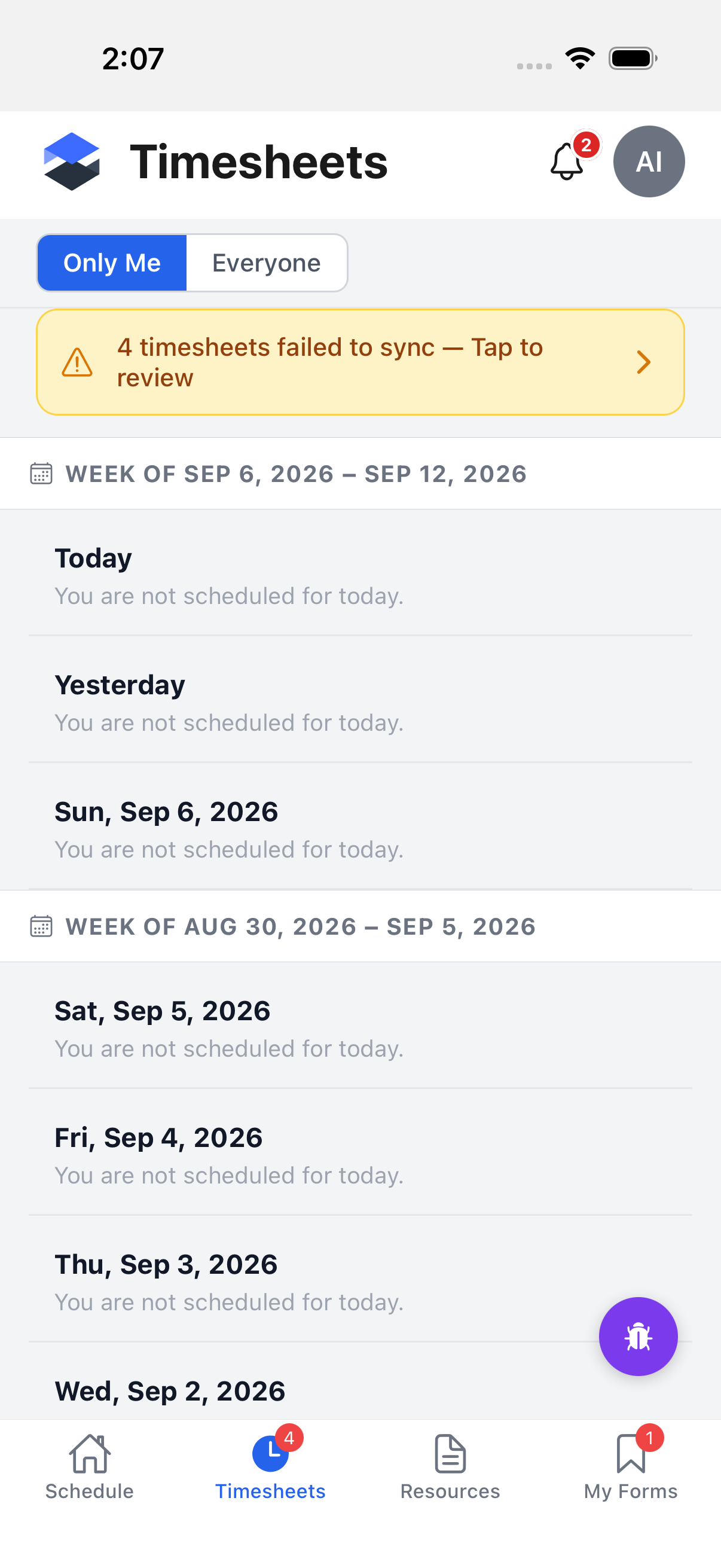
The demo admin account used for these screenshots has no timesheets logged in the visible window on the instance used here (an empty-day row appears for every date), and the Log Time button does not appear for this account -- either it cannot add time for an unscheduled job, or its effective submission type isn't Manual. The tab badge and banner in the screenshot above were populated with test entries so that surface could still be shown accurately; the entries were dismissed again afterward.
Logging Time (Log Time)
The Log Time screen is titled "New Timesheet", with the hint "Select a date and job to get started".
- Date -- defaults to today; tap to open a date picker.
- Select User -- shown only when the signed-in user is allowed to log time on behalf of someone else; otherwise the record is for themselves.
- Select Customer -- optional, narrows the job list.
- Select Job -- required. Which jobs appear depends on the user's mobile job-visibility
scope and submission type:
- If the mobile View Jobs permission is scoped to Scheduled, the picker is limited to the user's own visible/scheduled jobs (the same list the native Jobs tab uses), searchable by name.
- Otherwise the job list is filtered by the resolved submission type (the selected user's own type, falling back to the instance default) and by whether the user may log time to closed jobs (without that permission, only In Progress jobs appear).
- The Log Time button itself only appears for someone who can add time for an unscheduled job -- see above.
- Tap Continue to create the timesheet record and open it in Daily Timesheet.
No screenshot of this screen could be captured for this pass. The demo admin account used for the rest of this page's screenshots does not have the Log Time button available (see the note above), and the instance was treated as read-only, so the screen could not be reached without creating a real record. The steps above are described in writing instead.
Daily Timesheet (Edit)
The Daily Timesheet screen is titled "Edit Timesheet" (or "View Timesheet" in read-only mode; it is also where a freshly created record opens).
- Each logged job appears as a block: job number + name, an X to remove the job (requires permission to delete a timesheet), and one hours field per wage rate label that applies to the job's wage region (line-item rate labels are excluded -- only loggable wage rates show). A job whose resolved submission type is Clock In/Out shows its hours read-only with "You do not have permission to manually edit time for this job.", unless the user is allowed to override manual time entry.
- + Add Job -- shown only for someone who can add an unscheduled job and has edit rights -- adds another job block to the same day.
- Check-Ins -- if the record has any clock-in/clock-out punches, a read-only table lists Time In / Time Out / Status per punch, grouped by job, with a Total (hrs Paid) per group. An open (no checkout) punch shows "Cannot submit — still clocked in to: <jobs>" and blocks submission until the worker clocks out. See Schedule, Directions and Clock In for the clock-in control itself, and the desktop Clock In / Out report for how the same punches appear on the office side.
- Break Time and Leave sections are read-only roll-ups from the record's detail rows -- not entered here.
- Travel/Board Expenses -- Claim Travel Expense, Claim Board Expense, and Claim Parking Expense toggles. Which of these can be on at once is controlled by the instance's Travel, Board & Parking Expense Settings (either, both, travel only, board only, or neither), and Parking only shows at all when the instance's Employee can claim parking expenses setting is on. A user with the matching override permission (Travel, Board, or Parking) can type a dollar amount instead of taking the calculated rate. Claiming an expense on a day with zero hours logged needs the permission to claim expenses without hours.
- Note -- free-text. Forced and validated on submit when the instance's Require Timesheet Note setting (Instance Settings → Mobile Settings) is on for this user (an individual worker can be exempted from it on their own user record).
- Tap Submit. A day over 24 total hours, an open check-in, or a missing required note all block submission with an inline error and scroll the form to the offending field.
The native app has no cost-code allocation step, even when the instance's Require Cost Code Allocation setting is enabled -- there is no cost-code question or picker anywhere on this screen. Likewise, the instance's Show Equipment Time on Mobile Timesheets setting has no effect on the native app -- there is no equipment-time block on this form. Both settings live under Instance Settings → Mobile Settings; on native, enabling either currently has no visible effect on this screen. This is the main functional gap from the older, mobile-web-sourced Mobile Timesheet Submission page.
Cancel — No Save Draft Prompt
Tapping Cancel on this screen navigates straight back (or, from a push-notification deep link, to the Timesheets list) with no confirmation dialog -- there is no "Save Draft" prompt on this screen. Backing out of an in-progress edit without submitting simply discards the unsaved changes -- there is nothing to explicitly discard.
No screenshot of this screen could be captured for this pass. The demo admin account has no existing timesheet record to open (every visible day is empty, see the note under The Timesheets Tab), and reaching a new day's form requires the Log Time button, which also isn't available to this account. The steps above are described in writing instead.
Rejected Timesheets (Sync Failures)
This screen is titled "Failed to sync".
It is not the office's timesheet-rejection workflow -- despite the name, it lists submission failures on this device: timesheet actions (create, edit, submit, approve, reject, unapprove) that the app tried to send and Appello refused, or that never made it out of the offline queue. Each entry carries one of these reasons:
| Reason |
|---|
| The week was locked before this entry could sync. |
| This job is no longer available. |
| Total time exceeded 24 hours. |
| A timesheet note is required. |
| Permission denied. |
| Server validation failed. |
| An unknown error occurred. |
Each row shows the day, the reason, and the underlying error message. A row whose failed action still has the worker's entries saved offers Review (re-opens Daily Timesheet at that record, pre-filled, so the worker can fix the problem and resubmit); every row offers Dismiss, which drops the entry from this device only. A row from a failed delete attempt has nothing saved and offers only Dismiss — there's nothing left to review. This same count drives the Timesheets tab's red badge and the in-list "N timesheets failed to sync" banner described above.
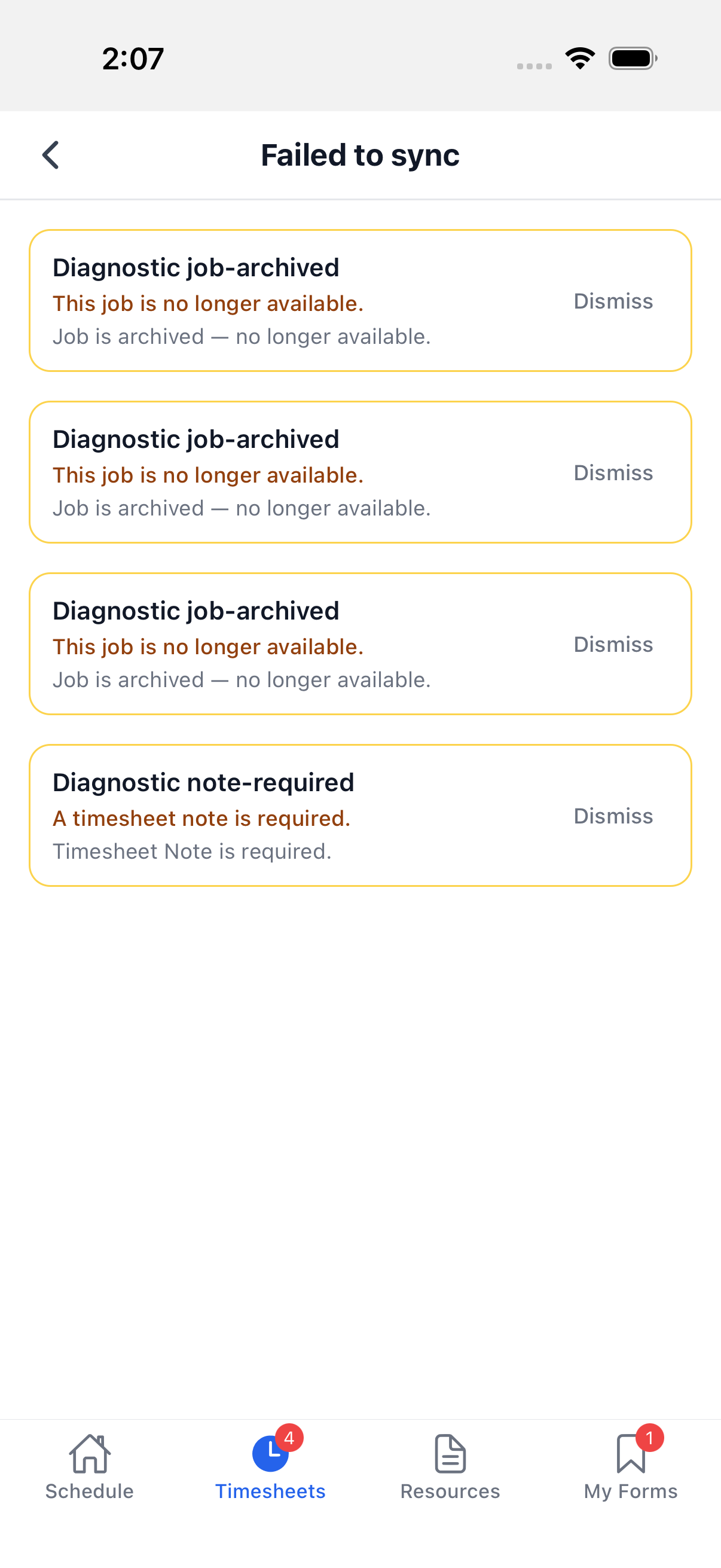
The entries in the screenshot above are test entries, added so this screen's real layout could be shown without a genuine failed sync on a shared instance. They were dismissed again after the screenshot was taken. A real entry looks identical -- same fields, same reasons, same actions.
Submission Type: Manual vs. Clock In/Out
Every user has an effective timesheet submission type -- Manual or Clock In/Out -- resolved in this order:
- The job's own submission-type override, if the job has one.
- Failing that, the user's own Time Sheet Submissions Type.
- Failing that, the instance's Default Timesheet Submission Type (Instance Settings → Timesheet & Clock In Settings).
A user who is allowed to override manual time entry can always type hours by hand, even on a job that resolves to Clock In/Out — the hours field simply stops being read-only for them.
- Manual users log their own hours through Log Time and Daily Timesheet as described above.
- Clock In/Out users start and end their day from the Clock In / Clock Out control on a scheduled job, not from the Timesheets tab -- see Schedule, Directions and Clock In. The resulting punches feed the same Daily Timesheet record as a read-only Check-Ins table (see step 3 under Daily Timesheet); the desktop Clock In / Out report shows the same punches from the office side.
Once submitted (by either path), a timesheet is reviewed on the desktop Timesheet Matrix and appears in the flat, exportable Timesheet Log.
Two push notifications -- Timesheet Approved and Timesheet Rejected -- open Daily Timesheet directly at that day from anywhere in the app. Whether (and how) an approver is notified when a worker submits a new timesheet is not covered here.
Offline Behavior
Timesheet actions queue on the device when it is offline (or when an earlier action for the same record is still waiting to send):
- Pending -- one entry per queued action: create, edit, submit, approve, reject, unapprove, or delete. A brand-new day logged while offline gets a temporary identifier until the queue clears; every list card for a record still waiting shows a small pending sync dot.
- Failed -- entries that came back from a send attempt with an error, or that failed the app's own checks before ever being sent. This is the queue behind Rejected Timesheets above.
Both queues survive closing and reopening the app, and clear automatically once the device reconnects.
Permissions Reference
These are set per role in Settings → Roles & Permissions.
| Permission | Gates |
|---|---|
| Mobile → View All Timesheets | The Only Me / Everyone toggle. |
| Mobile → Approve Timesheets | The Only Me / Everyone toggle; approving/rejecting other users' days from mobile. |
| Mobile → Log Time | The Select User field on Log Time (logging time for someone else). |
| Mobile → Delete Timesheet | The trash icon on a timesheet card; the per-job X remove on Daily Timesheet. |
| Mobile → Manual Time Entry Override | Editing hours by hand on a job resolved to Clock In/Out. |
| Mobile → Log Time To Closed Jobs | Whether closed (not In Progress) jobs appear in the job picker. |
| Mobile → Override Travel | Typing a dollar amount for the Travel claim instead of the calculated rate. |
| Mobile → Override Board | Same, for the Board claim. |
| Mobile → Override Parking | Same, for the Parking claim. |
| Timesheets → Add Timesheet Record For Unscheduled Job | The Log Time button on the Timesheets tab; + Add Job on Daily Timesheet. |
| Timesheets → Claim Expenses Without Hours | Claiming Travel/Board/Parking on a day with zero hours logged. |
Related Pages
- Mobile Timesheet Submission — the older, mobile-web-sourced page. Kept for web users; this page supersedes it for native.
- Schedule, Directions and Clock In — the Clock In/Out control itself, and geofence behavior.
- Clock In / Out report — the desktop-side view of the same clock-in/clock-out punches.
- Timesheet Matrix — office-side review and approval, including one-level vs. two-level approval.
- Timesheet Log — flat, exportable list of every timesheet entry, including ones submitted from mobile.
- Instance Settings — Timesheet & Clock In Settings — default submission type and approval-level settings.
- Instance Settings — Mobile Settings — Require Timesheet Note, Require Cost Code Allocation, and Show Equipment Time on Mobile Timesheets.
- Instance Settings — Travel, Board & Parking Expense Settings — which claim fields appear, and whether Parking is available at all.