My Forms on Mobile
Screenshots on this page are from app version 1.71.0 on an iPhone simulator.
The Appello mobile app is where field workers fill out safety inspections, toolbox talks, and other forms, pick up forms a supervisor needs them to acknowledge, and see anything that failed to sync. This page covers the My Forms tab, filling out a form, viewing a form you already submitted, acknowledging a form, and the Failed Submissions screen -- plus the offline queue and permissions behind all of it.
This page supersedes the mobile-specific parts of the older Mobile Form Submission page -- that page's GPS/timestamp and instance-setting content is still current and is linked from here rather than repeated. Nothing on this page contradicts Form Inbox; the mobile app is simply the other end of the same submissions the office reviews there.
The My Forms Tab
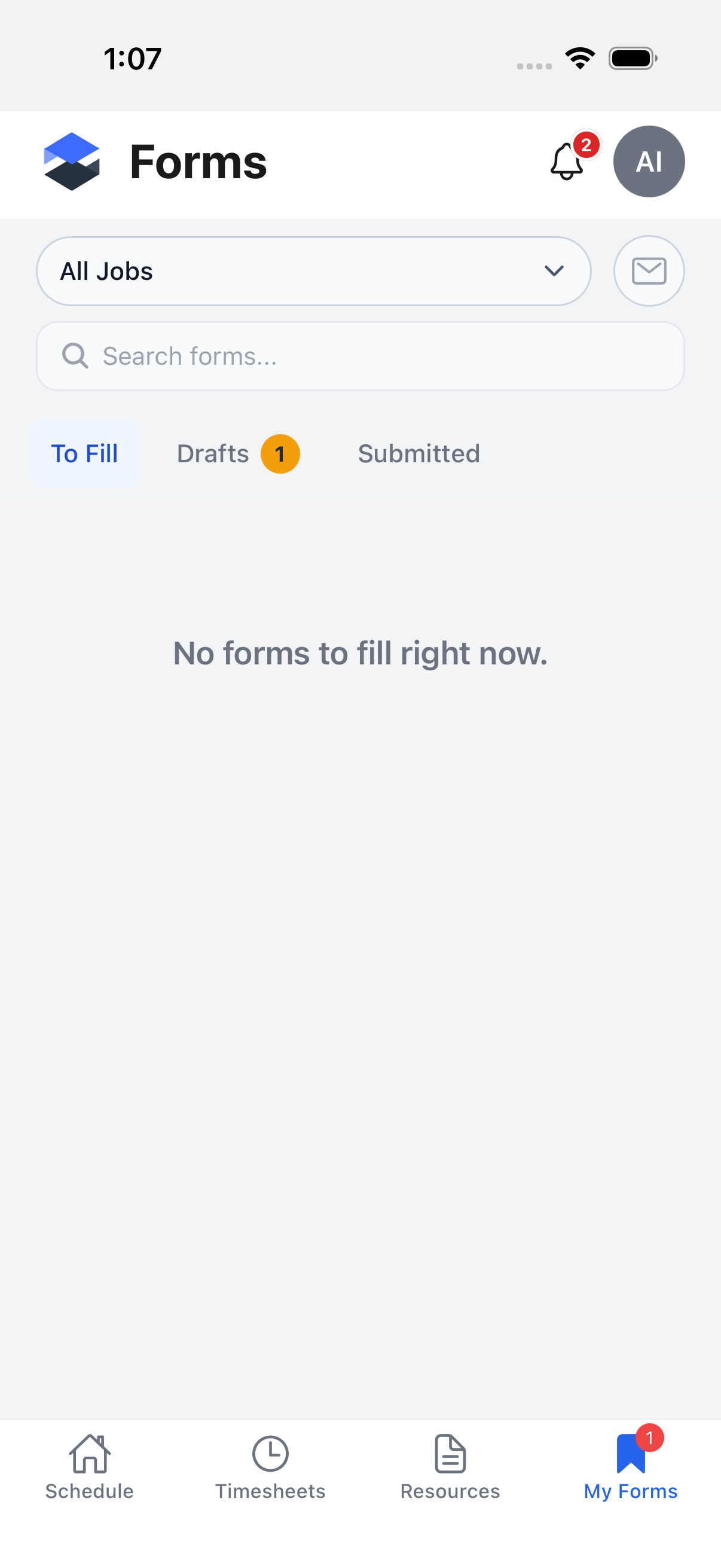
Open the My Forms tab from the bottom tab bar (a clipboard icon, labelled My Forms). It's an account-wide list of forms across every job you have access to -- three sub-tabs, a job filter, a search box, and an envelope button for emailing forms out.
Sub-Tabs
The tab bar has three sub-tabs, sourced from forms.inbox.tabs in the app:
| Sub-tab | Shows |
|---|---|
| To Fill | Forms awaiting your signature -- the default sub-tab when you open My Forms. |
| Drafts | Forms you've started but not finished, whether saved locally on this device or as a server-side draft. |
| Submitted | Forms you've already completed and signed. |
To Fill and Drafts each carry a counter badge (red for To Fill, yellow for Drafts) when
their count is greater than zero; the badge hides entirely at zero rather than showing a 0. The
two badge counts also drive the single badge on the bottom My Forms tab icon, so the numbers
always reconcile between the tab bar and the page.
Filtering by Job
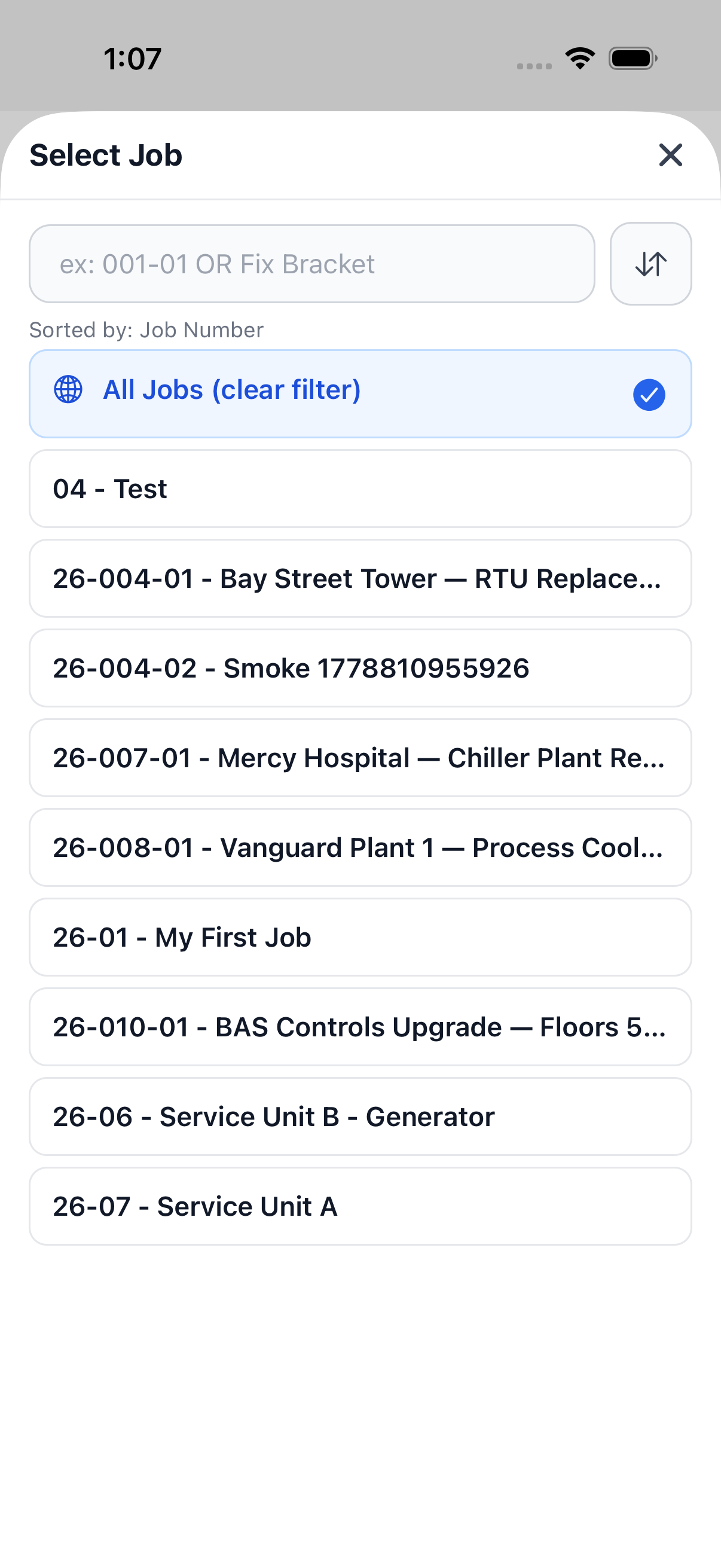
Tap the job pill (top-left, showing All Jobs or the currently selected job) to open a job picker sheet. Selecting a job narrows every sub-tab to that job's forms; All Jobs clears the filter.
Searching
The search box above the sub-tabs filters the currently active sub-tab's list as you type.
Drafts and Submitted Sub-Tabs
Switching sub-tabs keeps the job filter and search term in place.
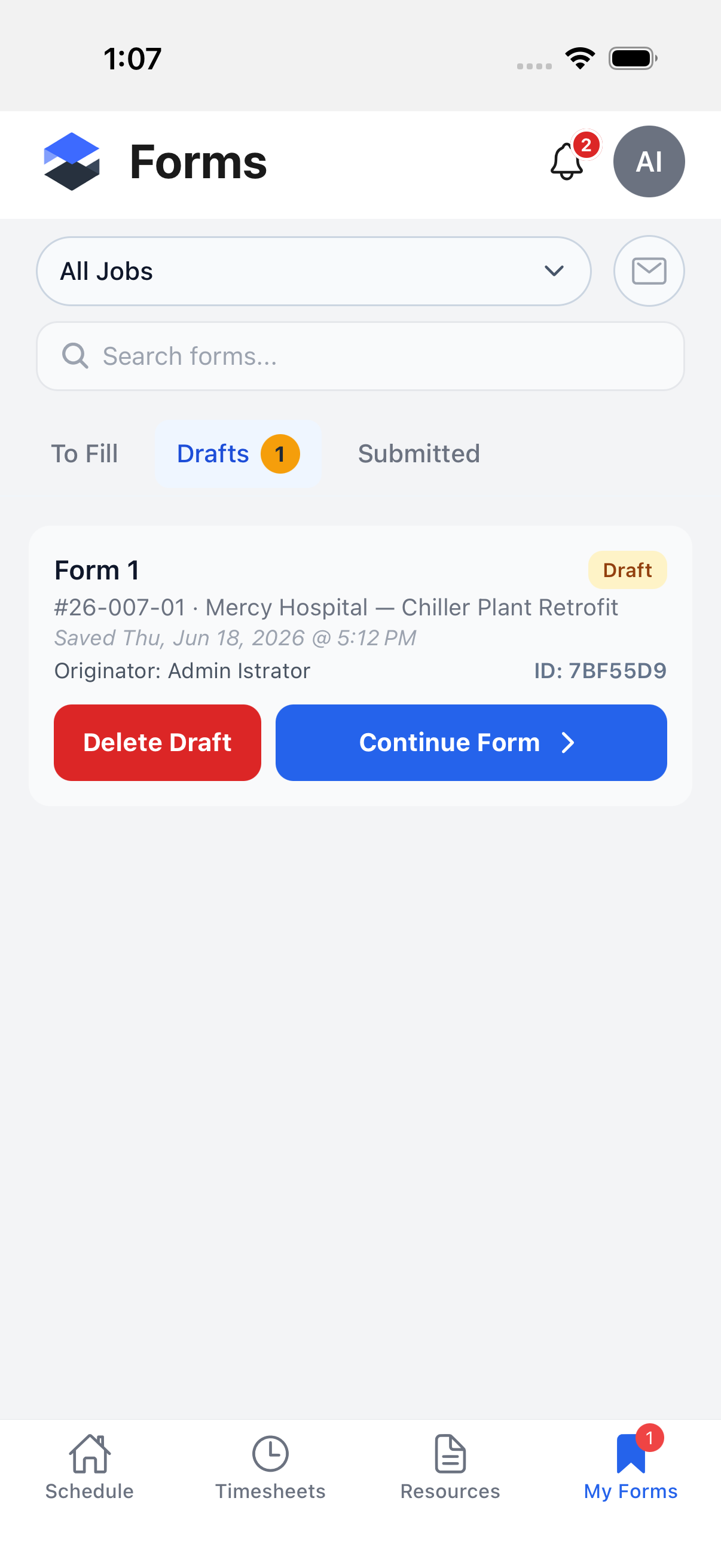
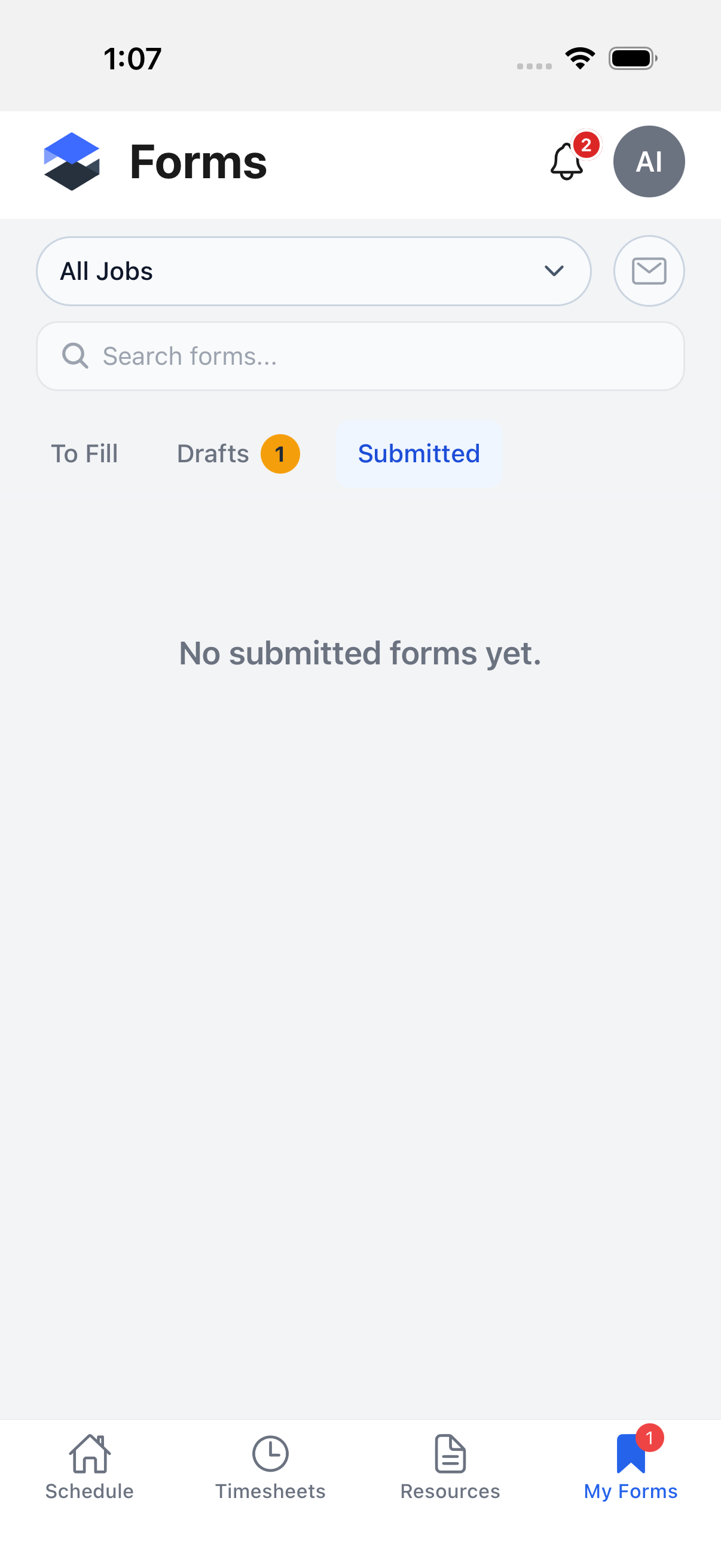
The canary demo instance used for this page has exactly one seeded draft and no submitted forms, so the Drafts sub-tab above shows that single card and the Submitted sub-tab is shown empty on the demo instance.
Emailing Forms
Tap the envelope button (top-right of the header, next to the job pill) to open the Email
Forms sheet (FormRecipientsSheet in source). It lets you send already-submitted forms to any
email address without going through the desktop Form Inbox.
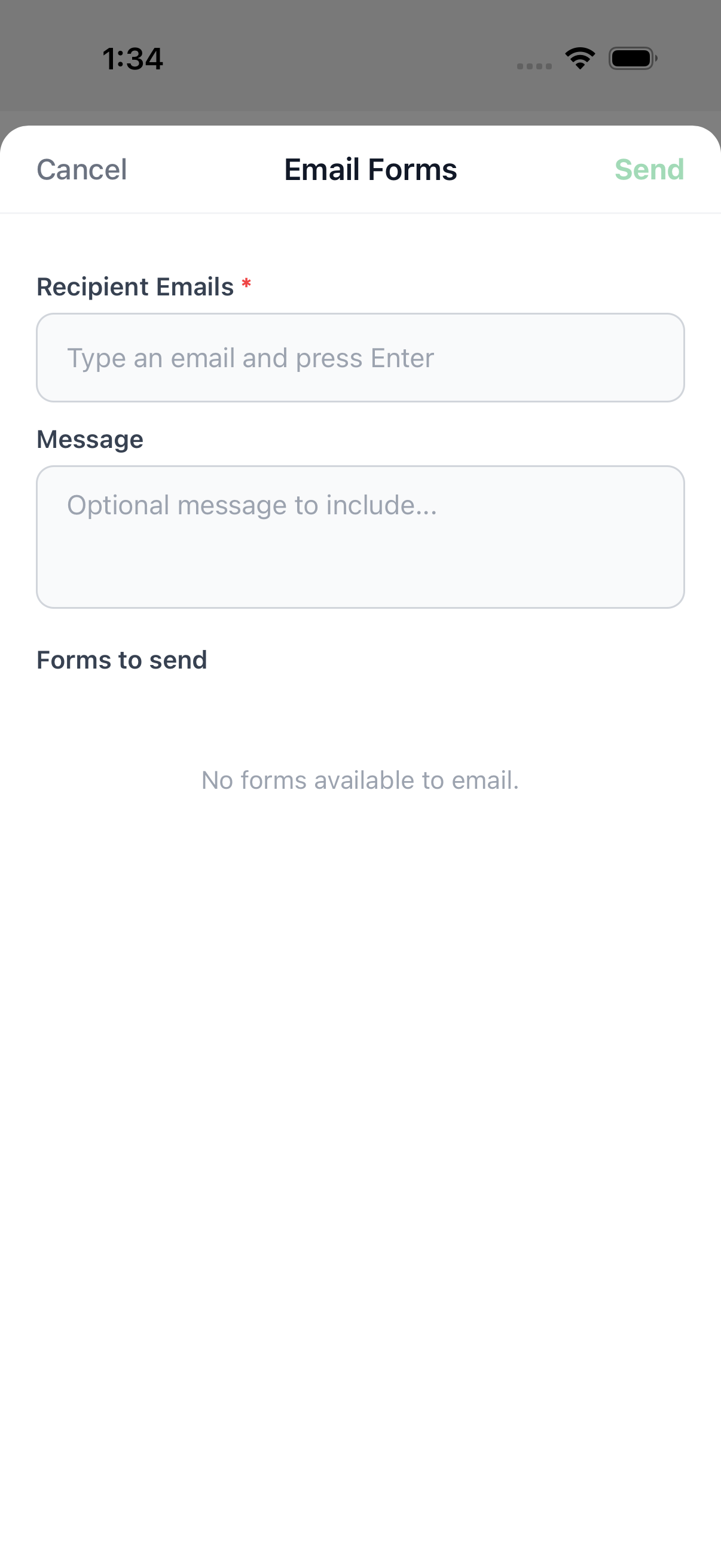
- Recipient Emails -- a chip input (
form-recipients-emailsin source); type an address and press return to add it as a chip. At least one recipient is required. - Message -- an optional note included with the email.
- Forms to send -- a checklist of your submitted and awaiting-signature forms (not drafts), pre-filtered to the job you had selected on the My Forms tab if any. A Check all / Uncheck all toggle appears when there's more than one form to send.
- Send (
form-recipients-sendin source) -- disabled until at least one recipient and one form are selected.
The canary account used for this page has no submitted or awaiting-signature forms, so Forms to send shows its empty state ("No forms available to email") above.
If you tap Send while offline, or the request fails with a server/network error, the email is queued and sent automatically once the device reconnects (see Offline Behaviour below); a permanent failure (e.g. an invalid recipient) lands in Failed Submissions instead.
The Job-Level Forms Tab
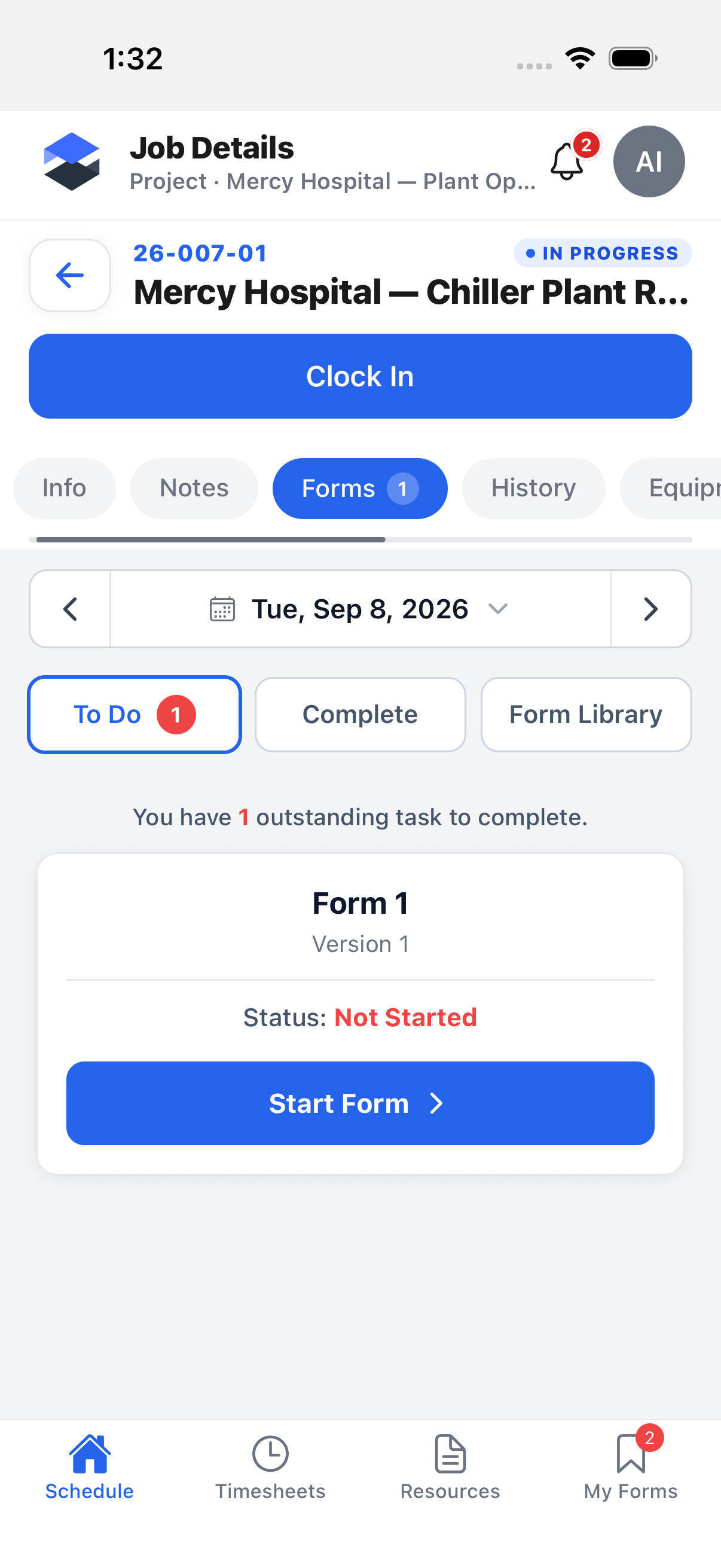
A job's own detail screen has a separate Forms tab (labelled with a badge, e.g. "Forms 1") -- this is different from the bottom My Forms tab above. It's scoped to that one job and has its own three sub-tabs: To Do, Complete, and Form Library.
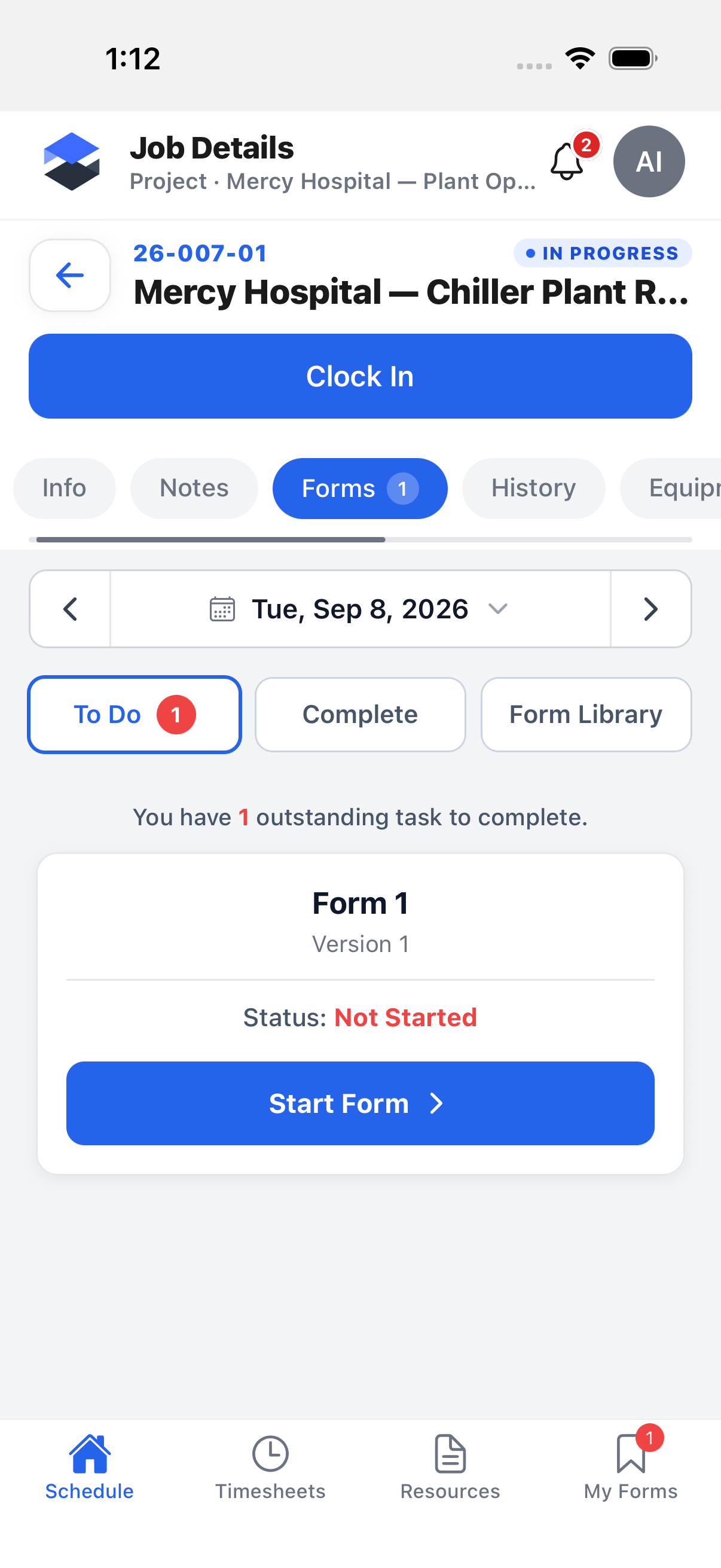
- To Do -- forms assigned to this job that you haven't finished, each with a Start Form or Continue Form button.
- Complete -- forms already submitted or acknowledged for this job.
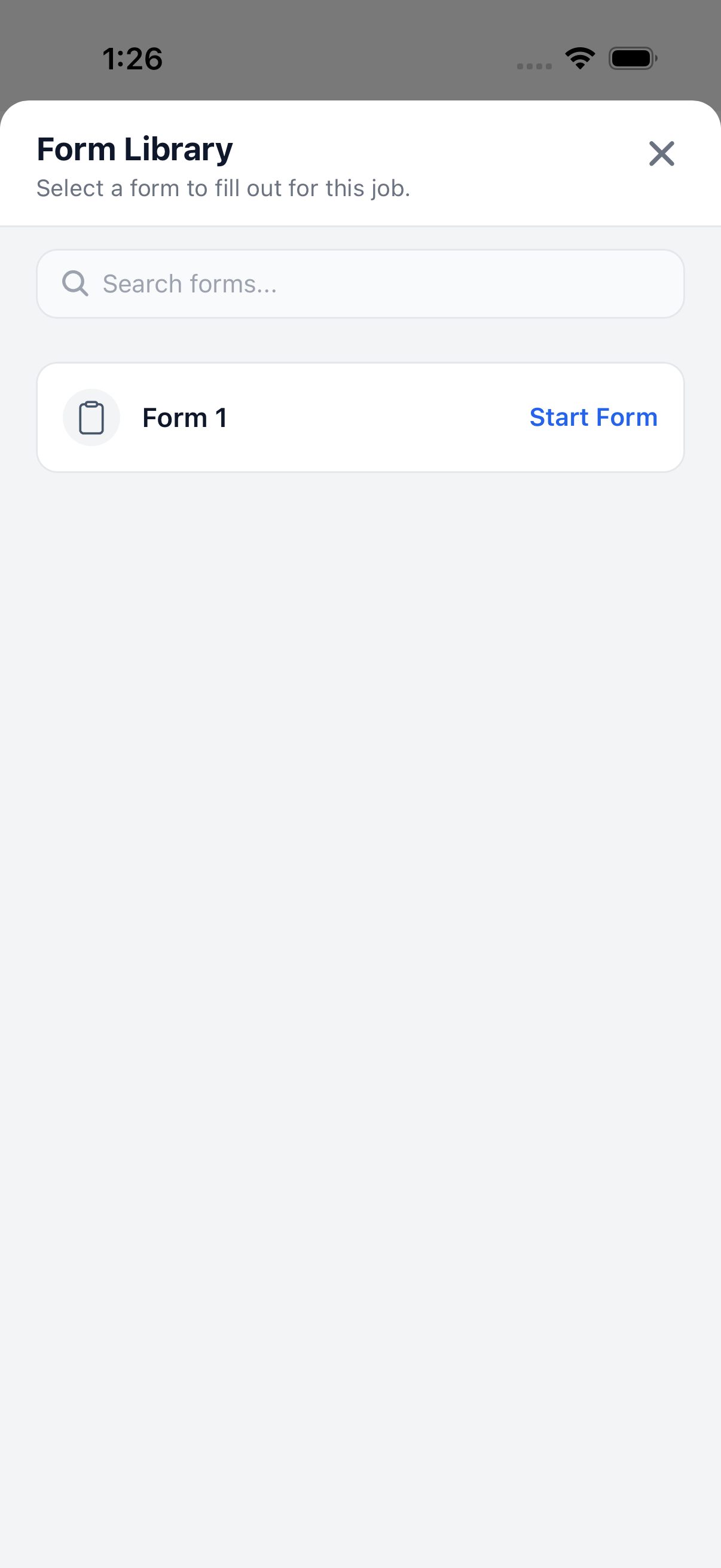
- Form Library -- every other form template available to start on this job that isn't already assigned.
Filling Out a Form
Tapping Start Form on a fresh, not-started form opens a cover screen; tapping Continue Form on an in-progress draft resumes it directly (skipping the cover screen, since it's only shown once, before any answer exists).
The Cover Screen
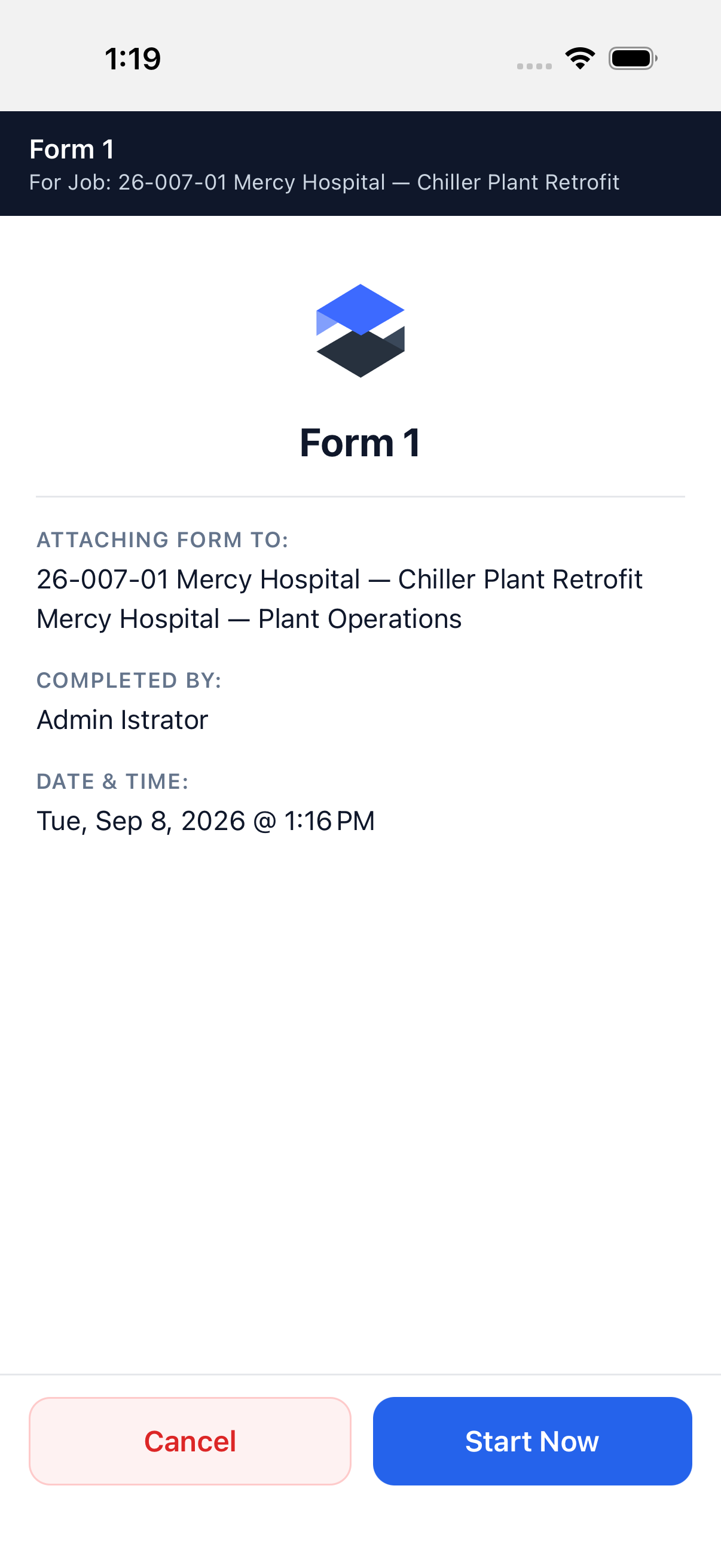
The cover screen (FormCoverScreen in source) shows:
- The form name and, in the dark header strip, the job it's attached to.
- Attaching Form To: -- the job number/name and project (if any).
- Completed By: -- your name and position.
- Date & Time: -- when the draft was started.
Tapping Cancel here exits silently (no confirmation) and discards the not-yet-started draft -- mirrored in-app text has no "are you sure" prompt at this point since nothing has been answered yet. Tapping Start Now opens the first question and creates the matching server-side draft shell in the background, so the draft appears on the desktop Form Inbox's Draft tab even before you finish it.
Answering Questions
Once past the cover screen, the header shows the form name, a Question N / Total counter, and (except on the final review screen) a list icon whose accessibility label is Show all questions -- it opens a sheet listing every question on the form and your current answer for each, letting you jump straight to any of them.
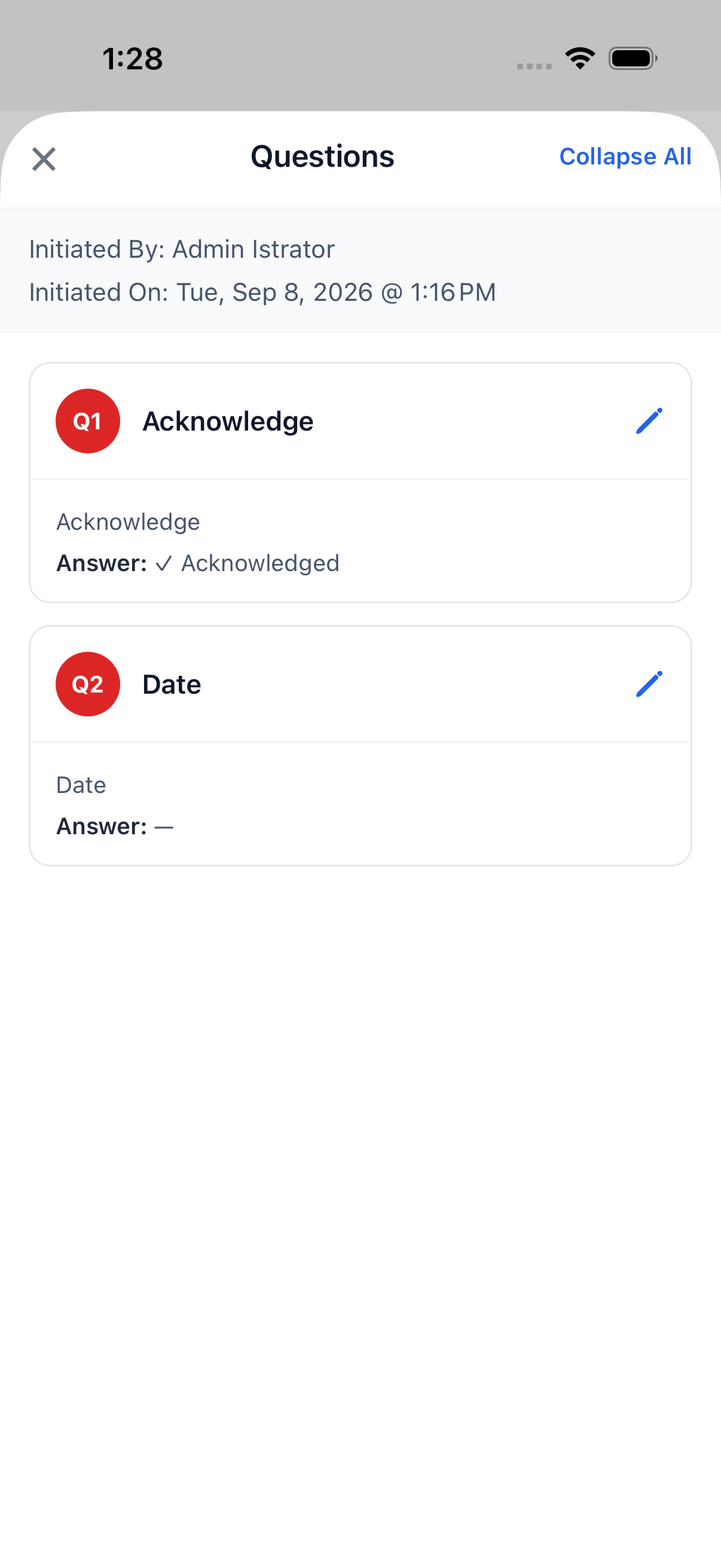
Every question in the current template is rendered by one of the following mobile question
components (from src/components/forms/questions), matching the question types configured on the
desktop form builder:
| Question type | What it looks like on mobile |
|---|---|
| Text | A single free-text input. |
| Number | A numeric-keyboard input. |
| Date | A date picker. |
| Time | A time picker. |
| Yes/No, Pass/Fail, Conditional | A row of pill-style toggle buttons (e.g. Yes / No / N/A, or Pass / Fail / N/A). |
| Picker (Equipment / Person) | A searchable picker, optionally restricted to the question's configured equipment categories or user groups. |
| Multiselect | A multiple-choice checklist of the question's configured choices. |
| Single Choice | A single-select list of the question's configured choices. |
| Signature | A signer-name field plus a signature pad (see Acknowledging a Form for the separate PIN-based sign-off). |
| Risk Assessment | A self-contained multi-row editor for task/hazard/rating/controls rows. |
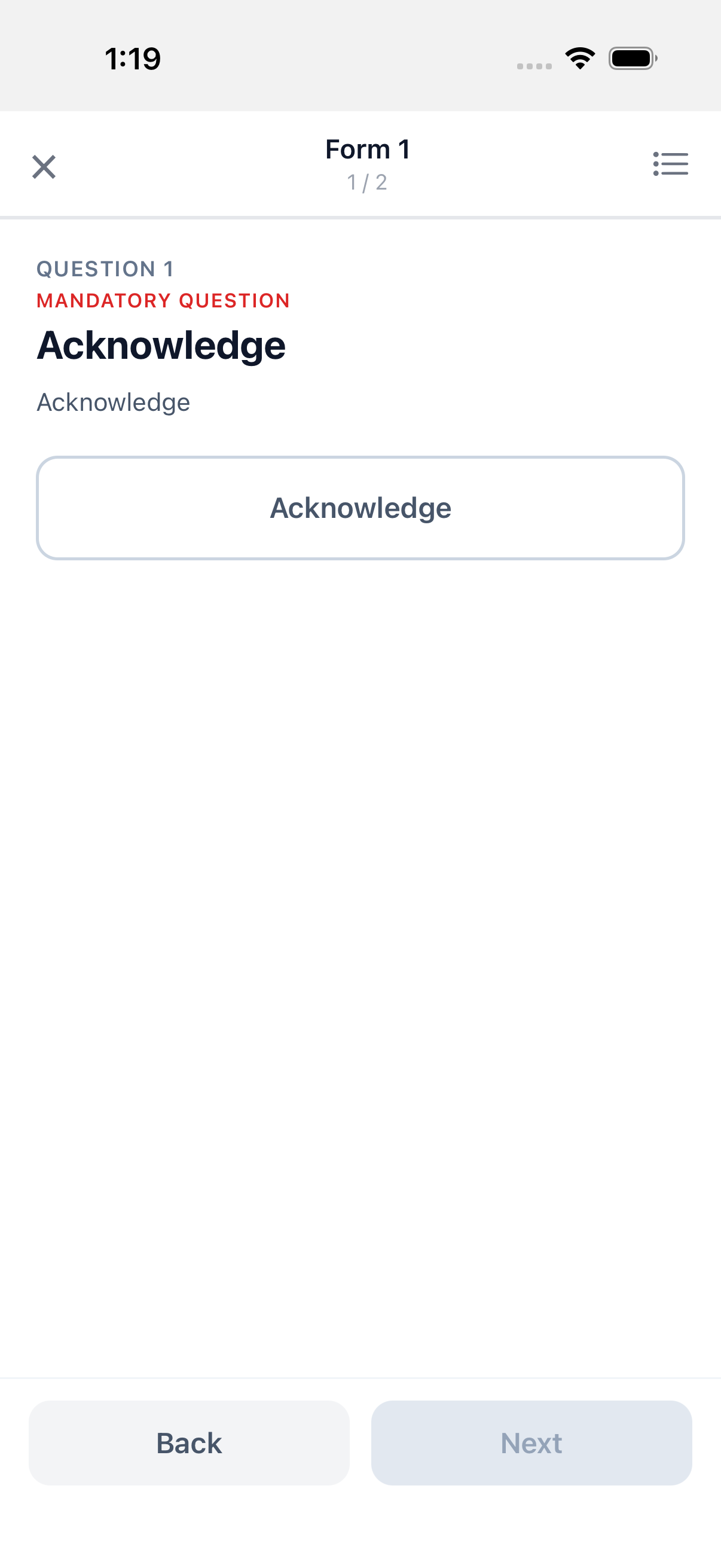
| Acknowledgement | A single Acknowledge button; tapping it auto-advances to the next question. |
| Photo / File attach | An Add a photo / Attach a file control with a thumbnail grid of what's been added. |
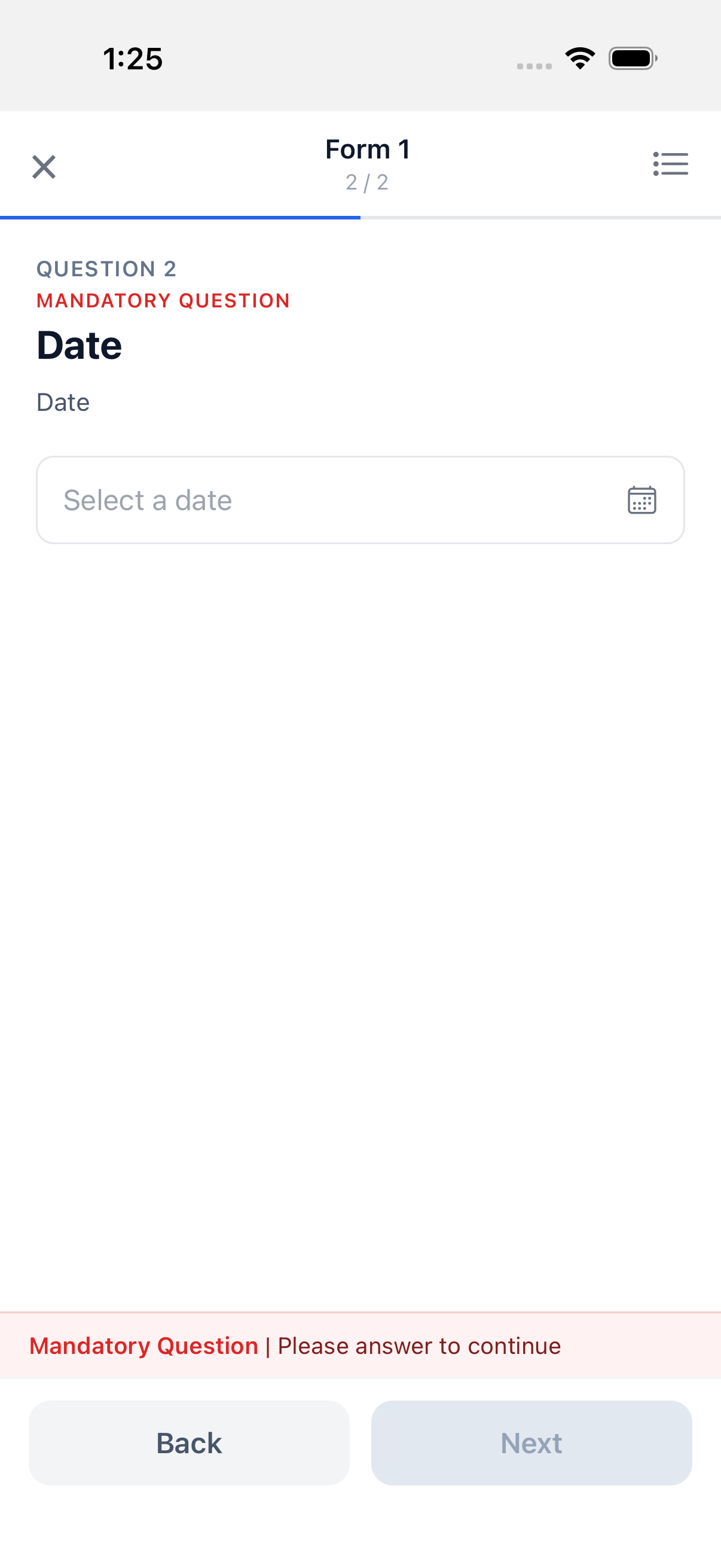
Tapping Acknowledge on Question 1 above answers it and auto-advances straight to Question 2 (a Date question) -- most pill-style answers (Yes/No, Pass/Fail, Acknowledge) auto-advance the moment you tap one, while every other question type requires tapping the footer's Next button. The screenshot above also shows the mandatory-question hint: a red banner reading "Mandatory Question | Please answer to continue" and a disabled Next button, both of which stay until a required question is answered. Photo and file questions offer Take Photo and Choose from Library (or Attach a File), the same as the note composer's attach sheet; attached files upload in the background as soon as they're added. A photo/file cap per question is configurable on the desktop form builder -- when set, the app shows a live N of max attachments count and disables adding more once the cap is reached.
This canary demo instance's one available form ("Form 1" on the Mercy Hospital job) only has two
questions -- Acknowledgement and Date -- so those are the only two question types shown
live above. Every other question type in the table above is confirmed directly from the
FormFiller source's per-type switch statement (src/components/forms/FormFiller.tsx), not from
a screenshot of that specific type in action.
Save-Draft, Submit, and the Exit Dialog
Answers auto-save to the draft as you go -- there's no separate "save" action while you're answering. Two controls sit in the footer:
- Back -- steps to the previous question.
- Next (or Submit, once you reach the review screen) -- advances, or opens the submit confirmation once every required question is answered.
Tapping the header's × always runs the same check: if nothing has changed since the draft was last saved, it exits immediately; if there are unsaved changes, it blocks the exit and shows the Save Changes? dialog instead -- the same check runs whether you tap ×, use Android's hardware back button, or swipe back on iOS.
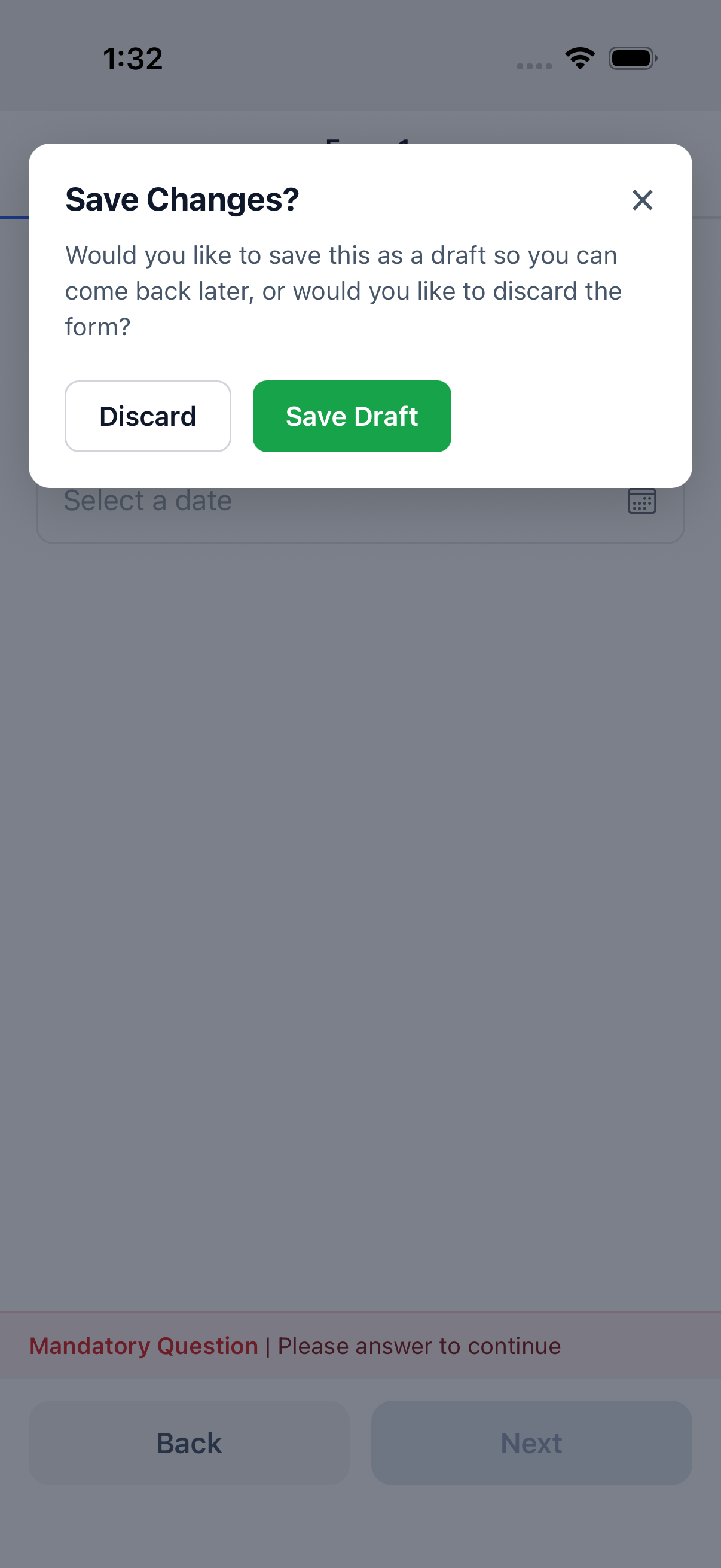
- Save Draft -- exits back to My Forms; the draft (already auto-saved) stays in the Drafts sub-tab to resume later.
- Discard -- opens a second, native confirmation ("Discard this draft? You'll lose any answers you've entered.") before actually deleting the draft and its answers.
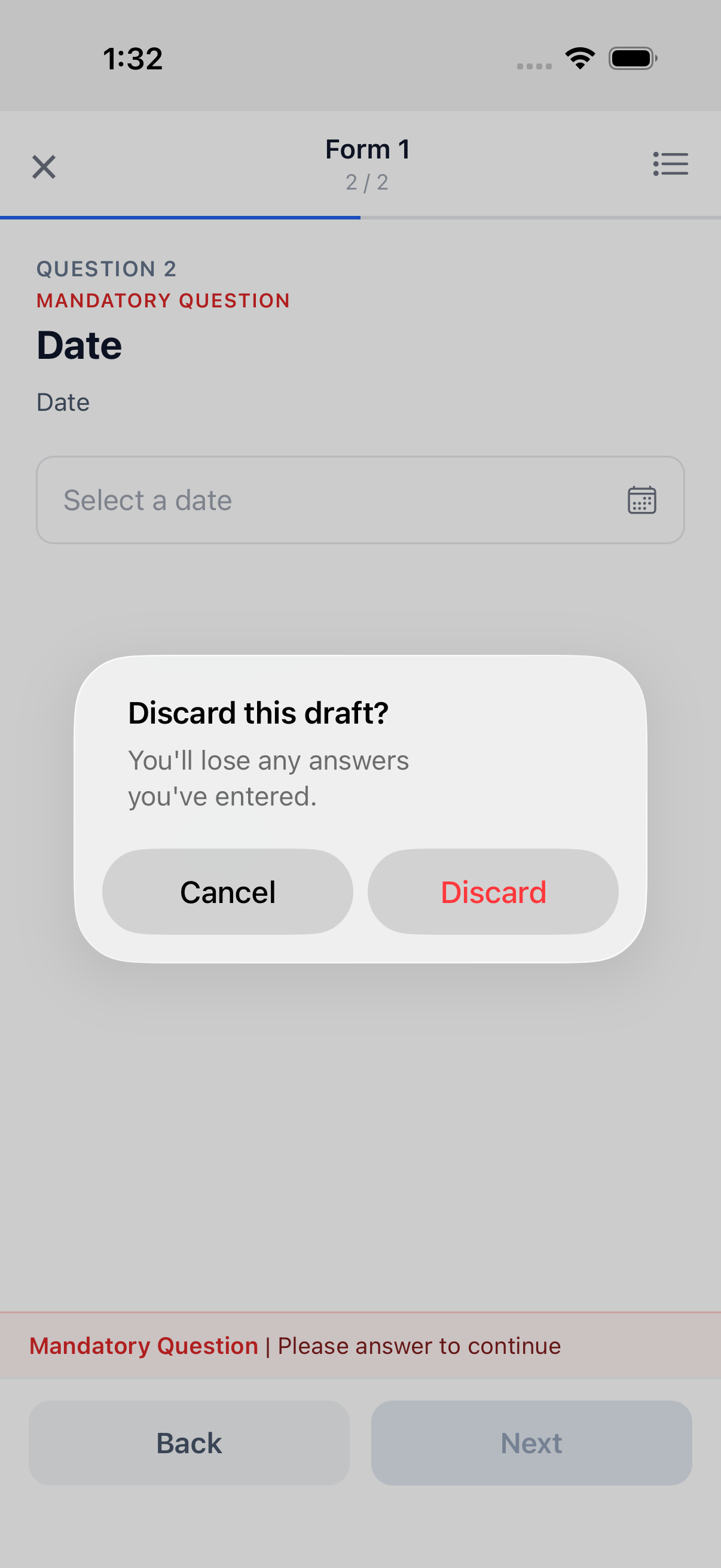
Confirming Discard on that native alert removes the draft entirely -- back at the job's Forms tab, the form returns to Not Started.
Submitting (once you reach the review screen and tap Submit) opens a PIN confirmation step -- the same PIN-based signature pattern used throughout the app -- before the answers are sent to the server; see Acknowledging a Form below for the sibling PIN flow used when someone else needs to sign off afterward.
Viewing a Submitted Form
Tapping a Submitted (or To Fill / signed) row opens a read-only view (SubmittedFormView
in source): a dark header strip with the form name and submission ID, an Originator line, a
Signatories section (each required signer shown as either a signed card with a signed-on date,
or Signature Required), and every question with its answer underneath -- including signature
images and signer names, and a tappable thumbnail grid for any photos or files attached to an
answer (tapping a thumbnail opens it full-screen).
No live frame of this screen was captured for this page -- the description above is confirmed
directly from the SubmittedFormView source rather than a screenshot. Photo thumbnails render via
a short-lived signed URL fetched per-asset (the same pattern the desktop Form Inbox and RFI photos
use), so there's nothing device-specific about how they display.
Acknowledging a Form
If a form is configured with required signers ("acknowledgers") in addition to whoever fills it
out, each acknowledger reaches a sign-off screen either by tapping Acknowledge Form wherever
that form surfaces for them, or via a push notification / deep link that opens
/forms/acknowledge/[feedbackId] directly when the notification names them as an acknowledger.
The acknowledge screen is the same read-only SubmittedFormView described above, with a sign-off
footer appended:
- Last Name -- pre-filled from your account if available.
- A 5-digit PIN field.
- A consent checkbox you must check before signing is enabled.
- Sign -- enabled only once your last name is entered, the PIN is 5 digits, and the checkbox is checked.
No live frame of the acknowledge screen was captured for this page -- confirmed from the
AcknowledgeFormBody source (useAcknowledgeForm, AcknowledgeFormFields,
AcknowledgeFormSubmit) rather than a screenshot.
Failed Submissions
My Forms shows a yellow banner whenever you have entries that failed to sync -- one banner
each for failed form submissions, failed acknowledgements, and failed emails, all leading to the
same Failed Submissions screen (app/(app)/(tabs)/forms/failed.tsx).
No live frame of the Failed Submissions screen itself was captured for this page. The screen has
no direct navigation entry point other than tapping one of the yellow failed-sync banners above,
and those banners only render once a queued entry has actually failed -- the read-only canary
instance used for this page has nothing queued or failed, so no banner ever appears to tap
through. The layout below is confirmed from the app/(app)/(tabs)/forms/failed.tsx source
instead.
Each queue (submissions, acknowledgements, emails) lists its own failed entries as a card with:
- A reason chip -- e.g. Invalid PIN, This form is no longer available, The job is locked, Permission denied, Sync failed after maximum retries, or an unknown-error fallback.
- The server's error message, if one was captured.
- Review -- re-opens the original screen (the form filler, the acknowledge screen, or the Email Forms sheet, pre-populated with what you'd entered) so you can fix and retry.
- Dismiss -- removes the failed entry without retrying. For a failed submission whose local draft no longer exists on the device, Review is hidden and only Dismiss is offered.
An entry lands here once its queued sync has exhausted its retry attempts, or hit a non-retryable server error (an archived form, a locked job, a form that was updated after you started it, a permission problem, or an invalid recipient email for the email queue) -- see Offline Behaviour below for how an entry gets to that point.
The Workflow, End to End
- A worker fills out a form on mobile -- from the bottom My Forms tab or a job's own Forms tab.
- Answers auto-save locally as a draft with every change; a matching server-side draft shell is created in the background as soon as the worker taps Start Now, so the draft is visible on the desktop Form Inbox's Draft tab immediately, before submission.
- Reaching the end of the questions and tapping Submit opens a PIN confirmation; confirming sends the completed answers to the server (or queues them if offline -- see below).
- If the form has required signers ("acknowledgers"), each one is expected to open the acknowledge screen (via the form's own surfaces, or a push notification / deep link) and sign with their own PIN before the submission is considered fully complete.
- The submission (and each acknowledger's signature as it lands) is visible to office staff on the desktop Form Inbox, where they can review answers, chase outstanding signatures, resolve a Fail result, or share the submission externally.
Whether recipients or acknowledgers additionally receive a push notification or email the moment a form is submitted or assigned to them is a server-side/backend concern outside this mobile app's own source -- this page only confirms what the mobile client itself does (queue/send answers, route a tapped notification to the acknowledge screen) and does not confirm any specific notification-delivery guarantee.
Offline Behaviour
Every form action that talks to the server is backed by an offline queue in src/stores/syncStore.ts,
so field workers can keep filling out and submitting forms with no signal:
| Queue | What it holds |
|---|---|
| Draft mirror | Creating the server-side "shell" record for a draft you just started (PendingDraftMirror). |
| Per-question answer upsert | Saving one answer as you advance through the form (PendingAnswerUpsert) -- the drainer re-reads the latest answer from the local draft at send time, so a rapid series of edits only ever sends the final value. |
| Form submission | The final Submit with its captured PIN and any acknowledger selections (PendingFormSubmission). |
| Acknowledgement | An acknowledger's own PIN sign-off (PendingAcknowledgement). |
| Add acknowledgers | Assigning more acknowledgers to an already-submitted form after the fact (PendingAddAcknowledgers). |
| Photo/file asset | Each attached photo or file, uploaded independently of its parent answer (PendingFormAsset). |
| Email Forms | A queued Email Forms send (PendingFormEmail). |
Queued entries drain automatically once the device reconnects. Each entry tracks its own
status (pending / syncing / failed) and a retryCount; after 3 failed attempts (or
immediately, for a non-retryable server error like an archived form or an invalid PIN) the entry
graduates out of the pending queue and into the corresponding Failed Submissions
list instead of retrying forever.
GPS and timestamp capture on a submission -- what's recorded, where the office sees it, and the instance-wide GPS Tracking setting that controls it -- is documented in the still-current Mobile Form Submission page and is not repeated here.
Permissions
Filling out a form can prompt for two device permissions, each requested only the first time it's needed:
- Camera -- for Take Photo on a photo question. If denied, the app shows an inline message telling the worker to enable it in Settings rather than silently failing.
- Photo library -- for Choose from Library on a photo question. Denied access shows the equivalent inline message for the library.
Signature capture (drawing a signature, or signing with a PIN to submit or acknowledge) doesn't request any additional device permission -- the PIN is an in-app credential check, not a device-level permission.
Related Pages
- Form Inbox -- Where office staff review every submission this page creates, including signatures, resolving a Fail, and sharing a submission externally.
- Form Builder & Management -- Where the question types, required signers, and photo/file caps referenced on this page are configured.
- Form Report -- Submission analytics across every form.
- Mobile Form Submission -- GPS/timestamp capture and the instance-wide Location Tracking setting that governs it.
- Mobile App Overview -- General mobile app navigation and layout.