Timesheet Log
The Timesheet Log is a flat, filterable list of every individual timesheet entry — one row per worker, per day, per job. It is built for payroll review and audits: filter down to a pay period, a worker, a job, or a cost code and see exactly what was logged, then export the result.
The Timesheet Log is not the same screen as the Timesheet Matrix. The Matrix is a grid (workers × days) built for approving time. The Timesheet Log is a flat row-per-entry table built for reporting, filtering, and export — it does not have Approve/Reject actions.
Navigation
Sidebar → Workforce Admin → Timesheet Log
URL: /overview/timesheet-report
Overview
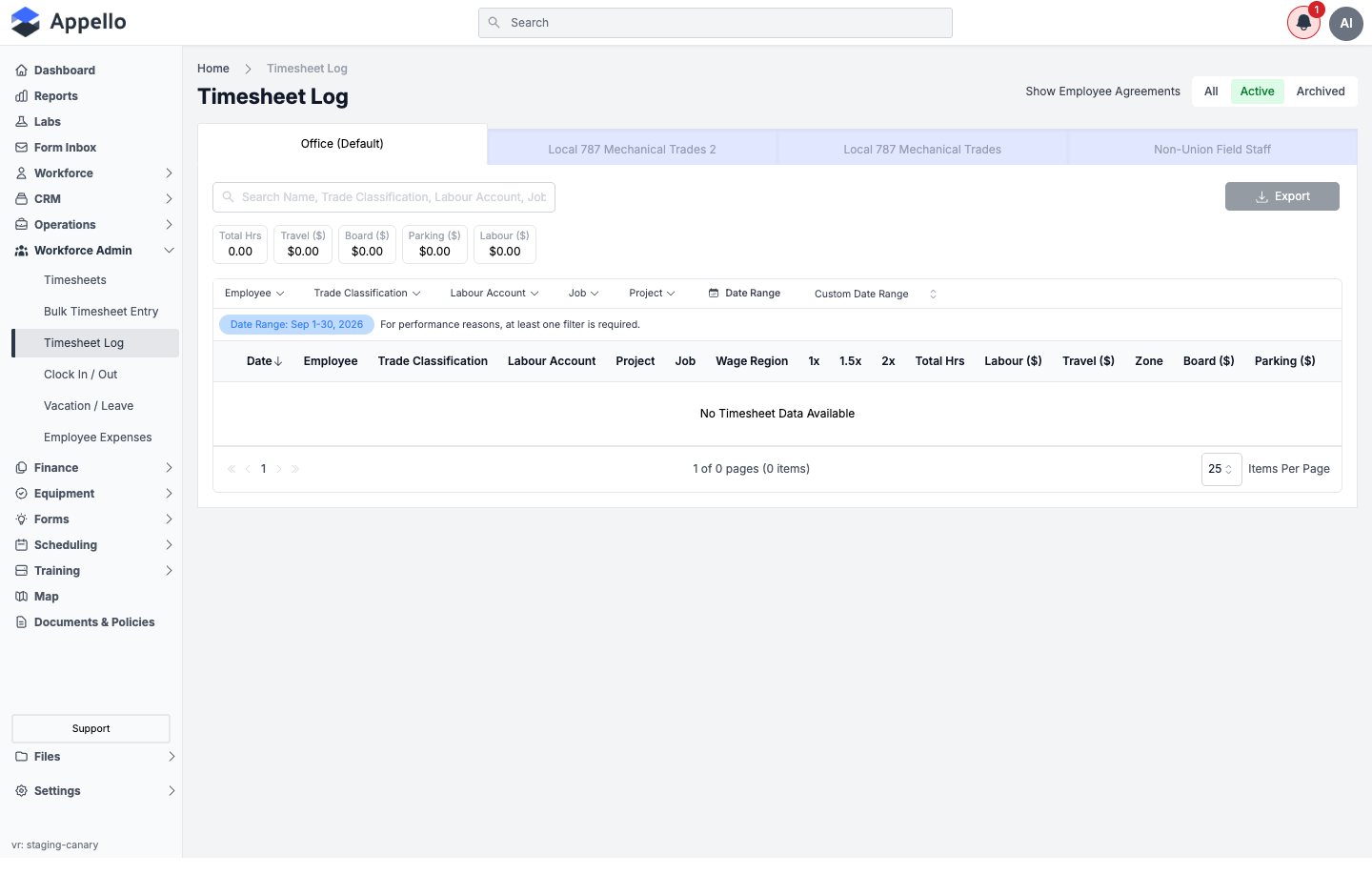
Shown empty on the demo instance — there were no approved timesheets for Office (Default) or any other employee agreement in the filtered date range, so the table reads "No Timesheet Data Available" and every totals-bar figure reads 0 / $0.00. See How approved-only records are selected for why an approved-only report is especially likely to come up empty on a demo instance.
The page is organized as:
- Employee Agreement tabs across the top (for example "Office (Default)", "Local 787 Mechanical Trades") — each tab is one of your instance's employment agreements, and its own column set and CSV export
- Show Employee Agreements toggle in the top-right (All / Active / Archived) — controls which agreements appear as tabs
- Search bar — searches name, trade classification, labour account, and job
- Totals bar — rolled-up totals for the current filter: Total Hrs, Travel ($), Board ($), Parking ($), and Labour ($) (labour only shows for users with the wage-details permission — see Permissions)
- Filter bar — Employee, Trade Classification, Labour Account, Job, Project, and Date Range
- Table — one row per timesheet entry, columns described below
- Export button, top right of the table
Filters
| Filter | Description |
|---|---|
| Employee | Filter to one or more specific workers |
| Trade Classification | Filter by trade level (for example Journeyperson, Foreman, Apprentice) |
| Labour Account | Filter by the account item hours were coded to |
| Job | Filter to a specific job |
| Project | Filter to a specific project |
| Date Range | Quick options (Calendar Year, Month) or a custom start/end date |
At least one filter is required
The log requires at least one active filter before it will load rows. Landing on the page with nothing selected opens a "select filters to continue" panel rather than fetching the full history.
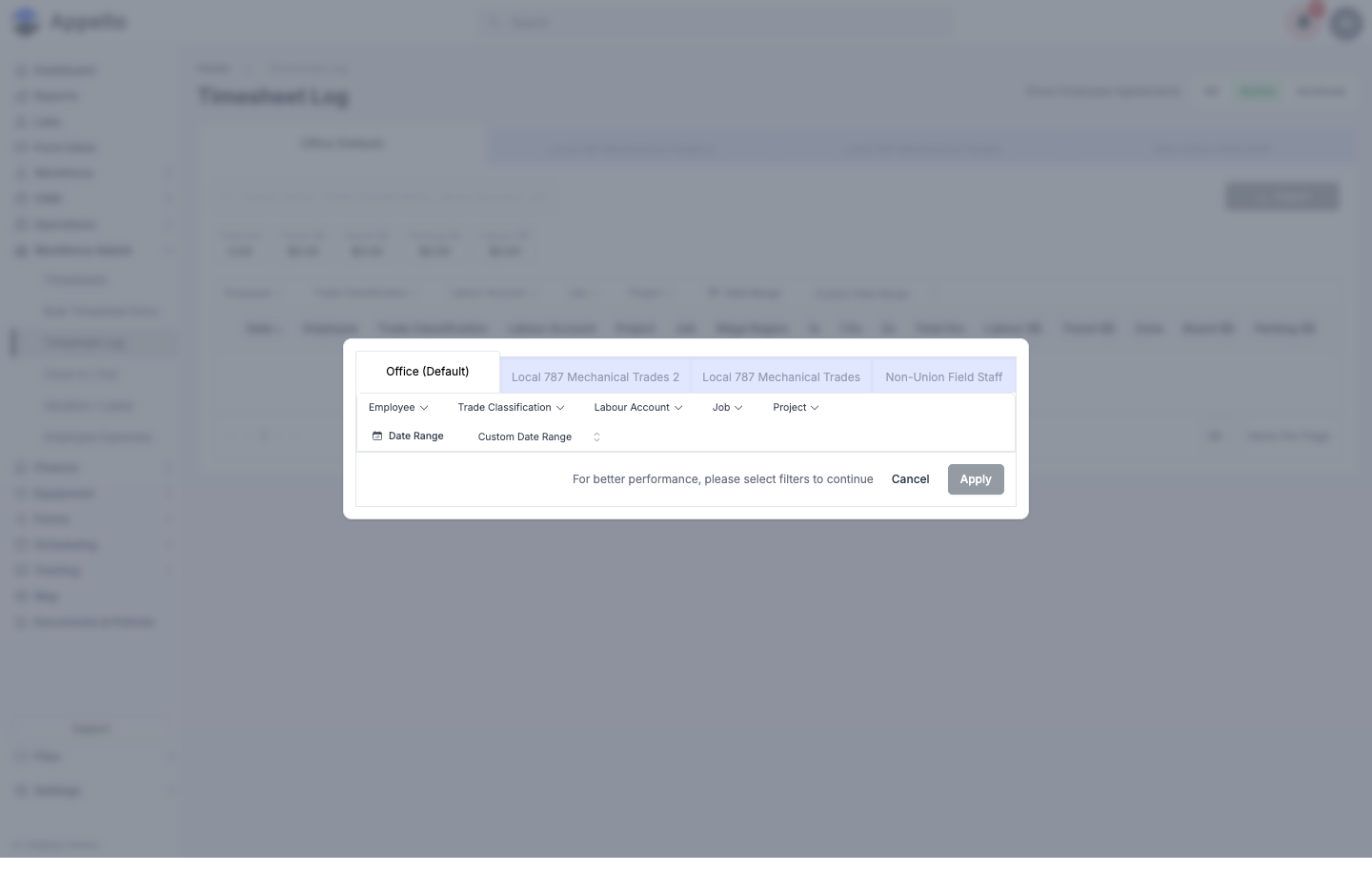
Shown empty on the demo instance — this is the gate itself, not a data gap, but the demo instance also has no approved timesheets for any employee agreement once a filter is applied (see the Overview screenshot above).
Pick any filter (a date range is the most common) and click Apply. Clicking Cancel leaves the log empty.
Date range quick options
Clicking Custom Date Range opens a list of quick options — full calendar years and recent calendar months — in addition to picking an arbitrary start and end date. This is the filter open state for the page.
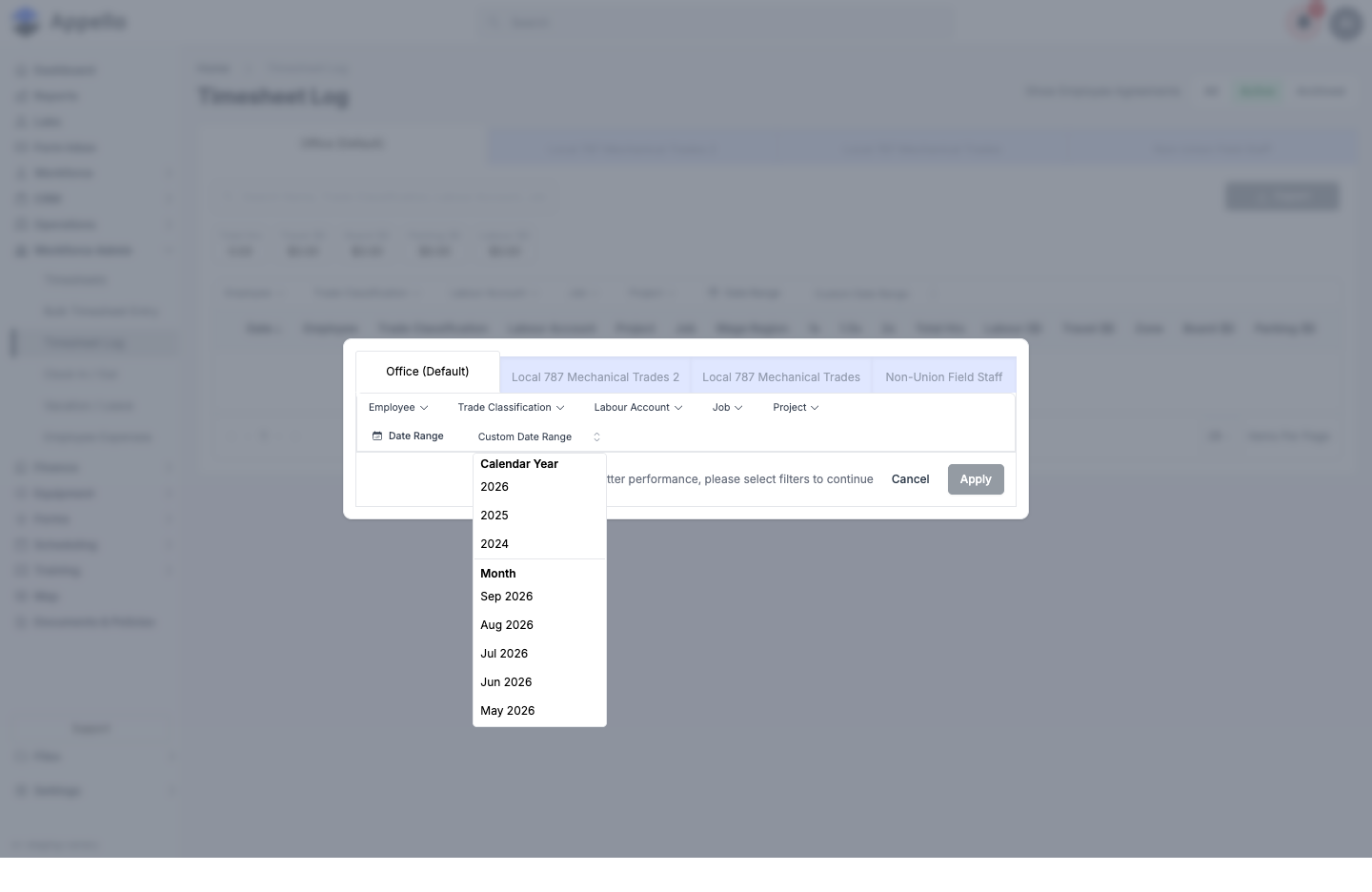
Shown empty on the demo instance — there are no approved timesheets, so every date range or quick option opened here still resolves to "No Timesheet Data Available" once applied.
Filters this report does not have
Three filters that appear on other Appello reports are not on the Timesheet Log:
- Status — there is no status filter because the report only ever includes Approved timesheets; see How approved-only records are selected below.
- Department — not a filter on this report; only the six filters listed above are available.
- Wage Region — appears only as a read-only column (see Table Columns below), not as something you can filter by.
Sorting, Grouping, and Totals
- Sorting — click a column header to sort by it. Sortable columns: Date, Employee, Trade Classification, Labour Account, Project, Job, Wage Region, Travel ($), Board ($), and Parking ($). The rate-label columns (e.g. 1x, 1.5x, 2x), Total Hrs, Labour ($), and Zone are not sortable. The default sort is Date, newest first; when sorted by Date, the log also tie-breaks by worker name and job number so rows don't jump around as new data loads.
- Grouping — there is none. Every row is a single, flat timesheet entry; the only grouping the page does is by Employee Agreement tab (see below). Contrast this with the Job Employees Timesheet Report, which groups rows under a header for each job.
- Totals — the totals bar (Total Hrs, Travel ($), Board ($), Parking ($), and Labour ($) where permitted) rolls up the current filtered result set only; there's no per-page or per-group subtotal row in the table itself.
How Approved-Only Records Are Selected
The Timesheet Log only ever includes an entry whose timesheet has been Approved and has not been deleted or archived. Submitted, rejected, and draft timesheets are excluded entirely — not just hidden — which is also why there is no Status filter on this report (see Filters this report does not have above). This is the same approved-only rule used by the Timesheet Matrix, Payroll Report, and Employee Timesheet Report.
Table Columns
| Column | Description |
|---|---|
| Date | Workday the entry is for. A note icon appears if the entry has a worker, admin, or leave note |
| Employee | Worker's name — links to their user profile |
| Trade Classification | The worker's trade level, shown as a colored badge |
| Labour Account | The account item the hours were coded to |
| Project | Parent project — links to the project, if the job belongs to one |
| Job | Job number and name — links to the job |
| Wage Region | The worker's wage region for that entry |
| Rate label columns | One column per non-line-item pay code on the selected employee agreement (for example 1x, 1.5x, 2x) — shows hours logged at that rate |
| Total Hrs | Sum of hours across every rate label for the entry |
| Labour ($) | Calculated wages for the entry — only visible with the wage-details permission |
| Travel ($) | Travel allowance for the day |
| Zone | Travel zone the allowance was calculated from |
| Board ($) | Board/accommodation allowance for the day |
| Parking ($) | Parking allowance for the day |
The rate label columns are dynamic — they come from whichever employee agreement's tab you're viewing. A tab for a union agreement with 1x/1.5x/2x pay codes shows those three columns; a different agreement with different pay codes shows different columns. This is also why each employee agreement gets its own tab instead of one shared table.
Employee Agreement Tabs
Every employee agreement configured for your instance gets its own tab. Switching tabs:
- Changes the visible rate-label columns to match that agreement's pay codes
- Re-scopes the table, totals, and search to only that agreement's timesheet entries
- Changes what a CSV export produces (see below)
Use Show Employee Agreements → All / Active / Archived in the top right to control whether archived agreements also appear as tabs.
Row Actions
The Timesheet Log is a read-only report — there is no click-to-open-timesheet or inline edit action on a row. Three cells link elsewhere instead:
- Employee opens that worker's user profile
- Project opens the parent project (if the job belongs to one)
- Job opens the job
To open the actual timesheet — to view its full day detail, or to edit, approve, or reject it — use the Timesheet Matrix, which is where those actions live. Whether editing is available there also still depends on the user's own permissions (see Who Can Approve).
Locked Weeks
Locking a week is a Timesheet Matrix feature, not a Timesheet Log feature — see Locking and Unlocking the Week. The Timesheet Log does not show a lock indicator and has no lock/unlock control of its own. A locked week's approved entries still show up here exactly like any other approved entry — since this report already only shows Approved timesheets (see How approved-only records are selected above), locking a week doesn't change what appears on this page, only whether that week's hours can still be edited back on the Matrix.
Export
Click Export to download the current view. The button is disabled whenever the table has zero rows.
| Option | Contents |
|---|---|
| Export as CSV | The currently selected employee agreement's tab only, respecting whatever filters and date range are active |
| Export All Employee Agreements | A single combined CSV covering every employee agreement, one section per agreement (each section starts with an Employee Agreement: <name> header row), using the same active filters |
The Timesheet Log's Export button only offers these two generic CSV options. The named payroll-software formats — Sage 50 (Canada/US), QuickBooks (Desktop/Online), Avantage, Payroll4Construction, Dayforce/Powerpay, and ComputerEase — are not available from this page. They live on the Payroll Report and Employee Timesheet Report instead; see Supported formats on the Timesheet Export & Payroll page for the full list and per-system requirements.
What the CSV contains
Both export options produce the same column set per row, built from the underlying report data rather than just the visible on-screen columns:
| Column | Notes |
|---|---|
| Date | Workday |
| First Name / Last Name / Full Name | Worker identity, all three included |
| Trade Classification | Trade level |
| Labour Account | Account item |
| Project | Parent project name |
| Job Number / Job Name | Job reference |
| Status | Timesheet approval status |
| Wage Region | Worker's wage region |
| Rate label columns | Same dynamic pay-code columns as the on-screen table (e.g. 1x, 1.5x, 2x), in hours |
| Total Hours | Sum across rate labels |
| Labour ($) | Calculated wages |
| Travel ($) / Zone / Board ($) / Parking ($) | Allowances and the zone used |
| Admin Note | Internal admin-only note |
| Worker Note | Note entered by the worker or foreman |
| Leave Request Note | Note from an associated leave request, if any |
| Clock In/Out Notes | Any clock-in/clock-out notes for the day, grouped by job |
The file name follows <Company>_Timesheet_<AgreementName>_<timestamp>.csv for a single-agreement export, or uses TimesheetLogAll in place of the agreement name for the combined export.
Shown empty on the demo instance — there were no approved timesheet rows for any employee agreement at the time this page was written, so no screenshot of a finished export is included. The column list above describes what the CSV contains.
How to Run It
- Sidebar → Workforce Admin → Timesheet Log (or go directly to
/overview/timesheet-report). - Pick the Employee Agreement tab for the workers you want (toggle Show Employee Agreements to All/Active/Archived first if the tab you need is hidden).
- Apply at least one filter — a Date Range is the most common — and click Apply; the table stays empty until a filter is set.
- Optionally narrow further with Employee, Trade Classification, Labour Account, Job, or Project, or use the search bar to search by name, trade classification, labour account, or job.
- Click a column header to sort (see Sorting, Grouping, and Totals).
- Review the totals bar for the filtered result set.
- Click Employee, Project, or Job on any row to open that record, or click Export to download the current view as CSV (see Export).
Permissions
Two permission checks apply to this page and its data:
- Route access — reaching
/overview/timesheet-reportat all requires both Timesheet Record → View and the Employee Timesheet report permission. An account missing either is blocked from the page. - Labour ($) visibility — the Labour ($) columns (on screen, in the totals bar, and in the CSV) only appear for users who also hold User → View Wage Details. Without it, hours and allowances still show, but calculated wages do not.
Timesheet Log vs. Timesheet Matrix vs. Payroll Reports
This page, the Matrix, and the payroll reports all read the same underlying approved-timesheet data, but each is built for a different job:
| Page | Built for | Approve/reject or edit? |
|---|---|---|
| Timesheet Log (this page) | Flat, filterable list for payroll review and audits | No — read-only |
| Timesheet Matrix | Grid (workers × days) for submitting, approving, and locking time | Yes |
| Payroll Report & Employee Timesheet Report | Closing out a pay period and exporting to payroll software | No — read-only |
Related Pages
- Timesheet Matrix — Approve and reject timesheets, and lock/unlock a payroll week; the Timesheet Log does not have approval actions
- Timesheet and Payroll Reports — Payroll Report, Employee Timesheet Report, and Job Employees Timesheet Report, which slice the same approved-timesheet data by worker or by job for closing a pay period
- Timesheet Export & Payroll — Payroll-focused export formats (CSV, Sage 50, and the other named accounting formats) from the Payroll Report and Employee Timesheet Report
- Employment Agreements — Configure the pay codes that drive the Timesheet Log's rate-label columns