Mobile App Overview
The Appello mobile app is a native app installed on a phone or tablet, for the people who work away from a desk -- field workers and foremen who need to see their schedule, clock in and out, fill out forms, and check job documents from a phone. It is a separate build from the mobile web app (the responsive site opened in a phone browser); this page covers the native app only.
Screenshots on this page are from the Appello app, version 1.71.0, running on an iPhone simulator.
Installing the app and signing in for the first time -- TestFlight/internal-testing invites, company identifiers, Employee PIN vs. email sign-in, and biometric unlock -- is covered on Signing In to the Appello Mobile App.
The four bottom tabs
Once signed in, everything in the app is reachable from four tabs at the bottom of the screen: Schedule, Timesheets, Resources, and My Forms. A red badge on a tab shows how many items there need attention (unsynced work, rejected timesheets, unsigned resources, or forms waiting to be filled).
Schedule
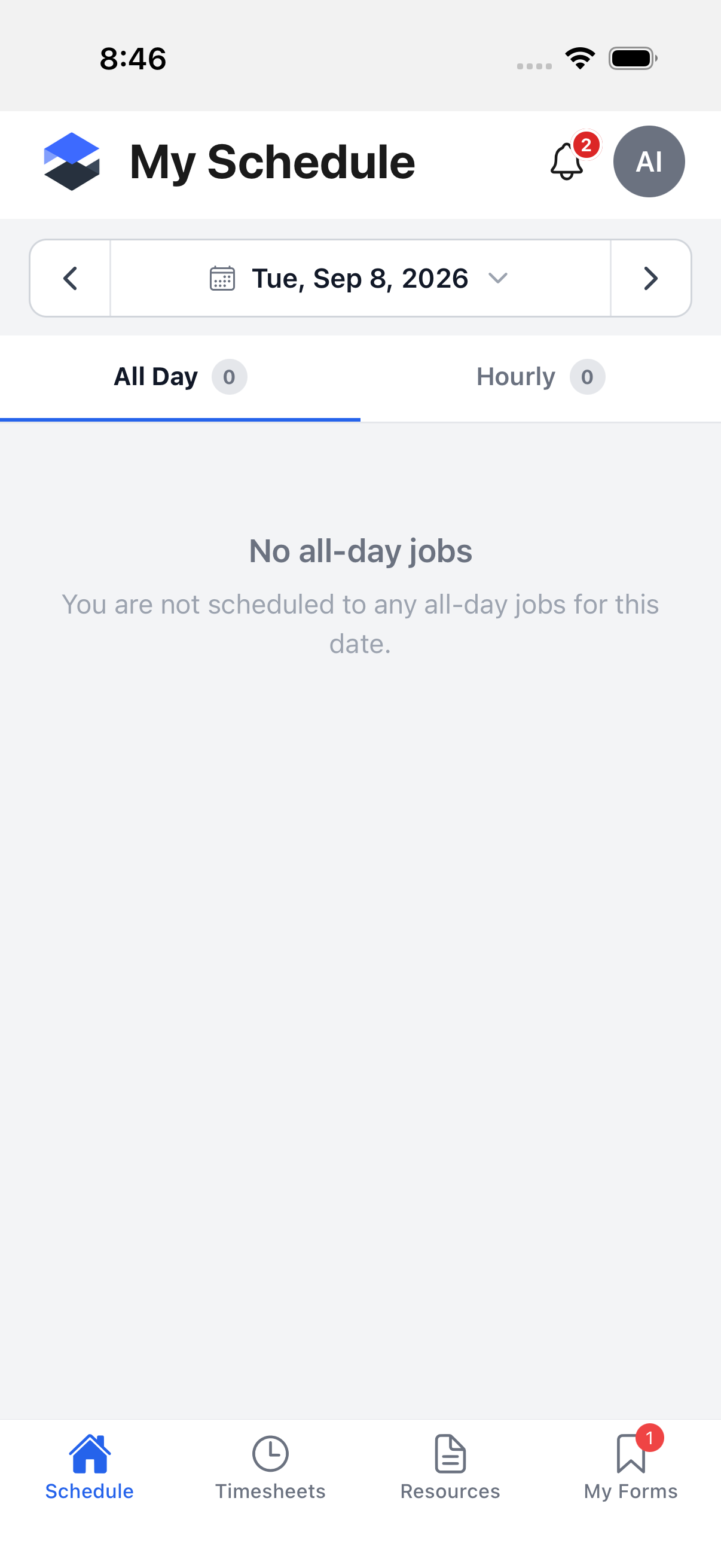
The first tab is the user's landing page after sign-in. Depending on the company's settings it shows either My Schedule (pictured -- a day-by-day list of scheduled jobs, split into All Day and Hourly) or a Jobs list; either way, this is where a field worker checks where they're assigned and clocks in for a shift. The detailed walkthrough of the schedule view and the clock-in flow is covered on Schedule and Clock-In.
Timesheets
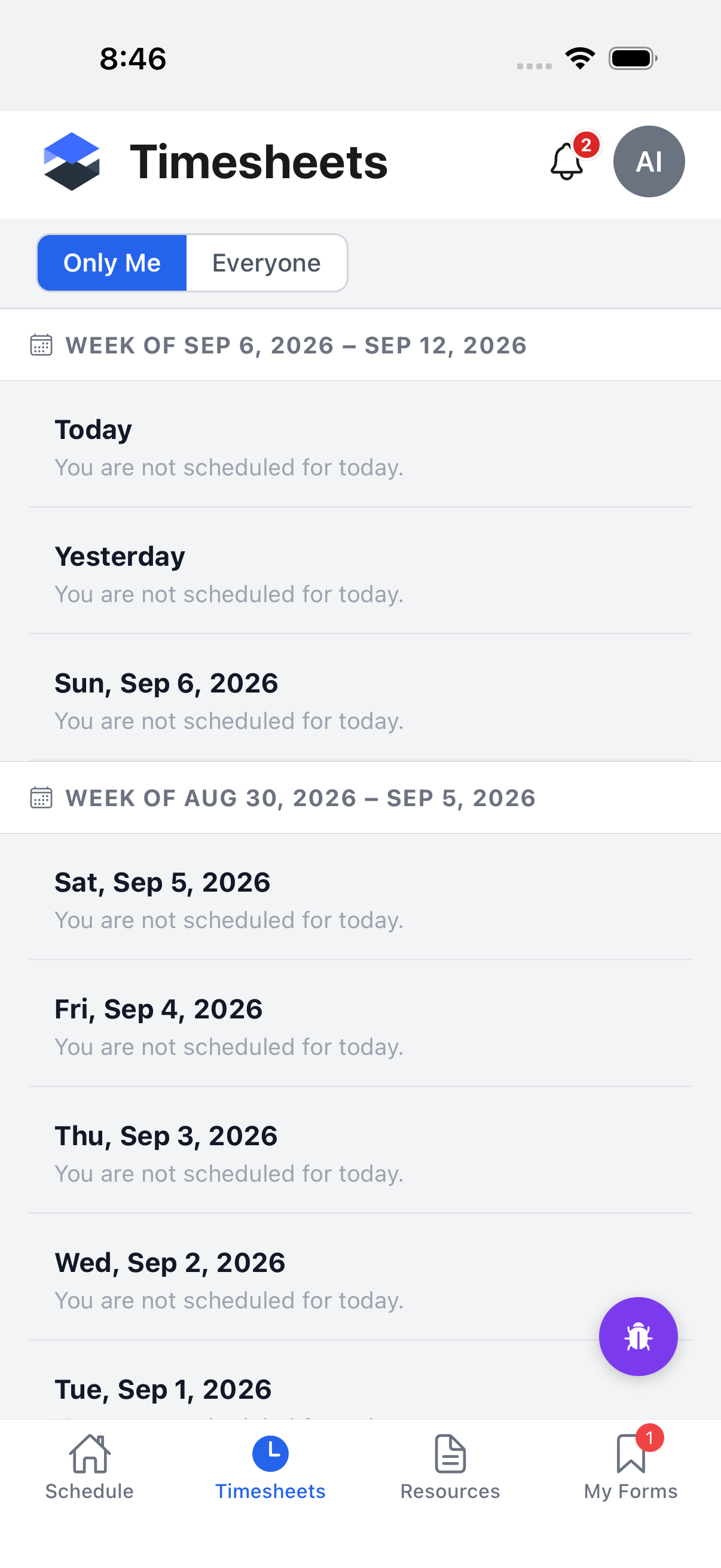
The Timesheets tab lists time entries by week, with an Only Me / Everyone toggle for anyone with permission to see other workers' time. A red badge on this tab counts entries that were rejected and need the worker's attention -- pending (not-yet-synced) entries are deliberately not counted here, since those drain automatically once the device reconnects. Logging time, editing an entry, and submitting a week are covered on Mobile Timesheet.
Resources
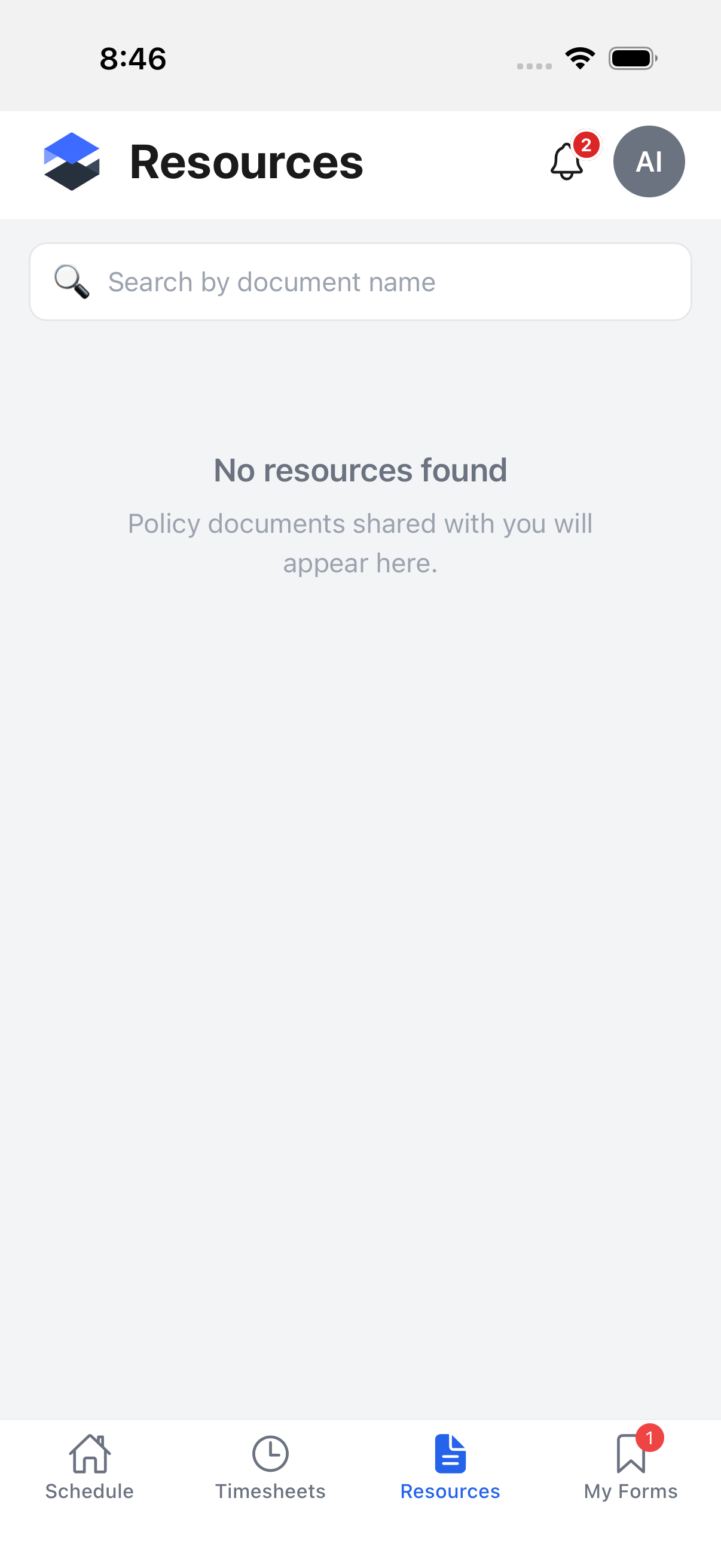
Resources are policy documents shared with the signed-in user -- the tab shows a search box and a list (empty in this screenshot because the demo user has none shared). A red badge counts documents still awaiting the user's signature. File browsing, downloads, and signing are covered on Resources and Files.
My Forms
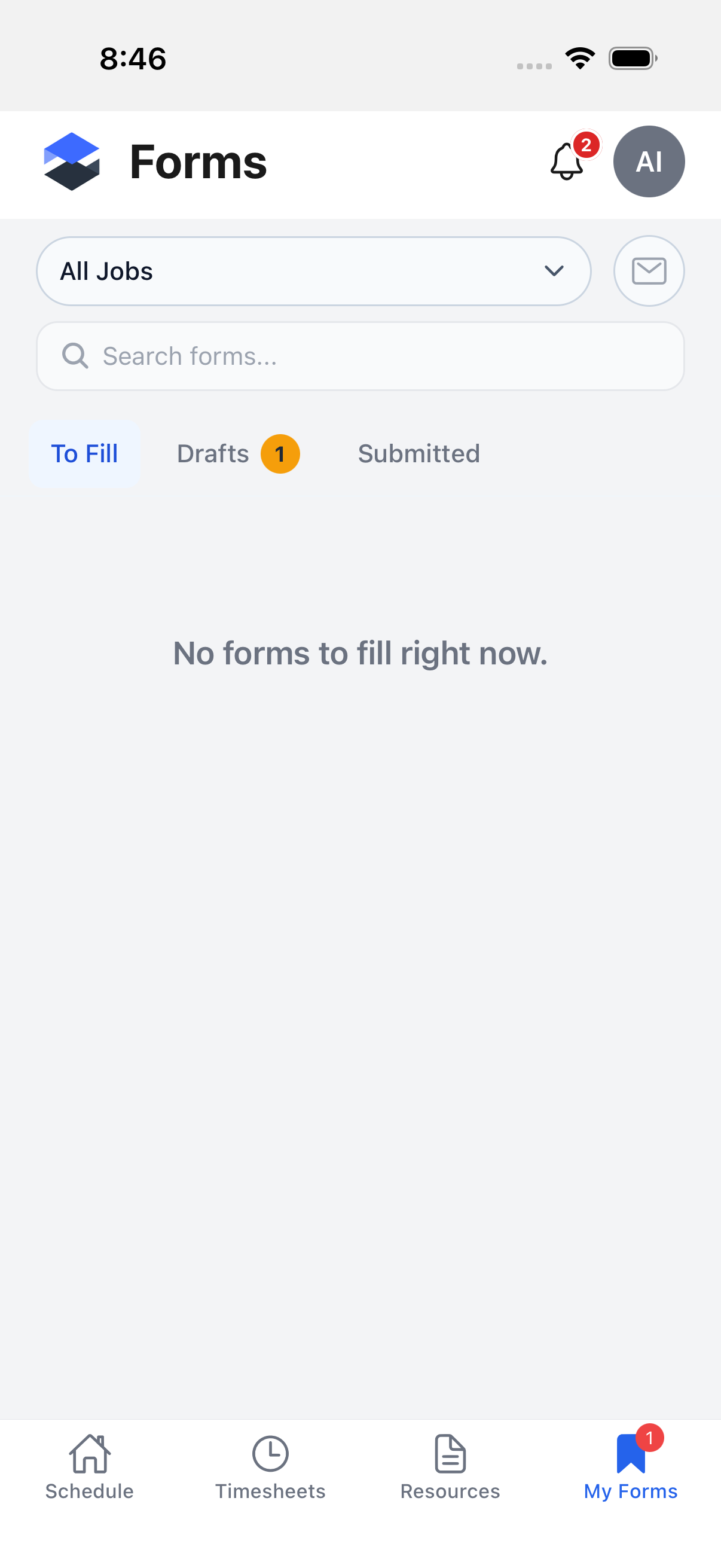
My Forms is the mobile equivalent of the web Form Inbox -- forms To Fill, saved Drafts, and Submitted history, filterable by job. A red badge counts forms to fill plus drafts still in progress. The form-filling flow, photo attachments, and signatures are covered on Form Inbox.
Projects
Projects are not on the avatar profile menu covered below -- they live behind a second, separate navigation drawer opened by tapping the Appello logo in the top-left corner of the top bar. That drawer also holds Jobs, Equipment, Company Schedule, RFIs (BETA) (covered next), and Clocked In Users -- each row hidden if the signed-in user lacks the matching view permission. Equipment and Clocked In Users are covered on Equipment and Clocked In Users.
A project can also be reached from one of its jobs: a job's Files tab shows a link back to the parent project's files whenever that job belongs to a project.
Projects list
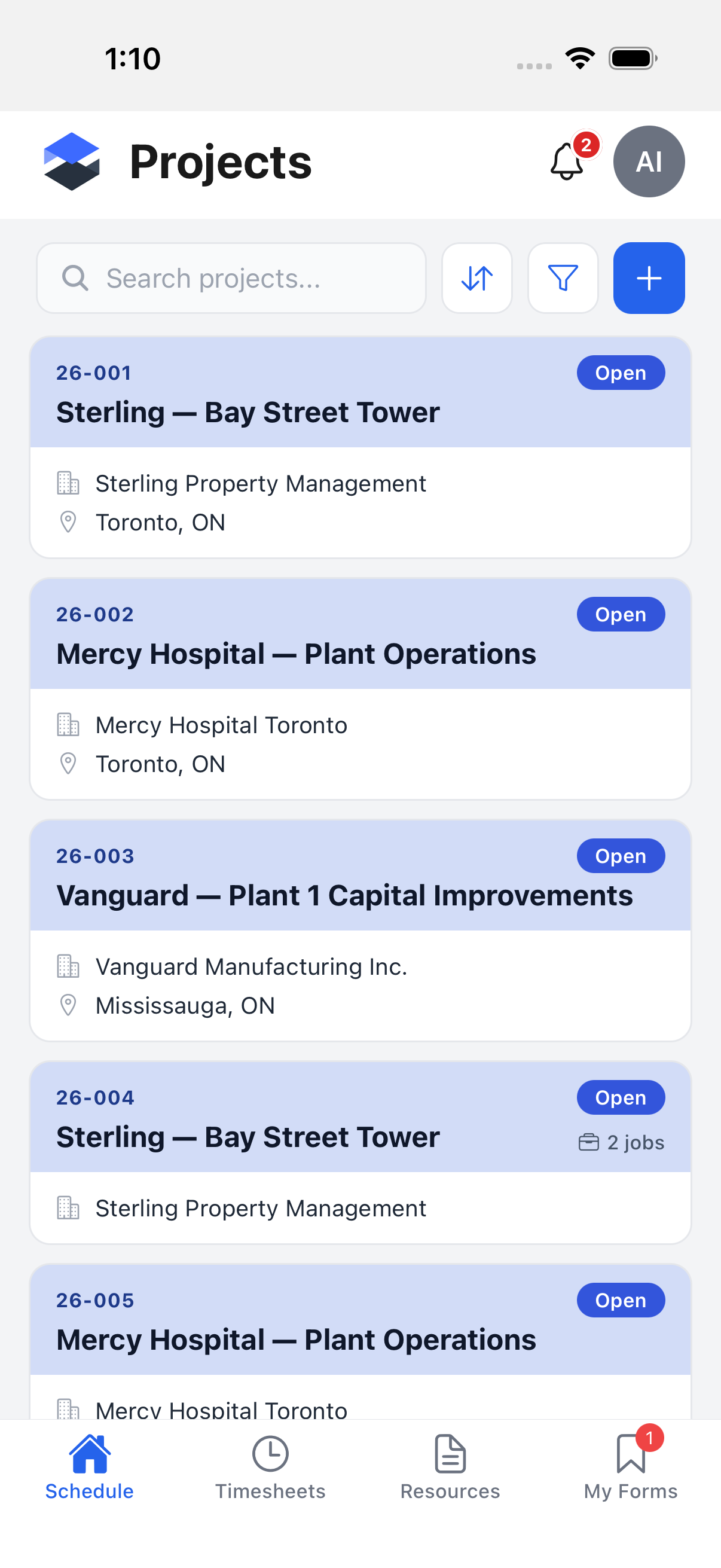
Search, sort, and filter controls sit above the list. The blue + button (create permission required) opens Create Project.
Create Project
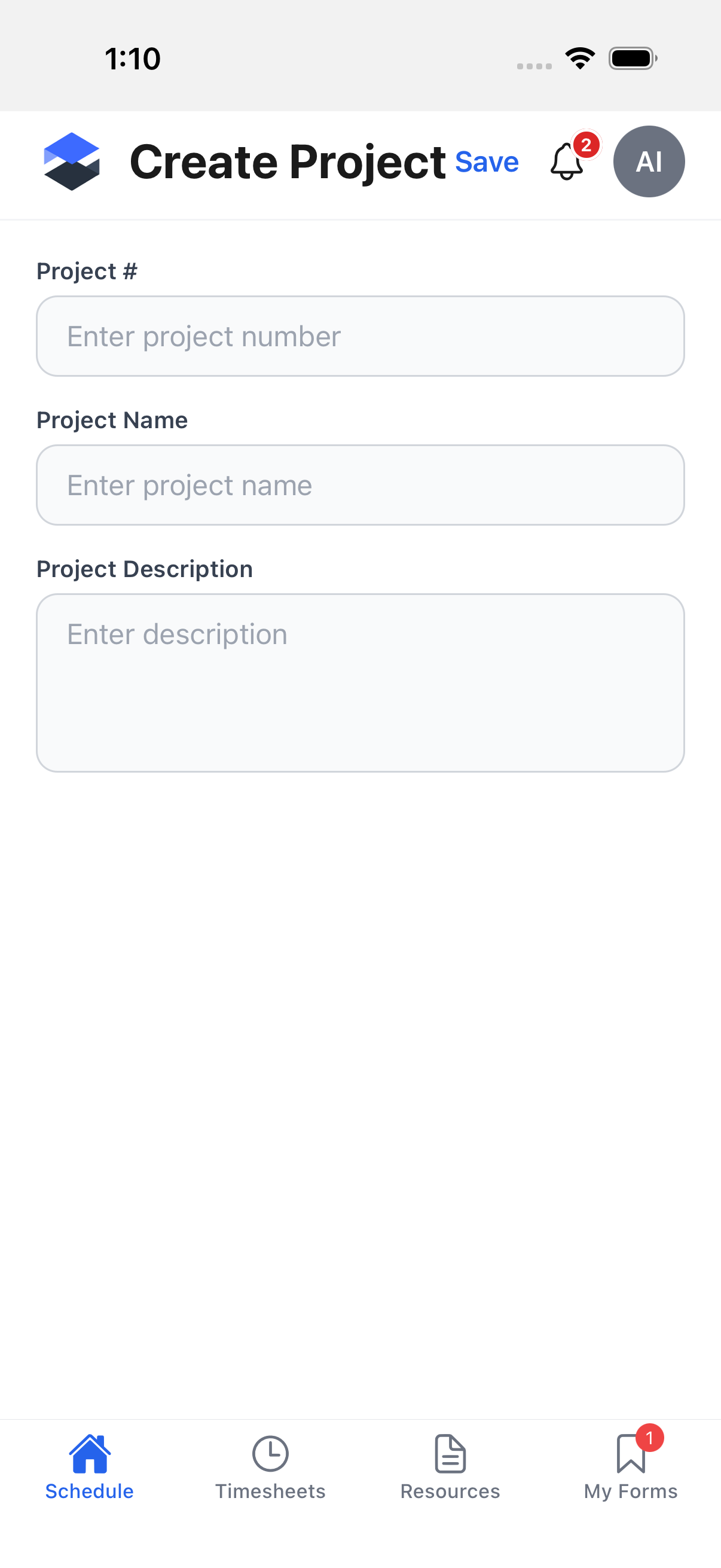
The native Create Project form has exactly three fields:
- Project # -- required
- Project Name -- required
- Project Description -- optional, multi-line
This form is deliberately minimal: the picker fields the web app has (Lead, Customer, Location, Status, Type) cannot be set from the mobile app yet -- set them on desktop after creating the project.
This screen has no Cancel or back control in the current build -- only Save -- so this pass opened it, confirmed every field, and stopped there without tapping Save.
Project detail
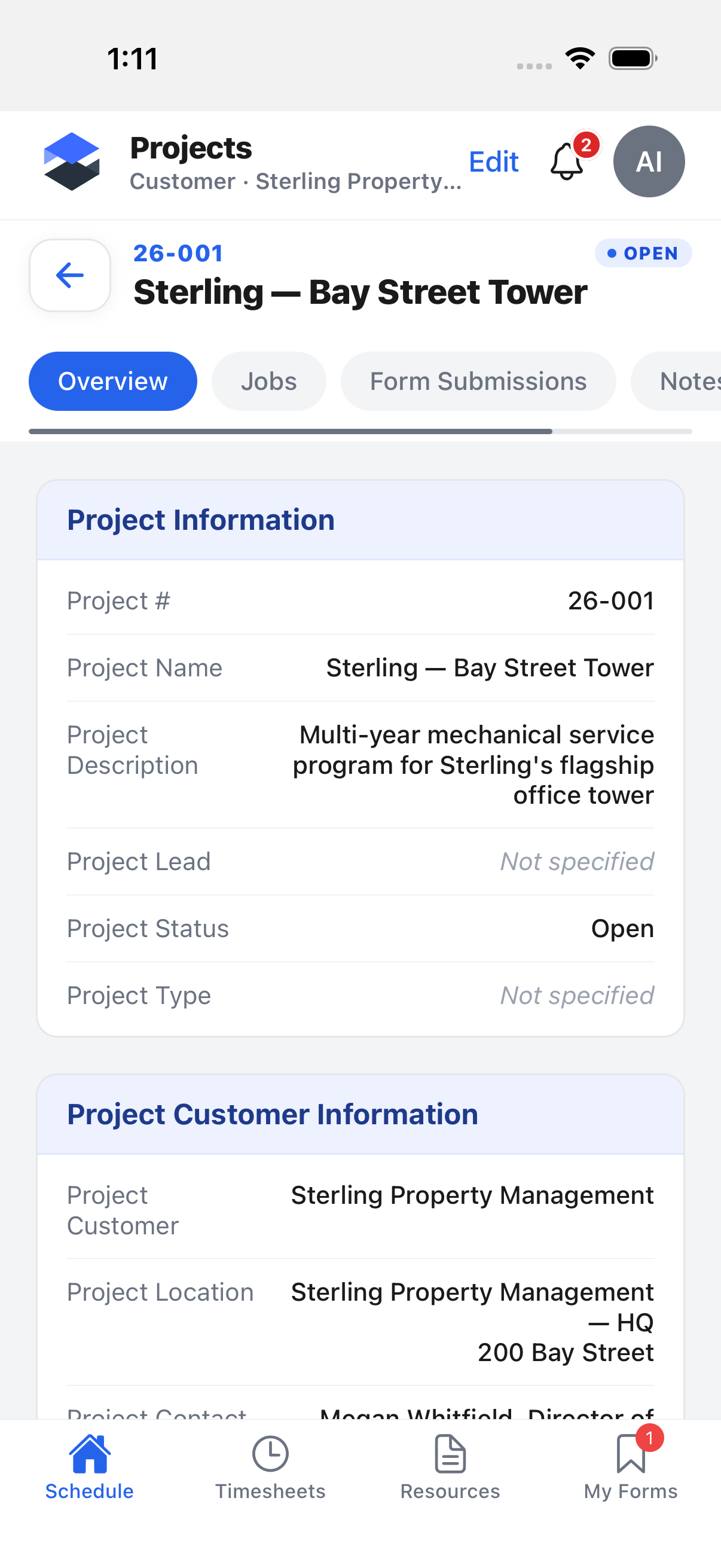
Tapping a project opens its detail screen, tabbed like a job's: Overview, Jobs, Form Submissions (hidden without the Safety Forms → View permission), Notes, and Files. The Edit link in the top bar (edit permission required) opens Edit Project.
Edit Project
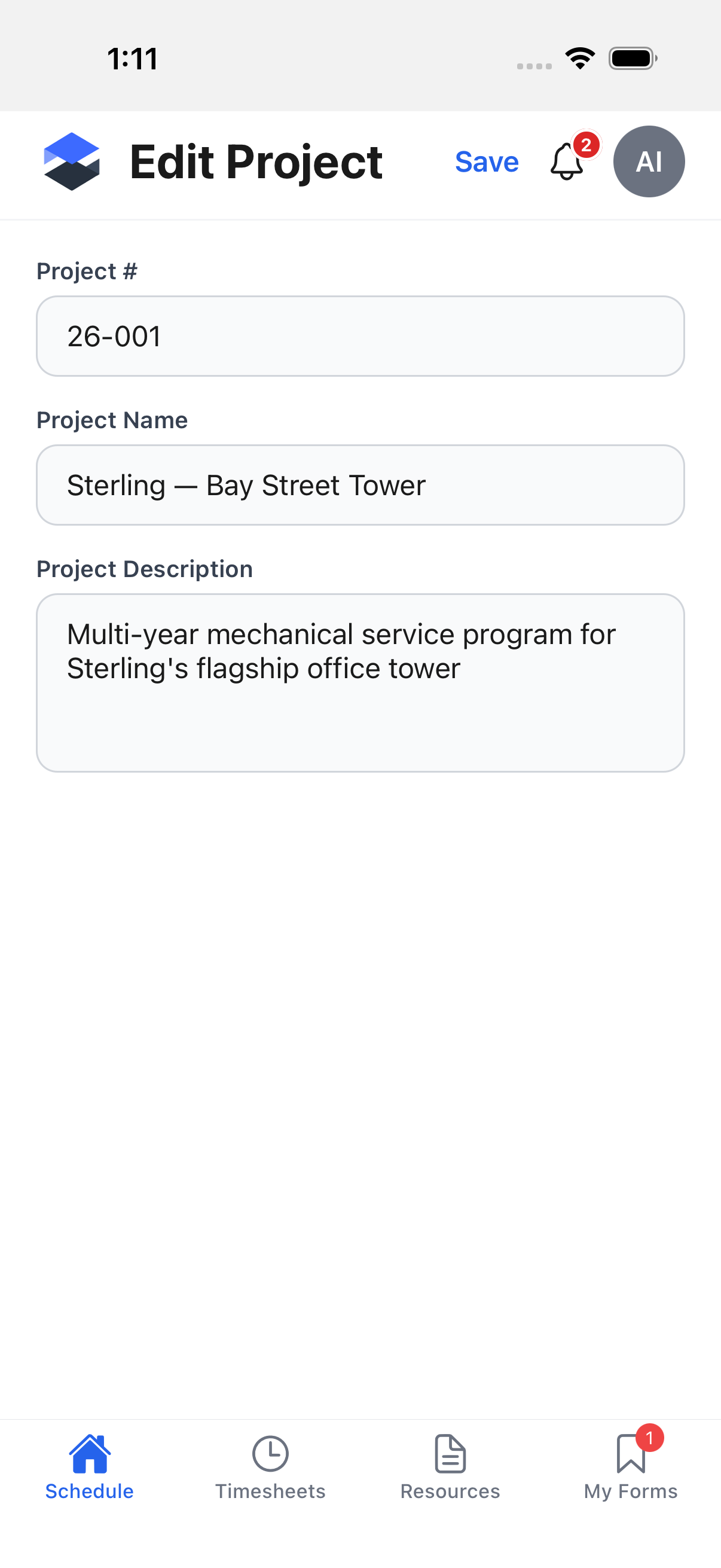
Edit Project reuses the same three-field form as Create Project, pre-filled with the project's current values. As with Create Project, there is no Cancel or back control -- only Save, which was not tapped.
RFIs
RFIs live behind the same top-left logo drawer as Projects, labelled RFIs (BETA). This section covers the native mobile screens only; the desktop/web side of RFIs is documented on RFIs.
RFIs list
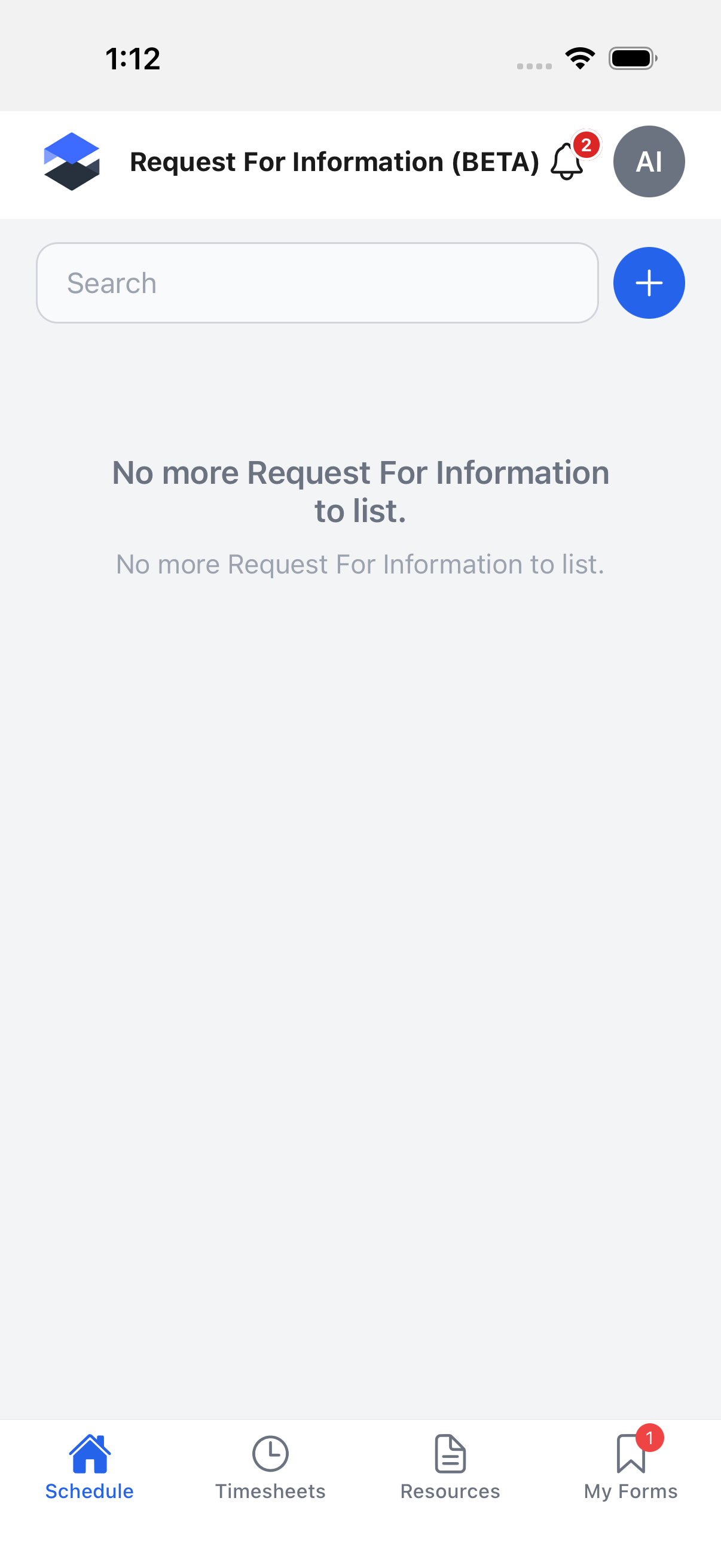
The demo instance used for this page has no RFIs yet, so the list above is shown empty on the demo instance ("No more Request For Information to list."). The blue + button (create permission required) opens New RFI.
New RFI
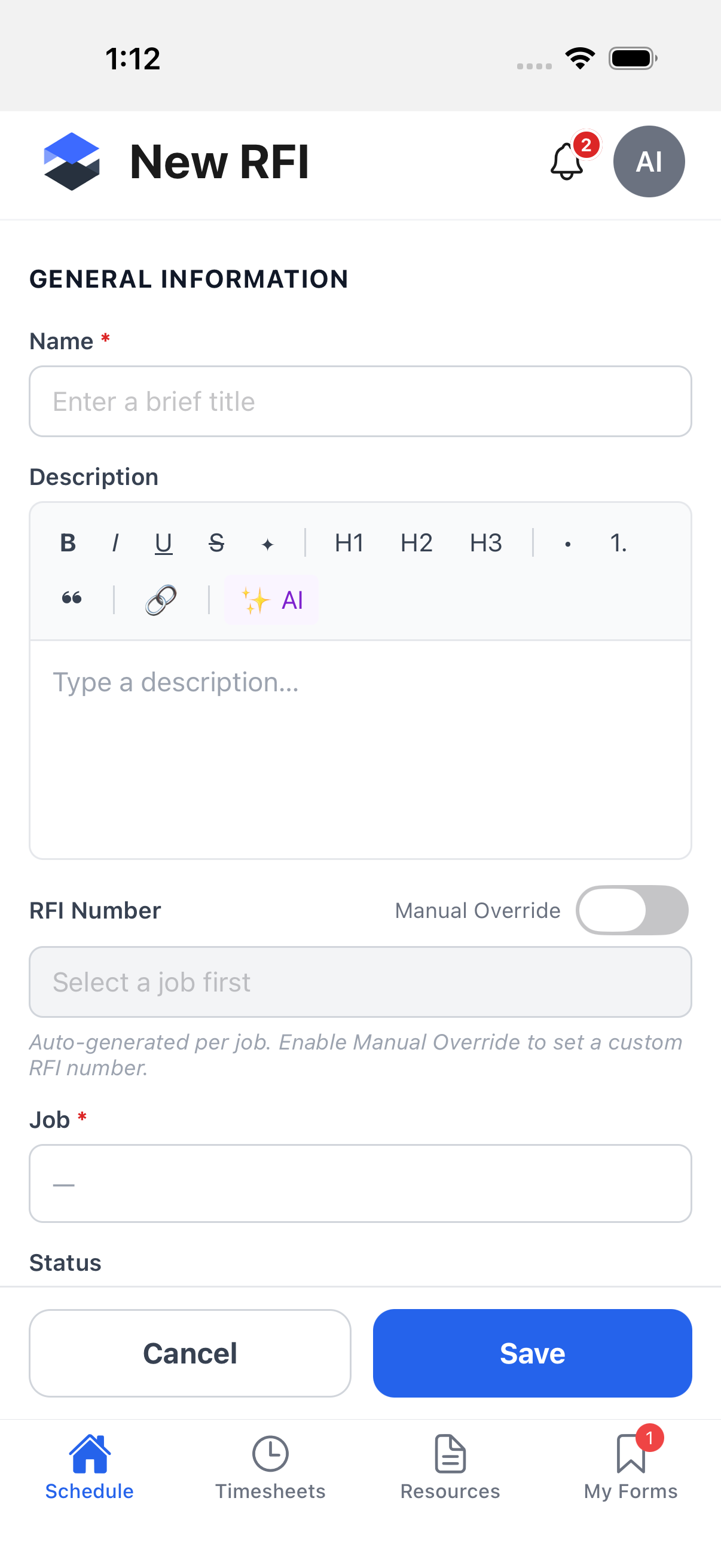
The New RFI form has:
- Name -- required
- Description -- rich text (bold, italic, underline, strikethrough, headings, bullet/numbered lists, quote, link, and an AI-assist button)
- RFI Number -- auto-generated per job, with a Manual Override toggle to set a custom number instead
- Job -- required, searchable picker
- Status -- searchable picker
- Priority -- searchable picker
- Due Date -- date picker
- Assigned To -- defaults to the current user; reassigning it isn't possible from mobile yet
- A Drawing section to associate a marked-up area of a job PDF
- A Files section for attachments (upload, or pick from files already on the job/project)
A Cancel / Save bar is pinned to the bottom of the form; Cancel returns to the RFIs list without saving.
RFI detail and Edit RFI
The demo instance has no RFIs, so this pass could not open a real RFI to screenshot its detail or Edit screen. Described in writing instead: the detail screen shows the RFI number in the top bar, an Edit link, the same General/Drawing/Files sections as the form, and -- once a response exists -- a Response section with its own submit/edit controls. Edit reuses the same form as New RFI, pre-filled, with the same Cancel/Save bar.
The profile menu
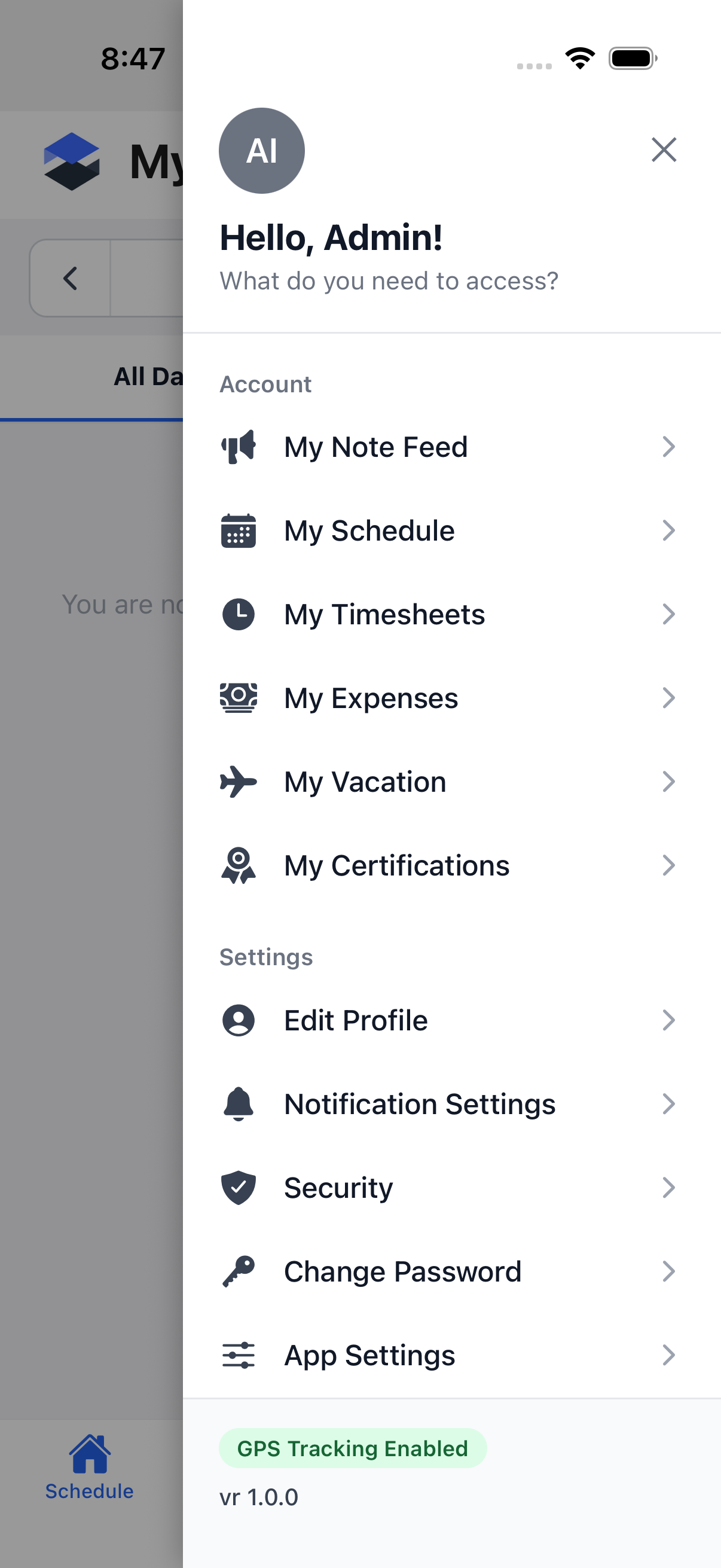
Tapping the avatar circle in the top-right corner of any of the four tabs opens a slide-in profile menu -- a different drawer from the Projects/RFIs one above, which opens from the logo instead. Every item and where it leads:
| Section | Item | Leads to | Notes |
|---|---|---|---|
| Account | My Note Feed | /notes | See Notes on Mobile. Hidden without note-view permission. |
| Account | My Schedule | / or /schedule?mode=my | Whichever route isn't already the current landing tab. |
| Account | My Timesheets | The Timesheets tab | Same screen as the bottom tab bar's Timesheets. |
| Account | My Expenses | /expenses | See Expenses, Leave, and Certifications. |
| Account | My Vacation | /vacation | Hidden without vacation-view permission. |
| Account | My Certifications | /certifications | See Expenses, Leave, and Certifications. |
| -- | Sync Errors | /account/sync-errors | Only shown once at least one offline write has failed. See Offline behavior below. |
| Settings | Edit Profile | /profile/edit | Not covered on this page. |
| Settings | Notification Settings | /account/notifications | Screenshotted below. |
| Settings | Security | /account/security | Screenshotted below. |
| Settings | Change Password | /account/change-password | Screenshotted on Signing In to the Appello Mobile App. |
| Settings | App Settings | /account/app-settings | Screenshotted below; also hosts the Language picker. |
| Settings | Permissions | /permissions?all=1 | Not covered on this page. |
| Settings | Developer Menu | /account/dev-menu | Dev/internal builds only. See note below. |
| -- | Sign Out | Signs the user out | Confirms first if any offline writes are still queued. |
Notification settings
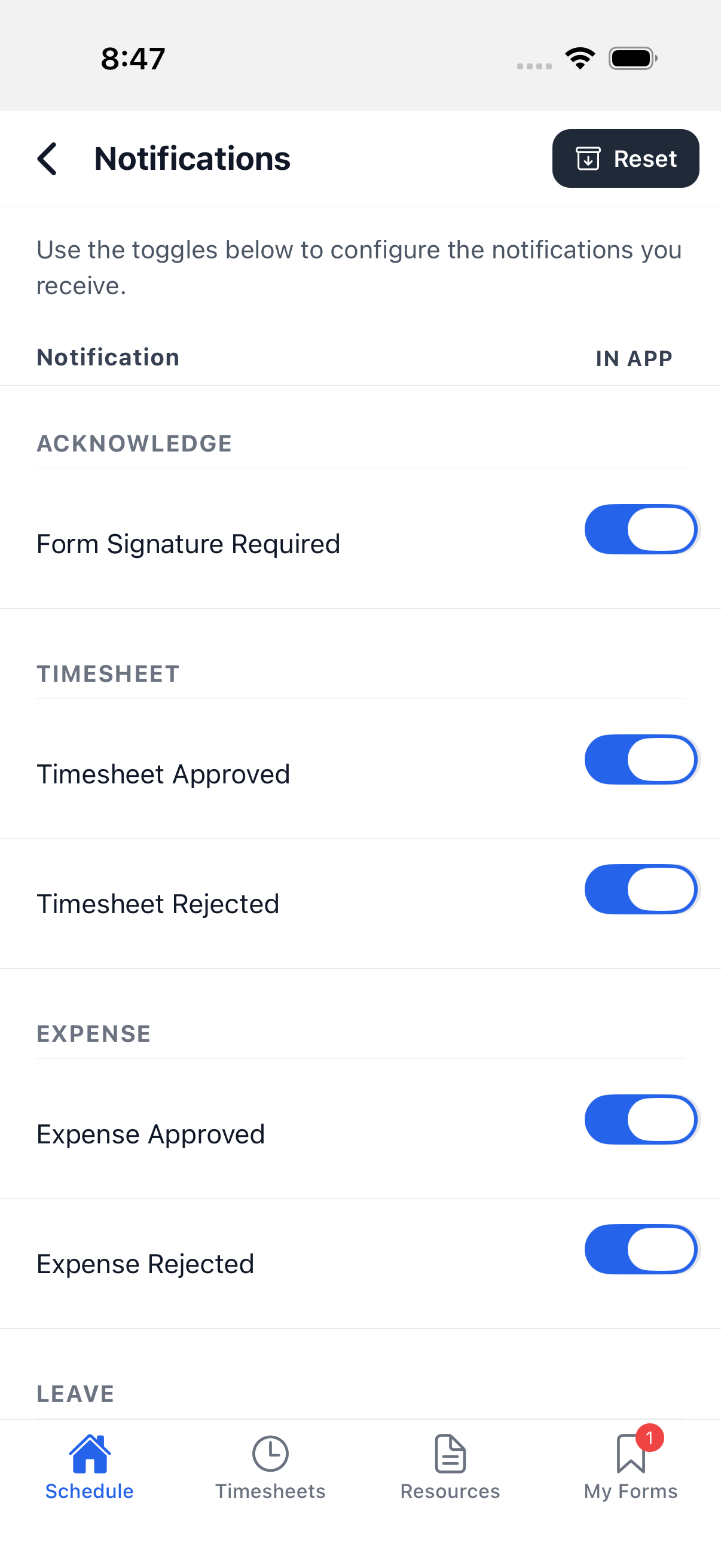
Profile menu → Notification Settings lists every notification type the signed-in user can control, grouped by category (Acknowledge, Timesheet, Expense, Leave, Note, and so on). The controls are:
| Control | Behavior |
|---|---|
| In App toggle per row | The personal preference described on In-app notifications -- see the Push notifications section below for how it also gates push. |
| SMS toggle per row | Only rendered on instances with SMS support enabled; not shown on the demo instance used for this page's screenshot. |
| Reset | Resets every In App toggle back to the administrator's default. A confirmation dialog notes SMS preferences are not affected. Not tapped for this page. |
This is the same personal preference described on In-app notifications -- see the Push notifications section below for how this single toggle also gates push.
Security
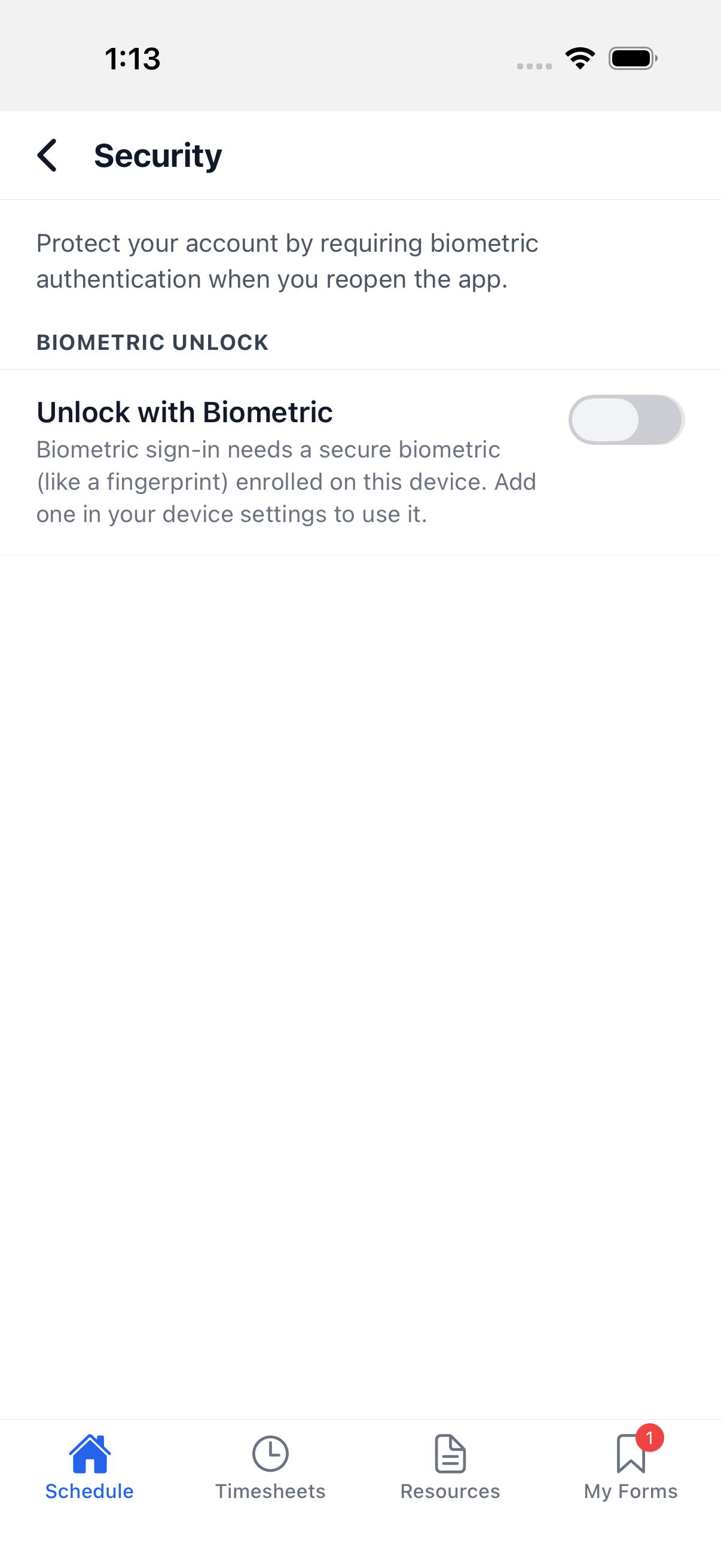
Profile menu → Security exposes one control: Unlock with Biometric (labelled Face ID, Touch ID, or a generic name depending on the device). It checks the device's real biometric enrollment and disables the toggle -- with an explanatory subtitle -- if the device has no biometric hardware or nothing enrolled. Not toggled for this page.
Change password
Screenshotted on Signing In to the Appello Mobile App -- Profile menu → Change Password opens the same Current Password / New Password / Confirm New Password screen documented there. Not re-screenshotted on this page.
Language
The App Settings screenshot below already shows the full Language control -- English, Español, and Français -- embedded directly in App Settings. A second, standalone language screen with the identical picker still opens from an old saved link, but nothing in the current app links to it. Neither language picker was changed for this page.
App settings
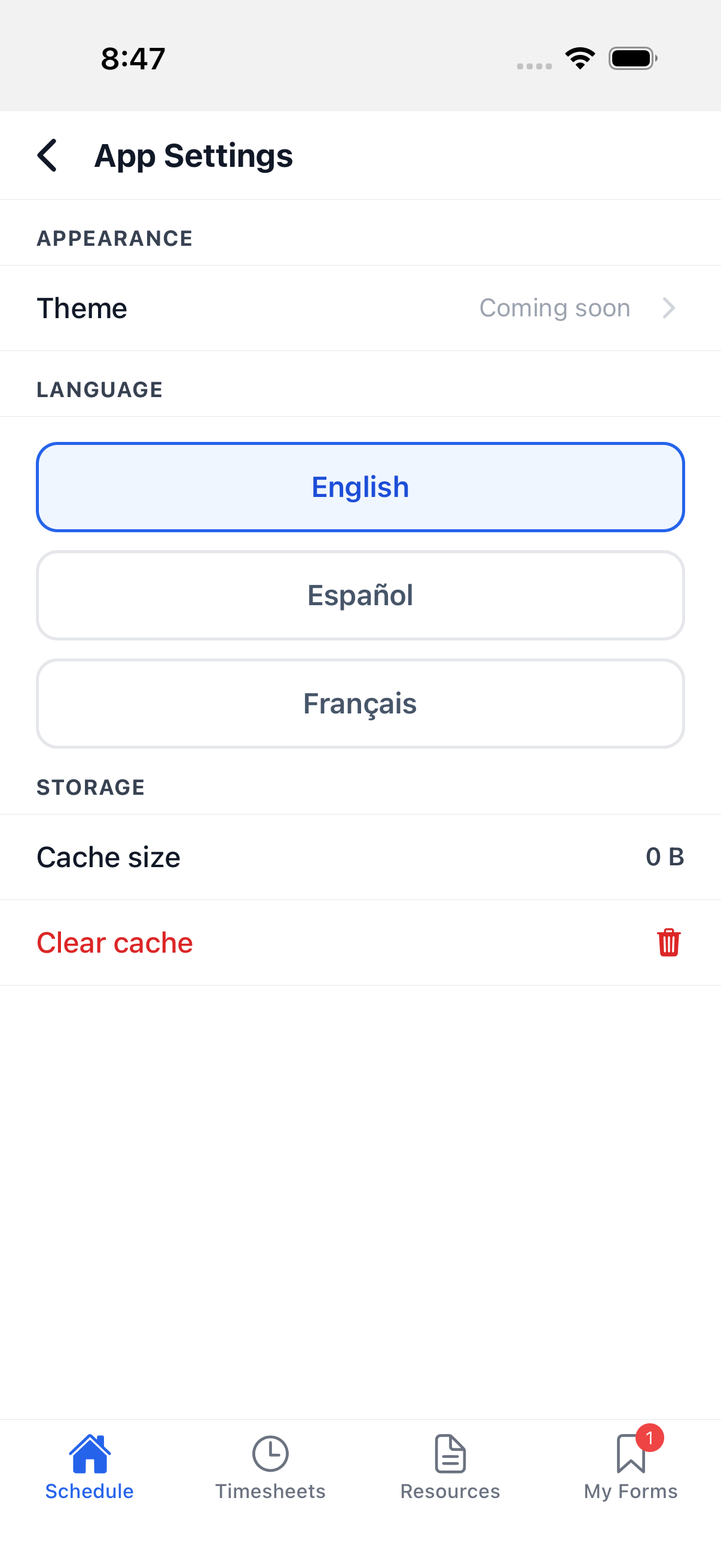
Profile menu → App Settings hosts device-level app behavior:
- Theme -- shows Coming soon in this build. It is a reserved slot in the UI; there is no working theme picker yet.
- Language -- English, Español, or Français (see the Language subsection above).
- Storage -- shows the app's on-device cache size and a Clear cache action. Clear cache was not exercised for this page (the demo instance's cache size shows 0 B already).
Developer Menu
This screen appears only in Appello's internal test builds -- it is not part of the app you install from the App Store or Google Play, so you will not see it. This pass could not screenshot it live (the row sits below the fold of the profile menu and the tooling used for this page cannot scroll). It holds one control -- a Simulate Offline toggle that fakes a total loss of connectivity for testing the offline queues -- plus a live count of every item waiting to sync (see Offline behavior below). The override is never remembered, so a fresh app launch always starts back online.
Sync Errors
Sync Errors only appears in the profile menu -- above the Settings header -- once at least one offline change has failed to send; the demo instance used for this page had none, so the row was not present to open. It groups every failed change by feature (timesheets, forms, resource signatures, expenses, vacation, RFIs, notes, files, certifications, profile edits) and gives each row a Retry action (for a change still queued but marked failed) or a Review action that reopens the original screen (for something Appello rejected outright, such as a rejected timesheet), plus a Discard action on every row. See Offline behavior below for exactly what gets queued in the first place.
Push notifications
Push notifications are delivered the same way on iOS and Android. On sign-in, when the app comes to the foreground, or on a cold start, the app:
- Confirms you have granted notification permission (it skips registration entirely if you declined).
- Registers this device for push.
- Ties that registration to this specific installation, so it survives app updates and a reinstall doesn't leave an old, undeliverable registration behind.
- Deactivates any of your own older device registrations left behind by a previous install.
Push rides the same In App preference as the bell panel -- there is no separate push toggle. Appello sends push to exactly the same people it shows the in-app notification to, so turning In App off for a notification type also turns off push for it. This matches In-app notifications, which documents the same rule for the web app.
The events below send a push notification (subject to the In App preference):
| Event | Push title |
|---|---|
| Signature required on a form | Signature Required |
| Timesheet approved / rejected | Timesheet Approved / Rejected |
| Expense submitted / approved / rejected | Expense Submitted / Approved / Rejected |
| Leave submitted / approved / rejected | Leave Submitted / Approved / Rejected |
| Tagged or commented on in a note | You were mentioned |
| New top-level note created | New note |
| Mentioned in a document comment | You were mentioned |
| Document routed to you for signature | Signature Requested |
| Company announcement (all / mobile-scoped) | Announcement |
| Worker enters or leaves a job site geofence | User entered / left job site |
| Worker clocks in outside the job's geofence | Clocked in outside geofence |
There is no push notification for schedule changes. Appello has no schedule-change notification type at all -- creating, updating, or assigning a shift never notifies anyone automatically. This matches the desktop notifications page: an admin can send a manual Announcement when a schedule changes, but there is no automatic schedule-change push on either platform.
In-app notifications
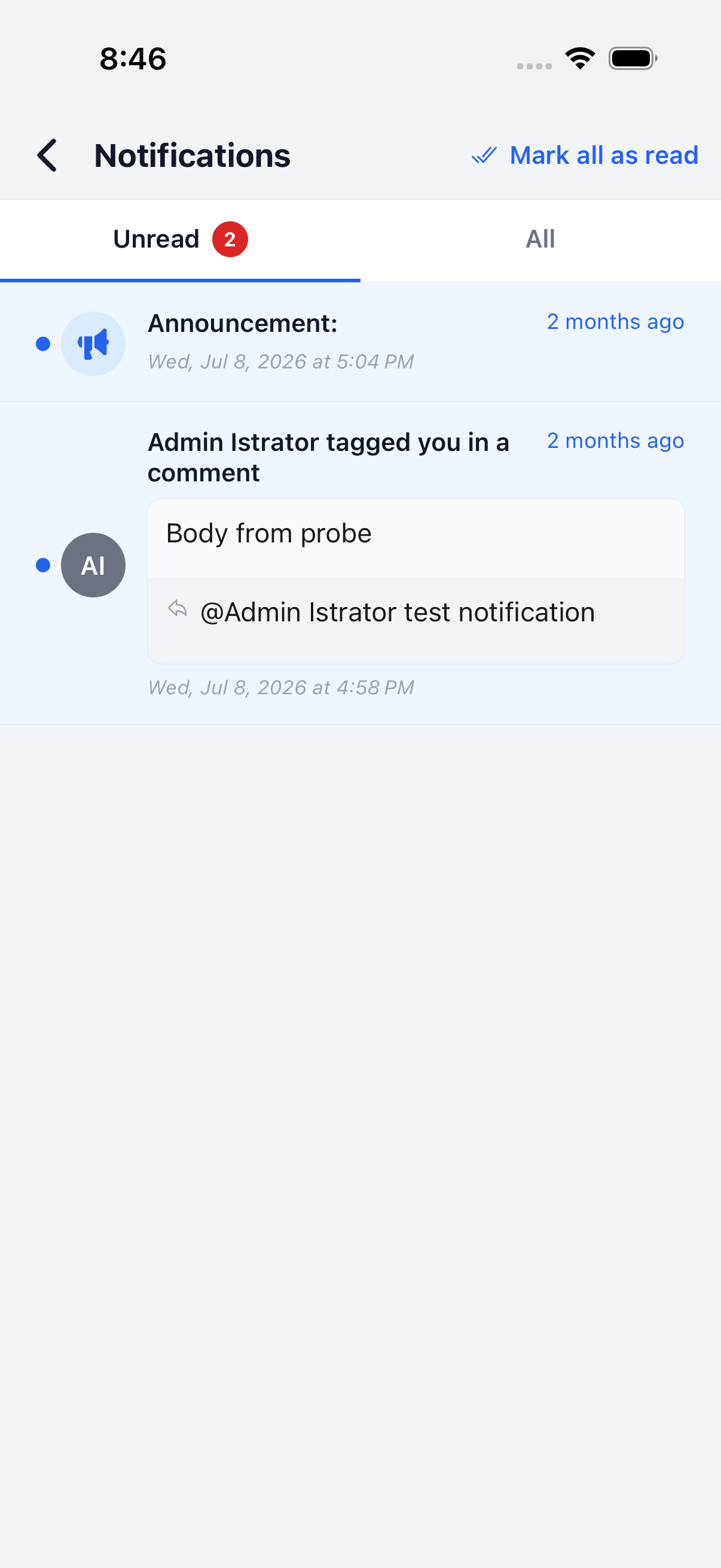
Tapping the bell icon (top-right, next to the avatar, on any of the four tabs) opens the in-app notification feed. Its controls are:
| Control | Behavior |
|---|---|
| Back chevron | Returns to whichever tab the bell was opened from. |
| Unread / All tabs | Switches between unread-only and the full feed. The Unread badge matches the bell icon's own badge count. Each tab keeps its own scroll position and data. |
| Mark all as read | Only shown once there is at least one unread notification. Marks every notification read; queued offline and drained automatically on reconnect. |
| Tapping a notification row | Marks that one notification read and navigates to its target record (a deep link into the job, form, timesheet, note, etc. the notification is about). |
Offline behavior
The app is built to keep working with no connection, using two separate mechanisms: an on-device cache of what you have already loaded, and queues for anything you do while offline. The app watches connectivity itself, and drains the queues automatically as soon as you reconnect.
What's available offline to read -- job lists and job detail, your scheduled jobs, timesheet summaries and detail, locked weeks, leave requests and leave types, expenses, projects, equipment, certifications (both your own and the company's types), notification preferences, RFIs (list and detail), policy documents (the Resources tab's feed and detail), safety form templates, the My Forms inbox and startable form list, submitted form detail, job form submissions, drawing annotations and RFI references, and cached PDFs and photos. In short: the four tabs' list and detail screens are readable offline once they've been loaded at least once.
What's queued while offline -- anything you create or change, sent as soon as the device reconnects. By feature:
- Forms -- form submissions and answers, form photos and attachments, acknowledgements, added acknowledgers, and emailed form copies.
- RFIs -- new RFIs, responses, drawing references and annotations, drawing photos, and file attach/detach.
- Timesheets and time entry -- timesheets, clock-ins, clock-outs, and job switches.
- Notifications -- preference changes and resets, and read / mark-all-read actions.
- Device and location -- location pings while clocked in, seen-by records, and device deregistrations.
- Certifications -- new certification records and emailed certification reports.
- Everything else -- jobs, notes, files, expenses, projects, equipment, resource signatures, vacation requests, and profile edits.
Photos and files taken or picked while offline are queued alongside the record they belong to, and cached copies are shown back to you so a queued photo still displays before it syncs. If it can be created or edited from the app, it can be done offline.
Every queued item that ends up failed or rejected appears on the Sync Errors screen covered above, in The profile menu -- see that section for the Retry/Review/Discard actions available on each one.
Related pages
- Signing In to the Appello Mobile App -- install, sign-in, and sign-out
- Schedule and Clock-In -- the Schedule tab and clock-in flow in detail
- Mobile Timesheet -- the Timesheets tab in detail
- Resources and Files -- the Resources tab in detail
- Form Inbox -- the My Forms tab in detail
- Notes on Mobile -- My Note Feed in detail
- Expenses, Leave, and Certifications -- My Expenses, My Vacation, and My Certifications in detail
- Equipment and Clocked In Users -- the other two items on the logo's navigation drawer
- RFIs -- the desktop/web side of RFIs
- In-app notifications -- the web equivalent of the bell panel and notification preferences
- My Forms on Mobile -- companion page covering the My Forms tab, in progress