Resources, Files and Job Info on Mobile
Screenshots on this page are from the Appello app, version 1.71.0, running on an iPhone simulator.
This guide covers the Resources tab (company policy documents), the Files tab on a job, the Info tab on a job, and the Edit Profile screen -- the places field workers go to read company documents, open job attachments, see a job's details, and update their own contact info on their phone.
Resources tab
The Resources tab is one of the four bottom tabs (alongside Schedule, Timesheets, and My Forms). It lists your company's policy documents -- the same documents published from the desktop's policy-document library -- not job files. The list only ever shows policy documents; nothing else feeds this screen.
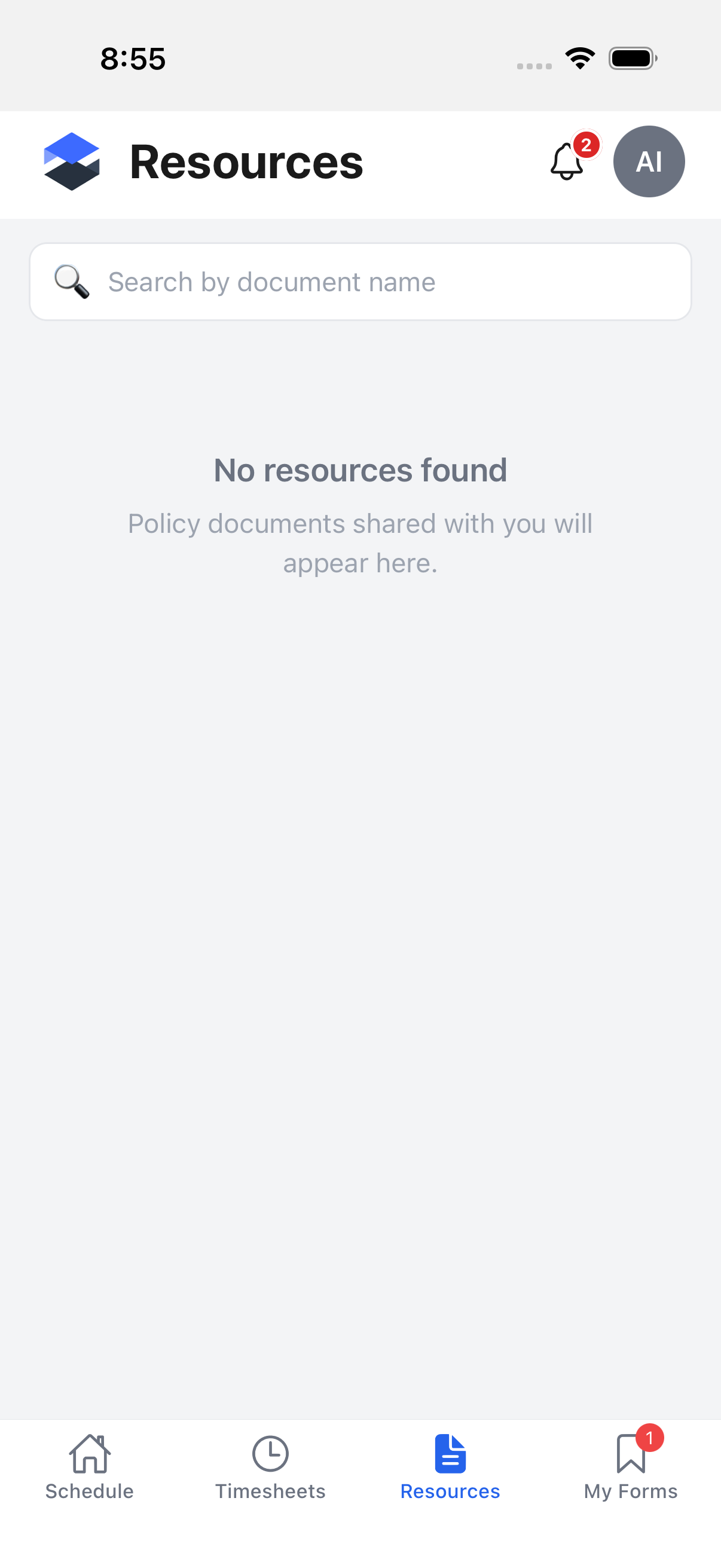
Each row in the list shows:
- Document name and version (for example, "Employee Handbook - Version 2").
- A status pill: Require Signature (you haven't signed it yet), Signed, or Pending sync (you signed while offline and it hasn't synced yet).
- Date Published, Effective Date, and Published By, when the document has those set.
- A Search by document name box at the top of the list to filter as you type.
If your company has set an external resources link (in desktop Instance Settings), an External Resources button appears above the list, opening that link in your device's browser.
Viewing this tab requires the Policy Documents → View permission. Without it, the tab shows a "no permission" empty state instead of the list. The Safety Forms → View permission does not gate this tab -- it only gates the Forms tab on a job, a separate screen. See Mobile Settings for how mobile permissions are assigned.
The demo instance used for these screenshots has no policy documents published, so it shows the No resources found empty state. The document-detail view and signing flow below are described in writing rather than shown.
Opening a document
Tapping a row opens the document:
- WYSIWYG documents (built with the desktop's rich-text editor) render inline.
- PDF documents render in an embedded PDF viewer.
If the document requires your signature, an acknowledger card appears below it showing your name and position, with a Sign button. Tapping Sign opens a bottom-sheet Sign Document modal with:
- A PIN field (numeric keyboard, hidden characters) where you enter your account PIN.
- Cancel and Sign buttons.
Signing asks for your account PIN and (if your company requires it) records your location with the signature -- the app will prompt for location permission the first time this happens. An incorrect PIN shows an inline error and lets you retry. Signing while offline queues the signature (shown as Pending sync back on the list) and syncs it automatically once you're back online; a rejected offline signature (bad PIN, missing PIN) surfaces as a dismissible banner at the top of the Resources list that links back to the document to re-sign.
This modal could not be screenshotted -- there was no policy document to sign on the demo instance.
Job Files tab
Every job has a Files tab (in the job's tab bar, alongside Info, Notes, Forms, Equipment, RFIs, and so on). It lists the job's folders and files -- the same folder tree as the desktop job's Files tab.
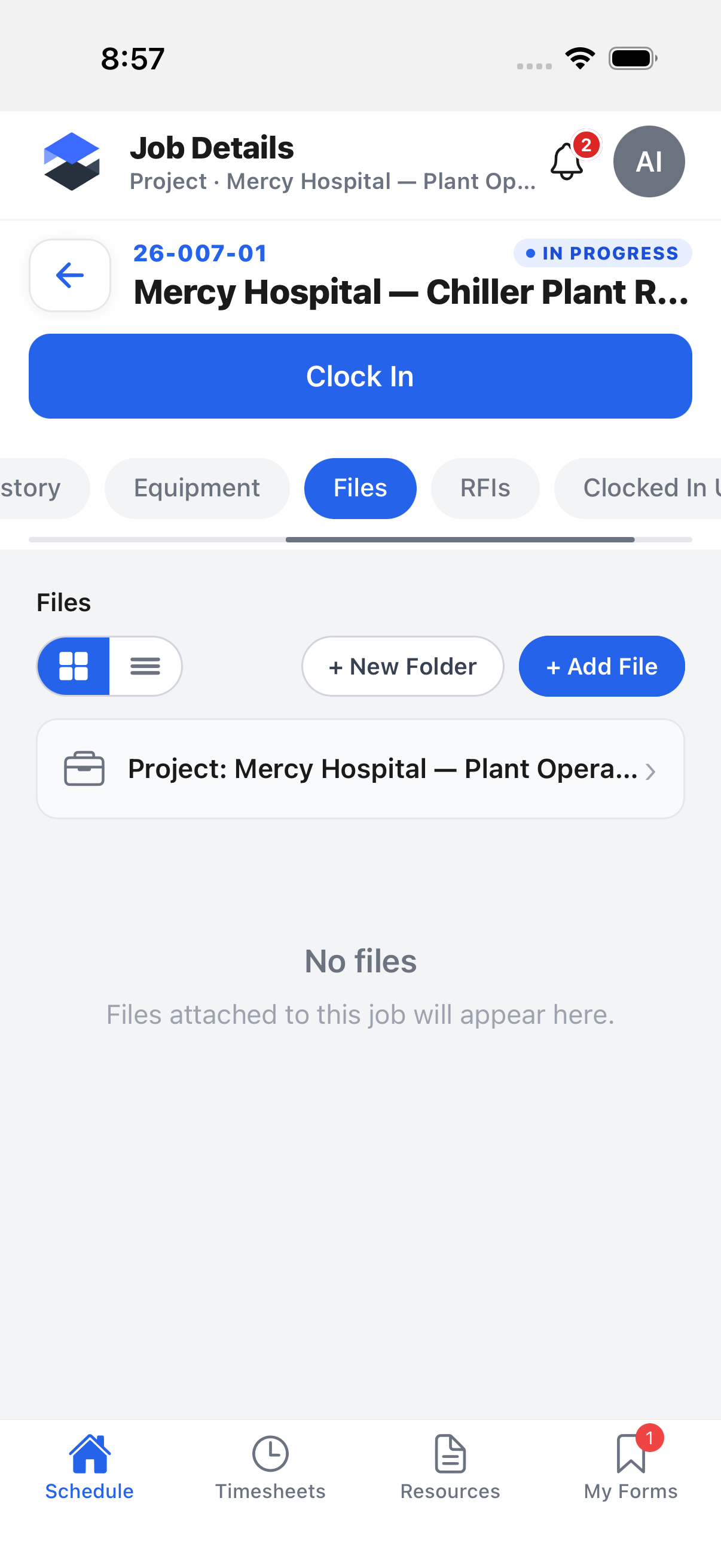
- A grid / list toggle switches how files are displayed.
- + New Folder and + Add File let you create a subfolder or upload a photo/document from your device.
- If the job belongs to a project, a Project: {name} row links up to that project's own Files tab.
- Tapping a folder opens it; tapping a file opens it in a viewer chosen by file type (see below).
Opening a file
What tapping a file does depends on its content type:
- Image files open in an in-app image viewer.
- PDF files open in an in-app PDF viewer.
- PDF files already linked to an RFI or drawing (they carry an asset-reference id) open in a richer PDF viewer instead, with markup tools, RFI overlays, and area-select.
- Every other file type (Word documents, spreadsheets, and so on) is not rendered in the app. Instead, the app downloads it and hands it to the device's native share/open sheet -- the iOS share sheet, or on Android an intent to whatever app the device has for that file type.
Each file in the list also has a ⋮ action menu with Download, Rename, and Delete. Download does not save a separate copy anywhere -- it runs the exact same open/view logic as tapping the file, so for an image or PDF it opens the same in-app viewer, and for any other file type it hands off to the native share/open sheet described above.
This could not be screenshotted -- no job on the demo instance has a mobile-visible file to open (see the note below).
Files hidden from mobile
A file or folder is only visible here when it is not hidden from mobile. Every job starts with four system folders (Change Orders, Estimates, Note Files, RFIs) that are hidden from mobile by default, and any file or folder can be toggled individually from the desktop. This is why the job pictured above shows No files even though its desktop Files tab has content -- its folders are all still set to hidden. See Project Files for how the Hide from Mobile / Show on Mobile toggle works and how the company-wide default is set.
No job on the demo instance had a mobile-visible file to open, so this page cannot show a live screenshot of the file viewer itself. The three viewer types above (image, plain PDF, rich PDF) are described in writing instead.
Job Info tab
The Info tab is the first tab on every job and is the default tab when you open a job. It shows the job's details as sections of fields, grouped and ordered exactly as your company's admin configured them on desktop.
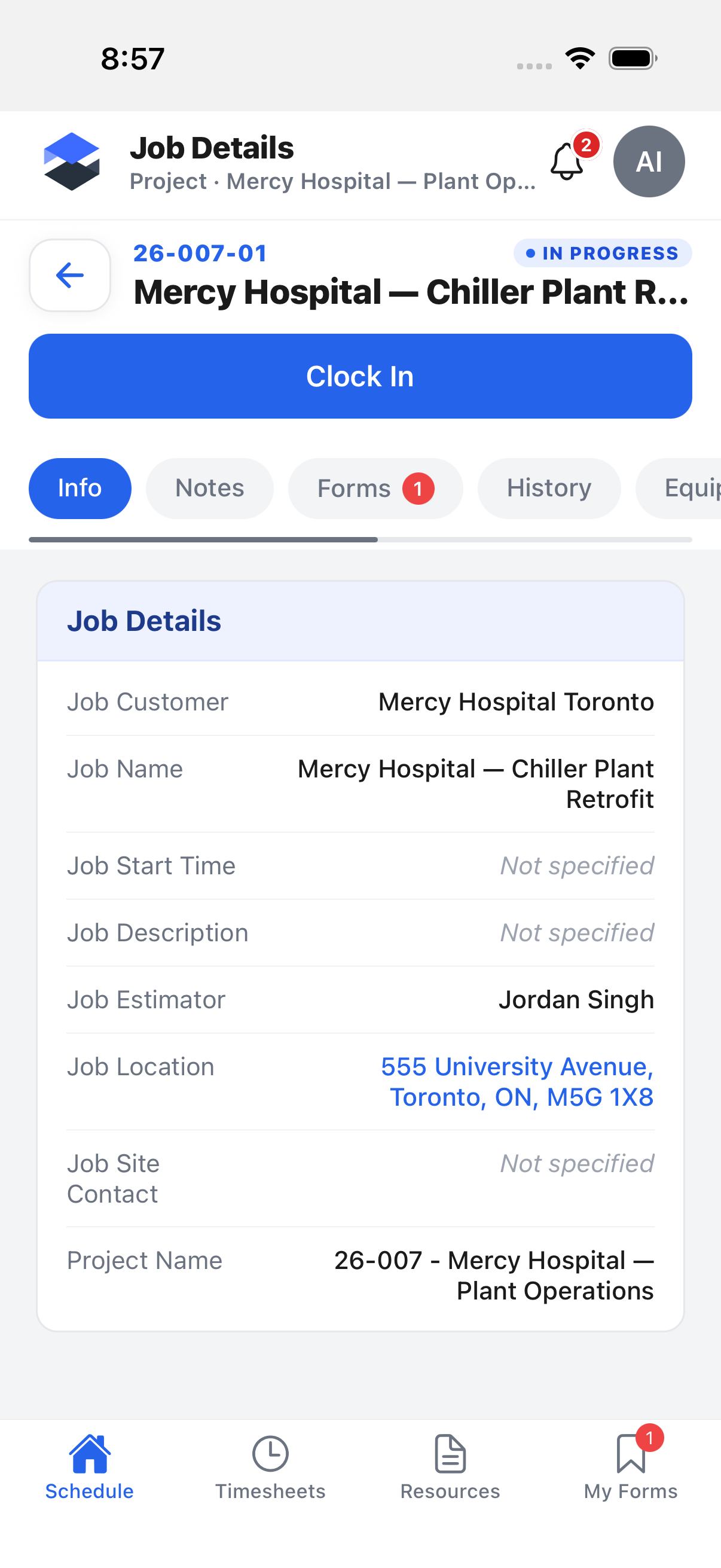
- Fields come from the Job Info Layout built in desktop Settings → Mobile Settings. Admins choose which Job attributes appear, group them into named sections (like "Job Details" above), and set the order -- see Mobile Settings for how that layout is built.
- An address-type field (like Job Location) renders in blue and opens your phone's map app when tapped.
- A URL-type field renders as a tappable link.
- A contact field shows the person's name and, when available, tappable email and phone lines.
- If your company hasn't configured a Job Info Layout yet, the tab falls back to a fixed default set of fields (description, project, company, location, dates, job number, PO number, progress, job lead, primary contact, site contact) so the tab is never empty.
- When you have permission to view scheduled staff and staff are scheduled to the job on the date you're viewing, a Scheduled Staff section appears at the bottom with each person's name, position, and a tappable phone number.
Edit Profile
Open Edit Profile from the profile menu: tap your avatar circle in the top bar, then Edit Profile. This is the only place on mobile to update your own contact details.
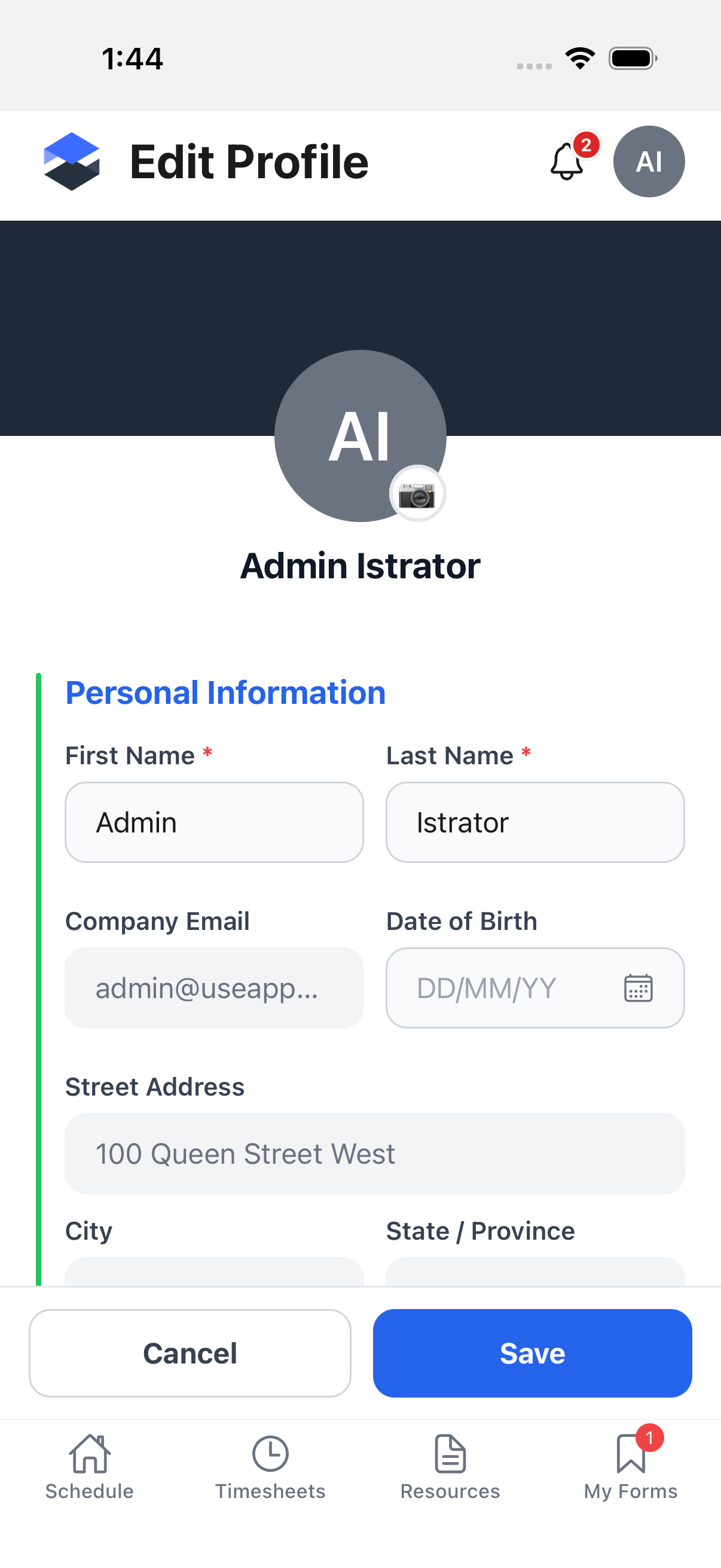
The screen is organized into sections:
- Avatar -- your initials (or photo) with a camera-icon badge. Tapping it offers Take Photo, Choose from Library, and, if you already have an avatar, Adjust Current Photo. Uploading a new photo requires an internet connection.
- Personal Information -- First Name and Last Name (required, editable), Company Email and address fields (Street Address, City, State/Province, Country, Zip/Postal), shown read-only (grayed out) here -- an I've moved button opens a separate address-update flow for those. Date of Birth opens a date picker. Phone and Secondary Phone are editable text fields further down the form.
- Employment Information -- Trade Classification (read-only, hidden entirely for companies that hide trade level on mobile) and Union Hall Location (a picker).
- Emergency Contact -- First Name, Last Name, Phone, and Relation to Contact (a picker), all editable.
- Medical Information -- Allergies, a multi-select picker.
A sticky Cancel / Save bar sits at the bottom. Cancel (or the device back gesture) discards any changes and returns to the previous screen without saving.
Not on this version of the mobile app
QR code / barcode scanning -- this version of the mobile app has no QR-code or barcode scanning anywhere.
Material orders on mobile -- this version of the mobile app has no material-order screens. Material orders are a desktop-only feature.