Form Inbox
Module: Forms | Platform: Web
The Form Inbox is the central hub where office staff -- safety coordinators, project administrators, anyone responsible for reviewing field paperwork -- review every safety and inspection form submitted from the field. From here you can read a submission's answers, check who still needs to sign off on it, resolve anything that failed, share it outside Appello, and archive submissions once they're handled. It's also where office staff can start a form on a worker's behalf instead of waiting for the field crew to submit it.
Navigation
Sidebar → Form Inbox
URL: /overview/form-inbox
Permission: View on the Form Submissions card gates the Form Inbox sidebar item and this route. Every other control on the page has its own, narrower permission -- see Permissions at the bottom of this page for the full list.
Overview
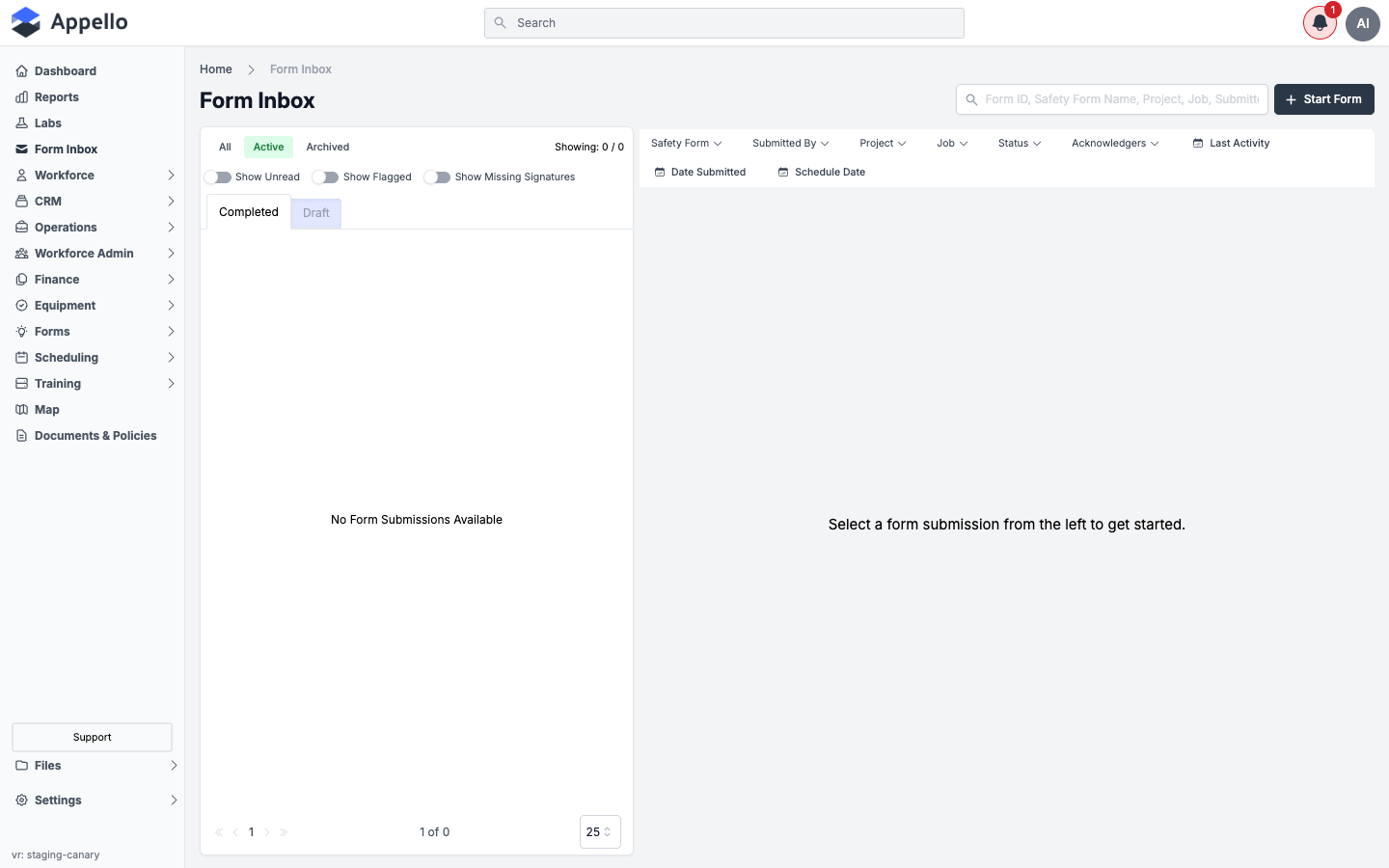
The Form Inbox is a two-pane list/detail view:
- Left pane -- the list of submissions, with tabs and toggles to narrow it down (see Filtering and Searching below).
- Right pane -- a filter bar, and the detail view for whichever submission you have selected. Before you select anything it just shows the filter bar.
The + Start Form button in the top-right lets office staff fill out a form on behalf of a worker -- see Starting a Form from the Office.
What's on Each Card
The Form Inbox is a card list, not a table, so there are no column headers -- every field below
is part of the FormInboxCard component and appears (or is hidden) per row on the same rules:
| Field / Element | Shows / does |
|---|---|
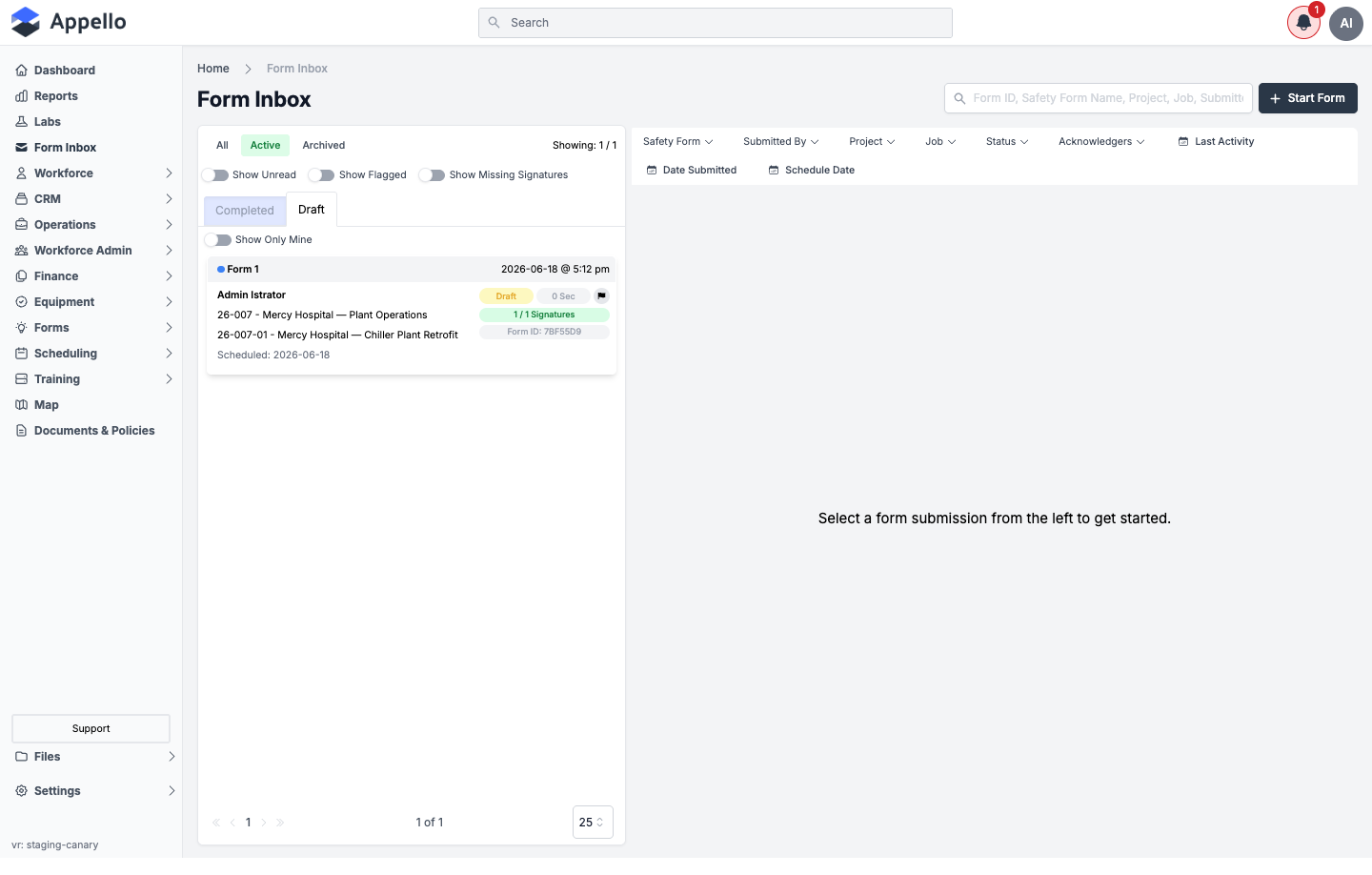
| Unread dot | Solid blue if you haven't opened the submission yet, a hollow outline once you have. Clicking it marks the card unread again -- but only when the card isn't flagged; on a flagged card the click instead just opens the card (see the Flag button below). |
| Safety Form name | Bold, truncated to one line with a tooltip for the full name. |
| Last Activity timestamp | The submission's updatedLastDateTime, shown as "Today @ h:mm a", "Yesterday @ h:mm a", or a short date once older than that. |
| Archive icon | Shown next to Submitted By only when the submission is archived. |
| Submitted By | The name of whoever filled out the form, formatted per your instance's user display order setting. |
| Project | The job's project number and name, when the job belongs to one. |
| Job | The job's full job number and name. |
| Scheduled date | "Scheduled: <date>", shown only when the submission has a jobScheduleDate. |
| Status badge | Draft / Pass / Fail / Resolved -- see Submission Statuses. |
| Time To Complete badge | A gray badge showing the submission's raw Time To Complete value -- the same metric used as a column in Form Report; what it computes isn't defined in this frontend repository. |
| Flag button | Toggles the card red/flagged. Flags are stored in your browser's local storage, not on the server -- a flag you set here won't show up for a teammate, even on the same submission. |
| Signatures badge | For example "1 / 2 Signatures" -- signed vs. required signers. Hidden on Draft cards (a Draft has no result yet). Click it to see who has and hasn't signed without opening the full submission. |
| Form ID badge | The submission's short Form ID (submissionId). |
| Comment count badge | Shown only when the submission has one or more answer comments. |
Filtering and Searching
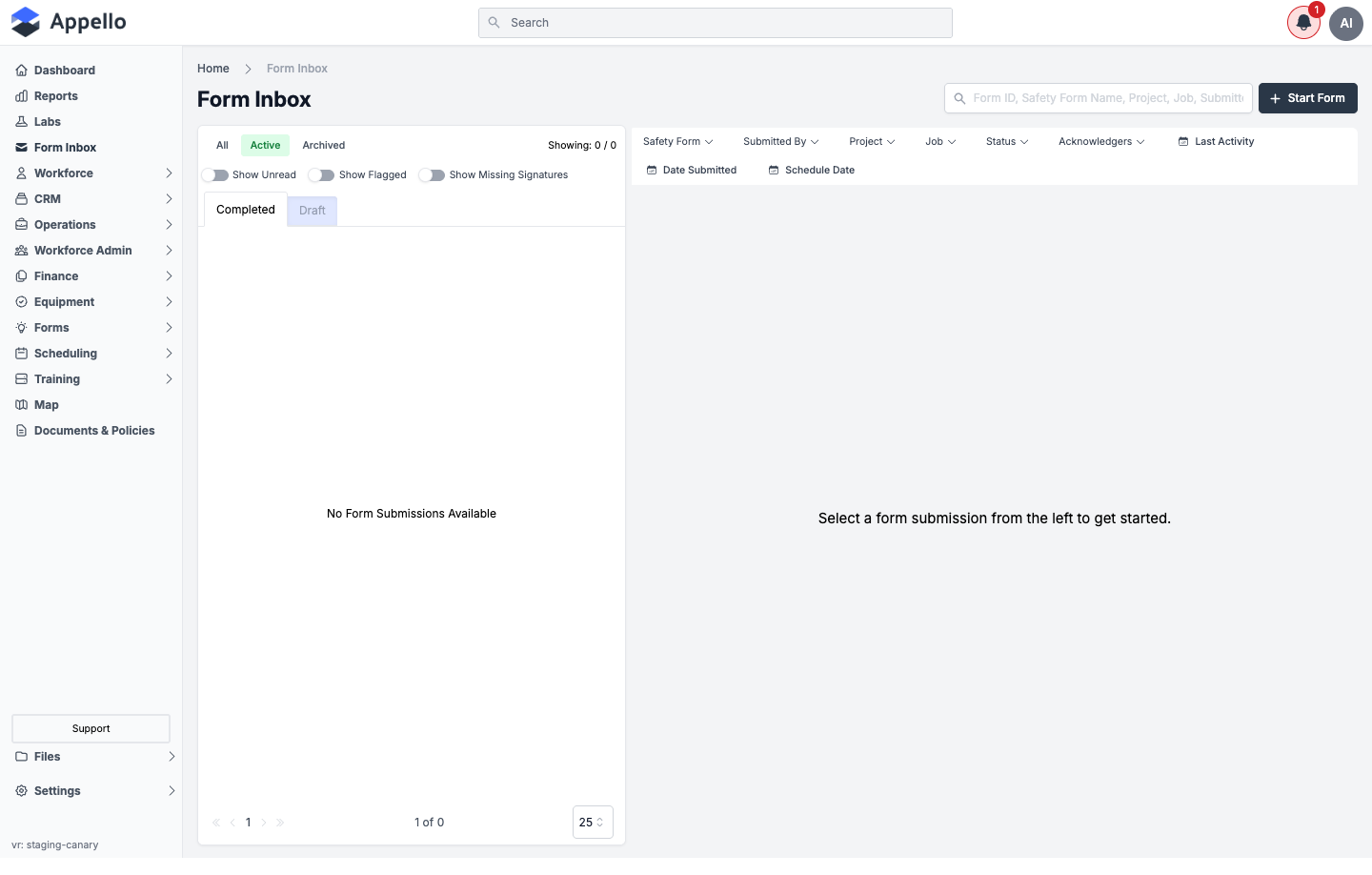
Use the search box above the list (placeholder text: "Form ID, Safety Form Name, Project, Job, Submitted By") to search across those fields at once. Every other narrowing control sits in the filter bar and the controls above the list.
The screenshots in this section were captured against a demo instance with no completed submissions, so the filter bar and toggles are shown in their empty state. The Draft tab did have one seeded submission, so a few screenshots below show that populated card and its filter dropdowns with real values.
Tabs
| Control | Description |
|---|---|
| All / Active / Archived | Controls which submissions are included regardless of archive state, only active ones, or only archived ones. |
| Completed / Draft | Switches the list between submitted forms (Completed) and forms a worker has started but not finished (Draft). |
Filter bar
Each of these opens a dropdown -- a searchable checklist for the picker filters, or a calendar for the date filters:
| Filter | Narrows the list to submissions where... |
|---|---|
| Safety Form | ...the submission is for one of the selected safety/inspection forms. |
| Submitted By | ...the submission was filled out by one of the selected users. |
| Project | ...the submission's job belongs to one of the selected projects. |
| Job | ...the submission is tied to one of the selected jobs. |
| Status | ...the submission's result (Pass / Fail / Resolved) is one of the selected values. |
| Acknowledgers | ...one of the selected users is a required signer/acknowledger on the submission. |
| Last Activity | ...the submission was last updated within the selected date range. |
| Date Submitted | ...the submission was submitted within the selected date range. |
| Schedule Date | ...the submission's job schedule date falls within the selected date range. |
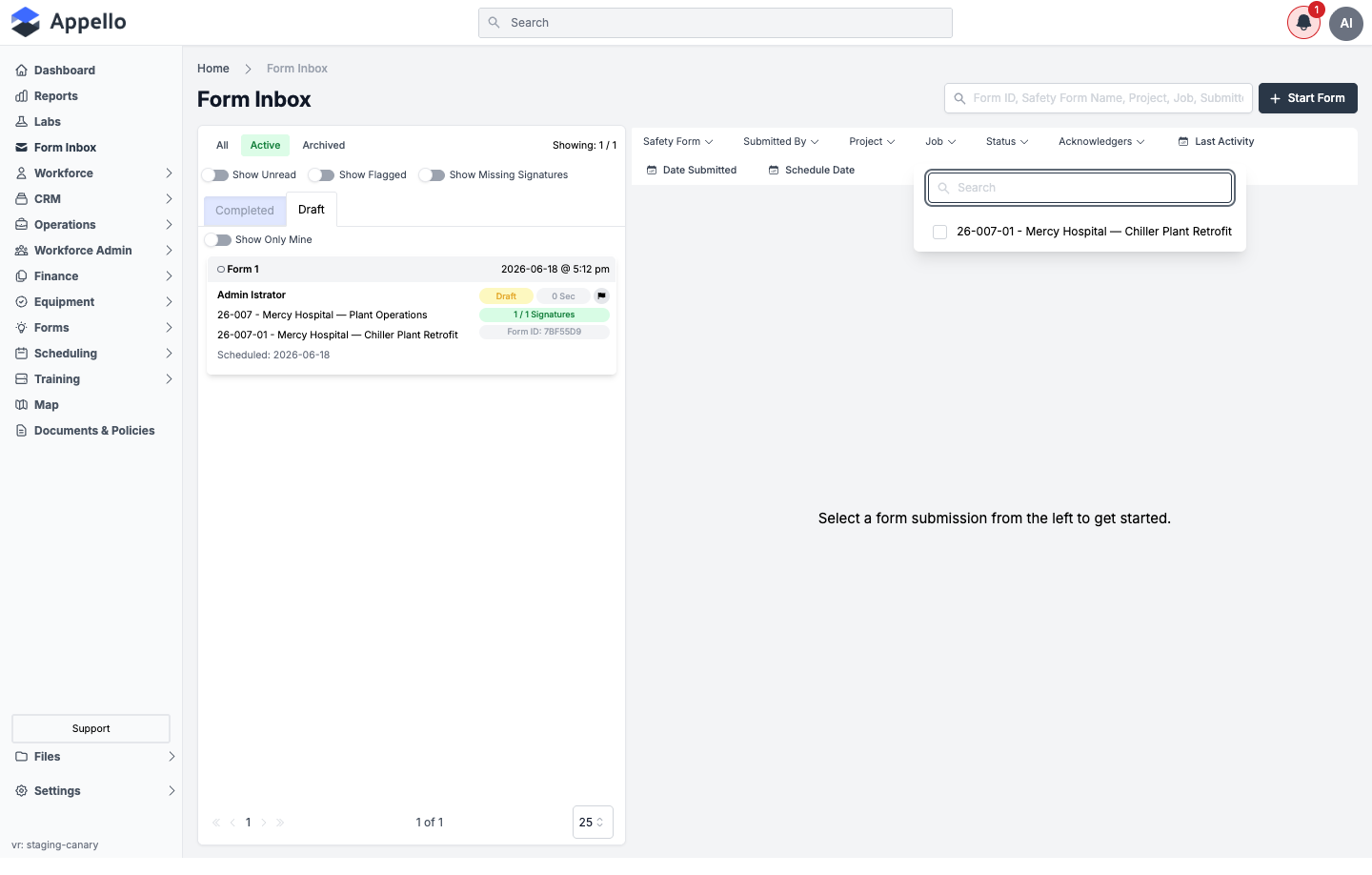
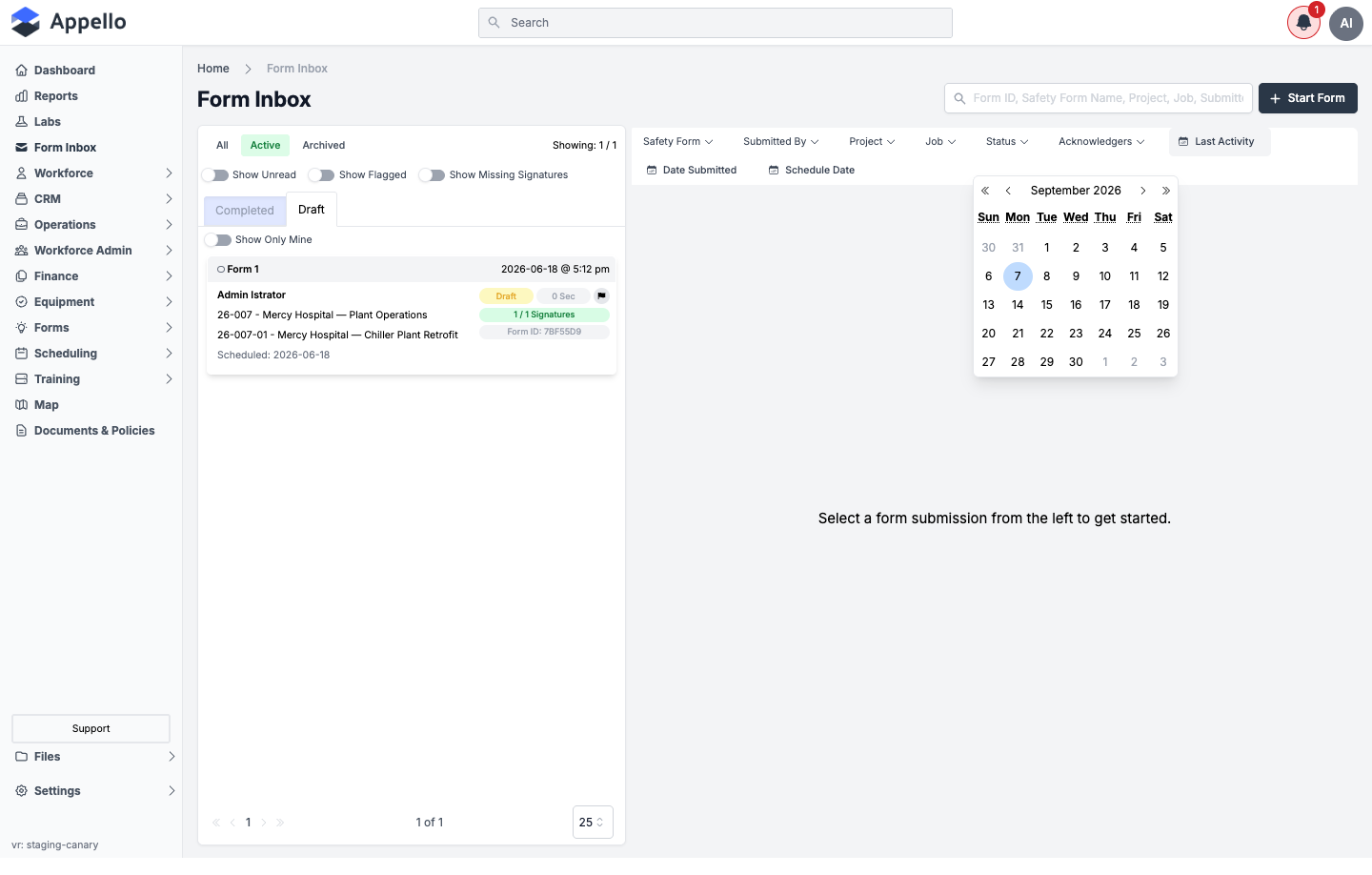
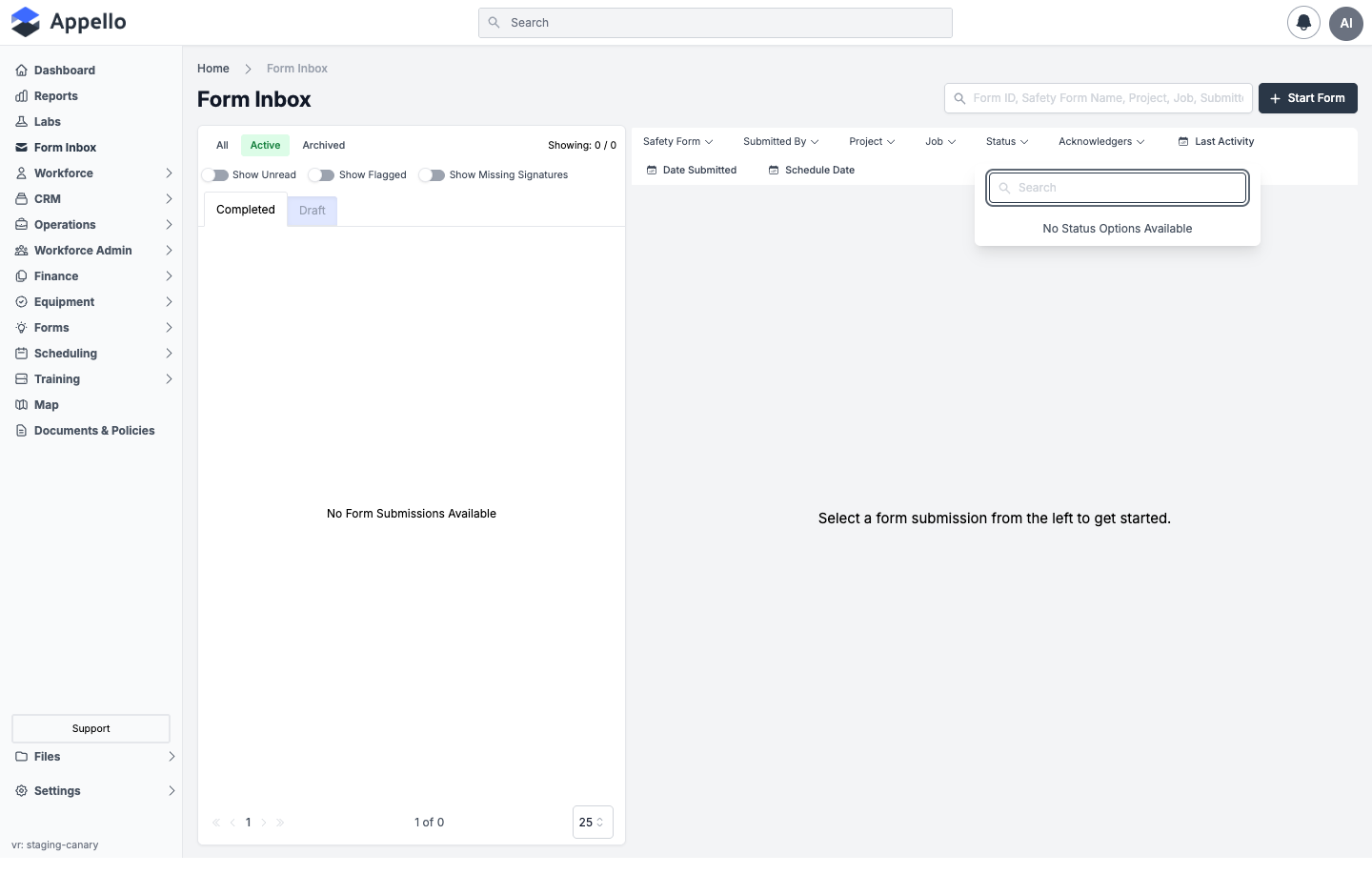
Every picker filter above (Safety Form, Submitted By, Project, Job, Status, Acknowledgers) builds its checklist from the submissions the inbox currently sees -- like the equivalent filters on Form Report. With zero completed submissions on this canary instance, Status shows "No Status Options Available" (screenshot above); this is the empty-data state, not a broken control. Job, by contrast, lists real jobs (screenshot above) because its options come from the job list directly rather than from submission data. Only the three date-range filters show a working calendar regardless of data.
List toggles
Three toggles sit above the list, and narrow it further on top of the filter bar and tabs:
| Toggle | Description |
|---|---|
| Show Unread | Only submissions you haven't opened yet. |
| Show Flagged | Only submissions you've flagged for follow-up. Flags are stored on your computer/browser, so a flag you set won't show up for a teammate using a different device. |
| Show Missing Signatures | Only submissions still waiting on a required signature. |
On the Draft tab, a fourth toggle -- Show Only Mine -- replaces Show Missing Signatures and narrows the draft list to forms you personally started.
Sort and Export
Form Inbox has no sort control and no Export button -- confirmed from source
(FormSubmissionInbox.tsx), there's no column to click for sorting a card list, and no export
action wired up anywhere on this page. The list is always ordered by whatever the underlying
query returns, newest activity first.
If you need to sort by a specific column, build a saved view, or export a filtered list to CSV, use Form Report instead -- its Add New table view supports column sorting and its own Export button. See Form Report and How Form Inbox Differs from Form Report below.
Bulk Actions
Form Inbox has no bulk-select or bulk-action bar -- every row action (archive, restore, delete, share, sign) is taken one submission at a time, from that submission's own settings menu (see Row Actions below). Form Report doesn't offer bulk actions on submissions either; the closest thing anywhere in Forms to bulk actions is Form Management's bulk Archive / Restore / Delete on whole form templates, which is a different object (form wrappers, not individual submissions).
Submission Statuses
| Status | Meaning |
|---|---|
| Draft | A worker has started the form but hasn't submitted it yet. |
| Pass | The submission passed all pass/fail questions on the form. |
| Fail | At least one pass/fail question failed and hasn't been resolved yet. |
| Resolved | A Fail submission was investigated by a reviewer and marked resolved. |
A submission can also be Archived, independently of its status above — archiving just removes it from the active list without changing whether it Passed, Failed, or was Resolved.
Appello's Form Inbox doesn't use a generic Approve / Reject button. Instead, a submission's result (Pass/Fail) is set automatically from the worker's answers, and review happens through three things: reading the submission, collecting any required signatures, and — if it Failed — resolving it. See below.
From source, editItem): the result is stored as one of
four raw values -- NOT_FILLED (shown as Draft), PASS, FAIL, RESOLVED -- and every
time a submission is saved with a PASS/FAIL result, the API re-checks every answer's own
pass/fail flag and overrides whatever result was sent if it disagrees, so the badge can't drift
out of sync with the answers. The first time a submission reaches PASS, FAIL, or RESOLVED,
Appello also logs an activity-feed entry, connects the safety form's required signatories to
the submission, and (per Signing Off and
Resolving below) may email the form's configured recipients.
Reviewing a Submission
- Go to Sidebar → Form Inbox.
- Choose the Completed tab to review submitted forms, or Draft to see forms still in progress.
- Use the filter bar or the search box (searches by Form ID, safety form name, project, job, or submitter) to find the submission you're looking for.
- Click a submission in the list to open it in the panel on the right.
The opened submission shows a status badge (Draft / Pass / Fail / Resolved), its Form ID, a running signature count (for example "2 / 3 Signatures"), and the submitted answers and attached photos in the order they appear on the form.
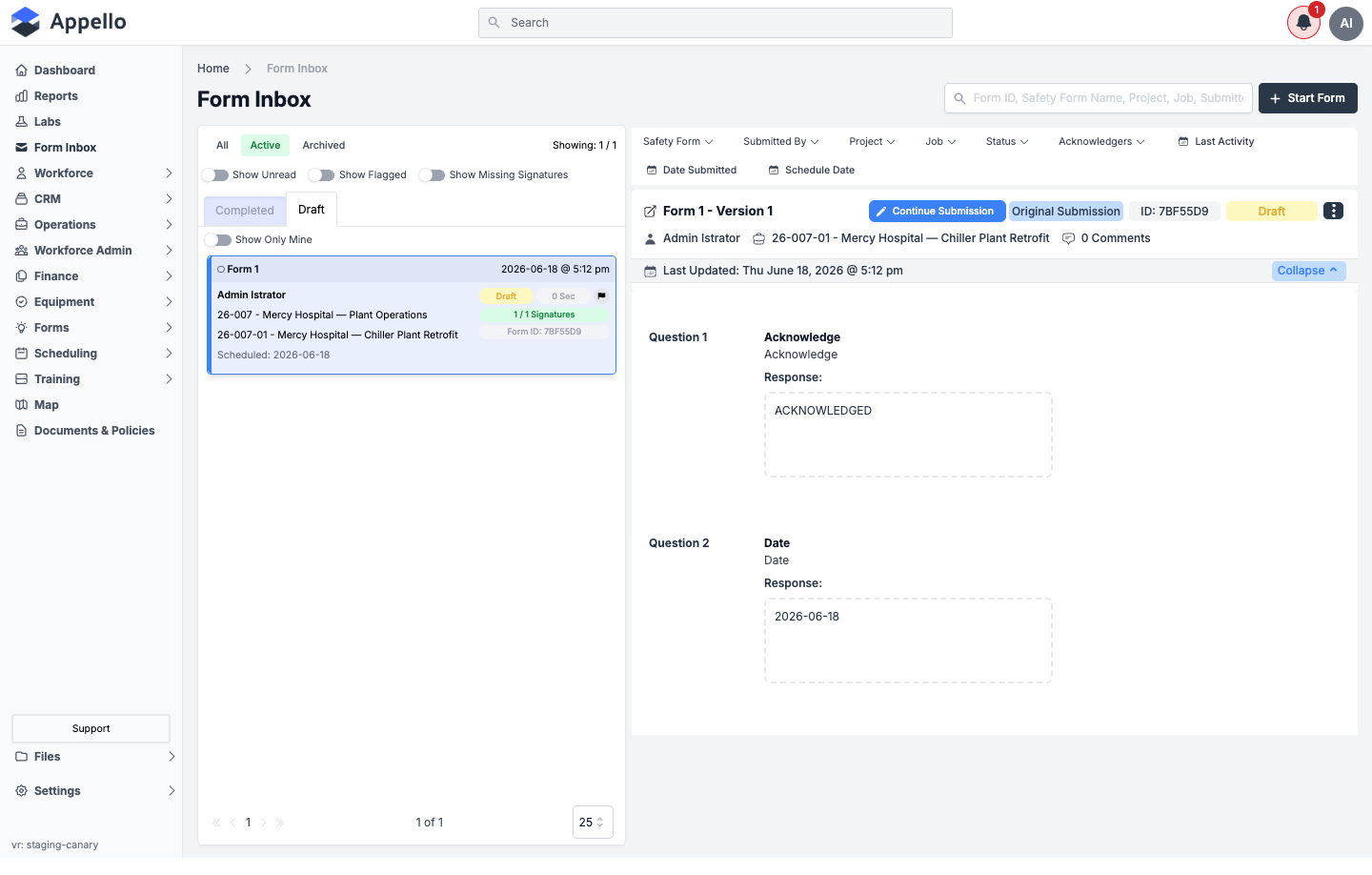
The screenshot above is the one populated submission available on this demo instance (a Draft). The Completed tab had no submissions to open, so the signature cards and the Resolve Form dialog described below are documented from source rather than a screenshot.
Signing Off on a Submission
Some forms require one or more people — in addition to whoever filled it out — to add an electronic signature before the submission is considered complete.
- Under Signatures, each required signer appears as a card showing either Signed Electronically Using PIN with a date, or Signature Required.
- If you're a required signer and haven't signed yet, click Add Signature and enter your PIN.
- From the submission list, click the signatures badge on any row (for example "1 / 2 Signatures") to see who has and hasn't signed yet without opening the full form.
Full detail on the signature cards themselves -- who's shown, in what order, and what a
required signer's Add Signature modal contains -- is documented in
Form Submission Detail → Acknowledgements and signatures
rather than repeated here, since it's the same FilledSafetyFormTab component embedded in both
pages.
Who gets notified: Appello uses an Acknowledge Feedback notification type (bell icon,
and SMS if your instance has Twilio configured) for form sign-off activity. Whether it's on by
default, who can override it personally, and its exact trigger/recipients are documented in
Notification Control System → Complete notification type reference.
Separately, the form template's own Recipients list gets emailed a copy of the submission
once it has a result -- either immediately, or only after every signature is in, depending on
the form's Wait for all signatures before sending setting in
Form Builder & Management → Settings tab. That
recipient email is sent directly from Feedback.ts, independent of the Notification Control
System above.
Resolving a Failed Submission
If a submission's result is Fail:
- Open the submission. A Failed Questions panel lists each question that failed — click one to jump to it.
- Investigate the issue on-site or with the crew, then click Resolve Failed Submission.
- In the Resolve Form dialog, fill in Resolution Details describing how the issue was investigated and fixed, and attach photos if needed.
- Enter your PIN and click Sign & Save.
| Field / Control | Required | Type | Effect |
|---|---|---|---|
| Resolution Details | Yes | Rich text (resolutionText) | Description of what was investigated and fixed. Sign & Save stays disabled until this is non-empty. |
| Supporting photos | No | Image gallery upload | Attached to the resolution record itself (not the original submission's answers). |
| Enter Employee Pin # | Yes | Password, 5 digits (Show/Hide) | Confirms your identity in place of a handwritten signature. |
| Cancel | -- | Button | Closes the dialog without saving anything. |
| Sign & Save | -- | Button | Disabled until the PIN is exactly 5 digits and Resolution Details is filled in. Calls the upsertResolution mutation described below. |
The submission's status changes from Fail to Resolved, and a Resolved by section records who resolved it, when, and what they wrote. Anyone can later Edit Resolution (same dialog, pre-filled) or Delete Resolution from that section's ⋮ menu -- Delete asks for confirmation first.
This dialog only ever appears on a Fail submission, and the canary demo instance used for
this crawl has zero completed submissions of any kind (see the note under
Reviewing a Submission), so it couldn't be opened and screenshotted
live without creating real Fail data on a shared instance. The field table above and the
behavior below are confirmed from source
(components/Forms/FeedbackResolveForm/FeedbackResolveForm.tsx,, not from a screenshot.
From source: Sign & Save calls upsertResolution, which creates or updates the Resolution
record and then calls Feedback.editItem(feedbackId, { result: "RESOLVED" }) -- the exact same
code path a first-time Pass/Fail submission goes through, so resolving also re-logs the
activity-feed entry and re-runs the recipient-email check above. Delete Resolution does the
reverse directly: it sets the submission's result back to Fail and deletes the Resolution
record, but it does so as a plain database update rather than through editItem, so it does
not re-trigger the activity feed, signatory connection, or recipient email that a normal
result change causes.
Row Actions
Every action below acts on one submission at a time -- see Bulk Actions above.
The Form Inbox opens each submission in the same FilledSafetyFormTab component used by
Form Submission Detail, so the
permission names are identical between the two pages:
| Action | Where | Permission | Effect |
|---|---|---|---|
| Open a submission | Click any card | View on the Form Submissions card | Loads it into the right-hand panel (or a full-screen flyout on mobile). Also marks it read. |
| View who's signed | Click a card's signatures badge | View on the Form Submissions card | Opens the signatories popup without opening the full submission. |
| Add Signature | Inside the opened submission | -- (any required signer) | See Signing Off on a Submission. |
| Resolve Failed Submission | Inside an opened Fail submission | -- (not separately gated; anyone with View on the Form Submissions card who can open the Fail submission can resolve it) | See Resolving a Failed Submission. |
| Add Signatories | ⋮ settings menu | Assign on the Form Submissions card | Adds more required signers. |
| Update Job | ⋮ settings menu | Update Job on the Form Submissions card | Reassigns the submission to a different job (clones it into a new revision). |
| View on map | ⋮ settings menu (only if GPS was captured) | -- | Opens Google Maps at the recorded coordinates. |
| Share Public Link | ⋮ settings menu | Share Public Link on the Form Submissions card | See Sharing a Submission. |
| Email Submission | ⋮ settings menu | Share Public Link on the Form Submissions card | Same permission as Share Public Link, not a separate one. |
| Export | ⋮ settings menu | -- | Downloads the submission as a PDF. |
| Archive | ⋮ settings menu | Archive on the Form Submissions card | See below. |
| Restore | ⋮ settings menu | Restore on the Form Submissions card | See below. |
| Delete | ⋮ settings menu (only once archived) | Delete on the Form Submissions card | See below. |
Archiving, Restoring, and Deleting Submissions
Every open submission has a settings menu (the ⋮ icon next to its status badge):
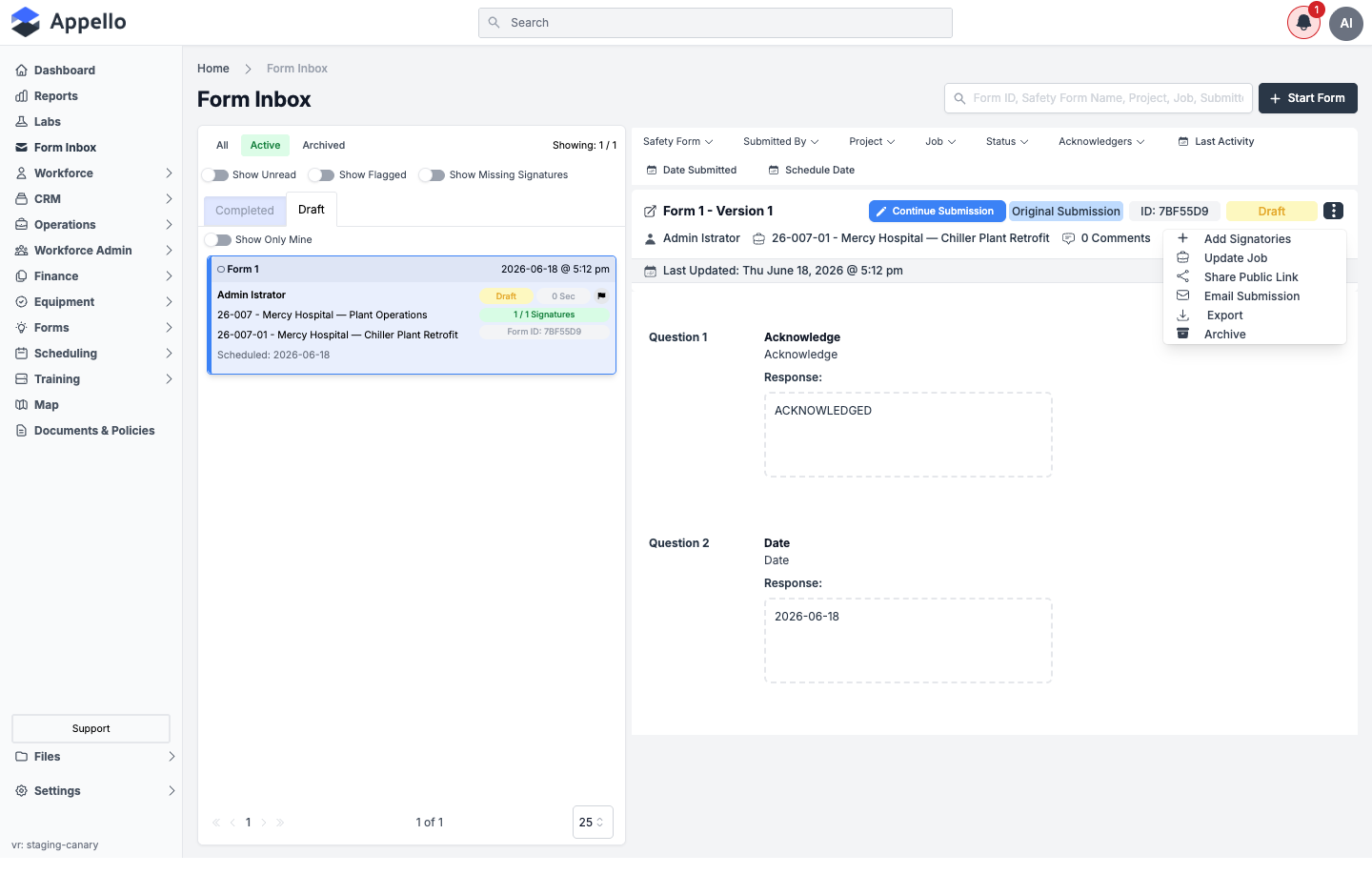
- Archive -- moves the submission out of the active list without deleting it.
- Restore -- brings an archived submission back to the active list.
- Delete -- permanently removes the submission. Only available once it's archived, and asks you to confirm before deleting.
Sharing a Submission
Also from the settings menu, you can:
- Share Public Link -- generates a link that anyone can use to view the submission without logging into Appello.
- Email Submission -- sends the submission directly to an email address.
Both options require the Share Public Link permission, and both are unavailable if the underlying safety form is marked as containing private data (unless you're already viewing the submission through a public link or a guest account).
Configuring a public link
- From the settings menu, click Share Public Link.
- In the Configure Public Link dialog, choose an Expiry Duration -- 1 Day, 3 Days, 1 Week (the default), or Never.
- Optionally set a Public URL Password. Click Show to reveal it while typing.
- Click Generate Public URL. The link is copied to your clipboard automatically, and also shown (and re-copyable) in the Generated Public URL field.
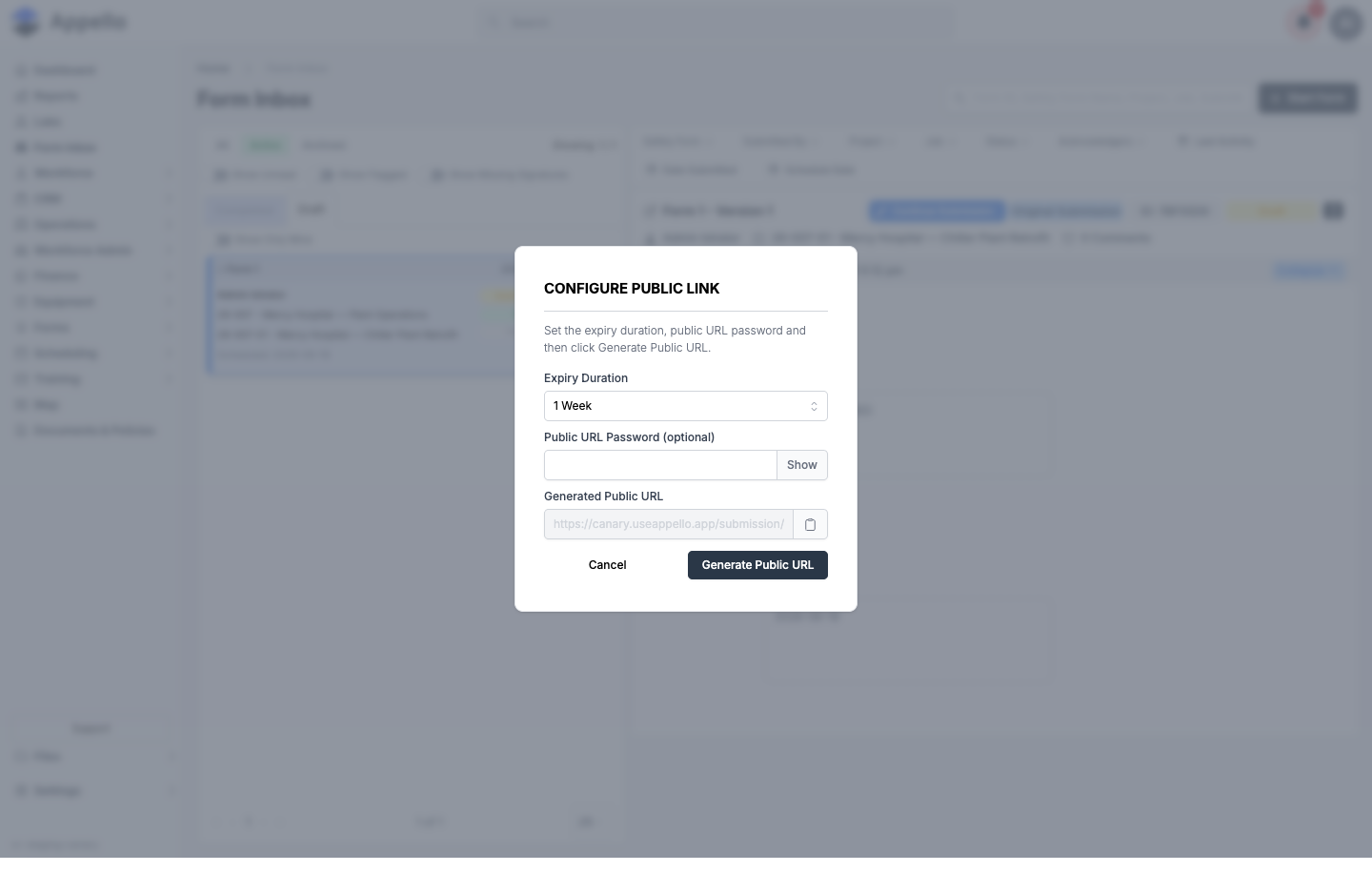
Changing the expiry duration or password after a link has been generated clears the previously generated URL -- click Generate Public URL again to get a new one.
What the recipient sees: opening the link loads a plain, logged-out page with just the Appello logo and the read-only submission -- its answers, attached photos, and signature status -- with no access to the rest of your Appello instance. If you set a password, the recipient is prompted for it before the submission is shown. This is effectively a lightweight customer portal view of a single submission, not a full customer portal login.
This walkthrough opened the dialog and confirmed its fields against the source code, but did not click Generate Public URL -- the canary instance used for these screenshots is shared, and generating a real public link was out of scope for documentation. The "what the recipient sees" description above is based on the public submission page's source, not a screenshot of a live link.
Both a shared link and the submission itself can also be exported as a PDF from the same settings menu (Export).
Starting a Form from the Office
The + Start Form button (top-right, requires Create on the Form Submissions card) opens a Select a Job to Continue dialog so office staff can start a form on a worker's behalf, rather than waiting for the field crew to submit it -- creating a Draft that opens straight into the fill-out flyout.
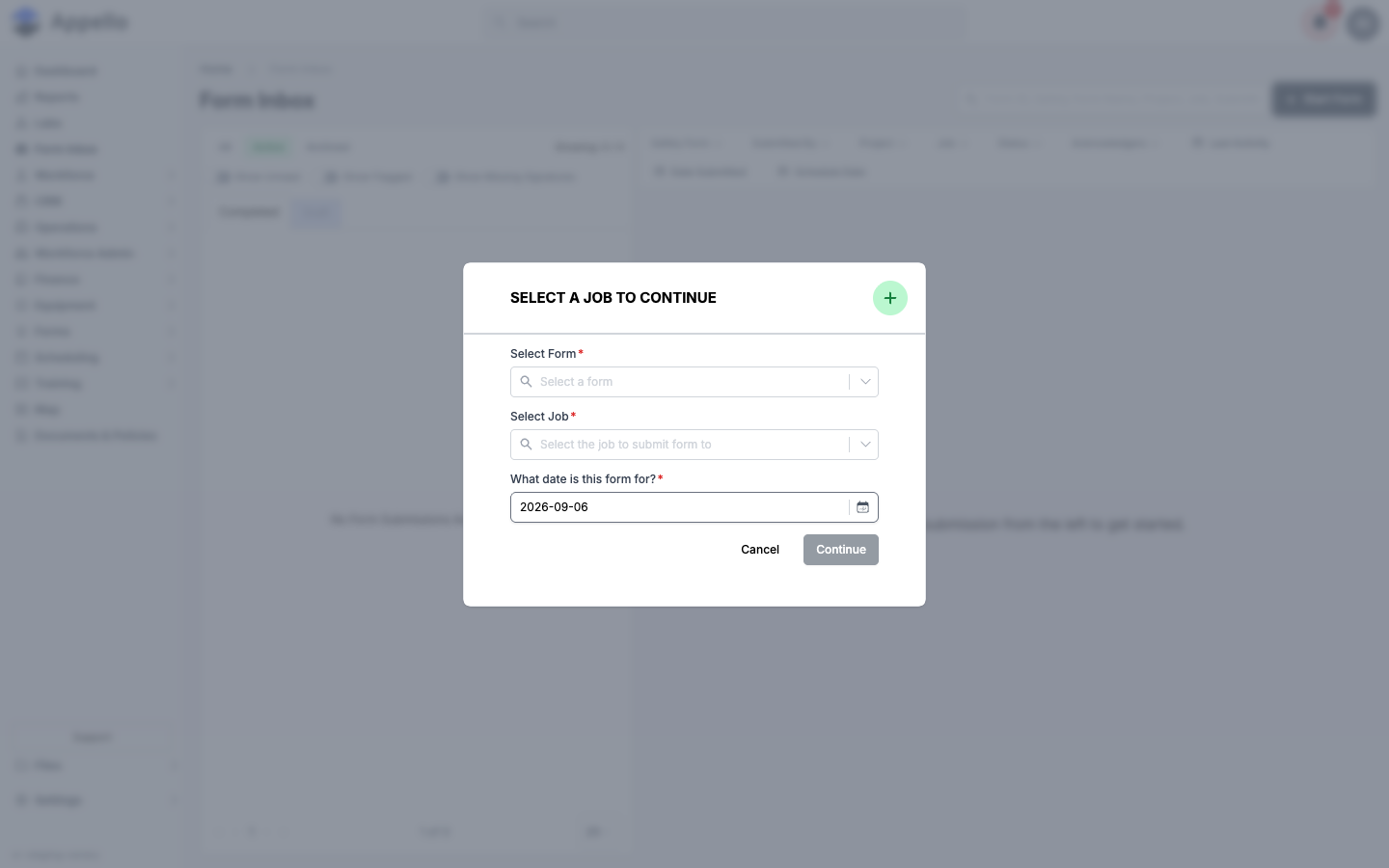
Every field in that dialog, and what happens on Continue, is documented once in
Form Submission Detail → Starting a submission from the desktop
rather than repeated here -- it's the same CreateSubmissionModal component, and Form Inbox's
+ Start Form is its only entry point in the product (it isn't available from the safety
form's own Form Management pages).
Form Attachments and Job Files
Photos and files a worker attaches to a form question are stored on that submission and show up wherever the submission is viewed -- in the opened submission in the Form Inbox, in the Export PDF, and in the files sent by Email Submission.
This tracker row asks whether those attachments also land automatically in the job's Files tab. Reading the current source, form-question attachments are stored against the individual answer, and the Job/Project Files tab queries files stored against the job or project directly -- confirming an automatic, guaranteed promotion into Job Files from source alone isn't possible from this codebase checkout, since the piece of the UI that captures a photo/file answer while filling out a form lives in a shared component library outside this repo. The existing Project Files page notes, more cautiously, that "completed form submissions...may attach files that appear here." Treat that as the safer, unconfirmed claim rather than a guarantee, until it's verified against a populated instance. No mobile behaviour is documented here for the same reason -- it could not be confirmed from source.
How Form Inbox Differs from Form Report
Both pages list submissions from the same Feedback records, filtered and rendered very
differently:
| Form Inbox | Form Report | |
|---|---|---|
| Layout | Two-pane card list + detail panel | Single flat table |
| Includes Drafts | Yes, on their own Draft tab | No -- only submissions with a final result |
| Personal state | Show Unread / Show Flagged / Show Only Mine, stored per-browser | None -- it's a shared, company-wide view |
| Missing-signature filter | Acknowledgers (a specific person) and Show Missing Signatures (a toggle) | Missing Acknowledgements (a single filter) |
| Sort | None (see Sort and Export) | Click a column header |
| Export | None | Export button, CSV of the current view |
| Custom saved views | None | Add New table view with a configurable column set |
| Typical use | "What do I personally need to review or sign off on today?" | "Show me every submission for this form/date range/worker, for an audit or export." |
If you came here from Form Report → Viewing a Submission, that link opens the exact same single-submission view described in Reviewing a Submission above and in Form Submission Detail, just at its own URL instead of in this page's side panel.
Permissions
| Permission | Controls |
|---|---|
| View on the Form Submissions card | The Form Inbox sidebar item and route; opening any submission; the signatures-badge popup. |
| Create on the Form Submissions card | The + Start Form button. |
| Assign on the Form Submissions card | Add Signatories. |
| Update Job on the Form Submissions card | Update Job. |
| Share Public Link on the Form Submissions card | Share Public Link and Email Submission (one permission gates both). |
| Archive on the Form Submissions card | Archive. |
| Restore on the Form Submissions card | Restore. |
| Delete on the Form Submissions card | Delete (only offered once a submission is archived). |
Signing (Add Signature) and resolving (Resolve Failed Submission) aren't gated by a separate permission in source -- see Row Actions. A safety form marked as containing private/sensitive data additionally disables Share Public Link and Email Submission for anyone viewing it as a regular internal user, regardless of permissions (it stays available if you're already viewing through a public link or a guest account).
Related Pages
- Form Submission Detail and Sharing -- the same single-submission view at its own URL, with the full field-by-field breakdown of answers, signatures, and every dialog on the ⋮ settings menu
- Form Report -- the company-wide, exportable, sortable alternative to this page -- see How Form Inbox Differs from Form Report
- Form Builder & Management — Build forms and assign mandatory forms to jobs, including the Recipients and Wait for all signatures before sending settings referenced above
- Notification Control System -- how the Acknowledge Feedback notification type is configured and who can override it
- Project Files tab -- Where uploaded project and job files live, and how folders and visibility work