Dispatch Board
Module: Scheduling | Platform: Web
The Dispatch Board is a fourth scheduling view built specifically for short service and time-and-material (T&M) work: a grid of technicians down the side and days (or hours, in Day view) across the top. Drag a Job or Work Order from the unassigned rail onto a technician's day or hour to dispatch it -- there's no separate "assign worker" step like the other views.
This documentation is for the desktop web application. The Dispatch Board has no mobile equivalent -- dispatched technicians see the resulting assignment on the My Schedule page of the mobile app, the same as any other scheduling assignment.
Navigation
Sidebar → Scheduling → Dispatch Board
URL: /scheduling/dispatch
Before you start
Viewing the Dispatch Board requires Job Schedule, User Schedule, and Job view permissions -- without all three the page shows "You are not authorized to view this page" instead of loading. The Schedule + button (below) additionally requires the allow editing future and allow editing past permission on both Job Schedule and User Schedule; without them the button doesn't render.
Confirmed from source: dragging a card from the rail, painting a range on an empty row, and resizing or moving an existing bar have no separate permission check of their own in the Dispatch Board's code -- only the Schedule + button is explicitly gated. In practice a user without scheduling permissions is unlikely to reach this page with write access at all, but the drag interactions themselves aren't the enforcement point.
Overview
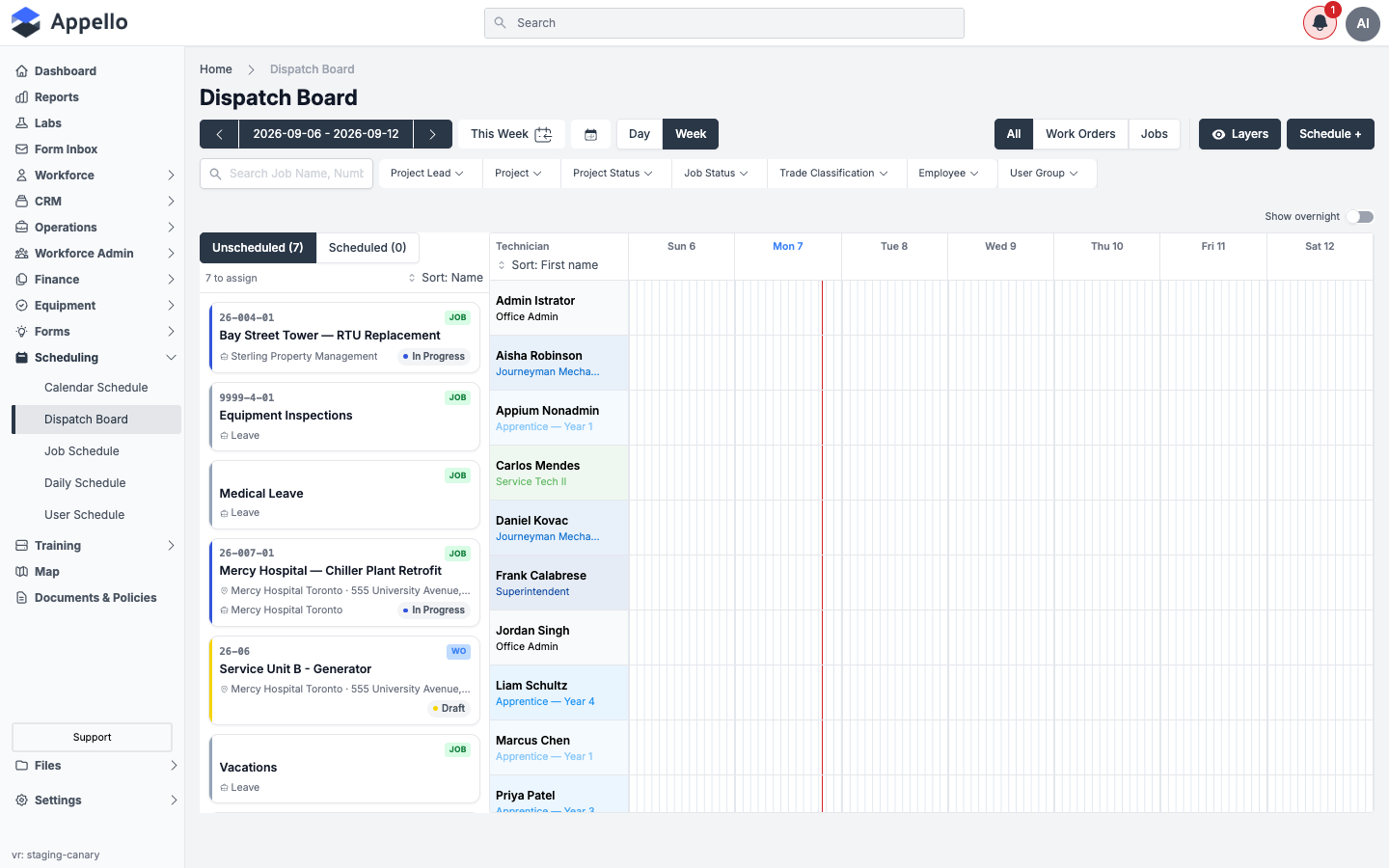
The board has two parts:
| Area | Description |
|---|---|
| Unassigned rail | A panel of draggable cards for every Job and Work Order that isn't fully scheduled yet, plus a tab for what's already scheduled. |
| Technician grid | One row per technician, one column per visible day. Each cell is a drop target and a time axis -- where you drop or paint a range determines the time of day. |
Every block on the board -- in the rail or on the grid -- shows the same title pair: the Job or Work Order number (a link that opens the record in a new tab) over its name.
Choosing the day
| Control | Effect |
|---|---|
| Day / Week toggle | Switches between a single day stretched across the full width, and a 7-day week. |
| ◀ / ▶ arrows | Move back or forward one day (Day view) or one week (Week view). |
| Today | Jumps back to the current day or week. |
| Calendar icon | Opens a date picker to jump to a specific date. |
| Click a day's column header (Week view) | Switches to Day view for that day. |
| Show overnight toggle | Extends the visible hour window past midnight so you can drag-create a shift that runs into the early morning. |
Day view adds hour labels across the top and finer (15-minute) gridlines, which makes it easier to drop an assignment on a precise time. In Week view, each day's column still represents the same time-of-day window -- there just isn't room to print hour labels, so where you drop within a day column still sets the start time; Day view is easier to use when the exact hour matters.
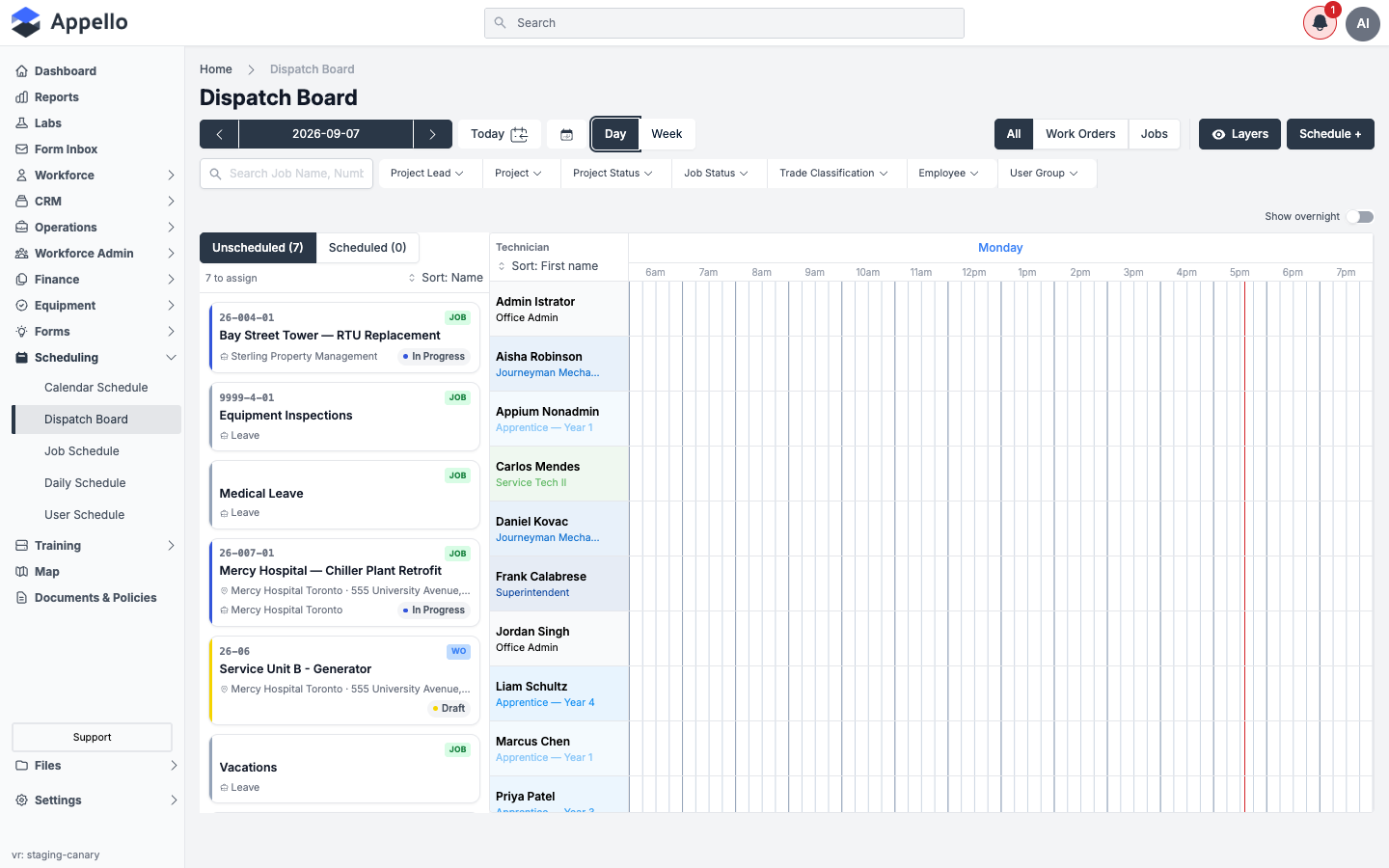
A red vertical line marks the current time on today's column in both views.
Filtering and finding work
| Control | Effect |
|---|---|
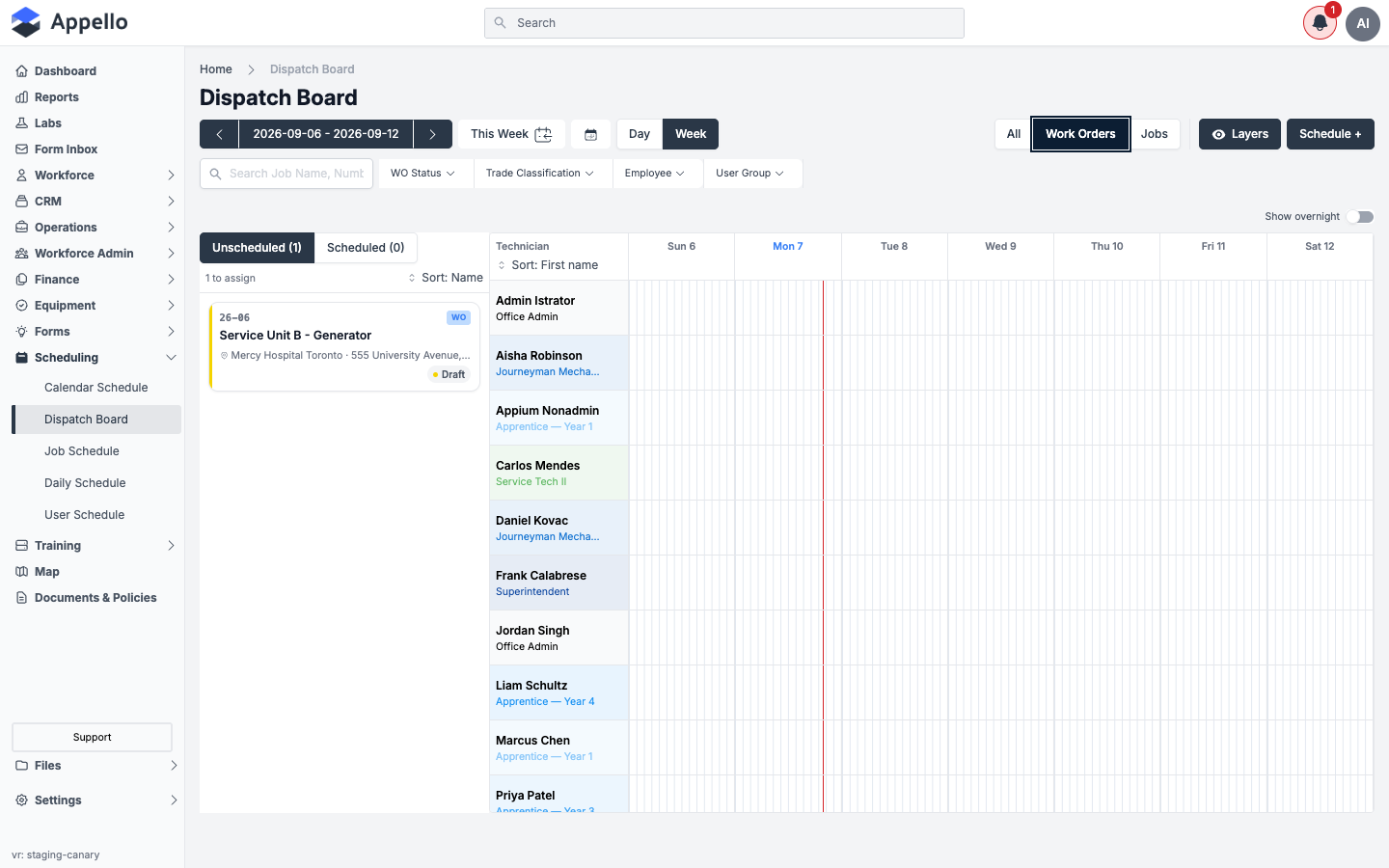
| All / Work Orders / Jobs | Restricts both the rail and the grid to one classification. This is the same shared filter used on the Calendar Schedule. |
| Search Job Name, Number | Filters the rail by job number, name, customer, or site. |
| Project Lead / Project / Project Status / Job Status / Trade Classification / Employee / User Group | Standard scheduling filter dropdowns, narrowing which technicians and jobs appear. |
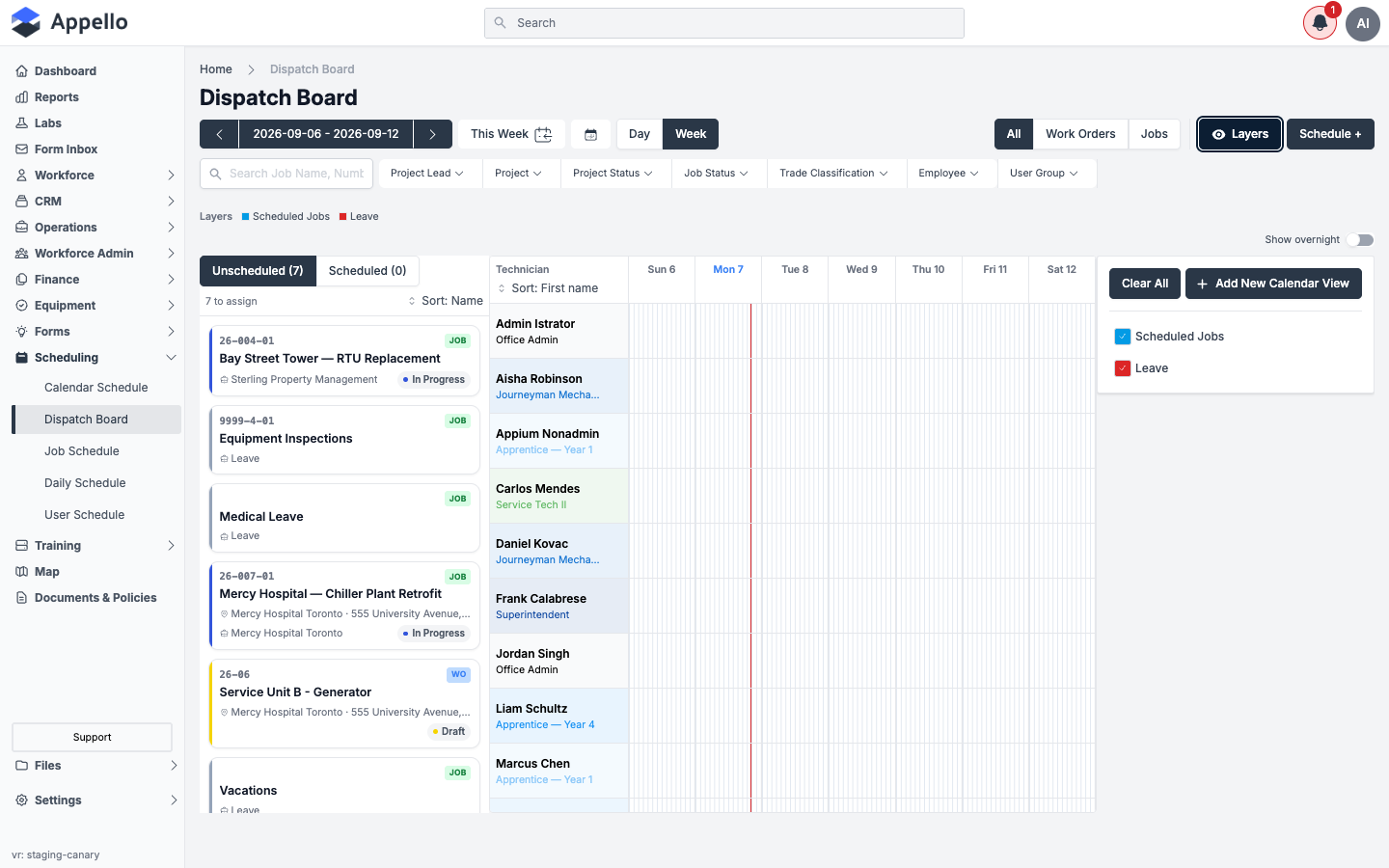
| Layers | Opens a panel listing the calendar-view "layers" (e.g. Scheduled Jobs, Leave) with checkboxes and a colour legend, so you can hide a layer or read what a bar's colour means. |
Each technician row also shows a running total of booked hours for the visible days. If a single day's total exceeds 8 hours, that day's hour badge turns amber as an over-capacity warning.
The 8-hour threshold is a fixed placeholder in the current build, not a per-technician setting -- it isn't read from contracted hours or an availability record.
Colour and status
Every coloured element on the board maps to one of these:
| Element | Where | Meaning |
|---|---|---|
| Left-edge colour on a bar or rail card | Grid bars, rail cards | The Work Order's Calendar View ("layer") colour. Falls back to the job's status colour when no layer is set. |
| Layers legend | Layers panel | Lists every visible layer with its colour swatch -- the same colours used on the bars. See Filtering and finding work. |
| Status pill | Rail cards only | The job/WO status label (e.g. Draft, Approved). Uses a semantic tone for a handful of known statuses, else a neutral grey dot in the job's own status colour. |
| People-count badge (a small number with an icon) | Timed bars with multiple techs | Shown when more than one technician is scheduled to that job on that day. |
| Red outline + warning icon | Timed bars | The technician is double-booked -- this bar overlaps another booking of theirs on the same day. See All-day items and conflicts. |
| Hour badge (day column, week view) | Top-right of each day's cell | Total hours booked for that technician on that day. Turns amber past 8 hours (see note above). |
| Hour badge (technician row) | Top-right of the name column | Total hours booked for that technician across the visible days (the whole week in Week view, the single day in Day view). |
The Dispatch Board does not check technician certifications or trade-level requirements against the job before allowing an assignment -- it only warns about approved leave and double-booking, both covered under All-day items and conflicts.
The unassigned rail
The rail on the left edge of the board (visible in the Overview screenshot above) has two tabs:
- Unscheduled -- Jobs and Work Orders with no technician assigned anywhere in the visible week.
- Scheduled -- Jobs and Work Orders that already have at least one technician assigned in the visible week.
Each tab is counted, and a Sort dropdown reorders the list by name, job number, customer, hours, or status. Every card shows the job/WO number, name, site, customer, an hours estimate when one exists, and a status pill. Clicking the job number opens that record in a new tab; clicking anywhere else on the card picks it up to drag.
Assigning a job or work order to a technician
There are three ways to schedule work from the board:
Drag a card from the rail
- Press and drag a card from the Unscheduled tab of the rail.
- Drop it on the target technician's row, on the day (Week view) or hour (Day view) you want.
The technician is assigned immediately on drop -- there's no confirmation panel for this path. If the technician already has approved time off that day, the board warns you before completing the assignment.
Paint a time range on an empty row
-
On an empty part of a technician's row, press and drag left to right across the hours you want.
-
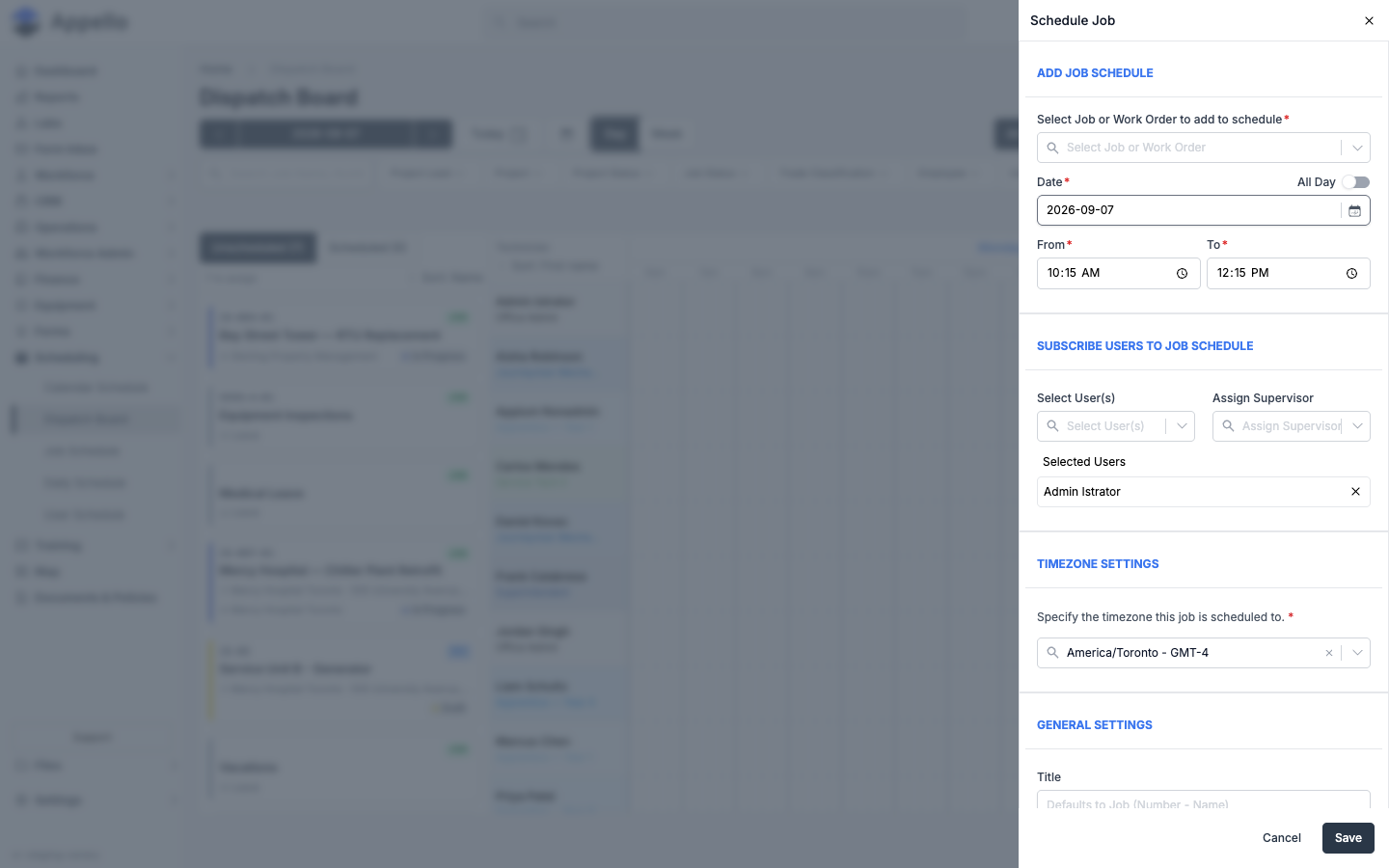
Release. The Schedule Job panel opens, pre-filled with that technician, the date, and the start/end time you painted -- the Job/Work Order field is left for you to fill in.
-
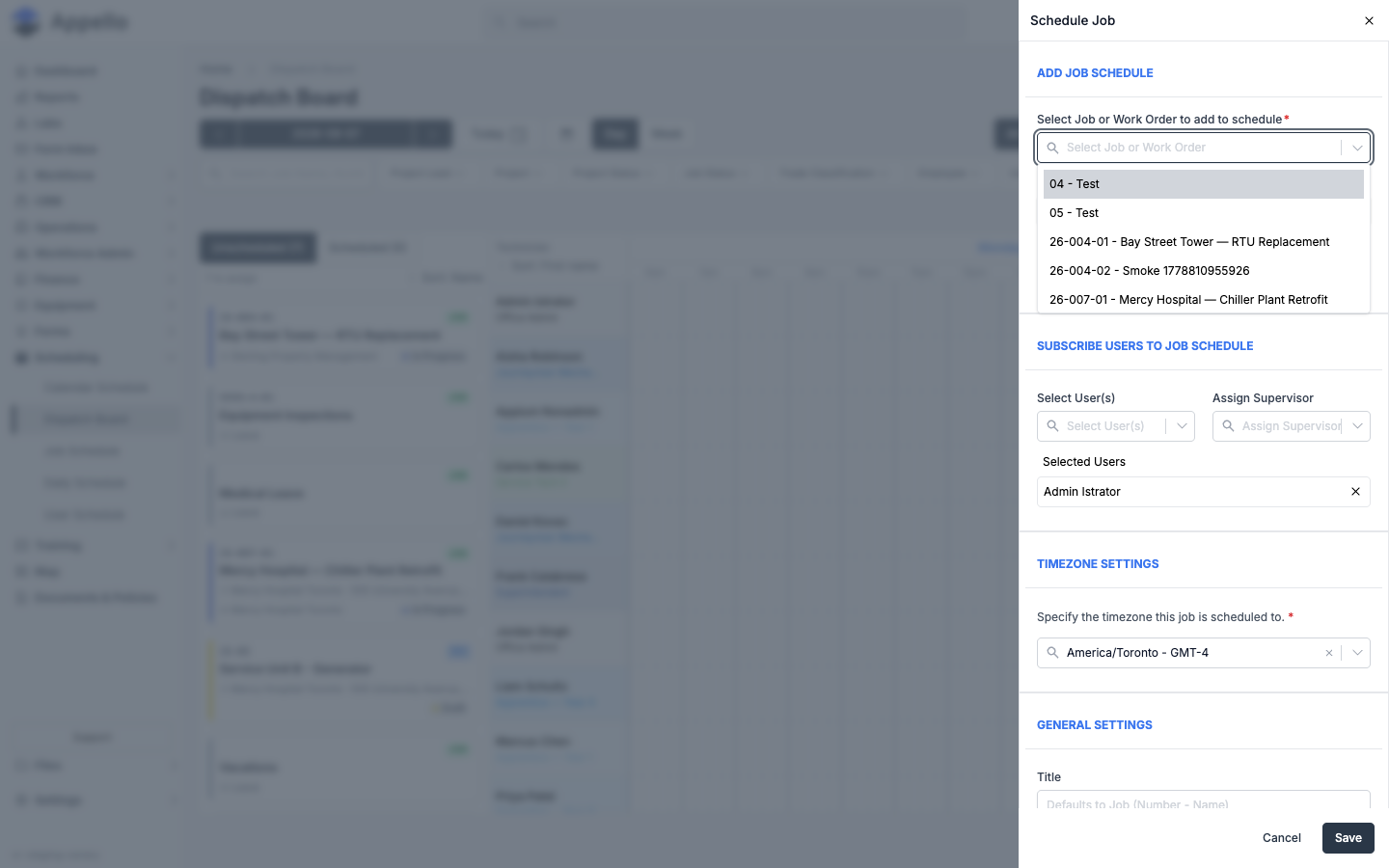
Search and select the Job or Work Order to schedule.
-
Adjust any other fields (crew, supervisor, timezone, title) and click Save.
A plain click with no drag on empty space does nothing -- you have to paint an actual range to open the panel. Clicking directly on an existing assignment bar instead opens the same panel to edit that assignment's date, time, and crew.
The Schedule + button
The toolbar's Schedule + button (top right, next to the classification filter) opens the same Schedule Job panel with nothing pre-filled except today's date -- use it when you'd rather pick the job, date, and crew from dropdowns than drag on the grid.
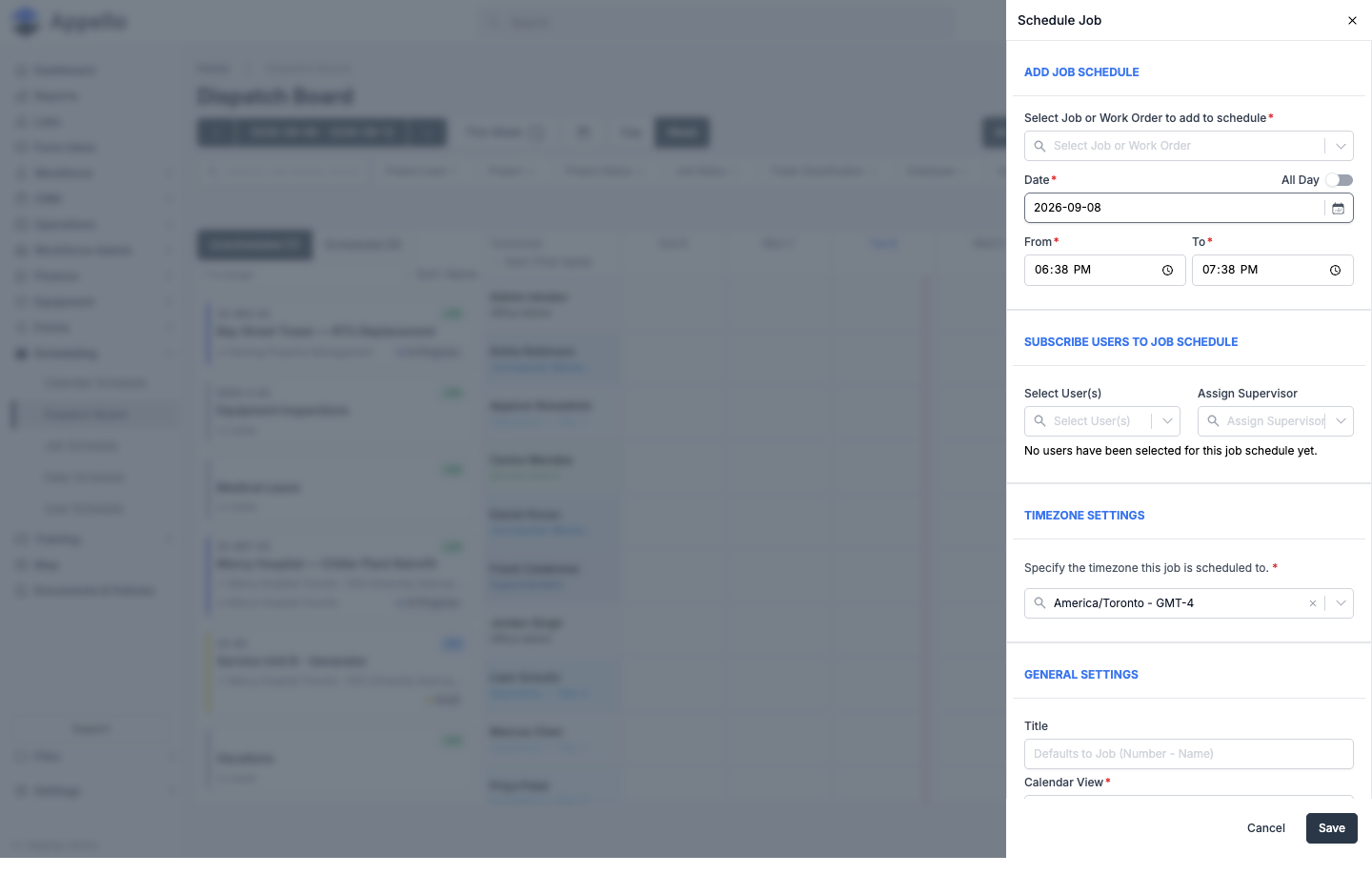
| Field | Section | Notes |
|---|---|---|
| Select Job or Work Order to add to schedule | Add Job Schedule | Required. Searches across both Jobs and Work Orders regardless of the board's classification filter. |
| Date | Add Job Schedule | Required. One date per schedule -- see Multi-day and repeat scheduling below. |
| All Day | Add Job Schedule | Toggle. When on, hides From / To and books the whole day. |
| From / To | Add Job Schedule | Required unless All Day is on. |
| Select User(s) | Subscribe Users to Job Schedule | Add any number of technicians to this schedule in one save. |
| Assign Supervisor | Subscribe Users to Job Schedule | Optional. Marks one user as the field supervisor for this schedule. |
| Specify the timezone this job is scheduled to | Timezone Settings | Required. Defaults to the browser's detected timezone. |
| Title | General Settings | Optional. Defaults to the job's number and name if left blank. |
| Calendar View | General Settings | Required. The "layer" this schedule belongs to -- sets the bar's colour (see Colour and status). |
| Description | General Settings | Optional. Rich-text editor. |
Select User(s), Assign Supervisor, Title, and Description are the same fields and behavior documented in full on Calendar Schedule -- Scheduling Multiple Workers at Once and Notes on a Scheduled Assignment -- this is the identical Schedule Job panel, just opened from the Dispatch Board's toolbar instead of the calendar grid.
Moving and resizing an assignment
Canary's current data set has no timed (scheduled) assignments to demonstrate here, so this section is written from the source behavior rather than a live screenshot. The layout, filters, and creation flow above were all confirmed against the live board.
Once a job is on the board as a time-positioned bar, you can adjust it in place:
- Drag the body of a bar to move it -- to a different hour, a different technician, or a different day. Dropping it back onto the rail unassigns that technician instead.
- Drag the left or right edge of a bar to resize it, changing its start time or duration without moving the other end. Both drag types snap to 15-minute increments, and a small tooltip on the dragged edge shows the resulting time and duration as you go.
- Alt-drag copies the assignment instead of moving it -- it adds the target technician to the job without removing the technician you dragged from.
If several technicians are already scheduled to the same job on the same day, they share one time slot. Dragging one of them to a new time moves everyone on that slot; adding another technician to an already-scheduled job/day assigns them to the existing time rather than resetting it.
Unassigned items
"Unassigned" work shows up in two places on the board:
- The rail's Unscheduled tab -- a Job or Work Order with no technician on it anywhere in the visible week.
- A technician's empty row -- simply the absence of a bar. There's nothing to click; drag a card there to fill it.
To remove a technician from a job, hover their assignment bar and click the small × that appears in its corner, or drag the bar back onto the rail -- both unschedule that technician from that job/day without deleting the job itself.
All-day items and conflicts
Jobs, Work Orders, or leave with no specific time of day (for example a full-day Work Order, or approved Leave) sit in a dashed all-day strip above the hourly grid for that day, mirroring the All Day row on the Calendar Schedule.
When two timed bars for the same technician overlap, both still render side by side instead of hiding one another, and each gets a red outline and a warning icon so the double-booking is easy to spot. A bar with more than one technician scheduled shows a small people-count badge instead.
Dropping or painting a booking onto a technician who already has approved time off that day shows a confirmation dialog with the leave details -- you can still proceed. Scheduling the same job or Work Order twice on the same date is not possible: the board resolves and reuses the one schedule that already exists for that job on that date rather than creating a second one. See Double-Booking Indicators and Conflict Warnings for how this compares to the other scheduling views.
Multi-day and repeat scheduling
The Dispatch Board has no control for booking a continuous date range or a recurring shift in one action. Every drag, paint, or Schedule + save books exactly one job on exactly one date. Resizing a bar can stretch it up to 24 hours (enough to cover an overnight shift that starts one day and ends the next -- see Show overnight), but it stays anchored to its start day and cannot span two full calendar dates end to end.
To schedule the same job across several dates, repeat the drag/paint/Schedule + action once per date, or use one of the multi-day tools on the other scheduling views -- see Multi-day Scheduling on the Scheduling Overview page for what's available on Job Schedule, Calendar Schedule, and Daily Schedule.
Bulk actions, notifications, print, and export
None of these exist on the Dispatch Board:
| Capability | Status |
|---|---|
| Bulk actions (multi-select, batch move/unassign) | Not available. Every drag, resize, and unschedule acts on one technician's one booking at a time. |
| Publishing or notifying the crew | There is no publish/notify step or button. Creating, moving, or unscheduling a booking does not send a push notification or SMS -- see Schedule Change Notifications on the Scheduling Overview page. A technician sees the change because their mobile My Schedule reads live data when they open it. General notification preferences (unrelated to schedule changes) are managed on Notification Control. |
| Print / Export | Not available on this view. (The Calendar Schedule's export control is explicitly turned off for the Dispatch Board.) |
How the Dispatch Board relates to other scheduling views
| View | Focus | Best for |
|---|---|---|
| Dispatch Board | Technician × day/hour, drag-to-assign | Short service and T&M work -- "who's free at 2pm, and can I put this job on them right now?" |
| Job Schedule | Projects & Jobs | "Who's on each job this week?" |
| Calendar Schedule | Dates | "What's happening on Tuesday?" |
| User Schedule | Workers | "Where is Dave Mitchell assigned?" |
All four views read and write the same underlying schedule data -- an assignment created by dragging on the Dispatch Board immediately shows up on the Job Schedule, Calendar Schedule, and the technician's mobile app.
Related Pages
- Scheduling Overview -- How the scheduling views fit together, and the full breakdown of what does (and doesn't) notify workers
- Job Schedule -- Multi-week project and job timeline grid
- Calendar Schedule -- Date-centric calendar view, and the shared Schedule Job panel's full field reference
- User Schedule -- Worker-centric schedule view
- Notification Control -- General notification preferences (does not cover schedule-assignment changes)
- Schedule and Clock-In (Mobile) -- Where a dispatched technician sees the resulting assignment