Dropbox Sign E-Signature
Module: Settings | Platform: Web
Dropbox Sign is the electronic-signature provider behind Appello's HR onboarding paperwork. Connecting your instance to your company's own Dropbox Sign account lets Appello import your Dropbox Sign templates, group them into document packages, and send them out for signature from Workforce Admin → Onboarding Documents. This page covers the connection itself -- how an admin links Appello to Dropbox Sign, what that connection looks like once it's live, and how to disconnect it. For building document packages and sending them to new hires, see Onboarding Documents.
Dropbox Sign is switched off on the demo instance used to research this page -- it's an instance setting your Appello administrator or Appello support can enable, not something an admin toggles from within Appello. With it off, the Human Resources Integration entry doesn't appear in the Settings tab list at all -- see the screenshot below of the live Settings panel, captured with the integration off, confirming it's simply missing from the list. Everything below -- field names, button labels, permissions, and event handling -- is described from Appello v1.33 instead. If your instance has Dropbox Sign turned on, the screens should match what's described here.
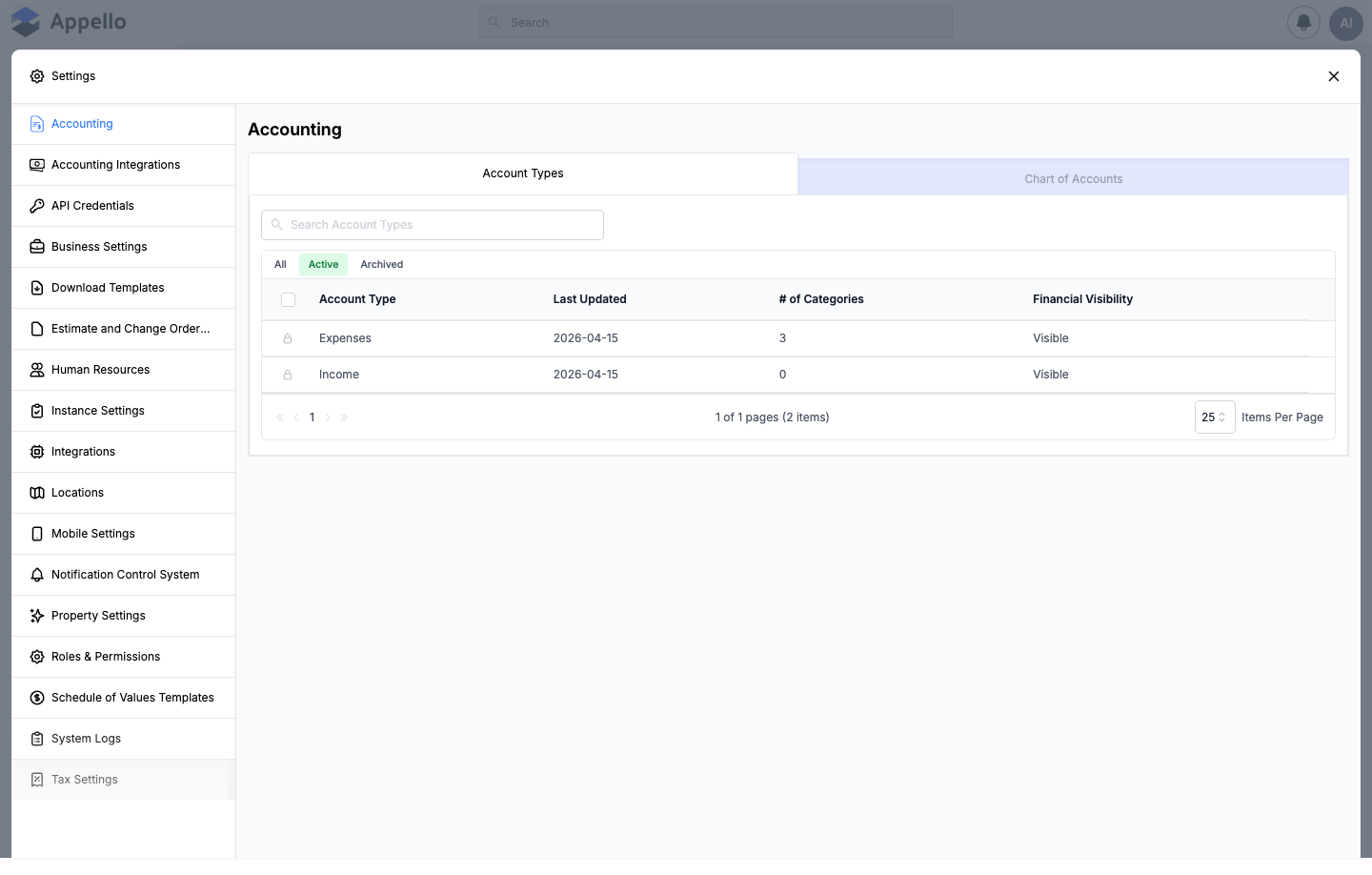
Is this self-serve?
Connecting the account itself is self-serve, but it takes two separate permissions layered on top of each other (see Permissions for the exact keys):
- System Settings view -- the same permission that gates Settings → Integrations, Settings → API Credentials, and Settings → System Logs -- controls whether Human Resources Integration shows up in the Settings menu at all.
- Once inside, the Dropbox Sign Connection Status tab (where the Connect/Disconnect button lives) has its own, separate gate: the create permission on document packages -- the same permission that lets a role create packages under Onboarding Documents. Without it, a user can open Human Resources Integration but won't see the Connection Status tab or its Connect button.
A role with both can run through Dropbox Sign's own OAuth consent flow without any help from Appello staff. What Appello staff have to do first is turn the Dropbox Sign integration on for your instance and register the connection credentials it uses. If Human Resources Integration isn't in your Settings menu, ask Appello to enable it for your instance -- once it is, the connect/disconnect step is yours to run.
Before you start
- A role with System Settings view permission, to see Human Resources Integration in the Settings menu, and the create permission on document packages, to see the Dropbox Sign Connection Status tab and its Connect/Disconnect button once inside. See Permissions below.
- Your own Dropbox Sign account -- Appello doesn't create one for you. When you click Connect, you'll sign in to Dropbox Sign directly and approve Appello's request; Appello never sees your Dropbox Sign password.
- Dropbox Sign turned on for your instance (see above). This also controls whether Onboarding Documents and Onboarding Users appear under Workforce Admin in the sidebar -- both are hidden when the integration is off.
Navigation
Sidebar → Settings → Human Resources Integration. Settings opens as an overlay panel over whatever page you're on -- there is no separate URL for it (see the screenshot above, taken from that same overlay).
Controls
| Control | Tab | Description |
|---|---|---|
| Dropbox Sign Connection Status tab | Dropbox Sign Integration | Shows the connection fields and the Connect/Disconnect button. Gated by the document package create permission. |
| Dropbox Sign Logs tab | Dropbox Sign Integration | Read-only log of the status events Dropbox Sign reports back. Gated by the Audit view permission. |
| Client ID field | Connection Status | Read-only, masked. See Connecting. |
| Environment field | Connection Status | Read-only. Always shows Testing -- see the note under Connecting. |
| Is Access Token Valid field | Connection Status | Read-only. True/False. |
| Connection status indicator | Connection Status | Read-only dot + label. See Connection statuses. |
| Connect to Dropbox Sign button | Connection Status | Shown when not connected. Opens Dropbox Sign's OAuth authorization page in a new tab. |
| Connection Pending... button | Connection Status | Shown while a connection attempt is in progress. Disabled -- not clickable. |
| Disconnect from Dropbox Sign button | Connection Status | Shown once connected. Clears the stored tokens and stops the token-refresh scheduler. |
| Show / Hide (Response column) | Logs | Expands or collapses the full details recorded for one event row. |
| Go to Dashboard button | Connection success page | Returns to the app after a connection attempt, success or failure. |
| support team link | Connection success page | Opens Appello's in-app support widget. |
Connecting Appello to Dropbox Sign
-
Open Settings → Human Resources Integration. This opens the Dropbox Sign Integration screen, with Dropbox Sign Connection Status and Dropbox Sign Logs tabs.
-
On Dropbox Sign Connection Status, review the current state:
Field Description Client ID Your instance's Dropbox Sign OAuth client ID, masked except for the last four characters. Environment Always reads Testing in this version of the app -- see the note below. Is Access Token Valid True once a working access token is stored, False otherwise. Connection status A colored dot plus label -- see Connection statuses below. noteThe Environment field is fixed to display Testing regardless of whether your instance is actually connected to a live Dropbox Sign account -- it always shows that default and never updates from the real connection state. Don't rely on it to tell you which environment you're connected to.
-
Click Connect to Dropbox Sign. Appello opens Dropbox Sign's own authorization page (
app.hellosign.com/oauth/authorize) in a new browser tab. -
Sign in to your Dropbox Sign account and approve the request.
-
Dropbox Sign redirects you back to Appello's connection-success page. Appello exchanges the authorization code for an access token and looks up the connected account to confirm it worked:
- Success -- a checkmark, "Dropbox Sign Connection Successful," and a message naming the connected Dropbox Sign account's email address. Click Go to Dashboard to continue, or use the support team link if something looks wrong.
- Failure -- an X, "Dropbox Sign Connection Failed," and a generic message asking you to try again.
-
Back on Dropbox Sign Connection Status, the status dot should now read Connected.
Once connected, Appello refreshes the access token automatically in the background so the connection stays live without you having to reconnect.
Connection statuses
| Status | Dot color | Meaning |
|---|---|---|
| Connected | Green | A valid access token is on file and signature requests can be sent. |
| Pending | Yellow | A connection attempt is in progress. The action button reads Connection Pending... and can't be clicked. |
| Connection Expired | Yellow | The stored token has expired and needs reconnecting. |
| Not Setup | Gray | No connection has ever been made. |
| Disconnected | Gray | Previously connected, then manually disconnected. |
| Error / Setup Failed | Red | The connection attempt or a token refresh failed. |
Templates pulled from Dropbox Sign
Once connected, Appello doesn't keep its own copy of your Dropbox Sign templates -- it reads them live from your connected Dropbox Sign account every time it needs the list. For each template it picks up:
- Its title and the documents it contains.
- Its signer roles, in order.
- Its prefillable custom fields -- the merge fields Appello can fill in automatically.
- Whether the template is locked in Dropbox Sign.
Looking up one specific template (rather than the full list) is cached briefly -- so a change you just made to a template in Dropbox Sign can take up to 30 seconds to show up back in Appello.
This is the raw material for document packages: a package is a named group of one or more of these templates, built and sent from Workforce Admin → Onboarding Documents. See Onboarding Documents for creating packages, mapping merge fields, and sending them -- this page only covers where the templates themselves come from.
Signature requests and status webhooks
Once a package is sent, Dropbox Sign notifies Appello of every status change on that request, and Appello processes each notification in the background. It recognizes and acts on seven event types:
| Dropbox Sign event | What Appello does with it |
|---|---|
| Signature request sent | Marks the request (and each signer's row) Sent. |
| Signature request viewed | Marks the signer Viewed and records when they last opened it. |
| Signature request signed | Marks that signer Signed and records the timestamp; moves the overall request to In Progress. |
| Signature request declined | Marks the declining signer's row Declined. |
| Signature request expired | Marks the request and its unsigned signers Expired. |
| Signature request reminder | Marks the request Reminder Sent and records when the reminder went out. |
| All signers signed (completed) | Marks the whole request Completed and fills in any signer rows the individual "signed" events might have missed. |
Each of these also lands as its own row in the Dropbox Sign Logs tab below. The signer-level statuses these events drive show up on the signature-request table in Onboarding Documents and Onboarding Users, not on this page.
Dropbox Sign Logs
The Dropbox Sign Logs tab (requires the Audit view permission) is a read-only table of the status events Dropbox Sign has reported to Appello -- signature sent, viewed, signed, declined, and so on -- sorted newest first by event timestamp.
| Column | Description |
|---|---|
| Event Type | The Dropbox Sign event name (e.g. a signature-request lifecycle event). |
| Response | The full details Dropbox Sign reported, collapsed -- click Show to expand it. |
| Message | A human-readable message for the event, if one was recorded. |
| Status | A Success or Error badge, based on whether the event carried an error. |
| Event Timestamp | When Dropbox Sign recorded the event. |
This is a troubleshooting view for the connection itself, not for tracking individual signature requests -- for that, use the signature-request table described in Onboarding Documents.
Test mode
The Onboarding Documents send flow has a per-request Test Mode toggle, covered in Onboarding Documents -- that's the control most admins will use. Separately, there is also an instance-wide test-mode setting that, when turned on, forces every signature request through Dropbox Sign's test mode regardless of that per-request toggle. That instance-wide switch isn't exposed on this screen -- if you need it changed, ask your Appello administrator or Appello support.
Sending your first package
Once the connection shows Connected, sending your first signature request is a separate flow on a different screen -- Workforce Admin → Onboarding Documents and Workforce Admin → Onboarding Users, both of which only appear in the sidebar once Dropbox Sign is active. In outline:
- Build a package at Workforce Admin → Onboarding Documents: click Create Document Package, name it, and search for and select one or more of the Dropbox Sign templates pulled in above.
- Send it at Workforce Admin → Onboarding Users (or from the package's own Signature Request History tab): click Send Document, pick the package, assign an Appello user to each signer role, optionally turn on Test Mode, and click Send Signature Request.
- Track it: the request shows up on the signature-request table with a status badge that updates live as the status events above come in.
See Onboarding Documents for the full step-by-step -- creating packages, mapping merge fields, and the send flow -- and Onboarding Users for tracking, resending, and cancelling requests across every employee and package.
Disconnecting
Once connected, the action button on Dropbox Sign Connection Status changes to Disconnect from Dropbox Sign. Clicking it clears Appello's stored access and refresh tokens, sets the connection status to Disconnected, and stops the background token refresh described above.
Disconnecting only removes Appello's own copy of the access token -- it doesn't revoke the authorization on Dropbox Sign's side. If you want to fully revoke Appello's access, also remove the connected app from your Dropbox Sign account's own settings.
Where signed files end up
Signed documents live in Dropbox Sign, not in Appello -- this connection is what lets Appello send requests and pull status back, but it doesn't copy the finished files into Appello's own file storage. See Onboarding Documents → Where signed documents end up for where to find them from a user's profile.
Permissions
| Permission | Controls |
|---|---|
| System Settings -- view | Whether Human Resources Integration appears in the Settings menu at all. |
| Document Package -- create | Whether the Dropbox Sign Connection Status tab (and its Connect/Disconnect button) appears once inside. |
| Audit -- view | Whether the Dropbox Sign Logs tab appears. |
| Dropbox Sign integration (instance) | Whether the integration exists on your instance at all -- off on the demo instance used for this page. Enabled by Appello for your instance, not a permission. |
None of the above imply access to send signature requests themselves -- that's the separate document-package permission set (View, Create, Send Request, Cancel Signature Request, Send Request to Self) covered in Onboarding Documents and Onboarding Users.
Troubleshooting
| Symptom | What's happening | What to do |
|---|---|---|
| Status shows Connection Expired | The stored access token's expiry has passed. Appello refreshes it automatically in the background well before then, but if a scheduled refresh itself fails, it stops and doesn't retry on its own. | Click Connect to Dropbox Sign again to run through OAuth and get a fresh token. Check Dropbox Sign Logs for a refresh-failure entry first. |
| Status shows Error or Setup Failed | The initial connection attempt, or a token refresh, failed on Dropbox Sign's side (bad credentials, revoked app access, network error, etc.). | Check Dropbox Sign Logs for the underlying error, then reconnect. If Dropbox Sign's own account settings show the Appello app was removed, that's why -- reconnecting re-authorizes it. |
| A package's document list is missing a template, or a template shows a field warning | The template was deleted, or its fields changed, directly in Dropbox Sign after the package was built. Appello finds nothing for a template Dropbox Sign no longer has, and the package's Merge Fields tab flags fields it can no longer match. | Recreate the template in Dropbox Sign with the same fields, or edit the package (before it's been used) to point at a valid template. See the Merge Fields tab on the package's detail page in Onboarding Documents. |
| Environment always reads Testing | Not a bug to fix -- this field always shows the same default and never reflects your real connection. Don't use it to judge whether you're live. | Judge from the Connection status dot instead, or from whether test signature requests actually complete against your Dropbox Sign account. |
| A request is stuck showing "Invalid -- delete and recreate" | Something about the underlying signature request is in a state Appello can't resend a reminder for. | See Onboarding Users → Resending and cancelling. |