Form Submission Detail and Sharing
Module: Forms | Platform: Web
This is the single-submission page behind every safety inspection, toolbox talk, or other form someone has filled out -- the answers, the required signatures, the pass/fail result, and every action you can take on that one submission (export, email, share, change its job, archive). Form Inbox opens the same content in a side panel; this page is the same view at its own URL.
Where it is
URL: /safety-inspection-forms/[id]/[feedbackId] -- [id] is the safety form's id,
[feedbackId] is the specific submission record.
There's no sidebar link straight to this page. You reach it by:
- Clicking a submission from Form Inbox (
Sidebar → Form Inbox), which opens it in a side panel, or - Opening a safety form from Forms → Form Management, then its Form Submissions tab
(
/safety-inspection-forms/[id]?tab=form-submissions), which lists every submission for that one form, or - Clicking the ID: ###### badge on either of those, which navigates to this page's own URL -- the screenshots below were captured that way.
Safety Form → View gates the safety form's own pages (/safety-inspection-forms and
/safety-inspection-forms/[id]). This individual submission page has no permission of its own
-- it only requires being signed in. In practice you only reach a submission by having
Safety Form → View (to open the form's Form Submissions tab) or by reaching it through Form
Inbox, so that's the permission that gates access day to day.
What it's for
Shows one form submission in full -- every question and its answer, who still needs to sign off, and the final result -- and gathers every action that submission supports (export it, email it, generate a public link, reassign it to a different job, archive or delete it) behind one settings menu.
Overview
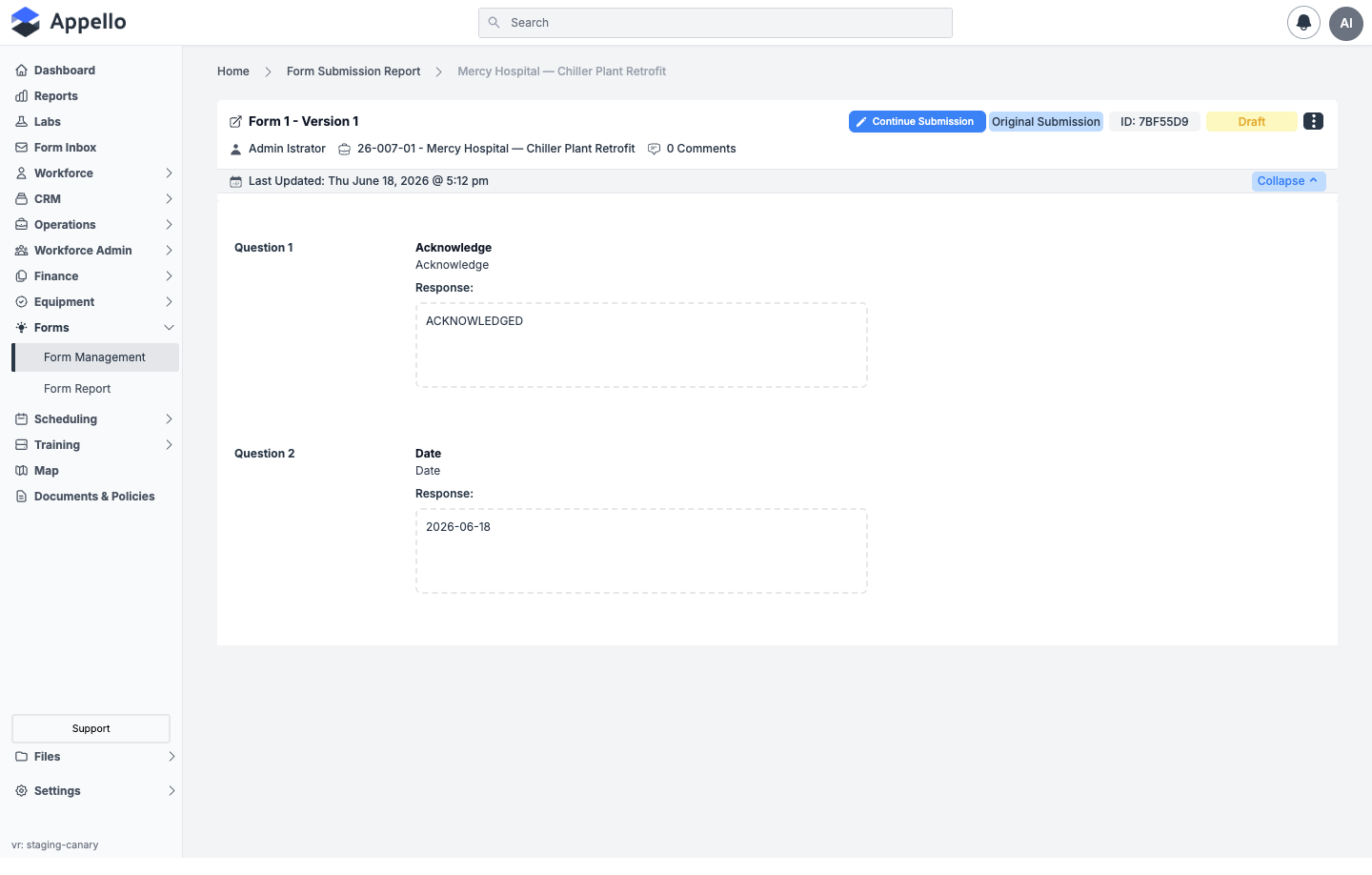
The demo instance only has one seeded submission to open (a Draft -- a worker started it but hasn't submitted it yet), so this screenshot doesn't show the signatures, pass/fail banner, or failed-questions panel that appear on a completed submission. Those are described below without a screenshot.
Header and actions
| Element | Shows / does |
|---|---|
| Title | The form's name and the form version it was filled out on, e.g. "Form 1 - Version 1" (see Version and audit info). |
| Continue Submission / Update Submission | Edit button. Reads "Continue Submission" for your own draft, "Update Submission" for a filled submission. Requires Form Submission → Edit, and only appears for your own draft or the most recent version of a submission. |
| Original Submission / Revision N badge | Which point in the submission's edit history this is -- see Version and audit info. |
| ID: ###### badge | The submission's short ID. Links to this page's own URL. |
| Signatures badge (e.g. "1 / 2 Signatures") | Signed vs. required signers, once the form has a result (hidden on a Draft). |
| Status badge | Draft / Pass / Fail / Resolved -- see Answers and results. |
| ⋮ settings menu | Every other action -- table below. |
| Submitter, job, comment count | Shown under the title: who filled it out (links to their user page), the job it's tied to (links to the job), and the number of answer comments on the submission. |
| Last Updated / Date Submitted | Timestamps in the strip under the header -- see Version and audit info. |
| Collapse / Expand | Folds the whole answers panel, leaving just the header strip. |
The ⋮ settings menu
| Action | Required permission | Effect |
|---|---|---|
| Add Signatories | Form Submission → Assign | Opens the members picker to add more required signers to this submission. |
| Update Job | Form Submission → Update Job | Reassigns the submission to a different job -- see Changing the job. |
| View on map | -- (shown only when the submission has a GPS location) | Opens Google Maps at the coordinates the submission was recorded at. |
| Share Public Link | Form Submission → Share Public Link | Generates a no-login link to this submission -- see Sharing a public link. Disabled if the form is marked as containing private/sensitive data (unless you're already viewing through a public link or a guest account). |
| Email Submission | Form Submission → Share Public Link (the same permission, not a separate one) | Emails a secure download link for this submission -- see Emailing the submission. |
| Export | -- (always available; also shown directly in the header for a guest/public viewer) | Downloads the submission as a PDF via the same export-settings panel described in Emailing the submission. |
| Archive | Form Submission → Archive | Removes the submission from the active list without deleting it. Confirmation dialog shows the form ID, form name, who submitted it, and the submission date. |
| Restore | Form Submission → Restore | Brings an archived submission back to the active list. |
| Delete | Form Submission → Delete | Permanently deletes the submission. Only shown once it's archived; a confirmation asks you to type the record count to proceed. |
Answers and results
Each question renders as a row: its number, name, description, and its answer under Response:. The table below is how each question type displays once answered (read-only, not mid-edit):
| Question type | How the answer displays |
|---|---|
| Text | Plain text. |
| Number | Plain text. |
| Date | Formatted date (your instance's date format). |
| Time | Formatted time (hh:mm am/pm). |
| Person | The selected person's name (or, if "Other" was chosen, that label plus the typed reason). |
| Equipment | The selected equipment's ID/serial and name. |
| Boolean / Pass-Fail / Multiselect | Each choice as a pill; the selected one(s) highlighted -- green if it counts as a passing answer, otherwise colored to flag it. |
| Acknowledgement | The choice's configured label (default "Acknowledge"), shown as a completed button. |
| Signature | The signer's name (parsed from the answer); the signature image itself appears with the question's attached files, below the response. |
| Risk Assessment | Each assessment entry's Task, Hazards, Hazard Photo(s), Risk Rating, and Control, listed under "Assessment #N". |
| Photo / File (Asset answers) | No inline text -- the uploaded photos/files appear as a thumbnail grid directly under the response, via the same attached-file viewer used for signatures. |
Required questions: a red left border and "This is a mandatory question." only appear while someone is actively editing and has tried to submit with it blank. Once a submission is saved, an unanswered optional question just shows no response -- there's no persistent "required" marker on a completed view.
Repeatable sections: a section question marked repeatable (and, separately, a repeatable Signature question) can be filled out more than once. Each repetition renders as its own "Entry N of M" (or "Signature N") block with its own child answers, in the order they were added. More than 10 entries paginate, 10 per page, with Previous / Next controls.
Final result: the status badge in the header reads Draft until the submission has a result, then Pass, Fail, or Resolved. A Fail result adds a Failed Questions panel above the answers (click a question to jump to it) and a Resolve Failed Submission button; resolving it moves the badge to Resolved and adds a "Resolved by" card recording who resolved it and what they wrote. This workflow is fully documented in Form Inbox → Resolving a Failed Submission; it isn't repeated here, since the submission used for this page's screenshots is a Draft and never reached a Pass/Fail result.
Acknowledgements and signatures
Once a submission has a result (i.e. it's no longer a Draft), a Signatures section lists:
- Originator -- whoever filled out the form, always shown first.
- Signatories -- everyone else required to sign off, most recently signed first.
Each one is a card showing their name, avatar, trade level/position, a green check (signed) or red X (not yet signed), when and where they signed (with a link to view that location on a map, if captured), and any comment they left with their signature. If you're a required signer and haven't signed yet, an Add Signature button opens a modal with:
| Field | Required | Type | Effect |
|---|---|---|---|
| Signature Details | No | Rich text (mentions supported) | A written note attached to your signature. |
| Supporting Documents | No | File upload | Attachments filed against your signature specifically. |
| Enter Employee Pin # | Yes | Password (5 digits, Show/Hide) | Your PIN stands in for a handwritten signature. |
| Sign & Save | -- | Button | Records the acknowledgement. Disabled until a 5-digit PIN is entered. |
A signatory who hasn't signed yet can also be removed via a ⋮ → Delete Signatory menu on their card, which requires typing their name to confirm.
Whether a form has a Signatures step at all, and whether recipients get notified before or only after every signature is collected, are configured on the safety form template, not on any one submission -- Is Acknowledgeable and Skip Acknowledgement Step, in Form Builder & Management. If the form has Skip Acknowledgement Step turned on, or it isn't set to send its notification email only after every signature is in, Appello emails the form's recipients as soon as it's submitted rather than waiting on signatures.
Version and audit info
Form version -- the header title ("Form 1 - Version 1") names which version of the safety form template was active when this submission happened. Editing the form later doesn't change what earlier submissions say they were filled out against.
Submission revision -- a submission can be edited after the fact (via Update Submission or Update Job, both of which clone it into a new record rather than overwriting the old one). The badge next to the title tracks which point in that history you're looking at: Original Submission for the first version, Revision 1, Revision 2, and so on for each edit after that.
Audit fields on the page: the submission's short ID, Date Submitted (once it has a result), and Last Updated timestamp, both shown under the header. There's no separate audit-log tab on this page -- these timestamps, the revision trail above, and each answer's own comment thread are what this page surfaces; anything beyond that (e.g. who else viewed it) isn't exposed in this UI.
Sharing a public link
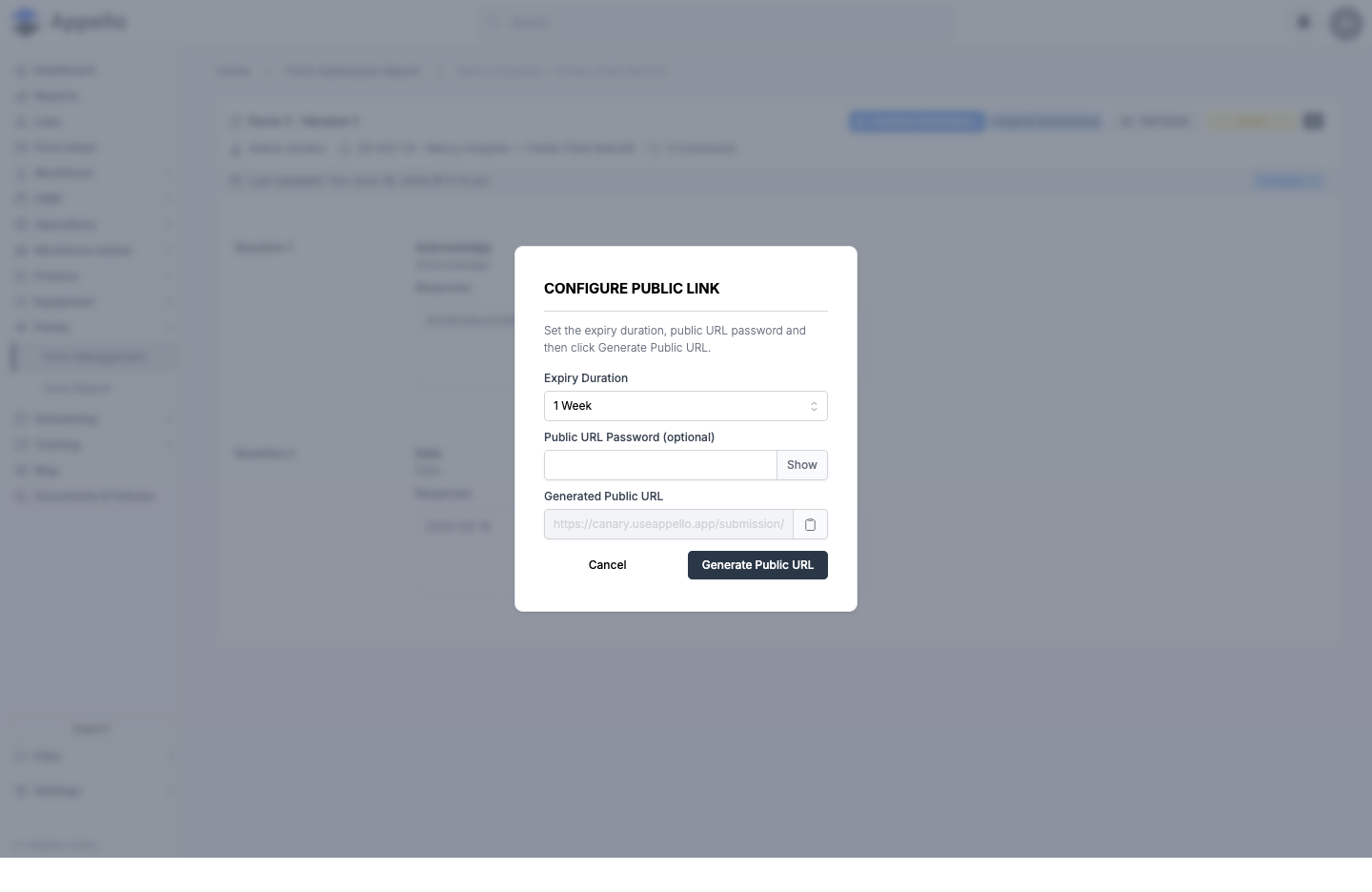
| Field / Control | Required | Type | Effect |
|---|---|---|---|
| Expiry Duration | Yes | Select (1 Day / 3 Days / 1 Week / Never) | How long the generated link stays valid. Defaults to 1 Week. |
| Public URL Password | No | Password (Show/Hide) | If set, anyone opening the link must enter it before the submission renders. |
| Generated Public URL | -- | Read-only, with a copy button | The finished /submission/[id] link, filled in after you generate one. |
| Generate Public URL | -- | Button | Mints the link, copies it to your clipboard automatically, and fills the field above. |
Changing the expiry duration or password after generating a link clears the previously generated URL, so you'd click Generate Public URL again for a fresh one. Appello doesn't email this link for you -- you copy and send it yourself through whatever channel you choose. What the recipient sees is documented in Email Links and Public Pages → Shared form submission.
Emailing the submission
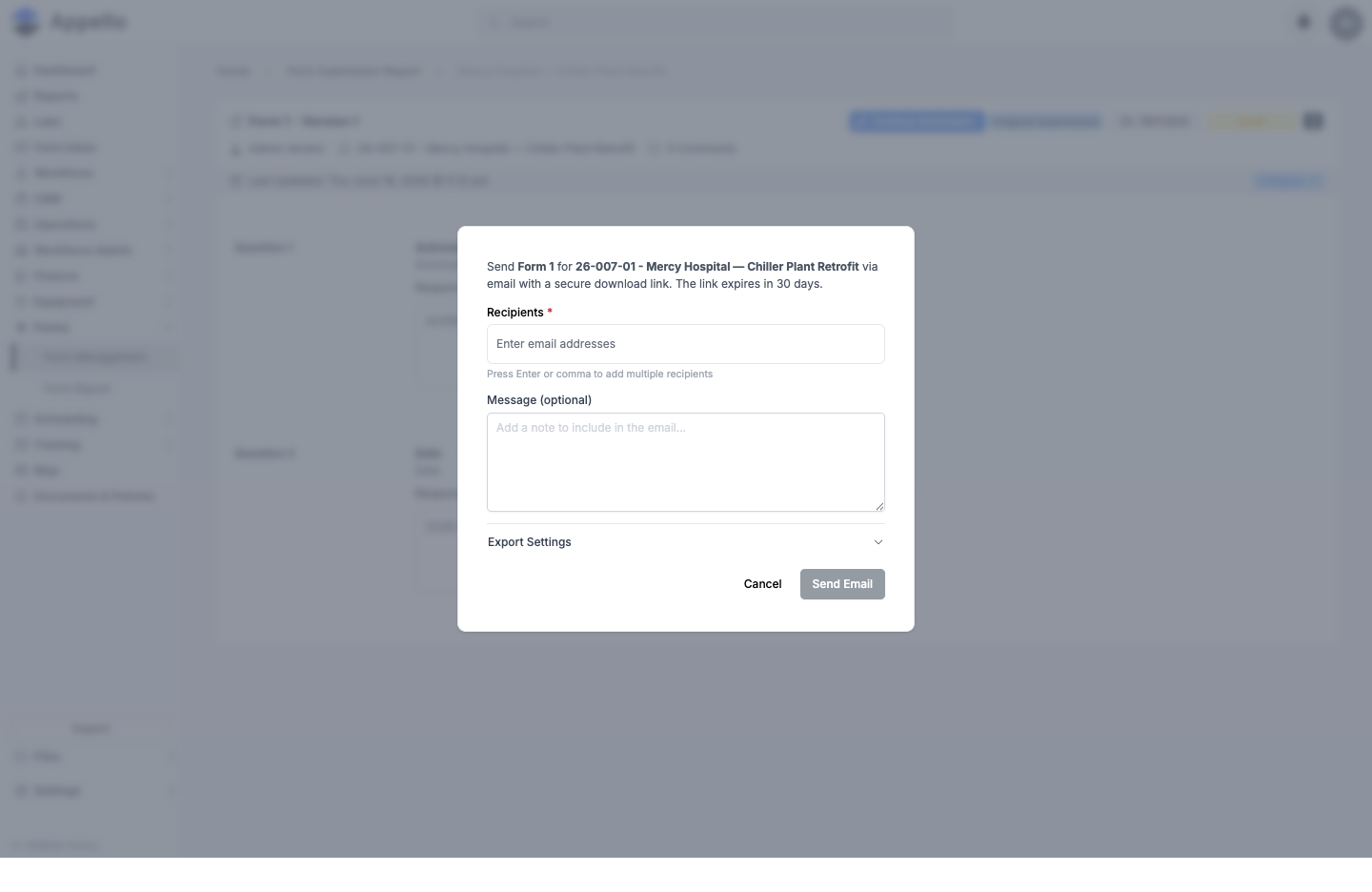
| Field / Control | Required | Type | Effect |
|---|---|---|---|
| Recipients | Yes | Email input (multiple) | Type an address and press Enter or comma to add it; repeat for more recipients. |
| Message | No | Textarea | An optional note included in the email body. |
| Export Settings | No | Collapsible section | The same hide-result / hide-description / final-result-only / pictures / attached-files / per-question options used by the PDF export -- see below. |
| Send Email | -- | Button | Sends each recipient a secure download link. The link expires 30 days after it's sent. |
Export Settings, shared by Email and Export:
| Option | Effect |
|---|---|
| Hide Result | Omits the Pass/Fail/Resolved result from the exported document. |
| Hide Description | Omits each question's description text. |
| Include Only Final Result | Exports just the overall result, not the individual answers. |
| Include all pictures | Includes every photo attached to the submission; otherwise you pick specific ones. |
| Include attached files | Includes non-photo file attachments, when the submission has any. |
| Customize Questions | Choose specific questions to include or exclude from the export. |
Changing the job
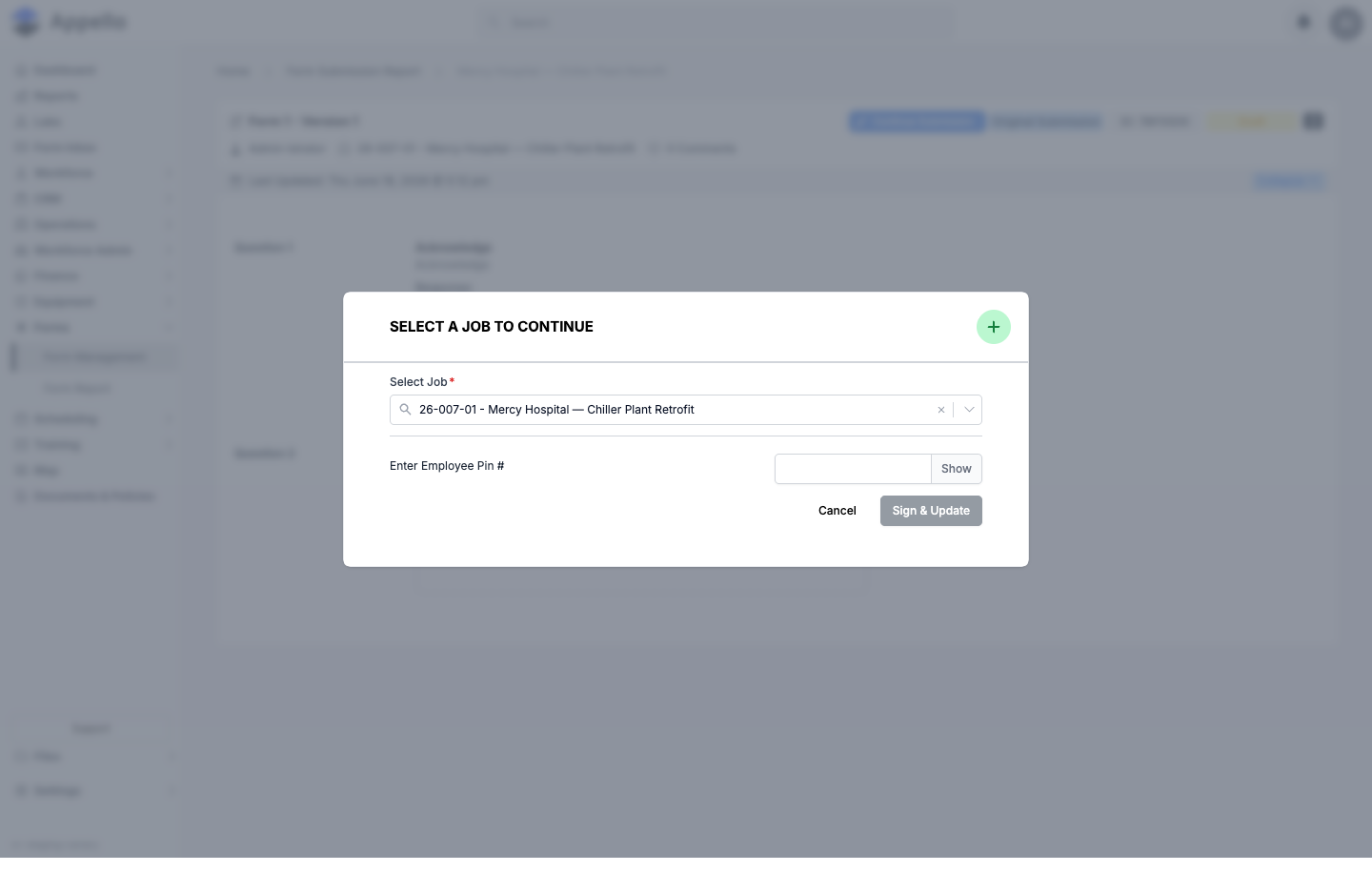
| Field / Control | Required | Type | Effect |
|---|---|---|---|
| Select Job | Yes | Job search/combobox | Pre-filled with the submission's current job; pick a different one to move the submission to it. |
| Enter Employee Pin # | Yes | Password (5 digits, Show/Hide) | Your PIN confirms the change. |
| Sign & Update | -- | Button | Clones the submission onto the new job as a new revision (see Version and audit info) and takes you to that revision. Disabled until a valid 5-digit PIN is entered. |
Starting a submission from the desktop
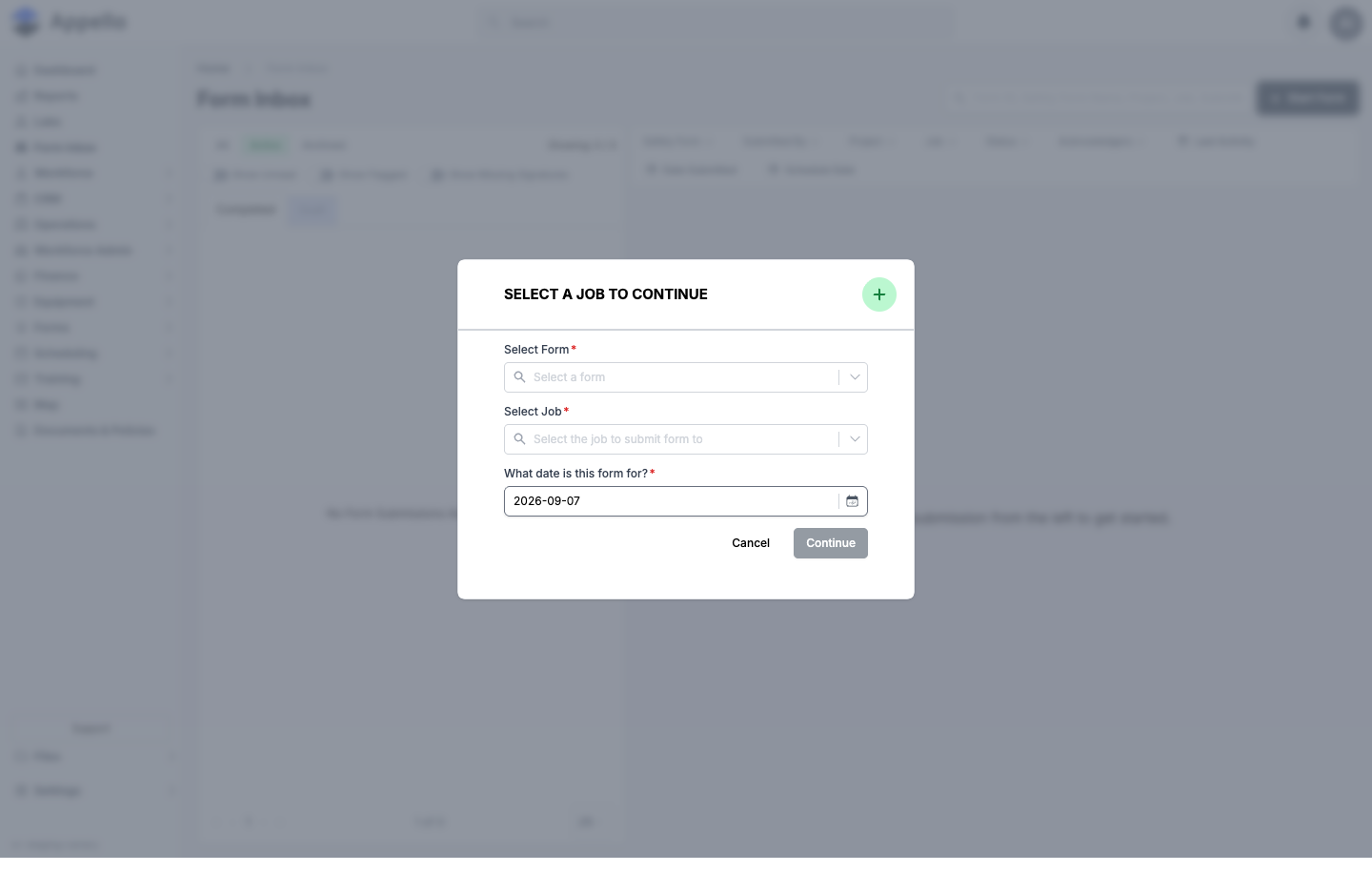
Office staff can start a form submission on a worker's behalf, without waiting for the field
crew to open it themselves. This is launched only from
Form Inbox's + Start Form button
(Sidebar → Form Inbox, gated by Form Submission → Create) -- it is not available from the
safety form's own Form Management pages.
| Field / Control | Required | Type | Effect |
|---|---|---|---|
| Select Form | Yes | Form search/combobox | Which safety form to start. If the form is restricted to specific people or groups and you aren't one of them, a warning appears and Continue stays disabled. |
| Select Job | Yes | Job search/combobox | The job the submission is filed against. |
| What date is this form for? | Yes | Date | The schedule date recorded on the submission. Defaults to today. |
| Continue | -- | Button | Creates a Draft submission and opens it in the edit flyout to fill out. |
What the customer sees via the public link
A generated public link (/submission/[id]) opens a plain, logged-out page with just the
Appello logo and the read-only submission -- the same answers, photos, and signature status
described above, with no access to the rest of your Appello instance. If a password was set,
the visitor is prompted for it first; an invalid or expired link shows a plain 404, not a
branded "link expired" page. Full details, including the exact fields on both the internal
share dialog and the public page itself, are documented in
Email Links and Public Pages → Shared form submission --
written and screenshotted in that page's own pass over the site rather than repeated here.
Permissions summary
| Permission | Controls |
|---|---|
| Safety Form → View | Reaching this page in practice, via the safety form's own pages (see Where it is). |
| Form Submission → View | Seeing submissions at all in the report/inbox views that link here. |
| Form Submission → Edit | The Continue Submission / Update Submission button. |
| Form Submission → Assign | Add Signatories. |
| Form Submission → Update Job | Update Job. |
| Form Submission → Share Public Link | Share Public Link and Email Submission (both gated by this one permission). |
| Form Submission → Archive | Archive. |
| Form Submission → Restore | Restore. |
| Form Submission → Delete | Delete (only offered once a submission is archived). |
| Form Submission → Create | The + Start Form button that opens Starting a submission from the desktop. |
A safety form marked as containing private/sensitive data additionally disables Share Public Link for anyone viewing it as a regular internal user (it stays available if you're already viewing through a public link or a guest account).
Related pages
- Form Inbox -- the list/detail view this page's content also appears inside, plus filtering, statuses, and the resolve-a-failure workflow
- Form Builder & Management -- build forms, and configure Is Acknowledgeable, Skip Acknowledgement Step, and restricted-form visibility
- Form Report -- company-wide form submission analytics
- Email Links and Public Pages -- every no-login link Appello sends, including the shared-submission public page and the emailed PDF download link