AI Note Enhancement
Appello's note editor includes a Rewrite with AI control that can clean up a rough field note in place -- rewriting it in a more professional tone, or translating it. It is the same general-purpose AI control used on other rich-text fields across the app (for example, document templates), not a note-specific engine. For the notes feature itself -- creating notes, tagging people, replying, attachments, and visibility -- see Job Notes, Photos & Activity Feed.
How It Works
From the Desktop
-
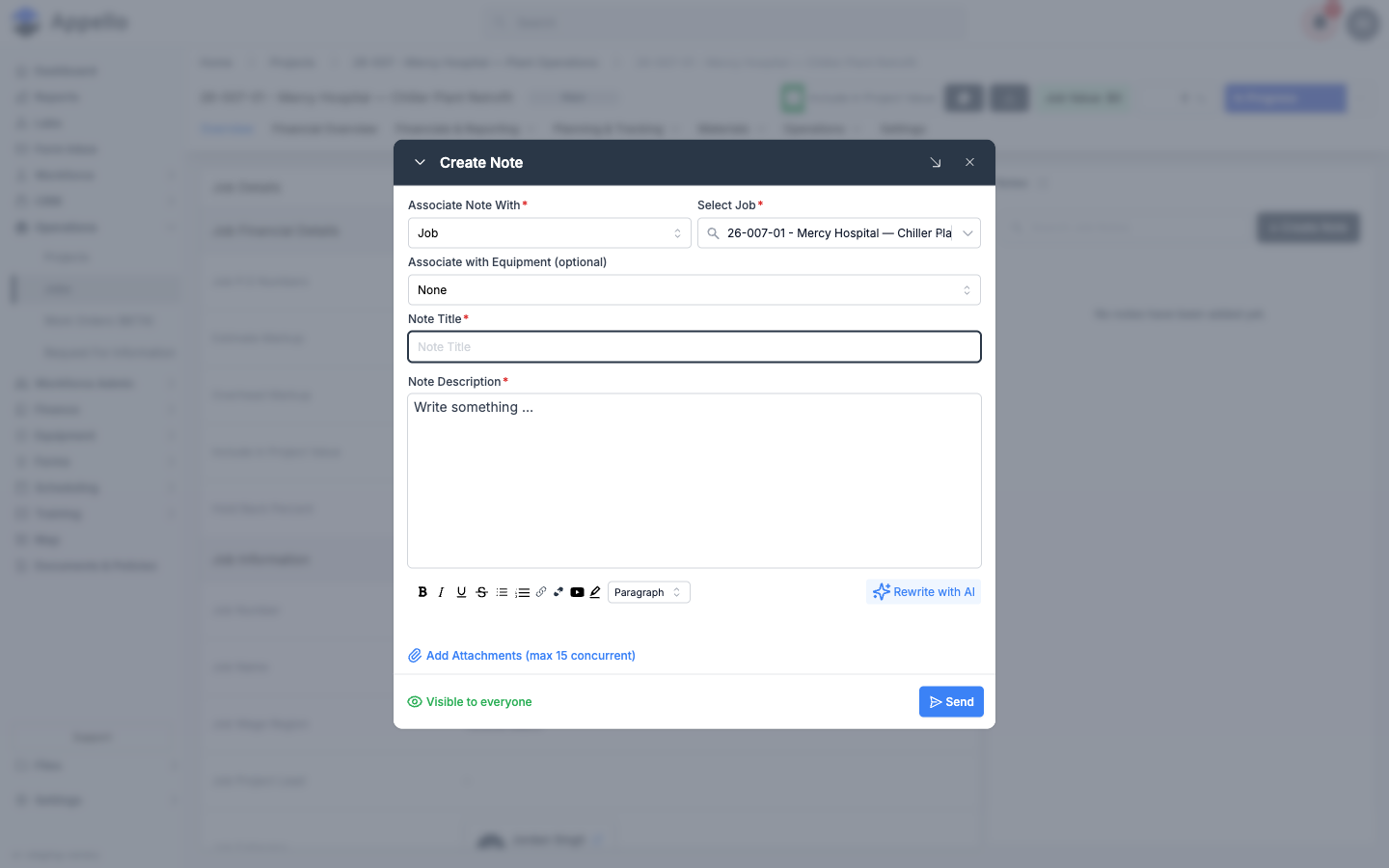
Open a job's Overview tab and use the Notes panel to click + Create Note, or open an existing note to edit it.
-
In the Note Description field, click Rewrite with AI in the formatting toolbar below the field.
-
Choose one of four options from the menu: Rewrite to be more professional, Translate to French, Translate to Spanish, or Translate to English.
-
Rewrite to be more professional shows the result in a small preview panel below the field, with a checkmark to accept it, an X to discard it, and a Try again link to re-run it. Nothing in the field changes until you accept.
-
The three translate options apply directly to the field instead of showing a preview -- see What the AI Preserves below for what that means for your original text.
-
Click Send (or save the note) as usual.
If you select part of the note before choosing an option, only the selected text is sent as context. With nothing selected, the whole field's current text is used.
From the Mobile App
This section is based on the mobile application's source code, not a live screenshot -- this pass did not crawl the mobile app. The note composer in that source uses the same rich-text editor and the same Rewrite with AI control described above for desktop, including the same four options. No separate mobile-only "AI enhancement" step, and no step where a note must be saved before a rewrite can run, was found in the source.
What the AI Does
The Rewrite with AI menu sends the field's text (or your selection) to an AI service along with one of four fixed instructions:
| Menu option | Instruction sent to the AI |
|---|---|
| Rewrite to be more professional | Rewrite the text in a more professional tone |
| Translate to French | Translate the text to French |
| Translate to Spanish | Translate the text to Spanish |
| Translate to English | Translate the text to English |
Every option also carries the same underlying instructions, per the application's prompt template: reply in Markdown, preserve any links, styles, and formatting already in the text, do not include images or HTML tags, and return only the rewrite or translation itself with no added commentary.
The application source has no logic specific to trade terminology, measurements, safety language, or job data -- these four options and this same prompt are used everywhere the Rewrite with AI control appears, including on document templates and other rich-text fields, not only on notes.
What the AI Preserves
- Formatting, links, and styles already in the text -- the prompt explicitly instructs the AI to keep these.
- Attachments -- photos and files are a separate upload control outside the text field, so rewriting or translating the description does not touch them.
- Author and timestamp -- these are properties of the note record itself, not the text field, and are unaffected by editing the field's content.
What it does not do:
- There is no record of "before" and "after" text being saved as two separate versions. For Rewrite to be more professional, accepting the suggestion replaces the field's text -- rejecting it (or not accepting) leaves the original untouched, but nothing keeps both once you accept.
- For the three translate options, if no text is selected, the app inserts a horizontal rule and streams the translation in below it -- your original text stays above the rule rather than being replaced. If you select text first, that selection is what gets sent and replaced.
- Nothing in the source checks the rewritten text for technical accuracy or flags safety content specially -- the AI is only asked to rewrite or translate, with no domain-specific review step.
Voice-to-Text + AI
A search of the mobile application's source for speech-to-text or voice-to-text functionality found none. Note creation in that source is typed text only; there is no dedicated voice-to-text-plus-AI-cleanup flow like the one previously described on this page. (Phone keyboards generally offer their own OS-level dictation, but that is a device feature, not something Appello's mobile app implements or connects to AI cleanup.)
Related Pages
- Job Notes, Photos & Activity Feed -- creating notes, tagging, replies, attachments, and visibility
- Appello Intelligence Overview -- all AI capabilities, including the same Rewrite with AI control used elsewhere in the app